What's inside
- Key Takeaways
- Quick Picks
- How did we choose laptops for legal study?
- What does a law student’s working day ask of a laptop?
- Why do law students not need a powerful graphics card?
- Which laptops suit the reading, writing and research of a law degree?
- How should a law student set up a laptop for research and writing?
- How much does screen quality really matter for reading law?
- What does a law student need for mooting, placements and vacation schemes?
- How should you organise cases, statutes and essays across four years?
- MacBook Air or Windows: which ecosystem serves a future lawyer better?
- A last word on buying once for the whole degree
- One more consideration: reading on paper versus reading on screen
- How do the six law picks compare side by side?
- What mistakes do law students make when buying a laptop?
- Final Recommendation
- Frequently Asked Questions
- Related Guides
As an Amazon Associate I earn from qualifying purchases. This post may contain affiliate links at no extra cost to you.
widgetverdict.com is reader-supported. When you buy through links on our site, we may earn an affiliate commission.
Where to buy: all six laptops below are listed on Amazon, and they split into two Apple machines, three Windows laptops at gentler tiers, and one business-grade ThinkPad, so the shortlist covers everything from a featherweight library companion to a 17-inch reading desk.
Law is a reading degree wearing a professional costume. The best laptops for law student life are not the most powerful machines on the market, and this guide will not pretend otherwise: no casebook, database or word processor has ever needed a gaming graphics card. What legal study demands, hour after hour, is a screen that stays kind during a ninety-page judgment, a keyboard that survives the essay output of an entire degree, and a battery that treats a full day of lectures, library and moot practice as a single shift. Buy for those three things and the laptop disappears into the work, which is the highest compliment legal equipment can earn.
The workload has a specific shape worth naming. Research lives in browser databases — Westlaw, Lexis, HeinOnline — with dozens of tabs holding cases you intend to read properly later. Writing lives in long documents with footnotes, citations and tracked changes from supervisors. Reading lives in PDFs of judgments and articles that reward screen height and text clarity far more than screen spectacle. Portability matters because law students study everywhere: the law library at midnight, a café between seminars, a courtroom gallery on a placement, a train home with a brief half-drafted.
So this shortlist ranks by endurance, legibility and typing feel, with weight as the tiebreaker. Two MacBook Airs bring the strongest battery-and-display combination in the class. The Dell XPS 13 is the Windows featherweight. A large ASUS and a modest Lenovo serve students who read at a desk or buy on a strict budget, and a ThinkPad E16 covers the student who wants business-grade durability and a big screen for chambers-style work. None of them wastes money on graphics power a law degree will never switch on.
Key Takeaways
- Legal study rewards battery life, screen legibility and keyboard quality — in that order — and none of the six picks spends your money on a gaming graphics card.
- Both MacBook Airs lead on endurance and display quality; the 15-inch model trades a little portability for noticeably easier split-screen reading.
- The Dell XPS 13 is the Windows lightweight at 2.2 pounds with battery life quoted up to 17 hours, though its 8GB of memory is its one real compromise.
- Big screens help desk-based readers: the 17.3-inch ASUS Vivobook shows a judgment and your notes side by side without squinting.
- Cloud-backed storage suits law well — documents are small — so the Lenovo’s modest local drive plus cloud allocation is more workable here than in any other degree.
Quick Picks
| Pick | Badge | Why it earns its place |
|---|---|---|
| Apple MacBook Air 13-inch with M5 Chip | The library endurance champion | Apple silicon efficiency, a 13.6-inch Liquid Retina display and 16GB of memory in the machine most likely to survive a whole library day unplugged. |
| Apple MacBook Air 15-inch with M5 Chip | The split-screen reader | The same M5 efficiency and 16GB of memory under a 15.3-inch Liquid Retina screen that fits a judgment and your notes side by side. |
| Dell XPS 13 2026 Laptop | The Windows featherweight | Just 2.2 pounds, battery life quoted up to 17 hours and a 13.4-inch 120Hz touchscreen — the lightest Windows route into a law degree. |
| Lenovo IdeaPad Slim 3i with Intel N150 | The budget pragmatist | A 15.6-inch FHD screen, Microsoft Office included and a cloud-assisted storage setup at the gentlest tier in this guide. |
| ASUS Vivobook 17 with Core 3 | The reading desk | A 17.3-inch FHD display that shows a full judgment beside your essay, in a quiet, desk-friendly Windows machine. |
| Lenovo ThinkPad E16 Gen 2 | The practitioner’s choice | A 16-inch 1920×1200 IPS screen, an Ultra 7 155H and a business-grade ThinkPad build for the student already thinking like a trainee. |
How did we choose laptops for legal study?
We started by deleting the usual laptop-buying criteria. Processor leaderboards, graphics benchmarks and gaming credentials were set aside, because a law student’s heaviest routine task is a browser carrying legal databases beside a word processor carrying a long essay. In their place we ranked the things legal work actually consumes: hours of battery across a teaching day, screens that render dense text cleanly at small sizes, keyboards that stay comfortable across a five-thousand-word essay, and chassis light enough to be carried to every seminar without negotiation.
Storage and memory were judged against legal reality rather than general advice. Documents are tiny; a whole degree of essays, case notes and PDFs occupies less space than one engineering project. That is why a 512GB drive is ample here and why even the cloud-assisted Lenovo earns its place. Memory matters only up to the point where forty research tabs and a word processor coexist happily — 16GB does that with room to spare, and we flag the two 8GB machines honestly as adequate for documents while tighter for tab-heavy research habits.
Finally we considered the professional horizon. Law students become trainees who live in email, documents and video calls, often on machines expected to look the part in a client meeting or a court building. Every pick here is presentable in that world, and the two business-leaning machines — the XPS and the ThinkPad — are there for students already thinking like practitioners.
What does a law student’s working day ask of a laptop?
Picture the day honestly. A morning lecture with slides to annotate and a case list to check. A library stretch where a judgment runs to ninety pages and the ratio of reading to writing is five to one. A seminar where the laptop presents your argument’s skeleton while you defend it aloud. An evening essay session where the document grows footnotes the way a garden grows weeds, and the citation software earns its keep. Nothing in that day stresses a processor; everything in it stresses eyes, wrists and battery.
Research deserves a closer look because it shapes the screen and memory choices. Legal databases are websites, but they are heavy, session-based websites, and a research session accumulates tabs the way a desk accumulates paper — the case you are reading, the commentary on it, the statute it interprets, the journal article criticising both. A comfortable machine keeps that sprawl open without reloading pages and losing your place, which is a memory and battery question far more than a speed question. Split-screen reading — judgment on one side, your notes on the other — is the single most repeated layout in legal study, and it is why screen size and resolution recur throughout this guide.
There is also the mooting and placement layer. Moot court, mini-pupillages, vacation schemes and pro bono clinics all involve presenting, note-taking in unfamiliar rooms, and video calls with supervisors. A light machine with a decent camera and a battery that does not demand the one socket in the room is worth more in those settings than any specification that wins a benchmark.
Why do law students not need a powerful graphics card?
Because nothing in the degree draws anything complicated. Word processors render text, databases render web pages, PDF readers render documents, and video calls render faces — an integrated graphics chip handles all of it without waking up, which is why every pick in this guide uses integrated graphics and spends the money on screens, batteries and build instead. The student who buys a gaming laptop for law school has purchased heat, weight, fan noise and a battery penalty in exchange for capability the syllabus will never request.
The savings logic runs the other way too. Money not spent on graphics can buy the upgrades legal study actually feels: a larger or sharper screen for reading, a lighter chassis for the daily carry, a bigger battery for the library, or simply a lower total that leaves room for the casebooks, databases and formal shoes the degree demands elsewhere. This is also why the price ladder in this guide is gentler than in our engineering round-up — law is one of the few degrees where the honest recommendation really can be the lighter, calmer machine.
One exception deserves naming for completeness: the student who also games, edits video or creates content outside the degree is buying a personal machine as well as a study machine, and should read our other guides with those hobbies in mind. Within the four corners of legal study itself, though, the verdict is settled — integrated graphics, excellent screen, long battery, good keyboard, light bag.
Which laptops suit the reading, writing and research of a law degree?
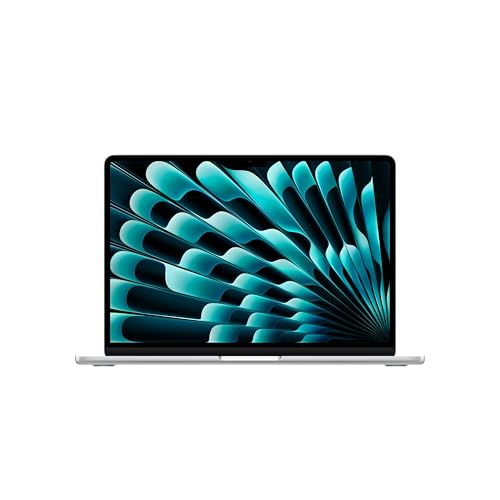
Apple MacBook Air 13-inch with M5 Chip — The library endurance champion
Law libraries are quiet places with contested sockets, and the 13-inch MacBook Air is built for exactly that ecosystem. Its fanless design means it never intrudes on the silence, its battery treats a day of lectures and reading as a warm-up, and the Liquid Retina panel renders small print — the footnotes of a judgment, the subsections of a statute — with a crispness that cheaper screens smudge. Sixteen gigabytes of memory keeps a research session’s worth of database tabs open beside your essay without the page reloads that lose a reader’s place.
The keyboard and trackpad complete the studying argument. Legal writing is volume writing, and the Air’s keyboard is the one students consistently type dissertations on without developing opinions about keyboards — the surest sign of a good one. At 13 inches the machine slips into the smaller bags law students actually carry, alongside the casebook that already weighs enough for two laptops, and it presents perfectly in a chambers or court setting when placements arrive.
Its limits are the familiar Apple ones, stated plainly: storage and memory are fixed at purchase, and 512GB — ample for documents — assumes your photo and video life lives elsewhere or in the cloud. For the degree itself, though, this is the complete package: the machine to buy if the budget allows one excellent laptop and four years of not thinking about it again.
A further practical note for law students: the Air’s instant wake and reliable sleep behaviour suit the stop-start rhythm of legal study better than any benchmark. Seminars, tutorials and library sessions are full of ninety-second consultations with the machine — check the citation, confirm the section number, glance at the argument plan — and a laptop that is simply always ready shapes those moments invisibly. Over four years, that readiness compounds into a feeling owners describe as the machine never being in the way, which for a reading degree is the entire job description written in one sentence.
- Display: 13.6-inch Liquid Retina
- Processor: Apple M5 chip
- Memory: 16GB unified memory
- Storage: 512GB SSD
- Design: fanless and silent
Strengths
- Battery endurance built for full library days away from sockets
- Liquid Retina text clarity suits footnotes, statutes and dense judgments
- Silent fanless running respects the law library’s atmosphere
Trade-offs
- Memory and storage are fixed forever at the moment of purchase
- 512GB assumes documents, not a large local media library
- macOS may differ from a firm’s Windows setup on placement — easily adapted to, worth knowing
Best for: law students who study in libraries and on the move, and who want the strongest reading-and-endurance package in a light chassis.
Not suited for: students who need Windows-only software for a part-time legal job.
Review the MacBook Air’s price on Amazon for the 13-inch M5 configuration, and compare it with the 15-inch version below before deciding which screen your reading habits deserve.

Apple MacBook Air 15-inch with M5 Chip — The split-screen reader
Everything the 13-inch Air does well, this machine does on a larger canvas, and for legal reading the canvas is not a luxury. A 15.3-inch screen holds a judgment PDF at readable size on one half and your own document on the other, which is the defining layout of legal study — source and argument, side by side, no window-shuffling. Statute sections stop wrapping awkwardly, spreadsheets of authorities breathe, and the second monitor many students eventually buy becomes an option rather than a rescue purchase.
The rest of the formula is unchanged, deliberately. The M5 chip delivers the same silent, fanless running and the same long unplugged endurance, because Apple did not make the bigger Air a more powerful machine so much as a more spacious one. Sixteen gigabytes of memory supports the tab-heavy research style legal databases encourage, and the 512GB drive remains comfortably oversized for a document-based degree. The weight rises compared with its smaller sibling, but it stays firmly in the carry-all-day class rather than the desk-anchored one.
Choose between the two Airs by where you study. The café-and-library roamer who works in borrowed chairs should take the 13-inch and its smaller footprint. The student who studies at a desk or a library carrel and reads for hours in split screen will feel the 15-inch panel paying rent every single day, and for that student this is the finest law laptop in the guide.
The larger Air also handles the video dimension of modern legal education gracefully: recorded lectures, online advocacy exercises and remote moots all benefit from a screen that gives faces and shared documents room, and its speakers and camera sit comfortably in the class’s upper tier. Students whose courses include online components — increasingly, all of them — will use that side of the machine weekly. It remains, for all its size, a genuinely portable computer rather than a desk ornament, and that combination of presence and portability is precisely what its modest premium over the 13-inch model is buying.
- Display: 15.3-inch Liquid Retina
- Processor: Apple M5 chip
- Memory: 16GB unified memory
- Storage: 512GB SSD
- Design: fanless and silent
Strengths
- 15.3-inch screen makes judgment-plus-notes split reading genuinely comfortable
- Same silent efficiency and endurance as the 13-inch model
- 16GB memory keeps heavy legal-database sessions open without reloads
Trade-offs
- Larger footprint needs a bigger bag and more desk in crowded lecture rows
- Storage stays at 512GB — fine for law, fixed for everything else
- Costs more than the 13-inch for space rather than speed
Best for: desk- and carrel-based law students who read in split screen for hours and want Apple endurance with room to breathe.
Not suited for: students who work mainly in cafés and trains, where the smaller Air fits better.
Weigh the current price on Amazon against the 13-inch listing above; the difference buys screen space, and your reading posture should make that call.

Dell XPS 13 2026 Laptop — The Windows featherweight
Two point two pounds changes a student’s relationship with their laptop. At that weight the XPS 13 stops being equipment and becomes a possession — something slipped into a bag beside the casebook without a second thought, carried to the evening seminar, the moot practice and the train home as casually as a notebook. Dell pairs that lightness with battery life quoted up to 17 hours, a figure real-world days will trim but which still describes a machine designed to be charged at night and trusted all day. For a Windows-loyal law student, this is the flagship argument.
The 13.4-inch touchscreen runs at 120Hz, which sounds like a gaming statistic and behaves like a reading luxury: scrolling through a long judgment feels fluid rather than stepped, and touch makes annotating slides and marking up PDFs a finger’s work. The XPS line’s build quality also carries professional weight — this is a laptop that will look entirely at home on a vacation scheme or in a client’s meeting room, which matters more in law than in most degrees.
The compromise must be stated without varnish: 8GB of memory is the minimum a modern degree should accept. Documents, databases and video calls run fine, but the tab-hoarding research style described earlier in this guide will test it sooner than the 16GB machines here, and the figure cannot be changed later. Buy the XPS for its weight and battery with eyes open about that ceiling, and it will serve a document-based degree beautifully.
Students should also know the XPS’s party trick for library life: at 2.2 pounds with a charger that is itself compact, the whole travelling kit weighs less than many rivals’ laptops alone. On a day split between two campuses or between university and a part-time paralegal job, that total is the figure your shoulders will vote on. The 120Hz panel’s smoothness, meanwhile, quietly reduces the stepped, juddering scroll that makes long PDFs tiring on lesser screens — a reading comfort that sounds like a gaming specification and behaves like an ergonomic one. Lightness plus legibility is a rare pairing, and it is this machine’s whole case.
- Display: 13.4-inch 120Hz touchscreen
- Processor: Intel Core 5 320
- Memory: 8GB RAM
- Storage: 512GB SSD
- Weight: 2.2 lbs
Strengths
- 2.2-pound chassis is the lightest Windows option in this guide
- Battery quoted up to 17 hours supports genuine all-day unplugged study
- 120Hz touchscreen makes long-document scrolling and annotation pleasant
Trade-offs
- 8GB memory is the floor — heavy research-tab habits will feel it first
- 13.4-inch screen asks for care with split-screen reading layouts
- Premium lightness pricing buys portability rather than capacity
Best for: Windows-preferring law students who carry their laptop everywhere and value weight and battery above every other figure.
Not suited for: students who keep enormous research sessions open in dozens of tabs.
Look up the XPS 13 price on Amazon, and glance at the memory line once more while you are there — 8GB is this model’s one decision you cannot revisit.

Lenovo IdeaPad Slim 3i with Intel N150 — The budget pragmatist
Not every law student can or should spend flagship money, and the IdeaPad Slim 3i is the honest budget answer this guide owes them. Its virtues are practical ones. The 15.6-inch FHD screen is large enough for the split-screen reading layout legal study lives in. Microsoft Office is included, which removes a subscription decision from a student’s first month. And its storage arrangement — a modest 128GB local drive backed by a terabyte of cloud storage — suits law’s document-based workload better than it would suit almost any other degree, because essays and case notes are small files that sync happily.
The Intel N150 processor defines the expectations to set: this is a machine for documents, databases, email and video calls, and it performs those duties without pretension. What it will not do is feel swift under a pile of simultaneous demands, and a student who keeps forty tabs, a video lecture and a citation manager open at once will meet its limits socially often. Discipline — closing what you have finished, letting the cloud hold the archive — makes the machine work; the degree’s reading-and-writing core never truly strains it.
Buy it as the rational minimum: the laptop for the student whose budget is genuinely tight, whose work is genuinely document-shaped, and who would rather own a modest machine outright than finance a glamorous one. It also makes a sensible household second machine or a dedicated library laptop beside a desktop at home. Judged against its tier rather than against the MacBooks, it is a respectable piece of pragmatism.
There is a respectable argument that the IdeaPad is the most honest machine in this guide, because it makes no promise it cannot keep. It will not feel fast, and it does not pretend otherwise; it will open the judgment, hold the essay, join the call and survive the degree’s document workload at a price that leaves a student’s budget intact for the things law school actually charges for. Families buying for a first-year student whose commitment to the subject is still being tested — a real and common situation — will find that honesty especially valuable. A modest machine bought outright beats a flagship bought on hope in more households than marketing admits.
- Display: 15.6-inch FHD
- Processor: Intel N150
- Storage: 128GB SSD plus 1TB cloud storage
- Software: Microsoft Office included
- System: Windows 11
Strengths
- 15.6-inch FHD screen supports split-screen legal reading at a budget tier
- Microsoft Office included removes a first-month subscription cost
- Cloud-backed storage fits law’s small-document workload well
Trade-offs
- N150 processor is for documents and browsing, not heavy multitasking
- 128GB local storage depends on cloud habits staying tidy
- Build and keyboard are serviceable rather than delightful
Best for: budget-conscious law students whose work is reading, writing and research, and who keep their files organised in the cloud.
Not suited for: students who multitask aggressively or want a four-year flagship feel.
Verify the IdeaPad Slim’s price on Amazon and confirm the Office inclusion and cloud storage terms on the listing, since those two items carry much of this model’s value.

ASUS Vivobook 17 with Core 3 — The reading desk
Some law students do not roam. They have a desk, a lamp, a shelf of casebooks, and a working day that happens in one place — and for that student, screen size beats portability every time. The Vivobook 17’s 17.3-inch FHD display is the largest in this guide, large enough to read a judgment at full comfort on one side while the essay grows on the other, large enough that a table of authorities and the paragraph citing it never have to share a window. Reading fatigue is a real cost in a law degree, and this screen is a direct payment against it.
The Core 3 processor and 8GB of memory describe a calm, document-shaped performance profile: word processing, databases, PDFs and calls run as they should, while genuinely heavy multitasking sits outside the design brief. The 512GB SSD is properly sized for a document degree, with room for the local archive a cloud-sceptical student prefers to keep at home. ASUS’s ErgoSense keyboard line aims at comfortable typing, and in a machine bought for writing volume that aim matters more than any benchmark on its box.
Accept the trade knowingly: this is a laptop that travels between rooms rather than across cities, and its natural habitat is the desk it returns to each night. For the home-based reader — the distance learner, the student living at home, the one whose library is their own room — it offers the most reading comfort per pound of effort in the guide, and it will still be a fine family machine long after the degree ends.
The Vivobook’s size has one more beneficiary worth naming: the student who studies with printed and digital sources together. A 17.3-inch screen beside an open casebook on a proper desk is a workstation in the old sense — everything visible, nothing stacked — and students who revise by rewriting and cross-referencing will feel the calm of that arrangement nightly. The machine also moonlights respectably as a household media screen in shared homes, which spreads its cost across more of a family’s life than a dedicated study tool usually manages. Desk machines earn their keep by being present for everything, and this one is sized for presence.
- Display: 17.3-inch FHD
- Processor: Intel Core 3 100U
- Memory: 8GB RAM
- Storage: 512GB SSD
- Colour: Quiet Blue
Strengths
- 17.3-inch display is the most comfortable reading surface in this guide
- 512GB SSD keeps a full local document archive without cloud dependence
- Keyboard aimed at long writing sessions, which is the degree’s core activity
Trade-offs
- Size and weight suit a desk far more than a daily campus carry
- 8GB memory and Core 3 pace cap heavy multitasking ambitions
- Battery expectations should be set for room-to-room, not all-day, use
Best for: home-based and distance-learning law students who read and write at one desk and want maximum screen comfort.
Not suited for: students who study across campus and town all day.
Price the Vivobook 17 on Amazon today; at this tier the Vivobook’s value is its screen, so compare it against the Lenovo above by where you actually study.

Lenovo ThinkPad E16 Gen 2 — The practitioner’s choice
Every guide needs one machine for the student who thinks furthest ahead, and in a law list that machine is a ThinkPad. The E16 Gen 2 brings the business world’s default laptop into the degree: a 16-inch screen with the taller 1920×1200 shape that shows more of a document per glance, a keyboard with the deepest pedigree in legal offices, and Windows 11 Pro for the student whose vacation scheme or part-time paralegal work plugs into a firm’s systems. It looks like a trainee’s laptop because, in most respects, it is one.
Honesty about its specification is required, because this configuration is wildly more powerful than legal study needs: an Ultra 7 processor, 64GB of memory and 2TB of storage will not make a judgment load faster in any way a reader can feel. What that headroom buys instead is indifference — a decade of software updates, a browser carrying an entire research project, a second career’s worth of documents — without the machine ever becoming the slow part of the day. Students who keep laptops for six or seven years, or who share the machine with family or a side business, are the ones this overcapacity genuinely serves.
Buy it if durability, screen room and professional presence top your list and the budget is a secondary concern. The roamer should take an Air; the strict budget should take the IdeaPad; but the student who wants one serious Windows machine to carry from first lecture to training contract will find the E16 the easiest laptop in this guide to grow into a career with.
The E16’s professional case extends to a detail trainees learn quickly: docks and desks. Firms and chambers run on docking stations, spare monitors and shared peripherals, and a ThinkPad slides into that world as if it were designed there — because it was. A student who arrives at a vacation scheme already fluent in the business-laptop idiom has one less thing to learn under observation. Within the degree itself, the taller screen’s gift for documents has been praised above; add the keyboard’s suitability for the sheer tonnage of legal typing, and the E16’s premium resolves into a coherent argument rather than a specification splurge.
- Display: 16-inch 1920×1200 IPS
- Processor: Intel Core Ultra 7 155H
- Memory: 64GB DDR5
- Storage: 2TB SSD
- System: Windows 11 Pro
Strengths
- 16-inch 1920×1200 screen shows more of every document per glance
- ThinkPad keyboard and business build suit practice as much as study
- Huge memory and storage remove performance from your worries for years
Trade-offs
- Far more power than legal study can use — you pay for headroom, not need
- 16-inch business size is a deliberate, desk-leaning carry
- Battery life is good rather than class-leading like the Airs
Best for: law students aiming at training contracts who want one professional Windows machine for degree and early career alike.
Not suited for: students who want the lightest possible bag for library roaming.
Confirm this ThinkPad E16’s price on Amazon for this high configuration, and decide honestly whether your plans use its headroom or merely admire it.
How should a law student set up a laptop for research and writing?
Treat the browser as professional equipment. Legal research lives in database sessions that time out, tabs that multiply and sources that must be findable again during revision, so build the habits early: bookmark by module and topic rather than by week, save judgments as PDFs into a folder structure that mirrors your subjects, and keep a simple research log noting which database, which search and which result mattered. When the dissertation arrives, that log is the difference between a literature review and a treasure hunt.
Set the writing environment up with equal deliberateness. Learn your institution’s citation style and the reference manager your law school supports, and use it from the first essay rather than retrofitting footnotes in final year. Templates for essays and problem answers — headings, spacing, bibliography — save an hour on every submission. In the word processor, master tracked changes and comments, because supervisors, moot partners and eventually supervising solicitors will all communicate with you through exactly those features.
Finally, arrange the physical and digital desk for reading. A laptop stand and separate keyboard at home turn the portable machine into an ergonomic reading station; synchronised cloud folders mean the essay open in the library is the essay open at home; and a backup that runs itself protects the only copy of a dissertation chapter from becoming a cautionary tale. None of this requires a powerful computer — which is, in the end, the whole argument of this guide.
How much does screen quality really matter for reading law?
Law students read more, and read more difficult material, than almost any other undergraduates — and they read it on whatever screen they bought in freshers’ week. Text clarity is therefore not a luxury specification in this degree; it is the working surface of the entire education. Higher-resolution panels render small serif type, footnotes and statutory subsections cleanly, while lesser screens smudge exactly the details legal reading depends on. The two MacBook Airs lead this guide largely on this ground, and the ThinkPad’s taller panel earns its praise for showing more lines of a document before the scroll breaks a train of thought.
Size interacts with resolution in the layout legal study lives in: source beside notes. A judgment at readable size next to your own document requires genuine width, which is why this guide includes 15- and 17-inch machines alongside the travellers. Students who read in split screen on a small, low-resolution display spend their degree zooming and shuffling — a tax of seconds per page that compounds across thousands of pages into hours of friction and a measurable reluctance to read primary sources at all. Anything that makes reading cases easier makes better lawyers; the screen is where that battle is won.
Eye comfort finishes the argument. Matte and anti-glare finishes, adequate brightness for bright rooms, and panels that do not flicker at low brightness all reduce the strain of the long reading sessions that revision season demands. No specification sheet captures this fully, which is why this guide weights panel type and resolution so heavily and raw performance so lightly. A law student choosing between a faster processor and a better screen should choose the screen every time — the processor will never be noticed, and the screen will never be forgotten.
What does a law student need for mooting, placements and vacation schemes?
The professional layer of a law degree makes demands a pure study machine never meets. Mooting requires presenting an argument from the laptop, often while standing, often in a room whose projector cable was designed by an enemy. Placements and vacation schemes require joining video calls with supervisors, handling confidential-looking documents with appropriate seriousness, and appearing — laptop included — as a plausible future trainee. A light machine with a good camera, a battery that survives a day of other people’s buildings, and a design that looks at home in a professional room covers all of it, which is why this guide’s picks skew presentable.
Reliability outranks everything in these settings, because the cost of failure is reputational rather than academic. A laptop that updates itself into a twenty-minute wait before a moot final, or dies during a placement presentation, teaches the wrong lesson about its owner. The machines here were chosen partly for their boring dependability — mainstream platforms, mature designs, no exotic components — and students should cultivate the matching habits: updates done at home the night before, chargers carried to anything important, slides backed up to the cloud before leaving the house.
There is a confidence dividend too, difficult to price and easy to feel. Walking into a court building or a firm’s office with equipment you trust changes how a student carries themselves in rooms where they are being quietly assessed. Law is a profession that runs on preparation made visible, and a dependable, presentable laptop is one of the first pieces of preparation a student controls entirely. Buy it as part of the professional you are becoming, not only the student you are.
How should you organise cases, statutes and essays across four years?
Legal study generates a distinctive archive: judgments, statute extracts, lecture notes, problem answers, essays and the reading lists that connect them. Organise it by subject and year from the first week, with cases filed under the module they serve rather than the week they were read, because revision retrieves by topic and examinations ask by doctrine. Name files so the case name leads — future you, searching at midnight in revision season, thinks in case names, not in dates. A simple index document per subject, listing the key authorities and where your notes on each live, becomes disproportionately valuable as the archive grows.
Citation discipline belongs in the same system. A reference manager adopted in first year and used without exception means every essay’s bibliography assembles itself, and every source you have ever used remains findable for the dissertation. Students who retrofit this in final year spend a week on archaeology; students who start early spend nothing. Pair the manager with a habit of saving the PDF of every judgment and article you cite, filed beside your notes on it, so the archive survives database subscriptions changing and links rotting over four years.
Finally, protect the archive as the professional asset it is. A law student’s notes are the beginning of a practitioner’s knowledge base — the cases you learned first are the ones you will reach for in training. Cloud sync that runs itself, plus an occasional full backup, keeps that asset safe from the laptop’s mortality. The machines in this guide are replaceable by design; the four years of reading inside them are not, and the filing system is what makes the difference between an archive and a pile.
MacBook Air or Windows: which ecosystem serves a future lawyer better?
The honest answer begins with a shrug that favours nobody: legal work is documents, databases and calls, and both ecosystems perform it completely. The decision is therefore made by the student’s wider life — the phone in their pocket, the software their part-time employer uses, the preferences of the chambers or firm they hope to join, and simple personal taste in keyboards and screens. This guide’s two Airs lead on battery and display, its Windows machines lead on variety and price spread, and no student has ever failed a law degree because of an operating system. Anyone who tells you otherwise is selling certainty, not advice.
There are, however, texture differences worth knowing. Law firms and courts lean Windows in their back offices, and a student heading for a training contract will meet Windows, Outlook and document management systems there regardless of what they studied on; fluency in both worlds is a small professional asset, and easily acquired either way. macOS offers the quieter daily experience — the Air’s silence, battery and trackpad are real daily pleasures — and its Unix underpinnings are irrelevant to law but harmless. The iPad-adjacent ecosystem tempts many law students toward Apple for handwritten annotation of cases, which is a legitimate study method and a legitimate reason to standardise on one ecosystem.
What should not decide the question is the fear of incompatibility, which belongs to an earlier computing era. Documents move between platforms without drama, databases live in browsers, and exam software supports both. A student can therefore choose by the machine rather than the logo: the screen they want to read on for four years, the keyboard they want to type on, the weight they want to carry. Judged that way, this guide’s ranking stands as written — Airs for endurance and reading, XPS for Windows lightness, ThinkPad for the professional road — and the ecosystem follows the hardware, not the other way round.
One practical tip closes the question for undecided buyers: spend an hour typing on both in a shop, with a real document open, at the end of a long day rather than the start. Keyboards and screens reveal themselves honestly under mild fatigue, which is the condition legal study most often supplies. The machine your tired hands prefer is the machine your degree prefers, and no comparison table in this guide or anywhere else can overrule that evidence.
A last word on buying once for the whole degree
Law students are trained, from the first term, to think about how a decision reads at the end of the story — and a laptop purchase rewards exactly that habit. The machine bought for the final year, for the dissertation’s long reading days and the training contract’s first mornings, will feel mildly overqualified in the first term and precisely right thereafter. The machine bought for freshers’ week alone will be renegotiated annually, at the worst moments, in the currency of stress. This guide’s bias toward screens, batteries and keyboards over processors is simply that long view expressed as a shortlist: those are the components a law student is still using, unchanged, when the degree’s hardest reading arrives.
Buy once, then, and buy for the reader you are becoming. Set up the filing system, the reference manager and the backup in the first week, keep the machine charged and clean and quietly updated, and let the laptop recede into the background of a degree that has far more interesting foregrounds. The best law laptop is ultimately the one its owner stops thinking about — and every pick above was chosen to be forgettable in exactly that honourable way.
One more consideration: reading on paper versus reading on screen
Many law students discover, somewhere in the first year, that their comprehension divides by medium: some material settles better from a printed page, while searchable, annotatable digital text wins for research and revision. A laptop-centred system should honour both instincts rather than argue with them. Print the judgments you will wrestle with repeatedly, annotate them by hand if that is how your mind works, and keep the digital archive as the searchable master copy from which printouts are made. The screen’s job is not to replace paper but to organise it — to hold the whole library so that the ten pages on the desk are always the right ten pages.
The picks in this guide support that hybrid life well, because their screens make the digital half pleasant and their portability keeps the master copy present wherever the paper half happens. Students who build the hybrid deliberately — rather than drifting between media — report the sensation every law student wants: that the material is findable, readable and theirs. It is a fitting final note for a guide about reading, because the technology was never the point; the reading always was.
How do the six law picks compare side by side?
For law, the comparison that matters is screen, endurance and carrying weight rather than raw power, so the table summarises each machine’s graphics class, its memory and storage position, and the study style it fits.
| Pick | Graphics | Memory / storage | Best role |
|---|---|---|---|
| Apple MacBook Air 13-inch with M5 Chip | Apple M5 integrated | 16GB / 512GB | 13.6-inch endurance reader |
| Apple MacBook Air 15-inch with M5 Chip | Apple M5 integrated | 16GB / 512GB | 15.3-inch split-screen reader |
| Dell XPS 13 2026 Laptop | Intel integrated graphics | 8GB / 512GB | 13.4-inch ultralight |
| Lenovo IdeaPad Slim 3i with Intel N150 | Intel integrated graphics | Cloud-assisted / 128GB local | 15.6-inch budget reader |
| ASUS Vivobook 17 with Core 3 | Intel integrated graphics | 8GB / 512GB | 17.3-inch reading desk |
| Lenovo ThinkPad E16 Gen 2 | Intel integrated graphics | 64GB / 2TB | 16-inch professional |
What mistakes do law students make when buying a laptop?
Buying a gaming laptop because it was on offer. The graphics card will never be used by the degree, while its weight, fan noise and battery appetite will be felt every day for four years. Legal study pays for screens and endurance; spend there instead, as every pick in this guide does.
Underbuying the screen to save money. Reading is the degree. A small, dim or cramped display taxes every study session, while a larger or sharper panel — the 15-inch Air, the Vivobook’s 17.3 inches, the ThinkPad’s taller shape — pays its rent daily. Students regret screen compromises far longer than processor ones.
Ignoring the keyboard until the first long essay. Five thousand words will reveal a bad keyboard more honestly than any review. If you can, type a paragraph on a display model; if you cannot, favour the keyboards with reputations — ThinkPad and Apple — that this guide leans on.
Assuming battery claims describe a library day. Quoted figures are best-case measurements. A machine advertised at the top of the class, like the Airs or the XPS, survives a real day of mixed use; a desk machine like the Vivobook should be bought expecting a socket nearby.
Forgetting the placement wardrobe test. Law is a profession that notices presentation. A scruffy, sticker-armoured gaming machine can be a fine private computer and an awkward vacation-scheme companion; every pick here was chosen to look at home in a professional room.
Final Recommendation
If one recommendation must stand for the whole degree, it is the 13-inch MacBook Air: silent in the library, tireless across a study day, and sharp enough on screen to make ninety pages of judgment feel like a fair fight. Students who read mainly at a desk should stretch to the 15-inch Air for its split-screen comfort, while Windows loyalists who roam should take the XPS 13 and its remarkable lightness, accepting its memory ceiling with open eyes. The IdeaPad keeps the degree affordable without surrendering the big screen, the Vivobook serves the home-based reader, and the ThinkPad E16 waits for the student already dressing for a training contract.
A law degree is ultimately an argument conducted over four years — with cases, with lecturers, with your own earlier drafts — and the laptop’s job is simply to keep the record of that argument open, legible and alive wherever you happen to be sitting. Choose the machine that does that quietly, and it will still be doing it, unnoticed and unbothered, on the morning of your last exam.
Frequently Asked Questions
Do law students need a Mac or a Windows laptop?
Either serves the degree, because legal work lives in browsers and word processors that run identically on both. Choose by ecosystem and preference: the MacBook Airs in this guide lead on battery and screen, the Windows picks lead on variety and price range. The only hard check is any specific software a placement employer or a particular module requires.
How much storage does a law student need?
Very little by modern standards. Essays, case notes and judgment PDFs are small, and a full degree’s documents fit comfortably in 512GB with room to spare. Students on cloud-assisted machines like the IdeaPad here manage with far less local space, provided their filing habits stay tidy.
Is 8GB of memory enough for legal study?
For documents, databases and video calls, yes — two picks in this guide run 8GB and handle the degree’s core work. The pressure point is research style: dozens of database tabs held open for days will feel smoother on 16GB. Honest self-knowledge about your tab habits should settle the question.
Should a law student buy a touchscreen or 2-in-1 laptop?
Only if you will genuinely annotate by hand or present from the screen. The XPS 13’s touchscreen earns its place for marking up PDFs and slides; for pure reading and typing, a conventional laptop spends the same money on screen size or battery instead. Mooting and seminar presentation are the use cases that tip the balance.
How long should a law student’s laptop last?
Plan for the whole degree and into the training contract if you can. Documents do not get heavier over time, so a well-chosen machine — particularly the Airs and the ThinkPad here — can serve five or six years. Battery health and a keyboard you still like in year four matter more than any specification race.
What about exam software compatibility?
Most law schools run exams on software that supports both Windows and macOS, but the check takes two minutes and should be made before purchase, not after. Your faculty’s IT pages list the requirements; every mainstream machine in this guide is the sort of hardware those pages assume.
Related Guides
Legal study borders on several other shortlists here — the general student range for lighter budgets, the coding guide for students on joint computing degrees, and the high-school guide for readers buying for a younger student entering sixth form or college.
- Best Affordable Student Laptops: Calm, Capable Machines for General Study
- Best Student Laptops for Coding: Development Machines Compared
- Best Student Laptops for High School: Durable Picks for School Days
Related guides
- Best Affordable Android Phones: Value Measured Across Four Years
- Best Resin Printers for Miniatures and D&D: Fine-Detail Machines from Elegoo, Anycubic and Phrozen
- Best Gaming Keyboard: Six Boards From Rapid-Trigger Esports Picks to Macro Flagships
- Best 32GB Memory SD Cards for Older Cameras and Everyday Devices


