What's inside
- Key Takeaways
- Quick Picks
- How We Chose These Picks
- Why Does an Old Laptop Feel Reborn With Any of These?
- Why Do the Speed Figures All Look the Same?
- What About the Desktop in the Corner?
- Which Old Machines Should Not Be Revived?
- How Long Will a Revived Laptop Actually Last?
- What Else Improves When the Spinning Drive Leaves?
- Should You Upgrade the Memory at the Same Time?
- How Can You Tell Whether Your Old Drive Is Failing or Just Slow?
- How Do the Six Compare at a Glance?
- How Do You Swap a Laptop Hard Drive for One of These?
- What Happens to the Revived Laptop’s Second Career?
- What Mistakes Do Laptop Revivers Keep Making?
- What Does the Warranty Conversation Look Like in Practice?
- Why Does This Old Format Refuse to Die?
- How Should You Judge the Revival After a Month?
- Final Recommendation
- What Tools and Parts Does the Swap Actually Need?
- How Do You Choose Between Two Drives That Seem Identical?
- What About the Environmental Argument for Reviving?
- How Does a Revival Change What Software the Machine Can Run?
- What Should You Do in the First Evening After the Swap?
- Frequently Asked Questions
- Related Guides
As an Amazon Associate I earn from qualifying purchases. This post may contain affiliate links at no extra cost to you.
widgetverdict.com is reader-supported. When you buy through links on our site, we may earn an affiliate commission.
Where to buy: Checked Amazon links cover five drives in this guide; the sixth is a prose-only mention, flagged openly, for readers who meet it in the wild.
There is a particular kind of computer that the storage industry has written off and its owners have not: the laptop from six or eight years ago with a good screen, a keyboard worn into comfort, and a spinning hard drive that has begun to sound like weather. The best 2.5 inch ssds exist for that machine. A SATA drive in the old 2.5-inch bay cannot touch NVMe speeds, and it does not need to, because the bottleneck in an ageing laptop was never the interface. It was the mechanics — a platter that must spin up, seek and settle for every file — and replacing those mechanics with flash transforms the machine out of all proportion to the modest numbers on the box.
This guide is therefore about revival rather than records. Boot times that once allowed a kettle to boil become a few seconds. A laptop that wheezed awake from sleep starts simply opening. The six picks below are the trustworthy names in a market that also contains anonymous drives best avoided, because the computer being revived usually holds family history, and the drive it deserves is one built by a company that will exist to honour its warranty. Five carry verified links; one familiar budget name is discussed in prose because our pool holds no clean listing for it.
Key Takeaways
- For an older laptop, any reputable SATA SSD is a transformation; the differences between these six are about longevity and trust.
- The Samsung 870 EVO is the premium revival: the most refined SATA drive still made, with the best software support.
- The Crucial MX500 is the enthusiast’s favourite, with hardware features rare at its tier.
- WD Blue SA510 brings Western Digital’s support operation to the classic upgrade.
- PNY CS900 and Crucial BX500 serve the strictest budgets while keeping a real brand behind the drive.
- Check your bay height and keep your proof of purchase; the swap itself takes minutes on most machines.
Quick Picks
| Pick | Badge | Why it earns its place |
|---|---|---|
| Samsung 870 EVO 1TB | The premium revival | Reads up to 560 MB/s, Samsung’s own flash and controller, and Magician software for the long haul. |
| Crucial MX500 1TB | The enthusiast’s favourite | Up to 560 MB/s with power-loss protection touches and Crucial’s cloning support. |
| WD Blue SA510 1TB | The supported upgrade | Up to 560 MB/s backed by Western Digital’s dashboard and support operation. |
| PNY CS900 1TB | The sensible saver | Up to 535 MB/s reads and 515 MB/s writes for everyday revivals at a gentle tier. |
| Crucial BX500 1TB | The budget doorway | Up to 540 MB/s from a major flash maker for the tightest upgrade budgets. |
| SanDisk SSD PLUS 1TB | The familiar name (prose-only) | A long-selling budget drive discussed without a link, because no verified listing for it passed our checks. |
How We Chose These Picks
Revival drives are bought on trust, so the filter here was stricter about makers than about numbers. Every linked pick comes from a company that manufactures or stands directly behind its flash, publishes firmware and cloning tools, and operates a warranty process a normal person can complete. Speed figures are quoted only from the verified listings, and they cluster tightly because the SATA interface itself is the ceiling: the honest differences between these drives live in sustained behaviour, bundled software, endurance positioning and support, and those are the differences the pick sections are written about.
We also weighted the second life of the machine. A revived laptop often becomes a child’s first computer, a spare for guests, or a dedicated machine for one job, and it may serve for years after the upgrade. A drive chosen for that life should be one whose maker will still answer for it then. That is why the anonymous end of this market, however tempting its spec sheets look, appears nowhere in this guide.
Why Does an Old Laptop Feel Reborn With Any of These?
Because the hard drive it replaces is slow in the way that matters most. Spinning disks are respectable at moving one large file in a straight line and dreadful at the thousand small retrievals an operating system performs every minute: fonts, icons, libraries, caches, indexes. Flash answers those requests almost instantly, and a machine that spent its life waiting on seeks suddenly spends it working. The interface ceiling of SATA, roughly the 560 MB/s these drives quote, is not the limitation it appears to be; the felt speed of a computer lives in those small retrievals, where any of these six is orders of magnitude quicker than the platter it replaces.
This is also why revival is such good economics. The processor and screen of a well-kept older laptop remain perfectly serviceable for browsing, documents, study and media, and storage was the component making the whole machine feel finished. A single swap addresses the actual complaint — waiting — at a fraction of a replacement computer’s cost and environmental footprint. The picks differ in refinement, but the transformation itself is democratic: even the budget doorway at the bottom of this list delivers it.
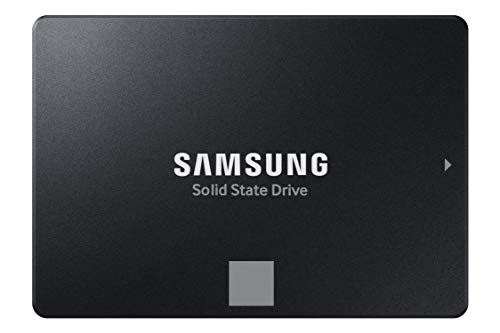
Samsung 870 EVO 1TB — The premium revival
The 870 EVO is what a mature technology looks like when a great maker refuses to treat it as legacy. Samsung builds the flash and the controller, the verified listing quotes read speeds up to 560 MB/s — the practical ceiling of SATA — and the drive’s sustained behaviour and endurance positioning sit at the top of the 2.5-inch class. For the laptop you intend to keep for years, or the desktop bay that holds work you cannot recreate, this is the drive that removes storage from the list of things to think about.
Magician completes the argument. Samsung’s software handles cloning, health monitoring and firmware with a polish no rival in this guide matches, and for a non-specialist performing their first drive swap, that guidance is worth as much as the hardware. The EVO also has a long second career ahead of it: pulled from the laptop years later, it serves happily in an enclosure or a spare machine. Premium positioning is its only real cost, and in a component bought this infrequently, many owners will judge it the cheapest line in the whole upgrade.
There is a confidence to how this drive behaves under the mixed, messy load of a family machine — updates installing while photos sync while a child launches a game — that cheaper SATA drives do not always sustain. It never feels like the oldest technology in the room, which is remarkable for a drive built on an interface old enough to have grandchildren. Buyers reviving a machine they genuinely love should start here and only move down the list for budget reasons they can name.
- Interface: SATA III in the standard 2.5-inch, 7mm form
- Room: one terabyte for system and archive
- Listing figure: read speeds up to 560 MB/s
- Ownership: Samsung Magician for cloning, health and firmware
Strengths
- Top-of-class sustained behaviour and endurance positioning for SATA.
- Magician makes the swap and the years after it genuinely easy.
- Own flash and controller from the market’s most established maker.
Trade-offs
- Premium positioning beside drives that revive almost as well.
- SATA’s ceiling means gaming desktops with NVMe slots should look elsewhere.
- Its talents are wasted on a machine with months rather than years left.
Best for: cherished laptops and work machines being revived for the long term. Not suited for: throwaway revivals where any working drive would do.

Crucial MX500 1TB — The enthusiast’s favourite
The MX500 has been the recommendation of people who open laptops for fun for years, and the specification shows why. Quoted at up to 560 MB/s in its verified listing, built on Crucial’s 3D NAND, it carries touches that budget SATA drives omit, including hardware encryption support and power-loss protection for data in flight — features that matter when the revived machine goes back to real work rather than light duty. Micron’s flash and Crucial’s cloning support complete a package that feels engineered rather than assembled.
In practice the MX500 is the drive for the careful upgrader: the person who reads the service manual, backs up twice and wants the hardware to reward that care. Its sustained write behaviour is the strongest in the mainstream SATA tier, which shows when a whole photo library migrates across in one afternoon. Against the Samsung it trades a little software polish for a little hardware seriousness, and many enthusiasts consider that the correct trade. Either way, a laptop revived with an MX500 is a laptop that will not be opened again for storage reasons.
Owners also inherit one of the most documented drives in the class. Years of production mean every question a first-time upgrader can ask about this drive has been asked and answered somewhere findable, and Crucial’s own support material is plainly written. For a component whose owner may need help at midnight before a deadline, that depth of collective knowledge is a real feature, even if it never appears on a specification sheet.
- Connection: SATA 2.5-inch, 7mm, fits the classic laptop bay
- Capacity: 1TB of Crucial 3D NAND
- Quoted pace: up to 560 MB/s
- Extras: hardware encryption support and Acronis cloning access
Strengths
- Strongest sustained writes in the mainstream SATA class.
- Hardware touches rare at its tier, including power-loss protection.
- Enormous base of documentation and owner knowledge.
Trade-offs
- Software polish a step behind Samsung’s Magician.
- Design has been in production for years, which some buyers read as dated.
- Still bound by the same SATA ceiling as everything here.
Best for: careful upgraders reviving a machine for real work. Not suited for: buyers who want the newest name regardless of track record.

WD Blue SA510 1TB — The supported upgrade
Western Digital’s Blue line has always been the company’s handshake with mainstream buyers, and the SA510 carries that role into the SATA bay: a verified listing quoting up to 560 MB/s over SATA III in the standard 2.5-inch, 7mm shape, backed by WD Dashboard software and one of the largest support operations in storage. For the owner whose priority is that a real company answers the phone in year three, the Blue badge is the argument.
The drive’s temperament suits the revival brief well. It is a steady, undemanding performer that asks nothing of an old machine’s cooling or power supply, and its dashboard keeps health visible in plain language for owners who would never open a diagnostic tool voluntarily. Against the Samsung and Crucial it is the middle path: less specialised than either, supported as well as any, and priced in the territory where the decision becomes about which company’s ecosystem you already trust. Households with WD drives elsewhere will find the familiarity comforting, and there is nothing wrong with that as a reason.
Schools, small offices and charities reviving fleets of similar laptops also gravitate to this kind of drive, because consistency across a dozen machines matters more than any single machine’s peak. The SA510’s broad availability and uniform behaviour make it the fleet choice in this guide, and the home upgrader benefits from the same predictability.
- Form: 2.5-inch, 7mm SATA III drive
- Space offered: a full terabyte
- Stated ceiling: up to 560 MB/s per the listing
- Support: WD Dashboard health and firmware tooling
Strengths
- Western Digital’s support scale behind a mainstream drive.
- Calm, undemanding behaviour in old machines.
- Dashboard keeps health legible for non-specialists.
Trade-offs
- Less hardware distinction than the MX500 at a similar tier.
- Software ecosystem narrower than Samsung’s.
- Sustained writes are steady rather than class-leading.
Best for: mainstream revivals and small fleets where support consistency matters. Not suited for: enthusiasts chasing the strongest SATA specification available.

PNY CS900 1TB — The sensible saver
PNY has sold memory and storage to ordinary buyers for decades, and the CS900 is its straightforward SATA offer: a verified listing quoting up to 535 MB/s reads and 515 MB/s writes, positioned for the everyday user, creator or gamer performing the classic hard-drive replacement. Those figures sit a breath below the class ceiling, and in a revived laptop the difference is undetectable in use, which is precisely the point of the drive. It delivers the transformation at a gentler tier and leaves budget for the RAM or battery the same machine may also need.
The honest boundaries are about ambition. The CS900 is a revival drive, not a workstation drive; sustained heavy writing is not its brief, and its software ecosystem is minimal beside the big makers’ suites. Within its brief it is entirely respectable, and PNY is a real company with a real warranty process, which separates it from the anonymous tier below it. For the spare laptop, the family hand-me-down and the desktop whose second bay needs filling, it is the saver that does not require an apology.
There is also a retail familiarity working in its favour: PNY products are stocked widely and have been for years, so the drive is easy to source and easy to replace under warranty through ordinary channels. First-time upgraders working to a strict total budget for the whole revival — drive, perhaps memory, perhaps a battery — will find the CS900 the pick that lets the whole project happen rather than the perfect version of one part of it.
- Shape: standard 2.5-inch SATA III internal drive
- Room: 1TB for the revived machine
- Figures quoted: up to 535 MB/s reads, 515 MB/s writes
- Audience: everyday users, creators and gamers upgrading from hard drives
Strengths
- Delivers the full revival transformation at a gentle tier.
- Established brand with an ordinary, workable warranty path.
- Lets a whole-machine revival budget stretch further.
Trade-offs
- Minimal software and support ecosystem beside the biggest makers.
- Not intended for sustained professional writing.
- Peak figures a shade below the class ceiling.
Best for: budget-conscious revivals and spare machines. Not suited for: workstations that will write heavily every day.

Crucial BX500 1TB — The budget doorway
The BX500 is the floor of respectability in this market, and that is a compliment about where the floor sits. Its verified listing quotes up to 540 MB/s on Crucial’s 3D NAND, which means the cheapest linked drive in this guide still comes from a company that makes its own flash and answers for its products. For the oldest laptop in the house, the machine whose revival budget must be justified to a sceptical household, this is the drive that makes the arithmetic undeniable.
Its compromises are the expected ones and they are worth naming plainly. The BX line omits some hardware refinements of its MX sibling, and sustained writes are its weakest discipline; a buyer migrating a huge library in one sitting will watch it settle. But revival workloads are reads, boots and launches, and there the BX500 performs the same miracle as everything above it. Think of it as the doorway: it gets an old machine back into service honestly, and if that machine later earns a bigger role, its owner will know exactly which sibling to promote it to.
It is also the natural choice for the second-bay and hand-me-down economy: the desktop that needs a games drive, the laptop being prepared for a child, the media machine in a spare room. In those roles its limitations never surface and its price-to-transformation ratio is the best in this guide. Crucial’s cloning guidance applies here too, so even the doorway comes with instructions.
- Fit: 2.5-inch SATA bay, the universal older-laptop format
- Capacity: 1TB of Crucial 3D NAND
- Top figure: up to 540 MB/s per the listing
- Position: the entry tier of the trustworthy market
Strengths
- Major-maker flash and warranty at the friendliest tier here.
- Full revival effect for boots, launches and daily responsiveness.
- Ideal for second machines and hand-me-down duties.
Trade-offs
- Sustained writes settle sooner than its MX sibling’s.
- Fewer hardware refinements than the drives above it.
- Heavy users will outgrow it and upgrade twice.
Best for: the strictest budgets and secondary machines. Not suited for: a primary workstation expected to write heavily for years.
SanDisk SSD PLUS 1TB — The familiar name (prose-only)
The SSD PLUS is one of the drives that defined the budget revival era: sold everywhere, recommended in countless forums, and responsible for a great many old laptops getting their second wind. SanDisk’s flash heritage is genuine, and as a product it belongs in any honest history of this category. Readers comparing notes will meet it constantly, usually at an aggressive tier, and its everyday behaviour for light revival work is well documented by years of owners.
It is prose-only in this guide for the standing reason: no listing for it passed our verification cleanly enough to earn a link, so no ASIN is printed and no link is offered. The practical advice follows from that. If you buy one, buy it through a seller whose returns you trust, confirm the exact capacity and model on the listing, and understand that its sustained-write behaviour is the modest end of this class. For a light-duty revival sourced carefully, it remains a defensible choice; for a checked-link purchase today, the five drives above are this guide’s answer.
- Maker: SanDisk, long-standing flash brand
- Role: budget revival drive with years of owner history
- Capacity discussed: 1TB
- Status here: prose-only, no verified listing in pool
Strengths
- Enormous owner base and long market history.
- Genuine flash-maker heritage behind the name.
- Widely stocked through ordinary retail channels.
Trade-offs
- No link offered here, so seller diligence is yours.
- Sustained writes sit at the modest end of the class.
- Variants and listings vary, demanding careful checking.
Best for: light revivals bought carefully through trusted sellers. Not suited for: buyers who want this guide’s verification attached to their purchase.
Why Do the Speed Figures All Look the Same?
Because the interface, not the drives, is the ceiling. SATA III moves data at a rate that translates to roughly the 560 MB/s headline these listings quote, and every competent modern drive presses against it. First-time buyers sometimes read that sameness as evidence that the drives are identical, and the conclusion is wrong in an instructive way. What varies beneath the ceiling is everything a headline cannot show: how the drive behaves when it is nearly full, how gracefully it handles a hundred small writes at once, how its maker supports it in year four, and how honestly its endurance is positioned. The sameness of the numbers is exactly why this guide spends its words on those invisible things.
It also explains why chasing the fastest SATA drive is a solved problem while choosing the right one is not. A benchmark will separate these six by margins no human could feel. Ownership separates them by cloning software that works the first time, a warranty claim answered by a person, and firmware that exists at all. Revival buyers are purchasing a relationship with a maker as much as a piece of hardware, and at these tiers the relationship is the better half of the value.
What About the Desktop in the Corner?
Everything in this guide applies to it, with one addition: desktops often have room for both. An older tower can take a 2.5-inch SSD as its system drive — in a simple mounting bracket where only 3.5-inch bays exist — while keeping its large spinning drive for bulk storage. That hybrid arrangement was the classic upgrade path of the last decade and remains a sound one: the operating system and applications gain flash responsiveness, the media archive keeps its cheap capacity, and the total spend stays in revival territory.
Game consoles of the previous generation form the other classic home for these drives, and the same logic applies: loading screens shrink, menus stop stuttering, and the machine’s remaining years become more pleasant. In every case the rule is the one this guide opened with. Where a spinning 2.5-inch drive is the bottleneck, flash is the answer, and the only real question is which maker’s name you want on the answer.
Which Old Machines Should Not Be Revived?
Honesty requires the exception list. A laptop whose screen is failing, whose battery is swollen, whose keyboard has dead zones and whose processor struggles with ordinary web pages is not a revival candidate; it is a replacement candidate wearing a hopeful expression. The test is singular: if storage is the machine’s main complaint, revive it. If storage is merely the first complaint on a list, the money belongs toward a new machine, and the guides linked at the end of this page cover the affordable end of that decision.
There is also a middle category worth naming — the machine revived as an experiment or a gift. A grandparent’s email laptop, a child’s first computer, a spare for the workshop: these do not need the premium tier, and the BX500 or CS900 exists precisely for them. Match the drive to the honest future of the machine, neither gold-plating a hand-me-down nor entrusting family archives to a drive bought on a whim.
How Long Will a Revived Laptop Actually Last?
Longer than sceptics expect. The components that age out of a laptop are usually its battery, its storage and its software support, in that order — and this upgrade replaces the second entirely while easing the first, since flash draws less power. A machine with a sound screen, a working keyboard and a processor from the last decade can serve browsing, documents, study and media duties for years after its revival, particularly as web-based work asks less of local hardware every year.
The limits, when they come, arrive from outside: an operating system that stops supporting the hardware, a battery that can no longer be replaced, a screen hinge that finally gives up. Storage will not be the reason. That is the quiet promise of buying a trustworthy drive for the revival — it moves storage permanently off the list of things that will end the machine’s life, and lets the laptop’s remaining years be decided by components that were always going to decide them.
What Else Improves When the Spinning Drive Leaves?
Battery life, quietly and measurably. A hard drive’s motor and actuator draw power every moment the machine is awake, and they draw more of it exactly when the machine is working hardest. Flash has no motor to feed, so a revived laptop commonly gains real minutes — sometimes much more — per charge, and it wakes from sleep without the spin-up delay that made owners keep machines awake and draining. Heat follows the same direction: less power in the bay means less warmth under the palm rest and fans that intervene later and quieter.
Silence is the third dividend, and owners mention it with surprising feeling. An old laptop’s soundtrack — the whir, the tick of seeks, the occasional alarming clunk — vanishes entirely, replaced by nothing. In a bedroom, a library or a lecture hall, that nothing is a genuine upgrade. And there is a durability point hiding inside the silence: a drive with no moving parts shrugs off the knocks, drops and bag-jolts that kill spinning drives, so the revived machine becomes more portable in practice, not just faster. The data of a household that travels with its laptop is simply safer on flash.
Should You Upgrade the Memory at the Same Time?
Often, yes, and the panel is already off. Many ageing laptops pair their slow hard drive with a modest amount of memory, and the two shortages conspire: when memory runs out, the system leans on storage, and when storage is a spinning disk, the whole machine crawls. The SSD fixes the second half of that conspiracy so effectively that some machines need nothing else. But if your laptop regularly holds many browser tabs and applications at once, doubling its memory while it is open is the other half of the revival, and the pair together can make a machine feel genuinely contemporary rather than merely improved.
Diagnose before spending. If your slowdowns arrive when switching between many open programs, memory is implicated; if they arrive when opening programs, files and the system itself, storage is the culprit and this guide is the fix. Most revived machines benefit from the drive alone, which is why it comes first in every sensible order of operations. Memory second, battery third, and the laptop that results can serve for years at a total cost that replacement shoppers find faintly embarrassing.
How Can You Tell Whether Your Old Drive Is Failing or Just Slow?
Slowness alone is age; slowness with symptoms is a warning. New clicking or grinding sounds, files that corrupt or vanish, a system that freezes while the drive light burns steadily, and boot failures that come and go all suggest mechanics in decline rather than mere obsolescence. Makers’ tools and the system’s own health reporting can read the drive’s self-reported condition, and bad news there should move the upgrade from planned to urgent, with the backup moved ahead of everything else.
The distinction matters because it changes the method. A healthy old drive can be cloned at leisure. A failing one should be copied file by file, most precious first, because a full clone can push dying mechanics over the edge mid-process. Either way, the destination should be one of the trustworthy drives in this guide — data rescued from a failing disk deserves a home with a warranty, not a bargain with a spec sheet.
How Do the Six Compare at a Glance?
| Drive | Link status | Headline read figure | Character |
|---|---|---|---|
| Samsung 870 EVO 1TB | Verified link | 560 MB/s ceiling | Premium revival, best software |
| Crucial MX500 1TB | Verified link | 560 MB/s ceiling | Enthusiast hardware touches |
| WD Blue SA510 1TB | Verified link | 560 MB/s ceiling | Supported mainstream upgrade |
| PNY CS900 1TB | Verified link | 535 MB/s ceiling | Sensible saver |
| Crucial BX500 1TB | Verified link | 540 MB/s ceiling | Budget doorway |
| SanDisk SSD PLUS 1TB | Prose-only | Not quoted here | Familiar budget name |
The table’s lesson is how little the third column matters. Every linked drive crowds against the same interface ceiling, so the real comparison is the fourth column: software, support, sustained behaviour and tier. Choose by the life the revived machine will lead, not by a handful of megabytes per second that no owner could detect blindfolded.
How Do You Swap a Laptop Hard Drive for One of These?
Back up first, completely, because the old drive is coming out and everything on it matters until the new one has proven itself. Then decide between cloning and a fresh installation: cloning preserves the machine’s personality exactly as it was, only faster, while a fresh install suits a system so cluttered that its habits are not worth preserving. Most makers here offer or support cloning tools, and a simple USB-to-SATA cable or enclosure makes the old drive readable during the process.
The physical swap is the easy part on most machines: power down, remove the base panel or the drive caddy, note the bay height and any spacer the old drive used, and seat the SSD in its place. Some older laptops use a thicker bay and need the spacer that many drives include or a simple shim so the connector seats firmly. Boot, confirm the drive appears at full capacity, update its firmware with the maker’s tool, and keep the old hard drive untouched for a week as your rollback before wiping it for enclosure duty. If the machine refuses to boot, the fault is almost always a seating or boot-order detail rather than the drive, so reseat calmly before concluding anything.
What Happens to the Revived Laptop’s Second Career?
Plan for it, because it usually happens. A machine revived for its owner often graduates to a second role: the child’s school laptop, the kitchen computer, the dedicated writing or media machine, the spare that saves the day when the main computer fails. Those roles reward exactly what this guide weighted — a trustworthy drive, calm behaviour, capacity with headroom — and they punish the anonymous bargain whose warranty was a rumour. Choosing a drive from a maker that will still exist in the machine’s second career is not snobbery; it is how a revival becomes a five-year decision instead of a one-year patch.
The second career also reframes capacity. A terabyte sounds excessive for a spare machine until the spare becomes a teenager’s everything-machine, at which point it is simply correct. Buy the terabyte, choose the trustworthy tier your budget allows, and the laptop you were about to replace becomes the most useful spare your household owns.
What Mistakes Do Laptop Revivers Keep Making?
The saddest is reviving the drive and neglecting the rest: a swollen battery, a clogged fan or failing memory will keep a machine miserable no matter how fast its storage becomes, so inspect the whole patient while the panel is off. The second is skipping the backup because the old drive still works; drives being replaced are, by definition, old, and the swap is exactly when they choose to fail. Third, buyers forget the bay spacer and then diagnose a loose, intermittently vanishing drive as a defective one.
Fourth, people clone a decade of clutter onto pristine flash and announce that SSDs are overrated; if the old system was a mess, install fresh and move only the files. Fifth, revivers throw the old hard drive in a drawer unwiped, where it sits holding every account and document the household owns. Wipe it, then give it the honest second job of backup or media storage it is still good for.
What Does the Warranty Conversation Look Like in Practice?
It looks like paperwork kept and a process followed, which is why this guide keeps returning to makers. A drive from Samsung, Crucial, WD or PNY that fails inside its term enters a defined process: a support contact, a diagnostic, a replacement. The process is not glamorous and occasionally not fast, but it exists, it is staffed, and it ends with hardware. That reliability is part of what the modest premium over anonymous drives purchases, and it only reveals its value on the worst day of the drive’s life, which is precisely when value matters.
Help the process along with three habits. Keep the order confirmation somewhere findable. Register the drive if the maker offers registration. And before concluding a drive has failed, test it in a second machine or enclosure, because cables, bays and tired laptop power circuits imitate drive failure convincingly. Owners who do those things find warranty claims to be administrative rather than adversarial, and the revived machine is back at work with its data restored from the backup this guide keeps insisting on.
Why Does This Old Format Refuse to Die?
Because the installed base is enormous and the need is real. Hundreds of millions of machines with 2.5-inch bays remain in daily service in homes, schools and small businesses, and their owners’ requirements — reliability, simplicity, an upgrade a local shop or a careful teenager can perform — have not changed just because newer interfaces exist. The format also survives on merit: it is standardised, tool-friendly and forgiving, with none of the length, keying and lane questions that NVMe shopping involves. A 2.5-inch SSD is the last storage purchase a non-specialist can make entirely without homework, and this guide exists to keep it that way.
That longevity is also why the big makers still engineer for the bay rather than merely clearing inventory into it. The 870 EVO and MX500 are mature products in the honourable sense: refined across generations, documented to exhaustion, supported without embarrassment. Buying into that maturity is the opposite of buying obsolete technology. It is buying the finished version of a technology, at the moment when its price, reliability and knowledge base have all peaked together.
How Should You Judge the Revival After a Month?
Not by the stopwatch, though the stopwatch will flatter it. Judge by behaviour: whether the machine gets opened instead of avoided, whether it travels instead of staying plugged in out of habit, whether its owner has stopped apologising for it. A successful revival changes the machine’s place in the household, and that change is visible within weeks. If the laptop is back in daily service, the drive tier you chose was the right one almost regardless of which row of the table it came from.
Judge also by what did not happen. No storage warnings, no mysterious freezes traced to a tired disk, no dread when the machine is asked to update itself. The drives in this guide were chosen so that the month-after verdict is boredom, because boredom is what reliable storage feels like from the outside. The old hard drive, wiped and rehoused in an enclosure, usually ends the month as the household’s backup — a fitting final job for the component whose replacement taught everyone what it had been costing them.
Final Recommendation
For the laptop you love and intend to keep, the Samsung 870 EVO is the revival done properly: class-leading SATA behaviour, the best ownership software, and a maker whose support will outlast the machine. The MX500 is its equal in spirit for the careful upgrader who values hardware seriousness and documented knowledge. The SA510 serves everyone who simply wants a supported, calm upgrade, while the CS900 and BX500 divide the budget end between sensible saving and the absolute doorway. The prose-only SanDisk remains a defensible careful purchase elsewhere. What unites the six is the outcome they all deliver: an old laptop that stops feeling old, given back its mornings, its battery and its dignity by the simplest upgrade in all of computing.
If a single sentence must carry the decision, let it be this: buy the most trustworthy drive your budget reaches, from the maker whose support you would want answering in three years’ time, and spend whatever remains on the battery or memory the same machine is quietly asking for. The revival will repay you every single morning it boots.
And when the machine eventually retires for reasons that have nothing to do with storage, the drive comes out and goes on — into an enclosure, into the next hand-me-down, into service as the household’s spare. Good flash outlives the machines it revives. Buy it once, buy it from a maker who will remember selling it to you, and let an old laptop’s second life be the proof.
What Tools and Parts Does the Swap Actually Need?
Less than fear suggests. A small screwdriver set that fits your laptop’s fasteners, a plastic pry tool or an old card for the panel clips, and a USB-to-SATA cable or enclosure if you plan to clone before opening the machine. Some laptops hide the drive behind a dedicated hatch with two screws; others require the whole base to come off, which is a patience exercise rather than a skill test. The maker’s service manual, freely published for most business and mainstream models, shows every screw and clip, and reading it first is the difference between a twenty-minute job and an afternoon of improvisation.
Work on a clear table, keep the screws organised by location, and photograph the interior before touching anything; the photograph is the simplest safeguard in the whole project, whatever the component. Ground yourself against static by touching something metal, handle the drive by its edges, and never force a connector that is resisting — resistance means a latch, a screw or an angle you have missed. With those habits, the swap is well within a careful beginner’s reach, and the confidence it builds tends to produce a household that fixes things.
How Do You Choose Between Two Drives That Seem Identical?
Use the tiebreakers in order. First, the software: if you are new to drive swaps, the maker’s cloning and health tools will be your companions, and Samsung’s and Crucial’s are the most hand-holding here. Second, the machine’s future: a laptop staying in professional service deserves the EVO or MX500 tier, while a hand-me-down earns the BX500 honestly. Third, the ecosystem you already own: a household fluent in WD Dashboard loses nothing by staying with the SA510. Fourth, and only fourth, the shelf price on the day — because at this maturity level, a small difference on the day is the least durable fact about a five-year purchase.
Notice what is not a tiebreaker: the headline figure. Chasing a handful of megabytes per second between drives pressed against the same interface ceiling is how buyers talk themselves out of the support and software they would actually have used. Decide on the relationship, and the hardware follows.
One last tiebreaker belongs to the cautious: buy where returns are easy. A revival project occasionally discovers that the patient has other problems — a bay with a damaged connector, a machine that turns out to need replacement after all — and a painless return converts that discovery from a loss into a detour. Ordinary retail channels for these brands make that simple, which is a final, practical argument for the names in this guide over the anonymous tier.
What About the Environmental Argument for Reviving?
It deserves a paragraph, because it is stronger than most green claims in technology. Manufacturing a new laptop carries the overwhelming share of its lifetime footprint, while a replacement drive is a small component that postpones that manufacturing by years. Every revival in this guide is therefore also a deferral: of mining, of shipping, of another machine entering the waste stream early. Owners do not need to be motivated by this to benefit from it, but it is a genuine second dividend of the upgrade, and it scales with the trustworthiness of the drive — a revival that lasts five years defers far more than one that fails in eighteen months.
The same logic governs the old drive’s fate. Wiped and rehoused, it serves as backup or media storage instead of landfill, and when it finally does retire, it retires having been fully used. Few upgrades in computing can say as much, and it is one more reason this old format, and the careful drives still made for it, deserve their place in a modern guide.
How Does a Revival Change What Software the Machine Can Run?
More than the specification suggests. Modern operating systems and browsers are written on the assumption of flash storage: they index constantly, cache aggressively and update in the background, all of which are gentle on an SSD and punishing on a spinning disk. A laptop that technically met a modern system’s requirements often failed them in spirit, because every background task queued behind a mechanical seek. On flash, those same tasks become invisible, and software that felt impossibly heavy settles into ordinary use.
This is why revived machines so often surprise their owners twice — once at the boot screen and again a month later, when the accumulation of updates, syncs and searches that used to degrade the machine has simply stopped degrading it. The processor did not change. The machine’s willingness to do several things at once did, because storage stopped being the queue everything waited in. For students and home workers whose tools now live in a browser, that change alone can carry a laptop through years of perfectly serious work.
What Should You Do in the First Evening After the Swap?
Verify, then enjoy. Confirm the system reports the drive at its full capacity and that the maker’s tool sees it as healthy and running at the negotiated SATA speed; a cable or bay negotiating an older, slower SATA generation is rare but real, and it is a five-minute fix when caught early. Run the firmware update the tool suggests while the drive is still nearly empty. Then restore your habits: reinstall nothing you did not miss, let the backup routine take its first copy of the new arrangement, and resist benchmarking the machine into the night.
Within a day or two, do the one test that matters: use the laptop the way its slowness used to prevent. Open the heavy document, wake it from sleep with a train to catch, join the video call without a prayer. The revival proves itself in those moments or not at all, and with any drive in this guide it will. Keep the old hard drive untouched on a shelf until a week of those moments has passed; then wipe it, house it, and let the story close.
Frequently Asked Questions
Will a SATA SSD really make an old laptop feel fast?
Yes, more than any other single change. The transformation lives in boot times, application launches and general responsiveness, because those are the jobs a spinning drive does worst. Every drive in this guide delivers it; the tiers differ in refinement, not in whether the miracle happens.
How do I know if my laptop takes a 2.5-inch drive?
If it has a spinning hard drive or was sold with one as an option, it almost certainly does. Check the service manual or the bay itself for height — most take the 7mm drives listed here, sometimes with a spacer in a taller bay. Very thin modern ultrabooks use M.2 instead and belong in the NVMe guides.
Should I clone or reinstall?
Clone a healthy system you like; reinstall a system that is unstable, cluttered or carrying years of inherited problems. Cloning tools from Samsung, Crucial and WD make the first route painless, and the old drive kept for a week is your insurance either way.
Is 1TB the right size for a revival?
For most revived machines, comfortably. It holds the system, applications and a household archive with room to spare. Smaller capacities exist across these ranges, but the terabyte tier is where a revival stops needing supervision, and it future-proofs the machine’s second career.
Can these drives go in a desktop or a game console?
Desktops with a spare SATA bay, yes, as system or secondary drives. Older consoles with 2.5-inch bays have historically accepted them too, though buyers should confirm their specific console’s rules. In a modern NVMe desktop, treat these as archive drives rather than the main event.
What should I do with the old hard drive?
Keep it untouched for a week as a rollback, then wipe it securely and repurpose it in an enclosure as backup or media storage. Never discard or gift it unwiped: it contains the household’s accounts, documents and history in full.
Related Guides
Revival is one branch of the storage decision; the others live here: Best Affordable Student Laptops for Notes, Essays and Streaming, Best Business Student Laptops That Survive the Semester, and Best Android Tablet Bluetooth Keyboards for Typing Anywhere.
Related guides
- Best Gaming Keyboard: Six Boards From Rapid-Trigger Esports Picks to Macro Flagships
- Best Time Machine Compatible Hard Drives: Mac-Ready and Reformatted Picks
- Best 3.0 Qualcomm Quick Chargers: QC 3.0 Adapters That Still Earn Their Outlet
- Best 3D Mechanical Engineering Laptops: Certified Workstations for CAD and Simulation


