What's inside
- Key Takeaways
- Quick Picks
- How Did We Choose the Best Gaming Mouse for 100 Dollars?
- Which Matters More at This Budget: Shape, Sensor or Switches?
- What Should You Check Before Spending the Full Budget?
- Which of These Six Suits Each Grip Style Best?
- How Do the Six Compare Side by Side?
- What Do Polling Rate, Lift-Off Distance and Debounce Actually Mean?
- How Should You Set Up a New Mouse During Its First Week?
- Does the Software Deserve a Say in Your Choice?
- How Long Should a Mouse Bought at This Level Last?
- What Mistakes Do Buyers Make in This Bracket?
- Final Recommendation
- Frequently Asked Questions
- Related Guides
As an Amazon Associate I earn from qualifying purchases. This post may contain affiliate links at no extra cost to you.
widgetverdict.com is reader-supported. When you buy through links on our site, we may earn an affiliate commission.
Where to buy: all six mice below carry links to Amazon listings we have checked against our verified pool, so the model name on the page is the model name in this guide. Street prices in this bracket drift with promotions, so read the $100 in the title as the ceiling you shop under rather than a figure printed on any particular box.
The search for the best gaming mouse for 100 dollars lands in the most contested bracket in PC gaming. Below it, you accept real compromises: older sensors, heavier shells, batteries that fade mid-week. Above it, you mostly pay for exotic materials and polling rates that only a handful of players can feel. Right at this line, though, the flagship technology of two seasons ago sits next to current mid-range releases, and the result is a shortlist where every entry is genuinely good and the differences come down to hand shape, grip style and how you feel about charging cables.
That is why this guide spends less time ranking sensors — all six sensors here track flawlessly at any sensitivity a human uses — and more time on the things that actually separate these mice after a month of ownership: whether the shape fills your palm or leaves it hovering, whether the scroll wheel suits a weapon-switching habit, whether the battery story fits your desk, and whether the software respects you enough to be uninstalled after setup. A mouse is the peripheral you touch for every second of every session, and at this budget you no longer have to tolerate one that merely approximates your hand.
There is also a quieter divide running through the six: two are wired, four are wireless, and the wireless four split again into rechargeable internal batteries and replaceable AA cells. None of those choices is a compromise anymore — the wired picks earn their cables with features no wireless model here matches, and the wireless picks have closed the latency gap so completely that the argument is now about desk habits, not performance. This guide treats that divide as a lifestyle question and helps you answer it honestly.
Key Takeaways
- Shape is the decision at this price: three of the six picks are right-handed ergonomic shells and three are symmetrical, and no sensor advantage rescues a shape your hand dislikes.
- Wireless no longer costs extra performance here — the wireless picks match the wired ones on tracking and add tidy desks, at the price of battery management.
- Scroll wheels split the field: free-spinning and tilt wheels serve productivity and weapon cycling, while notched optical wheels serve precise single-step selection.
- Battery strategies differ sharply, from swappable AA cells that never need a cable to internal cells paired with charging mats.
- Every pick here stores profiles on board, so once your buttons and sensitivity are set, the software becomes optional.
- The wired picks are not the budget option in disguise — they carry the deepest button sets and the best scroll wheels in this guide.
Quick Picks
| Pick | Badge | Why it earns its place |
|---|---|---|
| Logitech G703 LIGHTSPEED Wireless Gaming Mouse | Best ergonomic wireless | A sculpted right-handed shape, a proven sensor and mat-charging support in one settled package. |
| Logitech G502 X Wired Gaming Mouse | Best for button-heavy games | Thirteen controls and hybrid optical-mechanical switches for players who bind everything. |
| Razer Basilisk V3 | Best scroll wheel | A tilt wheel with switchable free-spin, wrapped in a comfortable thumb-rest shape. |
| Razer Viper V3 HyperSpeed | Best for fingertip aim | A light symmetrical shell and marathon AA battery life aimed at competitive players. |
| GravaStar Mercury M2 | Most distinctive design | A hollowed shell with a top-tier sensor for players bored of plain black rectangles. |
| Logitech G305 LIGHTSPEED Wireless Gaming Mouse | Best value under the ceiling | The wireless essentials done properly, usually leaving change from the budget for a pad. |
How Did We Choose the Best Gaming Mouse for 100 Dollars?
We started from the constraint in the title: a single mouse, bought once, that has to serve as the only pointing device on a desk for years. That framing rules out novelties. Every candidate needed a sensor with no acceleration quirks at low sensitivity, switches rated for long service, and a shape that an identifiable group of players actively prefers rather than merely tolerates. We weighed published specifications against the accumulated long-term ownership picture for each model — which complaints recur after a year, which never appear — because a mouse that delights for a weekend and annoys for a winter is a bad recommendation at any price.
Three filters did most of the cutting. First, grip coverage: the final six had to include a genuine option for palm, claw and fingertip players, since a list of six near-identical ergonomic shells would fail half its readers. Second, connection honesty: wireless picks needed a gaming-grade 2.4 GHz link with a wired fallback, not Bluetooth-only designs borrowed from office lines. Third, upkeep: each mouse had to offer a sane battery or cable story, onboard profile storage, and feet and grips that can be replaced or cleaned rather than a shell that becomes disposable when a glide wears down. Mice that failed any filter, however fashionable, were left out.
Longevity evidence mattered as much as launch specifications. A mouse is clicked hundreds of thousands of times a year, dragged across pads daily and occasionally dropped off desks. We favoured models whose switches, encoders and shells have accumulated years of ownership reports rather than weeks of launch coverage, and we treated recurring complaints — a wheel that loosens, a coating that peels — as heavier evidence than any single glowing first impression. Where a model is newer, we leaned on the maker’s track record with its direct predecessors and on the replaceability of its wear parts: feet, cables and grips that can be renewed keep a good mouse good.
Which Matters More at This Budget: Shape, Sensor or Switches?
Shape, and it is not close. Modern optical sensors from both major makers have been effectively transparent for years: they track on cloth, hard pads and bare desks, at sensitivities from careful low-sens tactical play to frantic high-sens flicks, without spin-outs or angle snapping surprises. When a reviewer says one of these six sensors feels more responsive than another, they are usually describing the shell around it — how early the weight shifts, where the sensor sits relative to your fingers, how the skates glide. Buy the shape that matches your grip and the sensor inside it will not be the reason you miss.
Switches are the middle factor. Optical switches, now present in several picks here, register with light rather than metal contacts, which removes the debounce delay and the classic double-click failure mode that killed so many older mice. Mechanical switches feel different — often a touch crisper in the finger — and modern ones are rated for long lives. Either technology serves well at this tier; what matters more is switch placement and tuning, whether the buttons are pre-tensioned so clicks land without mush, and whether the side buttons sit where your thumb already rests instead of where a designer imagined it might.
There is a fourth factor that rarely appears on boxes: button geography. The distance between the side buttons and the thumb’s resting place, the height of the sensitivity switch behind the wheel, the presence or absence of a groove guiding the ring finger — these small placements decide whether a mouse feels intuitive in the first minute and invisible by the tenth hour. Two mice with identical sensors and weights can feel like different species because one puts its controls where hands actually are. As you read the detailed picks, note how often their verdicts turn on placement rather than power; that is deliberate, and it mirrors how ownership actually feels.
Weight is the third leg, and the honest summary is that the field has settled. The picks here run from genuinely light to comfortably medium, and none is heavy in the way mice were five years ago. Palm-grip players often aim better with a little mass steadying the shell; fingertip players tend to prefer the lightest shell they can still control on a stop. If you are unsure, the middle of this list is the safe ground, and two picks offer optional added weight for players who want to experiment rather than guess.
What Should You Check Before Spending the Full Budget?
Measure your hand and name your grip before you read another specification. Hand length from fingertip to wrist crease, compared honestly against each mouse’s published dimensions, eliminates more bad purchases than any review. Then watch your own hand during a normal session: if your whole palm settles on the shell, you are a palm player and the ergonomic picks will feel like furniture made for you. If only your fingertips and the base of your palm touch, you are in claw territory, and the lower, symmetrical shells will track your small corrections more faithfully.
Consider also what sits beside the mouse. A keyboard with a heavy key feel and a mouse with light clicks can make one hand feel overworked relative to the other during mixed work-and-play days, and players who type all day often prefer the slightly firmer, more deliberate clicks of the ergonomic picks for everything. Nobody needs to match brands across a desk, but matching effort levels is a comfort detail worth a moment’s thought before the money moves.
Check your desk reality too. Wireless mice reward a receiver placed close — ideally on a short extension near the pad — and punish a receiver buried behind a metal PC case under the desk. If your setup forces that buried-receiver arrangement, either budget for the extension habit or take one of the wired picks and spend the difference elsewhere. Finally, look at your current mouse’s wear: a shiny patch where your thumb rides, a wheel that has gone loose, feet worn to the plastic. Those marks describe the mouse you actually need far better than a feature list does.
Logitech G703 LIGHTSPEED Wireless Gaming Mouse — Best ergonomic wireless
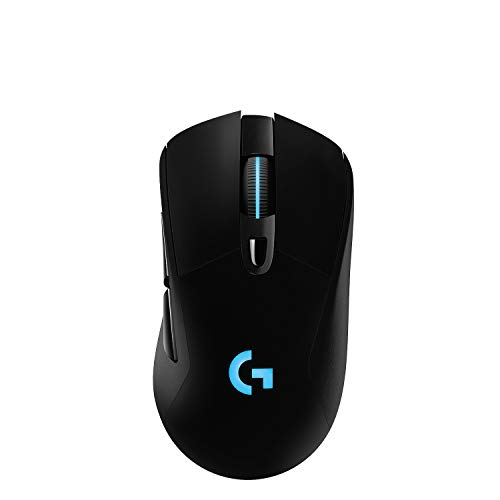
The G703 is what happens when a company refines one shape for years instead of chasing a new silhouette each season. The shell is a medium-large right-handed curve with a high rear hump that fills the palm and a gentle rightward slope that lets the ring and little fingers rest rather than grip. For palm and relaxed-claw players, that contour does something valuable: it removes the low-level effort of holding the mouse, so long sessions end with a fresher hand. The HERO 25K sensor sits centrally and behaves exactly as its reputation suggests — no drama at low sensitivity, no smoothing surprises when you sweep.
Two details extend its life beyond the spec sheet. An optional 10-gram weight drops into the base, letting you nudge the balance rearward if you lift and reset often. And the mouse is compatible with Logitech’s POWERPLAY mat system, which charges it while you play; even without the mat, the internal battery and USB-C-era convenience of quick top-ups between sessions make charging a non-event. The scroll wheel is metal, notched and precise, though it lacks the free-spin mode of its G502 sibling. Rubber side panels give the thumb purchase without the tacky feel that ages badly.
In daily use the G703’s virtues compound quietly. The clicks are medium-weight and consistent across both main buttons, the side buttons sit high enough to avoid accidental presses during lifts, and the shell’s coating resists the shine that cheaper plastics develop where fingers rest. Players coming from an older wired mouse notice the missing cable drag most during small corrections — the mouse simply goes where the hand points, with nothing tugging the aim off line. It is the least surprising mouse in this guide, and that is precisely its appeal: every part behaves the way years of reviews and ownership threads say it will. Players upgrading from its wired predecessors will find their muscle memory intact, and players arriving from other brands will find nothing to relearn — the learning curve is measured in minutes, and the comfort curve in months.
- Sensor: HERO 25K optical
- Connection: LIGHTSPEED 2.4 GHz wireless, wired fallback
- Weight: about 95 g, plus optional 10 g weight
- Buttons: 6 programmable
- Battery: rechargeable internal, POWERPLAY mat compatible
Strengths
- Palm-filling ergonomic shape that suits long sessions
- Flawless wireless link with a mat-charging upgrade path
- Optional tail weight lets you tune balance after purchase
Trade-offs
- Right-handed only; left-handed players get nothing here
- Wheel has no free-spin or tilt functions
- Heavier than the esports-leaning picks on this list
Best for: palm and relaxed-claw players who want one wireless mouse to live on the desk for years. Not suited for: fingertip players chasing the lightest possible shell, or anyone who needs tilt-wheel shortcuts.

Logitech G502 X Wired Gaming Mouse — Best for button-heavy games
The G502 line has always been the maximalist’s mouse, and the X revision keeps the philosophy while fixing the old complaints. The shell is lighter than its ancestors, the cable is a proper flexible paracord-style lead that behaves like a wireless mouse with a tail, and the switches are now LIGHTFORCE hybrids — optical actuation with a mechanical click feel — which removes the double-click lottery that haunted earlier generations. Thirteen programmable controls include the removable DPI-shift thumb button, which can be flipped or replaced with a blank cover depending on whether your thumb wants a sniper clutch or a smooth grip surface.
The signature infinite-scroll wheel remains the party trick that turns out to be genuinely useful: press the toggle and the metal wheel spins freely through long documents and inventory lists, then clicks back to a ratcheted step for weapon selection. In games with deep radial menus or long loadouts, the extra thumb and index-adjacent buttons absorb binds that would otherwise crowd the keyboard hand. The shape is unapologetically right-handed and medium-large, with a thumb rest wing; small hands and fingertip players will find it a lot of mouse. For everyone else, it is the pick that treats buttons as a feature rather than a styling exercise.
Ownership of a G502 X tends to reorganise how a desk works. The extra index-finger buttons beside the left click become a natural home for push-to-talk or a map toggle, the wheel’s tilt inputs take over leaning or tab-switching, and the thumb clutch earns a permanent job in any game with a scoped weapon. The hybrid switches deserve a second mention for feel: they land with a defined mechanical snap that pure optical buttons sometimes lack, while keeping optical actuation’s immunity to contact wear. If your games have keybind screens that scroll, this is your mouse.
- Sensor: HERO 25K optical
- Connection: wired USB, flexible low-drag cable
- Switches: LIGHTFORCE optical-mechanical hybrid
- Buttons: 13 programmable, removable DPI shift
- Wheel: dual-mode infinite scroll
Strengths
- Hybrid switches pair optical reliability with a tactile click
- Infinite-scroll wheel earns its keep in games and work alike
- Removable thumb button adapts the grip to your hand
Trade-offs
- Wired only; the cable is good, but it is still a cable
- Busy sculpting overwhelms small hands
- No onboard wireless freedom for a couch or travel setup
Best for: MMO, MOBA and simulation players who bind half their rotation to the mouse hand. Not suited for: minimalists, small-handed players, or anyone committed to a cable-free desk.
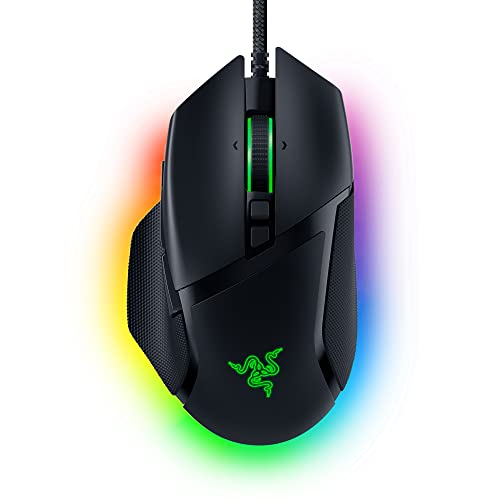
Razer Basilisk V3 — Best scroll wheel
The Basilisk V3 makes its argument through your index finger. Its scroll wheel tilts for side inputs, switches between a tactile ratchet and a genuinely free spin, and can change modes automatically in Razer’s software when you flick it hard — a small flourish that sounds like marketing until you are skimming a long strategy guide or cycling a deep weapon wheel and the mouse simply keeps up. Eleven programmable buttons include the multi-function trigger on the thumb side, a removable clutch that slows sensitivity while held, useful far beyond shooters: hold it in a photo editor and your brush strokes slow to a crawl.
The shape is a broad right-handed ergonomic with a proper thumb rest and textured sides, sized for medium and large hands in palm or claw. Razer’s Focus+ 26K optical sensor is beyond reproach, and the optical switches in the main buttons are fast and consistent. Underneath, full-coverage PTFE feet give it the smoothest stock glide in this roundup. The Chroma lighting includes an underglow strip that reflects off the desk; it is tasteful at low brightness and easy to switch off entirely. The cable is Razer’s flexible Speedflex, light enough to forget on a bungee.
What lifts the Basilisk V3 above a spec-sheet exercise is how the wheel modes change ordinary computing. In tactile mode it steps through weapons and spreadsheet rows with clean detents; flick it and the smart free-spin carries you through a hundred-page document or a long inventory without the finger fatigue of repeated scrolling. The clutch trigger, meanwhile, is positioned where a relaxed thumb naturally rests, so using it never costs you your grip. Add the comfortable thumb wing and this becomes the mouse in the guide most likely to be recommended by people who use it for work all day and games all evening.
- Sensor: Razer Focus+ 26K optical
- Connection: wired USB, Speedflex cable
- Buttons: 11 programmable, removable sensitivity clutch
- Wheel: four-way tilt with switchable free-spin
- Feet: full PTFE glide set
Strengths
- The most capable scroll wheel in this price bracket
- Thumb clutch doubles as a precision tool outside games
- Excellent stock glide and a secure, textured grip
Trade-offs
- Wired only, in a list where wireless is common
- Broad shell can crowd smaller hands
- Automatic wheel mode switching lives in software some players skip
Best for: players who live on the scroll wheel — weapon cyclers, document divers and strategy fans. Not suited for: wireless devotees or fingertip players who want a small, plain shell.

Razer Viper V3 HyperSpeed — Best for fingertip aim
The Viper V3 HyperSpeed is the competitive player’s entry in this list, and its priorities show in what it omits: no lighting beyond a status LED, no sculpted wings, no extra buttons beyond the essentials. What remains is a symmetrical shell at 82 grams with a low profile and safe, gently sloped sides that suit claw and fingertip grips, plus Razer’s Focus Pro 30K optical sensor positioned to feel immediate under small corrections. The main clicks use second-generation mechanical switches tuned with minimal pre-travel, so taps register with a clean, shallow snap.
Its battery arrangement is the quietly radical part. A single AA cell delivers up to roughly 280 hours of play, which in practice means you charge nothing, dock nothing and think about power perhaps four times a year; when the cell finally fades, a thirty-second swap replaces a charging cable session. The HyperSpeed dongle gives it a tournament-grade wireless link, and the mouse supports higher polling with a separate accessory dongle for players whose hardware and habits justify it. For a player who travels to LANs or simply hates battery anxiety, this is the most self-sufficient mouse here.
The shape deserves a closer look, because Razer resisted making it extreme. The sides curve gently inward, the rear does not flare, and the button grooves are shallow — a combination that lets claw and fingertip players place their fingers where they like instead of where the shell insists. In play, the mouse disappears in the way good competitive gear should: stops are clean, micro-corrections feel unfiltered, and the light weight never becomes the skittishness that ultra-light shells sometimes introduce on high-sensitivity settings. It is a specialist tool, honestly labelled. One practical note for AA sceptics: the cell sits toward the rear, and players who prefer a front-weighted feel can shift the balance subtly by choosing a lighter lithium cell, a small tuning trick this design permits and sealed-battery mice cannot match.
- Sensor: Razer Focus Pro 30K optical
- Connection: HyperSpeed 2.4 GHz wireless
- Weight: about 82 g with battery
- Battery: single AA, up to roughly 280 hours
- Buttons: 6 programmable
Strengths
- Marathon AA battery life ends charging routines entirely
- Light, safe symmetrical shape for claw and fingertip grips
- Sensor and switches chosen for competitive consistency
Trade-offs
- No wired fallback while playing; the cable is for nothing here
- Palm players will find the low shell underfilled
- Higher polling rates need a separate accessory dongle
Best for: competitive shooter players and frequent travellers who want wireless without a charging habit. Not suited for: palm-grip players or anyone who wants a mouse that tops up on a dock.

GravaStar Mercury M2 — Most distinctive design
Every other mouse in this guide is a solid shell; the Mercury M2 is a lattice. Its hollowed-out magnesium-style frame — an exoskeleton of cutouts over the body — cuts weight, ventilates the palm on long sessions and makes the mouse look like a piece of concept hardware rather than office equipment. Five zones of lighting show through the openings, which sounds excessive until you see it at low brightness on a dark desk: the effect is closer to a lit sculpture than a disco. Players who are tired of identical black mice from the big two brands will find this the only pick with a point of view.
Under the theatre sits a serious specification. The PAW3395 sensor is the same silicon family found in flagship esports mice, tracking at up to 26,000 DPI with the motion behaviour competitive players expect. Connectivity is tri-mode — 2.4 GHz wireless for play, Bluetooth for a second machine, wired for charging and zero-compromise sessions — and the switches are rated for long service. The shape is a medium symmetrical form; the cutouts are smoothed so no edge meets the hand unpleasantly, though fingertip players will feel the texture more than palm players do. Five programmable buttons keep the layout honest and simple.
Living with the Mercury M2 means accepting two small rituals: an occasional blast of air through the lattice to clear dust, and compliments or questions from anyone who sees your desk. In exchange you get a mouse whose grip stays cooler than any sealed shell during summer sessions, and whose weight distribution feels closer to the ultra-light class than its feature list suggests. The PAW3395 tracks with the same authority here as in far pricier flagships, and the tri-mode radio makes it the easiest pick to move between a gaming PC and a work laptop without re-pairing rituals.
- Sensor: PixArt PAW3395, up to 26,000 DPI
- Connection: 2.4 GHz wireless, Bluetooth, wired USB-C
- Design: hollowed lattice shell, five lighting zones
- Buttons: 5 programmable
- Battery: rechargeable internal
Strengths
- Flagship-grade sensor in a genuinely original shell
- Tri-mode connectivity covers desk, laptop and travel
- Ventilated body keeps palms drier in long sessions
Trade-offs
- Open shell collects dust and asks for occasional cleaning
- Only five buttons; bind-heavy players should look elsewhere
- Lighting-forward looks divide opinion at shared desks
Best for: players who want their setup to look like theirs, without giving up sensor quality. Not suited for: button-heavy game genres, or tidy minimalists who will resent dusting a lattice.

Logitech G305 LIGHTSPEED Wireless Gaming Mouse — Best value under the ceiling
The G305 is the elder statesman of budget wireless, and it survives in a guide with a generous ceiling because its formula has never been beaten at its own game: a small, safe symmetrical shell, Logitech’s HERO sensor sipping power from a single AA cell for up to about 250 hours, and a wireless link that has carried tournament players without a hiccup. It asks for no software commitment, stores its settings on board, and shrugs off being tossed in a laptop bag — the receiver hides inside the body under the top shell, a detail every travelling mouse should copy.
Buying it under a $100 ceiling is a deliberate strategy rather than a compromise: the money it leaves behind funds the large cloth pad or the wrist-friendly desk upgrade that improves aim more than a fancier sensor would. The trade-offs are known quantities. The HERO 12K sensor caps lower than the flagship chips here, which matters not at all in play. The stock feet are ordinary, the clicks use mechanical switches, and there is no lighting to configure or drain the cell. For a second machine, a travel kit or a first serious wireless mouse, nothing else on this page makes the same sense per feature.
The G305 also quietly wins the household test. It pairs in seconds, wakes instantly, survives on the AA cells every drawer already holds, and its unassuming egg shape offends no grip style outright — guests, partners and younger players can all use it without a learning curve. Its clicks are light and its shell has survived years of production with a devoted following for a reason: it is the mouse people buy a second time. In a guide defined by a generous ceiling, it stands as proof that the ceiling is a limit, not a target.
- Sensor: HERO 12K optical
- Connection: LIGHTSPEED 2.4 GHz wireless
- Weight: about 99 g with AA cell
- Battery: single AA, up to roughly 250 hours
- Buttons: 6 programmable, onboard profile storage
Strengths
- Proven wireless link and sensor with huge battery life
- Receiver stores inside the shell for travel
- Leaves budget headroom for a pad or other desk upgrades
Trade-offs
- Small shell can cramp large hands in palm grip
- No rechargeable cell; you swap AAs instead
- Plain feet and no lighting, by design
Best for: value hunters, travellers and small-to-medium hands wanting wireless done right. Not suited for: large-handed palm players or anyone who wants a rechargeable, dock-friendly setup.
Which of These Six Suits Each Grip Style Best?
Palm players should start with the G703 and the Basilisk V3 and argue from there. Both give the whole hand a job: the G703 with its high, supportive hump and calm clicks, the Basilisk with its thumb wing and that remarkable wheel. Between them, choose by buttons and cable — the G703 if you want wireless freedom and a cleaner silhouette, the Basilisk if your games and your job both reward a wheel that tilts and spins. The G502 X joins this conversation for palm players with larger hands and longer bind lists; its sculpting assumes a committed full-hand grip and rewards it with the deepest control set here.
Claw players live in the middle of this list. The Viper V3 HyperSpeed’s low back lets the fingers arch naturally without the shell pushing up into the palm, and its light weight suits the constant small lifts of an aggressive claw. The Mercury M2’s medium symmetrical body works similarly, with a airier grip and more personality. Relaxed-claw players — the majority, if most players were honest — can cross-shop both camps, and for them the G703’s front half is shaped generously enough to claw while its rear still offers somewhere to rest between fights.
Fingertip players should be the most selective, because only two picks truly serve them. The Viper V3 HyperSpeed is the natural first choice: low, light, with sides that let fingertips steer without the shell dictating hand posture. The G305 is the second, its compact egg shape easy to nudge with fingers alone, though its weight with an AA cell fitted sits at the upper edge of what fingertip players prefer; a lighter lithium AA trims that noticeably. The three ergonomic picks, by contrast, constantly invite a fuller grip than fingertip players want to give, and fighting a shell’s intentions for months is how good mice end up in drawers.
How Do the Six Compare Side by Side?
| Pick | Connection | Shape | Standout trait |
|---|---|---|---|
| G703 LIGHTSPEED | Wireless | Ergonomic, medium-large | Mat charging plus optional tail weight |
| G502 X | Wired | Ergonomic, button-rich | Thirteen controls, infinite scroll |
| Basilisk V3 | Wired | Ergonomic with thumb rest | Tilt wheel with smart free-spin |
| Viper V3 HyperSpeed | Wireless | Symmetrical, light | Roughly 280-hour AA battery |
| GravaStar Mercury M2 | Tri-mode | Symmetrical lattice | Hollowed design, PAW3395 sensor |
| G305 LIGHTSPEED | Wireless | Symmetrical, compact | Receiver storage, huge battery life |
The table also hides a software divide worth knowing. Logitech’s three entries share one mature utility, Razer’s two share another, and the GravaStar runs its own lighter tool. If you already own a keyboard or headset from one of these ecosystems, matching the mouse to it keeps your desk on a single settings app — a mundane convenience that compounds daily and that no specification table captures.
One pattern in the table deserves emphasis: connection type no longer predicts anything about quality. The two wired picks are here because their features demand attention, the four wireless picks because their links have become boring in the best possible way, and a reader who swapped the labels would struggle to sort them by performance alone.
Read the table by grip first: the top three rows serve right-handed palm and claw players, the bottom three serve symmetrical-shape players of any grip. Then read it by battery philosophy — rechargeable internal cells on the G703 and Mercury M2, replaceable AA freedom on the Viper V3 and G305, and no battery at all on the two wired picks, which trade that freedom for a permanent connection and zero upkeep.
Also check the mouse you are replacing for a lesson about feet and pads. If its glides are worn unevenly, your pad may be abrasive or your grip may drag one corner; a new mouse on the same pad will wear the same way, so this purchase is the moment to consider a fresh pad as well. And check your game’s own settings before the hardware arrives: many players carry sensitivity values tuned around an old mouse’s quirks, and a short recalibration session in the first week — covered below — is worth more than any single feature separating these six.
What Do Polling Rate, Lift-Off Distance and Debounce Actually Mean?
Three terms fill mouse marketing while mattering less than they suggest. Polling rate is how often the mouse reports its position — the standard thousand reports per second in this class is already faster than your monitor displays and your hand moves, and higher rates offered through accessory dongles shave fractions of a millisecond that show up in synthetic tests rather than in outcomes. Lift-off distance is the height at which the sensor stops tracking when you raise the mouse to reposition it; lower is generally tidier for low-sensitivity players who lift often, and every sensor here sits in the sensible range without adjustment.
Debounce is the delay firmware adds to confirm a click is real rather than switch chatter, and it is where optical switches quietly win: because they register with light instead of bouncing metal contacts, they need almost no debounce at all, which is why the G502 X and Basilisk V3 feel so immediate on the main buttons. None of these numbers should drive your choice among these six. They explain feel at the margins; shape, weight distribution and button placement explain the rest, and your hand will render its verdict on those within a single evening.
How Should You Set Up a New Mouse During Its First Week?
Resist the urge to copy a professional player’s sensitivity. Start from your current setting, then run a simple tracking routine: pick a fixed point in a practice range, flick to targets at several distances, and adjust in small steps until your stops land centred rather than short or long. Set two sensitivity steps on the mouse — your normal play value and a lower one for careful work — rather than five you will never cycle through. Bind the side buttons to actions your keyboard hand finds awkward, not to duplicates of keys it already reaches comfortably, and write down what you bound where; a week later you will not remember why the mouse does what it does.
Give the shape a fair trial before judging it. Hands adapt to a new shell over several days, and the mild strangeness of hour one often resolves into comfort by day four — but sharp pressure points, a ring finger with nowhere to live, or a thumb button you keep triggering by accident are structural, not adaptation problems, and they do not improve. Use the return window deliberately: play your longest normal session, do an hour of ordinary desktop work, and only then decide. Finally, save your finished profile to the mouse’s onboard memory and keep a screenshot of the settings page; future you, reinstalling software on a new PC, will be grateful.
Does the Software Deserve a Say in Your Choice?
A qualified yes. All six mice work the moment they are plugged in or paired, and all six store their settings on board, so no one is forced to live inside a vendor utility. But the hour you spend setting one up differs by brand. Logitech’s software is the most conservative of the three ecosystems here: profiles are easy to build, per-game switching is reliable, and the utility mostly stays out of the way once dismissed. Razer’s suite is the most ambitious, with layered assignments, inter-device lighting links and the Basilisk’s automatic wheel behaviour living inside it; players who enjoy tuning will find depth, and players who do not can set the basics, save to the mouse and close it for good.
One more software habit separates happy owners from frustrated ones: update firmware once, deliberately, when the mouse is new and the cable is attached, then leave it alone unless a changelog names a problem you actually have. Firmware roulette — updating on every prompt, mid-season, on battery power — causes more mysterious mouse behaviour than any defect in this guide’s hardware. Set it up, save it, and let the mouse be a mouse.
GravaStar’s utility is the lightest of the three, covering sensitivity, buttons and lighting without the platform ambitions of the big two — which some owners will read as a virtue. The practical advice is simple: if your keyboard, headset or other gear already belongs to one ecosystem, let that break a tie between otherwise equal picks, because one settings app on a machine is a small daily mercy. If you are starting from an empty desk, judge the hardware alone; every utility here is competent, and none should talk you out of the shape your hand prefers.
How Long Should a Mouse Bought at This Level Last?
Plan on years, plural, and judge each candidate by what will wear first. The realistic wear order is consistent across brands: glide feet polish down and eventually thin, grip coatings shine where fingers rest, scroll encoders loosen, and — historically — main switches develop inconsistent clicks. The picks here were chosen partly because their makers have blunted each of those failure modes: optical actuation in two of the wired picks removes the switch-wear failure almost entirely, the AA-powered mice cannot suffer the slow battery fade that eventually retires sealed rechargeable models, and every shell here uses feet in standard shapes that the aftermarket stocks, so a worn glide set is a small purchase rather than a funeral.
Your own habits set the actual timeline. A mouse used on a clean cloth pad, lifted rather than dragged during resets, and kept away from desk-edge drops will outlast its warranty several times over; the same mouse on a bare wooden desk with gritty feet can feel tired in a year. Two habits cost nothing and pay constantly: wipe the sensor lens and the feet when glide starts to feel scratchy, since the culprit is usually dust rather than damage, and route cables — on the wired picks — so they never bear the mouse’s weight off a desk edge. Bought with those habits in mind, any of these six is a three-to-five-year tool, and the per-year cost of the bracket starts to look very reasonable indeed.
What Mistakes Do Buyers Make in This Bracket?
The most common error is shopping by DPI headline. Every sensor here exceeds what any player uses by an order of magnitude; a higher number on the box predicts nothing about how the mouse will feel in your hand at hour three. A related mistake is buying a shape from photographs. Shells that look similar in pictures differ in hump height and button overhang, and those millimetres decide comfort — use hand measurements and grip honesty instead of screenshots.
Skipping the setup week is another quiet error. Players unbox a mouse, keep the default sensitivity steps — often far higher than they play at — and conclude the sensor feels twitchy, when the mouse is simply reporting faithfully at a setting nobody chose for them. Ten minutes of calibration, described earlier in this guide, separates the mouse’s real character from its shipping defaults, and it costs nothing.
Another frequent misstep is ignoring the receiver’s home. Players plug the dongle into a rear port behind a metal case, get occasional stutter, and blame the mouse. The fix is a short USB extension placing the receiver within sight of the pad — several of these mice include one in the box for exactly this reason. Finally, many buyers install every piece of vendor software and let three suites fight over lighting and profiles. Pick the one your mouse needs, set your profiles, save them to the mouse’s memory, and let the rest go.
One more mistake deserves naming: buying for the game you play this month and ignoring the other twenty hours a week the mouse spends in browsers, documents and creative tools. A hyper-specialised esports shell can be a joyless work mouse, and a button-rich ergonomic can feel like wearing a gauntlet in a fast shooter. The six here were chosen to straddle both lives; when you narrow to two finalists, ask which one you would rather hold during a long spreadsheet session as well as a ranked match, because that is the mouse you will actually keep.
Final Recommendation
If your hand and habits match the majority, take the G703: its shape is the safest pair of hands in this bracket, its wireless is beyond argument, and the charging-mat upgrade path means it can quietly become a zero-maintenance mouse. Button-heavy players should override that advice and take the G502 X, whose hybrid switches and infinite wheel solve problems the G703 does not attempt. Fingertip and claw players aiming at competitive play belong on the Viper V3 HyperSpeed, with the G305 as the same philosophy at a friendlier cost and the Mercury M2 as the choice when the desk itself is part of the hobby. My own money, for a mixed work-and-play desk, goes to the Basilisk V3 — that wheel changes how a whole computer feels, not just how a game plays.
Whichever of the six you choose, spend the first week setting it up deliberately rather than judging it in the first hour: place the receiver well, set two sensitivity steps instead of five, bind the side buttons to jobs your keyboard hand dislikes, and save the result to the mouse itself. A mouse at this level rewards that small investment for years, and the differences between these finalists are small enough that the one you configure properly will outperform the one you merely own.
Frequently Asked Questions
Is wireless really as reliable as wired at this price?
Yes, for the 2.4 GHz systems in this guide. LIGHTSPEED and HyperSpeed links were built for tournament stages where interference is everywhere, and in home use they are indistinguishable from a cable provided the receiver sits near the pad. The failures people report almost always trace back to placement — a dongle hidden behind a metal case, or a USB 3 hub spraying interference — rather than to the radios themselves. Bluetooth modes, where offered, are for convenience on second machines, not for play, and none of these picks asks you to game over Bluetooth.
How much does mouse weight actually matter?
Less than shape, more than sensor brand. A lighter shell reduces the effort of stopping and starting movement, which fingertip and low-sensitivity players feel most, because their control comes from small, quick muscle groups. Palm players often control a mid-weight shell more calmly, since the mass damps the tiny tremors a full-arm aim introduces. Distribution matters as much as the total: a mouse that carries its battery at the rear feels different from the same weight centred, which is why the G703’s optional tail weight exists. If you have never weighed your current mouse, its feel in hand is a better guide than any number here — and a kitchen scale settles arguments quickly.
Should I pay extra for a charging mat or dock?
Only if charging cables genuinely annoy you. The G703’s mat compatibility is a quality-of-life upgrade, not a performance one: the mouse performs identically whether it sips power from a mat or from a weekly cable session. The AA-powered picks sidestep the question entirely, trading the mat’s elegance for months of indifference. Buy the mouse for its shape first; the charging ecosystem is a later, optional layer that can be added once you know the mouse is a keeper.
Can these mice store settings without software running?
All six store at least one full profile — sensitivity steps, button binds and lighting — in onboard memory. Set them up once in the vendor software, save to the device, and the mouse carries its configuration to any computer, including machines where you cannot install anything. This matters more than it sounds: work laptops, a partner’s PC and tournament machines all become home turf, and a factory reset of your own rig no longer means rebuilding your setup from memory.
Do I need a mouse bungee or a special pad for the wired picks?
Neither is required. Both wired finalists use light, flexible cables that behave well draped from a monitor stand or a simple cable holder. A bungee helps if your desk edge is sharp or your cable run is long, and any large cloth pad suits all six mice; the sensors here are not fussy about surfaces.
Which of these suits a smaller hand?
The G305 is the compact option, and the Viper V3 HyperSpeed’s low symmetrical shell works for smaller hands in claw or fingertip grips. The G502 X and Basilisk V3 are the two to avoid if your hand measures on the small side; their sculpting assumes a larger palm.
A last word on returns and warranties, because this bracket rewards buyers who use them. Every pick here comes from a maker with an established support operation, and shape is subjective enough that a reputable seller’s return window is part of the product. Buy from a listing that honours returns, keep the packaging until the second week, and treat a shape your hand rejects as data rather than failure — the next pick on this list exists precisely because hands differ, and the right one will feel obvious within a single long session.
Related Guides
Best Gaming Mouse for 40 Dollars
Best Gaming Mouse for MMO RPGs
Best Wireless Left Handed Gaming Mouse