What's inside
- Key Takeaways
- Quick Picks
- How We Chose These Picks
- Comparison
- What Should an Office Check Before Ordering Monitors in Bulk?
- Why Do Offices Still Buy 24-Inch Full HD Monitors?
- How Should an Office Set Up a New Monitor Fleet?
- Dual Screens or One Larger Screen for Office Desks?
- What Does Eye Care on a Business Monitor Actually Consist Of?
- Common Mistakes When Buying Business Monitors
- Final Recommendation
- Frequently Asked Questions
- Related Guides
As an Amazon Associate I earn from qualifying purchases. This post may contain affiliate links at no extra cost to you.
widgetverdict.com is reader-supported. When you buy through links on our site, we may earn an affiliate commission.
Buying the best business computer monitors is a different exercise from buying one screen for yourself. A fleet purchase multiplies everything: a stand that cannot adjust becomes fifty sore necks, a missing VESA pattern becomes fifty monitor arms that do not fit, a one-year warranty becomes a calendar of failures landing on one IT desk. The six monitors reviewed here were chosen the way a facilities or IT buyer actually chooses — by mounting options, input selection, eye-care features and warranty terms as printed in their listing titles — with picture quality treated as the entry requirement rather than the whole decision.
The group is deliberately unglamorous. Five of the six are 24-inch-class Full HD panels and the sixth is a 27-inch model from the same Samsung Essential family, because that is what offices actually deploy: screens large enough for two documents, cheap enough to buy in quantity, and standardised enough that any desk can receive any unit. Two Samsung S-series models anchor the list, Dell’s SE2426H brings the group’s highest refresh rate, two Acers cover the VESA-and-value brief from slightly different angles, and the 27-inch Samsung closes the list for roles that need more glass.
Every pick links to its Amazon listing so the model code can be confirmed and the price checked on Amazon before an order is placed. Model codes are quoted in each review because business monitors live and die by them — Samsung alone contributes three picks here whose names differ by a few characters and whose stands, inputs and warranties differ with them. A purchasing spreadsheet that confuses the S40GD with the S43GC will equip a floor of desks with the wrong furniture, so the codes are printed where a buyer can copy them.
Key Takeaways
- VESA mounting is confirmed in a listing title only for the two Acers; the Samsung and Dell titles leave mounting unstated, so arm-based offices must verify before a bulk order.
- Height adjustment is explicitly claimed only by the Samsung S43GC — the fleet pick for shared desks and hot-desking, where one screen must fit many bodies.
- The Samsung S40GD carries the group’s clearest ownership signal: a 3-year warranty printed in its title.
- Refresh rates run higher than the office stereotype — 100Hz on both 24-inch Samsungs and the 27-inch, 120Hz on the Acer KB242Y, 144Hz on the Dell — which smooths the scrolling and video calls that fill modern office days.
- Eye care is universal here but named differently: Eye Saver Mode, Advanced Eye Care, a TÜV 3-star rating, blue-light filtering and flickerless backlighting all appear across the six titles.
Quick Picks
| Pick | Badge | Why it earns a place |
|---|---|---|
| Samsung 24″ S40GD Business Monitor | Warranty-first fleet pick | Borderless IPS at 100Hz with Eye Saver Mode and a 3-year warranty in the title. |
| Samsung 24″ S43GC Business Monitor | Height-adjustable hub screen | A height-adjustable stand, triple input with DisplayPort and Advanced Eye Care. |
| Dell 24 Monitor SE2426H | Fastest office panel | 144Hz and 1ms on a 23.8-inch IPS screen with twin HDMI ports and a TÜV 3-star rating. |
| Acer KB242Y G0bi | VESA-ready value | 120Hz IPS with confirmed VESA mounting, 99% sRGB and both HDMI and VGA. |
| Acer Vero V247Y Gbmix | Speakers and a 100×100 mount | Integrated speakers, a specified VESA pattern and anti-glare IPS for shared spaces. |
| Samsung 27″ S30GD Essential | The bigger desk option | Twenty-seven inches of IPS at 100Hz with Advanced Eye Care for single-user desks. |
How We Chose These Picks
Fleet logic governed the selection. The first question asked of every candidate was what happens at fifty units: can it mount, can it adjust, what does it plug into, and what happens when one fails in month twenty. Specifications that dazzle in a single-desk review — extreme refresh, exotic colour — were demoted below those four questions, and the six survivors are the monitors whose listing titles answer the fleet questions most completely.
Panel fundamentals still set the floor. Every pick is an IPS-family screen at Full HD or better with a refresh rate of at least 100Hz, because in-plane switching’s wide viewing angles suit desks that are viewed from chairs, corridors and the occasional standing colleague, and because a modern office’s day of scrolling documents and video calls visibly benefits from refresh above the old 60Hz standard. No pick required a gaming pedigree to qualify; two of them simply happen to have one.
Eye care was treated as a deployment feature, not a wellness slogan. The titles here name concrete mechanisms — Samsung’s Eye Saver Mode and Advanced Eye Care, Dell’s TÜV 3-star rating, Acer’s blue-light filter and flickerless backlighting — and the reviews discuss them as what they are: defaults that reduce the squinting and dry-eye complaints that otherwise arrive at the facilities desk as vague requests for different screens.
Finally, the guide respects the category’s economics. Business monitors are bought against a per-seat budget that also covers the chair, the laptop and the dock, so the picks cluster where fleet money actually goes: mainstream sizes, standard inputs, recognised service networks. Exotic panels were left to other guides on purpose.
One more selection habit is worth recording because it separates experienced fleet buyers from first-timers: they read a title for what it refuses to say. A business monitor whose title omits its warranty term, its mounting pattern or its stand adjustments is telling the buyer that those details live further down the listing — or nowhere. This guide prints those silences in every spec list rather than smoothing them over, because a purchase order built on assumed VESA patterns and assumed height ranges is how a routine refresh becomes a facilities project.

Samsung 24″ S40GD Business Monitor — Warranty-first fleet pick
Samsung’s S40GD leads this guide because its title contains the three words a fleet buyer scans for first: 3-year warranty. Screens fail on their own schedule — a backlight in month nine, a power board in month thirty — and a warranty that covers the realistic lifespan of a deployment converts those failures from budget surprises into courier arrangements. Paired with the rest of the specification, that term makes the S40GD the lowest-drama standard screen in this group.
The panel itself is a borderless 24-inch IPS design running at 100Hz, a combination that suits the modern open-plan desk twice over. Borderless edges let two units sit side by side with a minimal seam for the dual-screen arrangement that finance and operations teams treat as standard issue, and 100Hz keeps the constant scrolling of ledgers, tickets and documents calmer than the 60Hz panels these screens typically replace. Samsung lists an ergonomic design for the stand and a Game Picture Mode among the features — the latter an honest acknowledgement that office monitors go home, get borrowed, and occasionally run a game.
Eye Saver Mode is Samsung’s name for its low-blue-light picture setting, and in a fleet context its value is standardisation: one documented setting that IT can point to in the setup guide, rather than fifty individually tweaked screens. Deployment day is where this model’s manners show. A borderless panel unboxes, stands and configures identically fifty times over, and its picture defaults — with Eye Saver available as the documented standard — give the setup team a short, repeatable script: mount or stand, cable, set refresh in the operating system, enable the eye-care default, record the asset tag. Multiply a five-minute saving per desk by a building and the S40GD has paid for its project management before the first ticket would have been filed. The title does not enumerate the input list or a VESA pattern for this model, and both omissions matter to the right buyers — offices standardised on monitor arms should confirm mounting on the listing page before committing a purchase order to this model, exactly as the S43GC below exists for desks whose requirements are already known to include height adjustment and DisplayPort.
Consider the total-cost arithmetic that makes this pick cohere. A mainstream panel, a three-year warranty, a mainstream size that fits every desk and dual-arm in the building, and a brand with a service network in every city the office occupies: the S40GD is engineered to disappear into an asset register. Fleet buyers do not need a monitor to be loved. They need it to be unremarkable for three years, and unremarkable is a specification this Samsung meets deliberately. In an asset register spanning hundreds of seats, the screen nobody mentions in a survey is the screen doing its job perfectly. Procurement teams have a phrase for equipment like this — a non-event purchase — and it is praise, not faintness. Every fleet has a finite drama budget.
There is also a deployment-tempo argument. Because the model is a current, mainstream business line, reordering matching units across a multi-year rollout is realistic — a quiet but decisive advantage over a bargain panel that vanishes from catalogues between phases, leaving an office with a patchwork of near-identical screens that all take different arms, cables and settings.
The home-office buyer reading over the fleet manager’s shoulder should take the same pick without embarrassment. A single S40GD on a home desk brings the same virtues — a warranty that outlasts most home setups’ attention spans, a borderless panel that pairs gracefully with a second unit later, and a 100Hz picture that flatters both spreadsheets and the evening’s streamed match. Business lines are often the best-kept secret in consumer monitor buying: less decorative, more durable, and supported like equipment rather than sold like fashion.
- Size and resolution: 24 inches, IPS panel, borderless design
- Refresh rate: 100Hz
- Warranty: 3 years (per listing title)
- Eye features: Eye Saver Mode
- Model code: LS24D402GANXGO
- VESA mounting: Not stated in listing title
Strengths
- Three-year warranty printed in the title — the fleet-friendly term.
- Borderless IPS at 100Hz suits dual-screen standard desks.
- A current mainstream line that can be reordered across a rollout.
Trade-offs
- VESA mounting and inputs are not enumerated in the title.
- Height adjustment is not explicitly claimed for the stand.
- Full HD resolution only, like every pick in this guide.
Best for: standardising a whole floor on one warranted, dual-screen-ready panel. Not suited for: arm-mounted deployments that need a confirmed VESA pattern before ordering.

Samsung 24″ S43GC Business Monitor — Height-adjustable hub screen
If the S40GD is the fleet’s safe pair of hands, the S43GC is its ergonomic specialist. The title’s decisive phrase is height adjustable stand, and in offices built on hot-desking — where a given screen serves a tall analyst on Monday and a shorter colleague on Tuesday — that single adjustment is the difference between a desk that fits its rotating occupants and one that fits only its first. Ergonomic complaints are the most common monitor-related tickets in shared offices, and most of them are height complaints wearing other costumes.
Connectivity strengthens the shared-desk case. Samsung bills the S43GC with triple input including a new DisplayPort, which lets a permanent desktop, a hot-desk laptop dock and a third source coexist without a cable ritual between occupants. The panel is a 24-inch IPS unit at 100Hz with AMD FreeSync listed — a gaming technology whose office value is real if modest, keeping video playback and any motion content free of tearing — and Advanced Eye Care covers the low-blue-light and flicker side of long shared days.
The 2024 model year printed in the title is worth a sentence: business lines turn over slowly, and a recent-vintage fleet standard means parts, matching reorders and consistent firmware behaviour across the deployment’s life. A purchasing manager building a three-year rollout should prefer exactly this — new enough to stay in catalogue, established enough that its behaviour is documented by a year of other offices’ experience.
Against its sibling, the trade is legible. The S40GD answers with the printed 3-year warranty and borderless dual-screen manners; the S43GC answers with the adjustable stand and the fuller input set. Neither dominates; they equip different desks. A sensible fleet buys both deliberately — S43GC units for shared and hot desks, S40GD units for assigned dual-screen workstations — rather than forcing one model to serve two genuinely different jobs.
One caution completes the review: the title does not state a VESA pattern for this model either, despite the adjustable stand. Offices that mount screens should verify, and offices that do not mount will find the included stand’s height range is precisely the feature their ticket queue has been requesting.
There is a subtler dividend to height adjustment in shared spaces: posture variety across a long day. Even a single occupant benefits from raising the screen for a standing call or lowering it for a seated focus session, and a hot-desk that permits those micro-adjustments quietly advertises that the office thought about the humans rotating through it. Recruitment tours walk past rows of desks; the screens that visibly adjust make a better impression than the ones bolted at one height for an employee who left in March.
- Size and resolution: 24 inches, IPS panel
- Refresh rate: 100Hz, AMD FreeSync
- Stand: height adjustable
- Inputs: triple input including DisplayPort
- Eye features: Advanced Eye Care
- Model code: LS24C432GANXZA, 2024 model
Strengths
- Height adjustment suits hot-desks and shared workstations.
- Triple input with DisplayPort serves docked and fixed machines alike.
- Advanced Eye Care and 100Hz cover long shared working days.
Trade-offs
- Warranty term is not printed in the listing title.
- VESA mounting is not stated in the title.
- FreeSync’s benefits matter less in pure office service.
Best for: hot-desking floors and shared workstations where one screen must fit many people. Not suited for: buyers who need the warranty term confirmed in the title before a purchase order.
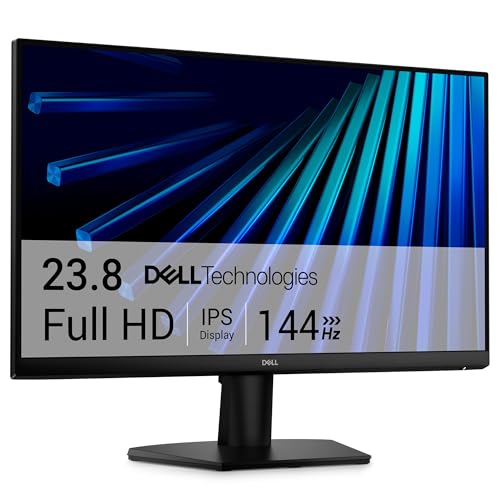
Dell 24 Monitor SE2426H — Fastest office panel
Dell’s SE2426H is the pick that makes an office buyer double-check the category, because its title leads like a gaming monitor: a 23.8-inch FHD IPS display at 144Hz with a 1ms response figure and AMD FreeSync. Nothing about that specification is wasted on office work. The modern office screen spends its day in motion — scrolling documents, dragging windows, presenting decks, hosting video calls where a colleague shares a moving screen — and 144Hz renders all of it with a smoothness that makes the old 60Hz fleet feel like it is working through syrup.
The rest of the title returns to business. A TÜV 3-star rating certifies the eye-comfort side of the panel through an independent body rather than a brand’s own label, which procurement teams in larger organisations genuinely value: a certification can be written into a specification document, while a marketing phrase cannot. Twin HDMI ports cover the two sources most desks actually have — the docked laptop and the desktop, or the PC and the meeting-room connection — and the stand tilts, which is stated plainly and should be read plainly: tilt is what this model offers.
That stand is the honest limit of the pick. No height adjustment is claimed, no VESA pattern is stated, and a fleet built on arms or on strict ergonomic policy should register both gaps before ordering. Dell’s counter-argument is the ecosystem around the panel: a global service network, model-code discipline in the SE line, and the kind of spare-parts availability that keeps a five-year-old deployment repairable. For a single office buying its own screens, those institutional virtues are worth real money.
The SE2426H also makes the guide’s clearest case for refresh rate as an office feature rather than a gaming luxury. Staff who have used a high-refresh screen — on a phone, a personal laptop, a home setup — experience a 60Hz office panel as a downgrade they can feel but not name, and the complaint surfaces as general dissatisfaction with their equipment. A 144Hz standard screen removes that friction at the exact tier where fleets buy, which is a more useful trick than any single ergonomic feature.
Deploy it where its strengths land: assigned desks with fixed seating, where tilt suffices and the screen’s speed is enjoyed by the same person every day. Shared hot-desks belong to the S43GC; arm-mounted rows belong to the Acers.
One deployment pattern flatters this Dell particularly: the single-screen professional desk. Lawyers, writers, consultants and analysts who work in one document at a time, take calls on the same screen and present from it in meetings get the full benefit of its speed and certification without ever missing a height adjustment they would set once and forget. In open-plan offices there is even a presentational dividend — a 144Hz screen sharing a spreadsheet in a call moves with a fluidity that reads, fairly or not, as competence.
The twin HDMI inputs suit that same desk diplomatically. A work laptop lives on one port and a personal or secondary machine on the other, and switching between them is a button press rather than a cable negotiation behind the desk. For consultants and contractors who bring their own device into a client’s or employer’s office, a screen that welcomes the second machine without unplugging the first is a small daily courtesy that compounds across a long engagement.
- Size and resolution: 23.8 inches, FHD 1920×1080, IPS
- Refresh rate: 144Hz, 1ms, AMD FreeSync
- Eye features: TÜV 3-star rating
- Inputs: 2× HDMI
- Stand: tilt
- Model: SE2426H
Strengths
- 144Hz is the highest refresh rate in this guide.
- An independent TÜV 3-star eye-comfort certification.
- Dell’s service network suits long deployments.
Trade-offs
- Tilt-only stand, with no height adjustment claimed.
- VESA mounting is not stated in the listing title.
- No DisplayPort is named among the inputs.
Best for: assigned desks where one person enjoys a fast, certified panel daily. Not suited for: monitor-arm deployments or hot-desks needing height adjustment.

Acer KB242Y G0bi — VESA-ready value
The Acer KB242Y G0bi earns its row with a phrase the Samsungs and the Dell never print: VESA mountable. For the large class of offices that hang their screens — on arms above sit-stand desks, on poles in trading-style rows, on walls in training rooms — a confirmed mount is not a feature but a gate, and this 23.8-inch Acer passes it in its title while offering a specification that needs no apology anywhere else: FHD IPS at 120Hz, a 1ms response claim, AdaptiveSync in its FreeSync-compatible form, and 99% sRGB coverage.
The input pair is quietly perfect for mixed fleets. HDMI serves every modern machine, and VGA — dismissed as legacy by consumer guides — remains the port of stubborn reality in offices: the old desktop in the corner, the previous-generation laptop pool, the meeting-room PC that predates the last two refits. A fleet screen that accepts both lets IT retire machines on the office’s schedule rather than the monitor’s. Between the mount, the VGA and the refresh rate, the KB242Y is the most deployable panel in this guide per unit of money.
Eye care arrives as named mechanisms rather than a mode: a blue-light filter and Acer’s Flickerless backlighting, both printed in the title. Flicker deserves its sentence, because pulse-width-modulated dimming at low brightness is a real source of end-of-day eye fatigue for sensitive staff, and a flickerless design removes the variable entirely rather than asking users to manage brightness around it. For an office standard, removing variables beats documenting workarounds.
Durability expectations should be set plainly for a value-tier fleet panel. The KB242Y’s job is not to be the finest screen in the building; it is to be the same screen in every room, year after year, mounted wherever the building needs one. Acer’s business-adjacent lines are built to that brief, and the specification’s balance — nothing exotic, nothing missing that a mixed estate needs — is the signature of a panel intended for institutional life rather than showroom applause.
The 99% sRGB figure lifts this panel slightly above pure utility for the office’s informal creatives — the marketing coordinator cutting social graphics, the trainer building slides with brand colours, the engineer annotating renders. It is not a colour-managed display and does not claim to be, but within an sRGB world it is an honest one, which is more than the unrated panels in most fleets can say.
Limits are the expected ones for the tier: no height-adjustable stand is claimed, no speakers are mentioned, and the warranty term is not printed in the title. An office buying arms anyway surrenders nothing to the first of those; the KB242Y reads, end to end, like a panel designed to be mounted, cabled and forgotten — the highest compliment fleet hardware can earn.
Schools and public-sector buyers should note this model in particular. Education estates share the office fleet’s constraints with tighter budgets and rougher handling: mixed-age computers that still speak VGA, rooms reconfigured termly, screens mounted high on walls and poles. A VESA-confirmed, dual-input, flickerless panel at a value tier is precisely the specification a school IT manager writes when nobody is watching, and the 120Hz refresh — a luxury in that setting — future-proofs the purchase against the faster expectations each new cohort of students carries in from home.
- Size and resolution: 23.8 inches, FHD 1920×1080, IPS
- Refresh rate: 120Hz, 1ms, AdaptiveSync (FreeSync compatible)
- Colour: sRGB 99%
- Inputs: HDMI, VGA
- Mounting: VESA mountable
- Eye features: blue-light filter, Flickerless technology
Strengths
- VESA mounting is confirmed in the title.
- HDMI plus VGA covers modern and legacy machines in one panel.
- 120Hz refresh and flickerless backlighting suit full-shift use.
Trade-offs
- No height-adjustable stand is claimed in the title.
- Warranty term is not printed in the listing title.
- No built-in speakers are mentioned.
Best for: arm-mounted fleets and mixed-age computer estates that still run VGA machines. Not suited for: desks needing speakers in the screen, or buyers who require a printed warranty term.

Acer Vero V247Y Gbmix — Speakers and a 100×100 mount
Acer’s second entry takes the mounting argument one step further than its sibling: the Vero V247Y’s title specifies the VESA pattern itself, 100×100mm, which is the dimension an installer actually orders arms against. A fleet buyer reading this title can complete the purchase order — panels and arms together — without a verification round-trip, and that small administrative mercy is rarer in this category than it should be. The bundle described in the title even includes a USB port expander, a practical inclusion for desks short on sockets.
The panel is a 24-inch FHD IPS screen with a 4ms response time, anti-glare coating and Adaptive Sync — a specification aimed at shared and public-facing spaces rather than speed. Anti-glare is the feature that decides those deployments: reception areas, training rooms, libraries, clinic desks and retail back offices all live under mixed lighting that turns a glossy screen into a mirror, and a matte IPS panel with wide viewing angles stays legible to the person standing beside the chair as well as the person in it.
Integrated speakers, absent from every other pick in this guide, complete the shared-space brief. A training room that can play a video without borrowing a Bluetooth speaker, a reception desk that can run a briefing loop with sound, a hot-desk that can host a call without a headset hunt — these are small capabilities that remove small daily frictions across an entire building. Nobody buys a fleet screen for its speakers, but buildings notice when they are missing.
The Vero name carries Acer’s sustainability line identity, and while this review makes no environmental claims beyond the branding in the title, the practical fleet angle is longevity of a different kind: a standardised, mountable, speaker-equipped panel is the unit least likely to be swapped out when a room’s purpose changes, because it fits the next purpose too. Redeployability is a fleet virtue that never appears in consumer reviews and dominates real asset registers.
Set against its sibling, the choice is tidy: the KB242Y is faster and carries the VGA legacy port; the Vero is the better shared-space citizen, with the specified mount, speakers and anti-glare finish. An office with both kinds of room will recognise both shopping lists immediately.
Sound deserves one more honest paragraph. Integrated monitor speakers are nobody’s idea of high fidelity, and in an open-plan office they will spend their lives muted or feeding a headset-free call at low volume. Their fleet value is narrower and real: the training video that must be heard by six people, the safety briefing in a workshop office, the video message played at a reception desk. Rooms like those currently borrow, beg or go without; a standard screen that simply has speakers ends the negotiation, which is why this Acer, alone in the guide, keeps being assigned to the building’s communal spaces.
- Size and resolution: 24 inches, FHD IPS
- Response: 4ms, Adaptive Sync
- Mounting: VESA mount 100×100mm
- Audio: integrated speakers
- Surface: anti-glare
- Inputs and extras: HDMI, USB port expander (per listing title)
Strengths
- The VESA pattern is specified in the title — arms can be ordered blind.
- Integrated speakers serve training rooms and shared desks.
- Anti-glare IPS stays readable under mixed building lighting.
Trade-offs
- Refresh rate is not stated in the listing title.
- No legacy VGA input is named for older machines.
- Height adjustment is not claimed for the stand.
Best for: training rooms, reception desks and shared spaces that need sound and a known mount. Not suited for: speed-sensitive users, or fleets standardised on VGA-era machines.

Samsung 27″ S30GD Essential — The bigger desk option
Every fleet has a minority of desks that need more screen: the finance lead reconciling wide ledgers, the designer reviewing layouts, the manager whose second monitor never arrived. The Samsung S30GD serves those desks from inside the same Essential family as the 24-inch picks — a 27-inch IPS panel at 100Hz with Advanced Eye Care and a Game Mode — so the odd larger unit in a deployment still matches the fleet’s menus, cables and support knowledge.
Size at Full HD is a trade this review states without flinching. The same 1920×1080 pixels spread across 27 inches produce larger, softer text than the 24-inch panels, and the staff who benefit are those who prefer bigger interface elements — longer viewing distances, presentation-heavy roles, eyes that welcome larger type — rather than those who pack windows densely. Deployed knowingly, the S30GD is an accessibility feature wearing a size badge; deployed as a thoughtless upgrade, it disappoints the pixel-counters. The fleet buyer’s job is to know which desk is which.
The stand is described in the title with unusual honesty: tilt only. No height adjustment is promised and none should be expected, which makes this a screen for assigned desks where the seating is settled — or for pairing with a riser or arm, noting that the title does not state a VESA pattern either. Within those terms, the ergonomics story rests on the panel itself: IPS viewing angles, 100Hz smoothness and Samsung’s Advanced Eye Care defaults.
There is a consistency dividend to closing the list inside one brand family. An office that standardises on Samsung’s Essential line across both sizes gets one on-screen menu language, one set of eye-care defaults to document, one support conversation when something fails. Heterogeneous fleets save money at purchase and spend it forever after in small confusions; the S30GD exists in this guide as the reminder that the larger screen and the standard screen can be the same screen, grown.
For a single home-office buyer rather than a fleet, the same logic applies at household scale: if the 24-inch picks feel cramped and the work is documents, browsing and calls rather than fine detail, this is the straightforward step up — with the tilt-only stand budgeted alongside a riser if the desk chair sits high.
There is one more desk that argues for this panel: the video-call-heavy manager’s desk. A 27-inch screen holds a gallery of faces at sizes where expressions survive, keeps the shared document legible beside the call window, and presents the speaker’s own material at a scale that discourages squinting through a presentation. In an era when the office’s most social surface is a grid of colleagues, the bigger standard screen earns its place socially as much as visually — a reason no specification table will ever print, and every hybrid team will recognise.
Budget honesty closes the case for the larger unit. Within a fleet order, a minority of 27-inch panels for the desks that justify them costs a rounding error against the whole deployment, while buying the entire floor at 27 inches would consume the budget that funds arms, spares and the second screens other desks need more. The S30GD is therefore best understood as a rationed upgrade — deliberately scarce, deliberately assigned — which is how thoughtful fleets treat every larger size.
- Size and resolution: 27 inches, IPS panel, Full HD class
- Refresh rate: 100Hz
- Stand: tilt only (per listing title)
- Eye features: Advanced Eye Care
- Features: Game Mode, ergonomic design billing
- Model code: LS27D304GANXZA
Strengths
- The fleet-consistent way to give a desk more glass.
- 100Hz and IPS angles keep the big panel comfortable all day.
- Advanced Eye Care matches the smaller Samsungs’ defaults.
Trade-offs
- Tilt-only stand, stated plainly in the title.
- Full HD at 27 inches is softer on fine text.
- VESA mounting is not stated in the listing title.
Best for: assigned desks that need a larger canvas inside a Samsung-standardised fleet. Not suited for: dense text work at close range, or arm mounting without verification.
Comparison
| Pick | Size | Refresh | Stand / Mount from title | Fleet signal |
|---|---|---|---|---|
| Samsung S40GD | 24″ | 100Hz | Ergonomic design | 3-year warranty |
| Samsung S43GC | 24″ | 100Hz | Height adjustable | Triple input with DisplayPort |
| Dell SE2426H | 23.8″ | 144Hz | Tilt | TÜV 3-star, 2× HDMI |
| Acer KB242Y G0bi | 23.8″ | 120Hz | VESA mountable | HDMI + VGA, flickerless |
| Acer Vero V247Y | 24″ | Not stated in listing title | VESA 100×100mm | Speakers, anti-glare |
| Samsung S30GD | 27″ | 100Hz | Tilt only | Advanced Eye Care |
Read the stand column first and the refresh column second: that ordering is the difference between a fleet purchase and a hobbyist one. Every panel here shows a fine picture; only some of them fit the desks, arms and people an office actually has.
The blanks in the table carry the same lesson as the filled cells. Where a refresh rate or a mounting pattern is not stated in a title, the fleet buyer’s next action is verification on the listing — a five-minute task for one model that becomes a five-week problem when skipped for fifty. Treat the table as a triage instrument: it eliminates the picks whose stated facts fail your building, and it flags the facts still owed by the survivors.
What Should an Office Check Before Ordering Monitors in Bulk?
Four verifications, in order. First, the mount: hold one of the office’s existing arms against the candidate’s stated VESA pattern, or confirm the pattern exists at all — two picks in this guide print it, four do not, and an unverified assumption multiplied by fifty desks becomes a storage room of incompatible hardware. Second, the dock: plug the fleet’s actual laptop dock into the candidate and confirm the input it needs is present, at the refresh the panel promises, with the cable the office already buys.
Third, the chair test: sit three different staff members at one unit for a day each, at the stand’s extremes, and record the complaints before they become tickets. Height range is the specification that decides this test, and it is why the S43GC exists in this guide. Fourth, the failure drill: read the warranty’s actual mechanism — advance replacement, return to base, on-site — because a three-year term with a three-week turnaround is a different product from a shorter term with next-day swap. The S40GD prints its term in the title; the process behind every pick’s term deserves the same scrutiny on the listing before the order scales.
A fifth check, cheap and decisive, is the pilot: order a handful of units — one of each shortlisted model — and run them for a month in the real rooms, on the real docks, under the real lighting. Pilots surface the incompatibilities that listings cannot: the dock that negotiates a lower refresh, the arm whose plate covers a port, the anti-glare finish that a particular window defeats. A month of piloting costs a few hundred in hardware that joins the fleet anyway, and it is the last point at which a fifty-unit mistake is still a conversation rather than a write-off. Give the pilot units to the building’s most candid users — the ones who will report that the stand wobbles or the menu baffles — rather than to the most senior, whose feedback arrives filtered through politeness and whose desks are rarely typical.
Why Do Offices Still Buy 24-Inch Full HD Monitors?
Because the arithmetic of fleets is not the arithmetic of enthusiasts. A 24-inch Full HD panel matches the pixel layout that office software, remote desktops and legacy business applications were designed around, so nothing renders tiny, nothing needs scaling exceptions, and support calls about unreadable interfaces simply do not happen. The size fits the standard desk depth without crowding the keyboard, fits dual-screen arrangements on ordinary bench desks, and fits the per-seat budget alongside everything else a seat requires.
There is also a uniformity argument that only appears at scale. When every desk runs the same resolution, any employee can sit at any desk, any screen can replace any failed screen, and any screenshot in a support ticket looks like the screen the support agent is imagining. The 27-inch S30GD in this guide is the sanctioned exception that proves the rule: a known, bounded deviation for desks whose work justifies it, inside the same brand family, rather than a second standard competing with the first.
How Should an Office Set Up a New Monitor Fleet?
Standardise the picture before the screens reach desks. Choose one documented configuration — brightness for the room’s lighting, the eye-care mode enabled, refresh rate set at the operating-system level to the panel’s full figure — and apply it to every unit during imaging, because fifty individually default screens will drift into fifty personal experiments within a month. Several panels in this guide ship talking to computers below their refresh ceiling, so the operating-system setting is not a nicety; it is the difference between the fleet the office bought and the one it received.
Then standardise the physical layer with the same rigour: the same cable type to every desk, the same arm or stand configuration per desk class, a labelled spare pool of roughly one unit per twenty deployed, and an asset record that ties each model code to a desk. The model codes printed throughout this guide exist for that record. A fleet set up this way can absorb a failure, a new starter or a desk move in minutes; a fleet set up casually spends those minutes every day, forever, in ones and twos.
Cable discipline deserves its own sentence in the setup standard, because it is where fleets quietly rot. Specify one cable length per desk class — long enough to allow the stand’s full adjustment, short enough to coil once and disappear — and banish the drawer of random spares that otherwise migrates onto desks over the years. When a screen is swapped, its cable stays with the desk, tested and known; the replacement panel inherits a working connection instead of an archaeological layer of other people’s troubleshooting. Small rule, compounding returns.
Dual Screens or One Larger Screen for Office Desks?
The fleet default in most offices has quietly become two 24-inch panels, and the reasoning is sound: two Full HD screens cost less than most single large alternatives, give staff a natural primary-and-reference split, and let one unit fail without darkening the desk. The borderless design of the S40GD exists for exactly this arrangement. Two screens also impose two stands, two cables and a posture centred on a seam, which is why the one-screen case refuses to die.
A single larger panel — the 27-inch S30GD pattern — suits work that is one wide artefact: the ledger, the timeline, the call gallery with a document beside it. It centres the user’s posture on the content rather than on a bezel, simplifies the desk, and halves the failure points. Mature fleets increasingly mix the two deliberately: dual 24s for operations and finance rows, single 27s for managers and call-heavy roles, all inside one brand family so support stays sane. The mistake is not choosing either arrangement; it is choosing one arrangement for every desk in the building and calling the uniformity a standard.
What Does Eye Care on a Business Monitor Actually Consist Of?
The umbrella term covers three distinct mechanisms, and the titles in this guide name all three. The first is blue-light management — Samsung’s Eye Saver Mode and Advanced Eye Care, Acer’s blue-light filter — which shifts the picture’s colour balance away from the blue end, most useful in the evening and in dim rooms. The second is flicker control: Acer’s Flickerless design addresses the rapid brightness pulsing some backlights use to dim, a subtle strobe that sensitive users experience as fatigue without ever seeing it directly. The third is certification, represented here by Dell’s TÜV 3-star rating, where an outside body tests the panel against published criteria and the result can be cited in a procurement document.
An honest fleet buyer holds two ideas at once. These features are real and worth standardising — a documented eye-care default is better than fifty personal experiments — and they are not a substitute for the unglamorous determinants of eye comfort: screen height, viewing distance, room lighting, font sizes and actual breaks. The offices that complain least about screens are the ones that set the monitor’s eye-care mode once, set the stand’s height properly, and light the room like a workplace rather than a cinema. Buy the features, then do the free parts too.
A note on defaults completes the picture. Eye-care modes only help if they are on, and individual users rarely enable features buried in a monitor menu. The fleet answer is procedural: enable the eye-care default during setup, record it in the build sheet, and mention it in the new-starter guide so staff know the warmer picture is deliberate rather than a fault. Features that require fifty individual acts of curiosity might as well not exist; features applied once, centrally, become part of the building.
Common Mistakes When Buying Business Monitors
Buying the panel and forgetting the furniture. Height adjustment, tilt range and VESA patterns decide whether a screen fits an office’s bodies and desks. Two picks here print their mounting outright; the rest require verification that bulk buyers skip at their storage room’s peril.
Standardising on a screen the dock cannot drive. Inputs are a fleet decision, not a per-desk one. The S43GC’s triple input and the KB242Y’s VGA exist because real estates of computers are mixed; a fleet screen that rejects the older third of the estate creates a shadow fleet of exceptions.
Reading the warranty’s length and not its mechanism. A term is a number; the replacement process is the product. Confirm how a failed unit is swapped, how long the desk sits dark, and whether advance replacement exists, before the first failure teaches the lesson at the worst moment.
Letting every desk configure its own picture. Unmanaged brightness, colour modes and refresh settings become fifty different screens and a support queue of vague complaints. One documented standard, applied at setup, prevents the entire category of ticket.
Final Recommendation
Standardise in two tiers. For assigned dual-screen desks, the Samsung S40GD’s three-year warranty and borderless 100Hz panel make it the fleet default this guide recommends. For shared and hot-desking rows, the Samsung S43GC’s height adjustment and triple input earn their premium in avoided complaints. Arm-mounted estates should build on the Acer KB242Y, shared and public rooms on the Vero V247Y, speed-sensitive assigned desks on Dell’s 144Hz SE2426H, and the handful of desks needing more glass on the 27-inch S30GD — a coherent fleet in which every unit’s role is written on its purchase line.
The principle worth keeping from this guide is that offices do not buy monitors; they buy the absence of monitor problems, in units of fifty. Judge every candidate by the tickets it will never generate — the neck that never aches, the arm that always fits, the failure that arrives as a courier swap — and the correct fleet assembles itself.
A closing note for the single-desk reader who arrived here from a search rather than a purchase order: everything in this guide applies at a quantity of one, with the stakes inverted. A home office has no spare pool and no IT desk, which makes the printed warranty, the confirmed mount and the adjustable stand more valuable, not less. The S40GD and KB242Y in particular are the kind of unglamorous, well-supported screens that home workers buy once and stop thinking about — and stopping thinking about a monitor is the entire point of buying a business one.
Frequently Asked Questions
Is Full HD enough for office work in 2026?
For the document, spreadsheet, browser and call workload that defines most office desks, yes — Full HD at 24 inches matches the layout assumptions of business software and keeps text at comfortable sizes without scaling exceptions. Roles built on dense data, design or multi-window analysis are the exceptions, and they are better served by the higher-resolution guides linked below than by breaking a fleet standard for everyone. There is also an estate argument: Full HD panels pair happily with the older docks, cables and integrated graphics that a real building accumulates, so a Full HD standard rarely strands an existing machine the way a high-resolution rollout can.
Why does refresh rate matter on an office monitor?
Because office work is motion: scrolling, window management, shared-screen presentations and video calls fill the day. Moving from 60Hz to the 100–144Hz range in this guide makes that motion visibly smoother, cuts the faint judder that makes shared screens hard to follow in calls, and reduces the dated feeling staff report when their other devices — phones, home laptops — all refresh faster than the screen they are given to work on.
Can these monitors be wall-mounted or arm-mounted?
Two picks confirm it in their titles: the Acer KB242Y is VESA mountable and the Acer Vero specifies a 100×100mm pattern. The Samsung and Dell titles do not state mounting, so an arm-based office should verify those models on their listings before ordering — and should treat the verification as a gate, not a formality, when the order is fifty units deep. The same caution applies to stands: a model whose title promises only tilt should never be deployed to a hot-desk row on the assumption that height adjustment is hiding in the box.
What is the difference between the two 24-inch Samsung models?
The S40GD leads on ownership: a 3-year warranty printed in its title, a borderless design for dual-screen desks and Eye Saver Mode. The S43GC leads on ergonomics and connection: a height-adjustable stand, triple input including DisplayPort and Advanced Eye Care. Fleets commonly deploy both, matched to assigned and shared desks respectively.
How many monitors should an office keep as spares?
A common planning figure is one spare per fifteen to twenty deployed units, held with matching cables and, where arms are used, a spare arm. The spare pool is what turns a failure into a ten-minute swap instead of a dark desk, an expedited order and a facilities ticket that ages in public, and it is cheapest when the fleet is standardised — one of the unglamorous reasons this guide recommends a small number of models in defined roles rather than a different bargain for every floor.
Do any of these monitors have built-in speakers?
One: the Acer Vero V247Y lists integrated speakers in its title, which suits training rooms, reception desks and call-friendly hot-desks. The other five titles are silent on speakers, so offices that need sound at every desk should plan on headsets or separate audio rather than assume the panel provides it.
Related Guides
Fleet buying is one end of the monitor market. Readers speccing a personal two-screen setup instead should see the six QHD panels assessed as matched pairs in our guide to dual 1440p monitors bought two at a time. Desks where the screen itself is the input — counters, classrooms, warehouses — are covered in our guide to touch screen monitors for desk and counter use. And anyone equipping a home office on a strict per-seat budget will find the value end of the market gathered in our guide to affordable monitors that earn their desk space.

[…] monitor question. Buyers equipping a whole office rather than one laptop should read our guide to business computer monitors chosen for office fleets, where warranty terms and VESA patterns outrank charging watts. Gamers and dual-screen workers will […]