What's inside
- Key Takeaways
- Quick Picks
- How We Chose These Picks
- Comparison
- What Do You Need to Make a Touch Monitor Actually Work as One?
- Where Do Touch Monitors Earn Their Keep — and Where Do They Not?
- How Should You Mount and Angle a Touch Screen?
- How Do You Keep a Shared Touch Screen Hygienic and Accurate?
- Touch Monitor or Tablet on a Stand — Which Belongs on the Counter?
- Common Mistakes When Buying a Touch Screen Monitor
- Final Recommendation
- Frequently Asked Questions
- Related Guides
As an Amazon Associate I earn from qualifying purchases. This post may contain affiliate links at no extra cost to you.
widgetverdict.com is reader-supported. When you buy through links on our site, we may earn an affiliate commission.
The best computer touch screen monitors solve a problem a mouse solves badly: the moment when reaching for the screen is simply faster. Signing a delivery at a warehouse bench, ringing a sale at a counter, checking in a gym member, presenting a design to a client standing beside you — in each case the hand goes to the glass before it goes to the desk. The six monitors reviewed here all build that reach into a desktop panel, and five of the six state 10-point touch in their listing titles, meaning the screen tracks up to ten simultaneous contact points for the gestures — pinch, zoom, two-handed manipulation — that modern software assumes.
The group divides by setting. Two CUNPU panels, a 24-inch and a 27-inch, are aimed squarely at offices, warehouses and counters, with VESA mounting and legacy VGA beside their HDMI. The FYHXele 24-inch adds a 100Hz panel to the same counter brief. The Pisichen steps up to a 27-inch QHD picture with USB-C and speakers. The ASUS BE24ECSBT is the business-communications specialist, with a webcam, USB-C carrying 80W of power delivery, and a height-adjustable stand. And the 34-inch ultrawide closes the list as the big-canvas outlier — a WQHD 3440×1440 touch panel with a height-adjustable, rotatable stand.
Every pick links to its Amazon listing so the model can be confirmed and the price checked on Amazon before ordering. One discipline matters more with touch screens than with ordinary monitors: a touch monitor needs two connections to work as a touch monitor — video to show the picture, and a USB link to carry the touches back to the computer. Several reviews below return to that second cable, because it is the detail whose absence turns an exciting delivery into a confusing afternoon.
Key Takeaways
- Five of the six picks state 10-point touch in their titles; the FYHXele is billed as a multi-touch monitor without a point count in its title.
- Touch needs a data path as well as a picture: the CUNPU 24-inch and the FYHXele list USB among their ports, and the ASUS and Pisichen carry touch over their USB-C connections.
- VESA mounting appears in nearly every title here — counters, warehouses and kiosks mount their screens, and this category knows it.
- The ASUS BE24ECSBT is the only pick with a webcam and the only one stating USB-C power delivery (80W), making it the video-call desk’s obvious candidate.
- Resolution climbs with ambition: Full HD on the counter models, QHD on the Pisichen, and a 3440×1440 ultrawide canvas on the 34-inch model.
Quick Picks
| Pick | Badge | Why it earns a place |
|---|---|---|
| CUNPU 24″ Touchscreen Monitor | Counter and warehouse standard | 10-point touch, 100% sRGB, VESA mounting and VGA/HDMI/USB connections. |
| CUNPU 27″ Touchscreen Monitor | The bigger office touch | Twenty-seven inches of Nano IPS touch with 100% sRGB for shared office desks. |
| FYHXele 24 Inch Touchscreen Monitor | 100Hz touch all-rounder | A faster 100Hz multi-touch panel with VESA and three input families. |
| Pisichen Touchscreen Monitor 27″ | QHD touch step-up | 2560×1440 resolution, 10-point touch, USB-C and built-in speakers. |
| ASUS BE24ECSBT | Video-call business touch | A webcam, USB-C with 80W power delivery and a height-adjustable VESA design. |
| 34 Inch Touch Monitor | The ultrawide touch canvas | 3440×1440 across 34 inches with 10-point touch and a rotatable stand. |
How We Chose These Picks
Touch was the gate, and it was applied by title: a pick had to present itself as a touch monitor, with the touch point count printed wherever the maker states one. That produced a group honest about its own specification — five explicit 10-point panels and one multi-touch model whose title leaves the count unstated, recorded as such in its review rather than rounded up to match its neighbours.
Settings shaped the rest of the selection. Desktop touch monitors earn their living in places ordinary monitors never go — warehouse benches, retail counters, gym receptions, classrooms, kitchen desks, information kiosks — so mounting, input variety and panel durability of specification mattered more than gaming speed. VESA appears in title after title here because the category’s buyers mount screens; VGA survives in two titles because the computers driving counters are often old; and the two USB-C models represent the category’s laptop-facing future.
Picture quality was judged at the level each setting needs. A counter screen lives on legibility — IPS viewing angles, honest colour, enough brightness for a lit room — and only the Pisichen and the ultrawide pretend to more, with QHD-class resolutions for desks where the touch screen is also the main screen. Refresh rates, where titles state them, run from 60Hz to 100Hz: touch is an input story, not a speed story, and the guide treats it that way.
Finally, the reviews keep returning to the ecosystem around the glass: the USB link that carries touch data, the operating system’s touch support, the stand or mount that puts the screen at a reachable angle. A touch monitor is a small system, and it was selected and reviewed as one.
One candidate type was deliberately excluded, and the exclusion is worth a sentence: portable USB-C touch monitors, the thin travel screens, solve a different problem — a second display for a laptop bag — and make poor permanent stations, with no VESA mounting, no legacy inputs and stands designed for suitcases. Buyers who arrived here wanting a counter fixture should not be diverted by their elegance; buyers who want the travel version will find these six picks comically permanent, which is precisely their virtue at a fixed station.

CUNPU 24″ Touchscreen Monitor — Counter and warehouse standard
CUNPU’s 24-inch model is the archetype of the working touch screen: a 1080p IPS panel with 10-point touch, 100% sRGB coverage, a 75Hz refresh rate, VESA wall mounting, a tilt-adjustable stand, and VGA, HDMI and USB connections. Read that list as a deployment checklist and it completes itself — the panel can hang on a warehouse wall or stand on a counter, it accepts video from a modern mini-PC over HDMI or from the ancient tower under the bench over VGA, and the USB connection is present to carry the touch data that makes the whole product category exist.
The settings named in the title — office, business, warehouse — share one trait: the screen is used standing, briefly, by many people. That usage flatters every choice here. IPS keeps the picture honest for a viewer approaching at an angle rather than seated dead centre. Ten-point touch lets a worker zoom a picking diagram or a customer sign with a natural two-finger gesture instead of hunting for an on-screen button with a stylus. Signature capture deserves its own mention in this setting, because it is the task that converts browsers into buyers of this category: a delivery signed on glass, a waiver acknowledged at a gym desk, a repair authorised at a counter — each replaces a printed form, a filing cabinet and a later argument about what was agreed, and each needs the touch layer to be accurate at the small scale of a name, which is where calibration earns its keep. The 100% sRGB figure keeps product photos and colour-coded inventory screens truthful, which in a warehouse is an operational feature, not an aesthetic one.
The 75Hz refresh rate is the specification of a tool rather than a toy: a step above the 60Hz floor, enough to keep scrolling and interface motion clean, with no pretence of gaming ambition. Buyers should note the division of labour the ports imply — HDMI or VGA carries the picture, USB carries the touch — and budget the second cable in any installation plan, because a touch screen connected by video alone is just a monitor with a disappointing first hour.
Against its 27-inch sibling below, the 24-inch model’s case is density and discipline: the same Full HD resolution in a smaller frame keeps text tighter, the footprint suits counters where every centimetre is merchandised, and the USB port’s presence in the title makes the touch path explicit. It is the pick for buyers who know exactly where the screen is going and what it will do there — which, in this category, is most buyers.
Longevity thinking suits this model. A mounted, standardised touch panel becomes part of a building’s furniture, outliving the computers that drive it; the VGA port, so easily mocked, is what lets a 2026 screen serve the 2016 machine still running the stock system, and the 2030 machine after it. Infrastructure buys do not chase novelty — they chase exactly this kind of compatibility.
Installation craft deserves a paragraph, because counters are built once and cursed daily if built carelessly. Route the USB touch cable with the video cable, label both ends, and leave a service loop behind the mount; the computer under a bench will be replaced years before the screen is, and the installer who made the cables reachable will be thanked by a successor they never meet. Set the screen’s angle for the tallest regular user’s wrist rather than the average eye, enable the operating system’s touch calibration once, and the station will feel designed rather than assembled.
- Size and resolution: 24 inches, 1080p FHD, IPS
- Touch: 10-point touchscreen
- Refresh rate: 75Hz
- Colour: 100% sRGB
- Mounting and stand: VESA wall mountable, tilt adjustable
- Connections: VGA, HDMI, USB
Strengths
- A complete counter specification: mount, legacy input and USB touch path.
- 100% sRGB keeps colour-coded work and product images honest.
- IPS angles suit standing, shared, walk-up use.
Trade-offs
- 75Hz is a working pace, not a gaming one.
- Touch requires the USB connection as well as video.
- No USB-C for modern laptop desks.
Best for: warehouse benches, retail counters and office walk-up stations. Not suited for: gaming desks, or one-cable USB-C laptop setups.

CUNPU 27″ Touchscreen Monitor — The bigger office touch
The 27-inch CUNPU takes the same formula — 10-point touch, 1080p, 100% sRGB, VESA mounting, tilt adjustment, VGA and HDMI — and stretches it over a larger Nano IPS panel at 60Hz. The extra size changes the job the screen does. At 24 inches a touch monitor is a station; at 27 it becomes a shared surface, big enough for two people to stand at, for a client to review a document across a desk, for a classroom corner or a design review where fingers point at details too small to indicate with a cursor from across the room.
Full HD across 27 inches is the honest trade, stated plainly: text is larger and less dense than on the 24-inch model. For the shared, standing, arm’s-length uses this screen is built for, that trade runs in the buyer’s favour — touch targets grow with the pixels, buttons become easier to hit accurately, and the whole interface becomes more forgiving for users who did not grow up with touchscreens. Seated, close, text-dense work is the 24-inch model’s home ground; this panel belongs a step farther back.
The Nano IPS billing and 100% sRGB coverage keep the bigger picture’s colour respectable for the presentation and product-review duties that justify a large touch screen in an office. The title’s stated 60Hz refresh rate confirms the intent: this is a display for showing and touching, not for fast motion, and buyers should take the maker at its word rather than expect hidden speed.
One specification gap deserves the same plainness: the title for this model lists VGA and HDMI without the USB port its smaller sibling prints. Touch data still needs a path to the computer, so buyers should confirm the touch connection on the listing page before building an installation around this panel — a five-minute check that protects a counter build from the category’s most common disappointment.
Deployed knowingly, the 27-inch CUNPU is the office’s shared whiteboard-that-isn’t: cheaper than an interactive display, simpler than a projector, and always on. Reception information points, showroom product explorers, training corners and meeting-room side desks all fit its description, and in each the buying logic is identical — the biggest comfortable touch surface at a working tier, with mounting and legacy inputs already settled.
A showroom scenario shows the size at its best. A customer exploring a product range on a 27-inch touch screen can read specifications without leaning in, compare two items side by side with genuine legibility, and hand the session to a salesperson standing beside them without either person changing places. The screen becomes a table the business and its customer share, and at that social scale the difference between 24 and 27 inches is not a specification — it is whether a second person can join the conversation the screen is hosting.
Training rooms make the same argument from the other side of the desk. An instructor working through a process on a 27-inch touch surface can be watched by a small group without a projector’s setup or a television’s distance, and trainees can step up and repeat the gesture themselves — learning by touching, on the same glass the job will use. Schools discovered this dynamic years ago with interactive whiteboards; a panel like this is the same idea at the scale of a corner rather than a classroom.
- Size and resolution: 27 inches, 1080p FHD, Nano IPS
- Touch: 10-point touchscreen
- Refresh rate: 60Hz
- Colour: 100% sRGB
- Mounting and stand: VESA wall mountable, tilt adjustable
- Connections: VGA, HDMI (touch connection to confirm on listing)
Strengths
- Large touch targets suit shared and standing use.
- Nano IPS with full sRGB coverage keeps presentations honest.
- VESA mounting and VGA cover institutional installations.
Trade-offs
- Full HD at 27 inches is visibly less dense for close text work.
- 60Hz is the class floor for motion.
- The touch data connection is not printed in the title.
Best for: shared office surfaces, showrooms, classrooms and information points. Not suited for: close-range solo text work, or buyers who need every connection confirmed in the title.

FYHXele 24 Inch Touchscreen Monitor — 100Hz touch all-rounder
FYHXele’s 24-inch entry is the generalist of the counter group: an IPS FHD 1080p multi-touch panel with an LED backlight, a 100Hz refresh rate, VESA mounting, and HDMI, VGA and USB connections. Its title aims it at an unusually honest spread of venues — gaming, business, warehouse, bar, gym — and the specification supports the breadth: this is the touch screen for the mixed-use room, the bar’s ordering point that doubles as a screen, the gym desk that checks members in by day and shows content by evening.
The 100Hz refresh rate is the differentiator against the CUNPU pair, and in touch service it buys something subtler than gaming speed: interface fluidity. Menus that scroll under a finger, maps that pan, photo galleries that swipe — all of them feel more direct at 100Hz, and directness is the sensation touch interfaces are selling. A customer-facing screen that responds like a good phone flatters the business standing behind it; one that stutters like an old tablet does the opposite, at exactly the moment of transaction.
Touch is billed as multi-touch without a point count in the title, and this review keeps the maker’s wording. For the overwhelming majority of desktop touch software — point-of-sale, check-in, kiosk interfaces, signature capture, media control — multi-touch gesture support covers the requirement, and the venues in the title rarely run ten-finger applications. A tap is a tap whether the panel can count to two or to ten, and the queue at a bar’s ordering point cares about the tap’s speed and certainty, both of which this panel’s 100Hz interface supplies, rather than about a census of fingers it will never conduct. Buyers with a specific multi-finger application should confirm the count on the listing; everyone else can take the panel as specified.
The connection trio repeats the category’s winning formula: HDMI for modern sources, VGA for the legacy machine that actually runs the till software, USB for the touch data. VESA mounting completes the installation picture. What the title does not claim — colour coverage percentages, speakers, USB-C — marks the panel’s tier plainly: a working screen at a working price point, specced for uptime rather than for spec-sheet applause.
Durability expectations should be set in the language of shifts rather than years. A counter touch screen is operated by the public, cleaned by whoever closes up, and leaned on — literally — by customers mid-conversation. Panels in this tier are built for that life in a way a repurposed home monitor is not, and the FYHXele’s unpretentious specification is part of the point: nothing on it is precious, so nothing on it is mourned when a station is rebuilt around it. For a small business equipping several stations, this model’s breadth is the argument. One SKU that can serve the counter, the back office and the waiting area simplifies spares, replacements and staff familiarity, and its 100Hz panel will not feel dated the way a 60Hz screen increasingly does to phone-trained customers and staff alike.
The gym and bar billing in the title is worth taking seriously rather than as colour. Those are environments of wet hands, hurried taps and users who have never seen the interface before, and they reward exactly what this panel offers: a bright IPS picture readable from an angle, an interface that answers at phone speed, and a mount that keeps the screen on the wall and out of the spill zone. A purchasing manager for a small chain could do far worse than standardising on the screen that was designed, on paper, for precisely their floor.
- Size and resolution: 24 inches, FHD 1080p, IPS, LED backlit
- Touch: multi-touch (point count not stated in listing title)
- Refresh rate: 100Hz
- Mounting: VESA
- Connections: HDMI, VGA, USB
- Colour coverage: Not stated in listing title
Strengths
- 100Hz makes touch interfaces feel phone-direct.
- HDMI, VGA and USB cover modern and legacy hosts alike.
- One model can standardise several different stations.
Trade-offs
- Touch point count is not stated in the title.
- No colour coverage figure is claimed.
- No USB-C or speakers are mentioned.
Best for: mixed-use small-business stations — counters, bars, gyms, back offices. Not suited for: applications with a hard ten-point requirement, or colour-critical desks.

Pisichen Touchscreen Monitor 27″ — QHD touch step-up
The Pisichen is where this category stops being a counter accessory and becomes a main screen. Its title stacks the upgrades in order: a 27-inch QHD 2560×1440 IPS panel, a 100Hz refresh rate, 10-point touch, USB-C beside HDMI and DisplayPort, and built-in speakers. Every element answers a limitation of the counter models — the resolution for real desktop work, the USB-C for a modern laptop, the speakers for a desk that must make sound without extra hardware.
QHD changes what touch is for. On a Full HD counter screen, touch operates the interface; on a 1440p desktop panel, touch manipulates content — timelines pinched wider, maps explored, whiteboards sketched, design canvases nudged — at a density where the content survives the attention. Paired with 100Hz, the Pisichen is the only pick here that a home-office worker could adopt as a sole screen without accepting a resolution compromise, and that dual identity is its whole case.
USB-C deserves its careful sentence. The title lists USB-C among the ports; it does not state a power-delivery figure, so laptop owners should treat the port as a video-and-touch connection and confirm charging behaviour on the listing if a one-cable desk is the goal. Even read conservatively, a USB-C input that carries picture and touch together is the cleanest wiring this category offers, and the HDMI and DisplayPort inputs keep desktops and consoles equally welcome.
Built-in speakers complete the solo-desk brief — calls, videos and media without a soundbar — and the gaming billing in the title is credible within limits: 100Hz at QHD with touch is a fine casual and strategy-gaming panel, not a competitive one, and the review leaves it there. Pisichen is a value marque rather than a legacy display brand, so the sensible posture matches the INNOCN pattern in the MacBook guide: strong specification per unit of money, listing details verified before purchase, and a role as the clever buy rather than the institutional one.
For a household, the scenario writes itself: a kitchen-desk or studio screen that works as a proper monitor all day, then serves recipes, music control and video at a touch in the evening, with no mouse hunted for any of it. Screens that live where life happens get touched; this one is built to be.
Parents and home educators have found this category too, and the Pisichen fits their version of it: a family screen where a child can work through a learning application by finger, a parent can sign a school form without printing it, and the same panel hosts a film after bedtime with its own speakers. The QHD resolution keeps homework text and reference material crisp in a way the counter panels, designed for transactions, never needed to be. One screen, several household jobs, no peripheral drawer — the arithmetic of a small home office resolves neatly here.
- Size and resolution: 27 inches, QHD 2560×1440, IPS
- Touch: 10-point touch screen
- Refresh rate: 100Hz
- Connections: USB-C, HDMI, DisplayPort
- Audio: built-in speakers
- USB-C power delivery: Not stated in listing title
Strengths
- QHD resolution makes touch a content tool, not just a control.
- USB-C simplifies the picture-plus-touch wiring.
- Speakers complete a genuine sole-screen desk.
Trade-offs
- USB-C charging wattage is not stated in the title.
- A value brand’s long-term support is thinner than ASUS’s.
- No VESA pattern is printed in the listing title.
Best for: home-office and studio desks wanting one touch screen that does everything. Not suited for: institutional counter fleets, or buyers who need charging figures in writing.

ASUS BE24ECSBT — Video-call business touch
ASUS built the BE24ECSBT for the desk where business is done face-first, and its title is the most complete in this guide: a 24-inch 1080p IPS touchscreen with 10-point touch, a webcam, USB-C with 80W power delivery, HDMI and DisplayPort, eye care features, a height-adjustable stand and VESA wall mounting. Each element has an office job. The webcam hosts the call. The USB-C cable docks the laptop, charges it at a stated 80W and carries the touch. The height adjustment fits the screen to the person rather than the furniture. The VESA mount frees the desk when the room demands it.
The webcam is the strategic feature, because it deletes the category’s most common accessory purchase. A fleet of ordinary monitors accumulates a fleet of clip-on cameras — bought separately, lost regularly, aimed badly. A camera designed into the bezel is always present, always centred and always the same for every participant, which across a company’s worth of video calls is a quality standard disguised as a component. For hot-desks and meeting-room side stations, where peripherals wander, an integrated camera is close to a necessity.
The 80W power delivery figure deserves emphasis because it is stated, where most touch monitors print nothing. Eighty watts charges the large majority of business laptops at full working pace over the same cable that carries picture and touch, collapsing the desk connection to one plug — the single most requested convenience in modern offices, delivered here by a touch screen rather than a dock.
ASUS’s BE line is a business family, and the supporting details show it: eye care features for full-shift use, a stand that adjusts for height rather than merely tilting, and a specification written in the complete sentences procurement departments prefer. The panel itself — 1080p IPS at 24 inches — is the correct, unglamorous choice for a screen whose work is calls, documents and touch-driven applications rather than visual spectacle.
Against the CUNPU 24-inch, the exchange is explicit. The CUNPU counters with VGA for legacy estates and a counter-first simplicity; the ASUS answers with the camera, the dock-class USB-C and the adjustable stand. Offices buying for people at desks, rather than for stations on walls, will find the ASUS’s arithmetic persuasive.
The height-adjustable stand earns one more sentence in a touch context specifically. Touch works best when the screen sits lower and tilts further than a viewing-only monitor, and a stand with genuine height travel lets the same screen serve a morning of documents at eye level and an afternoon of touch annotation dropped toward the desk. Fixed stands force a choice between the two postures; this ASUS declines to choose, which is a rarer courtesy in this category than the specification tables suggest.
- Size and resolution: 24 inches, Full HD 1080p, IPS
- Touch: 10-point touch
- Camera: built-in webcam
- USB-C: power delivery 80W, plus HDMI and DisplayPort
- Stand and mounting: height adjustable, VESA wall mount
- Eye features: Eye Care (per listing title)
Strengths
- An integrated webcam ends the clip-on camera economy.
- 80W USB-C delivery docks and charges over one cable.
- Height adjustment and VESA cover desks and walls alike.
Trade-offs
- No VGA for the oldest machines in an estate.
- Full HD resolution only, at a business-premium tier.
- Its completeness is wasted on a pure counter station.
Best for: video-call-heavy office desks, hot-desks and meeting rooms. Not suited for: legacy VGA estates, or buyers paying only for a wall station’s basics.
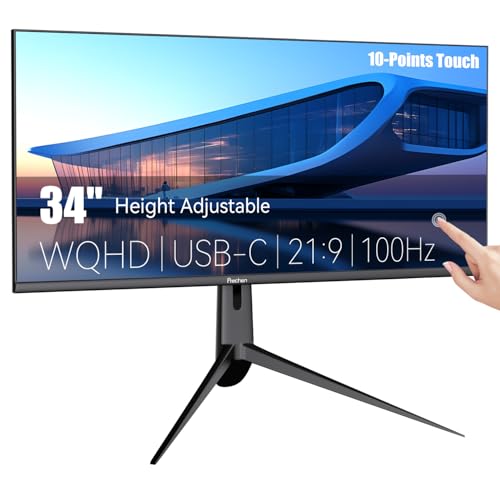
34 Inch Touch Monitor — The ultrawide touch canvas
The final pick breaks the category’s scale. A 34-inch ultrawide with a 3440×1440 picture — the listing title also carries a 4K label, but the resolution it prints is WQHD 3440×1440, and that printed resolution is the figure to buy on — with 10-point touch, a 100Hz refresh rate, HDR 400, HDMI, DisplayPort and Type-C connections, and a height-adjustable, rotatable stand with VESA mounting. It is a presentation wall, a design table and a control surface in one very wide panel.
Touch at this size changes purpose again. Nobody operates a 34-inch screen by fingertip for eight hours; arms do not work that way. The ultrawide touch panel is for standing sessions — a team around a roadmap, a teacher at the front of a room, a control desk where an operator taps a wide dashboard — where the screen is a shared surface used in bursts, then watched from a step back. The rotatable, height-adjustable stand is therefore not a luxury but the product: the canvas must meet its users at standing height and turn to face the room.
The 100Hz refresh and HDR 400 keep the big picture lively for video and presentations, and the connection set — HDMI, DisplayPort and Type-C — accepts everything from a room PC to a presenter’s laptop. VESA mounting, stated in the title, opens the wall and cart installations that rooms like this usually end with; a 34-inch panel on a mobile cart is a presentation system that rolls between meetings, and touch makes it one that needs no separate clicker-and-keyboard ritual.
Honesty about the label matters here, and this review has practised it: the title’s own numbers describe a WQHD ultrawide, and buyers should expect exactly that — superb width, strong density for its class, and a resolution below true 3840-wide 4K. Read that way, the panel is not diminished; it is correctly described, and its combination of width, touch and stand remains unique in this guide.
Ergonomics close the case. A screen this size used seated and close would exhaust anyone; used as designed — standing, shared, at a presenter’s distance — it is the only pick here that turns a monitor into furniture a room gathers around. Buy it for a room, not for a chair.
One deployment has become this format’s signature: the project room wall. A programme team gathers weekly around the same wide board — roadmap on the left, metrics on the right, risks dragged between columns by hand — and the screen’s memory of the arrangement, week to week, makes it a fixture of the ritual rather than a tool within it. A 34-inch touch panel is the smallest screen that can host that gathering without a projector’s fuss, and the only pick in this guide that a facilities manager would list as furniture.
- Size and resolution: 34 inches, WQHD 3440×1440 ultrawide
- Touch: 10-point touchscreen
- Refresh rate: 100Hz, HDR 400
- Connections: HDMI, DisplayPort, Type-C
- Stand and mounting: height-adjustable and rotatable stand, VESA mountable
- Note: listing title also carries a 4K label; printed resolution is 3440×1440
Strengths
- A shared touch canvas no smaller screen can imitate.
- Rotatable, height-adjustable stand suits standing sessions.
- HDMI, DisplayPort and Type-C accept any presenter’s machine.
Trade-offs
- Far too large for seated fingertip use at a normal desk.
- The title’s 4K label overstates its printed WQHD resolution.
- An unbranded listing — verify details on the page before a room build.
Best for: presentation rooms, classrooms, control desks and shared studio surfaces. Not suited for: personal desks, or buyers who need a fully branded specification sheet.
Comparison
| Pick | Size / Resolution | Touch | Refresh | Signature feature |
|---|---|---|---|---|
| CUNPU 24″ | 24″ / 1080p | 10-point | 75Hz | USB touch path, VGA, VESA |
| CUNPU 27″ | 27″ / 1080p | 10-point | 60Hz | Large shared surface, Nano IPS |
| FYHXele 24″ | 24″ / 1080p | Multi-touch | 100Hz | Fastest counter panel |
| Pisichen 27″ | 27″ / 2560×1440 | 10-point | 100Hz | USB-C and speakers |
| ASUS BE24ECSBT | 24″ / 1080p | 10-point | Not stated in listing title | Webcam, USB-C 80W PD |
| 34″ Touch Monitor | 34″ / 3440×1440 | 10-point | 100Hz | Ultrawide canvas, rotatable stand |
The table’s shape is the category’s map: counter models trade resolution for mounting and legacy ports, desk models trade mounting certainty for USB-C and speakers, and the ultrawide trades everything for presence. Choose by the room the screen will live in, and the right row selects itself.
One column deserves a second look before any order: the touch column’s single act of honesty. The FYHXele’s multi-touch billing, printed here without a number, is the row that teaches the guide’s method — a specification is what its title states, and the gap between multi-touch and a stated 10-point is exactly the kind of detail a signature-capture or multi-user application will care about. Verify it where it matters; ignore it where it does not; but never let a comparison table quietly promote a claim its maker did not make.
What Do You Need to Make a Touch Monitor Actually Work as One?
Two cables and one setting. The video cable — HDMI, DisplayPort or USB-C — carries the picture. A USB link carries the touches back to the computer: a USB port on the CUNPU 24-inch and the FYHXele, the USB-C connection on the Pisichen and the ASUS. Connect video alone and the panel lights up beautifully while ignoring every finger, which is the single most common first-day complaint in this category and entirely a wiring matter.
The setting lives in the operating system. Windows supports multi-touch natively and maps the screen’s touches once the USB link is present; the check is to open the tablet and touch settings and confirm the display is recognised as touch-capable. macOS support for external touchscreens is historically limited and driver-dependent, so Mac owners should verify their intended software path before buying any pick in this guide — an honesty note that applies to the whole category, not to one model. Kiosk and point-of-sale software, the category’s home turf, is built for touch from the ground up and needs no persuasion at all.
A second, quieter requirement is the host’s port reality. The computer driving a touch station is often a small-form-factor PC with a finite set of USB sockets already claimed by a receipt printer, a card reader and a scanner. Count the sockets before the screen arrives: the touch link needs one of them, permanently, and the time to discover a shortage is during planning, not during a Saturday-morning installation with a queue forming at the counter the screen was bought to serve.
Where Do Touch Monitors Earn Their Keep — and Where Do They Not?
They earn it wherever the user is standing, gloved, occupied or in a hurry. Warehouse benches, where a worker’s hands are full and a mouse is a contamination of the workflow. Counters, where the transaction is a conversation and the screen is its shared surface. Gyms, clinics and receptions, where check-in must take seconds and survive a queue. Classrooms, where a teacher’s finger is a better pointer than a laser dot nobody can find. Kitchens and workshops, where the recipe or the manual is consulted with hands that should not go near a keyboard.
They do not earn it at the ordinary seated desk doing ordinary office work, and this guide says so despite selling the category. A mouse is more precise, a keyboard is faster, and an arm held at screen height tires in minutes — the gorilla-arm problem that has bounded desktop touch since its invention. The strongest setups are honest hybrids: touch for the standing, shared and walk-up moments, conventional input for the seated hours. The ASUS and Pisichen picks are built exactly for that hybrid life, which is why they read as complete desks rather than as stations.
Accessibility is the honourable exception to the seated-desk caution, and it deserves its own paragraph. For users whose motor control makes a mouse a daily struggle — or whose work is demonstration, annotation and presentation — a touch screen at a desk is not a novelty but an accommodation, and the directness of touching the thing itself can be the difference between independent work and assisted work. Buyers in that position should weight the ASUS’s height-adjustable stand heavily: a touch screen that can drop low and tilt far is an accessibility tool, while the same panel fixed at viewing height is a frustration.
How Should You Mount and Angle a Touch Screen?
Touch changes the geometry rules. A viewing screen wants to be vertical and at eye level; a touch screen wants to be lower and tilted toward the user, like a draughting table or a lectern, so the hand falls onto it naturally and the wrist stays neutral. Counter installations split the difference — screen at chest height, tilted back slightly — while wall-mounted information points sit lower than signage would, because the reader is also the operator.
The VESA patterns printed across these titles exist for this reason: arms and mounts let an installation find its angle and keep it, where a tilt stand serves a single desk’s habits. Whatever the mount, leave the USB touch cable with slack and a service loop; touch installations get re-cabled more often than viewing screens, because the computer driving them is swapped while the screen — the expensive, mounted part — stays. Plan the screen as the permanent fixture and the computer as the consumable, and every future upgrade becomes a ten-minute job.
Glare is the mounting variable installers underestimate. A touch screen invites its users close, and close users block and reflect light differently from seated viewers; a panel angled for the hand can catch a ceiling light that a vertical screen would have missed. Test the installed angle at the room’s brightest hour with the actual users standing in their actual places, and adjust before the mount is finalised. Ten minutes with a ladder on installation day is cheaper than a year of customers squinting at a signature pad.
How Do You Keep a Shared Touch Screen Hygienic and Accurate?
Shared glass accumulates two things: fingerprints and drift. The fingerprints are a cleaning rota — microfibre cloth, screen off, a wipe at the start of each shift in customer-facing service — and they matter beyond appearances, because a smeared screen reads touches less certainly and looks neglected at exactly the moment a customer is judging the business. Build the wipe into the opening checklist and the screen stays a credit instead of becoming a small embarrassment with a power cable.
Drift is the quieter issue. Touch calibration can wander over months of use, temperature changes and driver updates, presenting as taps that land a few millimetres from their targets — infuriating in a signature box, invisible in a menu. The fix is procedural: recalibrate from the operating system’s touch settings on a schedule, test the corners where error shows first, and re-check after any computer swap. Stations that sign documents or capture payments deserve the monthly version of this ritual; information points can run it quarterly and never notice the difference.
Accuracy has a human half as well. New staff at a touch station tap tentatively, double-tap from mouse habit, and rest palms where palms register as input. A short induction — this is a single-tap system, rest nothing on the glass, report a tap that lands wrong rather than working around it — prevents the workarounds from fossilising into the station’s folklore. The screen is the easy half of a touch installation; the habits around it are the other half, and they are set in the first week or not at all.
Touch Monitor or Tablet on a Stand — Which Belongs on the Counter?
Every counter buyer eventually asks why the screen should not simply be a tablet, and the answer is a list of unglamorous durabilities. A desktop touch monitor is mains-powered forever, with no battery to swell or fade; it is built to be looked at and touched ten thousand times in a lit room; it accepts the computer the business already owns, including the elderly one running the till software; and when that computer dies, the screen stays on its mount and meets the replacement. A tablet wins on portability and on having its computer built in — and loses its station the first time someone carries it to another room.
The deciding question is whether the station is a place or a person. Places — counters, benches, receptions, classroom walls — belong to monitors: fixed, powered, mounted, boring in the way infrastructure should be. People who move — the inspector, the visiting nurse, the field engineer — belong to tablets, and this guide’s final link leads to the business end of that category. Businesses that confuse the two end up with tablets permanently tethered to counters by their charging cables, performing a monitor’s job with a battery’s anxieties; the honest purchase names the job first. There is a cost corollary: a monitor-and-existing-PC station usually undercuts a tablet-plus-stand-plus-case installation at the same screen size, and the saving compounds at the second and third station, where the monitor fleet’s spares and familiarity begin to pay rent. None of this argues against tablets in their place — it argues against furniture being bought as though it were luggage. A counter is a place; equip it like one, and let the portable devices stay portable, charged and ready for the people who actually roam. The two categories meet happily in one building — monitors on the counters, tablets in the hands — provided each was bought for its own job and neither is apologising for the other. Procurement lists that keep the two in separate lines, with separate spares, age better than any hybrid compromise. The building’s map of screens should be as legible as its floor plan — every station labelled, every cable accounted for, every screen’s job written down where a new manager can find it on a difficult morning, alongside the spare cables and the calibration note that keeps the whole estate honest. Infrastructure succeeds when it is documented, not merely installed — a sentence worth taping inside the cupboard where the spare cables live.
Common Mistakes When Buying a Touch Screen Monitor
Forgetting the touch cable. Video alone gives a picture and no touch. Confirm the USB or USB-C data path exists for your host computer before the installation is built around the screen.
Buying touch for a seated desk that will never use it. If the work is documents and email, the premium buys a feature the arm declines to use by Friday. Touch pays where users stand, share or move.
Assuming a point count the title never printed. Five picks here state 10-point touch; one states multi-touch. Applications with a genuine ten-finger requirement should buy from the stated five.
Mounting at viewing height. A touch screen hung like a television exhausts its users and smears its own purpose. Angle and height for the hand, not only for the eye.
Final Recommendation
Match the screen to the standing moment it serves. For counters and warehouse benches, the CUNPU 24-inch is the complete, honest tool — mount, legacy inputs, USB touch path — with the FYHXele as the faster-feeling alternative for customer-facing stations. Shared office surfaces belong to the 27-inch CUNPU. The Pisichen is the home desk’s pick, the one touch screen here that can be a person’s only screen. The ASUS BE24ECSBT owns the video-call office, camera and 80W docking included. And the 34-inch ultrawide is a room’s purchase, not a desk’s — buy it for the wall, the cart and the gathered team.
The principle under all six: touch is not a screen upgrade, it is a workflow decision. Where hands genuinely reach for information — at the counter, the bench, the classroom wall — these panels remove the middleman between intention and action, and no mouse ever quite does that.
A last word on sequencing for anyone building a station from nothing: buy the screen before the software argument ends. Touch hardware is standardised enough — a picture, a USB link, an operating system that listens — that the panel chosen here will serve whichever point-of-sale, check-in or kiosk platform the business settles on, while the reverse is not always true. Fix the glass to the wall, wire both cables, and let the software decision happen in front of a working touch surface; demonstrations settle debates that documents prolong.
Frequently Asked Questions
Do touch monitors work with any computer?
The picture does — any machine with HDMI, DisplayPort, VGA or USB-C video can drive these panels. Touch itself needs the USB data link connected and an operating system that supports external touch, which Windows does natively. Mac owners should verify driver and software support for their specific use before buying, as external touch on macOS is the category’s known limitation.
What does 10-point touch mean?
The screen can track ten simultaneous contact points — all fingers of both hands — enabling pinch-to-zoom, two-handed rotation and multi-finger gestures, and letting software distinguish a deliberate palm rest from an input. Five picks in this guide state it in their titles; the FYHXele is billed as multi-touch without a printed count.
Can a touch monitor replace a mouse entirely?
At a counter, kiosk or check-in station, yes — the software there is designed for fingers. At a general desk, no: precision tasks, text selection and long sessions all favour the mouse, and the sensible setup keeps both, using touch for the moments it wins. Every pick here works perfectly as an ordinary monitor when touch is not in use — the touch layer simply waits, which is why a touch panel is never a wasted purchase even when a station’s software changes: worst case, the business owns a good monitor with a dormant talent.
Do these screens need special cleaning?
They need regular cleaning, because fingerprints are the category’s weather. A soft microfibre cloth, slightly dampened, with the screen off, handles it; harsh solvents and paper towels are the enemies of touch coatings. Stations in food or clinical settings should be wiped on a schedule rather than on a complaint — a touch screen’s responsiveness and dignity both depend on the glass staying clean.
Is a stylus included or required?
None of the titles in this guide lists a bundled stylus, and none of these panels requires one — fingers are the designed input. A capacitive stylus will work on them as a finger substitute for signature capture or gloved environments — warehouses in winter are the classic case, where a stylus or touch-compatible gloves keep the workflow moving — and buyers whose application depends on pen precision should note that these are touch screens, not pen displays with pressure levels. Artists and note-takers who need pressure sensitivity belong in the pen-display category entirely; these panels trade that talent for size, mounting and price.
Related Guides
Touch is one way a screen meets its user. Buyers equipping the same counters and offices on a strict budget should compare the value panels in our guide to affordable monitors that earn their desk space. Teams who prefer their large shared surfaces portable will find the slate options in our guide to big screen tablets for work and film. And organisations standardising whole fleets of devices should read the detachable and rugged options in our guide to business tablets for office and field work.


[…] involves touching the screen itself will find the counter-and-classroom options in our guide to touch screen monitors for desk and counter. Budget-conscious builders equipping a second desk or a spare room should compare the value panels […]