What's inside
- Key Takeaways
- Quick Picks
- How Did We Choose Monitors Specifically for PCs?
- What Makes a Monitor a Good PC Monitor, Specifically?
- Should a PC Monitor at This Size Be 1080p or Something Taller?
- How Do You Pair a New Monitor With an Older PC?
- Single Screen Now, Dual Screen Later: How Should That Change the Choice?
- Which of the Best 23 Inch PC Monitors Deserve a Place Beside Your Tower?
- How Do the Six Compare Side by Side?
- How Do You Set Up a PC Monitor for Years of Trouble-Free Use?
- How Should a PC Monitor Be Positioned in a Dual-Machine Household?
- What Will Your Next PC Want From This Monitor?
- How Do You Future-Proof a PC Desk Around One Good Monitor?
- How Do You Keep a PC Monitor Setup Quiet, Cool and Tidy?
- How Do You Choose When the PC Itself Is About to Change?
- A Last Word on the Screen as the PC’s Face
- What Mistakes Do PC Monitor Buyers Make?
- Final Recommendation
- Frequently Asked Questions
- Related Guides
As an Amazon Associate I earn from qualifying purchases. This post may contain affiliate links at no extra cost to you.
widgetverdict.com is reader-supported. When you buy through links on our site, we may earn an affiliate commission.
Where to buy: the six screens below link to verified listings chosen specifically for life beside a desktop PC, and each review covers the tower-side details — inputs, wake behaviour and desk geometry — that laptop-focused guides tend to skip.
The best 23 inch pc monitors are chosen by a different logic than laptop displays, and this guide leans into that difference. A PC monitor lives beside a tower: it is driven by a graphics card or motherboard output, it wakes and sleeps with the machine, it often shares the desk with a second screen, and it may stay in service through two or three PC upgrades. The screens that excel in that life are not always the ones with the longest feature lists.
The honest size note, once more: the live market in this class is 23.8-inch viewable panels sold as 24-inch class, plus the 23.5-inch Samsung in our curved guide’s family. Every pick below is labelled with its true size, and all six fit the compact desks that make this keyword popular — student rooms, box-room offices, and the second workstation in a shared house.
Our six cover the PC owner’s real shortlist: a USB-C-equipped all-rounder for households where a laptop also visits the desk, a hub-heavy Dell for peripheral-rich towers, a tall WUXGA HP for document work, two calm value screens for mainstream PCs, and a 120Hz LG for the gaming rig. Read for the machine you own, not the machine in the advertisements.
Consider, finally, the PC owner’s most common real scenario: the monitor is not being bought with the PC at all. It is the upgrade to a machine that already works, replacing a screen that has become the system’s oldest and dimmest component. That replacement is the highest-leverage upgrade in desktop computing — it touches every minute of use while asking nothing of the rest of the machine — and it is the scenario this list was quietly written for, which is why compatibility with ageing towers gets as much attention here as any headline feature.
The reviews therefore keep returning to the tower: what it outputs, what it wakes, what surrounds it. If that focus feels unfashionable in a laptop era, remember that the desktop PC remains the machine of gamers, creators, home servers and anyone whose work wants power without a battery’s permission — and it deserves a monitor guide written in its own language.
Key Takeaways
- PC monitors should be judged on inputs and wake behaviour as much as on the panel, because the tower is a permanent partner.
- 23.8-inch viewable is the true size behind this class; all six picks fit compact desks and dual-screen plans.
- DisplayPort is the PC owner’s best friend — it unlocks full refresh rates and the most reliable sleep and wake behaviour.
- A built-in USB hub cleans up a tower desk even when the PC itself has plenty of ports.
- 1080p at this size is the mainstream PC choice, with WUXGA as the tall-screen alternative for document work.
- Buy the monitor for the next PC too: VESA mounting and a spare HDMI input keep future options open.
Quick Picks
| Pick | Badge | Why it earns its place |
|---|---|---|
| BenQ GW2490C | Best all-round PC pick | BenQ’s 23.8-inch 144Hz screen with USB-C suits the modern desk where a PC and a visiting laptop share one display. |
| Dell P2422H | Hub-heavy workstation pick | Dell’s 24-inch P-series screen brings a five-port USB ecosystem and a full ergonomic stand to peripheral-rich PC desks. |
| HP Series 5 Pro 24-Inch WUXGA | Tall-screen document pick | HP’s 24-inch Series 5 Pro runs a 100Hz WUXGA IPS panel with full stand adjustment for document-heavy PC work. |
| Dell SE2425H | Mainstream PC value | Dell’s refreshed 24-inch value screen pairs VA contrast with 75Hz and ComfortView Plus for ordinary PCs done right. |
| LG UltraGear 24G411A | Gaming PC pick | LG’s 24-inch UltraGear runs a 120Hz IPS panel with both sync families, built for the PC that games after work. |
| Dell SE2422HX | Second-screen and spare-PC pick | The older Dell value screen remains the easy choice for a PC’s second display or a spare machine’s only one. |
How Did We Choose Monitors Specifically for PCs?
Laptop-first thinking was banned from this shortlist. We scored each candidate on the desktop facts: a DisplayPort input for the graphics card, an HDMI spare for a console or a second machine, wake-from-sleep reliability with tower PCs, and a stand or VESA pattern that works in the dual-screen arrangements PC owners actually build. Screens that only made sense as laptop docks were marked down, however fashionable.
Verification followed the rule of this whole series: every linked pick is a confirmed listing from the guide’s pool, with size, resolution and panel type taken from the listing itself. The six split across the PC market’s real segments — mixed household desk, peripheral-heavy workstation, document professional, mainstream family PC, value second screen and gaming rig — because a single ranking across those lives would mislead everyone equally.
Longevity counted heavily in the final ordering. A PC monitor commonly outlives the machine it was bought for, so build quality, brand support and mounting flexibility were scored as the multi-year features they are, ahead of any single headline specification.
What Makes a Monitor a Good PC Monitor, Specifically?
Start at the back panel. A desktop PC speaks DisplayPort and HDMI natively, and a good PC monitor answers with both, so the graphics card gets the full-performance connection and a console, work laptop or media box can share the screen without a cable ritual. USB-C, by contrast, matters less beside a tower — it earns its place here only on the BenQ, for households where a laptop regularly visits the same desk.
Wake behaviour is the invisible specification. A PC monitor must wake when the tower wakes, every time, without a power-button pilgrimage under the desk. The business-bred models in this list — the Dell P-series and HP Pro — are prized in offices partly because their input detection and sleep manners are boringly reliable, and that boredom is worth money at home too.
Finally, geometry. PC desks grow second screens the way gardens grow weeds, so thin bezels, matching heights and VESA mounts decide whether a future pairing looks designed or accidental. Every pick here can take an arm; most can sit beside a twin of itself without a visual argument. That is what PC-specific buying looks like: less glamour, more foresight.
Should a PC Monitor at This Size Be 1080p or Something Taller?
For a mainstream PC, 1080p at 23.8 inches remains the rational default. It is sharp enough for the desktop, effortless for any graphics card made in the last decade, and it is the resolution at which this size’s high-refresh gaming models operate. A PC built for browsing, office work, media and play will never feel held back by it.
The exception in this list is the HP’s WUXGA panel — 1920 by 1200 — which trades a little gaming focus for vertical room that document, code and spreadsheet work converts into visible productivity. If your PC’s day is measured in rows and pages, that taller shape is the upgrade worth having at this size; if it is measured in frames per second, the LG’s 120Hz 1080p panel is the honest alternative. QHD exists in this size too, and our dedicated roundup covers it, but for a general PC it asks more of the graphics card than most owners need to give.
How Do You Pair a New Monitor With an Older PC?
Ageing towers impose two constraints, and both are easily checked. The first is outputs: a PC from the early HDMI era may carry a revision that caps a 1080p screen at 60Hz regardless of the panel’s ceiling, while its DisplayPort — if fitted — usually has headroom to spare. Prefer DisplayPort for the new screen, and the older machine will often deliver more than its owner expects. The second constraint is graphics memory and driver support for multiple displays; a modest card runs two 1080p screens for desktop work without complaint, but adding the second panel for gaming surround is a different and much larger ask.
Cables deserve respect in an upgrade, because the drawer of spares is full of standards that look alike. An HDMI lead from a decade ago may not carry the bandwidth a 144Hz pick wants; a fresh, certified cable costs little and eliminates an entire family of mysterious symptoms — flicker at high refresh, wake failures, resolutions that will not appear. When a new monitor misbehaves with an old PC, the cable is the first suspect and the cheapest acquittal.
The encouraging truth is how well this class suits old machines. None of these 1080p-class panels asks anything heroic of a GPU, the WUXGA HP included, so a screen upgrade genuinely can make a six-year-old tower feel like a new computer for desktop work — because the part of the computer you look at is new.
Single Screen Now, Dual Screen Later: How Should That Change the Choice?
Most PC desks that will ever have two screens start with one, and the first purchase quietly decides how graceful the second will be. Three properties future-proof the pairing: a VESA mount, so either screen can take an arm when symmetry demands it; slim bezels, so the join between panels looks deliberate; and a model line that stays in production, so the twin you buy in eighteen months matches the original in height, colour and character. The Dell and BenQ picks score particularly well on that third point.
Plan the port arithmetic early, too. A dual setup wants two digital outputs from the PC, ideally one DisplayPort for the primary and one HDMI or DisplayPort for the secondary, plus a spare input on the main screen if a console or laptop visits. Counting those connections now — on the tower you own, not the one in the advertisement — prevents the adapter-chain improvisation that makes so many second-screen projects feel jerry-built.
And keep the hierarchy honest when the second screen arrives: the newer, better panel takes the central seat, and the veteran moves to the side for chat, references and monitoring. Every pick in this list has been chosen to age into that supporting role gracefully, which is part of what buying a PC monitor well actually means.
Which of the Best 23 Inch PC Monitors Deserve a Place Beside Your Tower?
Six screens for six kinds of PC — notice how the tower-side details, not the marketing, separate them.
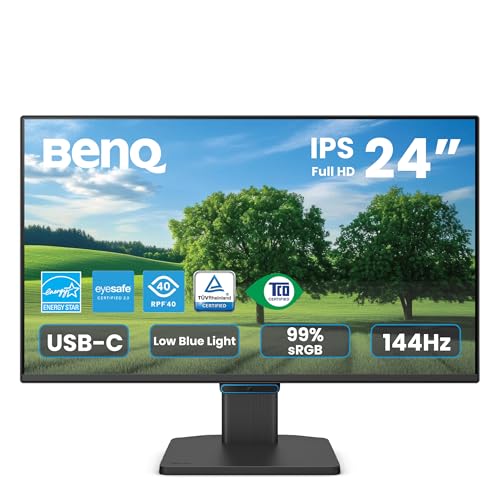
BenQ GW2490C — Best all-round PC pick
The GW2490C tops this PC list for a thoroughly modern reason: the contemporary desk rarely serves one machine. The tower lives here permanently, but a work laptop arrives on weekdays and a partner’s machine visits at weekends — and this BenQ welcomes all of them, the PC over DisplayPort at a genuinely game-worthy 144Hz, the laptops over USB-C without a dock hunt. Between machines, its flicker-free panel and restrained eye-care modes make it the screen in this list we would sit at longest.
As a pure PC monitor it lacks nothing essential: IPS colours that behave for photo sorting, refresh headroom that flatters a mid-range graphics card, and bezels slim enough that a second screen later will look like a plan rather than an accident. The stand is the modest part of the package, as it is across this class, and there is no QHD sharpness for the text-obsessed. For the mixed household desk that defines modern PC ownership, it is the most adaptable screen here.
The GW2490C’s PC-specific party trick is how it handles the tower’s off days. When the PC is asleep or being rebuilt, the same screen serves a laptop over USB-C without a cable reorganisation; when a console visits, an HDMI input is waiting. That flexibility makes it the natural hub of a small room’s entire electronics life, not merely the PC’s display. Owners should explore its input auto-switching settings early — configured well, the screen simply shows whichever machine woke up, and the multi-device desk stops feeling like a patch bay.
A BenQ detail for PC owners specifically: its picture modes can be tied to inputs, so the tower’s DisplayPort can live in a fast, vivid profile while the laptop’s USB-C rests in a reading-friendly one, with no menu visits at switch-over. Multi-machine desks live and die by exactly these automations, and configuring them on day one is the difference between a hub and a hassle.
The GW2490C’s verdict for PC owners is adaptability as a first principle: it serves the tower at speed, the laptop on one cable, and the household’s eyes all day, without asking any of them to compromise visibly. In a category of specialists, it is the screen most likely to still be the right answer after your setup changes — which, for a PC desk, it will.
One last BenQ note: it is the screen to buy when the desk’s future is genuinely unknown — new job, new laptop, new house — because no pick here adapts to more futures without complaint.
- Panel: 23.8-inch IPS, 1920 x 1080
- Refresh rate: 144Hz
- Ports: USB-C, HDMI and DisplayPort class inputs
- Features: flicker-free backlight, low blue light modes
- Design: slim bezels for dual-screen desks
Strengths
- 144Hz for the PC, USB-C for visiting laptops
- Eye-care engineering for long desktop days
- Slim bezels make it a natural dual-screen citizen
Trade-offs
- Stand adjustment is modest
- No USB hub for peripheral-heavy towers
- 1080p only, for buyers eyeing QHD
Best for: households where one desk serves a gaming-capable PC plus one or more laptops.
Not suited for: peripheral collectors who need a hub, or text specialists set on higher resolution.

Dell P2422H — Hub-heavy workstation pick
A certain kind of PC desk accumulates hardware: keyboard, mouse, webcam, headset dongle, external drive, printer. The P2422H was designed by people who have seen that desk. Its five USB ports turn the monitor into the desk’s front-of-house, so peripherals plug in at the screen rather than at a tower crouched under the furniture, and its stand — height, swivel, pivot and all — is the fullest ergonomic package in this list.
The panel brief is classic P-series: a calm, accurate 1080p IPS screen with 99% sRGB coverage that asks nothing of the PC and flatters office work all day. Sixty hertz and the absence of gaming features mark its territory clearly, and there is no USB-C video for the laptop era. But beside a desktop tower — the machine this guide is about — those omissions barely register, while the hub and stand register every single day. It is the workstation adult in a list with several livelier characters.
The P2422H rewards a cable discipline that PC owners should adopt anyway: run one DisplayPort lead to the tower, plug every USB peripheral into the monitor, and the desk’s connection to the PC becomes two cables that can be swapped in seconds when the tower is upgraded or serviced. Anyone who has untangled a decade of peripheral leads from behind a desk will recognise that as a quality-of-life feature worth real money. It also makes this Dell the easiest screen here to move between machines — a property that matters in households where PCs rotate through rooms and owners.
The P2422H’s pivot deserves a PC-specific cheer: a portrait second orientation for the tower’s chat, code or monitoring windows is the cheapest workspace expansion in desktop computing, and this stand performs it without tools or wobble. Owners who have never worked with a vertical screen should try the experiment in the first month — the Dell makes it reversible in seconds, and a surprising share never rotate back.
The P2422H is the workstation’s verdict: hub, stand and calm panel in their most complete budget-conscious forms, aimed at the desk where work is the point and peripherals are the problem. PC owners whose towers anchor a small ecosystem of devices will find no pick here that understands their desk better.
One last P2422H note: its hub makes it the easiest screen in this list to lend, move or reassign, since the peripherals travel with the display and only two cables ever need re-plugging.
- Panel: 24-inch class IPS, 1920 x 1080
- Refresh rate: 60Hz
- Colour: 99% sRGB coverage
- Ports: DisplayPort, HDMI, VGA and five USB ports
- Stand: height, tilt, swivel and pivot
Strengths
- Five USB ports tame a peripheral-rich desk
- The fullest ergonomic stand in this roundup
- Calm, accurate panel for all-day office work
Trade-offs
- 60Hz and no gaming ambitions
- No USB-C video input
- Design is strictly business
Best for: desktop workstations surrounded by peripherals, and anyone whose neck demands a proper stand.
Not suited for: gamers, or laptop-first desks that live on USB-C.

HP Series 5 Pro 24-Inch WUXGA — Tall-screen document pick
The Series 5 Pro makes the tallest argument in this list, literally: its 1920 by 1200 panel shows more of every document, spreadsheet and timeline than the 1080p screens around it, and it does so at 100Hz, so the extra room arrives with a smoothness the older WUXGA generation never offered. For a PC whose workload is pages and rows, that combination is quietly transformative — less scrolling, calmer motion, same compact footprint.
HP’s Pro-series manners complete the picture: a stand that adjusts in the directions office workers actually use, VESA mounting for arm-based desks, and a port list aimed at real PCs rather than showroom minimalism. It is not a gaming screen despite its refresh figure, and its speakers and entertainment features are afterthoughts. Judged as a document professional’s PC monitor — the role its name claims — it is the most specialised and arguably the most satisfying pick here.
The HP’s WUXGA shape has a second, less obvious PC virtue: it matches the direction modern laptops and operating systems have taken. Taller aspect ratios are where interface design is heading, and a 16:10 desktop screen keeps window layouts, browser proportions and document views consistent with the laptop screens many owners alternate between. For a PC that shares its user with a modern portable, that consistency reduces the small daily friction of windows resizing and re-flowing between machines. It is a subtle argument, and the kind that only becomes visible after the purchase — which is why it belongs in a guide.
For PC builders, the HP offers one more quiet compatibility: its 100Hz over standard connections means an older graphics card’s DisplayPort or HDMI often reaches the full rate without exotic cables, so the tall-screen upgrade does not smuggle in a cabling project. Upgrades that respect the existing machine get finished; upgrades that fight it get postponed, and this one is firmly in the first camp.
The HP’s verdict is that vertical space is the most underpriced commodity in PC monitors. Its taller panel converts directly into visible work, its 100Hz keeps that work fluid, and its Pro manners keep it supportable for years. Document professionals should treat it not as an alternative to the 1080p picks but as a different and, for them, better category.
One last HP note: if your PC work involves long documents on a screen shared with a modern tall laptop, the matching aspect ratios will quietly end the daily window-shuffling you have stopped noticing you do.
- Panel: 24-inch class IPS, 1920 x 1200 WUXGA
- Refresh rate: 100Hz
- Features: anti-glare, flicker-free design
- Ports: HDMI, DisplayPort and USB expansion pairing
- Stand: tilt, swivel and pivot adjustment; VESA 100mm
Strengths
- Extra vertical pixels repay document work daily
- 100Hz smoothness in a business-grade package
- Proper stand and VESA flexibility
Trade-offs
- Not aimed at gaming despite the refresh rate
- WUXGA can confuse bargain hunters comparing resolutions
- Entertainment features are minimal
Best for: PC professionals whose days are documents, data and code on a compact desk.
Not suited for: players chasing a gaming feature set, or buyers who want USB-C docking.

Dell SE2425H — Mainstream PC value
Most PCs are not battlestations; they are the family computer, the homework machine, the home-office tower bought on a sensible budget. The SE2425H is the monitor that class of PC deserves: a VA panel with contrast that makes films and photos look rich, a 75Hz refresh that keeps the desktop feeling current, and ComfortView Plus for the long evenings of email and admin that are a PC’s real workload.
Dell’s value discipline shows in the right places — the picture is the priority, the menus are painless, and the support behind the badge is real — while the economies are the familiar ones: a tilt stand, an HDMI-and-VGA port list, no hub. Beside a mainstream tower none of that prevents a happy decade. It is the pick for the reader who wants their PC purchase finished, correctly, in one decision.
The SE2425H’s relationship with a mainstream PC is best described as absence of friction. It does not demand a settings pilgrimage, does not wake grumpily, does not impose a colour profile that makes photographs look wrong, and does not ask the tower for anything beyond an HDMI lead. In a market that rewards specification theatre, that restraint can look like a lack of ambition; in a family home, where the PC’s monitor is used by four people with no interest in menus, it is the entire value proposition. Buy it, set the brightness once, and forget which model you own — the intended outcome.
The SE2425H beside a tower has one more role worth naming: the household’s video screen. Its VA contrast makes it the best film display among the value picks when the PC doubles as the media centre, a duty mainstream towers perform nightly. A monitor chosen for email that turns out to flatter films is the kind of pleasant surprise budget buying rarely delivers, and it extends this pick’s useful hours every single day.
The SE2425H’s verdict for mainstream PCs is completion: it finishes the family computer, the homework desk and the home-office tower with no loose ends and no learning curve. Some purchases are exciting; this one is satisfying, which across a decade of mornings is the better property for a screen to have.
One last SE2425H note: it is the monitor to specify when equipping somebody else’s PC — a parent’s, a child’s, a small office’s — because it will never generate a support call you have to answer.
- Panel: 24-inch class VA, 1920 x 1080
- Refresh rate: 75Hz
- Contrast: 3000:1 class
- Features: ComfortView Plus
- Ports: HDMI and VGA
Strengths
- VA contrast suits the PC’s media life
- 75Hz keeps an ageing tower feeling fresh
- Simple, supported and easy to live with
Trade-offs
- Tilt-only stand
- No DisplayPort for high-refresh futures
- No hub or USB-C features
Best for: mainstream home and family PCs that need one dependable screen for everything.
Not suited for: gaming rigs, or desks planning a high-refresh upgrade path.

LG UltraGear 24G411A — Gaming PC pick
A gaming PC deserves a monitor that speaks its language, and the 24G411A is fluent. The 120Hz IPS panel — with overclocking headroom — pairs with both major sync families, so whichever graphics card your rig carries, frame pacing stays smooth; LG’s tuning keeps motion clean; and the wide IPS angles mean a friend on the bed or the sofa sees the same game you do, which matters in the small rooms this size serves.
PC-specific touches lift it further: LG Switch makes swapping inputs and profiles a mouse click rather than a menu dig, and the built-in speaker keeps a minimal rig self-contained. It will not dock a laptop and its stand is basic, but beside a tower those are footnotes. For the reader whose PC is a gaming machine first and a workstation second, this is the natural endpoint of the list.
For the gaming PC specifically, the LG’s value compounds with the rest of the rig in ways worth spelling out. Its refresh ceiling means a graphics card upgrade next year shows its full benefit without a monitor change; its dual sync support means the card after that, from either maker, is equally welcome; and its IPS panel means the same screen hosts the household’s film night without a viewing-angle apology. Gaming monitors are often bought as the rig’s finishing touch and replaced with it. This one is built to survive the rig — plan on it outliving two graphics cards.
Rig builders should note the LG’s scaling kindness: at 1080p it lets a mid-range card run modern titles at high settings and high frame rates simultaneously, the combination that actually feels like an upgrade, rather than forcing the resolution-versus-settings bargain that larger panels impose. Paired with a sensible PC, it is the balanced build’s monitor — each component operating in its strength.
The LG’s verdict beside a gaming PC is synergy: it lets a sensible rig be fast everywhere at once — high settings, high frame rates, one screen for the household’s viewing besides. Rigs are systems, and this is the monitor that makes a mid-range system feel like a flagship where it counts: on the screen, in the game, tonight.
One last LG note: for a rig that will gain a stronger graphics card within its life, this panel’s headroom means the upgrade will be visible the day it lands, with no second monitor purchase trailing behind it.
- Panel: 24-inch class IPS, 1920 x 1080
- Refresh rate: 120Hz, overclockable higher
- Sync: G-Sync compatible and FreeSync
- Features: HDR10 support, speaker included
- Software: LG Switch for settings and inputs
Strengths
- 120Hz-class IPS pace for real gaming PCs
- Works with either GPU family’s sync
- Wide angles suit small-room shared play
Trade-offs
- Basic stand ergonomics
- HDR is a compatibility feature, not a showcase
- No docking features for laptops
Best for: gaming PCs in bedrooms and small rooms that still handle everyday desktop duty.
Not suited for: office-first setups, or buyers who need hubs and height adjustment.

Dell SE2422HX — Second-screen and spare-PC pick
Every PC household eventually needs the other monitor: the second screen beside the main display, the panel for the spare tower, the screen that turns a retired PC into a kitchen or workshop machine. The SE2422HX has become the default answer to that need, because it is cheap to run, pleasant to look at and backed by a brand that will still answer the phone in five years.
Its VA contrast flatters the video and browsing that dominate a secondary screen’s life, 75Hz keeps it feeling modern beside a faster main display, and the VGA port — a fossil elsewhere — is genuinely useful when the machine it serves is old. The tilt stand and narrow off-axis angles matter less in these supporting roles than in a primary seat. Buy it for the job it is actually for, and it is one of the least regrettable purchases in PC ownership.
The SE2422HX closes this list with a reminder about how PC value actually accrues. Its first owner may use it as a main screen; its second role, years later, is the workshop, the kitchen, the child’s first PC, the CCTV corner — the long tail of jobs that a reliable branded panel performs without complaint and without further spending. The VGA port that looks like an anachronism in a new purchase becomes the feature that lets a fifteen-year-old machine drive it. Few products in computing offer that shape of value curve, and none of the flashier picks here attempt it.
Finally, the SE2422HX is the pick to buy in multiples without anxiety: two for a dual setup, three for a small office, each unit consistent, supported and replaceable by an identical twin. PC ownership at household scale runs on exactly that predictability, and it is why this unassuming screen closes a list that began with far more glamorous hardware — it is the one most readers will, in the end, actually live with longest.
The SE2422HX verdict, closing the list, is that PC value is a long game and this screen plays it perfectly: bought cheaply, used everywhere, supported always, and still useful when machines three generations younger arrive. Every PC household eventually needs exactly this monitor; the only question is whether they buy it before or after learning why.
One last SE2422HX note: buy it without ceremony and keep the box — of every pick here, it is the one most likely to be re-boxed for a move, a hand-me-down or a new room, and it will serve in all of them.
- Panel: 24-inch class VA, 1920 x 1080
- Refresh rate: 75Hz
- Features: ComfortView, anti-glare coating
- Ports: HDMI and VGA
- Stand: tilt adjustment
Strengths
- Ideal economics for second and spare screens
- VGA input rescues older PCs
- ComfortView and anti-glare suit casual rooms
Trade-offs
- Not a primary-workstation stand or spec
- Viewing angles narrow off-centre
- No modern extras
Best for: dual-screen expansions, spare PCs and workshop or kitchen machines.
Not suited for: anyone buying their one and only primary work display.
How Do the Six Compare Side by Side?
| Pick | Panel and size | Refresh | Stand and mounting | Best use |
|---|---|---|---|---|
| BenQ GW2490C | IPS 1080p, 144Hz | USB-C, HDMI, DP class | Modest stand | Mixed PC and laptop desks |
| Dell P2422H | IPS 1080p, 60Hz | DP, HDMI, VGA, 5x USB | Full ergonomic stand | Peripheral-rich workstations |
| HP Series 5 Pro 24 | IPS WUXGA, 100Hz | HDMI, DP class | Adjustable, VESA | Document-heavy PCs |
| Dell SE2425H | VA 1080p, 75Hz | HDMI, VGA | Tilt only | Mainstream home PCs |
| LG UltraGear 24G411A | IPS 1080p, 120Hz | HDMI, DP class | Basic stand | Gaming PCs |
| Dell SE2422HX | VA 1080p, 75Hz | HDMI, VGA | Tilt only | Second screens, spare PCs |
The port column is this table’s argument. The Dell P2422H’s five USB ports and the BenQ’s USB-C describe two different desks — one tower surrounded by peripherals, one household sharing a screen — and choosing between them is really choosing which desk is yours.
Refresh rates mislead if read as a league table. The slowest screen here carries the best stand and hub; the fastest carries neither. A PC monitor is a five-year companion for a machine, and the table rewards buyers who rank their own daily frictions above any single number.
How Do You Set Up a PC Monitor for Years of Trouble-Free Use?
Connect the graphics card’s DisplayPort output to the monitor first, and let HDMI be the spare for consoles and second machines; DisplayPort gives the cleanest wake behaviour and the full refresh range on the faster picks. In your operating system’s display settings, set the refresh rate to the panel’s real figure — PCs default to 60Hz with a shrug — and confirm the resolution is native, since a scaled desktop throws away the sharpness you paid for.
Manage the cables like you mean it. A PC desk’s spaghetti is not cosmetic: tight cable bends stress ports, and a monitor whose cables tug when the desk moves will eventually develop flicker that gets blamed on the panel. Leave slack, route power and signal separately where you can, and use the stand’s cable channel if your model provides one.
Then do the five-year thinking. Register the warranty, keep the box through the first month, and note the VESA pattern in your records — the day this screen becomes a second display on an arm, that number is the whole project. A PC monitor set up with this much care tends to vanish from your attention entirely, which is the highest compliment desktop hardware can earn.
How Should a PC Monitor Be Positioned in a Dual-Machine Household?
The modern desk’s hardest problem is not choosing a screen but sharing one gracefully. The solution the picks here enable is input discipline: the PC takes DisplayPort permanently, the laptop takes USB-C or the spare HDMI, a console takes what remains, and the monitor’s input switching — automatic where offered — becomes the household’s remote control. Set it up once, label the cables, and the screen stops being a negotiation.
Audio follows the same logic. Let the monitor’s speakers, where fitted, serve the visiting machines, and keep the PC’s proper audio on its own path; mixing every device through every speaker is how a shared desk acquires its mystery hums and missing-sound evenings. Simplicity is a feature a household can hear.
The BenQ in this list is the natural centre of such a household, but the principle outranks the pick: buy the screen whose inputs describe your machines, in the order your machines matter. Everything else — panel, refresh, curve — is refinement on top of that foundation.
What Will Your Next PC Want From This Monitor?
Think one machine ahead, because this screen will meet it. The next PC will speak DisplayPort and HDMI in their current forms, will expect the monitor to wake instantly, and may carry a graphics card fast enough to make the high-refresh picks in this list feel newly alive. A monitor bought with spare inputs, a VESA mount and a panel a class above the current machine’s needs is not overspending; it is pre-paying the next upgrade’s easiest part.
The reverse discipline matters too. Do not buy a screen whose virtues depend on a PC you do not plan to own — a 240Hz panel for a rig that will never pass 100 frames is a donation to a hypothetical. The picks here were segmented so that today’s machine chooses, while tomorrow’s is merely welcomed. That ordering — present first, future second — is the difference between foresight and fantasy in PC building.
Keep the monitor’s documentation with the PC’s paperwork, note its purchase date beside the tower’s, and the two machines’ lifecycles will manage themselves in plain sight. It is a small administrative habit that this long-lived category rewards out of proportion.
How Do You Future-Proof a PC Desk Around One Good Monitor?
Future-proofing a desk is mostly an exercise in leaving doors open, and a monitor purchase either leaves them open or quietly locks them. The open doors are physical and electrical: a VESA mount that accepts any future arm or wall bracket, an input list with one connection spare beyond today’s machines, a stand that can be removed and stored rather than discarded, and a model line with a twin available when the second screen’s day comes. Every pick in this list was audited against those four doors, which is why business-bred models feature so strongly in a consumer guide.
The electrical future is easier than it was. DisplayPort and HDMI in their current forms will serve the next several PC generations, and 1080p-class panels place no exotic demands on future graphics cards — indeed, a faster future card makes the high-refresh picks here better, not obsolete. The monitor is the one PC component whose useful life reliably spans multiple builds, and buying it as such, rather than as an accessory to today’s tower, is the mindset this category rewards.
Document the setup as you build it: a photograph of the cable routing, a note of the VESA pattern and the purchase dates, the warranty registrations in one folder. When the second screen arrives or the tower is replaced, that small archive converts a weekend of archaeology into an hour of assembly. PC ownership at its best is a system that improves by accretion, and the monitor — central, long-lived, looked at always — is the component around which the accretion should be planned.
Resist, finally, the urge to overbuy the panel and underbuy everything it touches. A mid-list screen on a good arm, with proper cables and a planned second input, will serve a PC household better than a flagship panel on a wobbling stand with a cable drawer lottery behind it. The desk is the product; the monitor is its most important part, not its only one.
How Do You Keep a PC Monitor Setup Quiet, Cool and Tidy?
The monitor’s contribution to a pleasant PC desk is mostly negative space: heat it does not add, noise it does not make, cables it does not multiply. Modern LED panels sip power and radiate little, which matters in the small rooms this size serves, where a tower already warms the air. Positioning the screen so its vents breathe and its power brick — where one exists — sits off the desk’s footwell keeps the whole arrangement cooler than its specification sheet suggests.
Tidiness is a system, and the monitor is its natural hub. Route the PC’s display cable once, with slack; gather the peripherals through the hub models where fitted; give the spare HDMI a labelled lead coiled behind the panel for visiting machines. A desk arranged this way can be cleaned, upgraded and moved without the archaeology that makes PC owners dread touching their own setups.
Sound completes the picture. Let the monitor’s speakers, where present, serve calls and casual video, and keep the PC’s real audio for music and games; a small desk with one clear audio path per purpose stays intelligible. None of these habits costs money, and together they are the difference between a battlestation that impresses visitors and a workstation that impresses its owner every ordinary morning.
How Do You Choose When the PC Itself Is About to Change?
Many readers of this guide are shopping in the shadow of a rebuild: the tower will be replaced within the year, and the monitor must serve two machines across the transition. The rule for that situation is to buy for the port standard and the panel, not for the current machine’s quirks. DisplayPort and HDMI carry across the rebuild untouched; the panel’s quality serves both machines identically; only the cable drawer notices the changeover at all.
Sequence the purchases by leverage. The monitor first is usually right, because it improves the old machine’s remaining months and arrives ready for the new one, while a new PC behind an old, dim screen hides its own upgrade. The exception is the genuinely dying tower, whose replacement cannot wait — but even then, choose the screen from this list rather than from the PC bundle’s afterthought shelf, where mediocre panels go to be forgotten.
And when the new PC arrives, give the pairing its hour: fresh certified cables, refresh rate set, inputs labelled, the old machine retired to the spare input or the spare room with the value Dell standing by. A monitor chosen across a transition, with this much intention, stops being a component and becomes the desk’s continuity — the one object that remembers how everything was set up, because it never changed.
A Last Word on the Screen as the PC’s Face
A desktop computer is judged, daily and unfairly, by its monitor. The fastest tower behind a dim, wobbling screen feels like a slow computer; a modest tower behind a bright, well-positioned one feels responsive and modern. That perception is not vanity — the screen is the interface, the place where every millisecond and every pixel of the machine’s work becomes visible, and it deserves its share of the PC budget on those grounds alone.
Choose it by the tower’s life, position it like you mean it, and let it serve the next machine too. Do that, and the most looked-at object in your computing life will also be the one you chose best — which is the quiet ambition behind this entire guide.
What Mistakes Do PC Monitor Buyers Make?
Shopping with laptop logic is the first: paying for USB-C docking a tower will never use, while skipping the DisplayPort input and USB hub the tower would use daily. This guide exists because the two machines want different monitors wearing the same size.
Second, owners leave the refresh rate at the system default for years, running a 120Hz or 144Hz panel at 60Hz and concluding the upgrade was imaginary. The setting takes twenty seconds; the disappointment lasts until someone checks.
Third, second-screen buyers ignore matching. A new panel beside an old one at a different height, with a different colour temperature, makes a dual setup feel broken even when both screens are good. A VESA arm and ten minutes in both menus fix most of it — budget for the arm when you budget for the screen.
Finally, do not retire a monitor with the PC it outlives. These panels commonly serve two machines; the picks here were chosen with VESA mounts, spare inputs and brand support precisely so the second tour of duty is easy.
Final Recommendation
The mixed modern desk should start with the BenQ GW2490C, the peripheral-rich workstation with the Dell P2422H, and the document professional with the tall HP. Those three answers cover the majority of PC owners reading a guide with this title, and each is a monitor we would happily sit at for the five years it will serve.
Mainstream and gaming PCs divide the rest cleanly: the Dell SE2425H for the family machine, the LG UltraGear for the rig, and the SE2422HX waiting patiently for the day a second screen is needed. A PC monitor is not the glamorous half of a computer — but chosen by the logic of the tower it serves, it is the half you will look at every day, and that makes it the half worth choosing well.
A PC and its monitor are a partnership measured in years, and like most partnerships it works when each side is chosen for the other’s reality. The towers in our lives want inputs, wakefulness and a screen that stays worthy of their upgrades; the screens in this list want a machine that feeds them honestly and a desk arranged with intention. Put the right two together and both disappear into the work — which is, in the end, what every desktop is for.
Frequently Asked Questions
What size is a 23-inch PC monitor really?
The class is built on 23.8-inch viewable panels sold as 24-inch class, which fit the same desks and dual-screen plans as the older true 23-inch models. Every pick in this guide states its true viewable size in its specifications.
Does a PC monitor need USB-C?
A tower PC does not — DisplayPort and HDMI serve it better. USB-C earns its place only when a laptop regularly shares the desk, which is why it appears on the BenQ pick and is not treated as mandatory here.
Is 1080p enough for a PC at this size?
For mainstream and gaming PCs, yes: it is sharp at desk distance and effortless for graphics cards. Document specialists should consider the HP’s taller WUXGA panel, and text purists have a dedicated compact QHD roundup in this series.
How many monitors can my PC run?
Most modern PCs drive two or three displays from a mix of DisplayPort and HDMI outputs. Check your graphics card’s port count before planning a dual setup, and prefer DisplayPort for the primary screen.
Should I use DisplayPort or HDMI for my PC?
DisplayPort, where both are available: it carries the full refresh range of the faster picks and wakes most reliably from sleep. Keep HDMI free for a console or a second machine sharing the screen.
How long will a PC monitor last compared with the PC?
Expect the monitor to outlive one PC and serve the next, commonly five to eight years. That lifespan is why this guide weights stands, mounts, spare inputs and brand support so heavily — they are the features a second tour of duty depends on.
Can my older PC drive these monitors properly?
For desktop work and video, almost certainly yes: these are 1080p-class panels that ask little of any graphics hardware from the last decade. For the high-refresh picks, check that your PC’s DisplayPort or HDMI revision can carry the rate, and use a modern certified cable.
Should I replace my PC’s monitor or the PC first?
If the machine still performs its tasks, replace the monitor first: it improves every minute of use, costs less, and carries forward to the next PC unchanged. Replace the PC first only when its speed, not its screen, is the thing making your day longer.
Related Guides
Complete the picture of the compact PC desk with these companion guides: Best 23.8 monitors for real desks Best 23 inch monitors in the mid-budget range Best 23 24 inch WQHD monitors for sharp text.