What's inside
- Key Takeaways
- Quick Picks
- How Did We Choose the Best 23.8-Inch Monitors?
- 1080p, WUXGA or QHD: Which Resolution Belongs at 23.8 Inches?
- Why Does the Stand Matter More Than the Panel at This Size?
- How Long Will a 23.8-Inch Monitor Stay Relevant?
- What Should You Measure Before a 23.8-Inch Monitor Arrives?
- Which of the Best 23.8 Monitors Should You Compare First?
- How Do the Six Compare Side by Side?
- How Do You Set Up a 23.8-Inch Monitor for Work and Play?
- How Do You Match a 23.8-Inch Monitor to a Laptop, a PC or Both?
- What Does Ownership Cost After the Box Is Opened?
- How Do You Decide Between Two Screens That Look Identical on Paper?
- What Should You Do in the First Week With a New 23.8-Inch Monitor?
- How Does This Size Fit the Rooms Other Monitors Cannot?
- A Last Word on Buying the Boring Parts Well
- What Mistakes Do Buyers Make at This Size?
- Final Recommendation
- Frequently Asked Questions
- Related Guides
As an Amazon Associate I earn from qualifying purchases. This post may contain affiliate links at no extra cost to you.
widgetverdict.com is reader-supported. When you buy through links on our site, we may earn an affiliate commission.
Where to buy: the six screens below link to verified listings spanning office, gaming and value roles, and each review leads with what the screen is genuinely for, because at 23.8 inches the specialisation matters more than the size.
The best 23.8 monitors share a diagonal and almost nothing else, and that is exactly why the size deserves its own guide. A 23.8-inch viewable panel is the working heart of the modern monitor market: large enough for two windows, small enough for the desks in spare rooms and studio flats, and produced in such volume that every serious brand fields several distinct versions aimed at different lives.
So this roundup is organised by job rather than by spec sheet. There is a premium UltraSharp for people who live in documents, a QHD outlier for those who want maximum sharpness, a USB-C all-rounder, two gaming-capable screens at different speeds, a business WUXGA model with extra vertical room, and a simple value pick for second screens and family computers. Six screens, six different right answers.
One honesty note before the reviews: 23.8 inches is the viewable diagonal, and these models are usually sold as 24-inch class. The reviews use the true figure, and the buying advice that follows — stands, ports, panel type — is where the real differences between near-identical cabinets are hiding.
It is also the size the second-hand and hand-me-down market runs on, which says something about its durability as a format. Offices retire 23.8-inch screens by the pallet; students inherit them; spare rooms absorb them. Buying a good one new, from the list below, buys into the most supported, most accessorised monitor format in existence — arms, mounts, replacement cables and matching twins will be findable for as long as you own it.
What follows therefore refuses to crown a single winner. It crowns six, one per job, and asks you to do the only work a guide cannot do for you: recognise your own week in one of the descriptions, and let that recognition, rather than a ranking, spend your money.
Key Takeaways
- 23.8 inches is the viewable size behind most monitors sold as 24-inch class.
- Resolution is the first fork: 1080p for value and gaming speed, QHD for text sharpness, WUXGA for extra vertical space.
- A height-adjustable stand separates the screens you live with happily from the ones you prop on books.
- USB-C input turns a monitor into a laptop dock; check for it if you work from a portable.
- IPS suits most buyers; the VA value pick trades viewing angles for contrast and simplicity.
- Refresh rates from 75Hz to 144Hz all appear here — match the speed to the job, not the marketing.
Quick Picks
| Pick | Badge | Why it earns its place |
|---|---|---|
| Dell UltraSharp U2424H | Premium office pick | Dell’s UltraSharp 24-inch runs a smooth 120Hz IPS panel with deep colour coverage and dual USB-C connectivity. |
| BenQ GW2490C | USB-C all-rounder | BenQ’s 23.8-inch screen combines 144Hz, USB-C and eye-care tuning in a slim-bezel home-office design. |
| Dell P2423D | Sharpest text | The QHD member of the list: 2560 by 1440 in 23.8 inches, with Dell’s P-series hub and stand. |
| ASUS TUF Gaming VG249QE5A | Gaming-leaning pick | A 144Hz IPS TUF screen with ELMB Sync and Shadow Boost for players who still need a respectable daytime monitor. |
| HP E24i G4 | Tall-screen business pick | HP’s 24-inch WUXGA business monitor adds vertical pixels, micro-edge bezels and HP Eye Ease for managed desks. |
| Dell SE2422HX | Simple value pick | Dell’s 24-inch VA screen at 75Hz with ComfortView, the straightforward choice for second screens and family PCs. |
How Did We Choose the Best 23.8-Inch Monitors?
We started from roles, not rankings. A general guide to this size fails if it lists six office screens, so we required the shortlist to cover the distinct jobs a 23.8-inch monitor is actually bought for: primary office display, laptop companion, gaming screen, sharpness-first workstation, business fleet unit and budget second screen. Any model that could not name its job in one sentence was cut.
Verification came from the pool behind this guide: every linked pick is a confirmed listing with a confirmed identity, and sizes, resolutions and panel types in the reviews come from those listings rather than from search snippets. Where a specification varies by region or revision, the review says so instead of printing a confident guess.
Ergonomics carried unusual weight in the scoring. At this size the monitor is a piece of furniture you sit at daily, and the gap between a full ergonomic stand and a tilt-only foot is the gap between a screen that fits you and a screen you adapt to. Ports were the second tiebreaker, with USB-C and USB hubs scored as the conveniences they genuinely are for laptop households.
1080p, WUXGA or QHD: Which Resolution Belongs at 23.8 Inches?
Full HD remains the volume answer, and for most buyers it is the right one. At 23.8 inches its roughly 93 pixels per inch look clean at normal desk distances for browsing, office apps and video, it asks nothing of an ageing laptop, and it leaves budget for the stand and ports that improve daily life more than extra pixels would.
WUXGA — 1920 by 1200 — is the quiet professional option, represented here by the HP business model. The extra 120 vertical lines sound trivial until you spend a day in spreadsheets, code or document review, where they translate into visible rows you no longer scroll for. Its 16:10 shape also pairs naturally with modern laptops that have adopted taller screens.
QHD is the sharpness play. At this size it reaches word-processor-crisp density, and the Dell P2423D in this list proves the concept beautifully — but it costs more, wants slightly more GPU for any gaming, and delivers its benefit mainly to text workers. Choose it when your day is reading and writing; choose 1080p when your day is everything else.
Why Does the Stand Matter More Than the Panel at This Size?
Panel differences between reputable 23.8-inch IPS screens are real but modest: similar contrast, similar colour behaviour, similar brightness classes. Stand differences are enormous. A full ergonomic stand raises, lowers, swivels and pivots the screen into the exact position your neck requests; a tilt-only foot offers one negotiation and ends it. Over a working year, that gap outweighs a few percent of colour gamut every single time.
The stand also decides the upgrade path. A VESA mount pattern — present on most picks here — lets the screen move to an arm when the desk changes, or become the portrait second screen in a later setup. When you compare two similar models, compare their stands and mounts first and their marketing second; it is the order your body would choose.
How Long Will a 23.8-Inch Monitor Stay Relevant?
Longer than almost any other component you own. The interface standards these screens use — DisplayPort and HDMI — change slowly, the 1080p and QHD resolutions they carry remain the working resolutions of offices everywhere, and LED backlights age in years rather than product cycles. A well-chosen 23.8-inch monitor bought today will plausibly serve through two laptops and a desktop, which reframes the buying decision: the stand, ports and panel quality you choose now are the ones you will live with longest.
That longevity argues for buying one tier above the minimum. The difference between a screen that merely works and one with a proper stand, a hub and a panel you enjoy is paid once and enjoyed for most of a decade, while the saving from the cheaper screen is spent and forgotten by spring. It also argues for the brands in this list, whose support and parts ecosystems are part of what a long life requires.
The counter-argument is technological: OLED and higher-refresh panels keep descending in price. But at 23.8 inches those advances arrive last and cost most, and a screen bought for today’s work should not be postponed for a roadmap. Buy the good LCD now; let the next technology mature at larger sizes where it is cheaper.
What Should You Measure Before a 23.8-Inch Monitor Arrives?
Measure the desk’s depth before its width. This size wants roughly an arm’s length between panel and eyes; on a shallow desk, a stand with a deep foot can push the screen closer than comfort allows, which is one reason VESA arms are so popular in this class — they reclaim the depth the stand spends. Note your chair’s height range too, since the ergonomic picks here assume the screen can rise to meet it.
Measure the machine’s outputs, in the literal sense of looking at them. A laptop with one USB-C port and nothing else needs the BenQ or the UltraSharp’s approach; a desktop with DisplayPort and HDMI can host any pick here and a console besides. Counting ports on a product page is not the same as counting them on your own hardware, and the mismatch between the two counts is the most common cause of the extra-cable order placed in frustration on delivery day.
Finally, measure the light. A window directly behind the viewer turns glossy reflections into a daily tax that matte panels — all six here — mostly forgive; a window behind the screen raises brightness demands at noon. Knowing your room’s worst hour tells you whether brightness headroom or anti-glare behaviour deserves the higher priority in your final choice.
Which of the Best 23.8 Monitors Should You Compare First?
Read the six as six different answers to the same-sized question, and notice how rarely the best screen for one job is even adequate for another.

Dell UltraSharp U2424H — Premium office pick
The U2424H is what the 23.8-inch format looks like when a manufacturer stops cutting corners. Its IPS panel runs at 120Hz — a figure once reserved for gaming screens — and that smoothness quietly transforms ordinary desktop work: windows glide, scrolling text stays legible, and the cursor stops feeling like it is wading. Colour coverage in the DCI-P3 class makes it a credible screen for photo and design work that stops short of print proofing.
Connectivity is the other half of the premium. Twin USB-C ports, DisplayPort in and out for daisy-chaining a second screen, HDMI and a proper USB hub mean a laptop docks with one cable and a dual-screen desk needs no separate dock at all. The stand, as UltraSharp tradition demands, does everything. The price sits above the rest of this list, and owners of simple desktop PCs will pay for docking features they never touch — but for a laptop-centred professional desk, this is the most complete 23.8-inch monitor we can recommend.
The U2424H also rewards owners who plan in systems. Its daisy-chain output means a second UltraSharp joins the desk on one laptop connection, its colour profile matches its siblings closely enough for a pair to look like one wide screen, and its hub behaviour is consistent enough to build a routine around. That ecosystem quality is invisible in a single-screen review and decisive in a two-screen life. If there is any chance your desk grows, this is the pick whose growth path is already paved — the premium buys the future as much as the present.
A practical UltraSharp tip: explore its input and USB switching before you need it. Configured well, the screen follows the active machine and takes the keyboard and mouse with it, turning a two-computer desk into a single gesture. That KVM-like behaviour is the feature owners cite a year later, long after the 120Hz novelty has become simply how their desktop feels.
The UltraSharp’s verdict is that premium, correctly aimed, is not indulgence: every element of its price — the 120Hz panel, the docking, the colour, the stand — is a thing its target buyer touches daily. If your desk matches its brief, it is not the expensive pick in this list; it is the complete one, and completeness is what the money was for.
One last UltraSharp note: its daisy-chain output makes it the only pick here that can anchor a two-screen desk from a single laptop port — a fact worth the premium by itself for the dual-screen planners reading this list.
- Panel: 23.8-inch class IPS, 1920 x 1080
- Refresh rate: 120Hz
- Colour: 98% DCI-P3 class coverage
- Ports: two USB-C, two DisplayPort, HDMI, USB hub
- Stand: full ergonomic adjustment
Strengths
- 120Hz smoothness in a serious office screen
- Daisy-chaining and USB-C make dual setups tidy
- Wide colour coverage suits creative side work
Trade-offs
- Premium pricing over standard office models
- 1080p resolution despite the flagship positioning
- Docking riches are wasted on simple desktop PCs
Best for: laptop-based professionals who want one cable, two screens eventually, and a panel that flatters both spreadsheets and photographs.
Not suited for: budget buyers, or QHD seekers who rank pixel density above smoothness and connectivity.
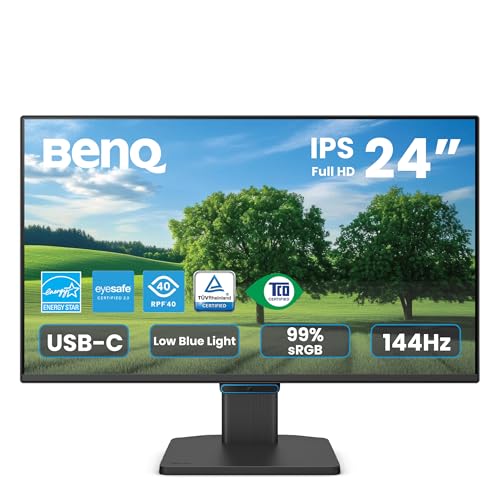
BenQ GW2490C — USB-C all-rounder
The GW2490C reads like BenQ asked home workers what their screens lack and then fixed the list. USB-C input means a laptop connects and charges its workflow through one cable; 144Hz means the same screen plays properly in the evening; and BenQ’s long-standing eye-care work — flicker-free backlighting, considered brightness behaviour, low blue light modes that do not turn the picture orange — means it stays comfortable across the long middle of the day.
Its game-ready refresh in a sober home-office cabinet is the combination most rivals still miss, forcing buyers to choose between a work screen and a play screen. Here the styling stays calm enough for a shared living space, the bezels are slim enough for pairs, and the picture modes are organised around tasks rather than marketing. The stand is the modest element, as it often is at this level, so arm-mounters and tall users should check its range against their desk. As a single-screen answer for a hybrid life, it is remarkably complete.
What a month with the GW2490C teaches is how completely the work-play divide has dissolved in this design. There is no mode-switching ceremony, no gaming aesthetic to explain to a colleague on a video call, no docking compromise to apologise for — the screen simply presents as a good modern monitor that happens to be fast. BenQ’s picture modes organised around tasks rather than inputs reinforce the feeling: reading, coding, film and play each get a considered preset. For buyers exhausted by products that demand a personality, its neutrality is the luxury.
BenQ’s care for the handover moments deserves a mention: the picture modes are named for human activities, the brightness intelligence behaves predictably, and switching between the laptop’s cable and the console’s does not reset your preferences into a factory shout. Small courtesies, repeated daily, are what separate a screen you recommend from a screen you merely keep.
The BenQ is the list’s best argument that the work-play monitor is no longer a compromise category. It docks like an office screen, plays like a gaming screen, and behaves all day like BenQ’s eye-care reputation promises. For the hybrid desk that defines modern life at this size, it is the recommendation with the fewest footnotes.
One last BenQ note: its calm cabinet is the one most likely to be approved by the other people who share the room, a constituency every shared-house buyer ignores at their peril.
- Panel: 23.8-inch IPS, 1920 x 1080
- Refresh rate: 144Hz
- Ports: USB-C, HDMI and DisplayPort class connectivity
- Features: flicker-free backlight, low blue light modes
- Design: ultra-slim bezel, Visual Optimizer modes
Strengths
- USB-C plus 144Hz in one home-office screen
- Eye-care tuning that respects colour
- Slim bezels suit dual-screen plans
Trade-offs
- Stand adjustment is not its strongest suit
- No QHD sharpness for text specialists
- Speakers and extras are kept simple
Best for: hybrid workers whose evenings include gaming and whose laptop demands a one-cable desk.
Not suited for: buyers needing a full ergonomic stand in the box, or text workers set on QHD density.

Dell P2423D — Sharpest text
In a 1080p crowd, the P2423D is the density dissenter, and after a day of documents the dissent is persuasive. Its QHD panel renders text with an edge clarity the other screens here cannot match, and writers, editors, analysts and programmers feel the difference in the first hour. Dell wraps that panel in its most sensible office hardware: a hub that absorbs keyboard, mouse and headset dongles, and a stand that pivots to portrait for long-document review.
Living with it means accepting the office brief completely. Sixty hertz is fine for everything except serious gaming, there is no USB-C video input to dock a modern laptop with one cable, and the QHD premium buys sharpness rather than size. For the right desk none of that matters. If your working day is measured in words and rows, this is the 23.8-inch screen that treats your eyes best, and our detailed WQHD roundup covers its gaming-flavoured rivals if the sharpness idea appeals but the pace does not.
In this general list the P2423D plays the role of the sharpness benchmark, and it is worth stating plainly what that buys in ordinary applications rather than benchmarks. Browser text at small sizes stays formed instead of fuzzy; spreadsheet cells can shrink a step while remaining legible, which returns rows to the screen; code editors show more context per glance. These are compound gains, collected hundreds of times a day. Against them stands one honest cost beyond price: older software with poor scaling can look soft on any QHD screen, so owners with one legacy application should test it early in the returns window.
For pair buyers, the P2423D’s portrait pivot opens a working style worth trying before committing to two landscape screens: one QHD panel horizontal for the main task, one vertical for documents, chat and reference. Writers and coders often find that arrangement beats two identical landscapes, and this Dell is the pick here built for exactly that experiment.
The P2423D’s verdict in a general list is to be the sharpness conscience: the standing proof that at 23.8 inches, resolution is a choice and not a given. Text workers should not let the 1080p majority talk them out of it; everyone else should at least know what they are declining, because this screen is what they are declining it in favour of.
One last P2423D note: of all six picks, it is the one whose absence would be felt most by a writer — density is a daily, hourly comfort for text workers, and no other feature in this list touches as many minutes of the day.
- Resolution: 2560 x 1440 on a 23.8-inch IPS panel
- Stand: full height, tilt, swivel and portrait pivot
- Colour: sRGB coverage at 99%
- Connections: HDMI, DisplayPort and a USB 3.2 hub
- Refresh rate: 60Hz for office duty
Strengths
- Text clarity beyond every 1080p rival here
- USB hub and portrait pivot suit document work
- Consistent, calm colour for long sessions
Trade-offs
- 60Hz ceiling for gaming
- No USB-C video input
- Costs more than equivalent-size 1080p screens
Best for: writers, analysts and coders whose screens are full of text from nine to five.
Not suited for: gamers, or laptop owners committed to single-cable USB-C docking.

ASUS TUF Gaming VG249QE5A — Gaming-leaning pick
Every general list needs its gaming conscience, and the VG249QE5A fills the role without embarrassing itself at work. The 144Hz IPS panel, ELMB Sync motion mode and Shadow Boost detail-lifting give players the tools this class expects, while the colour behaviour stays honest enough for coursework, photo sorting and the rest of a normal desktop life. It looks like gaming hardware, which in a bedroom is a feature and in a boardroom would not be.
Against the BenQ above, the trade is clear: the ASUS offers the more game-focused feature set and speakers, while the BenQ answers with USB-C and calmer manners. Against a dedicated esports screen, the ASUS is the friendlier all-rounder rather than the sharper instrument. That middle position is precisely why it belongs in a general 23.8-inch guide — most buyers’ lives are mixed, and this screen is built for the mixture.
Within a general list, the ASUS earns its keep by refusing to be a one-note product. Its gaming features are real, but so is its behaviour as the family screen: colours that do not embarrass photographs, speakers that cover the homework video, and a build that tolerates being moved between rooms and roles. Buyers comparing it with the BenQ should decide by cable and by cabinet — USB-C and calm, or gaming features and flair — because on picture quality the two are closer than their marketing suggests. Either way, the loser of that comparison is still a screen most households would be pleased to own.
The ASUS makes one more argument in a general list: insurance against a changing life. The screen bought for coursework this year is the screen a first job, a new hobby or a gaming phase will inherit next year, and its breadth means none of those futures requires a replacement. Versatility is a boring word for the most practical property a young buyer’s monitor can have.
Within this company the ASUS is the energy pick: the one that makes a desk feel like a battlestation while still passing as a citizen of a shared room. Buyers whose lives are genuinely mixed but whose hearts are in the gaming third will find it the most honest mirror of their priorities on this page.
One last ASUS note: it is the pick to buy when the household cannot agree on what the screen is for, because it is the only one that refuses to lose any of the arguments — work, play, film, family — outright.
- Panel: 23.8-inch viewable IPS, 1920 x 1080
- Refresh rate: 144Hz, slight overclock available
- Features: ELMB Sync, Shadow Boost, built-in speakers
- Sync: variable refresh support
- Mounting: VESA compatible
Strengths
- Gaming features that earn their menu space
- IPS colours keep daytime tasks respectable
- Speakers included for simple setups
Trade-offs
- No USB-C for laptop-first desks
- Stand adjustment is limited
- Gaming styling will not suit every room
Best for: students and younger buyers whose screen time splits between games and everything else.
Not suited for: office purists, or anyone building a one-cable laptop workstation.

HP E24i G4 — Tall-screen business pick
The E24i G4 is the fleet professional of the group, and its distinguishing gift is height. The 1920 by 1200 panel shows more of a spreadsheet, a contract or a code file than any 1080p screen here, and across a working week those reclaimed rows compound into noticeably less scrolling. HP’s Eye Ease hardware approach keeps blue-light reduction always on without the yellow cast that makes software modes so unpopular.
Everything else is businesslike in the good sense: micro-edge bezels for clean multi-screen benches, a stand designed for shared-desk adjustment, and a restrained build that survives facilities management. It will not entertain — refresh is office-class and gaming features are absent — and individual buyers should confirm the port mix on the listing they choose, since fleet models vary. For document-heavy professionals, though, the taller shape is a genuine ergonomic upgrade hiding in a modest specification line.
The E24i G4’s fleet origins give it one more virtue worth naming: predictability at scale. A household or small business buying several units gets panels that match, stands that behave identically, and a model that stays orderable long enough to replace a casualty with a twin. Home buyers rarely think in fleets, but anyone equipping a two-desk study or a small studio benefits from exactly that thinking. Its Eye Ease approach — hardware-level, always on, no colour penalty — is likewise the kind of decision that looks unremarkable in a list and wise across a thousand working hours.
HP’s fleet discipline shows in a place home buyers rarely inspect: the packaging and the parts. Stands, cables and panels for business lines remain orderable, manuals stay findable, and a casualty in year three is an inconvenience rather than a write-off. If you are equipping a desk you cannot afford to have down, that infrastructure is a feature with a cash value.
The HP’s verdict is professional in the literal sense: it is the pick most likely to be specified by someone who buys screens for other people’s work, because its virtues — height, eye care, uniformity, support — are the ones that survive contact with a hundred different users. A home buyer who values that judgement inherits it wholesale.
One last HP note: fleet buyers should ask about its manageability and warranty terms in their region before ordering multiples, because at scale those terms, not the panel, are where its professional value concentrates.
- Panel: 24-inch class IPS, 1920 x 1200 WUXGA
- Aspect ratio: 16:10
- Features: HP Eye Ease always-on low blue light
- Bezel: three-sided micro-edge design
- Use case: business fleets and document work
Strengths
- Extra vertical resolution earns its keep daily
- Hardware low-blue-light without colour distortion
- Micro-edge design suits multi-monitor benches
Trade-offs
- Office-class refresh only
- No gaming or entertainment ambitions
- Configuration varies across fleet listings
Best for: document professionals and spreadsheet workers who feel the scroll wheel more than the frame rate.
Not suited for: gamers, or buyers who want USB-C docking confirmed in every unit.

Dell SE2422HX — Simple value pick
Not every 23.8-inch-class screen needs a manifesto. The SE2422HX is Dell’s straightforward answer for the second monitor beside a main display, the family computer in the corner, or the home office assembled quickly and sensibly. Its VA panel delivers deeper contrast than the IPS models here, which flatters video and evening browsing, and 75Hz is a small but real smoothness step above the oldest 60Hz screens it typically replaces.
ComfortView and the anti-glare finish make it an easy screen to sit in front of, and Dell’s setup and menus are as painless as the category offers. The limits are equally plain: a tilt-only stand, an elderly VGA port alongside HDMI, and viewing angles that narrow if the family gathers round. None of those flaws touches its actual jobs. As the value anchor of this list it is honest, available and entirely fit for purpose — which is more than many cheaper no-name screens can claim.
The SE2422HX’s second life is where it shines, and planning for it is easy: the VESA-compatible value Dells of this world become the portrait screen, the kitchen screen, the workshop screen, long after a primary display has been upgraded past them. Its contrast-rich VA panel is particularly good in the dim rooms those roles often occupy. None of that rescues it as a primary ergonomic workstation — the stand forbids it — but as the supporting actor of a household’s screen fleet, it has few equals at its level of spend, and its reliability means the role gets played for years.
The little Dell’s final word is about expectations. It will not impress a visitor, anchor a battlestation or flatter a photograph — and it will start every morning, show a clean picture, and ask nothing. In a category addicted to superlatives, there is a real market for a screen whose entire promise is that you will stop thinking about it, and this is that screen.
The SE2422HX closes the list as its conscience of value: the reminder that a monitor’s job can be simply to work, pleasantly, for years, at a price that leaves the budget alive for everything else. Not every desk needs a flagship, and the desks that do not are not lesser desks — they are just honest about where their money matters.
One last value note: the SE2422HX is the screen to buy with the last of a budget rather than the first of a loan — it asks nothing of your finances beyond its price, and gives a decade of uncomplaining service in return.
- Panel: 24-inch class VA, 1920 x 1080
- Refresh rate: 75Hz
- Features: ComfortView low blue light, anti-glare coating
- Ports: HDMI and VGA
- Stand: tilt adjustment
Strengths
- VA contrast flatters video and evening use
- 75Hz is a genuine step over legacy 60Hz screens
- Simple, reliable and easy to set up
Trade-offs
- Tilt-only stand
- Viewing angles narrow off-centre
- No USB-C or hub features
Best for: second-screen buyers, family computers and quick home-office builds on a sensible budget.
Not suited for: primary workstations needing ergonomics, hubs or high refresh rates.
How Do the Six Compare Side by Side?
| Pick | Panel and size | Refresh | Stand and mounting | Best use |
|---|---|---|---|---|
| Dell UltraSharp U2424H | IPS 1080p, 120Hz | USB-C x2, DP in/out, hub | Full adjustment | Premium laptop desks |
| BenQ GW2490C | IPS 1080p, 144Hz | USB-C included | Modest adjustment | Hybrid work and play |
| Dell P2423D | IPS QHD, 60Hz | HDMI, DP, USB hub | Full adjustment | Text-heavy work |
| ASUS TUF VG249QE5A | IPS 1080p, 144Hz | HDMI, DP class | Limited, VESA | Gaming-leaning mixed use |
| HP E24i G4 | IPS WUXGA, office refresh | Business port mix | Fleet ergonomic stand | Tall-screen documents |
| Dell SE2422HX | VA 1080p, 75Hz | HDMI, VGA | Tilt only | Value and second screens |
The comparison worth staring at is resolution against refresh. The sharpest screen here is the slowest, the fastest screens are 1080p, and the smoothest office screen splits the difference at 120Hz. That triangle is the whole buying decision in this size class, and your job description picks the corner.
Ports tell the second story. Two of these six can anchor a laptop desk by themselves; the rest assume a desktop PC or a separate dock. Decide which machine the screen serves before admiring its panel, because the wrong port list annoys daily while a slightly lesser panel fades into the background within a week.
How Do You Set Up a 23.8-Inch Monitor for Work and Play?
Begin with position, because a screen this size rewards precision. The top bezel should sit at or a finger’s width below eye level, at roughly an arm’s length, with the panel tilted back very slightly. If the included stand cannot reach that position — the value pick here cannot — a monitor arm or even a stable riser is not an accessory but the completion of the purchase.
Then set the operating system up honestly. Confirm the refresh rate in display settings matches the panel you bought, since systems often default to 60Hz; set scaling to 100 percent for the 1080p and WUXGA models, and experiment between 100 and 125 percent on the QHD Dell. Enable the screen’s flicker-free and low-blue-light behaviours for work hours, and store a separate brighter, faster preset for games if your model allows it.
Cable for the job, too. DisplayPort generally unlocks the full refresh and the cleanest wake behaviour; USB-C, where fitted, should carry the laptop so the desk stays one-cable calm; HDMI serves consoles and second machines. Spend the ten minutes once, and a 23.8-inch screen disappears into the day exactly as a good tool should.
How Do You Match a 23.8-Inch Monitor to a Laptop, a PC or Both?
The machine decides the shortlist before the panel does. A desktop PC wants DisplayPort, a spare HDMI and no opinions about USB-C; every pick here satisfies it, and the Dell P2422H’s sibling models and the HP serve it in business dress. A laptop wants the opposite emphasis: a USB-C input that carries its picture, ideally a hub that absorbs its dongles, and a stand that meets a raised laptop screen at a civilised height — the territory of the BenQ and the UltraSharp.
Households with both machines should buy for the harder master. A monitor that docks the laptop gracefully can always accept the PC over DisplayPort or HDMI, while a PC-first screen leaves the laptop in dongle territory forever. That asymmetry is why the all-rounder in this list carries USB-C despite this being, for many readers, a desktop purchase.
Whichever pairing you build, standardise the small things: the same cable types, the same brightness ballpark, a keyboard shortcut or a monitor profile for switching inputs. A two-machine desk succeeds on these micro-habits, and a screen chosen with both machines in mind makes every one of them easier.
What Does Ownership Cost After the Box Is Opened?
Almost nothing, and that is this format’s quiet economic argument. A 23.8-inch LED monitor sips power compared with the machines it serves, asks for no consumables, and typically outlasts the warranty of everything around it. The realistic running costs are a replacement cable someday, perhaps an arm when the desk changes, and the electricity of a backlight dimmed to room level — a rounding error in a household budget.
The one financial decision with real weight is the second screen. Owners of this size add one at a high rate, because the first panel proves the format and the desk invites the pairing. Buying a first screen whose line will still be stocked — and whose stand and bezels anticipate a twin — is therefore not perfectionism. It is the difference between a planned upgrade and a mismatched improvisation, and it is priced into several picks in this list.
Resale and hand-me-down value complete the picture. Branded 23.8-inch screens are the most liquid monitors in existence: students, home offices and small businesses absorb them endlessly. A good one bought today retains a role or a buyer for a decade, which is more than can be said for the computer it will be plugged into.
How Do You Decide Between Two Screens That Look Identical on Paper?
Every buyer in this class eventually faces the same photograph twice: two 23.8-inch IPS screens, same resolution, similar brightness, prices within a small margin of each other. The differences that remain are the ones this guide has weighted all along, and they deserve a plain checklist. Stands first — the range and smoothness of adjustment, and whether the foot wobbles when the desk is bumped. Ports second — the exact list, counted against your machines. Then the menu system, because you will meet it weekly, and a screen whose settings require a manual is a screen whose settings you will never optimise.
Warranty and support form the next layer, and they are not boilerplate at this level: advance replacement, pixel policy and the brand’s local service presence decide whether a fault in year two is a week of inconvenience or the end of the product. The business-bred models in this list carry infrastructure the consumer lines do not, and for a primary work screen that infrastructure is a rational thing to buy.
Colour behaviour, the specification buyers agonise over most, ranks surprisingly low between reputable IPS panels: all six here are accurate enough for everything except colour-critical production, and the differences are smaller than the variation between individual units of the same model. Spend your deliberation where variance actually lives — ergonomics, connectivity, support — and let the panel be the thing you stop worrying about.
If the checklist still ties, buy the one whose line will exist when you want its twin, or the one on promotion that week, in that order. In a mature format, those are not cop-outs; they are the correct terminal criteria, and recognising them is what shopping this size well looks like.
What Should You Do in the First Week With a New 23.8-Inch Monitor?
Day one belongs to position and picture basics: stand height against your chair, native resolution confirmed, refresh rate set to the figure you paid for, brightness matched to the room rather than the showroom. These four acts take twenty minutes and determine more of your satisfaction than any subsequent tweaking, because every later judgement is made through them.
The first week belongs to your real applications. Run the document, the spreadsheet, the game and the video call that constitute your actual life, at your actual hours, including the room’s worst lighting. Check uniformity on a dark screen at night and on a white page at noon. If a fault is going to announce itself, it will do so inside this week, while the returns path is still a formality rather than a negotiation.
By the second week, do the pairing chores: align the screen with any companion display, save your picture settings as a named profile if the model allows it, and file the warranty registration where future-you will find it. A monitor set up with this much intention tends to vanish from attention for years — which, for the hardest-working object on the desk, is the entire point.
How Does This Size Fit the Rooms Other Monitors Cannot?
The 23.8-inch format’s deepest virtue is architectural. It fits the desk in the box room, the corner of the bedroom, the kitchen table that becomes an office at nine and a table again at six. Larger formats demand that rooms reorganise around them; this one asks only for a surface and a chair, which is why it is the default size of shared houses, rented flats and first homes everywhere.
That fit has a psychological dimension owners mention often: a screen this size leaves the room a room. It does not dominate a small space visually, does not turn a bedroom into a control centre, and can be joined by a plant, a lamp and a photograph without a turf war. In an era of ever-larger panels, choosing the size that respects the room is a design decision, not a budget confession.
It also travels. Students move it between term-time and home desks; workers carry it to a new flat in one trip; households reassign it between rooms as needs change. A monitor’s life is a series of rooms, and the format that fits all of them accumulates a usefulness that no specification table captures — one more reason this unglamorous diagonal outsells every other size on earth.
A Last Word on Buying the Boring Parts Well
A monitor purchase is mostly the purchase of boring parts — a stand, a cable path, a warranty, a menu system — wrapped around a panel that several brands share. This guide has weighted those boring parts deliberately, because they are where ownership is actually experienced, and because the panel differences between reputable makers at this size have narrowed to the point where the boring parts are the product.
So buy the boring parts well: the stand your neck wants, the ports your machines speak, the support your future self may need. Do that, and whichever of these six arrives will feel, within a week, less like a purchase and more like furniture — the fate of every tool that was chosen correctly.
What Mistakes Do Buyers Make at This Size?
Buying by diagonal alone is the founding error of this category. Six screens can share 23.8 inches and differ in resolution, refresh, ports and stand so completely that swapping any two would change the buyer’s week. Shop the job description first and the size second.
A subtler mistake is assuming a newer or pricier screen is automatically sharper. The premium UltraSharp here is 1080p, while the cheaper-feeling QHD Dell out-resolves it; sharpness lives in the resolution line, not the price line. Read the panel specification, not the tier.
Third, laptop owners keep discovering port reality after delivery. If one-cable docking is the dream, the monitor must offer USB-C with display input — and ideally power delivery — in the exact configuration in the basket. Similar model names hide different port lists across this whole category.
Finally, second-screen buyers forget matching. A new screen beside an old one will differ in height, bezel and colour temperature; a VESA arm solves the geometry, and ten minutes with both menus open solves most of the colour gap. Plan for the pairing, not just the purchase.
Final Recommendation
If one recommendation must stand for the size, it is this: buy the BenQ GW2490C for a mixed modern life, the Dell UltraSharp U2424H for a premium laptop desk, and the Dell P2423D when text is the job. Those three cover most readers of a guide to this size, and each is best-in-role rather than best-on-average.
The remaining three are not runners-up but specialists: the ASUS for players, the HP for professionals who think in rows, and the little Dell SE for honest value. A 23.8-inch monitor is the most ordinary object in computing, and that is its strength — choose the one shaped like your day, and it will serve quietly for years while flashier hardware cycles around it.
If this guide has a single sentence to be remembered by, it is that the diagonal is the least interesting thing these six screens share. Resolution, refresh, ports, stands and support divide them into six different products wearing one size, and the buyer who shops those divisions — rather than the number on the box — will choose correctly at 23.8 inches every single time, whatever their desk, their machine or their decade.
One more practical mercy of the format deserves the final line: everything about it is standard. The mounts are standard, the cables are standard, the resolutions are the ones every operating system and every dock on earth expects, and help — a setting, a part, a matching twin — is never more than one search away. In a technology market that increasingly monetises the proprietary, the most standard object in computing is also, not coincidentally, the easiest to own well.
Frequently Asked Questions
Is 23.8 inches the same as 24 inches?
Effectively, yes. 23.8 inches is the viewable diagonal of panels marketed in the 24-inch class, the small difference being bezel and rounding conventions. When comparing models, treat the two labels as the same size and compare resolution, stand and ports instead.
Which resolution is best at 23.8 inches?
1080p is the balanced default, QHD is the sharpness upgrade for text workers, and WUXGA’s 1920 by 1200 suits document and code work that prizes vertical space. The best choice follows your applications, not a league table.
Can a 23.8-inch monitor work as my only screen?
Comfortably, for most people. It holds two windows side by side, fits small desks and pairs naturally with laptop screens. Heavy multitaskers may still prefer a second display, and every pick here with VESA mounting can become that second screen later.
Do I need 120Hz or 144Hz if I do not game?
You do not need it, but you may enjoy it: higher refresh makes scrolling, window movement and cursor tracking visibly smoother in ordinary work. The UltraSharp’s 120Hz is the office expression of that luxury; 75Hz on the value pick is a smaller step in the same direction.
What ports should a laptop user insist on?
USB-C with display input is the headline, ideally with power delivery so one cable docks and charges. A built-in USB hub for keyboard and mouse dongles, plus HDMI for a second machine, completes the practical list.
How long should a monitor at this size last?
Five to eight years of daily use is a realistic expectation from the brands in this list, which is another argument for buying the stand and ports you actually need: you will live with those choices far longer than with any single specification headline.
Is it worth paying more for the UltraSharp over the standard office picks?
If your desk is laptop-centred and likely to grow to two screens, yes: the docking, daisy-chaining and colour coverage are features you will use daily for years. If a desktop PC with its own ports drives the screen, the standard picks deliver most of the experience for less, and the saving is better spent on an arm or a second panel.
Can I mix a 23.8-inch screen with a larger second monitor?
Yes, and many desks do. Match the heights with an arm or stand adjustment, accept that pixel density differs between the two, and keep each screen’s windows on the panel whose density suits them — text on the sharper screen, video and palettes on the larger one.
Related Guides
Readers comparing across this size family will also want these companion pieces: Best 23 24 inch WQHD monitors for sharp text Best 23.6 inch gaming monitors for tight setups Best 23 inch PC monitors for everyday computing.


