What's inside
- Key Takeaways
- Quick Picks
- What makes a drive suitable for keeping footage for years?
- How do the six archive drives compare side by side?
- How should a 3-2-1 archive be built around drives like these?
- What mistakes quietly destroy film archives?
- How much capacity does a year of footage really consume?
- What does a careful ingest day actually look like?
- When should an archive migrate to newer drives?
- Will the files themselves still open in fifteen years?
- How do shelf drives sit alongside cloud copies and tape?
- Which size fits which kind of filmmaker?
- What should the archive log actually record?
- Final Recommendation
- Frequently Asked Questions
- Related Guides
As an Amazon Associate I earn from qualifying purchases. This post may contain affiliate links at no extra cost to you.
widgetverdict.com is reader-supported. When you buy through links on our site, we may earn an affiliate commission.
Where to buy: the six desktop drives below are each linked to the Amazon listing that was checked for this guide; archive buyers should order one drive at a time from separate listings or batches where possible, so a single shipping mishap or a single bad production run never touches every copy of the footage at once.
Finished films get rendered, exported and talked about. Raw footage mostly gets forgotten in a corner until the day somebody needs one clip from three years ago, and on that day the drive it lives on either spins up or it does not. Choosing the best hard drives film archive work actually comes down to that unglamorous moment. Camera originals, sound recordings, project files and colour passes are irreplaceable in a way a finished export never is, because the export can always be made again from the archive, while the archive cannot be remade from anything.
One misunderstanding needs clearing away before any product names appear. A single desktop drive sitting on a shelf is storage, not an archive. An archive is a system: the familiar 3-2-1 pattern asks for three copies of important material, on two different kinds of storage, with one copy kept somewhere else. Every drive in this guide is therefore best understood as one leg of that pattern — a very large, affordable leg, bought in multiples, labelled carefully and checked on a schedule. Anyone who buys exactly one of these, copies a decade of shooting onto it and deletes the camera cards has not built an archive; they have built a single point of failure with a large capacity figure printed on the box.
With that framing settled, the field divides by temperament. Western Digital’s Elements line is the plain workhorse: no bundled encryption, no account prompts, just a big platter in a vented box that mounts and gets out of the way. The My Book adds password protection and backup software for people who prefer the drive to help with routine copies. Seagate answers with the Expansion and One Touch lines, whose listing titles name Rescue data recovery services — a meaningful extra for archive duty, because a recovery service is exactly the kind of thing you hope never to use and are grateful exists when a shelf drive refuses to spin.
Who should keep reading? Videographers, small production companies, wedding filmmakers with seasons of ceremonies stacked up, and family archivists digitising tapes before the tapes give up. If your footage fits comfortably on the internal drive of one editing machine and you already keep two cloud copies, none of this applies yet. For everyone whose shelves tell a longer story, the six drives below cover the realistic sizes, from a starter archive to a single-box library that swallows years of 4K material.
Key Takeaways
- No single drive is an archive by itself; plan on at least two copies of irreplaceable footage, with one copy stored away from the editing room.
- Capacity per drive matters less than the routine around it: labels, checksums, a written log and a yearly spin-up check keep an archive honest.
- Seagate’s Expansion and One Touch listings name Rescue data recovery services, which suits shelf drives that may sit idle for months.
- WD Elements drives are the deliberately plain option — plug-and-play storage without bundled software getting between you and the files.
- The My Book is the pick here for anyone who wants access protection and scheduled backups named in the listing itself.
- Buy archive copies at different times where you can, so the copies do not share one production batch or one delivery journey.
Quick Picks
| Pick | Badge | Why it earns its place |
|---|---|---|
| WD Elements 20TB Desktop Hard Drive | The plain archive workhorse | Twenty terabytes of plug-and-play storage with nothing extra competing for your attention. |
| Seagate Expansion 20TB Desktop Hard Drive | The recovery-backed twenty | Matches the Elements on size while its listing names Rescue Data Recovery Services. |
| WD My Book 18TB Desktop Hard Drive | The self-managing archive | Built-in password protection plus software that keeps backups running on schedule. |
| WD Elements 16TB Desktop Hard Drive | The mid-size shelf copy | A sensible second-copy size for projects that do not fill the largest boxes. |
| Seagate One Touch 24TB Desktop Hard Drive | The biggest single box | Twenty-four terabytes over USB-C for libraries that keep outgrowing every previous drive. |
| WD Elements 14TB Desktop Hard Drive | The starter archive drive | The entry point for a first dedicated footage shelf, in the same plain Elements style. |
What makes a drive suitable for keeping footage for years?
Archive duty is a strange workload. A drive may be written hard for one weekend as a production wraps, then sit powered off in a cupboard for eleven months, then be asked to deliver one interview clip under deadline pressure. That pattern rewards different virtues than daily editing storage does. Sequential write speed barely matters, because ingest happens once. What matters is capacity honesty, a simple file system the next person can read, a manufacturer that will still exist when a warranty question arises, and — for the copies that leave the building — some form of recovery safety net if the worst happens in transit or storage.
We filtered this list to desktop drives from the two manufacturers whose archive lines have long track records, then read each listing title closely for what it actually promises. Three titles promise nothing beyond plug-and-play storage, and that plainness is itself a feature for cold copies: fewer software layers means fewer things that can refuse to cooperate in five years. Two Seagate titles name Rescue services outright. One WD title names password protection and backup software. Those stated differences, rather than any invented specification, drive the recommendations below.
Capacity choices were matched to real footage habits. A documentary shooter working in compressed 4K might fill two terabytes on a long project; a multi-camera wedding team can pass that before the reception ends. Fourteen terabytes suits a first archive or a per-year copy. Sixteen to twenty terabytes is the working middle where most small studios land. Twenty-four terabytes is for the library that has already overflowed two smaller drives and needs consolidation — with the warning, repeated later in this guide, that consolidation must never mean deleting the second copy.

WD Elements 20TB Desktop Hard Drive — The plain archive workhorse
There is a particular comfort in a drive that does exactly one job. The Elements 20TB mounts, shows its capacity, accepts the copy and unmounts, without suggesting an account, a dashboard or a companion application. For cold film storage that restraint is the whole appeal: the person who opens this drive in 2031 — possibly not you — will meet a plain volume of folders rather than a software ecosystem that may have changed beyond recognition. Twenty terabytes holds roughly a decade of personal documentary work or several seasons of a small studio’s client projects, depending on codec discipline.
Treat this drive as the master shelf copy and it behaves beautifully. Ingest a finished production, verify the copy with checksums, write the project name and date range on the spine label, and shelve it vertically in a cool room away from radiators and direct sun. Its USB 3.0 connection is entirely adequate for that rhythm; archive ingest is a pour, not a race, and the port will still be understood by whatever machine reads the drive years from now.
Owners building a matched shelf often buy this size twice in different months, deliberately staggering the pair so the two copies never share a production batch or a delivery van. That small superstition has genuine logic behind it: correlated failures are the enemy of every redundancy plan, and two drives born in different weeks are marginally less likely to share a hidden flaw. Label the earlier purchase as copy A and its later twin as copy B, keep their check dates offset by a few months, and the shelf gains a rhythm where at least one volume is always recently verified. It is the kind of quiet procedural thinking this plain drive rewards, because nothing about its presentation distracts from the system around it.
- Capacity: 20TB
- Interface: USB 3.0, as the title states
- Job as the title frames it: straightforward plug-and-play storage
- Recovery service: the listing title does not name one for this model — plan your second copy accordingly
Strengths
- No bundled software layer stands between a future reader and the footage itself.
- The capacity suits a per-era archive: one box per period of a studio’s life.
- Elements drives use the same simple routine across sizes, so a shelf of them stays uniform.
Trade-offs
- Nothing in the title offers password protection, so physical custody is your only access control.
- It cannot be your only copy; the 3-2-1 pattern still demands a partner drive somewhere.
- Desktop size and its power supply make it a shelf resident, not a location companion.
Best for: a studio’s primary shelf copy of wrapped productions, where plainness and capacity matter more than features. Not suited for: the sole copy of a wedding film — no single drive in this guide is, and this one makes no recovery promise in its title to soften that fact. If this is the leg of the archive you are buying today, check the current listing and then schedule the second copy before the first one fills.
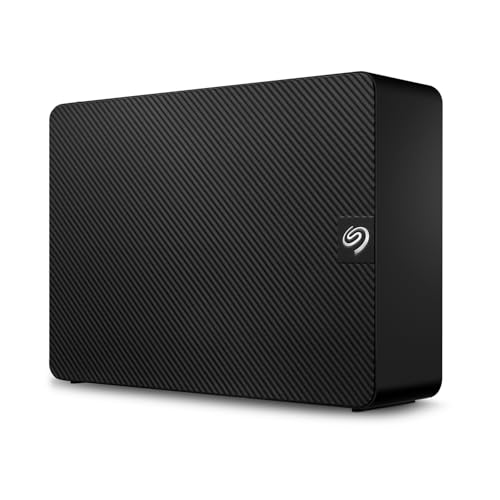
Seagate Expansion 20TB Desktop Hard Drive — The recovery-backed twenty
Put the Expansion beside the Elements and the hardware story looks similar — twenty terabytes, USB 3.0, a desktop enclosure — until you reach the words at the end of Seagate’s title: Rescue Data Recovery Services. For an archive drive, that phrase changes the risk conversation. Shelf drives fail quietly and are discovered late, usually at the worst moment, and a manufacturer recovery service gives a failed unit somewhere professional to go instead of straight into the recycling. It is not a guarantee of getting footage back, and this guide will not pretend otherwise, but it is a real second chance that the plain drives do not name.
The natural pairing is to make the Expansion the off-site copy. It lives at a partner’s studio, a family home or a storage unit across town, travelling in a padded case a few times a year as new productions are added. If a burglary, a burst pipe or a fire takes the editing room, the footage survives in this box; if this box itself fails mechanically, the Rescue service named in its listing is the next phone call. That layered thinking is what separates archiving from merely owning large drives.
One practical habit suits this model particularly well: the travelling log card. A folded card inside its case lists what was added on each visit, the date of the last checksum sample and the name of the person who carried it. Off-site copies drift out of date silently — a production added to the shelf copy in June may still be missing from the off-site box in October — and the card makes that drift visible at a glance, in handwriting, without opening a laptop. When the card shows a gap, the next rotation closes it. Rescue services handle the catastrophe; the card handles the ordinary forgetfulness that causes far more archive trouble.
- Capacity: 20TB
- Interface named in the title: USB 3.0
- Named in the title: Rescue Data Recovery Services
- Model reference in the title: STKP20000400
Strengths
- The recovery service in the title directly addresses the archive nightmare scenario.
- Full twenty-terabyte capacity matches the largest WD shelf copy in this guide.
- A clean fit for the off-site leg, where professional recovery matters most.
Trade-offs
- Recovery takes time when it works at all; it supplements a second copy, never replaces one.
- Like the Elements, it asks for a shelf and a power outlet rather than a camera bag.
- The title names no encryption, so an off-site copy needs a physically trustworthy home.
Best for: the copy that leaves the building, where a named recovery service earns its keep. Not suited for: anyone planning to treat that service as permission to keep only one copy — a recovery lab is a last resort, not a backup strategy, and the wait alone can sink a client deadline. Check the listing for the current Rescue terms before you rely on them in your archive plan.
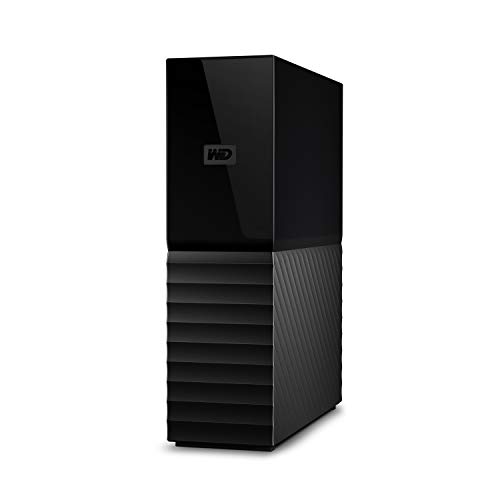
WD My Book 18TB Desktop Hard Drive — The self-managing archive
Some archives fail not through dead hardware but through dead routines: the manual copy that kept being postponed until the editing drive was wiped for the next job. The My Book 18TB is the one pick here whose title speaks directly to that failure mode, naming password protection and auto backup software in the same breath. Set the routine once, let the drive pull new material on schedule, and the archive maintains itself between productions instead of depending on somebody remembering a Friday-afternoon task.
The password protection deserves a careful word. For client work — unreleased films, private events, anything under an embargo — an archive that resists casual reading is genuinely useful. It also creates the archive’s cruellest trap: a password forgotten across five years locks the footage away as effectively as a dead platter. If you enable it, the credential belongs in the same written log as the drive’s contents list, stored with the production paperwork, not in one person’s memory.
Eighteen terabytes is a shade under the two twenty-terabyte picks, a difference that matters only at the margins of a huge library. In exchange you get the most actively helpful drive in this line-up, the one suited to being the living archive beside the edit desk while plainer drives handle the cold copies.
Auditing that automation takes ten minutes a month and should be treated as part of the bargain. Open the backup destination, confirm the newest production is present in full, play thirty seconds of a file from the middle of the tree, and glance at the free space so a filling drive never surprises you mid-season. Automation fails silently in every field of life, not just storage; the My Book’s software earns its place only while a human occasionally verifies that the routine it promises is the routine actually happening. Studios that build that glance into the same calendar entry as their shelf checks get the best of both temperaments: a drive that works daily, inside a system that still gets inspected.
- Capacity: 18TB
- Plugs in over USB 3.0, according to the title
- Headline extras in its title: password protection alongside auto backup software
- Model reference in the title: WDBBGB0180HBK-NESN
Strengths
- Scheduled automatic backups attack the most common archive failure: the forgotten manual copy.
- Password protection suits embargoed or private client material kept on-site.
- Capacity remains firmly in the serious-library class despite the extra features.
Trade-offs
- A lost password can orphan the archive, so credential records become part of the system.
- Software-managed copies need an occasional human audit to confirm they still run.
- Two terabytes less than the largest picks here, which heavy libraries will eventually notice.
Best for: the working archive next to the edit station, especially for solo filmmakers whose backup routine needs automating. Not suited for: a sealed cold copy meant to be read by strangers in a decade — the software and password layers are friction that a plain Elements avoids. If your weakness is routine rather than capacity, check this listing first.

WD Elements 16TB Desktop Hard Drive — The mid-size shelf copy
Not every archive unit should be the biggest box on sale. There is a strong argument for sizing a copy to the material it holds: one drive per year, per series or per major client, each labelled and closed when full rather than endlessly appended. The Elements 16TB fits that discipline neatly. It is large enough for a heavy shooting year, small enough that filling it feels like completing a chapter, and it shares the plain plug-and-play character of its twenty-terabyte sibling, so a shelf built from both sizes still follows one simple routine.
This is also the natural duplicate size. When a production wraps, copying it to a sixteen-terabyte shelf drive as the second or third copy is a modest commitment compared with reserving space on a flagship box, and modest commitments are the ones that actually happen. Archivists who think in completed units — this drive is 2023, that one is the river documentary, the next is the wedding seasons — tend to keep better logs than those who pour everything into one cavern and trust a folder tree to explain itself later.
Closed units also travel well. When a former client resurfaces asking for a re-edit, the unit holding their year can go to a collaborator’s desk as a self-contained parcel, with its contents log taped to the case, instead of somebody copying selected folders off a giant working archive and hoping nothing was missed. Lenders should still keep their own copy behind — a lent drive is a drive outside your control — which is why the per-unit shelf works best in duplicate: one set of year drives that never leaves, one set that can. The sixteen-terabyte size keeps that doubling affordable in shelf space even when the budget for it has to grow a year at a time.
- Capacity: 16TB
- Hookup: USB 3.0, stated plainly in the title
- Sold in its title as plug-and-play storage, nothing more ceremonial
- Model reference in the title: WDBWLG0160HBK-NESN
Strengths
- The size encourages one-drive-per-project or per-year organisation.
- Same software-free behaviour as the larger Elements, keeping shelf routines uniform.
- A practical duplicate-copy size that does not demand flagship commitment.
Trade-offs
- A fast-growing 4K library will close this drive sooner than the twenty-terabyte picks.
- No recovery service or protection feature is named in its title.
- Several mid-size drives eventually cost more shelf space than one large consolidation box.
Best for: per-year or per-series archive units in a labelled shelf system. Not suited for: consolidating an entire existing library that already exceeds its capacity — measure the library first, because a consolidation drive that fills mid-copy helps nobody. Check the listing, then write the labelling plan before the drive arrives.

Seagate One Touch 24TB Desktop Hard Drive — The biggest single box
Twenty-four terabytes is the largest capacity in this guide, and the One Touch aims it at the library that has already overflowed respectable drives twice. Multi-year documentary projects, a rental house’s worth of accumulated client work, a digitisation programme pulling in tapes by the crate — these are the collections that justify the biggest box, because splitting them across small drives multiplies the chances of one volume being misplaced, mislabelled or simply never checked.
Two details in its title separate it from the Expansion. The connection is USB-C, friendlier to current laptops that have quietly dropped older ports, and Rescue Recovery is named again, which matters even more at this size: a failed twenty-four-terabyte drive represents more concentrated history than any other pick here, so the professional-recovery path is worth more too. That concentration is also the honest warning. This drive should hold the consolidated working archive, while the copies that protect it live on other drives in other places; putting the only copy of everything onto the biggest box is precisely backwards.
Indexing is the unglamorous companion purchase at this scale. A consolidated library of this size needs a catalogue that lives independently of the drive — a simple searchable document listing every project, its date range, its folder path and its sibling copies — because scrolling a twenty-four-terabyte tree looking for one ceremony is nobody’s idea of retrieval. Build the index as you consolidate, project by project, rather than promising to write it afterwards; afterwards never comes, and an unindexed consolidation is just a bigger haystack. With the index kept beside the log book and mirrored with the studio’s ordinary documents, the big box becomes what it should be: the fastest route to any frame the studio has ever shot.
- Capacity: 24TB, the largest in this guide
- Hookup: USB-C, the newer connector named in its title
- Named in the title: Rescue Recovery services
- Compatibility stated in the title: most Windows and macOS systems
Strengths
- Consolidates sprawling libraries into one searchable, checkable volume.
- USB-C suits modern editing laptops without adapter hunting.
- Rescue Recovery is named in the title, valuable at this concentration of footage.
Trade-offs
- Concentration cuts both ways: its failure is the largest single loss in this guide.
- Oversized for a first archive; most beginners will not fill it for years.
- A consolidation copy tempts owners to retire smaller copies that should stay in service.
Best for: the central consolidated archive of a large, still-growing library, backed by separate copies elsewhere. Not suited for: being the only home of that library, or for a beginner whose whole collection would rattle around in its first terabyte. If consolidation is genuinely your next step, verify the current listing details and plan what stays as the duplicate before you order.

WD Elements 14TB Desktop Hard Drive — The starter archive drive
Every archive shelf starts with a first box, and the Elements 14TB is sized for that moment: the point where a filmmaker admits the editing drive and a scattering of portable drives no longer count as a system. Fourteen terabytes absorbs several years of typical independent production, and the purchase establishes the habits — ingest, checksum, label, shelve, log — that matter far more than which size happened to be first. A modest drive with a real routine protects footage better than a flagship drive used casually.
It shares the family character completely: USB 3.0, plug-and-play, no software ambitions. Buy it as archive unit one, fill it by year or by project, and its successor can be any other pick in this guide without changing the routine. The only discipline it demands is honesty about growth. If your current unwieldy pile already measures twelve terabytes, start one size up; a first archive drive that is nearly full on arrival teaches bad habits instead of good ones.
There is also a psychological dividend to beginning here. A first archive that fits the budget comfortably gets bought today, filled this week and checked on schedule, while the perfect flagship that requires a month of saving tends to remain a plan — and footage is at its most vulnerable precisely while it waits for the plan to become affordable. Starting modestly also reveals your true growth rate within a year, turning the second purchase into a measured decision instead of a guess. Many mature shelves in working studios began exactly this way: one honest drive, one notebook, and a routine that outlasted both.
- Capacity: 14TB
- Runs over USB 3.0, per its title wording
- Pitch in the title: external storage that simply plugs in and works
- Recovery service: none named in this listing title — the second copy carries that weight
Strengths
- The right scale for establishing an archive routine without overbuying.
- Plain Elements behaviour keeps the first shelf simple to document.
- Mixes freely with larger Elements and My Book units as the shelf grows.
Trade-offs
- High-volume shooters will outgrow it and need a second unit sooner.
- No named recovery service stands behind a mechanical failure.
- Still a desktop box with a power supply, despite the starter positioning.
Best for: a first dedicated archive drive for an independent filmmaker formalising their storage. Not suited for: a library already measured in the high teens of terabytes, where the sixteen or twenty-terabyte picks avoid an immediate second purchase. Check the listing, measure your existing pile honestly, and start the shelf.
How do the six archive drives compare side by side?
| Drive | Capacity | Connection | Distinguishing note from its title |
|---|---|---|---|
| WD Elements 20TB | 20TB | USB 3.0 | Bare plug-and-play pitch, no extras named |
| Seagate Expansion 20TB | 20TB | USB 3.0 | Rescue Data Recovery Services named |
| WD My Book 18TB | 18TB | USB 3.0 | Password protection plus bundled backup tools |
| WD Elements 16TB | 16TB | USB 3.0 | Plain storage pitch, per-unit sizing |
| Seagate One Touch 24TB | 24TB | USB-C | Rescue Recovery named; Windows and macOS |
| WD Elements 14TB | 14TB | USB 3.0 | Simple storage pitch, starter size |
How should a 3-2-1 archive be built around drives like these?
Start by deciding what a copy means in your studio. A copy is a complete, verified duplicate of the project folder: camera originals, audio, project files, graphics, exports and the paperwork that explains them. Dragging a folder across and eyeballing the progress bar is not verification. Use a copying tool that compares checksums, and keep the checksum file inside the project folder so any future reader can test whether the bits still match what was written on ingest day. That single habit catches silent corruption years before a client asks for the footage.
Then place the copies with intent. Copy one lives near the edit station, on a drive like the My Book that can pull new material automatically. Copy two sits on a shelf in a different room, on a plain Elements or Expansion that is only powered for ingest and scheduled checks. Copy three leaves the building — the Expansion or One Touch, with their named Rescue services, suit this leg — and rotates back on a calendar rhythm rather than whenever somebody remembers. Three copies, two places minimum, one of them elsewhere: that is the shape that survives both a dead drive and a bad week.
Maintenance is a calendar, not a mood. Every six to twelve months, power each shelf drive, let it mount, spot-check a handful of files against their checksums and note the date in the log. Drives that sit for many years without spinning are the ones that surprise you. When a drive begins failing checks, replace that leg immediately and rebuild the copy from a healthy sibling; the system tolerates one bad leg precisely because the others exist. Finally, write the log on paper as well as digitally. A notebook that lists each drive, its contents, its location and its last check date is the document a stressed human needs at midnight, and paper never asks for a password.
What mistakes quietly destroy film archives?
The classic error is the victory wipe: cards formatted and the editing drive cleared because the footage is safely on the archive drive — singular. Until a second verified copy exists somewhere else, nothing is safely anywhere. A close second is the unlabelled drive, discovered years later and explored by plugging it into a machine that helpfully offers to initialise the unreadable disk; labels and a contents log exist to prevent exactly that moment of panic-clicking. Third comes password amnesia on protected drives, which converts a security feature into a permanent lock; record credentials with the production paperwork from day one.
Heat and stacking do slower damage. Desktop drives stored in a hot attic, stacked flat in a pile that traps warmth during long copies, or left in a car between locations age faster than their owners expect. Store them upright, spaced, in the coolest stable room available. And beware the consolidation celebration: moving everything onto the new twenty-four-terabyte box and wiping the small drives feels tidy, but it converts a distributed archive into a single basket. Consolidate the working copy by all means; keep the distributed copies alive underneath it.
How much capacity does a year of footage really consume?
Capacity planning goes wrong when shooters count only the hero camera. A working production generates concentric rings of data: the A-camera originals, the second angle, the drone card nobody remembers copying, production sound with its many takes, stills, transcripts, project files that swell with every revision, graphics packages, music stems, subtitle files and the exported masters in several aspect ratios. Add the safety copies made on location before cards were wiped — which should be folded into the archive rather than left scattered on portable drives — and a project that felt like two terabytes on set becomes three or four by delivery.
Work backwards from your own last three productions rather than from anybody’s rule of thumb. Open the delivered project folders, note their true sizes, and average them honestly, including the ring of extras above. A wedding team discovering that each season runs to six terabytes should be shopping in the twenty-terabyte class for a two-season working copy, with the sixteen-terabyte unit as the per-season closed volume. A documentary maker whose features land near eight terabytes finished should treat the fourteen-terabyte Elements as a one-film drive and plan the shelf accordingly. The arithmetic is unglamorous, and that is the point: archives fail at the planning spreadsheet long before they fail at the platter.
Leave headroom as a deliberate policy. A drive filled to its last hundred gigabytes becomes awkward to verify, slow to copy from and impossible to reorganise, and an archive volume you dread opening is an archive volume you stop checking. Closing a unit at roughly nine-tenths full, labelling it and starting the next unit keeps every volume in the system approachable. That is another quiet argument for the mid-size picks in this guide: a sixteen-terabyte drive reaches its tidy closing point sooner, gets its label sooner and joins the checked shelf sooner than a giant box that stays half-open for years.
What does a careful ingest day actually look like?
It begins before any drive is connected, with the project folder skeleton created once and reused: numbered folders for camera originals by source, sound, stills, project files, graphics, exports and documents. Consistency across projects is what makes a ten-drive shelf searchable by a human under pressure. Copy with a tool that verifies as it goes or verifies immediately after, and never let the ingest machine sleep mid-copy; a suspended laptop has ended more archive days than any failing drive.
While the copy runs, fill in the log. Drive identifier, project name, date range, total size, checksum status, the physical location the drive will occupy and the location of its sibling copies — six lines of writing that transform a plastic box into a known archive leg. Photograph the shelf when you finish; a picture of labelled spines is the fastest inventory ever devised and settles arguments about which drive went off-site in March. Then, and only then, may the cards be wiped and the editing drive cleared for the next production. The order matters more than the tools: verify, log, duplicate, then delete. Studios that reverse the last two steps eventually star in somebody else’s cautionary tale.
Schedule the second copy as part of the same production wrap, not as a separate intention. The off-site rotation can ride along with ordinary life — the drive travels to its other home on the next trip that way — but the copying itself belongs to wrap week, while the project is still open on the editing machine and making the duplicate costs nothing but unattended hours. Footage that waits a month for its second copy spends that month one accident away from being a story about loss.
When should an archive migrate to newer drives?
Plan on migration as a normal event rather than an emergency. Interfaces age out — a shelf built entirely on a connector that new machines have abandoned becomes a shelf that needs an adapter and a prayer — and drives themselves accumulate power-on hours and check failures. A sensible rhythm reviews the shelf every few years: any unit with a failed sample check is copied forward immediately, and the oldest units are refreshed during quiet periods, one at a time, always working from a verified sibling copy and verifying the new unit before the old one is retired.
Migration is also the moment to fix history. Folder structures that made sense in a studio’s first year rarely survive its fifth; use the copy-forward to impose the current skeleton on old projects, regenerate checksums where the originals were never made, and rewrite labels that have faded into guesswork. Keep the retired drives, wiped and clearly marked as retired, until the new copies have passed at least one scheduled check of their own. Only then does the old hardware leave the building. Handled this way, migration is boring — and boring, in archive work, is the highest praise available.
Will the files themselves still open in fifteen years?
A drive can survive physically while its contents quietly become strangers. Proprietary camera formats from discontinued lines, project files saved by editing software that no longer exists, and graphics built in abandoned applications all age faster than platters do. A serious film archive therefore stores more than footage: keep the camera originals untouched, but alongside them keep an exported master in a widely supported format, the project file, and a plain-text document describing the production — dates, participants, rights holders, and the software versions used at the time. Text files are the cockroaches of computing; they will be readable when everything else in the folder needs an emulator and an apology.
Standalone documents deserve the same care as the media. The contents log for each drive should exist inside the drive as a simple text or spreadsheet file and outside it in the studio notebook, so losing either one leaves the other intact. Where a production used unusual codecs, note them in that document rather than trusting memory. And when you migrate a project forward to new drives, open the oldest project file you own as a test: if today’s software reads it, the archive is healthy in the way that matters; if it refuses, that discovery — made calmly, during maintenance — is exactly what migration days are for, because the fix is exporting a fresh master while the original machine or an older licence may still be reachable.
None of this requires enterprise tooling. It requires the decision, taken once, that the archive holds productions rather than piles of files, and that each production carries the paperwork its future reader will need. The drives in this guide supply the shelf space for that decision; the fifteen-year readability comes from the documents riding alongside the footage.
How do shelf drives sit alongside cloud copies and tape?
Some readers will ask why this guide centres on desktop drives at all, when cloud storage and data tape both court archivists. The honest answer is that the layers complement rather than replace each other, and drives are the layer most small studios can start today without contracts, subscriptions or specialised hardware. A cloud copy makes an excellent off-site leg for the most valuable projects — finished masters, hero footage, the material a studio truly cannot reshoot — while the bulk of camera originals, which run to terabytes per production, usually stays cheaper and faster to restore from a shelf drive across town.
Tape earns its reputation in institutions with staff, climate control and cataloguing discipline; in a two-person studio it often becomes the medium that is written once and never test-read, which is storage theatre rather than archiving. The test for any layer is whether it gets verified on a schedule and whether a stressed human can retrieve one clip from it at midnight. Desktop drives pass that test with equipment every reader already owns, which is why they anchor the system this guide describes. Add cloud for the crown jewels when the budget allows, by all means — as an additional leg, with the shelf system still running underneath, checked and labelled as before.
Whichever layers you combine, keep the inventory unified. One log, listing every copy of every production and where each copy lives — shelf drive, off-site drive, cloud folder — prevents the most modern archive failure of all: assuming a copy exists somewhere because the system feels elaborate. Elaboration is not redundancy. The log is the redundancy’s proof.
Which size fits which kind of filmmaker?
The wedding and events shooter lives by the season. Each season is a self-contained body of work that clients may revisit for anniversaries, family milestones and the occasional dispute, and it deserves to be closable: copied, verified, labelled and shelved as a finished unit. For that rhythm the sixteen-terabyte Elements as the per-season volume, duplicated onto a twenty-terabyte shelf drive that spans two seasons, gives both tidiness and a second copy without any single box holding an entire career. When a season closes, its drives stop being written to, and read-only history is the safest history there is.
The documentary maker faces the opposite shape: few projects, each enormous and alive for years, gathering material in waves as funding and access allow. Here the per-project unit matters more than the calendar. A feature in production wants its own large working archive — the My Book, with its automatic routine quietly absorbing each new ingest — while completed features graduate to plain shelf drives in pairs. The twenty-four-terabyte One Touch enters this workflow late and honourably, as the consolidation of a back catalogue whose individual drives are ageing and whose index needs rebuilding anyway.
Commercial and corporate shooters hold other people’s footage under contract, which changes the ethics of the shelf. Retention periods, embargoes and client copies belong in the log beside the technical details, and the My Book’s password protection — credentials recorded, never memorised — suits material that should not be browsable by anyone walking past the edit desk. When a contract’s retention expires, deleting that client’s unit from every leg of the system is itself an archive task, and a well-kept log is what makes it provable rather than approximate.
The family archivist, digitising tapes and film reels before the originals decay, works with the most irreplaceable material in this entire guide and usually the smallest budget. For them the fourteen-terabyte Elements is not a compromise but a beginning with dignity: one drive for the converted masters, a second — perhaps the Expansion, with its named recovery services — for the duplicate that lives with a relative in another town. The originals may be failing, but the conversions, handled this way, will outlive everyone who appears in them, which was the point of the whole exercise.
What should the archive log actually record?
Keep it plain enough that a tired person can maintain it at midnight. Each drive gets one entry: its label name, its capacity, the date it entered service, and where it physically lives. Each production gets one line per copy: project title, date range, total size, the drive holding it, and the date that copy was last verified. That is the whole schema. Studios that design elaborate databases for this tend to abandon them by the third production; a notebook page or a single spreadsheet with those columns survives because updating it costs thirty seconds.
Two extra columns earn their space over time. The first records the checksum status — verified on ingest, sample-checked on a given date, or awaiting verification — because that single word distinguishes a copy you have evidence for from a copy you merely believe in. The second records intent: which drive is scheduled to retire, which production is due its off-site rotation, which client retention period expires this year. An archive log that only describes the past is a history book; one that also names the next task is a working tool, and the difference shows up the first time somebody other than the founder has to run the shelf.
Final Recommendation
Most readers should start with the Elements 20TB as the shelf copy and the Seagate Expansion 20TB as the copy that lives somewhere else, because that pairing covers the two essential legs with honest, differing strengths. Add the My Book if your routine needs automating, choose the One Touch 24TB when consolidation is genuinely overdue, and let the sixteen and fourteen-terabyte Elements units organise growth by year or by project. An archive of footage is really a promise made to your future self — that the day the work is needed again, it will still be there, readable and whole — and the drives above keep that promise only when the routine around them does.
Frequently Asked Questions
How many copies of a finished film’s footage should I keep?
Three is the working standard behind the 3-2-1 pattern: the working copy, a shelf copy in another room and a copy stored away from the building. Two copies is the bare minimum for anything a client might request again, and one copy is simply storage, whatever the drive’s capacity.
How often should shelf archive drives be powered up and checked?
Once or twice a year suits most studios. Mount the drive, verify a sample of files against their checksums, confirm the label and log agree with the contents, and record the date. A drive that fails a check gets replaced as one leg of the system while the other copies carry the footage.
Does a recovery service mean I can skip making a second copy?
No. Services such as the Rescue offering named in the Seagate titles are a last resort for a failed drive, with no promise that every file returns or that the timing suits a deadline. They strengthen one leg of an archive; the second copy remains your actual protection.
Should archive drives be formatted differently from editing drives?
Choose the file system your future readers are most likely to have. A studio that works across Windows and macOS — a combination the One Touch title explicitly addresses — needs a format both can read, or a documented note in the log explaining what the drive expects. Whatever you choose, write it on the label.
When is a drive too old to trust as an archive leg?
Age alone matters less than behaviour: failed checksum samples, mounting hesitation, new noises or a health warning all retire a drive from front-line duty regardless of its birthday. Retire it by copying its contents to a fresh leg, verifying, and only then wiping or recycling the old unit.
What should I do the day an archive drive fails a check?
Stay calm and work the system. Stop writing to that drive, note the failure in the log with the date and the exact symptom, and rebuild that leg from a verified sibling copy onto a replacement drive. Verify the new copy in full before the failed unit is wiped or recycled, and keep the failed unit untouched until the rebuild passes, because a partially readable drive is still evidence. If the failed unit held the only copy of anything — which the system is designed to prevent — that is the moment the recovery services named in the Seagate titles stop being a footnote and become the plan, and professional help should be sought before any home remedy is attempted on the hardware.
Is the largest drive always the best archive choice?
No. The twenty-four-terabyte One Touch suits consolidation, but a library organised as labelled sixteen-terabyte units can be easier to duplicate, transport and replace. Match the unit size to your projects and your routine, because the archive that gets maintained beats the archive that merely impresses.
Related Guides
- Best Hard Drives for Gaming Storage
- Best Hard Drives to Pair With Ssd
- Best Hard Drives for Djing
- Best Seagate Hard Drives
- Best Western Digital Hard Drives
Related guides
- Best Gaming Keyboard: Six Boards From Rapid-Trigger Esports Picks to Macro Flagships
- Best 3.0 Qualcomm Quick Chargers: QC 3.0 Adapters That Still Earn Their Outlet
- Best Time Machine Compatible Hard Drives: Mac-Ready and Reformatted Picks
- Best 3D Mechanical Engineering Laptops: Certified Workstations for CAD and Simulation


