What's inside
- Key Takeaways
- Quick Picks
- How did we choose the best hard drives for editing 4k?
- Why does 4K footage punish spinning disks so hard?
- How much storage does a working editor actually cycle through?
- The six picks, examined one by one
- How do the six compare side by side?
- How should you set up a two-tier editing workflow?
- Which single drive should different editors buy first?
- How do cables and ports change real-world copies?
- What should a growing archive plan look like year by year?
- How do proxy workflows change the storage equation?
- What does drive health monitoring actually tell an editor?
- How should you verify a copy before trusting it with a project?
- What mistakes do editors make when buying storage?
- Final Recommendation
- Frequently Asked Questions
- Related Guides
As an Amazon Associate I earn from qualifying purchases. This post may contain affiliate links at no extra cost to you.
widgetverdict.com is reader-supported. When you buy through links on our site, we may earn an affiliate commission.
Where to buy: each drive below links to its Amazon listing, and this shortlist deliberately mixes five spinning disks with one flash drive, because honest shopping for the best hard drives for editing 4k starts with admitting that no platter runs a timeline gracefully.
Let us settle the central truth before any product names appear. Editing 4K footage is a game of random access: the playhead jumps, the software prefetches thumbnails, audio waveforms and effect frames from scattered corners of your media, and a mechanical drive answers those requests at the speed of a moving read head. That is why the best hard drives for editing 4k are not really editing drives at all. They are the storage half of a two-tier system, holding camera originals, project archives and backup copies, while a fast SSD hosts whatever you are cutting this week.
This shortlist therefore judges each spinning drive on storage virtues: capacity per pound, connection sense, armour for travel, security for client work, and behaviour during the huge sequential copies that dominate an editor’s week. One flash drive joins the list as the working tier, clearly labelled, so the complete system can be bought from a single page.
Rates of failure, not rates of transfer, are what ruin productions. A drive that dies holding the only copy of a wedding ends a business relationship; a drive that copies slowly merely extends a Friday evening. Every pick below comes from a maker with established support channels, and several carry recovery services that soften the worst day. Buy the architecture first, then the brand, then the capacity, in that order.
Key Takeaways
- Spinning drives store 4K projects; flash drives run them, and confusing those roles causes most disappointment.
- The Samsung T7 is this page’s sole SSD and the only pick suited to live timeline media.
- Armoured LaCie portables earn their premium on location work, not on desk duty.
- Eight-terabyte desktop units anchor archives more cheaply than stacks of portables.
- Password protection matters whenever client footage leaves your building.
- Two copies on two drives beat one copy on the toughest drive sold.
Quick Picks
| Pick | Badge | Why it earns its place |
|---|---|---|
| LaCie Rugged Thunderbolt USB-C 4TB | The location-work survivor | Armoured Thunderbolt shuttle that offloads cards anywhere and survives the journey back to base. |
| LaCie Rugged USB-C 5TB | The bigger shuttle | Same rugged shell with an extra terabyte for trips that outgrow smaller field drives. |
| Seagate One Touch 8TB Desktop HDD | The desk archive anchor | Eight terabytes of quiet desk storage for finished masters and deep project history. |
| WD Elements 5TB Portable Hard Drive | The plain-spoken portable | Bare-bones five-terabyte mirror that production teams can swap and replace without fuss. |
| WD 6TB My Passport | The locked-down traveller | Encrypted six-terabyte portable for freelancers carrying footage under client obligations. |
| Samsung T7 Portable SSD 1TB | The only true working drive here | Flash working drive that actually runs the timeline while spinners handle storage. |
How did we choose the best hard drives for editing 4k?
Selection began with the workflows editors actually repeat: offloading cards under time pressure, shuttling projects between machines, archiving finished work for years, and protecting unreleased material. Models earned consideration when they served one of those workflows distinctly better than a generic disk. A drive that merely duplicated another pick’s role at a similar capacity was cut, because a shortlist should read like a toolkit rather than a catalogue page sorted by brand.
Connections were weighed by the laptops editors carry now. USB-C dominates current machines, Thunderbolt appears on higher-end mobile workstations, and plain USB 3.0 remains the lingua franca of shared drives. Power mattered too: bus-powered portables work anywhere, while mains-fed desktop units were judged as furniture, expected to stay put and hold serious capacity. Security features counted only where a pick’s intended user genuinely faces client obligations.
Finally, every model had to come with a verifiable listing and a clear identity. One pick is openly an SSD, flagged in its badge, its section and the comparison table, because disguising flash as a hard drive would repeat the dishonesty this guide exists to correct. Capacities quoted are the manufacturers’ headline figures for each specific model, and transfer claims are described qualitatively wherever a platter, rather than a port, sets the real pace.
Why does 4K footage punish spinning disks so hard?
Resolution alone is not the villain; bitrate and access pattern are. A modern camera writing high-quality 4K produces a river of data, and a single stream of that river is something a hard drive can actually supply. The punishment begins when editing software behaves like editing software: skimming a bin of two hundred clips, building waveforms, rendering previews, and leaping between angles. Each leap asks the read head to travel, and travel time, multiplied by thousands of requests, becomes the lag editors feel in their fingertips.
Codec choice softens or sharpens the problem. Long-GOP formats such as H.264 and H.265 force the computer to reconstruct frames from their neighbours, shifting strain onto the processor while still demanding responsive storage. Intraframe codecs and proxy workflows ease decoding but multiply file counts or sizes. None of these adjustments changes the storage conclusion: random access belongs to flash, sequential custody belongs to platters, and a sensible budget buys both rather than asking one device to impersonate the other.
Understanding this division also protects your archive decisions. Because hard drives excel at sequential work, they are superb at ingest and backup, where data flows in one direction for minutes at a time. A card offload that feels quick on a spinning drive is not evidence the same drive will scrub well; it is evidence the drive was doing the job it was born for. Judge each tier by its own test and the whole system feels fast.
How much storage does a working editor actually cycle through?
Plan around projects, not around terabytes in the abstract. A solo commercial editor might finish two projects a month, each arriving as three hundred gigabytes of originals and leaving as fifty gigabytes of masters worth keeping forever. The originals need custody until client approval, the masters need custody indefinitely, and the working copies need flash. That rhythm suggests a shuttle of four to five terabytes, an archive approaching eight, and a working SSD near one, which is almost exactly the shape of the shortlist below.
Documentary and wedding work stretches every figure upward. Multi-day shoots, second shooters and drone units inflate acquisition, while delivery timelines stretch custody because approval arrives slowly. Editors in those fields should read the portable picks as pairs: whatever drive receives the offload deserves a twin receiving the mirror copy the same evening. Doubling a shuttle is cheaper than reshooting anything, and vastly cheaper than explaining a loss.
Growth is the quiet variable. Camera upgrades raise bitrates, clients request 4K masters where HD once sufficed, and archives only ever grow. Buying one capacity step above today’s comfort level postpones the next purchase by a year or more, and postponement matters because archive migrations are tedious, error-prone weekends. The comparison table later in this guide maps each pick to its natural tier so the growth decision happens once, deliberately.
The six picks, examined one by one

LaCie Rugged Thunderbolt USB-C 4TB — The location-work survivor
Start with the honesty this whole category demands: a spinning drive will never scrub a 4K timeline the way flash storage does, and this LaCie does not pretend otherwise. Its job begins where the camera cards end. On a shoot day it swallows footage at the hotel table, rides home in a jacket pocket or a Pelican case, and hands the project to the edit suite without drama. The orange bumper and sealed shell exist for exactly that journey, shrugging off the drops, dust and drizzle that kill lesser portables mid-production.
The connector story is what separates this unit from its USB-only sibling below. A Thunderbolt-capable USB-C port means one cable serves a modern MacBook or a Windows workstation, and bus power means no wall adapter competes for the limited sockets on a location power strip. Transfer pace is capped by the platter inside, not the port, so think in terms of steady card offloads rather than timeline performance. Editors who shuttle between a field laptop and a studio tower will feel that convenience daily.
Four terabytes is a deliberate size for this role. A single day of 4K acquisition from two cameras can pass half a terabyte before anyone calls wrap, and a week-long documentary trip multiplies that quickly. This drive holds a full trip with room for a second copy of the selects, yet stays small enough that buying two and mirroring them remains painless. Treat it as the courier and the vault, never as the disk your editing software reads during playback.
Ownership details reward attention. The integrated cable on many Rugged variants tucks into the shell, which sounds like a gimmick until a shoot day arrives with every loose cable already claimed by lights, monitors and chargers. Seagate’s support umbrella sits behind the LaCie brand, and the drive arrives formatted for immediate use on either major platform, with a reformat utility offered for those who prefer a native filesystem. None of that changes the platter’s nature, yet all of it changes how the drive behaves as a daily tool rather than a specification sheet.
Consider also who else touches this drive. Assistants offload to it, producers borrow it to review dailies, and clients occasionally carry selects away on it. The bright shell is genuinely useful in that social context: nobody mistakes it for their own black drive, nobody leaves it behind on a dark set, and the model announces its toughness to handlers who might otherwise treat it like a phone. Visibility, oddly, is a data-protection feature, and this unit has it built in.
Warranty and support thinking completes the picture. Working drives that travel accumulate risk faster than desk units, so register the purchase, keep the receipt with the production paperwork, and note the support route before anything goes wrong. When a shuttle eventually retires from front-line duty, demote it to third-copy storage rather than discarding it; a seasoned drive holding a redundant copy still contributes to the system that protects the footage.
- Capacity: 4TB spinning platter
- Port: Thunderbolt / USB-C, bus powered
- Shell: drop, shock, dust and rain resistant
- Format out of box: Mac and PC ready
- Role: field offload and shuttle
Strengths
- Armour that suits real location work
- Single-cable bus-powered offloads
- Thunderbolt and USB-C in one unit
Trade-offs
- Platter pace caps every transfer
- Pricier per terabyte than plain portables
- Too slow for live timeline scrubbing
Best for: shooters who offload cards away from the studio and need a drive that survives the trip home.
Not suited for: anyone expecting to cut multicam 4K directly from the disk itself.
Field crews can confirm the current Amazon listing for the Rugged Thunderbolt before the next shoot. LaCie Rugged Thunderbolt USB-C 4TB.

LaCie Rugged USB-C 5TB — The bigger shuttle
Dropping the Thunderbolt electronics buys an extra terabyte inside the same familiar orange armour, and for many editors that trade is the smarter one. Most offload sessions happen through ordinary USB-C ports on laptops that would never exploit the faster interface, because the rotating disk inside sets the ceiling either way. What remains is the part owners actually praise: a sealed, drop-resistant enclosure that tolerates being tossed into a kit bag hundreds of times a year.
Five terabytes changes the packing maths on longer jobs. A wedding filmmaker covering a full weekend, or a travel creator filming daily for a fortnight, can keep the entire acquisition on one unit instead of juggling two smaller drives and a spreadsheet of what lives where. That consolidation matters at 1 a.m. in an edit suite, when hunting a missing ceremony angle across three disks turns a small problem into a missed delivery.
Nothing about this model changes the division of labour argued throughout this guide. It archives, it shuttles, it backs up the working SSD, and it stores finished projects once the client signs off. It does not host live media for a demanding timeline. Buyers who accept that contract get one of the toughest high-capacity portables sold today; buyers who ignore it will blame the drive for stutters their workflow caused.
The five-terabyte capacity deserves a second look from editors who archive as they travel. A natural workflow pairs this drive with a laptop’s internal storage: footage lands on the LaCie each evening, gets culled and organised there, and only the keepers migrate to the studio archive later. Working this way turns dead hotel hours into progress, and the drive’s capacity means the culling never becomes urgent merely because space ran out mid-trip.
Thermals and noise suit that hotel-room role. Portable platters of this class run quietly enough to sit beside a laptop during an evening edit without joining the soundtrack of the room, and the sealed shell shrugs off the dust of unfamiliar desks. Pair it with a short, high-quality USB-C cable rather than the longest one in the bag; shorter runs are tidier on cramped tables and kinder to bus-powered stability on older laptops.
One more audience should consider this model: the hybrid shooter whose stills library travels with the video work. Five terabytes swallows a serious Lightroom catalogue alongside project media, and the armoured shell suits a bag that already carries bodies and lenses worth far more than the drive. Photographers crossing into motion often underestimate video’s appetite; this capacity is the correction arriving before the lesson gets expensive.
- Capacity: 5TB spinning platter
- Port: USB-C, bus powered
- Shell: drop, shock, dust and rain resistant
- Works with: Mac and PC systems
- Role: high-capacity shuttle and archive
Strengths
- Extra terabyte over the Thunderbolt twin
- Same proven impact-resistant housing
- Simple one-cable USB-C connection
Trade-offs
- No Thunderbolt electronics aboard
- Still platter-bound on big copies
- Orange shell will not suit every desk
Best for: travelling creators whose trips outgrow four terabytes before they reach home.
Not suited for: editors whose laptops lack USB-C and who refuse adapter cables.
Anyone packing for a long trip can check the Rugged USB-C listing on Amazon today. LaCie Rugged USB-C 5TB.

Seagate One Touch 8TB Desktop HDD — The desk archive anchor
Every editing room eventually needs a parking lot: somewhere finished projects, raw archives and client masters can sit for years without crowding the fast disks. This eight-terabyte desktop unit is built for that unglamorous duty. It lives beside the workstation, spins up when the weekly archive copy runs, and otherwise asks for nothing. USB-C connectivity keeps it friendly with current laptops as well as towers, and Seagate bundles its Rescue recovery services, a safety net archive owners appreciate.
Desktop drives trade portability for capacity economics and sustained behaviour. A larger platter assembly inside a ventilated enclosure handles multi-terabyte writes, such as the end-of-project dump of an entire documentary, without the thermal fussiness of pocket drives. The external power supply is the honest cost: this unit belongs on a desk, plugged into a strip, not in a camera bag. Plan its home before ordering, including a shelf spot where its cable cannot be kicked loose mid-copy.
Used well, the One Touch becomes the third copy in a sane backup pattern. Working media sits on flash, a shuttle drive mirrors the current project, and this Seagate holds the deep archive that only gets read when a client returns asking for revisions. Eight terabytes swallows years of finished 4K masters for a solo editor, and the quiet, set-and-forget character is precisely what an archive should offer.
The Rescue services bundled with this Seagate deserve explanation, because archive owners misunderstand them. If the drive fails, Seagate attempts laboratory recovery of the data, which can rescue a sole copy in desperate circumstances. That is a parachute, not a flight plan: recovery takes time, success is not guaranteed, and shipping a drive away mid-deadline helps nobody. Keep the service as a bonus layer beneath real redundancy rather than a substitute for the mirror drive this guide keeps insisting on.
Placement details matter for a unit that may hold a decade of work. Give it ventilation, keep it off the floor where kicks and spills live, and route its power through the same protected strip as the workstation so one switch governs the archive’s day. Desktop drives also benefit from being spun up regularly; an archive that sits unpowered for a year should be exercised and verified occasionally, because discovering a fault during a client’s revision request is the worst possible timing.
Budget planning around an archive anchor should include its eventual twin. Studios that buy one eight-terabyte unit this year commonly add the second next year, once the catalogue proves how quickly masters accumulate. Spreading the purchases keeps cash flow sane while the archive matures, and the staggered ages of the two units quietly reduce the chance that both reach old age in the same season.
- Capacity: 8TB desktop platter
- Port: USB-C with external power supply
- Extras: Rescue data recovery services
- Placement: fixed desk or shelf duty
- Role: project archive and master storage
Strengths
- Room for years of finished masters
- Comfortable with huge sustained copies
- Rescue services soften failure risk
Trade-offs
- Mains adapter ties it to one room
- No impact armour for travel
- Single disk, so mirror elsewhere too
Best for: solo editors building a permanent home for completed project archives.
Not suited for: anyone wanting one drive that travels between locations daily.
Studio owners ready to formalise their archive can view the One Touch offer on Amazon. Seagate One Touch 8TB Desktop HDD.
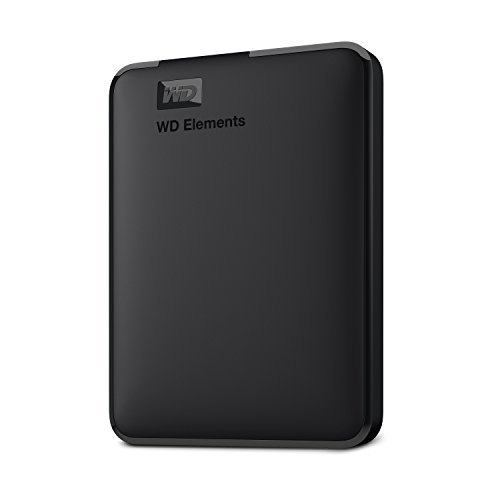
WD Elements 5TB Portable Hard Drive — The plain-spoken portable
Western Digital sells this drive with almost no theatre: a slim black enclosure, a USB connection, five terabytes, done. That plainness is its charm for editing work. There is no bundled software demanding installation, no encryption layer to configure, and no dashboard phoning home. You format it for your filesystem, label it with the project name, and it behaves like storage should, quietly and predictably, on Windows machines and Macs alike after a quick reformat where needed.
The Elements line earns its keep as the second or third drive in a kit. One unit mirrors the camera offload at the end of each shooting day; another rotates off-site weekly carrying the current project’s only geographically separate copy. Because the model is inexpensive per terabyte and utterly standard, replacing a lost or failed unit never becomes a research project. Rental houses and small production teams lean on exactly that interchangeability.
Its limits are equally plain. The slim case offers no meaningful drop protection, transfer speed is ordinary platter pace, and there is no hardware encryption for sensitive client footage. Editors handling confidential material should step up to the password-protected My Passport below. Everyone else gets a dependable archive mule whose simplicity keeps attention on the footage rather than the hardware carrying it.
There is a quiet economic argument for this WD that production managers understand instinctively. When a drive’s job is to be one of several interchangeable copies, paying for armour or encryption on every unit wastes money that buys more copies instead. A fleet of plain Elements drives, labelled and rotated, often protects footage better than a single premium unit, because protection in the real world comes from redundancy spread across bags, buildings and vehicles.
Formatting is the one decision to make deliberately. Units ship ready for Windows; Mac-based crews should reformat before the first shoot rather than discovering read-only behaviour beside a camera. Decide the fleet’s filesystem once, write it on every label, and the interchangeability that makes this model attractive survives contact with a busy production schedule.
Students and emerging editors deserve a specific mention, because this is often the first external drive they buy. The Elements teaches the right lessons cheaply: capacity planning, labelling, mirroring, and the discovery that storage is a system rather than a product. Skills built on a plain drive transfer perfectly when the budget later stretches to armoured or encrypted models, which is more than can be said for money spent on novelty features.
- Capacity: 5TB spinning platter
- Port: USB 3.2 Gen 1 / USB 3.0
- Software: none bundled or required
- Build: slim unarmoured portable case
- Role: mirror copies and rotating backups
Strengths
- Nothing extraneous to configure
- Easy to duplicate across a kit
- Friendly with both major platforms
Trade-offs
- No drop armour at all
- No password protection option
- Ordinary transfer pace throughout
Best for: production teams standardising on simple, swappable project mirrors.
Not suited for: editors carrying unencrypted confidential footage through airports.
Teams stocking spare mirror drives can look over the Elements listing on Amazon. WD Elements 5TB Portable Hard Drive.
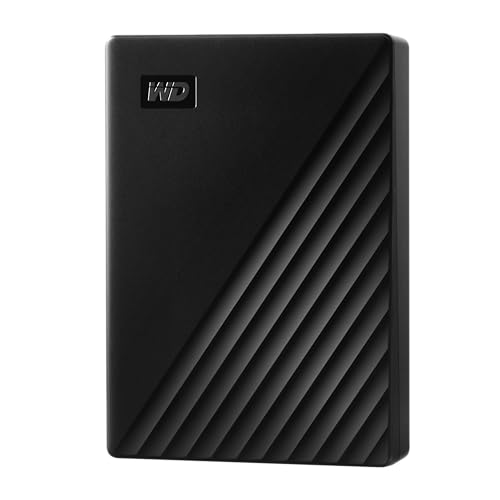
WD 6TB My Passport — The locked-down traveller
Client footage carries obligations. Contracts, unreleased campaigns and private events all assume the media will not wander, and this is the pick that treats that duty seriously. WD’s password protection and hardware encryption let an editor lock a drive before it leaves the building, while the bundled backup software, with its stated defence against ransomware, automates copies for owners who know manual routines slip during deadline weeks.
Six terabytes is the largest capacity in WD’s slim portable line, and it suits the editor whose archive travels with them: a colourist moving between suites, a freelancer whose home desk and client offices alternate, or a documentary maker spending months near a subject. The enclosure stays pocketable despite the capacity, drawing power from the USB cable alone, so the drive works at a café table as happily as at a calibrated workstation.
Encryption introduces one discipline: lose the password and the data is gone by design, so record credentials somewhere safer than a sticky note on the drive itself. Speed remains platter-bound, making this an archive and transport pick rather than a live editing disk. Within that honest role, the combination of capacity, locking and automation is hard to match in a portable.
The bundled backup software deserves a fair description. It can watch folders and copy changes automatically, which suits editors whose manual routines collapse during delivery weeks, and its ransomware defence focuses on keeping backup sets from being silently encrypted by an infected machine. Owners who prefer their own tools can ignore the software entirely; the encryption, which is the feature that matters most here, lives in the hardware and works regardless.
A practical habit completes the package: test the unlock process on every machine the drive will meet, including the client suite’s workstation, before the drive carries anything precious. Password prompts behave slightly differently across operating systems and older USB ports, and a locked drive that refuses to open in front of a client converts a security feature into a public embarrassment. Five minutes of rehearsal prevents the entire genre of problem.
There is also a handover benefit to encryption that freelancers overlook. When a project ends, a locked drive can be posted to the client or stored in their facility with the password shared through a separate channel, giving both parties a clean chain of custody for the masters. That professionalism gets noticed, and it occasionally becomes the reason a client returns with the next production.
- Capacity: 6TB spinning platter
- Port: USB 3.1 / USB 3.0, bus powered
- Security: password protection, hardware encryption
- Software: backup tools with ransomware defence
- Role: secured transport and mobile archive
Strengths
- Encryption guards client material properly
- Largest slim WD portable capacity
- Automated backup for busy schedules
Trade-offs
- Forgotten password means lost data
- Protection software needs initial setup
- Still too slow for timeline duty
Best for: freelancers who carry sensitive client projects between locations.
Not suited for: shared drives that many hands must open without credentials.
Freelancers handling embargoed footage can inspect the My Passport offer on Amazon. WD 6TB My Passport.
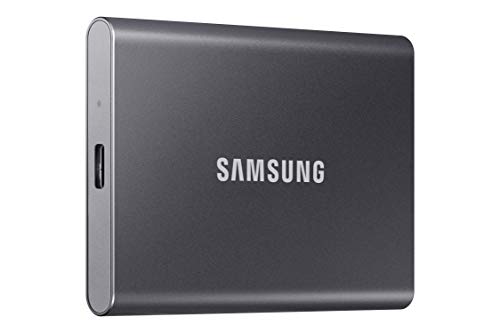
Samsung T7 Portable SSD 1TB — The only true working drive here
This pick breaks the category on purpose, and the label matters: the T7 is a solid-state drive, not a hard drive, and it earns its slot because it performs the one job the other five cannot. It is the disk your editing software should actually read. Timelines scrub smoothly, thumbnails populate instantly, and multicam angles stay in sync because flash storage answers thousands of small requests without a read head physically travelling anywhere. Every serious 4K setup pairs a working SSD like this with spinning archive capacity.
One terabyte sounds modest beside the five and eight terabyte spinners above, yet working drives are supposed to hold current projects, not history. A feature documentary’s active media, or a wedding season’s next three deliveries, fits comfortably when finished work graduates to archive disks weekly. The USB 3.2 Gen 2 connection feeds the drive at up to 1,050MB/s on a capable port, and the metal shell sheds heat while surviving the knocks of a working bag far better than a bare platter would.
Buying the T7 alongside any HDD on this page is not upselling; it is the actual architecture professionals use. Flash for the present tense of a project, platters for its past. Editors who try to make one spinning drive do both jobs end up shopping twice, once in frustration. Start with the division of labour and both purchases behave exactly as hoped.
Choosing the T7’s capacity is the one real decision it presents. One terabyte fits the active-project pattern described in this guide, where finished work graduates to spinning archives weekly. Editors who keep several concurrent features, or who shoot long-form multicam events, should consider whether their present tense is bigger than that, because a working drive crammed past ninety percent full becomes an organisational headache even when its speed holds up.
The drive’s small footprint invites a second role worth naming: the personal carry. Many editors keep the current project on the T7 and take it home nightly, which quietly creates an off-site copy of the work in progress every single day. That habit, combined with the studio archive, satisfies the three-copy rule for active projects almost without effort, and it is a large part of why this little SSD appears in so many professional bags.
A final note on pairing: the T7’s presence in a kit changes how the spinning drives should be bought. Because the SSD absorbs every urgent, random-access task, the hard drives can be chosen purely for capacity, armour and price per terabyte, with no anxious compromises about speed. That clarity is the hidden dividend of the two-tier architecture, and it simplifies every future storage purchase the editor makes.
- Capacity: 1TB solid-state flash
- Port: USB 3.2 Gen 2 USB-C
- Pace: up to 1,050MB/s rated transfers
- Build: compact metal enclosure
- Role: live timeline media drive
Strengths
- Genuine scrub-friendly timeline performance
- Tiny, tough, bus-powered design
- Makes every archive pick more useful
Trade-offs
- Costs far more per terabyte
- One terabyte fills on huge projects
- Not a hard drive, by design
Best for: editors who need one disk the timeline can truly run from.
Not suited for: bulk archive duty where capacity per pound matters most.
Editors assembling the two-tier setup can confirm the T7 listing on Amazon now. Samsung T7 Portable SSD 1TB.
How do the six compare side by side?
| Pick | Capacity | Connection | Role in the setup |
|---|---|---|---|
| LaCie Rugged Thunderbolt USB-C 4TB | 4TB | Thunderbolt / USB-C | Field offload shuttle |
| LaCie Rugged USB-C 5TB | 5TB | USB-C | Long-trip shuttle |
| Seagate One Touch 8TB Desktop HDD | 8TB | USB-C, mains powered | Desk archive anchor |
| WD Elements 5TB Portable Hard Drive | 5TB | USB 3.0 | Rotating mirror copies |
| WD 6TB My Passport | 6TB | USB 3.0 | Secured mobile archive |
| Samsung T7 Portable SSD 1TB | 1TB SSD | USB 3.2 Gen 2 | Live timeline media |
Read the table as a system diagram rather than a league ladder. The T7 occupies the present tense, the two LaCie units and the WD portables move media through space and time, and the Seagate desktop holds the past. Most buyers need two rows, not one winner: a working drive plus custody, sized to their project rhythm. Choosing only the cheapest row leaves the workflow half-built.
How should you set up a two-tier editing workflow?
Begin on the flash tier. Create a project folder on the SSD with fixed subfolders for originals, audio, graphics, exports and project files, then point your editing software’s cache and preview locations at the same disk. Consistency here pays compound interest: every project behaves identically, assistants can navigate blindfolded, and archiving later becomes a single folder copy rather than an archaeological dig through scattered directories.
Ingest with verification. Copy camera cards to the shuttle drive and the SSD, compare file counts and sizes, and only then format the cards. Software that performs checksum verification removes human optimism from this step, which matters at midnight after a twelve-hour shoot day. Label physical drives with project name and date on tape; future you, hunting a clip in eight months, will be grateful for handwriting over memory.
Close the loop weekly. Finished projects migrate from flash to the archive drive, a mirror copy lands on the rotating portable, and the SSD sheds everything except active work. Set a calendar reminder, because archive discipline decays precisely when work gets busy, which is also when footage is most valuable. The editors with boring backup routines are the ones still working after everyone else’s cautionary tales.
Which single drive should different editors buy first?
The wedding filmmaker working alone should start with the five-terabyte Rugged USB-C, because the binding constraint in that business is the journey between venue and desk, repeated forty weekends a year. Capacity covers a full weekend’s acquisition from multiple cameras, the armour covers the journey, and the purchase leaves budget for the mirror twin that the same filmmaker needs by the second season.
The commercial freelancer embedded with agencies faces a different binding constraint: custody. Unreleased campaigns move between the freelancer’s desk, the agency suite and occasionally a client’s office, and every handover is a moment where footage can wander. The encrypted My Passport answers that constraint directly, and its six terabytes postpone the day when a second transport drive joins the bag.
The studio-based editor cutting long-form work should think in the opposite order. The desk archive comes first, because finished masters are already accumulating somewhere, probably on drives never designed for custody. The One Touch gives that history a proper home, after which the working SSD and a portable mirror complete a system that can run for years with only capacity additions.
The student or first-year creator, finally, should buy the plain Elements and a notebook. The notebook is for the catalogue habit, which will matter more across a career than any single drive, and the Elements provides honest capacity while that habit forms. Every other pick on this page will still be there when the work, and the budget, grow into them.
How do cables and ports change real-world copies?
Editors blame drives for copy speeds that actually belong to cables. A USB-C port can carry several different standards, and a cable rated only for charging may throttle a transfer to a fraction of what the same drive achieves with a proper data cable. The symptom is maddening: the identical drive copies briskly at the studio desk and crawls at home, because the home cable came free with a phone. Keep one known-good data cable taped to each shuttle drive and the mystery largely disappears.
Hubs add a second trap. A drive sharing a bus-powered hub with card readers, interfaces and a phone may receive less power than it wants, producing disconnects mid-copy that look like drive failure. Plug storage directly into the computer during ingest, verify the copy, and only then rearrange the desk for comfort. Ports on the machine itself are the reference standard; everything between the drive and that port is a variable to eliminate when behaviour turns strange.
None of this requires buying exotic accessories. It requires labelling: mark the fast cables, retire the doubtful ones to charging duty, and treat the cable as part of the drive when packing.
What should a growing archive plan look like year by year?
Year one is about habits, not hardware. The shuttle and archive bought today will serve, provided labelling, mirroring and weekly migration actually happen. Spend remaining budget on the second copies rather than on larger single drives, because a modest archive with redundancy outperforms a grand archive without it in every scenario that matters, from theft to a spilled coffee.
Year two usually brings the capacity conversation. The archive drive approaches fullness, camera bitrates have crept upward, and a larger desktop unit enters as the new anchor while the old one retires to second-copy duty. This cascade, where every drive demotes gracefully instead of being discarded, is how small studios build deep storage cheaply. Plan purchases with the cascade in mind and no drive is ever wasted money.
By year three the catalogue matters as much as the disks. A simple index, whether a spreadsheet or a notebook, recording project, client, date and drive location turns retrieval from an afternoon of plugging in strangers into a two-minute errand. Archives fail socially before they fail mechanically: the footage exists, nobody can find it, and the client hears the same sentence either way. The index is the least expensive safeguard in this entire guide, and it costs only consistency.
How do proxy workflows change the storage equation?
Proxy editing deserves honest treatment here, because it genuinely softens the storage problem without repealing it. When an editor generates low-resolution stand-ins for heavy camera originals, the timeline can run from slower media than the originals would ever tolerate, and some creators do cut entire projects from a portable hard drive this way. The catch lives at both ends of the job: generating proxies takes time and processor effort, and the final conform, colour pass and export still reach back to the full-resolution media, which must live somewhere responsive when deadlines arrive.
Used deliberately, proxies change which hard drive you should buy rather than whether you need flash at all. A travel editor can keep originals on a Rugged drive, cut from proxies on the laptop’s internal storage, and relink for export at the studio. That pattern makes the armoured shuttle more valuable, not less, and it explains why experienced field editors speak warmly about drives that pure specification comparisons dismiss. Workflow design and hardware choice are the same decision viewed from two sides.
The failure mode to avoid is accidental proxy dependence: discovering on delivery day that the timeline was built from proxies while the originals sit on a drive nobody brought. Professional suites guard against this with media management checks before export. Home editors can borrow the habit cheaply by relinking and playing the full timeline start to finish a day before the deadline, while recovery is still possible.
What does drive health monitoring actually tell an editor?
Every drive in this guide reports internal health data through the SMART system, and free utilities on both major platforms can read it. The numbers worth watching are reallocated sectors, pending sectors and overall power-on hours, because a drive quietly remapping bad areas is a drive rehearsing its retirement. Checking an archive drive’s health quarterly takes two minutes and converts surprise failures into planned migrations surprisingly often.
Health data has limits worth respecting. Plenty of drives fail electronically without any SMART warning, which is why monitoring supplements redundancy rather than replacing it. The correct response to a worrying report is calm and procedural: copy the drive’s contents to fresh hardware first, argue about warranty claims second, and retire the suspect unit from sole-copy duty permanently, whatever the diagnostic eventually claims.
Temperature is the environmental factor editors control most easily. Drives wedged between a monitor stand and a wall, or stacked atop a warm audio interface, age faster than their specifications assume. A finger’s width of air around an archive drive, and a shuttle allowed to cool before being sealed into a bag after a long copy, are small kindnesses that compound across years of service.
How should you verify a copy before trusting it with a project?
File counts and folder sizes are the minimum viable check, and they catch the embarrassing failures: the card that stopped halfway, the folder dragged to the wrong destination, the copy interrupted by a sleeping laptop. Compare the source and destination totals before anything is formatted, and glance at the first and last clip of the transfer in a player, because a copy can be numerically complete while one file in the middle arrived damaged.
Checksum verification raises the standard properly. Copy utilities that hash every file during transfer and compare the result against the source can state, rather than hope, that the bytes survived the journey. The process costs extra minutes on large offloads, and professionals pay those minutes gladly on original camera media, because the card is about to be wiped and the footage cannot be reshot at any price.
Build the verification habit into the physical routine. Cards stay in a separate pouch until their contents exist in two verified places, and the pouch only empties after the check passes, never on the promise that it will be done later at the hotel. Productions rarely lose footage to exotic failures; they lose it to a tired person skipping a step that felt optional at midnight. Systems that make the safe path the easy path are the ones still protecting footage in year five.
One last environmental note applies to every portable in this guide: vehicles are hostile storage. A drive left on a dashboard in summer sun, or in a boot through a winter night, experiences temperature swings its specifications never promised to survive. The working rule is to carry footage the way you would carry the camera itself, in the cabin, in a padded bag, and out of the car when the crew leaves it. Data deserves the same seatbelt logic as glass.
Editors working from rented suites face a related discipline: wipe nothing, assume nothing, and bring your own verified cables. A house drive of unknown history should receive copies, never hold the only one, and your own shuttle leaves with you at wrap even when the suite offers to keep it safe overnight.
What mistakes do editors make when buying storage?
Expecting a platter to scrub. The most expensive mistake is also the most common: buying a large hard drive, pointing the timeline at it, and concluding that external storage is simply slow. The drive was miscast, not defective. Assign roles before purchase and the same hardware suddenly performs beautifully at its real job.
Keeping a single copy during production. Cards get formatted, bags get stolen, and drives fail on their own schedule rather than yours. Any interval where footage exists exactly once is borrowed time. The mirror copy should happen the same day as the shoot, on a separate physical device, ideally in a separate bag on the journey home.
Ignoring filesystem choices until they bite. A drive formatted for one platform, arriving on a set running the other, wastes the first hour of a job. Decide each drive’s platform allegiance deliberately, favour exFAT for shuttles that cross between systems, and test the drive with the actual machines before the shoot depends on it.
Letting archives become anonymous. Five identical black drives in a drawer constitute a liability, not an archive. Label, catalogue, and keep a simple index document noting which projects live where. Retrieval speed is an archive feature too, and it costs nothing but a tape label and two minutes per project.
Final Recommendation
Build the system in the order professionals do: secure the working tier first with the Samsung T7 if your timelines currently live on a platter, then add custody sized to your project rhythm. Travelling shooters should pair the T7 with a LaCie Rugged, choosing Thunderbolt for modern laptop fleets or the five-terabyte USB-C model for longer trips. Desk-bound editors will find the Seagate One Touch the calmest home for finished work, with a WD Elements rotating off-site as the second copy.
Freelancers carrying other people’s footage should let the encrypted My Passport handle transport duty, because one lost unprotected drive can end client trust permanently. Whichever combination you choose, buy the mirror at the same time as the drive it mirrors; redundancy postponed tends to become redundancy forgotten, and footage does not forgive good intentions.
For the editor reading this with a half-edited film sitting on a single spinning disk, the kindest purchase order is T7 today, archive drive this week, and a labelled mirror before the next shoot leaves the building.
Finally, keep the purchase receipts and serial numbers with the production paperwork rather than in an email archive nobody can search under pressure. When a drive misbehaves in year two, the difference between a warranty replacement and a fresh purchase is usually paperwork, and the editor who can produce it in five minutes gets back to cutting while everyone else is still arguing with a support portal.
Keep the box the drive arrived in, too. If a unit ever needs to travel for warranty service or laboratory recovery, the original packaging remains the safest way to ship a mechanical device through a courier network.
Frequently Asked Questions
Can you edit 4K video directly from an external hard drive?
Single-stream timelines in forgiving codecs may play, yet the experience degrades fast once effects, multicam angles or high-bitrate footage enter the cut. A spinning disk delivers data in a steady stream but answers scattered requests slowly, and editing is mostly scattered requests. Use flash for media the playhead touches and reserve platters for storage, transport and backup copies of that same media.
How much capacity does a 4K project really consume?
A one-hour timeline can begin life as several hundred gigabytes of camera originals once B-roll, drone passes, audio and graphics arrive. Most solo editors find five to eight terabytes of archive space comfortable for a year of work, provided finished projects are pruned of render caches and duplicate exports before shelving.
Should a field drive be formatted exFAT or a native filesystem?
exFAT moves between Mac and Windows without file-size limits, which suits shuttle drives handed between mixed crews. Native formats such as APFS or NTFS behave better for drives that stay with one machine, with stronger journaling when a cable is pulled at the wrong moment.
What backup pattern protects footage before delivery?
Keep three copies on two different kinds of media with one copy stored somewhere else. In practice that means camera cards are not wiped until the offload exists on the shuttle drive and the desk archive, and the project is not finished until an off-site or cloud copy exists.
Do rugged drives still need careful handling?
Armour reduces the consequences of drops and weather; it does not repeal physics. A drive that falls while spinning, or bakes in a closed car, can still fail. Rugged models buy forgiveness for the ordinary accidents of location work, and that is all. Keep copies regardless, because no enclosure specification substitutes for redundancy.
When is a desktop drive better than a portable for archives?
Choose the desktop pattern when the archive never travels, when copies regularly run to several terabytes in one sitting, and when a permanent shelf spot with mains power exists. Portables win when the archive rotates off-site, moves between rooms, or must run from a laptop battery.
Related Guides
Storage for editing connects naturally to our wider coverage of creator workstations and media management. Readers building out a full desk may also want our guide to portable SSDs for video work for a deeper flash comparison. Those planning archive growth should see the desktop drive capacity planner before their next purchase. Finally, our backup routine walkthrough for creators turns the three-copy rule into a weekly checklist.


