What's inside
- Key Takeaways
- Quick Picks
- How We Chose These Picks
- Why Does the SATA Protocol Still Matter in an M.2 Slot?
- Which SATA Sticks Earned a Closer Examination?
- How Do the Six SATA Sticks Compare at a Glance?
- How Can You Tell Whether Your Slot Speaks SATA, NVMe or Both?
- What Mistakes Send SATA M.2 Buyers to the Returns Desk?
- How Do You Clone an Ageing System Onto a SATA Stick?
- Why Does a SATA Ceiling Feel Faster Than the Numbers Suggest?
- Which Machines Gain the Most From a SATA Stick Upgrade?
- How Should You Size a SATA Upgrade for the Next Three Years?
- What Does Endurance Mean When the Host Machine Is Already Old?
- How Do You Troubleshoot a SATA Stick the Machine Cannot See?
- Why Do Fanless and Always-On Machines Favour These Drives?
- What Should You Know About Older Operating Systems on a New SATA Stick?
- How Can You Avoid Counterfeit and Mislabelled Sticks in This Category?
- When Does a SATA Upgrade Beat Replacing the Whole Machine?
- What Should Happen to the Old Drive After the Swap?
- How Do SLC Caches Behave at SATA Speeds?
- Final Recommendation
- Frequently Asked Questions
- Related Guides
As an Amazon Associate I earn from qualifying purchases. This post may contain affiliate links at no extra cost to you.
widgetverdict.com is reader-supported. When you buy through links on our site, we may earn an affiliate commission.
Where to buy: every stick below links to a checked Amazon listing for a genuine SATA-protocol M.2 drive, from two OSCOO capacities through TEAMGROUP, KingSpec and Transcend to a small Timetec built for boot duty.
The best sata m 2 ssds serve a machine the NVMe era left behind: the laptop, mini PC or desktop whose M.2 slot speaks only SATA. These sticks look like their NVMe cousins — same 2280 silhouette, similar labels — yet they run the older AHCI protocol over a SATA III link, topping out near 550 MB/s. That ceiling sounds modest until you remember what these drives replace: spinning disks and first-generation SSDs in machines that still have years of useful work in them. For that audience, the right SATA stick is not a compromise purchase; it is the only purchase that fits.
Compatibility is the whole ballgame in this category, and this guide treats it that way. Every pick here uses B+M keying and the SATA protocol, and the sections below hammer the distinction between a slot that accepts the stick physically and a slot that can actually talk to it. Capacities run from a boot-sized 256GB to a full terabyte, because the machines involved range from industrial mini PCs that need a dependable system disk to family laptops being converted into media and homework workhorses.
Key Takeaways
- A SATA M.2 slot cannot run an NVMe drive, and most NVMe-only slots cannot run these sticks — protocol, not shape, decides.
- All six picks use the 2280 format with B+M keying, the near-universal fitting for SATA-era slots.
- Expect a practical ceiling around 550 MB/s; the wins are responsiveness and silence, not headline throughput.
- OSCOO covers the capacity extremes here, with a 1TB stick for libraries and a 512GB stick for mainstream upgrades.
- Transcend’s MTS825S adds LDPC error correction, a durability feature rarely seen at this tier.
- The Timetec 256GB is a boot-drive specialist with a published endurance figure of 128TBW.
Quick Picks
| Pick | Badge | Why it earns its place |
|---|---|---|
| OSCOO 1TB M.2 SATA SSD | The capacity leader | A full terabyte of SATA M.2 storage at up to 550 MB/s for mini PCs and older laptops. |
| OSCOO 512GB M.2 SATA SSD | The mainstream twin | The same B+M key design at the capacity most legacy upgrades actually need. |
| TEAMGROUP MS30 512GB | The established name | 3D TLC flash with SLC caching and quoted speeds up to 530/430 MB/s from a veteran memory brand. |
| KingSpec 512GB M.2 SATA SSD | The upgrade specialist | A long-running SATA stick line that states its non-NVMe nature in the plainest possible language. |
| Transcend MTS825S 500GB | The durability pick | SLC caching plus LDPC error correction from a maker with industrial-storage roots. |
| Timetec 256GB M.2 SATA SSD | The boot-drive bargain | A small, honest system disk quoting up to 550 MB/s and a 128TBW endurance rating. |
How We Chose These Picks
The first filter was protocol purity: each candidate had to be a true SATA III drive in the M.2 2280 format with B+M keying, verified against the maker’s own description rather than a marketplace headline, because this category attracts mislabelled listings like no other in storage. The second filter was flash honesty — 3D TLC NAND wherever the maker states it — and the third was a support footprint appropriate to the machines involved, which are often owned by people who will never open a forum thread.
Capacity spread shaped the final six as much as brand spread did. Legacy upgrades fail in both directions: a stick too small becomes a second storage crisis within a year, while paying for a terabyte to hold a point-of-sale system is money a small business feels. So the list runs deliberately from 256GB to 1TB with the middle capacities doubled, mirroring where real demand sits. Quoted speeds are treated as ceilings throughout, since SATA’s link limit compresses the differences between these drives into sustained behaviour and build quality instead.
Availability shaped the list too, in a way worth admitting openly: the SATA M.2 shelf is thinning as makers retire the format, and several once-obvious candidates now survive only as marketplace remnants with unclear provenance. Every pick here is a current, orderable product from its maker’s own line, because recommending a discontinued stick to the owner of a dying laptop would be a cruelty disguised as expertise.
Why Does the SATA Protocol Still Matter in an M.2 Slot?
M.2 began life as a flexible connector, and for several years manufacturers wired its slots for whichever storage protocol suited the machine: SATA for value designs, PCIe for performance ones, sometimes both. The laptops and mini PCs of that era — a population numbering in the tens of millions and still working — often carry slots that speak SATA alone. Their owners open a shopping page, see identical-looking sticks, and reasonably assume any M.2 drive fits any M.2 slot. The resulting returns and mutual confusion are a category-defining problem this guide exists to prevent.
The electrical reality is blunt. A SATA stick in an NVMe-only slot is invisible to the machine; an NVMe stick in a SATA-only slot is equally invisible, even when the keying lets it seat. B+M keying on these picks maximises physical compatibility, but the protocol handshake is what matters, and only a slot wired for SATA — or a dual-protocol slot — will ever complete it. Your machine’s manual or spec sheet carries a storage line that settles the question in one sentence, and reading that sentence is the true first step of every purchase on this page.
There is a generational irony here that owners of dual-protocol machines should savour: the SATA stick was the performance upgrade of its day, displacing spinning disks so completely that its own displacement by NVMe feels abrupt. The hardware did not get worse; the conversation simply moved. Machines frozen in that earlier conversation still deserve a guide written for them rather than a footnote in somebody else’s.
What SATA gives back in exchange for its lower ceiling is maturity. The AHCI stack is understood by every operating system of the last two decades, drivers are never an adventure, and these sticks sip power in a way that suits ageing laptop batteries and passively cooled industrial boxes alike.
Which SATA Sticks Earned a Closer Examination?

OSCOO 1TB M.2 SATA SSD — The capacity leader
A terabyte is the largest capacity this protocol makes practical, and OSCOO’s flagship SATA stick is built for the machines that need exactly that: mini PCs serving as home servers, older gaming laptops whose single slot must hold system and library together, and all-in-one desktops from the SATA-M.2 era. The drive quotes up to 550 MB/s over its SATA III link, which is the interface’s practical ceiling, and the B+M keyed 2280 board drops into the widest possible range of legacy slots without drama.
OSCOO is a storage-focused maker whose catalogue leans heavily into exactly this niche — replacement drives for ageing hardware — and that specialisation shows in the listing’s compatibility language, which names the mini PC and mainstream laptop brands this stick targets. Behaviour in service is what a SATA upgrade should feel like: the machine wakes faster, applications stop beach-balling during updates, and the constant low-level seeking noise of a spinning disk disappears from the room. Sustained writing follows the usual SLC-cache pattern of the class, strong in bursts and settling during enormous copies, which legacy machines rarely perform anyway.
The honest frame for this pick is value density. Buyers keeping a good machine alive for three more years get a terabyte of quiet, cool storage without replacing anything else, and the drive’s modest power draw suits fanless boxes. What it cannot do is grow with you into an NVMe future — the stick’s next home would need another SATA slot or an enclosure — so purchase it as life extension for a specific machine, not as portable capital.
- Interface: SATA III 6 Gb/s, M.2 2280, B+M key
- Quoted read ceiling: up to 550 MB/s
- Capacity reviewed: 1TB
- Targets: mini PCs and legacy laptops
- Protocol: AHCI SATA, not NVMe
Strengths
- Largest sensible capacity for a SATA-protocol slot.
- Compatibility language aimed squarely at legacy machines.
- Cool, frugal running suits fanless mini PCs.
Trade-offs
- Cannot follow you into an NVMe-only replacement machine.
- Brand recognition trails the veteran names in this list.
- Sustained copies settle once the cache is spent.
Best for: giving a SATA-slotted mini PC or older laptop a full-size second life. Not suited for: any machine whose slot speaks NVMe only.
Keeping a faithful older machine in service? The OSCOO 1TB heading link leads to its listing — verify your slot’s protocol one final time before ordering.
OSCOO 512GB M.2 SATA SSD — The mainstream twin
Half a terabyte is the capacity the average legacy upgrade actually needs, and OSCOO’s 512GB edition of the same design is the straightforward way to buy it. The specification mirrors its larger sibling — SATA III link, B+M keyed 2280 board, quoted speeds up to 550 MB/s — aimed at the same mini PCs and the Dell, HP, Lenovo, Acer and ASUS laptops whose SATA slots defined an era of mainstream computing. For a machine that holds an operating system, office software, photographs and a modest media collection, this size lands in the comfortable zone where nothing needs pruning.
Choosing between the twins is a library question, not a quality question. Owners converting a laptop for a student, reviving a family desktop, or building a quiet emulation and media box will find 512GB removes the old drive’s fullness anxiety without paying for space that sits empty. The drive’s behaviour under the mixed, bursty loads of such machines is indistinguishable from its big brother’s, because SATA’s ceiling compresses performance differences and leaves consistency as the trait that matters — and consistency is what this straightforward design delivers.
OSCOO’s support footprint is the consideration to weigh, as with its sibling: functional rather than famous. The counterweight is focus; a maker whose business is replacement storage for older hardware understands the assignment, ships the right screw-and-standoff expectations in its listings, and prices for the reality that its customers are extending machines rather than building dream rigs. As the default recommendation for a typical SATA-slot rescue, this 512GB stick is where most readers of this page should land.
- Interface: SATA III 6 Gb/s, M.2 2280, B+M key
- Quoted read ceiling: up to 550 MB/s
- Capacity reviewed: 512GB
- Targets: mainstream legacy laptops and mini PCs
- Protocol: AHCI SATA, not NVMe
Strengths
- Right-sized for the typical operating system plus library load.
- Same slot-friendly design as the terabyte edition.
- Pricing respects the life-extension mission.
Trade-offs
- Large game libraries will outgrow it within a year or two.
- Support channels are leaner than the global brands offer.
- No path into a future NVMe machine without an enclosure.
Best for: the standard rescue of a SATA-slotted laptop or family desktop. Not suited for: hoarders of games, footage or virtual machines.
Does half a terabyte match your machine’s real appetite? Open the OSCOO 512GB listing from its title and match the keying diagram against your slot.
TEAMGROUP MS30 512GB — The established name
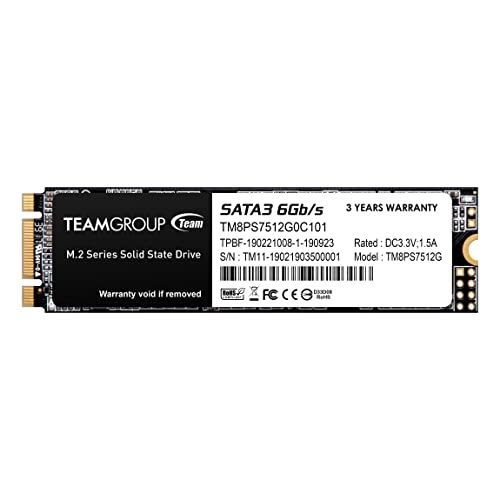
TEAMGROUP has sold memory and storage under its own name for decades, and the MS30 is its workhorse SATA stick: 3D TLC flash, an SLC cache for burst absorption, and quoted speeds up to 530 MB/s reading and 430 MB/s writing. Those figures sit a touch below the interface ceiling on paper, and in exchange the drive offers the trait nervous upgraders value most — predictability from a maker with a long, searchable history of honouring warranties on exactly this class of product.
The MS30’s natural habitat is the business and education fleet: rows of ageing laptops and small desktops that need identical, dependable replacements rather than record attempts. Its power behaviour is gentle, its thermal output trivially handled by any chassis, and its compatibility across the SATA-slot generation is thoroughly documented by years of owner reports. TEAMGROUP’s quoted numbers also deserve a word of praise for honesty; a maker willing to print 530 rather than rounding up to the ceiling is telling you how it will behave in the rest of the relationship.
Nothing here chases excitement, and that is the review. Buyers who want the most reassuring badge in a legacy slot, who may be upgrading a parent’s laptop remotely or standardising a small office’s machines, will find the MS30 the easiest recommendation on this page to defend. The SLC cache keeps everyday bursts snappy, the TLC flash promises better endurance than the QLC found in the category’s basement, and the brand will still exist to answer mail in five years.
- Interface: SATA III 6 Gb/s, M.2 2280
- Flash: 3D NAND TLC with SLC cache
- Quoted ceilings: up to 530 MB/s read, 430 MB/s write
- Capacity reviewed: 512GB
- Protocol: AHCI SATA, not NVMe
Strengths
- Decades of brand history behind a legacy product.
- TLC flash rather than the basement tier’s QLC.
- Quoted figures are conservative and believable.
Trade-offs
- Paper speeds sit slightly below the interface ceiling.
- No feature surprises to reward enthusiasts.
- Capacity range tops out where power users begin.
Best for: fleet upgrades and family machines where dependability outranks drama. Not suited for: buyers squeezing the last megabyte from the SATA link.
Prefer the name with the longest paper trail? The MS30 listing is one click through its heading — check the 512GB variant is the one in your basket.

KingSpec 512GB M.2 SATA SSD — The upgrade specialist
KingSpec built its reputation in the replacement-drive trenches, selling storage for machines the big brands had stopped thinking about, and its 512GB SATA stick wears that mission openly — the listing states in capital letters that it is not for NVMe slots. That bluntness is a feature. In a category poisoned by mismatched purchases, a maker shouting the limitation on its own product page is practising the honesty this guide keeps asking for, and buyers burned once by a wrong-protocol purchase will read it with gratitude.
The hardware is the class standard executed competently: SATA III link up to 550 MB/s, B+M keyed 2280 board, and the bursty, responsive behaviour that makes an old laptop feel unrecognisable beside its spinning-disk former self. KingSpec’s volumes in this niche mean compatibility reports cover an unusually wide spread of machines, including the industrial and thin-client hardware that mainstream brands ignore. Sustained writing follows the familiar cache pattern, adequate for the installation and migration workloads these drives actually face.
Support expectations should be set realistically: KingSpec serves its niche through retailer channels more than through glossy portals, and its documentation is workmanlike. For the buyer whose alternative was a no-name stick with a fantasy specification, the trade is obviously correct. This is the pick for the machine in the corner — the workshop PC, the till system, the inherited laptop — where a known-quantity SATA drive from a specialist beats a famous badge that never made this product at all.
- Interface: SATA III 6 Gb/s, M.2 2280, B+M key
- Quoted read ceiling: up to 550 MB/s
- Capacity reviewed: 512GB
- Listing stance: explicitly not for NVMe slots
- Protocol: AHCI SATA
Strengths
- Unusually honest compatibility warnings on the listing itself.
- Deep owner-report coverage across obscure legacy hardware.
- Class-standard performance without fantasy specifications.
Trade-offs
- Support runs through retailers more than a brand portal.
- Documentation is functional rather than polished.
- Component specifics are stated less fully than rivals manage.
Best for: obscure or industrial legacy machines needing a known-quantity stick. Not suited for: buyers who want a rich software suite with their drive.
Reviving hardware the big brands forgot? Follow the KingSpec heading link and compare your slot’s notch pattern with the listing’s diagram.

Transcend MTS825S 500GB — The durability pick
Transcend approaches storage from the industrial side of the fence, where drives log hours in kiosks, medical-adjacent equipment and embedded systems, and the MTS825S carries that DNA into a consumer-priced SATA stick. Its distinguishing feature is LDPC error correction, a stronger class of error handling that repairs more failing data patterns before they become corruption, paired with SLC caching for everyday burst pace. In plain terms, this is the pick engineered for the drive you intend to forget inside a machine that must simply keep working.
The 500GB capacity lands a whisker under the half-terabyte twins elsewhere on this page, a rounding that matters only to spec-sheet collectors; the working space is effectively identical. Transcend also publishes its specifications with an engineer’s thoroughness — the listing states the B+M keying, warns plainly that NVMe slots are incompatible, and describes the error-correction stack in detail. For buyers burned by vague listings, that documentation style is itself a reason to shortlist the brand.
Where does the durability emphasis actually pay? Machines that run hot, run long or run unattended: the mini PC in a shop cabinet, the home server in a warm closet, the family desktop that gets serviced once every few years. LDPC will not rescue data from a dying drive by magic, and backups remain non-negotiable, but as a tiebreaker between competent SATA sticks, stronger error correction plus an industrial maker’s testing culture is the most defensible tiebreaker on this page.
- Interface: SATA III 6 Gb/s, M.2 2280, B+M key
- Error correction: LDPC
- Cache: SLC caching
- Capacity reviewed: 500GB
- Protocol: AHCI SATA, not NVMe
Strengths
- LDPC error correction exceeds the class’s usual provision.
- Industrial-storage heritage shapes testing and documentation.
- Compatibility warnings are stated with unusual clarity.
Trade-offs
- Capacity rounds to 500GB rather than the twins’ 512GB.
- Consumer-facing software is thinner than gaming brands offer.
- Distribution can be patchier than the biggest names enjoy.
Best for: unattended, warm or long-hour machines where data integrity leads. Not suited for: buyers who shop purely on headline speed.
Is your SATA slot headed for years of unattended duty? The MTS825S listing behind its heading is the one built for that conversation.

Timetec 256GB M.2 SATA SSD — The boot-drive bargain
Not every SATA slot needs a library. Timetec’s 256GB stick is a boot-drive specialist for the machines that define this category’s long tail: point-of-sale terminals, thin clients, workshop controllers, grandparents’ email laptops and the mini PC that runs one job faithfully. It quotes reads up to 550 MB/s, uses 3D NAND with SLC caching for responsiveness, and — unusually welcome at this tier — publishes an endurance figure of 128TBW, giving buyers a concrete yardstick instead of a shrug.
Timetec is an American memory brand that has made a business of honest, modest components, and this drive is the purest expression of the formula. The capacity disciplines the purchase: an operating system, a browser, a handful of applications and working documents fit with room to spare, while anything resembling a media archive belongs elsewhere by design. For a machine being converted to a single-purpose appliance, that discipline is a virtue, and the low capacity keeps the spending proportional to the machine’s remaining ambitions.
The trade-offs are the obvious ones. Owners who misjudge and start storing photographs or games here will meet the full-drive wall quickly, and the brand’s support operation is compact. Judge it as what it is — the sensible system disk for a defined, limited machine — and the Timetec is the most rational purchase on this entire page, the drive equivalent of buying the correct size of battery instead of the largest one on the shelf.
- Interface: SATA III 6 Gb/s, M.2 2280
- Flash: 3D NAND with SLC cache
- Quoted read ceiling: up to 550 MB/s
- Endurance: 128TBW as published
- Capacity reviewed: 256GB
Strengths
- Published endurance figure at a tier that usually hides it.
- Perfectly sized for single-purpose and boot-only machines.
- Spending stays proportional to an old machine’s value.
Trade-offs
- Media or game storage outgrows it almost immediately.
- Support operation is compact compared with global brands.
- No headroom for a machine whose role expands later.
Best for: terminals, thin clients and single-job machines needing a system disk. Not suited for: any laptop expected to hold a personal media library.
Boot duty only, and proud of it? Click through the Timetec heading to its listing and confirm 256GB truly covers the machine’s whole job description.
How Do the Six SATA Sticks Compare at a Glance?
| Drive | Capacity | Headline figure | Notable feature | Natural home |
|---|---|---|---|---|
| OSCOO 1TB | 1TB | Up to 550 MB/s | Largest SATA M.2 capacity here | Mini PC servers, older gaming laptops |
| OSCOO 512GB | 512GB | Up to 550 MB/s | Mainstream sizing | Family laptops and desktops |
| TEAMGROUP MS30 | 512GB | Up to 530/430 MB/s | TLC flash, veteran brand | Fleets and cautious upgraders |
| KingSpec | 512GB | Up to 550 MB/s | Explicit non-NVMe warning | Obscure and industrial hardware |
| Transcend MTS825S | 500GB | SATA III class | LDPC error correction | Unattended long-hour machines |
| Timetec | 256GB | Up to 550 MB/s | 128TBW published endurance | Boot-only and single-job systems |
How Can You Tell Whether Your Slot Speaks SATA, NVMe or Both?
Three sources of truth exist, in descending order of reliability. The manufacturer’s specification for your exact model states the storage protocol beside the slot, and a single line — M.2 SATA, M.2 NVMe, or a dual listing — ends all debate. The service manual goes further with diagrams of keying and screw positions, worth the download before any purchase. Finally, the machine’s current drive confesses the answer: if the stick already inside is labelled SATA or carries B+M keying with two notches, the slot speaks SATA at minimum, and a like-for-like replacement from this page will work.
Physical inspection alone misleads, because an M-keyed NVMe stick can be inserted into some B+M arrangements at an angle that feels plausible while making no useful contact. Software offers a safer probe: system information tools report the existing drive’s interface plainly, and the BIOS storage page usually names the protocol of anything installed. When sources disagree, believe the specification sheet over the marketplace listing of the machine, and believe both over a forum post about a similar model with a different motherboard revision.
Dual-protocol slots deserve a special note. Many mid-era machines accept either family, and their owners face a genuine choice rather than a constraint: an NVMe drive will be faster in that slot, full stop, and this guide’s SATA picks only win there on price. Check before assuming you are confined to this page — some readers will discover their slot speaks both languages, and for them the PCIe roundup is the better shopping list.
What Mistakes Send SATA M.2 Buyers to the Returns Desk?
Ordering an NVMe drive for a SATA slot remains the undefeated champion, followed closely by its mirror image. Both errors come from shopping by photograph, since the sticks look interchangeable at thumbnail size. The prevention is boring and total: read your storage specification, then read the candidate listing’s protocol line, and only then look at capacities and brands. A minute of reading outperforms any amount of unboxing optimism.
Sizing errors form the second wave. A 256GB stick bought for a machine that quietly holds a decade of family photographs recreates the original problem at SATA speed, while a terabyte bought for a till system is budget that belonged elsewhere. Inventory the old drive first — its used space plus a third for growth is a reliable target. The third wave is mechanical: lost standoff screws, a stick flexed by a screw driven into the wrong position, and thermal pads peeled from a neighbouring component in confusion. Photograph the bay before touching it, work on a clear surface, and keep the old drive intact until the new one has survived a week of ordinary use.
How Do You Clone an Ageing System Onto a SATA Stick?
The gentlest route uses a USB enclosure or adapter that explicitly supports SATA M.2 — not the more common NVMe-only enclosures, which repeat this category’s central trap in accessory form. With the new stick attached externally, cloning software copies the existing system across, resizing partitions to fit the target. Then the sticks swap places, the machine boots from the new drive, and the old one waits in the enclosure as insurance until confidence is earned.
Direct installation with a fresh operating system suits machines whose current installation is itself the problem — years of accumulated software on a family laptop often justify the clean start. Either path benefits from the same preliminaries: a backup of irreplaceable files stored somewhere uninvolved, the machine’s storage protocol confirmed in its firmware setup, and enough unhurried time that a surprise becomes an errand rather than an emergency. SATA upgrades are the friendliest in storage precisely because the protocol asks so little of the host; preparation is the only remaining way to make one difficult.
Why Does a SATA Ceiling Feel Faster Than the Numbers Suggest?
Owners upgrading from spinning disks routinely describe the change as miraculous, and the mechanism deserves explaining because it justifies this whole category. A hard drive’s misery was never its sequential speed; it was the milliseconds spent physically seeking between scattered fragments of data, multiplied across the thousands of small files an operating system touches at boot and launch. Any SSD — even a SATA stick at a fraction of NVMe pace — collapses those seeks to microseconds, and the machine’s personality transforms overnight.
That is also why the differences among these six picks are subtler than the differences within the NVMe world. The interface compresses everyone toward the same ceiling, so the buying decision rests on capacity, error correction, brand support and endurance honesty rather than a speed hierarchy. Readers sometimes feel they are settling by shopping this page; the truth is closer to the opposite. For a SATA-slotted machine, these drives deliver nearly all the responsiveness the platform can express, and the remaining gap to NVMe belongs to a motherboard the machine does not have.
Which Machines Gain the Most From a SATA Stick Upgrade?
The 2013-to-2018 laptop fleet is the heartland. Those machines pair capable processors with spinning disks or tiny first-generation SSDs, and their owners consistently report that a SATA stick is the single upgrade that changes their minds about replacement. A student inheriting such a laptop gets a machine that boots before the lecture starts; a small business stretching its hardware budget gets another budget cycle from every desk. The transformation is large precisely because the original storage was the bottleneck all along.
Mini PCs form the second heartland, and their use cases are wonderfully various: the home-theatre box under the television, the low-power home server in a cupboard, the retro-gaming build, the kitchen recipe terminal. Fanless designs especially appreciate these sticks, since a SATA drive adds no meaningful heat and no noise whatsoever, and its modest appetite suits the small power supplies such machines carry. Industrial and commercial single-purpose systems — signage players, kiosk controllers, point-of-sale terminals — form the third group, where the Timetec’s boot-only sizing and the Transcend’s error correction stop being budget trivia and become the actual specification.
All-in-one desktops deserve an honourable mention, because their sealed designs make owners assume upgrades are impossible, when many carry exactly this slot behind a service panel. The pattern across all four groups is identical: a machine whose processor and screen remain perfectly serviceable, held back by storage technology from another decade, in a chassis that accepts precisely the drives on this page and no others.
How Should You Size a SATA Upgrade for the Next Three Years?
Start from evidence rather than vibes. Open the existing drive and read its used capacity honestly, including the forgotten corners — the downloads folder archaeology, the duplicated photo imports, the game installed for one weekend in 2021. Then decide what the machine’s next role actually is, because a laptop being demoted to a child’s homework device needs less future than one continuing as a household’s main computer. Doubling the current used space is a serviceable rule for a continuing role; matching it with modest headroom suits a demotion.
Growth rates differ by content in ways worth respecting. Photographs accumulate linearly and predictably, documents barely grow at all, and games arrive in hundred-gigabyte lumps that wreck careful plans — a single modern title can consume the entire headroom of a 512GB plan in one download. Households should also count the operating system’s own appetite, which expands through feature updates and cached files year after year. The picks here span 256GB to 1TB precisely so this arithmetic has an answer at every honest outcome, and the cost of stepping one size up is almost always smaller than the cost of repeating the upgrade in eighteen months.
One exception cuts the other way: single-purpose machines should be sized tightly on purpose. A signage player or terminal gains nothing from spare terabytes, and the discipline of a boot-sized drive simplifies imaging and replacement. Sizing is a forecast about a specific machine’s life, not a maximisation exercise, and this category rewards buyers who forecast calmly.
What Does Endurance Mean When the Host Machine Is Already Old?
It is tempting to dismiss write ratings for a drive destined for a decade-old laptop, yet endurance thinking still earns its place for two reasons. First, the migration itself is the heaviest writing the drive may ever do — a full clone writes the stick end to end on day one — and drives continue accumulating system updates, caches and swap activity for years afterwards. Second, these sticks frequently outlive their first host and move to a second machine or an enclosure, so the wear budget is spent across a longer story than the current laptop’s remaining life.
The published figure on the Timetec, 128TBW at 256GB, illustrates the scale honestly: a boot drive in light duty might write a few terabytes a year, which makes the rating a multi-decade allowance in practice. The Transcend’s LDPC attacks the problem from the other side, correcting more of the errors that accumulate as cells age, which matters most in warm, always-on installations. Neither feature justifies paying flagship money in this category, but as differentiators among sensibly priced sticks they are the most meaningful numbers on the page after capacity.
What buyers should not do is import NVMe-flagship anxiety into a legacy purchase. The realistic failure mode for these machines is the host’s battery, fan or hinge ending the story first, and a mid-pack SATA stick from a maker who publishes honest figures will almost never be the component that lets the household down.
How Do You Troubleshoot a SATA Stick the Machine Cannot See?
Begin with the assumption that the drive is innocent. Reseat it first: power fully off, stick removed, contacts inspected, then reinserted at its shallow angle until the end sits naturally at the screw post without being forced down. A surprising share of invisible drives are simply resting a millimetre proud of full contact. Next, enter the firmware setup and read the storage page — a detected drive will be named there even when the operating system has not yet initialised it, and that single observation splits the problem cleanly between hardware recognition and software setup.
If the firmware cannot see it, the protocol question returns to centre stage: verify from the manufacturer’s specification that this slot carries SATA, because no setting can teach an NVMe-only slot a second language. Some machines also expose a storage mode toggle whose legacy setting hides modern drives, and a few share the M.2 slot’s lanes with a 2.5-inch bay that must be empty before the stick registers. The manual’s storage chapter, tedious as it reads, lists these arrangements model by model.
If the firmware sees the drive and the system does not, initialise it in the operating system’s disk management, assign it a letter, and only then start cloning or installing. An enclosure used for preparation must itself support SATA M.2 — an NVMe-only enclosure will hide a healthy drive and send buyers chasing ghosts. Work the sequence in order and nearly every invisible-drive story ends as a configuration footnote rather than a return shipment.
Why Do Fanless and Always-On Machines Favour These Drives?
Heat and noise budgets explain a quiet corner of this market. A fanless mini PC has nowhere to put a hot controller’s output, and a SATA stick’s gentle thermal profile — a product of its modest link speed and mature controllers — lets such machines run sealed for years. The same logic governs the home server in the airing cupboard and the signage player bolted behind a warm display: components that sip power and shrug off heat are not a compromise in those enclosures, they are the engineering requirement.
Always-on duty adds a second argument about behaviour over time. Drives in continuous service spend their lives at low, steady write loads where error correction quality and conservative firmware matter more than burst pace, which is the exact centre of the Transcend’s design brief and a reasonable description of the TEAMGROUP’s fleet brief as well. Owners of such machines should still schedule the occasional health check and keep backups on a separate device, because continuous duty punishes complacency regardless of how suitable the hardware is.
There is also an acoustic truth nobody markets: a SATA stick is silent in a way even a quiet hard drive never was, and in a bedroom media PC or a recording-adjacent workspace that silence is a feature the household notices nightly. Categories are usually sold on speed; this one quietly sells peace.
What Should You Know About Older Operating Systems on a New SATA Stick?
Legacy hardware often arrives with legacy software, and a few compatibility notes save real grief. Modern Windows and Linux versions recognise SATA SSDs natively, enable TRIM automatically and align partitions correctly on a fresh installation, so the clean-install path is genuinely painless. Cloning a very old installation carries more caveats: the source system may be configured in an IDE compatibility mode that strangles the new drive, partition alignment inherited from a spinning disk may be wrong, and ancient cloning tools occasionally mishandle the smaller target sizes common in this category.
The remedies are mundane. Switch the storage controller to AHCI mode before cloning where the option exists, let current cloning software handle alignment rather than forcing sector-by-sector copies, and verify TRIM is active afterwards through the operating system’s own reporting. Owners keeping a genuinely old system alive for a specific program should also confirm that program’s licensing survives a drive change, since a handful of older applications tie activation to hardware identifiers and demand a deactivation step before the swap.
None of this should discourage the upgrade; it should schedule it. A SATA stick on a properly configured older system is the most thoroughly understood combination in this entire guide, with a decade of community knowledge behind every quirk you might meet.
How Can You Avoid Counterfeit and Mislabelled Sticks in This Category?
Legacy categories attract the market’s worst listing behaviour, because buyers cannot easily benchmark a rescue purchase and sellers know it. The defences are procedural. Buy through listings whose specifications name the protocol, the flash type and the keying in the maker’s own words; treat any page that hides those three facts as disqualified, however attractive its capacity claims look. On arrival, check the drive’s reported capacity with a full write-and-verify pass before cloning anything precious onto it, since the classic fraud in budget storage is a small drive persuaded to report a large size.
Brand discipline helps too. Every pick on this page comes from a maker with a verifiable catalogue and a support channel, which is precisely the trait the counterfeit end of the market cannot imitate convincingly. Keep the packaging and order record until the drive has survived its first month, register the warranty where the maker offers registration, and let the health tool’s report of total writes written tell you whether a supposedly new drive has lived a previous life. Five minutes of verification protects the machine you are trying to save.
When Does a SATA Upgrade Beat Replacing the Whole Machine?
The economics turn on one diagnostic question: is storage the actual bottleneck? A machine whose processor idles while the disk light burns solid during every launch is a storage hostage, and a stick from this page frees it for a fraction of a replacement’s cost. A machine that stutters through video calls, modern web applications and security software simultaneously may be limited by its processor and memory instead, in which case a fast drive polishes the boot sequence while the real frustrations continue untouched.
Run the honest test before spending. Watch the system monitors during the tasks that annoy you: if the disk sits pinned near full activity while the processor loafs, upgrade the storage with confidence; if the processor is the pinned resource, save the money toward the machine’s eventual successor. Screen quality, keyboard condition and battery health complete the picture, because a laptop with a failing hinge gains little from fast storage. The buyers who love these upgrades — and their reviews glow accordingly — are the ones whose machines passed that audit.
There is an environmental footnote worth a sentence: extending a working machine’s useful life by years with a component the size of a stick of gum is among the least wasteful acts in consumer computing, and the old drive, wiped and enclosed, usually continues as somebody’s backup device rather than as landfill.
What Should Happen to the Old Drive After the Swap?
Resist both haste and hoarding. Keep the old drive untouched for at least a week while the new stick proves itself through updates, sleeps and ordinary work; that untouched copy is the simplest safeguard in the entire project. Once confidence is earned, the old drive has three honourable futures. In a SATA M.2 enclosure it becomes a portable backup or transfer device. Inside the family it can rescue an even older machine whose needs are smaller. Or it can be wiped properly — using the maker’s secure erase tool or a full overwrite — and passed on, sold or recycled with its data genuinely gone.
The wipe deserves emphasis because cloned drives carry everything: documents, browser sessions, saved credentials in old profiles. Deleting files is not erasure on flash storage, and a drive leaving your household should be treated with the same seriousness as a filing cabinet leaving it. Drives that held sensitive work data may belong to an employer’s process rather than your judgement, so check before improvising. Handled this way, the retired stick ends the project as either a useful asset or a clean departure — never as a loose end.
How Do SLC Caches Behave at SATA Speeds?
Every stick on this page borrows the same trick: a slice of its TLC flash temporarily behaves as fast single-level storage, absorbing bursts at full link speed before folding the data into its denser permanent form. At SATA’s ceiling the trick behaves more gracefully than in the NVMe world, because the interface itself caps the incoming flood at a rate the folding process can nearly match. Short and medium copies — an operating system installation, a few gigabytes of photographs, a program suite — therefore complete at full pace almost regardless of which pick you chose.
Only genuinely long transfers expose the fold: copying a hundred gigabytes in one motion will outlast the cache on the smaller sticks first, with the 256GB and 500GB-class drives settling to their native rate while the terabyte OSCOO keeps sprinting longer on its larger reserve. Legacy machines perform such transfers rarely, usually once during the migration itself, which is why this guide treats cache size as a footnote rather than a headline in this category. Buyers planning to use a SATA stick as a staging drive for large media folders are the exception, and for them capacity — the terabyte pick — is the honest answer to a cache question.
Final Recommendation
Take the OSCOO 512GB as the default rescue for a mainstream legacy machine, step up to its 1TB sibling when one slot must hold everything, choose the TEAMGROUP when a trusted name matters most, the KingSpec when the hardware is obscure, the Transcend when the machine will run unattended for years, and the Timetec when the job is honestly just booting. Confirm the protocol, size for the library you actually have, and a SATA stick will repay a modest outlay with the most dramatic before-and-after in all of budget computing.
Frequently Asked Questions
Can I put one of these SATA sticks in a PlayStation or a modern gaming laptop?
Modern gaming hardware speaks NVMe in its M.2 slots, so these SATA sticks will not be recognised there. The previous console generation accepted SATA storage in its drive bay in 2.5-inch form rather than M.2, which is a different product family altogether; match the protocol and the shape to the machine in front of you.
What does B+M key mean on the connector?
The letters describe where the notches are cut in the stick’s edge connector. B+M keying carries both notches, letting the stick seat physically in the widest range of slots from the SATA era. Seating is only half the story, though — the slot must also be wired for the SATA protocol before the drive can be detected.
Is a SATA M.2 drive faster than a 2.5-inch SATA SSD?
No, and it does not need to be. Both run the same protocol over the same link, so their real-world pace is effectively identical; the M.2 version simply serves machines whose only slot is the stick format, or builders who value the cable-free tidiness. Choose by the slot your machine offers, not by imagined speed differences.
Why is my new SATA stick not showing up at all?
Work the short checklist: the slot may be NVMe-only, the stick may not be fully seated at its shallow angle, the firmware may need the storage mode checked, or an enclosure used for testing may support NVMe only. Genuine drive failures happen, but in this category the protocol mismatch outnumbers them heavily, which is why the specification check comes first.
How long will a SATA stick last in an old machine?
Typically longer than the machine’s remaining career. Flash wear at the light write loads of legacy duty is slow, the published endurance on picks like the Timetec translates to many years of boot-drive service, and the practical limit is more often the host’s other components giving up first.
Is it worth paying more for the terabyte model in an old machine?
Only when the machine’s role genuinely stores media, games or a large working archive in its single slot. Capacity is the one specification you cannot retrofit later, and a terabyte stick in a healthy older laptop can postpone a replacement machine by years, which reframes the extra spending as the cheapest part of the whole plan. For a boot-and-documents machine, the same money buys nothing the owner will ever touch.
Can these drives work in an external case for backups?
Yes, in an enclosure that explicitly supports SATA M.2 rather than NVMe. That combination makes a retired internal stick into a fast portable backup device, though the enclosure’s USB link, not the drive, will set the transfer pace you observe.
Does a SATA stick need any cooling at all?
Practically none beyond what the machine already provides. These drives were designed for sealed laptops and fanless boxes, their controllers sip power compared with NVMe flagships, and throttling is a rarity outside genuinely abusive enclosures. If a stick is going into a completely sealed industrial case in a warm room, the Transcend’s conservative engineering is the reassuring choice, but no reader needs to budget for heatsinks on this page.
Will a SATA M.2 drive work in a desktop with an adapter card?
Only if the adapter is a SATA design that routes to a motherboard SATA port, or a carrier that presents the stick to a 2.5-inch bay. The common PCIe adapter cards sold for NVMe drives do not translate protocols, so a SATA stick on one remains invisible. Read the adapter’s own specification with the same suspicion this guide applies to drives, and the combination will behave.
Related Guides
SATA sticks are one branch of a larger storage family tree, and the neighbouring guides cover the branches most readers cross-shop before settling: the full PCIe field for machines whose slots speak both languages, the cache-equipped flagships for workstations that write hard all day, and the drives chosen for network storage boxes that never sleep. Whichever branch your machine belongs to, the protocol check in this guide is the habit to carry with you, because it prevents the single most common storage mistake on the internet.


[…] Best M.2 PCIe SSDs […]