What's inside
- Key Takeaways
- Quick Picks
- How We Chose These Picks
- What Does a DRAM Cache Actually Do Inside an SSD?
- Which Drives With Real Cache Memory Earned a Detailed Look?
- How Do the Six Cached Contenders Compare Side by Side?
- How Should You Match a Cached Drive to Your Machine?
- What Mistakes Do Buyers Make When Chasing the DRAM Label?
- Why Does Sustained Write Behaviour Deserve More Attention Than Peak Speed?
- How Much Capacity Should a Cached Drive Have in 2026?
- What Should Laptop Owners Verify Before Ordering a Cached NVMe Drive?
- How Do You Install and Migrate to a New Cached Drive Without Drama?
- What Do Endurance Ratings Mean for a Drive You Plan to Keep for Years?
- Where Will You Actually Feel the Cache During an Ordinary Week?
- Which of These Drives Suits a PlayStation 5 or a Small-Form-Factor Build?
- Final Recommendation
- How Does DRAM Interact With the SLC Cache People Talk About?
- When Is a DRAM-Less Drive Honestly the Smarter Purchase?
- Frequently Asked Questions
- Related Guides
As an Amazon Associate I earn from qualifying purchases. This post may contain affiliate links at no extra cost to you.
widgetverdict.com is reader-supported. When you buy through links on our site, we may earn an affiliate commission.
Where to buy: each of the six drives reviewed in depth below points to a checked Amazon listing, while one well-known DRAM-less model gets discussed in plain text further down as a contrast case, deliberately left unlinked because it does not belong in a DRAM roundup.
Shoppers hunting the best ssds with dram are usually chasing one specific behaviour: speed that survives a full drive. A dedicated DRAM cache lets a controller keep its flash translation map in fast memory instead of borrowing system RAM or rereading the NAND itself, and that architectural detail shows up exactly when cheaper drives stumble — during long copies, heavy multitasking, game installs that unpack as they download, and the slow months after a drive passes eighty percent full. DRAM will not rescue a weak controller or bargain flash, yet on an otherwise sound design it is the component that keeps random performance tidy under pressure.
This shortlist mixes two PCIe generations and one SATA veteran on purpose. Four of the six picks are PCIe 4.0 or 5.0 flagships with genuine onboard cache memory, one is an aggressively priced Gen5 newcomer whose cache claims deserve a careful reading, and the last is a 2.5-inch SATA drive that proves DRAM matters just as much at 560 MB/s as it does at fourteen thousand. If your workload is mostly game launches and light desktop duty, a good host-memory-buffer design can serve you honestly, and this guide says so where relevant. If your drive will be written hard, filled deep and kept for years, the cache is worth insisting on.
Key Takeaways
- Onboard DRAM keeps the mapping table in fast dedicated memory, protecting random-read consistency when the drive is nearly full.
- Samsung’s 990 PRO and WD’s SN850X remain the reference PCIe 4.0 pair for buyers who want cache plus mature firmware.
- PCIe 5.0 models from Samsung and fanxiang roughly double sequential throughput, but only on boards with a Gen5 slot and decent airflow.
- The Crucial MX500 shows why DRAM matters at SATA speeds too: sustained writes hold up far better than cacheless budget rivals.
- Host Memory Buffer is a legitimate alternative for light use, illustrated by the Lexar NM790 discussed as an unlinked contrast example.
- Capacity changes the equation: larger drives spread wear across more NAND and usually sustain writes longer at any cache tier.
Quick Picks
| Pick | Badge | Why it earns its place |
|---|---|---|
| Samsung 990 PRO 1TB | The Gen4 reference | Samsung pairs its own controller, flash and DRAM into the most polished all-round Gen4 package here. |
| WD Black SN850X 1TB | The gaming favourite | Game Mode firmware and strong low-queue-depth response make it the keen driver’s pick for play. |
| Samsung 9100 PRO 2TB | The Gen5 flagship | Up to 14,700 MB/s reads with a proper cache, for boards that can actually feed a PCIe 5.0 slot. |
| Acer Predator GM7000 2TB | The value flagship | DRAM, TLC flash and near-flagship pace at a friendlier tier than the big-brand twins. |
| fanxiang 1TB PCIe 5.0 NVMe SSD | The Gen5 bargain hunter’s route | Fourteen-gigabyte-per-second headline speed with a stated DRAM cache, balanced against a younger support track record. |
| Crucial MX500 1TB | The SATA elder statesman | A cached 2.5-inch drive whose sustained-write manners still embarrass newer cacheless SATA designs. |
How We Chose These Picks
Eligibility started with a hard filter: verifiable onboard DRAM, confirmed from manufacturer specifications rather than retailer copy, because plenty of listings use the word cache to describe a small SLC write buffer, which is a different thing entirely. Every candidate also needed TLC NAND rather than QLC at these capacities, a controller with a documented history, and a warranty term measured in years rather than months. Drives that passed were then sorted by the jobs readers actually described to us: console and gaming loads, workstation transfers, laptop upgrades, and one legacy bay that only accepts SATA.
Two judgements shaped the final six. First, firmware maturity counted almost as heavily as hardware, since a cache cannot compensate for a controller that mishandles garbage collection. Second, we deliberately included one SATA drive and one lesser-known Gen5 brand so the guide reflects the real market instead of a two-logo duopoly. Where a specification could not be confirmed from the maker’s own documentation, the pick sections below describe behaviour qualitatively instead of inventing numbers.
One more screen deserves explaining, because readers ask about it whenever this category comes up: several respected drives were left out not for lacking DRAM but for duplicating a role already filled better. A roundup earns its keep by contrast, and six slots spent on near-identical Gen4 flagships would have told you less than a spread that includes a SATA veteran, a Gen5 pair and a value disruptor. The omissions are editorial, not verdicts on quality, and the related guides at the foot of this page pick up several of those neighbouring stories.
What Does a DRAM Cache Actually Do Inside an SSD?
An SSD constantly translates between the logical addresses your operating system uses and the physical locations where data truly sits across hundreds of NAND dies. That translation table is large — roughly a gigabyte of map for a terabyte of flash under the classic rule of thumb — and the controller consults it on every single read and write. Storing the table in a dedicated DRAM chip means lookups land in memory designed for frantic random access. Storing it in the NAND itself means the drive reads its own map from the same slow flash it is trying to serve, a detour that grows painful precisely when the drive is busy.
Host Memory Buffer narrows the gap by borrowing a slice of your computer’s system RAM over the PCIe bus, and on a modern desktop that arrangement works surprisingly well for ordinary loads. Its limits appear in enclosures, some laptops, and heavy multitasking where the borrowed window competes with everything else the machine is doing. The Lexar NM790 is the honest example worth naming: a strong DRAM-less drive that leans on HMB and a big dynamic SLC cache, entirely respectable for gaming and general use — and still not a DRAM drive, which is why it appears here in prose only, as a contrast, rather than as a pick. Buyers copying multi-hundred-gigabyte libraries weekly, running virtual machines, or editing footage directly from the drive are the ones who feel the onboard cache earning its keep.
There is also a fullness effect that benchmarks run on empty drives never show. As free space shrinks, the controller works harder to find clean blocks, the map churns faster, and cacheless designs lose random performance first. A DRAM-equipped drive degrades more gracefully through that final fifth of capacity, which matters because most people do not replace a drive when it fills; they keep living on it for years.
Which Drives With Real Cache Memory Earned a Detailed Look?
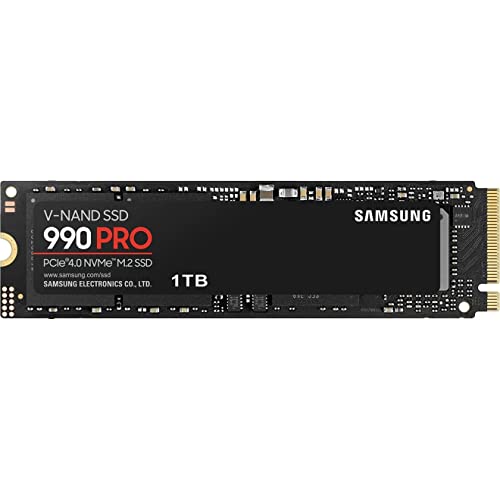
Samsung 990 PRO 1TB — The Gen4 reference
Samsung builds the controller, the V-NAND and the DRAM itself, and that vertical control shows in how composed the 990 PRO feels across mixed work. Sequential reads are quoted up to 7,450 MB/s, effectively the ceiling of a PCIe 4.0 x4 link, yet the number that defines this drive in daily use is its random performance at low queue depths — the profile of application launches, game asset streaming and operating-system chatter. Its onboard LPDDR4 cache keeps the mapping table resident and responsive, so the drive answers small requests with a consistency that cacheless rivals match only while they are empty and idle.
Sustained writing tells a similar story. The 990 PRO leans on a generous dynamic SLC cache before settling onto native TLC speed, and when it does settle, the floor it lands on is respectable rather than embarrassing — large game installs and disk-image copies finish without the cliff-edge slowdowns that plague budget sticks. Samsung Magician remains the most complete companion software in this roundup, handling firmware updates, health reporting and over-provisioning through an interface that home users genuinely understand. Thermals deserve respect rather than fear: the drive runs warm under continuous load, a graphene label helps spread heat, and a motherboard heatsink or the heatsink variant makes sense inside compact cases with still air.
Efficiency is the quieter victory. Samsung’s in-house controller sips power at idle and ramps predictably, which is why laptop owners keep choosing this drive for upgrades where battery life matters alongside speed. One terabyte is the sensible floor for a main drive in 2026; buyers with sprawling libraries should know the same design scales upward gracefully. If you want a single recommendation that offends nobody and disappoints almost nobody, this is the drive the rest of the page measures itself against. Availability of the bare and heatsink versions fluctuates, so confirm which variant a listing describes before ordering for a console.
- Interface: PCIe 4.0 x4, NVMe, M.2 2280
- Flash: Samsung V-NAND TLC
- Cache: onboard LPDDR4 DRAM
- Quoted read ceiling: up to 7,450 MB/s
- Software: Samsung Magician support
Strengths
- Random performance stays composed even as the drive fills toward capacity.
- Firmware and monitoring software are the most mature in this group.
- Idle power draw suits laptop upgrades where battery life counts.
Trade-offs
- Carries a brand premium over equally fast paper specifications elsewhere.
- Runs hot enough under marathon writes to deserve a heatsink.
- Gen5 boards leave its interface ceiling feeling like a missed opportunity.
Best for: upgraders who want the safest all-round Gen4 drive and value polished software. Not suited for: shoppers determined to pay the lowest possible amount per terabyte.
Ready to make the 990 PRO your main drive? Follow its listing link above and double-check the capacity and heatsink variant on the page before you commit.

WD Black SN850X 1TB — The gaming favourite
Western Digital tunes the SN850X unapologetically for play, and the tuning is more than marketing paint. Its Game Mode, toggled through WD’s dashboard software, prioritises low-latency reads of the sort games generate when streaming textures and loading levels, and the drive’s onboard DRAM keeps the address map instantly available while that happens. Reads are quoted up to 7,300 MB/s with writes up to 6,300 MB/s, numbers that place it a whisker behind its Samsung rival on paper while its real-world game loading behaviour frequently feels the keener of the two.
The controller’s handling of mixed loads is the deeper strength. Installing a hundred-gigabyte title while a launcher verifies another, a browser streams video and Discord chatters in the background is exactly the messy concurrency gaming PCs live in, and the SN850X shrugs through it without the stutter spikes that expose weaker designs. Its sustained-write floor after the SLC cache exhausts is honest mid-pack rather than class-leading, a point workstation users should weigh, but gamers rarely write continuously enough to find that floor. Heat output under long transfers is real; the optional heatsink version exists for consoles and cramped cases, and desktop builders with a motherboard armour plate already own the cooling it needs.
WD’s software story is narrower than Samsung’s — the dashboard covers health, firmware and that Game Mode toggle without attempting to be a full management suite — yet everything essential is present and stable. Power behaviour in laptops is acceptable rather than outstanding, so mobile upgraders chasing maximum battery should compare carefully against the Samsung above. For a desktop built around a games library, though, the SN850X’s combination of cache, controller and latency tuning is arguably the most purpose-fit package in this entire guide.
- Interface: PCIe 4.0 x4, NVMe, M.2 2280
- Flash: TLC NAND
- Cache: onboard DRAM
- Quoted ceilings: up to 7,300 MB/s read, 6,300 MB/s write
- Extras: Game Mode via WD dashboard
Strengths
- Latency tuning flatters game loading and asset streaming noticeably.
- Mixed concurrent loads stay smooth during installs and verification passes.
- Heatsink variant drops straight into a PlayStation 5 bay.
Trade-offs
- Sustained-write floor sits behind the very best workstation drives.
- Companion software covers essentials without Samsung’s depth.
- Power draw is merely average for thin-and-light laptop duty.
Best for: gaming desktops and console expansion where load screens are the enemy. Not suited for: editors who write footage continuously for hours every day.
If your library keeps outgrowing its current home, the SN850X listing linked above is the one to open; pick the heatsink edition when a console is the destination.

Samsung 9100 PRO 2TB — The Gen5 flagship
Drop the 9100 PRO into a genuine PCIe 5.0 slot and it rewrites what a consumer drive can do sequentially: Samsung quotes reads up to 14,700 MB/s, roughly double the Gen4 ceiling, backed by a proper DRAM cache and the company’s own controller and flash. Two terabytes is the right capacity for it, because Gen5 speed only justifies itself when the drive holds the projects that benefit — game libraries with DirectStorage ambitions, scratch disks for high-resolution video, local AI workloads shuffling model files, and virtual-machine images that boot like appliances.
The honest caveats start with the slot. In a PCIe 4.0 motherboard this drive behaves like a very good Gen4 stick and its premium buys almost nothing, so the purchase only makes sense alongside a current-generation platform. Heat is the second reality: Gen5 controllers work hard, the drive expects a substantial heatsink and moving air, and slim laptops are not its natural habitat. Samsung supplies the thermal headroom through design and offers heatsink variants, but builders should treat cooling as part of the product rather than an accessory decision.
What surprises people is how civilised the 9100 PRO feels at ordinary work. The cache keeps random response crisp, Magician support carries over from its Gen4 sibling, and idle behaviour is better mannered than early Gen5 drives that ran hot doing nothing. Endurance and warranty terms sit at flagship level, matching the audience of upgraders who keep a boot drive through two or three platform changes. Treat it as a platform purchase rather than a component purchase: motherboard first, airflow second, drive third, and the experience rewards that order of thinking.
- Interface: PCIe 5.0 x4, NVMe, M.2 2280
- Flash: Samsung V-NAND TLC
- Cache: onboard DRAM
- Quoted read ceiling: up to 14,700 MB/s
- Capacity reviewed: 2TB
Strengths
- Sequential throughput roughly doubles the Gen4 flagships on a matching board.
- Cache and controller keep small-file response sharp beneath the headline speed.
- Magician software continuity eases life for existing Samsung owners.
Trade-offs
- Demands a Gen5 slot and serious cooling to justify itself.
- Premium pricing buys nothing inside an older motherboard.
- Overkill for office machines and media-centre builds.
Best for: new-platform builders whose workloads genuinely move enormous files daily. Not suited for: anyone upgrading a PCIe 4.0 or older system.
Building on a Gen5 board already? Open the 9100 PRO listing from its heading and match the heatsink configuration to your case before ordering.

Acer Predator GM7000 2TB — The value flagship
The Predator GM7000 exists to embarrass spec-sheet snobbery. It combines a proven controller design, TLC flash and genuine onboard DRAM, then quotes reads up to 7,400 MB/s and writes up to 6,700 MB/s — flagship arithmetic — at a tier of the market the two big brands rarely visit. Acer’s storage line is built with established manufacturing partners, and the GM7000 has been on sale long enough for its behaviour to be well documented by owners: strong burst performance, a healthy SLC cache, and sustained writes that remain respectable once the cache hands over to native TLC.
Two terabytes at this level changes how a machine gets used. A library that would have been pruned monthly simply stays installed, a creator’s current projects live beside the games instead of competing with them, and the DRAM keeps the experience coherent as the drive fills. The included graphite heat-spreading label helps in open cases; a motherboard heatsink remains the wiser choice in small enclosures. Acer’s software provision is thinner than Samsung’s or WD’s — expect firmware distribution to be functional rather than delightful — and long-term support depends on a brand whose storage division is younger than its rivals’.
Those are acceptable trades at this tier, and they are trades rather than flaws. Buyers who cross-shop purely on peak numbers sometimes miss that the GM7000’s cache is the real story: many cheaper Gen4 drives reach similar read ceilings while borrowing system memory, then fade under the mixed loads where this drive holds its line. For a second drive in a gaming rig, a capacious laptop upgrade, or a main drive bought with a strict ceiling on spending, the Predator is the pick that lets the rest of the budget go somewhere visible.
- Interface: PCIe 4.0 x4, NVMe 1.4, M.2 2280
- Flash: 3D TLC NAND
- Cache: onboard DRAM
- Quoted ceilings: up to 7,400 MB/s read, 6,700 MB/s write
- Capacity reviewed: 2TB
Strengths
- True DRAM and TLC at a tier usually occupied by cacheless designs.
- Generous capacity makes it a genuine library drive, not just a boot stick.
- Burst and sustained behaviour both hold up under realistic mixed loads.
Trade-offs
- Support software and firmware channels are less polished than the big brands.
- Brand track record in storage is shorter than Samsung’s or WD’s.
- Still wants a real heatsink inside compact, low-airflow cases.
Best for: value-focused builders who refuse to give up a proper cache. Not suited for: buyers who rank vendor software ecosystems above hardware substance.
Chasing flagship manners without flagship pricing? The GM7000 link above leads to the exact 2TB listing worth reviewing for your build.
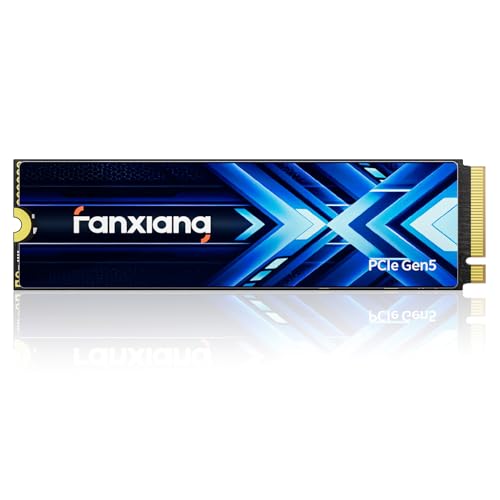
fanxiang 1TB PCIe 5.0 NVMe SSD — The Gen5 bargain hunter’s route
fanxiang’s Gen5 stick is the disruptor entry: a PCIe 5.0 x4 drive quoting reads up to 14,000 MB/s, with a stated DRAM cache and SLC caching, aimed at AI tinkering, gaming and general high-performance desktops. On specification alone it sits within touching distance of Samsung’s flagship above while courting buyers who balk at flagship money. That combination earns it a place in this guide — with the clearest-eyed assessment of any pick here, because a young brand’s promises deserve both a fair hearing and a firm audit.
The cache claim matters most, and fanxiang states DRAM explicitly rather than hiding behind generic cache language, which distinguishes it from the many budget Gen5 listings that quietly rely on host memory. Buyers should still verify the exact variant on arrival, since value brands revise components across production runs more freely than the giants do. Performance in bursts is genuinely rapid on a Gen5 board, and the drive targets the same early-adopter audience experimenting with local AI tools, where shuttling large model and dataset files rewards sequential muscle.
Where caution belongs is everything surrounding the hardware: firmware update cadence, warranty handling in your region, and how the controller behaves in year three rather than week three are open questions a newer name cannot yet answer with a track record. Our placement of this drive is therefore deliberate — it is the pick for enthusiasts who understand they are trading support depth for speed per unit of spending, and who keep backups as a religion anyway. Everyone should, but this drive’s owners should especially. Given a Gen5 board, good cooling and that realistic mindset, it delivers a category of performance that cost far more very recently.
- Interface: PCIe 5.0 x4, NVMe, M.2 2280
- Flash: 3D NAND with SLC caching
- Cache: DRAM stated by the manufacturer
- Quoted read ceiling: up to 14,000 MB/s
- Capacity reviewed: 1TB
Strengths
- Gen5 sequential speed reaches buyers the flagships price out.
- Manufacturer states a real DRAM cache instead of vague buffer wording.
- Strong fit for experimental AI and dataset-heavy desktop work.
Trade-offs
- Long-term firmware support and warranty handling are comparatively unproven.
- Component revisions across production runs are a known value-brand habit.
- One terabyte fills quickly when Gen5 workloads are the point.
Best for: early adopters with Gen5 boards who accept support risk in exchange for speed. Not suited for: a sole drive holding irreplaceable work without backups.
Curious what Gen5 pace feels like without the flagship toll? Visit the fanxiang listing via its heading and confirm the DRAM wording on the exact variant offered.

Crucial MX500 1TB — The SATA elder statesman
Every other pick in this guide plugs into an M.2 slot; the MX500 screws into a 2.5-inch bay and reminds everyone why DRAM earned its reputation in the first place. SATA caps throughput around 560 MB/s, a ceiling this drive reaches comfortably, but its cache is what separates it from the dreary modern budget SATA crowd. Cacheless SATA drives are notorious for sustained writes that collapse toward hard-disk pace during big copies; the MX500’s DRAM, paired with Micron’s own TLC flash, keeps long transfers civilised and small-file response snappy years into service.
The use cases are specific and numerous: laptops with only a 2.5-inch bay, older desktops being granted a second life, game consoles of the previous generation, and quiet secondary storage in machines whose M.2 slots are already spoken for. Installation is the friendliest in this roundup — two cables or a caddy, no firmware lotteries, no heatsink decisions — and Crucial’s endurance ratings and warranty have been validated by an enormous installed base over many years. It also behaves predictably in external USB enclosures, where some NVMe drives and adapters argue with each other.
Nobody should buy an MX500 expecting NVMe sensations; Windows will boot fast and applications will open promptly, yet large internal copies move at SATA pace because the interface is the wall. Judged within its interface, though, it remains the reference for doing SATA properly. In a guide about DRAM, excluding it would have hidden the clearest everyday demonstration of what the cache buys: not peak speed, but the absence of collapse.
- Interface: SATA III 6 Gb/s, 2.5-inch 7mm
- Flash: Micron 3D TLC NAND
- Cache: onboard DRAM
- Quoted read ceiling: up to 560 MB/s
- Capacity reviewed: 1TB
Strengths
- Sustained SATA writes stay composed where cacheless rivals fall apart.
- Enormous proven installed base and dependable warranty handling.
- Fits older laptops and desktops that have no M.2 slot at all.
Trade-offs
- The SATA interface caps transfers far below any NVMe pick here.
- Requires a free 2.5-inch bay plus power and data cabling.
- Pointless in a modern build with empty M.2 slots available.
Best for: reviving SATA-only machines and adding mannerly secondary storage. Not suited for: anyone whose motherboard offers a free NVMe slot.
Giving an older machine a fair second act? The MX500 listing linked above is the dependable route; just confirm your bay or caddy accepts a 7mm drive.
How Do the Six Cached Contenders Compare Side by Side?
| Drive | Interface | Capacity | Headline read | Character |
|---|---|---|---|---|
| Samsung 990 PRO | PCIe 4.0 x4 | 1TB | Up to 7,450 MB/s | Polished all-rounder with elite software |
| WD Black SN850X | PCIe 4.0 x4 | 1TB | Up to 7,300 MB/s | Latency-tuned gaming specialist |
| Samsung 9100 PRO | PCIe 5.0 x4 | 2TB | Up to 14,700 MB/s | New-platform flagship, cooling required |
| Acer Predator GM7000 | PCIe 4.0 x4 | 2TB | Up to 7,400 MB/s | Flagship hardware, friendlier tier |
| fanxiang Gen5 | PCIe 5.0 x4 | 1TB | Up to 14,000 MB/s | Speed-first disruptor, younger support |
| Crucial MX500 | SATA III | 1TB | Up to 560 MB/s | Cached SATA done properly |
How Should You Match a Cached Drive to Your Machine?
Start with the slot audit nobody enjoys: confirm your motherboard or laptop offers the interface each pick assumes, at the generation printed on its box. A Gen5 drive in a Gen4 slot is not broken, merely pointless, and a SATA drive in a system with free M.2 slots wastes the machine’s potential. Laptop owners should also check whether the bay takes a 2280 stick or a shorter format, and whether the maker whitelists storage devices, a rare but real habit in some business lines.
Then interrogate your own writing habits honestly. Downloading games monthly, editing video weekly, or running databases and virtual machines argues for the strongest cache and controller pairing your platform accepts. A machine that mostly launches the same applications daily will feel nearly identical on any pick in this guide, which frees budget for capacity — the upgrade people never regret. Finally, plan the migration before the drive arrives: cloning software, an enclosure for the old drive, and a verified backup turn an upgrade afternoon into a routine instead of a rescue mission.
What Mistakes Do Buyers Make When Chasing the DRAM Label?
Treating cache as a quality guarantee tops the list. DRAM sits beside mediocre controllers in plenty of forgettable drives, and a strong host-memory design from a good maker can out-behave a cached drive from a careless one. Read the whole specification — flash type, controller lineage, endurance rating — rather than hunting one word. A related error is assuming every drive in a famous family carries cache; manufacturers vary the recipe by capacity and revision, so the exact model and size in front of you is the only specification that counts.
Ignoring thermals follows closely. Cached flagships are fast partly because they work hard, and a flagship suffocating under a GPU in a sealed case will throttle to ordinary speeds while reporting perfect health. Budget a heatsink or choose the heatsink variant from the start. Lastly, buyers routinely fill a new drive to the brim on day one by cloning an old, bloated installation wholesale; leave breathing room, enable over-provisioning if your software offers it, and the cache you paid for will keep delivering the consistency you bought it for.
Why Does Sustained Write Behaviour Deserve More Attention Than Peak Speed?
Retail boxes advertise the best second of a drive’s life. Ownership is lived at minute forty of a transfer, when the SLC cache has long since filled and the controller is writing directly to TLC at whatever pace the flash and firmware can honestly sustain. This is where the designs in this guide separate from the crowd, and where DRAM plays a supporting role that rarely makes the packaging. With the mapping table resident in fast memory, the controller spends its effort moving data instead of consulting its own index stored on slow flash, so the post-cache floor sits higher and arrives more predictably.
Consider the workloads that actually fill caches: restoring a system image, unpacking a compressed game install, ingesting a card full of camera footage, or migrating a virtual-machine library. Each runs long enough to exhaust any dynamic cache, and each punishes a drive whose native write pace collapses. A buyer comparing only headline numbers would never see the difference, because the headline is measured in the cache’s honeymoon window. Reading sustained-write testing — or at minimum checking whether a review bothered to fill the drive — is the closest thing to a cheat code this category offers.
Thermal behaviour intertwines with all of this. Controllers throttle to protect themselves, and a throttled flagship can write slower than a cool mid-range drive for the back half of a huge copy. Heatsinks, case airflow and even the slot’s position relative to a graphics card all feed into the result. The practical takeaway is unglamorous: mount the drive properly, give it the cooling its class expects, and judge it by the workload you repeat weekly rather than the benchmark you run once.
How Much Capacity Should a Cached Drive Have in 2026?
Capacity and cache interact in ways spec sheets never explain. Larger drives carry more NAND dies for the controller to write across in parallel, so their sustained pace and endurance ratings climb with size, and their DRAM allocation typically scales with the map they must hold. A 1TB flagship and its 2TB sibling share a name and a controller yet behave like cousins rather than twins during heavy writing. This is why the two 2TB picks in this guide — the 9100 PRO and the Predator GM7000 — feel so composed under load: parallelism is doing quiet work alongside the cache.
Working backwards from real libraries settles most arguments. A modern operating system with a healthy application set claims a few hundred gigabytes before personal files arrive; two or three flagship games can match that again; and a creator’s active projects expand to fill whatever room exists. Buyers who choose 1TB should expect to curate. Buyers who choose 2TB mostly stop thinking about storage for years, which is itself a performance feature, since drives kept below roughly eighty percent full preserve the random responsiveness the cache was bought to protect.
There is a budget logic too. Cost per terabyte improves with capacity through the middle of every range here, so stepping up a size usually buys space at the range’s best rate while also buying the stronger sustained behaviour described above. The exception is the very top capacity of any line, where early-adopter pricing can distort the maths. Within this guide, that reasoning points gamers toward 2TB Gen4 drives, platform builders toward the 2TB Gen5 Samsung, and SATA upgraders toward the MX500’s full terabyte rather than its smaller siblings.
What Should Laptop Owners Verify Before Ordering a Cached NVMe Drive?
Laptops impose three constraints desktops forgive: power, heat and physical access. A flagship that idles hungrily can shave noticeable time from a battery between charges, which is why the 990 PRO’s efficient idle behaviour earns repeated mention in upgrade forums, and why sustained-load monsters belong in desktops first. Heat compounds the problem inside a sealed chassis where the drive shares warm air with everything else; a thin graphite label may be all the cooling that fits, so checking the service manual’s clearance before choosing a heatsink variant prevents an expensive geometry lesson.
Access itself varies wildly. Some machines open with six screws and present the slot like an invitation; others bury storage beneath ribbon cables and shielding that punish impatience. Watch a teardown of your exact model before ordering, confirm the slot length and whether the machine uses a screw or a clip, and note whether the existing drive is single-sided, because a few ultra-thin designs cannot close over double-sided sticks. None of the picks here is unusually thick, yet the check costs five minutes and saves a return.
Finally, plan the data path. Cloning with the old drive in a USB enclosure is the gentle route, and both Samsung and WD ecosystems make it straightforward, while a clean installation rewards patient users with a decluttered system at the price of reinstalling applications. Either way, a verified backup of irreplaceable files comes before the first screw turns — the cache you are upgrading to will hold your data beautifully, but only the data that survives the afternoon.
How Do You Install and Migrate to a New Cached Drive Without Drama?
Preparation decides whether an upgrade takes forty minutes or a weekend. Before opening anything, update your backups, download the cloning or imaging tool you intend to use, and confirm the new drive’s firmware situation so the first update can happen while the machine is still in a known-good state. Desktop builders should locate the correct M.2 standoff and screw in advance — boards ship with them in odd places — and laptop owners should ground themselves, photograph the interior before touching connectors, and keep screws organised by the holes they came from.
Physically, an M.2 stick seats at a shallow angle and lies flat under its screw; forcing it upright or overtightening the screw are the two classic injuries. A SATA MX500 asks only for its two cables and a bay, though laptop caddies sometimes need the old drive’s bracket transferred across. On first boot, enter the firmware setup once to confirm the machine sees the drive under the name you expect, then let the operating system initialise it before cloning or installing. If a cloning tool offers sector alignment and automatic partition resizing, accept both, and leave the old drive untouched for several days afterwards as a fallback while the new one proves itself under your real workload.
After migration, small hygiene steps protect the performance you paid for. Confirm TRIM is enabled, check that the drive is running at the link width and generation your platform promises — diagnostic tools report this plainly — and resist the urge to benchmark obsessively; a single confirmation pass tells you the installation is healthy. Then update firmware once through the maker’s software, reboot, and simply use the machine. A cached flagship that disappears into the background of your computing life is performing exactly as designed.
What Do Endurance Ratings Mean for a Drive You Plan to Keep for Years?
Endurance is published as terabytes written, a budget of total data the flash is rated to absorb across its life, and it scales with capacity because more NAND shares the work. Typical desktop use consumes that budget astonishingly slowly — tens of terabytes a year for most people — which is why even mid-range ratings translate into a decade of ordinary service. Heavy creators, surveillance recording and database work spend the budget faster and should read the figure seriously, matching it against their measured annual writes rather than guessing.
DRAM’s relationship to endurance is indirect but real. Efficient mapping reduces the controller’s need to shuffle data during garbage collection, trimming write amplification at the margins, while the steadier behaviour under fullness discourages the panic deletions and rewrites that chaotic drives provoke. None of that turns a modest rating into a workstation rating, and this guide will not pretend otherwise; it simply means a well-architected cached drive tends to age gracefully in both speed and wear at once.
Warranty structure matters alongside the raw figure. The stronger picks here pair their endurance ratings with five-year coverage and established service networks, while younger brands ask you to trust a promise with less infrastructure behind it. For a boot drive holding a household’s photographs and a freelancer’s livelihood, that infrastructure is part of the product. Buy the rating your workload needs, the warranty your risk tolerance needs, and let the cache deliver the day-to-day composure that brought you to this guide.
Where Will You Actually Feel the Cache During an Ordinary Week?
Boot times are the least interesting answer, because every modern NVMe drive boots quickly and the differences hide inside a second. The cache announces itself in the unglamorous middle of tasks: a photo library of a hundred thousand images that scrolls without hitching while its catalogue rebuilds, a code project whose thousands of tiny files compile and index without the interface stuttering, a game that patches a season’s update while you keep playing another title from the same drive. Each scenario mixes reads and writes in small pieces at random addresses — precisely the traffic a resident mapping table accelerates.
Multitasking is the multiplier. One application alone rarely stresses a modern controller, but households run browsers with dozens of tabs, chat clients, cloud sync quietly uploading a camera roll, a launcher verifying files and an antivirus scan in the background, all against the same drive. The cached picks in this guide hold their responsiveness through that pile-up because the map lookups underpinning every thread stay in fast memory instead of queueing behind flash reads. Owners upgrading from a cacheless drive usually describe the change as the machine feeling calmer rather than faster, and that adjective is accurate.
There is a longevity angle to the feeling as well. A drive that stays responsive at eighty percent full postpones the replacement itch by a year or more, because most upgrades are triggered by frustration rather than failure. Spreading cost across that extra service life quietly makes the cached flagship the cheaper purchase, a piece of arithmetic that never appears on a product page but dominates real ownership economics.
Which of These Drives Suits a PlayStation 5 or a Small-Form-Factor Build?
Console expansion narrows this field quickly. Sony’s requirements demand a PCIe 4.0 stick of the right length wearing a heatsink that fits a shallow bay, and among these six the SN850X and 990 PRO both publish heatsink variants shaped for exactly that slot, with the cache keeping install and patch behaviour brisk once games start cycling on and off the internal storage. The Gen5 pair brings nothing a console can use, since the slot speaks Gen4, and the MX500 belongs to the older generation’s external and internal SATA arrangements rather than the current expansion bay.
Small-form-factor desktops share the console’s thermal problem without its strict shape rules. A flagship beneath a graphics card in a ten-litre case lives in recycled heat, so the efficient Samsung and the Predator under a low-profile motherboard heatsink are the pragmatic pairings, while the 9100 PRO should only enter a compact build whose case was designed with Gen5 cooling as a headline feature. In both arenas the lesson repeats: the cache earns its money only when the drive can breathe well enough to use it.
Final Recommendation
Most readers should buy the Samsung 990 PRO for a Gen4 machine or the SN850X when gaming dominates, step up to the 9100 PRO only alongside a Gen5 platform, take the Predator GM7000 when value matters more than badges, treat the fanxiang as an enthusiast’s calculated gamble, and keep the MX500 in mind whenever the bay is SATA-shaped. A cache will not transform a computer, but the right cached drive quietly removes storage from the list of things you ever think about — and for the machine this guide’s readers are building, that silence is the real prize.
How Does DRAM Interact With the SLC Cache People Talk About?
Buyers routinely merge two different mechanisms into one fuzzy idea of cache, and untangling them clarifies every specification in this guide. The SLC cache is a write accelerator: incoming data lands first on a portion of the NAND temporarily run in fast single-bit mode, then folds into TLC storage later when the drive is idle. Its size is usually dynamic, shrinking as the drive fills, and it governs how long a burst of writing stays rapid. DRAM, by contrast, is working memory for the controller itself. It holds the translation map and buffers metadata, serving reads and writes alike, and its size is fixed hardware that never shrinks with fullness.
A drive can have either, both or neither, and the four combinations feel distinct in ownership. Both together — the recipe of every NVMe pick here — gives eager burst writing plus composed behaviour when bursts end. SLC caching without DRAM describes most strong host-memory drives: quick in bursts, dependent on your system RAM for map lookups. DRAM without a large SLC cache describes older workstation designs that never sprint but never collapse either. Neither describes the disposable end of the market, where a big copy can slow toward mechanical-disk pace while the operating system waits.
Knowing which mechanism a claim refers to also inoculates you against listing tricks. A product page shouting about a huge cache may be describing dynamic SLC space that evaporates as the drive fills, while saying nothing about mapping memory at all. The reverse trick exists too: cache written in a specification table sometimes means a few megabytes of SRAM inside the controller, not a discrete DRAM chip. The picks in this guide were filtered on the discrete-chip meaning, verified against manufacturer documentation, because that is the definition that predicts the behaviour buyers are actually shopping for.
When Is a DRAM-Less Drive Honestly the Smarter Purchase?
Honesty requires admitting the cache is not always worth its premium. A secondary games drive in a desktop with plentiful system RAM is the strongest case: host memory buffer works well there, reads dominate, and the money saved buys capacity, which a library drive values more than map latency. The NM790 pattern — modern controller, HMB, generous dynamic SLC space — exists precisely because that use case is enormous, and dismissing it would make this guide less useful, not more rigorous.
Light-duty laptops tell a similar story from the other direction. A machine used for documents, browsing and streaming writes so gently that the difference between cached and host-memory designs hides below perception, while the price difference could fund a larger capacity that the owner will notice every day. External enclosures complicate HMB support, though, and anyone planning to shuttle a drive between machines should favour onboard cache for the certainty it brings to unfamiliar hosts.
The dividing line is workload violence. Sustained writing, near-full operation, virtual machines, databases, content creation and multi-year service as a machine’s only drive all push toward real DRAM. Occasional bursts, read-heavy libraries and strict budgets push the other way. This guide’s six picks serve the first group deliberately; naming the second group’s logic openly is what makes the recommendation trustworthy rather than tribal.
Frequently Asked Questions
Does DRAM matter if I only play games?
Less than for workstation loads, because games mostly read. A good host-memory drive can serve a games library well, which is why the NM790 earns its prose mention above; the cached picks pull ahead when installs, patches and captures write heavily at the same time.
How can I tell whether a drive really has DRAM?
Check the manufacturer’s own specification sheet for the exact capacity, looking for DRAM or DDR wording in the cache line. Retailer descriptions that mention only an SLC cache are describing a write buffer, not mapping memory, and the two should never be conflated.
Will a DRAM drive last longer than a cacheless one?
Endurance is governed mainly by the flash and its rated write volume, not the cache itself. DRAM improves consistency of performance across the drive’s life rather than extending the life outright, though steadier behaviour under fullness is its own form of longevity in practice.
Is PCIe 5.0 worth it for a cached drive today?
Only with a motherboard that provides a Gen5 slot, cooling to match, and workloads that move huge files routinely. For general use the Gen4 flagships in this guide feel equally responsive, because everyday responsiveness is a random-access story rather than a sequential one.
Can I add DRAM to a drive that lacks it?
No. The cache is soldered hardware chosen at design time, and no firmware update or setting can retrofit it. That permanence is exactly why verifying the specification before purchase matters more than any other single check in this category.
Does a cached drive help a games console as much as a PC?
Consoles benefit through the same mechanism, because game installs, patches and asset streaming all lean on the mapping table under load. The practical filter is physical: the console dictates a 2280 stick and expects a heatsink, so among these picks the SN850X and 990 PRO in their heatsink variants are the natural console candidates, while the SATA MX500 belongs to the previous console generation’s bays.
Should I enable over-provisioning on a drive that already has DRAM?
The two features solve different problems, so they complement rather than replace each other. Over-provisioning reserves spare area for the controller’s housekeeping, which steadies sustained writes and wear; DRAM accelerates the map lookups that every operation performs. Reserving a modest slice on a large drive is sensible, while on a nearly full small drive the lost space may hurt more than the steadiness helps.
Why do two drives with the same controller behave differently?
Firmware is the invisible ingredient. Makers tune garbage collection, cache policy and thermal limits to their own priorities, and they pair the shared controller with different flash and different DRAM sizes. That is why this guide evaluates finished drives rather than component recipes, and why a familiar controller name should start your research rather than finish it.
Do firmware updates ever change how the cache behaves?
Yes, and usually for the better. Makers refine cache policy, garbage collection timing and thermal thresholds after launch as field data arrives, which is one reason the mature platforms in this guide inspire confidence: their behaviour today reflects several rounds of correction. Updating through the official tool, with a backup in place, is the safe way to collect those refinements, while skipping updates for years leaves early firmware quirks in charge of your data.
Is a single large cached drive better than two smaller ones?
For most households, yes. One large drive keeps the library in a single fast pool, simplifies backups, and gives the controller more NAND to work across, which helps sustained behaviour. Splitting roles across two drives still suits creators who isolate a scratch disk from the system drive, but that is a workflow decision rather than a performance necessity at the speeds gathered here.
Related Guides
Cache is one axis of the storage decision; interface and form factor are the others, and our neighbouring roundups take those questions in turn, from the broad PCIe field to the console-focused gaming shelf and the shrinking but still useful world of SATA sticks for older slots and enclosures.
Related guides
- Best Time Machine Compatible Hard Drives: Mac-Ready and Reformatted Picks
- Best Gaming Keyboard: Six Boards From Rapid-Trigger Esports Picks to Macro Flagships
- Best 3.0 Qualcomm Quick Chargers: QC 3.0 Adapters That Still Earn Their Outlet
- Best 3D Mechanical Engineering Laptops: Certified Workstations for CAD and Simulation



[…] Best M.2 PCIe SSDs […]