What's inside
- Key Takeaways
- Quick Picks
- How We Chose These Picks
- What Do PCIe Generations Change on an M.2 Drive?
- Which PCIe Sticks Deserve Your Shortlist This Year?
- How Do These Six Sticks Stack Up Against Each Other?
- How Can You Be Sure an M.2 PCIe Drive Fits Your Machine?
- What Goes Wrong Most Often When People Upgrade an M.2 Drive?
- How Should You Move Your System Onto the New Drive?
- Why Do Sustained Writes and Thermals Matter More Than the Box Numbers?
- Should You Wait for PCIe 5.0 Instead of Buying Gen4 Now?
- How Do Cached and Cacheless Designs Divide This Field?
- What Is the Smart Way to Add a Second M.2 Drive Later?
- How Long Should an M.2 PCIe Drive Last in Real Service?
- How Do You Read an M.2 Spec Sheet Without Being Fooled?
- Which Pick Fits Each Kind of Machine on Your Desk?
- How Should You Look After an NVMe Drive Once It Is Installed?
- What Should You Check in the First Week After Installing?
- How Do the Price Tiers in This Category Actually Differ?
- What Happens When a Slot, a Chipset and a Graphics Card Share Bandwidth?
- Final Recommendation
- Frequently Asked Questions
- Related Guides
As an Amazon Associate I earn from qualifying purchases. This post may contain affiliate links at no extra cost to you.
widgetverdict.com is reader-supported. When you buy through links on our site, we may earn an affiliate commission.
Where to buy: the six sticks below each link to a checked Amazon listing, spanning Samsung’s flagship, two challenger brands with serious pace, and three drives pitched at upgraders who count every unit of currency twice.
The phrase best m 2 pcie ssds describes the default storage of modern computing: gumstick drives that speak NVMe over PCI Express and slot straight into a motherboard or laptop. Yet the shelf hides real variety. A PCIe 4.0 flagship and a budget Gen4 stick share a connector while delivering very different ownership experiences, a PCIe 3.0 machine caps them both, and a buyer who grabs the wrong physical length or keying discovers that M.2 is a family of related shapes rather than one universal socket. This guide sorts the current field by job instead of by benchmark vanity.
All six picks here are PCIe 4.0 designs, because Gen4 is where value and performance currently intersect for most machines; the guide explains plainly what Gen3 owners and Gen5 dreamers should each take from that. Two picks chase outright speed, two chase speed per unit of spending, and two serve the enormous population of laptops, handhelds and older desktops being granted extra years. Read the slot-checking section before the pick sections if your machine is more than a few years old — five minutes with a manual can rescue an entire purchase.
Key Takeaways
- PCIe 4.0 x4 is the present sweet spot: every pick here uses it, doubling Gen3 bandwidth without Gen5 cooling demands.
- Samsung’s 990 PRO 2TB anchors the flagship end, while Kingston’s NV3 shows how far entry Gen4 has come.
- Physical fit comes first — 2280 length, M-keying and a free standoff decide compatibility before speed does.
- Handheld consoles and thin laptops reward the Crucial P310’s efficiency and included cloning tools.
- SANDISK’s Optimus line marks the old WD storage heritage continuing under fresh branding for retail shelves.
- Sustained writes and thermal behaviour separate these six more honestly than their near-identical read ceilings suggest.
Quick Picks
| Pick | Badge | Why it earns its place |
|---|---|---|
| Samsung 990 PRO 2TB | The flagship yardstick | Two terabytes of Samsung’s own silicon running at the practical ceiling of a Gen4 slot. |
| SANDISK Optimus 5100 1TB | The rebranded contender | Up to 7,100 MB/s reads and 6,700 MB/s writes from the storage giant’s refreshed mainstream line. |
| BIWIN Black Opal NV7400 2TB | The challenger flagship | Up to 7,450 MB/s reads across two terabytes, aimed squarely at desktop, laptop and console buyers. |
| Crucial P310 1TB | The handheld-friendly upgrade | Gen4 pace up to 7,100 MB/s with Acronis cloning in the box and manners suited to tight spaces. |
| Acer Predator GM7 1TB | The pace-per-pound pick | Up to 7,400 MB/s reads from a DRAM-less design that spends its budget on flash and controller. |
| Kingston NV3 1TB | The sensible entry point | Up to 6,000 MB/s reads for machines leaving SATA or Gen3 behind on a budget. |
How We Chose These Picks
Eligibility required an M.2 2280 NVMe drive on a PCIe link — no SATA sticks wearing the same clothes, no exotic lengths that strand mainstream buyers. From there we weighed controller reputation, flash type, the honesty of quoted figures, warranty terms and the quality of the maker’s support pages, because a drive is a five-year relationship rather than a benchmark screenshot. The final six deliberately span the market’s real shape: one flagship, two aggressive challengers, and three drives whose appeal is efficiency or value, so a reader with any plausible budget finds a considered option instead of a lecture.
Quoted speeds in this guide come from each maker’s own listing language and are labelled as ceilings, since sequential figures describe ideal conditions on an empty drive. Where makers differ in what they publish, the pick sections say what is known and leave the rest qualitative. No drive here was chosen for a single spectacular number; each earned its slot by being the right answer to a recognisable buyer’s question, and two worthy drives were cut at the final pass purely because their roles duplicated a pick that performed them better.
What Do PCIe Generations Change on an M.2 Drive?
Each PCIe generation doubles the bandwidth available per lane, and an M.2 NVMe drive typically uses four lanes. A Gen3 link therefore tops out near three and a half gigabytes per second in practice, Gen4 near seven and a half, and Gen5 doubles the allowance again. Those ceilings govern large sequential transfers — the progress bar on a game install or a disk-image copy — while the snappiness of launching programs lives down at small random reads, where generation matters far less and controller quality matters far more.
Backward and forward compatibility soften the buying risk: a Gen4 stick runs in a Gen3 slot at Gen3 pace, and a Gen3-era machine gains nothing from a Gen5 flagship beyond its capacity. The generation of your slot, printed in the motherboard or laptop specification, is therefore the first fact to establish. Buyers building new systems today should treat Gen4 as the floor for a main drive, while owners of healthy Gen3 machines can buy any pick in this guide knowing it will run, simply at the older link’s ceiling, and carry forward to their next platform at full speed.
Lane count hides a second trap. Some budget laptops wire their M.2 slot with two lanes instead of four, halving the ceiling regardless of the drive fitted, and a few desktop boards share lanes between slots so that populating one slows another. Manuals disclose both habits, usually in a storage configuration table, and checking that table is the difference between a drive performing as reviewed and a support thread asking why the numbers look wrong.
Which PCIe Sticks Deserve Your Shortlist This Year?

Samsung 990 PRO 2TB — The flagship yardstick
At two terabytes, the 990 PRO becomes the drive this category is judged against. Samsung manufactures the controller, the V-NAND and the cache memory under one roof, and the integration shows in behaviour that stays unruffled across workloads which expose stitched-together rivals: huge sequential copies, random-heavy multitasking, and the late-life phase when free space runs thin. Reads are quoted up to 7,450 MB/s, effectively the Gen4 link’s practical limit, while the larger NAND array of this capacity lifts sustained writing and endurance above the 1TB edition’s already strong baseline.
Ownership polish is where the premium goes. Samsung Magician handles firmware, health telemetry and secure erase through software that respects the user’s intelligence, and the drive’s power management has made it a favourite of laptop upgraders who refuse to trade battery life for speed. Thermals still command respect — a motherboard heatsink or the factory heatsink variant belongs in any build that writes heavily — but the drive throttles gracefully rather than falling off a cliff when temperatures climb. PlayStation 5 owners form a huge slice of this model’s audience, and the heatsink edition’s dimensions were plainly designed with that bay open on the engineer’s desk.
Nothing about the 990 PRO is cheap, and nothing about it feels cut-rate either; the question it poses is whether your machine and workload can appreciate the difference. A flagship CPU, a library that churns, and a plan to keep the drive across two builds all argue yes. A five-year-old office desktop argues for the Kingston further down this page instead. Judged as the complete package of speed, software and support, though, this remains the safest large purchase in the entire M.2 PCIe field.
- Interface: PCIe 4.0 x4, NVMe, M.2 2280
- Flash: Samsung V-NAND TLC
- Quoted read ceiling: up to 7,450 MB/s
- Capacity reviewed: 2TB
- Software: Samsung Magician
Strengths
- Behaviour stays consistent from empty drive to nearly full.
- Two terabytes lifts sustained writing and endurance together.
- Support software and firmware cadence lead the field.
Trade-offs
- Premium positioning means rivals undercut it aggressively.
- Heavy writing in a sealed case calls for the heatsink edition.
- Gen5 platforms cannot stretch its legs any further.
Best for: a main drive expected to serve across multiple builds and workloads. Not suited for: bargain hunts where any Gen4 stick would satisfy the machine.
Settled on the flagship? Use the heading link to reach the 2TB listing, and choose between bare and heatsink versions according to your case or console.

SANDISK Optimus 5100 1TB — The rebranded contender
The Optimus nameplate is how SanDisk’s storage business now presents the mainstream performance line that generations of buyers knew under Western Digital colours, and the 5100 is its Gen4 centrepiece: reads quoted up to 7,100 MB/s, writes up to 6,700 MB/s, in a standard 2280 stick for desktops and laptops. Those write figures deserve a second glance, because they sit unusually close to the read numbers for this tier — a balance that flatters the install-and-patch rhythm of real computing more than a lopsided spec sheet would.
Daily behaviour is the point here rather than record attempts. The 5100 targets the broad middle of the market where a drive must boot a family PC, hold a working games library and survive years of Windows updates without becoming the bottleneck anyone notices. SanDisk’s flash heritage is deep, the controller tuning favours consistency over drama, and the drive’s thermal profile suits the motherboard heatsinks and laptop bays it will actually inhabit. Buyers cross-shopping the old WD Blue and Black lines will find this model’s positioning familiar: closer to Black ambition, priced to trouble Blue rivals.
Software and support ride on SanDisk’s established infrastructure, which matters more than brand nostalgia. Firmware distribution, warranty handling and documentation are mature operations, not startup improvisations. The honest limitation is differentiation — at this crowded tier several drives promise similar ceilings, and the 5100 wins its place through balance and backing rather than a single knockout figure. For a buyer who wants Gen4 speed from a name with decades of flash history and no interest in paying the flagship toll, that balance is precisely the product.
- Interface: PCIe 4.0, NVMe, M.2 2280
- Quoted ceilings: up to 7,100 MB/s read, 6,700 MB/s write
- Capacity reviewed: 1TB
- Positioning: mainstream performance line
- Support: SanDisk warranty and firmware channels
Strengths
- Write ceiling sits impressively close to its read ceiling.
- Backed by one of the longest flash-manufacturing histories anywhere.
- Thermal manners suit ordinary cases and laptop bays.
Trade-offs
- Faces near-identical paper specifications from several rivals.
- Branding transition may confuse buyers hunting the older line names.
- One terabyte is the practical minimum for a modern library.
Best for: mainstream builders who want balanced Gen4 pace from an established maker. Not suited for: shoppers chasing the single highest benchmark number available.
If balanced speed from a veteran maker sounds right, open the Optimus 5100 listing through its title link and verify the capacity tier before checkout.

BIWIN Black Opal NV7400 2TB — The challenger flagship
BIWIN spent years manufacturing storage that other brands put their names on, and the Black Opal NV7400 is the company selling its own homework: a Gen4 x4 drive quoting reads up to 7,450 MB/s across a full two terabytes, marketed openly at desktops, laptops and the PlayStation 5. The model number is a promise — 7400 is the read ceiling worn on the sleeve — and the specification behind it pairs a modern controller with TLC flash and the generous SLC caching this class uses to keep installs sprinting.
Two terabytes transforms the proposition. At this capacity the drive stops being a boot device with ambitions and becomes the whole library, and BIWIN’s pricing posture makes that transformation cheaper than the flagship establishment prefers. Sustained behaviour benefits from the larger NAND array, spreading writes widely, while the drive’s single-sided-friendly layout and standard 2280 footprint keep laptop and console fitting straightforward. Thermal output under marathon transfers is flagship-typical, meaning a heatsink in a console or a motherboard plate in a desktop is equipment, not decoration.
The consideration a fair review must raise is ecosystem youth under its own name. BIWIN’s manufacturing pedigree is genuine, but retail support, firmware tooling and long-term documentation under the Black Opal brand are still building their record with buyers. Nothing in the hardware suggests fragility; the question is purely how the company performs in year four if you need it. Buyers comfortable with that trade — and disciplined about backups, as everyone should be — get flagship arithmetic and flagship capacity for noticeably less than the badge brands charge.
- Interface: PCIe 4.0 x4, NVMe, M.2 2280
- Quoted read ceiling: up to 7,450 MB/s
- Capacity reviewed: 2TB
- Targets: desktop, laptop and PS5 use
- Flash: TLC NAND
Strengths
- Flagship read ceiling paired with full two-terabyte capacity.
- Manufacturing heritage comes from building drives for other brands.
- Pricing undercuts the established flagship pair meaningfully.
Trade-offs
- Retail support ecosystem is younger than the hardware pedigree.
- Needs real heatsinking for console or heavy desktop duty.
- Firmware tooling is functional rather than class-leading.
Best for: buyers who want flagship pace and capacity without the flagship surcharge. Not suited for: anyone who ranks a decade-deep support portal above all else.
Tempted by the challenger’s arithmetic? The NV7400 heading above leads to its 2TB listing; confirm the heatsink arrangement your machine needs while you are there.

Crucial P310 1TB — The handheld-friendly upgrade
Crucial designed the P310 for the devices people actually carry: laptops, small desktops and the handheld gaming consoles whose factory storage fills within a month of enthusiastic ownership. It quotes Gen4 reads up to 7,100 MB/s — flagship-adjacent speed — while keeping power draw and heat within the envelopes cramped machines can tolerate. Crucial also bundles Acronis cloning software, a practical gift that turns an upgrade from a research project into an afternoon task, since migrating an existing system intact beats rebuilding one for most owners.
The engineering trade is visible in sustained writing. The P310 uses a DRAM-less architecture with host memory support, tuned for the bursty patterns of gaming and general use, and long continuous transfers settle to a more modest pace once its cache is spent. Handheld sessions, game launches and everyday desktop work rarely visit that territory, which is why the drive reviews so warmly among the audience it targets. Its efficiency also protects battery life in laptops, where a hungrier flagship can cost real minutes between charges.
Micron’s ownership of the Crucial brand supplies the trust layer: the flash is the parent company’s own, firmware support runs through established channels, and warranty handling is a solved problem. Buyers should simply match the drive to its mission. As the sole drive of a video-editing workstation it would be miscast; as the beating heart of a handheld, a student laptop or a living-room mini PC, the P310’s blend of pace, efficiency and migration help is arguably the most thoughtful package in this entire roundup.
- Interface: PCIe Gen4 NVMe, M.2 2280
- Quoted read ceiling: up to 7,100 MB/s
- Included: Acronis data migration software
- Capacity reviewed: 1TB
- Architecture: DRAM-less with host memory support
Strengths
- Speed and efficiency tuned for handhelds and thin laptops.
- Bundled cloning software removes the worst upgrade friction.
- Micron-made flash with mature support behind the badge.
Trade-offs
- Long continuous writes settle well below the headline pace.
- DRAM-less design leans on the host machine’s memory.
- Capacity ceiling of this listing suits libraries, not archives.
Best for: handheld consoles, laptops and compact PCs needing painless capacity. Not suited for: workstations that write footage or disk images all day.
Upgrading a device that travels with you? Follow the P310 link in its heading and check your machine’s slot length matches before ordering.
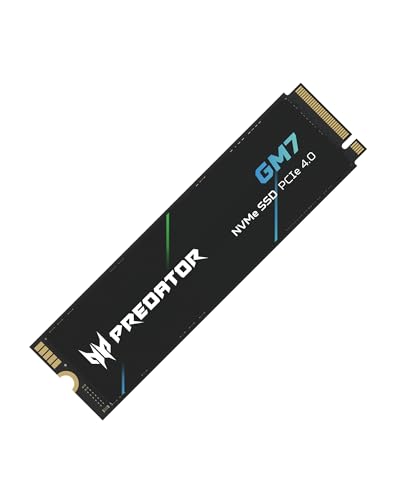
Acer Predator GM7 1TB — The pace-per-pound pick
The GM7 is Acer’s Predator line doing arithmetic in public: reads quoted up to 7,400 MB/s on a PCIe 4.0 x4 NVMe 2.0 interface, from a DRAM-less design that spends its silicon budget on a strong controller and fast flash rather than a cache chip. That recipe has become the value flagship formula of this generation, and the GM7 executes it convincingly — game loads and application launches feel indistinguishable from drives costing far more, because those tasks live in the bursty territory where this architecture shines.
Its natural homes are gaming desktops and PS5 bays where the host supplies plenty of system memory for the drive to borrow, and where a motherboard heatsink or console plate keeps temperatures in the comfortable band. Sustained writing is the known compromise: once the generous dynamic cache fills during an enormous copy, pace steps down to the flash’s native rate, which remains respectable but no longer spectacular. Owners whose weekly routine includes shuttling hundred-gigabyte folders should weigh that honestly; owners whose drives mostly read will never meet the limitation.
Acer backs the Predator storage line with proper warranty terms and a growing support presence, though its software tooling remains slimmer than Samsung’s suite. The GM7 also runs comparatively cool for its speed class, a trait small builds appreciate. In a guide full of excellent drives, this one answers the sharpest question in the category: how much flagship feel can a buyer capture before the law of diminishing returns takes over? The GM7’s answer is most of it.
- Interface: PCIe 4.0 x4, NVMe 2.0, M.2 2280
- Quoted read ceiling: up to 7,400 MB/s
- Architecture: DRAM-less with host memory support
- Capacity reviewed: 1TB
- Cooling: graphene label, heatsink recommended
Strengths
- Read pace matches flagships at a fraction of their cost.
- Runs cooler than most drives in its speed bracket.
- Excellent fit for gaming rigs and console expansion.
Trade-offs
- Sustained writes step down once the cache is exhausted.
- No onboard DRAM for buyers whose workloads demand it.
- Companion software is thinner than the leaders provide.
Best for: gamers and builders who want flagship feel on a disciplined budget. Not suited for: sustained-write workstations or buyers set on a cached design.
After maximum pace for sensible money? The GM7 listing waits behind its heading link — just add a heatsink plan if your case runs warm.

Kingston NV3 1TB — The sensible entry point
Kingston’s NV3 exists for the millions of machines still booting from SATA drives or elderly Gen3 sticks, and it understands the assignment: PCIe 4.0 pace with reads quoted up to 6,000 MB/s, an uncomplicated 2280 format, and pricing that makes the upgrade an easy yes. That read figure would have headlined a flagship not long ago; delivered at the entry tier, it transforms how an older laptop or desktop feels within an afternoon, because everyday computing lives far below even this ceiling.
The design is a modern DRAM-less layout leaning on host memory, paired with flash chosen for cost discipline. Kingston is transparent that components can vary across production runs within specification, a common practice at this tier that buyers should know about without fearing: the drive’s job is reliable everyday speed, and its warranty and Kingston’s support network stand behind that job. Sustained writes and heavy multitasking expose the tier honestly — this is not a creator’s scratch disk — yet for office work, study, browsing and a moderate games library, the NV3 simply removes storage from the list of things slowing a computer down.
Compatibility breadth is a hidden virtue. The NV3 behaves happily in Gen3 slots at reduced pace, in external enclosures, and in the second slots of desktops where a bulk library drive is wanted without flagship money. Kingston’s SSD manager software covers health and firmware adequately. If the Samsung at the top of this page is the category’s penthouse, the NV3 is its well-built starter flat: less theatre, everything essential present, and the correct recommendation for a huge share of real buyers.
- Interface: PCIe 4.0 x4, NVMe, M.2 2280
- Quoted read ceiling: up to 6,000 MB/s
- Architecture: DRAM-less with host memory support
- Capacity reviewed: 1TB
- Software: Kingston SSD Manager
Strengths
- Gen4 pace at the friendliest tier in this roundup.
- Broad compatibility with older slots and enclosures.
- Kingston’s support network backs the budget price properly.
Trade-offs
- Components may vary within specification between production runs.
- Heavy sustained writing reveals its entry positioning.
- No DRAM for demanding multitaskers to lean on.
Best for: reviving older machines and adding affordable library storage. Not suited for: creators who need a scratch drive with workstation stamina.
Ready to retire a wheezing old drive cheaply? Open the NV3 listing from its heading and confirm your slot keying matches the stick.
How Do These Six Sticks Stack Up Against Each Other?
| Drive | Link | Capacity | Headline read | Defining trait |
|---|---|---|---|---|
| Samsung 990 PRO | PCIe 4.0 x4 | 2TB | Up to 7,450 MB/s | Complete flagship package |
| SANDISK Optimus 5100 | PCIe 4.0 x4 | 1TB | Up to 7,100 MB/s | Balanced reads and writes |
| BIWIN NV7400 | PCIe 4.0 x4 | 2TB | Up to 7,450 MB/s | Challenger value at capacity |
| Crucial P310 | PCIe 4.0 x4 | 1TB | Up to 7,100 MB/s | Efficiency plus cloning tools |
| Acer Predator GM7 | PCIe 4.0 x4 | 1TB | Up to 7,400 MB/s | Flagship reads, lean design |
| Kingston NV3 | PCIe 4.0 x4 | 1TB | Up to 6,000 MB/s | Entry price, honest pace |
How Can You Be Sure an M.2 PCIe Drive Fits Your Machine?
Work through four checks in order and compatibility stops being a gamble. First, length: 2280 — twenty-two millimetres wide, eighty long — is the near-universal desktop and laptop format, and every pick here follows it, but some ultra-compact devices use shorter 2230 or 2242 slots that physically exclude these sticks. Second, keying: NVMe drives use an M-key notch, while old SATA M.2 sticks use B+M keying, and a slot wired only for SATA will never speak to an NVMe drive no matter how persuasively it seems to fit.
Third, the protocol the slot actually enables, which the manual states as PCIe, SATA or both beside each slot. Fourth, the supporting cast: a standoff at the 80mm position, a screw, and enough clearance above the stick for any heatsink you plan to add, especially under a graphics card or inside a console bay. Laptops add one more wrinkle — a handful of models ship with the slot present but unpopulated and capped by a shield, which is good news disguised as an obstacle. Clear all four checks and installation becomes the ten-minute job the format promises.
What Goes Wrong Most Often When People Upgrade an M.2 Drive?
Buying by read speed alone leads the error list, because two drives quoting similar ceilings can diverge wildly in sustained writing, thermals and firmware quality — the traits that decide month six. Closely related is ignoring the slot’s generation and lane count, then blaming the drive for performing exactly at the older link’s limit. The fix costs nothing: read the storage table in your manual before the parcel arrives, not after the benchmark disappoints.
Physical mishaps form the second family. A stick seated at the wrong angle, a standoff left at the 42mm position bending the board, or a heatsink thick enough to foul a GPU backplate all begin as five-second oversights. The third family is data carelessness — cloning without a backup, discarding the old drive the same evening, or skipping the firmware check that would have caught a known early bug. Every pick in this guide rewards a calm, prepared installation; none of them can protect data that existed in only one place during the swap.
How Should You Move Your System Onto the New Drive?
Two roads lead to the same destination. Cloning copies your existing installation wholesale — settings, applications, licences and all — and tools bundled with drives like the P310, or offered by Samsung and Kingston, make it a guided process: fit the new stick, clone, swap boot priority, and verify before wiping anything. A clean installation takes longer and demands reinstalling software, yet sheds years of accumulated clutter and driver archaeology, which is why patient upgraders with a free weekend often prefer it.
Whichever road you choose, sequence matters more than speed. Back up irreplaceable files to something that is not involved in the operation. Update the new drive’s firmware once it is running as a secondary or freshly installed system drive. Confirm the partition alignment and TRIM status afterwards, check the reported link speed matches your slot’s promise, and only then retire or repurpose the old drive — ideally into an enclosure, where it becomes the backup device that made this whole paragraph possible.
Why Do Sustained Writes and Thermals Matter More Than the Box Numbers?
Sequential read ceilings are measured in the kindest conditions engineers can arrange: an empty drive, a deep queue, a cool room. Ownership happens elsewhere. Game installs unpack while they download, launchers verify thousands of files, and video projects render to the same disk they read from, all while the drive warms inside a case that also houses a graphics card working hard. In that environment the traits that separate these six are cache policy, native flash speed after the burst buffer fills, and how gracefully each controller sheds performance as temperature rises.
Practical buyers can still shop smart without a laboratory. Favour drives whose makers publish write figures alongside reads, treat any model that hides its flash type as a question mark, and plan cooling as part of the purchase for anything in the flagship half of this page. A motherboard’s bundled heatsink plates are genuinely effective; in laptops, a thin thermal pad to the chassis can be the difference between full pace and throttling. The box number gets a drive onto your shortlist — the behaviours in this section should decide which one stays there.
Should You Wait for PCIe 5.0 Instead of Buying Gen4 Now?
Gen5 drives exist, cost more, run hotter and double the sequential ceiling — and for most buyers the correct response is a polite shrug. Everyday responsiveness is governed by random access at low queue depths, where Gen4 flagships already saturate what software can request, so the newer interface’s advantage appears mainly in enormous sequential transfers between equally fast endpoints. If your work genuinely involves shuttling hundred-gigabyte datasets daily, and your motherboard offers a Gen5 slot with proper cooling, the flagship shelf in our DRAM guide covers that territory deliberately.
For everyone else, Gen4’s maturity is the feature. Controllers have been refined across several generations, prices have settled to the point where two terabytes is a mainstream purchase, and the thermal story is solved by the heatsink plates already sitting on most motherboards. Waiting also has a cost measured in months of living with a cramped or ageing drive. The sensible sequence for a typical builder is a strong Gen4 drive today, sized generously, and a platform decision about Gen5 when the next motherboard purchase arrives on its own schedule.
There is one exception worth naming: buyers speccing a brand-new high-end platform who keep drives for six or seven years may reasonably buy Gen5 once and skip a generation of storage upgrades entirely. That logic belongs to new builds with the slot and airflow already present, not to upgraders forcing a flagship into yesterday’s machine.
There is a resale and hand-me-down dividend to the mature generation as well: a Gen4 stick retired from a main rig remains desirable for consoles, second machines and family upgrades for years, because the interface is everywhere and the performance is nowhere near obsolete.
Gen4 also wins the support argument today. Its controllers have survived several firmware cycles in public, its quirks are documented in forums you can actually search, and every operating system of the last several years handles it without ceremony. Novelty is a cost as well as a thrill, and storage — the component holding everything you cannot redownload — is the last place most people should pay it.
How Do Cached and Cacheless Designs Divide This Field?
Three of these six drives carry dedicated DRAM for the mapping table — the Samsung flagship and, by design lineage, the performance-leaning end of the shelf — while the P310, GM7 and NV3 borrow a slice of system memory through host memory buffer instead. In desktops with ample RAM the borrowed arrangement performs far better than its budget reputation suggests, because the host’s memory is fast and the window the drive needs is modest. The differences surface at the edges: external enclosures that block the borrowing, heavy multitasking that crowds the host, and sustained random workloads where a resident map keeps its composure.
None of that makes the cacheless trio poor drives; it makes them specialised. Their controllers invest in strong SLC caching and efficient firmware, so the bursty, read-heavy rhythm of gaming and office work runs at speeds their prices have no right to deliver. The flagship’s cache buys insurance for the violent days — the full-drive months, the giant patch storms, the creator deadlines. Knowing which days your machine actually has is worth more than any component label, and it is why this guide keeps both architectures and explains the trade instead of declaring a winner.
Buyers should also remember that the host machine’s memory speed and free capacity influence a borrowed-memory drive at the margins, one more reason an older laptop with soldered, nearly full RAM may feel a cached flagship’s independence more strongly than a desktop with memory to spare ever would.
One more nuance belongs in the open: cache size and controller quality interact. A modest DRAM allocation behind an excellent controller outperforms a generous chip behind lazy firmware every time, which is why the pick sections judge finished drives by their behaviour and backing rather than treating any single specification as a talisman.
What Is the Smart Way to Add a Second M.2 Drive Later?
Most modern boards offer two or three M.2 slots, and filling them in the right order saves money and heat. Put the fastest drive in the slot wired directly to the CPU — usually the top slot — because chipset-fed slots can share bandwidth with other devices, and keep the hottest drive away from the graphics card’s exhaust path when the layout allows a choice. A sensible pattern is a flagship for the system and active projects, with a value drive like the NV3 or a retired former main drive absorbing the games library and media bulk.
Before assuming a free slot is a free upgrade, check the manual’s sharing table. On many boards, populating a particular M.2 slot disables a SATA port or trims the graphics slot’s lanes, trade-offs that are painless when known in advance and baffling when discovered through a vanished drive. Also confirm the second slot’s generation: a Gen3-only secondary slot is a perfect home for a hand-me-down and a poor reason to buy another flagship.
Cooling the second drive deserves the same respect as the first. Lower slots often sit in dead air beneath the GPU, so a slim heatsink or a thermal pad path to the case panel keeps a hard-working library drive honest during long installs. Treat the expansion as a system decision — lanes, heat and data layout together — and the machine grows gracefully instead of accumulating compromises.
How Long Should an M.2 PCIe Drive Last in Real Service?
Flash wears by writing, and makers publish that budget as terabytes written, scaling with capacity. Ordinary desktop and laptop use spends the budget slowly enough that the interface will feel ancient before the flash is exhausted; the realistic lifespan question is therefore about electronics, firmware support and capacity relevance rather than raw wear. A two-terabyte flagship bought today plausibly serves through two platform generations, while a one-terabyte budget stick may be retired for space long before its cells tire.
Habits extend or shorten that service. Keeping some free space lets the controller spread wear and maintain pace, running the maker’s health tool occasionally catches firmware that improves longevity, and a verified backup converts any eventual failure from catastrophe into inconvenience. Heat is the slow enemy most owners control least: a drive that lives its life throttling under a hot graphics card ages its controller and flash faster than a cool one doing identical work.
The picks here were filtered with that horizon in mind — established firmware channels, published endurance thinking and makers who answer support mail. The cheapest stick on the internet can match a read ceiling for a week; matching a half-decade of composed behaviour is the actual product this guide is selling you a route to.
How Do You Read an M.2 Spec Sheet Without Being Fooled?
Spec sheets are marketing documents wearing an engineering costume, and a few habits of reading restore the balance. Start with the write figure, not the read figure, because reads are easy and writes expose the design. Then find the flash type: TLC stores three bits per cell and anchors every serious pick in this guide, while QLC trades endurance and sustained pace for capacity pricing — a legitimate bargain for bulk storage and a poor choice for a hard-worked system drive. If a listing will not name its flash, assume the omission is the answer.
Next, look for the endurance rating and warranty term in the maker’s own documentation rather than the marketplace blurb, and note whether the quoted speeds specify the capacity being sold, since smaller capacities in a family often run slower than the headline model. Interface wording deserves equal suspicion: PCIe 4.0 written prominently beside a drive whose slot in your machine is Gen3 describes the drive’s capability, not your result. Finally, treat phrases about cache carefully — an SLC write buffer, host memory support and a discrete DRAM chip are three different mechanisms, and a page that blurs them together is telling you something about its honesty.
None of this requires expertise, only sequence. Flash, writes, endurance, capacity-specific figures, then the cache mechanism: five checks that take minutes and filter out nearly every regrettable purchase in this category before money moves.
Which Pick Fits Each Kind of Machine on Your Desk?
A gaming desktop with a modern board and a graphics card that doubles as a room heater wants the flagship or the challenger under a proper heatsink — the 990 PRO for the complete package, the NV7400 when its pricing wins the argument — because game installs are the heaviest writing most households ever do. A living-room or studio machine built for quiet values the Optimus 5100’s balance, since its manners stay civilised in the modest airflow such cases provide.
Laptops divide by ambition. A workstation-class machine replacing its system drive deserves the Samsung’s efficiency and software; a student or travel laptop being rescued from a full or failing disk is exactly the NV3’s parish, with the P310 the upgrade when the machine is also a games device. Handheld consoles are the P310’s home turf outright, between its efficiency, its speed and the cloning help in the box. The GM7 threads between these worlds for builders who game first and count spending carefully, thriving anywhere the host has memory to spare and a heatsink to offer.
Consoles close the loop. The current PlayStation accepts Gen4 sticks with heatsinks and rewards the flagship pair’s sustained install behaviour, while older machines and secondary bays belong to the value end of this page. Matching machine to pick this way — by the life the drive will actually live — is the entire method of this guide compressed into one paragraph.
How Should You Look After an NVMe Drive Once It Is Installed?
Modern drives need less tending than folklore suggests, and some folklore is actively harmful. Never defragment an SSD; the operating system’s built-in optimisation sends TRIM commands on its own schedule, which is the maintenance that matters, and you need only confirm it is enabled after a clone. Leave a sensible margin of free space — the final tenth of capacity is where every controller’s housekeeping gets expensive — and let the drive’s firmware stay current through the maker’s tool, applying updates with a backup in place and power secured.
Health monitoring is a glance, not a hobby. The maker’s dashboard reports wear percentage, temperature history and spare capacity in plain language; checking twice a year catches a tiring drive with months of warning. Heat deserves one seasonal thought in desktops: dust-clogged filters and a heatsink pad that never made contact are silent taxes on performance that a five-minute inspection refunds. Beyond that, the correct relationship with a good M.2 drive is benign neglect — install it well, back up what matters, and let it be the part of the computer you forget exists.
What Should You Check in the First Week After Installing?
A short shakedown routine catches nearly every installation problem while the old drive is still intact to fall back on. Confirm the system reports the new drive at its expected capacity and that the link is running at the width and generation your slot promises; utilities from the drive makers display this plainly, and a flagship idling at half link width is usually a slot-sharing surprise rather than a defective stick. Run one large real transfer — a game install or a media folder copy — and watch whether the pace holds and temperatures stay sane, because that single honest test reveals more than a screen of synthetic benchmarks.
Then live normally for a few days before erasing anything. Sleep and wake the machine repeatedly, since power-state quirks are the most common early complaint with new NVMe drives and a firmware update is the usual cure. Verify your backup job actually targets the new drive, check that cloud sync folders survived the migration, and only after a week of unremarkable service should the old drive be wiped, sold or promoted into an enclosure. Boredom is the goal: a storage upgrade that generates no stories has succeeded completely.
How Do the Price Tiers in This Category Actually Differ?
Without naming figures, the tiers buy distinct things. The entry tier, where the NV3 sits, purchases modern interface speed and reliability for everyday work, accepting cacheless architecture and component flexibility as the cost of admission. The middle tier — the P310, GM7 and Optimus 5100 — buys stronger controllers, better sustained manners and extras like migration software or balanced write performance, and it is where most buyers should expect to land. The flagship tier represented by the Samsung and the BIWIN buys the complete stack: cache, endurance headroom, software depth and behaviour that stays composed under abuse.
The trap is assuming the tiers map to happiness in a straight line. An entry drive in a five-year-old laptop produces a transformation its owner will describe for weeks, while a flagship in the same machine would be throttled by the slot and the chassis into pointlessness. Conversely, a creator who saves money at the entry tier will pay it back in waiting time within a month. Spend to the workload, not to the shelf position, and every tier in this guide contains a correct answer for somebody.
What Happens When a Slot, a Chipset and a Graphics Card Share Bandwidth?
Modern motherboards route more high-speed traffic than the platform’s lanes can serve simultaneously, so manufacturers publish sharing rules that quietly govern your upgrade. A typical arrangement gives the primary M.2 slot a private path to the processor, while secondary slots hang off the chipset alongside SATA ports, extra USB and networking. Populate everything at once and something negotiates down — a graphics card dropping to eight lanes, a SATA port going dark, a secondary slot falling to half width. None of these outcomes damages anything, and a graphics card at eight Gen4 lanes loses almost nothing in practice, but a buyer who never reads the table will misread the symptoms as a faulty drive.
The practical routine is simple. Before ordering a second or third stick, find the expansion configuration page in your board’s manual, note which slots stay at full width under your exact population plan, and assign drives accordingly: system drive in the guaranteed slot, library drives in the negotiable ones. Laptop owners face a fixed version of the same reality, since their single slot’s wiring was decided at the factory; the specification sheet’s storage line states the lane count if you read it before purchase rather than after.
Consoles remove the guesswork by fixing the rules, which is one reason their expansion experience feels so tidy. Desktops reward the five minutes of reading with years of everything running at the speed its box promised. In a category where the hardware has become reliably excellent, configuration literacy is the last free performance left on the table.
Final Recommendation
Buy the 990 PRO 2TB when the drive must simply be excellent at everything, consider the BIWIN NV7400 the moment its price tempts you away from that flagship, take the Optimus 5100 for balanced mainstream speed with veteran backing, choose the P310 for anything portable, grab the GM7 when gaming pace per unit of spending rules the decision, and let the NV3 rescue every older machine whose owner thought a new computer was the only cure. The M.2 PCIe category is mature enough that none of these six will embarrass you — matching the stick to the slot and the workload is the whole game.
Frequently Asked Questions
Will a PCIe 4.0 drive work in my PCIe 3.0 laptop?
Yes. The interface negotiates down gracefully, so any pick here will install and run in a Gen3 slot, capped at that link’s bandwidth. The drive then moves to a future machine at full speed, which makes buying Gen4 today the sensible default even for older hardware.
What does 2280 actually mean?
The numbers describe the stick’s dimensions in millimetres: twenty-two wide and eighty long. It is the dominant size for desktops, laptops and consoles, but compact handhelds sometimes use the shorter 2230 format, so the slot’s stated length in your manual is the authority to trust.
Do I need a heatsink on an M.2 drive?
Desktops with a motherboard heatsink plate should use it, consoles require one by design, and laptops usually rely on thermal pads and the chassis. A bare stick doing light office work rarely throttles; a flagship writing game installs in a warm case is a different story entirely.
Is NVMe the same thing as M.2?
No. M.2 names the physical form factor, while NVMe names the protocol the drive speaks over PCIe. Older M.2 sticks used SATA instead, look nearly identical, and will not work in slots wired only for NVMe — which is why keying and protocol checks precede every purchase in this guide.
How much capacity should a gaming PC have now?
Two terabytes has become the comfortable answer as individual titles swell past a hundred gigabytes, with one terabyte workable for players who rotate a small library. Capacity also buys endurance and sustained-write headroom, since larger drives spread work across more flash.
Can I use one of these drives in an external enclosure?
Yes, with a USB or Thunderbolt enclosure that supports NVMe, though the enclosure’s interface will cap speed well below the internal figures quoted here. It is a fine second life for a replaced drive and a practical way to clone before swapping.
Should a second-hand or hand-me-down drive worry me?
Only mildly, and the maker’s health tool settles most of the question in a minute: check the reported wear percentage and total data written, confirm the firmware is current, and run a full format before trusting it with anything. Flash ages predictably and reports its condition honestly, so a retired flagship with modest wear is often a better library drive than a brand-new stick from the category’s bargain basement — provided your backups never depend on any single device, new or old.
Does an M.2 drive need a fan or active cooling?
Almost never in a desktop with ordinary case airflow, and never inside a laptop or console where no fan could fit anyway. Gen4 drives were designed around passive plates and thermal pads; the exceptions are sustained-write workloads in sealed small-form-factor cases, where a small heatsink and a case fan curve solve what an exotic cooler would be wasted on. If your drive throttles during normal gaming loads, suspect contact between the heatsink pad and the controller before shopping for hardware.
Why does my new drive show less capacity than the box states?
Drive makers count capacity in decimal units while operating systems report in binary units, so a terabyte on the box appears as roughly nine hundred and thirty units on screen. Nothing is missing and no space has been stolen; the two conventions simply disagree about what the prefix means, and every pick in this guide is subject to the same arithmetic.
Related Guides
Once the broad PCIe field makes sense, the specialised shelves come into focus: cached flagships for punishing workloads, gaming-tuned sticks for consoles and load screens, and the SATA sticks that still serve older slots whose controllers never learned to speak NVMe at all, along with drives chosen specifically for network-attached storage and the peculiar demands of running all day, every day.


