What's inside
- Key Takeaways
- Quick Picks
- How We Chose These Picks
- Why Do Two Drives With Similar Numbers Feel So Different?
- Should You Buy 1TB Now or Step Straight to 2TB?
- What Should You Look for in a 1TB NVMe Drive?
- What Does a Terabyte Actually Hold in Real Life?
- How Do the Six Drives Compare Side by Side?
- Does the Same Drive Suit a Laptop, a Desktop and a Console?
- What About Endurance, Warranties and Trust?
- What Should You Do in the First Week With a New Drive?
- How Do You Install a 1TB NVMe Drive Without Drama?
- Which Everyday Jobs Actually Feel a Faster Drive?
- How Much Free Space Should a 1TB Drive Keep?
- What Mistakes Do 1TB SSD Buyers Keep Making?
- Final Recommendation
- Frequently Asked Questions
- Related Guides
As an Amazon Associate I earn from qualifying purchases. This post may contain affiliate links at no extra cost to you.
widgetverdict.com is reader-supported. When you buy through links on our site, we may earn an affiliate commission.
Where to buy: all six drives below link to checked Amazon listings, and the two Samsung flagships, the WD pair, the Crucial and the Kingston between them cover every sensible way to spend on a terabyte.
One terabyte is where an SSD stops being a boot-drive courtesy and becomes the place a computer actually lives. The best 1 tb ssds have to hold an operating system, a working set of applications, a game library that refuses to stay small, and whatever project files follow you home, all while staying fast enough that storage never becomes the reason a machine feels old. It is also the capacity at which the price of speed becomes reasonable: below it, buyers pay flagship money for room they outgrow; above it, the value conversation changes entirely, as the companion 2TB guide on this page explores. That sounds like a single job, but it splits into several: the gamer chasing load times, the editor shuttling footage, the laptop owner replacing a cramped factory drive, and the builder who simply wants the fastest stick the motherboard can take.
This guide separates those jobs instead of averaging them. Two of the six picks are outright flagships built around sustained speed, one is a PCIe 5.0 drive for boards that can feed it, and the remaining three trade headline pace for cooler running, gentler power draw or a calmer tier of the market. Read the pick sections with your own machine in mind: its slot generation, its airflow, and whether its workload is bursty or continuous matter more than any single sequential number printed on a box.
Key Takeaways
- PCIe 4.0 flagships remain the sweet spot for most desktops: the 990 PRO and SN850X sit near the top of what a Gen4 slot can deliver.
- The Samsung 9100 PRO only makes sense on a PCIe 5.0 board; in a Gen4 slot its advantage largely evaporates.
- Sequential speed sells drives, but sustained writes, thermals and firmware support decide how they feel after month six.
- The WD Blue SN580 is the quiet professional here: modest peak numbers, low heat, and behaviour tuned for long working days.
- Handheld consoles and small-form-factor builds reward the P310’s efficiency and bundled cloning software.
- Check your slot before you check out: M.2 2280 length, keying and generation are the three facts that decide compatibility.
Quick Picks
| Pick | Badge | Why it earns its place |
|---|---|---|
| Samsung 990 PRO 1TB | The Gen4 benchmark | Up to 7,450 MB/s from Samsung’s own controller and flash, with the strongest software ecosystem in the class. |
| WD Black SN850X 1TB | The gamer’s drive | Up to 7,300 MB/s reads and 6,300 MB/s writes, tuned firmware and a game mode aimed at load-heavy libraries. |
| Samsung 9100 PRO 1TB | The Gen5 leap | Up to 14,700 MB/s on PCIe 5.0 for AI workstations and builders who already own the right motherboard. |
| Crucial P310 1TB | The handheld favourite | Up to 7,100 MB/s in an efficient design that suits laptops and gaming handhelds, with Acronis cloning included. |
| WD Blue SN580 1TB | The cool professional | Up to 4,150 MB/s, low heat and nCache behaviour built for creators who work in long sessions. |
| Kingston NV3 1TB | The value upgrade | Up to 6,000 MB/s Gen4 pace for older machines and second-drive duties at the friendly end of the range. |
How We Chose These Picks
We started from a simple filter: every drive here had to be a current, verified listing from a maker with a real firmware and warranty operation behind it, because an SSD is a five-year relationship rather than a one-season purchase. From there we weighed the numbers a listing can honestly support. Sequential read and write ceilings matter, and we quote only the figures attached to each verified listing, but they were never the whole argument. Controller pedigree, the maker’s track record with firmware updates, cloning software, and how a drive behaves in a warm laptop versus a ventilated desktop all shaped the final six.
We also insisted on spread. A guide that recommends six near-identical flagships helps nobody, so this list deliberately spans three generations of thinking: a PCIe 5.0 flagship for new boards, two PCIe 4.0 flagships for the mainstream high end, an efficiency-led drive for portable machines, a professional Blue drive that values cool running over bragging rights, and a value Kingston for the enormous number of PCs that need a good drive rather than a great one. If your shortlist ends up being two of these six, the pick sections are written to settle exactly that argument.
One more principle governed the ordering. We did not rank these drives by their biggest number, because the biggest number is the least transferable fact about an SSD: it depends on the test, the slot, the firmware and the temperature of the room. Instead the guide is organised by the job each drive does best, and the Quick Picks table names that job in plain language. A buyer who recognises their own machine in a pick’s description will be served better than a buyer who simply takes the top row, and the detailed sections exist to confirm or correct that first instinct with specifics about software, heat and sustained behaviour.
Why Do Two Drives With Similar Numbers Feel So Different?
Because the number on the box describes a single, favourable moment: a large sequential read from a cool, empty drive. Real ownership is made of smaller, messier moments. A drive’s controller is constantly mapping where data lives, collecting garbage from deleted files and deciding what to keep in its fastest cache, and the quality of those decisions is what you experience as a machine feeling responsive or feeling tired. This is why the flagship drives in this guide justify themselves even to buyers who never run a benchmark: their controllers simply make better decisions, thousands of times a second, for years.
Cache behaviour explains the other great mystery, the drive that is blazing in a review and ordinary in your machine. Many drives borrow a portion of their own storage as a high-speed cache, and while the cache lasts they are spectacular; when a transfer outruns it, they settle to their native pace. Big installs, long copies and full-drive workloads live beyond the cache, so sustained behaviour is the honest specification for anyone whose work involves volume. The picks above were chosen with that settle point in mind, and the sections on each drive say plainly which ones are sprinters, which are stayers, and which were designed to be something else entirely.
Should You Buy 1TB Now or Step Straight to 2TB?
It is the question every buyer of the drives in this guide eventually asks, usually while staring at a basket. The case for staying at a terabyte is strong for most machines. It covers the operating system, a serious application set and a rotating library of games or projects with room to spare, and it keeps the money in the tier where every maker competes hardest. Laptops with a single slot and owners whose data mostly lives in cloud storage will rarely feel the ceiling. The case for stepping up is about growth you can already name: a game library you refuse to prune, a video archive that expands monthly, or a work folder that doubles every year. If you can name the data, buy for it; if you are buying against a vague feeling, a terabyte is almost certainly the wiser spend.
There is a middle path desktops make easy. Start with the best 1TB drive your slot and budget allow, because the system drive is where speed matters, and add capacity later in a second bay where a slower, larger drive is perfectly happy. That is also why this guide treats the 2TB question separately rather than folding it in here: the priorities shift once a drive’s job is to hold everything you own. Readers who already know one terabyte will pinch should read the companion 2TB guide linked at the end of this page before ordering.
What Should You Look for in a 1TB NVMe Drive?
Begin with the interface your machine actually offers. A PCIe 5.0 drive in a PCIe 4.0 slot runs at Gen4 speeds, and a Gen4 drive in an old Gen3 slot loses roughly half its ceiling, so the slot decides which part of this list is even relevant to you. Next, think about write behaviour rather than read behaviour. Almost any modern drive reads quickly; the differences appear when you copy a hundred gigabytes in one motion, install a large game, or render to the same drive you are reading from. Flagship controllers with proper DRAM and generous cache designs hold their pace through those jobs, while simpler designs are sprinters that settle to a slower cruise.
Heat is the third filter, and the one most buyers skip. A bare M.2 stick under a graphics card in a compact case lives a harder life than the same stick under a motherboard heatsink in a tower. Drives that run cooler by design, like the SN580, forgive bad airflow; drives built for outright pace reward a heatsink and a case that moves air. Finally, consider the software. Samsung Magician and WD Dashboard are mature tools for firmware, health checks and cloning, and that support layer is part of what you are buying, particularly if this drive will hold work you cannot recreate.
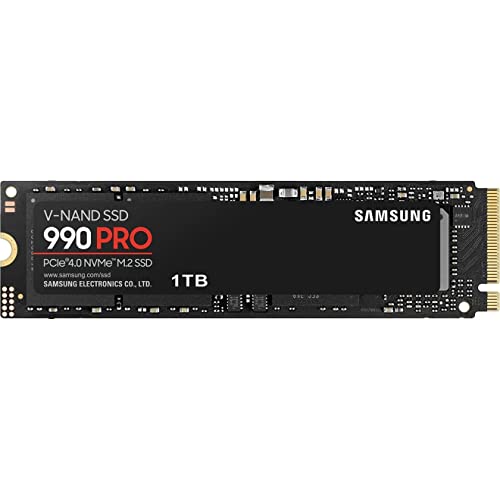
Samsung 990 PRO 1TB — The Gen4 benchmark
The 990 PRO is the drive against which this entire category gets measured, and spending time with its specification makes the reason plain. Samsung designs its own controller and its own flash, and that vertical control shows up in the consistency of the result: a PCIe 4.0 M.2 2280 drive rated at up to 7,450 MB/s, which is effectively the ceiling of what a Gen4 x4 connection can carry. For a desktop that edits video, compiles code or loads enormous game worlds, this is the safe pair of hands at the top of the mainstream market.
What separates the 990 PRO from equally quick rivals is everything around the speed. Samsung Magician remains the most complete consumer SSD toolkit available, handling firmware updates, health monitoring, performance profiles and secure erase from one calm interface. The drive’s power efficiency for its performance class also matters in practice: in a laptop that accepts a full-length 2280 stick, it delivers flagship pace without the thermal drama that older high-performance drives brought with them. It is equally at home as a PlayStation 5 expansion drive in its heatsink form, though buyers should confirm which variant a listing describes before ordering for console use.
Long-term ownership is where this drive quietly justifies itself. Samsung publishes firmware updates at a pace smaller makers rarely match, and Magician reports health in language a non-specialist can act on, including drive temperature and total data written. In a workstation that earns money, that visibility is worth real money: a drive that warns you is a drive that never surprises you. The 990 PRO also behaves predictably when it is the scratch disk and the destination disk at the same time, a pattern that exposes weaker controllers immediately. Editors who render to the same volume they read from, and developers whose build folders live beside their toolchains, will recognise that steadiness as the actual product being sold here.
- Connection: PCIe 4.0 x4 NVMe in the standard M.2 2280 stick format
- Space on offer: a full terabyte of Samsung flash
- Listing figure: reads up to 7,450 MB/s
- Ownership tools: Samsung Magician covers firmware, health checks and migration
Strengths
- Own controller and own flash give it unusually consistent behaviour under mixed workloads.
- Magician software makes long-term ownership, firmware care and migration genuinely easy.
- Top-of-Gen4 pace suits editing, compiling and heavy game libraries equally well.
Trade-offs
- It sits at the premium end of Gen4 pricing territory, so value hunters should look down this list.
- Full pace generates real heat; a motherboard heatsink or the heatsink variant is wise in tight cases.
- On a PCIe 5.0 board it leaves the newer interface’s headroom unused.
Best for: desktop builders and creators who want the most polished Gen4 drive and the software to match. Not suited for: buyers whose budget stretches further by accepting slightly lower peak numbers.

WD Black SN850X 1TB — The gamer’s drive
Western Digital builds the SN850X with a single audience in mind and then lets everyone else benefit. The verified listing puts it at up to 7,300 MB/s reads and up to 6,300 MB/s writes, a whisker behind the Samsung on the first number and firmly in flagship territory on the second. Where the 990 PRO feels like a professional instrument, the SN850X feels like gaming hardware: WD’s Game Mode, engaged through WD Dashboard, is designed to keep the drive in its performance state while a library is being hammered, and the drive’s tuning favours the random-access patterns that game loading actually consists of.
That focus has a practical consequence for library hoarders. Modern games install in enormous blocks and then patch in enormous blocks, and the SN850X’s sustained write behaviour holds up through those jobs better than most drives that advertise similar peaks. It is also a thoroughly proven PlayStation 5 expansion choice in heatsink form. Owners of older SN850 drives sometimes ask whether the X is a real step; in write consistency and in its dashboard support, it is. For a pure gaming rig, this is arguably the most honest flagship here, because its engineering priorities match the workload exactly rather than spreading themselves across every possible one.
Ownership has a WD flavour that some buyers actively prefer. The Black line is supported as gaming hardware rather than office equipment, so firmware notes talk about the things players care about, and the Dashboard presents the drive’s state without burying it in enterprise vocabulary. In daily service the SN850X has a particular talent for the unglamorous middle of gaming life: shader-cache churn, capture recording writing to the same drive the game reads from, and launchers updating three titles at once. Those overlapping jobs are where lesser drives stutter in ways benchmarks never show, and the X was quite obviously tuned by people who had watched it happen.
- Format: M.2 2280 stick on a PCIe 4.0 x4 NVMe link
- Room available: 1TB for system, library and capture files
- Quoted pace: reads up to 7,300 MB/s, writes up to 6,300 MB/s
- Control room: WD Dashboard, including the gaming performance mode
Strengths
- Write consistency through huge installs and patches suits modern game libraries perfectly.
- Game Mode and dashboard tuning are genuinely aimed at players rather than decoration.
- Proven console-expansion pedigree in its heatsink variant gives it a second career.
Trade-offs
- Dashboard software is capable but less polished than Samsung’s Magician.
- It asks flagship money, and productivity-only buyers may not feel the gaming tuning.
- Like all fast Gen4 drives, it appreciates a heatsink under sustained load.
Best for: gaming desktops and console expansion where install and load behaviour matter daily. Not suited for: quiet office machines that would never notice its performance tuning.

Samsung 9100 PRO 1TB — The Gen5 leap
The 9100 PRO exists for a specific and growing group: people whose motherboards carry a PCIe 5.0 M.2 slot and whose work can actually use what that slot offers. Its verified listing claims up to 14,700 MB/s, roughly double the Gen4 ceiling, and Samsung positions it for AI computing and heavy workstations, which is the honest framing. Moving model datasets, scratching through huge local files and shuttling uncompressed media are the jobs where a Gen5 drive stops being a luxury and starts removing a bottleneck that Gen4 hardware genuinely imposes.
Two cautions belong in any fair account of it. First, the slot decides everything: install this drive in a Gen4 slot and it behaves like an expensive Gen4 drive, so the motherboard check is not a formality. Second, Gen5 pace arrives with Gen5 heat, and this class of drive expects the heatsink and airflow conversation to happen before purchase, not after the first thermal throttle. Buyers building a new high-end workstation around a current platform get the real thing here. Buyers upgrading a two-year-old gaming PC almost certainly want one of the Gen4 flagships above instead, and this guide would rather tell you that than celebrate a number your board cannot use.
Longevity makes the same case from another direction for the right buyer. Storage generations turn over slowly, and a Gen5 flagship bought with a new platform today is unlikely to be the bottleneck of that machine at any point in its life. For an AI experimenter, local datasets and model files only grow, and the cost of the drive is small beside the graphics hardware it feeds. Treat it as infrastructure rather than as an upgrade, check that your board’s Gen5 slot does not steal lanes from the graphics card in a way your workload would feel, and the 9100 PRO becomes a rational, even conservative, purchase. It is simply a narrow one, and this guide marks it as such deliberately.
- Bus: PCIe 5.0 x4, the newest generation of M.2 connection
- Form: full-length 2280 stick, single terabyte capacity
- Ceiling claimed by the listing: up to 14,700 MB/s
- Aimed at: AI computing rigs, gaming flagships and heavy-duty workstations
Strengths
- Roughly doubles the sequential ceiling available to Gen4 drives on a suitable board.
- Samsung’s controller and software ecosystem carry over from the 990 PRO.
- Gives new workstation builds a storage tier that will not age quickly.
Trade-offs
- Wasted in a PCIe 4.0 slot, where it cannot show its defining advantage.
- Demands serious cooling planning in compact or quiet cases.
- Carries early-adopter positioning that mainstream users rarely recoup.
Best for: new PCIe 5.0 workstation and high-end gaming builds moving very large files daily. Not suited for: upgrades to Gen4 or Gen3 machines, where its premium buys nothing.

Crucial P310 1TB — The handheld favourite
Crucial designed the P310 for the machines that flagship drives forget: gaming handhelds, thin laptops and small desktops where power draw and heat are hard limits rather than preferences. Its verified listing rates it at up to 7,100 MB/s over PCIe Gen4, which is startling pace for a drive with this one’s efficiency-first brief, and it explains why the P310 has become the default recommendation when a handheld’s factory storage starts to feel like a rounding error. A terabyte here does not just add room; it changes how the device gets used, because whole libraries can live on the machine instead of being rotated through downloads.
The bundled Acronis cloning software deserves more attention than bundled software usually gets. Swapping a drive in a handheld or a sealed laptop is the moment most upgrades go wrong, and a guided clone of the old drive removes the reinstall, the re-download queue and most of the fear from the job. In a desktop the P310 is merely a good fast drive; in the portable machines it was designed for, it is the most considered package in this guide. Just confirm your device takes a 2280-length stick, since some handhelds and ultraportables are built around shorter formats.
Battery life is the hidden dividend. In a handheld, storage that finishes its work quickly and returns to a low-power state is storage that leaves more of the battery for the screen and the processor, and the P310’s efficiency brief pays out in minutes that players actually notice on a train or a flight. Crucial’s support operation is the other quiet strength: firmware and documentation for this drive are easy to find and plainly written, which matters when the person doing the upgrade is following a video guide at midnight. For a first-ever drive swap, that combination of guided cloning and clear support material makes the P310 the least intimidating route to a terabyte in this entire guide.
- Link: PCIe Gen4 x4 NVMe, full-length 2280 board
- Storage provided: 1TB, sized for whole game libraries
- Top figure quoted: up to 7,100 MB/s
- In the box digitally: Acronis cloning and recovery software
Strengths
- Efficiency-led design runs happily in handhelds and thin laptops.
- Bundled cloning software turns a nerve-wracking swap into a guided one.
- Near-flagship headline pace despite the portable brief.
Trade-offs
- Sustained-write behaviour is tuned for portable loads, not workstation punishment.
- Buyers must confirm 2280 length fits their device before ordering.
- Desktop builders chasing absolute consistency have stronger options above.
Best for: gaming handhelds, thin laptops and small builds where heat and power are real constraints. Not suited for: sustained professional workloads that write heavily all day.

WD Blue SN580 1TB — The cool professional
The SN580 is the drive in this guide most likely to be underestimated by a spec sheet and most likely to be appreciated by the person who owns it. Its verified ceiling is up to 4,150 MB/s, well below the flagships, and that number is a deliberate trade rather than a failure. Western Digital’s Blue line is aimed at creators and professionals whose storage work is long rather than violent: photo libraries being culled for hours, design files opening and saving all day, codebases compiling in the background. For that rhythm, the SN580’s nCache behaviour and low operating temperatures matter more than a peak it would only touch in a benchmark.
There is also a laptop argument that rarely gets made. A drive that sips power and runs cool extends battery life and keeps fan noise down in exactly the machines professionals carry, and the SN580’s single-sided design fits slim chassis that thicker drives cannot enter. It will not win a drag race against the SN850X from WD’s own catalogue, and it is not meant to. It is the choice for the buyer who has learned that the fastest drive is the one that never makes them think about storage at all, and for second-drive duties in a desktop it brings the same calm temperament.
There is a professional courtesy to how this drive behaves that deserves naming. It does not spike temperatures during a long export, it does not demand a heatsink conversation in a slim laptop, and its performance today is its performance next year, because nothing about its design depends on a brief burst of cache heroics. Photographers working through a wedding, students whose laptops are also their only computer, and anyone whose desk sits in a warm room will get more real value from that steadiness than from a flagship they would have to cool and feed. WD also keeps the Blue line’s firmware and support current for years, which suits the buy-it-and-forget-it ownership this drive invites.
- Connection: Gen4 x4 NVMe on a slim, single-sided 2280 stick
- Capacity offered: one terabyte of working room
- Stated ceiling: up to 4,150 MB/s according to the listing
- Temperament: cool running, low power draw, nCache write acceleration
Strengths
- Cool, frugal running suits laptops and quiet desktops beautifully.
- Blue-line tuning favours long, steady creative sessions over benchmark sprints.
- Slim single-sided build fits chassis that reject bulkier drives.
Trade-offs
- Peak sequential numbers trail the flagships by a wide margin.
- Heavy sustained transfers settle to a steadier, slower cruise.
- Gamers chasing minimum load times should take the SN850X instead.
Best for: working laptops, quiet desktops and creator machines used in long sessions. Not suited for: buyers whose main metric is the biggest sequential figure available.

Kingston NV3 1TB — The value upgrade
Kingston’s NV3 answers the most common SSD question of all: what should go into a machine that is perfectly good except for its storage? Rated at up to 6,000 MB/s over PCIe 4.0 in its verified listing, it brings modern Gen4 pace to the enormous installed base of desktops and laptops that shipped with small drives, slow drives or spinning rust. The transformation in an older machine is not subtle. Boot times collapse, application launches stop being events, and a computer that felt finished starts feeling current again, which is why the value tier of this market matters more than its flagship tier.
The honest framing is that the NV3 is a generalist. Its design priorities are compatibility, efficiency and pace that embarrasses anything it replaces, rather than the sustained-write heroics of the drives at the top of this page. As a second drive for a game library, a scratch drive for hobbies, or the main drive in a family PC, those priorities are exactly right. Kingston also has decades of memory-market presence behind the name, which counts for something when the alternative at this tier is a brand nobody can trace. Spend the savings on the RAM upgrade the same machine probably also needs.
Kingston understands the assignment this drive is usually bought for, and it shows in the details. The NV3 asks nothing of its owner: no heatsink demands, no software suite to learn, no firmware drama reported across its life in the market. It goes into a five-year-old desktop or a hand-me-down laptop and simply removes storage from the list of that machine’s problems. That makes it the natural partner for refurbishers, parents upgrading a child’s first PC, and small offices stretching a fleet for another cycle. Buyers who later catch the performance bug can promote it to second-drive duty, where its pace remains entirely respectable, so the purchase never becomes a dead end.
- Bus: PCIe 4.0 Gen 4×4 NVMe, standard 2280 length
- Room: 1TB for the system and everything it carries
- Quoted top speed: up to 6,000 MB/s
- Natural habitat: upgrades, second drives and general-purpose builds
Strengths
- Modern Gen4 pace transforms older machines for value-tier money.
- Easygoing thermals make it a painless drop-in upgrade.
- Kingston’s long market history beats anonymous alternatives at this level.
Trade-offs
- Not built for sustained professional write workloads.
- Lacks the polished software ecosystems of Samsung and WD.
- Enthusiasts will outgrow it sooner than a flagship.
Best for: upgrades to older PCs, second drives and family machines that need modern pace. Not suited for: workstations that write large data continuously.
What Does a Terabyte Actually Hold in Real Life?
Abstract capacity misleads, so translate it. A terabyte absorbs a full operating system and office suite many times over, a photo library counted in the tens of thousands of shots, or a shelf of modern games that would have filled a bookcase of discs. In working terms it is the difference between choosing what to keep installed and simply keeping it. Video is the great exception and the great devourer: an hour of high-quality footage can occupy what a hundred hours of documents cannot, which is why creators plan capacity so differently from everyone else.
That translation explains the shape of this list. For the document-and-photos majority, any of these six ends storage anxiety for the life of the machine. For gamers, a terabyte is a comfortable present and a planned future expansion. For video people, it is a fast working tier in front of larger, slower storage. None of those is a wrong answer; they are three different products wearing the same capacity label, and the pick sections above are organised so each of those buyers can find their own drive quickly.
How Do the Six Drives Compare Side by Side?
| Drive | Interface | Headline read figure | Character |
|---|---|---|---|
| Samsung 990 PRO 1TB | PCIe 4.0 | 7,450 MB/s ceiling | Polished flagship, best software |
| WD Black SN850X 1TB | PCIe 4.0 | 7,300 MB/s ceiling | Gaming-tuned, strong writes |
| Samsung 9100 PRO 1TB | PCIe 5.0 | 14,700 MB/s ceiling | Gen5 workstation pace |
| Crucial P310 1TB | PCIe 4.0 | 7,100 MB/s ceiling | Efficient, handheld-friendly |
| WD Blue SN580 1TB | PCIe 4.0 | 4,150 MB/s ceiling | Cool, frugal professional |
| Kingston NV3 1TB | PCIe 4.0 | 6,000 MB/s ceiling | Value upgrade generalist |
Read the table as a map of priorities rather than a league ladder. The 9100 PRO’s number is real but conditional on a Gen5 slot; the SN580’s number is modest but paired with the behaviour long-session workers actually feel. The two Gen4 flagships sit within touching distance of each other, and the choice between them is about software taste and workload shape, not about a decisive speed gap.
Does the Same Drive Suit a Laptop, a Desktop and a Console?
Mostly, but the emphases move. A desktop is the forgiving home: airflow exists, heatsinks are common, power is unlimited, and the flagship drives can simply be themselves. That is why the 990 PRO and SN850X read as desktop-first recommendations here. A laptop adds physics to the decision. The bay may be shallow, the drive may sit beside a hot processor, and every watt the storage spends comes out of the same battery you are trying to stretch through a working day. Under those rules the SN580 and P310 climb the list, and even the 990 PRO, which is well behaved for a flagship, should be checked against the machine’s thermal design rather than assumed fine.
The console case is the most rule-bound of the three. Sony’s expansion requirements specify both pace and cooling, and the correct move is to buy the heatsink variant of a drive that meets them rather than adapting a bare stick. Both Samsung and WD sell exactly those variants of their flagships, and the small effort of confirming the variant on the listing is the whole job. Handheld PCs sit between laptop and console: desktop-class slots in a pocket-sized thermal envelope, which is precisely the compromise the P310 was designed around.
None of this changes the underlying hardware. The same stick can serve in a tower for three years and finish its career in an enclosure or a handheld, which is part of the quiet value of buying from the top of this market. Drives outlive the machines they are bought for now, and a well-chosen terabyte bought once tends to keep being useful long after the build it was bought for has been replaced.
What About Endurance, Warranties and Trust?
An SSD is one of the few components you buy on faith in a company’s future behaviour, because its most important qualities only reveal themselves over years. Endurance ratings, expressed as total bytes written, look alarming to first-time buyers and then turn out to be enormous relative to real life: a home user would need to write at a pace few workloads reach to approach the rated figure inside a warranty period. The practical reading is simpler. Every maker in this guide publishes endurance and warranty terms for these models, supports them with firmware updates, and has the scale to honour a claim in year four. That infrastructure is a genuine part of the product, and it is the reason this list contains no anonymous drives despite the anonymous tier’s tempting spec sheets.
Protecting yourself costs little. Keep the order confirmation, update firmware once after installation and then occasionally, and let the maker’s health tool glance at the drive a few times a year. If the drive holds the only copy of anything, the correct purchase is not a better drive but a backup, because no warranty replaces data. With those habits in place, the choice among these six returns to the honest questions of slot, heat and workload that the rest of this guide is built around.
What Should You Do in the First Week With a New Drive?
The install is the beginning, not the end, and a few habits in the first days decide how the next years feel. Start by confirming the drive is running at its full link width and generation in the maker’s software; a stick seated in a slot that shares lanes with another device can quietly run at half width, and catching that on day one costs a reseat, while catching it in year two costs an argument with yourself. Then run the firmware update the tool offers, before the drive fills with work you would rather not disturb. Only after that should the migration begin in earnest.
Next, set up the unglamorous protections. Turn on a backup routine for the folders that cannot be recreated, whether that means an external drive, a network location or a cloud service, and confirm the backup actually ran rather than merely being scheduled. Check that your operating system’s trim function is enabled, which it almost always is by default, and then leave the drive’s housekeeping alone; modern SSDs do not want defragmentation or third-party optimisation rituals. Finally, keep the old drive untouched for a week as your rollback. Once the new drive has survived real work, wipe the old one and give it its second job as portable or spare storage.
What you should notice across that first week is mostly absence: no waiting, no storage warnings, no planning your downloads around free space. That absence is the product. A terabyte of fast storage does not announce itself the way a new screen or keyboard does; it simply removes a category of friction from the machine, which is why owners so rarely go back to smaller drives once they have lived with one.
How Do You Install a 1TB NVMe Drive Without Drama?
Preparation beats bravery. Back up anything irreplaceable first, then decide whether you are cloning the old drive or installing the operating system fresh; cloning suits a healthy system you like, while a fresh install suits a machine that has collected years of cruft. Ground yourself, power the machine fully down, and locate the M.2 slot, which on many boards hides under a heatsink or beside the graphics card. The stick slides in at a shallow angle and presses down to a single small screw or a tool-free latch; force is never part of the process, and a screw that will not start is a screw at the wrong angle.
After the hardware, the software decides whether the day feels easy. A cloned drive should simply boot; a fresh drive needs initialising in your operating system’s disk management before it appears as storage. Update the drive’s firmware once it is running, using the maker’s own tool, and confirm the link speed in that same tool so a Gen4 drive accidentally running at Gen3 width gets caught on day one rather than year two. Laptop owners should add one step: check the maker’s service manual for whether the battery must be disconnected before the back panel screws come out, because on modern thin machines it usually must.
Which Everyday Jobs Actually Feel a Faster Drive?
Honesty helps here, because storage speed is easy to oversell. Booting a modern operating system and opening ordinary applications already happen quickly on any drive in this guide; the gap between the NV3 and the 990 PRO in those moments is measured in fractions of a second that nobody experiences as a problem solved. Where flagship pace becomes tangible is in the jobs with volume attached. Copying a camera card of large video files, duplicating a virtual machine, unpacking a huge archive, loading a game level built from gigabytes of streamed assets: these are the moments where the top of this list pulls visibly away from the middle, and where sustained write behaviour, not the headline read figure, decides the experience.
There is a second, quieter category where speed shows up: responsiveness under load. A machine that is simultaneously syncing cloud storage, indexing a photo library and launching your work feels different depending on how its drive handles many small requests at once. This is the territory where controller quality and firmware maturity earn their money, and it is a large part of why the two Samsung drives and the SN850X command their positions. Conversely, a home server or a media box that mostly reads finished files gains almost nothing from flagship hardware; the SN580’s calm efficiency serves that life better than a hotter, faster stick ever will.
Console owners form their own case. PlayStation 5 expansion has firm requirements around speed and cooling, and both the 990 PRO and the SN850X have heatsink variants built for exactly that bay. The practical advice is to buy the variant made for the console rather than improvising with adhesive heatsinks of unknown quality, and to remember that the console formats the drive itself, so nothing about the process needs a PC at all.
How Much Free Space Should a 1TB Drive Keep?
More than most people leave it. An SSD writes by erasing blocks in advance and shuffling data behind the scenes, and a drive that is nearly full gives its controller nowhere to shuffle to. The visible symptoms are writes that start fast and sag, and a general feeling that a once-quick machine has become moody. Keeping a comfortable margin free, rather than treating every last gigabyte as usable, preserves the behaviour you paid for. This matters most on a single-drive laptop, where the same stick holds the system, the applications, the downloads folder and the photo library all at once.
Capacity planning deserves the same realism. A terabyte sounds generous until a modern game library, a few years of phone photos and one video hobby move in together. Buyers who know their data grows should treat this guide’s drives as the fast tier of a two-tier plan: the NVMe stick for the system and active work, and cheaper bulk storage, internal or external, for the archive. Every pick here also works happily as that fast tier in a desktop with several bays, which is why none of them needs to be the biggest drive you will ever own.
What Mistakes Do 1TB SSD Buyers Keep Making?
The classic error is buying for the slot you wish you had. A Gen5 drive in a Gen4 board, or a 2280 stick for a machine that only fits shorter formats, turns an exciting delivery into a returns process. Measure the slot, read the board manual, and confirm the keying before any money moves. The second error is ignoring heat until the first long transfer slows down: flagship drives in sealed laptops and console bays need their heatsink variants or a thermal pad plan, and pretending otherwise does not repeal physics.
Third, buyers fill a new drive to the brim in the first week and then wonder why writes feel slower by the third. SSDs like breathing room; leaving a sensible margin free keeps write behaviour healthy across the drive’s life. Fourth, people clone a failing old drive’s problems onto pristine hardware and blame the new stick. If the old system was unstable, install fresh. Finally, too many buyers never register the warranty or keep any proof of purchase, which only matters on the one day it matters completely.
Two quieter mistakes deserve a place on the list. The first is judging a new drive by a benchmark run in its first hour, when it is empty, cool and flattered by its own cache, and then feeling cheated by ordinary behaviour later. Judge it by your real jobs after a week of use. The second is forgetting the old drive entirely. A removed stick still holds your accounts, documents and browser history; wipe it properly before it is sold, gifted or binned, because a bargain upgrade is not worth an identity problem.
Final Recommendation
For most people building or upgrading a desktop today, the Samsung 990 PRO is the complete package: flagship Gen4 pace, the best ownership software in the class, and behaviour that stays composed under real work. Gamers should look very hard at the SN850X before defaulting to it, because WD’s tuning and write consistency serve game libraries specifically, and the difference is one you feel across a year of patches. The 9100 PRO is the right answer only when the motherboard and the workload both say Gen5 out loud. Below the flagships, the P310 owns portable machines, the SN580 owns calm professional ones, and the NV3 owns the upgrade that brings an old PC back to life. A terabyte is the capacity where a computer stops apologising for its storage, and whichever of these six fits your slot, your airflow and your habits, the machine on the other side of the install will feel like it has been waiting for exactly that.
If you are still torn between two rows of the table, decide by the machine’s next three years rather than its next three weeks. A drive bought for a build you are about to replace should be chosen for the new platform; a drive bought for a laptop you will keep should be chosen for its thermals. Storage is the component most likely to be carried forward, reinstalled and repurposed, so the right question is rarely which drive is fastest today. It is which drive you will still be glad to own when everything around it has changed.
Frequently Asked Questions
Is 1TB enough for a gaming PC?
For most players, yes, provided the library rotates occasionally. A handful of very large modern titles can consume the drive quickly, which is why many gaming builds pair a fast 1TB system drive now with a second, cheaper drive later. The SN850X and 990 PRO both make excellent first drives in that plan.
Will a PCIe 4.0 drive work in a PCIe 3.0 slot?
Yes, NVMe drives are backward compatible, but the drive runs at the slot’s ceiling rather than its own. A flagship Gen4 drive in a Gen3 slot still feels quick in daily use, though buyers in that position often get better value from the NV3 or SN580 tier.
Do I need a heatsink on an M.2 SSD?
Desktops with motherboard heatsinks are already covered. Bare slots in tight cases, laptops without thermal contact, and console installations all benefit from a heatsink variant or a proper thermal pad, particularly with the flagship drives in this guide.
What is the difference between the 990 PRO and the 9100 PRO?
Generation and ceiling. The 990 PRO is a PCIe 4.0 drive rated up to 7,450 MB/s; the 9100 PRO is a PCIe 5.0 drive rated up to 14,700 MB/s that needs a Gen5 slot to show it. Everything else, including Samsung’s software support, is closely related.
Should I clone my old drive or install fresh?
Clone when the existing system is healthy and configured the way you like; the P310’s bundled Acronis software makes that route painless. Install fresh when the old system is unstable, infected or so old that its habits are not worth preserving.
Does DRAM matter on an NVMe drive?
It matters most for sustained and mixed workloads. Drives with dedicated DRAM for their mapping tables tend to hold their behaviour together under heavy, varied use, which is one reason the flagships here feel consistent. Simpler designs using host memory or smaller caches serve everyday loads perfectly well, and for upgrades and portable machines the trade is usually worth it.
Can I use one of these drives in an external enclosure?
Yes, and it is a good second life for a drive replaced by something larger. A USB enclosure will cap speeds well below the drive’s internal pace, so enclosure duty suits the value and efficiency picks; putting a 9100 PRO in a USB box wastes nearly everything that makes it special.
How long should a 1TB SSD last?
Under ordinary consumer use, any drive in this guide should outlast the machine it is installed in. Write endurance ratings assume workloads far heavier than typical home and office use, and the practical risks are heat and neglect rather than ordinary wear.
Related Guides
Storage rarely gets bought in isolation, so these companion guides cover the neighbouring decisions: Best 2TB Internal SSDs for Games, Work and Storage, Best 2.5 Inch SSDs to Revive an Older Laptop, and Best Affordable Student Laptops for Notes, Essays and Streaming.

[…] same measure-first discipline to the rest of their technology will find it in our storage guides: Best 1TB SSDs: NVMe Picks for Speed and Value for the mainstream upgrade, Best 2TB Internal SSDs for Games, Work and Storage for larger […]