What's inside
- Key Takeaways
- Quick Picks
- How We Chose These Picks
- What Does “Replacing a Laptop” Actually Require?
- Which Six Machines Pass the Tuesday Test?
- ARM or Intel: Which Windows Should You Choose?
- What Battery Life Should You Actually Expect?
- How Do You Choose by Workload Rather Than by Brand?
- How Do the Six Compare Side by Side?
- How Do You Move From a Laptop to a 2-in-1 Without Regret?
- Which Accessories Actually Complete the Replacement?
- Why Does the Keyboard Decide Everything?
- How Long Will These Machines Stay Supported?
- Can a 2-in-1 Handle Creative Work or Games?
- What Mistakes Do 2-in-1 Buyers Keep Making?
- What Happens When the Replacement Becomes the Household Machine?
- Final Recommendation
- Frequently Asked Questions
- Related Guides
As an Amazon Associate I earn from qualifying purchases. This post may contain affiliate links at no extra cost to you.
widgetverdict.com is reader-supported. When you buy through links on our site, we may earn an affiliate commission.
Where to buy: all six machines below carry checked Amazon listings. One warning before the table: only some of them include a keyboard in the box, and a 2-in-1 without its keyboard is a tablet with ambitions — check each pick’s notes before comparing prices.
Every manufacturer claims its slate can replace your laptop; the best 2in1 tablets are the small minority for which the claim survives a month of real work. The test is not a benchmark. It is a Tuesday: a spreadsheet with real formulas, a video call while notes are open, a file that must be renamed, zipped and sent, a peripheral that must simply work, an afternoon on a train tray. Laptop replacement is a property of the whole system — operating system, keyboard, ports, battery behaviour, software catalogue — and a weakness in any one of them sends the owner back to the machine they meant to retire.
This guide ranks six machines by that standard, and they split into three philosophies. The Surface Pro line runs full Windows and asks only that you accept its keyboard-cover ergonomics. Lenovo’s Chromebook Duets argue that most people’s “laptop work” is actually browser work, and sell that argument at a fraction of the price. And the iPad Air, the most polished tablet here, makes the case that a superb tablet with a keyboard accessory can cover a laptop’s job for people whose work lives in apps and cloud documents. All three arguments are right — for different owners. Our job below is to help you work out which owner you are.
One structural note: keyboard inclusion varies wildly across these six listings, from a bundle that includes keyboard and pen, through Chromebooks with the keyboard in the box, to premium slates where the keyboard is a significant second purchase. We flag the state of play in every pick, because comparing a bundle’s price against a bare tablet’s price is the oldest trick in this category, usually played accidentally by honest shoppers.
Key Takeaways
- The Surface Pro 11 bundle is the shortest path to a genuine laptop replacement: keyboard and pen are in the box, and its Snapdragon X Elite configuration carries 16GB of memory and a 512GB SSD.
- The standalone Surface Pro 11 with the Snapdragon X Plus chip is the same idea unbundled — buy it when you want to choose your own keyboard colour or already own Surface accessories.
- The Surface Pro 10 is the Intel-based business option, and its 32GB memory configuration suits heavier multitasking than any other pick here.
- Lenovo’s two Duet Chromebooks replace a laptop only if your work is browser-shaped — but for that work, they do it at a startlingly low total cost, keyboards included.
- The iPad Air M4 is the finest tablet in this guide and the most conditional replacement: superb for app-and-cloud workflows, wrong for desktop-software dependencies, and its keyboard is a separate purchase.
- Total the keyboard before you total anything else; it changes both the price ranking and the honest comparison against ordinary laptops.
Quick Picks
| Pick | Badge | Why it earns its place |
|---|---|---|
| Microsoft Surface Pro 11 Bundle (keyboard + pen) | Best complete laptop replacement | Everything in one box: 13-inch OLED, Snapdragon X Elite, 16GB RAM, 512GB SSD, keyboard and pen included. |
| Microsoft Surface Pro 11 (Snapdragon X Plus) | Best unbundled Pro | The 2880×1920 120Hz LCD model with the 10-core Snapdragon X Plus — same replacement credentials, accessories your way. |
| Microsoft Surface Pro 10 | Best for heavy multitasking | Intel-based business Pro with 32GB of memory and Windows 11 Pro for demanding, managed workloads. |
| Lenovo Duet 11 Chromebook | Best budget replacement | An 11-inch 2K touchscreen 2-in-1 with keyboard included, for browser-first workers. |
| Lenovo Chromebook Duet (2025) | Best ultra-portable replacement | A 10.95-inch WUXGA convertible that treats the laptop as a browser with a keyboard attached. |
| Apple iPad Air 11-inch (M4) | Best tablet-first replacement | Liquid Retina display, M4 power and Wi-Fi 7 — a brilliant tablet that replaces a laptop for app-shaped work; keyboard sold separately. |
How We Chose These Picks
We applied a single test with five parts, because “laptop replacement” falls apart in predictable places. First, the operating system must run the owner’s actual software without a workaround layer — full Windows, a browser-centric ChromeOS taken on its own terms, or iPadOS judged against app-based work. Second, the keyboard must be a real typing instrument: full-size keys, a trackpad you can aim, and a hinge or cover arrangement that works on a desk and survives a lap. Third, multitasking must be genuine — two things on screen, files moved between them, a call running over the top. Fourth, the machine must connect to the adult world: external displays, storage, the odd legacy peripheral. Fifth, the battery must last a working day of the owner’s real workload, not a video-loop test.
Specifications in the pick sections come from the verified listing titles: processor names, memory, storage, screen sizes and resolutions are quoted only where the title states them. Where a listing is silent — on a port count, for instance — we describe the class behaviour qualitatively rather than inventing a number. We also weighted total cost of the working setup, which is why a Chromebook with its keyboard in the box can outrank, for its audience, a faster slate whose keyboard costs extra.
What did not make the cut matters too. Android tablets with keyboard cases were left out of this particular guide not from snobbery but because their windowing and desktop-browser compromises still break the Tuesday test for most laptop owners; they shine in other categories, several of them elsewhere in this batch of guides. Detachables built around entry-level processors were excluded for the opposite reason to the Duets: they run a full desktop operating system at a pace that teaches owners to keep their old laptop charged, which is the definition of failing to replace it.
What Does “Replacing a Laptop” Actually Require?
Strip away marketing and a laptop does five jobs: it types, it runs your software, it juggles, it connects, and it endures. Typing is where most 2-in-1s quietly fail — not because the keys are bad, but because the whole arrangement wobbles, or the trackpad is a postage stamp, or the kickstand’s footprint turns a train tray into a negotiation. The Surface design’s answer is a rigid kickstand and a cover keyboard that has been refined for a decade; the Duet’s answer is a similar stand-and-cover system at a friendlier price; the iPad’s answer is a floating cantilever keyboard that costs like furniture. All three can work. What cannot work is the floppy Bluetooth keyboard in a folio case, and no pick here relies on one.
Software is the second gate and the harshest. If your work involves a specific desktop application — an engineering tool, an accounting package, a piece of exam or industry software — the operating system question is settled before it is asked, and only the Windows machines in this guide need apply. If your work is documents, mail, web applications and video calls, the gate swings open: ChromeOS runs that workload natively in its browser, and iPadOS covers it with apps that are often more pleasant than their desktop equivalents. The replacement question is therefore personal in a way benchmark charts cannot capture, and honest buying starts with listing the five programs you open most, not the five features you admire most.
Juggling and connecting separate the flagships from the toys. Sixteen gigabytes of memory — the figure in both Surface Pro 11 listings and double that in the Pro 10 — is what lets a machine hold a call, a browser full of tabs, a document and a spreadsheet in the air at once. External display support turns the slate into a desk machine at home; the lack of it turns every return to the desk into a squint. Endurance closes the case: a replacement you must charge at lunch is a replacement that owns your schedule, and it is no accident that the ARM-based machines in this guide, built on phone-derived silicon, make their strongest claims exactly here.
Which Six Machines Pass the Tuesday Test?

Microsoft Surface Pro 11 Bundle — Best complete laptop replacement
Most “tablet replaces laptop” stories include an awkward second act in which the owner buys a keyboard, then a pen, then discovers the total. This bundle skips that act. The verified listing describes a Surface Pro 11 with a 13-inch OLED touchscreen, a Snapdragon X Elite processor, 16GB of RAM and a 512GB SSD, running Windows 11 Pro — with the Pro keyboard and Surface Pen in the box. It is the only pick in this guide where the box on your doorstep contains the entire argument, and that completeness is worth more than it sounds: no accessory hunt, no compatibility doubt, no month of typing on glass while a cover ships.
The machine itself is the strongest expression of the Surface idea. The Snapdragon X Elite is the flagship tier of Microsoft’s ARM-based Copilot+ generation, and its virtues map precisely onto laptop-replacement pain points: applications open with the snap owners associate with a good ultrabook, the fan rarely announces itself, and battery life stretches across a working day of mixed use in a way Intel-era Surface Pros never managed. The OLED screen is the bundle’s luxury — deep blacks that make evening reading and film genuinely pleasurable, on top of the productivity virtues of a large, sharp 13-inch canvas. Windows on ARM has matured to the point where mainstream software simply runs; the remaining caveat is exotic legacy applications and some specialist drivers, which is why the Intel-based Pro 10 keeps its seat at this table below.
Sixteen gigabytes of memory and half a terabyte of storage are the quiet heroes of the spec list. They are the figures that decide whether a replacement still feels like one in year three, after updates, accumulated files and heavier browser habits. Buyers comparing this bundle against cheaper Pro configurations should look at those two numbers before the processor badge; they are where longevity lives. With keyboard, pen and those internals aligned, the Pro 11 bundle is the pick we would hand to someone selling their laptop tomorrow.
- Display: 13-inch OLED touchscreen (per listing title)
- Processor: Snapdragon X Elite
- Memory: 16GB RAM
- Storage: 512GB SSD
- Operating system: Windows 11 Pro
- Included: Pro keyboard and Surface Pen
Strengths
- Keyboard and pen included — the true total is the price you see.
- Flagship ARM performance with genuinely all-day endurance.
- OLED screen lifts media and evening work above the LCD models.
Trade-offs
- The highest commitment in this guide, bundle or not.
- Windows on ARM still meets the odd legacy application or driver it cannot run.
- Kickstand ergonomics on a lap remain a Surface-family compromise.
Best for: the Surface Pro 11 bundle fits professionals replacing a Windows laptop outright, who want one box and no accessory research.
Not suited for: buyers tied to specialist x86-only software or peripherals with no ARM driver path.

Microsoft Surface Pro 11 (Snapdragon X Plus) — Best unbundled Pro
This is the same laptop-replacement thesis with the packaging unpicked. The listing specifies a 13-inch Copilot+ PC with a 2880×1920 LCD touchscreen refreshing at 120Hz, a 10-core Snapdragon X Plus, 16GB of RAM, a 512GB SSD, Wi-Fi only connectivity and Windows 11 Pro. Against the bundle above, you trade the OLED panel for a very good LCD, the Elite chip for its X Plus sibling, and the included accessories for freedom — freedom to pick a keyboard colour you actually like, to reuse a Surface keyboard you already own, or to spread the cost across two paydays.
The X Plus deserves a defence, because “lesser chip” framing undersells it. In the workloads that define laptop replacement — documents, browsers, calls, mail, light photo work — the difference between the two Snapdragon tiers is measured in moments most owners never notice, while the shared 16GB of memory and fast storage keep the experience’s floor high. Where the Elite earns its premium is sustained heavy work and graphics headroom; where the X Plus earns its place is in delivering ninety percent of the flagship’s day at a friendlier point in the range. The 120Hz LCD plays its part too: scrolling and pen strokes feel fluid in a way 60Hz panels cannot imitate, and for many eyes that fluidity reads as “faster computer” more loudly than any processor badge.
Wi-Fi only is the specification to notice rather than skim. This configuration has no cellular option in play, so the road-warrior case rests on phone tethering — workable for most, a genuine miss for the unattended-deployment crowd. Treat the X Plus Pro 11 as the thinking buyer’s configuration: the one chosen by people who read spec sheets comparatively instead of buying the box with the most in it.
- Display: 13-inch LCD touchscreen, 2880×1920, 120Hz (per listing title)
- Processor: 10-core Snapdragon X Plus
- Memory: 16GB RAM
- Storage: 512GB SSD
- Connectivity: Wi-Fi only
- Operating system: Windows 11 Pro; keyboard sold separately
Strengths
- High-resolution 120Hz screen makes text and pen work feel premium.
- 16GB/512GB internals match the flagship bundle where it counts.
- Lets you choose — or reuse — your own keyboard and pen.
Trade-offs
- Keyboard is an extra purchase before it can replace anything.
- LCD lacks the OLED model’s contrast for film and evening reading.
- No cellular configuration in this listing for untethered roles.
Best for: the Pro 11 (X Plus) suits upgraders and accessory-owners who want the current Pro platform without bundle pricing.
Not suited for: anyone who needs everything in one box on day one.

Microsoft Surface Pro 10 — Best for heavy multitasking
The Pro 10 is the business generation, and its listing reads like a fleet manager’s order form: a 13-inch tablet with 32GB of memory, a 512GB SSD and Windows 11 Pro, in Platinum. That memory figure is the story. Thirty-two gigabytes is double what the Pro 11 listings carry, and it changes the character of the machine from “handles your workload” to “handles your workload plus the virtual machine, the dataset and the forty-tab research session you forgot to close.” For analysts, developers doing light work, and professionals whose browser habits are a cry for help, memory is the specification that decides whether a 2-in-1 feels like a replacement or a ration.
The Pro 10 is also this guide’s Intel answer, which matters more than brand loyalty. The x86 platform runs the entire historical catalogue of Windows software and drivers without translation layers or exceptions — the specialist dongle, the ancient-but-mandatory industry tool, the printer in the regional office that predates the smartphone. Where the ARM machines ask “is your software compatible?”, the Pro 10 simply runs it. Organisations standardised on Intel images and management tools will not need persuading; individuals with one critical legacy application should not need it either.
The costs of that certainty are the familiar ones: battery endurance a step behind the ARM generation, a fan that participates in heavy work, and a design that was the previous generation’s flagship rather than the current one’s. None of those touch the replacement question for its audience. If your Tuesday involves the most open applications in this guide, the Surface Pro 10 is the pick that will not ask you to close anything.
- Display: 13-inch (per listing title)
- Memory: 32GB — the most in this guide
- Storage: 512GB SSD
- Operating system: Windows 11 Pro
- Colour: Platinum
- Platform: Intel-based business generation; keyboard sold separately
Strengths
- 32GB of memory swallows multitasking that chokes lesser machines.
- Intel platform runs the full legacy Windows catalogue without caveats.
- Business trim and Windows 11 Pro suit managed deployments.
Trade-offs
- Endurance trails the ARM-based Pro 11 models.
- Previous-generation design and screen technology.
- Keyboard cover remains a separate line on the invoice.
Best for: the Surface Pro 10 fits power multitaskers and organisations that need Intel certainty.
Not suited for: travellers who prize maximum unplugged hours above raw headroom.

Lenovo Duet 11 Chromebook — Best budget replacement
The Duet 11 makes the most disruptive claim in this guide: that for a large share of workers, the laptop being replaced was only ever a browser with a keyboard, and a Chromebook can therefore replace it for a fraction of a Surface’s price. The listing’s hardware supports the argument — an 11-inch 2K LCD touchscreen in a 2-in-1 body, a MediaTek Kompanio 838 processor, 4GB of RAM and 128GB of storage, with the keyboard included, in Luna Gray. Keyboard included is doing heavy lifting in that sentence: the Duet’s sticker is its total, which no Surface in this guide can say.
Judge it inside its philosophy and it convinces. ChromeOS boots fast, updates itself invisibly, shrugs off the malware anxieties of Windows life, and runs the Google-and-web stack — documents, mail, meetings, admin consoles — with an ease that belies the modest silicon. The 2K screen is sharper than budget laptops manage, the detachable keyboard and kickstand arrangement apes the Surface formula honestly, and the whole package travels at a weight and price that make it nearly disposable in the best sense: a machine you can hand to a student, a new hire or a family member without a briefing.
The boundaries are equally clear, and we will not blur them. Four gigabytes of memory caps the juggling; a dozen heavy tabs plus a video call is the ceiling, not the floor. Desktop Windows software does not exist here, Android apps are a supplement rather than a foundation, and offline work requires forethought. The Duet 11 replaces a laptop the way a bicycle replaces a car — completely, for the journeys it suits, and not at all for the others. Know your journeys.
- Display: 11-inch 2K LCD touchscreen (per listing title)
- Processor: MediaTek Kompanio 838
- Memory: 4GB RAM
- Storage: 128GB
- Included: keyboard
- Operating system: ChromeOS
Strengths
- Keyboard in the box makes its price the honest total.
- Sharp 2K screen embarrasses budget laptops.
- ChromeOS is fast, quiet and nearly maintenance-free.
Trade-offs
- 4GB of memory limits serious multitasking.
- No path to desktop Windows applications.
- Offline capability needs planning rather than happening by default.
Best for: the Duet 11 suits browser-first workers, students and families replacing a laptop used for web work.
Not suited for: anyone whose job names a desktop application as its main tool.

Lenovo Chromebook Duet (2025) — Best ultra-portable replacement
If the Duet 11 is the budget argument, the 2025 Duet is the portability argument in the same family. Its listing describes a convertible with a 10.95-inch WUXGA IPS touch display, 4GB of memory, 64GB of storage and a MediaTek Kompanio 838, in Luna Grey. That screen size — a hair under eleven inches — puts it in the class of machines that live in a bag permanently rather than being packed deliberately, and for a certain kind of worker that always-with-you quality replaces more laptops than raw speed ever will.
The WUXGA resolution on a panel this size yields crisp text for documents and mail, and the IPS panel keeps viewing angles friendly for sharing a screen across a café table. ChromeOS’s demands are modest enough that the Kompanio chip keeps the interface feeling light; the constraints arrive, as with its sibling, when tabs multiply or a call joins a heavy web app. Storage at 64GB is the tighter ceiling here — ChromeOS lives in the cloud by design, so the honest reading is that local storage is a cache, not an archive, and owners who treat it as an archive will meet the limit.
Why choose this over the Duet 11 above? Size and price of entry, in that order. The 2025 Duet is the one that disappears into a tote, a glovebox, a conference swag bag — the second computer for people whose main machine is a desktop, or the only computer for people whose computing is communication. Its replacement claim is narrower, and within that narrowness it is completely sincere. Buyers torn between the two Duets should weigh screen room and storage headroom against the smaller machine’s invisibility; both are defensible, and the 2025 Duet wins whenever the bag is small and the work is the web.
- Display: 10.95-inch WUXGA IPS touch display (per listing title)
- Processor: MediaTek Kompanio 838
- Memory: 4GB
- Storage: 64GB
- Operating system: ChromeOS
- Form: convertible 2-in-1, Luna Grey
Strengths
- The most portable genuine keyboard-equipped machine in this guide.
- Sharp WUXGA text at a size that vanishes into a small bag.
- ChromeOS simplicity suits communication-centred work.
Trade-offs
- 64GB of storage assumes a cloud-first life.
- 4GB of memory is a hard ceiling on juggling.
- The smallest screen here asks the most of your eyes over long days.
Best for: the Chromebook Duet (2025) fits highly mobile workers and second-computer owners whose work is web-shaped.
Not suited for: buyers who store large files locally or split-screen all day.
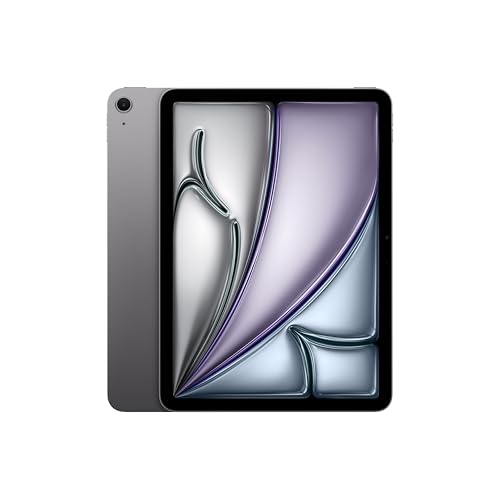
Apple iPad Air 11-inch (M4) — Best tablet-first replacement
The iPad Air is the best tablet in this guide by a distance that embarrasses the field, and the most conditional laptop replacement in it — both facts flow from the same source. Its listing promises an 11-inch Liquid Retina display, the M4 chip, 128GB of storage, 12MP cameras front and back, Wi-Fi 7, Touch ID and all-day battery life. As a piece of hardware it wants for nothing: the screen is lovely, the performance is surplus to every tablet task, and the build makes rival slates feel like prototypes. The replacement question is not about the machine. It is about whether your work can live inside iPadOS.
For app-shaped work, the answer is increasingly yes. Documents, mail, meetings, note-taking with the Pencil, photo and even video work in apps that are best-in-class — the Air does these not as compromises but as first choices, with a battery and silence no laptop matches. The friction lives at the edges of the laptop world: file management that still feels like a negotiation, external-monitor behaviour that improves yearly without yet feeling like a desktop, and the occasional professional tool that simply has no iPad edition. Owners whose five most-used programs all have strong iPad apps will call this a replacement and mean it; owners with one indispensable desktop program will call it a beautiful second device.
And the keyboard: Apple’s keyboard accessories for the Air are excellent and sold separately, at prices that must be added before any comparison with the Duet’s included keyboard or the Surface bundle’s box. Total it honestly and the Air’s replacement setup is a premium purchase — defensible for the hardware’s quality and longevity, but a purchase to make with eyes open. Choose the iPad Air M4 when the tablet is the point and the laptop duties are the bonus it happens to cover brilliantly.
- Display: 11-inch Liquid Retina (per listing title)
- Chip: Apple M4
- Storage: 128GB in this configuration
- Connectivity: Wi-Fi 7 with Apple N1; Touch ID
- Cameras: 12MP front and back
- Keyboard: sold separately — required for laptop duties
Strengths
- The finest tablet hardware and screen experience in this guide.
- M4 performance is headroom for years of app growth.
- Silent, instant and genuinely all-day unplugged.
Trade-offs
- Keyboard accessory is a significant separate purchase.
- iPadOS file handling still frustrates desktop habits.
- No answer for work that requires desktop-only software.
Best for: the iPad Air (M4) suits app-and-cloud professionals who want the best tablet that also covers laptop work.
Not suited for: buyers whose core software exists only as a Windows or macOS desktop program.
ARM or Intel: Which Windows Should You Choose?
The Surface half of this guide contains a genuine fork, and it deserves more than a spec-sheet shrug. The ARM-based Pro 11 models are built on Snapdragon silicon descended from phone chips, and they behave like it in the best ways: instant wake, silent running through ordinary work, and battery endurance that changes how a machine gets used — owners stop rationing, stop hunting sockets, stop closing things. Mainstream Windows software runs on them through a translation layer that has become good enough to forget, most of the time, for most people.
The Intel-based Pro 10’s case is certainty. Every Windows application ever shipped, every driver for every odd peripheral, every corporate disk image and management tool — the x86 catalogue simply works, with no translation and no exceptions list. Its costs are heat, fan noise under load and shorter unplugged life. The honest decision procedure is a software audit, not a benchmark comparison: list the applications and devices your work truly depends on, check the unusual ones against ARM compatibility, and let any non-negotiable failure cast the deciding vote. Owners whose lists are all mainstream should take the ARM machines’ endurance and quiet without a backward glance. Owners with one critical legacy dependency should take the Intel machine and stop apologising for it.
There is a time dimension too. Software support for Windows on ARM is improving on a steep curve, so an ARM machine’s compatibility story in year three will likely be better than at purchase; an Intel machine’s battery story will not improve at all. Buyers keeping a machine for four or five years should weigh that trajectory. Buyers in managed fleets should weigh their IT department’s images and policies, which remain, in most organisations, an Intel conversation today.
What Battery Life Should You Actually Expect?
Manufacturer battery claims in this category are measured in video playback at modest brightness — a workload closer to a long film than to your job. Real laptop-replacement days mix a hungry browser, video calls with cameras and screens shared, sync clients, and the brightness a bright room demands, and they cut claimed figures substantially. The useful mental model: the ARM Surfaces are the endurance leaders here and can be trusted with a full unplugged workday of mixed duties; the Intel Pro 10 wants a charger within reach by mid-afternoon on call-heavy days; the Duets sip power through browser work but their small batteries cap the total; the iPad Air is, as ever, the machine least likely to be the reason you carry a charger.
Two habits matter more than chemistry. Video calls are the single largest drain in modern knowledge work — an hour of calls can cost what three hours of documents cost — so schedule-aware owners plug in for calls and unplug for writing, whichever machine they own. And every machine in this guide charges over USB-C, which means the charger question has a universal answer: any sufficiently powerful USB-C adapter works in a pinch, the one in your bag for your phone may top the tablet up slowly, and a compact high-output charger is the best-value accessory in this entire category.
How Do You Choose by Workload Rather Than by Brand?
Run four imaginary days. Day one is your heaviest multitasking day — the month-end, the deadline, the launch. Day two is your most mobile day, all trains and site visits. Day three is your most collaborative day, calls stacked on calls. Day four is the day your current laptop annoyed you most recently, and the reason matters. Score each pick in this guide against those four days honestly and a pattern emerges that no ranking can give you: the Pro 10 wins day one, the ARM Surfaces win days two and three between them, the Duets win any day whose work was the web, and the iPad wins the days that were mostly reading, marking and thinking.
Notice what this method refuses to do: it refuses to average. A machine that is perfect on three of your days and impossible on the fourth is not a 75-percent replacement; it is a machine you will curse quarterly and eventually supplement with the laptop it failed to replace. The picks that genuinely replace are the ones with no impossible day in your calendar, which is why this guide keeps six philosophically different machines in print instead of crowning one and mocking the rest.
How Do the Six Compare Side by Side?
| Machine | System | Memory / storage | Keyboard | Replacement verdict |
|---|---|---|---|---|
| Surface Pro 11 Bundle | Windows 11 Pro (ARM) | 16GB / 512GB | Included, with pen | Full replacement, one box |
| Surface Pro 11 (X Plus) | Windows 11 Pro (ARM) | 16GB / 512GB | Sold separately | Full replacement, your accessories |
| Surface Pro 10 | Windows 11 Pro (Intel) | 32GB / 512GB | Sold separately | Full replacement, heaviest juggling |
| Lenovo Duet 11 | ChromeOS | 4GB / 128GB | Included | Replacement for browser-shaped work |
| Chromebook Duet (2025) | ChromeOS | 4GB / 64GB | Convertible keyboard | Replacement for mobile web work |
| iPad Air (M4) | iPadOS | — / 128GB | Sold separately | Replacement for app-shaped work |
How Do You Move From a Laptop to a 2-in-1 Without Regret?
Run the overlap week. Before the laptop is sold, wiped or handed down, live on the 2-in-1 for seven days of real work with the laptop present but untouched, and write down every reach-back moment — the application that was missing, the peripheral that sulked, the file format that misbehaved. Reach-backs are data: a week with none means the replacement is real; a week with three specific ones means you have a shopping list or a decision to reverse, and either answer is cheaper than discovering it after the old machine is gone.
Set the desk up as seriously as the bag. The 2-in-1’s home base should include a dock or hub, an external display if you used one before, and the charger living permanently in place, so returning home is a one-cable landing rather than a reconstruction. Owners who skip the dock usually cite the tablet’s portability as the reason and then quietly stop using the external monitor they own — a small daily tax on eyes and posture that adds up to the replacement feeling lesser than it is.
One more migration task earns its paragraph: the browser. For most owners the browser is the real operating system, and moving its bookmarks, saved passwords and extensions deliberately — through its own sync account, signed in and verified on the new machine before the old one is retired — removes the single most common first-week frustration of any platform switch. Do the same for the two-factor authenticator and the password manager, whose absence has stranded more switchers than any file format ever has.
Finally, learn the new machine’s input grammar instead of forcing the old one’s. Pen shortcuts on the Surface, the shelf and split-screen gestures on ChromeOS, Stage Manager and the Pencil’s vocabulary on the iPad — each platform has a way it wants to be driven, and the owners who thrive after switching are the ones who spend the first fortnight acquiring it. The ones who struggle are usually driving a new machine with an old machine’s habits and blaming the hardware for the translation cost.
Which Accessories Actually Complete the Replacement?
Beyond the keyboard, three accessories decide whether a 2-in-1 feels like a system or a slate with good intentions. A USB-C dock is first: one cable at the desk delivering power, display and peripherals converts the tablet’s portability from a feature into a routine. A protective case or sleeve is second, and unglamorous — detachables travel more than laptops and meet more hard surfaces, and the keyboard cover protects only one face. A second charger is third, one for the desk and one for the bag, because the fastest way to kill a portable machine’s habit is to make leaving the house a cable-management decision.
The pen deserves its own paragraph because its value splits owners cleanly. If your work includes signing, annotating, sketching or handwritten notes, the pen is core equipment — on the Surface bundle it is in the box, on the iPad it is a separate but transformative purchase. If your work is typed and tapped, the pen is a drawer resident, and the money is better spent on the dock. Decide by your last month of actual work, not by the brochure’s imagination of your next one.
Why Does the Keyboard Decide Everything?
Because replacement is mostly typing. Strip the romance away and a knowledge worker’s laptop spends its life as a keyboard with a screen attached, which is why this category’s history is littered with brilliant tablets undone by miserable keyboards — shallow travel, flexing decks, trackpads that registered optimism instead of clicks. The current generation has largely solved the keys themselves: the Surface covers, Apple’s floating keyboard and even Lenovo’s Duet boards offer travel and spacing a touch-typist can trust. What still separates them is everything around the keys.
Stability is the first separator. A kickstand-and-cover design concentrates the machine’s footprint into a narrow strip, which is wonderful on a desk and demands technique on a lap — knees together, board balanced, a skill most owners acquire in a week and a few never do. The Duet’s stand follows the same physics at a lighter weight. Apple’s cantilever design moves the whole assembly’s centre and feels the most conventionally laptop-like of the three, at the highest price. None is wrong; each is a bet about where you type, and the bet should be placed on evidence — your last twenty working days — rather than on a showroom desk.
The trackpad is the second separator, and the detail spec sheets bury. Size, surface and palm rejection decide whether you reach for a mouse, and owners who carry a mouse everywhere have quietly conceded that their replacement is a two-piece kit. Test any of these machines, if you can, with the gesture you use most — the two-finger scroll through a long document, the precise text selection — because those micro-interactions, repeated ten thousand times a year, are what “feels like my laptop” actually means.
Backlighting, function rows and shortcut layouts sound like trivia until the first evening flight or the first presentation run from the keyboard. They are also the features accessory pricing quietly segments: the keyboard you want is sometimes one tier above the keyboard in the bundle. Read keyboard specifications with the same suspicion as tablet specifications, and the replacement you end up with will feel like a promotion rather than a compromise.
How Long Will These Machines Stay Supported?
A laptop replacement is a multi-year commitment, and the support clocks differ enough across these three platforms to matter. ChromeOS devices carry a published automatic-update expiry — a date, years out, until which the machine receives updates; the Duets are recent designs with long runways, but any Chromebook purchase should include checking that date, because the machine’s safe working life ends there. Windows machines follow Microsoft’s Windows lifecycle and the manufacturer’s firmware support; the Surface line’s record is long support by industry standards, and both Pro generations here are current enough that the question is theoretical for years. Apple’s iPad line is the longevity benchmark of the consumer world, with major iPadOS versions reaching machines many years old — one reason used iPads hold value and new ones amortise kindly.
The practical translation: a cheaper machine with a shorter support runway can cost more per supported year than a flagship with a long one. When the Duet’s price tempts you against a Surface, divide both by their realistic years of service in your hands — the gap narrows, though for browser-shaped work the Duet often still wins, which is exactly the calculation its audience should make. And when any of these machines does reach its end with you, the sealed-battery reality applies equally: plan the replacement cycle rather than being ambushed by it.
Can a 2-in-1 Handle Creative Work or Games?
Creative work splits by intensity. Photo editing, illustration and design are genuinely well served here — the iPad Air’s app catalogue leads for drawing and photo work, the Surface Pro 11’s pen and OLED screen make it a fine sketching and retouching machine, and even the Duets handle browser-based design tools for light work. Video editing is where honesty returns: short-form and social editing is comfortable on the iPad and the ARM Surfaces, long timelines with effects belong to workstation-class laptops, and no pick in this guide pretends otherwise.
Gaming is the weakest suit across the table, and buyers should hear that plainly. The iPad has the strongest native tablet game library. The Windows machines run the PC catalogue in principle, but these processors and thermal envelopes target productivity silicon, so expectations should sit at older titles, indie games and cloud streaming rather than current blockbusters at high settings. The Chromebooks game through the cloud and Android catalogue. If gaming is a primary use rather than an occasional one, a gaming laptop is the honest purchase and this category is a detour — a replacement that fails your evenings will not be forgiven for succeeding at your days.
What Mistakes Do 2-in-1 Buyers Keep Making?
The champion mistake is comparing a bare tablet’s price against a laptop’s and declaring the tablet cheaper. Keyboards, pens, docks and cases are not garnish in this category; they are the product, and honest totals regularly move a “cheap” slate past the laptop it was meant to undercut — or reveal, as with the Duets, a genuinely cheaper total hiding behind an unglamorous brand. The second mistake is buying the operating system by reputation: Windows bought for software the owner does not use, iPadOS bought by someone whose one essential program has no iPad edition, ChromeOS bought by someone who needed one desktop application every single day.
Third is under-buying memory, the one specification that cannot be upgraded in any machine in this guide. Storage can be supplemented with cloud and cards; memory is forever, and 4GB versus 16GB versus 32GB is the difference between a machine that juggles and one that apologises. Fourth is lap denial: kickstand designs are superb on desks and trains with trays, and merely workable on actual laps, so committed couch-workers should test the arrangement honestly or look at the keyboard’s rigidity with clear eyes. Fifth is keeping the old laptop “just in case” indefinitely, which guarantees the new machine is never set up properly — commit, with the overlap week’s evidence behind the commitment.
What Happens When the Replacement Becomes the Household Machine?
A pattern repeats in household after household: the 2-in-1 bought for one person’s work becomes the family’s shared computer, because it is the machine that is awake, charged and on the counter. Plan for that gravity rather than resenting it. Separate user accounts exist on Windows and ChromeOS precisely for this — set them up on day one, keep the work account’s documents behind its own sign-in, and the machine can serve homework and household admin without exposing a work inbox to a child’s curiosity. The iPad’s single-user heritage shows here; families sharing an iPad accept a shared space in a way the other platforms do not demand.
It is also worth deciding, in advance, the machine’s second career. A Surface Pro that leaves front-line service becomes a superb kitchen, workshop or student machine; a Duet becomes a child’s school device almost by design; an iPad becomes the household’s media and video-call hub for years. Owners who buy with the second career in mind choose storage and accessories differently — a little more of both — and consistently report the purchase as better value than owners who optimise only for year one.
Final Recommendation
If the sentence you need to be true is “this is now my computer,” buy the Surface Pro 11 bundle and be done: keyboard, pen, flagship silicon and sensible memory in a single box is the lowest-risk replacement on this page. Choose the Pro 10 instead when your software’s Intel loyalty or your multitasking is non-negotiable, and the X Plus Pro 11 when you already own the accessories. Let the Duets win only when your work is honestly the web — and if it is, let them win happily, at a total the Surfaces cannot touch. And pick the iPad Air when the tablet is the destination and laptop duties are a well-covered side quest. The wrong 2-in-1 is the one bought for someone else’s workload; the right one is embarrassingly specific to yours.
Frequently Asked Questions
Can a Chromebook really replace a Windows laptop?
For work that happens in a browser — documents, mail, meetings, web applications — yes, completely, and with less maintenance. The moment a job depends on a specific Windows desktop program, the answer becomes no, and no accessory changes it. Audit your five most-used programs before deciding.
Is Windows on ARM safe to buy now?
For mainstream software, yes: the current Snapdragon generation runs the standard catalogue of Windows applications well, with battery life as its reward. The remaining exceptions cluster in specialist legacy tools and some hardware drivers, which is why this guide keeps an Intel-based Pro as a first-class pick rather than a footnote.
How much memory does a laptop replacement need?
Sixteen gigabytes is the comfortable floor for a Windows machine expected to serve for years, and 32GB suits heavy multitaskers and virtual-machine users. ChromeOS is designed around lighter footprints, so the Duets’ 4GB serves browser work — but it sets a ceiling you should accept knowingly.
Does the iPad Air work with an external monitor?
Yes, and its window management has improved steadily, but the experience still feels like a tablet driving a display rather than a desktop that happens to detach. If external-monitor work is the centre of your day rather than an occasional extension, the Surface models in this guide are the safer replacement.
Should I buy the bundle or the bare Surface Pro?
Buy the bundle if you own no Surface accessories — it removes every compatibility question and usually prices the keyboard and pen kindly. Buy the bare machine if you already own a compatible keyboard, want a specific cover, or prefer to spread the spending; the underlying computer is the same decision either way.
What happens to my old laptop’s files?
Move them deliberately during the overlap week: cloud folders first, then a physical drive for the archive, then verify the new machine opens the files you actually need. Every machine in this guide handles standard document formats; the files that bite are the ones in old application-specific formats, which is one more reason the old laptop should stay in a drawer for a month rather than being sold on day one.
Is a 2-in-1 a good buy for a student?
Often the best buy, with the platform chosen by the course rather than the catalogue. A student whose faculty demands specific desktop software needs a Surface; a student whose work is essays, research and lectures is served beautifully by a Duet at a fraction of the cost, with the iPad Air the premium middle path for note-taking-heavy subjects. The student’s bag, budget and syllabus decide — in that order of honesty, syllabus first.
Are detachable keyboards as durable as laptop hinges?
The covers and stands in this guide are consumables in a way a welded hinge is not: a keyboard cover that fails in year three can be replaced in minutes without opening the machine, which owners tend to experience as a feature once they have done it. The tablet itself, screen and battery sealed inside, is the long-life component; budget for one keyboard refresh across a long ownership and the category’s durability story is honestly told.
Can one of these drive two external monitors?
The Surface models, through a suitable USB-C dock, are the realistic candidates for multi-monitor desk setups, and even there the exact count depends on the dock and the displays. The iPad Air drives a single external display, and the Chromebooks handle external screens at the level of a second document rather than a trading desk. Multi-screen professionals should treat this question as a filter applied before the shortlist, not after it.
Related Guides
Still deciding on size or connectivity? Our Best 5G Tablets for Working Away From Wi-Fi covers machines that stay online without tethering, Best 64GB Tablets That Make the Base Storage Tier Work explores life at the storage floor, and Best 1080p Tablets for Sharp Video on a Sensible Budget ranks slates by the screen you will actually watch.