What's inside
- Key Takeaways
- Quick Picks
- How We Chose These Picks
- What Makes a Drive a Backup Drive Rather Than Just Storage?
- How Much Backup Capacity Does a Household Really Need?
- How Do the Six Drives Compare Side by Side?
- How Do You Build a Backup Routine That Survives Real Life?
- Should Your Backup Live at Home, Off-Site, or Both?
- What Mistakes Do Backup Buyers Keep Making?
- What Does a Sensible Backup Cover, Item by Item?
- How Do Versioning and Retention Change the Picture?
- When Should a Backup Drive Be Replaced?
- How Does Backup Work for Phones and Tablets, Not Just Computers?
- What Changes When a Small Business Keeps Its Records at Home?
- How Do You Talk a Household Into Actually Backing Up?
- What Does a Restore Actually Look Like on the Bad Day?
- How Do Cloud and Drive Backups Divide the Work?
- What Should Grandparents and Other Reluctant Owners Be Given?
- How Do You Label and Track Several Backup Drives Without Confusion?
- What Does Backup Mean for a Household That Mostly Streams?
- How Do You Protect the Backup Itself From the Household?
- What Is the One-Afternoon Version of All This Advice?
- How Do Seasons and Life Events Change the Backup Picture?
- What Do Owners Say a Year After Starting Properly?
- What Is the One Thing to Do the Day the Drive Arrives?
- Final Recommendation
- Frequently Asked Questions
- Related Guides
As an Amazon Associate I earn from qualifying purchases. This post may contain affiliate links at no extra cost to you.
widgetverdict.com is reader-supported. When you buy through links on our site, we may earn an affiliate commission.
Where to buy: the six drives below all link to checked Amazon listings; keep the receipt, because a backup drive’s warranty is part of the product.
Nobody shops for the best backup hard drives on a good day. The search usually starts after a scare: a laptop that would not wake, a phone drowned in a sink, a ransomware headline that suddenly felt personal. Yet the right time to buy one is before any of that, on an ordinary afternoon, because a backup drive is the rare purchase whose entire value arrives on the worst day of your data’s life. The good news is that the category has settled into a friendly shape. Portable drives in the 2TB class handle most households, a 5TB portable stretches to video-heavy lives, and desktop drives at 8TB and even 20TB wait for the people whose archives have become institutions.
This guide’s six picks divide by how a household actually backs up. The three 2TB portables suit the plug-in-on-Sunday routine, each with a different temperament: Seagate’s simplicity, WD Elements’ plainness, My Passport’s included backup software with password protection. The 5TB Seagate portable serves bigger libraries and games consoles. The two desktop drives, Seagate Expansion at 8TB and WD Elements Desktop at 20TB, belong on a desk permanently, swallowing backups from several machines. Whichever shape fits your routine, the routine itself matters more than the drive, and the how-to sections below treat it that way.
Key Takeaways
- A backup drive only counts when it holds a second copy; moving files onto it and deleting the originals is relocation, not backup.
- Two terabytes covers most households’ documents, photos and a system image or two.
- My Passport is the pick with backup software, ransomware defence and password protection stated in its listing.
- Portable drives run from the USB cable alone; the big desktop drives stay home and serve several machines.
- Twenty terabytes sounds absurd until a household counts its video, at which point it sounds like planning.
- The best routine is the one that happens without willpower: scheduled software, a drive within arm’s reach, a reminder that fires weekly.
Quick Picks
| Pick | Badge | Why it earns its place |
|---|---|---|
| Seagate Portable 2TB External HDD | The simple starter | Plug-and-play backup for Windows and macOS in the classic portable format. |
| WD Elements Portable 2TB HDD | The plain workhorse | WD’s no-frills portable, ready for PC and Mac, that disappears into any routine. |
| WD My Passport 2TB Portable HDD | The software-guided backup | Backup software with ransomware defence and password protection named in its listing. |
| Seagate Portable 5TB External HDD | The big portable | Five terabytes that still travels, with a year of Rescue Service in the listing. |
| Seagate Expansion 8TB Desktop HDD | The desk anchor | Eight terabytes of drag-and-drop desktop storage for whole-household backups. |
| WD Elements Desktop 20TB HDD | The archive vault | Twenty terabytes of plug-and-play desktop storage for archives that think in decades. |
How We Chose These Picks
Backup duty imposes a particular test: the drive must be boring in the best sense. We favoured established lines from the two makers who dominate this shelf, listings that state capacity and connection plainly, and formats matched to real routines rather than spec-sheet theatre. Portables had to run from USB power alone, because a backup drive that needs a wall socket gets left unplugged. Desktop drives had to justify their desk space with capacity a portable cannot offer. Software mattered where a listing claims it, which is why My Passport’s stated backup tools and password protection earn it a distinct role instead of blending into the portable crowd.
We also weighed failure honesty. Every hard drive ever made can fail, so a backup guide that pretends otherwise would be lying to exactly the readers who can least afford it. The picks therefore come with a doctrine, repeated through the article: one backup drive is a start, two copies in two places is a system, and the irreplaceable things, the family photos and the business records, deserve the full treatment. Drives were chosen to make that doctrine easy to follow at several household sizes, not to win a benchmark.
What Makes a Drive a Backup Drive Rather Than Just Storage?
Intent, mostly, plus three practical traits. A backup drive spends most of its life disconnected or idle, wakes for scheduled work, and holds copies rather than originals. That life favours simplicity over speed: the fastest portable here is still limited by its USB connection and spinning platters, and none of that matters, because the backup runs while dinner cooks. What matters is that plugging it in is effortless, that the software or the operating system’s own tools recognise it instantly, and that its capacity leaves headroom so the routine never fails for want of room.
The distinction protects buyers from the category’s most common disappointment. A drive bought as overflow storage fills with originals within a month, at which point the household owns two devices that both need backing up and no backup at all. Naming the drive’s job on the day it arrives, ideally with a label on the case, sounds trivial and is in fact the whole game. The six drives below were picked to serve as copies, and the guide will keep reminding you, because the reminder is the feature.
How Much Backup Capacity Does a Household Really Need?
Start from the machines, not from the shelf. Add up the storage actually in use across the household’s computers, not the size of their internal drives, then multiply by roughly one and a half to allow for versions and growth. A couple of laptops with a few hundred gigabytes each lands comfortably inside a 2TB portable, which is why three of them anchor this guide. A household with a video hobby, a games console library or a photographer’s archive climbs to the 5TB portable or the 8TB desktop. The 20TB WD Elements Desktop exists for the far end: multi-machine homes, small studios and archivists whose collections are measured in decades.
Versioning quietly eats capacity, and it should. Good backup software keeps yesterday’s version of a document beside today’s, and last month’s beside both, so a file corrupted in March can be rescued from February. That history is the difference between a backup and a mere copy, and it is why buying exactly the capacity you use today guarantees a cramped drive by next year. Headroom is not waste in this category; headroom is the product working as designed.

Seagate Portable 2TB External HDD — The simple starter
Seagate’s portable line is the default shape of a backup drive: a slim enclosure, a USB 3.0 cable, model STGX2000400 in the listing, and a promise of plug-and-play backup for Windows and macOS. There is no software ceremony to learn and no account to create. You plug it in, point your computer’s built-in backup tool at it, and the first copy begins. For a first-time backup buyer, that absence of friction is the strongest argument any drive can make, because the best backup system is the one that exists.
Its 2TB capacity fits the classic household: two laptops’ worth of documents and photographs, with room for the version history that makes backups genuinely useful. It travels well too, which enables the quietly excellent habit of keeping a copy at a relative’s house or in an office drawer. A backup that lives in a different building survives the disasters that take both a computer and its desk-mate drive, and a drive this portable makes that arrangement painless to maintain monthly.
- Capacity: 2TB
- Connection: USB 3.0
- Model code in listing: STGX2000400
- Positioning in listing: everyday storage, plug-and-play backup, Windows and macOS
Strengths
- Plug-and-play simplicity suits first-time backup buyers perfectly.
- Portable enough to rotate an off-site copy without any fuss.
- Works across Windows and macOS households without reformatting drama.
Trade-offs
- No backup software is named in its listing, so your operating system’s tools do the scheduling.
- Two terabytes pinches once video joins the household archive.
- A single copy on a single drive is a start, not a finished system.
Verdict: choose it to establish the backup habit this week; pass it by if you want the drive itself to supply scheduling and password tools, which is My Passport’s stated territory.

WD Elements Portable 2TB HDD — The plain workhorse
Elements is Western Digital’s deliberately unadorned line, and this 2TB portable, listed for Windows with USB 3.2 Gen 1 and USB 3.0 and ready for PC and Mac, carries that plainness proudly. No bundled ecosystem is promised in the listing, no decorative features compete for attention. It is a well-made box of storage from the industry’s other giant, sold to people who already know which backup software they trust, whether that is the tool built into their operating system or a third-party favourite.
That restraint suits organised households and small offices nicely. The drive formats cleanly, behaves predictably with Time Machine and Windows backup tools alike after the usual formatting choices, and its slim shape stacks or drawers without complaint. Buy two and alternate them, and the household suddenly owns a rotating backup system that shrugs off a single drive failure, a lost bag or a spilled drink. Elements has been the quiet recommendation for that pattern for years, and nothing about this listing changes the advice.
- Capacity: 2TB
- Connection: USB 3.2 Gen 1 / USB 3.0
- Positioning in listing: plug and play ready for PC and Mac
Strengths
- No-frills design pairs happily with any backup software you already trust.
- Slim enclosure suits drawer storage and two-drive rotation schemes.
- WD’s support operation stands behind an enormous installed base of these drives.
Trade-offs
- The listing names no backup software or password features.
- Households wanting a guided setup should look at My Passport instead.
- Like every 2TB portable, it is outgrown by serious video collections.
Verdict: choose it when your software plan already exists and the drive just needs to be dependable; pass it by when you want the drive to bring its own backup tools to the marriage.

WD My Passport 2TB Portable HDD — The software-guided backup
My Passport is the pick for buyers who want the drive to participate in the routine rather than merely receive it. Its listing states the difference plainly: backup software with defence against ransomware, and password protection. That combination addresses the two anxieties that bring people to this category. The software keeps copies flowing on a schedule without relying on memory, and the password protection keeps a lost or stolen drive from becoming a lost or stolen archive, which matters when the drive’s whole job is to hold a copy of everything.
The ransomware point deserves a calm explanation. Modern backup tools keep versioned copies, so a document encrypted by malware today can be restored from last week’s clean version, provided the backup itself stayed protected. A drive with backup software and password features, used with sensible version settings, is a household’s most realistic defence. At 2TB in black, this My Passport remains as portable as its simpler siblings, so the off-site rotation habit stays available to it as well.
- Capacity: 2TB
- Colour in listing: black
- Software in listing: backup software with defence against ransomware
- Protection in listing: password protection
Strengths
- Stated backup software turns good intentions into a schedule.
- Password protection guards the copy of everything if the drive goes missing.
- Ransomware-aware versioning gives corrupted files a clean past to return to.
Trade-offs
- Software features reward owners who set them up once, properly, rather than never opening them.
- Forgotten passwords lock owners out as firmly as thieves, so record yours safely.
- Capacity remains 2TB; video-heavy homes should size up to the 5TB pick.
Verdict: choose it when the backup routine needs a coach and the archive needs a lock; pass it by if your household already runs disciplined software of its own and prefers the plain Elements approach.
Seagate Portable 5TB External HDD — The big portable
Five terabytes in a portable enclosure, model STGX5000400 in the listing, changes what a single backup drive can promise. This is the size for the household whose archive includes years of family video, a photographer’s raw files, or a games library that also needs sheltering, and the listing adds two telling details: it works with PC, Mac, PS4 and Xbox, and it includes a one-year Rescue Service. Console compatibility makes it a double agent, holding game libraries day to day and backups when asked, though disciplined owners will keep those jobs on separate drives.
The Rescue Service deserves a plain reading. Data recovery services exist for the day a drive fails with something precious aboard, and having a year of that coverage attached to the listing is a genuine, if sombre, benefit. It does not replace the second-copy rule; it supplements it for the data that somehow ended up in one place anyway. For a portable drive, 5TB also future-proofs the off-site rotation: the copy stored across town keeps fitting the archive for years longer than a 2TB drive would.
- Capacity: 5TB
- Connection: USB 3.0
- Model code in listing: STGX5000400
- Compatibility in listing: PC, Mac, PS4 and Xbox
- Included in listing: 1-year Rescue Service
Strengths
- Five terabytes shelters video archives that defeat the 2TB portables.
- Rescue Service in the listing adds a recovery path for bad days.
- Console compatibility gives it a second career in games rooms.
Trade-offs
- A bigger single drive concentrates more data in one failure’s reach.
- It costs portable convenience nothing, but the purchase itself is a step up from 2TB territory.
- Mixing games and backups on one drive undermines both jobs; keep them separate.
Verdict: choose it when the archive has outgrown 2TB but the backup still needs to travel; pass it by if the drive will live permanently on a desk, where the 8TB Expansion offers more room for the role.
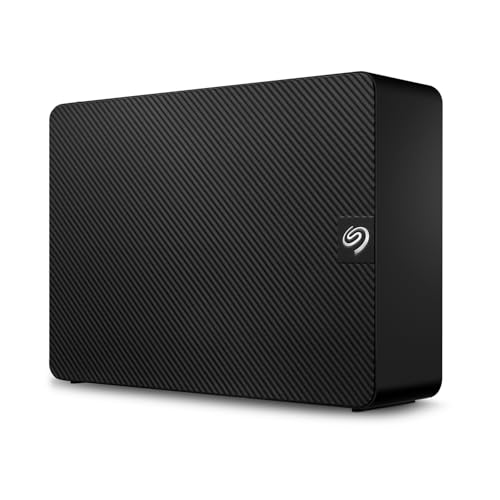
Seagate Expansion 8TB Desktop HDD — The desk anchor
Desktop backup drives trade portability for permanence, and the Expansion, listed at 8TB on USB 3.0 with model STKP8000400, is the archetype: a larger enclosure that sits beside the family computer and accepts drag-and-drop backups from everything in the house. Eight terabytes at a desk changes the household’s habits. Several machines can keep their copies in one place, version history can stretch back generously, and the person responsible for backups stops performing capacity triage every month.
Seagate describes the drive’s manner as easy backup, plug-and-play and drag-and-drop, and that simplicity suits its station. It is not coming to a relative’s house or riding in a laptop bag; it is furniture with a job. Pair it with one of the portables above as the off-site partner and the household owns a genuinely resilient arrangement: the desk anchor for convenience and depth, the traveller for distance. Few single purchases protect a family’s data better than that pairing.
- Capacity: 8TB
- Connection: USB 3.0
- Model code in listing: STKP8000400
- Positioning in listing: desktop drive for easy backup, plug-and-play, drag-and-drop
Strengths
- Eight terabytes hosts several machines’ backups with deep version history.
- Permanent desk placement means the drive is always there when scheduled.
- Drag-and-drop simplicity keeps manual copiers in the habit too.
Trade-offs
- It never travels, so an off-site copy needs a portable partner.
- A desktop enclosure wants its own power and a permanent patch of desk.
- All that capacity in one box still obeys the second-copy rule.
Verdict: choose it as the household’s backup headquarters; pass it by if your backup plan depends on the drive leaving the house regularly.

WD Elements Desktop 20TB HDD — The archive vault
Twenty terabytes is a statement about time. This Elements Desktop, listed as a USB 3.0 drive for plug-and-play storage with model WDBWLG0200HBK-NESN, addresses households and small studios whose archives are no longer measured in years but in careers: the videographer with a decade of projects, the family historian digitising everything, the small business whose records must simply exist. At this scale the drive stops being a backup accessory and becomes the archive’s home, with backups of several machines and their full histories living side by side.
The Elements manner, plain and plug-and-play, scales gracefully to the size. There is no ecosystem to learn, only a very large volume that your chosen backup software fills according to your rules. The responsibilities scale too: a 20TB vault demands a written-down plan for what lives on it, a second copy of the truly irreplaceable portions elsewhere, and the humility to remember that even vaults fail. Owners who accept those terms get something genuinely valuable, which is the end of capacity anxiety for the foreseeable future of their archive.
- Capacity: 20TB
- Connection: USB 3.0
- Model code in listing: WDBWLG0200HBK-NESN
- Positioning in listing: plug-and-play storage
Strengths
- Twenty terabytes ends capacity planning for archives measured in decades.
- Plain Elements behaviour pairs with any serious backup software.
- One vault simplifies a multi-machine household’s backup geography.
Trade-offs
- Backing up the vault’s irreplaceable contents is itself a major project.
- Its size and station keep it at home; portability is not in its vocabulary.
- Most households will never need this scale, and should not buy it speculatively.
Verdict: choose it when the archive genuinely counts in tens of terabytes; pass it by with confidence if a 2TB or 5TB portable already swallows your household whole.
How Do the Six Drives Compare Side by Side?
| Drive | Capacity | Form | Character |
|---|---|---|---|
| Seagate Portable 2TB | 2TB | Portable | Simple plug-and-play starter |
| WD Elements Portable 2TB | 2TB | Portable | Plain software-agnostic workhorse |
| WD My Passport 2TB | 2TB | Portable | Backup software and password protection |
| Seagate Portable 5TB | 5TB | Portable | Big traveller with Rescue Service |
| Seagate Expansion 8TB | 8TB | Desktop | Household backup headquarters |
| WD Elements Desktop 20TB | 20TB | Desktop | Decades-scale archive vault |
The table’s real dividing line is not capacity but geography. Portables can leave the building, and one of them should, regularly. Desktop drives cannot, and in exchange they hold everything. Most households that take backup seriously end up owning one from each side of that line, which is why this guide treats the two shapes as partners rather than rivals.
How Do You Build a Backup Routine That Survives Real Life?
Decide the schedule before touching any settings. Weekly suits most households; daily suits anyone whose work product lives on one laptop. Then let software keep the appointment: the backup tool built into your operating system, or My Passport’s stated backup software if you chose that drive. Plug the portable in at a moment already anchored to another habit, the Sunday desk tidy, the Friday shutdown, so the routine borrows willpower from an existing ritual instead of manufacturing its own.
Then verify, twice a year, that the backup can actually give something back. Pick one ordinary file, restore it to a scratch folder, and open it. That two-minute rehearsal catches the failures that matter: the drive the software silently stopped seeing, the folder excluded by a careless setting, the password nobody wrote down. A backup that has never been tested is a hope wearing a USB cable, and the rehearsal is what turns it into a system.
Should Your Backup Live at Home, Off-Site, or Both?
Both, in proportion to how irreplaceable the data is. A desk drive protects against the common disasters: a dead laptop, a deleted folder, a corrupted update. Distance protects against the rare ones: fire, flood, theft, the events that take a room rather than a machine. The portable picks in this guide exist partly for that second role. Keep one copy at a trusted relative’s house or in a workplace drawer, refresh it monthly, and the household’s worst day shrinks from catastrophe to inconvenience.
Cloud storage can play the distance role for the most precious subset, photographs and documents, while drives handle the bulk. The combination most households can actually sustain is a desktop or portable drive at home, a portable in rotation off-site, and the truly irreplaceable few gigabytes duplicated wherever is convenient. Perfection is not required; two copies in two places already defeats nearly every realistic loss.
What Mistakes Do Backup Buyers Keep Making?
The champion mistake is moving instead of copying: files transferred to the external drive and deleted from the computer now exist exactly once, on the drive the owner believes is the backup. The second is buying a drive, copying everything once, and never plugging it in again; a backup from last year is a museum, not a safety net. Third comes capacity optimism, buying exactly today’s usage and watching version history suffocate within months.
Fourth, owners encrypt or password-protect a drive and lose the password, converting protection into loss; write it down somewhere separate and safe. Fifth, they store the backup permanently beside the computer it protects, sharing its fate in any room-level disaster. Finally, they never rehearse a restore. Each of these is a habit failure rather than a hardware failure, which is good news: habits can be repaired this afternoon, for free.
What Does a Sensible Backup Cover, Item by Item?
Walk through a household’s machines and the list writes itself. Documents and spreadsheets first, because they are small, irreplaceable and easy to forget until a deadline depends on them. Photographs and family video second, because they are the data nobody can recreate at any price. Email archives and message exports third, the records of a decade of arrangements. Then the creative work: the musician’s projects, the writer’s drafts, the photographer’s edited catalogues, each with its working files rather than only its exports. Finally, a system image of each computer, so a dead internal drive becomes an afternoon’s restore rather than a week’s rebuilding.
Notice what the list teaches: the precious data of most households is measured in hundreds of gigabytes, not terabytes, which is why the 2TB portables anchor this guide. The terabytes belong to media collections and game libraries, valuable in money and time but replaceable in a way a child’s first steps are not. Households that understand that hierarchy back up calmly: the irreplaceable core copied twice and kept in two places, the bulky replaceable material copied once when convenient. Every drive in this guide can play either role; the owner’s clarity about which data matters most is what turns hardware into protection.
How Do Versioning and Retention Change the Picture?
A single mirrored copy protects against a dead drive and betrays you against almost everything else, because it faithfully copies deletions and corruptions too. Versioned backup, the kind proper software keeps, holds yesterday’s document beside today’s and last month’s beside both. That history is what rescues the file overwritten in a tired moment, the folder encrypted by malware, the photograph edited badly and saved over the original. When this guide praises My Passport’s stated backup software and ransomware defence, versioning is the substance underneath the slogan.
Retention is the owner’s one real decision inside that system: how far back should the history reach? A month suits households whose mistakes surface quickly. A year suits anyone whose work has seasons, tax records, school projects, annual accounts. Longer history eats capacity, which loops back to the sizing advice earlier in this guide: buy headroom, because headroom is what retention is made of. The 5TB portable and the desktop drives exist for households whose honest answer to the retention question is a long one, and there is no shame in that answer; there is only shame in discovering it after the history has been pruned away.
When Should a Backup Drive Be Replaced?
Earlier than instinct suggests. A backup drive’s failure is uniquely treacherous because it is usually discovered at the worst possible moment, when the primary copy has just died and the backup turns out to have died quietly months earlier. Defence against that plot twist is rehearsal, the restore test described above, done twice a year without exception. A drive that fails the rehearsal, that reports errors, that makes new noises or that has simply served many years of weekly duty, should be replaced while its contents can still be copied forward in an orderly way.
Replacement is also the moment to reconsider size. Archives grow in one direction, and the household replacing a full 2TB drive with another 2TB drive is scheduling the same errand unnecessarily soon. Step up a tier, from the portables to the 5TB, from the 5TB to the desk drives, and let the old unit retire into lighter duty as a third copy or a media shuttle. Drives in this guide were chosen partly for that ladder: each tier hands the household to the next without changing brands, software habits or expectations.
How Does Backup Work for Phones and Tablets, Not Just Computers?
The modern household’s most irreplaceable data increasingly originates on phones: photographs, videos, message threads, the documents scanned with a camera and never printed. A backup drive strategy that only covers the computers misses the devices that actually witness the family’s life. The bridge is unglamorous: phones back up to a computer or a cloud account, and that computer’s own backup, to one of the drives in this guide, then covers the phone material as part of its archive. The chain works only if every link exists, which is why the household audit at buying time should list phones beside laptops.
Direct phone-to-drive copies suit the travellers and the impatient, and the portable picks here can receive phone archives through a computer in minutes. What matters is not the method but the inventory: every device that creates memories should appear somewhere in the plan, with a named path by which its contents reach a second copy. Households that draw that map once, on paper, discover gaps that no purchase can fix retroactively, like the tablet full of a child’s drawings that nobody realised was the only copy.
What Changes When a Small Business Keeps Its Records at Home?
The stakes acquire paperwork. A sole trader’s invoices, a landlord’s records, a craft seller’s accounts: these carry retention expectations that family photographs do not, and losing them has consequences beyond sadness. The drives in this guide serve that scale of business perfectly well, with the same rules applied more formally. Two copies, two locations, a written schedule, and a restore rehearsal that someone initials. My Passport’s stated password protection earns extra weight here, because business records on a lost drive are a different conversation from family photographs on one.
Scale is the other change. Business records accumulate clients and years, and the household that begins with a 2TB portable should expect the desk drives, the 8TB Expansion or the 20TB Elements Desktop, to enter the story as the archive formalises. Buying into a ladder that extends that far, as this guide’s picks deliberately do, spares the business a change of system at exactly the moment it is busiest.
How Do You Talk a Household Into Actually Backing Up?
With a story, not a lecture, and preferably somebody else’s. Everyone knows a person who lost the photographs, the thesis, the business records; that person’s experience persuades in a way specifications never will. The practical offer that follows the story matters too: the drive is bought, the software is configured by the household’s most technical member, and everyone else’s obligation is reduced to plugging in a cable when reminded. Backup systems fail socially before they fail technically, and the designs that survive are the ones that ask almost nothing of the least technical person they protect.
Children deserve a place in the sermon. A teenager’s coursework and a younger child’s creative projects are real data with real tears attached, and including their machines in the household routine teaches the habit at the age when habits form. The drives in this guide are inexpensive teachers by that standard: one portable, one schedule, and a family that treats copies as normal rather than as paranoia.
What Does a Restore Actually Look Like on the Bad Day?
Slower and calmer than the imagination fears. The machine has failed or the file is gone; the backup drive comes out of its drawer; the software opens to a timeline of versions rather than a pile of folders, and the operator chooses a date from before the disaster. Documents return in minutes. A full system restore takes hours, during which the correct activity is tea and patience rather than intervention. The rehearsal habit this guide keeps recommending exists so that the bad day’s version of this scene is a repeat performance rather than a premiere, performed by a calmer person who already knows where the buttons are.
Two practical truths belong in the scene. The restore is only as recent as the last completed backup, which is why the schedule matters more than the drive’s speed. And the restored material should land somewhere with room to spare, because a restore that fills its target to the brim creates a second problem inside the first. Households that have thought through those two sentences in advance discover that the bad day, when it comes, is an errand rather than a catastrophe, and that transformation is the entire return on the drive’s purchase price.
How Do Cloud and Drive Backups Divide the Work?
By temperament. Cloud services excel at the precious and the small: documents, photographs, the files whose loss would be personal, kept continuously current without any human remembering anything. Drives excel at the bulky and the complete: system images, media archives, version histories measured in months, restored at local speed without a subscription’s meter running. Most households that think seriously end up with both, the cloud guarding the irreplaceable core and a drive from this guide carrying the whole estate.
The division also hedges different risks. A cloud account can be locked, lapsed or compromised in ways a drawer drive cannot; a drawer drive can be stolen or flooded in ways a distant data centre cannot. Owning both is not extravagance but diversification, the same instinct that keeps a household from storing every copy of anything in one place. The drives in this guide are priced so that the drive half of that partnership is the inexpensive half, which is exactly how the arithmetic should fall.
What Should Grandparents and Other Reluctant Owners Be Given?
The simplest possible arrangement, configured entirely by someone else. A 2TB portable, the Seagate or the Elements, plugged into the household computer with its backup software set to run when the drive appears, and a standing family ritual, the Sunday call, the monthly visit, during which the drive gets connected and the green tick gets witnessed. Reluctant owners do not need a lecture on versioning; they need a system whose entire user interface is one cable and one relative who checks.
My Passport’s stated password protection deserves a mention in this household too, set up by the configuring relative with the password recorded in the family’s own safe place, because older owners are disproportionately targeted by the scams that make a lost or misused archive dangerous. The gift framing matters: this is not a gadget, it is the family photographs insured, and presented that way it is usually received that way.
How Do You Label and Track Several Backup Drives Without Confusion?
With a system so simple it survives tired evenings. Each drive gets a physical label with its role and the month it entered service: Home Backup, Off-Site Copy, Archive 2026. Each gets a matching volume name when formatted, so the label on the shell and the name on the screen agree. And the household keeps one short list, on paper inside the drawer or in a notes file, recording which drive lives where and when each was last refreshed. That list is the difference between a rotation and a drawer of mysteries, and it takes less time to maintain than a single episode of the confusion it prevents.
Rotation dates deserve the same plainness. A small sticker on the off-site drive, swapped each visit, showing the month of its last refresh tells the next visitor everything. Systems like this look almost embarrassingly low-tech next to the software involved, and they outlast the software, because paper does not need updating, syncing or a password. The drives in this guide will be handled by humans on ordinary days; the tracking should be designed for those humans, not for an idealised version of them.
What Does Backup Mean for a Household That Mostly Streams?
Less media, more memory. A streaming household owns few films or songs outright, so its backup shrinks to the material that cannot be re-streamed: photographs, documents, creative work, the children’s projects, the records of a life. That smaller, more precious archive fits the 2TB portables with room to spare, and its very smallness argues for the full doctrine, two copies in two places, because there is no longer a bulky media collection diluting the owner’s attention. Streaming households sometimes conclude they need no backup at all, which is exactly backwards: they need a smaller, more serious one.
The same logic applies to gamers whose libraries live in launchers. The games can be downloaded again; the saves, the screenshots, the clips of impossible victories cannot. A backup routine that captures the save folders and the personal media, even while ignoring the re-downloadable bulk, protects the irreplaceable fraction at a fraction of the effort, and any drive in this guide swallows that fraction whole.
How Do You Protect the Backup Itself From the Household?
From accidents, mostly, because malice is rare and gravity is constant. A backup drive that lives on the desk it protects gets knocked, borrowed, repurposed by a well-meaning teenager who needed space for a school project, and plugged into machines whose health nobody vouched for. The defences are social and physical rather than technical: a labelled drive with a known home, a household understanding that the backup is not general-purpose storage, and, for the truly precious archive, My Passport’s stated password protection standing guard over casual access.
Theft deserves one calm sentence. A drive that holds a copy of everything is worth stealing in a way a games drive is not, which is why the off-site copy’s location should be chosen with the same care as its rotation schedule, and why password protection graduates from feature to wisdom in households whose backup travels. Protect the protector, in short, with the same seriousness the protector extends to everything else.
What Is the One-Afternoon Version of All This Advice?
Buy the drive that matches the household’s size from the table above. Plug it in, label it, and let the operating system’s backup tool take the first full copy while you do something else. Restore one file to prove the round trip. Put the drive in its drawer, set the recurring reminder, and write one sentence in the household notes saying where the backup lives and when it runs. That is the entire system at its minimum viable size, and it already defeats the most common data disasters a household will ever meet.
Everything else in this guide, the rotations, the off-site copies, the retention tuning, the stepping up through capacities, is refinement layered on that foundation over time. Foundations first is not a compromise; it is how backup systems that actually exist get built, one working layer at a time, by households that were honest about their own follow-through.
How Do Seasons and Life Events Change the Backup Picture?
Births, weddings, house moves, new businesses, children leaving for university: each event floods the household archive with irreplaceable material and simultaneously disrupts every routine that protects it. The weeks after a move are statistically unkind to data, with machines packed, cables separated and drives travelling in boxes. Households that treat life events as backup events, refreshing every copy before the disruption and verifying it after, sail through transitions that quietly erase other families’ photographs. The drives in this guide are small enough to be part of that choreography: the portable comes out of the drawer before the packing starts, and returns to it only when the new home’s machines are settled and copied.
The seasonal version is gentler. Holidays generate photographs; tax season generates documents; the new school year generates projects. A household that refreshes its off-site copy at those natural beats, rather than on an abstract monthly schedule nobody remembers, finds the routine woven into the year itself. Backup, at its best, is not a technology habit but a calendar habit, and the calendar was already running.
What Do Owners Say a Year After Starting Properly?
That the system became invisible, and that two moments proved its worth. The first is usually small: a document recovered from last month’s version after a tired overwrite, a photograph restored after a phone upgrade went sideways, each handled in minutes with a story told at dinner rather than a crisis remembered for years. The second moment is the rehearsal that keeps coming back clean, the restore test that turns anxiety into a witnessed fact. Owners describe a particular calm that follows: the machines in the house stop feeling like single points of failure, because everyone has seen the copy come back with their own eyes.
They also describe the ladder working as this guide promised. The portable that started the system still serves, perhaps now as the off-site copy, while a desk drive has taken the headquarters role, or the 5TB has absorbed a video habit nobody predicted. Nothing was wasted, because each tier was bought for a real job and kept doing it. That is the mature shape of household backup: not a product but a small, boring, dependable institution, founded on one afternoon’s work.
What Is the One Thing to Do the Day the Drive Arrives?
Start the first backup before the day ends, while the intention that bought the drive is still warm. Not tomorrow, not after the perfect folder structure has been designed, but tonight, with the default settings and the whole machine as the source. A rough, complete copy taken today can be refined forever; a perfect system designed for a month protects nothing during the month. Then label the drive, set the reminder, and restore one photograph to prove the circle closes. Owners who do those three things on arrival day almost never become the cautionary tale this category is full of, because their system exists, and existing is ninety percent of backup.
The remaining ten percent, the off-site copy, the retention tuning, the step up in capacity when the archive grows, can all arrive at their own pace in the months that follow. Foundations first, refinements second, and the household sleeps better from the very first night.
Final Recommendation
Households starting from nothing should take the Seagate Portable 2TB or the WD Elements Portable and start this week; the routine matters more than the badge. Buyers who know their follow-through needs help should choose My Passport, whose stated backup software and password protection carry the routine for them. Video-heavy homes step up to the 5TB Seagate portable, multi-machine homes anchor on the 8TB Expansion, and true archivists have exactly one name on this page, the 20TB Elements Desktop. Whichever drive lands in your drawer, label it, schedule it, and rehearse one restore before the month ends, because the copy you trust is the copy you have already watched come back.
One last word on timing. Every household in this guide’s audience will, at some point, be grateful for a backup or sorry for its absence, and the difference between those households is rarely money or expertise. It is a single afternoon, spent before it was needed. The drives above are ready when you are, and the afternoon is cheaper than it has ever been.
There is also a generational point worth making before the questions begin. Photographs and documents are becoming the longest-lived possessions many families own, outlasting houses, cars and the computers that created them. A backup drive bought today is therefore not really a computer accessory; it is the first container of a family archive that will be re-housed many times over the coming decades. Choosing it from makers with staying power, and starting the copying habit while the archive is still small enough to hold in one hand, gives those future re-housings something worth carrying forward.
Start tonight, with whichever drive from the table matches the household, and let the first imperfect backup be the foundation everything else improves. Perfection has a long history of arriving too late in this category; a working copy has a perfect record of arriving in time.
Frequently Asked Questions
How often should I back up?
Weekly is a sound household rhythm, daily for a machine that earns money. The honest test is asking how many days of photographs, documents and work you could bear to recreate; back up more often than that answer allows.
Is one backup drive enough?
It is a strong start and infinitely better than none. The finished system keeps a second copy in a second place, which is why this guide keeps pairing a home drive with a portable that can live elsewhere.
What is the difference between My Passport and Elements?
Their listings tell it: My Passport names backup software with ransomware defence and password protection, while Elements is plain plug-and-play storage. Choose My Passport for guidance and locking, Elements for simplicity with your own software.
Can a backup drive also store my games?
Physically yes, and the 5TB Seagate’s listing even names PS4 and Xbox compatibility. Discipline says keep the jobs separate, because a drive full of games stops being a backup the day its space gets spent.
Should I choose a portable or a desktop drive?
Choose a portable if the copy must travel or live off-site; choose a desktop drive if several machines back up to one permanent station. Many households end with one of each, and this guide’s table is built for that pairing.
What happens when my backup drive fills up?
Good software prunes the oldest versions first, which is the graceful path. When pruning starts eating history you still value, the drive has told you its real message: the archive has outgrown it, and the next size up in this guide is the answer.
Related Guides
Backup sits inside a wider storage plan, and these guides cover its neighbours: Best Encrypted Portable Hard Drives, Best External 2TB Hard Drives, and Best Hard Drives for NAS Home.


