What's inside
- Key Takeaways
- Quick Picks
- How We Chose These Picks
- Why Does Recording Technology Matter So Much in a NAS?
- What Else Separates a NAS Drive From a Desktop Drive?
- How Do the Six Drives Compare Side by Side?
- How Do You Plan a Home NAS Around These Drives?
- How Many Bays and How Much Capacity Should a Home Buy?
- What Mistakes Do Home NAS Buyers Keep Making?
- What Happens During an Array Rebuild, and Why Does It Take So Long?
- How Does a Home NAS Earn Its Keep Beyond Storage?
- What Should You Monitor Once the NAS Is Running?
- How Do IronWolf and Red Drives Differ in Philosophy?
- What Does Power, Noise and Placement Mean for an Always-On Box?
- When Should a Home NAS Owner Upgrade Drives Rather Than Add Them?
- How Does a NAS Handle the Household’s Photographs, Specifically?
- What Does Running a NAS Teach a Household About Its Own Data?
- How Should Beginners Choose Their Very First Array?
- How Do You Keep a NAS Secure Once the Drives Are Chosen?
- What Does the Second Year of NAS Ownership Look Like?
- How Do You Migrate From an Old NAS or a Single Drive to a New Array?
- What Should a Buyer Do While the Drives Are in the Post?
- How Does the Choice Change for a Household That Works From Home?
- What Do Owners Say a Year After Building the Array Properly?
- What Is the One Thing to Do the Day the Drives Arrive?
- Final Recommendation
- Frequently Asked Questions
- Related Guides
As an Amazon Associate I earn from qualifying purchases. This post may contain affiliate links at no extra cost to you.
widgetverdict.com is reader-supported. When you buy through links on our site, we may earn an affiliate commission.
Where to buy: each drive below is tied to a checked Amazon listing, and for NAS duty the listing’s exact words about recording technology are worth more than any advertisement.
A home NAS asks its drives to live a life no desktop drive would tolerate: awake around the clock, shoulder to shoulder with warm neighbours, serving films to the television, photographs to every phone, and backups to every computer in the house, all at once and all without complaint. The best hard drives for nas home use are therefore not simply big drives. They are drives tuned for company, for vibration, for error behaviour that cooperates with an array instead of fighting it, and for recording technology that keeps sustained writes predictable. Desktop drives can visit a NAS; these six were born there.
The field splits into two famous families. Seagate’s IronWolf line brings its NAS-optimised positioning and, in the 8TB listing here, an explicit all-CMR statement with AgileArray named. Western Digital answers with Red Plus for mainstream home and small-office arrays and Red Pro for heavier multi-bay ambitions, and in this guide every WD listing states CMR outright. On recording technology, the rule of this page is strict: a drive is called CMR only when its own listing title says so. All six titles here do say so, each in its own wording, and the pick sections quote that wording rather than generalising from the brand. Capacities run from a starter 2TB to a serious 16TB, because home archives have begun to think in those terms.
Key Takeaways
- NAS drives differ from desktop drives in tuning: always-on duty, multi-drive vibration and array-friendly behaviour.
- CMR is claimed in this guide only where a listing states it; all six listings here state it, in their own words.
- IronWolf’s 8TB listing names AgileArray and an all-CMR design; the 4TB states CMR with its RPM and cache.
- WD Red Plus covers the mainstream home array at 2TB and 12TB; Red Pro steps up to 12TB and 16TB for larger boxes.
- Buy drives for an array in matching sets where possible, and keep one cold spare for the day a drive reports trouble.
- A NAS is not a backup by itself. RAID protects against a drive failure, not against deletion, theft or fire.
Quick Picks
| Pick | Badge | Why it earns its place |
|---|---|---|
| Seagate IronWolf 8TB NAS HDD | The home server anchor | Listing states 24/7 NAS optimisation, AgileArray and an all-CMR design at 8TB. |
| Seagate IronWolf 4TB NAS HDD | The balanced pair starter | CMR stated with 5400 RPM and 64MB cache for RAID network storage. |
| WD Red Plus 12TB NAS HDD | The big mainstream bay | 7200 RPM, CMR and a 512MB cache stated at a capacity home archives now reach. |
| WD Red Plus 2TB NAS HDD | The first mirror | CMR stated at a starter size that makes a two-drive mirrored NAS affordable. |
| WD Red Pro 12TB NAS HDD | The heavy-duty twin | Pro-tier tuning with CMR and 512MB cache stated for busier multi-bay work. |
| WD Red Pro 16TB NAS HDD | The capacity ceiling | Sixteen terabytes per bay with CMR stated, for archives that think in decades. |
How We Chose These Picks
Home NAS duty defined the filters. Every pick had to be a drive whose listing positions it for NAS or RAID work rather than a desktop drive pressed into service. Every pick’s recording technology had to be readable from its own listing, because the CMR question is where NAS buyers get hurt: shingled drives can stall array rebuilds and sustained writes in ways that only appear months after purchase, so this guide refuses to guess. Where a title states CMR, we say so and quote the model; the discipline matters more than the convenience, and it is why each spec box below lists recording only in the words its listing used.
Within those filters we spread the six across the real shapes of home deployment: a first two-bay mirror at 2TB, the popular 4TB and 8TB middle where most home servers live, and the 12TB to 16TB tier for households whose media and backup archives have become serious. Both great NAS families are represented at several sizes so that a buyer loyal to either ecosystem, or already owning drives from one, can extend rather than restart.
Why Does Recording Technology Matter So Much in a NAS?
A NAS writes in patterns desktops rarely sustain: array rebuilds that run for a day, backups landing from several machines at once, media being added in bulk while other media streams out. Conventional magnetic recording writes each track independently, so a drive can rewrite any region without disturbing its neighbours, and its pace stays steady under that punishment. Shingled recording overlaps tracks to gain capacity, and rewriting an overlapped region can force the drive to rewrite a whole band, which is where the notorious rebuild slowdowns come from.
That is why this guide’s rule is worded so carefully. We do not declare a drive CMR because its family usually is, or because a forum says so; we declare it when the listing for that exact model states it, as the six listings here do. For any drive a reader considers beyond this page, the same rule is the whole shopping method: if the title and the maker’s datasheet for that model will not say CMR in plain words, treat the question as unanswered and choose a drive that answers it.
What Else Separates a NAS Drive From a Desktop Drive?
Duty cycle is the headline. A NAS drive’s listing speaks of 24/7 operation because that is the assumption baked into its design and support, while a desktop drive assumes nights off. Vibration is the quiet second factor: drives in a multi-bay enclosure excite each other, and NAS models are built and tuned to keep working accurately in that company. Error behaviour is the third: inside an array, a drive should report a bad sector promptly and let the controller rebuild from the other drives, rather than struggling heroically alone while the array waits.
None of this makes NAS drives wasted in a desktop, and one or two of this guide’s readers will buy an IronWolf for a tower that serves media after dark, which is a sensible over-specification. The reverse journey, desktop drives into a busy NAS, is the one this guide argues against, because every difference listed above points the same way.

Seagate IronWolf 8TB NAS HDD — The home server anchor
The 8TB IronWolf is the drive around which many home servers are actually built, and its listing reads like a checklist for the role: an internal NAS hard drive on SATA 6Gb/s, model ST8000VNZ04, described as a 24/7 NAS-optimised HDD with AgileArray and an all-CMR design. The all-CMR phrase is doing heavy work in that sentence. It tells the array builder, in the title itself, that recording technology needs no further detective work, which is exactly the assurance the previous section argued for. Eight terabytes per bay gives a two-bay mirror 8TB of protected space, or a four-bay array a genuinely large pool, and that is the scale at which a home NAS stops feeling like an experiment.
AgileArray is Seagate’s name for the bundle of NAS-oriented behaviours in these drives, and its presence in the listing signals the intended habitat as plainly as the capacity does. Owners building a first serious home server, media for the whole house, backups for every machine, perhaps a photo service the family actually uses, will find this the natural anchor drive: buy two for a mirror, four for a wider array, and keep the receipts with the NAS documentation.
- Capacity: 8TB
- Interface: SATA 6Gb/s
- Model code in listing: ST8000VNZ04
- Positioning in listing: 24/7 NAS-optimised HDD
- Recording in listing: all-CMR design, AgileArray named
Strengths
- All-CMR statement in the listing ends the recording-technology question.
- Eight terabytes per bay suits mirrors and four-bay pools alike.
- NAS-optimised positioning covers duty cycle and multi-drive life.
Trade-offs
- The listing here does not print RPM or cache, so this guide claims neither.
- Serious capacity commits the household to equally serious backup thinking.
- It is more drive than a single-bay starter NAS can use.
Verdict: choose it as the anchor of a real home server build; pass it by when the NAS is a tentative first mirror, where the 4TB IronWolf or 2TB Red Plus starts cheaper.
Seagate IronWolf 4TB NAS HDD — The balanced pair starter
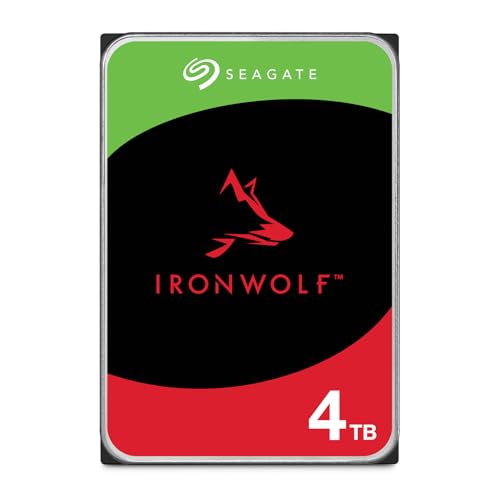
The 4TB IronWolf states its whole specification in its listing with unusual completeness: CMR, 3.5 inch, SATA 6Gb/s, 5400 RPM, 64MB cache, built for RAID network attached storage. That completeness is itself a recommendation, because a buyer can verify every important fact from the title alone. Four terabytes is the classic home NAS size, large enough for a family’s photographs, documents and media with a mirrored twin, small enough that rebuilds finish in reasonable time and a spare on the shelf is affordable.
Its 5400 RPM temperament suits the always-on life: cooler and quieter in a living-space enclosure than faster-spinning drives, while a NAS serving media and files never asks one drive to be quick in the desktop sense, because the array and the network set the pace. For a first IronWolf build, or for extending an existing Seagate array, this is the balanced starting point of the line.
- Capacity: 4TB
- Form factor: 3.5 inch
- Interface: SATA 6Gb/s
- Rotation speed: 5400 RPM
- Cache: 64MB
- Recording: CMR, stated in the listing
Strengths
- Every key fact, including CMR, is stated in the listing.
- Four terabytes balances mirror size, rebuild time and spare cost.
- Cool, quiet spin suits NAS boxes that live in shared rooms.
Trade-offs
- The 64MB cache is modest; array work forgives it, benchmarks would not.
- Media empires will outgrow 4TB bays sooner than expected.
- It asks NAS money for a size desktop drives sell cheaply, for NAS reasons.
Verdict: choose it for a first mirrored pair or a Seagate array extension; pass it by if the archive already counts in tens of terabytes, where the 12TB tier argues better.

WD Red Plus 12TB NAS HDD — The big mainstream bay
Red Plus is WD’s mainstream NAS line, and this 12TB model, WD120EFG in its listing, states a specification aimed at households whose archives have matured: 7200 RPM, SATA 6Gb/s, CMR, a 512MB cache, 3.5-inch frame. The faster spin and large cache distinguish it from the smaller Red Plus below; in a busy home array handling backups, media and file services together, that liveliness is felt in responsiveness when several jobs land at once. Twelve terabytes per bay also future-proofs a two-bay mirror further than most families’ growth curves require.
The Plus badge is the important word in the name. Within WD’s Red family, Plus marks the line whose listings state CMR, and this title does so plainly, which keeps the buyer’s homework to a single glance. Households standardising on WD for a new four-bay build will find this the natural unit: matched sets, stated recording, and capacity that lets the NAS be forgotten about for years.
- Capacity: 12TB
- Form factor: 3.5 inch
- Interface: SATA 6Gb/s
- Rotation speed: 7200 RPM
- Cache: 512MB
- Recording: CMR, stated in the listing
- Model code in listing: WD120EFG
Strengths
- 7200 RPM and a 512MB cache give busy arrays real responsiveness.
- CMR is stated in the listing, keeping the key question answered.
- Twelve terabytes per bay ends capacity planning for most homes.
Trade-offs
- Faster spin brings more warmth and voice than the 5400 RPM picks.
- Rebuilds at 12TB take many hours, which argues for a cold spare.
- It is oversized for a tentative first NAS.
Verdict: choose it for a WD-based array that must serve a busy household for years; pass it by for a quiet bedroom-adjacent two-bay, where the calmer 5400 RPM drives behave better.

WD Red Plus 2TB NAS HDD — The first mirror
Every NAS journey starts somewhere, and this 2TB Red Plus, WD20EFRX in its listing, is the traditional first step: 5400 RPM, SATA 6Gb/s, CMR stated in the title, 64MB cache. Bought as a pair, it creates a mirrored home server that holds the family’s documents and photographs with genuine drive-failure protection, at a total outlay that lets a household learn the NAS life before committing to big iron. The stated CMR matters even at this size, because the habits formed on a first array, checking the listing, valuing predictability, carry into every later upgrade.
Its limits are honest ones. Two terabytes fills faster than new NAS owners expect once media discovers the box, and this drive’s destiny in many homes is to be the training pair that later retires to backup duty when 8TB or 12TB drives take the bays. That is a respectable career. As a way to start with correct technology rather than whatever was spare, it remains the easiest recommendation on this page.
- Capacity: 2TB
- Form factor: 3.5 inch
- Interface: SATA 6Gb/s
- Rotation speed: 5400 RPM
- Cache: 64MB
- Recording: CMR, stated in the listing
- Model code in listing: WD20EFRX
Strengths
- Stated CMR at a starter price teaches correct buying from day one.
- A mirrored pair gives real failure protection for core family data.
- Calm 5400 RPM manners suit small enclosures in living spaces.
Trade-offs
- Capacity is the first thing growing archives outgrow.
- Value appears in pairs; a single unit is an unfinished plan.
- Media-heavy households should start at 4TB or 8TB instead.
Verdict: choose it to build a first mirror the correct way; pass it by if video already dominates the household archive, and start where the archive actually lives.

WD Red Pro 12TB NAS HDD — The heavy-duty twin
Red Pro is the tier WD aims at heavier work: more bays, busier arrays, small-business patterns arriving in home clothing. This 12TB model, WD122KFBX in its listing, mirrors its Red Plus counterpart’s stated numbers, 7200 RPM, SATA 6Gb/s, CMR, 512MB cache, and the difference lies in the Pro positioning rather than in any single figure this guide can quote from the title. Households running larger enclosures, several simultaneous backup clients, or a home business’s file services from the same box are the audience that positioning addresses.
The honest buying advice is to match the tier to the enclosure and the workload rather than to ambition. A two-bay home NAS gains little from Pro badges; a filled multi-bay unit serving a working household gains the support assumptions the Pro line is sold on. At identical stated capacity and recording, the choice between this and the Red Plus 12TB is a judgement about how hard the array will be driven, and this guide trusts readers to know their own households on exactly that point.
- Capacity: 12TB
- Form factor: 3.5 inch
- Interface: SATA 6Gb/s
- Rotation speed: 7200 RPM
- Cache: 512MB
- Recording: CMR, stated in the listing
- Model code in listing: WD122KFBX
Strengths
- Pro positioning suits larger, busier multi-bay enclosures.
- Stated CMR and a 512MB cache match the heavy brief.
- Twelve terabytes per bay scales a serious home array gracefully.
Trade-offs
- Small two-bay owners pay for headroom they cannot use.
- 7200 RPM warmth and noise need an enclosure with real airflow.
- The tier premium only repays under genuinely heavy patterns.
Verdict: choose it when the NAS is a working multi-bay system rather than an appliance; pass it by for gentle home duty, where Red Plus carries the same stated recording for less ceremony.

WD Red Pro 16TB NAS HDD — The capacity ceiling
Sixteen terabytes in a single bay, model WD161KFGX, with the same stated foundations as its Pro sibling: 7200 RPM, SATA 6Gb/s, CMR in the listing, 512MB cache. This is the drive for the household whose NAS has become the family institution: decades of photographs, a full media library, backups of every machine with deep history, perhaps a home business’s records besides. Four bays of these is an archive measured in generations, and the stated CMR keeps that scale honest, because rebuild behaviour matters most exactly where drives are largest.
Scale brings its own disciplines. A 16TB drive’s rebuild after a failure is a long event, which argues for dual-parity arrays or a religiously kept cold spare at this tier, and the backup of the NAS itself stops being a casual topic. Buyers at this level usually know those terms already. For them, the Red Pro 16TB is the straightforward ceiling of this guide: the most room per bay available here, with its recording technology stated where they can verify it.
- Capacity: 16TB
- Form factor: 3.5 inch
- Interface: SATA 6Gb/s
- Rotation speed: 7200 RPM
- Cache: 512MB
- Recording: CMR, stated in the listing
- Model code in listing: WD161KFGX
Strengths
- Sixteen terabytes per bay maximises any enclosure’s ceiling.
- Stated CMR keeps huge-array rebuild behaviour predictable.
- Pro tier matches the seriousness of the archives it will hold.
Trade-offs
- Long rebuild times demand dual parity or a kept spare.
- Cost per bay is the highest in this guide.
- Most households simply do not own this much data yet.
Verdict: choose it when the archive’s growth is measured in decades and the array design is equally serious; pass it by without regret if 8TB bays already hold your household’s whole story.
How Do the Six Drives Compare Side by Side?
| Drive | Capacity | Speed stated | Recording as listed |
|---|---|---|---|
| Seagate IronWolf 8TB | 8TB | Not printed in listing | All-CMR design stated |
| Seagate IronWolf 4TB | 4TB | 5400 RPM | CMR stated |
| WD Red Plus 12TB | 12TB | 7200 RPM | CMR stated |
| WD Red Plus 2TB | 2TB | 5400 RPM | CMR stated |
| WD Red Pro 12TB | 12TB | 7200 RPM | CMR stated |
| WD Red Pro 16TB | 16TB | 7200 RPM | CMR stated |
The recording column is deliberately repetitive, because that repetition is the guide’s method made visible: every claim traces to a listing. The real choices live in the other columns. Capacity decides the array’s ceiling, spin speed trades calm against responsiveness, and the family badge, IronWolf, Red Plus or Red Pro, decides which support assumptions come home with the drives.
How Do You Plan a Home NAS Around These Drives?
Start with the failure you are protecting against. A mirrored pair of any drive here survives one drive’s death without losing data, which is the minimum serious configuration. Larger enclosures can spread parity across several drives for more usable space, at the cost of longer, more anxious rebuilds. Match drive models within an array where you can, buy them together, and order one extra as a cold spare for any array of 8TB bays or larger, because the day a drive reports trouble is the wrong day to start shopping.
Then plan the NAS’s own backup in the same sitting. RAID is availability, not backup: it does nothing against deletion, ransomware or a stolen box. The household pattern that works is NAS as the central copy, an external drive or a second location as the backup of the NAS’s irreplaceable parts, and a written note of which folders those are. Drives chosen this carefully deserve a doctrine worthy of them.
How Many Bays and How Much Capacity Should a Home Buy?
Two bays with mirrored drives cover the classic home brief: family records, photographs, documents and a media collection of ordinary ambition, at 2TB to 8TB per this guide’s range. Four bays earn their cost when media becomes a library rather than a folder, when several machines back up centrally, or when the household wants parity arrangements that keep more of the raw capacity usable. Beyond four bays, most homes are really running a small business or an archive project, and the Red Pro tier exists for exactly that drift.
Capacity forecasting deserves one honest rule: take the archive’s current size, assume it doubles, and buy for the doubled figure if the budget allows. NAS drives live for years, enclosures live longer, and the cheapest capacity is the capacity bought once. The one exception is the deliberate starter mirror, where buying small and learning the life is worth more than theoretical headroom.
What Mistakes Do Home NAS Buyers Keep Making?
The expensive mistake is filling a NAS with desktop drives or with drives whose recording technology nobody verified, then meeting the consequences during the first rebuild. This guide’s insistence on listing-stated CMR exists to prevent exactly that evening. The second mistake is believing RAID is a backup, right up until a deleted folder replicates faithfully across every drive in the array. The third is mixing capacities and models casually, leaving the array limited by its smallest, slowest member.
Fourth, buyers skip the cold spare and discover that a replacement drive takes days to arrive while the array runs unprotected. Fifth, they place a hard-working NAS in a sealed cupboard and cook it slowly. Sixth, they never test the alert settings, so the enclosure’s warnings about a failing drive go to an email address nobody reads. Each failure is a planning failure, and each is cheaper to prevent than any drive on this page.
What Happens During an Array Rebuild, and Why Does It Take So Long?
A rebuild begins when a drive fails or is replaced: the array must reconstruct the missing drive’s contents from the survivors, reading every remaining disk fully and writing the new one completely. At modern capacities that arithmetic runs to many hours, a day or more at the 12TB and 16TB tier, during which the array is both busy and, in a single-parity arrangement, unprotected against a second failure. This is the event the whole CMR discussion exists for. A drive whose recording behaviour stays predictable under a full-surface sustained write rebuilds at a steady pace; a drive that must keep reorganising overlapped tracks can slow the process dramatically, stretching the window of vulnerability exactly when the household can least afford it.
Owners can shorten the danger without new hardware. Keep a cold spare so the rebuild starts the day the failure is noticed rather than after a delivery. Avoid filling arrays to the brim, because fuller drives rebuild slower and leave less room for the system’s housekeeping. And schedule the household’s heaviest work, the bulk media imports and multi-machine backups, with some mercy during a rebuild, because the array is performing surgery on itself and deserves a quiet ward. The drives in this guide were chosen so that, when the rebuild day comes, their listings have already told you how they will behave.
How Does a Home NAS Earn Its Keep Beyond Storage?
The households that love their NAS rarely talk about terabytes. They talk about the photo library that every phone in the family can browse, the film collection that appears on the television without a laptop being sacrificed to it, the documents folder that is simply the same on every machine. A NAS is a small private cloud, and the drives are its foundation rather than its personality. That framing helps buyers size the purchase correctly: the value is in the services the household will actually run, and the drives should be bought to serve those services reliably for years, which is another way of stating this guide’s preference for stated CMR, matched sets and a spare.
It also explains the emotional difference between the tiers. A two-bay mirror running photographs and documents is an appliance, and the Red Plus 2TB or IronWolf 4TB serve it completely. A four-bay box running media for a houseful of streamers, backups for five machines and a home business’s files is infrastructure, and the 12TB and 16TB tiers exist because infrastructure should be bought with headroom. Neither household is doing it wrong; they are simply at different points on the same road, and this guide’s six drives are placed along it in order.
What Should You Monitor Once the NAS Is Running?
Drive health reports, first and always. Modern NAS systems surface each drive’s self-monitoring data, and a monthly glance at those reports, reallocated sectors, pending errors, temperature, catches most failures while they are still appointments rather than emergencies. Alerts should be configured to reach an email address or phone that a human actually reads, tested once with a deliberate test message, because an alert system that has never been tested is decoration.
Capacity is the second watch item, not for vanity but because arrays dislike being full and households dislike discovering fullness during a backup. Temperatures are the third, especially for enclosures in cupboards and lofts, where summer quietly shortens drive lives. None of this monitoring requires expertise; it requires the same twice-a-year rhythm as checking a backup restore, and households that adopt the rhythm find that a NAS stops being a worry and becomes what it was bought to be, the quiet guardian in the corner.
How Do IronWolf and Red Drives Differ in Philosophy?
Both families answer the same engineering questions, and their listings reveal two dialects of the same language. Seagate’s IronWolf titles lean on named systems, AgileArray in the 8TB listing, and on explicit duty language, 24/7 NAS-optimised, with the all-CMR statement doing its work in the open. Western Digital’s Red titles lean on specification completeness: RPM, cache and CMR printed together for the Plus and Pro models here, letting the numbers carry the argument. Neither dialect is more honest; they are different habits of describing the same commitments, and this guide has quoted each in its own words rather than translating one into the other.
For the buyer, the practical consequence is that cross-family comparisons should be made at the level of the individual listing, exactly as the pick sections do. A household extending an existing array should usually stay within its family for uniformity’s sake. A household starting fresh can choose by the tier and capacity that fits, confident that both families’ listings in this guide answer the recording question plainly. Brand loyalty in NAS drives is mostly accumulated familiarity, and familiarity is a legitimate reason, provided the listing-level facts have been checked first.
What Does Power, Noise and Placement Mean for an Always-On Box?
An always-on enclosure is a household appliance and should be sited like one. Four 7200 RPM drives, the Red Plus and Red Pro pattern, make a purposeful hum and a gentle warmth that a hallway cupboard with ventilation absorbs easily and a bedroom resents nightly. The 5400 RPM picks, the IronWolf 4TB and Red Plus 2TB, suit enclosures that must live in occupied rooms. Placement decisions made on day one tend to become permanent, so buyers should choose the drive tier and the box’s home together, rather than discovering their incompatibility at midnight.
Power is the quieter calculation. A NAS draws modest wattage continuously, and over years the difference between drive tiers is real money but small money, rarely enough to overturn a capacity decision. Heat matters more than electricity: drives kept cool live calmer lives, so an enclosure with honest airflow, kept out of sealed furniture and summer lofts, is worth more than any single specification in this guide. The always-on life rewards households that think like landlords, providing their smallest tenant with air, space and an occasional inspection.
When Should a Home NAS Owner Upgrade Drives Rather Than Add Them?
When the array’s ceiling, not its health, becomes the constraint. Adding drives works while bays remain empty; once the box is full, growth means replacing the smallest drives with larger ones, rebuilding the array one member at a time. That is the natural retirement path for the starter pairs in this guide: the 2TB Red Plus mirror that taught the household the NAS life gives way, bay by bay, to 8TB IronWolf or 12TB Red Plus units, and the retired drives cascade into backup or desktop duty. Planning that path at purchase time, choosing an enclosure with a bay to spare, converts a future crisis into a scheduled afternoon.
Health-driven replacement follows the other rhythm described earlier: at the first trustworthy warning, not at the final failure. Both rhythms argue for the same household habit, a small reserve in the budget labelled NAS, so that a drive purchase is never delayed by the month’s other expenses. The owners who keep that reserve describe their arrays the way good landlords describe roofs: boring, watched, and replaced before they leak.
How Does a NAS Handle the Household’s Photographs, Specifically?
Photographs are the workload that sells most home NAS systems, and they deserve a section of their own. The pattern is accumulation without negotiation: every phone in the house adds its camera roll, every year adds its holidays and birthdays, and the collection becomes the family’s memory in the most literal sense. On a mirrored pair of IronWolf 4TB or Red Plus drives, that memory gains drive-failure protection and a single browsable home. The NAS’s photo software then does the social work, faces, places, anniversaries resurfaced, that turns an archive into something the family actually visits.
The photograph case also teaches the capacity lesson gently. Families who size their first NAS for documents discover photographs doubling it within a few years, which is why this guide keeps nudging first-time buyers toward the middle capacities when the budget allows. And the backup sermon applies with special force: the NAS is where photographs live, and somewhere else, an external drive or a cloud tier, is where their insurance lives. A household that arranges both can lose hardware, even a whole enclosure, without losing a single birthday.
What Does Running a NAS Teach a Household About Its Own Data?
Where it all is, for the first time. The act of centralising, choosing the folders, setting the shares, deciding what the children can see and what the accounts folder keeps private, forces an inventory that most households have never taken. Owners routinely discover duplicates consuming terabytes, forgotten archives worth keeping, and sensitive material sitting in places it should not. The drives in this guide are the occasion for that inventory as much as its destination, and several readers will find the organising worth more than the hardware.
The second lesson is growth’s true rate. A NAS reports its capacity honestly and continuously, so a household watches its archive’s real appetite, gigabytes of photographs a month, a season of video, and can forecast its next drive purchase years ahead instead of discovering fullness during a backup. That foresight is what separates the owners who describe their NAS as boring from those who describe it as dramatic, and boring, in storage, is the highest available praise.
How Should Beginners Choose Their Very First Array?
Small, matched and stated. A two-bay enclosure, a mirrored pair chosen from one family in this guide, IronWolf 4TB for the household that already shoots video, Red Plus 2TB for the household whose treasure is documents and photographs, and the CMR question answered by the listing before money moves. That configuration teaches every important lesson, mirroring, alerts, shares, rebuilds in miniature, at a cost that forgives the learning. Beginners who start with a filled four-bay of the largest drives often own an impressive system they are afraid to touch, which is the opposite of the appliance a home needs.
The first array should also be bought with its successor in mind. An enclosure with a spare bay, drives from a family whose larger tiers are already in this guide, and a written note of the plan, all make the eventual growth a continuation rather than a restart. Storage is a decades-long household function now, like the roof and the boiler, and it rewards the same temperament: start correctly, maintain calmly, expand deliberately.
How Do You Keep a NAS Secure Once the Drives Are Chosen?
The drives protect against hardware failure; the household must protect against everything else. Strong, unique passwords on the NAS’s accounts, automatic updates left enabled, and remote access configured through the maker’s recommended route rather than through improvised exposure to the internet are the three habits that matter. A NAS is a computer that happens to hold the family’s memory, and it deserves the same suspicion toward default settings that any computer does. None of this requires expertise, only the decision to spend the setup hour on security rather than discovering its absence later.
Inside the house, permissions deserve the same hour. Children need the media share, not the accounts folder; guests need nothing at all. The array’s drives, IronWolf or Red, will faithfully serve whatever the permissions allow, which makes the permissions the real security boundary. Owners who set them deliberately at the start rarely revisit them, and that is fine, because a boundary set once and correctly beats a boundary perpetually intended.
What Does the Second Year of NAS Ownership Look Like?
Quietly satisfying, if the first year was set up as this guide describes. The shares have become habits, the phones back up without being asked, the photo library surfaces anniversaries to general delight, and the drives report clean health to an owner who glances at the dashboard with the morning coffee once a month. The second year is also when the archive’s growth rate becomes undeniable, and the household that bought middle capacities discovers it can watch that growth with equanimity rather than dread.
The year’s one scheduled event should be the review: a restore rehearsed from the NAS’s own backup, the alert email tested again, the spare drive’s existence confirmed in its drawer. Owners who keep that appointment find their NAS ageing like a good roof, inspected occasionally and otherwise forgotten. That forgettability, purchased with correct drives and an hour of setup discipline, is the product this entire category is really selling.
How Do You Migrate From an Old NAS or a Single Drive to a New Array?
In stages, with the old system kept alive until the new one has proven itself. Build the new array from its matched drives, let it initialise and report clean health, then copy the shares across in order of importance, documents and photographs first, media last, verifying each stage by opening real files from a different machine than the one doing the copying. Only when a week of ordinary household use has passed without complaint should the old system be retired, wiped or reassigned, perhaps as the new array’s backup target, which is a dignified second career for an enclosure that served well.
The migration is also the moment to apply everything the old system taught: the folder structure that confused everyone gets redesigned, the permissions get set deliberately this time, and the capacity gets chosen by the doubled-archive rule rather than by hope. Households that treat migration as a fresh start with experienced hands end up with the NAS they meant to buy the first time.
What Should a Buyer Do While the Drives Are in the Post?
Prepare the home the drives are travelling to. Decide the enclosure’s physical place, with air around it and a network cable that reaches without stretching across a walkway. Create the household accounts list, who gets which share, and write down the admin credentials’ safe home. Read the enclosure maker’s setup guide once, so the initialisation choices, array type, file system, alert settings, are decisions already made rather than surprises met with a wizard’s countdown running. None of this costs anything but an evening, and it converts setup day from improvisation into execution.
How Does the Choice Change for a Household That Works From Home?
The NAS stops being a media convenience and becomes business infrastructure, with the obligations that follow. Two people’s work machines backing up centrally, client files shared between them, deadlines depending on the array’s health: that pattern argues for the tiers this guide places at the serious end, matched IronWolf 8TB drives or the Red Plus and Red Pro 12TB class, a cold spare in the drawer, and the NAS’s own backup treated as a business expense rather than a household nicety. The recording discipline matters more here too, because a rebuild that stalls during a working week costs money in a currency beyond inconvenience.
It also argues for honesty about separation. Business data and family media can share an enclosure, but they should not share a backup doctrine: the work folders deserve the stricter retention, the second location and the rehearsed restore, while the film library can accept a lighter regime. Owners who draw that line at setup time find the NAS serves both masters without either one’s standards quietly dissolving into the other’s.
What Do Owners Say a Year After Building the Array Properly?
That the NAS became the house’s memory in practice rather than in intention. Photographs surface on the television without anyone fetching a laptop. Documents are simply where they are expected to be, on every machine, current. The children assume the library has always been infinite, which, at the capacities this guide’s upper tiers provide, is close enough to true. Owners also describe the maintenance rhythm settling into the same invisibility: a monthly glance at health, an alert tested and trusted, a spare waiting in its drawer like a fire extinguisher, present and unneeded.
The detail they mention most, when pressed, is the absence of an event: no rebuild panic, because the drives’ recording behaviour was verified before purchase; no capacity crisis, because the sizing rule was followed; no lost folder, because the NAS’s own backup exists. Storage success is measured in non-events, and a year of them is the return these six drives were chosen to deliver.
What Is the One Thing to Do the Day the Drives Arrive?
Write the array’s biography before it has one. Model numbers, capacities, purchase dates, which bay holds which drive, the array type chosen and the spare’s location, recorded in the household’s notes and, for the truly organised, on a card taped inside the enclosure’s lid. That record, five minutes of writing, is what a future failure day will ask for first, and it cannot be reconstructed from memory under stress. Then let the array initialise, configure the alerts, send the test message, and copy the photographs across before the media, because the irreplaceable should always travel first.
Owners who begin with that small ceremony tend to keep the rhythm it sets: documented, tested, calm. The drives themselves, whichever family in this guide they come from, will handle the years; the biography is how the household keeps up its side of the partnership.
Final Recommendation
First-time home servers should start with a mirrored pair: the IronWolf 4TB for Seagate households, the Red Plus 2TB where budgets or archives are smaller, both with CMR stated in their listings. Growing media servers belong on the IronWolf 8TB, whose listing’s all-CMR wording and NAS-optimised positioning anchor a four-bay build beautifully. WD loyalists with mature archives should take the Red Plus 12TB, and genuinely busy multi-bay systems, or archives thinking in decades, justify the Red Pro pair at 12TB and 16TB. Build the array from drives whose listings answer the recording question out loud, keep a spare and a backup doctrine beside them, and the quiet box in the corner will guard the household’s memory with the seriousness it deserves.
One last word on patience. A NAS is a ten-year household decision wearing a one-afternoon setup, and the drives chosen for it will still be spinning when the phones and laptops around them have been replaced twice. That horizon is why this guide spent so much of its length on a single word in a listing, CMR, and on the unglamorous virtues of matched sets and kept spares. Buy for the decade, and the decade will be quiet.
Before the questions, consider the household that skips this purchase entirely and keeps its files scattered across laptops, phones and a tangle of ageing external drives. That household is not saving money so much as deferring a reckoning, because the scattering guarantees that some portion of the archive already exists in exactly one fragile place, unfindable on the day it is wanted. The NAS, with matched drives whose listings answer the important questions, is simply the reckoning done voluntarily, at a chosen time, for a chosen price. Voluntary reckonings are always the cheaper kind.
Build the array once, build it from drives whose listings tell the truth in plain words, and the household gains a piece of infrastructure that asks for almost nothing and gives back its memory, intact, every single day. Few purchases in the house will ever be able to say as much.
The questions below gather the concerns that surface in nearly every first NAS conversation, answered from the listings and from the accumulated experience of households that have already made this purchase once and intend never to make it carelessly again.
Short answers follow, each consistent with the listings quoted throughout this guide and with the discipline that no claim here outruns the words its own product title uses.
Frequently Asked Questions
Can I use a desktop hard drive in a NAS instead?
It will fit and spin, and for a light single-bay experiment it may serve. For an always-on multi-drive array this guide advises against it: duty cycle, vibration handling and error behaviour all differ, and the recording technology of desktop drives is often unstated, which is the risk the NAS picks here eliminate.
How do I know a drive is really CMR?
By its own listing and the maker’s datasheet for that exact model. In this guide every pick states CMR in its listing title, in its family’s wording: all-CMR for the IronWolf 8TB, CMR for the others. If a listing will not say it, treat the answer as unknown.
Should all the drives in my array match?
Matching models and capacities is the clean practice, because arrays are limited by their smallest member and behave most predictably with uniform drives. Extending an existing array with the same model, as several picks here allow, is the standard path.
Is a NAS the same as a backup?
No. A NAS with RAID survives a drive failure and keeps serving files, which is availability. Backup additionally protects against deletion, corruption, theft and disaster, so the NAS’s irreplaceable folders still need a copy somewhere else.
Which is better for a home, IronWolf or Red Plus?
Both families state CMR in these listings and both are built for the role. Choose by capacity tier, spin preference and any existing drives you own: IronWolf’s 8TB anchor and 4TB all-rounder, or Red Plus at 2TB for starters and 12TB for mature archives, with Red Pro above them for heavier boxes.
How long do NAS drives last in home service?
Years of continuous service is the design assumption, but individual drives can fail early, which is why arrays, spares and alerts exist. Plan for replacement as a routine event in the NAS’s life rather than as a surprise, and the system absorbs it calmly.
Related Guides
Complete the storage picture with these companions: Best Internal 2.5 Inch SATA Hard Drives for PS4, Best Affordable Graphics Cards, and Best Graphics Cards 4K Gaming.