What's inside
- Key Takeaways
- Quick Picks
- How We Chose These Picks
- What Does an Internal PS4 Drive Swap Actually Involve?
- Should You Choose 1TB or 2TB for the Bay?
- How Do the Six Picks Compare Side by Side?
- How Do You Prepare for the Swap Without Losing Saves?
- What Should You Do With the Old Drive Afterwards?
- What Mistakes Do PS4 Drive Upgraders Keep Making?
- How Do Load Times and Daily Feel Change After the Swap?
- What About Using an SSD in the Bay Instead?
- How Do You Keep a PS4 Library Healthy After the Upgrade?
- How Do You Tell Whether the Old Drive Is Really Failing?
- What About the PS4 Pro and the Original Model — Does Anything Change?
- How Do You Decide Between Repairing and Replacing the Console Itself?
- How Do You Reinstall Games Efficiently After the Swap?
- What About Two PS4s in One Household?
- How Long Will a Replacement Drive Extend the Console’s Life?
- How Do You Handle Game Updates and Patches With a Bigger Library?
- What Should You Check Before Ordering Any Drive for the Bay?
- How Do You Keep Children and Shared Consoles in the Plan?
- What Is the Sensible Order of Operations on Swap Day Itself?
- How Does the Upgrade Feel Six Months Later?
- What Is the Ten-Minute Version of This Whole Guide?
- What Do Owners Say a Year After the Swap?
- What Is the One Thing to Do the Day the Drive Arrives?
- Final Recommendation
- Frequently Asked Questions
- Related Guides
As an Amazon Associate I earn from qualifying purchases. This post may contain affiliate links at no extra cost to you.
widgetverdict.com is reader-supported. When you buy through links on our site, we may earn an affiliate commission.
Where to buy: five of the six picks below are checked Amazon listings for internal drives; the sixth is an external alternative, and it is labelled as one everywhere it appears.
The PlayStation 4’s original hard drive was modest even at launch, and a decade of enormous game installs has turned it into the console’s tightest bottleneck. Swapping in one of the best internal 2.5 inch sata hard drives for ps4 remains the classic cure: open the bay, slide out the old 2.5-inch SATA drive, slide in a larger one, and let the console rebuild its world with room to breathe. Five of this guide’s six picks are exactly that, internal 2.5-inch SATA drives at 1TB and 2TB whose listings name PS4 upgrade or repair duty. The sixth pick is different and this guide will keep saying so: the Seagate Game Drive is an external USB drive, not an internal replacement, included because some owners prefer adding storage without opening the console at all.
That distinction shapes the whole page. Internal swaps give the console a single, tidy volume and suit owners comfortable with a screwdriver and a system software reinstall from a USB stick. The external route trades tidiness for zero surgery. Both are legitimate; confusing them is not, so every section below repeats which side of the console’s casing each pick lives on. Capacities split between 1TB, the faithful replacement size for a tired original drive, and 2TB, the upgrade that doubles the console’s library and delays the delete-old-games ritual for years.
Key Takeaways
- Five picks are internal 2.5-inch SATA drives for PS4 upgrade or repair; the Seagate Game Drive is external USB and is flagged as such throughout.
- An internal swap requires reinstalling the console’s system software from a USB stick, so back up saves first.
- Two terabytes is the upgrade size that changes habits; 1TB suits like-for-like repairs of a failing original drive.
- Listings here state 5400 RPM for most internal picks, matching the console’s original drive character.
- The MDD kit bundles a Toshiba 2TB drive as a PS4 upgrade kit, the closest thing here to a prepared package.
- Cloud saves and an external backup of the old drive make the swap a calm afternoon instead of a gamble.
Quick Picks
| Pick | Badge | Why it earns its place |
|---|---|---|
| WD 1TB 2.5 Inch Hard Drive for PS4 | The faithful replacement | Listing names PS4 upgrade and repair directly, at the original drive’s 1TB scale. |
| WD 2TB 2.5 Inch Hard Drive WD20SPZX | The WD doubler | WD’s own 2TB 2.5-inch drive listing names laptops and PS4 in one breath. |
| MDD 2TB PS4 Hard Drive Upgrade Kit | The prepared kit | A kit bundle built around a Toshiba 2TB internal drive for the PS4 upgrade job. |
| MaxDigitalData 1TB 2.5 Inch Gaming HDD | The gaming-labelled spare | A 1TB 2.5-inch drive listed for PS3 and PS4 gaming duty with a stated cache of 64MB. |
| WD Blue 1TB 2.5 Inch HDD WD10SPZX | The mainstream spare | WD Blue’s 1TB 2.5-inch SATA III drive, the general-purpose route into the bay. |
| Seagate Game Drive for PS4 2TB | The external alternative — not an internal drive | A USB 3.0 portable for owners who will not open the console; it adds storage from outside. |
How We Chose These Picks
The internal picks had to satisfy three listing-level tests: a 2.5-inch form factor, a SATA connection, and wording that places the drive in PS4 upgrade, repair or gaming service. Five drives pass those tests in their own titles, from WD’s explicitly PS4-named 1TB drive to the MDD kit that packages a Toshiba drive for exactly this job. Where a listing states speed, cache or thickness, the spec boxes repeat those figures; where it does not, the box stays silent rather than borrowing numbers from a sibling model.
The external pick was held to a different test, honesty of role. The Seagate Game Drive’s listing describes a USB 3.0 portable external drive for PlayStation 4, and it earns its seat because a real share of owners, the cautious, the warranty-minded, the simply uninterested in screwdrivers, will always prefer it. It is included as an alternative path and labelled as external in the table, its heading and its section, so no reader can mistake it for a bay drive. A guide that blurred that line would fail its readers at the exact moment of purchase.
What Does an Internal PS4 Drive Swap Actually Involve?
Less than folklore suggests, and more preparation than impatience allows. The console’s drive sits in a caddy behind a removable panel; four screws free the old drive and the new one takes its place. The real work is digital. Before opening anything, copy saves to cloud storage or a USB stick and note your account details. After the swap, the console needs its system software installed fresh from a USB stick prepared on a computer, following Sony’s published procedure, after which games reinstall or restore from your library and backups.
Budget an unhurried afternoon, keep the old drive untouched for a week as your rollback, and the upgrade becomes the satisfying kind of maintenance. Owners who read that paragraph and feel dread rather than anticipation have also learned something useful: the external pick at the end of this guide was chosen for them, and choosing it is a decision, not a defeat.
Should You Choose 1TB or 2TB for the Bay?
Choose by the job. A 1TB internal drive is the repair size: the original drive is failing or full at the capacity the console shipped around, and the goal is a healthy console with the same shape of library. The three 1TB picks here serve that job with varying flavours, WD’s PS4-named drive, the gaming-labelled MaxDigitalData, and the mainstream WD Blue. A 2TB drive is the upgrade size: the library doubles, several large titles coexist without negotiations, and the console’s remaining years stop being a storage argument. The WD20SPZX and the MDD kit’s Toshiba drive carry that flag.
Game sizes argue for the larger size more each year, and the price distance between the tiers has narrowed to the point where repair-minded owners often upgrade anyway. The honest exception is the console near retirement, kept for a few beloved titles, where a faithful 1TB replacement respects both the machine and the wallet.
WD 1TB 2.5 Inch Hard Drive for PS4 — The faithful replacement
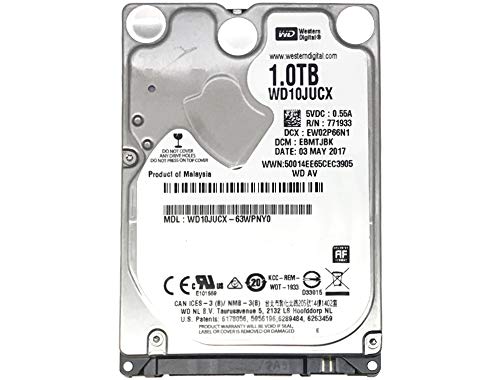
This Western Digital drive’s listing says the quiet part directly: a 1TB, 5400RPM, 16MB cache, SATA 6.0Gb/s, 2.5-inch hard drive for PS4 game console HDD upgrade and repair. That wording removes the guesswork that haunts this category, where laptop drives of the right size still leave owners wondering about fit and behaviour. Here the intended job is printed on the tin. As a replacement for a clicking, erroring original drive, or as a modest upgrade for a console whose library is a handful of favourites, it is the most literal answer to this guide’s title.
The 5400 RPM character matches the console’s original drive, so the machine behaves as its designers expected, with capacity as the only change. Owners performing a rescue, getting a beloved console healthy again, will value that fidelity over ambition. Pair it with careful save backups and a patient system software reinstall, and the PS4 returns to service with its personality intact and its storage warnings silenced.
- Capacity: 1TB
- Form factor: 2.5 inch
- Interface: SATA 6.0Gb/s
- Rotation speed: 5400 RPM
- Cache: 16MB
- Stated purpose in listing: PS4 game console HDD upgrade/repair
Strengths
- PS4 upgrade and repair named explicitly in the listing.
- Original-drive character keeps the console behaving as designed.
- Full specification stated in the title, no detective work needed.
Trade-offs
- One terabyte repeats the original capacity ceiling for big libraries.
- The 16MB cache is modest, matched to the console’s expectations.
- Repair buyers must still handle the software reinstall themselves.
Verdict: choose it to bring a PS4 back to health with total confidence in the fit; pass it by when the swap is really an upgrade in disguise, and take a 2TB pick instead.

WD 2TB 2.5 Inch Hard Drive WD20SPZX — The WD doubler
The WD20SPZX is Western Digital’s 2TB entry in the 2.5-inch class, listed as a SATA III hard drive for laptops and PS4, with a 128MB cache stated in its title. That cache figure stands out in this company, and the dual naming tells the truth about the product: it is a proper laptop-class drive that the listing explicitly blesses for console duty. Owners who want the doubling upgrade from a maker with WD’s support depth will find this the natural first look.
Two terabytes inside the console changes the household’s gaming politics. The delete-to-install negotiation ends, a backlog becomes a library, and the PS4’s remaining years get spent playing rather than managing. As with every internal pick here, the swap’s ceremony applies: saves backed up first, system software ready on a USB stick, an afternoon set aside. The drive’s side of the bargain, capacity and stated console suitability, is the part this listing handles completely.
- Capacity: 2TB
- Form factor: 2.5 inch
- Interface: SATA III
- Cache: 128MB
- Model code in listing: WD20SPZX
- Stated homes in listing: laptops and PS4
Strengths
- Two terabytes doubles the console’s library in one swap.
- A stated 128MB cache leads this guide’s internal picks.
- PS4 named in the listing alongside its laptop duties.
Trade-offs
- The listing does not print a rotation speed, so this guide claims none.
- Laptop-class generality means no console-specific extras in the box.
- The reinstall ceremony remains entirely the owner’s job.
Verdict: choose it for the straightforward WD doubling upgrade; pass it by if you want the job packaged as a kit, which is the MDD proposition next.
MDD 2TB PS4 Hard Drive Upgrade Kit — The prepared kit
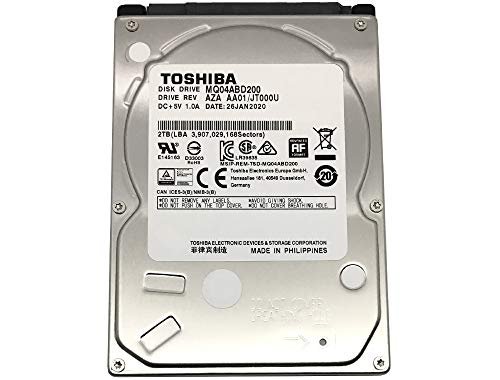
MDD sells the reassurance as much as the drive. Its listing describes a 2TB PS4 hard drive upgrade kit bundle built around a Toshiba 2TB internal hard drive, 5400RPM, 16MB cache, SATA 6Gb/s, 2.5 inch, stated to work with PS4 game consoles. The kit framing matters to first-time upgraders, who are not really shopping for a hard drive; they are shopping for the confidence that the parts in the box belong together and belong in their console. A bundle assembled for the one job answers that need in a way a bare drive cannot.
The Toshiba heart of the kit carries its own credibility, since Toshiba is one of the three makers of 2.5-inch drives worldwide. Owners get the doubling capacity, a stated full specification, and a package that treats the PS4 upgrade as its entire purpose. For a household performing its first console surgery, that sense of a prepared path is worth as much as any figure in the spec box.
- Capacity: 2TB
- Form factor: 2.5 inch internal drive
- Interface: SATA 6Gb/s
- Rotation speed: 5400 RPM
- Cache: 16MB
- Drive inside per listing: Toshiba 2TB internal hard drive
- Format: PS4 upgrade kit bundle
Strengths
- Kit bundle framing suits first-time upgraders perfectly.
- Toshiba drive inside, with the full specification stated.
- Two terabytes delivers the full doubling upgrade.
Trade-offs
- Confident owners may prefer a bare drive without the bundle.
- The 16MB cache is the modest figure common to console-class drives.
- Kit convenience does not remove the software reinstall step.
Verdict: choose it when the upgrade is your first and a prepared package sounds like peace of mind; pass it by if you have done the swap before and a bare WD doubler is all you need.

MaxDigitalData 1TB 2.5 Inch Gaming HDD — The gaming-labelled spare
MaxDigitalData’s entry wears its intentions in its name for the category: a 1TB, 64MB cache, 5400RPM, SATA 6.0Gb/s, 2.5-inch, 7mm gaming hard drive listed for PS3 and PS4, with a two-year element in its listing’s warranty wording. The 7mm thickness stated in the title is a genuinely useful fact in this class, because slim drives fit bays and caddies without argument. The cache, at 64MB, is the generous figure among this guide’s 1TB internal picks, and the cross-generational PS3 and PS4 naming suits households keeping two consoles alive.
As a specialist label rather than one of the giant makers, MaxDigitalData asks buyers to weigh stated specifications and warranty language against brand depth, and this guide presents it on exactly those terms: the listing’s facts are complete and console-focused. For a repair of a secondary console, or a PS3 and PS4 household standardising on one spare, it makes a clear, honestly labelled case.
- Capacity: 1TB
- Form factor: 2.5 inch, 7mm thickness stated
- Interface: SATA 6.0Gb/s
- Rotation speed: 5400 RPM
- Cache: 64MB
- Stated homes in listing: PS3 and PS4 gaming
- Model code in listing: MD1000GLSA6454-PS
Strengths
- Stated 7mm thickness removes fit doubts in slim bays.
- A 64MB cache leads the 1TB internal picks here.
- PS3 and PS4 naming serves two-console households.
Trade-offs
- A specialist label lacks the giant makers’ support depth.
- One terabyte is a repair size, not a library expansion.
- Warranty wording should be read in the listing before purchase.
Verdict: choose it for a slim-bay repair or a two-console household’s shared spare; pass it by when the console is the household’s main machine and WD’s depth reassures you more.

WD Blue 1TB 2.5 Inch HDD WD10SPZX — The mainstream spare
The WD10SPZX is the generalist of the group: Western Digital’s WD Blue 1TB hard drive in 2.5-inch SATA III form, a laptop-class staple whose listing keeps its description short. It does not name the PS4 in the words this guide can quote, and the pick section should be honest about that: its case rests on the class itself, a standard 2.5-inch SATA drive of the exact family the console’s bay was built around, from the mainstream line of one of the industry’s two giants. Owners who already trust WD Blue from laptop repairs will recognise the proposition immediately.
That generality cuts both ways. Nothing about the drive is console-tuned or console-labelled, so the buyer supplies the confidence from the format’s standardisation. In exchange they get the deepest documentation and support ecosystem on this page and a drive equally happy to retire into a laptop or an enclosure later. As a like-for-like 1TB replacement bought with open eyes, it remains a thoroughly reasonable route into the bay.
- Capacity: 1TB
- Form factor: 2.5 inch
- Interface: SATA III
- Line: WD Blue
- Model code in listing: WD10SPZX
Strengths
- WD Blue’s mainstream pedigree and support depth reassure.
- Standard 2.5-inch SATA format is the bay’s native language.
- A second career in a laptop or enclosure awaits after console duty.
Trade-offs
- The listing does not name PS4, unlike the explicit picks above.
- No rotation speed or cache is stated in the title quoted here.
- One terabyte keeps the original library ceiling.
Verdict: choose it when WD Blue familiarity matters more than console labelling; pass it by if you want the listing itself to promise PS4 duty, which the first pick on this page does in so many words.

Seagate Game Drive for PS4 2TB — The external alternative, not an internal drive
This pick requires the guide’s clearest label: the Seagate Game Drive is an external, portable USB 3.0 drive, a 2.5-inch enclosure that plugs into the console from outside. It is not an internal replacement, it does not enter the bay, and no screwdriver is involved in its entire story. Its listing describes 2TB of game drive storage for PlayStation 4 over USB 3.0, and its presence here is deliberate, because for a large group of owners the best internal drive upgrade is the one they never have to perform.
The external path has genuine virtues. The console stays sealed and original, the internal drive keeps the system and its favourites, and the Game Drive carries the extended library as officially friendly overflow. Its limits are equally genuine: two storage locations to manage, a cable and enclosure occupying a port and a shelf, and none of the tidiness a single internal volume gives. Owners who value their warranty peace and their Saturday afternoon over that tidiness will choose it happily, and this guide respects the choice precisely because it is labelled honestly.
- Capacity: 2TB
- Type: external portable drive — not an internal replacement
- Connection: USB 3.0
- Enclosure class in listing: 2.5 inch external hard drive for PlayStation 4
- Installation: none; plugs in externally
Strengths
- Zero surgery: the console is never opened.
- Adds 2TB of library space while the internal drive stays untouched.
- Seagate’s console-focused Game Drive line speaks PS4 natively.
Trade-offs
- It is not an internal drive, whatever shelf a search engine files it on.
- Two storage locations are less tidy than one internal volume.
- It cannot rescue a console whose internal drive has failed.
Verdict: choose it when opening the console is the obstacle and extra library space is the whole goal; pass it by, firmly, when the internal drive is dying or a single tidy volume is the point, and pick from the five internal drives above.
How Do the Six Picks Compare Side by Side?
| Pick | Capacity | Location | Character |
|---|---|---|---|
| WD 1TB for PS4 | 1TB | Internal | PS4-named faithful replacement |
| WD 2TB WD20SPZX | 2TB | Internal | Doubling upgrade, 128MB cache stated |
| MDD 2TB Upgrade Kit | 2TB | Internal | Kit bundle around a Toshiba drive |
| MaxDigitalData 1TB | 1TB | Internal | 7mm gaming-labelled spare |
| WD Blue 1TB WD10SPZX | 1TB | Internal | Mainstream generalist spare |
| Seagate Game Drive 2TB | 2TB | External USB | No-surgery library expansion |
The location column is the one to read twice. Five rows replace the drive inside the console; the last row adds space outside it and cannot substitute for a failed internal drive. Within the internal five, the argument is capacity first, then how explicitly the listing promises console duty, then whether a bare drive or a kit suits the owner’s confidence.
How Do You Prepare for the Swap Without Losing Saves?
Back up before touching a screw. Sync trophies, copy save files to cloud storage if your subscription offers it or to a USB stick if it does not, and write down the account credentials the console will ask for when it wakes up as a blank machine. Prepare the system software USB stick on a computer in advance, following the console maker’s published instructions, so the reinstall file is waiting rather than becoming a mid-afternoon scavenger hunt. Photograph the caddy screws’ arrangement if it helps your confidence, though the job is genuinely simple.
After the new drive is in and the system rebuilt, restore saves first and games second, and keep the old drive in a drawer for a week. If anything about the new setup feels wrong, the old drive returns the console to its previous life in minutes. Only when a week of ordinary play has passed should the old drive be wiped and reassigned to other duties.
What Should You Do With the Old Drive Afterwards?
Give it a second career once its rollback week has passed. In an inexpensive USB enclosure, a healthy 2.5-inch drive becomes a perfectly good portable spare for photographs and documents. Inside an older laptop it can be a faithful replacement of exactly the kind this guide recommends. What it should not become is the household’s only backup of anything, because a drive retired for age or errors has already told you its story.
If the old drive failed, the answer is simpler: recycle it responsibly and let the new drive’s arrival mark the start of a proper save-backup habit. Consoles make that habit easy with cloud saves and USB copies, and the owner who has performed one anxious rescue rarely needs the lesson twice.
What Mistakes Do PS4 Drive Upgraders Keep Making?
The costliest is buying the wrong species: ordering an external drive to cure a failing internal one, which is why this guide labels the Game Drive’s role at every appearance. The second is opening the console before backing up saves, converting a routine upgrade into a rescue. The third is forgetting the system software USB stick until the console is in pieces on the table, asking for a file nobody prepared.
Fourth, upgraders buy a drive whose thickness nobody checked; the stated 7mm of the MaxDigitalData pick exists because slim bays care. Fifth, they discard the old drive immediately, throwing away their rollback and their spare in one gesture. Sixth, they fill the new 2TB within a month and resume the deletion ritual at a larger scale, having upgraded the capacity but not the habit of finishing games. Every mistake here is a preparation failure, and preparation is the cheapest part of the whole project.
How Do Load Times and Daily Feel Change After the Swap?
Honesty serves upgraders better than hype here. A larger internal hard drive does not make the PS4 meaningfully faster, because the replacement drives in this guide share the original’s 5400 RPM mechanical character, as their listings state. What changes is everything around speed: the library that fits, the updates that no longer demand a deletion ceremony first, the freedom to keep a dozen large titles installed and patched. Owners consistently describe the upgrade as the console feeling roomier rather than quicker, and that is the correct expectation to carry into the purchase.
There is one secondary feel worth naming. A healthy new drive ends the small anxieties of a failing one: the stutters that were really read errors, the database rebuilds, the occasional corrupted download. A repair swap with the PS4-named WD 1TB or the WD Blue restores the console to its designed behaviour, which can feel like a speed upgrade to an owner who had grown used to a dying drive’s complaints. Buy capacity for capacity’s sake, and let restored health be a welcome side effect rather than a promised benchmark.
What About Using an SSD in the Bay Instead?
It is the question every PS4 owner eventually asks, and it deserves a straight answer inside a hard drive guide. A 2.5-inch SATA SSD fits the same bay and the console will use it happily, with loading improvements that vary by game and are real but rarely transformative on this hardware, whose other components were designed around mechanical storage. The cost per terabyte, however, belongs to a different class entirely, and this guide’s category, internal hard drives, exists because most owners would rather double or quadruple their room than halve their load screens’ margins. Readers whose priority is genuinely load time should shop the SSD class knowingly; readers whose pain is the full-drive warning, which is most PS4 owners by now, are in the right guide.
The hybrid temptation, a small SSD’s pace at a hard drive’s price, mostly belongs to an earlier hardware era and appears in none of these listings, so this guide claims nothing for it. What the listings here do offer is the honest mechanical proposition at two capacities and several levels of console-specific labelling, and for the PS4’s remaining years that proposition remains the value centre of the upgrade market.
How Do You Keep a PS4 Library Healthy After the Upgrade?
Resist filling the new drive completely in the first month. Consoles, like computers, behave better with free space for updates, caches and the temporary room installations need, and a 2TB drive kept at a comfortable margin will not nag its owner for years. Keep the save backups flowing to cloud or USB on the same rhythm as before, because a larger drive concentrates a larger library’s worth of progress behind the same single point of failure, and the habit matters more after the upgrade, not less.
Finally, treat the console’s database maintenance as routine rather than as repair: an occasional rebuild from safe mode keeps a large library’s index tidy, and doing it on a calm afternoon beats meeting it as an error message on a Friday night. The upgraded PS4, with room to breathe and saves safely copied elsewhere, settles into the best version of its late career: a deep library, no storage negotiations, and hardware that asks almost nothing of its owner.
How Do You Tell Whether the Old Drive Is Really Failing?
By its behaviour rather than by a single bad evening. A PS4 that occasionally rebuilds its database after a power cut is being a PS4. A console whose games increasingly fail to install, whose downloads corrupt and retry, whose loading stalls in places it never stalled before, and whose drive can be heard labouring or clicking through the casing, is telling a different story. Those symptoms, accumulating over weeks, are the classic signature of a mechanical drive in decline, and they are the moment this guide’s repair picks stop being an upgrade and become the rescue.
The good news is that decline is usually gradual enough to act on. Back up the saves the day the pattern becomes undeniable, order the replacement while the console still works, and perform the swap as a planned operation rather than an emergency. Owners who wait for total failure lose the easy backup path and sometimes the saves with it. Owners who act on the pattern lose nothing but an afternoon, and gain a console whose remaining years are no longer shadowed by its storage.
What About the PS4 Pro and the Original Model — Does Anything Change?
The bay’s essentials stay the same across the family: a 2.5-inch SATA drive in a caddy, the same swap ceremony, the same system software reinstall. The Pro’s extra processing power does not change what its storage bay accepts, and the original model’s owners face no special obstacles beyond the confidence the first removal of a panel requires. Slim-model owners should simply confirm their exact model’s panel arrangement before starting, because the family’s casings differ in their furniture while agreeing on the drive itself.
That uniformity is part of why this upgrade remains so popular: one set of knowledge serves every PS4 in the house, and households with two consoles of different vintages can standardise on the same spare. The listings in this guide speak to the family generally, several naming PS4 without distinguishing models, and the preparation advice, saves first, software stick ready, old drive kept as rollback, applies identically to each.
How Do You Decide Between Repairing and Replacing the Console Itself?
By isolating the fault. If the console’s troubles are storage-shaped, failed installs, corruption, drive noise, long stalls, a drive swap addresses the actual disease at a fraction of a replacement console’s cost, and the picks here exist for exactly that arithmetic. If the troubles are heat, power or graphics-shaped, no hard drive will cure them, and money spent on storage is money diverted from the real repair. The swap’s low cost and reversibility make it a rational first step even in ambiguous cases, provided the saves are backed up before the experiment begins.
Sentiment is a legitimate input too. A launch console with a decade of household history is not merely an appliance, and restoring it with a fresh drive has a satisfaction no replacement delivers. The owners who perform this upgrade often describe it as maintenance on a family member, and the drives in this guide, chosen for stated fit and honest labelling, are worthy of that affectionate errand.
How Do You Reinstall Games Efficiently After the Swap?
In an order that respects both bandwidth and enthusiasm. Queue the current favourite first, the game whose disc or download the household actually plays this month, and let it install completely before touching the back catalogue. Then add titles in descending order of likelihood, leaving the maybes for overnight queues, because a fresh 2TB drive tempts its owner into a downloading frenzy that saturates the connection for days to no one’s benefit. The library view will fill in gradually, and the console is playable within the first evening rather than at the end of a week of progress bars.
Owners restoring from an external backup of the old drive should follow the console’s own restore path rather than improvising with file copies, and everyone should expect the first session after a swap to include account sign-ins and licence checks that feel tedious precisely because they are the system working as designed. By the second evening the upgrade disappears into ordinary play, which is the outcome the whole project was for.
What About Two PS4s in One Household?
Standardise, and the household’s life gets simpler. Two consoles upgraded with the same capacity class, ideally the same pick from this guide, means one spare drive serves both, one set of instructions lives in the household’s memory, and a failure in either machine is a familiar errand. Families with a main console and a children’s console often split the difference instead: the 2TB upgrade for the machine with the deep library, a faithful 1TB repair for the one with a handful of favourites, and the external Game Drive migrating between them as overflow for whichever library is having a growth spurt.
Saves discipline doubles in importance with two machines, because progress now lives in two places and children are not famous for backup hygiene. A household rule, saves copied to USB or cloud at the end of each month, attached to an existing family ritual, protects both consoles’ worth of effort for the price of a few minutes.
How Long Will a Replacement Drive Extend the Console’s Life?
Years, in the ordinary course of things, because storage was the component ageing fastest in most PS4s. The console’s other parts, its fan, its power supply, its controller batteries, live their own lives, but a fresh internal drive removes the failure that was actually scheduled. Owners performing the swap on a healthy-but-full console are buying library room; owners performing it on a failing console are buying the machine itself back. Both purchases appear in this guide’s picks at repair and upgrade sizes, and both are priced, in effort and money, far below any alternative that preserves the household’s library and saves.
The honest horizon is that a PS4 upgraded today is a console in its graceful late period, playing a deep back catalogue beautifully rather than chasing new releases. A 2TB internal drive is sized exactly for that period: the whole beloved library installed at once, no new hardware generations required, and the machine retired eventually with its storage still healthy enough to serve in a laptop or an enclosure, as several of these listings anticipate.
How Do You Handle Game Updates and Patches With a Bigger Library?
By letting the console’s own settings do the night work. A 2TB internal drive changes the update equation completely: patches that once demanded a deletion negotiation now download and stage themselves without ceremony, provided the console is allowed to update in rest mode and the library is kept with the free-space margin recommended earlier. Owners should resist the temptation to fill the new capacity to the last gigabyte in the first month, because update staging is exactly where a brim-full drive reintroduces the old frictions at a larger scale.
There is a household diplomacy point here too. Shared consoles accumulate several players’ libraries and save profiles, and a bigger drive postpones the arguments about whose game gets deleted, possibly for the console’s remaining life. That peace is an underrated part of what the upgrade purchases, and families who have lived through the deletion summit will recognise its value immediately.
What Should You Check Before Ordering Any Drive for the Bay?
A short list, in order. Confirm the console model and find its drive replacement instructions, so the panel and caddy hold no surprises. Confirm the candidate drive’s format from its listing, 2.5 inch and SATA, with thickness checked where the listing states it, as the MaxDigitalData pick does at 7mm. Decide repair or upgrade, 1TB or 2TB, before shopping rather than during, because the two missions shop differently. Prepare the save backup destination and the system software USB stick before the parcel arrives, so the swap can happen in one sitting.
Finally, read the chosen listing once more with fresh eyes, particularly if it is the external Game Drive, and confirm that what is coming matches the mission: internal drives cure failing storage and expand the bay, the external drive only expands, from outside. That thirty-second reread is the simplest safeguard in the entire project, and this guide has structured its labels to make the check effortless for every reader.
How Do You Keep Children and Shared Consoles in the Plan?
By making the backup habit a household rule rather than a technical event. A shared PS4 holds several people’s progress, and the youngest player’s hundred-hour adventure deserves the same protection as the oldest’s trophy run. The monthly save copy, to USB or cloud, attached to a family ritual the children can recite, protects all of it for minutes of effort. When the drive swap day comes, that same habit is what makes the operation fearless: everyone knows their progress exists somewhere the screwdriver cannot reach.
Children can also be given the honest version of the upgrade story, because it is a good one: the console is getting a bigger memory for its games, the old one is being kept safe just in case, and their saves have been copied twice before anything was opened. Young players who watch maintenance done carefully learn to do it carefully, and the PS4 that survives to become a hand-me-down arrives with its library and its lessons intact.
What Is the Sensible Order of Operations on Swap Day Itself?
Morning: verify the save backups by opening the USB stick or cloud folder on another device and seeing the files there. Midday: prepare the system software stick and lay out the tools, screwdriver, a small dish for screws, good light. Afternoon: the swap itself, unhurried, with the caddy screws kept in order and no force used anywhere. Evening: the reinstall, the sign-ins, the first game queued, and the old drive placed in its labelled drawer rather than a random shelf.
That unglamorous choreography is the real content of every successful upgrade story in this category. The drives in this guide do their part by arriving with their format and purpose stated in their listings; the owner’s part is the sequence above, performed once, calmly, with the saves already safe before the first screw turns.
How Does the Upgrade Feel Six Months Later?
Mostly invisible, which is the upgrade’s triumph. The deletion negotiations are forgotten, the library simply contains everything, and visitors scrolling the console’s shelves assume it always looked like this. Owners report that the lasting change is behavioural: they buy games on sale without a storage audit, they keep the odd experimental title installed out of curiosity, and they stop thinking of the console as a machine with a problem. A repair swap produces the same invisibility from the other direction: the errors and stalls that had become the console’s personality are simply absent, and absence, after months of symptoms, feels like a new machine.
The six-month view also vindicates the preparation sermons in this guide. The old drive, kept and labelled, has usually found its second job by then. The save backups, refreshed monthly out of new habit, have quietly become the household’s general practice rather than a swap-day exception. And the console itself, whichever pick from this page it carries, settles into the long, contented late career that the PS4’s library deserves, with storage retired from the list of things its owners discuss.
What Is the Ten-Minute Version of This Whole Guide?
Saves backed up first, always. A failing or faithful console gets the 1TB WD drive whose listing names PS4 upgrade and repair. A healthy console being upgraded gets 2TB inside, from the WD20SPZX as a bare drive or the MDD kit as a prepared bundle. A slim bay or a two-console house looks at the MaxDigitalData’s stated 7mm; a WD Blue loyalist takes the mainstream spare with eyes open about its listing’s silence. And a console that must never be opened gets the Seagate Game Drive, externally, honestly, as an addition rather than a replacement. Six sentences, six picks, and the rest of this page exists to let any owner verify the sentence that sounds like their own machine.
What Do Owners Say a Year After the Swap?
That they wish they had done it sooner, which is the upgrade’s most repeated review across every forum where PS4 owners gather. The repair owners describe a console that simply works again, its errors forgotten so thoroughly that the failing drive’s symptoms feel like a story about a different machine. The upgrade owners describe the library effect compounding: a year of sales and new releases absorbed without a single deletion summit, backlogs played rather than managed, and a console whose remaining life is being spent on games instead of on storage administration. Both groups mention the saves, briefly and with feeling, because the backup habit formed under the swap’s discipline has usually survived to protect a year of new progress.
They also describe the old drive’s afterlife with satisfaction: in an enclosure as the household’s spare, in a laptop as a faithful replacement, or, for the failed ones, recycled without regret. Nothing about the project feels wasted a year later, which is the mark of an upgrade chosen at the right scale, and the reason this guide insisted on matching the pick to the mission rather than to the biggest number on the shelf.
What Is the One Thing to Do the Day the Drive Arrives?
Resist the screwdriver for one hour. Verify the save backups first, on a screen that is not the console’s, and prepare the system software stick while the parcel’s excitement is still fresh enough to fuel careful work. Then check the listing’s promise against the object in hand, format, capacity, the right species for the mission, internal for the bay or external for the shelf, because that thirty-second confirmation is the cheapest moment to catch any mistake. Only then does the panel come off, with the afternoon’s choreography already written in the sections above.
Owners who spend that hour describe the swap itself as almost anticlimactic, four screws and a reinstall, and anticlimax is the highest praise a maintenance project can earn. The drama in this category lives entirely in skipping the preparation, and it is optional drama, declined by everyone who reads the checklist first.
Final Recommendation
For a console being rescued, the WD 1TB drive that names PS4 upgrade and repair in its own listing is the calmest purchase on this page. For a console being upgraded, the WD20SPZX doubles the library with a stated 128MB cache, and first-timers who want the job packaged should take the MDD kit and its Toshiba heart. The MaxDigitalData serves slim bays and two-console homes, the WD Blue serves owners who trust the mainstream spare, and the Seagate Game Drive serves, externally and proudly, everyone who would rather not open the machine at all. Whichever route you take, back up the saves before the screwdriver comes out, because the library can always be downloaded again, and the saves are the part that is actually yours.
One last word on keeping the faith with older hardware. The PS4’s library is one of the great game collections, and it deserves machines that can hold it properly. A drive swap, chosen from listings that state their fit and performed with the saves already safe, is the most respectful maintenance that library can receive: no new console, no abandoned progress, just the old machine given the room it always needed. That is a project worth an afternoon of anyone’s time.
Before the questions, a note for the reader who arrived here from a search result at midnight, console open, old drive already out. The order in this guide still applies to you, and it is not too late for its most important step: the saves can be protected the moment the old drive goes back in temporarily, and the software stick can be prepared before the new drive takes the bay for good. Panic is a poor technician. Slow down, copy what matters, and let the rest of the night be the calm version of this project, the one with the checklist on the table beside the screwdriver.
Do the preparation, choose the pick that matches the mission, and the console that comes back together will feel like the machine the household always meant to own: roomy, healthy and entirely unbothered by its storage. That feeling is the product. Everything in the box is just how it arrives.
The questions below are the ones that arrive in every upgrader’s mind at some point in the project, usually the night before the swap, answered here in the order that panic tends to ask them and in the calm this guide has tried to maintain throughout.
Short, direct answers follow below for quick reference during the project itself.
Frequently Asked Questions
Will any 2.5-inch SATA drive fit a PS4?
The bay accepts the standard 2.5-inch SATA format, with thickness the detail to verify. This guide’s picks are chosen because their listings state the format and, in most cases, console duty itself; the MaxDigitalData listing even states its 7mm thickness.
Is the Seagate Game Drive an internal drive?
No. It is an external USB 3.0 portable that adds library space from outside the console. It cannot replace a failed internal drive, and this guide includes it only as the no-surgery alternative, labelled as external wherever it appears.
Do I lose my saves when I swap the internal drive?
Not if you prepare. Saves copied to cloud storage or a USB stick restore after the new drive is installed and the system software is reinstalled. Games themselves can be downloaded again from your library or restored from a backup.
Why do most of these drives spin at 5400 RPM?
Because that is the character of the drive the console shipped with, and the listings state it openly. The PS4’s storage expectations were designed around that class of drive, so replacements match it rather than chase desktop speeds.
Should I choose the kit or a bare drive?
Choose the MDD kit if this is your first swap and a prepared bundle lowers the stress. Choose a bare drive, the WD20SPZX for 2TB or the PS4-named WD for 1TB, if you are comfortable sourcing the simple extras yourself.
Can I use one of these drives in a laptop instead?
Several listings say so themselves: the WD20SPZX names laptops and PS4 together, and the WD Blue is a laptop-class staple. The format is shared across both worlds, which is why these drives often retire into laptops after console service.
Related Guides
Round out the setup with these companion reads: Best Affordable Graphics Cards, Best Graphics Cards 4K Gaming, and Best Graphics Cards to Run a 1440 Monitor.


