What's inside
- Key Takeaways
- Quick Picks
- How did we choose these picks?
- Comparison table
- FreeSync, FreeSync Premium or basic compatibility: what actually differs?
- How do you enable and verify FreeSync properly on an AMD setup?
- What are the most common mistakes buyers make here?
- Final Recommendation
- What does FreeSync feel like when it is working, and when it is not?
- How does FreeSync interact with the rest of an AMD gaming system?
- FreeSync for work and media: does the technology matter off the battlefield?
- How do the tiers map onto real AMD graphics cards, tier by tier?
- What should console owners verify, model by model, before buying?
- How long will a FreeSync 144Hz panel remain the right panel?
- A troubleshooting field guide for the three commonest FreeSync complaints
- Why does this guide treat a G-Sync-leaning LG as a FreeSync pick at all?
- The one-evening configuration that this whole guide recommends
- How does FreeSync change the second-hand and hand-me-down calculus for AMD households?
- What does a FreeSync buyer owe their future self?
- How should a buyer read a FreeSync specification sheet in ninety seconds?
- And a word for the buyer upgrading from a basic FreeSync screen
- One sentence to carry into the shop
- And if you remember nothing else from this guide
- A truly final note on value: the best 1080p freesync 144hz monitors
- Frequently Asked Questions
- Related Guides
As an Amazon Associate I earn from qualifying purchases. This post may contain affiliate links at no extra cost to you.
widgetverdict.com is reader-supported. When you buy through links on our site, we may earn an affiliate commission.
Where to buy: all six models below link to verified Amazon listings, and each review states its FreeSync tier plainly, because the difference between basic compatibility and FreeSync Premium certification is the whole subject of this roundup.
A refresh-rate badge alone does not make a screen smooth. The best 1080p freesync 144hz monitors earn the description through their adaptive-sync behaviour: how gracefully they follow an AMD system’s frame rate as it surges in quiet scenes and sags in heavy ones, without tearing, judder or the sync dropping out at the worst moment. This roundup compares six verified 144Hz-class screens on exactly that criterion, separating FreeSync Premium certification from basic compatibility, and noting where consoles and cross-camp households fit into the picture.
The distinction matters because general 144Hz roundups treat sync as a checkbox. For an AMD owner it is the product. A certified Premium panel guarantees low framerate compensation and a meaningful refresh floor, while a merely compatible panel may perform beautifully in the mid-band and quietly abandon you in the forties. Each pick below is placed on that spectrum honestly, including two screens that exceed 144Hz and one whose fame comes from the other graphics camp entirely.
Key Takeaways
- FreeSync Premium guarantees low framerate compensation; basic FreeSync does not.
- Most gameplay lives below the ceiling, where sync quality decides smoothness.
- Two picks exceed the brief at 200Hz and 240Hz, both with Premium support.
- Consoles use FreeSync over HDMI on supported models, within console frame limits.
- Cross-camp panels insure households whose next GPU is undecided.
- Match the certification tier to your frame-rate dips, not your frame-rate peaks.
Quick Picks
| Pick | Badge | Why it earns its place |
|---|---|---|
| ASUS TUF VG249QE5A | FreeSync all-rounder | The dependable starting point for AMD desks. |
| Acer Nitro KG251Q X3 | Premium at 200Hz | Certified compensation plus years of headroom. |
| ASUS TUF VG259QM5A | Premium at 240Hz | For elite AMD systems feeding very high frames. |
| BenQ GW2490C | Comfort hybrid | FreeSync smoothness with USB-C and eye care. |
| LG UltraGear 24G414B | Cross-camp flexible | Fluent in both sync languages for undecided homes. |
| AOC 24G42HE | Value at 200Hz | Speed and sync for healthy frame rates, cheaply. |
How did we choose these picks?
Certification honesty governed this selection from the start. We separated panels into their real tiers, Premium with its guaranteed low framerate compensation, standard FreeSync, and cross-camp models whose FreeSync behaviour is genuine but not their headline certification, and the reviews preserve those distinctions instead of flattening every logo into the same promise. A roundup that cannot tell its tiers apart cannot advise an AMD buyer at all.
Frame-rate reality came second. Picks were judged across the band where mid-range Radeon systems actually operate, roughly forty-five to one hundred forty-four frames, with particular weight on behaviour during dips, because that is where sync implementations diverge and where players feel the difference in their hands. Panels whose ranges or compensation stories covered the dips earned precedence over panels with higher ceilings and weaker floors.
The rest of the desk still counted: IPS image quality for mixed use, the BenQ’s docking and comfort for hybrid workers, console FreeSync support for living-room-adjacent setups, and pricing that respects how commoditised this category has become. All six picks were verified against current listings at checking time.

ASUS TUF VG249QE5A — The FreeSync all-rounder to start from
For an AMD graphics card owner entering this category, the VG249QE5A is the natural first name on the list: a 24-inch IPS panel at 144Hz whose adaptive sync behaves properly across the frame rates a mid-range Radeon actually produces, wrapped in ASUS’s durable TUF construction. The IPS panel matters to the FreeSync conversation more than it first appears, because sync’s job is preserving a good image under variable load, and a panel with honest colour and angles gives that technology something worth preserving during the long non-gaming hours too.
In play, the experience is the category working as advertised. Frame rates in a modern shooter wander between ninety and the ceiling as scenes change, and the ASUS follows without the tearing of a fixed-refresh screen or the judder of a poorly ranged sync implementation. Its overdrive tuning in the middle settings stays clean, so the clarity sync protects is not surrendered to bright trailing artefacts the moment the action speeds up.
AMD buyers who also keep a console or a second machine at the desk gain from this panel’s general flexibility, and its slight overclock beyond 144Hz is a small bonus rather than a headline. As the reference point among the best 1080p freesync 144hz monitors, it asks buyers to name a specific priority, speed, size, docking or certification tier, before choosing anything else.
- Size: 24 inches
- Resolution: 1920 x 1080
- Refresh rate: 144Hz, overclockable slightly beyond
- Panel: IPS
- Adaptive sync: FreeSync supported alongside other camps
Strengths
- Balanced IPS image for gaming and daily use
- Sync behaviour stays composed under variable load
- Durable build for shared and student housing
Trade-offs
- Not the widest certification story in this list
- Stand is functional rather than premium
- Esports extremes live elsewhere in the roundup
Best for: AMD players wanting one dependable 144Hz FreeSync screen for a mixed-use desk
Not suited for: buyers specifically chasing FreeSync Premium certification or 200Hz headroom

Acer Nitro KG251Q X3 — FreeSync Premium at 200Hz, beyond the brief
The KG251Q X3 carries the certification this roundup is about, FreeSync Premium, and then exceeds its frame brief by running at 200Hz, a combination that needs explaining rather than apologising for. Premium certification guarantees a meaningful floor: a sufficiently high refresh at this resolution and low framerate compensation, the feature that keeps sync working smoothly when a game’s frame rate falls below the panel’s normal sync range during its heaviest scenes. That guarantee is exactly what separates a certified Premium panel from a merely compatible one.
Low framerate compensation deserves its moment, because it operates precisely where players suffer most. When a busy firefight drags a mid-range AMD card into the forties, a basic sync implementation can drop out and judder, while a Premium panel with compensation keeps presenting frames evenly by repeating them intelligently. The result is not more performance; it is the absence of the stutter that makes a hard scene feel broken, and in competitive play that steadiness protects aim and temper alike.
At 24.5 inches the Acer keeps 1080p respectable, and its price habitually embarrasses slower rivals. AMD owners with any upgrade ambition should treat this as the list’s headroom pick: Premium certification for today’s dips, 200Hz of ceiling for tomorrow’s card, and no apology required for buying beyond the roundup’s title.
- Size: 24.5 inches
- Resolution: 1920 x 1080
- Refresh rate: 200Hz
- Adaptive sync: FreeSync Premium with low framerate compensation
- Panel class: fast IPS-type gaming panel
Strengths
- Premium certification guarantees low-framerate behaviour
- 200Hz ceiling outlasts graphics upgrades
- Size keeps 1080p density respectable
Trade-offs
- Basic stand is the visible cost saving
- Extra ceiling is idle on weak hardware
- HDR ability is token at this tier
Best for: AMD players who want certified Premium sync plus years of refresh headroom in one purchase
Not suited for: buyers on fixed entry hardware who would never approach its ceiling

ASUS TUF VG259QM5A — FreeSync Premium at a 240Hz ceiling
The VG259QM5A is the connoisseur’s version of this category’s argument: FreeSync Premium support beneath a 240Hz native refresh, on a 25-inch fast IPS panel, for AMD systems strong enough to live at frame rates most players only visit. Its Premium tier matters at both ends of the range, certifying the low-framerate compensation that rescues heavy scenes and the high ceiling that flagship Radeons can genuinely feed in esports titles.
Honesty about audience is essential with a screen like this. Fed by a modest card averaging one hundred frames, it behaves as a fine Premium monitor and nothing more, its ceiling an unused promise. Fed by a strong system in a competitive title, it delivers the smoothest, clearest motion in this entire roundup, and the difference over 144Hz, while incremental, is exactly the increment its target player trains to exploit.
Console owners should note the FreeSync story extends to their machines where supported, though consoles cannot approach the panel’s ceiling. Buy this ASUS when the PC is the desk’s performance centre and its graphics card already proves it in your frame-rate logs. Otherwise the Acer above delivers the same certification philosophy with a ceiling your hardware will meet sooner.
- Size: 25 inches
- Resolution: 1920 x 1080
- Refresh rate: 240Hz native
- Adaptive sync: FreeSync Premium, plus G-SYNC support
- Series: TUF Gaming build quality
Strengths
- Premium sync with the highest ceiling here
- Fast IPS motion for elite frame rates
- Dual-camp sync covers future GPU switches
Trade-offs
- Ceiling is wasted on mid-range systems
- Priciest logic in a value-led category
- Slight size increase softens text a touch
Best for: high-end AMD esports players whose systems sustain very high frame rates today
Not suited for: anyone whose frame-rate logs average near or below one hundred
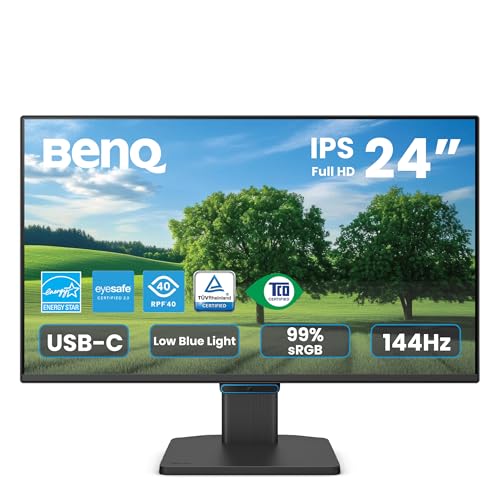
BenQ GW2490C — The comfort-first FreeSync hybrid
Not every FreeSync buyer is chasing ladder rank, and the GW2490C serves the rest: a 23.8-inch 144Hz panel with FreeSync support, BenQ’s eye-care tuning and USB-C docking, built for the desk where an AMD laptop works all day and games all evening. Its sync implementation covers the frame behaviour of integrated and mid-range Radeon graphics honestly, which for this audience is the entire requirement, and it does so without turning the screen into a gaming billboard.
The comfort emphasis is a genuine technical position, not a soft extra. Variable refresh already reduces the visual harshness of unstable frame rates; pairing it with flicker-conscious backlighting and credible low-blue-light modes produces the gentlest high-refresh experience in this roundup. Players who finish long sessions with tired eyes should weigh that combination as seriously as any millisecond figure.
Choose the BenQ when the desk’s day job matters and FreeSync is there to smooth the evening rather than to win tournaments. Dedicated competitive players will find its tuning too polite and its gaming features too quiet. Hybrid users will find it the only pick here designed around their actual schedule, which is a stronger recommendation than any benchmark.
- Size: 23.8 inches
- Resolution: 1920 x 1080
- Refresh rate: 144Hz
- Adaptive sync: FreeSync supported
- Connectivity: USB-C plus eye-care tuning
Strengths
- Gentlest long-session experience in this list
- USB-C docking serves AMD laptops neatly
- 144Hz sync smoothness without gaming styling
Trade-offs
- Certification tier is basic beside Premium picks
- Motion tuning favours cleanliness over aggression
- Smallest panel here by a fraction
Best for: hybrid workers and comfort-sensitive players using AMD hardware across work and play
Not suited for: competitive players who need Premium certification and maximum motion aggression

LG UltraGear 24G414B — The FreeSync-capable UltraGear alternative
LG’s 24G414B enters a FreeSync-led roundup as the reminder that modern adaptive sync is rarely exclusive. Its headline pitch leans toward G-Sync, yet the panel also handles FreeSync-class variable refresh for AMD systems, and LG’s execution, a 24-inch IPS at 144Hz with polished menus and lively colour, makes it a legitimate cross-camp choice for households whose next graphics card has not been decided yet. Flexibility is a feature when a monitor will outlive two GPU generations.
AMD owners should verify the specific sync range and behaviour for their card, since the certification emphasis differs from the Premium picks above. In ordinary play across the ninety-to-ceiling band where most hours live, the LG performs the sync job credibly, and its everyday image quality is arguably the most immediately appealing in the list. The distinction is about guaranteed low-end behaviour, not about whether the screen works with a Radeon, because it does.
Shortlist this LG if the household is genuinely split between graphics camps, or if a future switch is likely, and value the insurance of a panel fluent in both languages. Committed AMD buyers who want the certification guarantee should stay with the Premium picks; undecided households may find this the wisest money in the roundup.
- Size: 24 inches
- Resolution: 1920 x 1080
- Refresh rate: 144Hz
- Panel: IPS, 1ms-class response claims
- Adaptive sync: G-Sync headline with FreeSync-class support
Strengths
- Cross-camp sync fluency insures future GPU switches
- Appealing everyday IPS image quality
- Polished menus and presentable design
Trade-offs
- FreeSync certification is not its headline tier
- Low-end sync guarantees trail Premium picks
- Colour punch needs taming for accurate work
Best for: split or undecided households whose next graphics card could come from either camp
Not suited for: committed AMD buyers who specifically want Premium-tier guarantees
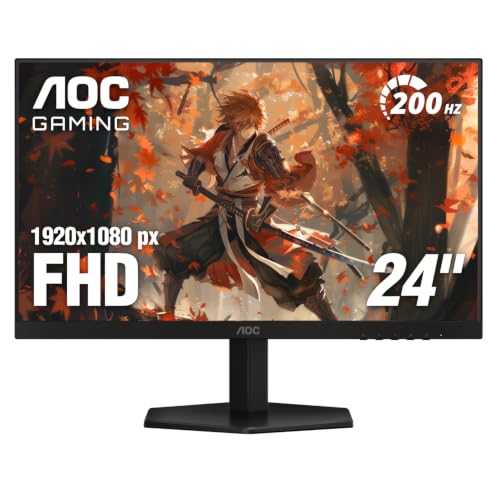
AOC 24G42HE — The 200Hz FreeSync-capable value rival
AOC’s 24G42HE closes the list as the value disruptor: a 24-inch panel running at 200Hz with adaptive sync that serves AMD systems, at pricing that habitually undercuts the certified Premium names. Its pitch to a FreeSync shopper is pragmatic rather than doctrinal. If your frame rates live mostly between one hundred and the ceiling, the sync experience here covers your actual gaming, and the money saved can fund the graphics card that decides frame rates far more than any certification tier does.
The AOC’s tuning supports that pragmatic case. Its overdrive avoids the aggressive artefacts of some budget rivals, its styling survives professional desks, and its menus are painless to live with. What it does not offer is the Premium tier’s guaranteed low-framerate compensation story, so buyers whose systems regularly dip into the forties during heavy scenes should weigh the Acer’s certification as a functional difference, not a badge.
Decide by your frame-rate reality. Consistently healthy rates make this AOC the smart saving in the category. Chronically struggling rates make Premium certification the wiser spend. Either way, the AOC ensures the FreeSync conversation includes a price point that keeps the technology honest.
- Size: 24 inches
- Resolution: 1920 x 1080
- Refresh rate: 200Hz
- Adaptive sync: variable refresh serving AMD systems
- Design: understated, office-tolerant
Strengths
- 200Hz speed at habitually disruptive pricing
- Clean overdrive and calm daily manners
- Covers the frame band most players inhabit
Trade-offs
- No Premium-tier low-framerate guarantee
- Stand adjustment is merely functional
- Certification sticklers should look above
Best for: value-first AMD players whose systems hold healthy frame rates in their main titles
Not suited for: players whose systems dip into very low frame rates during heavy scenes
Comparison table
Read the sync tier column before the refresh column in this table; in this category the floor behaviour separates the picks more than their ceilings do.
| Pick | Format | Standout trait | Watch out for |
|---|---|---|---|
| ASUS VG249QE5A | 24-inch IPS, 144Hz | Balanced FreeSync starter | Basic certification tier |
| Acer KG251Q X3 | 24.5-inch, 200Hz | Premium plus headroom | Basic stand |
| ASUS VG259QM5A | 25-inch, 240Hz | Premium at elite ceiling | Needs elite hardware |
| BenQ GW2490C | 23.8-inch, 144Hz | Comfort and USB-C | Basic sync tier |
| LG 24G414B | 24-inch IPS, 144Hz | Cross-camp fluency | FreeSync not headline |
| AOC 24G42HE | 24-inch, 200Hz | Value speed and sync | No Premium guarantee |
FreeSync, FreeSync Premium or basic compatibility: what actually differs?
Plain FreeSync is the baseline technology: the monitor varies its refresh to match the graphics card’s output, eliminating tearing and the stutter of mismatched timing across a supported range. That range is the catch. Below its floor, a basic implementation simply stops syncing, and the frame rates where it stops are the heavy, chaotic scenes where smoothness mattered most. Many players never notice, because their systems rarely dip that low; many others notice constantly and blame their card.
FreeSync Premium adds guarantees that address exactly that weakness. Certification requires a high refresh floor at the panel’s resolution and, crucially, low framerate compensation, which keeps the presentation even when the game’s output falls beneath the normal sync range by displaying frames multiple times in step. The practical translation: a Premium panel stays composed in the forties, where a basic panel may judder, and that composure during a boss fight or a crowded firefight is worth real money to the players who live there.
Consoles add a second compatibility question. Current Xbox models support FreeSync-style variable refresh over HDMI, while PlayStation’s variable refresh implementation follows its own path and model support varies. Console buyers should confirm the specific monitor accepts variable refresh from their specific console over the connection they will use, rather than assuming a PC certification transfers automatically. The panel ceiling is irrelevant to consoles; the handshake is everything.
Cable and port choices quietly gate the whole technology. FreeSync historically travelled over DisplayPort first, with HDMI support depending on the monitor’s implementation, so an AMD laptop or console feeding the wrong input can silently lose sync while the PC input enjoys it. Read the manual’s per-input specifications before buying for a multi-device desk, and test each device after setup rather than trusting the badge on the box.
Finally, price the tiers against your own frame-rate logs. A system holding one hundred frames and above in your titles gains little from compensation guarantees, and the AOC’s value logic wins. A system that visits the forties under load gains every evening from Premium behaviour, and the Acer’s certification is the cheapest smoothness upgrade available to it. Your dips, not your peaks, should choose your tier.
How do you enable and verify FreeSync properly on an AMD setup?
Enable the feature in both of its homes: the monitor’s own menu, where adaptive sync is sometimes off by default or restricted to certain inputs, and the AMD driver software, where FreeSync should report as active for the display once the monitor agrees. Then confirm the operating system’s refresh rate is set to the panel’s full figure, because sync operating under a 60Hz desktop setting is a rumour, not a configuration.
Set a frame-rate cap a few frames below the panel’s ceiling, using the in-game limiter or the driver’s frame-rate target control. The cap keeps the system permanently inside the sync range, preventing the tearing that returns when frames overshoot the refresh rate during easy scenes. On Premium panels with compensation, also test a demanding scene that drags rates low, and confirm the presentation stays even rather than juddering, which verifies the low-end behaviour you paid for.
Choose the connection deliberately. DisplayPort is the historically safest FreeSync route on PC; if a console or laptop must use HDMI, verify that input carries sync on your specific model and enable any per-input enhanced mode the menu requires. After any driver update, repeat the thirty-second verification, because updates occasionally reset sync and refresh settings without announcing themselves.
Diagnose problems in order: cable first, input second, settings third, panel last. A surprising share of FreeSync complaints trace to an old cable or a console plugged into the one input without sync support. Swap methodically and the technology usually turns out to have been working exactly as designed, behind a chain that never let it.
What are the most common mistakes buyers make here?
Treating every FreeSync logo as identical is the founding mistake of this category. Basic compatibility and Premium certification describe different guarantees, especially at low frame rates, and buyers who learn the distinction after purchase learn it expensively. Read the tier, then read the sync range, then spend.
Assuming console support from a PC badge runs second. Variable refresh handshakes differ between Xbox and PlayStation implementations and between a monitor’s own inputs. Verify your exact console against the exact model, in writing, before the box is opened.
Ignoring the low end while shopping the ceiling is the enthusiast’s version of the same error. A 240Hz panel without compensation discipline serves a struggling system worse than a certified 144Hz panel does. Floors decide how bad scenes feel; ceilings only decide how good easy scenes look.
Lastly, forgetting to enable the feature at all is more common than any hardware flaw. Sync buried in a monitor menu, a driver toggle left off, a desktop stuck at sixty: each silently converts a FreeSync purchase into an ordinary monitor. The setup section above exists because this mistake is free to avoid and miserable to live with unknowingly.
Final Recommendation
For a certified, future-proof AMD purchase, the Acer KG251Q X3 is this roundup’s centre of gravity, pairing FreeSync Premium with a 200Hz ceiling at aggressive pricing. The ASUS VG249QE5A remains the balanced 144Hz starting point, its 240Hz sibling serves elite systems, the BenQ comforts the hybrid desk, the LG insures the undecided household, and the AOC rewards healthy frame rates with real savings.
Choose by your dips and your devices, enable the technology properly on day one, and the best 1080p freesync 144hz monitors deliver their actual promise: not a number on a box, but an image that stays composed exactly when the game gets hard.
What does FreeSync feel like when it is working, and when it is not?
The technology’s success is measured in absences. With sync working, a camera pan across a landscape moves as one continuous gesture instead of tearing along a horizontal seam when the action quickens. A frame-rate dip during an explosion registers as a brief heaviness rather than as a stutter that breaks the scene into steps. Even the desktop participates, with scrolling and window movement holding together under load. Players often struggle to describe the improvement because nothing dramatic happens; the drama was the artefact, and the artefact is gone. That quietness is why owners who switch sync off experimentally, to test a latency theory, so often switch it back on within the hour.
When sync is absent or has silently disengaged, the symptoms are equally characteristic once you know them. Tearing appears first in fast lateral movement, a momentary horizontal shear where the panel shows two frames at once. Judder follows in slow pans, a rhythmic unevenness as the display repeats frames in an irregular pattern to reconcile its fixed rhythm with the game’s wandering one. Both symptoms point the owner toward the same checklist this guide’s setup section teaches: confirm the rate, confirm the toggles in both homes, confirm the cable and input. Nine times in ten the technology was innocent and the chain was guilty.
There is a third state worth recognising, sync working at the edge of its range, where a game’s output hovers near the floor and the presentation alternates between smooth and strained as scenes change. That flickering quality is the signature of a range problem rather than a failure, and it is precisely the condition FreeSync Premium’s compensation was designed to civilise. Owners who recognise the symptom can make an informed choice, lower a setting to lift the floor, cap the rate to stabilise the band, or accept the panel’s limits knowingly, instead of concluding vaguely that the monitor is bad. Diagnosis is the difference between a setup that gets tuned and a purchase that gets resented.
How does FreeSync interact with the rest of an AMD gaming system?
A FreeSync panel is one component in a chain that begins in the game’s engine and ends on your retina, and its behaviour depends on decisions made far upstream. The graphics card’s driver offers its own frame-rate controls and latency features, the game offers its own limiter and sync settings, and the operating system adds a compositor with opinions of its own. The working rule is to let one authority govern frame pacing at a time: the game’s limiter or the driver’s, not both stacked in conflict, with the in-game vertical sync disabled so the adaptive system can do its job without a fixed rhythm fighting it. Most stutter complaints in AMD setups trace back to two governors wrestling, not to any component’s failure.
Enhanced sync and related driver features deserve a careful, individual trial rather than a copied verdict. They aim to reduce tearing above the panel’s range while keeping latency low, and their value depends on how far above the ceiling your system regularly runs. A player capped deliberately below the ceiling, as this guide recommends, may never need them; a player whose lightweight titles soar into the hundreds might. Test each feature alone, in a familiar title, for a full session, and keep only the ones your hands can verify. Settings copied wholesale from a forum describe someone else’s system with great precision.
The CPU belongs in this conversation too, because frame pacing is often a processor story wearing a graphics costume. A system whose frame rate dips because the CPU cannot feed the GPU will show those dips on any panel, and while Premium compensation smooths their presentation, it cannot manufacture the missing frames. Owners diagnosing a stubborn stutter should watch which component saturates during the dip before blaming the monitor or its sync. The panel is the chain’s reporter; shooting it for the message is the oldest error in the hobby.
FreeSync for work and media: does the technology matter off the battlefield?
Variable refresh was built for games, but its logic leaks pleasantly into the rest of a screen’s life. Video playback at frame rates that do not divide neatly into a fixed refresh has always involved small compromises, repeated frames and subtle judder in slow pans, and a panel free to match its rhythm to the content handles those pans with a smoothness that film lovers notice in opening shots and documentary landscapes. The effect is gentler than in games and nobody should buy a monitor for it, yet owners of these panels routinely remark that films simply look calmer on them, and the remark has a technical basis rather than a placebo’s excuse.
For work, the benefit is mostly indirect: the same fast panel that syncs to a game also refreshes the desktop at a rate that makes scrolling, dragging and reading in motion visibly smoother, and that everyday fluidity is part of why a gaming monitor has become the default recommendation even for desks that game only in the evening. The BenQ in this roundup builds its whole thesis on that overlap, pairing the sync and speed of a gaming panel with the comfort and connectivity of an office one. The categories have merged because the underlying technology serves both masters honestly.
There is one work scenario where owners should check behaviour rather than assume it: colour-sensitive or video-editing work with sync engaged, where some pipelines prefer a fixed refresh for monitoring accuracy. The remedy is trivial, a per-input or per-preset configuration with sync off for the editing input and on for the gaming one, but it must be done deliberately rather than discovered mid-project. Treat sync as a feature with a context, like overdrive or a colour preset, and the technology will never surprise you in either direction.
How do the tiers map onto real AMD graphics cards, tier by tier?
Entry-level and older Radeon cards, the ones holding forty to seventy frames in modern titles at sensible settings, live almost permanently in the territory where certification matters most. For these systems the difference between a basic sync range that ends in the fifties and a Premium panel compensating gracefully into the thirties is not a nuance; it is the difference between a dip that feels like weather and a dip that feels like breakage. Owners of such cards should read this roundup from the certification column outward, treat the Acer Premium pick as their natural home, and be deeply suspicious of any screen whose sync range is described with adjectives instead of numbers.
Mid-range cards, the current sweet spot of AMD’s line-up, operate in the band where every pick here performs honourably. These systems hold ninety frames and upward in most titles at 1080p, visiting the lowlands only in notorious scenes, so the choice among panels can legitimately be made on image quality, size, comfort and price, with certification as a tie-breaker rather than a gate. This is also the tier where headroom logic starts to argue, because a mid-range card bought today is often the first step of a two-stage upgrade, and a panel ceiling bought for the second stage is cheaper than a second panel.
High-end Radeon systems invert the problem entirely: their frame rates press against ceilings rather than floors, and their owners should shop this list from the refresh column down. The 240Hz ASUS exists for them, the 200Hz models form their sensible middle, and certification matters chiefly as insurance for the one unoptimised title in the library that humbles every system. Matching the panel to the card’s actual altitude, measured in your own games rather than read from a review of someone else’s, is the single most valuable habit an AMD buyer can form, and this roundup’s structure, tier by tier, is designed to make that matching easy.
What should console owners verify, model by model, before buying?
The console question deserves its own checklist because it is where FreeSync marketing and console reality diverge most often. First, identify your console’s variable refresh system precisely: Xbox machines implement a FreeSync-compatible approach over HDMI, while PlayStation’s implementation follows the HDMI forum’s standard, and a monitor can support one, both or neither over the specific input you will use. Second, confirm the monitor accepts that signal at 1080p over HDMI specifically, since DisplayPort support, the PC norm, is of no use to a console that lacks the port. Third, check whether the console’s high-frame modes matter to your library at all, because a player whose games run at sixty needs the handshake, not the ceiling.
Testing after purchase should be equally methodical. Connect the console, enable its variable refresh output, enable the monitor’s sync on that input, and then verify in the console’s own display information screen that variable refresh reports as active rather than merely available. Play a title known for unsteady frame rates and watch a slow pan for the judder that betrays a failed handshake. If the chain is not working, work the checklist in order, cable, input, console setting, monitor setting, before concluding incompatibility, because most failures are a toggle rather than a verdict.
Households splitting one panel between an AMD PC and a console should buy for the stricter master. The PC’s DisplayPort route is forgiving and nearly universal in this list; the console’s HDMI requirements are the constraint that eliminates candidates. Verify the console side first, then choose freely among the survivors on PC merits, and the shared desk will never discover, mid-holiday, that its centrepiece speaks only one of its two languages.
How long will a FreeSync 144Hz panel remain the right panel?
Longer than the upgrade cycle wants you to believe. The technology’s foundations, adaptive sync at 1080p with mature IPS panels, are not awaiting a disruption; they are the settled ground on which the market now builds. A panel bought from this list will be outlived by at least one graphics card and probably two, will serve consoles whose variable refresh support is now standard, and will retire, when it retires, into second-screen or hand-me-down service where its speed still embarrasses ordinary displays. The honest lifespan of a good unit here is the better part of a decade, and the purchase should be judged across that span rather than against next season’s announcements.
What will eventually date it is not its sync but its context: a move to a larger desk inviting a larger panel, a creative hobby demanding colour the gaming IPS never promised, a resolution appetite fed by a flagship card. Notice that none of those is a failure of the FreeSync proposition itself, which suggests the correct buying posture: choose the tier that matches your frame-rate reality, buy the panel whose everyday qualities you will enjoy for years, and then leave the category alone. The players who enjoy this technology most are the ones who configured it once, verified it twice and then forgot it existed, which is the highest praise a piece of plumbing can earn.
A troubleshooting field guide for the three commonest FreeSync complaints
Complaint one: the game tears despite sync being switched on everywhere. Work the chain in order. Confirm the frame rate is not sailing far above the panel’s ceiling in an uncapped menu or an easy title, because tearing above the range is the technology working as specified, not failing. Apply the cap a few frames under the ceiling and retest the same scene. If tearing persists inside the range, suspect the cable and the input next, swapping to the supplied DisplayPort lead and the primary input before touching any other setting. Only after those steps should the panel itself be questioned, and by then the answer is usually already in your hands.
Complaint two: the picture stutters in heavy scenes while light scenes glide. That pattern is the signature of frame rates leaving the sync range at the bottom, or of a second frame-rate governor fighting the first. Check for stacked limiters, a driver cap and a game cap set to different values, remove one, and retest. If the stutter survives with a single governor, watch which component saturates during the dip; a CPU-bound stutter will not be cured by any monitor setting, while a range-bound one points directly at the Premium compensation discussion earlier in this guide and may justify the panel conversation you postponed at purchase.
Complaint three: sync worked last month and does not now. Nothing in the panel changed, which means something in the chain did: a driver update that reset the toggles, an operating system display setting that reverted the refresh rate, a cable swapped during a tidy-up, a console moved to the other input. Restore the configuration from the note this guide keeps urging you to write, verify the two numbers that matter, reported refresh and reported sync status, and the mystery almost always resolves into a setting rather than a fault. The field guide’s moral is unfashionable and true: FreeSync rarely breaks; configurations drift, and drift is curable in minutes by anyone who recorded the working state.
Why does this guide treat a G-Sync-leaning LG as a FreeSync pick at all?
Because households are not doctrines. Graphics loyalties inside a real home are temporary, a card dies and is replaced by whichever camp has stock, a partner’s machine joins the desk, a child inherits one system and buys another, and a monitor that speaks only one sync language fluently becomes the constraint every future purchase must negotiate with. The LG’s presence in this roundup is the acknowledgement of that reality: its FreeSync behaviour is genuine, its certification emphasis simply lives elsewhere, and for the household that cannot predict its next card, that bilingual fluency is worth more than a tier’s guarantee aimed at a loyalty they may not keep.
The inclusion also disciplines the rest of the list. If a cross-camp panel can serve an AMD owner credibly, then the Premium picks must justify themselves on their actual merits, compensation behaviour and range guarantees, rather than on tribal default. They do, which is why they sit above the LG in this guide’s logic for committed AMD buyers. But a roundup that pretended the cross-camp option did not exist would be serving a brand war instead of its readers, and this category is too practical, too price-sensitive and too long-lived in the home for that kind of theatre.
The one-evening configuration that this whole guide recommends
Gather the evening’s decisions into one sitting and the setup stops being folklore. Connect with the supplied DisplayPort cable to the primary input. Set the operating system to the panel’s full refresh rate and confirm the figure twice, once in the system settings and once in the driver’s display information. Enable adaptive sync in the monitor’s menu, then in the AMD software, and confirm the software reports the display as sync-enabled rather than merely detected. Inside your main game, disable its own vertical sync, set its frame limiter a few frames below the panel’s ceiling, and choose the graphics preset your system holds during a busy scene rather than the one it admires during a quiet one.
Play one familiar session and watch for the two failure signatures this guide taught you to recognise: tearing in fast lateral movement, which means frames are escaping above the range or a toggle is off, and judder in slow pans, which means a second governor is fighting or the rate has fallen through the floor. Correct the one you see, using the troubleshooting order rather than random menu tourism, and then write the final configuration down, every toggle and figure, in a note kept with the monitor’s box. That note is the setup’s immune system against every future update, tidy-up and borrowed cable.
From the second evening onward, the technology should vanish. That vanishing is the verdict the whole category is bought for: an AMD system and its screen moving together through easy scenes and hard ones, at a desk that also does homework, work and film nights, without the owner thinking about synchronisation at all. If a month passes in which the only time you remembered FreeSync existed was reading this guide, the purchase, the tier and the configuration were all correct.
How does FreeSync change the second-hand and hand-me-down calculus for AMD households?
Adaptive sync has quietly become part of what a used monitor is worth to an AMD household, because the technology does not wear out and its value transfers completely to the next owner. A Premium-certified panel handed down to a younger player with an older card is not a lesser gift than it was on its first desk; arguably it is a greater one, since the receiving system’s frame rates will live exactly where compensation earns its keep. Families planning purchases across two desks and several years should therefore buy certification with the second owner in mind as well as the first, a consideration that costs little at purchase and pays out across the household’s whole hardware story.
The same logic applies in reverse when buying used: verify the sync on your own system before money changes hands, because a panel’s tier is a fact but its current behaviour is a test, and the test takes five minutes with a laptop, a cable and a game whose frame rate wanders. Screens in this category are durable, plentiful and honest about their condition under that test, which makes the second-hand route unusually rational here. Whether new or inherited, though, the destination is the same configuration ritual, and the household that performs it once, properly, inherits the technology’s full value rather than its brochure.
What does a FreeSync buyer owe their future self?
Three small debts, all payable tonight. The first is documentation: the working configuration, written down, because every future troubleshooting session in this guide’s field manual begins by restoring a known state, and memory is not a known state. The second is verification after change, the thirty-second ritual after drivers, cables or consoles move, which converts silent drift from a month of vague dissatisfaction into a same-day correction. The third is restraint: the discipline to leave a working setup alone, to resist copying strangers’ settings over a configuration your own eyes already approved, and to let adaptation do its quiet work across the first month.
Pay those debts and the relationship between an AMD owner and this technology becomes what it was designed to be, invisible. The panel will follow your games through their easy glades and their crowded sieges, the consoles will find their handshake waiting, and the desk’s other lives, the work, the films, the homework, will proceed on a screen that never mentions any of it. Technologies earn their place in a home by disappearing into it, and FreeSync, properly owed its three small debts, disappears more completely than almost any feature the monitor market sells.
How should a buyer read a FreeSync specification sheet in ninety seconds?
Ignore the front of the sheet, where the ceiling and the slogans live, and turn straight to the three lines that decide ownership. Find the sync range and note its floor, because that number is where your heaviest games will live. Find the certification tier and translate it honestly, Premium meaning compensation is guaranteed, anything less meaning the floor number is the whole story. Find the per-input support and confirm the connection your machines will actually use carries the feature, because a DisplayPort triumph is no use to an HDMI household. Those three lines, read in that order, contain more buying truth than the rest of the document combined, and a salesperson who cannot produce them has told you something about the panel as surely as the numbers would have.
Then close the sheet and ask the only remaining question, which is about your own system: where do its frame rates actually live in the games you play most, at their best and at their worst? The sheet’s floor must cover your worst, its ceiling should respect your best, and its tier should match the distance between the two. Buy the panel whose three lines answer your one question, and the specification sheet, that most theatrical of documents, will have been used for the first time in its life as it was meant to be, as a servant of the truth.
And a word for the buyer upgrading from a basic FreeSync screen
If you already own a compatible panel and are reading this guide because its low-end behaviour has begun to irritate you, your upgrade logic is refreshingly narrow: you are buying a floor, not a ceiling. Keep the size and resolution that already fit your desk, keep the panel type your eyes already like, and spend the entire difference on the certification tier and range that your current screen lacks.
One sentence to carry into the shop
Buy the floor before the ceiling: find the panel whose sync range and certification cover the worst frame rates your system honestly produces, confirm the input your machines will use actually carries the feature, and let every other specification argue for whatever money remains.
And if you remember nothing else from this guide
Remember that smoothness is a relationship, not a number: a panel following your system’s real frame rates, gracefully, through their rises and their falls, will feel faster than a higher ceiling ever can while it is busy tearing and juddering at the edges of its range. Choose the relationship, configure it once with care, and the specification that brought you to this page will quietly stop mattering, replaced by the thing it was always a proxy for, which is a game that never once reminds you of the screen it is playing on.
A truly final note on value: the best 1080p freesync 144hz monitors
Few technologies in the monitor market return their cost as completely as this one does when it is matched and configured properly, because it improves every frame of every game rather than decorating a menu or a specification sheet, and it keeps improving them for the whole of a long panel life.
Frequently Asked Questions
What does FreeSync Premium add over basic FreeSync?
Two guarantees: a high refresh floor at the panel’s native resolution and low framerate compensation, which keeps motion even when frame rates fall below the normal sync range. Basic FreeSync makes neither promise, so its low-end behaviour varies by model.
Does FreeSync work with NVIDIA graphics cards?
Often, yes, since NVIDIA supports adaptive sync over DisplayPort on many FreeSync panels, though certification and behaviour are not guaranteed the way G-Sync models are. This roundup is written for AMD owners; NVIDIA buyers should check the general 144Hz guide too.
Can my Xbox or PlayStation use these monitors’ FreeSync?
Xbox consoles support FreeSync-style variable refresh over HDMI on compatible monitors. PlayStation variable refresh follows a separate implementation with model-dependent support.
Why cap frame rates below the refresh ceiling with FreeSync on?
Because frames beyond the ceiling leave the sync range and tearing returns. A cap a few frames under the maximum keeps every frame inside the range, which is where the smoothness you paid for actually lives.
Is a 200Hz FreeSync Premium monitor overkill for a mid-range card?
Its ceiling may idle, but its Premium low-end behaviour works hardest exactly on mid-range systems, whose dips are frequent. That makes certified headroom picks more sensible for modest cards than the headline numbers suggest.
Which cable should I use for FreeSync on PC?
DisplayPort is the safest and historically first-supported route. HDMI FreeSync depends on the monitor’s implementation per input, so check the manual if HDMI is your only option and verify sync is reported active afterwards.
Related Guides
Keep exploring with these companion guides: best 1080p 144hz monitors best 1080 200hz monitors how to set up FreeSync on an AMD gaming PC.