What's inside
- Key Takeaways
- Quick Picks
- How We Chose These Picks
- Why Do the Best 100 Hz Gaming Monitors Feel So Different?
- Which High-Refresh Monitors Suit a First Upgrade?
- How Do the Six Monitors Compare for Gaming?
- How Do You Make Sure the Monitor Actually Runs at Full Speed?
- Why Does This Guide Stay at 1080p — and When Should You Not?
- How Do Panel Types Change the High-Refresh Experience?
- What About Your Eyes, Neck and the Rest of the Setup?
- What Mistakes Do First-Time High-Refresh Buyers Make?
- Final Recommendation
- Frequently Asked Questions
- How Should You Test a New Gaming Monitor in Its First Week?
- Related Guides
As an Amazon Associate I earn from qualifying purchases. This post may contain affiliate links at no extra cost to you.
widgetverdict.com is reader-supported. When you buy through links on our site, we may earn an affiliate commission.
Where to buy: five of the six monitors below link to checked Amazon listings, and the sixth is covered without a link because its street availability swings widely; in every case, verify the exact model suffix on the listing, since manufacturers sell near-identical names at different refresh rates.
If you are still gaming on a 60Hz screen, you are playing with a delay you have learned to call normal. The jump to the best 100 hz gaming monitors — and this guide treats 100Hz as the floor, with most picks running at 120Hz or 144Hz — is the single most immediately felt upgrade in PC gaming, larger in daily sensation than a resolution bump or a graphics setting. Motion that smeared becomes legible. A flick shot lands where your hand sent it instead of where the display caught up. Even the desktop feels different: windows drag like objects instead of suggestions. Players who make the switch describe the same small shock, that the old screen now looks broken, and they are not exaggerating; once your eyes calibrate to a high refresh rate, 60Hz reads as a stutter.
This guide is written for that upgrader. The six picks are 24-inch-class, 1080p monitors, because at this size and resolution a modest graphics card can actually feed 100-plus frames per second in the games people play most, and a high refresh rate you cannot feed is a specification, not an experience. Five are fast IPS panels with adaptive sync for both major GPU brands; one is a deliberately different office-gaming hybrid with USB-C for the desk that works all day and plays all evening. Every pick costs a fraction of what high-refresh gaming once demanded, and the sections after the reviews cover the settings — cables, refresh-rate switches buried in operating systems, in-game caps — that decide whether the monitor you buy ever actually runs at the speed on its box.
Key Takeaways
- The LG UltraGear 24G411A at 120Hz is the simplest upgrade path for a 60Hz owner: fast IPS, adaptive sync, no complications.
- BenQ’s GW2490C is the work-and-play hybrid, adding USB-C docking and eye-care tuning to a 144Hz panel.
- The LG 24G414B and ASUS VG249QE5A are the esports-leaning 144Hz picks, tuned for response above all.
- Samsung’s Odyssey G3 stretches to 200Hz for competitive players whose hardware can feed it.
- At 24 inches and 1080p, mainstream graphics cards reach these refresh rates in popular titles without heroics.
- Set the refresh rate in your operating system and use the right cable, or the new monitor will quietly run at 60Hz.
Quick Picks
| Pick | Badge | Why it earns its place |
|---|---|---|
| LG UltraGear 24G411A | Best first upgrade | 120Hz IPS with adaptive sync in the simplest, most affordable package here. |
| BenQ GW2490C | Best work-and-play hybrid | 144Hz plus USB-C and BenQ’s eye-care tuning for a desk that does everything. |
| LG UltraGear 24G414B | Best 144Hz all-rounder | A faster UltraGear with gaming features and a stand that suits long sessions. |
| ASUS TUF VG249QE5A | Best for competitive features | 144Hz with an overclock headroom and ASUS’s gaming toolkit built in. |
| Samsung Odyssey G3 24-inch | Best refresh headroom | 200Hz IPS for players who compete and own the hardware to feed it. |
| MSI Optix G2412 | Best alternative to watch | A widely sold 144Hz-class IPS whose availability swings; a sound fallback pick. |
How We Chose These Picks
Refresh rate was the entry requirement — a native 100Hz or higher at the panel’s full resolution, without the resolution or colour compromises some monitors hide behind their fastest modes. Beyond that threshold we ranked on the qualities that decide whether the speed is usable: panel type, with IPS favoured for its viewing angles and colour over older TN and most VA at this size; response behaviour in the overdrive setting a human would actually leave enabled; and adaptive sync support across both FreeSync and G-Sync compatible operation, because a first high-refresh monitor should not punish a future graphics card change.
We weighted the ownership details that upgraders feel daily. A stand with real height adjustment matters in a way a spec sheet cannot convey, because a monitor fixed at the wrong height taxes a neck through every session. Connectivity mattered as future-proofing: at least one DisplayPort for full-rate PC use, HDMI that does not strand console players at low rates, and — for the hybrid pick — USB-C that docks a laptop. Built-in speakers were noted but never decisive; at this class they are a convenience for calls and casual video, not a gaming feature.
Finally, we kept the guide honest about scope. These are 1080p monitors for players upgrading from 60Hz, not 1440p flagships or ultrawides, and the rankings optimise for that reader: the player with a mainstream PC or a console, a normal desk and a desire to feel the difference in the first minute. Readers already running high-end hardware should treat the Odyssey G3’s headroom as their starting point and the buying-guide section’s discussion of resolution as their map onward.
Why Do the Best 100 Hz Gaming Monitors Feel So Different?
A display’s refresh rate is how many times per second it can show a new image. At 60Hz the screen updates every sixteen to seventeen milliseconds; at 120Hz, roughly every eight; at 144Hz, every seven. Your graphics card may render a hundred frames a second, but a 60Hz monitor can only present sixty of them, discarding the rest and showing each frame for longer than the action intended. The visible results are the familiar ones: motion blur that belongs to the display rather than the game, a slight swimminess when the camera pans, and input that feels connected to the screen by something elastic. Doubling the refresh rate halves the presentation delay, and the connection between hand and image tightens in a way players feel before they can articulate it.
Clarity in motion is the second gift. When a screen holds each frame briefly and replaces it cleanly, a turning camera presents a sequence of sharp snapshots instead of a smear, so targets stay readable while you move — which in shooters is most of the time. This is why competitive players historically accepted ugly TN panels and low resolutions: legibility during motion is a competitive advantage, not a luxury. The IPS panels in this guide have largely closed that old trade, delivering competitive clarity with colour and viewing angles that make the same screen pleasant for everything else.
The third gift is consistency, and it needs adaptive sync to arrive. When the graphics card’s frame rate and the monitor’s refresh disagree, the screen tears — two frames visible in one refresh, split by a horizontal seam — or stutters under fixed sync. FreeSync and G-Sync compatible modes let the monitor refresh when the frame is ready, within its range, which makes a fluctuating eighty-to-one-hundred frames feel smoother than a locked sixty ever did. Every pick here supports adaptive sync, because at the frame rates mainstream hardware produces in modern games, sync is not an extra; it is the mechanism that makes high refresh honest.
Which High-Refresh Monitors Suit a First Upgrade?

LG UltraGear 24G411A — Best first upgrade
The 24G411A is the monitor we would hand a 60Hz owner who asked for the difference without the homework. Its 24-inch IPS panel runs at 120Hz — double the old standard, squarely inside the range where mainstream hardware in popular games actually lives — with adaptive sync smoothing whatever the graphics card delivers beneath that ceiling. Colours are the honest IPS kind, viewing angles forgive a chair that is not perfectly centred, and LG’s UltraGear gaming menu puts the useful controls, crosshair and frame counter included, a button press away rather than a manual away.
What LG trimmed to reach this monitor’s position in the range is mostly furniture: the stand covers the essentials rather than the full ergonomic repertoire, and the feature list stops where a first-time upgrader’s needs stop. We consider that the correct editorial judgement for this pick. The money went to the panel and the sync, which are the upgrade; the stand can be replaced by any desk arm later, while a lesser panel would be the monitor forever. For a student desk, a first gaming PC or a console corner, this is the shape of sense.
Console players should note the arithmetic that makes this pick quietly excellent for them too: current consoles target 120Hz in their performance modes at 1080p in many titles, and this panel meets them exactly, where a 60Hz television leaves that mode unused. One screen serving PC and console at the rates both can actually produce is a tidier purchase than a faster panel whose headroom neither machine can feed. Buy it, set the refresh rate properly — the how-to section insists, because so many owners forget — and the first evening’s gaming will make the argument better than this page can.
- Panel: 24-inch IPS, Full HD
- Refresh rate: 120Hz
- Sync: adaptive sync, FreeSync and G-Sync compatible class
- Response: fast IPS-class behaviour for casual and competitive play
- Ports: DisplayPort and HDMI
- Character: the straightforward double-your-refresh upgrade
Strengths
- 120Hz lands exactly where mainstream PCs and consoles actually perform.
- IPS colour and angles make it a pleasant all-day screen, not just a gaming one.
- Simple, focused feature set keeps the price on the panel.
Trade-offs
- The stand’s adjustment range is basic compared with the BenQ and larger LG.
- Serious competitive players will eventually want 144Hz or beyond.
- 1080p at this size is a deliberate choice, not a resolution showcase.
Best for: 60Hz owners making their first high-refresh jump, on PC or console.
Not suited for: players already equipped for 1440p or chasing esports-grade rates.
BenQ GW2490C — Best work-and-play hybrid
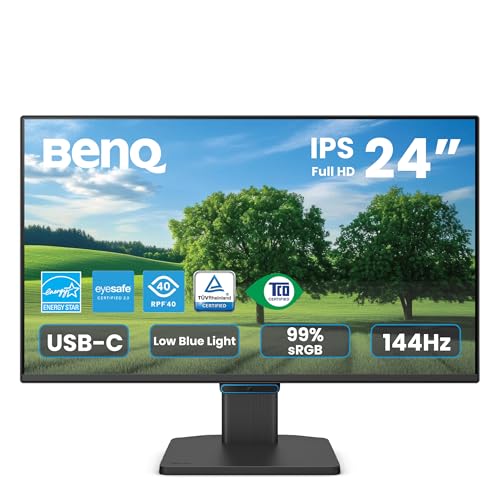
Most desks are not gaming stations that occasionally work; they are workstations that game in the evening, and the GW2490C is the only pick here designed from that truth outward. Its 23.8-inch IPS panel runs at 144Hz with adaptive sync, so the gaming brief is fully honoured — but around that panel BenQ built the office monitor its GW line is known for: USB-C that docks a laptop with video, data and power, an eye-care suite with brightness that adapts to the room and low-blue-light modes that are more than a menu sticker, and a design that looks like furniture rather than a cockpit.
The combination changes the buying logic. Instead of a gaming monitor tolerated by day, or an office monitor that strands the evening at 60Hz, one screen does both shifts credibly. The 144Hz rate is high enough that no mainstream player will feel short-changed, the colour behaviour suits photo-adjacent office work, and the single-cable laptop ritual keeps the desk clean enough that the gaming PC and the work laptop can share the same square metre in peace. For hybrid workers — the defining desk of this decade — that peace is the product.
Competitive purists will note, correctly, that a dedicated gaming panel squeezes response behaviour a fraction harder and that BenQ’s gaming-first Zowie line exists for their brief. The GW2490C is not aimed at them. It is aimed at the far larger group whose monitor must survive a spreadsheet morning, a video-call afternoon and a ranked evening, and who would rather own one screen that respects all three than two that each resent the other’s hours.
- Panel: 23.8-inch IPS at 1080p
- Refresh rate: 144Hz
- Sync: adaptive sync for tear-free gaming
- Docking: USB-C with video, data and power delivery
- Eye care: adaptive brightness and low-blue-light modes
- Character: an office monitor that games at full rate
Strengths
- One screen credibly serves the workday and the gaming evening.
- USB-C docking keeps a laptop desk to a single cable.
- Eye-care tuning suits the long mixed-use days this desk actually has.
Trade-offs
- Dedicated gaming panels edge it on pure response tuning.
- The restrained design will not satisfy a battlestation aesthetic.
- Costs more than the simplest 144Hz gaming-only alternatives.
Best for: hybrid workers and students whose single screen must do everything well.
Not suited for: competitive specialists who want a gaming-only instrument.

LG UltraGear 24G414B — Best 144Hz all-rounder
If the 24G411A is the first step, the 24G414B is the step taken by someone who already knows they will stay. The 144Hz IPS panel adds the rate competitive players treat as the real starting line, with the one-millisecond-class response behaviour LG quotes for its gaming line and the adaptive sync range to make variable frame rates feel composed. Where its smaller sibling trims, this model restores: a stand with the height adjustment long sessions quietly require, and the fuller UltraGear feature set for players who use crosshairs, black stabilisation in dark game scenes and on-screen frame information.
In practice the differences between 120Hz and 144Hz are smaller than the differences between 60Hz and either — an honest point this guide will not blur — so the case for the 414B rests on the whole package rather than the number. It is the more complete monitor: better furniture, deeper gaming controls, headroom for the graphics card upgrade already planned. Players who compete in shooters, where every link in the input chain is audited, will also appreciate that this is the class of panel their peers actually use, which makes settings advice and shared experience easy to find.
Value hunters should compare it against the ASUS pick below on the day of purchase, because these two trade blows on price seasonally and the better buy is often simply the one on offer. Feature for feature they are close enough that stand preference and brand trust are legitimate deciders. Either way, the 24G414B represents the mature form of this guide’s idea: a 24-inch 1080p screen running fast enough that the display stops being the conversation.
- Panel: 24-inch IPS, 1080p resolution
- Refresh rate: 144Hz
- Sync: adaptive sync, G-Sync compatible class
- Response: 1ms-class grey-to-grey with gaming overdrive
- Stand: height adjustment for long sessions
- Features: crosshair, black stabiliser and frame display tools
Strengths
- The complete 144Hz package: panel, stand and gaming tools together.
- Headroom for the next graphics card without replacing the screen.
- LG’s gaming menus are quick to live with daily.
Trade-offs
- The step from 120Hz is real but modest; 60Hz owners may prefer the cheaper sibling first.
- 1080p remains the resolution ceiling of this entire guide’s value argument.
- Price overlaps the ASUS rival, so the best buy changes with offers.
Best for: committed mainstream players who want the full 144Hz experience in one purchase.
Not suited for: buyers planning an imminent move to 1440p gaming.

ASUS TUF VG249QE5A — Best for competitive features
ASUS’s TUF line builds gaming hardware to a durability brief, and the VG249QE5A brings that attitude to this guide’s price class: a 24-inch IPS panel at 144Hz with overclock headroom to 146Hz, adaptive sync, and the GamePlus and GameVisual toolkits that ASUS players treat as standard equipment — on-screen crosshairs, timers, frame counters and scene presets. The overclock itself is a footnote; two hertz will change no one’s rank. What matters is the panel’s response tuning and the sense, consistent across the TUF range, of a product built to be used hard by people who notice.
The gaming details are well judged. Shadow Boost lifts dark scene detail for the player hiding in it, the overdrive range includes a setting that balances speed against the inverse ghosting that aggressive settings smear across motion, and the ELMB-style blur reduction exists for players who want to experiment with strobed clarity — with the usual caveat that blur reduction and adaptive sync are alternatives, not partners, and most players should live in sync mode and forget the strobing exists. Connectivity covers DisplayPort for full-rate PC play and HDMI for consoles, and the stand, while not the tallest here, adjusts enough for a proper setup.
Against the LG 24G414B, the choice is a coin weighted by taste: ASUS’s toolkit and TUF build against LG’s menus and stand. Against the rest of the guide, the VG249QE5A is the pick for the player who reads settings guides, tunes overdrive per game and treats the monitor as an instrument to be configured — the competitive hobbyist rather than the set-and-forget upgrader. That player will be well served; the set-and-forget player should take the LG sibling and never open the toolkit at all.
- Panel: 24-inch IPS in Full HD
- Refresh rate: 144Hz, overclockable to 146Hz
- Sync: adaptive sync for variable frame rates
- Tools: GamePlus crosshair and timers, GameVisual presets, Shadow Boost
- Ports: DisplayPort and HDMI
- Character: the tuner’s pick in this class
Strengths
- The deepest gaming toolkit here for players who configure per title.
- TUF build and support suit hard daily use.
- Balanced overdrive keeps motion clean without inverse ghosting.
Trade-offs
- The 146Hz overclock is marketing garnish, not a performance step.
- Blur reduction and adaptive sync cannot be combined.
- Stand adjustment trails the best in this guide.
Best for: competitive-leaning players who enjoy tuning their display per game.
Not suited for: set-and-forget buyers who will never open the gaming menus.

Samsung Odyssey G3 24-inch — Best refresh headroom
Every guide needs the pick that answers the reader who has already decided the others are too slow, and in this one it is the Odyssey G3 at 200Hz. Samsung’s gaming line wraps that rate in a 24-inch IPS panel with adaptive sync and the Odyssey design language — the most overtly gaming-styled object in this comparison — and aims it at the competitive player whose PC genuinely produces frame rates in the high hundreds in esports titles. In those titles, on that hardware, 200Hz is not a fantasy number: the motion clarity and input freshness at the top of this guide’s range are real, and players at the sharp end of ranked ladders can feel the difference the way racing drivers feel tyres.
The honesty paragraph matters more here than anywhere. A 200Hz monitor fed ninety frames per second is a 90Hz experience with better marketing, and the mainstream hardware this guide mostly serves will feed the G3 fully only in lighter esports games. Buyers should audit their own frame rates in their own titles before paying for headroom — a five-minute test with a frame counter tells the truth that no advertisement will. If the audit says your games live at 150-plus, the G3 is the correct extravagance. If it says 90, the LG 120Hz pick will feel identical in play and leave money for the graphics card that changes the audit.
As a screen beyond its rate, the G3 behaves like the modern Odyssey it is: good IPS colour, a stand with proper adjustment, and menus that assume a gamer is driving. It is also the natural ceiling of the 1080p path — the player who outgrows this monitor’s headroom is a player shopping for resolution next, not for more hertz at this size. Treat it as the endgame of the first-upgrade journey this guide maps, and it earns its place at the top of the range.
- Panel: 24-inch IPS, Full HD resolution
- Refresh rate: 200Hz
- Sync: adaptive sync across its range
- Design: Odyssey gaming styling, adjustable stand
- Audience: competitive players with high-frame-rate hardware
- Character: the headroom pick and the 1080p path’s ceiling
Strengths
- 200Hz delivers genuine clarity gains in esports titles that can feed it.
- Full ergonomic stand suits the long sessions competitive play involves.
- Future-proof for the next graphics card upgrade at 1080p.
Trade-offs
- Most mainstream systems cannot feed 200 frames per second in modern games.
- You pay for headroom that only an audit of your own frame rates can justify.
- The gaming styling is the loudest here, for desks that prefer quiet.
Best for: competitive players in esports titles with the hardware to match.
Not suited for: mainstream players whose games run well under a hundred frames per second.
MSI Optix G2412 — Best alternative to watch
MSI’s Optix line has been a fixture of the affordable high-refresh market for years, and the G2412 represents its formula: a 24-inch IPS panel in the 144Hz class — note that the Optix family also contains near-identically named models at other rates, so the suffix and the rate must be checked together — with adaptive sync and the essentials done competently. In head-to-head specification terms it stands close to the LG and ASUS picks, which is precisely why it appears here as the alternative rather than the headline: when the linked picks are out of stock or priced oddly in your region, the MSI is the fallback that does not feel like one.
Its ownership character is straightforward. The panel is a good IPS citizen, the gaming features cover the expected ground, and MSI’s enormous installed base means settings advice and troubleshooting for any quirk is a search away. The stand and design are workmanlike rather than delightful, and the line’s many variants are its main hazard — a hurried purchase can land a different rate or panel than intended, which is a listing-reading failure rather than a product failure.
We list it without a link because its availability and pricing swing more than the picks above, and a guide that cannot verify today’s listing should say so. When it appears at the class’s going rate with the correct suffix confirmed, it is a sound buy that no player will regret; when the LG or ASUS sits at the same figure, their verified listings make them the easier recommendation. That is the honest hierarchy, and the MSI’s presence here is a compliment to its consistency across the years it has served this exact reader.
- Panel: 24-inch-class IPS at Full HD
- Refresh rate: 144Hz class — verify the exact variant
- Sync: adaptive sync support
- Character: the widely sold fallback of the category
- Caution: similar names cover different rates in this family
- Note: availability and pricing vary more than the linked picks
Strengths
- A proven, widely owned formula with deep community knowledge behind it.
- Specification parity with the headline picks when the variant is right.
- Frequently the value option in regions where the others price high.
Trade-offs
- Variant confusion is a genuine risk for hurried buyers.
- Stand and design are functional rather than a reason to choose it.
- Stock swings make it unreliable as a first recommendation.
Best for: buyers whose region prices or stocks the headline picks poorly.
Not suited for: anyone unwilling to read the listing’s suffix and rate carefully.
How Do the Six Monitors Compare for Gaming?
| Monitor | Size | Refresh rate | Panel | Standout trait |
|---|---|---|---|---|
| LG UltraGear 24G411A | 24-inch | 120Hz | IPS | Simplest upgrade from 60Hz |
| BenQ GW2490C | 23.8-inch | 144Hz | IPS | USB-C docking and eye care |
| LG UltraGear 24G414B | 24-inch | 144Hz | IPS | Complete gaming package |
| ASUS TUF VG249QE5A | 24-inch | 144Hz, OC 146Hz | IPS | Deepest gaming toolkit |
| Samsung Odyssey G3 | 24-inch | 200Hz | IPS | Maximum refresh headroom |
| MSI Optix G2412 | 24-inch | 144Hz class | IPS | Proven fallback option |
How Do You Make Sure the Monitor Actually Runs at Full Speed?
Begin with the cable, because it silently decides more upgrades than any other component. Use the DisplayPort cable supplied with the monitor for a PC connection where possible; it is the connection every pick here rates for its full speed. HDMI can also carry these rates on modern equipment, but older cables and ports vary, and the cable in your drawer from a decade-old console is the single most common reason a new monitor reports a disappointing ceiling. If the numbers do not add up, change the cable before changing anything else.
Then tell the operating system what you bought. Windows frequently leaves a new monitor at 60Hz until the owner visits the advanced display settings and selects the higher rate from the list; the monitor will not complain, the games will not complain, and months can pass at half speed — a genuinely common story that this paragraph exists to prevent. Do the same check inside your graphics driver, enable adaptive sync in both the monitor’s menu and the driver, and confirm the monitor’s own on-screen display reports the rate you expect while a game runs.
In the game itself, three settings finish the job. Choose fullscreen or the mode your sync technology prefers, set the in-game frame limit a few frames below the monitor’s maximum so adaptive sync stays in its range, and disable any legacy vertical sync that fights the variable rate. Then play a fast camera pan in a familiar scene: the smoothness should be obvious within seconds. If it is not, work backwards through cable, system setting, driver and game in that order — the fault is in the chain, not the panel, in almost every case we have ever diagnosed.
Why Does This Guide Stay at 1080p — and When Should You Not?
Resolution and refresh rate spend the same currency: the frames your graphics card can produce. At 1080p, a mainstream card renders a modern game at a hundred-plus frames per second with settings worth looking at. At 1440p, the same card renders roughly two-thirds as many frames, and the high-refresh experience quietly becomes a 70Hz experience with prettier stills. For the upgrader this guide serves, smoothness is the purchase, so the resolution stays where the smoothness survives. The 24-inch size completes the logic: at a normal desk distance, 1080p on 24 inches looks clean in games, whose rendering hides pixel structure far better than text does.
The exceptions are real and should be named. Players whose work is text all day and whose gaming is slower and cinematic may prefer a 1440p panel at a lower rate, accepting 60-to-100Hz as the price of the sharper desktop — the BenQ hybrid pick gestures at that reader, and a 1440p sibling would be their true home. Players with genuinely high-end cards can have both resolutions and rates together and should shop a class above this guide entirely. And console players are bound by their machines’ own ceilings regardless. The honest summary is that resolution is a preference, refresh is a sensation, and this guide optimises for the sensation because that is what its keyword promised.
One more consideration keeps 1080p respectable in 2026 rather than merely cheap: modern upscaling. Graphics features that render internally at lower resolutions and reconstruct the output have blurred the old line between native and assisted frame rates, and at 24 inches the reconstruction artefacts are hard to spot in motion. A player can therefore feed these panels handsomely even in demanding titles, which is part of why the humble specification on these boxes delivers an experience that feels anything but humble in the chair.
How Do Panel Types Change the High-Refresh Experience?
All six picks are IPS, and that uniformity is a verdict rather than a coincidence. A decade ago, competitive players chose TN panels for their raw speed and accepted washed colour and viewing angles that punished leaning back. IPS technology spent that decade closing the speed gap while keeping its native gifts — accurate colour, stable images from off-centre chairs, screens that serve films and photo work without apology. At the rates in this guide, a good IPS is fast enough for all but the most specialised esports professional, and it is a far better citizen the other twenty hours of the day. The professional who genuinely needs the last fraction can find TN and OLED instruments elsewhere; the upgrader cannot find a better all-round answer than the panels here.
VA panels, the third family, deserve their footnote because they populate this price class heavily. VA offers deep contrast that flatters dark games and films, and modern fast VA has improved enormously, but the family’s characteristic dark-level smearing in motion still appears in the cheaper implementations, exactly in the dark scenes where the contrast was supposed to shine. Buyers tempted by a VA bargain should read model-specific motion reviews rather than the family brochure. OLED, finally, is the horizon: perfect blacks and effectively instant response at prices and sizes that currently sit above this guide’s brief. Its arrival in this class will rewrite guides like this one; today, it is the upgrade after the upgrade.
Response-time numbers need a translator in all of this. The figure on the box is measured in the panel’s most aggressive overdrive mode, under the most flattering transition, and the usable setting is usually one step below it. Judge a monitor by its behaviour at the overdrive you will actually run — the middle setting, typically — and treat any single-millisecond claim as a genre label rather than a measurement. The picks here were chosen for their real, mid-setting behaviour, which is why their reviews talk about motion clarity in words instead of worshipping the number on the carton.
What About Your Eyes, Neck and the Rest of the Setup?
A faster screen invites longer sessions, and longer sessions collect their payment from the body if the furniture is wrong. The monitor’s top edge should sit at or slightly below eye level, the screen roughly an arm’s length away, and the panel tilted gently upward — a geometry that several picks’ stands achieve natively and the rest achieve with an inexpensive arm, which is the accessory this guide recommends most warmly after the cable itself. Flicker-free backlights, now standard across these picks, remove one old source of fatigue; brightness matched to the room rather than maximised removes another. The BenQ’s adaptive brightness exists because a screen perfect at noon is a lantern at midnight, and eyes notice the difference across a long evening even when players do not.
The twenty-twenty-twenty habit — looking at something distant every twenty minutes — sounds like a poster in a school nurse’s office and works like one too: unglamorous and effective. So does keeping some light in the room; gaming in darkness against a bright screen maximises contrast strain, and a soft lamp behind the monitor is both kinder and, not coincidentally, better-looking. None of this is medical advice, and persistent discomfort deserves a professional’s opinion rather than a monitor guide’s. It is simply the accumulated practice of people who sit in front of these screens for a living, offered in the spirit of keeping the upgrade enjoyable past its first weekend.
Sound closes the setup audit. The speakers built into monitors in this class handle calls, casual video and menu music adequately and game audio inadequately; every serious player ends up on headphones or desktop speakers, and the budget for them should be acknowledged at purchase time rather than discovered at unboxing. A headset also completes the competitive chain — directional audio is information, and at the frame rates this guide delivers, sound becomes the sense that warns you first. Buy the monitor for your eyes, by all means; just do not let its built-in speakers be the last word your ears hear about it.
What Mistakes Do First-Time High-Refresh Buyers Make?
The saddest mistake is the un-set refresh rate described above: a fast monitor run at 60Hz for a year because nobody mentioned the settings page. The second is buying rate the hardware cannot feed — a 200Hz panel behind a graphics card that produces seventy frames in the buyer’s actual games — when the same money split between a 120Hz monitor and a card upgrade would have transformed the experience. Audit your frame rates before you shop; the counter is free and the truth is quick. Third is chasing response-time numbers printed without their overdrive context: the fastest setting on many panels overshoots into inverse ghosting that looks worse than the middle setting’s honest speed, and reviewers’ recommended overdrive modes exist precisely because the box number is not the usable one.
Two more deserve naming. Buyers often pair a high-refresh monitor with a single cheap cable, then blame the panel for the flicker or the missing rate that the cable caused. And many sit the new screen at the old screen’s height and distance, then judge its size or clarity unfairly; a 24-inch panel wants roughly an arm’s-length viewing position and a top bezel near eye level, and five minutes with the stand — or a book under it, honestly, until an arm arrives — completes the upgrade the purchase started.
Final Recommendation
For the reader this guide was written for — the 60Hz owner ready to feel the difference — the LG UltraGear 24G411A is the cleanest first step: double the rate, proper sync, honest colour, nothing to configure beyond the settings ritual every buyer should perform. Step to the 24G414B or the ASUS VG249QE5A when competitive play is the point and 144Hz with a full toolkit justifies itself, choose the BenQ GW2490C when the same screen must dock a laptop and survive the working day, and reserve the Odyssey G3 for the player whose frame counter already lives in the high hundreds. The MSI waits as the proven understudy. Whichever panel arrives, spend its first evening on the cable, the system setting and one familiar game played slowly enough to notice — the moment a camera pan turns from smear to sequence, you will understand why nobody who makes this upgrade ever goes back.
Frequently Asked Questions
Will I notice 100Hz if I do not play shooters?
Yes, though the size of the revelation scales with camera movement. Racing games, action RPGs and anything with a panning camera shows it immediately; strategy and turn-based titles show it in scrolling and cursor motion rather than in drama. Even outside games, the desktop itself feels more direct. The players who benefit least are those whose games are essentially static images — and even they rarely return the monitor.
Is 144Hz worth it over 120Hz?
It is a refinement, not a revelation: roughly a sixth smoother again, felt most by experienced players in fast titles. If the price gap is small, take the headroom, especially with a graphics upgrade planned. If the gap is large and your hardware lives near a hundred frames per second, the 120Hz pick will feel identical in your actual games and the saving is better spent elsewhere in the setup.
Can a console use these monitors properly?
Current consoles output up to 120Hz at 1080p in their performance modes, and every pick here accepts that signal over HDMI, with adaptive sync support varying by console. A 144Hz or 200Hz panel simply runs at the console’s ceiling, so console-only players should weight the 120Hz and 144Hz picks and the quality of the HDMI connection rather than chasing headroom no console can use.
Do I need a new graphics card to benefit?
Only if your current card cannot reach a hundred frames per second in your games at 1080p — a lower bar than most players expect, because esports and older titles are light and modern upscaling features help heavier ones. Check your real frame rates first. Many 60Hz owners discover their card was already producing frames their old monitor threw away, which makes the monitor alone the entire upgrade.
Why does my new monitor still feel like 60Hz?
Almost always the chain, not the panel: an old HDMI cable limiting the rate, the operating system still set to 60Hz, adaptive sync disabled, or a game capped by its own settings or a legacy sync option. Work through the setup section in order — cable, system, driver, game — and confirm the rate on the monitor’s own display while playing. The fix is in that list in the overwhelming majority of cases.
How Should You Test a New Gaming Monitor in Its First Week?
Start with the games you know best, because unfamiliar titles hide the difference you are testing for. Load the shooter whose maps your hands remember, the racer whose corners you brake for by instinct, and simply play; the upgrade announces itself in the first fast turn, the first target that stays readable mid-swing. Then run a deliberate motion check — a slow, steady camera pan across a detailed scene — and watch for the three faults this class can still show: tearing if sync is off, smearing if overdrive is timid, and bright halos trailing objects if overdrive is too proud. Each fault has a setting that answers it, and the first week, inside the returns window, is when to find out whether your unit answers cleanly.
Check the panel itself with the same honesty as the colour monitors in our companion guide, adapted for gaming priorities: a dark screen in a dark room for backlight bleed at the edges, a white screen for uniformity, a grey ramp for banding in fog and smoke effects, which games are full of. Some glow at the corners is a property of IPS technology rather than a defect of your unit; a bright patch that intrudes into gameplay is a reason to exchange while exchanging is easy. Finally, live with the stand for a few days before judging it — necks adapt slowly, and the height that felt odd on Monday is often simply new. The picks here were chosen to pass this week without drama, and a unit that fails it should become the retailer’s problem promptly, not your multi-year compromise.
Is HDR worth looking for in this class?
Treat HDR badges at this level as a preview feature rather than a headline. Genuine HDR needs high peak brightness and local dimming that mainstream gaming panels in this class do not carry, so the HDR mode on an affordable monitor mostly remaps the image rather than transforming it, and many players prefer the standard mode’s consistency. Buy these monitors for rate, sync and panel quality; let HDR be a pleasant experiment in the titles that support it, and save the HDR budget for the class where it is real.
What frame rate should I target if my card cannot reach the maximum?
Target stability inside the sync range rather than a heroic peak. Adaptive sync makes a frame rate that moves between, say, seventy and a hundred feel composed and tear-free, while a rate that constantly slams into the ceiling and falls out of range feels worse than its average suggests. Use in-game limits and settings — shadows and volumetrics are the usual levers — to hold your rate in the smooth band your hardware owns, and let the monitor’s sync do the polishing. A steady ninety on these panels beats an erratic one-thirty every evening of the week.
Does a high refresh rate help with older or slower games?
It helps everything the screen draws, including the desktop, but the benefit follows motion: a slow strategy title gains smoothness in scrolling and cursor movement rather than in its largely static scenes, while a retro shooter or a platformer gains the full revelation. Many older games also need a settings visit before they will exceed sixty frames — engine caps and legacy sync options are common — so the setup ritual in this guide applies to your back catalogue as much as to new releases.
Should I use the monitor’s speakers or buy audio separately?
Use the built-in speakers for calls and casual video without a second thought, and plan on headphones or desktop speakers for gaming itself. Directional audio in competitive titles is information as real as anything on the screen, and no monitor in this class renders it with the placement a headset provides. The good news is that even a modest headset completes the chain; the monitor was the expensive insight, and the audio that matches it is comparatively cheap.
How long will a monitor from this list stay relevant?
Monitors age slowly, and a 144Hz IPS panel bought today will still be a respectable gaming screen through several graphics card generations — the card is the component that churns, while the display’s job description barely changes. The likeliest reason to replace one of these picks is a change of ambition: a move to 1440p, an ultrawide desk, or competitive play serious enough to want the rates and panels above this class. Buy the pick that matches your next two years rather than your next five, and the arithmetic of this class — where the entire guide costs less than one flagship panel — stays firmly on your side.
Can I run two of these monitors side by side?
Yes, and matching models make the tidiest pairing because their colour, height and bezels agree. Your graphics card will drive the second screen’s desktop happily; for gaming, expect to play on one panel while the other carries chat, streams or guides, unless your titles and hardware support spanning, which is a specialist pursuit. Set both to their full rates in the system settings — the second monitor is even easier to forget than the first — and the dual-desk version of this upgrade is complete.
What is the difference between FreeSync and G-Sync at this level?
Both are adaptive sync systems that match the monitor’s refresh to the graphics card’s output, and every pick here works with the major implementations well enough that the distinction should not drive the purchase. Historically the ecosystems were tied to GPU brands; today, cross-compatibility is broad, and the practical advice is to enable the feature in both the monitor’s menu and your driver’s control panel, then verify with the monitor’s own frame-rate display while a game runs. If the number moves with the action, sync is working, whatever logo is on the box.
Should I overclock or use the maximum overdrive setting?
Neither is a free lunch, and both are best treated as experiments rather than defaults. A small refresh overclock, where a pick offers one, adds little and risks instability or skipped frames on some units; the native rate is the engineered one. Maximum overdrive sharpens some transitions while smearing others into bright coronas, and the middle setting is where the panel’s designers expect you to live. Try the extremes in your fastest game if you enjoy tuning — the ASUS pick exists for that temperament — but judge by the moving image, not by the satisfaction of a setting at its limit.
Is a curved screen better at this size?
At 24 inches, curvature is a styling choice rather than a visual one: the screen is not wide enough for its edges to fall far from your eyes, so a flat panel — every pick in this guide — presents the whole image at a consistent distance and angle, which competitive players generally prefer. Curvature earns its keep on large ultrawides, where it genuinely wraps the image around the viewer. If a curved model at this size appeals to you aesthetically, buy it with confidence that you are choosing a look, not an advantage, and check its motion behaviour as carefully as any pick here.
A final word on buying timing for this class: models refresh annually and last year’s 144Hz panel is frequently discounted to this year’s 120Hz money, which can scramble the rankings above for a weekend at a time. The picks were ordered by their whole package rather than a day’s price, so if an offer inverts two neighbours — the two LGs, or the LG and ASUS rivals — take the offer and the better stand with a clear conscience. What should not change with any discount is the audit underneath: your frame rates, your cable, your desk’s other jobs. Those decide the right monitor; the market merely decides the week.
Related Guides
Keep exploring with our companion guides: best 10 bit monitors, best gaming monitors for esports and best monitor arms for desks.
[…] exploring with our companion guides: best studio monitors for home recording, best audio interfaces for beginners and best headphones for […]