What's inside
- Key Takeaways
- Quick Picks
- How We Chose These Picks
- Comparison Table: The Six as Development Machines
- Why Do Developers Care About Kernel Freshness More Than Benchmark Scores?
- How Many Containers Can a Laptop Hold Before Memory Becomes the Whole Job?
- What Does a Development Desk Actually Plug Into?
- How Should the First Weekend With a Development Laptop Be Spent?
- What Separates a Good Development Screen From a Merely Adequate One?
- How Long Should a Development Laptop Be Expected to Last?
- What Changes When Development Leaves the Desk?
- Errors That Make a Fast Laptop Feel Slow for Development
- Final Recommendation
- Frequently Asked Questions
- Related Guides
As an Amazon Associate I earn from qualifying purchases. This post may contain affiliate links at no extra cost to you.
widgetverdict.com is reader-supported. When you buy through links on our site, we may earn an affiliate commission.
Shopping note before the names: the four machines with links below can each be opened on Amazon to check price on Amazon and to confirm the processor, memory and storage printed in the listing title, because every one of these model lines is also sold in smaller configurations that this guide is not recommending. The final two picks are ordered from their makers’ own stores and carry no link.
Choosing among the best laptops for linux development in 2026 is less about finding a machine Linux can run on — that describes most laptops sold today — and more about finding one whose daily behaviour matches the rhythm of development work. A developer’s laptop compiles while a browser holds forty documentation tabs. It runs a database, a message queue and two services inside containers, then suspends at midnight and resumes at dawn with all of it intact. It drives two monitors at a desk and survives a conference week on its own screen. It receives kernel updates for years, and each update must leave the wireless, the webcam and the fingerprint reader exactly as functional as it found them. That is a demanding, specific job description, and it quietly eliminates a great many laptops that look excellent in a showroom and photograph beautifully in advertisements.
The picks below divide into two philosophies. The four linked machines are business laptops from Lenovo and Dell whose listings state their configurations plainly; they ship with Windows, and Linux is an installation the buyer performs, on hardware with long public track records under the kernel. The two unlinked machines invert the relationship: Framework sells a modular laptop whose maker documents Linux installations as a first-class use, and System76 builds laptops for Linux outright. Neither philosophy is automatically superior. They answer different questions about who should be responsible when something needs fixing — a global support organisation, or you, with a screwdriver and a parts store.
What this guide refuses to do is rank by processor benchmarks. Development pain is rarely a slow processor. It is a container build starved of memory, a suspend cycle that loses a network mount, a dock that negotiates the wrong resolution after a kernel update, a fan that makes a pairing session miserable. The sections after the picks take those pains one at a time, because they are the actual specification of a development laptop, whether or not any listing prints them.
Key Takeaways
- The ThinkPad T14 Gen 6 leads the linked picks with 32GB of memory and a current Intel platform — the combination that keeps containers, an IDE and a browser simultaneously fluid.
- 32GB is the working developer’s floor in this guide; the 16GB picks — the XPS 13 and the previous-generation T14 — earn their places through portability and value respectively, rather than through memory headroom they do not have.
- All four linked listings name Windows as the shipped system, so budget an evening for the Linux installation and the firmware update that should precede it.
- Thunderbolt 4 appears in every linked listing, which makes a single-cable desk dock a safe plan across the whole set.
- Framework and System76 cover the buyers the big brands serve poorly: tinkerers who upgrade their machines in pieces over years, and Linux users intent on having the maker standing on their side of the support conversation from the very first call.
Quick Picks
| Pick | Badge | Why it is here |
|---|---|---|
| Lenovo ThinkPad T14 Gen 6 | First Choice for Most Developers | 32GB of memory, a current Ultra 7 platform and dual Thunderbolt 4 in a proven chassis. |
| Lenovo ThinkPad X1 Carbon Gen 12 | The Travelling Developer’s Pick | A terabyte of storage and 32GB of memory inside the lightest serious chassis Lenovo sells. |
| Lenovo ThinkPad T14 Gen 5 Ultra 7 | The Sensible Intel Pick | The T14 formula one generation back, with the same ports and keyboard at yesterday’s positioning. |
| Dell XPS 13 9350 | The Compact Pick | A 13.4-inch machine with a 1TB drive for developers whose office is a rotation of other people’s desks. |
| Framework Laptop 13 | The Tinkerer’s Pick | Replaceable everything, documented Linux support, ordered direct from Framework. |
| System76 Lemur Pro | The Linux-Native Pick | A lightweight laptop engineered for Linux by the company that also writes its own distribution. |
How We Chose These Picks
Development work was broken into its actual load profile before any model names were considered. The profile looks like this: an editor or IDE holding a large project index, a language server per open repository, a browser that functions as a second computer, containers for the services the project talks to, and intermittent all-core compile bursts. Memory feeds the first four continuously; processor speed feeds the fifth occasionally. That arithmetic is why 32GB configurations dominate the linked picks and why processor generations were treated as a support question — how long will this platform receive firmware and kernel attention — rather than a race.
The second filter was behavioural evidence. Business laptop lines accumulate years of public Linux documentation: installation reports, quirk lists, fixes that landed upstream. That record is worth more to a developer than any single review, because development is a five-year relationship with a machine, and the record predicts the relationship. Consumer lines with glossy launch reviews and thin documentation lost to ThinkPads and the XPS on this filter repeatedly.
The third filter was the desk. A development laptop is a hub: external monitors, a real keyboard, wired networking, backup drives, a phone. Every linked listing names Thunderbolt 4, and that uniformity is deliberate — a dock bought for one of these machines works with all of them, and the reader’s desk investment survives a future laptop change. Specification claims throughout stay inside the listing titles; where a title is silent, the guide discusses the trait in general terms rather than inventing a figure.
A final selection note concerns what was left out and why. Gaming laptops with impressive processors were excluded not from snobbery but from arithmetic: their budgets buy graphics silicon that development rarely uses, while their memory configurations at the same spend are often worse, and their Linux documentation is written by a smaller, gaming-focused community. Workstations with professional graphics were excluded for the opposite reason — they answer questions about CAD and CUDA that belong to a different guide in this series. What remains is the class of machine that professional developers actually standardise on, and the six names below are its strongest current representatives for Linux work.
Lenovo ThinkPad T14 Gen 6 — First Choice for Most Developers
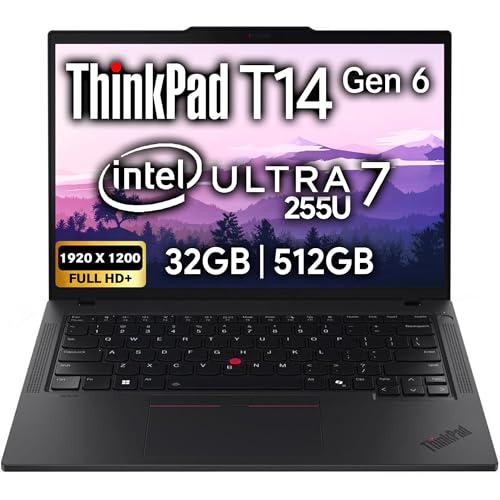
Start with the arithmetic that decides a developer’s day. This configuration’s listing promises an Intel Ultra 7 255U, memory of 32GB in DDR5 form, and a 512GB solid-state drive. Feed that memory to a realistic workload — an IDE with a large index, three containers standing in for a database and two services, a browser carrying documentation and a staging dashboard — and the machine stays out of swap, which is the whole game. Swap is where development laptops go to feel old; 32GB postpones that feeling by years.
The platform’s newness works quietly in the background. A current-generation Intel laptop sits where kernel developers and Lenovo’s own firmware team are actively looking, so the small frictions of Linux life — a webcam quirk, a suspend oddity — tend to be found and fixed rather than inherited permanently. The listing’s supporting details suit the desk-bound half of the job: a 14-inch FHD+ IPS display, a 5MP camera for standups, fingerprint sign-in, a backlit keyboard, Wi-Fi 6E, and two Thunderbolt 4 ports that between them can run a dock, a fast external drive and a charge cable without a negotiation.
- Chip as printed in the listing: Intel Ultra 7 255U
- Installed RAM: 32GB of DDR5
- Internal drive: 512GB SSD
- Panel: 14-inch, FHD+ resolution, IPS technology
- Docking: a pair of Thunderbolt 4 connectors
- Connectivity and sign-in: Wi-Fi 6E, fingerprint reader, backlit keys
Strengths
- Memory sized for the real container-and-IDE load, not for a brochure workload.
- Newest platform here, so its firmware and kernel story improves with time instead of expiring.
- The ThinkPad keyboard remains the best tool in this class for eight-hour typing days.
Trade-offs
- Half a terabyte disappears under VM images and container layers faster than developers expect.
- Integrated graphics only, so CUDA work belongs on a server or a different machine class.
- Current-generation listings rarely see the deep discounts that older T14 stock attracts.
Best for: a full-stack or platform developer whose laptop hosts the whole local environment, docked at a desk most days.
Not suited for: GPU computing of any seriousness — there is no discrete graphics hardware in this configuration.
Ownership of this machine has a particular texture worth describing. It is the laptop equivalent of a well-run build server: unexciting in every specification debate, and then, month after month, simply never the reason a day went badly. Builds complete, suspend works, the dock wakes both monitors, the battery outlasts the meeting. Developers romanticise exotic hardware and then quietly do their best work on machines like this one, and the second year of ownership — when novelty has evaporated and only reliability remains — is when the T14 earns its price most completely.

Lenovo ThinkPad X1 Carbon Gen 12 — The Travelling Developer’s Pick
The Carbon exists for the developer whose workplace changes weekly: client offices, conference venues, a co-working desk in another city. Its listing describes an Intel Ultra 7 165U vPro processor, 32GB of memory at 6400MHz, and a 1TB Gen4 Performance SSD. That storage figure transforms travel development. A consultant can carry the client’s entire local stack — repositories, container images, a VM of the production-like environment, the offline documentation mirror — without deciding which pieces to leave behind, and a terabyte makes the laptop a self-contained office rather than a terminal for one.
The display listed is a 14-inch WUXGA touchscreen with full sRGB coverage, paired with an FHD+ infrared camera for face sign-in. Under Linux the camera and wireless of a flagship business line like this are well-trodden ground, documented by a large owner base that files its findings publicly. The vPro designation signals fleet management heritage; in practical terms it correlates with careful firmware maintenance, which a Linux user benefits from every time a BIOS update improves boot or power behaviour.
- Chip as printed in the listing: Intel Ultra 7 165U, vPro variant
- Installed RAM: 32GB running at 6400MHz
- Internal drive: 1TB Gen4 Performance SSD
- Panel: 14-inch WUXGA, touch-enabled, full sRGB per the listing
- Camera: FHD+ unit with infrared for face recognition
- Shipped system: Windows 11 Pro
Strengths
- The terabyte drive carries whole client environments, ending pre-trip storage triage.
- 32GB of fast memory matches the lead pick, so mobility costs no working headroom.
- A huge Linux owner community documents this model’s behaviour in unusual detail.
Trade-offs
- The flagship premium buys lightness and storage, not extra development capability over the T14.
- A thin chassis sheds sustained compile heat less patiently than the thicker T14 body.
- Touch glass reflects venue lighting that a matte panel would shrug off.
Best for: consultants and remote developers who run client stacks locally and live out of a carry-on.
Not suited for: a desk-anchored developer, who would pay flagship money for portability that never leaves the dock.
There is a subtler travel virtue: this is the machine least likely to embarrass its owner in a client’s meeting room. It opens fast, signs in with a glance under Windows or a fingerprint under either system, drives a borrowed projector through standard ports on a dock, and looks like the serious equipment it is. Development credibility is partly theatrical, and the Carbon performs its part without calling attention to itself — leaving the attention for the work on its screen.

Lenovo ThinkPad T14 Gen 5 Ultra 7 — The Sensible Intel Pick
Every guide needs the pick for the reader who did the maths and refuses to pay for newness. This Gen 5 configuration lists an Intel Core Ultra 7 155U, 16GB of DDR5 memory and a 512GB SSD, with a 14-inch IPS FHD+ screen, backlit keyboard, fingerprint reader, a 5MP webcam and two Thunderbolt 4 ports — plus a bundled hub in this particular listing. Read that specification as a developer and one number argues with the rest: the memory. Sixteen gigabytes supports a focused workflow — one project, its containers, a browser kept on a short leash — and it supports it well. It does not support the sprawl of two projects, a local Kubernetes cluster and a data pipeline at once.
Positioned honestly, this is the machine for a developer whose heavy compute already lives elsewhere: a cloud dev environment, a company build server, a home workstation reached over SSH. In that arrangement the laptop is a superb terminal — the T14 keyboard, the dual Thunderbolt ports for a proper desk, the mature platform whose Linux behaviour is thoroughly mapped by a year-plus of owner reports. The money saved against the Gen 6 buys the dock, the monitor arm and the backup drive, which may improve the working day more than the newer chip would.
- Chip as printed in the listing: Intel Core Ultra 7 155U
- Installed RAM: 16GB of DDR5
- Internal drive: 512GB SSD
- Panel: 14.0-inch IPS with FHD+ resolution
- Docking: a pair of Thunderbolt 4 connectors, plus a hub in the box for this listing
- Camera and sign-in: 5MP webcam, fingerprint reader
Strengths
- A thoroughly documented platform under Linux, with a year of owner knowledge to draw on.
- Dual Thunderbolt 4 keeps the full desk-dock arrangement available.
- The bundled hub stretches the port count at a desk from the first day.
Trade-offs
- 16GB is a genuine ceiling for container-heavy local development.
- Storage matches the lead pick, so the saving buys platform age, not room.
- Buyers who later move compute on-device will wish they had chosen the 32GB configuration.
Best for: a developer whose builds and clusters live on servers, leaving the laptop as a first-class terminal and travel machine.
Not suited for: local Kubernetes experiments or multi-project container sprawl, where memory runs out before patience does.
The honest way to decide between this pick and the Gen 6 is to inventory last month’s work. If your laptop spent it connected to remote environments, this configuration loses nothing that matters and the saving is real. If your laptop spent it compiling, indexing and orchestrating locally, the memory difference is not a luxury — it is the job. The listing cannot make that judgement for you; your shell history can.

Dell XPS 13 9350 — The Compact Pick
The XPS 13 is the guide’s argument that a development laptop can be genuinely small without being a toy. The listing for this 9350 configuration names an Intel Core Ultra 7-256V, 16GB of DDR5 memory and a 1TB NVMe SSD behind a 13.4-inch FHD+ screen, with Intel Arc graphics, Wi-Fi 7, Bluetooth, Thunderbolt 4 and a backlit keyboard, in the Platinum finish. The terabyte is the surprise: small laptops usually ration storage, and a developer’s repositories, container images and toolchains are exactly the cargo that suffers. Here they do not have to.
Sixteen gigabytes of memory is the counterweight, and it defines the intended user precisely. This is a laptop for the developer who works on one substantial project at a time, keeps infrastructure in containers that start and stop rather than idling forever, and values a machine that vanishes into a small bag between co-working desks. Dell’s XPS line also carries a long Linux history — the company has sold this family with Ubuntu preinstalled in its Developer Edition form, a prose-only relative discussed elsewhere in this guide’s wider topic — and that heritage shows in how completely the hardware is documented for Linux users.
- Chip as printed in the listing: Intel Core Ultra 7-256V
- Installed RAM: 16GB of DDR5
- Internal drive: 1TB NVMe SSD
- Panel: 13.4-inch FHD+
- Graphics and radios: Intel Arc graphics, Wi-Fi 7, Bluetooth
- Shipped system: Windows 11 Home
Strengths
- A full terabyte in a 13.4-inch chassis is a rare and genuinely useful combination.
- Wi-Fi 7 and a current platform give it a long useful horizon.
- The XPS line’s Linux documentation heritage is deep, thanks to Dell’s own Ubuntu editions.
Trade-offs
- 16GB of memory caps the container sprawl this machine can host locally.
- The shipped Windows edition is Home rather than Pro, which matters to some virtualisation plans.
- A compact keyboard deck suits smaller hands and shorter sessions better than marathon typing.
Best for: a mobile developer carrying one serious project and a terabyte of working material between desks.
Not suited for: a developer running a local microservices estate, where the 32GB ThinkPads are the honest recommendation.
Judge this pick by the bag test. If your working life involves trains, client sites and borrowed desks, the XPS disappears into that life while still holding everything you need offline — a full repository set, the toolchain, the container images for the current project. If your life is one desk and a dock, its virtues shrink and its memory ceiling grows larger in the imagination than in reality. Context, not specification, decides whether it is the cleverest pick here or the wrong one entirely.
Framework Laptop 13 — The Tinkerer’s Pick
Framework’s laptop is bought from Framework, full stop — the company’s store is the only channel, which is why this pick has no marketplace link and why Amazon searches for the name return accessories and parts rather than the machine. For a developer, the proposition is control. The expansion cards that form its ports can be rearranged around a workflow: wired networking for the rack room, extra USB-C for the dock, a storage card carrying a second environment. Memory, storage and even the mainboard are owner-replaceable, so the laptop bought for today’s stack can be re-specced for tomorrow’s without a whole new purchase.
The Linux angle is structural rather than incidental. Framework publishes distribution setup guides and sells a do-it-yourself edition that expects an owner-installed operating system, so a developer’s preferred distribution is a supported starting point rather than an eviction of the shipped one. When a part wears — a battery at year three, a hinge at year five — the fix is a listed spare and a guide, and the development environment survives the repair untouched. That continuity is a feature no sealed laptop can match, and developers, who maintain everything else in their working lives, tend to appreciate it viscerally.
- Class: 13-inch laptop built around swappable expansion-card ports
- Where it is sold: Framework’s own store exclusively
- Editions: assembled, or do-it-yourself for a self-installed system
- Service model: mainboard, memory, storage and ports replaceable by the owner
- Linux standing: setup guides for major distributions published by the maker
Strengths
- Upgrades follow your stack’s growth instead of a replacement cycle.
- Ports can be composed around the peripherals your current project demands.
- Repairs preserve the machine and its environment rather than resetting both.
Trade-offs
- Configuration is your responsibility, including choosing memory and storage wisely at order time.
- A single small vendor handles sales and support, without a global service network behind it.
- Headline specifications at a given spend can trail a discounted ThinkPad.
Best for: a developer who maintains their own tools and expects a laptop to be maintained the same way.
Not suited for: staff developers whose employer’s IT policy requires a standard fleet model with on-site service contracts.
The Framework also reframes the e-waste conversation in practical terms a developer can respect: the most sustainable laptop is the one still in service, and a machine whose mainboard can be swapped in an afternoon has a credible path to a decade of service. Whether that path matters to you is a values question, but it arrives attached to a genuinely capable development machine rather than as a compromise accepted for the principle.
System76 Lemur Pro — The Linux-Native Pick
The Lemur Pro is what happens when a laptop is designed by people who run Linux on it themselves. System76 sells only through its own store — hence no link here — and builds its machines around its own Pop!_OS distribution while welcoming others, with open firmware at the core of the design. For a developer, the day-one experience is the argument: the machine arrives with Linux installed, its wireless, suspend, function keys and power behaviour validated by the maker, and its support channel staffed by people for whom a kernel question is a normal Tuesday.
The Lemur Pro’s traditional role in the range is the lightweight long-day machine, the one aimed at developers who write code in many places and value battery endurance and a modest footprint over screen acreage. Treat specific configurations as a matter for the maker’s store page at order time, since the range evolves; the durable point is the validation. Every component in the machine was chosen because it behaves under a Linux kernel, which removes the research burden that buying a Windows laptop for Linux normally imposes — the chipset lottery simply is not played.
- Class: lightweight laptop in System76’s Linux-first range
- Where it is sold: System76’s own store exclusively
- Arrives with: the maker’s own Linux distribution installed
- Firmware: open firmware developed with Linux behaviour as the target
- Validation: components selected and tested under Linux before sale
Strengths
- Linux is the shipped, supported state — no installation evening, no eviction of another system.
- Component validation by the maker replaces the buyer’s compatibility research entirely.
- Support staff treat development-on-Linux questions as their core business.
Trade-offs
- One vendor’s store means one vendor’s pricing, stock and delivery timelines.
- The range is narrower than the big brands’, so exact size and configuration wishes may not map.
- Corporate IT departments rarely standardise on it, complicating employer-managed use.
Best for: a Linux-first developer, greeted on day one by a machine already speaking their language.
Not suited for: employees required to expense a fleet-standard model through an employer’s approved catalogue.
There is also a workflow elegance to the maker’s own distribution being a developer-focused system: tiling window management, workspace handling and tooling choices in Pop!_OS were made by people courting exactly this audience. You may replace it with your distribution of choice — the hardware welcomes that — but starting from a system designed for your job, on hardware designed for that system, is a combination no Windows-first laptop can offer at any price.
One more consideration separates the Lemur Pro from every Windows-first machine in this guide: the support conversation when something genuinely obscure goes wrong. With a mainstream laptop, a Linux-specific fault eventually reaches the boundary of the vendor’s responsibility, and the conversation ends at “we support the shipped operating system.” With System76 the shipped operating system is Linux, so the conversation starts where the other one ended. For a developer whose income runs through the machine, that difference in where responsibility lies can matter more than any line in a specification table — and it is a difference no discount on a Windows laptop can purchase after the fact.
Comparison Table: The Six as Development Machines
| Pick | Processor (as listed) | Memory | Storage | Screen | Development character |
|---|---|---|---|---|---|
| ThinkPad T14 Gen 6 | Intel Ultra 7 255U | 32GB DDR5 | 512GB SSD | 14-inch FHD+ IPS | The all-round local environment host |
| ThinkPad X1 Carbon Gen 12 | Intel Ultra 7 165U vPro | 32GB | 1TB Gen4 SSD | 14-inch WUXGA touch | Client stacks carried anywhere |
| ThinkPad T14 Gen 5 Ultra 7 | Intel Core Ultra 7 155U | 16GB DDR5 | 512GB SSD | 14-inch IPS FHD+ | The terminal for server-based workflows |
| Dell XPS 13 9350 | Intel Core Ultra 7-256V | 16GB DDR5 | 1TB NVMe SSD | 13.4-inch FHD+ | One project, total portability, big drive |
| Framework Laptop 13 | Mainboard chosen at order | Owner-specified, replaceable | Owner-specified, replaceable | 13-inch class | The machine that evolves with the stack |
| System76 Lemur Pro | Per the maker’s current range | Per configuration at order | Per configuration at order | Lightweight class | Linux installed and validated from day one |
Noise belongs in the selection criteria too, briefly. Development involves other people — pairing partners, meeting participants, a household asleep in the next room — and a laptop whose fans spin up audibly under a container build taxes every one of those relationships. The U-series processors named across the linked listings are efficiency designs, and their acoustic manners under sustained load are correspondingly civilised. Nobody ever regretted a quiet development machine, and many have regretted the alternative daily.
Why Do Developers Care About Kernel Freshness More Than Benchmark Scores?
A benchmark measures a machine on its launch day. A kernel release cycle measures the machine’s next five years. Development laptops live on current software: the newest language runtimes, container tooling that assumes recent kernel features, distributions that rebuild twice a year. Hardware whose platform support is actively maintained upstream — new Intel and AMD generations in their first years, long-running business lines with huge Linux user bases — receives a continuous stream of small mercies: a power-management fix here, a webcam correction there, a suspend bug closed before you ever meet it.
This is the deepest reason business laptops dominate this guide. A ThinkPad’s Linux behaviour is not a mystery to be discovered by its owner; it is a public record, written by thousands of developers who bought the same machine and filed their findings. When a distribution upgrade changes something, the record updates within days. Buying into that record is buying a support community that no vendor sells, and it is worth more to a working developer than a few hundred benchmark points that vanish into a compile they run twice a day.
Practically, the advice is to prefer platforms with momentum: current generations, or previous generations of lines with enormous Linux populations. Be wary of exotic hardware — unusual fingerprint readers, novel display pipelines, boutique wireless chips — not because it cannot work, but because its support depends on a small number of maintainers, and development deadlines do not wait for a volunteer.
How Many Containers Can a Laptop Hold Before Memory Becomes the Whole Job?
Run the experiment mentally with your own stack. The editor and its language servers take their share and hold it all day. The browser, that second computer disguised as a documentation reader, takes a share that grows with every tab you intend to read later. Then the containers arrive: a database with its cache sized generously because someone copied a production setting, a queue, a cache layer, the application itself in two instances for the feature you are comparing. Each is modest. Together they are a memory budget that either fits inside the machine or spills into swap, and swap is a cliff, not a slope — the moment the working set exceeds RAM, everything becomes slower at once.
That cliff is why the linked picks split so cleanly at 32GB and 16GB. The 32GB machines — the two headline ThinkPads — host the sprawl without negotiation. The 16GB machines host a disciplined subset: services started when needed and stopped when not, a browser treated as a cost rather than a utility, perhaps the database moved to a small cloud instance or a home server. Neither lifestyle is wrong. What is wrong is buying the 16GB lifestyle while living the 32GB one, and the discount at checkout is a poor consolation for a year of watching a swap graph.
Storage plays a supporting role in the same drama. Container images and build caches are hoarders; a half-terabyte drive under a busy Docker habit needs periodic pruning as a standing chore, while the terabyte in the X1 Carbon and the XPS 13 turns that chore into an occasional one. Developers who have lost an afternoon to a full disk during a demo understand why this guide keeps returning to a number that looks, on paper, like a luxury.
There is a corollary for developers who split work between a laptop and a desktop or server: buy the laptop for the moments the other machines cannot cover. The train, the client site, the evening fix from the sofa — those moments reward the keyboard, the battery manners and the storage that holds the project whole, and they are indifferent to a few seconds of compile time. A surprising number of developers spec their laptop as if it were their only computer while using it as their second, and the mismatch costs money in exactly the places this guide has been pointing at.
What Does a Development Desk Actually Plug Into?
Walk the cable inventory of a real development desk: two external monitors, a mechanical keyboard, a mouse, wired Ethernet for the big transfers, a backup drive, a phone, a headset for calls, and power. A laptop with two usable high-speed ports and a dock turns that inventory into one connection; a laptop without them turns it into a daily archaeological dig through adapters. Every linked listing in this guide names Thunderbolt 4, and the uniformity matters more than the count — docks, cables and monitors bought for this class of machine interoperate, so the desk becomes a permanent installation rather than a per-laptop negotiation.
Under Linux, dock behaviour has matured enormously, but the mature path is the standard one: DisplayPort alternate mode over USB-C, USB peripherals through the dock’s hub, Ethernet through a chipset with in-kernel support. Business docks built for the ThinkPad and XPS fleets follow that standard path because their corporate buyers demand it, which is yet another dividend of buying the machines that fleets buy. The Framework rearranges the question entirely — its ports are the cards you choose — while the Lemur Pro assumes the standard dock ecosystem like the others.
Plan the desk before the laptop arrives. A developer who orders the dock, cables and a backup drive in the same week as the machine starts work on Monday with a finished environment; a developer who defers the desk spends the first month in a provisional arrangement that quietly becomes permanent, cables across the keyboard tray and all.
How Should the First Weekend With a Development Laptop Be Spent?
Begin under the shipped Windows, unglamorous as that sounds, and apply every firmware update the maker offers, because those updaters are delivered for Windows first and a current BIOS prevents a category of Linux mysteries that are actually old firmware wearing a disguise. Create the factory recovery media while you are there. Then install your distribution, and resist configuring anything beyond the essentials until the hardware audit is done: suspend and resume twenty times, the dock and both monitors, wireless after sleep, the webcam in a call, the fingerprint reader if you intend to use it, a full compile of your largest project with the machine on battery and then on power.
Write the audit’s results into the same notes system that holds your project documentation. Six months later, when a distribution upgrade changes a behaviour, that page tells you whether the change is new or was always so — a distinction that otherwise costs an evening of superstition. Only after the audit should the environment migrate: repositories, container images, editor configuration, the SSH keys and dotfiles that make a machine yours. Migrating last, onto proven hardware behaviour, means the inevitable first-week problems have exactly one suspect each.
Finish the weekend by setting up the unglamorous safety nets: automated backups of the home directory, a snapshot habit for the system if your distribution supports one, and a written record of the partition layout. Development machines accumulate irreplaceable state — uncommitted work, local databases, environment tweaks — and the difference between an inconvenience and a catastrophe, when a drive fails in year two, is whether the first weekend included an hour of this boredom.
What Separates a Good Development Screen From a Merely Adequate One?
Developers read code the way editors read prose: continuously, critically, and for longer than is probably healthy. The screens named in these listings — FHD+ and WUXGA panels in the 1920×1200 class — sit at the practical sweet spot for that reading. The extra vertical lines over a 1080p panel hold more code in view, and code comprehension is partly a function of how much of the function fits on the screen at once. Text rendering quality, matte finishes under office lighting, and a hinge that holds the panel steady through a day of desk bumps all matter more to this audience than colour gamut heroics.
Scaling deserves a sentence of its own, because it is where Linux display stacks historically made small laptops awkward. At 13.4 and 14 inches, a 1920×1200-class panel can run at a comfortable native or lightly scaled setting under modern Wayland compositors, giving crisp text without the fractional-scaling compromises that higher-resolution panels sometimes impose. That is a quiet argument for the exact resolutions these listings describe: they are the resolutions at which a Linux desktop currently looks effortlessly right.
The second screen question is not about the panel at all — it is about the two monitors waiting at the desk, and it has already been answered by the ports. A development laptop’s internal display is its travel face; its working face is the docked pair. Judge the internal panel for trains and meeting rooms, and the Thunderbolt provision for the other ninety percent of its life.
How Long Should a Development Laptop Be Expected to Last?
Plan on four to six years, and let that horizon shape the purchase. Across that span the machine will meet several distribution releases, a battery that ages from all-day to most-of-the-day, and a workload that grows heavier as your projects do. The specifications that protect year five are the ones this guide keeps underlining: memory bought generously at the start, storage with room to colonise, a platform whose maker still publishes firmware, and a chassis whose battery and keyboard can be serviced. Business laptops are designed against exactly this horizon because fleet buyers amortise them on it.
The two prose-only picks attack the same horizon from opposite directions. System76’s validation means the machine’s Linux behaviour starts correct and stays documented; Framework’s modularity means the machine’s hardware itself can be renewed in pieces — a fresh mainboard in year four is a new laptop wearing a familiar keyboard. The sealed ultraportable, by contrast, bets everything on its original specification ageing gracefully, which is why the X1 Carbon and XPS 13 in this guide carry the memory and storage they do: in a sealed machine, the configuration is the longevity plan.
Software habits extend the hardware’s life as surely as specifications do. A developer who keeps the system updated, prunes container images monthly, and treats the battery kindly — not stored at full charge in a hot dock forever — will hand a five-year-old laptop to its next role still feeling quick. Development machines rarely die of slow processors. They die of neglect, full disks and batteries cooked by their own docks, all of which are choices.
The audit habit generalises beyond the first weekend. Keep a short running log of the machine’s behaviour across distribution upgrades — what improved, what regressed, what you changed — and you will find that the log becomes the most useful support document you own, consulted before every major update and quoted in every bug report you file. Developers already work this way with code; the ones who work this way with their hardware spend measurably less of their lives troubleshooting it. The laptop is part of the stack. Version it, observe it, and it will repay the attention in the only currency that matters: mornings where everything simply works.
What Changes When Development Leaves the Desk?
Remote and hybrid work rearranged the development laptop’s duties. The machine now hosts video calls whose participants judge its camera and microphone, presentations whose audience sees its screen through a codec, and focused work in kitchens and trains where its battery and keyboard carry the whole experience. The linked listings speak to that life more directly than their business styling suggests: 5MP webcams on both headline T14 configurations, an infrared camera on the Carbon, fingerprint readers across the set for the constant locking and unlocking of a machine used in shared spaces.
Battery planning under Linux deserves honest framing. A development workload — containers idling, an IDE indexing, a call running — draws more than the document work on which battery reputations are built, and Linux power behaviour on a given model improves with kernel maturity rather than arriving perfect. The efficient processors in these listings are the right foundation, and the practical habit is unglamorous: know your machine’s real endurance under your real workload by the end of the first month, and plan travel around the measured figure rather than the hoped one. Every pick here will carry a working day of mixed development away from the desk once that measurement is understood; none should be promised a heroic figure this guide cannot verify from a listing.
The home desk completes the picture, and it is where hybrid developers underinvest most reliably. A second monitor, a keyboard that suits long sessions, a chair that respects a spine — these unglamorous purchases return more working comfort per unit of spend than any processor upgrade, and they outlast the laptop itself. Buy the machine for its memory, platform and record; buy the desk for your body; and let each do the job it is actually good at.
Errors That Make a Fast Laptop Feel Slow for Development
The commonest error is shopping by processor and starving memory, producing a machine that compiles quickly and then spends the rest of the day swapping. The second is its mirror: buying memory and ignoring storage, so container images and caches colonise a small drive until the filesystem itself becomes the bottleneck and builds fail with errors that blame everything except the full disk. Both errors come from reading a specification sheet as a list of independent virtues instead of a budget that must balance.
A third error is neglecting the platform’s Linux record — choosing a striking consumer design whose wireless chip, fingerprint reader or display pipeline has a thin public history, and then spending the first month as an unpaid beta tester. A fourth is skipping the firmware update under Windows before installing Linux, leaving known, fixed bugs in place to be misdiagnosed as distribution problems. A fifth is deferring backups until the environment feels finished; environments are never finished, and drives do not schedule their failures around your readiness.
The final error is buying for the job you had two years ago. Stacks grow: the single-service project becomes a platform, the scripts become services, the services acquire containers. A development laptop should be bought for the workload visible on your horizon — which is why this guide’s centre of gravity sits at 32GB and a terabyte where the budget allows, and why the Framework’s upgrade path earns its place as a hedge against every forecast being wrong.
Final Recommendation
Hand most developers the ThinkPad T14 Gen 6 and the conversation ends: current platform, 32GB of memory, the keyboard, the ports, the public Linux record. Hand the travelling consultant the X1 Carbon, whose terabyte and lightness are worth flagship money only to someone who genuinely travels. The Gen 5 Ultra 7 is the intelligent buy when compute lives on servers; the XPS 13 when the project is singular and the bag is small. Framework serves the developer who maintains machines as happily as code, and the Lemur Pro serves the reader for whom Linux should be the factory state rather than a personal project. Decide which developer you are — local or remote compute, desk or road, fleet or self-supported — and the right name on this list selects itself. The best development laptop is the one whose limitations you never meet during a working day, and each of these six was chosen because some real developer’s ordinary, unglamorous, deadline-carrying day fits inside it completely, with the containers running, the browser sprawling, the dock driving both monitors, and nothing — not memory, not storage, not a sulking wireless chip after an update — asking to be thought about at all.
A word on ordering, because these model lines punish casual buying. ThinkPads and XPS machines are each sold in a thicket of configurations under one name, and the difference between the configuration this guide recommends and a cheaper namesake is precisely the memory or storage the recommendation rests on. Read the listing title as a contract: processor, memory, drive, in that order, confirmed character by character before checkout. The five minutes that takes is the highest-value time in the entire purchase, and it is the step that separates the readers of this guide who get the intended machine from those who get its smaller sibling and a lingering suspicion that the guide was wrong.
Frequently Asked Questions
Is 16GB of memory enough for Linux development in 2026?
For a focused workflow, yes: one project, its essential containers, and a browser kept honest will run well in 16GB, which is why the Gen 5 T14 and the XPS 13 remain rational picks. For the sprawling modern default — multiple services, local orchestration, several projects warm at once — 32GB is the comfortable figure, and the gap between the two is felt daily rather than occasionally.
Do these laptops run every Linux distribution equally well?
No distribution runs every machine identically, but the business lines in this guide are among the most thoroughly documented hardware in the Linux world, with installation reports available for all major distributions. Current platforms favour current distributions, whose kernels carry the newest platform support; a long-term-support release a few years old may lag on the newest hardware while suiting the previous generation perfectly. The pragmatic move is to check your chosen distribution’s hardware notes against the exact model before installing, and to keep the live USB from that check within reach afterwards — it remains the fastest diagnostic environment you own when an update changes something you did not expect.
Why does this guide keep recommending business laptops for developers?
Because their design budgets land where development pain lives: memory configurations that make sense, keyboards built for typing marathons, docks and ports standardised for fleets, public service documentation, and an enormous Linux user base that publishes its findings. A gaming laptop’s budget lands on graphics hardware most development never touches.
Can I develop for CUDA or machine learning on the linked picks?
Not locally in any serious way — all four linked configurations use integrated graphics. The standard arrangement is to develop on a machine like these and run GPU workloads on a server, a cloud instance or a dedicated workstation, which is how most professional ML development is organised regardless of laptop. A separate guide in this series covers laptops with discrete NVIDIA graphics for readers who need CUDA on the machine itself.
What is the practical difference between the Framework and a ThinkPad for a developer?
Responsibility. The ThinkPad offers a global maker’s support, fleet documentation and a fixed configuration that simply works. The Framework offers owner-level control: ports you compose, parts you replace, a mainboard you can upgrade — with configuration and maintenance as your job. Developers tend to know immediately which arrangement sounds like relief and which sounds like fun.
Should I update the BIOS before or after installing Linux?
Before, under the shipped Windows installation, using the maker’s own updater while it is effortless. Firmware updates occasionally change power, boot or device behaviour, and applying them first means your Linux installation is tuned against the firmware it will actually live with, rather than inheriting fixes midway through its life. The same logic applies to the drive’s own firmware and the dock’s, both of which are most easily updated from the shipped system. Treat that first Windows session as a maintenance window rather than a delay: update everything, make the recovery media, note the versions you landed on, and only then begin the installation you actually bought the machine for. Developers who skip the window routinely meet the skipped updates later, disguised as Linux problems with confusing symptoms and a fix that turns out to have been published months earlier.
Related Guides
Developers rarely stop at one specialised machine, so these companion pieces continue the same line of thought in adjacent territory: the machine-learning laptop guide, where discrete graphics and graphics memory take over the criteria, our dual-booting guide, for splitting one drive between Windows and Linux without either side resenting the other, and the guide to laptops that run Linux as their native state, including the makers who ship it preinstalled.