What's inside
- Key Takeaways
- Quick Picks
- How We Chose These Picks
- Comparison Table: Evidence, Not Labels
- What Does “Linux Compatible” Mean When Nobody Certifies the Whole Machine?
- How Do You Check a Specific Laptop Against the Ubuntu Certified Catalogue?
- Why Does Kernel Age Matter More Than Distribution Brand?
- Which Components Deserve a Personal Interrogation Before You Buy?
- How Do You Run a Live-USB Audit in a Shop, a Library or Your First Evening?
- How Should You Weigh a Maker’s Own Linux Claims?
- What Happens to Compatibility When You Upgrade the Distribution?
- Compatibility Shortcuts That End in Returns
- Final Recommendation
- Frequently Asked Questions
- Related Guides
As an Amazon Associate I earn from qualifying purchases. This post may contain affiliate links at no extra cost to you.
widgetverdict.com is reader-supported. When you buy through links on our site, we may earn an affiliate commission.
Purchasing, briefly: four machines below link to Amazon listings whose titles state their configurations in full, and each can be opened to check price on Amazon and confirm, line by line, the exact details this guide relies on. Two further picks are bought from their makers or through specialist channels and appear without links, for reasons their sections explain in full when you reach them.
Of all the phrases in this series, best laptops linux compatible is the one that most deserves a buyer’s scepticism, because “compatible” is not a certification stamped on a box — it is a conclusion you reach, component by component, from evidence. A laptop is not compatible or incompatible in the way a key fits a lock. Its processor and graphics may be flawless under Linux while its fingerprint reader is furniture, its wireless exemplary while its suspend is temperamental, and the whole verdict shifts with each kernel release. This guide therefore does something the others in the series deliberately did not: it treats the picks as worked examples, each with its evidence shown, and spends most of its length teaching the verification method itself, step by step, so that the machine you buy — whether it is on this list or merely on your shortlist — is one whose Linux behaviour you have established rather than hoped for.
The four linked machines share a trait that matters more than any single specification: depth of public evidence. ThinkPads and the LG gram line accumulate installation reports, certification entries and owner documentation at a volume that lets a careful buyer predict the Linux experience before spending anything. The two prose-only picks approach certainty from the opposite direction — one maker’s modular machine with published Linux guidance, and one famous Ubuntu edition of a mainstream laptop that demonstrates what the hardware line can do when the maker does the verifying.
Everything claimed about the linked machines comes from their listing titles, as throughout this series. Everything claimed about compatibility is framed the way the evidence actually works: as likelihoods earned by documentation, certification programmes and owner populations — never as guarantees, because in this corner of computing an honest guide deals in well-founded confidence and teaches you where the remaining uncertainty lives.
Key Takeaways
- Compatibility is verified, not labelled: the method in this guide — certification records, dated owner reports, a live audit inside the return window — matters every bit as much as the six names it produced for this particular round of buying this year and next year.
- The ThinkPad T14 Gen 6 and the Gen 5 AMD beside it lead the linked picks on the combined depth of their public Linux records, their certification presence and their enormous professional owner populations.
- The X1 Carbon Gen 12 adds a full terabyte of storage and a flagship’s deep documentation trail; the LG gram 14 is the lightweight whose exact configuration — wireless adapter above all — deserves the closest, most careful pre-purchase checking of any pick here.
- Ubuntu’s certified hardware catalogue, current kernel release notes and dated, model-specific owner reports are the three evidence sources that actually settle questions — in that order, and with the live audit as the court of final appeal.
- Framework’s modular laptop and Dell’s XPS 13 Developer Edition show the maker-verified end of the spectrum — one by published documentation and replaceable design, the other by a shipped Ubuntu edition with Dell’s own name and support standing squarely, contractually behind it for years to come, across successive product generations and distribution releases.
Quick Picks
| Pick | Badge | Why it is here |
|---|---|---|
| Lenovo ThinkPad T14 Gen 6 | The Current-Kernel Favourite | A newest-generation business laptop whose platform the current kernel knows best. |
| Lenovo ThinkPad T14 Gen 5 AMD | The Documented Workhorse | In-kernel AMD graphics and an owner record deep enough to answer almost any question in advance. |
| Lenovo ThinkPad X1 Carbon Gen 12 | The Flagship With a Paper Trail | 32GB of memory and 1TB of storage in the most documented ultraportable line in the business. |
| LG gram 14 | The Featherweight to Verify Carefully | 2.47 pounds and 32GB of memory; a line with a real Linux following and configuration variety to check. |
| Framework Laptop 13 | The Maker-Documented Route | Published Linux guides and replaceable parts from a direct-sale maker; no link. |
| Dell XPS 13 Developer Edition | The Ubuntu Edition | Dell’s own Linux edition of the XPS 13 family, sold through Dell’s channels; no link. |
How We Chose These Picks
The selection inverted the usual order. Instead of choosing laptops and then checking their Linux stories, the guide chose Linux stories and let them nominate the laptops. A model qualified by accumulating three kinds of evidence: presence in formal certification programmes such as Ubuntu Certified, where specific configurations are tested against specific releases; a body of model-specific owner documentation detailed enough to cover suspend, wireless, docking and updates rather than merely installation; and a component selection that avoids the known troublemakers — exotic wireless chips, boutique fingerprint readers, display pipelines with no public history.
That method explains the list’s complexion. Business laptops dominate because fleets generate evidence: thousands of identical machines in professional hands produce the documentation density that compatibility decisions feed on. The LG gram earns the consumer slot because its line has attracted a genuine Linux following whose reports cover the same ground. The two prose-only picks represent the maker-verified alternatives — Framework publishing its Linux guidance as a product feature, Dell having sold this very XPS family with Ubuntu installed as the Developer Edition — and both are labelled with their channels rather than linked, because neither is the Amazon listing a buyer would land on.
A final honesty note: compatibility is a property of a configuration, a distribution version and a moment in kernel history, not of a model name in the abstract. The guide’s confidence about these picks is therefore stated as what it is — the strongest evidence-based expectation available — and the sections that follow exist to convert that expectation into your own verification while returning the machine is still a live option.
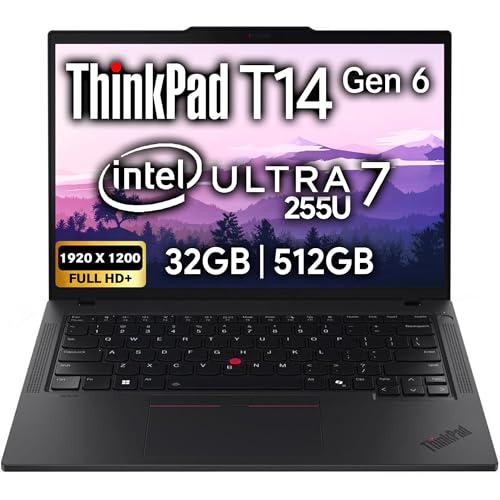
Lenovo ThinkPad T14 Gen 6 — The Current-Kernel Favourite
Compatibility has a direction in time, and this pick sits at its favourable end. The listing describes an Intel Ultra 7 255U, 32GB of DDR5 memory, a 512GB SSD, a 14-inch FHD+ IPS display, a 5MP webcam, fingerprint reader, backlit keyboard, Wi-Fi 6E and two Thunderbolt 4 ports, shipping with Windows 11 Pro. A platform this current is the one the present kernel knows most intimately: its integrated graphics, power management and sleep states are the ones upstream developers are actively polishing, and its business-line siblings populate the certification catalogues that IT departments consult. For a buyer installing a current distribution release, that alignment between hardware generation and kernel generation is the single strongest predictor of an uneventful first month.
The T14 line’s certification presence deserves a precise explanation, because it is the kind of evidence this guide teaches. Lenovo submits business configurations to programmes like Ubuntu Certified, which test specific machines against specific releases and publish the results; a buyer can look up the family, compare the certified configuration against the listing under consideration — processor family, wireless, the works — and convert a general reputation into a specific expectation. Where the exact retail configuration differs from a certified one, the method section below shows how to weigh the difference instead of merely worrying about it.
- Configuration as listed: Intel Ultra 7 255U, 32GB DDR5, 512GB SSD
- Panel: 14-inch FHD+ IPS
- Radios and ports: Wi-Fi 6E, two Thunderbolt 4
- Biometrics present in the listing: fingerprint reader — verify its Linux status per the method below
- Camera: 5MP webcam
- Shipped system: Windows 11 Pro
Strengths
- Platform currency matches kernel currency, the strongest compatibility predictor available.
- A business line with formal certification entries a buyer can actually look up.
- 32GB of memory makes the verified machine also a capable one.
Trade-offs
- The newest platform’s record is still being written; early quirks belong to early adopters.
- Certification covers specific configurations, so the listing must be compared, not assumed.
- The fingerprint reader’s Linux story should be confirmed rather than presumed.
Best for: installers of a current distribution, matching the platform and the kernel to the same age.
Not suited for: loyalists of an older long-term-support release, whose kernel may predate this platform’s polish.
Treat this pick as the guide’s demonstration of buying forward. Every laptop’s compatibility improves after purchase as kernels absorb its platform, but the improvement is steepest for machines bought near their platform’s debut and shallowest for machines bought at the end of theirs. A Gen 6 bought now rides years of that improvement with a maker still publishing firmware beside it. The verification method still applies — currency is a predictor, not a promise — but it is the predictor with the best track record in this entire category.

Lenovo ThinkPad T14 Gen 5 AMD — The Documented Workhorse
If the Gen 6 is compatibility predicted, this machine is compatibility recorded. Its listing states a Ryzen 7 PRO 8840U, 32GB of DDR5 memory, a 512GB NVMe SSD, a 14-inch WUXGA touch display, Radeon 780M graphics, Wi-Fi 6E and Windows 11 Pro. The AMD graphics architecture is the headline for a Linux buyer: the driver lives in the kernel itself, maintained upstream, so a distribution install presents correct graphics without a proprietary detour, and the platform’s season of owner reports has already answered the questions a new buyer would ask — about suspend, about docking, about the webcam, about which distribution releases flatter it most.
Depth of record changes the buying experience in a way worth describing. For an obscure laptop, compatibility research is archaeology: scattered posts, uncertain configurations, verdicts without dates. For this class of ThinkPad, it is closer to reading a manual the crowd wrote — model-specific, configuration-aware, and current. A buyer can establish, before ordering, how the machine behaves under the exact distribution they intend, including the small print about the touchscreen’s role under Linux (a convenience, not a centrepiece) and the fleet-grade firmware’s boot manners. That is what “compatible” means when the word is earned rather than printed.
- Configuration as listed: AMD Ryzen 7 PRO 8840U, 32GB DDR5, 512GB NVMe SSD
- Graphics: Radeon 780M, driven from within the kernel
- Panel: 14-inch WUXGA touch
- Radios: Wi-Fi 6E
- Shipped system: Windows 11 Pro
- Evidence base: a full season of model-specific owner documentation
Strengths
- In-kernel graphics remove the commonest installation complication entirely.
- The public record answers configuration-level questions before purchase.
- 32GB of memory and a fast NVMe drive make the verified machine a strong daily system.
Trade-offs
- One generation behind the Gen 6, so its firmware future is a year shorter.
- The touchscreen’s Linux utility is modest beside its Windows utility.
- 512GB is adequate rather than expansive for multi-distribution experimenters.
Best for: methodical shoppers, with the compatibility question answered by evidence before the box is opened.
Not suited for: feature-led shoppers requiring the newest platform’s specifics and accepting a thinner record to get them.
There is a lesson in this pick that outlives it: the best-documented machine is often worth more than the best-specified one. A processor generation’s difference is measured in percentages; a documentation base’s difference is measured in evenings — the evenings you do not spend discovering whether suspend works, because a hundred owners already discovered it and wrote it down. Compatibility, properly understood, is a labour market, and this machine is where the labour has already been done.

Lenovo ThinkPad X1 Carbon Gen 12 — The Flagship With a Paper Trail
The Carbon’s compatibility case rests on a simple demographic fact: this line is the laptop that Linux-using executives, consultants and conference speakers actually carry, and populations that visible generate documentation the way engines generate heat. The listing under consideration specifies an Intel Ultra 7 165U vPro, 32GB of memory at 6400MHz, a 1TB Gen4 Performance SSD, a 14-inch WUXGA touchscreen with full sRGB coverage and an FHD+ infrared camera, under Windows 11 Pro. Every element of that specification has a Linux story that can be looked up rather than guessed — including the infrared camera, whose face-recognition role belongs to Windows while its ordinary webcam function is the part a Linux user should verify for their distribution.
The terabyte matters to compatibility in an indirect, practical way: it makes experimentation cheap. A buyer can keep the shipped Windows intact on a generous partition, install their distribution beside it, and still have room for a second distribution to evaluate — the arrangement that turns compatibility from a one-time verdict into an ongoing, low-risk practice. Machines with small drives force commitment; this one funds curiosity, and curiosity is how owners become the people whose reports the next buyers rely on.
- Configuration as listed: Intel Ultra 7 165U vPro, 32GB memory, 1TB Gen4 Performance SSD
- Panel: 14-inch WUXGA touch, full sRGB per the listing
- Camera: FHD+ with infrared — verify the webcam function under your distribution
- Shipped system: Windows 11 Pro
- Evidence base: the flagship line’s large, visible Linux owner population
- Chassis: carbon-fibre travel construction
Strengths
- A documentation trail as deep as any ultraportable’s, written by a visible professional population.
- A terabyte that funds dual-boot and multi-distribution verification without triage.
- 32GB of fast memory keeps the verified machine fully capable for development work.
Trade-offs
- Flagship pricing buys the trail and the travel weight, not extra compatibility over the T14s.
- Biometric extras are Windows-centred; their Linux status needs the method’s checking.
- A slim chassis has less thermal patience for sustained loads than the T14 body.
Best for: a travelling professional, pairing flagship hardware with a flagship’s depth of Linux evidence.
Not suited for: a desk-bound buyer, who can buy the same depth of record in a T14 and keep the difference.
The Carbon also demonstrates how to weigh a mixed evidence picture, which is the realistic case for most premium laptops. Its core platform — processor, graphics, storage, wireless class — is documented to exhaustion. Its garnish — infrared sign-in, touch — is documented as partial, Windows-centred, or incidental. A mature compatibility judgement holds both facts at once and prices the machine on its core, treating the garnish as a bonus where it works. Buyers who demand that every last feature function under Linux before purchasing will buy nothing; buyers who check the core and shrug at the garnish will buy well, and this machine rewards the second temperament completely.

LG gram 14 — The Featherweight to Verify Carefully
The gram is this guide’s deliberate test of its own method, because it is the pick where verification matters most and pays best. The listing describes a 14-inch lightweight laptop with an Intel Core Ultra 7 355, 32GB of RAM and a 512GB SSD, at 0.67 inches thin and 2.47 pounds, with Thunderbolt 4 and Windows 11 Home. The gram line has attracted a real Linux following — light machines with big endurance appeal to exactly the users who install their own systems — and owner reports for the family are genuinely useful. It is also a consumer line sold in many configurations across regions and years, which means the model name alone settles nothing: the exact unit, its wireless adapter and its firmware generation are the compatibility facts, and they must be established for the configuration in front of you.
Apply the method and the gram becomes a rational, even delightful choice. Confirm the fitted wireless adapter against the kernel’s supported list. Read the model-year-specific reports rather than the family’s general reputation, because grams change components between generations more freely than business lines do. Check the suspend reports for the exact generation, since light machines live or die by their sleep behaviour in a bag. Do that homework — an evening of it — and what you receive is the lightest full Linux laptop in this guide, with 32GB of memory that shames most featherweights and a maker’s endurance claims that make it the travel pick of the set. Skip the homework and the same machine is a lottery ticket with excellent industrial design.
- Configuration as listed: Intel Core Ultra 7 355, 32GB RAM, 512GB SSD
- Weight and thickness as listed: 2.47 pounds, 0.67 inches
- Panel: 14-inch class
- Ports highlighted: Thunderbolt 4
- Shipped system: Windows 11 Home
- Verification priority: wireless adapter and suspend behaviour for the exact generation
Strengths
- The lightest chassis in the guide, with memory that featherweights rarely offer.
- A genuine Linux owner community documents the family’s behaviour.
- Thunderbolt 4 keeps the docked desk arrangement standard.
Trade-offs
- Configuration variety across the line makes per-unit verification essential.
- A consumer line’s firmware cadence is less predictable than a business line’s.
- Windows Home rather than Pro is the shipped edition in this listing.
Best for: a travelling Linux user willing to verify the exact unit in exchange for the lightest bag in the guide.
Not suited for: shoppers seeking certification-catalogue certainty without doing configuration homework.
The gram’s inclusion is the guide keeping its own promise. A compatibility guide that listed only ThinkPads would be teaching deference to one brand’s record; the gram teaches the transferable skill — how a careful buyer establishes confidence in a machine whose evidence base is real but scattered. Master the method on this pick and you can evaluate any laptop the market releases next year, which is a more durable asset than any single recommendation on this page.
Framework Laptop 13 — The Maker-Documented Route
Framework approaches compatibility from the maker’s side of the fence: instead of a crowd documenting the machine after the fact, the maker publishes Linux setup guidance as part of the product, and designs the hardware — swappable ports, replaceable mainboard, memory and storage — so that the owner controls the components compatibility depends on. It is sold only through Framework’s own store, which is why this pick carries no link; the marketplace results under its name are parts and accessories rather than the laptop. Its do-it-yourself edition, arriving ready for a self-installed system, makes the verification story unusually clean: the distribution you install is one the maker’s own guides contemplate.
The deeper compatibility virtue is component agency. When a part’s Linux behaviour disappoints — a wireless card, most classically — a sealed laptop’s owner negotiates with workarounds, while a Framework owner can replace the part with one the kernel loves, using the maker’s own marketplace and guides. Compatibility stops being a verdict delivered at purchase and becomes a property the machine can be maintained in, across years and kernel generations. For buyers whose horizon is a decade, that maintainability is a form of compatibility no certification catalogue can confer.
- Class: 13-inch modular laptop, ports composed from swappable cards
- Where it is sold: the maker’s own store only
- Linux standing: setup guides for major distributions published by the maker
- Component agency: wireless, memory, storage and mainboard owner-replaceable
- Editions: assembled or do-it-yourself for a self-installed system
Strengths
- Maker-published Linux guidance replaces guesswork with a documented path.
- A disappointing component can be replaced rather than endured.
- The machine’s compatibility can be maintained across its whole service life.
Trade-offs
- Configuration and assembly decisions belong to the buyer, homework included.
- A small maker’s support replaces a global service network.
- No certification-catalogue entry substitutes for reading the maker’s own guides.
Best for: a long-horizon owner, treating compatibility as a maintainable property rather than an initial one.
Not suited for: IT departments requiring a fleet-certified configuration with an enterprise paper trail.
Notice the philosophical shift this pick introduces into the guide. The remaining picks treat compatibility as evidence gathered about a fixed object. The Framework treats it as a relationship between an owner and a machine whose parts can change — closer to how Linux itself treats hardware, as a set of drivers meeting a set of devices, either of which can be revised. Buyers formed by the Linux world tend to find that framing familiar to the point of comfort, and they are this pick’s natural constituency.
Dell XPS 13 Developer Edition — The Ubuntu Edition
The Developer Edition is the proof-of-concept the whole compatibility conversation quietly relies on: Dell has, for years, sold the XPS 13 family with Ubuntu preinstalled under that name, through its own channels — which is why this pick is prose-only here, since the Amazon XPS listing in this series’ pool is a Windows machine and must not be confused with it. The edition’s significance for a buyer considering any XPS is evidentiary. A maker does not ship a Linux edition of a laptop whose wireless, suspend and display pipeline fight the kernel; the Developer Edition’s existence certifies the family’s underlying compatibility more persuasively than any review could.
Buying the edition itself, where Dell offers it in your region and configuration, converts compatibility from research into a delivered state — Ubuntu installed, the hardware validated by the maker for that system, and a support conversation that begins from Linux. Its availability varies by market and season in the way of specialist editions, and its configurations are curated rather than exhaustive. Buyers who find it in stock in their region are looking at the shortest path in this entire guide from decision to a working Linux laptop with a global brand’s badge on the lid.
- Class: the XPS 13 family in its maker-shipped Ubuntu edition
- Where it is sold: Dell’s own channels, varying by region
- Arrives with: Ubuntu preinstalled by the maker
- Evidentiary role: certifies the wider XPS family’s Linux character
- Configurations: curated by the maker rather than exhaustive
Strengths
- A global brand shipping Linux itself — validation with a famous name behind it.
- The edition’s existence vouches for the whole family’s component choices.
- A support path that starts from the installed Linux system.
Trade-offs
- Regional availability and configurations are limited and seasonal.
- It must not be confused with Windows XPS listings sold elsewhere.
- Edition pricing follows Dell’s direct channel rather than marketplace discounts.
Best for: shoppers in a served region, set on a branded, preinstalled Ubuntu laptop without a specialist maker.
Not suited for: shoppers whose region or configuration needs the edition does not cover.
The Developer Edition also closes an argument that runs through this series. Skeptics of the compatibility concept ask why, if these machines run Linux so well, the big brands do not simply sell them that way. Dell’s answer — sustained over many product generations, aimed at developers, renewed because its audience kept buying it — is that one of them does, and the edition’s longevity is the market’s own verdict on the family’s hardware. When a maker and its customers agree for a decade, a guide need only point.
Comparison Table: Evidence, Not Labels
| Pick | Processor (as listed) | Memory | Storage | Shipped system | Basis of compatibility confidence |
|---|---|---|---|---|---|
| ThinkPad T14 Gen 6 | Intel Ultra 7 255U | 32GB DDR5 | 512GB SSD | Windows 11 Pro | Certification presence plus platform currency |
| ThinkPad T14 Gen 5 AMD | Ryzen 7 PRO 8840U | 32GB DDR5 | 512GB NVMe SSD | Windows 11 Pro | In-kernel graphics plus a deep owner record |
| ThinkPad X1 Carbon Gen 12 | Intel Ultra 7 165U vPro | 32GB | 1TB Gen4 SSD | Windows 11 Pro | The flagship line’s visible Linux population |
| LG gram 14 | Intel Core Ultra 7 355 | 32GB | 512GB SSD | Windows 11 Home | Owner community, verified per exact unit |
| Framework Laptop 13 | Mainboard chosen at order | Owner-specified, replaceable | Owner-specified, replaceable | DIY edition ships without one | Maker-published Linux guidance |
| Dell XPS 13 Developer Edition | Per Dell’s edition configuration | Per edition configuration | Per edition configuration | Ubuntu, preinstalled by Dell | The maker’s own shipped Linux edition |
What Does “Linux Compatible” Mean When Nobody Certifies the Whole Machine?
Begin by retiring the binary. Real compatibility is a stack of separate verdicts wearing one coat: the processor and chipset, the graphics, the wireless adapter, the storage controller, the audio, the webcam, the fingerprint reader, the function-key firmware, the suspend implementation, the dock behaviour. A machine can pass nine layers and fail the tenth, and whether it is “compatible” depends on whether the tenth layer is one you use. The fingerprint reader is the canonical example — a component whose Linux support varies by exact sensor model, whose failure inconveniences a password-typist not at all, and whose presence in a listing should trigger a targeted check rather than a verdict on the whole laptop.
Formal certification exists precisely to tame that stack, and its scope should be understood rather than inflated. Programmes like Ubuntu Certified test a specific configuration of a machine against a specific release and publish the outcome, which makes them excellent evidence for the configurations they cover and suggestive evidence for close relatives. They do not bless a model name in perpetuity, and they cannot speak for a retail listing whose wireless adapter differs from the certified unit’s. The mature buyer treats a certification entry as the beginning of a comparison — certified configuration beside intended configuration, component by component — and treats any guide that waves a model name and the word “certified” in the same breath as marketing rather than method.
The third leg of the definition is time. Compatibility is re-decided by every kernel release: new platforms gain polish, old quirks get fixed, occasionally a regression visits a previously happy machine and is fixed in turn. This is why the guide weighs platform currency and maker firmware cadence so heavily. A compatible laptop is not one that worked on installation day; it is one whose support story is still being actively written, by a kernel community that uses its platform and a maker that still answers for its firmware.
How Do You Check a Specific Laptop Against the Ubuntu Certified Catalogue?
The procedure is mechanical, and its mechanical nature is its virtue. First, identify the exact machine: not the marketing name but the model and generation, and the configuration’s defining components — processor family, wireless adapter, graphics. Second, search the certified catalogue by maker and model, and note not just whether an entry exists but which release it certifies and which configuration it describes. Third, place the certified configuration and your intended listing side by side and mark the differences honestly; a different wireless adapter is a material difference, a different storage size is not. Fourth, where the catalogue is silent or the configurations diverge, move to the second evidence source — model-specific owner reports for your intended distribution — and look for the specific behaviours the catalogue would have tested: suspend, wireless stability, dock output, update survival.
Two habits separate reliable checking from reassuring theatre. Date everything: a certification against a release from three years ago describes a relationship that has since been renegotiated by several kernels, for better or worse, and a current owner report outweighs an elderly certificate for predicting next month’s behaviour. And check the component that history indicts: compatibility questions concentrate overwhelmingly, predictably on wireless adapters, fingerprint readers and suspend firmware, so a check that covers those three by name has done most of the work even before it admires the rest.
Keep the results. A page of notes — catalogue entries, report links, the adapter model you confirmed — becomes the machine’s compatibility dossier, and it pays rent at every future decision: the distribution upgrade you are weighing, the dock you are considering, the forum question you will one day answer for the next buyer. Verification is not a gate passed once; it is a file you keep.
Why Does Kernel Age Matter More Than Distribution Brand?
New buyers shop distributions the way they shop laptops — by brand, by reputation, by desktop screenshots — and are then surprised that hardware behaviour follows a different variable entirely: the kernel. The kernel is where the drivers live, and a platform’s support is a function of how many kernel releases have absorbed it. A current distribution release carrying a recent kernel will typically flatter a new laptop; a venerable long-term-support release, for all its stability virtues, may carry a kernel older than the hardware it is asked to run, and the mismatch presents as exactly the compatibility gremlins — sleep, wireless, graphics — that buyers blame on the machine.
The practical rule inverts the usual shopping order. Choose the laptop, then choose the distribution release whose kernel suits its platform age: current hardware, current release; a platform with a few seasons behind it, a wider and safer choice including the long-term-support editions whose kernels have since caught up. Many distributions also offer newer-kernel variants or hardware-enablement stacks precisely to bridge this gap, and checking for one is a standard step in the method — a five-minute check that can convert a marginal pairing into a sound one without changing either the laptop or the distribution family you prefer.
This is also why the guide’s picks cluster where they do. The Gen 6 ThinkPad asks for a current release and rewards it; the Gen 5 AMD, a season older, is comfortable across a broader range of releases — a genuine, if unglamorous, advantage that buyers wedded to a particular long-term-support edition should weigh seriously. Compatibility is a relationship between two moving things, and the kernel is the half of the relationship the buyer controls at installation time.
Which Components Deserve a Personal Interrogation Before You Buy?
Interrogate the wireless adapter first, by exact model, because it is the component with the widest variance in Linux fortunes and the one most likely to differ between configurations of the same laptop. In-kernel drivers are the pass mark; anything requiring an out-of-tree build is a recurring appointment with breakage at kernel updates. Interrogate suspend second, through owner reports for the exact generation, because sleep behaviour is firmware-and-kernel diplomacy that no specification sheet describes, and a laptop that cannot sleep reliably in a bag is a laptop whose battery and thermals will punish travel. Interrogate the fingerprint reader third, and price its possible absence honestly — for most buyers it is a convenience whose loss is a shrug, provided the shrug is budgeted before purchase rather than discovered after.
The second rank of interrogation covers the working surface: the webcam and microphone under your distribution’s current stack, the function-key behaviours you actually use, the external display path through the ports you actually own, and the storage controller’s mode in firmware, which on a minority of machines must be switched to a standard setting before a Linux installer can see the drive at all. Business laptops — the bulk of this guide — pass this rank almost by definition, their fleets having filed the answers publicly; consumer machines earn individual checking, which is the gram’s section in one sentence.
What does not need interrogation can be said plainly, because fear should be budgeted accurately: processors, system memory, NVMe storage and integrated graphics from the major vendors are, in 2026, solved territory under Linux. The buyer’s anxiety is a finite resource. Spend it on wireless, suspend and biometrics, where the variance lives, and let the solved territory be solved.
A word for the used market, where this method earns its keep most dramatically. Retired business laptops — the ThinkPad classes in this guide above all — flow into secondhand channels at prices that make them the thinking Linux buyer’s favourite hunting ground, and every technique above applies with doubled force: the exact unit’s components, its generation’s reports, a live audit performed before money changes hands wherever the seller permits. A five-year-old business machine with a documented Linux record is frequently a safer compatibility purchase than a brand-new consumer model with none, and the price difference funds the replacement battery that is the used machine’s one predictable need. Compatibility knowledge, in the used market, converts directly into money.
How Do You Run a Live-USB Audit in a Shop, a Library or Your First Evening?
The live session is the compatibility method’s laboratory: a full Linux system booted from a USB stick, touching nothing on the internal drive, in which every important behaviour can be rehearsed before commitment. Prepare it from a current release — kernel currency again — verify the image’s checksum as a matter of hygiene, and arrive with a written checklist rather than a vague intention to “see if it works.” In a retail setting you may get ten minutes; in your first evening at home, inside the return window, you get the full rehearsal. The checklist is the same either way, ordered by consequence.
Connect to wireless and then close the lid; open it and confirm the connection, the screen and your session survived — suspend and resume, the audit’s headline act, performed three times because the third cycle is the one that tells the truth. Play a video with sound; join a test call and check the camera and microphone as others will see them. Work the function keys you live by. Plug in the external monitor or dock you own. Run the system updater’s check to see the machine’s hardware recognised and enumerated sanely. Then write down every result, including the failures, because a failure discovered inside a return window is information, while the same failure discovered after it is a grievance.
Interpret the results with the guide’s layer model. A failing fingerprint reader in an otherwise flawless audit is a footnote. A failing suspend is a headline. A wireless adapter that needs a driver hunt is a verdict on the configuration, not on your competence. And an audit that passes completely is the strongest compatibility evidence obtainable — stronger than any catalogue, including this guide — because it is the machine itself, answering in person.
How Should You Weigh a Maker’s Own Linux Claims?
Between the crowd’s evidence and the catalogue’s formality sits a third source that deserves its own scepticism setting: the maker’s own statements. At one end of the honesty spectrum stand makers like Framework and Dell’s Developer Edition programme, whose Linux claims are specific, documented and tied to products they will sell you with the system installed or the guides published. At the other end stands the vague brochure phrase — “supports Linux” — which in industry usage can mean anything from a certified configuration to the observation that the machine’s processor is not physically incapable of booting a kernel. The phrase is not a lie; it is a shrug wearing a suit, and the buyer’s job is to convert it into specifics before it converts into a purchase.
The conversion questions are short. Which distributions, and which releases of them? Which configuration, down to the wireless adapter? Who do I call when it misbehaves, and will that call begin from Linux or end there? A maker who answers all four precisely has earned the confidence the answers describe. A maker who answers warmly and generally has told you that the crowd’s evidence and your own audit will be doing the work — which may still be a fine purchase, priced accordingly, as several picks in this guide demonstrate. The error is never buying a shrug; the error is paying a certification’s price for one.
Lenovo’s posture with its business lines illustrates the productive middle: formal certification for specific configurations, public documentation, and a Linux conversation conducted in the open where owners can audit it. That middle — more than a shrug, less than a preinstall — is where most professional Linux buying actually happens, and learning to read it accurately is worth more than any single model’s verdict, because it is the posture you will meet again at every future purchase.
What Happens to Compatibility When You Upgrade the Distribution?
An upgrade is a renegotiation, and owners who understand that schedule it like one. The new release brings a new kernel, which brings new platform polish and, occasionally, a regression that the release notes or the first week of owner reports will surface. The dossier habit from the checking section pays its rent here: you know your machine’s sensitive components by name, so you can search the new release’s reports for exactly those components rather than for a general mood. Machines in this guide’s class, with their large owner populations, generate those reports within days of a release — another dividend of buying where the crowd already lives.
The prudent sequence mirrors the first-install sequence at a smaller scale. Back up, read the release’s known-issues notes for your platform’s components, upgrade one machine — yours — at a moment when a day’s troubleshooting would be an annoyance rather than a catastrophe, and run the audit checklist again: suspend three times, wireless after sleep, the dock, the call. Owners who treat upgrades as audited events describe them as boring. Owners who treat them as surprises eventually stop upgrading, and a Linux installation that stops upgrading becomes, slowly, the compatibility problem it was meant to solve.
There is good news buried in the ritual: the direction of travel is overwhelmingly positive. Platforms gain polish monotonically in the long run, makers keep publishing firmware, and the machine that was verified carefully at purchase tends to become more compatible across its life, not less. The audit habit is not a tax on that improvement; it is how you collect it safely.
Compatibility Shortcuts That End in Returns
The commonest shortcut is trusting the model name: buying a laptop because another configuration of it, in another year, was certified or praised, without comparing the components in the listing to the components in the evidence. The second is trusting the family name across generations — assuming a line’s Linux kindness is hereditary when each generation re-selects its wireless and sensors. The third is checking installation and calling it compatibility, when installation is merely the first of the behaviours that matter and suspend, updates and docking are the rest.
A fourth shortcut is choosing the distribution first and the kernel never — installing a beloved but elderly release on current hardware and concluding the laptop is at fault. A fifth is skipping the live audit during the return window out of politeness toward a sealed box; the window exists for exactly this, and a machine that cannot survive an audit cannot survive ownership. A sixth is interrogating the glamorous components and forgetting the wireless adapter’s exact model, the single most predictive fact in the entire purchase.
The final shortcut is treating compatibility as a verdict to receive rather than a file to keep. Owners who keep the dossier — what was certified, what was reported, what their own audit found — make every later decision faster and calmer. Owners who rely on a memory of having “checked at the time” re-derive the whole question at every upgrade, and eventually stop upgrading, which is how a compatible laptop becomes an old one before its time.
Final Recommendation
Buy the evidence, then the laptop. If you want the strongest ready-made case, the ThinkPad T14 Gen 5 AMD pairs in-kernel graphics with a season of documentation deep enough to answer questions you have not thought of yet, while the Gen 6 beside it trades a little of that record for the newest platform and the longest runway of kernel and firmware attention. The X1 Carbon serves the traveller, wrapping the same depth of evidence around a terabyte and a flagship’s finish. The LG gram rewards the buyer who does the per-unit homework with the lightest serious Linux laptop in this guide. Framework converts compatibility into a maintainable property, and Dell’s Developer Edition removes the question entirely where it is offered. Whichever name you land on, run the audit, keep the dossier, and let the machine answer in person during the return window. Compatibility is not a label a laptop wears — it is a conclusion you reach, and you are now equipped to reach it about any machine, including the ones released after this guide was written. That equipment, more than any single pick, is what this page was for — because models will change, kernels will roll forward, and the buyer who can verify will be ready for all of it.
A closing word about cost, since verification can sound like a hobby for people with unlimited evenings. The full method in this guide — catalogue, reports, audit — takes a few hours spread across the purchase, and it replaces a risk that, when it materialises, costs weeks: the return, the second purchase, the re-verification performed in a worse mood. Buyers of the maker-verified picks are paying money to skip those hours, which is a legitimate trade this guide has priced openly. Buyers of the crowd-verified picks are spending the hours instead. What no buyer should do is spend neither — no money on validation, no hours on verification — and call the resulting hope a compatibility strategy. The six machines above were chosen so that either currency, spent honestly, buys a machine that runs Linux the way the evidence promised.
Frequently Asked Questions
What is the difference between this guide and the one about laptops running Linux?
Direction of responsibility. The running-Linux guide is about machines that ship with Linux or are built to receive it, where the maker carries the validation. This guide is about mainstream machines sold with Windows, where compatibility is established by the buyer from certification records, owner documentation and a live audit. The ThinkPad names that appear in both are the same hardware viewed through those two different questions.
Does “Ubuntu Certified” guarantee a laptop will work with my distribution?
It guarantees something narrower and more useful: that the specific certified configuration was tested against the specific Ubuntu release named in the entry. Treat it as strong evidence, compare the certified configuration with the listing you intend to buy component by component, and remember that other distributions with comparable kernels generally behave comparably — while “generally” is exactly why the live audit exists. None of this diminishes the certificate’s value — it remains the fastest first filter in the method, the check that takes ten minutes and eliminates whole shelves of unsuitable machines from consideration. The error is only in stopping there, mistaking a strong first filter for a finished investigation, when the remaining steps — the configuration comparison, the owner reports for your release, the audit itself — are precisely the steps that convert a programme’s general assurance into your specific machine’s expected behaviour.
Which component causes the most Linux compatibility problems?
Historically, the wireless adapter, because its support depends on the exact chip and whether its driver lives in the kernel. Fingerprint readers are the runner-up, though their failure costs a convenience rather than a function. Suspend behaviour is the third recurring theme and the hardest to predict from specifications, which is why this guide’s method checks those three by name before admiring anything else.
Can I check compatibility without buying the laptop first?
Mostly, yes — that is the catalogue-and-reports method this guide teaches, and it resolves the large majority of questions from public evidence. The live-USB audit completes the picture and usually requires access to the machine, in a store where permitted or at home inside the return window. Plan the purchase so the audit happens while returning is still an option, and the residual risk shrinks to nearly nothing.
Is an older laptop sometimes more compatible than a new one?
Yes, and the mechanism is kernel time: a platform that has been on the market for several seasons has been absorbed, tested and polished by many kernel releases, and its quirks are documented to exhaustion. New platforms improve fastest but start greener. The Gen 5 AMD and Gen 6 ThinkPads in this guide embody the two ends of that trade, and neither end is the wrong answer — they suit different distribution choices and different appetites for novelty.
What should I do if one component does not work under Linux?
First, classify it. A convenience component — the fingerprint reader is the usual case — can be lived without while its support matures, and often does mature within a few kernel releases. A core component, above all wireless or suspend, deserves the documented workarounds for your exact model, and if those fail inside the return window, the honest answer is to return the machine and choose from stronger evidence. On a Framework, a third path exists: replace the component itself.
Related Guides
Verification is a habit that travels well beyond this category, and the series continues it in the neighbouring pieces: the drawing-tablet guide that opens the next category, where screen and pen claims deserve the same listing-level scrutiny, our pen-tablet companion, which separates driver promises from documented behaviour just as this guide did, and the beginners’ drawing-tablet guide, written for readers who prefer their first purchase in any category to be a verified one.


