What's inside
- Key Takeaways
- Quick Picks
- How We Chose These Picks
- Which of These Pen Displays Will You Still Be Drawing on Next Year?
- How Do the Six Screens Stack Up Side by Side?
- Does Screen Size Change How You Draw, or Just How Much Desk You Lose?
- What Do Pressure Levels and Lamination Actually Feel Like in a Line?
- Should Your First Pen Display Be New, or the Room to Grow?
- How Should You Set Up a Pen Display Without Wrecking Your Posture?
- Common Mistakes
- Final Recommendation
- Frequently Asked Questions
- Related Guides
As an Amazon Associate I earn from qualifying purchases. This post may contain affiliate links at no extra cost to you.
widgetverdict.com is reader-supported. When you buy through links on our site, we may earn an affiliate commission.
Choosing among the best digital drawing tablets with screen starts with a simple shift in how you work: instead of drawing on a blank slab while watching a separate monitor, your pen moves directly on the image itself. Lines land where your hand expects them to land. That single change removes the hand-eye gap that makes screenless tablets feel indirect for the first weeks, and it is why pen displays have become the default recommendation for illustrators, photo editors, and students who draw every day.
The six displays below span the realistic range of this category. At one end sits an 11.6-inch portable panel you can slide into a laptop bag; at the other, an 18.4-inch 4K touchscreen with colour performance aimed at professional print and photo work. Between them are three 13.3-inch models that disagree with each other in interesting ways, plus a 15.4-inch Wacom that trades headline specifications for the most mature pen feel in the group. Screen size alone will not tell you which one belongs on your desk, so each review digs into lamination, pen pressure, shortcut controls, and the small ergonomic details that decide whether a display gets used daily or gathers dust by March.
One ground rule before the picks: every display here is a monitor with a pen, not a computer. Each one needs a Mac, PC, or Chromebook to drive it, and the buying-guide sections after the reviews explain cables, ports, and desk setup in plain terms. If you want a screen you can draw on with no computer attached at all, that is a different and much smaller category, covered in our standalone guide linked at the end. Here, the question is narrower and more useful: given a computer you already own, which screen deserves to sit in front of it?
A note on how to read the specifications quoted in this guide: every number attached to a pick comes from that maker’s own Amazon listing — panel size, pressure levels, colour coverage, controls, and compatibility are reported exactly as listed, and where a listing stays silent on a figure we say so rather than filling the gap from a review elsewhere. That discipline matters in this category, because drawing tablets accumulate folklore: a figure printed for one generation gets quoted for the next, and a regional variant’s specification migrates into listings where it does not belong. What is printed here is what the seller claims for the exact model linked, which is the claim your purchase will be judged against.
Key Takeaways
- The XP-Pen Artist 13.3 Pro V2 is the strongest all-round value here: a full-laminated, anti-glare panel with 123% sRGB coverage, 16K pressure levels, eight shortcut keys, and a stand in the box.
- Huion’s Kamvas 13 (Gen 3) answers with dual dials, Canvas Glass 2.0, and PenTech 4.0 at 16,384 pressure levels — the control layout inking artists will appreciate most.
- The Wacom One 13.3 is the calm, compatible choice for teaching and mixed Mac, PC, and Chromebook households, though its listing is the older 2019 generation.
- Serious colour work points to the Huion Kamvas Pro 19 4K: 96% Adobe RGB, 1.07 billion colours, and a sub-1 Delta E claim on an 18.4-inch touchscreen.
- The Gaomon PD1161 is the one to carry: 11.6 inches, tilt support, and a battery-free pen at 8,192 pressure levels for people who draw in more than one place.
Quick Picks
| Pick | Badge | Why it is here |
|---|---|---|
| Wacom One 13.3 Pen Display | The easy first display | Wacom’s 13.3-inch HD pen display works with Mac, PC, and Chromebook, which makes it the least risky first screen for shared households and classrooms. |
| XP-Pen Artist 13.3 Pro V2 | The complete 13-inch package | A full-laminated anti-glare display with 123% sRGB coverage, 16K pressure, eight keys, and an adjustable stand included — the most complete 13.3-inch package here. |
| Huion Kamvas 13 (Gen 3) | The inker’s control layout | Dual dials, Canvas Glass 2.0, 99% sRGB, and PenTech 4.0 at 16,384 pressure levels make this the 13.3-inch display built around control. |
| Gaomon PD1161 | The one that travels | An 11.6-inch anti-glare display with tilt, eight keys, and a battery-free pen at 8,192 pressure levels — the portable pick for students and creators on the move. |
| Wacom Cintiq 16 | The professional’s pen feel | A 15.4-inch Full HD display built around the Pro Pen 2 with tilt response — the choice when pen feel outranks every other specification. |
| Huion Kamvas Pro 19 4K | The colour-first flagship | An 18.4-inch 4K UHD touchscreen with 96% Adobe RGB, 1.07 billion colours, a Delta E under 1, and dual 16,384-level styluses — the professional colour pick. |
How We Chose These Picks
We built this shortlist around the jobs pen displays actually get hired for: illustration and comics, photo retouching, animation, design markup, and teaching. A display that only shines in one of those jobs had to be exceptional at it to stay. Models were cut when their pen technology lagged a full generation behind rivals at the same screen size, when shortcut controls were so sparse that every action meant reaching for a keyboard, or when the panel’s colour coverage was too narrow for the photo work its marketing implied.
Pen behaviour carried the most weight. Pressure levels are the headline number — this group spans 8,192 to 16,384 — but what your hand notices is the start of the stroke: how light a touch registers, how smoothly a line thickens as you press, and whether tilt shading behaves predictably at low angles. Battery-free pens scored well across the board because a pen that never needs charging never interrupts a session, and every pick here except the touchscreen flagship’s dual-stylus arrangement follows that battery-free philosophy in its own way.
The panel itself was judged on lamination and surface. A full-laminated screen bonds the glass to the display layer, shrinking the visible gap between pen tip and pixel; you feel it most when inking fine lines, where parallax either disappears or nags at you all day. Matte and anti-glare finishes matter for the same reason — a glossy panel under a desk lamp turns drawing into a negotiation with reflections. Colour coverage claims were taken from each maker’s listing and are reported as claims, not lab results; where a listing prints a Delta E figure, we say so, because that signals factory calibration intent even before you verify it with your own colorimeter.
Controls and ergonomics decided several close calls. Eight physical keys is the practical floor for a comfortable Photoshop or Clip Studio workflow; dials are worth more than extra keys to artists who zoom and rotate constantly. Included stands mattered too — drawing flat on a desk wrecks posture over a long session, so a display that ships with an adjustable stand starts ahead of one that leaves you shopping for accessories before your first sketch. Finally, compatibility was checked as listed: Mac and PC everywhere, Chromebook support on the Wacom One, Android support on the two Huion and XP-Pen 13.3-inch models for phone-connected sketching.
Software behaviour rounded out the assessment. A pen display is only as good as its driver on the operating system you run, so preference went to makers with long, current driver support across Mac and Windows — and, where listed, Chromebook and Android. Shortcut customisation depth counted as well: the ability to remap a key or dial per application, rather than globally, separates displays that adapt to a Photoshop-and-Clip-Studio double life from displays that force one compromise layout on everything. None of the six required that compromise, but the depth of their driver options differed, and the reviews note where it matters.
Which of These Pen Displays Will You Still Be Drawing on Next Year?

Wacom One 13.3 Pen Display — The easy first display
The Wacom One occupies a particular niche in this category: it is the display bought by people who do not want to research displays. Teachers equipping a classroom cart, parents buying for a teenager, offices adding a markup screen to a meeting room — the appeal is a 13.3-inch HD panel from the company that defined pen input, running on Mac, PC, and Chromebook without drama. The listing is candid that this is the older generation from 2019, and that honesty frames the whole product: proven, simple, and deliberately unambitious.
Drawing on it feels reassuring rather than exciting. The pen tracks where you point it, lines begin without a dead zone of pressure, and the surface gives enough friction that strokes do not skate. What you do not get is the specification arms race happening elsewhere in this guide — no headline pressure figure is printed in the listing, no wide-gamut claim, no bank of shortcut keys to programme. Wacom expects your keyboard to handle shortcuts, and for photo editing and annotation that division of labour works fine. For heavy illustration with one hand permanently on undo and brush size, you will feel the missing controls within the first hour.
The Chromebook compatibility deserves emphasis because almost nothing else in this category offers it. Schools standardised on Chromebooks can put a real pen display in front of students without buying new computers, and the same logic serves anyone whose household machines are a mixed fleet. Photo and video editing are named uses in the listing, and the panel is honest HD resolution — adequate for retouching at normal viewing distances, though pixel-peepers editing at 200% zoom will notice the step down from the 2.5K and 4K panels further down this page.
Buy it as infrastructure, not as a treat. The Wacom One is the pick when the display must simply work for whoever sits down at it, when support and predictability outrank specifications, and when the drawing is one task among several rather than the centre of the day. Artists who already know they will draw twenty hours a week should read on — the XP-Pen and Huion models below were designed for exactly that person, and they show it.
Ownership of this display tends to be uneventful, which is a compliment. The driver asks little of you after installation, the pen asks nothing at all in the way of charging, and the panel’s job in a classroom or a family home — be ready when someone sits down — is one it performs without ceremony. Keep a spare nib in the pen stand and wipe the surface with the cloth you use for glasses; that is close to the whole maintenance manual. Buyers sometimes worry that an older generation means imminent abandonment, yet Wacom’s education installed base is enormous, and mature products in that position historically keep their driver support long after flashier models have been replaced twice over.
- Panel: 13.3-inch HD pen display
- Compatibility as listed: Mac, PC, and Chromebook
- Named uses in the listing: photo and video editing, drawing, education
- Generation: older model, listed as the 2019 generation
- Pen: Wacom One pen, battery-free design
Strengths
- Works across Mac, PC, and Chromebook — the widest computer compatibility in this guide
- Wacom’s pen feel and driver maturity make it the lowest-risk first display
- Well matched to teaching, annotation, and mixed-use desks
Trade-offs
- Older 2019 generation; rivals below offer newer pen technology
- No shortcut keys or dials printed in the listing, so your keyboard does the heavy lifting
- HD resolution is the softest panel here for fine detail work
Best for: classrooms, school carts, and shared households — anywhere one display must behave itself on every computer it meets.
Not suited for: full-time illustrators who live on shortcut keys and want the newest pen technology for daily inking.
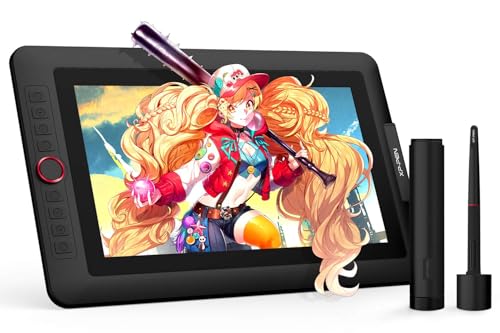
XP-Pen Artist 13.3 Pro V2 — The complete 13-inch package
If one product in this guide reads like a direct answer to a buyer’s checklist, it is this one. The Artist 13.3 Pro V2 combines a full-laminated display with an anti-glare finish, claims 123% sRGB coverage, pushes pen pressure to the 16K class, builds in eight shortcut keys, and includes an adjustable stand in the box. XP-Pen markets it toward beginners, but the specification is not a beginner’s compromise; it is a mid-range pen display that happens to be priced and packaged so a first-time buyer can say yes without a second purchase to make it usable.
The lamination is the feature your hand will thank first. With the glass bonded to the panel, the cursor sits almost directly under the pen nib, so cross-hatching and fine inking go where you aim them instead of a millimetre beside it. The anti-glare treatment keeps that precision usable under ordinary room lighting. Colour coverage at 123% sRGB, as listed, comfortably exceeds what screen-first illustrators need — artwork destined for phones, tablets, and social feeds lives entirely inside sRGB, and the extra headroom means gradients render without the banding surprises a narrow panel can produce.
Eight keys along the side cover the core vocabulary of drawing software: undo, redo, brush size up and down, zoom, hand tool, and a modifier or two, all programmable through the driver. Combined with the stand — which sounds like a footnote and is not, because drawing angle decides whether your shoulder survives a long session — the package removes the two accessory purchases that quietly inflate the cost of rival displays. Android appears in the compatibility list alongside Mac and PC, opening the door to sketching with a supported phone when the computer is busy or switched off.
Where does it leave room for the models below? The Kamvas 13 Gen 3 counters with dials and a newer pen system, and the Kamvas Pro 19 plays in a different league of size and colour entirely. Against everything at its own size, though, the Artist 13.3 Pro V2 is the display with the fewest asterisks. Check price on Amazon, confirm your computer’s ports against the cable arrangement, and this is the 13.3-inch screen we would hand to the widest range of buyers without a follow-up question.
A word about who grows out of it, because some buyers will. If your illustration practice matures into daily client work, the 13.3-inch canvas and key-only controls start to feel like a well-made room you have filled with furniture. The sensible path is not to skip this model in anticipation — most beginners never hit its ceiling — but to recognise that its completeness makes it an easy hand-me-down or second-machine display later. Younger siblings, a laptop bag, a spare desk: the Artist 13.3 Pro V2 ages into supporting roles gracefully because nothing about it depends on a subscription, a battery, or a fragile accessory ecosystem.
- Panel: 13.3-inch, full-laminated with anti-glare finish
- Colour as listed: 123% sRGB
- Pen pressure: 16K class, per the listing
- Controls: 8 shortcut keys
- Compatibility as listed: Mac, PC, and Android; adjustable stand included
Strengths
- Full lamination keeps the cursor tight under the nib for accurate inking
- Stand and eight keys included — no accessory purchases before you can work properly
- Wide sRGB coverage suits illustration and animation destined for screens
Trade-offs
- No dial for zoom and rotation; key-only control layout
- 13.3 inches gets crowded with full Photoshop panels open on both sides
- Android use depends on your specific phone model being supported
Best for: illustrators and animation students: one box arrives with everything needed to start drawing properly.
Not suited for: artists who rotate the canvas constantly and would trade keys for a physical dial under the drawing hand.

Huion Kamvas 13 (Gen 3) — The inker’s control layout
Huion’s third-generation Kamvas 13 is designed around a conviction: the controls on the display matter as much as the display. Two dials sit within thumb reach, ready to own zoom, canvas rotation, brush size, or timeline scrubbing, and they change the rhythm of drawing in a way extra buttons never quite do. Turning a dial to grow a brush feels like turning a lens; tapping a key four times feels like data entry. Inkers and comic artists, who resize brushes hundreds of times a page, will understand the appeal within one session.
The pen system is PenTech 4.0 with 16,384 pressure levels, the highest figure printed anywhere in this guide, paired with a full-laminated panel and Huion’s Canvas Glass 2.0 surface. The practical meaning of that pressure number is not bragging rights — it is the fineness of the ramp between a whisper-light construction line and a full-weight contour, and the smoothness of tapered stroke ends when you lift the pen at speed. Canvas Glass aims for a paper-adjacent drag, so strokes start and stop with a hint of tooth rather than the glide of bare glass.
Colour is listed at 99% sRGB, a touch narrower on paper than the XP-Pen above, and for screen-destined artwork the difference is academic; both panels cover the space your audience’s devices can show. The Kamvas counters with breadth of connection instead: PC, Mac, and Android are all named, and a stand is included, so the out-of-box experience matches its rival. The black finish and slim bezels keep it visually quiet on a desk, which matters when the display sits beside a main monitor all day.
Choose between this and the Artist 13.3 Pro V2 by deciding what your non-drawing hand does all day. If it rides a dial — zooming, rotating, scrubbing — the Kamvas 13 Gen 3 is the more fluent tool. If it taps a fixed set of shortcuts and rarely touches zoom, the XP-Pen’s key bank serves just as well. Either way, this Huion is the 13.3-inch display we would shortlist first for line art, because its controls and pen were clearly tuned by people who ink.
One setup habit pays off immediately with this model: map the two dials differently per application rather than accepting one global layout. Clip Studio Paint wants brush size and canvas rotation; Photoshop wants zoom and brush size; a PDF markup tool wants page scrolling and zoom. Ten minutes in the driver panel per application returns hours across a month of drawing, and it is the step that separates owners who call the dials transformative from owners who call them decorative. The hardware supports the habit fully — it is the configuration most buyers never bother to finish.
- Panel: 13.3-inch, full lamination with Canvas Glass 2.0
- Colour as listed: 99% sRGB
- Pen: PenTech 4.0, 16,384 pressure levels
- Controls: dual dial controllers
- Compatibility as listed: PC, Mac, and Android; stand included
Strengths
- Dual dials make zoom, rotation, and brush size genuinely one-handed
- PenTech 4.0 pressure ramp suits fine line work and tapered strokes
- Full lamination plus matte Canvas Glass keeps lines accurate under room light
Trade-offs
- Dial-first layout means fewer discrete shortcut buttons than key-bank rivals
- 99% sRGB is aimed at screen work, not print-proofing
- 13.3 inches still asks for UI scaling discipline in panel-heavy software
Best for: comic artists, inkers, and illustrators whose free hand lives on zoom and brush-size controls while they draw.
Not suited for: photo editors chasing the widest colour coverage, who should look at the 4K touchscreen further down this guide.

Gaomon PD1161 — The one that travels
Every other display in this guide assumes a desk. The PD1161 assumes a bag. At 11.6 inches it is closer in spirit to a large notebook than a monitor, and Gaomon leans into that identity: portable is the first word of its pitch, with students and beginners named as the audience. If your drawing happens in a dorm room, a library carrel, a train table, and a kitchen counter in the same week, screen size stops being a compromise and becomes the entire point.
The pen is battery-free with 8,192 pressure levels and tilt support, a specification that would have been mid-range flagship material not long ago. Tilt matters more than the pressure headline for painters, because it is what lets a flat brush or a pencil tool shade with its edge when you roll the pen over. Eight shortcut keys ride along, so the keyboard-free workflow of its bigger rivals survives the shrink. The anti-glare screen keeps the panel readable in the bright, uncontrolled lighting that portable drawing actually happens in — café windows and classroom fluorescents included.
Honesty about limits: 11.6 inches is a small canvas. Full Photoshop with panels docked on both sides leaves a drawing window the size of a paperback page, and detailed work means living on the zoom key. Comics artists drawing full pages will feel it; so will anyone retouching photographs at high magnification for hours. The PD1161 works best as either a first display for someone still deciding whether digital art sticks, or a second display for an artist whose main screen stays home.
Judged on those terms, it succeeds completely. It is the display we would give a student whose course mixes lectures, library sessions, and dorm desks, or a traveller who sketches on the road and finishes work at home. Buy the big screen later if the habit takes hold — this one is priced and sized to start the habit, and its pen and controls are honest enough that starting here teaches you what you actually want from the upgrade.
Portability has a hidden cost worth naming: the cable. A display this size still needs its connection to the laptop, and in a library or café that means claiming the seat near a wall or accepting a shorter session than your battery would allow. Experienced PD1161 owners develop a small ritual — same pocket for the pen, cable coiled the same way, a microfibre cloth folded over the screen before the bag closes. Build that ritual in week one and the tablet travels for years; skip it and the screen meets a set of keys by week three.
- Panel: 11.6-inch with anti-glare finish
- Pen: battery-free, 8,192 pressure levels, tilt support
- Controls: 8 shortcut keys
- Form factor: portable, aimed at beginners, students, and creators
- Named uses in the listing: drawing, design, and animation
Strengths
- Genuinely portable — the only pick here that treats the bag as home
- Tilt support at this size helps painters and pencil-style shading
- Eight keys keep keyboard-free shortcuts available anywhere
Trade-offs
- Smallest canvas in the guide; panel-heavy software feels cramped
- 8,192 pressure levels trail the 16K-class pens above
- Not the screen for full-page comics or long retouching sessions
Best for: students and travelling creators drawing in several places a week, with the display coming along quietly.
Not suited for: desk-bound artists drawing full pages, who will outgrow 11.6 inches within a month of daily use.
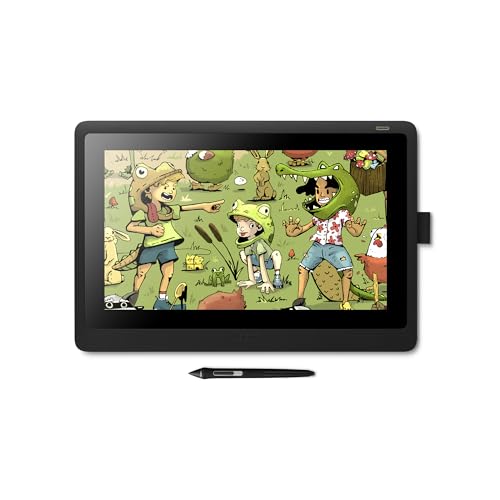
Wacom Cintiq 16 — The professional’s pen feel
The Cintiq name carries history: for years it was simply what professional pen displays were called. This 16-inch model is the entry point to that line, and its argument is not specifications — several rivals above out-print it on paper. Its argument is the Pro Pen 2 and the accumulated refinement behind it: tilt response that behaves like a real brush changing shape, pressure tracking that stays smooth at the lightest touches, and drivers that have been polished through more years of professional use than any competitor can claim.
The panel is 15.4 inches at Full HD, a size that hits a practical sweet spot. It is large enough to draw a full page with tool panels visible, small enough to share a desk with a keyboard and a coffee without rearranging your life. Full HD at this size means individual pixels stay discreet at drawing distance while text in menus remains coarse compared with the 2.5K and 4K panels elsewhere in this guide — a trade most illustrators accept without noticing and most interface perfectionists notice daily.
Studios buy Cintiqs for reasons beyond the drawing feel. When a freelancer, an art department, and a client’s pipeline all assume Wacom drivers, compatibility stops being a feature and becomes infrastructure. The Cintiq 16 runs on Mac and PC, slots into those established workflows, and its pen works with the muscle memory thousands of artists already have. Animation and graphic design are the named disciplines in the listing, and both are fields where that shared standard quietly saves hours of troubleshooting.
The counterargument is value: XP-Pen and Huion will sell you more printed specification for similar money, and if you are buying purely for yourself, those listings deserve their place above. The Cintiq 16 is for buyers who weight the pen itself — its tilt behaviour, its pressure curve, its driver stability — above the spec sheet, or who work inside teams where Wacom is the common language. For that buyer, this remains the safest pair of hands in the category, and the extra screen size over the 13-inch class is a genuine daily comfort.
Desk arrangement is where this model quietly beats the 13-inch pair for many illustrators. Fifteen-plus inches lets you park the keyboard behind the display and still reach it, or slide the display to the dominant-hand side and keep a reference monitor square-on — a layout animation desks have used for years. The Cintiq’s tilt legs and compatibility with standard mounts give you options the smaller units cannot match. Spend one session experimenting with the display at different heights before you settle; the arrangement that feels merely fine in minute five can be the one that aches in hour three.
- Panel: 15.4-inch Full HD display
- Pen: Pro Pen 2 with tilt response
- Compatibility as listed: Mac and PC
- Named uses in the listing: graphic design and animation
- Position in range: entry model of Wacom’s professional Cintiq line
Strengths
- Pro Pen 2 tilt and pressure behaviour set the reference standard rivals chase
- 15.4 inches gives full-page room without taking over the desk
- Driver maturity suits studios and freelancers inside Wacom-based pipelines
Trade-offs
- Full HD resolution is softer than the 2.5K and 4K panels in this guide
- No dial or key bank is highlighted in the listing; shortcuts lean on your keyboard
- Spec-for-money trails the XP-Pen and Huion rivals above
Best for: animators, designers, and freelancers after the reference pen experience on a screen sized for an ordinary desk.
Not suited for: spec-sheet shoppers, who will find more printed numbers per pound from the rival brands in this guide.

Huion Kamvas Pro 19 4K — The colour-first flagship
The Kamvas Pro 19 is the display in this guide that stops apologising for anything. Its panel is 18.4 inches of 4K UHD with touch input, colour listed at 96% Adobe RGB with 1.07 billion colours, and a factory accuracy claim of Delta E under 1 — a figure that, if your unit matches it, puts the panel in colour-critical territory where photo editors and print illustrators can trust what they see. Nothing else here plays at this level, and the price and desk footprint will reflect that, which is precisely the point: this is a professional tool bought deliberately.
Touch changes how a big display gets used. Pinching to zoom a photograph, two-finger rotating a canvas, tapping through reference images — gestures your phone taught you become available on the drawing surface itself, and on an 18.4-inch panel there is room for those gestures to feel natural rather than cramped. Huion pairs the touch layer with Canvas Glass 2.0, keeping the matte, slightly toothed drawing feel that its smaller models use, so the flagship does not trade pen control for its touchscreen tricks.
The pen arrangement is distinctive: dual styluses at 16,384 pressure levels each under PenTech 4.0, so a fine-point inking pen and a broader painting pen can live on the desk together, each picked up without swapping nibs or settings. A Keydial Mini accessory handles shortcuts and dial duties off the bezel, which keeps the screen surround clean — a sensible division on a display this size, where reaching the far bezel mid-stroke would break your posture anyway. Photo retouchers will live in the Adobe RGB coverage; illustrators working for print gain a panel that can show them the colours the press will actually print.
Who should skip it? Anyone whose work lives entirely on screens, where sRGB panels at a third of the commitment do the same job, and anyone whose desk cannot give an 18.4-inch display the room it demands. But for the colour-first professional — the retoucher, the print illustrator, the concept artist delivering to picky art directors — this is the one pick in the guide that removes the panel itself from the list of things to worry about. Check price on Amazon and measure your desk before ordering; both numbers deserve a clear head.
Colour professionals should still calibrate. A Delta E claim under 1 describes the panel as it left the factory, and panels drift as they age and warm. If your income depends on the 96% Adobe RGB coverage, a hardware colorimeter and a monthly calibration routine turn a strong claim into a verified working condition. The same discipline applies to the dual pens: assign each stylus a persistent role — one nib type for inking, one for painting — and label them physically if you must, because picking up the wrong pen mid-flow is the flagship’s only self-inflicted annoyance.
- Panel: 18.4-inch 4K UHD touchscreen with Canvas Glass 2.0
- Colour as listed: 96% Adobe RGB, 1.07 billion colours, Delta E under 1
- Pens: dual styluses, PenTech 4.0, 16,384 pressure levels each
- Controls: Keydial Mini shortcut accessory
- Class: flagship pen display for colour-critical work
Strengths
- Adobe RGB coverage and sub-1 Delta E claim suit print and photo colour work
- 4K touch panel makes gestures part of the drawing workflow
- Dual styluses let inking and painting pens coexist on the desk
Trade-offs
- Largest footprint here; measure your desk before committing
- Touch and 4K are wasted on purely sRGB, screen-only workflows
- Flagship positioning means flagship pricing — verify the current figure on Amazon
Best for: photo retouchers and print illustrators whose income depends on trusting the colours on the screen in front of them.
Not suited for: screen-only illustrators on sRGB pipelines, who would pay for colour range their audience’s devices cannot display.
How Do the Six Screens Stack Up Side by Side?
Specifications read differently once the displays sit next to each other. The table below uses only figures printed in each maker’s listing, so gaps are honest gaps: where a listing does not print a number, the cell says what the listing does claim instead of borrowing a figure from a review elsewhere.
| Pick | Panel | Pen (as listed) | Controls | Listed colour |
|---|---|---|---|---|
| Wacom One 13.3 | 13.3-inch HD | Wacom One pen, battery-free | None printed in listing | Not printed in listing |
| XP-Pen Artist 13.3 Pro V2 | 13.3-inch, full-laminated, anti-glare | 16K pressure class | 8 keys; stand included | 123% sRGB |
| Huion Kamvas 13 (Gen 3) | 13.3-inch, full lamination, Canvas Glass 2.0 | PenTech 4.0, 16,384 levels | Dual dials; stand included | 99% sRGB |
| Gaomon PD1161 | 11.6-inch, anti-glare | Battery-free, 8,192 levels, tilt | 8 keys | Not printed in listing |
| Wacom Cintiq 16 | 15.4-inch Full HD | Pro Pen 2 with tilt response | None printed in listing | Not printed in listing |
| Huion Kamvas Pro 19 4K | 18.4-inch 4K UHD touchscreen | Dual PenTech 4.0 styluses, 16,384 levels | Keydial Mini | 96% Adobe RGB, Delta E under 1 |
Does Screen Size Change How You Draw, or Just How Much Desk You Lose?
Size changes technique, not just furniture. On the 11.6-inch PD1161 your strokes come from the fingers and wrist, the way they do in a sketchbook, and zooming is a constant companion. On the 13.3-inch pair your forearm joins the work, lines lengthen, and a full illustration page fits at a readable scale with panels open. At 15.4 and 18.4 inches you draw from the shoulder for broad strokes, keep reference material on the same screen as the artwork, and stop treating zoom as a way of life. None of these is the correct way to draw — but the wrong match is miserable, because your software habits form around the size you own.
A practical way to choose: open your drawing software on your current monitor, shrink the window to roughly the active area of the display you are considering, and work in it for twenty minutes. If menus crowd the canvas unbearably at 13.3 inches, you are a 16-inch buyer. If the small window feels like a sketchbook and your hand is happy, the portable and 13-inch class will serve you for years. Desk depth matters as much as width — a pen display sits closer than a monitor, and an 18.4-inch panel on a shallow desk puts your face nearer the screen than your posture will enjoy.
Monitor habits transfer, too. If your current screen is small and your windows are always maximised one at a time, a 13.3-inch pen display will feel like home. If you live with three windows tiled across a large monitor, the drawing display becomes one surface among several and the 16- and 19-inch models protect that habit. Neither workflow is more serious than the other; they simply spend screen area on different things, and the honest size choice is the one that matches the windows you already keep open.
What Do Pressure Levels and Lamination Actually Feel Like in a Line?
Pressure levels describe how finely the pen divides the force between touching the surface and pressing as hard as the sensor allows. The jump from 8,192 to 16,384 levels shows up in the lightest register: hairline construction strokes, gentle hatching that fades out, watercolour-style washes that build by grams of force. Heavy-handed inkers who draw at the top of the pressure range will honestly never perceive the difference, which is why the Gaomon’s 8,192 levels remain a perfectly respectable tool. Artists with a light touch — and they know who they are — feel the extra resolution immediately.
Lamination is easier to judge and arguably more important. On a non-laminated panel a visible air gap separates the pen tip from the pixel it activates, so at oblique angles the cursor appears offset from the nib. Full lamination, as on the XP-Pen Artist 13.3 Pro V2 and both Huion models here, bonds those layers together and nearly erases the offset. Test it mentally with a ruler task: drawing a straight line along a guide, tracing a scanned sketch, inking over tight pencils. Those are the moments parallax either vanishes or taxes every stroke, and they are daily moments for comic and technical artists.
There is a cheap experiment that reveals your own sensitivity before you spend anything. Borrow any pen tablet, set a brush to full pressure control, and draw twenty lines that begin invisible and end bold. If the beginnings break up into dotted starts, your hand works in the pressure range where finer sensors earn their keep. If every line starts cleanly, your touch is firmer and an 8,192-level pen will serve you without complaint. Hands differ more than marketing admits, and five borrowed minutes teach more than a specification table.
Should Your First Pen Display Be New, or the Room to Grow?
First-time buyers split into two camps, and both are right about themselves. Camp one buys the display matched to their current skill — often the Gaomon or the Wacom One — reasoning that most beginners quit within a year and a modest screen loses little if the hobby fades. Camp two buys one tier up — the XP-Pen or Huion 13.3-inch models — reasoning that a tool you cannot outgrow in eighteen months is cheaper than two purchases. The deciding question is not budget; it is evidence. Have you filled sketchbooks? Finished pieces on a screenless tablet? Kept a drawing habit through a busy month? Evidence of persistence justifies buying up. Its absence argues for the honest starter.
There is also a middle path hiding in this guide’s structure: buy the mid-range 13.3-inch display now and let the second purchase, if it ever comes, be a change of kind rather than size — the touchscreen flagship for colour work, or a big Cintiq-class panel for a studio desk. Artists who upgrade by kind keep their first display in service as a travel or second-machine screen, which is why so many working illustrators own two pen displays that look redundant on a spec sheet and are anything but, in a working week.
How Should You Set Up a Pen Display Without Wrecking Your Posture?
Start with the stand. Raise the display to a drawing angle between roughly twenty and forty-five degrees — flat on the desk forces your neck down and your wrist into a hook, while fully upright turns drawing into whiteboard work. The XP-Pen and Huion 13.3-inch models include stands; for the others, a sturdy adjustable stand or a stack of large-format books will do until you commit to a proper mount. Your chair height should let your forearm rest near level with the surface, elbow soft, so strokes come from the whole arm rather than a clawed wrist.
Then arrange the supporting cast. Keyboard within easy reach of your non-drawing hand — or, on the key-and-dial models, programme the onboard controls until the keyboard becomes optional. Keep the pen’s spare nibs in the desk drawer, not the box in a cupboard, because a worn nib left in service scratches both your lines and eventually the screen surface. Calibrate the pen to the panel after setup and again if you change the display’s angle significantly, and set your software’s brush stabilisation low at first: a new display feels slippery for a week, and heavy smoothing hides the pen’s real behaviour while you are still learning it.
Lighting finishes the setup. Position the display so windows and lamps sit behind you rather than reflected in the panel, and prefer a desk lamp you can angle onto paper references without washing the screen. Matte panels forgive a great deal, but no finish survives a bright window mirrored directly behind your shoulder. If colours look wrong only at certain hours of the day, suspect the room before the panel — daylight shifting across a workspace changes perceived contrast more than most calibration errors do.
Common Mistakes
Buying by pressure levels alone tops the list. A 16,384-level pen on a panel with poor lamination and no shortcut controls will frustrate you faster than an 8,192-level pen on a well-sorted display, because controls and parallax tax every single stroke while pressure resolution only speaks in the lightest lines. Read the whole listing, not the biggest number on it.
Ignoring your computer’s ports comes second. Pen displays need video and USB from the same machine, sometimes through a single USB-C port with the right capabilities, sometimes through a multi-cable arrangement. Check what your laptop or desktop actually offers before ordering, especially with older machines and compact laptops that ration their ports. A display that needs an adapter chain you have not bought is a display that sits in its box for a week.
Skipping the stand is the quiet mistake. Two of the six picks include one; the rest assume you will solve the angle yourself. Drawing flat for a month teaches your neck to hate the hobby. Budget the stand — or a solid improvised equivalent — into the purchase from day one, and your future self keeps drawing instead of rubbing their shoulders.
Finally, expecting the display to fix the drawing. A pen display removes the hand-eye gap and nothing else; proportion, anatomy, and colour judgement still come from practice. Buyers who treat the screen as the upgrade their art was waiting for sometimes stall when the lines look the same on day two. The lines look the same. What changes is how directly your hand learns, and that compounds quietly over months.
One more mistake hides in the unboxing: throwing the display straight into a flagship project. Every new pen surface feels wrong for the first days — too slick, too grippy, pressure curve unfamiliar — and judging it against a deadline guarantees a miserable first impression. Give any of these six a week of low-stakes drawing, adjust the pressure curve once your hand has settled, and only then decide what the display is. Most returns in this category are filed on day three by artists who would have been happy on day ten.
Final Recommendation
For most buyers, the XP-Pen Artist 13.3 Pro V2 is the display to beat: laminated, wide-sRGB, 16K-class pen, eight keys, and a stand, with nothing important missing. Inkers who live on a dial should take the Huion Kamvas 13 (Gen 3) instead and will not regret it. The Gaomon PD1161 serves the mobile student, the Cintiq 16 serves the Wacom-loyal professional, the Wacom One serves the classroom and the Chromebook household, and the Kamvas Pro 19 4K stands alone for colour-critical work. Match the display to the hand and the desk you actually have, and a screen stops being a purchase and becomes the place your drawings simply happen.
Frequently Asked Questions
Do drawing tablets with screens work without a computer?
The six displays in this guide do not — each is a pen-sensitive monitor that needs a Mac, PC, or Chromebook to run the software and drive the picture. Standalone drawing screens with their own operating system exist, and our separate guide to drawing displays that do not need a computer covers that small category honestly, including the XP-Pen Magic line and mainstream stylus tablets.
Is 8,192 or 16,384 pressure levels the better choice?
It depends on your touch. Artists who draw with a light hand and rely on hairline strokes and gradual tapering feel the finer 16,384-level ramp. Heavy, decisive inkers working at strong pressures will struggle to tell the two apart in blind use. Treat pressure as one factor beside lamination, controls, and size rather than the deciding number.
Can I use one of these displays as my only monitor?
Yes — each functions as a regular display when the pen is down, and many artists run a pen display as their sole screen. Consider your non-drawing life before committing: an angled drawing screen is a poor place to write essays all day, and a second cheap monitor for documents and reference is a common and sensible pairing.
Which screen size suits comic pages?
A full comic page with panels and toolbars visible wants at least the 13.3-inch class, and 15.4 inches is more comfortable still. The Kamvas 13 (Gen 3) pairs that size with dials for constant zoom and rotation, which page work demands. The 11.6-inch PD1161 can draw comics, but expect to zoom into individual panels rather than composing the whole page at once.
Do these displays work with Photoshop and Clip Studio Paint?
Yes. Pen displays present themselves to the computer as a monitor plus a pen input device, and mainstream software — Photoshop, Clip Studio Paint, Krita, Illustrator, and their peers — reads pressure and tilt from the maker’s driver. Install the driver before opening your software, and set shortcuts on the display’s keys or dials once the basics are working.
How long will a pen display last?
The panel and pen have no consumable clock ticking; the wear items are pen nibs, which are cheap and replaceable, and the screen surface, which rewards a light cleaning habit and a nib changed before it wears to a chisel edge. A display from this group, treated ordinarily, should serve through years of daily drawing.
Will a pen display slow down my computer?
The display itself draws no meaningful processing power — it behaves like any second monitor, and the pen driver is a lightweight background service. Older laptops may notice the extra screen in heavy 3D or video work, but for drawing, painting, and photo editing the load is negligible. If your machine already runs your drawing software comfortably, adding any display in this guide will not change that.
Should I buy a screen protector for a pen display?
Matte pen displays are designed to be drawn on directly, and their surfaces are part of the drawing feel — a protector changes the friction and can mute the paper-like texture the makers engineered. Most owners skip protectors and instead protect the surface by replacing worn nibs promptly, since a nib ground down to a sharp edge is the realistic scratch risk for any panel, at any price, in any artist’s hands. If your drawing style is heavy-handed, a protector is cheap insurance; just expect the pen to glide more than the maker intended.
Related Guides
If drawing without a slab appeals, our rundown of pen tablets that keep your eyes on the main monitor covers the screenless alternative, while total newcomers should start with the friendliest first tablets for learning digital art — and anyone determined to leave the computer behind entirely needs the short, honest list of drawing displays that run with no computer attached.
[…] that travels well beyond this category, and the series continues it in the neighbouring pieces: the drawing-tablet guide that opens the next category, where screen and pen claims deserve the same …, our pen-tablet companion, which separates driver promises from documented behaviour just as this […]