What's inside
- Key Takeaways
- Quick Picks
- How We Chose These Picks
- Which Tablet Will Photoshop Artists Feel at Home on Fastest?
- How Do the Six Photoshop Tablets Compare for Windows Work?
- How Should You Configure Photoshop Itself for a Pen Tablet on Windows?
- Which Photoshop Jobs Suit a Pen Display, and Which Suit a Screenless Tablet?
- How Do Windows Updates and Driver Habits Affect a Photoshop Tablet Over Years?
- What Should Windows Users Check Before Ordering Any of These?
- Common Mistakes
- Final Recommendation
- Frequently Asked Questions
- Related Guides
As an Amazon Associate I earn from qualifying purchases. This post may contain affiliate links at no extra cost to you.
widgetverdict.com is reader-supported. When you buy through links on our site, we may earn an affiliate commission.
The best drawing tablets for Photoshop and Windows are not simply the best drawing tablets with a Windows logo on the box. Photoshop is a particular master: it rewards pressure finesse in its brush engine, punishes weak drivers with lagging cursors and vanishing pressure, and buries its power in keyboard shortcuts that a good tablet should pull onto the drawing surface. A tablet that shines in a lightweight sketching app can feel oddly blunt inside Photoshop’s dense, panel-hungry interface, and a Windows machine adds its own variables — driver behaviour, port layouts, display scaling — that this guide treats as first-class concerns.
Six tablets earned their places here, and they divide by working style. Four are pen displays — a QHD Wacom Cintiq 16, Huion’s 4K Kamvas Pro 19 and 2.5K Kamvas 22, and two XP-Pen Artist models — for artists who draw on the image. One, Wacom’s Intuos Pro Medium, is a screenless professional tablet for artists who prefer their calibrated monitor and an upright posture. Between them they cover the realistic Photoshop desks: the illustrator’s, the retoucher’s, the comic artist’s, and the photographer’s, with shortcut systems — ExpressKeys, dials, scroll wheels, key banks — matched to each.
A note on evidence before the reviews: every specification quoted comes from the maker’s listing for that exact model — resolution class, colour figures, pressure levels, controls, and compatibility are reported as printed, never borrowed from a sibling model. Photoshop performance claims are kept qualitative for the same reason; brush-engine feel depends on your PC as much as your tablet, and this guide would rather teach you what to check on your own machine than print a benchmark that your hardware cannot repeat.
Windows artists should also know what this guide deliberately leaves out: no benchmark numbers, no laboratory colour measurements, no borrowed figures from other models in a maker’s range. Photoshop feel is a system property — tablet, driver, PC, and application in combination — and the honest guidance is the kind that survives contact with your specific machine. The checks in the buying sections are written to be run on your desk, with your files, while the return period is still open. Prices in this category move with seasons and stock, so where two picks sit close, the reviews say to check price on Amazon rather than pretending a printed figure would survive the month. Judge the hardware on the workflow it enables; judge the deal when you actually buy.
Key Takeaways
- The Wacom Cintiq 16 with QHD screen and Pro Pen 3 is the Photoshop-first display: resolution for the interface, the reference pen for the brush engine.
- Huion’s Kamvas 22 (Gen 3) brings a 21.5-inch 2.5K panel at 90Hz with PenTech 4.0 and a Delta E under 1.2 claim — the big-canvas Photoshop pick.
- The Kamvas Pro 19 4K is the colour authority: 96% Adobe RGB, 1.07 billion colours, and Delta E under 1 for retouching and print work.
- XP-Pen’s Artist 16 (3rd) mounts two scroll wheels and eight hotkeys — a shortcut layout built for Photoshop’s keyboard-heavy habits.
- The Intuos Pro Medium serves retouchers who would rather draw on a slab and judge colour on their own calibrated monitor.
Quick Picks
| Pick | Badge | Why it is here |
|---|---|---|
| Wacom Cintiq 16 (QHD, Pro Pen 3) | The Photoshop-first display | A QHD pen display with the Pro Pen 3, aimed at serious artists creating illustrations, comics, animations, and digital art. |
| Huion Kamvas Pro 19 4K | The retoucher’s colour panel | An 18.4-inch 4K UHD touchscreen with 96% Adobe RGB, 1.07 billion colours, Delta E under 1, dual PenTech 4.0 styluses, and a Keydial Mini. |
| XP-Pen Artist 13.3 Pro V2 | The compact Photoshop value | A full-laminated 13.3-inch display with 123% sRGB, a 16K pen, eight keys, and a stand — Photoshop-ready in one box, for Mac, PC, and Android. |
| Wacom Intuos Pro Medium | The monitor-loyal professional | A Bluetooth screenless tablet with the Pro Pen 3, ExpressKeys, and dials — for Photoshop artists who judge colour on their own calibrated monitor. |
| Huion Kamvas 22 (Gen 3) | The big-canvas workhorse | A 21.5-inch 2.5K display at 90Hz with PenTech 4.0, Delta E under 1.2, Canvas Glass 2.0, and ambient lighting — room for Photoshop and a full page at once. |
| XP-Pen Artist 16 (3rd Gen) | The shortcut sculptor | A 15.4-inch display with a 16K stylus, anti-glare etched glass, two scroll wheels, eight hotkeys, and a foldable stand for Mac, Windows, and Android. |
How We Chose These Picks
Photoshop suitability was assessed inside the application’s real demands rather than in the abstract. Brush work came first: Photoshop’s engine translates pressure into size, opacity, and flow, often simultaneously, so a pen’s light-end control and its smoothness through the mid-range decide whether a soft brush feels like airbrush or like a faulty tap. Tilt mattered for the calligraphic and flat brushes artists load by the hundreds. Every pick here pairs its pressure system with the kind of control Photoshop rewards, and the reviews note where each pen’s character suits which brush habits.
Driver quality on Windows carried unusual weight, because Windows is where tablet drivers live their hardest lives — updates arrive, pen services conflict, and per-application profiles must survive it all. Preference went to makers with long Windows track records and drivers that store settings per application, so Photoshop, Illustrator, and a painting app can each hold their own shortcut layouts and pressure curves. A tablet whose driver forgets your Photoshop profile after an update is a tablet that taxes every session, and none of the six has that reputation.
Shortcut hardware was judged against Photoshop’s actual vocabulary. The application leans on bracket keys for brush size, Alt for the colour picker, space for the hand tool, and an endless parade of modifier combinations. Dials and scroll wheels map beautifully onto brush size and zoom; key banks hold tool switches and actions; Wacom’s ExpressKeys carry the ecosystem’s deepest software integration. The reviews match each control system to the Photoshop habits it serves best, because a dial you never programme is furniture and a key bank you do is a workflow.
Panel considerations closed the list: resolution sufficient for Photoshop’s interface at comfortable scaling, colour coverage as listed for the work each display targets — sRGB-class panels for screen-destined illustration, Adobe RGB where print and retouching enter — and lamination or etched glass where a listing claims it, since drawing on a Photoshop canvas at high zoom exposes parallax mercilessly. Compatibility is stated as listed, with Windows at the centre and Mac or Android noted where a maker claims them.
Long-session comfort in Photoshop received its own weight, because the application encourages marathon sittings — a retouch is never quite finished, a painting always wants one more pass. Stand inclusion, drawing angle, and the heat and glare behaviour of each panel were weighed alongside the headline specifications. A display that wins the first hour and loses the fourth is a poor Photoshop tool, and the picks here were chosen to still feel right when the layer count is in the hundreds and the evening is old. Comfort is a workflow specification in Photoshop, whatever the listings say, because the application will happily keep you seated until the small hours if the hardware lets it.
Which Tablet Will Photoshop Artists Feel at Home on Fastest?

Wacom Cintiq 16 (QHD, Pro Pen 3) — The Photoshop-first display
This Cintiq 16 is the version of Wacom’s classic that Photoshop users should actually buy, and the reason sits in two words of its listing: QHD screen. Photoshop’s interface — panels, toolbars, layer stacks, brush presets — devours pixels, and a QHD panel gives the canvas room to breathe beside the interface instead of underneath it. Pair that resolution with the Pro Pen 3, Wacom’s current reference pen, and you have the display in this guide most precisely aimed at the application’s daily reality: dense UI, demanding brushes, long sessions.
The Pro Pen 3’s value in Photoshop is control at the extremes. The brush engine’s most expressive tools — soft round brushes with pressure-driven opacity, scatter brushes, dual-brush combinations — all live in the light half of the pressure range, where a coarse sensor turns gradients into steps. Wacom’s pen heritage is precisely this territory, refined across decades of professional feedback, and the listing’s audience — serious artists in illustration, comics, and animation — is the population that notices. Comics inkers will feel it in tapered line endings; painters in the way a glaze builds without a visible seam.
Windows integration is the quiet pillar. Wacom’s driver is the industry’s reference implementation on Windows, with per-application profiles that let Photoshop hold one pressure curve and shortcut philosophy while Illustrator holds another. In a Windows workflow that may also include a second painting application and a 3D tool, that profile discipline removes a hundred small frictions a week. Studios standardised on Wacom gain the further advantage that any freelancer’s hands already know the hardware.
The 16-inch class size suits Photoshop’s window habits well: canvas centred, panels docked right, layers visible without scrolling gymnastics. It is not the largest canvas here — Huion’s 22 answers that — nor the widest colour, which the Kamvas Pro 19 claims. It is instead the balanced professional instrument, and its balance is specifically Photoshop-shaped: resolution where the interface needs it, pen finesse where the brushes need it, drivers where Windows needs them.
Serious artists choosing a single display for a Photoshop-centred practice should start here and require the alternatives to argue them away. The Huions argue with size and colour; the XP-Pens argue with value and controls. Those arguments are real, and the reviews below make them fairly. But the default — the display against which Photoshop itself feels most natively at home — is this one, and defaults earn that status slowly, across years of other people’s deadlines.
Windows users running dual monitors should plan the Cintiq’s placement in the display settings as deliberately as on the desk. Photoshop behaves best when the pen display is either the primary screen or a cleanly arranged secondary with matching scaling expectations; a mismatched pair invites the classic annoyance of the cursor behaving on one panel and the menus blooming on the other. Ten minutes in the Windows display panel at setup — arrangement, scaling, primary choice — is the difference between a workstation and a negotiation.
- Panel: QHD pen display, 16-inch class
- Pen: Pro Pen 3
- Named fields in the listing: illustration, comics, animation, and digital art for serious artists
- Driver: Wacom’s Windows driver with per-application profiles
- Class: professional pen display
Strengths
- QHD resolution gives Photoshop’s interface and canvas room to coexist
- Pro Pen 3 light-pressure finesse serves Photoshop’s brush engine superbly
- Reference Windows drivers with per-application profiles
Trade-offs
- No colour-gamut figure is printed in the listing, unlike the Huion flagships
- Mid-size canvas; full-spread workers may want the 22-inch model below
- Professional pricing for the Wacom ecosystem
Best for: illustrators, comic artists, and animators whose working life is centred on Photoshop under Windows.
Not suited for: colour-critical retouchers, who need the Adobe RGB panel of the Kamvas Pro 19 more than interface resolution.

Huion Kamvas Pro 19 4K — The retoucher’s colour panel
Photoshop work divides into drawing and judging, and the Kamvas Pro 19 is built for the judging half at the highest level in this guide. Its 18.4-inch panel is 4K UHD with touch, colour listed at 96% Adobe RGB with 1.07 billion colours, and a factory accuracy claim of Delta E under 1. For a retoucher correcting skin tones for print, or an illustrator whose work ends on paper rather than screens, those figures describe the difference between trusting the display and second-guessing it — and second-guessing, across a deadline week, is exhausting.
Touch earns its keep inside Photoshop specifically. Pinch-zooming into a retouch, two-finger rotating a canvas for a comfortable stroke angle, flicking through reference — gestures bypass the keyboard entirely for the navigation layer of the work, leaving the Keydial Mini to handle the command layer: brush size, undo, layer navigation. The division feels natural within a session, and on an 18.4-inch canvas there is physical room for gestures to be gestures rather than cramped taps at the edge of a small screen.
The dual PenTech 4.0 styluses, each at 16,384 pressure levels, suit a Photoshop desk that switches tools constantly. Keep one pen mapped as your brush instrument and the other as a fine detail tool — or fit different nibs, one smooth for painting, one with more drag for inking — and the swap becomes a grab rather than a settings dive. Canvas Glass 2.0 keeps the drawing surface matte and consistent beneath both, which matters at 4K, where any gloss reflection is rendered in high definition too.
Windows artists should note what this panel asks of the machine behind it. A 4K display invites Photoshop to work at resolutions where brush size, filter previews, and layer counts all lean harder on the PC; the tablet will faithfully show you a slow computer. Pair it with a machine whose graphics and memory match its ambition, calibrate it despite the factory claim — Delta E describes the panel as shipped, and working colour deserves verification — and it becomes the most trustworthy window into a Photoshop file in this guide.
Its Photoshop case, in short, is colour and scale rather than interface cleverness. Retouchers, print illustrators, and photographers who finish in Photoshop will find their priorities printed in its listing almost line for line. Pure illustrators working for screens can spend less elsewhere in this guide and lose nothing they will ever see.
Print illustrators should exploit the touch layer for soft-proofing rituals: pinch out to page size, step back, judge the whole; pinch in for the correction. That rhythm — whole, detail, whole — is how art directors review, and a touchscreen that supports it natively shortens the loop between making and judging. The Pro 19’s panel was clearly specified by someone who understood that the last ten percent of a Photoshop file is evaluation, not execution.
- Panel: 18.4-inch 4K UHD touchscreen, Canvas Glass 2.0
- Colour as listed: 96% Adobe RGB, 1.07 billion colours, Delta E under 1
- Pens: dual styluses, PenTech 4.0, 16,384 pressure levels
- Controls: Keydial Mini accessory
- Class: flagship colour-critical pen display
Strengths
- Adobe RGB coverage and accuracy claim serve print and retouching truthfully
- Touch navigation plus Keydial divides Photoshop’s gesture and command layers well
- Dual styluses let brush and detail tools coexist without settings changes
Trade-offs
- 4K at this size asks a strong Windows PC to keep Photoshop fluid
- Touch and gamut are wasted on screen-only sRGB illustration
- Largest desk commitment among the Photoshop displays here
Best for: retouchers, photographers, and print illustrators whose Photoshop files must be judged by colour, not just drawn.
Not suited for: web and social illustrators working purely in sRGB, who pay for colour range their audience cannot see.
XP-Pen Artist 13.3 Pro V2 — The compact Photoshop value
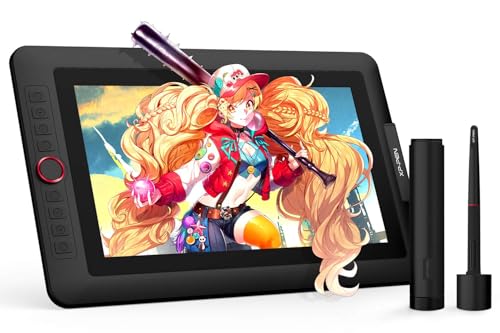
Not every Photoshop desk has room — or budget — for a flagship, and the Artist 13.3 Pro V2 is the compact answer that refuses to feel like a compromise. The panel is full-laminated with an anti-glare finish, colour is listed at 123% sRGB, the pen works in the 16K pressure class, eight shortcut keys line the side, and an adjustable stand is in the box. For the enormous population of Photoshop artists whose work is destined for screens — web illustration, social content, game art, teaching — the sRGB figure is not a limitation at all; it is the exact colour space their audience lives in, covered with headroom.
Lamination earns special mention in a Photoshop context because of zoom. Photoshop artists spend their days at 200% and 300%, inking details and cleaning edges where the artwork is enormous and the strokes are tiny. Parallax — the visible offset between pen tip and pixel — scales with zoom into genuine inaccuracy. A bonded, full-laminated panel keeps the cursor at the nib at every magnification, and the anti-glare finish keeps the magnified view readable under desk lighting. This is the specification pairing that decides whether high-zoom Photoshop work feels precise or swimmy, and this model has it at a mid-range position.
Eight keys map cleanly onto Photoshop’s core habits: Alt-picker on one, brush-size brackets on two, undo, hand tool, flip canvas, and a favourite action or two. The driver stores the layout for Photoshop separately from your painting app, which is the correct way to live with Adobe’s idiosyncratic shortcut dialect. The included stand sets a drawing angle that keeps a 13.3-inch screen at a comfortable height beside a keyboard — a small mercy that accessory-less rivals make you shop for.
Android compatibility, as listed alongside Mac and PC, gives the display a second life driving a phone’s drawing apps when the Windows machine is busy — a genuine convenience for artists who sketch on the couch and finish at the desk. Within the Photoshop brief, though, its centre of gravity is clear: a complete, laminated, wide-sRGB drawing screen that a Windows user can unbox at lunch and be working on by two, with nothing left to buy.
Choose it over the Cintiq when the budget is real and the work is screen-bound; choose it over the bigger Huions when the desk is small or the workflow travels between rooms. It is the Photoshop display for the majority case, specified with unusual honesty about what the majority actually needs.
A small Photoshop habit multiplies this display’s value: keep a reference image open in a floating window on the same screen while you paint. At 13.3 inches that sounds cramped, yet the laminated panel’s clarity makes a small reference window genuinely usable, and having reference and canvas in one glance — no head-turn to a second monitor — keeps colour and proportion honest. Artists who adopt the habit rarely return to banishing reference to another screen.
- Panel: 13.3-inch, full-laminated, anti-glare
- Colour as listed: 123% sRGB
- Pen: 16K pressure class
- Controls: 8 shortcut keys; adjustable stand included
- Compatibility as listed: Mac, PC, and Android
Strengths
- Full lamination keeps high-zoom Photoshop inking accurate
- 123% sRGB covers screen-destined work with headroom
- Stand and keys included — a complete Photoshop desk from one box
Trade-offs
- 13.3 inches crowds Photoshop’s panels; UI scaling discipline required
- No dial or wheel for analogue brush-size control
- Not the panel for Adobe RGB print workflows
Best for: screen-focused Photoshop artists — web, game, and social illustration — with lamination and colour, minus the flagship bulk.
Not suited for: print-oriented artists, whose colour work belongs on the Adobe RGB displays in this guide.

Wacom Intuos Pro Medium — The monitor-loyal professional
A serious minority of Photoshop professionals draw on a slab and would not switch to a pen display at any price, and the Intuos Pro Medium is their instrument. The reasoning is colour and posture: their monitor is a calibrated, wide-gamut reference they trust completely, positioned at eye level, and no pen display’s panel — however good — replaces it in their pipeline. The tablet’s job is to be the finest possible pen input into that monitor, and with the Pro Pen 3, ExpressKeys, and dials, this model is exactly that job description fulfilled.
Photoshop’s retouching disciplines are where the screenless case is strongest. Dodging, burning, masking, frequency separation — these are judgement tasks performed at high zoom with the eyes locked on the image, and a hand that never crosses the image is a genuine advantage. The Pro Pen 3’s pressure finesse translates directly: a mask edge feathered by grams of pressure, a skin texture pass built from a hundred whisper-light strokes. Retouchers describe the tablet as the single largest speed upgrade in their workflow, and this is the tablet they usually mean.
The dials map onto Photoshop with unusual grace. Brush size is the classic assignment — a rotary control for a rotary-feeling parameter — but layer scrolling and timeline scrubbing for Photoshop’s animation features are close seconds, and the ExpressKeys hold the modifier-heavy combinations that keyboards make awkward one-handed. Bluetooth keeps the desk clear for the keyboard to slide aside entirely during long retouching passes, which is how many professionals actually work: tablet centred, keyboard exiled, monitor glowing.
Windows driver maturity completes the professional picture. Per-application profiles hold Photoshop’s pressure curve — often customised to a very light touch for retouching — separately from every other application’s, and Wacom’s Windows support history is the benchmark the rest of the industry is measured against. In a studio where the tablet must survive Windows updates, Adobe updates, and deadline weeks without a single driver incident, that history is not a soft benefit. It is the procurement argument.
New Photoshop artists should note the learning curve honestly: screenless drawing asks for the hand-eye adjustment described in our pen-tablet guide, roughly a fortnight of regular use. Professionals who crossed it years ago consider it the best trade they ever made. If your Photoshop life is retouching-first and your monitor is already the panel you trust, this is your pick in this guide — the displays are for the other, equally legitimate workflow.
Video editors who moonlight in Photoshop will find the Intuos Pro’s dials equally fluent in timeline work, and the listing’s inclusion of video among its fields is not decoration. A single input device that serves the editor’s scrubbing and the retoucher’s masking with the same muscle memory is worth more than two specialised devices competing for the desk’s centre. Studios standardise on such tools precisely because hands learn once and apply everywhere.
- Connection: Bluetooth wireless
- Pen: Pro Pen 3
- Controls: ExpressKeys and dials
- Named fields in the listing: animation, photo, video, and 3D
- Format: screenless professional pen tablet
Strengths
- Lets you judge Photoshop colour on your own calibrated monitor
- Pro Pen 3 finesse is ideal for masking and retouching passes
- Dials suit brush size and layer navigation beautifully
Trade-offs
- Hand-eye adjustment required — no image under the pen
- Your monitor’s quality becomes your drawing quality
- Premium price for a tablet with no screen at all
Best for: retouchers and photographers with a trusted calibrated monitor and a Photoshop workflow built on judgement at high zoom.
Not suited for: illustrators who draw gesturally and want the line under the pen from the first stroke.
Huion Kamvas 22 (Gen 3) — The big-canvas workhorse
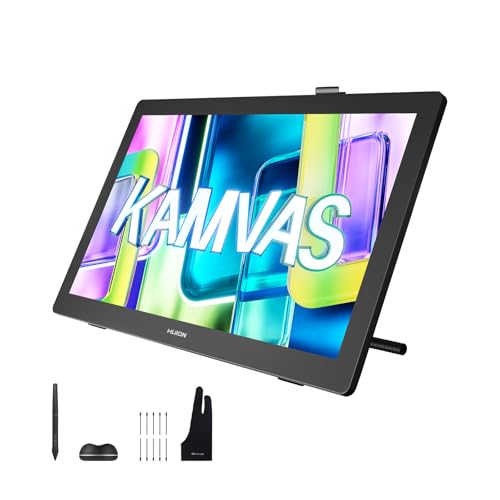
Size is a Photoshop feature, and the Kamvas 22 (Gen 3) is the size argument made fully: 21.5 inches of 2.5K panel, refreshing at 90Hz, with PenTech 4.0 driving the pen and a colour accuracy claim of Delta E under 1.2. Photoshop at this scale stops being a negotiation between canvas and interface. A full illustration page sits at a working size with the layers panel, brush presets, and a reference image all visible — the layout professionals arrange on dual monitors, achieved inside one drawing surface.
The 90Hz refresh rate is the specification that sounds like gaming and behaves like drawing. Fast strokes — hatching, gesture lines, the long pull of an inked contour — render with less visible lag between pen and line, so the hand’s feedback loop tightens. Combined with 2.5K clarity, which keeps fine linework honest when you zoom out to judge composition, the panel serves both ends of the Photoshop process: the making and the assessing. Canvas Glass 2.0 provides the matte surface that keeps those long sessions glare-free and gives the pen its slight, confidence-building drag.
Ambient lighting, listed among its features, addresses a retoucher’s subtle enemy: the room. A display’s perceived contrast shifts with surrounding light, and a gentle ambient glow behind or around the panel steadies the eye’s adaptation during evening sessions. It is the kind of feature that sounds decorative in a listing and proves thoughtful across a winter of night work, particularly for artists judging tonal work in Photoshop after dark. Huion’s inclusion of it signals a panel designed by people who sit in front of panels.
PenTech 4.0’s pressure behaviour, shared with the Kamvas 13 in this batch, suits Photoshop’s brush engine in the same ways — a fine ramp for glazing and soft brushes, predictable tapering for ink. At 21.5 inches the drawing itself changes character: strokes come from the shoulder, compositions are assessed at arm’s length without zooming, and two-handed habits — one drawing, one riding shortcuts — settle naturally. The desk, however, must agree to all this. Measure yours; this display is furniture as much as equipment.
For Photoshop artists whose work is large — full pages, detailed environments, poster-scale illustration — and whose rooms can hold it, the Kamvas 22 is the guide’s expansive answer. It lacks the Pro 19’s Adobe RGB breadth, so print-colour specialists should still look there; for everyone else, its combination of size, refresh, and accuracy is the most complete big-desk proposition in the guide.
Evening artists should experiment with the ambient lighting before judging the panel’s contrast in the first session. Photoshop’s grey interface against a dark room exaggerates perceived contrast, and files judged that way print flatter than expected. Run the ambient feature for a week of night sessions, then compare a test print against your judgement. The feature earns its listing line quietly, in exactly the sessions where colour decisions are hardest to make well.
- Panel: 21.5-inch 2.5K display, 90Hz refresh rate
- Colour as listed: Delta E under 1.2 colour accuracy
- Pen: PenTech 4.0
- Surface and features: Canvas Glass 2.0, ambient lighting
- Named uses in the listing: digital art, animation, and design
Strengths
- 21.5 inches fits a full page plus Photoshop’s panels simultaneously
- 90Hz refresh tightens fast-stroke feedback noticeably
- Ambient lighting steadies tonal judgement in evening sessions
Trade-offs
- No Adobe RGB coverage figure printed, unlike the Pro 19
- Demands a large, sturdy desk — measure before ordering
- Big-panel pricing and presence for a single-purpose desk
Best for: illustrators and designers working at page and poster scale: Photoshop’s whole interface and canvas in one view.
Not suited for: compact-desk artists, for whom the 13- and 16-inch displays here are the honest fit.
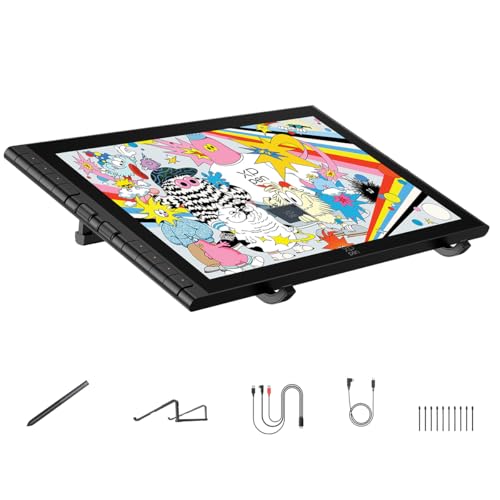
XP-Pen Artist 16 (3rd Gen) — The shortcut sculptor
The Artist 16 (3rd) is designed around a Photoshop truth the other displays acknowledge and this one celebrates: the application is operated as much as it is drawn in. Two scroll wheels and eight hotkeys crowd its frame, and that control density is the product. One wheel takes brush size, the other takes zoom or canvas rotation; the keys take tools, modifiers, and actions. A Photoshop artist’s free hand becomes a second input device in its own right, and the keyboard — that wide, desk-hungry slab — can leave the drawing position entirely.
Dual wheels deserve the spotlight because Photoshop has two analogue parameters artists ride constantly. Brush size and zoom are the classic pairing, and having both under the free hand simultaneously — no mode-switching, no shared dial — changes session rhythm in a way single-dial owners should envy honestly. Add the etched anti-glare glass, which is texture worked into the surface rather than a film upon it, and the 16K pressure stylus, and the drawing side of the ledger is as serious as the control side: fine pressure ramp, permanent paper-ish tooth, no lamination gap mentioned as a compromise anywhere in the listing’s pitch.
The 15.4-inch panel sits in the size class Photoshop users most often settle into — large enough for canvas plus docked panels, small enough for ordinary desks — and the foldable stand included in the box handles the angle without an accessory purchase. Mac, Windows, and Android compatibility, as listed, makes it the flexible citizen of a mixed household: the Windows Photoshop desk on weekdays, a Mac or phone elsewhere, one display serving all of it with per-application shortcut layouts stored in the driver.
Against the Cintiq 16 above, the argument is controls and value against pen heritage and driver ecosystem. Against the Kamvas 22, it is compactness against scale. The Artist 16’s own ground — the shortcut-dense, mid-size, do-everything Photoshop display — is ground it holds convincingly, and artists whose Photoshop speed is limited by how fast they can change tools and sizes will feel its advantage in the first hour, not the first month.
Check the current price on Amazon and weigh it against the Cintiq with clear eyes: if your bottleneck is Photoshop’s command layer, this XP-Pen attacks the bottleneck directly, and its pen and panel give away little that a screen-bound artist will ever miss.
One programming suggestion specific to the twin wheels: resist mapping both to brush parameters. Give the second wheel to layer navigation or history stepping for a month. Photoshop artists underestimate how often they move between layers and states compared with how often they resize a brush, and the wheel that serves the more frequent journey wins the hand’s loyalty. You can always swap the assignments later; the experiment costs nothing and teaches you your own workflow’s true arithmetic.
- Panel: 15.4-inch pen display, anti-glare etched glass
- Pen: 16K pressure stylus
- Controls: 2 scroll wheels and 8 hotkeys
- Included: foldable stand
- Compatibility as listed: Mac, Windows, and Android
Strengths
- Two wheels give brush size and zoom simultaneous analogue control
- Etched glass provides permanent anti-glare texture for the pen
- Broad compatibility suits mixed Windows, Mac, and Android households
Trade-offs
- No colour-gamut figure printed in the listing
- Control-dense frame will not suit minimalists
- Mid-size panel still asks UI discipline with many panels open
Best for: Photoshop power users whose speed is limited by tool-switching and brush resizing — both solved on the display itself.
Not suited for: artists who prefer a clean bezel and a keyboard for commands, and would never programme the wheels.
How Do the Six Photoshop Tablets Compare for Windows Work?
All figures are from the makers’ listings. The Photoshop columns that matter most — controls for the command layer, colour for the judging layer — are the ones where the six diverge most honestly.
| Pick | Panel | Pen (as listed) | Controls | Colour (as listed) |
|---|---|---|---|---|
| Wacom Cintiq 16 (QHD) | QHD, 16-inch class | Pro Pen 3 | Wacom driver ecosystem | Not printed in listing |
| Huion Kamvas Pro 19 4K | 4K UHD touchscreen, 18.4-inch | Dual PenTech 4.0, 16,384 levels | Keydial Mini plus touch | 96% Adobe RGB, Delta E under 1 |
| XP-Pen Artist 13.3 Pro V2 | 13.3-inch, full-laminated | 16K class | 8 keys; stand included | 123% sRGB |
| Wacom Intuos Pro Medium | Screenless — your monitor | Pro Pen 3 | ExpressKeys and dials | Your monitor decides |
| Huion Kamvas 22 (Gen 3) | 2.5K 90Hz, 21.5-inch | PenTech 4.0 | On-panel controls per listing class | Delta E under 1.2 |
| XP-Pen Artist 16 (3rd) | 15.4-inch, etched glass | 16K stylus | 2 scroll wheels, 8 hotkeys | Not printed in listing |
How Should You Configure Photoshop Itself for a Pen Tablet on Windows?
Start with the brush. Open Photoshop’s brush settings and enable pressure control for size and opacity on separate test brushes rather than globally, so you learn what each mapping does to your hand. Set the driver’s pressure curve before touching Photoshop’s: a slightly firmer curve suits inking, a lighter one suits glazing and retouching, and per-application profiles — supported across this guide’s makers — let Photoshop hold its own curve while other applications keep theirs. Then assign the tablet’s dial or wheel to brush size and live with it for a week before reassigning; shortcut fluency is built by stability, not by optimisation.
Windows itself needs two decisions. First, display scaling: on the QHD, 2.5K, and 4K panels here, let Photoshop use the system scaling it recommends rather than forcing a custom percentage, or menus will render at odds with the canvas. Second, pen settings: Windows’ own pen options and the tablet driver can both try to manage the pen, and the driver’s way should win — install the maker’s driver before first use, and if pressure ever vanishes inside Photoshop while working elsewhere, that conflict is the first suspect. Five minutes of configuration at setup protects every session after it.
Save your workspace once it feels right. Photoshop lets you store panel layouts as named workspaces, and a drawing workspace — canvas-forward, painting panels docked, everything else exiled — is worth the two minutes it takes to save. Pair it with a second workspace for retouching and you have, in effect, two applications that share a licence. Tablet artists who skip this live in a compromise layout that serves neither stage well.
Which Photoshop Jobs Suit a Pen Display, and Which Suit a Screenless Tablet?
Drawing jobs — illustration, comics, concept art, painting — generally suit pen displays, because the work is gestural and the eyes belong where the line forms. The Cintiq, the two big Huions, and the XP-Pen Artists in this guide serve that work directly. Judging jobs — retouching, colour grading inside Photoshop, compositing, mask refinement — often suit the screenless Intuos Pro, because the eyes belong on the best possible image, undisturbed by the hand, on a monitor chosen for colour rather than for pen input.
Mixed practices split the difference by stage. Many professionals sketch and ink on a display, then move the file to a calibrated monitor and an Intuos for colour and finish — which is why studios so often own both formats without considering it duplication. Solo artists choosing one should choose by the stage they spend most hours in, and by which stage their clients judge. The file does not care which surface made it; the artist’s stamina across a week cares enormously.
Teaching deserves a footnote in this division. Instructors demonstrating Photoshop technique to a class or a stream audience are usually clearer on a pen display, because viewers can follow the hand’s intention on the canvas itself. Screenless demonstration forces the audience to track a cursor divorced from any visible hand, which beginners find surprisingly hard to follow. If you teach, weight the display format up; if you learn from others’ screens, notice which format you follow most easily and buy its twin.
How Do Windows Updates and Driver Habits Affect a Photoshop Tablet Over Years?
A Photoshop tablet is a long marriage between three moving systems: Windows, Adobe’s application, and the maker’s driver. The marriages that last share one habit — the owner updates deliberately rather than reflexively. Let Windows and Photoshop update on their schedules, but give a new tablet driver a week in the wild before adopting it mid-project, and keep the previous driver installer in a folder you can find. Professionals treat driver versions the way photographers treat memory cards: boring, catalogued, and absolutely decisive on the one day something goes wrong.
The six brands here have earned their places partly on this unglamorous axis. Their drivers are maintained across Windows generations, their per-application profiles survive updates, and their support documentation answers the recurring questions — pressure lost, pen offset, profile reset — in findable form. When you buy a Photoshop tablet you are also buying a decade of that maintenance, and it is worth weighting as heavily as the panel, because the panel you see every day is driven by the software you notice only when it fails. Studios learned this across decades of deadline weeks; solo artists can borrow the lesson for free and skip the tuition.
What Should Windows Users Check Before Ordering Any of These?
Ports first. Pen displays need a video signal and a USB connection from the same PC; modern laptops may offer both through one USB-C port with display capability, older desktops through separate HDMI and USB cables. Confirm what your machine provides and what the display’s box includes, because an unconsidered adapter is a week of delay. Graphics capability second: the 4K and 2.5K panels ask the PC to push more pixels while Photoshop simultaneously leans on the same hardware for brush rendering, so a marginal machine will feel more marginal behind a big panel.
Desk and posture third. A 21.5-inch display is a commitment of furniture; a 13.3-inch display is a guest. Match the panel to the desk you have, including where the keyboard goes when the display is down — several picks include stands, and the rest assume you will solve the angle, which you should budget for honestly. None of these checks is glamorous, and all of them decide whether a good tablet becomes a good workstation.
Also verify your chair-to-desk geometry against the display’s working angle before the box arrives. A pen display at drawing angle raises the effective working height of the desk; a chair that cannot rise to meet it will cost you shoulder comfort across Photoshop’s long sessions. This sounds like furniture advice because it is — the tablet is the visible purchase, but the workstation is the real one, and workstations are systems of desk, chair, light, and screen in that order.
Common Mistakes
Installing Photoshop before the tablet driver is the classic Windows sequencing error. Adobe’s applications look for pen services when they configure themselves, and a driver installed afterward can leave pressure unrecognised until settings are reset. Order matters: driver first, reboot, then open Photoshop and verify pressure on a test brush before migrating your workspace and actions. Ten minutes of sequence saves an evening of forum archaeology.
Leaving every shortcut on the keyboard wastes the hardware this guide is about. Photoshop’s command layer is deep, and the dials, wheels, and key banks on these six exist to pull your twenty most-used commands onto the drawing surface. Artists who programme them gain a fluency that looks like talent from outside. Artists who do not own expensive tablets with decorative buttons. Programme the controls in the first week, while the habit is forming, and revise the layout monthly as your real usage reveals itself.
Judging colour on an uncalibrated display — then blaming Photoshop — misdiagnoses the pipeline. Two picks here print factory accuracy claims, and even those describe the panel as shipped, in the maker’s lighting. A hardware calibrator and a monthly routine turn any of these panels into a known quantity. Until then, treat colour disagreements between screen and print as a calibration question, not a software mystery.
Finally, buying resolution your PC cannot feed. A 4K pen display behind an ageing laptop produces a Photoshop that lags on large brushes, and the artist blames the tablet for the computer’s arithmetic. Match the panel to the machine using the checks above; a 13.3-inch display on a strong PC will out-draw a 4K panel on a struggling one every working day of the year.
One more Photoshop-specific trap deserves naming: leaving the brush smoothing and stabilisation at defaults tuned for a mouse. Photoshop’s smoothing options exist to steady pen strokes, and their defaults are conservative for tablet work — too low and lines wobble, too high and corners round off into lag. Spend one session drawing your actual subjects at three smoothing levels and keep the setting your lines vote for. It is a five-minute calibration that visitors to your desk will mistake for a more expensive pen.
And resist the urge to judge a new tablet inside a flagship file on day one. Open a small canvas, draw something you have drawn fifty times, and let the pen introduce itself without a deadline translating. Every display and tablet in this guide feels foreign for the first sessions and familiar by the second week; the artists who remember that curve keep good hardware, and the artists who forget it keep returning good hardware. Give the hardware a fair fortnight before you let it stand trial, and let your oldest, most familiar subject be the first witness it faces.
Final Recommendation
For a Photoshop-centred Windows desk, the Cintiq 16 QHD is the balanced default: interface-friendly resolution, the reference pen, and the reference driver. Colour judges should take the Kamvas Pro 19; large-canvas artists the Kamvas 22; shortcut-driven power users the Artist 16 with its twin wheels; screen-bound illustrators on a budget the Artist 13.3 Pro V2; and monitor-loyal retouchers the Intuos Pro Medium, happily screenless. Configure the driver before the software, programme the controls in week one, and your Photoshop will stop feeling like a program you operate and start feeling like a surface you work on.
A last word on sequence for buyers torn between two of the six: buy the one matched to the Photoshop work you did last month, not the work you admire in other artists. Last month’s files are the truthful brief. The tablet that serves them will be opened daily, and a Photoshop tablet opened daily repays its price in the only currency that matters here — finished work that felt good to make. That is the whole test, and every tablet in this guide can pass it for the right Photoshop artist.
Frequently Asked Questions
Does Photoshop support pressure and tilt from all six tablets?
Yes — Photoshop reads pressure and tilt through each maker’s Windows driver, and all six brands here provide mature drivers with per-application settings. Install the driver before opening Photoshop for the first time, verify pressure in the brush settings panel, and the pen’s full behaviour becomes available to the brush engine, including the dual-brush and scatter tools that depend on it.
Is a pen display or a screenless tablet faster in Photoshop?
They are fast at different things. Pen displays accelerate drawing stages — sketching, inking, painting — because eye and hand share a location. Screenless tablets accelerate judging stages — retouching, masking, colour work — because the image sits undisturbed on your best monitor. Total project speed depends on your stage mix, which is why so many professionals own one of each.
How much do shortcut keys and dials actually matter for Photoshop?
More than in almost any other application, because Photoshop’s power is distributed across dozens of commands that mouse users fetch from menus. A dial holding brush size and a key bank holding your top tools remove hundreds of small interruptions per session. The benefit compounds with use: after a month, the controls disappear into habit and the drawing hand stops waiting for the other hand entirely.
Can one tablet serve Photoshop and other applications with different settings?
Yes. The drivers for the brands in this guide store profiles per application, so Photoshop can hold its own pressure curve and shortcut layout while a painting app or a 3D tool holds different ones. Set the profiles up deliberately at the start; the driver switches automatically when the application changes, and each program feels natively configured.
What resolution should a Photoshop pen display have?
Enough that the interface and the canvas coexist at comfortable scaling. In this guide that means QHD on the Cintiq 16, 2.5K on the Kamvas 22, and 4K on the Kamvas Pro 19 — all comfortable. The 13.3-inch Artist Pro V2 works at its size with sensible UI scaling. Below these classes, panels crowd and text shrinks; above them, your PC’s graphics do increasingly heavy lifting.
Why do some listings print colour figures and others not?
Makers print the figures that flatter their target buyer. Colour-critical models advertise gamut and Delta E because their buyers shop by them; illustration-focused models may leave the figures unprinted while still covering the sRGB space their work needs. Absence of a figure is not evidence of poor colour — it is evidence of marketing aimed elsewhere — but buyers whose income depends on colour should choose a model that prints and stands behind its numbers.
Should I run Photoshop on the pen display or keep it on my main monitor?
If the pen display is your drawing surface, run Photoshop on it — splitting the application window from the pen input invites mapping confusion and scaling mismatches. Artists with the Intuos Pro run Photoshop on their main monitor by design, since the tablet has no screen. Dual-format owners often keep two saved workspaces, one per surface, and switch with the project stage.
Do these tablets work with Photoshop alternatives on Windows?
Yes. The same drivers feed pressure and tilt to the wider Windows art ecosystem — dedicated painting applications, vector tools, and 3D sculpting programs all read the pen through the maker’s driver, and per-application profiles let each program hold its own settings. Photoshop is the brief’s focus because its demands are the most specific, not because the hardware is exclusive to it.
Related Guides
Artists earlier in the journey should start with our guide to first drawing tablets that forgive beginner mistakes, and those ready to leave the desk behind entirely will want the honest shortlist of drawing displays that work with no computer at all — while inking specialists should finish with our picks of tablets built around comic and manga workflows.