What's inside
- Key Takeaways
- Quick Picks
- How Did We Pick the Best Acer Laptops for School Pupils?
- What Makes a Laptop Right for School Rather Than Work?
- How Much Weight Can a School Bag Really Carry?
- Our Six Acer Picks for School, Reviewed in Detail
- How Do the Six School Picks Compare?
- How Should Parents Set Up a School Laptop Before Term Starts?
- What About Battery Life Across a Real School Day?
- Which Mistakes Do Families Make Buying a School Laptop?
- How Can a School Laptop Survive Four Years of Term Time?
- How Durable Does a School Laptop Need to Be, Honestly?
- What Software and Platforms Must a School Laptop Handle?
- Should You Insure a School Laptop or Self-Insure?
- When in the School Year Should You Buy?
- What Does a School Day Actually Ask of the Laptop?
- Which Accessories Complete a School Laptop Setup?
- Which Acer Fits Each School Stage?
- Why Not a Chromebook or a Tablet for School?
- How Do Hand-Me-Downs and Sibling Sharing Work in Practice?
- Final Recommendation
- Frequently Asked Questions
- Related Guides
As an Amazon Associate I earn from qualifying purchases. This post may contain affiliate links at no extra cost to you.
widgetverdict.com is reader-supported. When you buy through links on our site, we may earn an affiliate commission.
A school laptop is not a small office laptop, and buying one as if it were leads to the familiar September disappointment: a machine too heavy for a child’s bag, too fragile for a playground-adjacent lifestyle, or too slow by the second term. The best Acer laptops for school are chosen against a different checklist entirely. They must survive being carried in a backpack five days a week, open fast enough that a lesson is not half over before the login screen appears, hold a charge from the first bell to the final homework session, and stay affordable enough that a cracked screen is a bad week rather than a financial event. This guide is written for primary and secondary school pupils — not university students, whose needs around specialised software and all-night libraries are a separate conversation — and it ranks six Acer machines by how well they fit real school life.
Where to buy: each pick links to a checked Amazon listing where you can confirm the exact memory and storage configuration before paying. Acer’s model names repeat across variants that differ in the details, and the listing is the place to make sure the version in the basket is the version reviewed below. Check the live price there when you order, since school-season promotions move quickly.
Key Takeaways
- The Acer Aspire 5 A515-56 is the strongest all-round school choice for secondary pupils: quick enough for every subject, with a screen that suits long homework evenings.
- Weight is the specification children feel most — a laptop over about 1.8kg becomes the thing they lobby to leave at home.
- The Aspire 3 A315-24P is the value champion for homework, research and school platforms at the lowest cost in this guide.
- Battery life should be judged against the whole school day plus homework, not against a manufacturer’s best-case figure.
- Younger pupils need simplicity and supervision-friendly setup more than speed; the Aspire Go 15 fits that role well.
- Only pupils with genuine gaming, coding or media coursework need the Nitro models and their dedicated graphics.
Quick Picks
| Pick | Badge | Why it earns its place |
|---|---|---|
| Acer Aspire 5 A515-56 (Core i3) | Best overall for school | Balanced speed, screen and price for the full secondary-school workload. |
| Acer Aspire 3 A315-24P (Ryzen 3) | Best value pick | Covers homework and school platforms for the least money in the roundup. |
| Acer Aspire Go 15 | Best for younger pupils | Simple, affordable and undemanding — ideal for a first school laptop. |
| Acer Aspire 5 14 (Core i7-1355U) | Best light backpack pick | A compact 14-inch body and sharp screen for pupils carrying it all day. |
| Acer Nitro V (Core i5, RTX 4050) | Best for STEM and gaming teens | Dedicated graphics for media coursework, coding projects and after-hours play. |
| Acer Nitro V 16 (RTX 5050) | Best for senior creators | The biggest screen and strongest graphics for sixth-form media and design work. |
How Did We Pick the Best Acer Laptops for School Pupils?
We weighted the criteria the way a school week actually applies them. Portability came first: a laptop that travels in a backpack alongside textbooks, a water bottle and sports kit is judged on grams and bulk every single morning, so lighter models earned an advantage that raw performance could not fully cancel out. Durability came second — not laboratory drop tests, but the everyday resilience of a chassis, hinge and keyboard that will be opened on buses, balanced on knees and closed in a hurry when the bell goes.
Battery life was scored against a realistic day: lessons in the morning, homework in the evening, and no guarantee of a free socket in between. We then checked the school-platform basics every pupil needs — a webcam that behaves in classroom lighting, a microphone teachers can understand, speakers loud enough for language listening exercises, and Wi-Fi that reconnects quickly when the machine moves between classrooms. Price discipline ran through everything, because a school laptop competes with uniforms, trips and instruments for the same family budget, and because a machine a family can afford to repair or replace is, in practice, more durable than a precious one.
What Makes a Laptop Right for School Rather Than Work?
The workloads look similar from a distance — documents, browsers, video calls — but the conditions differ in ways that change the right answer. A school laptop is carried by someone smaller than an adult, often in a bag that gets dropped, swung and left on the floor of a bus. It is used in bursts: ten minutes of frantic typing, a lid closed mid-thought, a dash to the next room. It connects to networks the family does not control, runs software the school dictates, and must be simple enough that a pupil can troubleshoot the basics without a parent on the phone. An office laptop optimises for the desk; a school laptop optimises for the corridor.
That difference reshapes the specification priorities. Instant wake matters more than peak speed, because lessons do not wait for a slow login. A bright screen matters more than a colour-accurate one, because classrooms have windows and homework happens in kitchens. Storage fills with coursework, photos of whiteboards and the odd game, so capacity planning matters. And the keyboard must forgive energetic typing — small, cramped layouts punish the pupil who is still learning to type at speed, which is one reason the full-size Aspire keyboards score well here despite the fashion for ever-thinner machines.
There is also a supervision dimension no office buyer considers. A school laptop should accept the family’s chosen parental controls gracefully, support separate accounts for siblings who share it, and make it easy to limit the games and social apps during term time. Acer’s Windows machines do all of this through standard Windows family features, and setting them up on day one — covered later in this guide — is worth more than any single hardware upgrade.
How Much Weight Can a School Bag Really Carry?
Ask a pupil what matters about their laptop and the honest answer is rarely the processor. It is whether the bag feels like a punishment by Friday. As a working guide, a laptop around 1.4kg disappears into a school bag; at 1.8kg it is noticeable but manageable for a teenager; beyond 2kg — where the Nitro models sit once the charger joins them — the machine starts being left behind, which defeats the entire purpose of owning it. The charger counts in this arithmetic and is routinely forgotten: a gaming laptop’s power brick can weigh as much as a paperback novel.
Screen size trades directly against that weight. A 15.6-inch display is kinder for homework, split-screen research and pupils with any visual strain, and for a pupil whose laptop mostly travels between home and one classroom it is the right choice. A 14-inch machine earns its place when the journey is long, the bag is small or the pupil is younger and slighter. Neither answer is universal, which is why this guide includes both — and why the decision should be made by the person who will actually carry the thing, ideally with a trial lift of a similar-weight object packed into their real school bag.
Our Six Acer Picks for School, Reviewed in Detail
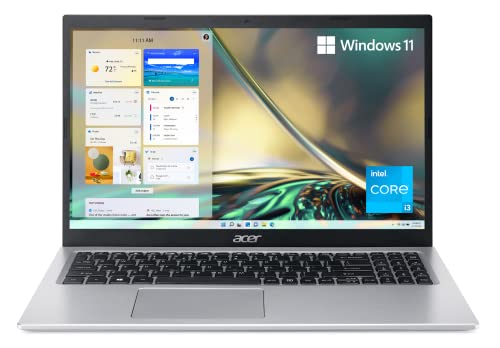
Acer Aspire 5 A515-56 (Core i3) — Best Overall for School
If one laptop in this guide had to be issued to an entire year group, it would be this one. The Aspire 5 A515-56 pairs a 15.6-inch Full HD IPS screen — generous enough for a source document and an essay side by side — with a Core i3-1115G4 that handles the genuine school workload without drama: the learning platform, a dozen research tabs, a word processor, a video lesson and a music stream, all at once, all day. It wakes quickly, its keyboard has the space and travel that developing typists need, and the numeric pad quietly helps with maths and science coursework more than any parent expects at purchase time.
The details suit school logistics. The port mix includes HDMI for presenting a project on a classroom display or the family television, Ethernet for the one homework corner where Wi-Fi sulks, and enough USB sockets for a mouse, a memory stick and a phone cable simultaneously. The build feels a step above the budget tier — important when the machine will be opened and closed a dozen times a day for years — and the cooling stays discreet enough for a silent classroom or library.
Its compromises are weight and ambition. At 15.6 inches it is the machine a pupil carries purposefully rather than forgets about, and its integrated graphics cap gaming at light titles — which many parents will file under features rather than flaws. For the pupil whose bag can take it, this is the balanced centre of the school range.
- Display: 15.6-inch Full HD IPS
- Processor: Intel Core i3-1115G4
- Graphics: Intel UHD integrated graphics
- Keyboard: full-size layout with numeric pad
- Ports: HDMI, Ethernet, USB-C and USB-A
Strengths
- Screen size suits split-screen homework sessions
- Balanced performance for every school subject
- Port selection covers classroom presenting
Trade-offs
- Heavier than the 14-inch alternative
- Light gaming only on integrated graphics
- Battery needs a nightly charge routine
Best for: secondary pupils wanting one machine for the whole school career.
Not suited for: small pupils with long walks and heavy bags.

Acer Aspire 3 A315-24P (Ryzen 3) — Best Value Pick
The Aspire 3 is the answer to the most common school-laptop question: what is the least we can spend without buying something miserable? Its Ryzen 3 7320U is a modern chip that keeps school platforms, documents and video lessons feeling brisk, and the 15.6-inch Full HD screen gives homework room to breathe. For the core school workload, the experience is far closer to the Aspire 5 than the price gap suggests — which is exactly what a value pick should deliver.
The savings show in the finish rather than the function. The body is plastic, the screen is less bright than the Aspire 5’s panel — a factor on sunny classroom windowsills — and there is no keyboard backlight for evening homework in a dim room. The webcam is serviceable rather than flattering. None of these touches the machine’s ability to get a pupil through the school week, and for a first laptop, or a household buying for two siblings at once, the arithmetic is compelling.
One buying discipline matters: choose a configuration with storage headroom, because a value laptop filled to the brim by Christmas becomes slow and grumpy through no fault of its processor. Given that headroom, the Aspire 3 is the school pick that respects the family budget most while asking the pupil to forgive the least.
- Display: 15.6-inch Full HD
- Processor: AMD Ryzen 3 7320U
- Graphics: AMD Radeon integrated graphics
- Chassis: lightweight plastic construction
- Role: homework, research and school platforms
Strengths
- Lowest price among the full-size picks
- Modern Ryzen performance for school tasks
- Big screen despite the budget tier
Trade-offs
- Dimmer screen in bright classrooms
- No backlit keyboard for evening work
- Plastic body needs a protective sleeve
Best for: first laptops, siblings bought in pairs and firm budgets.
Not suited for: pupils doing heavy photo or video coursework.
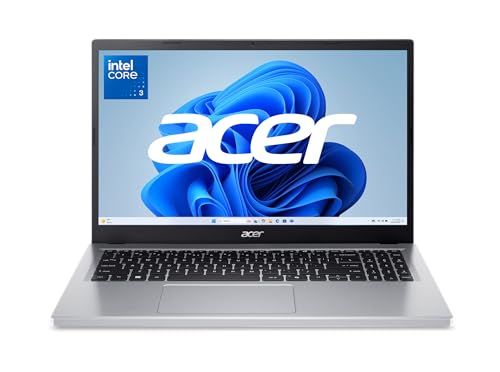
Acer Aspire Go 15 — Best for Younger Pupils
A first school laptop for a younger pupil is a teaching tool as much as a computer: it is where typing skills, file habits and online judgement get learned. The Aspire Go 15 suits that stage because nothing about it is precious or complicated. Its Intel Core 3 N355 processor is tuned for efficiency over speed, which translates into a machine that wakes promptly, runs school platforms and reading apps smoothly, and stays cool on a lap during a reading session. The 15-inch-class screen is large and legible for developing readers, and the whole package costs little enough that the inevitable early mishaps sting less.
Parents will appreciate the Go as the machine that lives on the family desk for supervised homework: big enough to share a screen with an adult helping, simple enough that a child can learn the routine of opening, working, saving and shutting down without a thicket of features in the way. It also doubles as the household’s spare when an older sibling’s laptop is borrowed or broken — a role every school family eventually needs filled at 8pm on a Sunday.
Its ceiling is real and should be respected: demanding multitasking and any serious gaming sit beyond it, and a pupil heading into exam years with media coursework will outgrow it. Bought honestly as a starter machine for the primary and early secondary years, though, the Aspire Go 15 is the calmest entry point in this guide.
- Display: 15-inch class Full HD screen
- Processor: Intel Core 3 N355
- Graphics: Intel integrated graphics
- Design aim: simple and affordable for beginners
- Role: first laptop and supervised homework
Strengths
- Gentle price for a first school machine
- Efficient chip keeps it cool and quiet
- Large, clear screen for young readers
Trade-offs
- Will be outgrown by exam-year demands
- Limited multitasking headroom
- Basic specification for creative subjects
Best for: younger pupils learning typing, research and homework routines.
Not suited for: older pupils with media or gaming ambitions.

Acer Aspire 5 14 (Core i7-1355U) — Best Light Backpack Pick
For the pupil with a long walk, a crowded bag or a slight frame, the 14-inch Aspire 5 is the pick that respects the journey. Its WUXGA screen packs a taller 1920×1200 resolution into the smaller body, so essays and worksheets show more lines per glance than a standard Full HD panel — a small mercy repeated hundreds of times a term. The Core i7-1355U is the most powerful processor among the non-gaming picks here, which makes this the Aspire that will still feel quick in the final exam year, long after lesser machines begin to hesitate under a crowded browser.
The smaller chassis is the point: it slides into a school bag beside textbooks without dominating it, leaves room for lunch and a sports kit, and comes out at a café table or a grandparent’s house without ceremony. Docked at home through USB-C it drives a monitor and becomes a proper study desk; undocked, it is the most carryable serious laptop in this guide.
The costs are the screen’s shared-viewing size — group project work around one display is cosier than on the 15.6-inch models — and a price that buys processing power a light user will never touch. For the pupil who carries their laptop everywhere and keeps it for years, those trade-offs resolve in this machine’s favour.
- Display: 14-inch WUXGA IPS, 16:10
- Processor: Intel Core i7-1355U
- Graphics: Intel Iris Xe integrated graphics
- Form factor: compact 14-inch school-bag friendly body
- Connectivity: USB-C for home docking
Strengths
- Lightest serious option for daily carrying
- Tall, sharp screen for documents
- Strong processor for a long school career
Trade-offs
- Smaller screen for group project work
- Premium price over the 15-inch Aspire 5
- Power exceeds what light users need
Best for: pupils with long journeys who will keep one laptop for years.
Not suited for: families prioritising the biggest screen for homework.
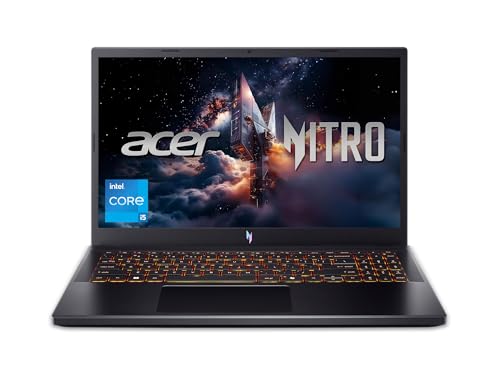
Acer Nitro V (Core i5, RTX 4050) — Best for STEM and Gaming Teens
Some pupils genuinely need graphics power at school: the media-studies student editing coursework films, the design pupil working in 3D, the coder experimenting with game development, and — let us be honest — the teenager whose social world includes gaming with friends after homework. The Nitro V serves all four with a Core i5-13420H and an RTX 4050 graphics card that turns video timelines, 3D models and current games from slideshows into smooth work. It is a school laptop on weekdays and the household’s most capable entertainment machine at weekends.
The gaming chassis brings school-relevant strengths beyond the graphics card. Cooling that can sustain a long render also sustains a long exam-revision session of video lessons without thermal fuss, and the build makes room for ports and future storage additions as coursework archives grow. Presented plainly to a school IT department, it is simply a powerful Windows laptop; its styling is assertive but not absurd.
The school-specific warnings are weight and battery. This is a heavy bag-mate with a heavy charger, and unplugged endurance shrinks dramatically when the graphics card works hard — a pupil who forgets the charger has a problem by lunchtime. Buy it when the graphics need is real and the pupil is old enough to carry the consequence, literally.
- Processor: Intel Core i5-13420H
- Graphics: NVIDIA GeForce RTX 4050
- Display: 15.6-inch class, fast panel
- Cooling: dual-fan system for sustained work
- Role: media coursework, coding and gaming
Strengths
- Dedicated graphics for media and 3D coursework
- Sustained performance under long projects
- Doubles as the family gaming machine
Trade-offs
- Heavy in the bag, heavier with its charger
- Battery drains fast under graphics load
- More power than most subjects require
Best for: older pupils with media, design or coding coursework and a gaming habit.
Not suited for: younger pupils or anyone with a long walk to school.

Acer Nitro V 16 (RTX 5050) — Best for Senior Creators
The Nitro V 16 belongs to a specific pupil: the sixth-former or senior student whose coursework has become production work — editing a real film for media studies, building a design portfolio, rendering 3D scenes — and whose laptop mostly travels between home and one classroom rather than living in a bag all day. Its 16-inch screen gives timelines and design canvases room that a smaller display cannot, and the pairing of a Core 5 210H with RTX 5050 graphics is the strongest in this guide, sized for projects that will grow more ambitious each term.
Treat it as a portable workstation rather than a school bag laptop and its logic clicks: the large chassis cools the newer graphics hardware properly, the big panel doubles as the home study screen without an external monitor, and the performance headroom means the machine that handles this year’s coursework will handle next year’s portfolio and university-application showreels too.
It is the most expensive pick here, the heaviest, and complete overkill for a pupil whose subjects are essays and spreadsheets. Its presence in a school guide is narrow but genuine: when the coursework is real creative production, underbuying costs more in stalled renders and missed polish than this machine’s premium.
- Display: 16-inch panel for timelines and canvases
- Processor: Intel Core 5 210H
- Graphics: NVIDIA GeForce RTX 5050
- Role: senior creative coursework workstation
- Cooling: full-size chassis, sustained loads
Strengths
- Biggest screen for editing and design work
- Strongest graphics in the school roundup
- Headroom for portfolio-level projects
Trade-offs
- Too heavy for all-day bag carrying
- Highest price in this guide
- Unnecessary for essay-based subjects
Best for: senior pupils producing film, design or 3D coursework.
Not suited for: pupils who carry a laptop between every lesson.
How Do the Six School Picks Compare?
| Model | Screen | Processor | Graphics | Best school role |
|---|---|---|---|---|
| Aspire 5 A515-56 | 15.6″ FHD IPS | Core i3-1115G4 | Integrated | All-round secondary laptop |
| Aspire 3 A315-24P | 15.6″ FHD | Ryzen 3 7320U | Integrated | Value homework machine |
| Aspire Go 15 | 15″ class FHD | Core 3 N355 | Integrated | First laptop for younger pupils |
| Aspire 5 14 | 14″ WUXGA IPS | Core i7-1355U | Integrated | Light daily carry |
| Nitro V | 15.6″ class | Core i5-13420H | RTX 4050 | STEM, media and gaming |
| Nitro V 16 | 16″ | Core 5 210H | RTX 5050 | Senior creative coursework |
How Should Parents Set Up a School Laptop Before Term Starts?
Set the machine up on a calm weekend, not the night before term. Create the pupil’s own account as a standard user, with a parent’s account holding administrator rights, and connect both to your family’s Microsoft family group so screen-time limits, content filtering and activity reports work from the start rather than being negotiated later. Install the school’s required platform bookmarks, the office suite the school expects, and nothing else — a clean machine with few distractions is a feature at this age, and games can be a deliberate, discussed addition rather than an accident of setup day.
Then rehearse the logistics. Pack the laptop, charger and sleeve into the actual school bag and weigh the whole thing in the pupil’s hands; adjust now, not in October. Agree where the laptop charges overnight — a fixed spot outside the bedroom removes both the flat-battery morning and the midnight-screen problem in one move. Show the pupil how to save work into the school’s cloud folder and how to check that it actually arrived, because “I did it but it didn’t upload” is the defining homework tragedy of the decade and is entirely preventable with one demonstration.
Finally, photograph the serial number, note the warranty dates, and label the charger and laptop with the pupil’s name. One more rehearsal is worth the ten minutes it takes: have the pupil practise the full morning routine once at home — wake the laptop, sign in, open the school platform, find yesterday’s document, save a change and shut down cleanly. The first morning of term will contain enough novelty without the technology adding its own, and a pupil who has already performed the routine in the kitchen performs it calmly in a classroom of thirty others doing the same. Parents consistently report that this small rehearsal, more than any feature of the machine itself, decides whether the first week of laptop schooling feels like a success. School lost-property offices are full of identical black laptops; a name label is the cheapest insurance in this entire guide. Add the pupil’s form or class to the label as well, since schools reunite labelled property through tutor groups far faster than through serial numbers nobody recorded. A label inside the lid, where it survives bag wear, outlasts one stuck to the base.
What About Battery Life Across a Real School Day?
Manufacturer battery figures describe a gentle laboratory day that no pupil lives. A realistic school day mixes bright screens in sunlit classrooms, video lessons, constant Wi-Fi reconnection as the machine moves rooms, and a homework session at the kitchen table — a pattern that consumes charge faster than steady office work. Judge the picks here accordingly: the Aspire models, with their efficiency-minded processors, are the ones that can plausibly span lessons and homework on one charge; the Nitro machines trade that endurance for graphics power and should be assumed to need a socket at some point in the day.
Habits matter as much as hardware. A pupil who drops screen brightness to a comfortable level rather than maximum, closes the lid between lessons instead of letting the machine idle awake in the bag, and saves the gaming for home can stretch any of these batteries by a third. Schools vary in socket access — some classrooms have charging trolleys, others have one contested outlet — so ask the school what pupils actually do before deciding how much battery anxiety your purchase needs to solve. And build the nightly charge into the same routine as packing the bag: a laptop that starts the day full is a laptop whose battery specification stops mattering.
Which Mistakes Do Families Make Buying a School Laptop?
The classic error is buying for the pupil you hope to have rather than the one you have: the gaming laptop for a child who plays twice a month, purchased at the cost of double the bag weight every single day. The second error is the mirror image — the cheapest possible machine for a pupil entering exam years, which then wheezes through the revision season precisely when reliability matters most. Match the machine to the actual subjects and the actual journey.
A subtler mistake is ignoring the school’s own requirements. Some schools mandate specific platforms, exam software or device management enrolment, and a laptop bought in ignorance of the school’s list can become an expensive paperweight for certain lessons. Read the school’s device guidance before ordering; it takes ten minutes and occasionally changes the entire decision. Finally, families forget the accessories that school life demands: a padded sleeve, a spare charger for the homework spot, and headphones for language listening and focus work in shared rooms. Budget for them alongside the laptop, not after the first loss.
How Can a School Laptop Survive Four Years of Term Time?
Longevity at school is a system, not a specification. The sleeve goes on every journey, without the negotiations that erode habits — make it as automatic as the bag itself. The laptop travels in its own compartment, never loose against a water bottle, and it is never carried by its screen corner, the grip that quietly kills hinges. At home, it charges in its fixed spot, vents clear, away from the radiator and the dog.
Digital housekeeping extends life just as much. A termly ten-minute ritual — clearing the downloads folder, archiving last term’s coursework into the cloud, letting updates install fully rather than postponing them for the ninth time — keeps the machine feeling brisk and prevents the slow accumulation of clutter that families misdiagnose as the laptop “getting old”. When the battery eventually fades, as all batteries do, a replacement battery or a power bank for the bag is a far cheaper resurrection than a new machine. Bought with headroom and kept with these habits, an Aspire 5 bought for the first year of secondary school can plausibly hand its owner into the sixth form — and that, not the purchase price, is the real cost calculation.
How Durable Does a School Laptop Need to Be, Honestly?
There is a temptation to shop for a school laptop the way one shops for expedition equipment, imagining drops from staircases and monsoons on the walk home. Real school damage is duller and more predictable: the bag set down hard a thousand times, the lid opened by one corner, the charger cable yanked sideways, crumbs in the keyboard, and a water bottle sweating against the chassis all summer inside a locker. A laptop survives school not by being armoured but by tolerating repetition, and that reframes what to look for: hinges that feel even and resistance-free, a lid that does not flex alarmingly when lifted by a corner, keys that sit firmly in their deck, and a charging port that does not wobble when the cable is seated.
You can assess most of this from the model tier rather than a showroom visit. The Aspire 5’s metal-topped build tolerates the daily open-close cycle better than the Aspire 3’s all-plastic shell, which is one honest reason for its higher price — not speed, but years of hinges. The Aspire Go’s simplicity helps it too: fewer features means fewer things to break, and its low cost changes the emotional mathematics of every knock. The Nitro machines are sturdily built for their size, but their weight works against them in a drop — mass is the enemy when a bag falls — so their owners need the sleeve discipline most of all.
What actually kills school laptops, in order, is liquid, then charger-port damage from cable strain, then a cracked screen from a bag carried against a hard object. All three are habit problems before they are hardware problems. A bottle with a screw cap rather than a flip top, a charger cable routed so it is never the thing that catches when someone walks past the desk, and a sleeve habit that survives the third week of term will do more for longevity than any specification upgrade. Parents shopping for durability should therefore spend on the sleeve, the spare charger and the setup conversation before spending on a tougher tier of machine.
What Software and Platforms Must a School Laptop Handle?
The modern school runs on a stack of platforms rather than a single program: a learning management system in the browser, an office suite for documents, video lessons, subject-specific apps for languages, maths practice and science simulations, and increasingly an exam or assessment platform with its own requirements. Every Windows laptop in this guide handles that stack, which is precisely the argument for a full Windows machine over a browser-only device at secondary level — the day a subject introduces a Windows-only simulation or the exam board’s practice software demands a real application, the Aspire simply opens it.
Two practical checks are worth doing before purchase. First, read the school’s platform list and confirm whether any subject uses software with stated requirements — music production, design technology and computer science are the usual suspects, and they are the subjects that can justify stepping up to the Aspire 5 14’s stronger processor or, for media work, the Nitro’s graphics. Second, check how the school handles printing, file submission and device management; some schools enrol pupil devices into their management system, which is painless on a personal Windows laptop when done knowingly at setup, and a confusion when discovered mid-term.
Storage and accounts intersect with software too. Subject apps and downloaded lesson resources accumulate quietly, and a pupil whose drive is full discovers it during a lesson, not at home. The termly tidy described earlier in this guide is partly a software ritual: uninstall last year’s subject apps, archive completed projects, and confirm the school platforms still sign in before the first morning back. A laptop prepared that way starts each term feeling new, which is worth more to a pupil’s morale than any mid-year upgrade.
Should You Insure a School Laptop or Self-Insure?
School laptops live risky lives, so the insurance question deserves a clear-eyed answer rather than a checkout-page impulse. Accidental-damage cover makes most sense for the more expensive picks carried daily by younger or less careful pupils — the Aspire 5 14 travelling on a bus commute, for instance — where a single screen replacement could rival the cost of a budget laptop. For the Aspire 3 and Aspire Go, the arithmetic usually flips: their replacement cost is low enough that setting aside the premium money as a repair fund — self-insuring — leaves most families ahead, especially with several children.
Whichever route you choose, know the two facts that decide real-world outcomes: what the excess or deductible is, and how long a repair takes during term. A policy that saves money but keeps the laptop for three weeks in October is a poor bargain for a pupil with coursework due; a local repair shop that can replace an Aspire screen in days may serve better than a distant warranty centre. Also check whether your home contents insurance already covers gadgets away from home — many families pay twice for the same protection without realising it. And keep the unglamorous evidence ready: receipt, serial photograph and the name labels fitted at setup, because claims and lost-property reunions alike run on exactly those details.
When in the School Year Should You Buy?
Timing shapes both price and peace of mind. The back-to-school season brings the widest choice and aggressive promotions on mainstream models like the Aspire range, but it also brings rushed setups the weekend before term — the single most common cause of a chaotic first week. Buying a few weeks earlier, even at a slightly less dramatic discount, purchases the calm setup weekend this guide keeps recommending, plus time to exchange a unit if the first-week checks reveal a fault. For a pupil starting a new school in September, a July purchase is the sweet spot: sale pricing is often already live, stock is plentiful, and the machine arrives as part of the summer’s preparation rather than its final panic.
Mid-year purchases follow different logic. A laptop bought to replace a dead one in November should prioritise availability and familiarity — the same tier as the machine it replaces, set up identically — over hunting a bargain that costs a week of homework disruption. And for families planning ahead, the end-of-line moment when a model’s successor launches is a quiet opportunity: the outgoing Aspire configuration, identical in every way that matters to a pupil, is often cleared at the best price of its life. The through-line is simple — decide the model and configuration first, on the school criteria in this guide, and then let timing find you the kindest price for that decision rather than letting a discount make the decision for you.
What Does a School Day Actually Ask of the Laptop?
Follow a typical pupil’s machine through one day and the buying criteria reorder themselves. At 7am it wakes on the kitchen table for a final look at the day’s timetable and a quiz app over breakfast — a moment that rewards instant wake and a screen readable under bright lights. In the bag by eight, it rides against textbooks, which is when the sleeve earns its keep and when every extra hundred grams registers. First lesson, it opens to the class platform while thirty other machines hammer the same Wi-Fi; the laptop that reconnects fastest and holds its charge without hunting for a socket wins the morning, regardless of its benchmark score.
Midday brings the burst pattern: ten minutes of frantic note-taking, a video clip, a worksheet photographed and uploaded, the lid closed mid-sentence as rooms change. This stop-start rhythm is why we scored responsiveness and hinge quality above peak performance — a school laptop is opened and closed more times before lunch than an office laptop manages all week. Afternoon subjects add variety: a language listening exercise that tests the speakers and headphone socket, a science simulation that warms the chassis, a group project where four pupils crowd one screen and the 15.6-inch models quietly justify their size.
Evening is the second shift. The machine comes home to homework at the kitchen table, a video call with a classmate about the group project, revision apps, and — if the rules allow — a game before bed. It ends the day on its charger in the agreed spot, having been a textbook, a television, a telephone, a games console and a filing cabinet. A laptop bought with that full day in mind, rather than a spec sheet in mind, is the one still being praised at parents’ evening.
Which Accessories Complete a School Laptop Setup?
Three accessories are close to mandatory. A padded sleeve, sized honestly to the machine, is the difference between a bag drop being a story and being a repair bill. A wireless mouse transforms homework ergonomics at the kitchen table, where trackpad-only essay editing slows younger pupils measurably. And headphones — durable, inexpensive, replaceable — serve language listening, focus in shared rooms and the household’s peace simultaneously; buy two pairs, because one will vanish into the school ecosystem by half-term.
Beyond those, spend selectively. A spare charger stationed at the homework spot ends the nightly charger migration and the morning discovery that it is still upstairs. A small USB hub helps the desk-bound pupil connect a printer, drive and mouse without daily cable shuffling — most valuable with the Aspire 5 14 at a fixed study desk. A laptop stand plus the mouse already bought lifts the screen toward eye level for long revision sessions. What you can skip: premium cases beyond the sleeve, decorative skins, and any accessory bought to make a pupil feel equipped rather than to solve a named problem. School kit expands to fill every bag and budget offered to it; the discipline of buying for named problems keeps both under control.
Which Acer Fits Each School Stage?
Map the picks to the stages and the decision simplifies. In the primary years the laptop’s job is foundations: typing fluency, reading platforms, gentle research and the routines of saving work and shutting down properly. The Aspire Go 15’s simplicity and price fit that stage, and its inevitable replacement in a few years is a planned step rather than a failure. The transition to secondary school is the natural upgrade moment — new bag, new journey, new demands — and it is when the Aspire 5 earns its place as the machine intended to last the whole five-to-seven-year span.
Early secondary years reward the balanced machine: the Aspire 5 A515-56 for most pupils, the 14-inch version for the long-distance travellers. The middle years add subject specialisation, and this is where honest conversations happen — the pupil committing to media, design or computing subjects may justify a move to the Nitro V, ideally timed with a genuine coursework need rather than a birthday wish. Exam years change the priority again, toward absolute reliability: a machine the pupil knows deeply, with storage tidied, battery habits set and no surprises, which argues for keeping a healthy Aspire rather than introducing an unfamiliar upgrade mid-course.
Sixth form and the final senior years split two ways. Essay-and-research students thrive on the Aspire 5 14, whose sharp screen and strong processor flatter long writing days. Production students — film, design, 3D, music technology — are the Nitro V 16’s constituency, using it as a workstation that happens to be portable. Reading the stages this way prevents the two expensive errors: buying the senior machine for a primary pupil, and stranding a senior creator on a starter laptop.
Why Not a Chromebook or a Tablet for School?
The question deserves a fair hearing, because both alternatives are cheaper and both are genuinely used by schools. A Chromebook suits a pupil whose school is fully browser-based, and its simplicity and price are real virtues in the primary years. Its ceiling appears exactly where secondary schooling gets interesting: the Windows-only subject software, the exam practice platform, the peripheral that expects a full operating system. A tablet with a keyboard, meanwhile, excels at reading and media but fights its owner during long-form typing, file management and the multi-window research that homework increasingly demands.
The Acer Windows machines in this guide cost more because they refuse fewer tasks. For a family buying one device to span subjects, schools and several years — possibly changing schools mid-career, with different platform demands each time — that refusal-proof breadth is the safer investment. Where the school’s ecosystem is known, stable and browser-shaped, the cheaper route is rational; where it is mixed or unknown, the Windows laptop is the insurance policy. Decide from your school’s actual platform list, not from the general reputation of either category.
How Do Hand-Me-Downs and Sibling Sharing Work in Practice?
Many school laptops begin life as someone else’s machine, and the Acer range handles the cascade gracefully if it is managed deliberately. The classic pattern — eldest child’s Aspire 5 passing down when they upgrade for sixth form — works when the handover includes a factory reset, a battery health check and a frank conversation about the machine’s remaining lifespan. A hand-me-down that arrives wiped, updated and with its charger and sleeve is a gift; one that arrives full of an older sibling’s files and mysterious slowdowns is a resentment generator.
Sharing one laptop between siblings is the harder arrangement, and it succeeds on scheduling rather than hardware. Separate accounts are non-negotiable, so each child’s work, browser and desktop stay private. A visible homework rota for the contested evening hours prevents the daily negotiation, and cloud-based school platforms soften the sharing considerably because work follows the account, not the machine. Where two siblings hit exam years simultaneously, though, sharing stops being thrift and starts being a bottleneck — that collision, predictable years in advance, is the moment a second machine such as the Aspire 3 stops being a luxury. Planning the family’s laptop cascade across all the children, rather than solving each September in isolation, is the single most effective money-saving habit this guide can offer.
Final Recommendation
Start with the Aspire 5 A515-56 for a secondary pupil whose bag can carry it: it is the balanced school machine in this guide, and it will not need replacing mid-career. Whatever you choose, buy it a few weeks before term, set it up on a calm weekend with the pupil beside you, and send it into school labelled, charged and rehearsed — the preparation around a school laptop shapes its success at least as much as the badge on its lid, and it is the part entirely within a family’s control. Then let the pupil own it: a school laptop that feels like theirs gets charged, packed and cared for in a way a borrowed-feeling machine never does. Choose the Aspire 5 14 when the journey is long or the pupil is slight, the Aspire 3 when the budget leads, and the Aspire Go 15 as a gentle first laptop for younger children. Reserve the Nitro models for pupils whose coursework or hobbies truly use dedicated graphics. The right school laptop is the one that is charged, packed and forgotten about each morning — present for every lesson, and never the reason homework did not happen.
Frequently Asked Questions
Is an Acer laptop suitable for both primary and secondary school?
The range spans both stages, but the right model differs. Younger primary pupils are best served by the Aspire Go 15 or Aspire 3 — simple, affordable machines for typing practice, reading platforms and supervised research. Secondary pupils, facing heavier coursework and years of daily carrying, should look at the Aspire 5 models, whose screens, keyboards and headroom suit the longer haul.
How much storage does a pupil need?
Coursework documents are small, but photos of whiteboards, video projects and a few games accumulate across a school career. A 512GB drive is the comfortable choice for a machine bought to last years; 256GB works when the school lives in the cloud and the pupil archives termly. Running out of storage mid-year is a more common problem than running out of processor speed.
Should a school laptop have a touchscreen?
For most pupils, no. Touch adds cost, weight and a glossier screen, while every school platform works fully with keyboard and trackpad. The exception is a younger pupil whose school uses tablet-style apps heavily, or a design pupil who would draw with a stylus — and the latter usually signals a specialised device conversation rather than a general school purchase.
Can these laptops run the games pupils actually play?
The Aspire range handles browser games, educational titles and light favourites comfortably. The big releases pupils discuss in the corridor need the Nitro models’ dedicated graphics. Decide honestly which category your child’s gaming falls into, and remember that many families count the Aspire’s limits as a term-time advantage.
What should we do if the school issues its own device list?
Follow it. If the school specifies a platform, a minimum specification or a managed-device scheme, that guidance overrides any general guide, including this one. Where the school merely recommends a Windows laptop with a camera and all-day battery, the Aspire 5 picks here are chosen to satisfy exactly that kind of list.
Is it better to buy one laptop for school and home, or separate machines?
One machine, in almost every case. Coursework, accounts and files live in one place, the pupil builds one set of habits, and the family maintains one device. Separate machines make sense only when a school-owned device is mandatory — in which case a modest home Aspire Go or Aspire 3 covers homework overflow without duplicating cost.
What happens if the laptop breaks mid-term?
Act in a specific order: photograph the damage, check the warranty and any damage cover before paying anyone, and ask the school what loan devices exist — many schools keep a small pool for exactly this emergency. For an out-of-warranty Aspire, get a local repair quote for the specific fault; screens and batteries are usually economical repairs on this range, while a damaged mainboard on an older budget model often argues for replacement instead. Meanwhile, because the pupil’s work lives in school cloud accounts, a borrowed machine loses them days of access rather than the work itself — one more reason the setup habits in this guide matter.
Does a school laptop need antivirus software added?
Windows’ built-in protection, kept updated, is sufficient for a school machine used with standard accounts and sensible downloading habits. The greater risks at this age are social — phishing messages, game-download sites bundling extras, and oversharing — and those are addressed by the family-controls setup and conversation, not by stacking additional security products that slow the machine and nag the pupil. Keep the built-in tools on, keep the pupil a standard user, and spend the saved money on the spare charger.
Related Guides
Keep researching with our guide to the best laptops for homework and revision, compare carry weights in lightest laptops for a school backpack, or read how to set up parental controls on a school laptop.