What's inside
- Key Takeaways
- Quick Picks
- How Did We Choose These Picks?
- Why Does the Number Pad Matter More Than the Processor for Most Accountants?
- How Much Memory and Storage Does Accounting Software Really Need?
- Which Accounting Laptops Should You Buy?
- What Does Tax Season Reveal About a Laptop That Ordinary Weeks Hide?
- Should a Practice Standardise on One Model for Everyone?
- How Does a Second Monitor Change Which Laptop You Should Buy?
- What Security Features Should Client Data Demand From the Machine Itself?
- Does the Choice Between Cloud and Local Software Change the Hardware You Need?
- How Should You Test an Accounting Laptop Before Committing the Practice to It?
- What Should Mobile Accountants Carry Beyond the Laptop Itself?
- Could a Chromebook or a Tablet Handle a Practice’s Books Instead?
- How Do These Accounting Laptops Stack Up Against Each Other?
- How Should You Set Up a New Accounting Laptop Securely?
- What Mistakes Do Buyers Make When Choosing a Laptop for Accounting?
- Final Recommendation
- Frequently Asked Questions
- Related Guides
As an Amazon Associate I earn from qualifying purchases. This post may contain affiliate links at no extra cost to you.
widgetverdict.com is reader-supported. When you buy through links on our site, we may earn an affiliate commission.
Where to buy: All six machines below are sold on Amazon; the linked names lead to each model’s listing, where you should confirm the memory and storage configuration in the title before ordering, because several of these laptops sell in multiple variants that look identical at a glance.
Accounting work looks undemanding until you watch it happen. A bookkeeper at month-end might have a general ledger open in one window, a bank portal in a browser with a dozen tabs, a spreadsheet with forty thousand rows recalculating beside it, and a video call with a client who cannot find a receipt — all on the same machine, all before lunch. The best accounting laptops are not the fastest laptops money can buy; they are the ones that make that specific pile-up feel calm: a keyboard with a real number pad, a screen that shows enough rows to keep your place, enough memory that the spreadsheet and the browser stop fighting, and security hardware that treats client financial data with the seriousness it deserves.
This guide ranks six mainstream laptops against accounting work specifically. Raw benchmark bragging is deliberately scarce here, because a processor that wins a rendering contest may still sit in a chassis with a cramped keyboard and a dim screen, and you will feel those two things ten thousand times for every once you feel a render finish early. What follows weighs the daily instruments of the trade — keys, screen, memory, ports, battery — and treats processing power as the foundation rather than the headline.
Key Takeaways
- A dedicated number pad is the single biggest speed advantage for data entry; every pick here is a 15.6-inch machine that has one.
- 16GB of memory is the comfortable floor for accounting multitasking; 8GB machines belong on light, single-ledger duty.
- Screen quality matters as much as size — a bright, sharp Full HD panel reduces eye fatigue across long reconciliation sessions.
- Look for fingerprint sign-in and modern security features when client data lives on the machine.
- Battery life decides whether the laptop survives a full day at a client’s office without hunting for an outlet.
Quick Picks
| Pick | Badge | Why it earns a place |
|---|---|---|
| Dell Inspiron 15 3530 (Core i7) | Best overall | Core i7 headroom, a touch display, and a full keyboard with number pad for heavy ledgers. |
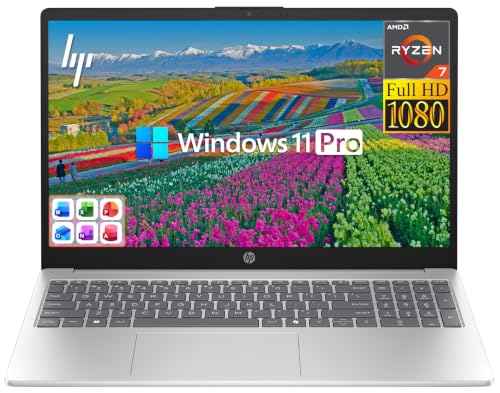
| HP 15 (Core i5-1235U, 16GB) | Best memory value | 16GB of RAM and 512GB of storage in a sensibly priced, number-pad-equipped shell. |
| Lenovo IdeaPad Slim 3 (Ryzen 7) | Best multitasker | Ryzen 7 with eight cores chews through big recalculations while a touch screen speeds reviews. |
| Dell Inspiron 15 3530 Touch (Core i5) | Best mid-range touch option | The same roomy Dell layout with a Core i5 and touch at a gentler price point. |
| Acer Aspire 5 A515-56 (Core i3) | Best for light practices | A proven, affordable 15.6-inch machine for bookkeeping that lives mostly in the cloud. |
| HP 15 (Core i5, 8GB) | Best budget starter | Core i5 pace and a number pad for new practices watching every expense line. |
How Did We Choose These Picks?
We filtered the mainstream laptop market through an accountant’s desk rather than a reviewer’s benchmark suite. The first gate was the keyboard: a full-size layout with a dedicated number pad, because ten-key entry is where accounting hours actually go, and an external pad is one more thing to carry, charge, and lose. The second gate was the display — 15.6 inches at Full HD or better, since spreadsheet work punishes small, dim panels more than almost any other task. Machines failing either gate were excluded no matter how strong their processors were.
Memory and storage formed the third gate. Cloud accounting has lowered the storage stakes — your ledgers increasingly live in a browser — but it has raised the memory stakes, because browser-based books plus a local spreadsheet plus a document scanner’s software is a three-front war for RAM. We favoured 16GB configurations and marked 8GB machines honestly as light-duty. Finally, we weighed the ownership details a practice feels for years: port selection for a second monitor and a scanner, webcam quality for client calls, and whether the maker’s business support reputation matches the machine’s price.
Why Does the Number Pad Matter More Than the Processor for Most Accountants?
Watch an experienced bookkeeper enter a stack of invoices and you will see the answer in their right hand. Ten-key entry, learned once, is several times faster than the number row and dramatically more accurate, because the hand never leaves a nine-key grid and the eyes never leave the source document. A laptop without a number pad forces a choice between slow number-row entry and an external pad that occupies a USB port and a corner of every temporary desk. For a profession measured in entries per hour, that is not a cosmetic difference; it is the difference between finishing the stack and carrying it into tomorrow.
Processors, by contrast, have crossed a threshold where even mid-range chips handle accounting workloads without drama. A Core i5 or Ryzen 5 from recent generations opens large workbooks, filters long transaction lists, and runs a browser full of banking tabs without the pauses that once made upgrades urgent. The exceptions are real but specific: workbooks with tens of thousands of formula-heavy rows, consolidation across many company files, and heavy use of locally installed accounting suites with large databases. If your practice lives in that territory, the Core i7 and Ryzen 7 picks in this guide earn their premium. If it does not, the money is better spent on memory and screen — the components your senses touch all day.
Keyboard quality beyond the pad deserves a sentence of its own. Key travel, spacing, and a deck that does not flex under fast typing all compound across thousands of entries. None of the six machines here has a truly excellent keyboard by enthusiast standards, but all have full-size, sensibly laid-out decks, and the differences among them are noted in each review rather than glossed over.
How Much Memory and Storage Does Accounting Software Really Need?
The honest answer depends on where your books live. A practice running entirely on cloud platforms — the browser is the accounting department — still benefits from 16GB of memory, because modern browsers treat RAM as a workspace and a dozen tabs of bank feeds, payroll portals, and document storage will occupy whatever you give them. Add a locally open spreadsheet and a PDF reader full of statements, and an 8GB machine begins swapping to disk, which feels like the computer pausing to think before every click. It is survivable; it is not pleasant, and it is not necessary at today’s memory prices.
Locally installed accounting suites raise the stakes differently. Their company files can grow large, their databases prefer responsive storage, and year-end work often means running the suite, a spreadsheet, and a tax package simultaneously. Here the combination that matters is 16GB of memory with a 512GB solid-state drive: enough room for several years of company files, backups, and scanned documents without the quarterly panic of a filling disk. The 256GB configurations in this guide suit cloud-first practices and disciplined filers; everyone else should read the storage figure as carefully as the processor badge.
There is a subtler memory consumer that catches practices out: video calling. The client call that runs all afternoon beside the books is not free — conferencing software holds memory and processor time continuously, and on an 8GB machine it is frequently the guest that pushes the household into swapping. If your practice lives on calls, treat that as a workload in its own right when choosing between the 8GB and 16GB configurations scattered through this guide.
One more consideration hides in plain sight: backups. A laptop holding the only local copy of anything financial is a risk no specification fixes. Whichever machine you choose, pair it with an automatic backup routine — cloud sync for documents, scheduled images of the drive — because the best accounting laptop is partly the one whose failure would be an inconvenience rather than a catastrophe.
Which Accounting Laptops Should You Buy?

Dell Inspiron 15 3530 (Core i7) — Best overall
The Core i7 version of Dell’s Inspiron 15 3530 is the machine in this roundup with the most headroom, and accounting is a field where headroom quietly pays rent for years. The i7-1355U is a efficiency-minded chip with enough performance cores to keep a forty-thousand-row workbook responsive while a browser full of banking tabs idles behind it — the exact multitasking shape of a month-end afternoon. Software opens briskly, filters land without the spinning pause, and the machine never becomes the reason a task waits.
The touch display is the feature accountants underestimate until they use one. Reviewing a PDF bank statement, tapping to zoom a scanned receipt, scrolling a long transaction list with a finger while the other hand holds the source document — these micro-interactions accumulate across a working week. Combined with the 15.6-inch Full HD panel, the screen gives you both the row count a ledger demands and a second way to move through it. The full keyboard with number pad completes the picture: this is a desk-first machine that happens to be portable, rather than a portable that tolerates desk work.
Dell’s ownership experience rounds out the case. The chassis is unglamorous plastic that shrugs off daily bag duty, the port selection covers an external monitor and legacy USB gear without dongles, and the webcam handles client calls respectably. Buy the i7 if your practice runs local accounting suites, consolidates multiple entities, or simply keeps machines for five years — the processor premium amortises across every one of those years, while the alternative is replacing a struggling laptop a year early.
- Processor: Intel Core i7-1355U
- Display: 15.6-inch Full HD, touch
- Keyboard: full-size with dedicated number pad
- Role: heavy local workloads, multi-entity practices
- Form factor: 15.6-inch desktop-replacement class
Strengths
- Core i7 pace keeps huge workbooks and local accounting databases feeling immediate.
- Touch screen genuinely speeds document review and statement checking.
- Full number-pad keyboard suits high-volume entry without external accessories.
Trade-offs
- Costs the most of the six; light cloud-only practices will not feel the difference.
- Size and weight make it a bag laptop, not a carry-everywhere companion.
- Plastic chassis feels workmanlike rather than premium at this price.
Best for: Established practices running local suites, large workbooks, or several company files at once.
Not suited for: Solo bookkeepers whose books live entirely in a browser and who travel light.

HP 15 (Core i5-1235U, 16GB) — Best memory value
HP’s 15 with 16GB of memory is the configuration accountants would spec for themselves if the industry let them: a sensible Core i5-1235U, double the RAM of most rivals at the price, and 512GB of storage, wrapped in a 15.6-inch shell with the all-important number pad. Nothing about it chases headlines. Everything about it matches the workload, which is why it sits near the top of this guide despite a spec sheet that reads modestly next to the Dell above.
The memory figure is the argument. Sixteen gigabytes is where the modern accounting desktop — browser with banking and payroll tabs, cloud suite, local spreadsheet, scanner software, PDF reader — stops negotiating with itself. Windows stay open. Alt-tabbing stays instant. The machine feels composed at 4 p.m. in the same way it did at 9 a.m., and that consistency, repeated daily, is worth more than a faster processor that spends its advantage waiting for memory. The 512GB drive extends the same courtesy to storage: years of company files and scanned documents fit without housekeeping.
HP’s keyboard and screen choices suit the work. The number pad is properly separated, the keys have enough travel for fast entry, and the Full HD panel is easy on the eyes across long sessions. Where the Dell i7 wins on ceiling, this HP wins on balance — it is the pick for the practitioner who knows their workload precisely and refuses to pay for performance they will never request.
- Processor: Intel Core i5-1235U
- Memory: 16GB
- Storage: 512GB solid-state
- Display: 15.6-inch Full HD
- Keyboard: full-size with dedicated number pad
Strengths
- 16GB of RAM at this price is the strongest value proposition in the roundup.
- 512GB of storage ends the quarterly delete-or-archive ritual for most practices.
- Balanced specification with no obvious weak point for mainstream accounting.
Trade-offs
- No touch screen, if document review by fingertip appeals to you.
- Core i5 ceiling shows in the very largest formula-heavy workbooks.
- Design and materials are functional rather than distinguished.
Best for: Practitioners who multitask heavily across cloud suites, browsers, and local spreadsheets all day.
Not suited for: Anyone consolidating many large company files locally, who should take the Core i7 Dell.
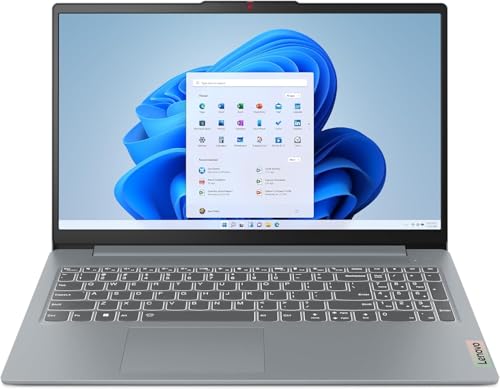
Lenovo IdeaPad Slim 3 (Ryzen 7) — Best multitasker
The IdeaPad Slim 3’s Ryzen 7 5825U brings eight cores to a job that increasingly resembles parallel processing. Reconciling one account while a second company’s file exports, a browser syncs bank feeds, and a call runs in the background is not one task — it is four, and core count is what keeps four simultaneous tasks from queuing behind each other. Lenovo’s Slim 3 wraps that chip in a 15.6-inch touch-screen chassis that stays genuinely portable, giving mobile accountants a machine that does not ask them to choose between pace and packability.
The touch display earns its keep in client-facing moments. Walking a client through their own numbers, tapping between reports and enlarging the line that matters, feels natural in a way mouse-hunting never does across a desk. At your own desk the same screen speeds the statement-review rhythm described in the Dell review — scroll, tap, zoom, annotate — and the panel’s size keeps full ledgers legible without external help.
Lenovo’s keyboard heritage shows in small ways: a well-spaced layout, a number pad that does not feel like an afterthought squeezed into leftover width, and keys tuned for long typing stretches. Battery behaviour suits the travelling pattern of the work — a morning at one client’s office, an afternoon at another — provided you treat the charger as a bag resident rather than a desk fixture. For accountants whose office is wherever the client is, this is the most convincing balance in the guide.
- Processor: AMD Ryzen 7 5825U, eight cores
- Display: 15.6-inch, touch
- Keyboard: full-size with dedicated number pad
- Role: mobile multitasking across client sites
- Form factor: slim 15.6-inch chassis
Strengths
- Eight-core Ryzen keeps parallel accounting tasks from interfering with each other.
- Touch screen shines in client meetings and statement review.
- Slim build travels better than most 15.6-inch number-pad machines.
Trade-offs
- Confirm the memory configuration on the listing; variants differ.
- Thermal design prioritises quiet over sustained maximum performance.
- Lenovo’s preinstalled software bundle needs a tidy-up on day one.
Best for: Accountants who split the week between client offices and need parallel-task pace in a portable shell.
Not suited for: Desk-bound users who would trade portability for the Dell’s larger-feeling workstation layout.
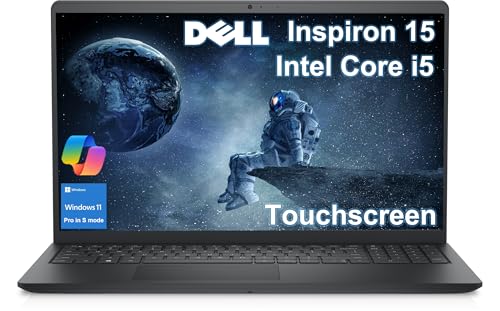
Dell Inspiron 15 3530 Touch (Core i5) — Best mid-range touch option
Think of this Inspiron as the i7 model’s wiser sibling: the same roomy 15.6-inch touch layout, the same full keyboard with number pad, the same desk-friendly port selection, with a Core i5-1334U doing the arithmetic at a lower price. For the large middle of the profession — practices running a mix of cloud suites and moderate local spreadsheets — the i5’s pace is not a compromise anyone will detect in daily work. The savings, redirected toward a second monitor or a proper backup drive, improve the working setup more than the processor upgrade would.
What you keep matters more than what you give up. The touch screen remains, and with it the fast document-review rhythm. The chassis, keyboard, and webcam carry over unchanged, so the ownership experience — the thing you actually live with — is nearly identical to the flagship pick’s. What you surrender is ceiling: the very largest workbooks and the heaviest local databases will open and recalculate a breath slower, and a practice growing toward multi-entity consolidation may outgrow the i5 a year sooner.
Position it honestly and it is the easiest Dell to recommend. New practices equipping their first serious machine, staff accountants adding a dedicated work laptop, and anyone replacing an ageing computer whose workload is known and stable will find the i5 Inspiron lands exactly on their needs. It is also the natural second machine for a practice that already owns the i7 — shared layout, shared chargers, no retraining of hands.
- Processor: Intel Core i5-1334U
- Display: 15.6-inch Full HD, touch
- Keyboard: full-size with dedicated number pad
- Role: mid-range all-rounder for mixed cloud and local work
- Form factor: 15.6-inch desktop-replacement class
Strengths
- Nearly the flagship’s daily experience — screen, keyboard, layout — for less money.
- Core i5 pace covers the profession’s mainstream workloads without strain.
- Touch display keeps statement review and client walkthroughs fluid.
Trade-offs
- Less headroom for giant workbooks than the Core i7 configuration.
- Same workmanlike plastic build as its pricier sibling.
- Memory configuration varies by listing — verify before ordering.
Best for: The mainstream practice balancing cloud suites with moderate local spreadsheet work.
Not suited for: Fast-growing firms consolidating many entities, who will want the i7’s ceiling.
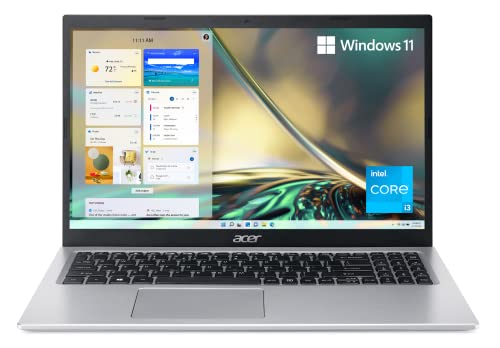
Acer Aspire 5 A515-56 (Core i3) — Best for light practices
The Aspire 5 A515-56 is the veteran of this roundup — a 15.6-inch design that has served students, home offices, and small businesses for years — and its Core i3-1115G4 specification tells you exactly which accounting workloads it suits. Cloud bookkeeping is the centre of its world: browser-based ledgers, online banking, email, documents, and light spreadsheets all run comfortably, because the browser does not ask much of a processor and the machine’s Full HD IPS screen and full keyboard ask nothing of your patience in return.
That screen deserves emphasis at this price. An IPS panel with honest viewing angles and proper 1080p resolution means a ledger shared with a client across a desk stays legible to both of you, and long sessions do not carry the colour-shift squint of cheaper TN panels. The keyboard, with its number pad, supports real entry work rather than tolerating it. Acer built the Aspire line’s reputation on exactly this combination: the fundamentals done properly, the frills declined.
Know its borders before you buy. Local accounting suites with large company files will feel the i3’s limits, heavy spreadsheet models will recalculate slowly, and multitasking beyond the browser-plus-documents pattern gets breathless. A practice that is cloud-first today and honest about staying that way gets a dependable machine for years. A practice flirting with local software should step up to the HP or Dell picks and save itself a mid-cycle replacement.
- Processor: Intel Core i3-1115G4
- Display: 15.6-inch Full HD IPS
- Keyboard: full-size with dedicated number pad
- Role: cloud bookkeeping and light local documents
- Form factor: 15.6-inch mainstream chassis
Strengths
- IPS Full HD screen is unusually good for the money and kind during long sessions.
- Proven design with a proper number pad and a mature, well-understood platform.
- Low price leaves budget for the monitor, backup drive, and software that complete a setup.
Trade-offs
- Core i3 limits local-suite performance and heavy spreadsheet work.
- Older platform means fewer modern ports and conveniences than newer rivals.
- Not a machine to grow a practice on if local software is in your future.
Best for: Cloud-first bookkeepers and very small practices with browser-based books.
Not suited for: Firms running local accounting suites or large, formula-heavy workbooks.

HP 15 (Core i5, 8GB) — Best budget starter
Every practice starts somewhere, and the brief for a first accounting laptop is usually: cost little, work now, teach me what I actually need. This HP 15 answers with a Core i5 — a genuinely capable processor, a generation of pace above the Aspire’s i3 — paired with 8GB of memory and 256GB of storage, in the same 15.6-inch number-pad format as its 16GB sibling. The shape of the compromise is deliberate: processor strong, memory modest. For a new practice running cloud books and a handful of tabs, that shape works.
The 8GB figure defines the ownership experience, so plan around it honestly. Keep the tab count disciplined, let the cloud suite be the centre of gravity, and the machine feels brisk — the i5 sees to that. Open a local suite beside a busy browser and a big spreadsheet, and memory pressure arrives as small pauses rather than failures. Many owners will never push past the line. Those who do will discover the difference between this model and its 16GB sibling is precisely the price of never thinking about RAM again, which is why this guide presents the pair as a genuine fork rather than a ranking.
As a starter, though, its virtues compound. The keyboard supports learning ten-key properly from day one. The screen is big enough to learn real spreadsheet craft. The price leaves room in a new practice’s budget for the things that actually generate revenue and safety — software subscriptions, a backup routine, a second monitor. Buy it as a first machine with open eyes, and it will either serve for years or teach you exactly which upgrade to make next.
- Processor: Intel Core i5
- Memory: 8GB
- Storage: 256GB solid-state
- Display: 15.6-inch Full HD
- Keyboard: full-size with dedicated number pad
Strengths
- Core i5 pace at a starter price — the processor will not be your bottleneck.
- Same roomy number-pad layout as the pricier HP, so skills transfer when you upgrade.
- Keeps a new practice’s equipment budget free for software and backup essentials.
Trade-offs
- 8GB of memory caps comfortable multitasking; heavy tab users will feel it.
- 256GB fills quickly if you archive scanned documents locally.
- No touch screen for document-review work.
Best for: New practices and solo bookkeepers starting out on cloud platforms.
Not suited for: Established multitaskers — the 16GB HP configuration exists precisely for you.
What Does Tax Season Reveal About a Laptop That Ordinary Weeks Hide?
Every accounting laptop feels adequate in October. Tax season is the audit that matters, and it stresses a machine in a specific sequence worth understanding before you buy. Volume arrives first: more documents, more entries, more clients asking questions simultaneously, which turns the multitasking pattern of an ordinary week — browser, suite, spreadsheet — into the same pattern at double intensity for ten unbroken hours a day. Memory pressure that produced an occasional pause in November produces a daily rhythm of pauses in March, and pauses compound into overtime.
Heat and noise arrive second. A laptop that whispers through ordinary weeks may run its fans audibly through sustained recalculations and bulk exports, and in a small office or a client’s quiet meeting room that noise becomes part of your professional presentation. The machines in this guide use efficiency-focused processors partly for this reason: they hold their pace without turning the desk into a wind tunnel. Battery behaviour degrades third — a three-year-old battery that lasted a working day when new may last half of one under tax-season load, which is why the setup advice in this guide treats the charger as a permanent bag resident rather than an emergency item.
Season also exposes the machines nobody bought on purpose: the inherited laptop, the emergency purchase from three years ago, the one a staff member uses because theirs is “fine, mostly.” Audit the fleet each autumn, while there is still time to act, and retire the machine that will fail in March to light duties in November, when its failure is a shrug instead of a crisis.
The practical response is to buy for the season, not the average. If your March involves the whole practice working flat out for six weeks, the configuration that merely copes in November is a false economy measured in staff hours. This is the concrete reason the guide steers established practices toward the 16GB machines and the higher-ceiling processors: not because ordinary work demands them, but because the year’s most valuable weeks do, and those weeks are when clients judge whether to stay.
There is also a human line item. Eye strain, wrist fatigue, and the low-grade irritation of a flexing keyboard deck all peak under season-length hours. A laptop is, for an accountant, a tool held for thousands of hours a year; the difference between a decent keyboard and a poor one is not comfort in the abstract but errors avoided at hour nine of a data-entry day. When you test machines — even briefly, even in a shop — type numbers. Enter a column of figures at speed. The right machine disappears under your hands; the wrong one announces itself within thirty entries.
Should a Practice Standardise on One Model for Everyone?
Solo practitioners skip this question; everyone else eventually faces it. Standardising — buying the same model for each staff member — carries quiet operational dividends that never appear on a specification sheet. One charger type travels between desks. One set of drivers, one keyboard layout, one support conversation with the manufacturer. When a machine fails in February, its replacement is a clone of its neighbours, and the staff member loses an hour rather than a week of relearning. Spare parts, spare chargers, and eventually a spare machine all become practical at small scale.
The counterargument is role fit. The partner who consolidates multi-entity files genuinely needs the Core i7 ceiling; the junior doing cloud bookkeeping genuinely does not. The sensible middle path most small practices land on is a two-tier standard: one model for production staff, one stronger model for the people running consolidations and year-end closes, with both tiers sharing the 15.6-inch number-pad format so hands never relearn the keyboard. This guide’s six picks were chosen partly with that pattern in mind — the two Dells share a layout, the two HPs share a layout, and mixing tiers within a brand keeps the fleet coherent.
Whichever structure you choose, write the replacement cycle down. Accounting laptops earn best when replaced on a plan — staggered, budgeted, before failure — rather than in a panic during the season when failure costs most. A four-year rotation, one machine a year in a four-person practice, turns a recurring crisis into a line item, and lets each retiring laptop step down into lighter duties: the reception desk, the training machine, the spare that saves February.
How Does a Second Monitor Change Which Laptop You Should Buy?
Ask accountants what upgrade changed their work most and a striking number name the second screen, not a faster computer. The pattern it enables is the core gesture of modern accounting: source document on one display, ledger on the other, eyes moving instead of windows. No alt-tabbing, no printed statements, no losing your row. A modest external monitor delivers this for less than the price difference between the mid-range and flagship picks in this guide, which reframes the buying decision — the best accounting setup within a fixed budget is often a mid-range laptop plus a good monitor, not a flagship laptop alone.
Every pick here can drive an external display, but the details differ in ways worth a glance before ordering. Confirm the machine’s HDMI or USB-C video output matches the monitor you intend to buy, and think about the desk geometry: the laptop’s own screen usually becomes the secondary display for email and chat, raised on a stand to sit level with the main panel. A laptop with a mediocre built-in screen but strong fundamentals — the Aspire 5 is the honest example — becomes a far better workstation in this arrangement than its panel suggests, because its screen is no longer the one you stare at all day.
The second monitor also relaxes one requirement and tightens another. It relaxes the built-in display stakes for desk-bound staff. It tightens the port requirement: a machine whose single video output is already committed to the monitor leaves none for the projector in the meeting room, a small friction that USB-C hubs solve cheaply. Plan the whole desk — laptop, monitor, hub, stand — as one purchase decision, and the parts stop surprising each other.
What Security Features Should Client Data Demand From the Machine Itself?
Encryption and sign-in were covered in the setup section; the hardware layer underneath them deserves its own pass, because some protections can only be bought, not configured. A fingerprint reader, present on several configurations in this class, does more than save typing: it makes the strong-password policy painless enough that staff actually keep it, and it keeps credentials off sticky notes — the true vulnerability in most small offices. A TPM chip, now standard across mainstream Windows laptops, anchors the disk encryption so the drive’s contents stay sealed if the drive is removed and read elsewhere.
Physical details matter at this scale of threat. A Kensington-style lock slot will not stop a determined thief, but it stops the opportunistic one in a shared office or a client’s premises, and several machines here retain one. Privacy screens — or at least displays with narrow viewing angles by design — protect figures on trains and in cafés, where the person beside you may work for exactly the competitor your client worries about. None of this is exotic; it is the ordinary hygiene of carrying other people’s financial lives in a bag.
The last hardware-adjacent decision is the webcam shutter, a tiny sliding cover that has become common on business-minded models. Client calls run through that lens daily, and a physical shutter settles every question about whether the camera is truly off between them. When two otherwise equal configurations differ on these small protections, the one with the fingerprint reader and the shutter is the professional choice — clients may never ask, but the standard is yours to keep, not theirs to request.
Does the Choice Between Cloud and Local Software Change the Hardware You Need?
It changes almost everything except the keyboard. A cloud-first practice has effectively outsourced its computing: the heavy lifting happens on the provider’s servers, and the laptop’s job reduces to running a browser beautifully — responsive screen, ample memory for tabs, battery for the day, and a webcam that flatters nobody but offends nobody either. This is why the modest machines in this guide are honest recommendations rather than booby prizes: for browser-based books, an Aspire 5 or the 8GB HP delivers the same visible experience as machines costing far more, because the bottleneck moved to your internet connection years ago.
Local software reverses the flow. The company file sits on your drive, the database engine runs on your processor, and recalculation speed is a property of your hardware rather than a distant data centre. Practices running local suites should read this guide’s processor and storage notes as primary, not secondary: the Core i7 and Ryzen 7 picks exist for you, and 512GB stops being generous and starts being appropriate once several years of company files, backups, and document archives share a drive.
The hybrid reality — most practices, honestly — runs cloud books for some clients and local files for others, with tax software straddling both. Hybrids should buy for the local half, because the cloud half forgives modest hardware while the local half does not. When a listing forces a trade, spend on the specification the local workload feels: processor first, storage second, and let the browser make do, since it demonstrably can.
How Should You Test an Accounting Laptop Before Committing the Practice to It?
If you can spend twenty minutes with a candidate machine — in a shop, or during a returns window at home — spend them replicating your worst hour, not your average one. Open your largest real workbook and time a full recalculation. Load the accounting suite with your biggest company file and run the report that always takes longest. Open the browser tab set you actually keep — bank, payroll, documents, email — and switch between everything quickly, watching for the small hesitations that multiply across a season.
Then type. Enter a column of fifty figures from a printed page, at your working speed, eyes on the page. Count your errors and notice your hand: does the number pad sit where your fingers expect, do the keys bottom out harshly, does the deck flex and rattle? This test, absurdly simple, predicts your daily satisfaction better than any benchmark, because data entry is the physical interface between you and every other feature the machine has.
Finally, test the exits. Join a video call and check how you look and sound. Plug in your monitor, your scanner, your backup drive, all at once, and confirm nothing needs a dongle you do not own. Close the lid, put the machine in your actual bag, and carry it to the door and back — weight is a number in a listing and a fact in a shoulder. A laptop that passes the worst-hour test, the typing test, and the bag test will not surprise you in March, and freedom from surprises is the entire point of the exercise.
What Should Mobile Accountants Carry Beyond the Laptop Itself?
The laptop is the centre of a travelling kit, and the kit’s quality decides whether client-site work feels professional or improvised. Start with power: a charger that lives permanently in the bag, separate from the desk charger, because the morning you forget the desk one is the morning of the year-end close at a client’s office. A compact multi-port travel charger can also serve your phone, trimming the kit further. Add a wireless mouse — trackpads are for short sessions, and a full day of ledger work on one is a wrist injury in slow motion — and a slim external number pad only if your machine lacks one, which none of this guide’s picks do.
Documents travel too. A portable scanner or a phone scanning app with a proper stand turns the client’s shoebox of receipts into PDFs before you leave the building, and an encrypted USB drive — bought for the purpose, labelled, and kept on your keys — handles the rare file that cannot cross the internet. A privacy screen earns its bag space for train work and shared offices. None of this is expensive; all of it is the difference between arriving as a professional with a system and arriving as a guest with a laptop.
Finally, rehearse the failure. If the laptop died in a client’s reception area, what happens in the next hour? A practice that can answer — cloud books accessible from any browser, backups current, a spare machine at the office — has bought resilience that no specification sheet sells. The machines in this guide are reliable mainstream hardware, but reliability is a property of systems, not products, and the travelling accountant is the system.
Could a Chromebook or a Tablet Handle a Practice’s Books Instead?
The question arrives every year, usually from a practice tempted by the price and battery life of simpler devices. For a strictly cloud-based bookkeeping workflow, a good Chromebook genuinely can run the books — the browser is the whole job, and ChromeOS runs a browser well. The walls appear at the edges of the workflow: locally installed suites and tax packages do not run, some bank and government portals behave oddly outside mainstream browsers, scanner and printer support can be thin, and no Chromebook in the mainstream market offers the full number-pad keyboard this guide treats as non-negotiable. A device that handles eighty percent of the work and blocks the other twenty at deadline time is not a bargain.
Tablets fail a different test. They are excellent review devices — reading statements on a sofa, approving figures, signing documents — and poor production devices, because accounting production is keyboard work measured in thousands of entries. Paired with a keyboard case a tablet becomes a cramped laptop with a smaller screen and no number pad, at a combined price that buys a proper machine from this guide. Keep tablets in the role they are good at, as the second screen of the practice rather than its engine, and let a real laptop with a real keyboard carry the ledgers.
How Do These Accounting Laptops Stack Up Against Each Other?
| Pick | Processor | Memory / Storage | Display | Best role |
|---|---|---|---|---|
| Dell Inspiron 15 3530 (Core i7) | Core i7-1355U | Check listing | 15.6″ FHD touch | Heavy local workloads |
| HP 15 (Core i5-1235U, 16GB) | Core i5-1235U | 16GB / 512GB | 15.6″ FHD | All-day multitasking value |
| Lenovo IdeaPad Slim 3 (Ryzen 7) | Ryzen 7 5825U | Check listing | 15.6″ touch | Mobile parallel work |
| Dell Inspiron 15 3530 Touch (Core i5) | Core i5-1334U | Check listing | 15.6″ FHD touch | Mainstream all-rounder |
| Acer Aspire 5 A515-56 (Core i3) | Core i3-1115G4 | Check listing | 15.6″ FHD IPS | Cloud bookkeeping |
| HP 15 (Core i5, 8GB) | Core i5 | 8GB / 256GB | 15.6″ FHD | Budget starter |
The pattern in the table is the guide’s argument in miniature: every machine shares the 15.6-inch, number-pad format because the work demands it, and they separate on ceiling and memory rather than on gimmicks. Choose your row by the heaviest week of your year, not the average day — tax season and year-end are when a laptop earns or loses its keep.
How Should You Set Up a New Accounting Laptop Securely?
Begin before the first client file touches the drive. Turn on full-disk encryption, set a strong sign-in with a fingerprint or PIN where the hardware offers it, and confirm automatic updates are enabled for both the operating system and the accounting software. Client financial data makes an accounting laptop a target out of proportion to its price; the twenty minutes of setup that hardens it is the cheapest professional insurance you will ever buy.
Next, build the backup habit into the machine rather than your intentions. Configure cloud sync for working documents, schedule a full system image to an external drive or backup service, and test restoring one file — a backup that has never been test-restored is a hope, not a backup. Then install the working stack in a deliberate order: accounting suite first, then the browser you will dedicate to financial sites, then scanner and PDF tools, checking after each that the machine still feels brisk.
While the machine is new, record its details somewhere the practice keeps records: purchase date, serial number, warranty terms, and the configuration you actually received, verified against the listing. Asset registers sound like bureaucracy until a warranty claim, an insurance event, or a staff departure makes the register the only reliable memory the practice has. Take the same five minutes to photograph the machine’s condition and file the receipt with the year’s equipment purchases, where your own accountant — or you, in April — will look for it.
Finish with the desk. An external monitor at eye height, the laptop on a stand if it becomes a second screen, and a power routine — charger at the desk, charger in the bag if you travel — turn a good laptop into a workstation that protects your neck as reliably as its encryption protects your clients. Set a calendar reminder, quarterly, to review updates, backups, and storage; accounting machines age gracefully when someone is paying mild attention.
What Mistakes Do Buyers Make When Choosing a Laptop for Accounting?
The classic error is buying the processor and ignoring the keyboard. A fast chip in a 14-inch chassis without a number pad will slow an accountant down every single day, in a way no benchmark victory repays. Second comes under-buying memory to save a small sum, then paying for it in small pauses ten thousand times — the most expensive economy in this entire category. If the budget forces a choice between a faster processor and more RAM, accountants should take the RAM nearly every time.
Third: treating storage as an afterthought until the drive fills during tax season, the one week it must not. Scanned documents accumulate faster than anyone predicts; buy the larger drive or commit to a cloud archive from day one. Fourth: skipping the security setup because the machine feels personal. The first client file changes its legal and ethical character entirely. Finally, buyers forget the second screen. A modest external monitor transforms spreadsheet work more than any internal upgrade at the same money, and every pick in this guide can drive one — budget for it in the same purchase conversation, not as an afterthought next year.
Final Recommendation
For most practices, the HP 15 with 16GB is the sweet spot of this roundup — the memory and storage an accountant actually feels, at a price that leaves room for a monitor and a backup drive. Step up to the Core i7 Dell when local suites and large consolidations define your heaviest weeks, or to the Ryzen 7 Lenovo when those weeks happen in clients’ offices rather than your own. The i5 Dell is the safe mainstream alternative, the Aspire 5 serves cloud-first minimalists honestly, and the 8GB HP starts new practices without apology. Choose by your busiest week, protect the machine like the client data it holds, and your laptop will fade into the background of the work — which is the highest praise accounting equipment can earn.
Frequently Asked Questions
Is a MacBook suitable for accounting work?
It can be, especially for cloud-based practices, but the mainstream accounting ecosystem — local suites, many tax packages, and some bank tools — remains Windows-first, and none of the MacBooks in our wider research pool offers a number pad. Accountants committed to local Windows software should stay with the machines in this guide; cloud-only practitioners have more freedom.
How long should an accounting laptop last?
Plan on four to five years. The components that age fastest for this workload are memory headroom and battery health, which is why this guide favours 16GB configurations for anyone buying with a five-year horizon. A machine that feels merely adequate in year one will feel obstructive by year four.
Do I need a dedicated graphics card for accounting?
No. Spreadsheets, accounting suites, browsers, and video calls all run comfortably on the integrated graphics every pick here carries. Dedicated graphics add cost, weight, heat, and fan noise while contributing nothing to ledger work — that budget belongs in memory and screen quality instead.
Should I buy a touchscreen for spreadsheet work?
Treat it as a quality-of-life feature rather than a necessity. Touch earns its place reviewing statements, presenting figures to clients, and scrolling long lists; the core entry work still happens on the keyboard and number pad. If two otherwise equal machines differ mainly on touch, choose by price — but do not dismiss it if your work is review-heavy.
What screen size is best for accounting?
15.6 inches is the profession’s sweet spot: wide enough for broad spreadsheets and side-by-side windows, and the smallest size that reliably accommodates a full number pad. Smaller machines sacrifice the pad; larger ones sacrifice portability without adding working room that a cheap external monitor would not provide better.
How important is battery life for a desk-based accountant?
Less than for a traveller, but not zero. Client visits, working from a meeting room, and the occasional power cut all reward a machine that lasts a working day unplugged. If your laptop will genuinely never leave one desk, prioritise screen and memory over battery; if it moves even weekly, keep battery on the checklist.
Can I claim a laptop as a business expense?
In most jurisdictions, equipment bought for practice use is a legitimate business expense, and many accountants will smile at being asked — but the rules, thresholds, and timing differ by country and entity type, and this guide is not tax advice. Ask the professional you would ask about a client’s identical question: probably yourself, wearing the other hat, with your own local rules open.
What is the first upgrade to make if my current laptop feels slow?
Diagnose before spending: if the machine hard drive is mechanical or nearly full, storage is the culprit; if pauses arrive when many programs are open, memory is. On a machine that cannot be upgraded — many slim models have soldered memory — the honest answer is that the next laptop is the upgrade, bought with the headroom this guide recommends.
Is a refurbished business laptop a smarter buy than a new consumer model?
It can be — off-lease business machines often bring better keyboards, more ports, and easier servicing than new consumer laptops at similar money. The cautions are battery health, warranty length, and verifying the exact configuration, since fleet machines vary. This guide ranks new machines for simplicity, but a well-bought refurbished unit is a respectable professional choice.
Related Guides
Complete the practice setup with our other roundups: best laptops for small business owners, best external monitors for spreadsheet work, and best document scanners for home offices.
[…] building the desk with our companion roundups: best USB-C docking stations for home offices, best 4K monitors for dual-laptop desks, and best cable management kits for standing […]