What's inside
- Key Takeaways
- Quick Picks
- How Did We Choose These Picks?
- What Is the Difference Between a Dock Setup and a KVM Setup?
- Which Specifications Actually Matter for a Shared-Monitor Desk?
- Which Accessories for Running Two Laptops Attached to One Monitor Should You Buy?
- How Should You Handle Audio, Webcams, and Shared Drives Across Two Machines?
- Can You Mix a Windows Laptop and a MacBook on One Monitor?
- What Should You Budget for a Complete Two-Laptop Desk?
- How Do the Six Picks Compare Side by Side?
- How Should You Set Up a Two-Laptop, One-Monitor Desk Step by Step?
- How Do You Troubleshoot a Shared Desk That Misbehaves?
- How Do You Fit Two Laptops and One Monitor on a Small Desk?
- What Mistakes Do People Make When Sharing One Monitor Between Two Laptops?
- What About Security When a Work Laptop Shares Peripherals With a Personal Machine?
- Final Recommendation
- Frequently Asked Questions
- Related Guides
As an Amazon Associate I earn from qualifying purchases. This post may contain affiliate links at no extra cost to you.
widgetverdict.com is reader-supported. When you buy through links on our site, we may earn an affiliate commission.
Where to buy: Every dock and switch in this guide is sold through Amazon, and each linked name below takes you to that product’s listing so you can confirm port layouts and cable inclusions before ordering. If a listing shows a different revision than the one described here, trust the port diagram on the listing over any roundup, including this one.
Desk space runs out long before computing needs do. A work laptop issued by an employer, a personal machine for everything else, one good monitor, one keyboard, one mouse — that is the setup millions of people now live with, and the best accessories for running two laptops attached to one monitor are the small boxes that make that arrangement feel like a single computer instead of a daily cable-swapping ritual. The category splits into two families that solve different halves of the problem. Docking stations give one laptop a full desk — monitor, peripherals, power, Ethernet — through a single USB-C cable, but they serve one computer at a time unless you physically move the cable. KVM switches attack the other half: they let two computers share one display and one set of peripherals, swapping control with a button press. Many tidy desks end up using both ideas at once, and this guide covers six products across the two families, chosen so you can match the hardware to the way you actually switch between machines during a day.
One warning before the picks: a single monitor shared by two laptops is only as smooth as the weakest video link in the chain. A dock that advertises dual displays may still drive your one shared screen at a reduced refresh rate when a second laptop enters through a switch, and a KVM rated for very high resolutions may pass a lower signal if the cables between the laptops and the switch are bargain-bin HDMI leads. Throughout this guide we flag where each product’s ceiling sits, because buying headroom you cannot use is wasteful, but buying a ceiling below your monitor’s native resolution is worse — it is the one mistake that cannot be fixed in settings.
Key Takeaways
- Decide first whether your pain is connection (too many cables per laptop) or switching (too many steps to change machines); docks fix the first, KVM switches fix the second.
- A hardware KVM keeps both laptops awake and independent, so either machine can update, back up, or render while you work on the other.
- Match the switch or dock to your monitor’s native resolution and refresh rate, not to the highest number printed on the box.
- Power delivery matters: a dock that charges the active laptop removes one more cable from the daily plug-in routine.
- Keep the cables between laptop, switch, and monitor short and certified; most “faulty switch” complaints trace back to leads, not switches.
Quick Picks
| Pick | Badge | Why it earns a place |
|---|---|---|
| Hearvo USB 3.0 HDMI KVM Switch | Best pure switch | Built for exactly two computers and one 4K screen, with USB 3.0 peripheral sharing. |
| 8K HDMI KVM Switch for 2 Computers | Most future-proof | 8K@60 headroom means high-refresh 4K and ultrawide signals pass without drama. |
| Anker Prime 14-in-1 Docking Station | Best dock | 160W of charging and dual 4K outputs turn either laptop into a full desktop at one plug. |
| Anker 8-in-1 USB-C Dock | Best value dock | Dual HDMI and a compact shell cover the essentials for far less than flagship docks. |
| Selore USB-C Dual HDMI Dock | Best for dual-screen growth | Drives two 4K@60 displays today and still behaves when only one is connected. |
| UANTIN 10-in-1 USB-C Dock | Best port spread | Ten ports cover legacy USB gear, cards, and a second monitor without extra hubs. |
How Did We Choose These Picks?
We started from the two real workflows behind this keyword. Workflow one: both laptops live on the desk all day, and the owner hops between them hourly — a support engineer with a managed work machine and a personal laptop, say. Workflow two: one laptop is resident and the second visits — a contractor machine, a partner’s laptop on weekends, a test device. The first workflow demands a true KVM with fast, reliable switching and peripheral sharing that survives sleep and wake. The second is served well by a strong dock and a thirty-second cable move. Products that blurred the two jobs without doing either properly were cut.
Video ceilings were the next filter. Any switch or dock that topped out below 4K at 60Hz was excluded, because the shared monitor in a two-laptop desk is usually the best screen its owner has, and throttling it to 30Hz makes mouse movement feel like wading. We also weighed USB generation for shared peripherals — a switch that drops a fast external SSD to USB 2.0 speeds punishes anyone who moves files between the two machines through a shared drive. Finally, we favoured products whose makers publish clear host requirements, because the single largest source of disappointment in this category is a laptop whose USB-C port carries data but not video, a limitation no accessory can overcome.
What Is the Difference Between a Dock Setup and a KVM Setup?
A docking station is a port multiplier for one computer. It takes a single USB-C connection and fans it out into displays, USB ports, audio, networking, and charging. When people say they “dock” a laptop, they mean the desk stays wired and the laptop comes and goes. In a two-laptop household, a dock alone means the upstream cable changes hands: unplug from laptop A, plug into laptop B. That takes seconds, but it also means the idle machine gets no keyboard, no mouse, and no screen, and it wakes to find its windows rearranged if its internal display settings differ.
A KVM — keyboard, video, mouse — is a traffic controller instead. Both computers connect permanently. The monitor, keyboard, and mouse plug into the switch, and the switch routes them to whichever machine is selected. The unselected laptop keeps running with its lid behaviour unchanged; it simply has no display attached from its own point of view, which Windows and macOS both handle gracefully if you set the lid and sleep behaviour sensibly. The trade-off is cost and cabling: a KVM desk has more wires permanently in place, and cheap switches can be slow to handshake after a swap, leaving you staring at a black screen for several seconds each time.
The hybrid pattern deserves mention because it suits so many readers. Put a dock on the laptop you use most, so that machine enjoys wired networking and charging through one cable, and run both machines through a KVM for the shared display and input devices. The dock’s video output feeds one KVM input; the second laptop feeds the other input directly. You spend more, but each half of the system does the job it is genuinely good at, and when the second laptop leaves the desk permanently, the dock remains useful on its own.
Which Specifications Actually Matter for a Shared-Monitor Desk?
Resolution and refresh rate form the headline pair, and they interact. A switch rated for 8K at 60Hz has the bandwidth to pass 4K at high refresh rates, which matters if your shared screen is a gaming-capable panel you also use after hours. A 4K@60 switch is entirely sufficient for office work, photo editing, and video calls, and paying beyond it buys nothing you will see. What you must not do is pair a 1440p high-refresh monitor with a switch that quietly limits 1440p to 60Hz — check the rating at your resolution, not just the maximum.
USB bandwidth on the peripheral side is the sleeper specification. Keyboards and mice need almost nothing, but shared webcams, audio interfaces, and external drives ride the same switch. USB 3.0 peripheral ports keep a shared SSD or capture device honest; USB 2.0 ports are fine for input devices and printers only. HDCP support matters if either laptop doubles as a streaming machine, since a switch that strips HDCP turns protected video into a black rectangle. EDID handling — whether the switch keeps telling the idle laptop that a monitor exists — decides whether your window layout survives a swap; switches with EDID emulation preserve arrangements, while simpler designs let the disconnected machine collapse everything onto its own screen.
Also weigh the humble question of where your hands go. A switch with its button on a wired remote can live under the desk with the remote at your fingertips; a switch with only a top-panel button must sit within reach on the surface, claiming space every day. Docks differ similarly — front ports invite daily use, while a dock whose every socket faces backward turns each plug-in into a reach behind warm hardware. None of this appears in specification tables, and all of it decides whether the setup feels designed or endured by the end of the first month.
Power is the third leg. Docks advertise charging wattage for the host laptop; KVMs generally do not charge at all. If your routine involves one laptop living on the desk for ten hours, a dock that feeds it 85W or more means its own charger can stay in your travel bag. Also check the mundane details: where the switch button sits, whether a wired remote is included for under-desk mounting, and whether the unit needs its own power adapter to drive bus-powered peripherals reliably. These small things decide whether a setup feels finished or forever improvised.
Which Accessories for Running Two Laptops Attached to One Monitor Should You Buy?
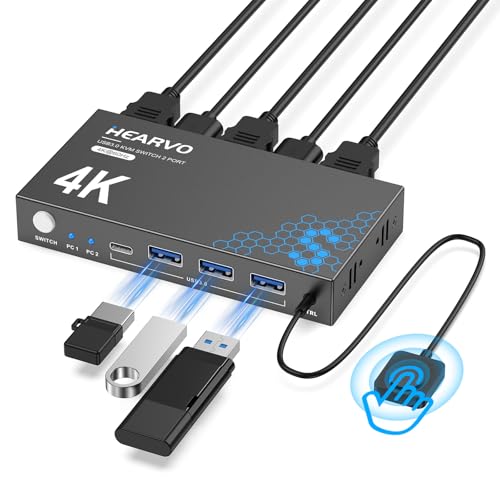
Hearvo USB 3.0 HDMI KVM Switch — Best pure switch
The Hearvo exists for one job: two computers, one HDMI display, one set of USB peripherals, and a button that swaps between them. That narrow focus is its charm. Where docks try to be everything, this box wires both laptops in permanently, presents the shared monitor at up to 4K@60, and routes USB 3.0 devices — keyboard, mouse, and something hungrier like a webcam or drive — to whichever machine is active. For the hourly-switching workflow, nothing else in this guide removes as much friction per dollar.
Set-up deserves a slow first pass. Each laptop needs an HDMI lead to the switch plus a USB connection for the peripheral channel, so four cables leave the box toward the computers and three more serve the desk. Label the two sets before you plug anything in; the classic first-day error is crossing laptop A’s video with laptop B’s USB, producing the eerie symptom of watching one machine while typing into the other. Once wired correctly, switching is a single press, and the inactive laptop carries on with its downloads, renders, and backups undisturbed — the property that separates a KVM from every cable-swapping arrangement.
Two behaviours are worth knowing before you buy. First, when a laptop loses the display to its sibling, its operating system may rearrange open windows unless the machine is set to keep its layout; five minutes in display settings on each computer pays for itself daily. Second, USB device handover is a disconnect-and-reconnect event from the operating system’s perspective, so a shared external drive mid-transfer will drop if you switch away — finish the copy, then swap. Neither point is a defect; both are the physics of sharing hardware, and owners who understand them stop noticing them within a week.
- Video ceiling: HDMI, up to 4K at 60Hz
- Computers supported: 2, sharing 1 display
- Peripheral channel: USB 3.0 device sharing
- Switching: front-panel button
- Host charging: not provided — each laptop keeps its own adapter
Strengths
- Purpose-built wiring: both laptops stay connected, so switching never involves touching a cable.
- USB 3.0 peripheral ports keep a shared webcam or fast drive performing properly on either machine.
- Compact footprint hides behind the monitor stand instead of colonising the desk.
Trade-offs
- Neither laptop charges through it, so two power bricks remain part of the furniture.
- A single shared display is the hard limit; a future second monitor means a different switch.
- Window layouts can shuffle on the deselected machine until you tune each laptop’s display settings.
Best for: People who alternate between a work laptop and a personal laptop many times a day on one 4K desk screen.
Not suited for: Anyone hoping to retire both laptop chargers, or planning a dual-monitor expansion soon.

8K HDMI KVM Switch for 2 Computers — Most future-proof
Bandwidth headroom is the entire argument for this switch, and it is a good one. A unit rated for 8K at 60Hz carries far more signal than a 4K office panel will ever request, which means the interesting cases sit below the ceiling: 4K at high refresh rates for an after-hours gaming session on the personal machine, or a 1440p ultrawide running at its full speed rather than a throttled fallback. If your shared monitor is newer and faster than the average office display, this is the switch that will not become the bottleneck when the next laptop arrives with a stronger graphics output.
The USB 3.0 peripheral channel mirrors the Hearvo’s arrangement, and the same wiring discipline applies — matched, labelled cable sets per computer, and short certified HDMI leads, because high-bandwidth signals are unforgiving of the long bargain cable that worked fine at 1080p. Owners upgrading from an older 4K switch often blame the new box for sparkles or dropouts that vanish the moment the leads are replaced; at these data rates the cable is part of the specification, not an accessory afterthought.
Consider also what the headroom does for longevity. Laptops turn over every three to five years; switches tend to stay until they fail. A switch bought purely for today’s 4K@60 panel will be replaced the day a 5K or high-refresh display joins the desk, whereas this unit absorbs that upgrade silently. The premium over a basic 4K switch is modest against a service life measured in two or three laptop generations, which is why it earns the future-proof badge rather than a niche enthusiast slot.
- Video ceiling: HDMI, up to 8K at 60Hz
- Computers supported: 2, sharing 1 display
- Peripheral channel: USB 3.0 device sharing
- High-refresh support: generous headroom for 4K and 1440p fast panels
- Host charging: not provided
Strengths
- Signal headroom swallows high-refresh 4K and ultrawide modes that choke lesser switches.
- Likely to survive your next monitor upgrade, stretching its working life across several laptops.
- Same simple two-machine, one-button routine as any KVM — the extra bandwidth adds no complexity.
Trade-offs
- Demands genuinely good HDMI cables; the leads in your drawer may not qualify.
- You pay for ceiling you will not touch if your monitor is a plain 4K@60 office panel.
- Still no charging, so both laptops keep their own power supplies on the desk.
Best for: Owners of high-refresh or ultrawide monitors who swap between two machines and upgrade displays often.
Not suited for: A basic 1080p or 4K@60 office setup, where the cheaper Hearvo does the same visible job.

Anker Prime 14-in-1 Docking Station — Best dock
Fourteen ports and 160W of charging headroom put the Anker Prime in a different weight class from the switches above. This is the box for the laptop that anchors your working day: one USB-C cable connects it to dual 4K displays (you will use one), wired peripherals, storage, audio, and enough power to charge a hungry 16-inch machine at full speed while it works. In a two-laptop home it plays the resident dock — the primary laptop lives on it, and the second machine either borrows the upstream cable for a session or pairs with a KVM downstream.
The charging figure deserves unpacking because it changes daily habits. At 160W total output, the dock feeds a large laptop properly and still has capacity for a phone or tablet on its front ports, which quietly removes two wall chargers from the desk entirely. Front-facing ports matter more than spec sheets suggest: the things you plug in daily — a headset dongle, a card reader, a phone cable — belong within arm’s reach, not groped for behind a warm aluminium box at the back of the desk.
Used as the shared half of a hybrid setup, route the Prime’s HDMI output into one input of a KVM and let the second laptop feed the other input directly. The primary machine then enjoys the dock’s networking and power while both share the screen and input devices. It is the most expensive arrangement in this guide, and also the only one where neither laptop ever wants for a port, a charge, or a peripheral. Buy it when the desk is a workplace first and a switching puzzle second.
- Ports: 14 in total across USB-C, USB-A, HDMI, audio, and card/network connections
- Charging: up to 160W total output
- Video: dual 4K display support
- Role in this guide: resident dock for the primary laptop
- Connection to host: single USB-C cable
Strengths
- Charges a large laptop at full speed while driving the whole desk — one cable genuinely does everything.
- Port count ends dongle chains; legacy gear and modern USB-C devices coexist without adapters.
- Build and thermal design suit permanent residence on a working desk, not occasional travel duty.
Trade-offs
- Costs several times what a simple KVM does, and only serves one host at a time by itself.
- Overkill for a second laptop that visits the desk twice a week.
- Its size and power brick claim real desk and floor space compared with pocket docks.
Best for: The primary laptop in a two-machine home office, especially a large model that needs serious charging wattage.
Not suited for: Budget builds, or anyone whose only problem is switching — a KVM solves that for far less.

Anker 8-in-1 USB-C Dock — Best value dock
Not every shared desk needs a flagship dock, and the Anker 8-in-1 is the reminder. Dual HDMI outputs, USB-C and USB-A ports, and power pass-through in a shell that fits in a jacket pocket: for the visiting-laptop workflow — the second machine that docks on evenings and weekends — this covers the essentials without the flagship price or footprint. The resident laptop keeps the desk’s main arrangement; this dock is the guest pass.
Its dual-HDMI layout is more useful than it first appears in a one-monitor home. The shared screen takes one output, and the second sits ready for the day a spare display appears — a common evolution, since two-laptop households tend to accumulate a retired monitor within a year. Until then the spare port costs nothing and weighs nothing. Power pass-through means the guest laptop charges from its own adapter through the dock, so a visiting machine needs only its charger and this one box to become a full workstation.
Where the savings show: total port count, charging wattage for the host, and the absence of wired networking on many configurations of this class. If the second laptop’s work involves large cloud syncs over Wi-Fi anyway, none of that bites. If it involves big local file transfers, budget for the Prime instead. Judged against its actual job — turning any USB-C laptop into a desk machine in under a minute — the 8-in-1 remains the easiest recommendation in this guide to justify to a sceptical wallet.
- Ports: 8 in total, including dual HDMI
- Video: two external displays supported
- Power: pass-through charging from the laptop’s own adapter
- Form factor: pocketable, travel-friendly
- Role in this guide: dock for the visiting or secondary laptop
Strengths
- Covers the essential desk connections for a fraction of flagship dock money.
- Small enough to travel, so the second laptop gets the same routine at a kitchen table or hotel desk.
- Second HDMI output leaves a painless path to a two-screen desk later.
Trade-offs
- Charging speed is capped by the adapter you feed it; big laptops may charge slowly under load.
- Fewer ports means card readers or Ethernet may still need separate adapters for some setups.
- Serves one laptop at a time — switching still means moving the upstream cable.
Best for: The secondary or visiting laptop in a two-machine household, and anyone testing whether docking suits them.
Not suited for: A power-hungry primary workstation that needs high-wattage charging and wired networking daily.

Selore USB-C Dual HDMI Dock — Best for dual-screen growth
The Selore’s headline is honest and specific: two HDMI displays at 4K@60 from a single USB-C connection. In a guide nominally about one shared monitor, that second output is a deliberate bet on where your desk is heading. Two-laptop households rarely shrink; the personal machine gains a screen, the work machine follows, and suddenly the dock bought for one display is the ceiling on the whole arrangement. Starting with dual 4K@60 removes that ceiling on day one.
Daily behaviour with a single screen attached is uneventful, which is praise — the dock negotiates the display, passes power from the host adapter, and keeps its USB ports awake through sleep cycles without the renegotiation dance some budget docks perform each morning. Its port selection leans practical: enough USB-A for the receiver, printer, and headset that still dominate real desks, plus USB-C for newer storage. Cable length from laptop to dock is short by design, so plan placement within easy reach of the machine that uses it most.
Pairing strategy: give the Selore to whichever laptop drives your longest sessions, and let a basic KVM handle the shared screen if both machines need it. Or, in the simpler pattern, let the Selore serve the resident laptop completely and move its upstream cable to the second machine when needed — with dual outputs wired to the desk’s screens, the guest inherits the full two-display layout for the price of one plug. Few products in this roundup hand a visiting laptop that much desk.
- Video: dual HDMI, each up to 4K at 60Hz
- Connection to host: single USB-C cable
- Power: pass-through charging from the host adapter
- Ports: USB-A and USB-C mix for peripherals and storage
- Role in this guide: growth-ready dock for the longer-session laptop
Strengths
- Two full 4K@60 outputs mean a second monitor joins the desk with no new dock.
- Stable sleep and wake behaviour keeps the morning routine to opening a lid.
- Lets a guest laptop inherit a complete dual-screen desk through one cable move.
Trade-offs
- Both displays depend on the host laptop supporting video over USB-C — verify your port before ordering.
- No built-in switching; the second laptop still waits for the cable or a separate KVM.
- Short host cable limits where the dock can live relative to the laptop stand.
Best for: Anyone whose one-monitor desk is likely to become a two-monitor desk within the year.
Not suited for: Owners of laptops with data-only USB-C ports, who need a DisplayLink-style solution instead.

UANTIN 10-in-1 USB-C Dock — Best port spread
Ten ports is the UANTIN’s whole personality, and real desks justify it. Count a typical two-laptop household’s permanent residents: keyboard receiver, mouse receiver, printer, webcam, headset, an external drive, a phone cable, a card reader for the camera, and the monitor. That is nine connections before anything exotic appears. Docks with five or six ports force a second hub into the chain, and hubs behind docks are where flaky behaviour breeds. The UANTIN absorbs the whole crowd in one box, including dual-monitor support for the shared screen and a spare.
The spread matters differently for the two machines. The resident laptop gets everything at once, permanently. The visiting laptop — a work machine brought home, a partner’s computer — inherits the same full set through the single upstream cable, which is the closest thing to a universal desk key this category offers. Legacy USB-A gear that predates both laptops keeps working without a drawer of adapters, a small mercy anyone maintaining a household printer will appreciate.
Heat and placement are the practical notes. A dock driving displays, charging a host, and powering several bus devices runs warm; give it air on an open desk rather than burying it in a cable tray with the power bricks. And with ten ports populated, cable management stops being optional — route the permanent leads behind the desk once, label the upstream cable clearly, and the daily experience becomes the single plug the product promises.
- Ports: 10 in total across display, USB, and utility connections
- Video: dual-monitor support over USB-C host connection
- Power: pass-through charging from the host adapter
- Peripherals: room for receivers, printer, webcam, drives, and card readers at once
- Role in this guide: single-box desk for households with many legacy devices
Strengths
- Port count swallows a whole legacy desk, ending hub-behind-dock chains.
- A visiting laptop inherits every peripheral through one cable — a true desk key.
- Dual-monitor support keeps the shared screen plus a spare fed from one box.
Trade-offs
- Runs warm under full load and needs open placement, not a sealed cable tray.
- Ten populated ports create a cable thicket unless you invest an hour in routing.
- Like every dock here, it serves one host at a time without a KVM alongside.
Best for: Households whose desks host printers, card readers, drives, and receivers alongside the two laptops.
Not suited for: Minimalists with a wireless keyboard, a mouse, and nothing else to plug in.
How Should You Handle Audio, Webcams, and Shared Drives Across Two Machines?
The monitor gets the attention, but the peripherals decide whether a shared desk feels seamless or stitched together. Audio is the first friction point. If your speakers plug into the monitor, sound follows the picture automatically on most displays, which is elegant until you want the work laptop’s call audio in your headset while the personal machine plays music through the speakers. That split is only possible when the headset rides the KVM’s USB channel and the speakers stay with the monitor — plan the audio paths deliberately rather than discovering them mid-call.
Webcams behave more simply: a camera on the switch’s USB channel belongs to whichever laptop is selected, which is exactly right for calls, because the camera should always face the machine you are presenting from. The catch is timing. Switch to the other laptop a moment before joining a meeting, not during it, because the camera disconnects and reconnects as ownership changes, and conferencing apps handle a camera that vanishes mid-call with varying grace. A camera with a physical shutter also earns its place here, since two employers’ and one household’s privacy expectations share the same lens.
Shared storage is where expectations most often outrun physics. A drive on the KVM channel is a drive plugged into one computer at a time; switching hands it over like unplugging and replugging, with the same rules about ejecting safely. For files both machines touch daily — the household spreadsheet, the photo library — a small network share or a synced cloud folder beats any hardware sharing, because both laptops see it simultaneously and neither can corrupt the other’s session. Reserve the switched drive for deliberate, one-machine jobs: backups, big media moves, the scanner’s output folder. Owners who draw that line early stop having file problems entirely.
Printers and scanners, the forgotten peripherals, follow the drive’s logic but forgive more: print jobs queue happily and complete whenever the printer’s current owner sends them. If both laptops print often, though, a printer on the home network frees it from the switch altogether, and one fewer device changes hands at every swap. The general principle: share through the switch only what must physically move with you — keyboard, mouse, camera — and share through the network everything that merely needs to be reachable.
Can You Mix a Windows Laptop and a MacBook on One Monitor?
Yes, and mixed desks are now common enough that the pitfalls are well mapped. The video side is easy: both platforms output standard HDMI or USB-C video, and any switch or dock in this guide treats them identically. The differences hide in the details. MacBooks with Apple silicon support only one external display through a standard dock unless the dock uses DisplayLink or the MacBook is a higher-tier model with multi-display support — so a MacBook paired with a dual-output dock may light only one screen where the Windows machine lights two. With a single shared monitor, as in this guide, that limitation never surfaces.
Keyboard behaviour needs one adjustment. A Windows keyboard’s Ctrl and Alt positions map differently to macOS Command and Option, and swapping machines hourly will scramble your shortcut memory unless you remap the modifier keys in macOS settings to match your muscle memory. Five minutes of configuration, once, per Mac. Mouse settings diverge too: scroll direction defaults feel opposite between platforms, and a mouse stored on the switch carries no settings with it, so set each laptop’s pointer behaviour to your taste individually and the swap becomes invisible.
Sleep and wake show the last quirk. MacBooks wake quickly and re-negotiate displays fast; some Windows laptops take noticeably longer to restore an external panel after sleep, which can look like switch lag when the switch is innocent. Test each machine’s wake behaviour directly connected to the monitor before blaming the shared hardware. Mixed desks reward the same discipline as same-platform ones: configure each laptop as if it owned the desk, then let the switch merely route.
What Should You Budget for a Complete Two-Laptop Desk?
The switch or dock is the headline purchase, but the honest budget includes the supporting cast. Cables first: each laptop needs its own video lead and USB connection to a switch, and high-resolution work wants short, certified leads rather than the accumulated spares of a decade. A pair of good cables per machine is a small, one-time cost that prevents the most common fault in the whole category. A surge-protected power strip with room for four bricks is the second supporting purchase, and a monitor arm or stand that lifts the shared screen to eye height is the third — ergonomics outlast electronics, and the screen both laptops share deserves the best position on the desk.
Sequence the spending by pain. If switching friction is what you feel daily, the KVM comes first and everything else can wait. If the resident laptop’s desk is a nest of dongles, the dock comes first. Cables and power are never optional extras to defer, because they are the difference between hardware that works on installation day and hardware that works after three evenings of diagnosis. Bought in that order — the box that removes your daily friction, the cables that let it perform, the power and positioning that let it last — a two-laptop desk costs less than the second monitor most people assume they need, and serves them better.
How Do the Six Picks Compare Side by Side?
| Pick | Type | Video ceiling | Charging | Best role |
|---|---|---|---|---|
| Hearvo USB 3.0 HDMI KVM Switch | KVM switch | 4K@60, one display | None | Hourly switching between two resident laptops |
| 8K HDMI KVM Switch for 2 Computers | KVM switch | 8K@60, one display | None | High-refresh or ultrawide shared monitors |
| Anker Prime 14-in-1 Docking Station | Dock | Dual 4K | Up to 160W | Primary laptop’s permanent workstation |
| Anker 8-in-1 USB-C Dock | Dock | Dual HDMI | Pass-through | Visiting laptop and travel use |
| Selore USB-C Dual HDMI Dock | Dock | Dual 4K@60 | Pass-through | Desks growing toward two screens |
| UANTIN 10-in-1 USB-C Dock | Dock | Dual monitor | Pass-through | Peripheral-heavy legacy desks |
Read the table by workflow rather than by specification. If both laptops are permanent residents and you swap constantly, the decision lives in the first two rows, and the monitor you own picks between them. If one laptop dominates, the decision lives in the dock rows, and the questions become charging wattage, port count, and whether a second screen is coming. The hybrid buyers — dock plus switch — should choose the dock first, because it shapes the primary machine’s whole day, then add whichever KVM matches the shared display.
How Should You Set Up a Two-Laptop, One-Monitor Desk Step by Step?
Start with the monitor and work backwards. Set the shared display to its native resolution and preferred refresh rate on each laptop individually, connected directly, before any switch or dock enters the chain; this proves both machines can drive the panel properly and gives you a baseline to blame correctly later. Note each laptop’s lid behaviour settings next — decide whether closing the lid sleeps the machine or lets it run docked, and set both machines the same way to keep your own expectations consistent.
Wire the permanent side second: monitor to switch or dock, keyboard and mouse, any always-attached peripherals. Then connect the laptops one at a time, testing each fully — display, input devices, audio, a file copy to a shared drive — before wiring the second. Troubleshooting two new machines through one new switch simultaneously is how an afternoon disappears. Label both ends of every cable with the machine it serves; in six months, when something misbehaves at 11 p.m., those labels are the difference between a two-minute fix and a full rewire.
One more pass is worth the ten minutes it takes: open the applications you actually use on each machine — the spreadsheet, the call app, the editor — while it owns the shared screen, and confirm text scaling suits you on both. Windows and macOS remember per-display scaling separately, and two laptops rarely agree by default; a shared monitor at 150 percent on one machine and 100 percent on the other makes every swap feel like a different desk. Align the scaling, the wallpaper behaviour, and the taskbar or dock position, and the two computers start to feel like two rooms in one house rather than two houses.
Finish with the habits layer. Agree with yourself which machine owns which tasks, keep each laptop’s charger in its fixed place (or retire them properly if a dock charges the resident machine), and put the switch button or the dock’s upstream cable where your hand expects it without looking. A shared desk succeeds on muscle memory, and muscle memory only forms when the physical layout stops changing.
How Do You Troubleshoot a Shared Desk That Misbehaves?
Work from the signal outward and change one thing at a time. A black screen after switching usually means the newly selected laptop has not woken its video output; open its lid or tap its own keyboard once before touching the switch, because a sleeping machine sends no picture for the switch to pass. If the picture arrives but flickers or sparkles, suspect the cable run between that laptop and the switch before anything else — swap in the shortest lead you own and watch the fault follow the cable or vanish with it.
Peripheral faults isolate the same way. A keyboard that types into the wrong machine means the USB and video cable sets are crossed between the two computers; a keyboard that works on one machine and not the other points at that machine’s USB connection or its permission settings, not the switch. A drive that appears and disappears rhythmically is usually starved of power — move it to a port with a powered hub behind it, or give the switch its own power adapter if it accepts one, because two laptops’ worth of bus-powered devices is a real electrical load.
One fault deserves its own sentence because it impersonates all the others: a monitor that drops to a lower resolution after switching has usually negotiated with a laptop that woke half-asleep, and a manual reselection of the native resolution in that machine’s display settings — once — teaches it the right habit for every swap that follows.
Keep a written note of what worked when you finish. Shared desks fail rarely but confusingly, and the note you make today — which port, which cable, which setting on which laptop — is the troubleshooting guide your future self actually needs. Ten lines in a notebook beats an hour of rediscovery.
How Do You Fit Two Laptops and One Monitor on a Small Desk?
Vertical thinking saves the small desk. The shared monitor belongs on a stand or arm at eye height, centred, because both machines answer to it. The resident laptop can live closed, upright in a vertical stand beside the monitor, once its dock or switch connections are made — a closed laptop in a stand occupies less desk than a paperback book. The visiting or secondary laptop takes the remaining surface only while in use, and returns to a shelf or drawer afterwards, which keeps the daily workspace visually single-purpose even though two computers serve it.
Cable routing decides whether the small desk feels calm. Run the permanent leads — monitor power, switch or dock connections, charger bricks — down the back edge into a single tray or channel, so the only cables crossing the work surface are the ones that must move: the visiting laptop’s connection and your phone charger. When the second laptop leaves, the desk should look complete rather than half-dismantled; that visual completeness is what makes a shared setup sustainable in a bedroom corner or a studio flat, where the desk never stops being part of the room.
What Mistakes Do People Make When Sharing One Monitor Between Two Laptops?
The costliest error is buying a switch or dock rated below the monitor. A 4K panel fed at 30Hz, or a high-refresh screen capped at 60Hz, feels broken every minute of every day, and no setting rescues bandwidth the hardware cannot pass. Check the rating at your resolution before purchase, not the headline maximum. Second comes assuming every USB-C port carries video. Many laptops — especially budget models — have one video-capable port and one data-only port, or none at all; the port’s tiny printed icon tells the truth, and the manual settles arguments.
Cable neglect ranks third. High-resolution signals over long, thin, elderly HDMI leads produce intermittent black screens that owners misdiagnose as faulty switches for weeks. Replace the leads when you install the switch; it is the cheapest diagnostic in the category. Fourth: expecting a shared external drive to survive mid-transfer switching. It will not, on any switch, ever — the device physically changes computers. Build the habit of finishing transfers before swapping, or use network sharing for files both machines need constantly.
Finally, people under-plan power. Two laptops, a dock, a switch, and a monitor add up to a strip full of bricks, and daisy-chaining cheap power strips under a desk is both a reliability and a safety mistake. One good surge-protected strip, bricks spaced for air, and cables routed once will outlast three generations of the computers it feeds.
What About Security When a Work Laptop Shares Peripherals With a Personal Machine?
A hardware KVM is, from a security standpoint, one of the more reassuring ways to run a managed work laptop beside a personal one. The two computers never connect to each other: no network path, no shared storage, no data channel of any kind passes between them through the switch. The keyboard and mouse point at one machine at a time, and the display shows one machine at a time. Compare that with software sharing tools, which deliberately create a network bridge between the machines — exactly what most corporate security policies forbid on a managed device.
Two cautions still apply. First, some employers restrict which peripherals may connect to a work machine at all; a KVM is a passive switch rather than a storage device, but if your employer’s policy lists approved accessories, a two-minute message to IT protects you better than any assumption. Second, shared storage is the exception to the clean separation above: a drive that changes hands between a work laptop and a personal laptop carries files across the boundary in both directions, and many organisations prohibit exactly that. Keep work files on work storage and personal files on personal storage, let the switch share only screen and input, and the arrangement stays as clean as two separate desks — because electrically, that is what it remains.
Webcam and microphone discipline completes the picture. The camera belongs to the selected machine only, but habits formed on a personal laptop — leaving a meeting app running in the background, say — deserve a second thought when the same camera serves an employer’s calls. A lens cover costs almost nothing and settles the question permanently.
Final Recommendation
Match the purchase to the rhythm of your day. If you swap machines constantly, buy a KVM first — the Hearvo for a standard 4K desk, the 8K switch if your monitor runs fast or wide — and let each laptop keep its own charger. If one laptop rules the desk, spend on the dock that serves it best: the Anker Prime for a large primary machine, the Selore if a second screen is coming, the UANTIN if your desk is a museum of beloved USB gear, and the little Anker 8-in-1 for the machine that only visits. Two laptops and one monitor stop feeling like a compromise the moment switching costs you one button press and nothing more — build toward that standard, and this shared desk will quietly outwork two separate ones.
Frequently Asked Questions
Can both laptops use the monitor at the same time?
No — a single monitor shows one computer’s picture at a time. A KVM switch changes which computer that is in a couple of seconds, and both laptops keep running in the background, but picture-in-picture across two computers requires a monitor with that specific feature built in, which is rare outside a few business displays.
Will a KVM switch slow down my keyboard, mouse, or drives?
Keyboards and mice are unaffected in any way you can perceive. Drives and other USB devices depend on the switch’s USB generation: USB 3.0 peripheral ports pass data at speeds suitable for external SSDs and webcams, while USB 2.0 ports bottleneck fast storage noticeably. Check the peripheral specification, not just the video rating, if you share storage.
Do I still need each laptop’s charger with a dock?
With a powered dock like the Anker Prime, the docked laptop charges through the same cable that carries video and data, so its own adapter can live in a travel bag. Pass-through docks still use the laptop’s adapter as their power source. KVM switches never charge — each machine keeps its own supply.
What if my laptop’s USB-C port does not support video?
Then no standard dock or switch in this guide can give it an external display through that port. Check for a DisplayPort or Thunderbolt symbol beside the port, or your model’s specifications. Laptops with an HDMI port of their own can still join a KVM through that port; laptops with neither need a DisplayLink adapter, which is a different product class with its own compromises.
Why do my windows move when I switch computers?
When a laptop loses its external display, the operating system gathers windows onto the remaining screen. Switches with EDID emulation reduce this by keeping a phantom display alive, and on the laptop side, setting the external monitor as the main display and keeping resolution identical across sessions helps. A few minutes of tuning per machine usually tames it.
Is a software solution better than a hardware switch?
Software KVM tools share keyboard and mouse across a network beautifully, but each computer still needs its own display — they cannot put two laptops on one physical monitor. For the single-screen desk this guide addresses, hardware switching is the only route; software tools complement it when a second screen joins later.
How long does switching between laptops actually take?
On the switches in this guide, expect the picture to change within a few seconds of pressing the button — most of that time is the monitor and the newly selected laptop renegotiating the signal, not the switch itself. USB devices follow a moment later. If swaps consistently take much longer, one of the laptops is likely sleeping its video output aggressively; adjusting its power settings usually restores the snappier behaviour.
Can I use a KVM switch with one laptop and a desktop PC instead?
Absolutely — the switch cannot tell a laptop from a desktop, and many readers run exactly that pairing: a work laptop beside a home desktop, one screen, one keyboard. The laptop side may still benefit from a small dock so that a single cable connects it when it arrives at the desk, which is the hybrid pattern described earlier in this guide wearing different clothes.
Related Guides
Keep building the desk with our companion roundups: best USB-C docking stations for home offices, best 4K monitors for dual-laptop desks, and best cable management kits for standing desks.


[…] researching with our guide to the best laptops for homework and revision, compare carry weights in lightest laptops for a school backpack, or read how to set up parental […]