What's inside
- Key Takeaways
- Quick Picks
- How Did We Choose These Picks?
- What Does Accreditation Actually Mean, and Why Does It Not Change the Laptop?
- Which Software Will Your Degree Actually Run, and What Does It Demand?
- Which Laptops Should Online College Students Buy?
- Why Does Your Home Internet Matter as Much as the Laptop?
- How Do You Make One Laptop Survive a Whole Degree?
- How Should You Set Up Your Study Space for Long Sessions?
- What Is the True Cost of Owning a Student Laptop for Four Years?
- Which Screen Size Suits Online Study Best?
- What Changes If You Study Part-Time While Working Full-Time?
- How Well Do These Laptops Handle Group Projects and Collaboration?
- What Accessibility Features Should Students Look For?
- How Do Library Databases and Research Tools Shape Daily Study?
- How Do These Six Student Laptops Compare at a Glance?
- How Should You Prepare a Laptop for Online Study Before the Term Starts?
- What Mistakes Do Online Students Make When Buying a Laptop?
- Final Recommendation
- Frequently Asked Questions
- Related Guides
As an Amazon Associate I earn from qualifying purchases. This post may contain affiliate links at no extra cost to you.
widgetverdict.com is reader-supported. When you buy through links on our site, we may earn an affiliate commission.
Where to buy: Each laptop below links to its Amazon listing. Read the configuration in the listing title carefully — memory and storage variants of the same model can differ a lot — and if you choose the renewed MacBook in this guide, check the condition grade and return terms on its listing before anything else.
A quick clarification before any hardware: accreditation belongs to colleges, not to computers. When students search for the best accredited online college laptops, what they usually mean is a laptop dependable enough for a degree programme at an accredited online college — one that will survive four years of learning platforms, live seminars, proctored exams, essay deadlines, and library databases without becoming the reason a submission is late. No laptop is itself accredited, and any seller implying otherwise is marketing, not informing. What a laptop can be is ready: compatible with your institution’s software, honest about its battery, and comfortable enough for the thousands of hours a degree actually takes.
That readiness has a specific shape. Online study is browser-centred but not browser-only: most learning management systems run in a tab, yet exam proctoring tools, statistics packages, design software, and institutional VPNs all make their own demands, and they do not all make them of the same operating systems. This guide’s six picks are mainstream Windows and macOS machines chosen to keep every one of those doors open, with the compatibility caveats flagged plainly where they exist — most notably for the ARM-based Snapdragon machine, whose battery life is extraordinary and whose software edges need a student’s honest attention before purchase.
Key Takeaways
- Accreditation describes your college, never a laptop — verify the institution through your national education database, and buy the computer for compatibility and endurance.
- Exam proctoring software is the strictest compatibility test; check your college’s requirements before choosing an ARM-based or alternative-OS machine.
- Battery life is a study feature: the library, the train, and the garden are all classrooms now.
- A decent webcam and microphone matter as much as the processor for seminar-based courses.
- Buy for the whole degree — memory headroom and a comfortable keyboard outlast any single semester’s needs.
Quick Picks
| Pick | Badge | Why it earns a place |
|---|---|---|
| ASUS Vivobook 16 (Snapdragon X) | Best battery life | Copilot+ class efficiency means multi-day study between charges for browser-based degrees. |
| Apple MacBook Air 13 (M5) | Best premium pick | Silent, light, and fast, with the build quality to take four years of daily carrying. |
| ASUS Vivobook 16 (Ryzen AI 7) | Best Windows all-rounder | A big 16-inch screen and a modern Ryzen AI chip cover every course software scenario. |
| Acer Aspire Go 15 | Best value | A full-size, affordable machine with a modern Intel Core 3 for essay-and-browser degrees. |
| Apple MacBook Air M3 (Renewed) | Best renewed value | Apple’s M3 Air at a renewed price — clearly graded, returnable, and still swift for study. |
| Lenovo IdeaPad Slim 3i (N150) | Best ultra-budget | The lowest-cost route into a full Windows laptop for browser-based coursework. |
How Did We Choose These Picks?
We worked from the academic calendar rather than the spec sheet. A degree breaks into distinct workloads: the daily browser load of the learning platform, readings, and email; the weekly rhythm of live seminars and discussion boards; the monthly crunch of essays and projects; and the twice-a-term spike of proctored exams, where the machine must satisfy software that inspects it like a suspicious invigilator. A laptop that excels at the daily load but fails the exam spike is a trap, so compatibility with mainstream proctoring and institutional software acted as our first filter — which is why every pick here runs full Windows or macOS rather than a restricted platform.
Endurance was the second filter, in both senses. Battery endurance, because online students study wherever the day leaves them and outlets are not part of the curriculum. Physical endurance, because a degree is four years of bags, buses, library desks, and kitchen tables, and a hinge or keyboard that fades in year two becomes an unplanned expense in the middle of year three. Within those gates we spread the six across budgets and ecosystems, so a student can choose by purse and preference without leaving the safe ground.
What Does Accreditation Actually Mean, and Why Does It Not Change the Laptop?
Accreditation is an institution’s quality credential: an recognised agency has examined the college — its curriculum, faculty, finances, and student outcomes — and certified that it meets agreed standards. It determines whether your degree will be respected by employers, whether your credits transfer, and in many countries whether you qualify for public student funding. You verify it through official channels — in the United States, the Department of Education’s accreditation database; elsewhere, the equivalent national register — never through a college’s own marketing page alone, and never, ever through a laptop listing.
The reason the word attaches itself to laptop searches is understandable. Students beginning an accredited programme want equipment that will not embarrass the investment the degree represents, and “accredited online college laptop” becomes shorthand for “a laptop worthy of a real degree.” The useful translation is a checklist, and it belongs to your institution, not the manufacturer: does the college publish minimum computer requirements? Does its proctoring service support your operating system? Does your department require specific software — statistics, CAD, an IDE — with its own demands? Answer those three questions from your college’s own pages, and the laptop decision becomes the practical one this guide addresses.
There is a related trap in the opposite direction: assuming that because a programme is accredited and reputable, any computer sold beside its name in an advertisement carries some official endorsement. Colleges do publish recommended specifications, and some partner with manufacturers on student stores — both legitimate, both worth using — but a recommendation is guidance about requirements, not a certification of the product. Read institutional recommendations for the requirements they reveal, then shop the whole market against them, including the six machines compared here.
One more institutional detail deserves a student’s attention because it saves real money: many accredited colleges negotiate student discounts, free software licences, and library-provided tools that change what you need to buy. Your tuition may already include the office suite, the cloud storage, and the antivirus another student pays for separately. Check the student software portal before purchasing any of it — and before assuming a cheaper laptop’s missing extras will cost you extra.
Which Software Will Your Degree Actually Run, and What Does It Demand?
The learning management system — the platform hosting your courses, grades, and submissions — is browser-based at virtually every institution, and every machine in this guide runs a modern browser well. That is the floor, not the ceiling. Layered on top come the specialists: proctoring software that locks the browser and monitors the session during exams; conferencing tools for seminars; the office suite for essays; reference managers for bibliographies; and, depending on the field, statistics packages, programming environments, design tools, or virtual labs. Each has an operating system it prefers, and a few have architectures they refuse.
Proctoring deserves the spotlight because failure there is catastrophic and immediate — an exam you cannot sit is not a inconvenience, it is a grade event. Most proctoring services support mainstream Windows and macOS on Intel and Apple silicon. Support for Windows on ARM — the Snapdragon architecture in one of this guide’s picks — has improved steadily but remains the patchiest, and some lockdown browsers still decline to run. If your programme uses proctored exams, read its technical requirements page before choosing an ARM machine, or choose one of the five conventional picks and remove the question entirely.
Field-specific software draws the other bright lines. Engineering and architecture students meet CAD and simulation tools that assume Windows and reward memory. Computer science students can work happily on either platform but should confirm any required virtualisation. Health and science programmes sometimes use virtual lab platforms that are browser-based and undemanding, and sometimes use ageing Windows-only applications that are neither. Your department’s software list, checked once, is worth more than any review — including this one — because it describes your degree rather than degrees in general.
Which Laptops Should Online College Students Buy?

ASUS Vivobook 16 (Snapdragon X) — Best battery life
The Snapdragon X Vivobook 16 rearranges a student’s day around a single fact: it can go far longer between charges than conventional laptops in its class, because its ARM-based processor was designed for phone-like efficiency at laptop scale. For online study — browser tabs, documents, video lectures, discussion boards — that efficiency costs nothing in visible speed, and it buys the freedom to treat every location as a classroom. A full day of lectures and library work on one charge, with the charger left at home, is a genuinely different student life from the outlet-hunting routine most laptops impose.
The 16-inch screen is the second half of its study case. Lecture video and reading material side by side, a document and its sources in split view, a spreadsheet that shows its columns without horizontal scrolling — the big panel does academic work gracefully, and the Vivobook chassis keeps the weight civilised for a machine this size. As a Copilot+ class device it also carries the current generation of on-device AI features in Windows, useful for the summarising and organising chores that pile up around coursework, though no degree should be planned around them.
Now the honest caveat, flagged in this guide’s introduction and repeated here because it decides purchases: Windows on ARM runs most mainstream applications natively or through translation, but the edges remain — some exam proctoring tools, older departmental software, and a few specialist peripherals still assume conventional Intel or AMD processors. Check your college’s proctoring and software requirements first. If they come back clean, this is the most liberating study machine in the roundup. If they come back doubtful, the Ryzen Vivobook below is the same idea with none of the questions.
- Processor: Snapdragon X (ARM-based), Copilot+ class
- Display: 16-inch
- Headline trait: exceptional battery endurance
- Compatibility note: verify proctoring and departmental software support for ARM
- Role: mobile, browser-centred degrees
Strengths
- Battery life that frees a student from outlet planning for a full study day and beyond.
- Large screen handles split-view reading and writing without strain.
- Runs cool and quiet — library manners built into the hardware.
Trade-offs
- ARM compatibility must be verified against your college’s exam and software requirements.
- Some older peripherals and niche applications still lack support.
- 16-inch footprint is generous in a small bag or a crowded lecture seat.
Best for: Students in browser-based programmes who study in many locations across a day.
Not suited for: Programmes with strict proctoring or legacy Windows software until compatibility is confirmed in writing.

Apple MacBook Air 13 (M5) — Best premium pick
The MacBook Air’s case for students rests on a pile of small certainties. It is light enough to forget in a bag, silent because it has no fan to spin up in a quiet seminar, and built from aluminium that tolerates four years of being carried everywhere a degree happens. The M5 generation continues the line’s pattern of performance so far beyond coursework needs that the machine’s speed simply stops being a topic — essays, research databases, video seminars, and a semester’s worth of open tabs all proceed without negotiation.
macOS compatibility for online study is a solved problem at most institutions: learning platforms are browser-based, proctoring services support Apple silicon, and the office tools a degree requires all run natively. The exceptions live in specific departments — some engineering, accounting, and specialist Windows software — and the same advice applies here as everywhere in this guide: read your programme’s requirements page. Where macOS is welcome, the Air’s ecosystem comforts are real: an excellent trackpad that postpones the mouse purchase, a keyboard students write dissertations on without complaint, and a screen and speakers that make recorded lectures genuinely pleasant.
Price is the honest obstacle, and the renewed M3 pick below exists because of it. Buy the M5 new if the budget allows and you value the longest support runway and the full warranty; it is the machine most likely to be handed to a younger sibling still working when your degree is framed. Students should also check Apple’s education pricing and their college’s own store arrangements before paying list — the student discount ecosystem around this laptop is unusually developed.
- Processor: Apple M5
- Display: 13-inch class
- Design: fanless, aluminium, highly portable
- Compatibility: mainstream proctoring and LMS support on macOS
- Role: premium four-year companion
Strengths
- Silent, light, and durable — engineered for exactly the carry-everywhere student pattern.
- Performance headroom removes speed from the list of things a student manages.
- Strong student discount and software ecosystem around the platform.
Trade-offs
- The highest price in this guide by a wide margin.
- Some departmental Windows-only software will not run natively.
- Port selection is minimal; a hub joins the kit for desk use.
Best for: Students who want one premium machine to carry through the entire degree and beyond.
Not suited for: Tight budgets, or programmes that mandate Windows-only departmental software.

ASUS Vivobook 16 (Ryzen AI 7) — Best Windows all-rounder
If the Snapdragon Vivobook is the interesting answer, the Ryzen AI 7 Vivobook 16 is the safe one — and for many students safe is the correct ambition. Its conventional x86 processor runs every proctoring tool, departmental application, and ageing institutional oddity without a compatibility conversation, while the Ryzen AI 7 445 generation brings modern efficiency and on-device AI capability to a 16-inch Windows laptop that still prices like a student machine rather than a workstation.
The big screen does the same academic favours as its sibling’s: lectures beside notes, sources beside drafts, data beside the document describing it. For essay-heavy and data-heavy degrees alike, that working room is worth more than a faster chip in a smaller box, because study is fundamentally a reading-and-writing activity conducted across multiple documents. The keyboard and chassis suit long sessions, and the machine’s size, while not pocketable, rides in a standard student backpack without drama.
Choose this Vivobook when your programme’s software list is long, old, or unknown — the three conditions that describe most real degrees. It is also the natural pick for students whose courses mix the humanities’ writing load with the sciences’ software load across different semesters, since it refuses nothing either side assigns. In a guide full of specialisations, this is the generalist, and generalists graduate.
- Processor: AMD Ryzen AI 7 445
- Display: 16-inch
- Compatibility: full conventional Windows software support
- Role: mixed degrees with varied departmental software
- Form factor: large-screen mainstream chassis
Strengths
- Zero compatibility anxiety — proctoring and departmental software just run.
- 16-inch workspace suits document-heavy study across every subject.
- Modern processor generation with efficiency to spare for long days.
Trade-offs
- Battery life is good rather than class-defining like the Snapdragon’s.
- Size and weight are noticeable on a long campus walk.
- Plastic-heavy build feels less premium than the MacBook’s aluminium.
Best for: Students with mixed or software-heavy programmes who want one Windows machine that refuses nothing.
Not suited for: Students prioritising the lightest possible bag above screen size.
Acer Aspire Go 15 — Best value
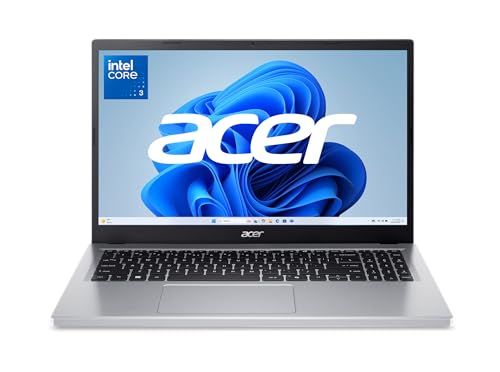
The Aspire Go 15 is Acer’s answer to a precise student question: what is the least I can spend without buying trouble? Its Intel Core 3 N355 is a modern, efficient processor aimed squarely at the browser-and-documents heart of online study, and the 15-inch-class chassis gives that work a full-size screen and keyboard rather than the cramped compromises budget laptops once imposed. For a degree conducted in a learning platform, an office suite, and a video seminar window, this specification is not a compromise at all — it is a match.
Value machines earn trust in the details students touch. The Aspire Go’s screen is large enough for split-view study, its keyboard accommodates real essay work, and its conventional Windows installation means proctoring and departmental software treat it as unremarkably compatible — a compliment in this context. Battery life from the efficient processor suits a day of classes and library work, and the whole package leaves meaningful money in a student budget for the things that also matter: the software the college does not provide, a good chair, a backup drive.
Its ceiling is equally clear. Demanding software — heavy data analysis, engineering tools, serious media production for a communications degree — will find the Core 3’s limits, and students in those fields should step up to the Ryzen Vivobook. For the large centre of online education, though, the humanities, social sciences, business, and education degrees that dominate enrolment, the Aspire Go 15 covers the curriculum at a price that respects the person paying tuition.
- Processor: Intel Core 3 N355
- Display: 15-inch class
- Compatibility: full conventional Windows software support
- Role: value pick for browser-and-essay degrees
- Form factor: full-size mainstream chassis
Strengths
- Modern efficient processor matched honestly to mainstream coursework.
- Full-size screen and keyboard at a genuinely student-friendly price.
- Conventional Windows means no proctoring or software surprises.
Trade-offs
- Performance ceiling excludes demanding technical and media software.
- Build and screen are serviceable rather than delightful.
- Memory and storage configurations are modest — verify the listing’s figures.
Best for: Students in essay-and-browser degrees who need dependable value across a full programme.
Not suited for: Engineering, data-science, or media-production coursework with heavy local software.

Apple MacBook Air M3 (Renewed) — Best renewed value
This pick needs its label read aloud: it is a renewed MacBook Air with the M3 chip — professionally refurbished and resold, not a new machine — and that single fact is both its appeal and its homework. The appeal is arithmetic. The M3 Air remains a swift, silent, beautifully built laptop whose performance covers any coursework a degree assigns, and the renewed route puts it within reach of budgets that the new M5 model excludes. For a student who wants the Mac experience and the four-year durability of that aluminium shell, renewed is how the numbers work.
The homework is diligence, and it is neither optional nor difficult. Renewed programmes grade condition; read which grade the listing describes and what it means for the screen and body. Check the battery’s stated condition or cycle expectations where the seller provides them, confirm the return window in writing, and note the warranty the renewed programme itself carries, because it replaces the new-machine warranty you are giving up. Buy only through a recognised renewed programme with returns you trust — the discount is real, but it is payment for homework, not a gift.
Students who do that homework are routinely pleased: the M3’s speed makes the machine feel current rather than second-hand, macOS support for the chip has years to run, and the money saved against a new Air funds a semester of books. Students who skip the homework and buy the cheapest renewed listing from an unknown seller are gambling with their exam-week reliability, which is the one week a student cannot afford to gamble on. The badge on this pick is “best renewed value” — both words carry weight.
- Processor: Apple M3
- Condition: renewed — graded, programme-backed; verify grade and returns on the listing
- Display: 13-inch class
- Compatibility: mainstream proctoring and LMS support on macOS
- Role: premium experience at a reduced price, with diligence required
Strengths
- M3 performance and MacBook build quality at a materially lower price than new.
- Silent fanless design and strong battery suit library and seminar life.
- Recognised renewed programmes include inspection, grading, and return protection.
Trade-offs
- Condition and battery health vary by unit — the listing’s grade must be read carefully.
- Warranty is the renewed programme’s, shorter and narrower than a new machine’s.
- Stock and pricing fluctuate; the exact unit you research may sell before you decide.
Best for: Students who want a MacBook for the degree and will do the renewed-buying homework properly.
Not suited for: Anyone who needs the certainty of a brand-new machine and full manufacturer warranty.

Lenovo IdeaPad Slim 3i (N150) — Best ultra-budget
Some student budgets are not a preference but a fact, and the IdeaPad Slim 3i exists for them. Built around Intel’s N150, a processor aimed at the essentials, it runs full Windows — the detail that separates it from every false economy in the ultra-budget tier. Full Windows means the learning platform, the office suite, the proctoring tool, and the departmental oddity all treat this inexpensive machine as a legitimate computer, because it is one. That legitimacy, at the lowest price in this guide, is the entire recommendation.
Set expectations with the same honesty. The N150 handles browser-based coursework, documents, email, and video seminars — the daily substance of most online degrees — at a pace best described as unhurried. Many heavy tabs, large spreadsheets, and background updates arriving simultaneously will make it breathe hard. Students help it enormously with small disciplines: keep the tab count sane, let updates run overnight, and store big media in the cloud rather than on its modest drive. Treated that way, it is a dependable servant. Asked to be a workstation, it will file its objections daily.
Who should buy it? The student whose alternative is no laptop, or a shared family machine with a queue. The student testing whether online study suits them before committing serious money. The student whose degree is entirely browser-based and whose budget is better spent on tuition, fees, and time. It is also a rational second machine — the dedicated exam-and-essays laptop that stays uncluttered while a gaming or family computer carries everything else. Ultra-budget done honestly is a service, and this Lenovo performs it.
- Processor: Intel N150
- Operating system: full Windows — proctoring and LMS compatible
- Role: lowest-cost legitimate route into online study
- Storage and memory: modest — verify the listing’s configuration
- Form factor: slim mainstream chassis
Strengths
- Full Windows at the lowest price here — no compatibility asterisks for coursework.
- Covers the browser-based core of most online degrees dependably.
- Frees budget for tuition and essentials when money is genuinely tight.
Trade-offs
- Performance is unhurried; heavy multitasking exposes the processor quickly.
- Modest storage fills fast without cloud discipline.
- Not a four-year machine for software-heavy or growing workloads.
Best for: Students on strict budgets in browser-based programmes, and as a dedicated study-only second machine.
Not suited for: Demanding departmental software or students who keep dozens of tabs and applications open.
Why Does Your Home Internet Matter as Much as the Laptop?
Online study moves the classroom’s infrastructure into your home, and the weakest part of most students’ setups is not the computer but the connection feeding it. Live seminars stutter, uploads of large assignments crawl, and proctored exams — which stream your webcam continuously — drop sessions on connections that handle ordinary browsing without complaint. Before blaming any laptop, including the ones in this guide, run the numbers: your institution will publish recommended speeds for its platforms and exam services, and a honest speed test at the times of day you actually study tells you whether your home meets them.
The laptop’s side of the bargain is its wireless hardware and its ports. Every pick here carries modern Wi-Fi suitable for seminar and streaming loads. What separates a smooth exam from a stressful one is often position: a laptop in a far bedroom behind two walls asks far more of the signal than the same machine one room from the router. Where the layout allows, a wired connection for exam sessions — through a simple USB-C or USB network adapter if the laptop lacks a built-in port — removes wireless luck from the one event where luck is not acceptable. Colleges design proctored exams assuming a stable connection; arranging one is part of a student’s preparation, like charging the battery.
Shared housing adds a social layer to the technical one. Housemates streaming video during your evening seminar are a bandwidth fact, and the mature solution is scheduling and courtesy rather than hardware: agree the exam calendar visibly, ask for the router’s good graces during proctored sessions, and keep a phone hotspot plan in reserve as the emergency bridge. Students who treat connectivity as part of the course — tested in advance, backed up in reserve — stop losing marks to infrastructure, which is the most preventable way to lose them.
How Do You Make One Laptop Survive a Whole Degree?
Four years is a long service life for a machine carried daily, and survival is mostly habit. The battery ages fastest: a laptop that lives plugged in at full charge for four years will hold noticeably less than one whose charge cycles vary, so unplug and use the battery regularly — a habit the Snapdragon pick’s endurance makes painless and the others reward too. Heat is the second ageing force. Soft surfaces block vents; a hard desk or a simple stand keeps air moving, and an annual blast of compressed air through the vents of fan-cooled models returns cooling capacity that dust quietly steals.
Physical protection is the third pillar, and it is bought once: a padded sleeve for every journey, a bag with a separate compartment, and the discipline never to carry the laptop by its screen corner or stack books on its lid in a locker. Hinges and screens fail from accumulated small abuses far more often than from single drops. The fourth pillar is software hygiene — updates applied, storage kept below the point where the system suffocates, and the coursework backup described earlier actually running. A machine that is backed up can survive even its own death, because the degree’s real asset is the work, not the hardware.
Warranty decisions belong in this conversation too. A standard warranty covers the first year or two; degree-length accidental damage cover costs extra and is worth pricing honestly against your own history with devices. Students who have cracked a phone screen twice should read that pattern as data. Students whose machines live on one desk may reasonably decline. Either way, decide at purchase, while the option is open — it rarely reopens later on terms as good.
How Should You Set Up Your Study Space for Long Sessions?
A degree involves thousands of hours at this machine, and the body keeps the ledger. Screen height is the first correction: a laptop flat on a desk places its display far below eye level, and the neck pays the difference daily. A stand that raises the screen, paired with an inexpensive external keyboard and mouse, converts any pick in this guide into an ergonomically honest workstation at home, while the laptop alone remains the portable form for the library. Students who buy one accessory all degree should buy the stand.
Light and sound shape concentration next. Position the desk so daylight comes from the side rather than behind the screen, sparing your eyes the contrast battle; for evening study, a warm desk lamp behind the monitor softens the room’s contrast in the same spirit. For seminars in shared spaces, a headset with a decent microphone is both a courtesy and a grade protection — your contributions arrive clearly, and the household’s television does not. None of this requires the premium laptop; it requires the modest accessories students postpone and then wish they had bought in the first month.
Finally, ritual. Online study dissolves the boundary between campus and home, and the students who thrive usually rebuild that boundary deliberately: a defined study place, a starting routine, the phone in another room during lectures. The laptop supports the ritual best when it is boringly reliable — charged, updated, backed up, waiting. Every pick in this guide can be that machine. The ritual itself is the student’s own coursework, and it is worth more marks than any specification in this article.
What Is the True Cost of Owning a Student Laptop for Four Years?
The sticker price is the first instalment, not the total. Software the college does not bundle, cloud storage beyond the free tier, a replacement charger in year two, the bag and sleeve, the stand and headset — a realistic degree budget adds a meaningful margin to the purchase price, and students plan better when they see the whole figure at once. This arithmetic is also the strongest argument for the mid-priced picks: a laptop bought so expensively that nothing remains for its supporting cast is a worse study instrument than a cheaper machine properly equipped.
Resale and hand-me-down value close the loop. Machines with strong build quality and mainstream specifications — the MacBooks most obviously, but also the better Windows models here — retain usefulness beyond the degree, as a sibling’s school laptop, a parent’s home machine, or a sale that funds the graduate’s next step. A laptop bought purely on minimum price often has no second life, which quietly raises its true cost per year above the mid-range machine that serves twice. Cost per year of service, not cost on the receipt, is the number a careful student optimises — and it is the number this guide’s spread of picks is designed to minimise at every budget.
Which Screen Size Suits Online Study Best?
The choice reduces to where the studying happens. Students who work at one desk, in one room, for most of the degree should take the larger screens seriously: the 16-inch Vivobooks turn split-view study — lecture beside notes, source beside draft — into the default rather than a squeeze, and eye fatigue across a long reading day drops when text can be larger without constant scrolling. The cost is carried weight and a bigger footprint on café tables and train trays, which a desk-bound student rarely pays.
Students whose degree happens everywhere — the commute, the lunch break, the library crawl between classes on a physical campus for hybrid programmes — should weight portability higher. The 13-inch MacBooks disappear into bags and onto small surfaces, and their screens, while smaller, are sharp enough that text quality partly compensates for quantity. The 15-inch Aspire Go sits between the camps, which is precisely its design brief: big enough for home study, portable enough for occasional travel, priced for the student who cannot justify two machines for two modes.
Resolution and brightness matter within any size. A dim screen loses every fight with a bright room or a window seat; a sharp one keeps small text — footnotes, code, spreadsheet cells, the references section of a journal article — legible at the sizes study demands. When comparing configurations of the same model, the brighter, sharper panel option is the upgrade students feel every day, ahead of storage they may never fill.
What Changes If You Study Part-Time While Working Full-Time?
A large share of online students are not eighteen and residential; they are working adults fitting a degree around employment, and their laptop calculus differs in instructive ways. Time, not money, is usually the binding constraint: study happens in early mornings, lunch hours, and evenings, in fragments. That pattern rewards instant readiness — a machine that wakes fast, holds its charge across days of fragmented use, and never presents an update screen when twenty stolen minutes appear. The Snapdragon Vivobook’s endurance and the MacBooks’ sleep discipline serve this life particularly well.
The second difference is the two-computer question. Many working students already have an employer’s laptop, and the temptation is to study on it. Resist where possible: institutional software, personal files, and exam proctoring all sit awkwardly on a managed work machine, employers’ policies often prohibit the use outright, and the degree should survive a job change without an IT department’s permission. A dedicated study laptop — even the budget IdeaPad in this guide — keeps the degree yours. It also creates the psychological boundary working students describe as essential: open the study machine, and the working day is over.
Third, part-time degrees run longer — five, six years is common — which stretches every durability argument in this guide. A machine bought for a four-year residential degree faces a shorter sentence than one bought for a six-year part-time marathon, and the mid-range picks with headroom repay their premium across those extra years. Buy once, buy with margin, and let the laptop be the one part of a long degree that never needs renegotiating.
How Well Do These Laptops Handle Group Projects and Collaboration?
Online degrees are more social than their brochures suggest. Group assignments run through shared documents, project boards, and video calls scheduled across time zones and work shifts, and the laptop is the meeting room. The demands are unglamorous but specific: a microphone that makes you intelligible without a headset, speakers that render four classmates distinctly, a screen large enough to view a shared document while your own notes sit beside it, and enough performance headroom that a call plus a document plus a browser never turns your contribution into a frozen frame.
Every pick here clears that bar, with gradations worth knowing. The larger Vivobooks give shared-document work the most room. The MacBooks bring the strongest built-in microphones and speakers of the group, a small but real advantage in rooms where you are what the group hears. The budget machines participate fully — collaboration software is not demanding — though their cameras and audio benefit most from the headset this guide keeps recommending. The collaboration features that matter most, in practice, are not in the laptop at all: they are the habits of testing your audio before the call and keeping the shared folders organised, which no purchase installs for you.
What Accessibility Features Should Students Look For?
Both Windows and macOS ship with mature accessibility toolkits — screen magnification, text scaling, dictation, captioning, contrast controls, and screen readers — and every machine in this guide runs its platform’s full set, because none of them is a restricted device. For students who rely on these tools, the hardware questions become specific: screen brightness and sharpness for low-vision reading, keyboard feel for students who type by touch all day, portability for students whose mobility makes every gram a planning factor, and battery life for students whose study locations are dictated by access rather than preference.
Colleges carry obligations here too, and students should use them. Disability services at accredited institutions arrange accommodations that interact with technology — extended exam time configured in the proctoring software, captioned lecture recordings, alternative formats for readings. Register with those services early, in the first weeks rather than the first crisis, and confirm that your laptop and their systems work together before an exam depends on the combination. The best laptop for an accessible degree is partly a purchase and partly a conversation, and the conversation is free.
How Do Library Databases and Research Tools Shape Daily Study?
Beyond the course platform sits the library, and for research-heavy degrees it is where the laptop spends its serious hours. Journal databases, e-book platforms, and reference managers are browser-based and individually light, but research sessions accumulate them in layers: a database search in one tab, three candidate papers open beside it, the e-book chapter in a fourth, and the document you are writing in a fifth window with its bibliography building alongside. This is the memory workload the buying advice in this guide keeps circling, made concrete — research is a many-tab discipline, and machines with modest memory announce it first during exactly these sessions.
Two habits multiply any machine’s research capacity. A reference manager, installed in the first semester rather than discovered in the dissertation year, turns the tab pile into an organised library and generates the bibliographies that otherwise consume deadline-week hours. And a second screen — even a cheap portable monitor for home use — transforms source-based writing, because the paper being cited can stay open beside the paragraph citing it. Students in reading-heavy fields should budget for that pairing earlier than they budget for processor speed; the work itself argues for it every single session.
How Do These Six Student Laptops Compare at a Glance?
| Pick | Processor | Screen | Standout trait | Watch out for |
|---|---|---|---|---|
| ASUS Vivobook 16 (Snapdragon X) | Snapdragon X | 16-inch | Battery endurance | ARM software compatibility |
| Apple MacBook Air 13 (M5) | Apple M5 | 13-inch | Build, silence, speed | Price; Windows-only software |
| ASUS Vivobook 16 (Ryzen AI 7) | Ryzen AI 7 445 | 16-inch | Compatibility plus space | Size in the bag |
| Acer Aspire Go 15 | Intel Core 3 N355 | 15-inch class | Value | Ceiling for heavy software |
| Apple MacBook Air M3 (Renewed) | Apple M3 | 13-inch | Premium at lower cost | Condition grade; warranty terms |
| Lenovo IdeaPad Slim 3i (N150) | Intel N150 | Mainstream size | Lowest price, full Windows | Unhurried performance |
The table’s real message is that “best” splits by constraint. Battery freedom points one way, software certainty another, price a third. Identify your binding constraint — the thing your degree or your budget will not negotiate — and the correct row usually selects itself.
How Should You Prepare a Laptop for Online Study Before the Term Starts?
Use the quiet week before classes the way pilots use a pre-flight check. Install the college’s required software first — the learning platform needs only a browser, but the proctoring tool, the office suite, and any departmental applications should be on the machine, opened once, and signed in before any deadline depends on them. Run the proctoring service’s own system test if it offers one; discovering a compatibility problem during a practice check is an anecdote, while discovering it during the midterm is a crisis.
Next, organise the machine as a study instrument. Create folders by course before the first files arrive, set the browser’s download location to match, and configure cloud backup for the coursework folders so a lost laptop in week nine is an insurance claim rather than an academic obituary. Set up the password manager your institution provides or recommends, because a degree involves more logins than any other period of your life, and the sticky-note system fails exactly when stress peaks.
Organise your digital paperwork with the same care. Save every syllabus the day it publishes, keep assessment deadlines in one calendar rather than five course pages, and adopt a file-naming habit — course, assignment, date — before the downloads folder becomes an archaeological site. Institutions provide the platforms, but the system that connects them lives on your machine and in your habits; students who build it in week one stop losing time to searching, which is the most quietly wasted resource in online education.
Finally, rehearse the exam environment. Sit one practice session under exam conditions: charger located, notifications silenced, the room’s lighting checked against the webcam’s view, a second person briefed not to wander into frame. Proctoring software flags surprises; your job in the rehearsal is to remove them all in advance. Students who prepare the machine before the term starts spend the term studying, which was the point of buying it.
What Mistakes Do Online Students Make When Buying a Laptop?
The most expensive mistake is buying for the brochure instead of the syllabus — choosing a machine for a specification the degree never uses while missing the requirement it enforces. Read the college’s computer requirements and the proctoring service’s support page before any product page; they are short, free, and decisive. The second mistake is the mirror image: buying the cheapest device that runs a browser, then discovering in the second semester that a required application needs a real operating system or real memory. The ultra-budget pick in this guide is honest about its ceiling; the grey-market alternatives below it usually are not.
One further oversight deserves naming because it is so easy to prevent: buying the laptop but never testing the exam chain. The proctoring software, the institution’s single sign-on, the webcam’s behaviour under the lockdown browser — each takes minutes to verify in a quiet week and can consume an entire support call queue in exam week, when every other student is discovering the same problem simultaneously. Your future self, calmly sitting a practice check in September, is doing your December self the largest favour in this entire guide.
Third, students under-buy memory because processors have better marketing. Coursework multitasking — platform, documents, sources, call — is a memory workload, and a machine that swaps to disk makes every study session feel like wading. Fourth, they forget the peripherals of presence: a headset for seminars in shared housing, a webcam check before the first proctored exam, a bag that fits the machine they actually bought. And fifth, they skip the student discounts — education pricing from manufacturers, software bundled by the college, library lending programmes for loaner machines — leaving money on the table that tuition has already, in part, paid for.
Final Recommendation
Start from your college’s requirements page, then choose by constraint. If battery freedom defines your study life and your programme’s software checks out on ARM, the Snapdragon Vivobook 16 is the most liberating machine here. If software certainty matters most, the Ryzen Vivobook 16 refuses nothing. The MacBook Air M5 is the premium four-year companion, its renewed M3 sibling the same idea on a budget with homework attached, the Aspire Go 15 the honest value centre, and the IdeaPad Slim 3i proof that a tight budget need not mean an illegitimate computer. A degree is a long project conducted largely through this one screen — buy the machine that will still be serving it, quietly and without drama, in the final semester.
Frequently Asked Questions
Does my laptop need to be accredited for my online degree?
No — laptops are not accredited; colleges are. Accreditation is a quality status granted to institutions by recognised agencies, and it affects your degree’s recognition, credit transfer, and funding eligibility. Verify your college’s status through the official education database in your country, and choose your laptop for software compatibility, comfort, and endurance instead.
How much should a student spend on a laptop for an online degree?
Enough to cover the degree’s whole software list with memory to spare, and no more. For browser-based programmes, the value picks in this guide suffice; software-heavy degrees justify the all-rounder or premium tiers. The false economies are at both extremes — a device too weak for required software, and a flagship whose power a humanities degree will never touch.
Will a Chromebook work for an accredited online college?
Sometimes, for purely browser-based programmes — but proctoring services and departmental software frequently require full Windows or macOS, which is why this guide contains no Chromebooks. If your college explicitly confirms ChromeOS support for every requirement including exams, it becomes a legitimate budget route; get that confirmation in writing from the institution, not from a retailer.
Is a renewed laptop reliable enough for exams?
A programme-backed renewed machine from a recognised seller, bought with attention to its condition grade and return terms, is a reasonable choice — the renewed MacBook in this guide is included on exactly those terms. What is not reasonable is an ungraded second-hand purchase with no return route, because exam week is the worst possible time to test a stranger’s honesty.
How important is the webcam for online study?
More than students expect. Seminars, office hours, group projects, and proctored exams all run through it, and a poor camera in bad light makes you look disengaged in rooms where engagement is graded. Every pick here has a serviceable camera; pair it with decent room lighting and a headset, and your presence in class stops depending on your laptop’s weakest component.
What if my laptop fails in the middle of the term?
Contact your instructors and the college’s IT help desk immediately — institutions deal with hardware failure constantly and usually have loaner programmes, deadline flexibility processes, and library machines for exactly this event. Because your coursework should be backed up to the cloud from day one, a borrowed machine can put you back in class within hours. The students who suffer most from a failure are the ones who kept everything on the dead machine and told nobody for a week.
Should I buy the laptop before or after enrolment?
After — or at least after reading the enrolled programme’s requirements and checking what your tuition already provides in software and discounts. Colleges frequently bundle licences and negotiate student pricing that changes both the specification you need and the price you should pay. A fortnight of patience at enrolment routinely saves a student real money.
Related Guides
Round out the study setup with our companion guides: best laptops for college students on a budget, best noise-cancelling headsets for online classes, and best laptop stands for dorm desks.

[…] the practice setup with our other roundups: best laptops for small business owners, best external monitors for spreadsheet work, and best document scanners for home […]