What's inside
- Key Takeaways
- Quick Picks
- How We Chose These Picks
- Tier One: True Thunderbolt Hub Monitors
- Tier Two: USB-C Hub Monitors (Not Thunderbolt)
- Side-by-Side Comparison
- Thunderbolt and USB-C: What Is the Actual Difference?
- How Can You Tell a Real Thunderbolt Monitor Before Buying?
- Do You Personally Need Thunderbolt, or Is USB-C Enough?
- How Should You Set Up a Hub Monitor Desk?
- What Happens When Your Next Laptop Arrives?
- Which Tier Suits a Mac Desk, and Which Suits Windows?
- Common Mistakes
- Final Recommendation
- Frequently Asked Questions
- Related Guides
As an Amazon Associate I earn from qualifying purchases. This post may contain affiliate links at no extra cost to you.
widgetverdict.com is reader-supported. When you buy through links on our site, we may earn an affiliate commission.
This guide to the best 27 inch monitors with thunderbolt begins with a disclosure most roundups bury: only two of the six monitors below are actually Thunderbolt monitors. The other four are USB-C hub monitors — good ones, from the same manufacturer, offering the same one-cable convenience for video and power — but USB-C and Thunderbolt are not synonyms, and a guide that lets you buy the wrong one by blurring the difference has failed the reader outright. So the six picks are presented in two clearly labelled tiers. Tier one holds the true Thunderbolt hubs: Dell’s UltraSharp U2725QE and U2726DER. Tier two holds the USB-C hub models: Dell’s P2725HE, P2725DE, S2725DC and S2722DC. Every pick is a 27-inch Dell, every pick connects to a laptop with a single cable for the picture, and the tiers — not the brand — decide what else that cable can do.
Every pick below links to its Amazon listing. Open it, read the title as carefully as this guide did, and check the price there before anything else. That reading habit is the whole defence in this category, because the difference between the tiers is printed in the product names themselves — UltraSharp Thunderbolt Hub versus USB-C Hub — for any buyer taught to look. This guide teaches exactly that, then reviews each monitor on its own honest merits.
Why does the distinction matter enough to organise a guide around? Because Thunderbolt is a specific, certified technology with capabilities plain USB-C does not guarantee: far higher data bandwidth for the hub’s ports and docks downstream, support for daisy-chaining additional displays through the monitor, and a certification regime that makes behaviour predictable across machines. A USB-C hub monitor still delivers the experience most laptop users actually want — one cable carrying the picture, power flowing to the laptop, peripherals gathered at the desk — and for many desks the cheaper tier is the correct purchase. But it should be purchased knowingly, at its own price logic, not mistaken for the tier above.
How to tell them apart, in one paragraph you can reuse in any store: look for the word Thunderbolt in the product’s name and a Thunderbolt port specification in its listing. If a salesperson, a category page or a search filter uses the two terms interchangeably, slow down — that sloppiness is precisely how the wrong tier gets bought, and it costs nothing to verify before money moves. A port shaped like USB-C proves nothing — Thunderbolt uses the same connector, which is the entire source of the confusion. Dell’s naming makes the test easy in this guide: if the name says Thunderbolt Hub, it is tier one; if it says USB-C Hub or merely USB-C Monitor, it is tier two. Apply that test ruthlessly everywhere, including to this guide’s own table headings.
Key Takeaways
- Only two picks are true Thunderbolt hub monitors: the Dell UltraSharp U2725QE (4K) and the U2726DER (QHD, 120Hz, IPS Black panel).
- The other four picks — P2725HE, P2725DE, S2725DC, S2722DC — are USB-C hub monitors: one cable for video and power, but not Thunderbolt, and this guide never calls them that anywhere.
- The connector shape proves nothing at all; Thunderbolt and USB-C share the USB-C plug. The product name and the port specification are the only evidence that counts.
- Thunderbolt’s practical dividends are downstream bandwidth, daisy-chaining and certified, predictable hub behaviour — valuable for multi-device, multi-screen desks and for travelling professionals.
- For a single laptop and a single screen, the USB-C tier delivers the daily experience most users actually want, and its reviews below judge it on those terms rather than on the tier above’s terms.
- Every pick is a 27-inch Dell; the choice is therefore purely about connection tier, resolution and the few specifications each listing actually publishes in its own title.
Quick Picks
| Pick | Tier | Badge | Why it earns a place |
|---|---|---|---|
| Dell UltraSharp U2725QE | True Thunderbolt | 4K Thunderbolt hub flagship | A 27-inch 4K UltraSharp whose name carries the full claim in full: Thunderbolt Hub Monitor, flagship line itself. |
| Dell UltraSharp U2726DER | True Thunderbolt | QHD Thunderbolt at 120Hz | Thunderbolt hub with a 120Hz QHD IPS Black panel, 2000:1 contrast, 100% sRGB and 1.07 billion colours, positioned for Mac. |
| Dell P2725HE | USB-C hub | Professional USB-C hub | Dell’s P-series hub monitor: one-cable USB-C desk order for office fleets and hot-desking floors alike, daily. |
| Dell P2725DE | USB-C hub | QHD USB-C hub, Pro Plus | A Pro 27 Plus QHD USB-C hub monitor for professional buyers, with the resolution stated up front, in writing, plainly. |
| Dell S2725DC | USB-C hub | USB-C all-rounder, 144Hz | QHD USB-C with 144Hz, built-in speakers and a full ergonomic stand in Ash White finish throughout. |
| Dell S2722DC | USB-C hub | The simple USB-C original | QHD over USB-C in its plainest form — one cable, no claims beyond it, and no hub in the name at all, ever. |
How We Chose These Picks
The selection began with the honesty rule that structures the whole guide: a monitor could only enter tier one if its own listing title names Thunderbolt. Two Dell UltraSharp models pass that test. Four further Dells entered tier two because their titles name USB-C hub or USB-C monitor functionality — a real, useful capability that this guide refuses to inflate. No monitor was promoted between tiers for convenience, and none was excluded for belonging to the lower tier; the tiers are information, not a ranking of worth.
Within that rule, coverage was the second criterion. A reader searching this topic may need 4K or QHD, a hub for a fleet office or a single home desk, a fast panel or a plain one. The six picks span those needs: 4K and QHD in the Thunderbolt tier; QHD across the USB-C tier with refresh rates from unstated to 144Hz; professional P-series models and consumer S-series models side by side. What the guide would not do is pad the Thunderbolt tier with imports from other brands whose listings could not be verified to the same standard — two true picks, honestly labelled, outrank six fuzzy ones.
Specification discipline follows the same pattern as the tier rule. The U2725QE’s listing title is strikingly terse — it names the monitor as a 27-inch 4K Thunderbolt Hub and little more — so its review claims the tier, the resolution and the UltraSharp positioning, and declines to invent refresh rates or colour figures. The U2726DER’s title is generous by contrast, publishing 120Hz, 100% sRGB, IPS Black at 2000:1 and 1.07 billion colours, and its review uses all of them. The USB-C models are treated identically: the S2725DC’s rich title is quoted fully; the S2722DC’s two-fact title yields a two-fact review.
One more selection note belongs on the record: every pick here is a business or prosumer Dell because the assignment’s verification standard — tier claims proven from the listing title itself — is unusually easy to audit against Dell’s explicit naming. The guide treats that auditability as a feature for the reader, not a limitation of the field, and the buying sections teach the same audit for any brand the reader meets later.
Finally, the guide was organised so the tiers can be read independently.
A reader who knows they need Thunderbolt can read tier one and the buying sections; a reader who suspects USB-C suffices can start at tier two and use the distinction sections to confirm the suspicion. Both readers meet in the comparison table, where the tier column is printed in plain sight — the single most important column in this guide.
Tier One: True Thunderbolt Hub Monitors
These two monitors carry Thunderbolt in their names and their ports. That means a certified high-bandwidth connection between laptop and hub: the monitor becomes a docking station whose downstream ports, charging and display chaining behave to a specification both Dell and the Thunderbolt standard stand behind. For desks with multiple peripherals, a second daisy-chained screen, fast external storage, or a professional need for predictable behaviour across different laptops, this tier is the genuine article — and it is priced and positioned accordingly, under Dell’s UltraSharp flagship line.
Notice what the tier does not promise: a better picture by virtue of the connection. Both UltraSharps earn their image claims — 4K sharpness on one, IPS Black contrast and 120Hz on the other — from their panels, exactly as tier two does. Thunderbolt buys the architecture around the picture. Buyers who keep that separation clear will read the two reviews below correctly: first the panel, then the hub, never the hub as a substitute for the panel.

Dell UltraSharp U2725QE — 4K Thunderbolt hub flagship
The U2725QE’s listing title is a study in flagship confidence: “Dell UltraSharp 27 4K Thunderbolt Hub Monitor — U2725QE”, and nothing else. No refresh figure, no colour percentage, no contrast ratio is offered in the title, and this review follows that discipline exactly. What the title establishes is nonetheless the most consequential set of facts in this guide: this is a 27-inch monitor, at 4K resolution, in Dell’s UltraSharp professional line, functioning as a true Thunderbolt hub. For the buyer whose search began with the word Thunderbolt, this is the pick that answers it at the highest resolution the tier offers.
UltraSharp is not a decorative word in Dell’s catalogue; it is the company’s professional flagship family, the line organisations standardise on when a monitor must behave identically across a fleet and a decade. A Thunderbolt hub inside that family means the docking behaviour — the ports, the power delivery, the chaining — is engineered as infrastructure rather than as a consumer convenience. Mac and Windows professionals both dock into UltraSharp hubs as a matter of routine, and the U2725QE is the 27-inch 4K expression of that idea.
The terseness of the title cuts the other way for specification shoppers: refresh rate, colour coverage and brightness must be confirmed on the full listing before purchase, and this guide will not guess them. Buyers who need a stated 120Hz or a printed sRGB figure inside this tier should read the U2726DER’s review next, since its title publishes both. Buyers whose priority is 4K resolution married to the true hub tier — the sharpest, most connected 27-inch desk in this guide — are looking at their monitor.
Position it correctly and its role clarifies: this is the screen for the professional whose laptop changes, whose peripherals multiply, whose second screen may arrive next year, and who expects the hub to absorb all of it without a separate dock ever entering the story. The Thunderbolt premium is paid once, at the monitor, and collected daily in frictionless docking. That is the flagship bargain, stated without a single invented specification.
There is a procurement angle to a title this short. Organisations buying UltraSharp hubs at scale are not purchasing a spec sheet; they are purchasing a standard — the same monitor, the same hub behaviour, on every desk, serviced under one relationship. The U2725QE’s name is written for that buyer, and the individual professional who adopts it inherits the standard’s benefits: predictable docking with whatever laptop the next job provides, and a monitor whose role in the desk’s architecture never needs re-explaining.
- Size and resolution: 27-inch, 4K
- Connection tier: Thunderbolt hub (true Thunderbolt)
- Line: Dell UltraSharp
- Refresh rate: not stated in listing title
- Colour coverage: not stated in listing title
- Model: U2725QE
Strengths
- True Thunderbolt hub behaviour inside Dell’s flagship UltraSharp line.
- 4K resolution gives this tier its sharpest 27-inch option.
- Built as fleet-grade infrastructure rather than a consumer accessory.
Trade-offs
- Its title publishes no refresh, colour or brightness figures to compare.
- Specification-driven buyers must do their confirming on the full listing.
- The flagship tier carries the flagship’s price logic.
Best for: professionals who need a genuine Thunderbolt dock at 4K in a 27-inch screen, and who value the UltraSharp line’s fleet behaviour.
Not suited for: buyers who shop by printed refresh or gamut figures, which this listing leaves unstated.

Dell UltraSharp U2726DER — QHD Thunderbolt at 120Hz
Where its 4K sibling is terse, the U2726DER’s title is generous — and what it publishes makes this the most completely specified Thunderbolt pick in the guide. The panel is QHD at 2560×1440, refreshing at 120Hz, built on IPS Black technology with a 2000:1 contrast ratio, covering 100% sRGB and displaying 1.07 billion colours, and Dell positions it as an ideal Mac companion. All of that sits behind a true Thunderbolt hub connection. For the MacBook professional, this is the tier’s eloquent answer: every figure a buyer could ask for, printed by the manufacturer itself.
IPS Black at 2000:1 deserves translation. Conventional IPS panels trade contrast for viewing-angle grace; the Black variant doubles the contrast figure typical of the technology, so shadow detail and dark interface themes hold their depth while the viewing angles stay professional. Paired with 100% sRGB and 10-bit-class colour depth, the panel suits design, development and document work where the screen is judged all day. The 120Hz refresh then adds the quality nobody lists as professional but everybody feels: scrolling, window motion and cursor travel rendered with a fluidity that makes a 60Hz screen feel like it is thinking.
As a Mac companion, the proposition completes itself: one Thunderbolt cable between MacBook and monitor, the hub absorbing the desk’s peripherals, the panel matching the colour space the Mac ecosystem works in. Windows professionals lose nothing — Thunderbolt is a cross-platform standard — but the positioning tells you whose desk Dell pictured, and Mac owners should take the compliment seriously.
Choose between the two UltraSharps by resolution philosophy. The U2725QE bets on 4K sharpness; the U2726DER bets on a fully published specification with 120Hz motion and IPS Black contrast at QHD. Neither bet is safer in the abstract — they serve the professional who reads pixels closely and the professional who reads spec sheets closely, respectively, and both are served inside the true Thunderbolt tier.
Developers and writers — the Mac companion’s natural constituency — should note what 120Hz does to a text day. Cursor movement, scrolling through long documents and window Exposé-style gestures all render with a smoothness that reduces the faint visual fatigue of a juddering screen, an ergonomic benefit that never appears in gaming-led reviews. Paired with QHD’s native-scaling workspace, it makes this UltraSharp the thinking person’s default in tier one: not the sharpest panel here, but arguably the most pleasant to inhabit for ten hours.
- Size and resolution: 27-inch QHD, 2560×1440
- Connection tier: Thunderbolt hub (true Thunderbolt)
- Refresh: 120Hz
- Panel: IPS Black, 2000:1 contrast
- Colour: 100% sRGB, 1.07 billion colours
- Line: Dell UltraSharp
- Positioning: ideal Mac companion
Strengths
- The most fully published specification in the Thunderbolt tier.
- 120Hz motion is rare among professional hub monitors.
- IPS Black contrast doubles the conventional IPS figure.
Trade-offs
- QHD resolution, not 4K, for buyers counting pixels.
- No wider-gamut percentage beyond sRGB is claimed.
- Its Mac positioning may undersell its Windows competence.
Best for: MacBook professionals, for a true Thunderbolt hub with every key figure in writing and 120Hz fluidity.
Not suited for: 4K-at-this-size shoppers, or print pipelines needing wider-than-sRGB colour.
Tier Two: USB-C Hub Monitors (Not Thunderbolt)
A note on price logic before the reviews, since it disciplines the whole tier: USB-C hub monitors should be judged against other USB-C monitors and against the cost of a plain monitor plus a separate hub — not against the Thunderbolt tier’s pricing, which buys a different standard. Several tier-two models deliver the complete one-cable ritual for meaningfully less than tier one precisely because they omit the certification and bandwidth the buyer may not need. That is not a discount on the same product; it is a different product, correctly priced, and this guide’s reviews evaluate it as one.
The four monitors below connect to a laptop with a single USB-C cable that carries the picture and returns power — the daily experience that draws most buyers to this category.
What they do not carry is the Thunderbolt standard: no Thunderbolt certification, no Thunderbolt-tier bandwidth promise, no daisy-chaining claim should be assumed. Read them as what they are — well-made USB-C hub monitors, two from Dell’s professional P line and two from its S line — and judge them on resolution, refresh, stands and speakers. Judged that way, several of them are excellent purchases. Judged as Thunderbolt monitors, they would be miscategorised, and this guide will not miscategorise them.

Dell P2725HE — Professional USB-C hub
The P2725HE’s title is nearly as terse as the flagship’s: “Dell 27 USBC Hub Monitor P2725HE”. What it establishes is the essentials of tier two — a 27-inch monitor, a USB-C hub at its centre, and the P-series badge that marks Dell’s professional line, the models IT departments deploy across office floors. Resolution and refresh go unstated in the title and are therefore unstated here; buyers for whom those figures are decisive should confirm them on the listing or choose the P2725DE below, whose title prints its QHD resolution openly.
The P-series context does real work in this review. Professional-line monitors are bought for uniformity across hundreds of desks: consistent panels, consistent stands, consistent hub behaviour, and support structures that outlast consumer product cycles. A home buyer choosing the P2725HE is buying into that fleet logic at single-desk scale — a monitor whose virtues are reliability and order rather than spectacle, with the hub keeping each desk to one cable between laptop and screen.
Its honest limitation is the tier itself, and it should be stated in the pick’s own review rather than only in the tier introduction: this is not a Thunderbolt monitor. A buyer whose workflow needs Thunderbolt bandwidth or display daisy-chaining belongs in tier one, full stop. A buyer whose workflow is a laptop, a keyboard, a mouse and a day’s documents will find the distinction invisible in use — which is precisely the calculation tier two exists for.
Within tier two, the P2725HE is the fleet officer’s choice: the least theatrical, the most deployment-minded. Readers equipping a small office, or simply preferring professional-line restraint at home, will recognise the appeal immediately. Readers who prefer their specifications sung aloud should continue to its sibling.
Hot-desking gives this model its most natural habitat. In offices where staff land at a different desk each day, the P2725HE’s ritual is the entire user experience: sit, plug one cable, work, leave. No dock inventory, no charger pool, no per-desk variation to document. Home buyers rarely need that fleet discipline, but anyone who has supported a floor of desks will recognise that the monitor’s restraint is a feature engineered for the people who maintain desks, not only for the people who sit at them.
- Size: 27-inch
- Connection tier: USB-C hub (not Thunderbolt)
- Line: Dell P series, professional
- Resolution: not stated in listing title
- Refresh rate: not stated in listing title
- Model: P2725HE
Strengths
- Professional P-series build and fleet consistency.
- USB-C hub delivers the one-cable desk in its office form.
- Uncluttered specification suits standardised deployments.
Trade-offs
- Not Thunderbolt — no tier-one bandwidth or chaining assumptions apply.
- Resolution and refresh are left for the listing to confirm.
- Home users may prefer the S2725DC’s published entertainment figures.
Best for: offices and home professionals, for P-series order and a USB-C hub without the Thunderbolt tier’s premium.
Not suited for: anyone whose workflow depends on Thunderbolt bandwidth or daisy-chained displays.

Dell P2725DE — QHD USB-C hub, Pro Plus
The P2725DE adds the facts its sibling withholds: it is the “Dell P2725DE Pro 27 Plus QHD USB-C Hub Monitor”, an LED panel at 68.47 cm — the metric statement of the 27-inch class. So the professional buyer gets the tier-two proposition with its resolution printed on the tin: QHD workspace, USB-C hub connection, Pro Plus positioning within Dell’s P line. For office purchasers who must state a resolution in a procurement document, that printed QHD is not a detail; it is the difference between a specifiable product and a conversation.
Everything said about P-series fleet logic applies here with the resolution question pre-answered. QHD at 27 inches is the density offices standardised on for good reason — full workspace at native scaling, text that survives an eight-hour day — and the hub keeps the desk’s cable count at one between laptop and screen. The Pro Plus designation places it toward the upper end of the professional range, for desks whose occupants live in documents, data and calls simultaneously.
The tier honesty applies unchanged: USB-C hub, not Thunderbolt. Refresh rate is not printed in the title, so players and motion-sensitive buyers should confirm it on the listing or look to the S2725DC, which publishes 144Hz proudly. The P2725DE’s silence on speed is consistent with its profession — offices buy resolution, ergonomics and hubs, and this model’s title spends its words accordingly.
Between the two P models, the choice is documentation. If your purchasing process, your employer or your own peace of mind requires the resolution in the product’s name, the P2725DE is your tier-two professional. If the fleet context matters more than the printed figure, the P2725HE stands beside it. Either way, you are buying USB-C with open eyes — which is the only way this guide sells it.
There is a quiet confidence in a manufacturer printing the panel size in centimetres inside the product name — it speaks to markets and procurement systems that specify in metric, and to a buyer who measures twice. That same literal-mindedness runs through the model’s appeal: what its name claims, it is; what it does not claim — Thunderbolt, high refresh — it does not pretend to be. In a guide built on reading names honestly, the P2725DE is the easiest student in the class.
- Size: 27-inch class, 68.47 cm LED
- Resolution: QHD
- Connection tier: USB-C hub (not Thunderbolt)
- Line: Dell Pro 27 Plus, P series
- Refresh rate: not stated in listing title
- Model: P2725DE
Strengths
- QHD resolution printed in the product name — procurement-friendly.
- Pro Plus positioning within the professional line.
- USB-C hub keeps the professional desk to one cable.
Trade-offs
- Not Thunderbolt, despite the hub in its name.
- Refresh rate goes unstated for motion-sensitive buyers.
- Its specification is workmanlike rather than entertaining.
Best for: professional buyers who need QHD and a USB-C hub stated plainly, for offices and specified home desks.
Not suited for: Thunderbolt-dependent workflows, or gamers shopping by refresh rate.
Dell S2725DC — USB-C all-rounder, 144Hz
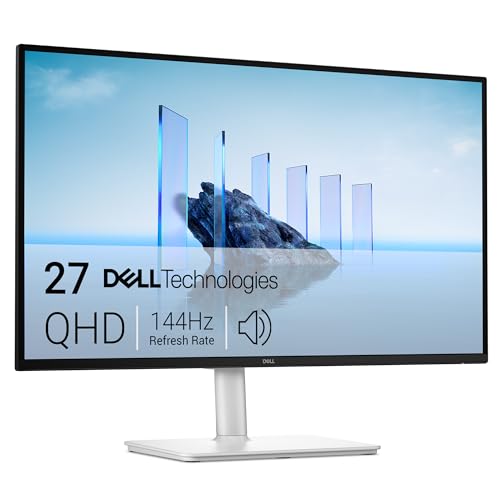
The S2725DC is tier two’s entertainer, and its title sings in full sentences: a 27-inch QHD 2560×1440 display at 144Hz with 1ms response, 2×3W speakers, USB-C, HDMI and DisplayPort 1.4 connectivity, a stand adjusting through height, tilt, pivot and swivel, AMD FreeSync, and an Ash White finish. Nothing in that list is Thunderbolt — the USB-C port here is a USB-C port, carrying video and hub duties in the USB-C manner — and nothing needs to be. This is the most completely specified USB-C monitor in the guide, aimed at the home desk that works by day and plays by night.
Its completeness is the argument. The stand’s four adjustments are the best ergonomic package among all six picks in either tier. The speakers remove a peripheral from the desk. The 144Hz refresh with FreeSync gives its evenings genuine gaming pace, which neither P model claims and neither UltraSharp’s title mentions. A buyer whose checklist is experiential — one cable, good posture, sound included, games welcome — will find this monitor answering questions the flagships never raise.
The boundary remains the boundary, and this pick’s popularity makes it worth restating inside its own review: if your future holds a daisy-chained second screen, high-bandwidth storage hanging off the monitor, or a professional requirement for certified Thunderbolt behaviour, the S2725DC is the wrong tier however lovely its specification reads. Its USB-C hub serves the single-screen desk superbly and the expanding desk not at all.
That clarity makes it the easiest recommendation in tier two for most home readers. It is the monitor for the person who arrived at this guide through a search phrase containing a word its product does not claim — and who discovers, reading honestly, that what they actually wanted was this: one cable, QHD, speed, sound and a stand with manners.
Households with two laptops will appreciate a consequence of its port list: USB-C for the work notebook, HDMI or DisplayPort for the second machine or a console, all meeting in one screen with speakers. The S2725DC becomes the household’s shared display without a switch box or a cable swap, and its stand adjusts between two users’ postures in seconds. That shared-desk versatility, more than any single figure, explains why this model anchors tier two for home readers.
- Size and resolution: 27-inch QHD, 2560×1440
- Connection tier: USB-C (not Thunderbolt)
- Refresh and response: 144Hz, 1ms
- Speakers: 2 × 3W built in
- Inputs: USB-C, HDMI, DisplayPort 1.4
- Stand: height, tilt, pivot, swivel
- Sync: AMD FreeSync
- Finish: Ash White
Strengths
- The fullest published specification in the USB-C tier.
- Four-way stand and speakers make it a complete desk centre.
- 144Hz and FreeSync give it real evening gaming ability.
Trade-offs
- USB-C hub only — no Thunderbolt bandwidth or chaining.
- Its richness may overserve a documents-only desk.
- Ash White will not match an all-black setup’s mood.
Best for: home laptop desks that want the one-cable life with speakers, posture and play included.
Not suited for: expanding multi-screen setups or any workflow that genuinely requires Thunderbolt.

Dell S2722DC — The simple USB-C original
The S2722DC closes tier two with the plainest title of the six: a Dell 27 USB-C monitor at QHD 2560×1440. Two facts, both load-bearing. The resolution places it at the category’s sweet spot; the USB-C connection places it in the one-cable family; and the absence of the word hub — let alone Thunderbolt — in its title is itself information this guide respects. Treat it as the simplest expression of the idea running through this entire page: a laptop, a cable, a big calm screen.
Its generation tells its story. As the earlier model in Dell’s S-series USB-C line, it represents the moment one-cable QHD desks became ordinary — the proposition the S2725DC now extends with speakers, speed and stand travel. Buyers will find its specification the least published of the six, so stand details, refresh and hub behaviour belong to the listing-confirmation step this guide keeps recommending. What is certain from the title is sufficient for its audience: Dell, 27 inches, QHD, USB-C.
That audience is the minimalist and the second-desk buyer — the spare room, the partner’s desk, the household screen two laptops share. For them the S2722DC’s restraint is the feature: nothing to configure, nothing to overthink, and a resolution that makes documents and browsing feel generous after a laptop’s own small panel. It will not anchor a battlestation or a studio, and its name never claims otherwise in a single syllable.
Read against the whole guide, it performs one more service: it proves the honesty framework from below. If even the simplest pick is described only by what its title claims, the reader can trust the tier labels at the top of the page — where the expensive mistakes live — to be equally disciplined.
Longevity thinking suits this model as well. A simple USB-C QHD screen asks little of the future: the connection is universal, the resolution remains the mainstream workspace standard, and there are few exotic features to age badly. As a hand-me-down to a student’s desk or a demotion to the household’s second station, the S2722DC has years of useful life written into its restraint — the quiet advantage of buying the plain version of a good idea.
- Size and resolution: 27-inch, QHD 2560×1440
- Connection tier: USB-C (not Thunderbolt)
- Line: Dell S series
- Refresh rate: not stated in listing title
- Hub features: not detailed in listing title
- Model: S2722DC
Strengths
- The one-cable QHD idea in its simplest, least fussy form.
- An established earlier model with a known role.
- Suits shared and secondary desks that prize calm over features.
Trade-offs
- Not Thunderbolt, and not even titled as a hub.
- Most specification details require listing confirmation.
- Its own sibling publishes a far richer specification.
Best for: minimalists and shared household desks wanting QHD space through one USB-C cable.
Not suited for: feature-led buyers, gamers, or any Thunderbolt-dependent setup.
Side-by-Side Comparison
| Pick | Tier | Resolution | Refresh | Distinguishing feature |
|---|---|---|---|---|
| Dell UltraSharp U2725QE | True Thunderbolt | 4K | Not stated in title | UltraSharp Thunderbolt hub flagship |
| Dell UltraSharp U2726DER | True Thunderbolt | QHD | 120Hz | IPS Black, 100% sRGB, Mac companion |
| Dell P2725HE | USB-C hub | Not stated in title | Not stated in title | P-series professional hub |
| Dell P2725DE | USB-C hub | QHD | Not stated in title | Pro Plus with QHD in its name |
| Dell S2725DC | USB-C hub | QHD | 144Hz | Speakers, four-way stand, FreeSync |
| Dell S2722DC | USB-C hub | QHD | Not stated in title | Simplest USB-C form |
Thunderbolt and USB-C: What Is the Actual Difference?
Begin with the plug, because it is the source of all confusion: Thunderbolt 3, 4 and 5 connections use the USB-C connector shape, and USB-C ports accept the same plug. Shape therefore tells you nothing. Thunderbolt is a certified technology layered on that connector, guaranteeing high data bandwidth — multiples of what a basic USB-C port must provide — together with display output, power delivery and the ability to daisy-chain devices, including a second monitor, through a single port on the computer. USB-C without Thunderbolt is a family of possibilities rather than a guarantee: a given port may carry video, data and power at various levels, or only some of them, and the monitor’s own title is where its particular promises are printed.
Certification is the unglamorous third difference. A Thunderbolt port has passed a compliance regime, so its behaviour with cables, docks and machines from other makers is specified rather than hoped for. USB-C implementations vary legitimately between products, which is why this guide keeps sending you back to individual listings for wattage and hub details: in tier two, the listing is the specification, while in tier one the standard itself underwrites a floor of behaviour.
Translated into desk consequences: a Thunderbolt hub monitor can be the single connection between a laptop and an entire workstation — screen, second screen chained beyond it, storage, network, peripherals — with bandwidth headroom for all of it.
A USB-C hub monitor reliably delivers the core ritual — picture to the screen, power to the laptop, a gathering point for ordinary peripherals — and that ritual covers the majority of real desks. The tiers diverge when the desk grows: more screens, faster storage, heavier data. Buy for the desk you are actually building, and let the tier names in this guide keep the categories straight while you do.
How Can You Tell a Real Thunderbolt Monitor Before Buying?
Apply three checks, in order. First, the name: genuine Thunderbolt monitors say Thunderbolt in the product name, as both UltraSharps here do; a name that says USB-C Hub is telling you the truth about a different tier. Second, the port specification: look for an explicitly labelled Thunderbolt port in the listing’s connectivity details, ideally with its generation. Third, the capabilities: daisy-chaining support and high downstream bandwidth are Thunderbolt behaviours — if a listing advertises chaining a second display through the monitor, you are reading about the real standard.
Distrust two signals. The connector’s shape, as established, proves nothing either way. And marketing photography proves less: a single cable in a lifestyle image is a picture of USB-C convenience that both tiers can honestly produce. The word, the port spec and the capability list are the evidence — the same evidence this guide used to build its tiers, and the same evidence that should govern your money.
Retail listings add a fourth, accidental check: the questions-and-answers sections of popular hub monitors are full of buyers asking whether a given model is “really Thunderbolt”, and the honest answers there echo this guide’s method — the name decides. When a listing’s own community has to correct the impression its category page created, you are watching the confusion this guide exists to prevent, happening to somebody else, in public, one purchase too late.
Do You Personally Need Thunderbolt, or Is USB-C Enough?
Answer with your peripherals, not your aspirations. Count what hangs off your desk today and what is firmly planned this year. One laptop, one screen, keyboard, mouse, the occasional drive: USB-C is enough, and tier two’s money buys you speakers, stands and refresh instead. A second monitor to chain, fast external SSDs in daily use, a dock’s worth of devices, or a professional requirement for certified behaviour across machines: that is Thunderbolt’s home ground, and tier one’s premium is simply the price of the standard doing its work.
Work style refines the answer further. A consultant who docks at client sites meets unknown desks weekly, and a Thunderbolt hub at home guarantees the home base behaves identically to the certified docks in corporate offices — one less variable in a travelling life. A home-based analyst whose desk has not changed in two years collects no such benefit; their stability is the feature, and tier two’s savings can fund the chair their back actually asked for.
There is also a future-proofing argument, and it should be priced honestly rather than waved.
A Thunderbolt hub monitor stays adequate as your desk grows, which is why fleet buyers standardise on it; a USB-C hub monitor serves a stable desk for years at lower cost. Neither is the “smart” choice in the abstract — the smart choice is the tier that matches the desk’s actual growth curve, bought with its name read correctly.
How Should You Set Up a Hub Monitor Desk?
Whichever tier you buy, the ritual is the same and worth doing deliberately. Place the monitor first — centre of the desk, top near eye level — then run the single cable to the laptop’s primary port, the one its maker designates for docking where a choice exists. Gather the peripherals into the monitor’s hub: keyboard, mouse, the everyday drive. Coil the laptop’s own power adapter away only after you have confirmed, under a real workload, that the monitor’s delivery keeps the machine charged through a full day rather than merely at idle.
Cable management is the setup’s finishing discipline, and hub monitors reward it disproportionately: because every peripheral now converges on the screen, a single tidy loom behind the monitor replaces the old spray of cables across the desk. Route the laptop’s one cable with enough slack to lift the machine for a call without unplugging the world, and label the hub’s ports if your household shares the desk — the next person’s docking should be as thoughtless as yours.
Then test the failure modes while the setup is young.
Sleep and wake the laptop and confirm the screen returns without a re-plug; undock and redock in the middle of a document; if you bought tier one for chaining, wire the second screen now and verify the chain survives a restart. A hub desk earns its keep by disappearing, and ten minutes of deliberate testing is what makes it disappear reliably for years.
What Happens When Your Next Laptop Arrives?
This is where the tiers tell their longest story. A Thunderbolt hub monitor greets a new laptop — Mac or Windows, this year or in four years — with the same certified ritual, because the standard is the contract both sides signed. Desks standardised on tier one replace computers the way offices replace chairs: nothing else in the room notices. That continuity is the deepest reason fleets pay the tier’s premium, and individual professionals with a two-machine rotation collect the same benefit at household scale.
Accessories follow the same logic. Cables, docks and drives bought for a Thunderbolt desk remain Thunderbolt assets for the next machine; a desk standardised early compounds its convenience with every upgrade. This is the argument procurement departments make with spreadsheets, and it scales down to a single professional surprisingly well — the second laptop is where tier one’s patience starts paying interest.
A USB-C hub monitor greets the new laptop almost as warmly — the connector and the display ritual are universal — with the caveat that hub details such as power wattage and port behaviour should be re-confirmed against the new machine’s appetite.
The practical difference is small for a single screen and grows with everything chained beyond it, which is the same sentence this guide has been writing since its first paragraph, because it is the only sentence the category really contains.
Which Tier Suits a Mac Desk, and Which Suits Windows?
Both tiers serve both platforms, because the connector and the display ritual are shared — but the emphases differ in ways worth naming. Dell itself positions the U2726DER as an ideal Mac companion, and MacBook owners have a structural reason to favour tier one: modern MacBooks speak Thunderbolt natively, their port counts are small, and a certified hub that charges, chains and gathers peripherals through one port answers the platform’s design directly. A Mac desk with a second screen in its future is tier one’s home address.
Windows desks spread wider. Many Windows laptops carry generous port selections of their own, which lowers the hub’s stakes and makes tier two’s value proposition — the S2725DC’s speakers and stand, the P models’ fleet order — comparatively stronger. Windows professionals with heavy peripheral counts or chaining plans still belong in tier one for the same bandwidth reasons as anyone. The platform nudges the decision; the peripheral count decides it.
Gamers sit outside this section’s logic almost entirely, and should admit it: neither tier’s hub is a gaming feature, and the one pick here with real gaming pace — the S2725DC at 144Hz with FreeSync — sits in tier two for reasons unrelated to connection standards. A player with a desktop rig should buy the panel and let the hub be a bonus for the household laptop, rather than letting a docking standard steer a gaming purchase.
Common Mistakes
Assuming every USB-C port is Thunderbolt. The shared connector shape is the category’s original sin. Four of this guide’s six picks are USB-C without Thunderbolt — fine products, wrong assumption. Read the name, not the plug.
Paying the Thunderbolt tier for a one-laptop desk. The reverse error wastes money in the opposite direction. If nothing will ever chain or stream heavy data through the hub, tier two delivers the same morning ritual for less, and the S2725DC adds speakers and speed besides.
Planning a daisy chain around a USB-C hub. A second monitor chained through the first is a Thunderbolt behaviour. Buyers sketching a two-screen future belong in tier one from the start; retrofitting the capability later means replacing the hub monitor itself.
Skipping the wattage question. One cable carrying the picture is only half the ritual — the laptop also expects power through it. Where a listing’s title does not print a delivery figure, confirm it before designing the desk around a single cable, particularly with power-hungry laptops.
Forgetting the laptop’s side of the bargain. A hub monitor can only use what the laptop’s port provides. An older USB-C laptop without display output over that port will not light any monitor in this guide through it — check your machine’s port capabilities before blaming a screen.
Buying a hub monitor and keeping the old dock anyway. The point of either tier is subtraction. If the desk still runs through a separate dock out of habit, you have paid for a hub twice; move the peripherals onto the monitor and let one device do the job.
Trusting a photograph of a single cable. Both tiers photograph identically. The evidence lives in the product name and the port specification, and thirty seconds of reading them is cheaper than a return.
Final Recommendation
If you need Thunderbolt — genuinely, for bandwidth, chaining or certified fleet behaviour — the tier is small and the choice is clean: the U2725QE for 4K, the U2726DER for a fully published QHD specification at 120Hz with IPS Black. If you need the one-cable life without Thunderbolt’s workload, buy tier two with pride: the S2725DC for the complete home desk, the P2725DE for a professional desk with QHD in writing, the P2725HE for fleet order, the S2722DC for simplicity itself.
Whichever tier you choose, choose it by its true name. Confirm the model code on the listing, check price on Amazon, and let the word in the product’s title — Thunderbolt or USB-C — be the word that governs the purchase. A desk built on a correctly named connection never has to be rebuilt around a misunderstanding.
And if this guide leaves you with one portable habit, let it be the three-second name check, applied to every monitor, dock and cable you meet from now on. The industry will keep sharing one connector shape across different standards; the buyers who read names will keep getting what they paid for. That small literacy, more than any single model recommended above, is the durable purchase this page hopes to make on your behalf.
Frequently Asked Questions
Can I plug a Thunderbolt laptop into a USB-C hub monitor?
Yes. Thunderbolt laptops speak USB-C as well, so the picture and the one-cable ritual work with tier-two monitors; what you give up is the Thunderbolt-tier bandwidth and chaining behaviour downstream of the monitor. The combination is common and entirely legitimate when chosen knowingly. Many professionals run exactly this pairing at home — a Thunderbolt laptop, a USB-C hub screen — reserving the full standard for the office desk where the chaining lives.
Can a USB-C laptop use a Thunderbolt hub monitor?
Generally yes for the display and basic hub functions, since the connector and display signalling are shared — but the laptop cannot conjure Thunderbolt bandwidth it does not have. Expect the monitor to behave at the level the laptop’s port supports, and confirm compatibility on the listing if your machine is an older USB-C model. This pairing — modest laptop, flagship hub — is common in households where the monitor outlives two or three computers.
Does Thunderbolt give a better picture than USB-C?
No. At the same resolution and refresh, the image is identical; the standard governs bandwidth, chaining and hub behaviour, not pixel quality. Choose resolution and panel for the picture — 4K versus QHD, IPS Black versus standard panels — and the tier for the connection. This is the most liberating fact in the guide: a tier-two buyer gives up architecture, never image.
What is daisy-chaining, and which tier supports it?
Daisy-chaining runs a second monitor from the first monitor’s downstream port, so one laptop port drives two screens. It is a Thunderbolt behaviour; in this guide it belongs to tier one. Tier-two desks add a second screen by giving it its own cable to the laptop or a separate dock. Buyers sketching a two-screen desk on paper should settle this question before choosing a tier, because it is the one capability that cannot be added later with an accessory.
How long a cable can I use between laptop and hub monitor?
Shorter is safer in this category: high-bandwidth connections are length-sensitive, and the cable supplied with the monitor is the one certified for its tier and length. If your desk layout demands more reach, buy a cable rated for the same standard as the port it serves — a bargain cable is the most common cause of a hub that flickers, undercharges or quietly drops to a lesser mode.
Why are all six picks from Dell?
Because Dell’s naming makes the tier distinction auditable — Thunderbolt Hub and USB-C Hub are printed in the product names themselves — and its UltraSharp, P and S lines cover both tiers at 27 inches. The guide preferred a fully verifiable single-brand field over a broader field whose tier claims could not be checked to the same standard. Readers loyal to another brand can apply the same name-and-port audit to that brand’s catalogue with equal confidence.
Related Guides
Readers whose desks will grow a second screen next should compare the portable end of the connection story in our roundup of the best portable monitors with HDMI. Those furnishing a creative room around the new hub can continue to the best affordable home projectors for presentations beyond the desk, and onward to the best short throw projectors where the same room must throw a large image from a short distance. Together the three companions extend this guide’s one rule — buy the connection by its true name — to the rest of the room and its screens.
[…] ahead of refresh. Laptop-driven readers should instead consult the honestly-split guide to the best 27-inch monitors with Thunderbolt, where the connection itself is the subject. And for play that travels, the best portable monitors […]