What's inside
- Key Takeaways
- Quick Picks
- How Did We Choose These A3 Printers?
- What Do People Actually Print at A3?
- How Do the Six A3 Options Compare?
- Which Paper Handling Features Actually Matter at A3?
- How Do You Estimate the True Cost of A3 Office Printing?
- How Should an Office Set Up Shared A3 Printing?
- What Mistakes Do A3 Buyers Make?
- How Does A3 Printing Serve Classrooms and Site Offices Differently?
- What Should You Know About A3 Paper Itself?
- How Do You Keep a Shared A3 Printer Running Without Drama?
- What About Security and Management in a Networked Office?
- When Is A4 Still the Right Answer?
- What Happens on Setup Day With a Machine This Size?
- How Do Scanning Workflows Change Once the Flatbed Is A3?
- Which A3 Printer Fits Your Kind of Office?
- What Should You Check in the First Month of Ownership?
- Final Recommendation
- Frequently Asked Questions
- Related Guides
As an Amazon Associate I earn from qualifying purchases. This post may contain affiliate links at no extra cost to you.
widgetverdict.com is reader-supported. When you buy through links on our site, we may earn an affiliate commission.
Where to buy: The machines below are sold through Amazon, where the listing pages spell out tray configurations and included starter ink — two details that matter more at A3 than any speed figure. If the printer will live in a shared office, confirm the physical dimensions against your space before ordering; wide-format all-in-ones are deeper than they look in photographs. This guide to the best A3 printers begins with that homework already done.
Some documents refuse to shrink. A spreadsheet that is readable at A3 becomes a squinting exercise at A4, a construction drawing loses its annotations, a classroom poster printed small is a poster nobody reads. The best A3 printers solve a working problem, not a photographic one: they put plans, ledgers, menus, teaching materials and presentation boards onto paper at the size those documents were designed for. This guide is deliberately different from our A3 photo coverage — here the heroes are paper capacity, scanning beds that accept the full sheet, honest duplexing and running costs across thousands of ordinary pages, with photographic brilliance demoted to a pleasant extra.
Six machines made the cut: three wide-format all-in-ones that print, scan and copy at A3, one print-focused wide machine for drawing-heavy work, and two further all-in-ones covered as prose-only alternatives for buyers whose offices lean a particular way. Read the badges carefully; at A3, the difference between a printer and an all-in-one is the difference between output only and a complete document workflow.
Key Takeaways
- Decide first whether you need A3 scanning. Only the all-in-ones here can digitise a full A3 original; print-only machines cannot, at any setting.
- For offices, total paper capacity and automatic two-sided printing at A3 matter more than headline print speed.
- Ink-tank and high-capacity cartridge systems change the economics completely for document volume — cost per page, not purchase price, decides the winner over three years.
- Every pick prints 13×19 paper as well as true A3, which covers poster and board work beyond the strict A3 sheet.
- Photographers should not buy from this list; the dedicated photo machines in our companion guide are a different class of tool.
Quick Picks
| Pick | Badge | Why it is here |
|---|---|---|
| Epson WorkForce Pro WF-7840 | Best Overall A3 All-in-One | Full A3 print, scan, copy and fax with dual trays, a 50-sheet feeder and business-grade speed. |
| Brother INKvestment MFC-J6960DW | Best Running Costs | High-capacity INKvestment cartridges and A3 capability aimed at offices that print every day. |
| Epson WorkForce Pro WF-7310 | Best Print-Only Wide Format | A dedicated wide printer for drawings and boards, without paying for a scanner you will not use. |
| Epson Expression Photo HD XP-15000 | Best for Visual Work | Six photo inks in a 13×19 machine for design studios whose A3 output is mostly visual. |
| HP OfficeJet Pro 9730e | Prose-Only Alternative | A wide-format OfficeJet all-in-one worth considering if your office already runs on HP software and supplies. |
| Brother MFC-J6955DW | Prose-Only Alternative | Brother’s larger INKvestment flagship for offices wanting maximum capacity at A3. |
How Did We Choose These A3 Printers?
We started from the documents, not the machines. The test workload in our heads was a week in a small office or studio: A3 spreadsheets with fine gridlines, a set of annotated drawings, two-sided A3 handouts for a meeting, a poster for the wall, a stack of originals to scan and file, and the ordinary A4 traffic — letters, invoices, labels — that any office machine must absorb without drama. A printer earned its place by covering that week gracefully, not by winning a single specification contest.
Paper handling carried the most weight. At A3, a machine’s trays define its usefulness: dual trays let plain A3 live in one and A4 in the other, a rear feed takes the card stock for covers and signage, and an automatic document feeder that accepts A3 originals turns scanning from a flatbed shuffle into a batch job. Duplex behaviour mattered almost as much — several nominally A3 machines quietly restrict two-sided printing to smaller sizes, a limitation buried in footnotes that we treated as a genuine mark against any model afflicted by it.
We also listened for the complaints that follow these machines home in owner discussions, because recurring grievances are data: wide printers that walk themselves across a desk from vibration, feeders whose A3 rating turns out to apply only to the flatbed, trays that report the wrong size until a setting buried three menus deep is found. Models with a pattern of such complaints were demoted regardless of their specification sheets, on the principle that an office printer’s real specification is the week it gives you, not the numbers it advertises.
Economics closed the argument. Office A3 printing is a volume game measured in years, so we favoured machines whose ink systems — high-capacity cartridges or generous included yields — keep the cost of an A3 page sane, and whose build suggests they will still be feeding paper long after a lighter machine’s rollers have polished smooth. The two prose-only entries are capable machines we could not link from our verified pool; they are described honestly so that readers committed to those ecosystems can still judge them.
What Do People Actually Print at A3?
Spreadsheets lead the list, and it is not close. A financial model, a project schedule or a stock ledger designed across twenty columns is simply a different document at A3: readable in a meeting without passing around a magnifier, annotatable by hand, pinnable to a wall where the whole team can argue with it. Architects, engineers and site managers form the second constituency, printing drawings and plans at a scale where dimensions and notes remain legible — not as a substitute for plotted construction documents, but as the working copies that live in site cabins and get coffee spilled on them.
Education and hospitality follow. Teachers print classroom posters, visual aids and display work that must read from the back of a room; restaurants and cafés print menus and specials boards; estate agents print property particulars that do justice to floor plans. Retail adds signage and price boards, community groups add newsletters that fold from A3 to an A4 booklet — a trick no A4 machine can perform. Notice what unites the list: the content is information at scale, judged by legibility and durability rather than beauty, which is exactly the standard the picks below were graded against.
Scanning deserves its own sentence in this census, because for many offices it is the actual reason for the purchase. Legacy A3 originals — bound ledgers, certificates, artwork, plans drawn before CAD — can only be digitised whole on an A3 flatbed or through an A3-capable feeder. Offices that discover this need after buying a print-only machine end up photographing documents in sections, which is nobody’s idea of an archive.

Epson WorkForce Pro WF-7840 — Best Overall A3 All-in-One
The WF-7840 is the machine this category revolves around: a wide-format all-in-one that prints, scans, copies and faxes at up to A3, feeds originals through a 50-sheet automatic document feeder, and holds 500 sheets across two trays so A3 and A4 stock can live in the machine simultaneously. Its PrecisionCore print head delivers the crisp text and clean line work that drawings and spreadsheets demand, at speeds that keep a meeting’s handouts from becoming a bottleneck, and automatic two-sided printing handles the double-sided A3 documents that lesser wide machines decline.
Daily life with it is defined by capacity and calm. The 4.3-inch touchscreen presents the copy and scan workflows plainly, network printing behaves in a shared office, and the DURABrite pigment inks produce documents that survive highlighter pens and damp site cabins without bleeding. Its honest limitations are photographic — four inks render photos as competent illustrations rather than photographs — and physical: it is a large, heavy unit that claims its desk territory permanently. For an office whose A3 need spans documents in both directions, in and out, it is the default answer.
- Functions: print, scan, copy, fax — all up to A3
- Paper capacity: 500 sheets across dual trays, plus rear feed
- Document feeder: 50 sheets, auto two-sided
- Ink system: 4 DURABrite Ultra pigment cartridges
- Connectivity: Wi-Fi, Ethernet, USB
Strengths
- Complete A3 workflow including scanning full-size originals.
- Dual trays end the paper-swapping ritual between A4 and A3 jobs.
- Fast, sharp document output with water-resistant pigment ink.
Trade-offs
- Photo output is presentable only — not a photographer’s machine.
- Footprint and weight demand a permanent, sturdy home.
- Standard cartridges suit moderate volume; heavy users should price the XL options.
Best for: small offices, schools and site teams needing the full A3 document cycle in one machine.
Not suited for: photographic printing, or desks where space is already contested.
Brother INKvestment MFC-J6960DW — Best Running Costs
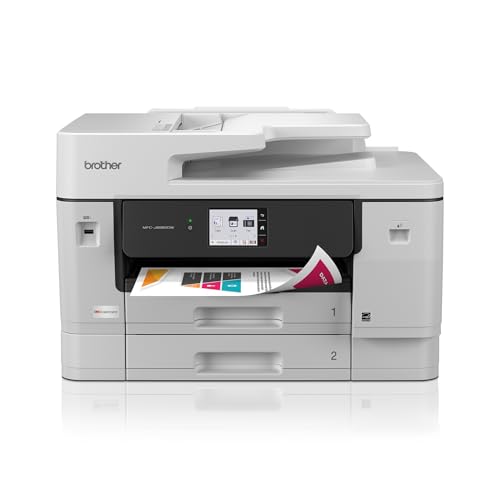
Brother’s INKvestment concept answers the office manager’s oldest complaint: the printer was cheap and the ink is ruinous. The MFC-J6960DW builds its case on high-capacity cartridges with an internal ink storage design that stretches the interval between replacements, wrapped in an all-in-one that prints up to A3 with an 11×17-capable scan and copy workflow, a 3.5-inch colour touchscreen and the dual-band wireless that shared offices actually need. Brother’s document quality is the brand’s traditional strength — dense, legible text and line work that survives photocopying again.
Where the Epson counters with raw speed and tray count, the Brother counters with the three-year spreadsheet: offices printing A3 daily will feel the cartridge economics in their budget long after they have forgotten the purchase price. Its photo output sits in the same presentable class as the WF-7840’s — fine for a brochure graphic, not for a portfolio — and its design language is unapologetically office equipment. For a business whose A3 work is invoices, plans, reports and handouts in volume, this is the pick that respects the accounts department.
- Functions: print, scan, copy, fax with A3-class capability
- Ink system: INKvestment high-capacity cartridges
- Display: 3.5-inch colour touchscreen
- Connectivity: dual-band Wi-Fi, Ethernet, USB, NFC
- Design focus: low cost per page for sustained office volume
Strengths
- Running costs built for offices that print A3 every day.
- Dependable, dense document quality across text and line work.
- Full all-in-one feature set with modern connectivity.
Trade-offs
- Photographs are office-grade, not display-grade.
- Tray arrangement is less flexible than the dual-tray Epson for mixed A4/A3 life.
- Utilitarian styling that announces itself as office equipment.
Best for: cost-conscious offices with daily A3 document volume and a long ownership horizon.
Not suited for: design-led studios whose A3 output is primarily visual.

Epson WorkForce Pro WF-7310 — Best Print-Only Wide Format
The WF-7310 asks a clarifying question: what if you never scan anything? Stripped of the all-in-one apparatus, it is a dedicated wide-format printer that takes paper up to 13×19, holds 500 sheets across its trays, prints with the same PrecisionCore sharpness as its bigger sibling and costs its owner less desk depth and less money than the full multifunction machines. For drawing offices, print corners in schools and studios with a separate scanning solution, that subtraction is the entire appeal — every part of the budget went into the print path.
Its DURABrite pigment output shrugs off the conditions drawings actually endure: highlighter passes, damp hands, sunlight through a site-office window. Automatic two-sided printing covers the report work, and the rear feed takes the heavier boards that posters and covers require. The limitation is absolute and must be respected at purchase time — there is no scanner, no copier, no fax, and no upgrade path that adds them. Buy it as a printing instrument for a workflow that already handles originals elsewhere, and it is the most focused machine in this guide.
- Functions: print only, up to 13×19 inches
- Paper capacity: 500 sheets across dual trays, plus rear feed
- Ink system: 4 DURABrite Ultra pigment cartridges
- Duplex: automatic two-sided printing
- Connectivity: Wi-Fi, Ethernet, USB
Strengths
- All of the budget serves the print engine and paper path.
- Large dual-tray capacity suits mixed A4 and A3 queues.
- Durable pigment documents for site and classroom conditions.
Trade-offs
- No scanning or copying of any size, ever.
- Photos remain office-presentable rather than photographic.
- Still a physically large machine despite the single function.
Best for: drawing offices, print stations and studios that scan elsewhere and print at A3 constantly.
Not suited for: anyone who needs to digitise or copy even occasionally.
Epson Expression Photo HD XP-15000 — Best for Visual Work
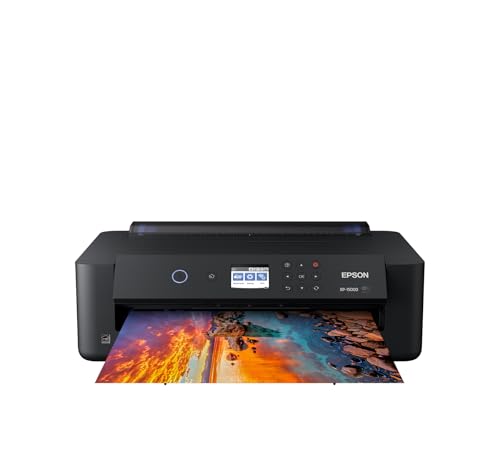
Every office guide needs one machine for the people whose “documents” are actually pictures. The XP-15000 is a six-ink photo printer — red and grey inks joining the standard four — that prints to 13×19 and renders the visual end of A3 work, the design mock-ups, presentation boards, menus with photography and classroom displays, at a standard the four-ink office machines cannot approach. A design studio’s A3 proof from this machine means something; the same file from an office all-in-one is a rough indication.
The exchange is office muscle. There is no scanner, no fax, no document feeder, its cartridges are sized for photo work rather than invoice marathons, and at maximum quality it prints slowly enough to plan around. Its front cassette and automatic two-sided printing cover ordinary A4 documents perfectly competently, so a one-person studio loses nothing day to day. Choose it when the A3 sheets leaving your office are judged by eye rather than by spreadsheet, and its presence in this guide — rather than only in the photo guide — will make complete sense.
- Functions: print only, up to 13×19 inches
- Ink system: 6 Claria Photo HD dye inks including red and grey
- Feed: rear specialty feed plus front cassette
- Duplex: automatic two-sided document printing
- Connectivity: Wi-Fi, Ethernet, USB
Strengths
- Photo and graphics quality far beyond the office machines here.
- Handles thick display media through its rear feed.
- Covers everyday A4 document duty without complaint.
Trade-offs
- No scan, copy or fax functions at any size.
- Small cartridges make heavy document volume uneconomical.
- Slow at its highest quality settings.
Best for: designers, teachers and small studios whose A3 output is primarily visual.
Not suited for: document-heavy offices or anyone needing A3 scanning.
HP OfficeJet Pro 9730e — Prose-Only Alternative
HP’s wide-format OfficeJet entry covers the same territory as the WF-7840 — A3 print with scan and copy in an office all-in-one — and it earns its prose-only mention for one practical reason: offices already standardised on HP’s software, management tools and supply cupboards experience real friction when a different brand lands in the middle of their workflow. Its document output is characteristically sharp, its touchscreen workflow is polished, and its paper handling covers the standard office repertoire of trays and duplexing.
Two considerations deserve plain speech. HP’s e-series machines are designed around the company’s ink subscription ecosystem, with the printer’s best economics tied to enrolling — a model some offices love for its predictability and others reject on principle, preferring to own their cartridges outright. And because we could not verify this model through our pool, it carries no link here; judge it on the same criteria as the linked picks — A3 scan capability, tray logic, duplex honesty and three-year ink cost — before letting brand familiarity make the decision for you.
- Functions: print, scan, copy with wide-format A3-class output
- Ink system: OfficeJet cartridges, subscription-oriented economics
- Workflow: HP smart printing software ecosystem
- Connectivity: Wi-Fi, Ethernet, USB
- Status in this guide: prose-only, no verified pool link
Strengths
- Seamless fit for offices already running HP software and supplies.
- Polished touchscreen and app-driven workflow.
- Sharp, professional document output at A3.
Trade-offs
- Best economics assume comfort with a subscription ink model.
- Photo quality sits in the office class, like its direct rivals.
- No link in this guide; verify the exact configuration before buying.
Best for: HP-standardised offices wanting wide-format capability without changing ecosystems.
Not suited for: buyers who want outright cartridge ownership without subscription ties.
Brother MFC-J6955DW — Prose-Only Alternative
Brother’s larger INKvestment flagship is the heavy-duty counterpart to the MFC-J6960DW above: the same high-capacity cartridge philosophy scaled up for offices whose A3 volume is measured in reams, with expanded paper handling and a build intended to live at the centre of a workgroup rather than at the edge of a desk. For a practice — architects, accountants, a busy school office — that has priced the three-year ink bill and flinched, this is the machine Brother designed to answer the flinch.
It appears here without a link because our verified pool carries its sibling rather than this model, and the honest guidance is comparative: if the J6960DW’s capacity and duty ratings cover your measured volume, its linked listing is the simpler purchase; if your office’s A3 traffic regularly involves long runs, multiple trays of different stock and a queue of users, the flagship’s extra headroom is the rational step. Either way, the decision should be made from your print logs, not from a brochure’s superlatives.
- Functions: print, scan, copy, fax at A3 class
- Ink system: INKvestment high-capacity cartridges
- Orientation: workgroup volume and expanded paper handling
- Connectivity: dual-band Wi-Fi, Ethernet, USB
- Status in this guide: prose-only, no verified pool link
Strengths
- Built and priced around sustained, heavy A3 volume.
- INKvestment economics keep long-run cost per page low.
- Workgroup-ready connectivity and handling.
Trade-offs
- More machine than a small office’s volume can justify.
- Office-class photo output, like all its all-in-one peers.
- No link here; confirm tray configuration on the exact listing.
Best for: busy workgroups and practices with measured, heavy A3 document traffic.
Not suited for: small offices whose A3 printing is occasional.
How Do the Six A3 Options Compare?
| Model | Scan A3 | Capacity | Ink logic | Character |
|---|---|---|---|---|
| Epson WF-7840 | Yes | 500 sheets, dual tray | 4 pigment cartridges | Complete office hub |
| Brother MFC-J6960DW | Yes | Workgroup trays | INKvestment high-capacity | Running-cost champion |
| Epson WF-7310 | No — print only | 500 sheets, dual tray | 4 pigment cartridges | Drawing-office printer |
| Epson XP-15000 | No — print only | Cassette + rear feed | 6 photo dye inks | Visual-work specialist |
| HP OfficeJet Pro 9730e | Yes | Office trays | Subscription-oriented | HP-ecosystem fit |
| Brother MFC-J6955DW | Yes | Expanded workgroup | INKvestment high-capacity | Heavy-volume flagship |
Which Paper Handling Features Actually Matter at A3?
Tray count is the first, because it decides whether changing size is a setting or a chore. With two trays, A4 letter paper and A3 sheets coexist and the driver simply picks the right home for each job; with one, every size change is a walk to the machine, a tray pulled out, a stack swapped and a guide adjusted — a ritual that guarantees A3 printing quietly stops happening in a busy office. A rear feed is the second feature, the path for the thick card of covers, the board of a display and the single sheet of something expensive that should never bend around the cassette’s rollers.
The document feeder is the third, and the one most often mis-specified. An office that scans multi-page A3 originals — bound reports unbound, drawing sets, signed contracts on large paper — needs a feeder rated for the size, not merely a flatbed that fits it one page at a time. Check the feeder’s stated maximum size in the specifications, not the scanner’s, because the two routinely differ. Finally, output handling: an A3 sheet emerging from a machine needs somewhere to land, and machines whose output support is an afterthought deposit large sheets in a curling overhang that creases under their own weight during long runs.
How Do You Estimate the True Cost of A3 Office Printing?
Build the three-year number, because that is the horizon these machines are bought on. Start with your measured monthly page count, split between A4 and A3, colour and mono — most offices can pull this from the old printer’s counter or a month of honest tallying. Multiply by the cost per page implied by each candidate’s cartridge yields at the coverage offices actually print, not the laboratory’s optimistic standard page. Add paper — A3 stock costs meaningfully more per sheet than A4 — and one replacement of whatever wear items the design carries. The ranking that emerges from this arithmetic regularly reverses the ranking by purchase price, which is precisely why the Brother’s ink philosophy earns its place in this guide.
Then price the failures of fit, which never appear in cost-per-page tables. A machine without A3 scanning sends staff to an outside copy shop with the archive boxes; a machine with one tray taxes every size change with minutes of skilled salary; a machine whose duplex quietly excludes A3 prints the meeting handouts single-sided forever, doubling that paper line. The cheapest A3 printer is the one whose capabilities match the documents your office actually produces — a sentence that sounds like a truism until you have watched an office discover, six months in, that theirs does not scan the size it prints.
How Should an Office Set Up Shared A3 Printing?
Put the machine where the paper journey is short. A3 stock is bulky, finished sheets are awkward to carry through doorways, and a printer exiled to a distant cupboard teaches staff to avoid the format entirely. Give it a surface with clearance behind for the rear feed and above for the scanner lid, on the network by cable if the office layout allows — a wired connection removes an entire category of shared-printer mysteries — with Wi-Fi as the convenience layer for laptops and visitors.
Configure defaults with intent. Set the office standard documents to the correct tray by size so nobody’s A4 letter lands on A3 stock, enable two-sided printing as the default for internal documents, and create saved presets for the recurring jobs: the A3 spreadsheet, the drawing set, the poster. Presets are where shared machines succeed or fail socially — the colleague who can pick “Site Drawings” from a list will print happily, while the colleague facing forty driver options will quietly revert to A4 and a magnifier. Finish with a small laminated card on the machine: which tray holds what, how to load the rear feed, who to tell when the ink light comes on. Offices run on such cards far more than on manuals.
What Mistakes Do A3 Buyers Make?
Buying print-only and discovering the archive. Assuming duplex covers A3 because it covers A4. Reading the scanner’s maximum size and never checking the document feeder’s. Choosing by purchase price while the ink contract quietly costs more than the machine every year. Placing a wide printer on a narrow shelf where its rear feed opens into a wall. And the subtlest: buying a photo printer for document work — paying for six inks to print spreadsheets — or an office machine for photography, then blaming the category. This guide and its photo companion exist as a pair precisely because that last mistake is so easy to make from a search box.
How Does A3 Printing Serve Classrooms and Site Offices Differently?
A classroom printer lives a life of bursts and deadlines: thirty copies of a worksheet before the bell, a display for the corridor wall, a set of certificates at term’s end. What it needs from A3 is not speed records but tolerance — tolerance for mixed paper stocks loaded by different hands, for a document feeder fed by a queue of students, for months of dust during holidays followed by a September avalanche. The all-in-ones in this guide suit that life because their trays swallow a ream at a time and their touchscreens can be operated by a tired teacher without a manual. Schools should also weigh the unglamorous question of who changes the cartridges and how much warning the machine gives; an ink system with generous capacity, like the Brother’s, aligns well with term-time rhythms where nobody can service a printer mid-lesson.
A site office inverts the priorities. Drawings and plans dominate, conditions are dusty, documents get annotated, rained on in transit between cabin and scaffold, and reprinted without ceremony. Pigment ink that survives a highlighter and a damp glove matters more than colour beauty, and the print-only WF-7310’s focused design — no scanner lid to crack, no feeder to jam with grit — starts to look less like a compromise and more like armour. Site teams also scan differently: their originals are often marked-up drawings returning to head office, which argues for the WF-7840’s feeder if red-lined A3 sheets must be digitised daily. Same paper size, opposite conclusions — which is why this guide refuses to crown a single winner for every workplace.
Both settings share one lesson: laminate what must live. An A3 sheet destined for a classroom wall for a term, or a site cabin for a project, should be laminated or framed under acrylic, because no ink system in this guide is rated for months of direct handling by thirty pairs of hands. Budget the laminator alongside the printer and the posters stop being consumables.
What Should You Know About A3 Paper Itself?
Office A3 paper is sold by weight, and weight is a working property, not a luxury. Standard copier stock is the everyday choice for documents and drafts; stepping up a weight class buys stiffness that feeds more reliably through duplex paths, presents better in a client’s hands and survives the noticeboard without curling into a tube by Friday. For covers, menus and anything that will be handled repeatedly, card stock through the rear feed transforms the same printer’s output from a sheet into an object — but respect the stated thickness limits, because a jammed A3 sheet of heavy card is a ten-minute excavation rather than a tug.
Storage shapes reliability more than brand loyalty does. A3 reams stored upright slump and curl; stored flat in a dry cupboard they feed straight for months. Paper that has absorbed humidity prints with cockled edges and, in inkjet machines, can swell enough to brush the print head — the mysterious streaks that appear every humid season in offices that store paper beside a kettle. Keep the current ream in the machine’s trays, the reserve stock sealed in its wrapper, and the special media — the card, the poster paper, the photo sheets for the XP-15000 — labelled, because at a glance all white A3 stacks look identical and the wrong one in the tray announces itself only after the print emerges wrong.
Buying in modest bulk is the final paper wisdom. A3 stock from office suppliers costs notably less by the box than by the ream, and an office that has committed to the format will use it; the false economy is the bargain unbranded stock whose inconsistent coating gives inkjet output a grey, thirsty look and whose dust clogs feed rollers. Paper is the cheapest component in the system and the one every page touches — economise elsewhere first.
How Do You Keep a Shared A3 Printer Running Without Drama?
Shared printers fail socially before they fail mechanically. The regime that prevents most office printer misery is boring and total: one person owns the supplies shelf, cartridges are reordered when the first low warning appears rather than when the machine stops, and a spare set lives in the cupboard because an A3 deadline and an empty colour cartridge will find each other with supernatural reliability. Both Epson and Brother ecosystems report levels through their software, so assign the checking of them to a named human in the same way someone owns the coffee.
Mechanically, wide machines ask for the same courtesies as any inkjet, scaled up. Print something every week or two so ink keeps moving — an office machine rarely sits idle long enough to clog, but holiday closures are exactly the exception that proves the rule, and a small scheduled job after a long break is cheaper than a cleaning cycle marathon. Keep the paper path fed with clean stock, vacuum the tray wells when paper dust accumulates, and never yank a mis-fed A3 sheet backwards against the feed direction; open the rear access, follow the machine’s own removal path, and the rollers survive to feed another ream.
When output quality dips — a faint line through every drawing, a colour that has drifted — the diagnostic order matters. Check the paper first, because a damp or wrong-side-up stack imitates hardware failure convincingly. Then a nozzle check and, if needed, a single cleaning cycle. Then the driver, because a colleague’s experiment with settings has caused more office printing mysteries than any print head in history. Only after those three should the machine itself be suspected, and by then the process of elimination has usually already found the culprit wearing a paper label.
What About Security and Management in a Networked Office?
A modern all-in-one is a networked computer with a scanner attached, and offices that print contracts, payroll or client drawings at A3 should treat it with the same mild seriousness as any other endpoint. Change the administrator password from its default, keep the firmware current through the manufacturer’s updates, and place the printer on the office network segment rather than an open guest one. These are five-minute tasks at installation that close the classic holes through which neglected printers become network folklore.
Management features repay attention in larger teams. Both ecosystems here offer usage reporting that shows who prints what volume — less a surveillance tool than the data source for the cost estimates this guide keeps recommending — and secure-release printing, where a job waits at the machine until its owner stands in front of it, is the difference between confidential A3 plans sitting in an output tray all afternoon and the same plans existing only in the right hands. If your office handles sensitive large documents, enable it on day one rather than after the first incident writes the policy for you.
When Is A4 Still the Right Answer?
Honesty requires this section in an A3 guide: most office pages, in most offices, are A4 pages. Letters, invoices, contracts, minutes and reports are designed for the smaller sheet, and an office whose A3 need is a rumour — a poster twice a year, a spreadsheet that could be split — should buy a excellent A4 machine and send the rare large job to a copy shop, where industrial machines will print it beautifully for pocket change. The A3 machines in this guide justify themselves only when the format is a weekly reality: recurring plans, ledgers, teaching materials, menus, or an archive that must come home to a scanner.
The hybrid pattern many offices settle into deserves naming, because it is often the correct end state rather than a compromise. A hardworking A4 machine near the desks absorbs the daily flood at the lowest cost per page, while one A3 all-in-one in a shared spot handles the large minority — and provides the big flatbed that digitises everything from certificates to bound volumes whose spines no A4 scanner accepts. If your office is choosing its only printer, buy for the majority of your pages and let A3 be the capability that tips the choice between finalists, not the headline that leads it.
What Happens on Setup Day With a Machine This Size?
Plan for two people and an hour. Wide all-in-ones arrive heavy, with print heads locked for transit and a quantity of tape and packing that takes longer to remove than the rest of setup combined; every restraint must come out before the first power-on, because a head that tries to move against its shipping lock writes the machine’s first error message in mechanical language. Position the unit before filling its trays — a loaded A3 machine is an awkward object to shuffle across a desk — and leave the clearances this guide keeps repeating: behind for the rear feed, above for the scanner lid, in front for the output’s landing zone.
Delivery day deserves one more caution, because these machines travel far and arrive as strangers. Inspect the box before signing anything, photograph any damage to the corners before opening it, and keep the packaging until the machine has printed its first week of work — returning a wide-format all-in-one without its moulded packing is a logistical punishment nobody should volunteer for. Register the warranty while the invoice is still on the desk, note the serial number in the office asset list, and file the quick-start sheet with the laminated tray card rather than in the drawer where documentation goes to be forgotten.
Then resist printing anything important. Run the initial alignment and calibration pages the machine requests, install the full driver package rather than the bare operating-system driver so the tray and duplex controls exist, connect it to the network, and print the office’s standard test set: one A3 spreadsheet, one drawing, one duplex handout, one scan to the shared folder. Fix the defaults while the test pages are in your hand — paper sources by size, duplex for internal work, scan destinations named in human language. An hour of this on day one replaces a year of small irritations distributed across every colleague who uses the machine, which is the best hourly rate in this entire guide.
How Do Scanning Workflows Change Once the Flatbed Is A3?
An A3 flatbed quietly rewires an office’s relationship with paper. The bound ledger that could never be photocopied without breaking its spine can be scanned a spread at a time; the certificate, the child’s artwork, the annotated drawing and the newspaper page all digitise whole, in one pass, at a resolution that survives enlargement. Offices that buy the all-in-ones here for printing routinely report, a year later, that scanning became the feature they would not surrender — because printing has substitutes at the copy shop down the road, while a faithful digital archive of oversized originals can only be built on a bed that fits them.
Build the workflow deliberately or the scans will scatter. Decide the naming convention before the first batch — date, client or project, subject — and the destination folder structure it implies, then configure those destinations as one-touch buttons on the machine’s screen so the convention survives contact with busy colleagues. Choose resolution by purpose: text archives read perfectly at moderate settings, while artwork and drawings destined for reprint deserve the higher settings and the larger files that come with them. A scanner used with a system produces an archive; a scanner used casually produces a folder of images named scan-final-final that nobody trusts, and the difference is entirely in the first afternoon’s decisions.
The feeder deserves the same forethought. Batch scanning through the document feeder is the fastest digitising an office will ever do, but originals must be prepared — staples out, torn corners noted, fragile sheets diverted to the flatbed — and the feeder’s stated A3 capability should be confirmed with your own test set before a thousand-page archive project is scheduled around it. Offices that run one honest test batch learn their machine’s true appetite in an hour; offices that assume learn it across a weekend of jams.
Which A3 Printer Fits Your Kind of Office?
The general small office — a dozen people, mixed documents, one machine by the door — is the WF-7840’s home turf, because its dual trays and full function set absorb variety without asking anyone to think about the printer. The practice with a billing department watching consumables — accountants, solicitors, a clinic’s back office — should let the Brother MFC-J6960DW’s ink arithmetic argue its case, since their A3 traffic is relentless and almost entirely documents. The drawing-led workplace, the architect’s studio or the contractor’s site cabin, splits by scanning: digitise marked-up sheets daily and the WF-7840 returns; print plans constantly and scan never, and the WF-7310’s focused design wins on both price and robustness.
The visual workplace — the school art department, the design studio, the café group reprinting menus with photography each season — is the XP-15000’s argument, and it is a strong one: their A3 sheets are judged by customers’ eyes, and the six-ink output difference is visible across a counter. Offices already living inside HP’s software should weigh the prose-only 9730e honestly against the friction of changing ecosystems, while the workgroup drowning in volume should look at the J6955DW’s headroom. What none of these workplaces should do is buy the machine for a neighbouring workplace’s documents — the surest route to an expensive, underused, faintly resented box in the corner.
What Should You Check in the First Month of Ownership?
Treat the first month as a commissioning period rather than a honeymoon. Keep a rough tally of what the machine actually prints — sizes, single versus two-sided, scan volumes — and compare it with the assumptions that drove the purchase; offices routinely discover their A3 share is double the estimate, or that scanning dwarfs printing, and those discoveries should adjust the supplies shelf and the tray assignments while habits are still young. Print one of everything the office produces in that month and file the set as reference output, so that when quality questions arise in month nine, there is a known-good A3 spreadsheet and drawing to compare against rather than a memory of how things used to look.
It is also the month to teach the room. Walk the two or three people most likely to load paper through the rear-feed ritual and the jam-clearing path before either is needed under deadline pressure, and make sure the laminated card by the machine reflects the machine as configured, not as shipped. Printers do not become office infrastructure by being purchased; they become infrastructure in the first month, through configuration, reference output and shared habits — and the offices that invest that month are the ones still praising the same machine years later.
Final Recommendation
For most offices, the Epson WorkForce Pro WF-7840 is the A3 purchase that ends the discussion: complete in-and-out workflow, serious capacity, documents that survive real working conditions. The Brother MFC-J6960DW overtakes it wherever measured volume makes ink economics the deciding vote, and the WF-7310 serves drawing-heavy teams that print constantly and scan never. Visual studios should take the XP-15000 and enjoy the difference, while HP-standardised offices and heavy Brother workgroups have their prose-only paths marked above. Measure your documents, check the feeder, price three years of ink — then buy once, and let the machine do the quiet work of making your office’s largest documents feel routine. That is the real promise of the format: budgets, buildings, lessons and menus, printed at the scale they were designed for, and scanned back into the record when the meeting ends.
Frequently Asked Questions
What is the difference between A3 and 13×19 paper?
A3 measures 11.7×16.5 inches; 13×19 is a larger sheet, sometimes called A3+ or Super A3. Every machine here handles both, and the larger sheet suits posters and photographic work while true A3 matches office documents, ledgers and drawing sets produced to the ISO standard.
Can all A3 printers scan at A3?
No — and this is the most important distinction in the category. Only the all-in-one models scan at all, and among them you should confirm both the flatbed size and the document feeder’s maximum, which can differ. The print-only WF-7310 and XP-15000 cannot scan a business card, let alone an A3 original.
Is two-sided printing available at A3?
On the office machines featured here, automatic duplexing is a headline feature, but the category as a whole is inconsistent — some wide printers duplex only up to A4. If two-sided A3 handouts are part of your workload, verify duplex support at the A3 size explicitly for the exact model you buy.
Laser or inkjet at A3?
Inkjet owns this guide because A3 colour lasers are large, expensive machines aimed at a different procurement world, while modern business inkjets match the document quality offices need at a fraction of the size and cost. Mono text at enormous volume is the laser’s remaining stronghold, and it sits below A3 in most offices that have one.
What does an A3 page cost compared with A4?
Roughly double is the honest planning figure for most ordinary office documents, and it holds up well enough across the machines in this guide to budget a department around, provided the documents in question are typical office pages rather than full-bleed photographic coverage of the kind this guide deliberately leaves to its photo-focused companion: the sheet carries about twice the area, consumes ink in proportion to the coverage printed on it, and the paper itself costs more per sheet than its A4 equivalent from the same range. The comparison that matters, though, is not A3 against A4 but A3 at home against A3 outsourced — a copy shop’s per-sheet charge for a colour A3, multiplied by an office’s monthly volume, usually retires the printer’s purchase price with startling speed, which is the arithmetic that built this entire product category. Run your own version of it with your real monthly count before assuming either answer.
How much space does an A3 all-in-one need?
More than the footprint figure suggests: allow depth for the rear feed to open and accept a long sheet, height for the scanner lid to lift fully, and a landing zone in front for finished A3 pages. Measure the whole working envelope, not the closed box, before committing a location.
Can these printers handle card and poster board?
Within limits, through the rear feed, one sheet at a time. Each model has a stated maximum media thickness; covers and light display board are routine, while heavy mounting board belongs to a print shop. Feed thick stock flat, support it as it emerges, and never force a sheet the path resists.
Should a small office buy one A3 machine or separate A4 and A3 devices?
If the A3 machine will be the office’s only printer, choose the all-in-one whose A4 behaviour is equally strong — the WF-7840 and MFC-J6960DW both qualify — because most of its life will be spent on ordinary pages. If the office already owns a good A4 workhorse, a print-focused A3 addition like the WF-7310 or XP-15000 can be the smarter second device, bought purely for the large work without duplicating functions you already have. The wrong answer is two mediocre machines; one excellent machine matched to the majority of your pages beats a pair of compromises every working week of the year.
How long should an A3 office printer last?
These are business machines with duty cycles sized in tens of thousands of pages, and in a small office printing hundreds of A3 pages a month, a service life of many years is a reasonable expectation when the machine is fed decent paper, kept reasonably dust-free and not asked to digest staples. The practical limit is rarely the print engine; it is the ecosystem around it — driver support for future operating systems and continued cartridge availability — which is another argument for the mainstream business lines featured here over obscure alternatives.
Related Guides
Pair this guide with best A3 photo printers if your large sheets carry photographs rather than documents, best A4 printers for the everyday machines that handle the rest of the office’s work, and best address label printers for the small-format end of office printing.