What's inside
- Key Takeaways
- Quick Picks
- How We Chose These Picks
- What Does Mac Compatible Actually Mean in Practice?
- The Six Mac-Friendly Drives, Compared
- How Do You Set Up a Drive for Time Machine, Step by Step?
- What Mistakes Do Mac Owners Make With External Drives?
- How Should a Mac Household Organise Backup, Archive and Shuttle Drives?
- What About Encryption and Privacy on a Mac Drive?
- How Do Mac Drives Age, and When Should One Be Replaced?
- What Should You Check When a New Mac Drive Arrives?
- Which Pick Fits Which Mac Owner? Four Portraits
- Final Recommendation
- Frequently Asked Questions
- Related Guides
As an Amazon Associate I earn from qualifying purchases. This post may contain affiliate links at no extra cost to you.
widgetverdict.com is reader-supported. When you buy through links on our site, we may earn an affiliate commission.
Where to buy: the six drives below each link to their Amazon listing; Mac buyers should read the formatting note in the introduction before ordering, because it decides which of these drives will be plug-and-play for you and which will ask for one calm minute in Disk Utility.
Shopping for the best mac compatible hard drives used to mean hunting for a badge; today it mostly means answering two honest questions. The first is the plug: current Macs speak USB-C, so a drive that arrives with a USB-C connection or an adapter in the box saves the dongle drawer entirely. The second is the format: a drive destined to be a Time Machine disk will be claimed and formatted by macOS the first time you offer it, while a drive meant to shuttle files between a Mac and the wider world needs a format both worlds can write. Every drive in this guide works with a Mac — the picks differ in how much of that conversation they settle for you in advance, from WD’s explicitly for-Mac portable to a 14TB desktop unit that treats the Mac as one of its two home ecosystems.
Nothing in the list requires a hub, a subscription or a second purchase to begin working, which sounds like a low bar until you count how many drives in this category fail it at the port, the format prompt or the software screen. First-evening success is a genuine product feature on a Mac desk, and it was weighted accordingly.
The spread runs from desk to pocket. WD’s My Passport Ultra for Mac leads with backup software and password protection in a native USB-C portable. Seagate answers with an 8TB One Touch desktop drive that names macOS compatibility in its listing, and with the mainstream 2TB portable that half the Mac world already owns. Avolusion’s PRO-G2 brings a 14TB desktop unit over USB-C at 10Gbps-class connection for Mac media libraries, while Maxone and YOTUO close the list with slim 1TB portables that include the USB-C question in their listings — one via an adapter in the box, one with both connections named.
Key Takeaways
- Mac compatibility is two questions — the USB-C plug and the format — and every pick here answers the first in the box.
- Time Machine will claim and format a dedicated backup drive; let it, and keep that drive for that job alone.
- WD My Passport Ultra for Mac is the guided pick, with backup software and password protection stated.
- Seagate One Touch 8TB and Avolusion PRO-G2 14TB serve the desk-bound Mac archive.
- exFAT is the shuttle format between macOS and Windows; a Time Machine disk should not moonlight as one.
- Maxone’s included USB-C adapter and YOTUO’s dual-connection listing cover the slim 1TB end honestly.
Quick Picks
| Pick | Badge | Why it earns its place |
|---|---|---|
| WD My Passport Ultra for Mac 5TB | The for-Mac flagship | Built and named for Mac, with backup software, ransomware defence and password protection in its listing. |
| Seagate One Touch 8TB Desktop HDD | The desk archive | Eight desktop terabytes, USB-C compatible with most Windows and macOS systems, with Rescue cover named. |
| Seagate Portable 2TB | The mainstream Mac portable | Plug-and-play backup for Windows and macOS in the classic 2TB portable shape. |
| Avolusion PRO-G2 14TB | The media-library vault | Fourteen terabytes over USB 3.2 Gen 2 USB-C for Windows and MacOS media archives. |
| Maxone Portable 1TB with USB-C Adapter | The adapter-included slim | An ultra-slim terabyte over USB 3.0 with a USB-C adapter in the box for current Macs. |
| YOTUO External 1TB | The dual-connection slim | USB 3.0 and USB-C named in one listing spanning PC, Mac, phones and consoles. |
How We Chose These Picks
The gate was genuine Mac usability out of the box: a USB-C route included rather than sold separately, and a listing that names Mac or macOS among its homes rather than leaving the Mac buyer to infer it. Within that gate we balanced the three desks a Mac drive can sit on. The backup desk belongs to the for-Mac WD and the mainstream Seagate portable. The archive desk belongs to the two big desktop units. The shuttle-and-satellite desk belongs to the slim pair, whose listings answer the connector question in two different, both honest, ways.
We kept the APFS and Time Machine discussion in this guide deliberately general, because the details belong to your macOS version and your backup tool, and a buying guide that invents formatting specifications would be decorating guesswork as expertise. What the reviews do state precisely is what each listing itself promises — connections, capacities, software, services — because those promises are what your money actually buys.
Price discipline deserves one sentence in a category where brand badges multiply cost without multiplying compatibility: beyond the software and capacity differences the reviews name, a Mac cannot tell which logo is on the enclosure, and neither can Time Machine. Pay for the features your job uses — the WD’s software, the desktop pair’s terabytes, the slims’ included connector answers — and let the badge be the free part of every purchase in this list.
One more filter deserves naming: every pick is a hard drive, bus-powered if portable, mains-fed if a large desktop unit, with no SSD substitutions smuggled in for speed bragging. Mac owners who need flash performance know where it lives; this guide serves the capacity side of the desk, where photographs, video libraries and backup history accumulate.
What Does Mac Compatible Actually Mean in Practice?
Strip the marketing away and compatibility is three layers. The electrical layer is the plug, and it is the one the listings in this guide solve: USB-C at the Mac, by native port, supplied cable or included adapter. The filesystem layer is the format, and it is the layer the owner controls: macOS will happily format any of these drives for its own backup and storage duties, while a drive that must also write on Windows needs the shared exFAT arrangement decided in advance. The software layer is the backup tool, and on a Mac that means Time Machine first of all — which asks only for a dedicated drive it may format and fill with history.
Apple silicon and the newest macOS versions have made the ecosystem more uniform, not less: the ports are USB-C across the line, the backup system is Time Machine across the line, and the formatting tools are the same on a student’s MacBook Air as on a studio’s flagship desktop. That uniformity is why a guide like this can be written at all — the six drives below face one coherent ecosystem rather than a museum of variants — and it is also why the remaining differences between picks are about roles and capacities rather than about whether the drive will work at all. Compatibility, in the current Mac world, is the floor; the interesting questions all live above it.
Understanding the layers dissolves most of the category’s anxiety. A drive advertised for Windows is rarely incompatible with a Mac in any deep sense; it arrives formatted for the other world, and Disk Utility settles the question in a minute for a drive destined to live with the Mac. The genuinely Mac-hostile products are the ones whose bundled software or locking tools speak only to Windows — which is why this guide leans on listings that name macOS outright, and why the for-Mac WD, whose software story is written for this ecosystem, leads the list.
There is a historical comfort available to anxious buyers: the Mac has been eating external drives for its entire modern life, and the failure stories cluster overwhelmingly around role confusion and neglect rather than around any drive’s badge. A mainstream drive, formatted deliberately, attached ritually and replaced on a calendar, will out-serve a premium drive improvised into three jobs and forgotten in a drawer. The picks in this guide are ordered by fit, but the doctrine outranks the order — which is why the how-to sections of this article are written to be followed with any of the six.
The practical advice follows: decide the drive’s job before the first plug-in. Backup drive, archive drive or shuttle drive — each job implies a format, a location and a routine, and a drive assigned its job on day one serves for years, while a drive asked to improvise all three usually ends up trusted with none.
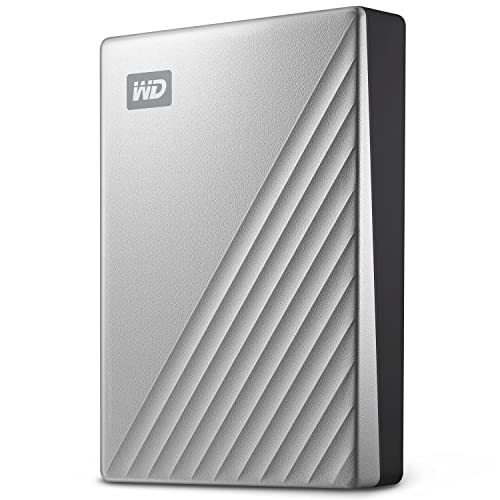
WD My Passport Ultra for Mac 5TB — The for-Mac flagship
Western Digital maintains a genuinely separate for-Mac edition of its premium portable, and this silver 5TB model, WDBPMV0050BSL-WESN, is it: USB-C and USB 3.1 native, with backup software carrying ransomware defence and password protection stated in the listing. The for-Mac designation means the drive arrives speaking this ecosystem’s language — formatted for the Mac’s world, with its software story written for Mac owners rather than translated for them — which removes the two small frictions, reformatting and software guesswork, that make generic drives feel like guests at a Mac desk.
Five terabytes in a native USB-C portable serves the Mac household’s centre of gravity: the photo library that outgrew the internal drive, the video projects in rotation, and a Time Machine history with real depth when the drive is dedicated to it. The password protection suits the portable’s life honestly — a drive that rides in bags and sits on café tables should lock, and this one’s listing promises the lock as a headline feature rather than a settings-menu rumour.
It is the list’s easiest recommendation for a specific reason: it is the only pick whose entire proposition, from name to software, assumes a Mac on the other end of the cable. Owners who want the drive to participate in the backup system — scheduling, guarding, locking — rather than merely receive files will find no closer fit in this guide, and the capacity means they will not outgrow the arrangement by spring.
- Size: 5TB
- Connection: USB-C and USB 3.1, native
- Software in listing: backup tools with ransomware defence
- Security in listing: password protection
- Finish in listing: silver
- Model code in listing: WDBPMV0050BSL-WESN
Strengths
- Purpose-built for Mac in name, format and software.
- Password protection and backup software stated outright.
- Native USB-C suits every current Mac without adapters.
Trade-offs
- Its software richness is wasted on owners who only shuttle files.
- Five terabytes of portable still wants a second copy somewhere.
- The for-Mac focus is a lesser fit for mixed-ecosystem desks.
Creative professionals working between a studio iMac and a MacBook will appreciate how this drive travels between them: one backup relationship, one password, one enclosure that both machines recognise as theirs. The for-Mac software story pays its rent in exactly that two-machine life, where a generic drive’s setup questions would be asked twice and answered inconsistently. Consistency is an underrated backup feature — the same routine on both machines means the routine survives busy weeks on both desks.
Verdict: the Mac portable to buy when backup should run itself and lock itself; mixed-desk households may prefer the Seagate portable’s neutrality below.

Seagate One Touch 8TB Desktop HDD — The desk archive
The One Touch 8TB is the list’s home-base drive: a desktop HDD, model STNB8000400, whose listing names USB-C compatibility with most Windows and macOS systems and includes Rescue recovery services. Desktop drives trade portability for capacity and permanence, and eight terabytes parked beside a Mac becomes the household archive — the Time Machine destination for more than one machine, the photo library’s deep shelf, the place finished projects go to be findable in five years.
Its macOS naming matters more than it might appear. A desktop archive is a long relationship, and a listing that states macOS compatibility in its title is a maker committing to that relationship in public — the drive is meant to be formatted for the Mac’s backup world and left there, spinning quietly through years of incremental history. The Rescue services named alongside complete the archive’s psychology: the vault has a recovery plan, stated by its maker.
Placement is the owner’s one real decision. A desktop drive wants a permanent, ventilated spot with its power supply undisturbed, ideally on the same circuit protection as the Mac it serves, and it rewards that stability by disappearing from thought entirely. Households whose archive has been living on a rotation of portables will feel the upgrade as calm: one address for everything, big enough that the address stops changing.
- Size: 8TB
- Type: desktop HDD
- Compatibility in listing: USB-C, most Windows and macOS systems
- Services in listing: Rescue recovery
- Model code in listing: STNB8000400
Strengths
- Archive-class capacity with macOS compatibility stated by the maker.
- Rescue recovery named for the vault role.
- Desktop permanence suits multi-Mac Time Machine duty.
Trade-offs
- Desk-bound and mains-powered; it will not travel.
- A single archive still deserves its own off-site layer.
- Over-capacity for a one-laptop household’s documents.
Families with a shared iMac at the centre of the house will recognise this drive’s social role: it is where the household’s memory officially lives. Children’s school projects, the scanned grandparents, two adults’ work histories — an 8TB desktop archive ends the era of “which portable has the christening photos” by giving the answer a permanent address. That address quality, more than any specification, is what a desktop drive sells a family, and the One Touch’s stated macOS compatibility means the address was assigned by its maker, not improvised by its owner.
Verdict: the archive for Mac households whose history has outgrown portable rotations; give it a permanent shelf and let it become the family’s memory with a power cable.

Seagate Portable 2TB — The mainstream Mac portable
This is the portable half the Mac world already knows: Seagate’s 2TB everyday drive, STGX2000400, listed for plug-and-play backup across Windows and macOS with a year of warranty in its title. Its virtues are the mainstream ones — it is light, it is simple, it asks for no software relationship — and for a Mac owner its one setup moment is the friendly one: offer it to Time Machine, let macOS format and claim it, and the backup history begins.
Two terabytes is the correct size for the classic MacBook household: documents, photographs, a music library and a deep version history for one machine, or a lighter history shared by two. The drive’s neutrality is a feature in mixed homes, where the same model serves the Windows machine in its Windows format and the Mac in its Mac format, one per desk, with no ecosystem argument at the kitchen table.
Nothing in its listing promises locking or backup suites, and the review will not invent them; the operating system supplies the schedule and the encryption options, and the drive supplies capacious, uncomplaining storage. For the large population of Mac owners whose requirement is exactly that — a known drive, a fair capacity, a backup that starts tonight — this remains the category’s centre of gravity, and its presence in our backup guides across this site is no accident.
- Size: 2TB
- Connection in listing: USB 3.0
- Positioning in listing: everyday storage, plug-and-play backup
- Platforms in listing: Windows and macOS
- Model code in listing: STGX2000400
Strengths
- The proven mainstream portable, at home in Time Machine duty.
- Ecosystem neutrality suits mixed Mac and Windows households.
- Simple enough to be the gift that sets up a relative’s backup.
Trade-offs
- USB 3.0 connection may need an adapter for USB-C-only Macs; check the box contents for your model.
- No password or software features are promised in the listing.
- Video libraries will outgrow 2TB on schedule.
There is a generational handover this drive performs in many households: it is the drive the family’s Mac person buys for a parent’s first MacBook, sets up in one visit, and never has to explain again. Plug in weekly, history grows, questions stay at zero. That social reliability — a backup system a non-technical owner will actually sustain for years — is a specification no benchmark measures, and it is the deepest reason this unassuming portable keeps its place in guide after guide: it is the drive most likely to still be working, and still be plugged in, five years after the gift.
Verdict: the default Mac portable for an ordinary household’s backup; step up to the WD for software and locking, or to the desktop pair when the archive outgrows pockets.

Avolusion PRO-G2 14TB — The media-library vault
Avolusion’s PRO-G2 is the list’s specialist: a 14TB external hard drive in silver, connecting over USB 3.2 Gen 2 USB-C at the 10Gbps class, listed for Windows and MacOS. Fourteen terabytes in a single desktop enclosure is media-library territory — the video editor’s project archive, the photographer’s decade, the household media server’s whole shelf — and the fast USB-C connection class suits a drive whose contents are large files moved in bulk rather than documents dripped daily.
On a Mac desk, its role is the deep vault beside the machine: the place finished work graduates to, the library that editing software references when a project reopens, the archive that lets the internal drive and the portable tier stay lean. The listing’s dual-ecosystem naming means the same vault can serve a mixed studio, though the formatting decision — one ecosystem’s backup world or the shared shuttle format — should be made once, at installation, with the drive’s primary job in mind.
Buyers should bring desktop-drive expectations: a permanent spot, mains power, and an archive discipline worthy of fourteen terabytes, because a vault this size concentrates history and must be paired with an off-site copy of its irreplaceable contents. Given that discipline, the PRO-G2 offers Mac media households something the portables cannot — a ceiling so high that the archive conversation ends for years.
- Size: 14TB
- Connection in listing: USB 3.2 Gen 2 (10Gbps class) USB-C
- Platforms in listing: Windows and MacOS
- Finish in listing: silver
- Type: desktop external HDD
Strengths
- Fourteen terabytes ends the archive-capacity conversation.
- Fast USB-C connection class suits bulk media movement.
- MacOS named outright for studio and household vaults.
Trade-offs
- Desk-bound, mains-powered, and proud of it.
- Concentrated history demands an off-site companion copy.
- Far beyond a documents-and-photos household’s needs.
Studios should consider the workflow this capacity enables: project drives stop being recycled. When the vault can hold every finished project’s full media, the studio’s past work becomes a searchable asset rather than a rumour on a shelf of retired portables, and a client who returns after three years meets an archive instead of an apology. Fourteen terabytes is the size at which that change of state happens for a small studio, and the PRO-G2’s fast connection class means the vault participates in the working week — reopening old projects at production pace — rather than merely witnessing it.
Verdict: the vault for Mac media libraries measured in tens of terabytes; ordinary households will find their archive ceiling honestly met by the 8TB One Touch above.

Maxone Portable 1TB with USB-C Adapter — The adapter-included slim
Maxone’s grey slim drive answers the modern Mac’s connector question with refreshing literalness: USB 3.0 at the drive, and a USB-C adapter in the box, stated in the listing’s own title. That included adapter is the whole review in miniature — a maker acknowledging that its slim 1TB drive will meet USB-C-only Macs and shipping the bridge rather than leaving the buyer to source one. The result is a satellite drive for the current MacBook generation at the light end of the category.
One terabyte defines the honest jobs: overflow for a MacBook whose internal storage was bought too small, a shuttle between the Mac and the wider world, a satellite copy of the working folder that travels in the same sleeve. Its ultra-slim format is the feature that gets it carried, and carried copies are the ones that exist on the bad day — the satellite doctrine this site repeats across its portable guides, because it keeps proving true.
Keep expectations tier-appropriate: the listing promises connection, capacity and compatibility across PC, Mac, desktop and laptop, not software suites or recovery services. Within that contract the Maxone is a tidy answer — the MacBook’s pocket terabyte, with the adapter question settled before the box is opened.
- Size: 1TB
- Form in listing: ultra slim portable HDD
- Connection in listing: USB 3.0 with USB-C adapter included
- Compatibility in listing: PC, Mac, desktop, laptop
- Finish in listing: gray
Strengths
- USB-C adapter in the box ends the dongle question at purchase.
- Ultra-slim build lives in the laptop sleeve permanently.
- Clear, modest listing promises exactly what it delivers.
Trade-offs
- One terabyte is satellite capacity, not archive capacity.
- An adapter is a small part to keep track of.
- No backup software or locking is stated in the listing.
Students with MacBooks recognise this drive’s exact predicament and its answer. The laptop was bought with the smaller internal storage because the budget said so; the coursework, the photo library and the one game that matters have since staged their occupation; and the slim drive in the sleeve becomes the semester’s overflow shelf, carrying the media library and the project folders so the internal drive can breathe. The adapter riding in the box means the arrangement works in the library, the dorm and the café without a dongle safari — a small mercy that, repeated daily, is the difference between a system and a grievance.
Verdict: the pocket terabyte for a USB-C MacBook’s overflow and shuttle duty; households founding a backup system should begin with the 2TB Seagate or the WD above.

YOTUO External 1TB — The dual-connection slim
YOTUO’s black 1TB drive takes the opposite route to the same destination: instead of an adapter, its listing names both USB 3.0 and USB-C among its connections, and its compatibility sweep is the broadest in this guide — PC, Mac, desktop, laptop, smartphone, PS4, Xbox One and Xbox 360, office and game. This is the household utility drive in its purest form: one slim terabyte that presents itself to nearly every screen the family owns.
For the Mac specifically, the dual-connection listing removes the purchase-day uncertainty that haunts this category — the drive speaks to the current MacBook’s ports as listed, and to the older machines besides. Its natural Mac jobs mirror the Maxone’s: satellite storage, shuttling, a second copy of the working set. The console and phone compatibility then extends its employment across the household, which matters at this tier, where a drive earns its keep by being useful everywhere rather than perfect somewhere.
The same breadth counsels one discipline: a drive that serves many masters gets formatted by the greediest of them, and a console that claims it will end its Mac career. Assign the YOTUO a primary home — the MacBook’s satellite is the role this guide recommends — and let its travels be visits rather than relocations. So assigned, it is the flexible terabyte of the list, and flexibility, honestly labelled, is a real specification.
- Size: 1TB
- Form in listing: portable storage expansion HDD
- Connections in listing: USB 3.0 and USB-C
- Compatibility in listing: PC, Mac, desktop, laptop, smartphone, PS4, Xbox One, Xbox 360
- Finish in listing: black
Strengths
- Both connections named in the listing; no adapter arithmetic.
- The broadest device compatibility in this guide.
- Slim format suits the satellite and shuttle roles.
Trade-offs
- One terabyte caps its ambitions at satellite duty.
- Many-master drives risk console formatting ending their Mac role.
- No software, locking or recovery features are stated.
Households running a genuine mixed fleet — a MacBook, a Windows desktop, a console under the television and phones that fill monthly — are this drive’s constituency, and its listing reads like it was written from their kitchen table. One slim enclosure that every device acknowledges becomes the family’s universal donor: the presentation carried to work, the photo folder moved between ecosystems, the game library’s annex. The Mac role this guide assigns it is one seat among several, and the drive’s value is precisely that it never has to refuse the others.
Verdict: the flexible terabyte for households where one slim drive must speak to everything; Mac owners wanting a dedicated backup should give that job to the guide’s first three picks.
The Six Mac-Friendly Drives, Compared
| Drive | Capacity | Connection story | Signature | Best Mac job |
|---|---|---|---|---|
| WD My Passport Ultra for Mac | 5TB | Native USB-C | Software, password | Guided backup portable |
| Seagate One Touch | 8TB | USB-C desktop | Rescue named | Home archive |
| Seagate Portable | 2TB | USB 3.0 | Plug-and-play | Mainstream Time Machine |
| Avolusion PRO-G2 | 14TB | USB-C 10Gbps class | Capacity ceiling | Media vault |
| Maxone 1TB | 1TB | USB-C adapter included | Slimmest carry | MacBook satellite |
| YOTUO 1TB | 1TB | USB 3.0 and USB-C | Broadest compatibility | Household shuttle |
How Do You Set Up a Drive for Time Machine, Step by Step?
The ceremony is short, and doing it deliberately the first time prevents every later confusion. Connect the drive directly to the Mac, not through an unpowered hub. When macOS offers the drive for Time Machine — or when you select it yourself in the backup settings — accept that the Mac will format the drive for its own backup world, erasing anything aboard, which is why this step happens before the drive accumulates cargo. Name the drive for its job, something with the word backup in it, because a named drive gets respected and an anonymous one gets borrowed for a file transfer at the worst moment.
Then let the first backup run to completion without interruption, however long the initial history takes, and verify the system the way this site’s guides always insist: restore one ordinary file from the oldest set and open it. From that day, the routine is attachment — the drive lives where the Mac charges, Time Machine works hourly in the background, and the owner’s whole job is not unplugging mid-write and not lending the backup drive to passing projects. A desktop pick like the One Touch makes even that effortless, since it never leaves its shelf.
One question owners ask at setup deserves a direct answer: whether to let the backup drive also be encrypted from the start. For a portable that will travel, yes, and the moment to decide is this first setup, when enabling it costs a checkbox rather than a conversion. For a desktop archive in a locked home office, the judgement is the household’s, but the same principle leans yes-ward: encryption decided early is invisible forever, while encryption postponed tends to stay postponed until the week it mattered. Set it, record the secret properly, and never think about it again — which is, not coincidentally, the design goal of this entire setup sequence.
Size the Time Machine drive generously against the Mac it protects. Backup history deepens with room, and a drive at least twice the protected data lets Time Machine keep the long, useful past — the version of the document from before the reorganisation — rather than pruning it to afford the present. That arithmetic is why this guide’s backup picks start at 2TB and climb.
What Mistakes Do Mac Owners Make With External Drives?
The classic is the borrowed backup: the Time Machine drive unplugged to shuttle a film to a television, reformatted by a console, or gradually colonised by overflow files until the backup fails for space in silence. Its cousin is the shuttle drive asked to be the archive — exFAT-formatted for sharing, then trusted with the only copy of the photo library, a job its format and its travel pattern were never assigned. Both mistakes are role confusion, and both are prevented by the day-one decision this guide keeps recommending: one drive, one job, a label that says so.
One more mistake is buying for the Mac you had rather than the Mac you have. Owners upgrading from an older machine carry its habits across — the USB-A cable drawer, the faith that a hub will sort it out — and discover the new machine’s port discipline at the least convenient moment. A Mac purchase and a drive purchase belong in the same conversation now, because the ports changed generations together; the readers who fare best are the ones who let the new laptop’s flank dictate the new drive’s connector, exactly as this guide’s gate required.
Owners also trip over the adapter drawer in reverse — buying a quality drive whose cable ends in USB-A and meeting a MacBook’s USB-C-only flank at midnight — and over password amnesia, enabling a portable’s lock and recording the secret nowhere. And a quiet one: ejecting by yanking. macOS keeps caches and journals; the eject exists to close them gracefully, and a drive ejected properly for years outlives its yanked twin by a margin that shows up exactly once, decisively.
How Should a Mac Household Organise Backup, Archive and Shuttle Drives?
The tidy Mac desk has three addresses, and this guide’s six picks map onto them without remainder. The backup address is a dedicated drive — the WD for guided households, the Seagate portable for mainstream ones — claimed by Time Machine, formatted by it, and borrowed for nothing. The archive address is the desktop shelf: the One Touch for the household’s history, the Avolusion when the history is a media library with professional mass. The shuttle address is a slim drive, Maxone or YOTUO, formatted for sharing and treated as a courier rather than a vault. Three addresses, three formats, three routines — and a household that can answer “where does that file live” in one sentence per file.
The addresses should also live in different physical relationships to the Mac. The backup drive stays attached or beside the charger; the archive stays on its shelf, ideally on power protection; the shuttle travels. When one drive tries to hold two addresses — the backup that also shuttles, the archive that also tours — the roles’ different formats and risks contaminate each other, and the household is back to improvising. The six drives here are priced across a spectrum precisely so that assigning one drive per address is a plan rather than a luxury.
Growth follows the addresses independently, which is the system’s elegance. The photo library’s expansion upgrades the archive alone; a new MacBook upgrades the backup alone; a new job’s Windows machine changes only the shuttle’s format. Households that organise this way stop having storage crises and start having storage errands — small, planned, one drive at a time — and that transformation, more than any capacity figure, is what buying Mac drives thoughtfully actually purchases.
What About Encryption and Privacy on a Mac Drive?
Mac owners hold two good cards here. The first is the drive-level lock, which the WD in this guide states outright: password protection that travels with the enclosure and asks nothing of the operating system. The second is macOS’s own encryption for external volumes, which owners can enable on a backup or archive drive so its contents are ciphertext to anyone who carries it away. Either is respectable; using one deliberately is the requirement, because a Mac household’s archive — tax records, family photographs, a business’s files — is exactly the cargo whose loss should be a hardware event and never a disclosure event.
The discipline that makes encryption safe is recording the secret properly. A password that lives only in its owner’s memory is a countdown to self-lockout, and an encrypted backup that cannot be unlocked during the incident it was bought for is a tragedy in two acts. Password manager, sealed note in the household documents, whichever the family actually maintains — the secret’s home matters as much as its strength, and setting both up on the same calm evening as the drive itself is the whole trick.
Portables deserve the strictest reading of this section, desktops the most relaxed, and shuttles a special one: a drive whose job is moving files between machines and people should carry nothing whose exposure would matter, encrypted or not, because its working life is a sequence of other people’s desks. Match the cargo to the vessel, lock what travels with value, and the privacy chapter of Mac storage closes itself.
How Do Mac Drives Age, and When Should One Be Replaced?
A Mac drive’s old age announces itself in the same dialect as every spinning drive’s: new sounds, slow mounts, a backup that stalls at the same file, a Disk Utility report that stops being boring. Time Machine adds its own tell — verification complaints and histories that prune themselves suspiciously early are the backup system reporting that its vessel is shrinking or struggling. The owner’s response should be procedural rather than emotional: copy the archive’s irreplaceable contents to the replacement first, while the old drive can still read them at leisure, and retire the veteran only when its replacement holds everything and has passed a restore test of its own.
Replacement is also the natural moment to reassign roles down the cascade this site’s guides describe. The new archive drive takes the shelf; the old archive, if its health is merely aged rather than failing, becomes the off-site copy or the shuttle with delusions of grandeur removed; the old shuttle retires to the drawer of emergency cables and honourable history. Mac households that cascade deliberately find their storage budget stretching remarkably, because every purchase upgrades the whole system rather than one corner of it.
Calendar discipline beats symptom discipline for the backup drive specifically. The drive that holds the only Time Machine history should be replaced on a plan — years, not symptoms — because its failure mode and the Mac’s failure mode are the two halves of the same bad week, and staggering their ages is the cheapest insurance in the whole setup. Buy the replacement while the incumbent is healthy, migrate in calm, and let the old drive’s retirement be a ceremony instead of an incident.
What Should You Check When a New Mac Drive Arrives?
The first evening has a short checklist, and it is the same one this guide’s other categories use, translated into Mac. Confirm the cable or adapter story with your actual Mac, not with the product photo — the plug should seat, the drive should mount, and the connection should survive a gentle wiggle without unmounting. Decide the drive’s job and format it accordingly before any cargo moves aboard: Time Machine’s claim for a backup drive, the shared format for a shuttle, the archive’s format for a desktop vault. Name it for the job, in words its future borrowers cannot misread.
Then run one honest workload and one honest test. The workload is a real copy — the full first backup, the actual photo library migration — not a token file, because only a real load warms the drive, fills its first sectors and exposes a sick unit while the return window is wide open. The test is a restore or an open of the copied material on the Mac it will serve, and, for a shuttle, on the other ecosystem it will visit. A drive that passes its first evening this way almost always settles into years of invisibility, which is the highest state a Mac drive can achieve.
Record the purchase somewhere the household keeps such things — model, capacity, date, the job it was assigned — because the archive’s memory should include its vessels. Three years from now, when a drive is being retired or a warranty is being claimed, that one-line record is the difference between a system and a drawer of anonymous grey boxes.
Which Pick Fits Which Mac Owner? Four Portraits
The photographer with a MacBook and a decade of RAW files should read the list as a pair: the for-Mac WD as the travelling backup, the Avolusion or the One Touch as the home vault the travelling drive feeds. Their whole system is those two addresses and the nightly habit between them, and every other pick in this guide is a distraction from that clean architecture. If the library is still young, the One Touch is the vault; when it becomes a studio’s asset, the PRO-G2 takes the shelf and the One Touch becomes the vault’s own backup.
The family whose iMac anchors the kitchen should take the One Touch and the Seagate Portable as their pair — archive on the shelf, portable for the MacBook that visits from university — and consider their storage solved for years. Their requirement was never exotic; it was permanence plus portability, both with macOS named in the listing, and the pair delivers it without a single adapter conversation at the family level, provided the portable’s cable story is checked against the MacBook’s ports on day one.
The student with the USB-C MacBook and the undersized internal drive should take a slim drive — Maxone if the included adapter appeals, YOTUO if the broader compatibility does — and run the satellite doctrine honestly: the media library and the project folders live on the slim drive, the thesis lives in three places, and the backup conversation waits for the first pay cheque, at which point the Seagate Portable graduates the system properly. Sequencing purchases to a student’s reality is not a lesser strategy; it is the only one that survives contact with a student’s budget.
The mixed household, Mac and Windows under one roof, should standardise on neutrality: Seagate portables in each ecosystem’s format per desk, a shuttle in the shared format, and no drive asked to convert religions mid-career. Their peace treaty is written in formats rather than brands, and this guide’s mainstream picks exist to sign it cheaply and permanently.
Final Recommendation
Let the job choose the drive. For a guided, locking, native-USB-C backup portable, the WD My Passport Ultra for Mac is the list’s flagship and its easiest yes. For the mainstream household backup, the Seagate Portable 2TB remains the centre of gravity. The archive belongs on a desk: the One Touch 8TB for most Mac homes, the Avolusion PRO-G2 14TB when the media library has become a vault with its own gravity. The slim pair — Maxone with its adapter in the box, YOTUO with both connections in its listing — serve the MacBook’s pocket. Decide the role first, format once at home, and the Mac on your desk gains the thing its internal drive can never give it: a past — deep, dated and recoverable, stretching back through every version of the work, waiting patiently for the afternoon a file’s earlier self turns out to be the one the future needs.
Frequently Asked Questions
Do I need a drive that says “for Mac” on the box?
Not strictly — most USB drives can be formatted by macOS for Mac duty in a minute. What the for-Mac designation buys, as with the WD that leads this guide, is the conversation already settled: the format, the software story and the connector all assume your ecosystem from the first plug-in. Drives that name macOS in their listings, as all six here do in some form, are the ones whose makers have made that commitment in public.
What format should a Mac backup drive use?
Let Time Machine decide. When you dedicate a drive to backup, macOS formats it for its own backup system — the APFS-based arrangement current versions use — and manages the history itself. Manual formatting is for shuttle drives, where exFAT is the shared language with Windows. The mistake to avoid is mixing the roles: a backup drive reformatted for shuttling loses its history, and a shuttle drive trusted as an archive is a risk wearing a convenience’s clothes.
Can one drive back up two Macs?
A desktop drive like the One Touch can serve as the Time Machine destination for more than one Mac on the same desk, with each machine keeping its own backup set, provided capacity is sized for the combined history. Portables are better dedicated one-to-one, since their backup only advances when attached. Either way, watch the free space: two machines’ histories growing into one drive will meet in the middle sooner than intuition suggests.
Why does my Mac see the drive as read-only?
Almost always a format story: the drive arrived formatted for Windows’ filesystem, which macOS can read but not write. If the drive is destined for the Mac, reformat it in Disk Utility or let Time Machine claim it. If it must stay shared with Windows machines, the exFAT format is the arrangement both systems can write — decided deliberately, before the drive accumulates anything precious.
Should I keep the backup drive plugged in all the time?
For a desktop Mac, yes — a permanently attached drive is what lets Time Machine keep its hourly rhythm without depending on anyone’s memory, and the desktop picks in this guide are built for that residence. For a MacBook, the honest equivalent is a ritual attachment point: the drive lives where the laptop charges, so plugging in for power and plugging in for backup become the same gesture. Backup systems fail socially before they fail technically, and designing the gesture is the fix.
How big should a Time Machine drive be?
At least twice the data it protects is the working rule that keeps history deep; three times is comfortable for machines whose files churn daily. A 2TB drive serves a typical MacBook household well, while photo and video Macs should read the 5TB and desktop picks in this guide as their starting tier. History is the product a backup drive sells, and capacity is how much of it you own.
Can I use the same drive for Time Machine and for storing files?
Technically a modern Mac will let a backup drive hold other material alongside its history, and practically this guide advises against it. Files stored beside the backup compete with the history for space, invite borrowing and reformatting accidents, and blur the one-job discipline that keeps backup systems alive for years. The slim drives in this guide exist to hold the other material; let the backup drive be a backup drive, entirely and boringly.
What is the difference between the for-Mac WD and a regular My Passport?
Positioning and preparation. The for-Mac edition is formatted and packaged for this ecosystem, with its software story written for Mac owners; a regular My Passport is the same family prepared for the Windows world, and a Mac owner would reformat it on arrival and forgo the tailored setup. Neither is secretly better hardware in a way a listing can prove — the choice is whether you want the conversation settled by the maker, as this guide’s flagship settles it, or settled by you in Disk Utility on the first evening.
Will these drives work with an iPad?
Several listings here gesture at the tablet world, and a USB-C iPad will generally mount a bus-powered drive in its Files app for reading and copying, subject to the drive’s format being one the iPad understands. Treat the tablet as a viewer and shuttle partner rather than a backup destination, and test your specific pairing at home before a trip depends on it — the general rule of this whole guide, that compatibility is a practice and not a promise, applies with its usual force.
Related Guides
A Mac desk connects to the rest of the storage shelf in three directions worth reading: the array the archive grows into is planned in best hard drives for raid storage, the heavy hardware shelf is surveyed in best enterprise grade hard drives, and the connector question that started this guide gets its own full treatment in best usb c hard drives.