What's inside
- Key Takeaways
- Quick Picks
- How We Chose These Picks
- USB-C the Connector Is Not USB-C the Speed: What Should You Expect?
- The Six USB-C Drives, Compared Honestly
- How Do You Set Up a USB-C Drive for Backup on Mac and Windows?
- What Mistakes Do USB-C Drive Buyers Keep Making?
- How Much Capacity Does a Portable Drive Really Need?
- What About Cables, Hubs and the Dongle Drawer?
- How Should You Think About Security on a Portable Drive?
- How Should a Portable Drive Be Carried and Handled Day to Day?
- What Are the Warning Signs When a Portable Drive Starts to Fail?
- Which of the Six Fits Your Life? Three Quick Portraits
- Where Does a USB-C Portable Sit in a Whole Storage System?
- Final Recommendation
- Frequently Asked Questions
- Related Guides
As an Amazon Associate I earn from qualifying purchases. This post may contain affiliate links at no extra cost to you.
widgetverdict.com is reader-supported. When you buy through links on our site, we may earn an affiliate commission.
Where to buy: the six portable drives below each link to their Amazon listing; before ordering, glance at whether the drive itself carries a USB-C port or ships with a cable that ends in USB-C, because this guide treats that distinction as a headline fact, not a footnote.
The search for the best usb c hard drives starts with a small modern frustration: a laptop with nothing but USB-C ports and a drawer full of storage that speaks older connectors. A spinning portable drive that plugs straight into a current MacBook, a Windows ultrabook or a tablet — no dongle, no hub, no cable archaeology — is the entire brief, and it is narrower than the marketplace suggests. Some drives wear a native USB-C port; others, including two Seagate picks below, reach the same plug through a MicroB-to-USB-C cable in the box. Both approaches end with the right connector in your laptop. What they share, and what this guide insists on, is that the box contains everything needed on day one.
One clarification before the picks, because it changes what belongs on this page: a widely sold SanDisk portable advertising speeds around 600MB/s is a solid-state drive, not a hard drive, and it is excluded here on those grounds. SSDs are wonderful and faster; they are also a different product with a different price shape, and a hard-drive guide that quietly swaps one in would be cheating its readers. Everything below spins. Capacities run from 1TB daily-carry drives to a 5TB WD with backup software and password protection, with LaCie’s armoured orange classic holding the rugged corner.
Key Takeaways
- Native USB-C port and USB-C cable in the box are two different routes to the same plug; both picks styles appear here, labelled honestly.
- Every drive in this guide is a spinning hard drive; the fast SanDisk portable in search results is an SSD and is excluded.
- WD’s My Passport Ultra is the software pick, with backup tools, ransomware defence and password protection in its listing.
- LaCie’s Rugged USB-C is the drop, shock, dust and rain answer for bags that live hard lives.
- Seagate’s new Expansion portables cover 4TB and 2TB with Windows and macOS support and Rescue cover stated.
- Two 1TB slim drives from Tianken and HWAYO serve light carry and console duty at the small end.
Quick Picks
| Pick | Badge | Why it earns its place |
|---|---|---|
| Seagate Expansion Portable 4TB | The big everyday carry | Four terabytes with a MicroB-to-USB-C cable, travel-ready and backed by Rescue cover in the listing. |
| WD My Passport Ultra 5TB | The software-equipped five | USB-C native, with backup software, ransomware defence and password protection named outright. |
| LaCie Rugged USB-C 5TB | The armoured traveller | Drop, shock, dust and rain resistance wrapped around 5TB for Mac and PC. |
| Seagate Expansion Portable 2TB | The mainstream two | The same new Expansion formula at 2TB for ordinary photo and document lives. |
| Tianken Ultra Slim 1TB | The slim spare | A 2.5-inch USB 3.1 Type-C drive that disappears into a laptop sleeve. |
| HWAYO Portable 1TB | The console-friendly one | USB 3.1 Type-C slim storage listing PC, Mac, Xbox One and PS4 compatibility. |
How We Chose These Picks
The gate was the connector story, applied strictly. A drive qualified if a USB-C plug reaches it using only what ships in the box — either a native USB-C port on the enclosure or a supplied cable terminated in USB-C — because a guide that sends readers shopping for adapters has failed at its one job. Hub-and-dock hybrid drives, which bundle storage into desktop docking stations, were excluded as a different species: useful on a desk, irrelevant in a laptop bag.
Within that gate we balanced the three jobs portable drives actually do. Everyday backup and file carriage is the Seagate Expansion pair’s brief. Guided backup with security features is the My Passport Ultra’s. Hostile environments belong to the LaCie. The two slim 1TB drives serve the lightest version of the first job, where the drive is a satellite of one laptop rather than an archive. Every pick is a hard drive, bus-powered from the cable, and sized in the standard 2.5-inch portable format.
One more exclusion is worth recording, because readers will meet the products in search results and wonder. Portable drives bundled into USB-C docking stations — storage as one bullet in a hub’s feature list — were left out even when their capacities matched. A dock’s drive inherits the dock’s compromises: it stays where the desk is, shares power and bandwidth with a crowd of peripherals, and cannot be slipped into a bag when the building empties. This guide is about drives that travel to the data and home again, and the hybrid products serve a different, legitimate article.
We also read the listings for what they promise about the bad day. Seagate states a year of Rescue recovery cover on its Expansion portables; WD states its software defences on the Ultra; LaCie states its physical resistances. Those stated promises, rather than any reviewer’s optimism, are what the reviews below lean on.
USB-C the Connector Is Not USB-C the Speed: What Should You Expect?
USB-C names a plug shape, not a velocity, and portable hard drives make the distinction mercifully simple: the spinning platter is the bottleneck long before the cable is. A 2.5-inch hard drive moves data at rates a plain USB 3 connection already saturates, so a USB-C port on a hard drive buys you compatibility and convenience — the right hole in your laptop, a reversible plug, one cable for everything — rather than a speed transformation. Readers who need genuinely faster portable storage need the SSD category, with its different prices, and this guide says so openly rather than letting a connector imply a performance it cannot deliver.
Where the connector variants do differ is daily feel. A native USB-C port, as on the My Passport Ultra and the LaCie, means one USB-C-to-C cable serves drive, phone and tablet alike. The Seagate Expansion design keeps a MicroB socket on the drive and supplies the cable that ends in USB-C for the computer; the plug that matters, at the laptop, is identical, but the drive-end cable is a specific one to keep track of. Neither approach is wrong. They ask slightly different things of your cable drawer, and the reviews below say which is which for every pick.
Tablets deserve a footnote in this connector story, because they are where USB-C storage surprises people pleasantly. A current iPad or Android tablet with a USB-C port will generally mount a bus-powered portable drive in its files app, which turns the drive into a genuine field tool: photographs reviewed on the big screen in the evening, documents carried without a laptop at all. Behaviour varies by operating system and file format, so treat the tablet as a reader and shuttle rather than a backup destination — but for travellers counting grams, a drive that serves laptop and tablet alike earns its pocket twice.
Bus power is the shared blessing. All six drives run from the cable alone, no wall adapter, which is what makes them bag devices rather than desk furniture — and what makes them polite guests on battery-powered laptops, drawing modest power while a backup runs on a train.

Seagate Expansion Portable 4TB — The big everyday carry
Seagate’s current Expansion portable line is the straightforward answer to a straightforward need: a lot of honest storage that plugs into a modern laptop without negotiation. This 4TB model, STNN4000400 in the listing, ships with a MicroB-to-USB-C cable, so the laptop end is the connector you want while the drive end keeps Seagate’s established portable design. The listing frames it as the new generation of everyday storage for Windows and macOS, lightweight and travel-ready, with a year of warranty and a year of Rescue recovery cover stated alongside.
Four terabytes is the size at which a portable stops being a satellite and becomes the archive’s second home: a full photo library, a laptop’s system backups with version history, and a media collection can coexist without the weekly triage smaller drives impose. In a household backup routine, this is the drive that lives in the drawer, comes out on schedule, and holds enough history that restoring last month’s version of a folder is a real option rather than a hope.
The ownership experience is deliberately plain. No software suite is promised in the listing, so your operating system’s own backup tools do the scheduling, and the drive’s job is to be capacious, light and present. Buyers who want the drive itself to manage encryption and backup policy should look at the WD below; buyers who want maximum terabytes in a simple envelope, with a recovery service standing behind the hardware, are holding the right listing.
- Size: 4TB
- Connection in box: MicroB to USB-C cable
- Platforms in listing: Windows and macOS
- Cover stated in listing: 1-year warranty plus 1-year Rescue
- Model code in listing: STNN4000400
Strengths
- Archive-class capacity in a bus-powered portable envelope.
- Rescue cover stated in the listing backs the hardware for its first year.
- Simple, software-free operation suits any backup tool you already trust.
Trade-offs
- The drive-end connector is MicroB, so its cable is a specific one to keep.
- No password protection or backup suite is promised in the listing.
- Four terabytes of eggs still want a second basket somewhere.
One more role suits this drive well: the household media vault. Four terabytes absorbs a film and music collection that streaming services keep reshuffling, and a bus-powered drive beside the television or attached to a small home server serves that library without a NAS budget entering the conversation. When the collection eventually outgrows even this, the drive retires gracefully into pure backup duty — the second career that capacious portables reliably enjoy, and one more reason to buy the size above your present need when the step is small.
Verdict: the everyday USB-C portable for households whose archive has outgrown 2TB thinking; take it home, plug it in, and let the operating system’s backup clock start ticking.
WD My Passport Ultra 5TB — The software-equipped five
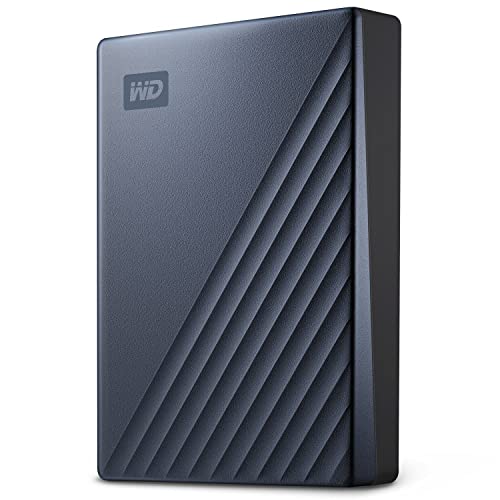
My Passport Ultra is WD’s dressed-up portable line, and this 5TB blue model, WDBFTM0050BBL-WESN, is the only pick in this guide whose listing leads with software: backup tools with defence against ransomware, and password protection, delivered over a native USB-C connection with USB 3.1. That combination defines its buyer precisely — someone who wants the drive to participate in the backup system rather than merely receive it, and who carries data that deserves a password between it and the world.
Five terabytes at this tier serves the video-keeping household and the photographer whose working library travels. The native USB-C port keeps the cable situation modern in both directions: one C-to-C cable for the laptop, and the drive presents itself equally to Windows machines and Macs, with the usual formatting conversation deciding which household it settles into permanently. The enclosure’s finished, coloured design also matters more than spec sheets admit; a drive that looks like an object rather than a component is a drive that stays on the desk, plugged in, doing its scheduled job.
The password protection deserves its sentence of respect. Portable drives are lost in taxis and left in conference rooms at a rate no other storage category matches, and hardware-level locking turns that loss from a data breach into an insurance claim. Readers whose portable holds client files, financial records or anything regulated should treat this listing’s stated protection as the deciding feature and the capacity as a generous bonus.
- Size: 5TB
- Connection: USB-C and USB 3.1, native port
- Software in listing: backup tools with ransomware defence
- Security in listing: password protection
- Model code in listing: WDBFTM0050BBL-WESN
- Finish in listing: blue
Strengths
- The guide’s fullest feature set: backup software, ransomware defence, password locking.
- Native USB-C keeps one-cable life simple in both directions.
- Five terabytes covers photo and video libraries that outgrow mainstream portables.
Trade-offs
- Its software story is richest inside WD’s own ecosystem habits.
- Buyers wanting a bare drive pay for features they will not open.
- Desk-pretty finishes show bag wear more than the LaCie’s armour does.
The ransomware defence in the listing deserves a plain-English translation. Modern backup software of this kind guards the backup set itself — watching for the mass-encryption behaviour that defines an attack and protecting the recovery copies from being rewritten by it — because a backup that malware can silently corrupt is a decoration. No feature makes a household immune, and the Ultra does not claim to; what it offers is a backup with a watchdog, which is the correct ambition for a portable drive that holds the only other copy of a family’s records.
Verdict: choose the Ultra when the portable must guard as well as carry — client work, family finances, a photographer’s only field copy — and let its software earn the small premium in peace of mind.

LaCie Rugged USB-C 5TB — The armoured traveller
The orange bumper is the most recognisable silhouette in portable storage, and this Rugged USB-C, model STFR5000800, wraps it around 5TB with the listing’s quartet of resistances stated plainly: drop, shock, dust and rain. LaCie builds this line for the drives that live in camera bags, site kits and glove boxes, where storage’s enemies are physical long before they are digital. The USB-C connection is native, the compatibility spans Mac and PC, and the capacity matches the WD above, which makes the choice between them a clean question of hazards: software threats or gravity.
Field workflows explain the design’s endurance in the market. A photographer dumping cards at a wedding, a researcher syncing data in a dusty field station, a builder carrying drawings and site photos between offices — each needs the copy to survive the journey more than they need it to win a benchmark. The Rugged’s bumper absorbs the knocks that would retire a bare enclosure, and its sealed manners shrug at the weather that sends other drives into plastic bags.
It is worth saying what the armour does not do. Resistance ratings describe survival of the drive, not invincibility of the data, and a Rugged that survives a drop still deserves a second copy of anything precious, kept somewhere the same bag is not. Within that doctrine, this remains the portable to buy when the environment is the specification — the drive whose listing reads like an insurance policy because, functionally, it is one.
- Size: 5TB
- Connection: USB-C native
- Resistance stated in listing: drop, shock, dust, rain
- Platforms in listing: Mac and PC
- Model code in listing: STFR5000800
Strengths
- Physical protection no other pick here attempts to match.
- Five terabytes means the armour guards a whole working library.
- Native USB-C suits current field laptops without adapters.
Trade-offs
- Bulkier than the slim drives, by design and by necessity.
- No backup software or password features are headlined in its listing.
- Desk-bound buyers pay for weather they will never meet.
Working photographers have a specific ritual this drive was designed around: the mid-shoot card dump, where the day’s only copy moves from memory cards to a drive in the field, and the drive then rides home in the same bag as the cameras. Every element of the Rugged’s listing serves that ritual — the bumper for the bag, the sealing for the weather that weddings ignore, the native USB-C for the laptop waiting at the venue. Drives that serve rituals become habits, and habits, in backup, are the whole game; that is why this design has outlived several generations of the technology inside it.
Verdict: the pick for bags, sites and weather — if your drive’s risks arrive by hand and by sky rather than by software, the Rugged is the answer and the orange is a bonus.
Seagate Expansion Portable 2TB — The mainstream two
The 2TB Expansion, STNN2000400, is the 4TB pick’s formula at the capacity most households actually need: the same MicroB-to-USB-C cable arrangement, the same Windows and macOS positioning, the same stated year of warranty and Rescue cover, in the same lightweight travel-ready envelope. Two terabytes holds a typical laptop’s documents, photographs and system image with headroom for version history, which is why this size has been the portable market’s centre of gravity for years.
Its best use is as a routine made physical. Plugged in weekly, it keeps a Time Machine or Windows backup history quietly growing; carried to a relative’s house monthly, it becomes the off-site copy that turns a house fire from a data extinction into a bad week. The drive asks nothing exotic of its owner — no software to learn, no account, no adapter — and in backup economics, that absence of friction is worth terabytes, because the routine that happens beats the routine that was planned.
Buyers choosing between this and its 4TB sibling should count their photo library’s growth honestly. If video has entered the family archive, the larger drive postpones the next purchase by years; if the archive is documents and photographs, this 2TB model is the correctly sized tool and the savings belong in the second-copy fund instead.
- Size: 2TB
- Connection in box: MicroB to USB-C cable
- Platforms in listing: Windows and macOS
- Cover stated in listing: 1-year warranty plus 1-year Rescue
- Model code in listing: STNN2000400
Strengths
- The mainstream capacity with the modern cable already in the box.
- Rescue cover at this tier is a genuine differentiator.
- Light enough to make the off-site rotation habit effortless.
Trade-offs
- Video-heavy households will meet its ceiling sooner than they expect.
- MicroB at the drive end means keeping track of its specific cable.
- No locking or backup suite is promised in the listing.
There is also a gift economy around this size worth acknowledging. A 2TB portable is the drive relatives receive when a family’s unofficial IT person sets up their backup, and its simplicity is the gift’s real content: plug in, let the operating system do the rest, phone support measured in one sentence. The Rescue cover stated in the listing quietly strengthens that arrangement, because the giver knows a recovery service stands behind the hardware if the worst arrives anyway. Many backup systems begin exactly this way, one modest drive at a time.
Verdict: the default USB-C portable for an ordinary household archive; step up to the 4TB only when the video maths honestly demands it.

Tianken Ultra Slim 1TB — The slim spare
Tianken’s entry is the minimalist of the six: a 1TB ultra-slim 2.5-inch drive with USB 3.1 Type-C connection, listed for PC, Mac and laptop without ornament. Its proposition is disappearance. The drive lives in the laptop sleeve’s spare pocket, adds a terabyte of breathing room to a machine whose internal storage was underspecced at purchase, and asks for no software relationship in return. For students and travellers whose cargo is coursework, photographs and a media folder, that is the complete product brief.
One terabyte defines its honest roles. It is a satellite drive — overflow for one laptop, a hand-carry copy between home and office machines, a presentation and project shuttle — rather than an archive, and it is happiest when the data on it also lives somewhere else. Used that way, its slimness becomes a working feature: the copy that travels is the copy that exists when the desk machine fails, and a drive this easy to carry actually gets carried.
Buyers should keep expectations calibrated to the tier. The listing promises connection and capacity, not recovery services or security suites, so the drive’s protection plan is the owner’s routine: regular copies, gentle handling, and no illusion that a single slim drive constitutes a backup system. Within those terms it is a tidy, modern-connector answer to the oldest portable question — where do I put this file right now?
- Size: 1TB
- Form in listing: ultra slim 2.5-inch HDD
- Connection in listing: USB 3.1 Type-C
- Platforms in listing: PC, Mac, laptop
Strengths
- Slimmest silhouette in this guide; lives in a sleeve pocket.
- Type-C connection without adapter hunting.
- Simple satellite storage with no software overhead.
Trade-offs
- One terabyte is a satellite’s capacity, not an archive’s.
- No recovery cover or security features are stated in the listing.
- Less established service ecosystem than the big makers’ picks.
Students, specifically, should recognise their use case here. A semester’s coursework, a thesis folder with its research scans, photographs from the phone that keeps filling up — the Tianken holds the overflow of a degree without asking a student budget to fund an archive-grade system. The discipline it does ask for is the one that matters at that life stage: the thesis also lives in cloud storage or on the university machine, because a single slim drive in a backpack is a convenience, not a vault, and examiners are unmoved by storage tragedies.
Verdict: the sleeve-pocket spare for one laptop’s overflow and shuttle duty; households building a real backup should start with the Seagate pair above.

HWAYO Portable 1TB — The console-friendly one
HWAYO’s slim 1TB drive distinguishes itself in its listing by naming its audience broadly: PC, desktop, laptop, Mac — and Xbox One and PS4. That console nod matters to a real constituency, because game libraries overflow internal console storage relentlessly, and a bus-powered terabyte that moves between a laptop and a console is a genuinely useful household object. Its USB 3.1 Type-C connection keeps it current with modern laptops while the console compatibility keeps it employed after the laptop upgrades.
As with the Tianken, the honest framing is satellite duty: game installs, media folders, project shuttles, a second copy of the photograph folder. The ultra-slim 2.5-inch format travels without ceremony, and the absence of bundled software promises in the listing means the drive behaves as pure storage for whatever device formats it — a point console owners should note, since a drive dedicated to a console will be formatted by that console and should be treated as that console’s territory thereafter.
Between the two slim 1TB picks, the choice is about the second job. The Tianken reads as the laptop’s companion; the HWAYO, by its listing’s own emphasis, is the one that also speaks console. Households with a games machine under the television will get more total use from this one, and total use, for a satellite drive, is the metric that counts.
- Size: 1TB
- Form in listing: ultra slim 2.5-inch HDD
- Connection in listing: USB 3.1 Type-C
- Compatibility in listing: PC, desktop, laptop, Mac, Xbox One, PS4
Strengths
- Console compatibility named outright, rare at this tier.
- Type-C connection suits current laptops and docks.
- Slim format moves between desk, bag and TV stand easily.
Trade-offs
- Console duty means console formatting; it stops being a shared drive.
- No recovery or security features are stated in the listing.
- One terabyte fills quickly as a games library grows.
Parents of console owners will understand this drive’s second career path. A terabyte that begins as a laptop’s overflow tends to migrate, within a year, to the games machine whose internal storage filled with updates — and the HWAYO’s listing, unusually, blesses that migration in advance. Planning for it is simple: keep the household’s irreplaceable copies on one of the larger picks, and let this slim drive be the flexible terabyte that goes where the space emergency currently lives. Flexible storage, honestly labelled, is a category of its own, and this is its representative here.
Verdict: the slim pick for households where a console shares the storage budget; laptop-only buyers are equally served by the Tianken’s sleeve-first design.
The Six USB-C Drives, Compared Honestly
| Drive | Capacity | USB-C route | Signature extra | Fits best |
|---|---|---|---|---|
| Seagate Expansion 4TB | 4TB | Cable in box | Rescue cover stated | Household archives |
| WD My Passport Ultra 5TB | 5TB | Native port | Backup software, password | Guided, secured backup |
| LaCie Rugged USB-C 5TB | 5TB | Native port | Drop, dust, rain resistance | Field and travel work |
| Seagate Expansion 2TB | 2TB | Cable in box | Rescue cover stated | Mainstream weekly backup |
| Tianken Ultra Slim 1TB | 1TB | Type-C | Slimmest build | Laptop sleeve satellite |
| HWAYO Portable 1TB | 1TB | Type-C | Console compatibility | Shared laptop-console duty |
How Do You Set Up a USB-C Drive for Backup on Mac and Windows?
The setup conversation is really a formatting conversation. A drive destined for a Mac’s Time Machine should be formatted for Apple’s ecosystem by the backup tool itself when first offered; a drive destined for Windows backup takes its cue from that system just as simply. A drive that must shuttle files between both worlds needs the cross-platform format both can read and write, accepting that dedicated backup duty then moves to a second drive. Decide the drive’s primary job before the first copy, because reformatting later means erasing the history you built.
Encryption belongs in the same first-evening setup, not on a someday list. If the drive will ever leave the house with anything private aboard, enable the locking or the operating system’s encryption while the drive is still empty and the step costs minutes; encrypting a nearly full drive later is a slow, anxious afternoon. Write the password into your password manager at the same moment, because the only person a forgotten drive password reliably defeats is the drive’s owner.
Then automate ruthlessly. Both major operating systems will back up on schedule whenever the drive is attached, so the whole system reduces to a habit of attachment: the drive lives where the laptop charges, the cable stays with the drive, and the backup happens while dinner is made. Test the arrangement once, deliberately — restore one ordinary file from the oldest backup set — because a backup you have never restored from is a hypothesis, and the time to test hypotheses is a calm afternoon.
Finally, give the drive a name and a home. A labelled drive in a known drawer gets used; an anonymous drive in a cable tangle gets postponed. The six picks here all reward that small organisation equally, which is another way of saying the best USB-C drive is the one whose routine survives your busiest month.
What Mistakes Do USB-C Drive Buyers Keep Making?
The first is expecting SSD speed from a spinning drive because the connector looks futuristic; the plug modernised, the physics did not, and disappointment follows the confusion. The second is buying a drive whose cable ends in the older USB-A plug and discovering the dongle drawer at the worst moment — the failure this guide’s gate exists to prevent. The third is treating any single portable, however capacious, as a backup system complete in itself, when it is only ever one copy in one place.
There is a purchasing-order mistake too, and it is the mirror of the capacity advice: buying the portable before deciding the backup system it belongs to. A drive bought alone becomes a drawer of good intentions; a drive bought as the named component of a routine — this machine, this schedule, this drawer, this second copy planned for spring — gets used from its first evening. The six listings above cannot tell you your routine, but the correct order of decisions can: system first, drive second, and the drive’s size, features and armour chosen to fit the role the system assigns it.
A fourth mistake is subtler: formatting a drive for one ecosystem while planning to share it with the other, then meeting the read-only wall mid-project. And a fifth is leaving the included cable behind — especially with the MicroB-ended Seagates, whose drive-end cable is specific — and finding that the universal drawer of USB-C cables cannot help at the drive end. Keep the cable with the drive, always, ideally in the same pouch.
How Much Capacity Does a Portable Drive Really Need?
Size the drive from the backup’s mathematics, not from the laptop’s sticker. A backup drive should hold the machine’s full contents plus version history — the older copies of changed files that make backup different from mere copying — and history is hungry in proportion to how actively you work. The working rule that survives contact with reality is to buy at least twice the data you protect today. A household protecting 700GB of photographs and documents lands on the 2TB Seagate and stays comfortable for years; the same household protecting a video-editing laptop lands on a 5TB pick and should not apologise for it.
Growth is the second variable, and it is not linear in the way buyers expect. Phone cameras are the usual accelerant: a family that shot a modest folder of photographs a year now produces that folder monthly in video, and the archive’s doubling time shortens without anyone deciding it should. Portable drives are cheap insurance against that curve precisely because their capacities here reach 5TB in a pocket format; the expensive mistake is the undersized drive replaced twice, not the generous drive replaced once.
The third variable is role discipline. A drive bought as a backup that also becomes the media shelf, the game library and the project shuttle will fill from four directions and fail its first job quietly. Capacity planning works when each drive has one job and the household buys the next drive when a genuinely new job appears — which, given the prices of spinning storage, is a far cheaper doctrine than it sounds.
What About Cables, Hubs and the Dongle Drawer?
The honest cable doctrine for this category has three rules. First, the cable that ships with the drive lives with the drive, in the same pouch or drawer slot, because the MicroB-ended Seagate cables and the C-to-C cables of the native-port drives are not interchangeable at the drive end. Second, one spare C-to-C cable in the laptop bag rescues the native-port drives anywhere; it cannot rescue a MicroB drive, whose spare is its own cable bought in advance. Third, hubs are furniture, not solutions: a bus-powered portable plugged through an unpowered hub shares that hub’s power budget with everything else on it, and backup drives deserve a direct port or a powered hub, full stop.
Dongles deserve their paragraph of honesty. An adapter that converts a USB-A drive cable to USB-C will often work, and readers with older drives need not panic. But adapters add a failure point, occasionally negotiate speeds poorly, and always get lost at the exact moment a backup becomes urgent. The premise of this guide — buy the drive whose box already contains the right plug — is really a premise about removing small frictions before they compound into a routine that quietly stops happening.
How Should You Think About Security on a Portable Drive?
Portable drives are the storage category most likely to be lost, and the security conversation should start from that statistic rather than from encryption mathematics. The My Passport Ultra’s stated password protection addresses the common case directly: the drive locks, a stranger who finds it meets a password prompt instead of your filing cabinet, and the loss becomes an annoyance with a receipt. Drives without stated locking, which is the rest of this list, rely on the operating system’s own encryption tools — entirely respectable, provided the owner actually enables them, which is a setup step and not a default everywhere.
The deeper point is proportionality. A drive carrying family photographs deserves a lock if it travels; a drive carrying client records, financial data or anything governed by professional obligations deserves a lock and a policy. Match the feature to the cargo, set the password somewhere recoverable by you and only you — a forgotten drive password protects your data from everyone including its owner — and the security section of portable ownership is complete. The rest is routine: copies in two places, and a drive whose loss would be a story, not a crisis.
How Should a Portable Drive Be Carried and Handled Day to Day?
A spinning drive is a precision instrument that tolerates travel well precisely when its owner observes two courtesies: never move it while it is working, and let it spin down before it goes in the bag. The first rule matters because a drive mid-write, heads flying nanometres above the platter, is at its most vulnerable to a knock; the second takes five seconds and is the difference between a parked head and a travelling one. Eject properly from the operating system rather than pulling the cable, every time, because the eject is what tells the drive to finish its business and put itself away safely.
Pouches are not accessories in this category; they are the second enclosure. A padded sleeve keeps the drive from sharing a pocket with keys and adapters, keeps its cable coiled beside it, and turns the bag’s chaos into a managed environment. The LaCie in this guide wears its protection permanently, which is its design philosophy; the slimmer drives ask the owner to supply the equivalent in cloth. Either way, the principle is identical — the drive should never be the hardest object in a soft space, nor the softest object in a hard one.
Temperature and rest complete the handling picture. A drive left on a sunny dashboard or in a freezing car boot ages faster than its specification assumes, and a drive used as a permanent desk fixture should still be allowed its scheduled spin-downs rather than running hot for months. None of this is preciousness; it is the accumulated folklore of everyone who has ever recovered data for a living, compressed into habits that cost nothing.
What Are the Warning Signs When a Portable Drive Starts to Fail?
Spinning drives usually announce their decline before they enact it, and owners who know the announcements get to act while copying is still easy. New clicking or grinding sounds are the famous symptom — a drive should hum and softly chatter, never knock rhythmically. Repeated disconnects and reappearances on the same cable and port suggest the drive’s electronics or mechanics are struggling. Files that take strangely long to open, copies that stall at the same percentage, and an operating system that begins suggesting repairs are the software-side equivalents of the same letter.
The response protocol matters as much as the diagnosis. Stop using the drive for anything new. Copy the most irreplaceable material first, in small batches, because a failing drive’s remaining life is best spent on the files that cannot be remade; large heroic copies of everything at once are how marginal drives die mid-rescue. If the data justifies it and the drive holds the only copy, that is the moment the recovery services mentioned in several listings here stop being a bullet point and become the plan — professional recovery works on drives that owners have not exhausted with days of retries.
Prevention closes the loop, and it is the same sermon as every other section: two copies, in two places, refreshed on a schedule. A portable drive’s failure is an inconvenience inside that system and an emergency outside it. The six drives in this guide span the prices and protections they do so that building the system is easy; the system itself remains, as ever, the owner’s contribution.
Which of the Six Fits Your Life? Three Quick Portraits
The commuting professional carries the office in a laptop and the archive in a question mark. For them the My Passport Ultra is the grown-up answer: the backup runs itself on schedule, the password stands guard in the taxi-rank scenario, and the native USB-C port means the cable in the bag is the cable for everything. Its five terabytes are not the point; the point is a system that survives a busy quarter without once asking to be thought about, and produces the archive intact on the day the laptop does not come home.
The family archivist, keeper of two decades of photographs and the children’s entire filmed childhood, should look at the Seagate pair and choose by video volume. Their drive’s job is rhythm rather than adventure: out of the drawer on the same evening each week, history appended, back into the drawer, with a second drive — possibly the same model, bought once the habit sticks — beginning the rotation to a relative’s house. In that household the Expansion’s simplicity is not a missing feature; it is the feature that keeps the rhythm unbroken for years.
The field worker — photographer, surveyor, site engineer, researcher — already knows their answer wears orange. Their portable lives where weather and gravity participate, and the LaCie Rugged’s stated resistances map one-to-one onto their incident reports. What the portrait adds is the pairing advice: the Rugged as the field copy, one of the desk drives above as the home copy it syncs to at night, because armour protects a drive, and only duplication protects data.
Where Does a USB-C Portable Sit in a Whole Storage System?
It helps to place the portable in the household’s full map, because most disappointment with these drives is really disappointment with a missing map. The laptop’s internal storage is the working set — fast, small, and the worst place for the only copy of anything. The portable USB-C drive is the first ring out: the scheduled copy, the overflow shelf, the thing that travels. Beyond it sits the second ring, which might be a NAS in a cupboard, a desktop drive on a shelf, or the same model of portable living at another address, and beyond that, for the truly irreplaceable, a cloud tier that survives the building itself.
Seen on that map, the buying questions answer themselves. The portable should be sized to the working set plus history, not to the whole archive’s ambitions. Its connector should match the machine it serves daily, which is the entire reason this guide exists. Its protection features should match its travel pattern: locked if it roams with sensitive cargo, armoured if it roams with physical risk, plain if it roams only between a desk and a drawer. And it should be bought in the knowledge that its most important specification is the owner’s routine, which no listing can supply.
The map also explains why this category endures in an age of fast internal SSDs and ubiquitous cloud folders. The portable drive is the only layer that is simultaneously large, cheap per terabyte, offline by default and physically holdable — the copy you can put in a drawer, hand to a relative, or carry through an airport in a way no subscription can imitate. USB-C simply removed the last friction from that old, sound idea: the wrong plug. With the right plug restored, the category’s remaining work is the owner’s, and it is mostly a matter of rhythm.
Final Recommendation
Most readers should take a Seagate Expansion: the 2TB for an ordinary household archive, the 4TB once video joins it, both with the right cable in the box and Rescue cover stated. Choose the My Passport Ultra when backup software and password protection should ride along, and the LaCie Rugged when the drive’s enemies are drops and weather rather than forgetfulness. The Tianken and HWAYO slim drives serve one-laptop and console households as satellites. Whichever you pick, the connector question is settled the moment the box opens — and a backup routine that starts tonight, on a drive that plugs straight into the laptop you own, will still be quietly compounding in value on the evening, years from now, when a stranger’s cautionary tale about a dead laptop and no copies almost becomes yours.
Frequently Asked Questions
Will a USB-C hard drive work with a Thunderbolt port?
Yes. Thunderbolt ports on modern laptops use the same USB-C connector and accept USB drives directly; the drive simply runs at its own USB speed, which, as this guide notes, is set by the spinning platter rather than the port. No adapter or special cable beyond the drive’s own is needed.
Is a drive with a MicroB socket and a USB-C cable really a USB-C drive?
At the end that meets your computer, yes — the plug that enters the laptop is USB-C, using only what ships in the box. The distinction worth knowing is cable management: the drive-end connector is specific, so the included cable should live with the drive. Native-port drives like the WD and LaCie here accept any USB-C cable at both ends.
Why is there no SanDisk drive in this guide?
Because the SanDisk portable that surfaces in this category’s searches, advertising speeds around 600MB/s, is a solid-state drive. SSDs are excellent and genuinely faster, but they are a different product category with different pricing, and a hard-drive shortlist should contain hard drives. Readers who want that speed should shop the SSD shelf knowingly.
Can one of these drives serve both my Mac and my Windows PC?
For file shuttling, yes, with a cross-platform format both systems can write. For backup duty, dedicate the drive to one ecosystem: Time Machine and Windows backup each expect their own arrangement, and a drive asked to be both usually ends up trusted by neither routine. Two modest drives beat one conflicted one.
Should I buy one large drive or two smaller ones?
Two, whenever the data matters, because the second drive is not spare capacity — it is the second location that turns storage into backup. A common pattern with this guide’s picks is one Expansion at home on the weekly rhythm and a second drive, even a slim 1TB for the essential subset, living at an office or a relative’s house. One large drive is the right answer only for a single job like a media library, where loss would be annoying rather than devastating.
How fast will backups actually feel?
The first full backup of a large library is an overnight event on any spinning portable; incremental backups afterwards are minutes. That rhythm is why automation matters more than throughput in this category — the drive’s speed is spent while you are doing something else, provided the schedule, not your memory, is in charge.
Do these drives need a power adapter?
No. Every pick in this guide is bus-powered, drawing what it needs from the USB connection itself, which is what keeps them bag-friendly. The practical corollary is to plug them into a laptop port or a powered hub rather than an unpowered hub shared with other hungry devices, so the drive never goes thirsty mid-backup.
How long should a portable hard drive last?
Treat three to five years of regular service as the planning horizon, and let the drive’s own behaviour revise it: the warning signs in the section above — new noises, stalls, disconnections — matter more than birthdays. Owners inside a two-copy routine can let a drive serve until it complains; owners relying on a single drive should replace on the calendar, not on the symptom.
Related Guides
Portable drives answer the carry question, and three neighbouring guides answer the ones that follow it: see how spinning storage serves a home lab in best hard drives for virtual machines, take the carry question on the road with best hard drives for travel, and settle the Apple side of the desk with best mac compatible hard drives.