What's inside
- Where to Buy
- Key Takeaways
- Quick Picks
- How We Chose These Picks
- Comparison Table: The Six as Unity Development Machines
- How to Choose Among These Six for Unity Development
- Why Does the Iteration Loop Matter More Than Any Benchmark?
- How Large Does a Unity Project’s Footprint Really Get?
- What Else Shares the Machine During a Development Day?
- How Should a Developer Organise Projects and Builds Across a Laptop’s Storage?
- Common Mistakes When Buying a Laptop for Unity Development
- Final Recommendation
- Frequently Asked Questions
- Related Guides
As an Amazon Associate I earn from qualifying purchases. This post may contain affiliate links at no extra cost to you.
[SITE_DOMAIN] is reader-supported. When you buy through links on our site, we may earn an affiliate commission.
Where to Buy
The six listings below each carry the configuration this guide recommends, stated in the listing title itself — and Unity developers, of all buyers, should appreciate why the title check matters, because these model families are sold with graphics cards and memory figures far below the ones discussed here. The ASUS ROG Zephyrus G14 makes its listing the place to check graphics and memory pairing. Lenovo’s Legion Pro 5 with the RTX 5070 Ti asks for a direct check where it is sold. The ASUS ROG Strix SCAR 16 opens its seller page to validate the 32GB build. Razer’s Blade 16 lists its figure on its own page, as does Apple’s MacBook Pro 14 with M4 Pro on its listing. Dell’s XPS 16 in the 32GB build points buyers to Amazon to double-check that specification.
Anyone searching for the best laptops for unity 3d development is really shopping for iteration speed, because game development in Unity is a loop: change something, enter Play Mode, watch what happens, exit, change it again. That loop runs dozens or hundreds of times a day, and everything about a development laptop either tightens it or taxes it. The editor itself must hold the project — scenes, assets, the Library folder Unity builds from them — while a code editor, a browser full of documentation, a chat window with the team and often a second application for art or audio all share the machine. Scripts recompile between iterations. Builds compile for far longer when a platform target is due. The scene view redraws constantly, leaning on the graphics hardware, while lightmapping and other baking work arrives in heavier bursts. A Unity laptop is therefore not a gaming laptop with a different sticker, though the two share DNA: it is a workstation whose most important benchmark is the length of the developer’s own loop.
The six machines below were chosen against that loop, and they spread across its possible shapes. Four are Windows machines carrying RTX 5070 Ti or 5090-class graphics, from a compact 14-inch ASUS to a storage-maximal Lenovo whose title counts a docking station in its headline figure — a detail this guide reads carefully rather than repeats carelessly. One is Apple’s MacBook Pro 14, the natural seat for developers whose targets include Apple’s platforms and whose team life runs on macOS. And one is Dell’s XPS 16, the desk-centred machine with three stated Thunderbolt 4 ports for the developer whose laptop anchors a multi-screen, multi-device setup. Every claim in the reviews rests on the listing titles — processor, graphics, memory, storage, screen — and nothing is invented beyond them: no frame-rate promises, no compile-time figures, no claims about any specific project’s performance.
Testing deserves its place in the selection logic too, because a Unity laptop is also the first testing device every project meets. Before builds reach dedicated hardware, they are played — in the editor’s game view and in standalone builds run on the development machine itself — and the developer’s sense of the game’s performance is calibrated there. A machine with genuine graphics headroom gives an honest first reading for the broad middle of target hardware, while the discipline of testing on lesser devices remains the team’s responsibility regardless. The picks here were chosen so that the first reading is a useful one: strong enough to judge the game, ordinary enough not to flatter it beyond what players’ machines will confirm.
Key Takeaways
- The ASUS ROG Zephyrus G14 is the portable developer’s pick: RTX 5080 graphics, 32GB of memory and a 2TB drive in a 14-inch body.
- The Lenovo Legion Pro 5’s title claims 5TB of storage — 4TB of SSD plus a 1TB docking station — alongside an RTX 5070 Ti and 32GB of DDR5, the roomiest project home here if the arrangement suits you.
- The ASUS Strix SCAR 16 is the throughput machine: RTX 5090 graphics and an Ultra 9 275HX for heavy scenes and long build sessions.
- The Razer Blade 16 pairs an RTX 5070 Ti with a QHD+ 240Hz OLED display and Thunderbolt 5 in the thinnest performance body here.
- The MacBook Pro 14 with M4 Pro serves macOS-centred teams, and the Dell XPS 16 serves the wired desk, with three Thunderbolt 4 ports stated in its title.
Quick Picks
| Pick | Badge | Why it is here |
|---|---|---|
| ASUS ROG Zephyrus G14 | The Portable Developer’s Pick | RTX 5080 graphics and 2TB of storage inside a 14-inch laptop. |
| Lenovo Legion Pro 5 Ultra 9 | The Project Archive | An RTX 5070 Ti, 32GB of memory and a headline 5TB storage arrangement. |
| ASUS ROG Strix SCAR 16 | The Heavy Scene Machine | RTX 5090 graphics and a flagship HX processor for demanding projects. |
| Razer Blade 16 RTX 5070 Ti | The Thin Performer | A QHD+ 240Hz OLED screen and Thunderbolt 5 in a slim 16-inch body. |
| Apple MacBook Pro 14 M4 Pro | The macOS Team Seat | A 12-core CPU and 24GB of unified memory for Apple-platform development. |
| Dell XPS 16 RTX 5060 | The Wired Desk Hub | Three Thunderbolt 4 ports and a 16.3-inch 4K OLED touchscreen. |
How We Chose These Picks
The iteration loop was written out first, in its real proportions. A Unity developer’s hour contains the editor holding a project open, a code editor beside it, documentation and team chat in a browser, and the loop itself: edit, recompile, play, observe, repeat. Around that hour sit the heavier events — importing a large asset package, baking lighting, building for a target platform, checking out a colleague’s branch and letting the Library rebuild. The hardware questions fall out naturally. Memory must hold the editor and everything sharing the machine without forcing closures mid-thought. Storage must hold the project, its Library and several builds, and it must be fast, because the loop’s small delays are mostly the machine reading and writing its own project. The processor carries recompiles and builds. The graphics card carries the scene view and the game view at the resolutions the developer actually inspects.
Those questions set this list’s floors. No machine here carries less than 24GB of memory, and most carry 32GB, because the editor-plus-everything workload is the normal state of development rather than an edge case. Storage starts at a terabyte and mostly sits at two, because Unity projects are deceptive — the source assets are only the beginning, and the generated Library, the build outputs and the archived versions multiply the footprint several times over a project’s life. Graphics were chosen at the tier where the editor’s views stay fluid on demanding scenes: RTX 5060 at the floor, 5070 Ti and 5080 in the middle, 5090 at the top, plus Apple’s 16-core GPU in the MacBook, read on its own platform’s terms.
Honesty about titles shaped the details. One title here — the Lenovo’s — reaches its headline storage figure by including a docking station’s drive alongside the internal SSD, and this guide says so wherever the figure is used, because a developer planning a project archive deserves to know which terabytes travel with the laptop and which live on the desk. Graphics memory is not stated in any of these six titles, so no scene-capacity figure is hung on it anywhere in the reviews; developers with very large scenes should confirm that figure from the manufacturer’s page for the exact configuration. What the titles do state — processors, graphics models, memory, storage, screens, and in the Dell’s case three Thunderbolt 4 ports — is more than enough to match machines to workflows, which is the guide’s actual job.
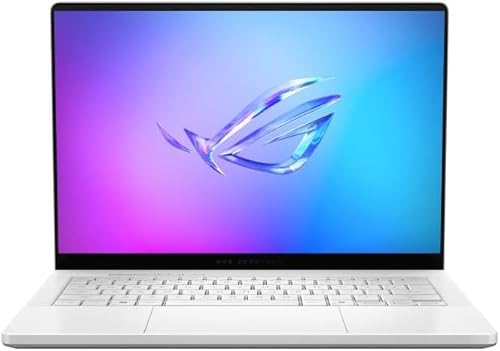
ASUS ROG Zephyrus G14 — The Portable Developer’s Pick
Game development happens in more places than game studios: in classrooms, in co-working spaces, at game jams, in the second bedroom that is a studio until it is a nursery again. The Zephyrus G14 is the pick for that distributed life. Its title describes an AMD Ryzen AI 9 HX 370, an NVIDIA RTX 5080, 32GB of RAM and a 2TB SSD in a 14-inch body with a 3K OLED panel at 120Hz, finished in Platinum White under the Copilot+ PC banner. Read as a development specification, it is remarkable for what it refuses to compromise: the graphics card is a tier above this guide’s middle, the memory is the full working tier, and the storage is the comfortable size — all inside the smallest chassis here, the one that goes into a backpack without a negotiation. A developer can hold a serious project, its Library and its recent builds internally, open it anywhere, and iterate at full speed.
The 3K OLED screen earns its place in the editor. Unity’s interface is a mosaic — scene view, game view, hierarchy, inspector, project window — and at 14 inches the mosaic is necessarily compact, but the resolution keeps text and gizmos crisp, and OLED contrast flatters the game view’s job of previewing how a scene reads. Developers who live in the editor all day will still dock to a larger monitor at their main desk; the point of this machine is that docking is an enhancement, not a rescue. The Ryzen processor is a current flagship-class AMD part, well matched to the recompile-and-relaunch rhythm of the loop. The RTX 5080’s role in development is the editor’s views and the play sessions at full quality — the developer inspects the game as players will see it, on the machine that built it, without a separate testing rig for ordinary checks.
- Processor: AMD Ryzen AI 9 HX 370
- Graphics card in the title: NVIDIA RTX 5080
- Memory and storage: 32GB RAM, 2TB SSD
- Display: 14-inch 3K OLED, 120Hz
- Finish in the title: Platinum White
- Graphics memory: Not stated in the listing title — verify with the manufacturer documentation
Strengths
- Full development specification — 32GB, 2TB, RTX 5080 — in the guide’s most portable body.
- The 2TB drive holds project, Library and builds together, ending the travelling archive problem.
- The 3K OLED panel keeps the editor’s dense interface crisp at a small size.
Trade-offs
- The editor’s mosaic is compact at 14 inches; all-day developers will dock at their main desk.
- Graphics memory is unstated in the title, so very large scenes need the manufacturer’s figure first.
- The gaming-derived styling is a matter of taste in formal studio settings.
Best for: an independent or travelling developer who needs a complete Unity workstation that fits in a backpack.
Not suited for: a developer who works undocked all day in the editor — the 14-inch screen, not the specification, is the limit, and the 16-inch picks exist for that life.
The G14’s deeper appeal is the end of the two-machine compromise that portable developers usually accept: a light laptop for the road that cannot really run the project, and a heavy one for the desk that never leaves it. This machine runs the project — fully, at speed, with its builds — and also fits the bag. Game jams alone justify it: forty-eight hours of development in a borrowed space, on a machine that was never the bottleneck, is a different and better experience from the same weekend spent nursing a lesser laptop. Developers whose studios are wherever they are should start their reading here.

Lenovo Legion Pro 5 Ultra 9 — The Project Archive
This Lenovo’s title requires careful reading, and rewards it. It describes a 16-inch WQXGA display at 240Hz, an Intel Ultra 9 275HX, a GeForce RTX 5070 Ti, 32GB of DDR5 memory and 5TB of storage — specified in the title itself as 4TB of SSD plus a 1TB docking station — with a 24-zone RGB backlit keyboard and Windows 11, in Eclipse Black. The storage arrangement is the headline and the caveat in one: four terabytes of internal SSD is the largest internal figure in this guide, enough for several projects with their Libraries, a shelf of archived builds and the asset collections a developer accumulates, while the fifth terabyte lives in a docking station on the desk, which suits archive material that does not travel. A developer who understands that split gets an extraordinary amount of room; a developer who skimmed the headline and expected 5TB in the bag gets a surprise, which is why this guide spells it out in the review, the table and the takeaways.
Everything around that storage figure is flagship-grade and development-appropriate. The Ultra 9 275HX is Intel’s high-wattage mobile flagship class, the processor for the loop’s heavy events — full rebuilds, platform builds, large imports — and the RTX 5070 Ti carries the editor’s views and play sessions at high quality on demanding scenes. Thirty-two gigabytes of DDR5 is the full working tier for the editor-plus-everything workload. The WQXGA panel at 16 inches gives the editor’s mosaic genuine room — scene and game views side by side with the inspector open — and its 240Hz refresh, while a gaming figure, makes editor navigation and play inspection feel immediate. The 24-zone RGB keyboard is a gaming inheritance with a small real use in dim development spaces. For the developer whose constraint has been project sprawl — many projects, many versions, all of them live — this is the machine that retires the constraint.
- Processor: Intel Ultra 9 275HX
- Graphics card in the title: GeForce RTX 5070 Ti
- Memory: 32GB DDR5
- Storage as stated in the title: 5TB total — 4TB SSD plus 1TB docking station
- Display: 16-inch WQXGA, 240Hz
- Keyboard and finish in the title: 24-zone RGB backlit keyboard, Eclipse Black
Strengths
- 4TB of internal SSD is the largest travelling project storage in this guide.
- The Ultra 9 HX processor and RTX 5070 Ti cover builds and editor views at flagship level.
- The WQXGA 16-inch panel gives the Unity interface room to arrange itself properly.
Trade-offs
- The headline 5TB includes a desk-bound docking station drive — only 4TB travels with the laptop.
- Graphics memory is not stated in the title, as with every pick here.
- The gaming chassis is substantial; daily carriers should weigh the G14’s smaller body.
Best for: a developer juggling several live projects and their build archives, who wants them all resident and indexed on one machine.
Not suited for: a developer who needs the full archive in the bag — the fifth terabyte is a desk fixture, and the honest travelling figure is the still-generous 4TB.
There is a kind of developer this machine understands intimately: the one with a portfolio. Client projects at different stages, a personal game in year two, last year’s jam entries kept buildable, the asset libraries shared across all of them. That developer’s old laptop life is a rotation of external drives and hard choices about what stays resident. Four internal terabytes end the rotation. Combined with flagship processing and graphics, the Legion Pro 5 in this configuration is less a laptop than a small studio that happens to close — and for the portfolio developer, that is exactly the purchase that changes the working week.

ASUS ROG Strix SCAR 16 — The Heavy Scene Machine
Some Unity projects stop being modest: open worlds with dense environments, high-fidelity lighting, scenes that take their time to load and longer to build. The SCAR 16 is the guide’s answer to that scale. Its title describes a 16-inch ROG Nebula HDR display at 2.5K with 240Hz refresh and 3ms response, an NVIDIA GeForce RTX 5090, an Intel Core Ultra 9 275HX, 32GB of DDR5 memory and a 2TB PCIe Gen 4 SSD, with Wi-Fi 7 and Windows 11 Pro. The RTX 5090 is the flagship consumer graphics card of its generation, and in development its work is the heavy end of the loop: scene views over dense geometry at full quality, game-view inspection that matches the target experience, and the GPU-side baking and preview work that demanding projects generate. The Ultra 9 275HX matches it on the processor side, for the rebuilds and platform builds that punctuate a heavy project’s week.
Thirty-two gigabytes of memory and the 2TB Gen 4 drive hold the project’s side of the bargain: the editor with a large project resident, the Library accommodated, builds archived without a weekly eviction. The Nebula HDR panel at 2.5K gives the editor a sharp, colour-capable canvas at 16 inches — the size at which Unity’s mosaic stops feeling like a compromise — and its HDR capability serves the developer inspecting lighting as players will see it. The refresh and response figures are recorded as printed; in the editor they translate to fluid navigation rather than to any development metric this guide would invent. Windows 11 Pro suits the professional context. Read whole, the SCAR is the machine for the developer whose current laptop has become the project’s ceiling — the one whose scenes, builds and ambitions all queue behind the hardware — and who wants the ceiling lifted in a single purchase.
- Processor: Intel Core Ultra 9 275HX
- Graphics card in the title: NVIDIA GeForce RTX 5090
- Memory and storage: 32GB DDR5, 2TB PCIe Gen 4 SSD
- Display: 16-inch ROG Nebula HDR, 2.5K, 240Hz/3ms
- Connections in the title: Wi-Fi 7
- System in the title: Windows 11 Pro
Strengths
- RTX 5090 graphics carry the heaviest scene views and full-quality play inspection.
- The flagship HX processor shortens the loop’s heavy events — rebuilds, imports, platform builds.
- The 2.5K Nebula HDR panel inspects lighting and detail at the quality players will see.
Trade-offs
- 32GB of memory is the working tier; editor-plus-simulation workloads at extreme scale may still want more.
- Graphics memory is unstated in the title, so the largest scenes need the manufacturer’s figure.
- The SCAR’s gaming presence is bold for conservative client studios.
Best for: a developer whose projects have grown to heavy scenes and long builds, and whose laptop must stop being the ceiling.
Not suited for: a developer making modest 2D or lightweight 3D projects — the flagship specification would be spent on headroom the work never visits.
Heavy projects change a developer’s relationship with their tools. Iteration slows, and slow iteration quietly changes the work itself: fewer experiments, safer choices, lighting judged from stills instead of in motion. The SCAR’s proposition is to restore the loop’s speed at the scale where it was lost, so that the project’s ambition is set by the design rather than by the hardware’s patience. Developers who have felt their current machine editing their ideas before they could will recognise the value instantly — it is not speed for its own sake, but the return of a way of working.
Builds deserve a paragraph of their own in this machine’s case, because a flagship processor changes their emotional register. On a lesser laptop, a platform build is a coffee break — scheduled, resented, worked around. On an Ultra 9 HX machine with fast storage, builds become something closer to a breath: frequent enough that developers build early and often, catching platform problems while they are small instead of in the release week’s pile-up. Teams feel the difference as surely as solo developers do. A machine that makes building cheap makes the whole project healthier, and that health — invisible in any specification — is a large part of what the flagship tier actually buys.

Razer Blade 16 RTX 5070 Ti — The Thin Performer
Razer’s Blade line exists for the developer who wants performance hardware in a body that belongs in a design studio, and this 2026 Blade 16 configuration is its current statement. The title describes an RTX 5070 Ti, an Intel Ultra 9 386H, 32GB of DDR5 memory and a 1TB SSD, behind a 16-inch QHD+ OLED display at 240Hz with a 0.2ms response, with Wi-Fi 7 and Thunderbolt 5 under Windows 11, presented as a thin gaming laptop for gaming and creating. For Unity work, the combination reads as balance at a high level: the 5070 Ti carries the editor’s views and full-quality play sessions on demanding scenes, the Ultra 9 handles the compile-and-build side of the loop, and 32GB is the full working memory tier. The QHD+ OLED panel is arguably the finest editor screen in this guide — the resolution for the interface’s text and detail, the OLED contrast for judging the game view’s lighting honestly.
The terabyte of storage is this configuration’s one disciplined figure, and it should be read in context: a single main project with its Library and builds fits comfortably, while a portfolio of live projects belongs on the Lenovo’s 4TB arrangement or the 2TB picks. Thunderbolt 5, stated in the title, is the forward-looking connection — the fastest stated here — for the docks and external drives a thin laptop’s life accumulates, and it future-proofs the desk setup beyond the current generation of peripherals. The thin body is the Blade’s identity and its trade: it travels and presents like a creative professional’s machine, in meeting rooms and on client sites where a gaming tower’s laptop cousin would raise eyebrows. Developers whose work is one deep project, developed in style and inspected on a superb screen, are this machine’s intended owners.
- Processor: Intel Ultra 9 386H
- Graphics card in the title: RTX 5070 Ti
- Memory and storage: 32GB DDR5, 1TB SSD
- Display: 16-inch QHD+ OLED, 240Hz, 0.2ms
- Connections in the title: Thunderbolt 5, Wi-Fi 7
- System in the title: Windows 11
Strengths
- The QHD+ OLED panel is a superb editor and inspection screen in a genuinely thin body.
- RTX 5070 Ti graphics and an Ultra 9 processor balance the loop’s two halves at flagship level.
- Thunderbolt 5 gives the desk setup the fastest stated connection in this guide.
Trade-offs
- 1TB of storage suits one deep project; a live portfolio belongs on the 2TB and 4TB picks.
- Graphics memory is unstated in the title, as across this guide.
- The thin performance body is a premium form; budget-led buyers will find the tier cheaper elsewhere.
Best for: a developer running one substantial project who wants flagship balance, a superb screen and a body that presents professionally anywhere.
Not suited for: a developer keeping many projects and build archives live at once — the 1TB drive, not the performance, is the deciding limit.
The Blade’s argument is that development hardware no longer needs to announce itself. A generation of developers carried gaming laptops whose design shouted their origin; the Blade whispers, and in client-facing, studio-visiting, conference-presenting professional life the whisper has practical value. Underneath it, the specification is entirely serious — this is not a style machine with a development story attached, but a development machine whose style was considered. Developers who present their work as often as they build it will understand the allocation immediately.
The Blade also makes an interesting team argument. In a small studio, the machine that goes to the publisher meeting, the expo and the playtest is an ambassador for the game, and it spends those days doing development’s lightest work — running the build, showing the scenes — while looking like the studio takes itself seriously. Studios buy such machines deliberately, and solo developers attending the same events borrow the logic. It is not the reason to choose the Blade over the SCAR’s extra graphics tier, but for developers whose calendar is half presentations, it is a real term in the equation, and this guide declines to pretend otherwise.

Apple MacBook Pro 14 M4 Pro — The macOS Team Seat
Unity is a cross-platform engine, and a large share of its professional life happens in teams whose laptops are Macs — for the platform targets that require Apple’s ecosystem, for the team’s other tools, or simply because that is where the studio’s habits live. This MacBook Pro is the guide’s seat for that life. The title describes an M4 Pro with a 12-core CPU and a 16-core GPU, 24GB of unified memory and a 512GB SSD behind a 14.2-inch Liquid Retina XDR display, in Space Black. In editor terms, the twelve cores carry the loop’s processor side — the recompiles, the imports, the editor’s own continuous work — while the 24GB of unified memory holds the editor, the code tools and the browser together, and the 16-core GPU carries the scene and game views. It is a balanced development specification, sized for real projects rather than demonstrations.
The 512GB drive is the figure that asks planning of its owner, and Unity developers should hear it plainly: a project plus its Library plus builds can grow large, and this machine suits the developer whose main project is the resident one, with archives and older projects living externally. Within that discipline, the package is compelling — a genuinely portable body for the developer who moves between home, studio and campus, an XDR screen that makes the editor’s interface legible and the game view honest, and the platform position that Apple-target development requires. The unified memory architecture also means the memory figure serves the whole system at once; developers should read 24GB here as the working tier for a focused project load rather than as a number directly interchangeable with the Windows machines’ DDR5 figures. For the macOS-centred team member, this is not the alternative pick. It is the pick.
- Chip named in the title: M4 Pro, 12-core CPU, 16-core GPU
- Memory: 24GB unified memory
- Internal storage: 512GB SSD
- Display: 14.2-inch Liquid Retina XDR
- Finish: Space Black
- Port provision: Not stated in the listing title — verify with the manufacturer documentation
Strengths
- A balanced development specification — 12 cores, 24GB, 16-core GPU — in a genuinely portable body.
- The platform seat for teams whose targets and tools live in Apple’s ecosystem.
- The XDR panel keeps the editor legible and the game view honest at 14.2 inches.
Trade-offs
- 512GB curates the project list: one resident project, with archives on external storage.
- 24GB sits below the 32GB Windows picks for the editor-plus-everything workload at its sprawling worst.
- Teams standardised on Windows-only tooling face a platform decision beyond the laptop itself.
Best for: a Unity developer on a macOS-centred team, running a focused project load on a machine that travels between studio, home and campus.
Not suited for: a developer keeping a portfolio of large projects resident — the 512GB drive and 24GB of memory mark the Windows storage picks as the honest alternatives.
Team context decides this pick more than any specification does. A Unity project is a shared artefact — versioned, branched, built on several machines — and the laptop that matches the team’s platform conventions removes a whole category of friction from that sharing: the same paths, the same tools, the same build behaviour. The MacBook Pro 14 is the strongest expression of that match for Apple-centred teams, with a development specification that asks no apology. Developers inside such teams should not be talked out of it by larger Windows numbers; developers outside them should not be talked into it by the screen.

Dell XPS 16 RTX 5060 — The Wired Desk Hub
The XPS 16 closes the list as the desk’s machine: the laptop for the developer whose Unity setup is a place — two monitors, a drawing tablet, external drives, a controller for playtesting, a dock that ties it together — and whose laptop’s job is to be that place’s heart. Its title describes an Intel Ultra 9 285H, an NVIDIA RTX 5060, 32GB of memory and a 1TB drive behind a 16.3-inch OLED touchscreen at 4K and 120Hz, with three Thunderbolt 4 ports stated, plus a 1080P IR webcam, a backlit keyboard, a fingerprint reader, Wi-Fi 7 and Windows 11 Pro. The three Thunderbolt 4 ports are the headline for this role, and they are stated in the title where a buyer can verify them: monitors, dock, drives and devices can hold their own high-speed connections simultaneously, so the desk assembles once and stays assembled — the unglamorous foundation of a professional setup.
The RTX 5060 is this guide’s floor for graphics, and it should be read accurately: it carries the editor’s views and play inspection for the broad middle of Unity projects — the 2D and moderate 3D work that constitutes most development — while the heaviest scenes belong to the 5070 Ti and 5090 picks above. The 32GB of memory is the full working tier, and the Ultra 9 is a current flagship-class processor for the loop’s compile side. The 16.3-inch 4K OLED touchscreen is the largest editor canvas here alongside its role as the desk’s own display when undocked; touch serves the tablet-adjacent moments of a creative desk more than the editor itself. The terabyte of storage holds the resident project and its builds, with the desk’s external drives — so easily attached here — carrying the archive. This is the pick for the developer building a workstation that happens to be a laptop, judged by the standards of the desk rather than the road.
- Processor: Intel Ultra 9 285H
- Graphics card in the title: NVIDIA RTX 5060
- Memory and storage: 32GB memory, 1TB drive
- Display: 16.3-inch OLED touchscreen, 4K, 120Hz
- Ports named in the title: 3x Thunderbolt 4
- Also in the title: 1080P IR webcam, backlit keyboard, fingerprint reader, Wi-Fi 7, Windows 11 Pro
Strengths
- Three stated Thunderbolt 4 ports wire the full development desk without hub compromises.
- The 16.3-inch 4K OLED is the guide’s largest editor canvas for undocked work.
- 32GB of memory and a flagship-class processor cover the loop’s working tier completely.
Trade-offs
- The RTX 5060 is the guide’s graphics floor — heavy scenes belong to the Ti and 5090 picks.
- 1TB of storage leans on the desk’s external drives for the archive, by design.
- The 16.3-inch body is a desk anchor; travelling developers should take the G14 seriously instead.
Best for: a developer whose Unity workstation is a wired, multi-device desk and who wants the laptop to be its permanent, well-connected heart.
Not suited for: a developer pushing very heavy 3D scenes in the editor — the RTX 5060’s tier, not the ports or the screen, is the deciding limit there.
Desks, like projects, accrete. The second monitor arrives, then the tablet, then the fast drive for builds, then the controller collection for testing — and each arrival tests the laptop’s connections and its owner’s patience. The XPS 16 is specified for the accreted state: ports in stated abundance, a screen that can serve alone when the desk is elsewhere, memory and processing at the working tier’s full measure. Developers building a permanent seat for a long project will find it the most infrastructural pick here, and infrastructure, in a multi-year development, is another word for kindness to one’s future self.
A closing observation about this class of machine and the developers who buy it: the XPS’s virtues compound with ownership in a way portable machines’ virtues do not. The wired desk gets better as it accretes, the archive deepens, the setup’s permanence turns into a working style — sit down, everything present, begin. Developers in the middle of a long project, measured in years, should weigh that compounding seriously. The laptop that anchors a multi-year development is infrastructure, and this is the most infrastructural machine in the guide.
Comparison Table: The Six as Unity Development Machines
| Pick | Graphics (as listed) | Memory | Storage | Screen | Development character |
|---|---|---|---|---|---|
| ASUS ROG Zephyrus G14 | RTX 5080 | 32GB | 2TB SSD | 14-inch 3K OLED 120Hz | The full kit, backpack-sized |
| Lenovo Legion Pro 5 | RTX 5070 Ti | 32GB DDR5 | 5TB (4TB SSD + 1TB dock) | 16-inch WQXGA 240Hz | Every project, resident |
| ASUS ROG Strix SCAR 16 | RTX 5090 | 32GB DDR5 | 2TB Gen 4 SSD | 16-inch Nebula HDR 2.5K | Heavy scenes, lifted ceiling |
| Razer Blade 16 | RTX 5070 Ti | 32GB DDR5 | 1TB SSD | 16-inch QHD+ OLED 240Hz | One deep project, beautifully |
| MacBook Pro 14 M4 Pro | 16-core GPU | 24GB unified | 512GB SSD | 14.2-inch Liquid Retina XDR | The macOS team’s seat |
| Dell XPS 16 | RTX 5060 | 32GB | 1TB | 16.3-inch OLED touch 4K | The wired desk’s heart |
The storage column of this table deserves the same careful reading as the Lenovo’s title: it mixes a 4TB internal drive with a desk-bound fifth terabyte, a disciplined 512GB on the MacBook, and honest terabytes elsewhere — and a Unity project’s real footprint, Library and builds included, will test whichever figure you choose. Read the column as travelling storage unless the row says otherwise, and plan the archive accordingly.
How to Choose Among These Six for Unity Development
Start with the project, described in its grown state rather than its current one. A Unity project at release is several times the size and weight of the same project at prototype — more assets, more scenes, a Library rebuilt a hundred times, builds for every target. The developer who buys for the prototype buys twice. Against the grown project, weigh the four columns in the order the loop feels them: storage for the project and its generated weight, memory for the editor and its companions, graphics for the scene and game views at the quality you inspect, and processing for the recompiles and builds that punctuate the day. Every pick here clears a serious bar; the differences are in which column each one refuses to ration.
Then place the machine in your life. The portfolio developer takes the Lenovo’s room; the heavy-scene developer takes the SCAR’s ceiling; the travelling developer takes the G14; the presenter takes the Blade; the macOS team member takes the MacBook without further debate; the desk builder takes the Dell and its stated ports. These are not consolation assignments — each pick leads this guide in the dimension its owner will feel daily. The mistake is not choosing any of them; it is choosing against your own pattern, buying the archive machine for a one-project life or the thin machine for a portfolio, and spending years working around a mismatch that was visible on day one.
Why Does the Iteration Loop Matter More Than Any Benchmark?
Because development quality is a function of experiments, and experiments are a function of loop speed. A developer who can test a change in seconds tests ten ideas where a slower loop tests two — and the game’s final quality is largely the residue of those tested ideas, the ones that survived contact with Play Mode. Benchmarks measure a machine doing someone else’s work; the loop measures your machine doing yours, hundreds of times a day, in units of attention and momentum. That is why this guide weighs the unglamorous figures — storage that keeps the project resident, memory that keeps the tools open together, a processor that recompiles without ceremony — as heavily as the graphics card. The loop is the product. The laptop is how fast it turns.
How Large Does a Unity Project’s Footprint Really Get?
Several times its source size, and the multiplication surprises every new developer once. The project’s own assets are the visible part; Unity then generates a Library from them — imported, converted, cached versions of everything — which commonly rivals or exceeds the source. Builds add their own full copies per platform target, and prudent developers archive builds rather than deleting them. Version control checkouts, a second branch for an experiment, the asset packages downloaded and kept: the footprint keeps compounding. Against that arithmetic, the storage column of this guide reads differently — the MacBook’s 512GB is a single-project discipline, the terabyte machines hold a project and its history, the 2TB picks hold a practice, and the Lenovo’s arrangement holds a portfolio. Buy the footprint you will have at release, not the one you have at prototype.
What Else Shares the Machine During a Development Day?
More than the editor’s marketing admits. The code editor with the whole solution indexed; the browser carrying documentation, the asset store, the team’s boards and a dozen tabs of forum answers; the chat and call applications through which the team exists; the art or audio tool the developer also drives; the version control client; and, during builds, the build itself, which would like the whole machine. This is why memory figures in this guide start where gaming guides stop: the 32GB tier is not headroom for a bigger game, it is the rent for the whole working day. Developers choosing between the 24GB MacBook and the 32GB field should count their own open windows honestly — the count, not the editor alone, is the specification being bought.
How Should a Developer Organise Projects and Builds Across a Laptop’s Storage?
With the same seriousness as the code itself, because storage organisation is where laptop purchases succeed or fail quietly. The working pattern that suits every machine here is a resident tier and an archive tier. The resident tier holds the current project or projects — source, Library, the working builds — on the internal drive, where the loop’s speed depends on it. The archive tier holds finished builds, retired projects and the asset collections not in current use, and it can live on the desk: an external drive on the Dell’s stated ports, the Lenovo’s docking-station terabyte used exactly as its title intends. Version control discipline ties the tiers together — the repository is the project’s memory, so the laptop never has to be. Developers who organise this way find that even the MacBook’s disciplined 512GB feels deliberate rather than small, while developers who let everything accumulate in one folder will fill the Lenovo eventually and blame the machine. The storage column buys room; the organisation decides how long the room lasts.
One more pattern is worth naming before the mistakes section, because it decides between the middle picks more often than any specification: the solo developer versus the team member. Solo developers own their whole pipeline — the archive, the builds, the testing, the presentation — and their laptops must be complete, which pushes them toward the storage-rich and self-sufficient picks. Team members own a slice, with the project’s infrastructure living on shared systems, and their laptops can be specialists — the presenter’s Blade, the platform member’s MacBook. Read your own position in that pattern honestly; it is a stronger predictor of satisfaction with any of these six than the difference between their graphics tiers.
Common Mistakes When Buying a Laptop for Unity Development
A common error is buying the machine as a gaming laptop that will also develop, judged by how the finished game runs rather than by how the editor behaves all day. The two overlap heavily but not completely: development adds the editor’s memory appetite, the project’s storage multiplication and the build workload, none of which a game’s frame rate measures. A second error is reading headline storage carelessly — this guide’s own Lenovo demonstrates why, with a fifth terabyte that lives in a docking station — and buyers should perform the same careful reading on any listing, anywhere, before planning an archive around a number. A third error is buying for the prototype: the small project of month one fits anywhere, and the grown project of month eighteen fits where it fits, and the distance between those two statements is where under-bought laptops go to be replaced.
A fourth error is ignoring the team’s platform conventions for the sake of a larger specification elsewhere. A Unity project is shared; paths, tools and build behaviour differ across platforms in ways that tax the one developer who diverged, daily, in small denominations. The MacBook’s presence here — and the strength of the Windows field — means no reader needs to diverge for specification reasons. A fifth error is forgetting the desk: developers buy the laptop and improvise the connections, then spend years plugging and unplugging a setup that a stated port provision — the Dell’s three Thunderbolt 4, the Razer’s Thunderbolt 5 — would have made permanent. The laptop is the centre of a system; buy the system.
Final Recommendation
Match the machine to the project’s shape and the developer’s pattern, and this list resolves quickly. The travelling independent takes the Zephyrus G14 and its complete specification in a backpack. The portfolio developer takes the Legion Pro 5, reading its storage title carefully and enjoying the room. The heavy-scene developer takes the SCAR 16 and stops letting hardware edit their ambitions. The developer of one deep project, presented beautifully, takes the Blade 16. The macOS team member takes the MacBook Pro 14 as the seat their workflow already assumes. And the desk builder takes the XPS 16, wires everything once, and never thinks about connections again. Whichever you choose, buy it for the project at release size and the loop at full speed — because in Unity development the laptop is not where the game is stored, it is where the game is decided, one iteration at a time, and the machine that keeps those iterations fast and thoughtless is the machine the finished game will silently thank you for.
Games are long projects, and laptops bought for them should be read as multi-year commitments rather than as this quarter’s equipment. The six here were chosen to still make sense at the project’s end — storage unexhausted, memory unrationed, the loop still quick — because a development machine that fades mid-project taxes the work twice: once in the daily friction, and once in the replacement bought in a hurry, at the worst possible moment in the schedule.
And confirm the configuration at checkout with the same care this guide read the titles with. These families are each sold in builds well below the ones recommended — less memory, smaller drives, lesser graphics under the same name — and the distance between the recommended build and its namesake is precisely the distance between a development machine and a disappointment. Processor, memory, storage, graphics: four figures, one minute of reading, and the whole purchase protected. Developers, who debug other people’s assumptions for a living, should extend themselves the same courtesy.
Frequently Asked Questions
Can I develop for consoles or mobile from these laptops?
The laptops here are development machines in the general sense — the editor, the builds and the iteration loop all live on them — while each target platform adds its own requirements, devkits and toolchain steps that belong to the platform holders’ documentation rather than to a laptop listing. What the laptop must supply is the same in every case: memory for the editor’s full working set, storage for another target’s builds, and processing for the extra compile cycles. The tiers in this guide were chosen with that multiplication in mind.
Is a gaming laptop actually good for Unity development?
Most of this guide is gaming-derived hardware, chosen deliberately: the graphics tiers, processors and memory that serve demanding games also serve the editor’s views, the builds and the play sessions. The development-specific checks are the ones this guide adds — storage for the project’s multiplied footprint, memory for the editor plus the whole working day, and ports for the desk — and each pick was verified against them.
How much storage does a Unity developer really need?
More than the project’s source size suggests, because the generated Library, the builds per target and the archived versions multiply the footprint several times over. A single focused project lives within 512GB to 1TB with archiving discipline; a working portfolio wants the 2TB tier or the Lenovo’s 4TB internal arrangement. Buy for the project at release, not at prototype.
Does the graphics card matter for 2D Unity projects?
Far less than for 3D. A 2D project’s editor work leans on the processor, memory and storage, and even this guide’s floor card, the Dell’s RTX 5060, is generous for it. Developers whose work is 2D should choose by screen, memory, storage and desk — and can read the graphics column as future-proofing for the day a project turns three-dimensional.
Mac or Windows for Unity?
Unity runs on both, and this guide fields a strong machine for each. The deciding factors are the team’s conventions and the project’s targets: development aimed at Apple’s platforms requires access to Apple’s ecosystem, and teams standardised on one platform share projects most smoothly when every seat matches. Choose the platform by the team and the targets; then choose the machine by the project.
Why does this guide keep flagging the Lenovo’s storage figure?
Because the title itself splits it — 4TB of internal SSD plus a 1TB docking station — and an archive planned around 5TB of travelling storage would be planned wrong. Read carefully, it remains the roomiest arrangement here; read carelessly, it teaches the most useful lesson in the guide, which is that listing titles reward slow reading everywhere, not only in this row.
Related Guides
Game work draws on the same hardware as the rest of the 3D world, so these companions continue the shortlist in its neighbouring disciplines: our Blender rendering guide, where these graphics tiers are judged by final frames instead of iteration, the FL Studio laptop guide, for developers who score their own games, and the SolidWorks guide, for the engineering models that so often end up as game assets.