What's inside
- Where to Buy
- Key Takeaways
- Quick Picks
- How We Chose These Picks
- Comparison Table: The Six as Blender Machines
- How to Choose Among These Six for Blender
- What Limits a Scene More Often, Graphics Memory or System Memory?
- How Much Storage Does a 3D Practice Actually Consume?
- Does the Screen Matter for Work That Ends in a Render?
- What Does a Sensible Render Queue Routine Look Like on a Laptop?
- Common Mistakes When Buying a Laptop for Blender
- Final Recommendation
- Frequently Asked Questions
- Related Guides
As an Amazon Associate I earn from qualifying purchases. This post may contain affiliate links at no extra cost to you.
[SITE_DOMAIN] is reader-supported. When you buy through links on our site, we may earn an affiliate commission.
Where to Buy
Each machine below links to the Amazon listing whose title states the exact configuration under discussion, and in this category the title check matters more than usual, because rendering hardware hides inside model names — the same laptop family is sold with very different graphics cards. Apple’s MacBook Pro 16 with M4 Max shows its current figure on its own page. The Razer Blade 18 in its RTX 5090 build rewards a click to verify the 5090 configuration. ASUS’s ROG Strix SCAR 16 lists the 5090 and 2TB pairing together. Dell’s Precision 5690 workstation lists its figure on its own page, as does HP’s ZBook G11 on its listing. The ASUS ProArt P16 likewise carries today’s figure on its product page rather than in this guide.
Choosing among the best laptops for blender rendering is really choosing how your working day divides between two kinds of waiting. The first is interactive waiting: the viewport redrawing as you orbit a scene, a material preview resolving, a simulation settling — the small delays that decide whether modelling feels like sculpting or like correspondence. The second is render waiting: the finished frames computing, minutes or hours at a time, while the machine works at full stretch and you plan around its absence. A rendering laptop is judged by both, and they lean on the hardware differently. Interactive work leans on the graphics processor and on memory holding the scene; final rendering leans on the graphics processor again — Blender’s render engines are built to compute on the GPU — sustained over long periods, with the scene, its textures and its geometry resident in memory the whole time. Storage feeds both, because scene files, texture libraries and rendered sequences are among the heaviest artefacts any creative workflow produces.
The six machines below approach that double demand from three directions. Two are mobile workstations — a Dell Precision and an HP ZBook — carrying professional NVIDIA RTX Ada-generation graphics with their memory figures printed in the titles, built for sustained professional workloads. Three are gaming-derived flagships carrying RTX 5090 or 5070-class graphics, where raw rendering throughput is the entire design brief. And one is Apple’s MacBook Pro 16 with M4 Max, whose 40-core GPU and 64GB of unified memory make it the macOS route into serious Blender work. This guide discusses all of them strictly in terms of what their listing titles state — graphics model, memory, storage, processor — and invents nothing beyond it: no core counts the titles do not print, no render-time promises, no benchmark figures dressed up as buying advice.
A word about the two halves of the shortlist and the studios they imply. The workstations — Precision and ZBook — assume an organisation: managed machines, client data, professional software validated as a set, support that answers as a business. The gaming flagships and the ProArt assume an individual: maximum hardware per purchase, configured by its owner, answerable to its owner’s deadlines alone. Neither assumption is a quality judgement, and many artists will cross between the two worlds across a career. But the crossing is worth noticing at purchase time, because a laptop bought inside one world and used in the other chafes in small ways — connections, editions, design language — that never appear in a specification table and always appear in a working week.
Key Takeaways
- The two RTX 5090 machines — the Razer Blade 18 and the ASUS Strix SCAR 16 — are the throughput flagships, for artists whose days end in long final renders.
- The Dell Precision 5690 is the professional-graphics pick: its title states an NVIDIA RTX ADA 5000 with 16GB, alongside 32GB of memory and a 2TB drive.
- The MacBook Pro 16 with M4 Max pairs a 40-core GPU with 64GB of unified memory — the largest memory figure here — for scene-heavy macOS workflows.
- The ASUS ProArt P16 matches that 64GB figure on the Windows side, with an RTX 5070 and a 4K OLED touch screen for the modelling hours.
- The HP ZBook G11 is the measured workstation: an RTX 1000 Ada with 6GB stated, 32GB of memory and 2TB of storage for professional scenes of moderate scale.
Quick Picks
| Pick | Badge | Why it is here |
|---|---|---|
| Apple MacBook Pro 16 M4 Max | The macOS Rendering Seat | A 40-core GPU and 64GB of unified memory for large scenes on Apple’s platform. |
| Razer Blade 18 RTX 5090 | The Big-Screen Throughput Pick | RTX 5090 graphics, 64GB of DDR5 and an 18-inch dual-mode display. |
| ASUS ROG Strix SCAR 16 | The Compact Throughput Pick | RTX 5090 rendering in a 16-inch body with 32GB of memory and a 2TB drive. |
| Dell Precision 5690 | The Professional Graphics Pick | An RTX ADA 5000 with 16GB stated, in a mobile workstation with a 2TB drive. |
| HP ZBook G11 | The Measured Workstation | RTX 1000 Ada graphics with 6GB stated, 32GB of memory and twin Thunderbolt 4. |
| ASUS ProArt P16 | The Memory-Rich Creator | 64GB of memory, an RTX 5070 and a 4K OLED touch panel for modelling-first work. |
How We Chose These Picks
Blender work was divided into its three real loads before any machine was considered. The viewport load is continuous and interactive: geometry, modifiers, materials and lighting all redrawing as the artist works, with the scene held in memory. The render load is sustained and total: the graphics processor computing finished frames for as long as the render run lasts, with the scene and its textures resident throughout. The data load is cumulative: project files, texture and asset libraries, caches and rendered output accumulating across a career of scenes. A rendering laptop must feed all three, and the shortlist was assembled by checking each candidate against each load using only the figures its listing title states — graphics model, memory size, storage size, processor — because those are the figures a buyer can verify.
Graphics came first, as it should in this category, but it was read carefully. Blender’s Cycles engine computes on the GPU, so the graphics model is the single strongest predictor of render behaviour a title can offer — and titles differ in what they disclose. The two workstation listings state their professional cards’ memory outright: 16GB on the Dell’s RTX ADA 5000, 6GB on the HP’s RTX 1000 Ada. The gaming flagships name their RTX 5090 and 5070 cards without stating graphics memory, and this guide records that silence in their spec boxes rather than filling it from outside knowledge, because scene scale is governed by exactly that figure and a buyer deserves to know which numbers are verified and which must be confirmed on the manufacturer’s page. The MacBook’s 40-core GPU and unified memory were read on Apple’s own terms: one pool of 64GB serving processor and graphics alike, which changes the scene-scale arithmetic in the Mac’s favour in a way the review explains.
Memory and storage were the second and third filters. System memory holds Blender itself, the operating system and everything the GPU is not holding; 32GB was treated as the working tier and 64GB as the generous one, with no machine here falling below 32GB — a deliberate floor for this category. Storage was judged against the data load: every pick carries at least a terabyte, and most carry two, because a texture library plus a season of rendered sequences will find the bottom of a small drive with depressing speed. Screens were judged as modelling surfaces — size and resolution for the hours of viewport work — rather than as render specifications, which they are not.
One more consideration belongs in the selection, because rendering is a career-length habit: the artist’s scenes grow. The portfolio piece that fit comfortably this year is next year’s baseline, and the client work follows the portfolio. Every tier in this guide was therefore read with a growth margin in mind — the working tier at 32GB assumes scenes will swell, the 64GB machines assume they will swell a lot — and readers should apply the same margin to their own audit. The cheapest rendering laptop is the one bought once, sized for the artist you are becoming; the most expensive is the one bought twice, sized for the artist you were.

Apple MacBook Pro 16 M4 Max — The macOS Rendering Seat
For the Blender artist committed to macOS — the studio whose other work lives in Apple’s ecosystem, whose pipeline is built around it — this is the machine that makes the platform a rendering platform rather than a compromise. The title describes an M4 Max with a 16-core CPU and a 40-core GPU, 64GB of memory and 1TB of storage behind a 16.2-inch Liquid Retina XDR display, in Space Black. The architectural fact that matters for Blender is the unified memory: the 64GB is one pool, addressed by the processor and the graphics alike, so a scene is not squeezed into a separate, smaller graphics memory while the system’s larger memory watches. Large scenes — dense geometry, heavy texture sets, complex shader trees — live in that single generous pool, and for artists whose scenes have outgrown a discrete card’s stated capacity elsewhere, that difference is the entire argument.
The 40-core GPU does the rendering itself, and the 16-core CPU carries everything around it: the modelling operations, the simulations’ preparation, the compositing, the rest of the studio’s software running while a render proceeds. The 16.2-inch XDR panel is a modelling surface of the first rank — Blender’s interface is dense with panels and properties, and a large, sharp, bright screen keeps the viewport dominant while the outliner, the shader editor and the timeline share the space. The terabyte of storage is the configuration’s one ordinary figure: adequate for current projects and a working asset library, with the archive of finished renders living externally, as it does for most artists regardless of machine. Artists rendering on macOS should also note what this guide cannot state from a title — how any specific Blender version’s engine behaviour compares across platforms is a question for Blender’s own documentation, and this page invents no cross-platform figures.
- Chip named in the title: M4 Max, 16-core CPU, 40-core GPU
- Memory: 64GB, unified
- Internal storage: 1TB
- Display: 16.2-inch Liquid Retina XDR
- Finish: Space Black
- Graphics memory as a separate figure: Not stated in the listing title — verify with the manufacturer documentation
Strengths
- 64GB of unified memory lets very large scenes live in one pool shared by processor and graphics.
- The 40-core GPU gives macOS artists a genuine rendering engine rather than a viewport-only machine.
- The 16.2-inch XDR panel keeps Blender’s dense interface organised around a dominant viewport.
Trade-offs
- 1TB of storage is the modest figure here; render archives will live on external drives.
- Memory is fixed at purchase in the unified design — 64GB is generous, and also final.
- Studios whose pipelines are built on Windows-only tools face a platform decision, not just a purchase.
Best for: a macOS-based Blender artist whose scenes are large and whose rendering happens on the same machine as the modelling.
Not suited for: an artist whose render archive and asset library already exceed a terabyte and must live internally — the 1TB drive makes this a working machine, not the vault.
The MacBook’s deeper virtue for this category is the absence of a second machine. Many macOS artists historically modelled on a Mac and rendered on a Windows box or a farm, splitting their pipeline across a network and a prayer. A 64GB M4 Max machine collapses that arrangement: the scene is built, previewed and rendered in one place, by one artist, on one screen. For studios whose work is scene-heavy rather than frame-count-heavy — product visualisation, architectural stills, design work — that collapse is worth more than any single specification on this page.

Razer Blade 18 RTX 5090 — The Big-Screen Throughput Pick
The Blade 18 is the largest machine in this guide and makes no apology for it: an 18-inch laptop built around throughput. Its title describes an RTX 5090 graphics card, an Intel Ultra 9 290HX processor, 64GB of DDR5 memory and a 2TB drive, behind an 18-inch dual-mode display offering UHD+ at 240Hz or FHD+ at 440Hz, with Wi-Fi 7 and Thunderbolt 5, under Windows 11 — and it uses a word worth pausing on: upgradeable. For a rendering artist, the specification stack reads as a render queue’s best friend. The RTX 5090 is the flagship consumer graphics card of its generation, and Cycles rendering is precisely the workload such a card exists to accelerate; the 64GB of system memory matches the MacBook’s figure, holding Blender, the scene’s non-GPU data and the rest of the studio’s tools without negotiation; the 2TB drive holds the texture library and the output queue together.
The 18-inch dual-mode panel serves the two halves of the Blender day unusually literally. In its UHD+ mode it is a vast modelling canvas — the largest viewport in this guide, with the interface’s panels arranged around it at genuine desk-monitor scale. The high-refresh FHD+ mode belongs to the machine’s gaming heritage; artists will live in the UHD+ mode, and this guide credits the size and resolution rather than the refresh figures. The upgradeable designation matters across a rendering machine’s life more than in most categories, because rendering appetites grow: memory and storage that can be extended postpone the day the machine itself must be replaced, and the title’s explicit use of the word makes that plan a stated feature rather than a hope. Thunderbolt 5, as printed, is the connection for the fast external storage a render archive eventually becomes. This is a desk machine in every sense — the 18-inch body travels between desks, not on trains — and it should be bought as one.
- Processor: Intel Ultra 9 290HX
- Graphics card in the title: RTX 5090
- Memory and storage: 64GB DDR5, 2TB
- Display: 18-inch dual mode, UHD+ 240Hz / FHD+ 440Hz
- Connections in the title: Thunderbolt 5, Wi-Fi 7
- Graphics memory: Not stated in the listing title — verify with the manufacturer documentation
Strengths
- RTX 5090 graphics with 64GB of system memory is the guide’s fullest rendering specification.
- The 18-inch UHD+ canvas is the largest modelling surface here, at desk-monitor scale.
- Upgradeability, stated in the title, lets memory and storage grow with the render queue.
Trade-offs
- An 18-inch chassis is a desk resident; artists who model in transit should look at the 16-inch picks.
- Graphics memory is not stated in the title, so scene-scale verification belongs to Razer’s documentation.
- The dual-mode display’s high-refresh mode serves gaming more than any stage of Blender work.
Best for: a studio artist whose work ends in long final renders and whose modelling deserves an 18-inch canvas at a fixed desk.
Not suited for: an artist who models on trains and in client offices weekly — the 18-inch body is built to anchor a desk, and the SCAR 16 below carries the same graphics tier in a travelling size.
Rendering machines are ultimately bought against a queue: the overnight batch, the client deadline, the sequence that must be frames by morning. The Blade 18 is specified as if its designers read that queue — flagship graphics, the full memory tier, storage for the output, a screen that makes the preceding modelling hours pleasant, and a chassis that can grow. Artists whose Blender work is measured in frames delivered will recognise it as the guide’s most single-minded machine, and single-mindedness, in a render node you also have to live with, is a virtue with a long half-life.

ASUS ROG Strix SCAR 16 — The Compact Throughput Pick
The SCAR 16 answers the obvious follow-up to the Blade 18: what if the render queue has to travel? Its title describes a 16-inch ROG Nebula HDR display at 2.5K with a 240Hz refresh and 3ms response, an NVIDIA GeForce RTX 5090, an Intel Core Ultra 9 275HX, 32GB of DDR5 memory and a 2TB PCIe Gen 4 SSD, with Wi-Fi 7 and Windows 11 Pro. The graphics card is the same flagship tier as the Razer’s, which makes this the guide’s portable render node: the artist who models at a client’s site, teaches in a classroom, or simply works in more than one room can carry RTX 5090-class rendering in a 16-inch body, set it down, and start the render run. For freelance 3D artists — whose studio is wherever the laptop opens — that combination of throughput and portability is the entire product.
The supporting figures are chosen for the same life. Thirty-two gigabytes of DDR5 is the working memory tier: Blender, the scene and the studio’s other tools resident together, with the very largest scenes belonging to the 64GB machines by design rather than by failure. The 2TB Gen 4 drive matches the Blade’s storage, holding the asset library and the output of a travelling practice without an external drive in the bag. The Nebula HDR panel at 2.5K gives the viewport a sharp, colour-capable home; its 240Hz refresh and 3ms response are gaming specifications that this guide records without pretending they render frames faster. Windows 11 Pro suits the freelance professional’s networking and remote needs. Read plainly, the SCAR is the throughput flagship re-proportioned for motion — the pick for the artist whose queue follows them.
- Processor: Intel Core Ultra 9 275HX
- Graphics card in the title: NVIDIA GeForce RTX 5090
- Memory and storage: 32GB DDR5, 2TB PCIe Gen 4 SSD
- Display: 16-inch ROG Nebula HDR, 2.5K, 240Hz/3ms
- Connections in the title: Wi-Fi 7
- Graphics memory: Not stated in the listing title — verify with the manufacturer documentation
Strengths
- RTX 5090 rendering in a 16-inch body makes the render queue portable.
- 2TB of storage carries the asset library and output without a travelling external drive.
- The 2.5K Nebula HDR panel gives the viewport a sharp, colour-capable modelling surface.
Trade-offs
- 32GB of system memory sits a tier below the 64GB picks for the very largest scenes.
- Graphics memory is unstated in the title, so scene ceilings need the manufacturer’s figures.
- The gaming design language is extroverted for conservative client environments.
Best for: a freelance or travelling 3D artist who needs flagship rendering throughput wherever the work happens to be.
Not suited for: an artist whose scenes are defined by enormous texture sets held in memory — the 64GB machines, not the graphics card, are the answer to that shape of work.
There is a professional pattern this machine fits precisely: the artist as their own render farm. Studios distribute rendering across machines; a solo practitioner concentrates it in one, and the concentration has to be portable because the practitioner is. The SCAR’s specification respects that pattern at every point — flagship graphics, full working storage, a screen worth modelling on, a current flagship processor for everything the GPU does not do. Artists who recognise their practice in that description should read the two 64GB picks as the alternative for scene scale, and this one as the answer for scene delivery.
Freelance life also reframes the storage figure. A studio artist archives to a server; a travelling artist archives to the laptop and to whatever drive is in the bag, which makes the SCAR’s internal 2TB a working archive in a way a desk machine’s never needs to be. Combined with the flagship graphics, that is the shape of self-sufficiency: library, scenes, output and rendering capacity in one 16-inch body, answerable to no network. Artists who have rendered against a hotel connection or a client’s borrowed Wi-Fi will not need the value of that explained.

Dell Precision 5690 — The Professional Graphics Pick
The Precision 5690 is this guide’s mobile workstation in the classic sense: a machine built for professional graphics work, sold on the strength of its professional graphics card. Its title describes a 16-inch OLED touch laptop with an Intel Core Ultra 7-165H, 32GB of RAM, a 2TB NVMe SSD and — the line that defines it — an NVIDIA RTX ADA 5000 with 16GB, plus HDMI, USB-C, Wi-Fi 7, Windows 11 Pro and AI Copilot, in Gray. The stated 16GB of graphics memory is a figure this guide can work with honestly: it is the pool a Blender scene’s GPU-side data draws from, and a stated figure lets an artist compare their scenes’ known weight against the machine’s capacity before purchase, rather than discovering the relationship afterwards. Professional RTX Ada-generation graphics are the workstation counterparts of the consumer line, and for artists whose Blender work sits inside a professional pipeline — engineering visualisation, product design, architectural work — this is the card class their software ecosystem is built around.
The rest of the configuration is workstation-proportioned. Thirty-two gigabytes of memory is the working tier, matched to professional scenes of serious but not maximal scale. The 2TB NVMe drive holds the project library and the output archive together. The 16-inch OLED touch panel gives modelling a colour-rich, high-contrast surface, and touch serves the review-and-markup moments of professional work — turning a model for a client, annotating a render — more than the modelling itself. HDMI and USB-C are stated in the title, a small honesty this guide appreciates: the connections a professional needs to present work are printed where a buyer can verify them. Windows 11 Pro completes the professional brief. Artists should note what the title does not claim and this guide does not invent: certification claims belong to Dell’s and the software makers’ documentation, and the case for this machine rests on its stated hardware, which is strong enough to make it without assistance.
- Processor: Intel Core Ultra 7-165H
- Graphics card in the title: NVIDIA RTX ADA 5000, 16GB
- Memory and storage: 32GB RAM, 2TB NVMe SSD
- Display: 16-inch OLED touch
- Connections in the title: HDMI, USB-C, Wi-Fi 7
- System in the title: Windows 11 Pro
Strengths
- The RTX ADA 5000’s 16GB is stated outright, letting artists match scene weight to capacity before buying.
- Professional graphics place it inside the workstation ecosystem that design pipelines are built around.
- 2TB of storage and a 16-inch OLED touch panel complete a self-contained professional seat.
Trade-offs
- Raw consumer-flagship throughput is the RTX 5090 machines’ territory; this pick trades it for the professional card class.
- 32GB of system memory is the working tier, a step below the 64GB picks for maximal scenes.
- The Ultra 7 processor sits below the Ultra 9 flagships for the CPU-side stages of the pipeline.
Best for: a professional artist or visualisation specialist whose Blender work runs inside a design or engineering pipeline and who values stated professional graphics.
Not suited for: an artist buying purely for maximum frames per night — the RTX 5090 picks are the throughput answer, and this machine’s virtues lie elsewhere.
Workstations like the Precision are bought by organisations as much as by individuals, and their design shows it: stated figures, professional connections, an operating system edition meant for managed environments, and graphics from the line that professional software is validated against. A Blender artist working inside such an organisation — or contracting into one — will find this the most naturally credentialed machine on the list, and its 16GB of stated graphics memory makes its scene capacity a plannable quantity rather than a discovered one. In a category full of headline graphics names, that plannability is a genuinely professional feature.
The Precision also illustrates a buying principle this category rewards: prefer the figure you can plan around. A professional artist scheduling work against a machine needs to know what fits — which scenes render locally, which go to a farm, which need their textures managed — and stated capacities turn that scheduling into arithmetic. The 16GB in this title, the 32GB beside it, the 2TB under both: every number a planner needs is printed. Artists who have ever discovered a machine’s real limits during a client’s deadline week will understand why this guide treats that printedness as a feature in itself, worth naming alongside the hardware it describes.

HP ZBook G11 — The Measured Workstation
HP’s ZBook G11 is the guide’s second workstation and its most measured specification — a machine for professional Blender work at deliberate scale. Its title describes an NVIDIA RTX 1000 Ada with 6GB, an Intel Ultra 7 165H, a 16-inch FHD+ display, 32GB of DDR5 memory and a 2TB SSD, with two Thunderbolt 4 ports, Wi-Fi 7, a fingerprint reader and Windows 11 Pro, presented as a ZBook Studio AI PC for engineers and designers. The graphics card defines its tier honestly: the RTX 1000 Ada is the entry professional card of its generation, with 6GB stated, and it suits the Blender work of product designers, engineers visualising their own models, and artists whose scenes are built from CAD-derived geometry and moderate texture sets rather than from maximal sculpting and simulation. For that large and real category of work, it is not a compromise — it is the correctly sized tool.
The supporting specification is anything but entry-level, and that asymmetry is the pick’s intelligence. Thirty-two gigabytes of DDR5 memory matches the Precision’s tier, so the system side of a scene never rations the work. The 2TB SSD matches the guide’s best storage figures, holding project libraries and render output together. Two Thunderbolt 4 ports are stated in the title — the connections for docks, fast external storage and displays, printed where a professional buyer can verify them. The 16-inch FHD+ panel is the modest figure in the list, a resolution aimed at the machine’s engineering audience; artists who model all day on the laptop screen should weigh the higher-resolution picks, while those who dock to an external monitor will find the panel a non-issue. Windows 11 Pro and the fingerprint reader serve the managed, client-data world this machine is built for.
- Processor: Intel Ultra 7 165H
- Graphics card in the title: NVIDIA RTX 1000 Ada, 6GB
- Memory and storage: 32GB DDR5, 2TB SSD
- Display: 16-inch FHD+
- Connections in the title: 2x Thunderbolt 4, Wi-Fi 7, fingerprint reader
- System in the title: Windows 11 Pro
Strengths
- Professional Ada graphics with a stated 6GB, sized honestly for CAD-derived and product scenes.
- 32GB of memory and 2TB of storage match the guide’s workstation tier without rationing.
- Two stated Thunderbolt 4 ports make the docked professional setup a certainty, not a hope.
Trade-offs
- Scene scale is bounded by the 6GB of graphics memory — heavy texture sets belong on the larger cards.
- The FHD+ panel is the lowest resolution here, a compromise for artists modelling on the laptop screen.
- Final-render throughput is a tier below the flagship picks, by design and by price of effort.
Best for: an engineer or product designer whose Blender work visualises their own models at professional but deliberate scene scale.
Not suited for: an artist whose scenes carry very large texture libraries — the stated 6GB of graphics memory is the hard boundary, and the Precision’s 16GB or the 64GB machines are the honest alternatives.
The ZBook’s presence in this guide is a corrective to a common buying distortion: the assumption that professional work automatically requires flagship graphics. A great deal of professional Blender use — design review, product visualisation, engineering communication — runs at scene scales the RTX 1000 Ada handles with room to spare, inside organisations that value the workstation’s connections, security apparatus and stated figures. Buying the flagship for that work spends the budget where the work is not. This machine spends it on memory, storage and connection instead, and for its intended desk, that is the sophisticated allocation.
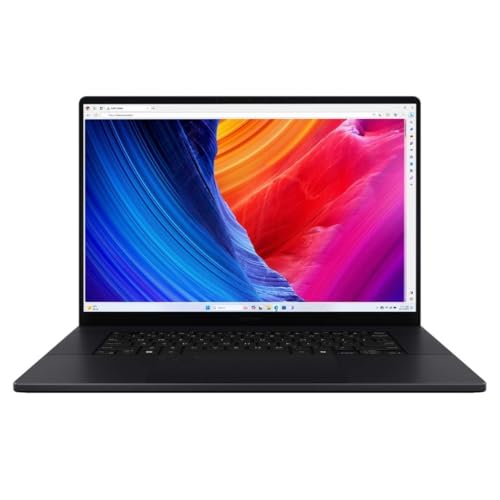
ASUS ProArt P16 — The Memory-Rich Creator
The ProArt P16 closes the list with a distinctive allocation: it pairs the guide’s joint-largest memory figure with a creator-class screen and a current upper-tier graphics card. Its title describes a 16-inch 4K OLED touch display, a 2.0 GHz Ryzen AI 9 HX 370, an RTX 5070, 64GB of LPDDR5X RAM and a 2TB PCIe SSD under Windows 11 Pro, in Black, sold through HIDevolution’s 2025 configuration. The 64GB of memory is the argument for the modelling-heavy artist. Blender sessions accumulate state — undo history, multiple scenes, linked libraries, simulations baked and rebaked — and system memory is where that state lives while the artist works. Sixty-four gigabytes lets a creator keep the whole working environment open: the main scene, the asset file, the reference renders, the compositing, without the close-and-reopen choreography that smaller memory imposes on complex projects.
The RTX 5070 places its rendering a tier below the 5090 flagships and comfortably within serious work: final renders proceed at a pace that suits stills, product work and moderate animation, while the viewport — where the artist actually spends the day — is served by the same card with capacity to spare. The 4K OLED touch panel is arguably the finest modelling surface in this guide: 4K at 16 inches renders Blender’s interface with exceptional clarity, OLED gives the viewport the contrast that material and lighting work depends on, and touch serves review and presentation. The 2TB PCIe drive completes the no-rationing theme — assets, projects and output in one internal home. Windows 11 Pro suits the professional creator. Artists whose metric is frames per night should buy the 5090 machines; artists whose metric is the quality of the modelling day, with rendering as its conclusion rather than its purpose, should buy this.
- Processor: Ryzen AI 9 HX 370, 2.0 GHz
- Graphics card in the title: RTX 5070
- Memory and storage: 64GB LPDDR5X RAM, 2TB PCIe SSD
- Display: 16-inch 4K OLED touch
- System in the title: Windows 11 Pro
- Graphics memory: Not stated in the listing title — verify with the manufacturer documentation
Strengths
- 64GB of memory keeps complex multi-scene projects entirely open during the modelling day.
- The 4K OLED touch panel is a superb viewport surface for material and lighting work.
- 2TB of storage completes a specification with no rationed stage for creator-scale work.
Trade-offs
- Render throughput sits a tier below the RTX 5090 picks for long animation queues.
- Graphics memory is unstated in the title, so the largest scenes need the manufacturer’s figure first.
- LPDDR5X memory is fixed in this class of machine — the 64GB is generous and final.
Best for: a modelling-first creator whose projects are complex, multi-scene and memory-hungry, and who renders at deliberate rather than maximal scale.
Not suited for: an animator measuring the purchase in frames per night — the RTX 5090 machines are built for that metric, and this one’s strengths are upstream of the render.
There is a philosophy in this configuration that experienced artists will recognise: the render is the last hour of the work, but the modelling is the work. A machine that makes the preceding eight hours frictionless — every file open, every scene resident, a screen that shows materials truthfully — improves the finished piece more than a faster render of a compromised process. The ProArt P16 is specified for the eight hours. Creators whose Blender life is spent building rather than batch-rendering will find it the most sympathetic machine on this list.
Comparison Table: The Six as Blender Machines
| Pick | Graphics (as listed) | Memory | Storage | Screen | Blender character |
|---|---|---|---|---|---|
| MacBook Pro 16 M4 Max | 40-core GPU | 64GB unified | 1TB | 16.2-inch Liquid Retina XDR | One memory pool for huge scenes |
| Razer Blade 18 | RTX 5090 | 64GB DDR5 | 2TB | 18-inch dual-mode UHD+ | Throughput on the biggest canvas |
| ASUS ROG Strix SCAR 16 | RTX 5090 | 32GB DDR5 | 2TB Gen 4 SSD | 16-inch Nebula HDR 2.5K | The travelling render node |
| Dell Precision 5690 | RTX ADA 5000, 16GB | 32GB | 2TB NVMe SSD | 16-inch OLED touch | Stated professional graphics |
| HP ZBook G11 | RTX 1000 Ada, 6GB | 32GB DDR5 | 2TB SSD | 16-inch FHD+ | Deliberate professional scale |
| ASUS ProArt P16 | RTX 5070 | 64GB LPDDR5X | 2TB PCIe SSD | 16-inch 4K OLED touch | The modelling day, unrationed |
Two columns of this table deserve a buyer’s suspicion in equal measure. The graphics column mixes stated memory figures with unstated ones, and the difference matters: a stated 16GB or 6GB is a plannable quantity, while an unstated figure on a flagship card must be confirmed from the manufacturer before scene scale can be judged. And the memory column mixes system memory with Apple’s unified pool, which are not the same architecture wearing two names — on the MacBook, that pool is also the graphics’ room, which is why its 64GB figure reads differently from the same number on a Windows machine. Tables flatten; purchases should not.
How to Choose Among These Six for Blender
Start with your scenes, weighed rather than described. An artist who knows their typical scene’s appetite — from having watched it load, preview and render on the current machine — can match it against the stated figures in this guide: the graphics memory where titles state it, the system memory everywhere. Scenes built from CAD geometry and product materials sit comfortably in the ZBook’s deliberate tier. Scenes built from sculpted detail, dense textures and simulation sit naturally in the 64GB machines or beside the Precision’s stated 16GB. Scenes whose problem is not size but count — animation, sequences, frame after frame — belong to the RTX 5090 pair, where throughput is the specification that ends the day earlier.
Then decide where the machine lives. The Blade 18 and the Precision and ZBook are desk instruments, the first by size, the workstations by vocation; the SCAR 16 and the ProArt P16 travel credibly; the MacBook splits the difference as high-end studios always have. Platform closes the decision for many readers before it opens: a pipeline built on macOS points at one machine on this list, and a pipeline built on professional Windows software points at the workstations, while the unaffiliated artist is free to choose by scene and by desk. Answer those three — scene weight, machine’s home, platform — and the six resolve into the one or two that were always yours.
What Limits a Scene More Often, Graphics Memory or System Memory?
They limit different moments, and confusing them produces mis-bought laptops. Graphics memory bounds the render itself: the scene data the GPU must hold while it computes — geometry, textures, the structures the render engine builds — and a scene that exceeds it does not render slowly, it declines to render on the GPU at all. System memory bounds the working session around the render: Blender’s own state, the undo history, the linked libraries, the other scenes and applications sharing the day. An artist can therefore be limited by either while having plenty of the other, which is why this guide prints both figures for every pick and flags the ones titles leave unstated. The practical audit is to watch your current machine during your heaviest scene: note which pool complains, and buy the column that answers the complaint — with the unified-memory MacBook read as the special case where the two pools are one.
How Much Storage Does a 3D Practice Actually Consume?
More than any other creative practice on this site, because 3D artefacts are heavy at every stage. A single production scene with its textures is measured in gigabytes; an asset library built over years is measured in hundreds; rendered output — image sequences especially — is measured in whatever the drive has left. Add caches, simulation data and the versioned copies that prudent artists keep, and a terabyte stops sounding generous within a year of serious work. That arithmetic is why five of these six machines carry 2TB, and why the MacBook’s terabyte is framed as a working drive with an external archive behind it. Artists should also plan the archive itself: renders are a professional record, and the Thunderbolt connections stated on several of these machines exist precisely to hang fast external storage off the working machine without slowing the day.
Does the Screen Matter for Work That Ends in a Render?
For the render, not at all — frames compute identically in the dark. For everything before the render, entirely. Modelling, shading and lighting are visual judgements made on the viewport, and the screen is the viewport’s window: its size decides how much of the scene and interface coexist, its resolution decides how finely detail can be judged without zooming, and its contrast decides whether a lighting decision is being made on evidence or on approximation. That is why this guide weighs panels as modelling surfaces — the 18-inch UHD+ canvas, the 4K OLED, the XDR — and why the ZBook’s FHD+ panel is flagged as its one modest figure. An artist who docks to a fine external monitor can discount the whole question; an artist who works on the laptop’s own screen should treat the panel as a primary specification, because it is the one they will look at for every hour the render is not running.
What Does a Sensible Render Queue Routine Look Like on a Laptop?
It treats the laptop as two machines sharing one body. By day it is the modelling station: viewport, materials, lighting, the artist’s hands on the work. By night — or during the lunch hour, or the client call — it becomes the render node, working through the render list the day prepared. Artists who organise this way get more from any machine on this list than artists who render opportunistically, because the overnight list disciplines the work: scenes are checked before they are committed, output is named and archived as it lands, and a failed frame is discovered in the morning rather than at the deadline. The routine also argues for the specification pattern this guide keeps underlining — storage for the output to accumulate in, memory for the scenes to stay resident, and a graphics card whose capacity was matched to the scenes before purchase. A laptop rendering overnight is a small render farm with a screen; buy it, and run it, with that seriousness.
Common Mistakes When Buying a Laptop for Blender
A frequent error is buying the graphics card’s name and ignoring its memory. Two machines can carry impressive GPU branding while differing enormously in the pool a scene must fit into, and the titles in this very guide demonstrate the spread — stated figures of 16GB and 6GB on the workstations, unstated figures on the flagships that the manufacturer’s page must supply. The scene does not care about branding; it cares about capacity. A second error is the mirror image: buying system memory for a problem that lives in graphics memory, or the reverse, because the two pools were never distinguished during the purchase. The audit described above — watch the current machine under the heaviest scene — exists to prevent exactly this pair of mistakes.
A third error is specifying for the still and forgetting the sequence. An artist whose work is single frames can thrive on a modelling-first machine like the ProArt; the same artist, six months later, holding an animation contract, discovers that throughput was the specification they needed. Buy for the work you can see coming, not only the work on the desk today. A fourth error is under-buying storage in a discipline whose files are the heaviest in creative computing — a mistake that announces itself mid-project, when the drive fills during a render queue. And a fifth is dismissing the workstations as underpowered without reading their stated figures: for professional scenes at deliberate scale, a stated 16GB professional card inside a connected, managed machine is a considered tool, not a consolation.
Final Recommendation
Choose by scene first. Artists whose work is measured in frames delivered should take an RTX 5090 machine — the Blade 18 if the desk is fixed and the canvas matters, the SCAR 16 if the practice travels. Artists whose scenes are large and whose platform is macOS should take the M4 Max MacBook and its single deep pool of memory. Professionals inside design and engineering pipelines should take the Precision 5690 for its stated 16GB professional card, or the ZBook G11 where the scene scale is deliberate and the workstation’s connections and storage matter more than its graphics tier. Modelling-first creators should take the ProArt P16 and enjoy the least rationed working day on the list. Every pick here was verified against its listing title and chosen for a real shape of Blender practice; match the shape to your own scenes — weighed, counted and honestly described — and the laptop will repay you in the only currency this category deals in: hours of your life handed back, one render at a time.
The repayment compounds, which is the last thing worth understanding about this purchase. A rendering laptop is not consumed by its first project; it is the platform the next several years of projects are built on, and its ceilings become the studio’s ceilings in the imagination long before they bind in fact. Artists spec generously here not from extravagance but from experience — the scene that does not fit is always the important one, and it always arrives on a deadline.
And a final caution that applies to every name on this page: these model lines are sold in multiple configurations, and in this category the configuration is the product. A Strix or a Blade or a Precision with a lesser graphics card is a different rendering machine wearing the recommended one’s name, and the difference will not announce itself until the first heavy scene. Read the listing title as the contract it is — graphics model, memory, storage, in that order — and confirm each figure before the purchase is allowed to complete. In a category where one line of a title carries the entire recommendation, that minute of reading is the highest-value minute of the whole transaction.
Frequently Asked Questions
Can Blender render well on a MacBook, or do I need NVIDIA graphics?
Blender renders on Apple’s platform using the M4 Max’s 40-core GPU, and the MacBook here pairs it with 64GB of unified memory that serves the graphics directly — a genuine rendering configuration, not a workaround. NVIDIA machines dominate this guide because the Windows ecosystem offers more of them, and the workstation picks carry professional NVIDIA cards; but the macOS artist is served by a real machine on this list, not advised to switch platforms.
Why do some spec boxes say graphics memory is not stated?
Because the listing titles for those machines name the graphics card without printing its memory figure, and this guide works only from verified title data. The figure matters — it bounds scene scale — so the honest move is to flag it and direct you to the manufacturer’s documentation for that exact configuration before purchase.
Is 32GB of system memory enough for Blender?
For a large share of professional work, yes: the Precision, ZBook and SCAR in this guide all carry 32GB and were chosen with that tier in mind. Artists whose projects keep multiple scenes, heavy simulations and large linked libraries open together are the ones who feel the ceiling, and the 64GB picks exist for them. Watch your heaviest scene’s behaviour on your current machine; it will tell you which tier you inhabit.
Workstation graphics or gaming graphics for Blender?
Both render; they serve different practices. The professional Ada cards here carry stated memory figures and sit inside the workstation ecosystem that design pipelines are validated around. The RTX 5090 gaming flagships aim at maximum throughput. Artists inside professional pipelines usually take the workstation; artists buying frames per night usually take the flagship; and scene scale — read against the stated figures — arbitrates the rest.
Should a Blender artist ever buy the laptop screen over the graphics card?
Only when the modelling day is demonstrably the bottleneck and the rendering demonstrably is not — the stills artist, the design visualiser, the ProArt’s intended owner. The moment the work becomes sequences, the priority inverts, because frames are delivered by the graphics card and merely admired on the screen. Know which side of that line your next year of work sits on; the two RTX 5090 picks and the ProArt P16 are this guide’s answers to the two sides respectively.
How important is storage speed versus storage size for rendering?
Size announces itself first: 3D files and image sequences fill drives faster than any other creative workload, which is why most picks here carry 2TB. Speed matters at the day’s edges — scenes opening, textures loading, sequences writing — and every machine here uses fast internal SSD storage as its title states. Buy size as the first-order decision and let the stated SSD figures cover the second.
Related Guides
Rendering rarely lives alone in a studio, so these companions cover the neighbouring benches: our Unity 3D laptop guide, where the same graphics hardware is judged by real-time work instead, the SolidWorks guide, for the engineering side of the professional graphics world, and the Ableton production guide, for studios whose other screen runs the soundtrack.
Related guides
- Best 3.0 Qualcomm Quick Chargers: QC 3.0 Adapters That Still Earn Their Outlet
- Best Time Machine Compatible Hard Drives: Mac-Ready and Reformatted Picks
- Best 3D Mechanical Engineering Laptops: Certified Workstations for CAD and Simulation
- Best Tattoo Printers: Thermal Stencil Machines for Clean, Lasting Transfers


