What's inside
- Where to Buy
- Key Takeaways
- Quick Picks
- How We Chose These Picks
- Comparison
- How to Choose an Engineering Laptop for College
- Should a Student Buy for the First Year or the Final Year?
- Do Engineering Students Really Need a Workstation Graphics Card?
- How Should a Student Protect a Laptop Through Four Years of Campus Life?
- Common Mistakes When Buying an Engineering Laptop for College
- Final Recommendation
- Frequently Asked Questions
- Related Guides
As an Amazon Associate I earn from qualifying purchases. This post may contain affiliate links at no extra cost to you.
[SITE_DOMAIN] is reader-supported. When you buy through links on our site, we may earn an affiliate commission.
Where to Buy
Each of the six names below opens its own Amazon listing, which is where its current figure and full configuration live. The HP ZBook Power G11 A leads the set as the value workstation, so start there if a professional graphics card on a student budget is the combination you are hunting. The HP ZBook 8 G1i adds a touchscreen and a stated three-year warranty, and its page is the place to weigh that cover properly. HP’s third entry, the HP ZBook X G1i, carries the newer Blackwell graphics, and its listing spells out the generation plainly. Lenovo’s traveller is the Lenovo ThinkPad P14s AI, whose memory and storage figures deserve a slow read on its own page. The ASUS TUF Gaming A16 is the gaming crossover, sold through its own listing with the RTX 5070 in the headline. The set closes with the HP ZBook Power 16 G11 in its Intel form, the memory-heavy option, and its Amazon page carries the configuration in full.
The best engineering laptops for college have to survive a peculiar double life. In the studio they are workstations: CAD assemblies, simulation coursework, code, virtual machines and the slow accretion of a final-year project. Everywhere else they are student machines: lecture halls, library desks, dorm rooms, trains home and the occasional café table that is slightly too small. The six picks here were chosen for that double life, and four of them come from certified-style workstation families — HP’s ZBook line three times over and Lenovo’s ThinkPad P series — because a degree is four years long and a laptop bought for it should be built like a commitment rather than a semester’s accessory.
Value, for a student, is not the lowest figure on the page; it is the absence of a second purchase. A machine that needs replacing in year three costs more than a machine that simply serves four years, and a machine that cannot run the third-year software costs more than either. That is the arithmetic behind this guide’s shape: workstation anchors with professional graphics where the titles name them, memory at 32GB or far beyond, and one gaming crossover whose graphics card does double duty for coursework and evenings. The budget discipline lives in choosing the right tier once, not in choosing the cheapest tier twice.
As with every guide in this series, the reviews argue only from listing titles. Graphics cards, memory, storage, ports and warranty terms are reported exactly as printed, and where a title is silent — the ThinkPad P14s names no discrete graphics card, for instance — the spec box records that silence in the standard wording instead of filling it from the model family’s reputation. Students spending loan money deserve specifications they can verify in a minute, and that is the standard applied throughout.
Key Takeaways
- Three picks carry professional NVIDIA workstation graphics named in their titles: RTX 1000 Ada, RTX 500 Ada and RTX PRO 1000 Blackwell.
- Memory is degree-sized: four machines carry 32GB, and two carry 64GB — the ThinkPad P14s pairing its 64GB with a 4TB drive.
- Two HP picks state a three-year warranty in their titles, a term worth real money across a four-year degree.
- The ThinkPad P14s is the portability pick at 14 inches, and its title names no discrete graphics card — check its graphics position before buying for GPU-heavy modules.
- The ASUS TUF A16’s RTX 5070 is the strongest gaming-class card here, offered as the coursework-and-evenings crossover.
Quick Picks
| Pick | Badge | Why it earns a place |
|---|---|---|
| HP ZBook Power G11 A | Value workstation | RTX 1000 Ada graphics and 32GB of memory in the ZBook Power line. |
| HP ZBook 8 G1i | Touch and cover | FHD+ touchscreen, RTX 500 Ada and a three-year warranty stated in the title. |
| HP ZBook X G1i | New-generation graphics | RTX PRO 1000 Blackwell 8GB, Wi-Fi 7 and the same stated three-year cover. |
| Lenovo ThinkPad P14s AI | Carry-everywhere pick | 64GB of memory and a 4TB drive in a 14-inch workstation body. |
| ASUS TUF Gaming A16 | Coursework and play | RTX 5070 with a MUX switch and 32GB of memory for GPU modules and gaming alike. |
| HP ZBook Power 16 G11 Intel | Memory-heavy route | 64GB of memory behind an Ultra 7 processor for virtual-machine-heavy degrees. |
How We Chose These Picks
The first pass asked what an engineering degree actually does to a laptop across four years. Year one is gentle: programming, mathematics tools, introductory CAD. The middle years add the weight — assemblies, simulations, virtual machines for systems modules, group projects with shared models. The final year concentrates everything into a capstone that cannot slip. Picks were therefore judged against the third year, not the first, because a laptop that delights a fresher and fails a finalist has failed at its only job. Every machine here carries at least 32GB of memory and a modern multi-core processor for exactly that reason.
Graphics formed the second pass, read strictly from titles. Four picks name a graphics specification outright — three professional NVIDIA cards across the ZBooks and the TUF’s gaming RTX 5070 — and professional cards matter in this context because engineering faculties build their labs and their support around the software those cards are driver-tested for. The two remaining picks are handled with open eyes: the Intel ZBook Power names its Intel Iris graphics in the title, a stated specification suited to CPU-led coursework, and the ThinkPad P14s names no discrete card, which its review treats as the central question a buyer must resolve.
Ownership economics made the third pass. Two titles state a three-year warranty, which across a degree is not a footnote but a budget line: one avoided repair-and-replacement scramble in exam season pays for the discipline of choosing cover at purchase. Ports mattered too — twin Thunderbolt 4 appears in three titles — because student desks are dock-and-go arrangements of borrowed monitors and library sessions, and a machine that connects to everything without a bag of adapters will be loved in a way specifications rarely capture.
The final pass arranged the six by student temperament. There is a value workstation, a touchscreen all-rounder with long cover, a new-generation graphics option, a featherweight carry with enormous memory and storage, a gaming crossover, and a memory-heavy Intel workstation for virtual-machine degrees. A fresher reading all six should be able to point at the machine that matches their course’s third year and their own carrying habits — and, just as importantly, to name the picks that would be wrong for them and why.

HP ZBook Power G11 A — Value workstation
The ZBook Power line exists to answer a student’s hardest question: how little can be spent without leaving the professional tier? This G11 A configuration answers with an AMD Ryzen 7 PRO 8845HS processor, an NVIDIA RTX 1000 Ada graphics card, 32GB of DDR5 memory and a 1TB drive in a 16-inch FHD+ body, with twin Thunderbolt 4 ports and Windows 11 Pro. The title itself positions the machine against an Intel Ultra 7 165H and calls it an AI mobile workstation for engineers and designers. Read as a whole, it is the cheapest honest route in this guide to a professional graphics card — the component engineering software cares about most.
The RTX 1000 Ada deserves a student’s attention because of drivers as much as silicon. Professional cards are tested against the CAD and simulation packages faculties teach on, and when a lecturer’s lab instructions assume a workstation card, owning one removes a category of strange behaviour that consumes support-desk hours. The 1000 tier is the entry to that world rather than its summit: assemblies of student scale, coursework rendering and GPU-accelerated exercises sit comfortably within it, while a final-year project of industrial size may lean on the university’s lab machines for the heaviest runs — a division of labour every engineering school quietly expects.
Around the card, the specification is grown-up. Thirty-two gigabytes is the memory figure this guide recommends as the degree-proof floor, the 1TB drive holds a sane library of project files and one or two virtual machines, and the Ryzen PRO processor brings the management and security features universities’ IT services appreciate when a laptop joins their networks. The 16-inch FHD+ screen is a studio screen — large enough for CAD at a desk, honest about the fact that library portability is the 14-inch pick’s job, three reviews down.
Who it suits is the student who knows their course is CAD- and simulation-led and who would rather buy the professional tier once than discover its absence in year two. It suits the self-funded student especially: the specification spends on the graphics card, the memory and the processor, and declines to spend on touchscreens or exotic panels. If your degree is instead built on virtual machines and code, read the last review in this guide before deciding; if it is built on models and assemblies, start here and stop when the specification matches your third year.
- Processor: AMD Ryzen 7 PRO 8845HS
- Graphics: NVIDIA RTX 1000 Ada
- Memory: 32GB DDR5
- Storage: 1TB SSD
- Display: 16-inch FHD+
- Ports: 2x Thunderbolt 4
- Operating system: Windows 11 Pro
- ISV certification: Not stated in the listing title — verify with the manufacturer documentation
- Warranty term: Not stated in the listing title — verify with the manufacturer documentation
Strengths
- RTX 1000 Ada brings professional-driver graphics to the value seat.
- 32GB of memory meets the degree-proof floor this guide recommends.
- Twin Thunderbolt 4 ports suit dorm-desk docking and library monitors.
Trade-offs
- The warranty term is not stated in the listing title.
- The 16-inch body is a studio machine more than a carry-everywhere one.
- The RTX 1000 tier is the entry to the professional range, not its peak.
Best for: a CAD- and simulation-led student who wants professional graphics and 32GB of memory in one value workstation. Not suited for: a student whose degree is a fleet of virtual machines needing memory above all, because this configuration’s 32GB is matched to modelling work rather than to a software laboratory.
Make the Power G11 A last by treating its storage like a portfolio. Keep the current semester’s projects on the internal drive, archive finished modules to university cloud storage at each term’s end, and snapshot one clean virtual machine before systems coursework begins. Students who adopt that rhythm in the first term rarely meet the full-drive panic of the third year. Register the machine with HP, keep the purchase record with your course documents, and confirm the warranty position in writing while the receipt is still easy to find.

HP ZBook 8 G1i — Touch and cover
The ZBook 8 G1i makes its college case on two printed facts its rivals mostly leave vague. The first is a three-year warranty stated in the title itself — cover that spans most of a degree, bought once, without a separate insurance decision. The second is an FHD+ touchscreen on a 16-inch panel, which suits the annotating, sketching-over and presenting habits of studio teaching: marking a tutor’s feedback directly onto a drawing, flipping a model around for a lab partner, working a problem set with the screen folded toward the group. Around those two facts sit an Intel Ultra 7 255H, an NVIDIA RTX 500 Ada card, 32GB of DDR5 memory, a 1TB drive, twin Thunderbolt 4 ports and Wi-Fi 7.
The RTX 500 Ada is the lightest professional card in this guide, and its review should be read as positioning rather than apology. Introductory and intermediate CAD, model review, coursework visualisation and the graphical middle of an engineering degree sit within its reach; the heaviest assembly and rendering work belongs to the RTX 1000 machines on either side of this review. For a student whose faculty teaches on professional software but whose projects are coursework-sized, the 500 tier plus a touchscreen plus three-year cover is a defensible allocation — money moved from graphics summitry into the two things a student touches daily: the screen and the safety net.
Wi-Fi 7, printed outright in the title, is a longevity feature in disguise. Campus networks upgrade on their own schedule, and a laptop bought in the first year will meet several generations of lecture-hall wireless before it graduates. The same future-facing logic applies to the twin Thunderbolt 4 ports: dorm desks accumulate monitors, drives and docks quickly, and a machine that connects to all of them through modern ports avoids the adapter tax that quietly drains student budgets. None of this is glamorous, and all of it is the texture of four years of daily use.
Who it suits is the student who presents, annotates and collaborates — the group-project organiser, the design-review regular — and the student whose funding is a single, careful purchase that must not be repeated. Parents buying for a first-year will also read the stated warranty the way it is intended: as the removal of a whole category of mid-degree emergencies. If your course’s third year is dominated by enormous models, the G11 A’s stronger card is the better spend; if it is dominated by studio teamwork, this G1i’s combination is the one designed for you.
- Processor: Intel Ultra 7 255H
- Graphics: NVIDIA RTX 500 Ada
- Memory: 32GB DDR5
- Storage: 1TB SSD
- Display: 16-inch FHD+ touchscreen
- Ports: 2x Thunderbolt 4
- Wireless: Wi-Fi 7
- Warranty: 3-year, as stated in the listing title
- ISV certification: Not stated in the listing title — verify with the manufacturer documentation
Strengths
- A three-year warranty is stated in the title, spanning most of a degree.
- The touchscreen serves studio annotation and group presentation work.
- Wi-Fi 7 future-proofs campus networking across the degree.
Trade-offs
- The RTX 500 Ada is the lightest professional graphics tier here.
- The Ultra 7 255H favours efficiency over HX-class core counts.
- Touch adds a screen cost that pure CAD students may not use.
Best for: a collaborative, presenting student who wants touch annotation and degree-spanning warranty cover in one purchase. Not suited for: a final-year specialist running very large assemblies daily, because the RTX 500 Ada sits two tiers below this guide’s strongest professional cards.
Set the G1i up as the hub of a small student ecosystem. One Thunderbolt dock or hub at the dorm desk, the touchscreen as the presentation tool in studio, and a cloud backup that runs without being remembered — those three habits convert its specification into a routine. Enrol in the warranty properly, keep the proof somewhere that survives a lost bag, and learn your CAD package’s touch and pen behaviours before the first assessed review rather than during it. A machine bought for cover and collaboration earns both only when its owner sets it up that way on purpose.

HP ZBook X G1i — New-generation graphics
The ZBook X G1i is where this guide’s graphics story moves a generation forward. Its title names an NVIDIA RTX PRO 1000 Blackwell card with 8GB of its own memory — the Blackwell professional line succeeding the Ada generation used by its siblings — alongside an Intel Ultra 7 265H, 32GB of DDR5 memory, a 1TB drive, a 16-inch FHD+ screen, twin Thunderbolt 4 ports, Wi-Fi 7 and, again, a three-year warranty stated in the title. HP positions it in the listing as the next generation of the ZBook Power idea, and for a student buying in the hope of four untouched years, generation matters: newer silicon ages slower against rising software demands.
Eight gigabytes of graphics memory is the figure to translate. Student CAD assemblies grow across a degree from parts to products to plant-scale layouts, and graphics memory is the ceiling those assemblies press against in the viewport. The RTX 1000 Ada in the value pick leaves its memory figure unstated in its title; this Blackwell card prints 8GB, which lets a buyer plan around a number instead of a hope. Combined with the newer architecture, it is the configuration in this guide most likely to feel merely adequate — rather than strained — in the final-year spring when the capstone model is at its largest.
The rest of the specification repeats the G1i’s ownership virtues with a stronger processor. The Ultra 7 265H steps above the 255H, Wi-Fi 7 covers the campus years, the twin Thunderbolt 4 ports cover the desk, and the stated three-year warranty covers the accidents. What it does not offer is the touchscreen of the pick above, so the choice between the two HP 16-inch machines is unusually clean: touch and a lighter card, or no touch and the newer, stronger card with memory printed in the title. Students should choose by which half of that sentence describes their studio life.
Who it suits is the forward-buying student: the one whose course is unambiguously CAD- and simulation-heavy, whose funding allows one deliberate purchase, and who wants the newest professional graphics generation under the keyboard when the degree gets serious. It is also the natural pick for a postgraduate-taught master’s student compressing the same demands into fewer, denser semesters. Buyers whose work is lighter should let the value pick do its job and keep the difference for the monitor, the dock and the software the degree will also demand.
- Processor: Intel Ultra 7 265H
- Graphics: NVIDIA RTX PRO 1000 Blackwell, 8GB
- Memory: 32GB DDR5
- Storage: 1TB SSD
- Display: 16-inch FHD+
- Ports: 2x Thunderbolt 4
- Wireless: Wi-Fi 7
- Warranty: 3-year, as stated in the listing title
- ISV certification: Not stated in the listing title — verify with the manufacturer documentation
Strengths
- RTX PRO 1000 Blackwell is the newest professional graphics generation here.
- Its 8GB of graphics memory is printed in the title, ready to plan around.
- The stated three-year warranty matches the value of the machine it covers.
Trade-offs
- No touchscreen, where its G1i sibling offers one.
- Memory stays at 32GB against two 64GB rivals in this guide.
- The newest generation carries the newest generation’s pricing position.
Best for: a CAD-heavy student buying once for the whole degree who wants the newest professional graphics and stated warranty cover. Not suited for: a student whose studio work is pen-and-touch annotation first, because this configuration spends its screen budget on resolution class rather than on touch.
Owning the X G1i well is mostly about not wasting its headroom. Install the professional driver branch your faculty recommends from the start, resist the urge to judge the machine by first-year coursework that any laptop could run, and revisit your storage housekeeping each term so the capstone year inherits a tidy drive. The warranty should be registered in the first week and its terms read once, properly, so a mid-degree fault is a procedure rather than a panic. Bought for the long term, this HP asks only to be administered like it.
Lenovo ThinkPad P14s AI — Carry-everywhere pick
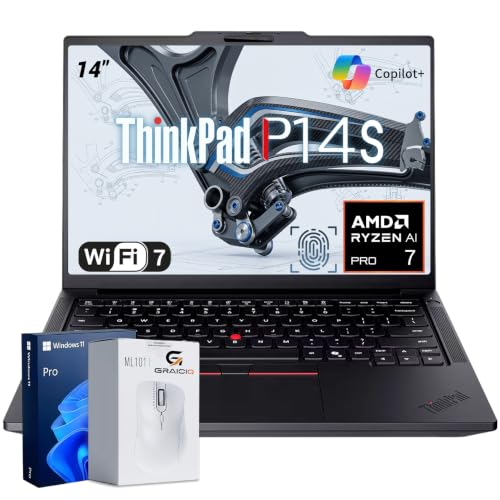
The P14s is the machine for the student whose degree happens in motion. Its title describes a 14-inch WUXGA IPS workstation on an AMD Ryzen AI 7 Pro 450, with a headline pairing that demands a pause: 64GB of memory and a 4TB drive, figures printed together in the listing as the configuration’s calling card. Around them sit a fingerprint reader, a webcam privacy shutter, Wi-Fi 7, Thunderbolt 4 and Windows 11 Pro, plus an AI performance claim of up to 55 TOPS. In a guide full of 16-inch studio machines, this is the one that disappears into a bag and still arrives specified like a workstation.
Sixty-four gigabytes in a 14-inch laptop rewrites what portable coursework can be. The virtual-machine modules that ration other students’ evenings — a small network of guests for systems and security labs — run here without the host gasping, on a train, in a library, wherever the work actually happens. The 4TB drive swallows the other student disease, the accumulating library of lab images, project archives and recorded lectures, without the termly purge. For a student whose degree is systems-led rather than CAD-led, this memory-and-storage combination is arguably the most valuable specification in the entire guide.
Now the question its title forces, stated plainly: no discrete graphics card is named. The listing speaks of the Ryzen AI processor and its TOPS figure, and the spec box records graphics in the standard not-stated wording rather than borrowing a specification from other P14s configurations. A student whose course is CAD-heavy must resolve that question on the listing page and in Lenovo’s documentation before buying, because the difference between integrated graphics and a professional card is precisely the difference the first three reviews in this guide are about. A student whose course is code, systems and analysis may find the answer entirely satisfactory — but it must be an answer, not an assumption.
Who it suits is the mobile systems student: lectures all day, labs in the evening, a software laboratory in the bag, and a privacy shutter and fingerprint reader for a machine that lives in public places. The WUXGA panel gives code and documents a taller, sharper canvas than FHD+, and the ThinkPad P name promises the workstation family’s build and support culture in miniature. Judged by its own intended life, this is a superb specification; judged as a CAD machine without verifying its graphics, it would be a gamble — and this guide’s job is to make sure nobody takes that gamble unknowingly.
- Processor: AMD Ryzen AI 7 Pro 450
- Memory: 64GB
- Storage: 4TB
- Display: 14-inch WUXGA IPS
- AI performance: up to 55 TOPS, as stated in the listing title
- Security: fingerprint reader, webcam privacy shutter
- Wireless: Wi-Fi 7
- Ports: Thunderbolt 4
- Operating system: Windows 11 Pro
- Graphics card: Not stated in the listing title — verify with the manufacturer documentation
Strengths
- 64GB of memory runs a virtual-machine laboratory from a 14-inch bag.
- A 4TB drive ends the termly storage purge for lab images and archives.
- Privacy shutter, fingerprint reader and Wi-Fi 7 suit public, mobile study.
Trade-offs
- No discrete graphics card is named in the listing title.
- The 14-inch panel is a carried canvas, not a studio one.
- Its memory and storage exceed what CAD-led students may need.
Best for: a systems- and code-led student who carries their whole laboratory between lectures, labs and libraries. Not suited for: a CAD-led student who has not verified the graphics specification, because the title’s silence on a discrete card is the one fact their degree cannot leave to chance.
Run the P14s like the portable laboratory it is. Build one clean virtual-machine template in freshers’ week and clone it per module, keep the 4TB drive organised by semester so archives stay findable in the final year, and use the privacy shutter and fingerprint sign-in as the default habits of a machine that works in public. If your course does include a CAD module, test its heaviest sample model during the return window, while the graphics question can still be answered with a swap rather than a regret.

ASUS TUF Gaming A16 — Coursework and play
The TUF A16 is this guide’s crossover, and its title makes no attempt to hide the dual citizenship: an ASUS TUF gaming laptop with an RTX 5070 graphics card and a MUX switch, an AMD Ryzen 9 270 processor the listing benchmarks against an i9-12950HX, a 16-inch FHD+ G-SYNC display, 32GB of memory, a 1TB drive, an RGB backlit keyboard, a webcam and Copilot features. For the large population of engineering students who also game — and whose evenings fund their sanity — one machine that does both jobs well is not a compromise but a budget strategy: the money for a separate gaming device stays in the degree fund.
The RTX 5070 is, on paper, the strongest graphics card in this guide for GPU-accelerated coursework: machine-learning modules, vision projects, CUDA programming and any simulation that scales onto a current gaming card. The MUX switch, named in the title, lets the discrete card drive the display directly, a feature gamers buy for frame rates that also serves GPU compute work by removing a layer of indirection. The honest caveat mirrors the one in the computer engineering guide: gaming drivers are not the certified professional branch, and a minority of engineering tools care. Most undergraduate coursework does not, and the labs’ own machines cover the exceptions.
Thirty-two gigabytes of memory keeps the crossover honest on the study side — virtual machines, containers and the browser-and-IDE sprawl of project work all fit — while the Ryzen 9 processor handles compilation and analysis with flagship manners. The display is the visible trade: FHD+ with G-SYNC is a motion panel, built for frame rates rather than pixel density, and students who review fine CAD detail will want the library’s or dorm’s external monitor for that work. The RGB keyboard can be set to a single sober colour for the studio; nobody’s grade depends on the lighting, in either direction.
Who it suits is the student whose degree includes GPU coursework and whose life includes gaming, and who would rather own one strong machine than two weaker ones. It also suits the machine-learning-curious student priced out of the professional tier, accepting the driver caveat as the toll for a card this strong at this level. Students in certified-driver territory, or who simply never game, should let the ZBooks do their quieter work; students who recognise their own timetable in this review will find the TUF the most fun specification in the guide that still passes every coursework test set for it.
- Processor: AMD Ryzen 9 270
- Graphics: NVIDIA RTX 5070, MUX switch
- Memory: 32GB RAM
- Storage: 1TB SSD
- Display: 16-inch FHD+, G-SYNC
- Keyboard: RGB backlit
- Camera: webcam
- Weight: Not stated in the listing title — verify with the manufacturer documentation
- Battery capacity: Not stated in the listing title — verify with the manufacturer documentation
Strengths
- The RTX 5070 is the strongest card here for GPU coursework and ML modules.
- 32GB of memory keeps the virtual-machine side of the degree comfortable.
- One machine covers study and gaming, protecting the degree budget.
Trade-offs
- Gaming drivers are not the certified branch some engineering tools expect.
- The FHD+ G-SYNC panel favours motion over fine-detail density.
- Weight and battery figures are not stated in the listing title.
Best for: a student whose modules include GPU computing and whose evenings include gaming on the same machine. Not suited for: a student whose faculty’s software is certified only on professional workstation drivers, because this card’s driver programme is written for games first.
Give the TUF a split personality on purpose. Create a study profile — lighting sober, performance set for plugged-in coursework, game notifications silenced — and a play profile for the evenings, and switch deliberately rather than drifting. In the first week of each term, install that term’s engineering software and confirm the RTX card is the device it selects, while any driver question is still a curiosity rather than a deadline problem. A gaming laptop administered with that much intention is not a distraction from an engineering degree; it is one of the better-funded ways to survive one.

HP ZBook Power 16 G11 Intel — Memory-heavy route
The closing pick is the Intel sibling of the guide’s opener, and comparing the two is the fastest way to understand both. Where the G11 A spends on a Ryzen PRO processor and an RTX 1000 Ada card, this configuration spends on memory: an Intel Core Ultra 7 165H with 64GB of RAM and a 1TB drive, behind a 16-inch WUXGA screen, running Windows 11 Pro. Its graphics are named in the title as Intel Iris X Graphics — integrated graphics, stated plainly. This is therefore the workstation for the degree’s other great workload: not the model in the viewport, but the laboratory of virtual machines, containers and datasets that systems, networks and software modules are built from.
Sixty-four gigabytes, translated into student life, means the networks lab runs as the lecturer designed it: several guests alive at once, the host responsive, the documentation open, the capture tool recording. It means a final-year project can keep its whole test environment resident instead of rebuilding it each morning. Integrated graphics are the honest price of that memory at this level, and for CPU-led coursework the price is mostly theoretical — code compiles no slower, virtual machines run no worse, and datasets analyse no differently for want of a discrete card. The WUXGA panel, taller than FHD+, quietly helps all of it by fitting more code and more terminal on screen.
The ZBook Power name still brings the workstation family’s virtues: a chassis and support culture built for professional fleets, Windows 11 Pro for managed networks, and a specification with no figure that embarrasses itself. What the title does not state is a warranty term or a Thunderbolt count, and the spec box records those silences rather than importing them from the sibling configuration — the two G11 machines are cousins, not twins, and a buyer should verify ports and cover for this exact model on its listing page before ordering.
Who it suits is the software- and systems-led student: computer engineering’s virtual half, electronic engineering’s embedded-and-analysis half, any degree where the laboratory is made of machines that do not physically exist. It also suits the student who expects to dock to a big monitor for any visual work and wants the laptop itself to be a memory-rich engine. CAD-led students should return to the guide’s first three picks, where the money sits in graphics cards; this pick’s allocation is a deliberate, defensible alternative, and its review defends it exactly as far as its workload extends — no farther.
- Processor: Intel Core Ultra 7 165H
- Graphics: Intel Iris X Graphics, as stated in the listing title
- Memory: 64GB RAM
- Storage: 1TB SSD
- Display: 16-inch WUXGA
- Operating system: Windows 11 Pro 64
- Ports: Not stated in the listing title — verify with the manufacturer documentation
- Warranty term: Not stated in the listing title — verify with the manufacturer documentation
- ISV certification: Not stated in the listing title — verify with the manufacturer documentation
Strengths
- 64GB of memory runs multi-machine virtual laboratories without rationing.
- The WUXGA panel fits more code and terminal on screen than FHD+.
- ZBook build and Windows 11 Pro suit managed university networks.
Trade-offs
- Integrated Iris graphics cannot serve GPU-heavy CAD or ML modules.
- Ports and warranty term are not stated in the listing title.
- Storage is 1TB against the P14s’ 4TB for image libraries.
Best for: a systems- and software-led student whose laboratory is several virtual machines running at once. Not suited for: a CAD-led student whose assemblies need a discrete professional card, because this configuration states integrated graphics and spends its budget on memory instead.
Exploit this ZBook’s memory as a study method. Keep a standing laboratory — the term’s virtual machines, services and datasets — resident across the week rather than rebuilt daily, snapshot before every assessed exercise, and let the RAM you paid for become time you do not spend waiting. Verify the port layout on the listing before ordering a dock, register whatever warranty the configuration carries, and the machine settles into its role: the quiet engine room of a degree whose visible work happens in windows, terminals and models that exist only as long as the memory holds them.
Comparison
| Pick | Processor | Graphics | Memory / Storage | Display |
|---|---|---|---|---|
| HP ZBook Power G11 A | Ryzen 7 PRO 8845HS | RTX 1000 Ada | 32GB / 1TB | 16″ FHD+ |
| HP ZBook 8 G1i | Ultra 7 255H | RTX 500 Ada | 32GB / 1TB | 16″ FHD+ touch |
| HP ZBook X G1i | Ultra 7 265H | RTX PRO 1000 Blackwell 8GB | 32GB / 1TB | 16″ FHD+ |
| Lenovo ThinkPad P14s AI | Ryzen AI 7 Pro 450 | Not stated in the listing title | 64GB / 4TB | 14″ WUXGA IPS |
| ASUS TUF Gaming A16 | Ryzen 9 270 | RTX 5070 | 32GB / 1TB | 16″ FHD+ G-SYNC |
| HP ZBook Power 16 G11 Intel | Ultra 7 165H | Intel Iris X Graphics | 64GB / 1TB | 16″ WUXGA |
The table’s deepest divide is not between brands but between allocations. Three machines spend on professional graphics, one spends on a gaming card that doubles as a compute engine, and two spend on memory and storage for the virtual side of the degree. A student who knows which side of that divide their course lives on can cut this table to two candidates in a minute. A student who does not know yet should ask the faculty — course handbooks list the software, and the software, read carefully, announces which allocation it wants.
Notice also the warranty column that is not here. Two titles state three-year cover; the others leave their terms to documentation and checkout pages. Across a four-year degree that difference is not paperwork but risk allocation, and it deserves a line in any student’s spreadsheet beside the processor and the card. The comparison a spreadsheet cannot make — weight in a real bag, noise in a real library — is what the return window is for, and the final section of this guide returns to that theme.
How to Choose an Engineering Laptop for College
Start with the course handbook, not the shop. List the software your degree names in years two and three — the CAD package, the simulation tools, the virtualisation platform — and let that list allocate your money. Model-led lists point at professional graphics; systems-led lists point at memory; mixed lists point at the balanced 32GB configurations. Faculties publish these lists precisely so students buy once, and a fresher who spends an hour with the handbook will out-shop a finalist who spends a weekend with advertisements.
Memory is the second decision, and for a degree it should be made generously. Thirty-two gigabytes is this guide’s floor because the middle years of an engineering degree are a memory workload: virtual machines, group project files, analysis datasets and the ordinary sprawl of a student desktop. Sixty-four, offered by two picks here, buys freedom from rationing for systems-led students and a longer useful life for everyone. Sixteen, notably, appears nowhere in this guide — a deliberate absence, because a degree is long and software appetites only grow across it.
Graphics should be bought at the tier your software’s support pages describe. Professional cards — the RTX Ada and Blackwell picks — align with the driver programmes engineering faculties assume. A strong gaming card, the TUF’s RTX 5070, aligns with GPU coursework and with a student’s evenings. Integrated graphics align with code and systems work. None of these is a moral category; each is a fit. The expensive mistake is buying a tier for a course you are not taking, and the painful mistake is discovering in year two that your course needed the tier you skipped.
Then weigh the carried life honestly. A 16-inch workstation is a studio instrument that travels reluctantly; a 14-inch machine like the P14s is a daily companion that asks for a monitor at the desk. Count your lecture days, your commute and your library habits, and verify weight and battery figures on the listing pages, since several titles here omit them. A powerful laptop left in the dorm because it is heavy is weaker than a lesser machine that is present — presence, across four years of teaching, is a specification too.
One more resource belongs in the audit, and it is free: your university itself. Many faculties publish not only software lists but minimum and recommended laptop specifications, run loan schemes for students whose machines fail, and negotiate student licensing that changes what the laptop must carry. A recommended-specification page from your own department outranks any guide — including this one — because it was written by the people who will teach and assess you. Read it first, then use these reviews to choose among the machines that meet it, and keep its address saved for the day a module changes its tools mid-degree.
Close with cover and total cost.
A stated three-year warranty, offered by two picks, converts the likeliest mid-degree disaster into a procedure; where a title is silent, price the cover separately before comparing totals. Add the dock, the monitor, the bag and the backup drive to every candidate’s true cost, because the laptop is the centre of a small system a student must fund whole. The cheapest complete system that meets the third year’s demands is the value pick — not the cheapest laptop, and not the strongest one.
Should a Student Buy for the First Year or the Final Year?
For the final year, and the reasoning is asymmetry. A laptop overspecified for year one merely feels fast; a laptop underspecified for year three fails during the capstone, when no budget, no time and no goodwill remain for a replacement. Software demands grow monotonically through a degree, projects accumulate, and the machine’s own ageing compounds both. Every configuration in this guide was therefore tested in the writing against the third year’s loads — the assemblies, the virtual laboratories, the project archives — rather than against the gentle introductory modules that make any modern laptop look wise.
The discipline has limits, and they are worth stating. Buying for the final year does not mean buying the flagship; it means buying the correct allocation at a durable tier — memory that will not ration, a graphics tier the software names, storage that survives archiving habits. It also means favouring stated warranty cover, because a machine expected to serve four years should be covered for most of them. Students who buy this way spend once, slightly above their first instinct, and then stop thinking about laptops for the rest of the degree — which is the true luxury the purchase was always for.
Do Engineering Students Really Need a Workstation Graphics Card?
Some do, and the faculty’s software list is the oracle. Programmes taught on professional CAD and simulation packages are usually developed, tested and supported against professional graphics drivers, and students running those packages on workstation cards meet fewer strange behaviours and get more useful help from support desks and lecturers alike. That is why three of this guide’s six picks carry professional NVIDIA cards and why they anchor its recommendations for CAD-led degrees: the card is partly silicon and partly membership of the world the software was built in.
The other students are equally real. Systems, software, networks and much of electronics run on processors and memory, with graphics as a display rather than an instrument; for them a workstation card is money parked in a component their degree will not stress, and this guide’s memory-heavy picks exist to give that money a better home. Gaming cards occupy the honest middle — immense graphics power, a driver programme written for play — ideal for GPU-computing coursework and for students whose evenings include games. Need, in short, is a property of the syllabus, not of the student’s seriousness.
How Should a Student Protect a Laptop Through Four Years of Campus Life?
Treat backup as a course requirement nobody set. University cloud storage or an external drive, automated, holding the project folders and the virtual-machine images — that single habit converts a lost or drowned laptop from a degree-threatening event into an expensive inconvenience. The machines here all carry 1TB or far more, which tempts owners to keep the only copy of everything in the most stealable object they own. Resist the temptation in freshers’ week, while the folders are small and the habit is cheap to form.
Physical and administrative habits complete the protection. A padded sleeve inside an ordinary bag draws less attention than a branded laptop case; the fingerprint readers and privacy shutters named in several titles should be enrolled and used, not admired; warranty paperwork belongs in the same cloud folder as the backups. Finally, learn your university’s IT helpdesk before you need it — its loan-laptop scheme, its repair partnerships, its software portal. The students who sail through a mid-degree hardware failure are never the ones with the strongest laptop; they are the ones who prepared the boring systems around it.
Common Mistakes When Buying an Engineering Laptop for College
Shopping for the first semester. Introductory modules run on anything; third-year projects do not. Buy against the course handbook’s later years, or expect a second purchase at the worst possible moment.
Accepting 16GB of memory to save money. No pick in this guide goes that low, deliberately. Virtual machines and group projects ration 16GB from the middle of the degree onward.
Ignoring the warranty column. Two of these titles state three-year cover and others do not. Across four years, that difference is a budget line, not a footnote — price it before comparing totals.
Assuming the graphics you did not check. The ThinkPad P14s title names no discrete card. If your course is CAD-led, resolve its graphics position on the listing page before the memory and storage figures seduce you.
Forgetting the system around the laptop. Dock, monitor, bag, backup drive and cover belong in the same budget. The cheapest laptop can become the dearest system once its missing pieces are bought in a panic.
Final Recommendation
For a CAD-led degree, start with the ZBook Power G11 A for value or the ZBook X G1i for the newest professional graphics with stated cover, and let the ZBook 8 G1i tempt you only if touch and collaboration genuinely shape your studio life. For a systems-led degree, the ThinkPad P14s and the Intel ZBook Power divide the honours by size: the Lenovo for the carried life with its vast storage, the HP for the desk life with its WUXGA screen. For the student who games as hard as they study and whose modules touch the GPU, the TUF A16 remains the joyful, defensible crossover.
If two finalists remain after all of that, decide by the bag test: load the machine, its charger and your ordinary course kit into the bag you will actually carry, and walk your real route to campus with it once. Lectures are attended by the student whose laptop came along, and coursework is finished on the machine that was present. Portability judged on a pavement, with a hill in it, has settled more honest laptop decisions than any benchmark table.
Buy once, against the third year, with the warranty read and the backups planned, and then let the laptop vanish into the degree itself
— because the best engineering laptop for college is the one its owner stops thinking about somewhere in the first term and does not think about again until graduation day, when it closes, still working, on four years of finished work.
Frequently Asked Questions
How much RAM does an engineering student need?
Thirty-two gigabytes is the floor recommended throughout this guide, because the middle years add virtual machines and group projects to ordinary coursework, and because memory is the component students feel first when a degree gets serious. Systems-led students benefit from the 64GB configurations offered by the ThinkPad P14s and the Intel ZBook Power.
Is a gaming laptop a sensible choice for engineering?
It can be, as the TUF A16 shows: a strong graphics card serves GPU coursework and machine-learning modules, and 32GB of memory covers the rest. The check is your faculty’s software, since a few professional tools certify only workstation drivers.
Why do so many picks here come from workstation lines?
Because a degree is a four-year commitment and workstation families are built, warranted and driver-supported for professional software over that kind of span. Four of the six picks are ZBook or ThinkPad P machines for exactly that reason.
Should I prioritise a touchscreen or a stronger graphics card?
Follow your studio habits. Annotating and presenting students gain daily from the ZBook 8 G1i’s touchscreen; modelling students gain more from the X G1i’s stronger Blackwell card. The two HP machines make that trade unusually explicit.
What should I verify before ordering the ThinkPad P14s?
Its graphics position. The title names no discrete card, while its memory and storage are exceptional. CAD-led students must confirm the graphics specification on the listing page; systems-led students can buy its stated strengths with confidence.
Does the stated three-year warranty matter that much?
Across a four-year degree, yes. It converts the likeliest mid-course disaster into a procedure and removes a replacement purchase from the risk register. Where a title does not state a term, price equivalent cover before comparing machines.
Related Guides
College is one chapter of an engineer’s longer equipment story, and the neighbouring guides cover the others. Students whose courses centre on programming and systems should compare notes with the best laptops for computer engineering, where virtual laboratories and compile speed lead the argument. And when the degree’s design modules turn toward buildings and drafting on a tighter budget, finish with the best affordable laptops for architecture drafting, which includes the warnings about underpowered machines that every student should read before spending.