What's inside
- Key Takeaways
- Quick Picks
- How We Chose These Picks
- How Does QoS Actually Decide What Goes First?
- The Six Picks, Reviewed in Detail
- Comparison Table
- Which QoS Style Matches Your Evenings?
- Bufferbloat: The Hidden Queue Behind Most Home Lag
- Gaming, Calls and Streams: Three Traffics, Three Temperaments
- Wired Versus Wireless: Where QoS Can and Cannot Reach
- Measuring Whether Your QoS Is Working
- QoS for the Whole Day, Not Just the Evening
- When QoS Is Not the Answer
- Setting Up QoS in the Right Order
- QoS and the Smart Home’s Background Murmur
- Common Mistakes
- FAQ
- Final Recommendation
- Related Guides
As an Amazon Associate I earn from qualifying purchases. This post may contain affiliate links at no extra cost to you.
widgetverdict.com is reader-supported. When you buy through links on our site, we may earn an affiliate commission.
Where to buy: the MSI Radix AXE6600 opens this guide with a verified listing at Amazon, and each linked pick below points to its own product page in the same manner.
Every busy home knows the moment: the video call freezes mid-sentence because a games console chose that second to download an update the size of a film. The best routers with qos exist to referee exactly that collision. Quality of Service is the router’s traffic policy — the set of rules deciding which packets go first when the connection cannot carry everything at once. Calls and games are small, urgent and ruined by delay; downloads and cloud backups are large, patient and indifferent to waiting a few seconds. A good QoS engine knows the difference without being told twice, and a bad one — or an absent one — treats a voice packet and a backup chunk as equals, which in practice means the backup wins by sheer volume.
The six picks divide by how they referee. The MSI Radix leads with AI QoS on a WiFi 6E gaming platform. The ASUS pair brings two generations of ASUS traffic management, one of them naming Adaptive QoS outright in its listing. The NETGEAR R7350 states QoS in its title on a proven AC platform. The GL.iNet Flint 2 takes the open route — OpenWrt under the hood, where the queuing disciplines are configurable to a depth the gaming brands do not offer. And the Omada Fusion closes the list as a wired multi-WAN business router whose listing names QoS alongside ACL and intrusion prevention, for the home office whose calls are revenue.
One honesty note before the reviews: QoS cannot create bandwidth. On a connection that is simply too slow for the household’s habits, prioritisation decides who suffers gracefully rather than whether anyone suffers. What it genuinely fixes — and fixes completely — is the far more common case: a fast-enough line sabotaged by one greedy device at the wrong moment. That is the problem these six machines are ranked on solving.
Key Takeaways
- QoS is a referee, not a fuel tank: it orders traffic, it does not add bandwidth.
- Named QoS in the listing matters — MSI’s AI QoS, ASUS Adaptive QoS, the R7350’s stated QoS and the Omada Fusion’s QoS are verifiable claims.
- Gaming routers dominate this category because games are the traffic most sensitive to delay.
- The Flint 2’s OpenWrt base offers the deepest manual queue control for confident tinkerers.
- Upload is where QoS earns its keep: calls and game traffic leave the house on the narrow lane.
Quick Picks
| Pick | Badge | Why it earns its place |
|---|---|---|
| MSI Radix AXE6600 WiFi 6E Gaming Router | AI QoS flagship | Tri-band WiFi 6E with AI QoS, a 1.8GHz quad-core processor and 8-stream MU-MIMO. |
| GL.iNet Flint 2 (GL-MT6000) WiFi 6 Router | OpenWrt control room | Dual 2.5G ports, 8-stream WiFi 6 at 6 Gbps and pre-installed OpenWrt for deep queue tuning. |
| ASUS RT-AX82U AX5400 WiFi 6 Gaming Router | Gaming-mode favourite | A gaming port, Mobile Game Mode and AiProtection Pro on an extendable AX5400 platform. |
| ASUS RT-AX88U AX6000 Dual Band WiFi 6 Gaming Router, 8 Ports | Adaptive QoS veteran | Adaptive QoS named in the listing, lifetime security and an eight-port wired bench. |
| NETGEAR Nighthawk R7350 AC2400 Router | Proven AC referee | QoS stated in the title on a 2400Mbps platform covering 2,500 sq. ft. with five gigabit ports. |
| Omada Fusion 2.5G Multi-WAN VPN Router | Business-grade policy | Five 2.5Gb ports, a built-in Omada controller, ACL, QoS and IPS/IDS in a wired VPN router. |
How We Chose These Picks
The first filter was evidence. A pick had to connect itself to traffic management in its own listing — an explicit QoS claim, an AI or adaptive prioritisation engine, or a platform whose stated purpose is gaming traffic discipline. Four picks name QoS or its ASUS and MSI equivalents directly. The remaining two earn their places on platform grounds we state openly: the AX82U through its gaming port and Mobile Game Mode on ASUS’s traffic-managed ecosystem, and the Flint 2 through OpenWrt, where queue management is a configurable discipline rather than a marketing line.
Processing power came second, because QoS is arithmetic done at line speed. Every packet classified is a decision the processor must make without becoming the delay it exists to prevent. The listings support the shortlist here: a 1.8GHz quad-core in the MSI, quad-core claims in the Flint 2’s ecosystem and the Omada Fusion’s quad-core wired bench. A router whose processor saturates under its own QoS rules teaches a bitter lesson, and none of these six should.
Third, we weighed the wired bench and the wireless class together, since prioritisation spans both. The AX88U’s eight ports let a household wire its most delay-sensitive machines — the gaming PC, the work desk — and reserve wireless for the rest. The Omada Fusion’s five 2.5Gb ports serve the wired-first home office. The WiFi 6E radio in the MSI and the 6 Gbps 8-stream platform in the Flint 2 address the airtime side of congestion, which QoS alone cannot reorder.
Finally, we kept one wired business unit and one AC veteran on the list deliberately. Not every reader needs a gaming router’s silhouette to get disciplined traffic: the Fusion serves the professional whose priority queue is a client call, and the R7350 serves the household whose devices are a generation older and whose budget is honest. A QoS guide that only ranked flagships would fail both.
How Does QoS Actually Decide What Goes First?
Three mechanisms do the work, and knowing their names helps you read any listing in this category. Classification comes first: the router identifies traffic by device, by application or by packet markings, and sorts it into queues. Scheduling follows: the queues are served in an order and proportion the policy sets, so the call queue drains instantly while the backup queue takes what capacity remains. Shaping is the third tool — deliberately holding bulk traffic a fraction below the line’s true speed, which sounds wasteful until you understand that a queue you control is shorter than a queue your provider’s equipment controls for you.
That last idea, often called bufferbloat management, is where modern QoS earns its reputation. A line driven at one hundred percent builds a standing queue of packets, and every urgent packet waits behind the bulk. Holding bulk traffic slightly back keeps the queue near empty, so the call packet that arrives mid-download steps almost straight through. The difference is not subtle: it is the difference between a call that survives a game download and one that dissolves.
The automatic engines — MSI’s AI QoS, ASUS’s adaptive approach — exist because manual queuecraft defeats most households. They watch traffic patterns, recognise the call, the game and the stream, and adjust priorities without a settings page being opened. Manual systems, OpenWrt above all, reward the minority who enjoy the craft with finer control. Neither philosophy is superior in the abstract; the right one is the one still switched on in month six.
The Six Picks, Reviewed in Detail

MSI Radix AXE6600 WiFi 6E Gaming Router — AI QoS on a tri-band platform
The Radix leads because its listing puts the referee in the headline: AI QoS, named outright, on a tri-band WiFi 6E gaming router with a 1.8GHz quad-core processor, MU-MIMO, 8-stream wireless and gigabit wired ports. The AI framing means the prioritisation adapts — the router classifies traffic by learned pattern rather than by a static list the owner must maintain — which is the version of QoS a busy household will actually still be benefiting from a year after setup, long after a manual rules page would have been abandoned.
The WiFi 6E platform matters to the same problem from the airtime side. The 6 GHz band gives the newest laptops and consoles a lane of their own, away from the crowded older bands where the rest of the house’s gadgets compete, while the tri-band layout lets the router dedicate spectrum the way its QoS engine dedicates queue priority. RGB lighting rides along, as gaming hardware insists; ignore it or enjoy it, it does no harm. The quad-core processor at a stated 1.8GHz is the specification that underwrites the whole promise — classification at speed.
Strengths
- AI QoS named in the listing — adaptive prioritisation that maintains itself.
- WiFi 6E tri-band with a 6 GHz lane for the newest, most delay-sensitive devices.
- 1.8GHz quad-core processor and 8-stream MU-MIMO give the engine its headroom.
Trade-offs
- 6 GHz benefits only WiFi 6E clients; older devices stay on the conventional bands.
- The listing emphasises gigabit wired ports — multi-gig wired backbones belong with the Flint 2.
- Gaming styling and RGB will not suit every living room shelf.
Spec snapshot: Radix AXE6600 WiFi 6E Tri-Band Gaming Router · AI QoS · RGB · 1.8GHz Quad-Core Processor · MU-MIMO · Tri Band Gigabit Wireless · 8-Stream. The listing does not publish its queue configuration details — MSI’s documentation describes the AI QoS behaviour.
Best for: a gaming household wanting prioritisation that adapts without manual upkeep. Not suited for: a buyer seeking 2.5G wired ports, because the stated wired bench is gigabit. Let the traffic graphs on the Radix listing show you what the AI engine watches.

GL.iNet Flint 2 (GL-MT6000) WiFi 6 Router — the OpenWrt control room
The Flint 2 is the pick for the household’s one true network enthusiast, and its listing explains the appeal in technical shorthand: dual 2.5G ports, 8-stream Wi-Fi 6 at 6 Gbps — up to 1148 Mbps and 4804 Mbps across its bands — pre-installed OpenWrt, and OpenVPN with WireGuard. OpenWrt is the key that opens the QoS vault. Where the gaming brands offer an engine, OpenWrt offers the workshop: modern queue disciplines configurable in depth, per-device rate control, and a package ecosystem that turns traffic management from a feature into a discipline.
Be honest with yourself before choosing it, because the trade is real. The Flint 2 will reward an evening of configuration with the most precisely tuned queues in this guide — the work call fenced at the top, the game next, the backup shaped to a whisper — and it will hold that tuning indefinitely. A household never opening the advanced pages still gets a strong dual-2.5G WiFi 6 router, but the ASUS and MSI engines exist precisely for them. The dual multi-gig ports, meanwhile, suit a fast line feeding a wired NAS with nothing left over.
Strengths
- Pre-installed OpenWrt unlocks the deepest manual QoS configuration on this list.
- Dual 2.5G multi-gig ports serve a fast line and a fast wired device together.
- OpenVPN and WireGuard pre-installed for secure remote access.
Trade-offs
- Its finest queue work is manual — the automatic-pilot household should look at the MSI or ASUS picks.
- Dual-band WiFi 6: no 6 GHz lane for the newest clients.
- OpenWrt’s power assumes an owner comfortable administering it over time.
Spec snapshot: GL-MT6000 Flint 2 Wi-Fi 6 Gaming Router · Dual 2.5G Ports · 8-stream Wi-Fi 6 at 6 Gbps · Dual 2.5G multi-gig ports · Up to 1148 Mbps and 4804 Mbps · Pre-installed OpenWrt · OpenVPN WireGuard. Queue discipline specifics are a configuration matter documented in the OpenWrt ecosystem rather than the listing title.
Best for: a technically confident owner who wants queuecraft, not just a QoS toggle. Not suited for: a shopper seeking a set-and-forget AI engine, because the Flint 2’s strength is manual depth. Browse the OpenWrt notes linked from the Flint 2 listing before committing to the workshop.
ASUS RT-AX82U AX5400 WiFi 6 Gaming Router — the gaming-mode favourite
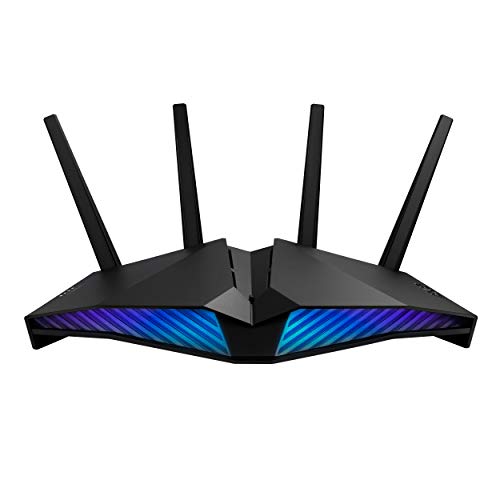
The AX82U approaches priority from the device side. Its listing names a dedicated gaming port and a Mobile Game Mode on an AX5400 dual-band WiFi 6 extendable platform, with AiProtection Pro security, Instant Guard, VPN and AiMesh compatibility. The gaming port is a physical promise: wire the console or PC into that socket and its traffic takes the fast lane by design, no rules page required. Mobile Game Mode extends the same thinking to the phone in a teenager’s hands, prioritising the game session over the household background noise.
Within the ASUS ecosystem, this router also inherits the brand’s mature traffic-management heritage — the same family tree as the Adaptive QoS named on the AX88U below — delivered here in a more playful shell, Aura RGB included. AiMesh compatibility means the prioritised network can grow a node when a bedroom demands it, and AiProtection Pro keeps the security layer on a platform a family may buy purely for games. For a household whose congestion pain is specifically gaming pain, this is the most targeted answer in the guide.
Strengths
- A dedicated gaming port prioritises the wired console or PC by design.
- Mobile Game Mode extends priority thinking to phone gaming sessions.
- AiMesh growth, AiProtection Pro and VPN make it more than a one-trick gaming box.
Trade-offs
- The listing does not use the word QoS — its priority story is told through the gaming features, so read it on those terms.
- Dual-band AX5400: solid class, but no 6 GHz and less wireless ceiling than the MSI.
- Aura RGB styling divides opinion in shared living spaces.
Spec snapshot: RT-AX82U (AX5400) Dual Band WiFi 6 Extendable Gaming Router · Gaming Port · Mobile Game Mode · Aura RGB · AiProtection Pro Security · Instant Guard · VPN · AiMesh Compatible. The precise behaviour of its traffic features beyond the title’s claims should be confirmed in ASUS’s documentation.
Best for: a household whose peak-hour pain is specifically a gaming session. Not suited for: a customer seeking an explicitly named Adaptive QoS engine, which the AX88U below provides. Check the gaming port layout on the AX82U listing against your console’s position.

ASUS RT-AX88U AX6000 Dual Band WiFi 6 Gaming Router — Adaptive QoS, eight ports
The AX88U is the veteran statesman of ASUS traffic management, and its listing says the words plainly: Adaptive QoS, alongside lifetime security, on an AX6000 dual-band WiFi 6 gaming router with eight ports. Adaptive QoS is the household-friendly philosophy — tell it what the evening is for, gaming or calls or streaming, and the engine arranges the queues accordingly — refined over a long product life. The eight-port wired bench is the other half of its identity and still rare: desk, console, television, NAS, printer and spares, all wired, all off the wireless airtime.
Age deserves an honest sentence. The AX88U’s platform predates WiFi 6E and 7, and buyers chasing the newest radios should look at the MSI. What the AX88U offers instead is maturity: a deep wired bench, a named and proven prioritisation engine, and lifetime security that keeps the protective layer from expiring. For a house that wires its important machines — the correct instinct, and one this router rewards more than any other pick here — it remains a deeply rational purchase.
Strengths
- Adaptive QoS named in the listing — a proven, mode-based prioritisation engine.
- Eight wired ports: the deepest bench in this guide for a wire-first household.
- Lifetime security included on a mature, well-documented platform.
Trade-offs
- WiFi 6 dual-band only — no 6 GHz lane, and the platform is a generation behind the MSI.
- Gigabit-class ports rather than the 2.5G benches on the Flint 2 and Omada Fusion.
- Its size and port count suit a network shelf, not a minimalist sideboard.
Spec snapshot: RT-AX88U AX6000 Dual Band WiFi 6 Gaming Router · 8 Ports · Lifetime Security · Adaptive QoS. Wireless coverage figures are not stated in the title — ASUS’s documentation carries the placement guidance.
Best for: a wire-first household wanting a named Adaptive QoS engine and ports to spare. Not suited for: a purchaser seeking WiFi 6E or 7 radios, because this platform is WiFi 6. Count your wired devices against the bench photographed on the AX88U page.
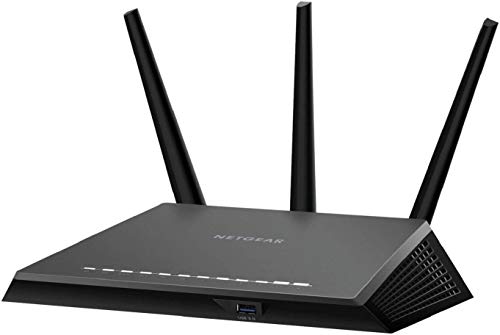
NETGEAR Nighthawk R7350 AC2400 Router — the proven AC referee
The R7350 earns its slot the straightforward way: QoS is printed in its own listing title, on a Nighthawk AC2400 platform with beamforming WiFi aimed at gaming and 4K UHD streaming, 2400Mbps of combined wireless, 2,500 square feet of coverage, a dual-core processor, both bands, five gigabit ports and a USB 3.0 port. This is the referee for the household a generation back — devices from the AC era, a television that streams in 4K, a console that games nightly — where the congestion problem is identical to a WiFi 7 home’s and the budget for solving it is not.
Beamforming deserves its mention: by aiming signal toward devices rather than broadcasting it in a sphere, the R7350 squeezes more reliable throughput from its AC radios, which complements QoS — the engine orders the traffic, the antennas deliver it more surely. The dual-core processor is the honest constraint to note against the quad-core picks above; on a heavily loaded AC network it will do its work, but a household planning to add WiFi 6 devices yearly should buy its referee from the newer end of this list.
Strengths
- QoS stated outright in the listing — no inference needed.
- Five gigabit ports plus USB 3.0 give wired devices and sharing a proper home.
- Beamforming and a stated 2,500 sq. ft. coverage suit the classic family floor plan.
Trade-offs
- AC wireless: no WiFi 6 efficiency gains for dense, modern device mixes.
- Dual-core processing is the lightest engine room in this guide.
- The listing’s QoS is the classic manual kind — expect to set priorities yourself.
Spec snapshot: Nighthawk R7350 AC2400 Router · Fast Beamforming Wi-Fi for Gaming, 4K UHD Streaming · 2400Mbps · 2500 Sq Ft · QoS · Dual Core · 2.4 + 5GHz · 5 x GIGABIT + USB 3.0 Port. The title does not detail its QoS modes — NETGEAR’s documentation describes the configuration screens.
Best for: an AC-era household wanting stated QoS without a platform upgrade. Not suited for: a reader seeking WiFi 6 or 6E radios, because this is an AC2400 design. Walk the feature summary on the R7350 listing and match it to your device list.

Omada Fusion 2.5G Multi-WAN VPN Router — business-grade policy for the home office
The final pick changes rooms entirely: a wired multi-WAN VPN router from the Omada line, whose listing names five 2.5Gb ports, a built-in Omada controller, a quad-core CPU, a touch screen, ACL, QoS and IPS/IDS. No WiFi at all — and for the reader whose priority traffic is a client presentation rather than a game, this may be the most serious QoS implementation in the guide. ACLs decide which devices may speak to which; the QoS engine orders what remains; intrusion prevention watches the border; and multi-WAN means the call survives a failed line by moving to the second one.
The built-in controller is the detail that makes it practical: the Fusion administers an Omada estate of access points — which supply the wireless this unit lacks — from inside the router itself, no separate controller hardware or cloud dependency. The touch screen is a small mercy for the cupboard-under-the-stairs moments when a status check should not require a laptop. Buy it as the brain of a wired-first home office, pair it with access points, and its QoS stops being a feature and becomes policy.
Strengths
- QoS named alongside ACL and IPS/IDS — policy-grade traffic control, not a gaming toggle.
- Five 2.5Gb ports and multi-WAN VPN serve a serious wired home office.
- Built-in Omada controller manages the access points that complete the network.
Trade-offs
- No WiFi radios — Omada access points are a required companion purchase.
- Its depth assumes an owner willing to configure policy, not just pick a mode.
- Gaming households will find its talents aimed at a different evening than theirs.
Spec snapshot: Omada Fusion 2.5G Multi-WAN Wired VPN Router · 5×2.5Gb Ports · Omada Controller Built-in · Quad-Core CPU · Touch Screen · ACL · QoS · IPS/IDS · Business Level Experience. Wireless figures do not apply to this unit — access point pairing is covered in TP-Link’s Omada documentation.
Best for: a wired-first home office whose calls carry revenue and need policy-grade priority. Not suited for: a user seeking a single box with WiFi inside, because the Fusion is a wired router. Study the port and controller details on the Omada Fusion listing alongside your access-point plan.
Comparison Table
| Pick | Wireless / role | QoS evidence | Standout trait |
|---|---|---|---|
| MSI Radix AXE6600 | WiFi 6E tri-band | AI QoS, named | 1.8GHz quad-core, 8-stream MU-MIMO |
| GL.iNet Flint 2 | WiFi 6 dual-band | OpenWrt queue disciplines | Dual 2.5G ports, OpenVPN and WireGuard |
| ASUS RT-AX82U | WiFi 6 AX5400 | Gaming port, Mobile Game Mode | AiMesh extendable, AiProtection Pro |
| ASUS RT-AX88U | WiFi 6 AX6000 | Adaptive QoS, named | Eight wired ports, lifetime security |
| NETGEAR Nighthawk R7350 | AC2400 dual-band | QoS, named | Beamforming, five gigabit ports, USB 3.0 |
| Omada Fusion | Wired VPN router | QoS with ACL and IPS/IDS | Five 2.5Gb ports, built-in controller |
Which QoS Style Matches Your Evenings?
Be honest about who will administer the thing. If the answer is nobody — the router will be configured once and expected to cope — choose an automatic engine: the MSI’s AI QoS or the AX88U’s Adaptive QoS. If your household contains a person who finds traffic graphs genuinely interesting, the Flint 2’s OpenWrt depth will keep them happily occupied and the queues exquisitely tuned. Our guides to Best WiFi Routers With Parental Controls and Best Tri-Band Cable Modem Routers cover the neighbouring disciplines of scheduling access and choosing the gateway itself, and a household mastering all three has a network that behaves like staff.
Then match the referee to the traffic you actually fear. Gaming pain points at the MSI and the AX82U. Call pain — the professional kind, where a frozen face costs credibility — points at the Adaptive QoS modes and, for the wired office, the Omada Fusion. Whole-house chaos, where the enemy is a backup or a console update, is solved by every pick here provided the shaping is switched on, which is why our final link, Best Routers With SIM Card Slot, covers the backup-connection routers for homes whose answer to congestion includes a second line entirely.
One calibration habit separates good QoS from theatre: after enabling it, run the real test. Start the biggest download the house can produce, then make the call or join the game. If the urgent traffic holds, the policy works. If it does not, the usual culprit is a speed figure entered wrong during setup — the engine can only referee a line whose true capacity it knows — so measure the line, enter honest numbers, and test again.
Bufferbloat: The Hidden Queue Behind Most Home Lag
Most households meet QoS through a specific villain, and it deserves its own section. Bufferbloat is the condition where a router or modem, trying to be helpful, buffers far more data than it should — holding packets in a deep queue rather than dropping or delaying the bulk flows early. On an idle line nothing reveals it. The moment a large upload or download saturates the connection, the queue fills, and every packet — including the tiny, urgent voice packet that just arrived — waits behind a procession of bulk data. The result is the signature experience of the busy modern home: plenty of bandwidth on paper, and a call that sounds like it is being made from the bottom of a well.
This is why the shaping advice in this guide matters more than any priority toggle. By holding bulk traffic slightly below the line’s true capacity, the router keeps the queue in its own hands and keeps it short, so urgent traffic steps through almost immediately. The modern queue disciplines available in OpenWrt on the Flint 2 were designed for exactly this problem, and the automatic engines on the MSI and ASUS picks implement their own versions of the same insight. When you test a new QoS setup, test for bufferbloat specifically: load the line fully, then measure how the call feels. Speed tests on an idle line will tell you nothing about it.
It is worth knowing that the queue can live in several places — the router, the modem, the provider’s equipment — and you can only manage the ones in your own home. That is another argument for the router shaping deliberately below line speed: a queue that never forms at the provider’s end cannot hurt you. Households that grasp this single idea understand their network better than most, and every pick in this guide gives you the tools to act on it at some level of automation.
Gaming, Calls and Streams: Three Traffics, Three Temperaments
Prioritisation gets easier when you stop thinking in devices and start thinking in temperaments. Game traffic is a whisper that cannot wait: tiny packets, sent constantly, worthless if late. A game uses less bandwidth than a single photograph upload, yet a hundred milliseconds of queue delay turns it unplayable — which is why gamers feel congestion first and complain loudest, and why this category is dominated by gaming hardware. Protect the whisper and the games take care of themselves.
Call traffic — the video meeting, the voice chat — is a conversation that cannot pause. It uses modest bandwidth in both directions, with the upload direction usually the tighter constraint, and it degrades in the most socially visible way possible: your face freezes in front of colleagues. Stream traffic is the opposite temperament: a river that can wait. Video arrives in bursts, buffered seconds ahead by the player, so a stream can absorb delay that would destroy a call — provided the bursts are not starved entirely. Downloads and backups are the glacier: enormous, patient, and perfectly content to move at whatever speed the other three leave behind.
A good QoS policy is simply those four temperaments written as rules: whispers first, conversations next, rivers steadily, glaciers in the gaps. The automatic engines infer the temperaments from traffic patterns; the manual systems ask you to declare them. When a pick in this guide is described as suiting gamers or suiting home workers, what is really being described is which temperament its defaults protect most instinctively — and the right choice is the one whose instincts match your household’s most unforgiving hour.
Wired Versus Wireless: Where QoS Can and Cannot Reach
A subtlety worth understanding before you set expectations: QoS governs the router’s queues, and the most controllable queue in the house is the wired one leaving for the internet. When a gaming PC is wired into the AX88U’s bench or the AX82U’s gaming port, its packets enter the router’s scheduling directly, and prioritisation works exactly as advertised. Wireless traffic has an extra frontier the router only partly commands — the airtime between the device and the access point, shared with every neighbour’s network on the same channel. A router can order the packets it sends down that air, but it cannot stop the smart television’s chatter or the house next door from consuming the medium.
This is why the wireless platforms in this guide pair QoS with airtime technologies rather than pretending the queue is everything. MU-MIMO lets the router converse with several devices in an organised fashion instead of shouting one at a time; the 6 GHz band on the MSI moves the most demanding clients onto emptier air altogether; and plain placement — the router near the rooms that matter, not exiled beside the modem — does more for real-world latency than any setting buried in a menu. The practical rule follows naturally: wire what you can, especially the machines whose traffic is most urgent, and let QoS and the modern radios manage the rest. The Omada Fusion’s presence in this guide is the extreme expression of that rule — an all-wired policy engine for the household that took it completely seriously.
It also explains a common disappointment: the household that enables QoS, changes nothing else, and finds the far bedroom’s game still stuttering. The queue was never their problem; the air was. Diagnose before you tune. If a wired speed test at the router is clean while the wireless experience in the far room is ragged, spend on placement, a mesh node or a cable run — the remedies for airtime — and keep QoS for its true job of ordering the traffic that reaches the line.
Measuring Whether Your QoS Is Working
Because prioritisation trades in milliseconds and feelings, households often enable it and then argue from vibes. A little measurement settles the argument and occasionally exposes a misconfiguration worth real money. The basic instrument is the loaded test: run a continuous ping to a nearby server from the machine you care about, note its calm rhythm, then start the largest download and upload the house can muster. Without working QoS, the ping times swell grotesquely under load — the bufferbloat signature. With shaping and priorities working, they rise modestly and stay composed. The difference is not subtle, and it is the single most convincing demonstration in home networking.
Repeat the test after any change: a new line speed, a firmware update, a new engine mode. Keep the numbers somewhere unglamorous — a note in the router cupboard — because memory rewrites them within a month. And test the real applications last: the actual call, at the actual busy hour, to the actual colleague whose face used to freeze. Tools measure the queue; only the evening measures the household. When both agree the system works, stop tuning. The most common way to break a working QoS setup is to keep improving it.
One measurement trap deserves naming: testing on an idle line at a quiet hour and concluding the feature does nothing. QoS is a referee for a crowded pitch; at 7 a.m. with one device awake there is nothing to referee, and the absence of visible effect is the system working in an empty stadium. Judge it at the hour it was bought for, or do not judge it at all.
QoS for the Whole Day, Not Just the Evening
Most QoS conversations fixate on the evening peak, but the modern household’s contention now runs on a schedule worth mapping. The morning brings the cloud backup finishing its overnight work just as the first video calls begin — the classic collision, and the reason upload shaping matters before nine o’clock. Midday belongs to the home workers and the home learners, with the house’s other systems — camera uploads, photo syncing, the operating system updates that favour lunch hours — filling the gaps between calls. The afternoon adds the returning school run’s devices, and only then does the famous evening peak arrive with its games and streams.
A policy written for the whole day looks different from one written for the evening alone. It treats backups and sync jobs as citizens of the night and the gaps, welcome to every spare scrap of capacity and entitled to none of the busy hour’s. It protects calls across the full working span, not just after dinner. And it recognises that the household’s most important traffic changes by the clock — a truth the automatic engines approximate by watching patterns, and the manual systems can encode explicitly when the Flint 2’s owner feels like craftsmanship. Whichever pick you run, spend one week noticing when your house actually congests; the answer will adjust your priorities more usefully than any default profile.
There is a fairness dimension hiding in the schedule too. A household is a small polity, and its bandwidth policy is felt as fairness or favouritism: the teenager whose game always wins, the parent whose call always wins, the lodger whose stream never wins. The better engines let the policy be plural — different protections at different hours, agreed in the open — and a household discussing its QoS settings once, briefly and with humour, has conducted the smallest possible exercise in shared governance. The router, as ever, merely enforces what the house decided.
When QoS Is Not the Answer
Honesty requires a section on the problems that wear QoS’s clothes but belong to other departments. Distance lag in online games — the delay between your house and a server on another continent — is physics and routing, and no home queue discipline shortens the ocean. A line whose raw speed cannot carry the household’s simultaneous habits needs upgrading, not refereeing; prioritisation decides the order of a queue, and a queue that never empties is a capacity problem wearing a scheduling costume. Wireless dead zones, as the airtime section explained, are placement problems. A modem with failing signal levels produces evening chaos that mimics congestion perfectly and answers only to cabling and provider work.
Diagnosing which problem you actually have is the highest-value hour in home networking, and it is mostly elimination: test wired at the router, test at the busy hour, test with one bulk job running and without. The pattern of results points at the department — queue, capacity, air or line — with a clarity no amount of settings-tweaking can substitute for. This guide exists because the queue department is real, common and fixable with the six machines above. It would be a poor guide if it sold them as the answer to every stutter in the house.
And when the diagnosis does land on the queue — as it does in a remarkable share of busy homes — the fix has a satisfying completeness to it. The same line, the same devices, the same evening, transformed by ordering. Few upgrades in the home offer that ratio of transformation to expense, which is why QoS, a feature with an unglamorous name and no visible hardware, keeps earning guides like this one.
Setting Up QoS in the Right Order
Because several readers will configure their new router the day it arrives, a sane order of operations is worth recording. First, before touching any priority setting, measure the line honestly at the router with a wired connection, at a reasonably quiet hour, and write the downstream and upstream figures down — the upstream number especially, since it is the smaller, more consequential one and the one households most often guess wrong. Every shaping decision the router makes will be arithmetic on those two numbers, and arithmetic on invented inputs produces confidently wrong queues.
Second, enable the simplest form of the system your pick offers and live with it for a week. On the MSI that means letting the AI engine observe; on the ASUS picks, choosing the mode that matches the household’s main pain; on the Flint 2, resisting the urge to build the perfect queue hierarchy on day one and starting with a single well-understood discipline. A week of ordinary life will show you which collisions actually recur in your house, and tuning aimed at observed collisions outperforms tuning aimed at imagined ones by a wide margin.
Third, run the loaded test described earlier — the big download plus the call — and adjust one thing at a time. Lower the shaped rate slightly if the call still roughens under load; raise a priority if a deserving traffic type is being starved; then test again. One change, one test, written down. It is slower than an evening of enthusiastic slider-moving and it converges on a configuration that genuinely works, which the enthusiastic method reliably does not. Finally, once the system passes the evening test, export or photograph the settings and stop. A working QoS configuration is a finished piece of household infrastructure, and its highest virtue from that day forward is being forgotten.
QoS and the Smart Home’s Background Murmur
One traffic source rarely appears in QoS discussions and increasingly deserves to: the smart home’s own background murmur. Dozens of gadgets check in, upload clips, sync states and fetch updates around the clock, individually trivial and collectively a steady tide that rises exactly when a camera-heavy household comes home and every sensor wakes at once. Left unordered, that tide competes with the evening’s calls and games on equal terms, and its bursts — five cameras uploading motion clips simultaneously — can spike a queue as effectively as any game download.
The remedy is the same discipline this guide applies to people, extended to things: gadgets belong low in the priority order and, where the platform allows, on their own network segment whose traffic can be shaped as a class. The security-focused segmentation discussed in our IoT guide and the traffic ordering discussed here are the same instinct in two departments — the household deciding, deliberately, what its network is for at each hour. A router estate where the doorbell’s uploads wait politely behind the work call is not a technical achievement so much as a well-governed one, and the picks in this guide all provide the levers, at their various levels of automation, to govern it.
Expect the murmur to grow. Every year adds devices, and every device adds its small recurring claim on the line. A QoS setup that treats the gadget class explicitly today will absorb that growth without drama, while a setup tuned only for today’s named devices will need revisiting each time the house gains a new electronic citizen. Build the policy around classes and temperaments rather than a fixed device list, and it ages the way good infrastructure should — quietly, and slower than everything it serves.
Common Mistakes
The commonest QoS mistake is enabling it and never testing it, leaving a misconfigured engine to reorder traffic by guesswork for a year. The second is entering the advertised line speed instead of the measured one; shaping depends on truthful numbers, and an optimistic figure quietly disables the benefit. Third, prioritising everything: a queue where the console, the television, the work laptop and the phones are all marked high priority is a queue with no priority at all.
Fourth, forgetting the upload direction. Downloads are the wide lane; uploads are where calls live and where home connections are thinnest, and a QoS setup that only manages downstream solves half the problem. Fifth, blaming QoS for a line that is genuinely too small. Prioritisation referees contention; it cannot mint capacity, and a household saturating its connection for hours nightly needs a faster line first and a referee second.
FAQ
Does QoS slow down my overall internet? Properly set, it deliberately holds bulk traffic a fraction below the line’s maximum — a small, invisible cost to downloads that buys a large, visible benefit for calls and games. If a speed test matters more to you than a clear call, that trade is yours to decline; most busy households take it gladly.
Should I prioritise by device or by application? By application where the engine supports it, because the same laptop carries both the urgent call and the patient backup. Device priority is the simpler fallback — wire the gaming machine or the work desk into the fast lane, as the AX82U’s gaming port does physically.
Is AI QoS better than manual rules? It is better at surviving contact with a busy household, because it maintains itself. Manual OpenWrt tuning on the Flint 2 can reach finer results in expert hands. The best engine is the one still enabled and correctly configured in month six.
Can QoS fix lag caused by a household member’s downloads? That is precisely its home ground. A shaped, prioritised queue lets the download proceed at nearly full speed in the gaps while calls and games step through immediately — the download finishes moments later, the call never notices it existed.
Do I need QoS if my connection is very fast? The faster the line, the rarer true saturation — but a single greedy device can still fill any pipe briefly, and upload lanes stay narrow even on fast plans. Homes with headroom may never notice QoS working, which is the correct outcome, not evidence it is useless.
Final Recommendation
For most busy households, the MSI Radix AXE6600 is the answer: AI QoS that maintains itself, on a tri-band WiFi 6E platform with the processor to run it. The ASUS AX88U remains the wire-first household’s champion, the AX82U the gaming household’s targeted tool, the Flint 2 the enthusiast’s workshop, the R7350 the honest AC-era referee, and the Omada Fusion the professional’s policy engine. Pick the referee whose style your household will actually keep switched on, enter your true line speeds, run the download-and-call test once — and the best routers with qos will quietly ensure that in your house, the urgent always travels first and the merely large learns to wait its turn.
A final calibration ritual, worth doing on a quiet Sunday: write down, in one sentence each, what your household’s unforgiving hour looks like — the call that cannot freeze, the game that cannot stutter, the upload that cannot miss its deadline. Tape the list inside the network cupboard door. Every future router, plan upgrade and settings change can be judged against those three sentences faster than against any specification sheet, and they will still be true when the hardware in this guide has been replaced twice over. Networks serve evenings, not benchmarks; buy and configure for the evening you actually live.
And if the household cannot agree on which traffic deserves the fast lane, let the calendar decide as a tiebreaker: protect the working day’s calls first, the evening’s games second, and let everything else — the streams that buffer, the downloads that wait, the gadgets that murmur — share what remains in that order. Most homes discover, once the policy is written in those plain terms, that their arguments were never really about bandwidth. They were about whose activity the house treats as important at 7 p.m., and a router that enforces an agreed answer to that question is doing social work as much as network work. Settle the question once, encode it honestly, and let the machine keep the peace from then on.
It is also worth keeping the receipt of your reasoning, not just the router’s receipt. When the next household member asks why the downloads pause politely during calls, or a future you wonders why the shaped rate sits a notch below the line’s tested speed, the one-page note in the cupboard — the measured figures, the chosen priorities, the date of the loaded test that proved it worked — will answer in seconds what rediscovery would take an evening to reconstruct. Good QoS is invisible by design, and invisible systems get doubted, fiddled with and eventually dismantled by people who cannot see what they are for. The note is how a working system defends itself after its installer has forgotten building it, and it costs one sheet of paper.
There is a temptation, once the queues are tuned and the evenings run smoothly, to declare the network finished and never think of it again — and for once, the temptation is mostly correct. A well-set QoS system asks for almost nothing: a glance when the line speed changes, a retest when a new router firmware lands, a moment’s thought when a genuinely new kind of traffic joins the house. Build it carefully, test it honestly, write it down, and then let it recede into the category of household systems that simply work — the boiler, the gutters, the router that keeps the peace at 7 p.m. without being thanked. That recession into invisibility is not the absence of value. It is the value, delivered nightly.
Related Guides
- Best WiFi Routers With Parental Controls
- Best Tri-Band Cable Modem Routers
- Best Routers With SIM Card Slot