What's inside
- Key Takeaways
- Quick Picks
- How These Picks Were Chosen
- Six Drives for the Bay Beside Your SSD
- Side-by-Side Comparison
- Which Size and Speed Class Does Your Library Deserve?
- Installing and Settling a New Bulk Drive
- The SSD and HDD Partnership, Arranged Properly
- Knowing When a Bulk Drive Is Ageing
- Common Mistakes With Desktop Bulk Drives
- Frequently Asked Questions
- Final Recommendation
- Related Guides
As an Amazon Associate I earn from qualifying purchases. This post may contain affiliate links at no extra cost to you.
widgetverdict.com is reader-supported. When you buy through links on our site, we may earn an affiliate commission.
Where to buy: the Seagate BarraCuda 4TB Internal HDD leads this guide as the mainstream starting point, and the other five picks each link to their own checked listing within their reviews.
The best hard drives for a desktop PC have settled into a clear modern role: bulk storage beside the SSD. The solid-state drive runs the operating system and the applications; the mechanical drive holds everything too large, too archival, or too numerous for flash economics — the game library’s second division, the video projects, the photograph archive, the download folder that became a geological feature. Judged for that role, a desktop hard drive is not competing with the SSD at all. It is competing with the delete key, and its virtues are capacity, calm running, and the patience to hold a decade of files without complaint.
Six drives from the two great mainstream families fill this guide. Seagate’s BarraCuda line appears at 2TB, 4TB, and 8TB, spanning both common speed classes. Western Digital answers with WD Blue models at 8TB and 12TB for the capacity-minded, and a WD Black 4TB gaming drive for desktops that want their bulk storage to feel brisk. Every pick is a 3.5-inch internal drive on SATA 6 Gb/s, every cache size and rotational speed below is stated in its listing title, and the reviews are frank about which side of the desk each drive belongs on.
There is a generational point worth making for readers returning to desktop building after some years away. The hard drive has not been displaced; it has been promoted sideways, from the machine’s only storage to its deep storage, and the drives in this guide are better at that deep role — larger, calmer, cheaper per terabyte — than the system drives of a decade ago ever were. Judging them by the old job’s standards misses what they have become.
The buying question is therefore not whether a mechanical drive belongs in a modern desktop — for anyone with a growing library, it plainly does — but which size and temperament matches the library you actually keep. Count first, then read. The counting takes ten minutes with a file manager and an honest memory, and it will do more for the success of this purchase than any specification comparison that follows, because every disappointment in this category begins with a library that was guessed at rather than measured.
Key Takeaways
- The modern desktop hard drive is bulk storage beside an SSD, not a rival to it.
- All six picks are 3.5-inch SATA 6 Gb/s internal drives from the BarraCuda, WD Blue, and WD Black lines.
- The 5400 RPM class runs calmly for archives; the 7200 RPM class suits active game libraries.
- Capacity should be counted from the real library plus two years of its growth.
- Cache sizes here run from 256MB to 512MB, stated in each title and matched to each drive’s role.
- A bulk drive is not a backup; the irreplaceable files on it deserve a second home elsewhere.
- Install calmly, migrate in stages, and verify copies before retiring the old drive.
- Let the room arbitrate noise: calm classes for bedrooms, brisk classes for busy family rooms.
- Watch a drive’s health reports quarterly; ageing announced early is an errand, not an emergency.
- Count bays, ports, and power connectors carefully before the flagship drive finally arrives on the doorstep.
Quick Picks
| Pick | Badge | Why it earns its place |
|---|---|---|
| Seagate BarraCuda 4TB Internal HDD | The mainstream middle | Four terabytes at 5400 RPM with a 256MB cache for calm bulk storage. |
| Seagate BarraCuda 2TB Internal HDD | The brisk small drive | Two terabytes at 7200 RPM for a compact, responsive library. |
| WD Blue 8TB PC Internal HDD | The quiet vault | Eight terabytes at 5640 RPM for archives that value calm. |
| WD Black 4TB Gaming Internal Hard Drive | The gaming bulk drive | Four terabytes at 7200 RPM from WD’s gaming line. |
| WD Blue 12TB Internal Hard Drive | The capacity flagship | Twelve terabytes at 7200 RPM with a 512 MB cache. |
| Seagate BarraCuda 8TB Internal HDD | The warranted all-rounder | Eight terabytes with a 2-year warranty and 2-year Rescue stated in the title. |
How These Picks Were Chosen
The first requirement was role honesty. A desktop bulk drive in this era is bought to sit beside an SSD, so candidates were judged as library and archive hardware: capacity per drive bay, rotational temperament, and the manufacturer’s own positioning in the title. Every pick states its purpose in desktop terms — BarraCuda for computer desktop PCs, WD Blue as a PC internal drive, WD Black explicitly as a gaming internal drive — and none was asked to pretend to NAS or surveillance duty it does not claim. A drive used inside its stated role outlasts a cleverer drive used outside its own.
The second requirement was a truthful spread of sizes and speeds. Desktop libraries vary from a modest game collection to a creator’s decade of footage, so the guide runs from 2TB to 12TB, and from the 5400 RPM class — represented by the BarraCuda 4TB and the WD Blue 8TB at its stated 5640 RPM — up to 7200 RPM models for owners whose bulk storage is opened daily. Neither class is “the fast one” in any absolute sense beside an SSD; the difference is temperament under active use, and the reviews treat it that way rather than inflating it into a race.
The third requirement was specification discipline. Cache sizes, model numbers, warranty and rescue terms appear in these reviews only where the listing title states them. Where a title is silent — and mainstream drive titles are often terse — the spec boxes acknowledge the silence and point to the manufacturer’s documentation. A buyer comparing two near-identical drives deserves to know which figures are printed by the maker and which are folklore repeated between shops.
Value framing mattered too, in the specific sense of cost per year of service. A bulk drive is a five-to-eight-year resident of the case, and across that residency the difference between the guide’s smallest and largest picks amounts to very little per month — while the difference between a rightly sized drive and an undersized one is measured in migration weekends. The guide therefore refuses to crown a budget winner on principle: the cheapest drive in this list is the one whose size you will not outgrow, and only the reader’s counted library can identify it.
Finally, the guide weighed the desktop as a physical place: a case with finite bays, finite airflow, and an owner who will hear the drive during quiet work. Capacity per bay matters because bays run out; calm running matters because the machine sits in a bedroom or a study as often as in a dedicated office. The advice sections return to those physical facts, because a bulk drive is furniture inside the machine for years at a time.
Six Drives for the Bay Beside Your SSD

Seagate BarraCuda 4TB Internal HDD — the mainstream middle
The Seagate BarraCuda 4TB Internal HDD is the drive most desktops in the world would choose if desktops chose drives: 4TB of 3.5-inch storage on SATA 6 Gb/s, a 5400 RPM rotational class, a 256MB cache, and frustration-free packaging, model family ST4000DMZ04/DM004. Four terabytes is the size at which a household library stops being a juggling act — the game collection’s overflow, the ripped media, the family photographs, and the project folders coexist without a monthly eviction meeting. The calmer speed class suits that archival temperament, running with the discretion a bulk drive should have in a machine used for everything.
BarraCuda is Seagate’s mainstream desktop line, and this model is its centre of gravity: not the smallest, not the flagship, just the honest middle where most libraries live. In a typical modern build it takes the bay beside a fast SSD and absorbs everything the SSD is too precious to hold. Owners upgrading from a full 1TB or 2TB drive will feel the change immediately — not in speed, which was never the point, but in the disappearance of storage management from their weekly habits.
Strengths
- Four terabytes ends capacity triage for the mainstream household library.
- 5400 RPM class runs calmly in machines that share rooms with people.
- A 256MB cache, generous for its class, stated plainly in the title.
Trade-offs
- Active game libraries opened daily may prefer a 7200 RPM temperament.
- Creators archiving raw footage will eventually look at the 8TB and 12TB picks.
- The title states no warranty term; Seagate’s documentation carries the specifics.
Spec snapshot: Capacity 4TB · Form 3.5 inch · Interface SATA 6 Gb/s · Speed 5400 RPM · Cache 256MB · Models ST4000DMZ04/DM004 · Packaging frustration-free per the title · Anything beyond these stated facts should be confirmed in Seagate’s documentation for the model.
The ownership pattern this drive rewards is the set-and-forget library. Install it, point the big folders at it — games overflow, media, documents archive — and let the SSD stay lean and quick. Once a quarter, glance at the free space the way you would glance at a fuel gauge. A mainstream drive’s success is measured in years of not being thought about, and the BarraCuda 4TB is specified, sized, and priced by its maker to achieve exactly that invisibility.
It also makes the natural first step for a desktop still running on a single small drive. Paired with a new SSD for the system, this BarraCuda transforms the machine’s whole storage character in one afternoon: speed where speed is felt, room where room is needed, and no component asked to do the other’s job.
Best for: a mainstream desktop seeking calm 4TB bulk storage beside its SSD.
Not suited for: a compact build with no free 3.5-inch bay to give it.
For the centre-of-the-road answer, start with the BarraCuda 4TB listing and check your case’s spare bay before ordering.
There is a family-PC scenario where this middle pick is exactly right and the flagships are wrong. The shared household computer — homework, photographs, a parent’s work archive, one modest game library — does not need a vault; it needs a roomy, calm drive that will still be unremarkable in six years. Oversizing that machine buys idle terabytes and, worse, postpones the backup conversation by making the library feel too big to copy. Four terabytes keeps the whole arrangement human-scale: big enough to end the warnings, small enough that a complete external backup remains an errand rather than a project.

Seagate BarraCuda 2TB Internal HDD — the brisk small drive
The Seagate BarraCuda 2TB Internal HDD trades size for pace within the same family: 2TB, 3.5-inch, SATA 6Gb/s, a 7200 RPM rotational class, and a 256MB cache, model family ST2000DM008/ST2000DMZ08. Two terabytes is the deliberate size — the library of a gamer whose collection is curated, a family PC whose media lives elsewhere, a workstation whose projects archive to external storage on schedule. At that size, the faster rotational class is a sensible luxury: the drive is opened daily, its contents are working files rather than deep archive, and a brisker temperament suits a drive that participates rather than warehouses.
This is also the natural replacement drive for the enormous installed base of ageing desktops whose original 1TB or 2TB mechanisms are growing old in place. A like-for-like swap into the same bay, at the same size, with a modern cache and a fresh mechanism, is the least dramatic upgrade in computing — and drama-free is a compliment when the machine in question is the household’s shared PC, expected to work tonight exactly as it worked this morning.
Strengths
- 7200 RPM class gives a working library a brisker temperament.
- Two terabytes suits curated collections without paying for idle space.
- A like-for-like modern replacement for ageing desktop drives of its size.
Trade-offs
- Game libraries grow; 2TB is a ceiling the enthusiastic will meet.
- The faster class runs less discreetly than the 5400 RPM picks here.
- No warranty term is stated in the title; check Seagate’s documentation.
Spec snapshot: Capacity 2TB · Form 3.5 inch · Interface SATA 6 Gb/s · Speed 7200 RPM · Cache 256MB · Models ST2000DM008/ST2000DMZ08 · Packaging frustration-free per the title · Further particulars belong to Seagate’s documentation for these models.
Consider who should not buy it, because that clarifies who should. The hoarder of entire franchise back-catalogues, the parent archiving a decade of phone video, the creator with project folders like Russian dolls — all will outgrow it and should start at 4TB or beyond. The buyer it serves is the one whose storage problem is age and temperament rather than volume: a working drive, in daily use, that should feel willing. For that buyer, this is the BarraCuda line’s most honest small offering.
Installation counsel is the same as for every internal pick here, but worth repeating at the size where first-time upgraders cluster: power the machine fully down, seat the drive firmly, and let the operating system’s disk tools introduce it before moving a single folder. An unhurried first hour prevents the only failures this class of upgrade ever really has.
Best for: a desktop seeking a brisk 2TB working drive or a modern like-for-like replacement.
Not suited for: a fast-growing archive that will pass two terabytes within the year.
Upgraders replacing an ageing mechanism should compare the BarraCuda 2TB listing against the model it will succeed.
Small drives also pair gracefully. Two of these in a roomy case — one for the working library, one receiving a nightly copy of the irreplaceable — give a modest desktop a storage story more grown-up than many flagships enjoy, at a total capacity that stays easy to reason about. The brisk small drive is therefore not merely the budget rung of this guide; it is a building block, and builders who think in pairs will recognise its usefulness long after single-drive buyers have moved on to debating terabytes.

WD Blue 8TB PC Internal HDD — the quiet vault
The WD Blue 8TB PC Internal HDD is the archive temperament expressed at scale: 8TB, a stated 5640 RPM rotational speed, SATA 6 Gb/s, a 256 MB cache, 3.5-inch form, model WD80EAAZ. WD Blue is Western Digital’s everyday PC line, and this model aims it at the household vault role — the drive that holds the photograph library, the ripped media collection, the years of documents and downloads, in a machine that may sit in a living room or a bedroom where a loud mechanism would be a nightly argument. Eight terabytes at a calm speed class is a deliberate combination: maximum room, minimum presence.
The capacity deserves a moment’s respect. Eight terabytes is not an overflow drive; it is a decision that the desktop becomes the household’s memory, with the library consolidated in one bay rather than scattered across portables and old externals. Consolidation has real virtues — one place to back up, one place to search, one drive whose health can be checked on a schedule — and this WD Blue is specified for exactly that consolidation, at a speed class that will never be heard over a film playing in the same room.
Strengths
- Eight terabytes consolidates a household archive into a single bay.
- The stated 5640 RPM class favours quiet running in living spaces.
- WD Blue’s everyday-PC positioning matches the vault role precisely.
Trade-offs
- A daily-opened game library may prefer the 7200 RPM picks’ temperament.
- Consolidation concentrates importance; this drive’s contents demand a backup plan.
- The title gives no warranty term; Western Digital’s documentation states it.
Spec snapshot: Capacity 8TB · Form 3.5 inch · Interface SATA 6 Gb/s · Speed 5640 RPM · Cache 256 MB · Model WD80EAAZ · Line WD Blue PC · For figures the title omits, Western Digital’s documentation for this model is the authority to consult.
The vault role imposes one duty the review should not soften: a consolidated archive is a single point of failure wearing a tidy disguise. The household that buys this drive to hold everything should buy, in the same season, the external drive or cloud arrangement that holds a copy of the irreplaceable parts. The WD Blue will serve calmly for years, but calm service is not immortality, and photographs do not re-rip themselves. Pair the vault with its insurance and the consolidation is complete.
For media-heavy households, this drive pairs naturally with the living-room thinking elsewhere among these companion guides: the desktop becomes the library’s home, streaming and sharing outward, while the drive itself stays where its calm speed class belongs — inside a case, in the corner, unheard.
Best for: a household desktop seeking an 8TB archive vault with quiet manners.
Not suited for: a gaming rig whose bulk drive is opened hourly and wants a 7200 RPM temperament.
Archivists should examine the WD Blue 8TB listing and plan its backup partner in the same breath.
The vault pattern has a seasonal rhythm worth adopting from the first month. Each spring, the household reviews the archive’s top level: this year’s folders created, last year’s verified against the backup, the genuinely dead weight — duplicate downloads, abandoned projects — released. An 8TB drive tidied annually stays a library; the same drive never tidied becomes a very large drawer. The WD Blue’s calm temperament suits the rhythm perfectly, because a vault’s work is measured in decades of evenings, not in benchmarks.

WD Black 4TB Gaming Internal Hard Drive — the gaming bulk drive
The WD Black 4TB Gaming Internal Hard Drive is the pick for desktops whose bulk storage works for a living. Its title states the formula directly: 4TB, 7200 RPM, SATA 6 Gb/s, a 256 MB cache, 3.5-inch form, model WD4006FZBX, from Western Digital’s Black line, explicitly a gaming internal drive. In a gaming PC, the mechanical drive’s modern job is holding the library — the installed back-catalogue, the games in rotation, the capture folder — while the SSD carries the current favourite. A library opened daily, browsed, patched, and recorded to is working storage, and the Black line’s gaming positioning plus the faster rotational class suit that participation.
Four terabytes at this temperament is the sweet spot for a serious but not archival game library: dozens of large titles installed simultaneously, with room for recorded sessions beside them. Players who rotate between a handful of huge games know the alternative — the uninstall-reinstall shuffle dictated by an undersized drive — and this capacity is precisely the end of that shuffle for most collections. The drive will not make a game load like an SSD, and this guide will not pretend otherwise; it makes the library exist, entirely, at once, which is the mechanical drive’s actual contribution to a gaming life.
Strengths
- Gaming-line positioning with a 7200 RPM class for a working library.
- Four terabytes holds a serious installed collection without the shuffle.
- A 256 MB cache supports its active, frequently opened role.
Trade-offs
- The faster class is the less discreet option in a quiet room at night.
- Archival households get more calm per terabyte from the WD Blue picks.
- The title states no warranty term; check Western Digital’s documentation.
Spec snapshot: Capacity 4TB · Form 3.5 inch · Interface SATA 6 Gb/s · Speed 7200 RPM · Cache 256 MB · Model WD4006FZBX · Line WD Black Gaming · Any specification past the title’s statements should be verified in Western Digital’s documentation for this drive.
There is a recording angle worth underlining for the streaming household. Gameplay capture writes large files continuously, and a bulk drive with room and a working temperament absorbs a season of sessions beside the library that produced them. Keep a healthy margin of free space — captures and game patches both arrive in large, urgent parcels — and the Black serves as the gaming PC’s single deep pocket, library and ledger together.
Case placement matters in a gaming rig more than in an office PC, because the case already runs warm with enthusiasm. Give the drive a bay with airflow rather than the one tucked behind the hottest cabling, and its years of service will be as uneventful as a bulk drive’s should be, even in a machine that games nightly.
Best for: a gaming desktop seeking 4TB of working library storage with a brisk temperament.
Not suited for: a silent-room PC where the bulk drive’s only job is deep archive.
Gamers done with the uninstall shuffle should look over the WD Black 4TB listing and count their installed library against it.
A gaming bulk drive also changes how a household shares one fast machine. When the library lives entire on the Black, the SSD stops being contested territory between the players and the person editing video or working from home. Everyone’s bulk has a home that is not the system drive, and the machine’s responsiveness stops depending on whose hobby is currently winning. That domestic peace is a real specification, even though it appears on no box, and 4TB of it is a reasonable purchase for any house with more than one enthusiast.
WD Blue 12TB Internal Hard Drive — the capacity flagship
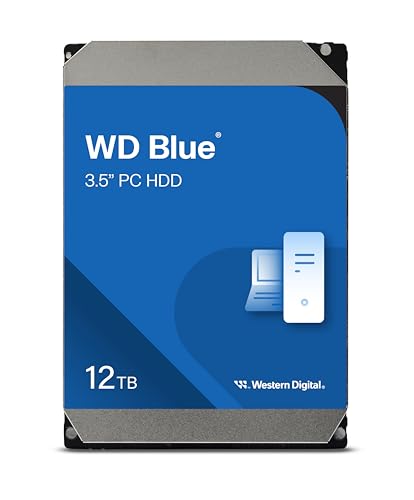
The WD Blue 12TB Internal Hard Drive is this guide’s ceiling, and its title does not whisper it: 12TB, 7200 RPM, SATA 6 Gb/s, a 512 MB cache, model WD120EAGZ. Twelve terabytes in a single 3.5-inch bay changes a desktop’s category. The machine stops being a computer with storage and becomes the household’s or studio’s library of record — the full media archive, the creator’s project history, the game collection entire, with years of headroom standing behind them. The 7200 RPM class and the largest cache in this guide suit that scale, because a library this size is browsed, searched, and served constantly, not merely stored.
WD Blue positioning at this size is itself a statement: this is capacity for everyday-PC owners, not enterprise hardware wearing a disguise. The buyer is the home archivist, the video hobbyist whose footage multiplies, the household that has filled 4TB, then 8TB, and has decided to buy the ceiling once rather than the staircase repeatedly. There is an economy in that decision — one bay, one drive, one migration — that serial upgraders recognise immediately, usually while remembering their third migration weekend.
Strengths
- Twelve terabytes in one bay ends capacity planning for years.
- 7200 RPM and a 512 MB cache keep a vast library feeling responsive.
- Single-drive consolidation simplifies the whole storage story of a PC.
Trade-offs
- A library this concentrated makes a backup arrangement non-negotiable.
- Modest libraries will never meet this drive; its price of entry buys unused room.
- The faster class runs with more presence than the calm archive picks.
Spec snapshot: Capacity 12TB · Interface SATA 6 Gb/s · Speed 7200 RPM · Cache 512 MB · Model WD120EAGZ · Line WD Blue · Form 3.5 inch per the product title’s internal-drive description · Details beyond the title belong to Western Digital’s documentation for this model.
Stewardship scales with capacity, and the review should say so plainly. A 12TB library deserves a folder discipline, a health-check rhythm, and a backup whose own capacity planning started the day this drive was installed. Households that accept those duties gain something genuinely valuable: a single, searchable, roomy home for a decade of digital life. Households that want storage to remain a minor topic should choose a smaller pick and keep it that way on purpose.
There is also a future-proofing honesty to the flagship: games, footage, and photographs are not shrinking. The drive bought at the ceiling today is the drive that absorbs the next camera, the next console generation’s PC ports, and the next hobby without a migration. For the right library, that is not extravagance; it is scheduling.
Best for: a home archivist or creator seeking 12TB of single-bay library capacity.
Not suited for: a modest desktop whose whole library fits inside the 2TB pick.
Ceiling-buyers should study the WD Blue 12TB listing and start the backup plan alongside the order.
Think, finally, about the migration this drive prevents. Every capacity generation a household skips is a weekend not spent copying, verifying, and re-pointing libraries. The archivist who moves from a full 4TB straight to this 12TB flagship performs one migration and retires the topic for years; the archivist who climbs 6TB, then 8TB, then 10TB performs three and develops strong opinions about cables. There are worse hobbies, but the flagship exists for people who would rather have almost any other one.

Seagate BarraCuda 8TB Internal HDD — the warranted all-rounder
The Seagate BarraCuda 8TB Internal HDD closes the guide with an unusual title virtue: it states its safety net. Alongside 8TB of SATA 6 Gb/s desktop storage, model ST8000DM004, positioned for everyday PC storage, gaming, and computing, the title names a 2-year warranty and 2-year Rescue services. In a category where warranty terms usually hide in documentation, having them printed in the listing is a small act of candour that suits the drive’s role: an 8TB all-rounder for a desktop that stores, games, and computes in roughly equal measure, backed by a stated recovery path if the worst arrives.
Eight terabytes is the size where a desktop’s bulk drive stops being overflow and becomes infrastructure. The full game library installed, the media collection local, the project archive at hand — the BarraCuda 8TB holds the same consolidation argument as the WD Blue 8TB, in Seagate’s mainstream line and with the warranty stated up front. The title does not state a rotational speed or cache figure, and this review will not invent them; buyers for whom those figures decide the purchase should confirm them in Seagate’s documentation, where they belong.
Strengths
- Eight terabytes of mainstream desktop storage for a consolidated library.
- A 2-year warranty and 2-year Rescue stated in the title itself.
- Positioned by its maker for storage, gaming, and everyday computing alike.
Trade-offs
- Rotational speed and cache are absent from the title; verify in Seagate’s documentation.
- Like every 8TB consolidation, it concentrates the library in one mechanism.
- Quiet-room archivists may prefer the WD Blue 8TB’s stated calm speed class.
Spec snapshot: Capacity 8TB · Interface SATA 6 Gb/s · Model ST8000DM004 · Line BarraCuda desktop HDD · Warranty per the title: 2 years, with 2-year Rescue · The listing title leaves rotational speed and cache unstated, so Seagate’s documentation is the source for those figures.
The Rescue mention deserves a fair reading. Data recovery services are a parachute, not a plan: they exist for the failure that defeats ordinary care, and their presence in the title signals a maker willing to stand behind an 8TB household commitment. The plan remains what it is for every pick here — a second copy of the irreplaceable, kept somewhere else. With that plan in place, the BarraCuda 8TB’s combination of scale, mainstream manners, and stated backing makes it the guide’s easiest recommendation for a one-drive consolidation.
For the desktop that does everything — work by day, games by night, archive always — an all-rounder with its warranty printed on the tin is a fitting final word in the line-up, and a natural rival to the WD Blue 8TB for the same bay.
Best for: a do-everything desktop seeking 8TB of consolidation with its warranty stated up front.
Not suited for: a buying decision that depends on a rotational speed stated in the listing itself.
Consolidators who value the printed safety net should read the BarraCuda 8TB listing in full, warranty line included.
The all-rounder’s buyer is often the household’s designated realist: the person who has read the failure stories, priced the recovery services, and decided that the drive holding everything should be the one whose maker prints its safety net in the title. That realism is this pick’s whole charm. It does not promise to be the quietest, the fastest, or the largest drive in the guide; it promises eight terabytes of mainstream competence with its backing stated in plain sight, and for a great many desktops that is the most grown-up promise on the page.
Side-by-Side Comparison
| Drive | Capacity | Speed class | Cache | Character |
|---|---|---|---|---|
| Seagate BarraCuda | 4TB | 5400 RPM | 256MB | Calm mainstream middle |
| Seagate BarraCuda, small | 2TB | 7200 RPM | 256MB | Brisk working drive |
| WD Blue | 8TB | 5640 RPM | 256 MB | Quiet household vault |
| WD Black Gaming | 4TB | 7200 RPM | 256 MB | Working game library |
| WD Blue, flagship | 12TB | 7200 RPM | 512 MB | Single-bay library of record |
| Seagate BarraCuda, large | 8TB | Not stated in title | Not stated in title | Warranted all-rounder, Rescue named |
Which Size and Speed Class Does Your Library Deserve?
Count the library before admiring the drives. Add the installed games, the media folders, the photographs, the projects, and the download archaeology, then add the honest growth of two years — libraries grow at the speed of hobbies, and hobbies are accelerating. Buy the size that holds that total with a third to spare. A drive bought at the edge of fullness begins its life as a problem; a drive bought with headroom begins as furniture. Readers whose libraries have already burst the desktop’s seams should continue into Best High-Capacity Hard Drives, where the external and enterprise end of the scale takes over.
Speed class is the second question, and it is about participation. A bulk drive that mostly sleeps — archives, media served occasionally, backups received nightly — is happiest in the calm classes: the BarraCuda 4TB, the WD Blue 8TB. A bulk drive that participates daily — the game library, the active project store — earns the 7200 RPM temperament of the BarraCuda 2TB, the WD Black, and the 12TB flagship. Households whose storage questions began at a games console rather than a PC will find a familiar echo of this thinking in Best Hard Drives for Hopper 3, where capacity discipline rules a different room, and those weighing combination drives should detour through Best Hybrid Hard Drives for Desktop before deciding.
Noise belongs in the arithmetic for machines that live in bedrooms and studies. A bulk drive’s voice is modest, but in a silent room at 1 a.m. modest is audible, and the calm classes earn their keep precisely there. Conversely, a gaming rig under a desk in a busy family room will never reveal which class its bulk drive belongs to. Let the room arbitrate: the same drive that is inaudible in one house is a nightly presence in another, and no specification table can make that judgement for you.
Brand allegiance, finally, can be allowed a vote but not a veto. Households that have run one maker’s drives happily for a decade are not foolish to continue; familiarity with a maker’s tools, documentation, and warranty process is a real asset. Both families in this guide offer a complete ladder from 2TB to flagship sizes, so allegiance rarely forces a compromise — it merely chooses which ladder the library climbs.
The third question is bays. A case with one free 3.5-inch bay argues for buying the ceiling once — the 12TB or an 8TB — while a case with several bays can grow by addition. Count the bays, the SATA ports, and the power connectors your supply offers before the drive arrives, because a flagship in a box on the desk, waiting for a bay that does not exist, is a paperweight with a warranty.
Installing and Settling a New Bulk Drive
Installation is an hour of calm procedure. Power the machine down fully, ground yourself against static, seat the drive in its bay with all its screws, and connect SATA data and power with cables that click rather than perch. On first boot, let the operating system’s disk management initialise and format the new volume before any folder moves; a drive introduced politely at the start rarely features in later troubleshooting stories. Then move the library in stages — media first, games next, archives last — verifying as you go, so that any surprise is discovered with the old arrangement still intact.
Cable routing inside the case deserves its thirty seconds of fame. A SATA cable draped across a fan intake or resting against a hot graphics card is a small fault that compounds daily, while a cable routed along the case’s channels costs nothing but attention. Likewise, a drive mounted with all its screws sits quieter than one mounted with two and optimism. These are not enthusiast refinements; they are the difference between a bulk drive that is never heard and one that hums its way into the household’s subconscious.
Settling is the month after. Point the big, quiet folders at the new drive permanently: the media library, the game installs overflow, the documents archive. Keep the SSD’s free space healthy as a matter of symmetry, because the pair works as a system — flash for the urgent, platters for the plentiful. Finally, schedule the backup of the irreplaceable while the installation is still fresh in memory. The best day to protect a new library is the day it was organised, when everything in it has just been seen and valued by human eyes.
The SSD and HDD Partnership, Arranged Properly
The modern desktop’s storage works when each technology is given the work it is for. The SSD takes the operating system, the applications, and the current projects — everything whose value is measured in responsiveness. The hard drive takes the library: installed games beyond the current favourite, media, archives, and the long tail of files whose value is measured in existence. Arranged that way, each drive makes the other look good. The SSD stays lean and quick because nothing patient is stored on it; the hard drive’s calm pace is never mistaken for slowness because nothing urgent is asked of it.
Folder placement is where the partnership is actually negotiated. Point the big libraries at the hard drive deliberately — game platform library folders, media collections, the documents archive — rather than letting them default onto the SSD and migrate in a panic later. Most platforms and applications offer a library-location setting precisely for this arrangement, and ten minutes with those settings at installation time is the difference between a system designed and a system accumulated. The accumulated system works too, until the day the SSD fills mid-update and the design conversation happens under duress.
Games deserve a specific sentence in the arrangement, because modern titles are the largest single objects most desktops hold. Keeping the current two or three on the SSD and the rest of the collection on the bulk drive is the standard treaty, and it works because moving a game between the two is a copy operation measured in minutes, not a re-download measured in evenings. The bulk drive thus becomes the library shelf from which the SSD’s small stage is cast, and a 4TB or 8TB shelf holds a company of titles large enough that the casting decision is about mood, not scarcity.
One more arrangement detail rewards attention: backups should cross the partnership. The SSD’s irreplaceable work files deserve a copy on the hard drive or beyond it; the hard drive’s irreplaceable archive deserves a copy outside the case entirely. A partnership where each partner insures the other, and an outside friend insures them both, is a storage system a household can run for a decade without a single dramatic evening.
Knowing When a Bulk Drive Is Ageing
A mechanical drive rarely fails like a light bulb. It retires gradually, in symptoms a attentive owner can learn to read: a folder that takes a breath before opening, a copy that pauses at the same percentage twice, new sounds in a machine whose sounds were memorised years ago, files that the system asks to check with increasing politeness. None of these is a diagnosis by itself, and all of them together are a message. The correct response is not panic but sequence — copy the irreplaceable first, while copying is still easy, and let the diagnosis happen afterwards with the treasures already safe.
Every operating system offers drive-health reporting in some form, and a quarterly glance at it belongs in the same rhythm as the free-space check. Healthy reports are boring, which is their charm. A report that changes — new warnings, growing counts of problem sectors — converts the replacement purchase from an emergency into an errand, because the library can migrate in daylight, in stages, with the old drive still cooperating. Nearly every pick in this guide has been bought, by someone, in both ways: calmly as a planned succession, and desperately at midnight. The hardware is identical; the experience is not, and the difference is entirely the owner’s timing.
When the old drive is finally retired, give its contents a thought before its body. A wiped drive can be donated, sold, or kept as a cold spare in a labelled box; an unwiped one carries the household with it wherever it goes. The dock in a neighbouring guide exists for exactly this ceremony, and performing it is the last act of stewardship a bulk drive’s owner owes the library it held.
Common Mistakes With Desktop Bulk Drives
The founding mistake is asking the mechanical drive to be the system drive and then judging it by SSD standards. Every pick here is bulk storage beside an SSD; installed as a boot drive in a modern machine, any of them would feel like a demotion, because that is no longer their job. The second mistake is buying the size the library is today. Libraries grow monotonically — nothing in digital life gets smaller — and a drive bought exactly full is a migration scheduled, not a purchase completed.
A sixth mistake is subtler and very common: filling the new drive to the brim on migration day because the space is there. A bulk drive that begins life at ninety percent has nowhere to put the next camera, the next game, or the next project, and its owner is back in the deletion economy within the quarter. Migrate what the library is, not everything the old machine ever touched, and let the new drive begin its service with the headroom that makes it feel like the upgrade it was.
Third is the consolidation without a copy: the beautiful single-bay archive holding the only version of a decade’s photographs. A bulk drive is a home, not a vault in the banking sense, and the irreplaceable deserves a second address. Fourth is ignoring the case: a drive screwed into the one bay with no airflow, in a gaming rig that runs hot nightly, ageing in dog years. Fifth is the forgotten format step — moving folders onto a drive the system has not properly initialised, then blaming the drive for the confusion. Each mistake is cheap to avoid and expensive to learn, which is the definition of a mistake worth listing.
Frequently Asked Questions
Do I still need a hard drive if my SSD is large?
If your library fits the SSD with room to spare and grows slowly, perhaps not. The moment the library’s growth starts dictating deletions — games uninstalled to make room for games, footage exiled to a drawer of portables — a bulk drive becomes the cheaper and calmer answer. The six picks here exist for that moment, at six sizes of it.
Is 5400 RPM too slow for a game library?
For storing and launching a large back-catalogue, the calm classes serve well; loading is leisurely compared with an SSD, but the library exists in full, which is the mechanical drive’s contribution. Players who want their bulk storage to participate briskly in daily play should choose the 7200 RPM picks — the WD Black exists precisely for that preference.
How long will a desktop hard drive last?
Years of ordinary service is the honest expectation for a mainstream drive used inside its stated role, in a ventilated case, without physical shocks. Treat any individual drive as mortal regardless: keep the backup, check its health when the system offers the chance, and let the warranty terms stated in titles like the BarraCuda 8TB’s be a comfort rather than a strategy.
Does a bulk drive need any maintenance?
Very little, and mostly of the glancing kind: free space checked quarterly, health reports read when the system offers them, cables and airflow confirmed whenever the case is opened for another reason. Defragmentation, the ritual of an earlier era, is handled quietly by modern operating systems on their own schedules for mechanical drives. The bulk drive’s maintenance philosophy is the same as its working philosophy — calm, occasional, and largely invisible when the installation was done properly at the start.
Can I move my old drive’s contents across easily?
Yes — install the new drive alongside the old one, copy in stages, verify the copies, and only then retire or repurpose the old mechanism. The staged copy is the entire trick: never let a migration have a moment where the only copy of something is in transit. An external dock makes the old drive’s second life easy, but the copy-first discipline matters more than the hardware.
One big drive or two smaller ones?
One big drive is simpler: one bay, one volume, one library. Two smaller drives offer a natural division — library on one, backup of the irreplaceable on the other — at the cost of more management. Households with a single free bay have the question answered by the case; households with bays to spare should let their backup discipline, or lack of it, decide.
Will a bigger drive make my PC faster?
Not in the way an SSD does, and expecting it to is the category error this guide keeps warning about. A bigger, fresher bulk drive makes the PC roomier and calmer: libraries stop competing for space, the SSD keeps its healthy free margin, and large copies finish without triage. If the machine currently boots and loads from an ageing mechanical drive alone, the correct purchase order is SSD first for speed, bulk drive second for room — the partnership, in that sequence.
What should live on the SSD instead?
The operating system, the applications, and the games and projects in this week’s active rotation. The SSD’s gift is responsiveness, and it is wasted on archives that are opened monthly. Keep its free space healthy, let the bulk drive absorb everything patient, and the machine will feel fast and roomy at the same time — which is, after all, the entire design.
Final Recommendation
Most desktops should start with the BarraCuda 4TB: calm, capacious enough for the mainstream library, and specified for exactly the job modern desktops give it. Working libraries that open daily belong with the 7200 RPM picks — the BarraCuda 2TB at the compact end, the WD Black 4TB for gaming rigs — while archivists should consolidate without hesitation into the WD Blue 8TB’s quiet vault, the BarraCuda 8TB’s warranted all-round service, or the WD Blue 12TB when the library has honestly become a decade’s record. Whichever size you choose, install it calmly, back up the irreplaceable, and let the SSD and the platter each do the job the other cannot. A desktop arranged that way stops arguing about storage, which frees its owner to argue about more interesting things.
Buy on a calm weekend, install on the same one, and let the migration be a daylight activity with coffee rather than a midnight rescue with an audience. Every drive in this guide rewards that calm: an hour of procedure, a month of settling, and then years in which the only reminder of the purchase is the absence of the warnings that prompted it. Storage done properly is invisible, and invisible, for a component that holds a family’s decade, is the highest available praise.