What's inside
- Key Takeaways
- Quick Picks
- How We Chose These Picks
- How Do the Six Options Stack Up on Paper?
- What Does Living With 128GB of Storage Actually Look Like?
- How Far Does 8GB of Memory Stretch in Real Life?
- What Is Windows S Mode, and Should You Leave It?
- How Do You Audit a Budget Listing in Five Minutes?
- Where Do Budget Laptop Buyers Most Often Get Burned?
- Final Recommendation
- Frequently Asked Questions
- Related Guides
As an Amazon Associate I earn from qualifying purchases. This post may contain affiliate links at no extra cost to you.
widgetverdict.com is reader-supported. When you buy through links on our site, we may earn an affiliate commission.
A strict budget is not a reason to accept a bad laptop; it is a reason to read specifications like a lawyer. The best 15.6 laptops under 500 dollars exist, but the tier survives on trade-offs, and the whole skill of shopping it is knowing which trade-offs are harmless and which are traps wearing a discount. Every linked pick below leads to an Amazon listing where you can check price on Amazon against the $500 frame — the budget is this topic’s criterion, not a price tag this guide assigns to any individual machine — and where the listing title states the facts this article relies on.
Budget guides attract the wrong arguments, so the scope here is worth stating plainly: this article does not compare these machines against gaming laptops, premium ultrabooks or last decade’s flagships circulating second-hand. It compares them against each other and against the needs of the buyers the tier serves. Judged inside that frame, the differences below are large and consequential; judged against machines in other categories, every pick here “loses,” and the comparison teaches nothing. Buy for the life the laptop will actually live.
Start with the honest headline of the tier: storage is the crisis. All three linked picks carry 128GB of it, in three different technologies, and managing that figure — cloud files, streamed media, disciplined installs — is the lifestyle this budget buys. The second headline is more cheerful: two of the three linked machines deliver a genuine Full HD screen, which a few years ago was the first thing sacrificed at this level, and both pair it with 8GB of memory and a modern efficient processor. The third linked machine is the tier’s floor made visible: an HD — not Full HD — panel and a Celeron processor with 4GB of memory, included deliberately so readers can see exactly what the lowest rung looks like and decide with open eyes whether their needs truly fit inside it.
Three more names appear in prose, because the under-$500 shelf is crowded with configuration families — HP’s 15 line, Dell’s Inspiron 15 and ASUS’s Vivobook 15 all dip into this territory in their base builds — whose exact specifications rotate by retailer and season. They are discussed for their buying logic rather than linked, and their sections teach the variation-selector discipline that this tier demands more than any other.
Context matters for judging this shelf fairly. A decade ago, this budget bought a small, dim netbook that embarrassed its owner in public. The machines below are full-size laptops with modern processors, fast-enough storage and — in two cases — screens that would not shame a machine costing far more, because panel and chip costs have fallen while expectations have not. The tier’s remaining cruelties are concentrated in exactly three places: storage capacity, memory ceilings and the occasional low-resolution panel. A guide that maps those three honestly has told you nearly everything the shelf can do to you.
The reader this guide serves is specific: a student, a family, a first-job buyer, a household needing a second machine — someone for whom the budget is real and the laptop is essential. Nothing here will pretend the tier is something it is not. What it can do, bought correctly, is deliver a full-size, Full HD, genuinely usable computer with years of service in it. Bought carelessly, it delivers the most returned category in consumer electronics. The difference is about fifteen minutes of reading, most of which follows.
Key Takeaways
- The $500 figure is the topic’s budget frame, applied to the shopping mission — not a price this guide stamps on any individual pick.
- Two linked picks — the Acer Aspire 3 Slim and the Acer Aspire Go 15 — deliver Full HD panels and 8GB of memory; the Lenovo IdeaPad 1’s HD panel and 4GB mark the tier’s true floor.
- All three linked picks carry 128GB of storage, so a cloud-based file life is part of the purchase, whichever one you choose.
- Windows 11 in S Mode appears on two linked picks; leaving S Mode is free and one-way, and most owners should plan on doing it.
- The three prose picks are configuration families whose base builds enter this tier; the variation selector, not the product name, decides what you actually get.
- At this budget, the screen and the memory figure matter more than the processor badge — read those two lines first.
- The delivery-day check is part of the purchase: reconcile the system panel’s four figures with the listing title before migrating any files.
Quick Picks
| Pick | Badge | Why it is here |
|---|---|---|
| Acer Aspire 3 Slim | Top Choice | Full HD, a quad-core Ryzen 3 and a proper NVMe SSD — the most complete machine in the tier. |
| Acer Aspire Go 15 | Best Intel Option | An FHD IPS panel and Intel’s Core 3 N355 with DDR5 memory, for buyers who prefer the Intel route. |
| Lenovo IdeaPad 1 (Celeron) | The Honest Floor | An HD screen, 4GB of memory and a year of Microsoft 365 — the minimum viable laptop, labelled as such. |
| HP 15 (base configurations) | Prose Pick | HP’s household line dips into this tier in entry builds that must be verified per listing. |
| Dell Inspiron 15 (base configurations) | Prose Pick | Dell’s mainstream 15 in its leanest builds; the configuration in front of you is the product. |
| ASUS Vivobook 15 (base configurations) | Prose Pick | ASUS’s popular 15 at its entry rung, where panel and memory vary most between listings. |
How We Chose These Picks
Linked status required a verified listing title stating the full core specification — panel, processor, memory, storage — so that every claim in the analysis could be traced to print. At this budget that bar eliminates a surprising share of the shelf, where titles lean on adjectives and leave the memory figure to be discovered in a dropdown. The three linked picks passed in full, including the IdeaPad 1, whose title honestly declares the modest figures that define it. Honesty, at this tier, is a feature this guide rewards wherever it finds it.
Ranking inside the tier followed a hierarchy of daily pain. The screen came first, because a low-resolution panel taxes its owner every minute of every session and cannot be upgraded; that is why the two FHD machines lead and why the HD machine is framed as the floor rather than hidden. Memory came second, with 8GB treated as the working standard for a browser-based life and 4GB as a constraint to be chosen knowingly. Storage was read as a lifestyle question — 128GB presumes the cloud — and processors were judged on efficiency and adequacy rather than ambition, because at this level the chip’s job is to be invisible.
The prose picks were chosen to represent the three configuration families a real shopper will meet most often while hunting this budget, so that their buying cautions cover the actual shelf rather than a theoretical one. No pick, linked or prose, was credited with a specification its title or its family’s clearly-labelled configuration did not state, and no pick was assigned a price: the $500 frame belongs to the topic, and individual offers move too fast for a guide to freeze them honestly.
Battery expectations were set by physics rather than by brochure. Machines in this tier use efficient processors and modest panels, which is a recipe for respectable unplugged hours in light work — but capacity varies and titles rarely state it in comparable terms, so this guide makes no endurance claims beyond noting which designs emphasise it. The buyer’s rule is simple: if the laptop will live away from outlets, weight the efficient chips and treat any single-number battery claim on a listing as marketing until the manufacturer’s own specification confirms it.
One more filter deserves naming: this guide excluded machines whose titles concealed the panel resolution entirely. At the bottom of the market, silence about the screen almost always means the screen is the sacrifice, and a guide that repeated that silence would be collaborating in it.

Acer Aspire 3 Slim — Top Choice
Acer’s Aspire 3 A315-24P-R7VH — the title even supplies the model code — is the machine that proves this tier can be shopped without apology. Its specification reads in the order a buyer should read it: a 15.6-inch Full HD display, an AMD Ryzen 3 7320U quad-core processor, Radeon graphics, 8GB of LPDDR5 memory, a 128GB NVMe SSD and Wi-Fi 6, running Windows 11 Home in its full form. Nothing in that list is a trap. The screen is the right resolution, the memory is the working standard, the processor is a modern efficient quad-core, and the operating system arrives unrestricted.
The Ryzen 3 badge undersells what this chip does in a machine like this. Four modern cores with efficient manners handle the browser-and-documents workload that defines this tier without the hesitations older budget processors made famous, and the integrated Radeon graphics carry video, photo touch-ups and light casual games with composure. The NVMe SSD matters more than its size suggests: storage speed is what makes a budget laptop feel awake — boots, launches and updates all move at the pace the processor deserves — and Acer specified a real NVMe drive rather than the slower storage technologies that haunt this shelf, one of which appears in a pick below.
Now the honest arithmetic: 128GB is a small home. Windows and its updates take their share, a handful of large applications take theirs, and the remainder is a working space, not an archive. The Aspire 3 Slim’s owner therefore lives the way this tier intends — documents and photographs in cloud storage, media streamed, games modest or rotated. Owners who adapt to that rhythm report machines that stay quick for years; owners who fight it spend their ownership deleting things. The laptop is not the constraint so much as the teacher, and its lessons are the standard curriculum of the entire under-$500 class.
For the student, the home-office worker on a strict equipment budget, or the household buying a capable second machine, this is the guide’s uncomplicated answer: the full-size FHD laptop with no disguised sacrifice in its specification, from a line Acer has refined for exactly this mission.
Picture its working week and the specification stops looking like a compromise list. Lectures in the morning, notes and slides on the FHD screen, crisp enough that small print never becomes a squint. A library afternoon with a dozen tabs, a document and music, all inside the 8GB without the swap-file stutter that defines lesser budget machines. An evening film streamed to the same panel. Nothing in that week asked the laptop to be something else — and a budget machine whose week contains no apologies is, by the only definition that matters at this level, a good laptop.
- Display: 15.6-inch Full HD panel
- Processor: AMD Ryzen 3 7320U, quad-core
- Graphics: AMD Radeon integrated
- Memory: 8GB LPDDR5
- Storage: 128GB NVMe SSD
- Wireless: Wi-Fi 6
- System: Windows 11 Home (full edition)
- Model code: A315-24P-R7VH
Strengths
- Full HD screen and 8GB memory — the tier’s two essentials, both present
- Proper NVMe SSD keeps the machine feeling awake
- Full Windows 11 Home with no S Mode detour required
Trade-offs
- 128GB storage presumes a cloud-based file life
- 8GB memory is the working standard, not a multitasking luxury
- Integrated graphics only — gaming ambitions stop at casual titles
Best for: students and budget-governed home users, as the complete, no-trap version of this tier.
Not suited for: local media archives, large game libraries, or heavy multitasking across many applications.
Acer Aspire Go 15 — Best Intel Option
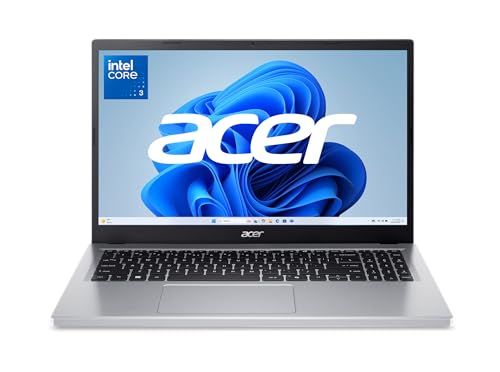
Acer’s second entry in this guide takes the Intel road through the same territory. The Aspire Go 15’s title promises an AI-ready laptop built around a 15.6-inch FHD IPS display, an Intel Core 3 N355 processor, 8GB of DDR5 memory and 128GB of storage, with Wi-Fi 6 and Windows 11 Home in S Mode, under the model code AG15-32P-352Z. The IPS panel is its quiet distinction: at this budget, panel type is rarely specified at all, and IPS brings the wide viewing angles that make a shared screen — a film for two, a presentation on a kitchen table — look right from seats that lesser panels punish.
Intel’s Core 3 N355 is the company’s modern efficiency chip for exactly this class, and its character suits the Go’s mission: brisk at browsing, documents, video and school platforms, frugal with battery, silent about its work. The DDR5 memory is a generation newer than the Aspire 3 Slim’s LPDDR5 in name and standardisation, though at 8GB in this workload the practical difference is a footnote; what matters is that the figure meets the tier’s working standard. Buyers loyal to Intel, or simply preferring this machine’s design and panel, give up nothing of substance by choosing it.
Two specification details deserve the buyer’s full attention, because they define ownership more than the processor does. The storage is UFS — a phone-style storage technology that is perfectly serviceable for this workload but slower than the NVMe drive in its Acer sibling, a difference felt in installs and large file moves rather than in daily launching. And Windows arrives in S Mode, Microsoft’s restricted edition that runs only store applications; leaving it is free, takes minutes, and cannot be undone, and most owners should plan that one-way door as part of setup day, the moment a browser or application outside the store is needed.
The Go 15’s buyer is the Intel-comfortable shopper — often a parent buying for a student, or a household whose other machines are Intel — who wants the tier’s essentials with the better-specified panel. Judged on its title’s own terms, it delivers them, with the storage technology and S Mode noted in print rather than discovered in ownership.
The Aspire Go also quietly answers a question budget buyers ask constantly: does the brand of processor matter down here? In daily feel, barely — the two Acers will be indistinguishable across a week of browsing and documents, and their real differences live in the panel technology, the storage technology and the operating system’s edition, exactly the lines this guide keeps dragging into the light. That is the mature way to shop this tier: the chip wars are a distraction at this level, and the specification’s quiet corners are where ownership is decided.
- Panel: 15.6-inch FHD (1920 x 1080) IPS display
- Processor: Intel Core 3 N355
- Graphics: Intel integrated
- Memory: 8GB DDR5
- Storage: 128GB UFS
- Wireless: Wi-Fi 6
- System: Windows 11 Home in S Mode
- Model code: AG15-32P-352Z
Strengths
- FHD IPS panel with viewing angles that suit shared screens
- Modern Intel efficiency processor with DDR5 memory
- Full core specification stated plainly in the title
Trade-offs
- UFS storage is slower than the NVMe in its Acer sibling
- S Mode requires a one-way exit for software outside the store
- 128GB storage, the tier’s shared constraint
Best for: Intel-comfortable households and students, on the strength of the IPS panel and modern platform.
Not suited for: frequent large-file transfers or full Windows with no setup step.

Lenovo IdeaPad 1 (Celeron) — The Honest Floor
Meet the floor of the full-size laptop market, labelled honestly by its own title: a 15.6-inch HD student laptop with an Intel Celeron N4500, 4GB of DDR4 memory and 128GB of eMMC storage, running Windows 11 Home in S Mode, with a year of Microsoft 365 included, in Cloud Grey. Every figure in that sentence is a step below the two Acers — and the guide includes this machine not to mock it but because thousands of buyers will meet it first, and they deserve a clear account of what it is and is not.
What it is not is a Full HD laptop. The title says HD, and at 15.6 inches that lower resolution is visible in every line of text: softer edges, less room for windows, a screen that feels like a window onto a smaller computer. It is not a multitasking machine either; 4GB of memory with a Celeron processor defines a one-thing-at-a-time computer — a document, a browser with a few tabs, a video — and it will enforce that definition patiently but firmly. The eMMC storage is the slowest of the three technologies in this guide, and S Mode restricts software to the store until its owner performs the free one-way exit.
What it is, judged without cruelty, is a complete, warranted, full-size Windows laptop for the narrowest of briefs: the student whose school life lives in a browser and Microsoft 365 — the included year of which is a genuinely useful bundle at this level — the household needing a machine for email, forms, banking and video calls, the writer who wants a large screen and a real keyboard for documents alone. For those briefs it works, and its simplicity is almost a feature: there is nothing here to configure wrongly, nothing to upgrade anxiously, nothing to learn.
The guide’s counsel is simply that this machine be bought knowingly. If the budget can stretch within the tier, the two Acers above it are categorically better computers for the same mission — better screens, double the memory, faster storage, real processors. If it cannot stretch, the IdeaPad 1 is the honest minimum, and buying the honest minimum with open eyes is a respectable purchase. Buying it by accident, believing “HD” meant Full HD, is the only failure available here — and after this section, it is an avoidable one.
One constituency should hear a direct word: grandparents and first-time computer owners are routinely bought machines from this floor by well-meaning families, and for a video-call-and-email life the IdeaPad 1’s simplicity is a genuine mercy — big screen, real keyboard, almost nothing to break. The cruelty would be buying it for a grandchild whose school platform multitasks, or for a parent who reads documents all day on that soft HD text. The floor is a tool with a brief; match the brief and it serves, mismatch it and no amount of savings will feel like one.
- Screen: 15.6-inch HD panel (not Full HD)
- Processor: Intel Celeron N4500
- Memory: 4GB DDR4
- Storage: 128GB eMMC
- Bundle: one year of Microsoft 365 included
- System: Windows 11 Home in S Mode
- Colour: Cloud Grey
- Model reference: 82LX00DGUS
Strengths
- Complete full-size Windows laptop at the tier’s floor
- Included year of Microsoft 365 suits school and document briefs
- Utter simplicity — nothing to configure, nothing to misunderstand
Trade-offs
- HD panel is visibly softer than Full HD at this size
- 4GB of memory enforces a one-task-at-a-time life
- eMMC storage is the slowest technology in this guide
Best for: browser-and-documents briefs — school platforms, email, forms, video calls — on the tightest budget.
Not suited for: multitasking, media libraries, or all-day reading, which deserves Full HD.
HP 15 (Base Configurations) — Prose Pick
HP’s 15 line is the household name of this entire size class, and its base configurations regularly patrol the under-$500 border — which is precisely why it is handled in prose. The family’s listings fan out across processors, memory figures and panels, sometimes within a single product page’s variation selector, and the build that belongs to this budget on a given week may be a different machine from last month’s. No verified title fixed one base build as this guide’s representative, so the HP 15 is discussed as a shopping exercise rather than a specification.
The exercise is worth learning here because HP’s shelf is where most budget shoppers start. On the exact offer in front of you, extract the four facts — full processor name, memory, storage, panel resolution — and hold them against this guide’s linked standard: FHD and 8GB are the tier’s essentials, 128GB is its storage reality, and anything below those marks is the IdeaPad 1’s territory wearing a different badge. HP builds honest base machines and the line’s service network is a real asset; the family’s only hazard is the assumption that the name on the lid describes the contents of the box. It describes a range. Your job is to find where in the range your offer sits.
There is a reassurance buried in HP’s ubiquity that budget buyers undervalue: answers exist. Every quirk of a high-volume HP line — every driver oddity, battery question and keyboard shortcut — has been asked and answered publicly by an army of prior owners, and spare chargers and parts circulate everywhere. For a first-time owner without a technical support network at home, that ecosystem is worth real money, and it is the strongest argument for enduring this family’s configuration fog rather than fleeing it. Fog with a map is weather; the audit in its analysis is the map.
- Class: 15.6-inch mainstream household laptop
- Configurations: base builds enter this budget tier
- Character: ubiquity, service network, familiar design
- Buying rule: audit the four core facts on the exact offer
Strengths
- The most widely stocked and supported line in the class
- Base configurations regularly reach this budget
- Design and keyboard are proven household quantities
Trade-offs
- Configuration spread makes the name a range, not a machine
- Panel and memory vary across the base builds
- Variation selectors demand deliberate reading
Best for: brand-comfortable households willing to audit the exact configuration before paying.
Not suited for: shoppers who buy the badge and skip the specification block.
Dell Inspiron 15 (Base Configurations) — Prose Pick
Dell’s Inspiron 15 is the business-leaning citizen of this size class, and its base configurations — the leanest processors, the entry memory and storage figures — bring the name within reach of this budget. Like the HP, it is covered in prose because “Inspiron 15” describes a wide family whose generations and builds overlap in listings, and the specific machine offered at a budget figure on any given day must be identified by its own specification rather than by the family’s reputation.
The family’s virtues are structural. Dell’s support and documentation are the industry’s most navigable, parts and guides for Inspiron models persist for years, and the design language is sober enough for a machine that might serve a student by day and a small business by night. Those virtues survive into the base builds; what does not automatically survive is the specification. A base Inspiron with the tier’s essentials confirmed — FHD panel, 8GB of memory — is a thoroughly defensible budget purchase with an unusually good support story behind it. A base Inspiron bought on the family name with a low-resolution panel inside is the category’s most respectable-looking mistake. The difference, as ever in this guide, is four lines of print.
Dell’s renewed and outlet channels deserve a mention in this family’s story, because they are a legitimate second route by which the Inspiron name enters this budget — manufacturer-refurbished units with warranties, sold through Dell’s own storefront with configurations stated in full. For the support-conscious buyer, that route can beat a marketplace base build on every axis that matters here: the specification is printed by the manufacturer, the warranty is real, and the discount is structural rather than suspicious. It is still configuration-dependent — hence this pick’s prose status — but it is the prose pick with the most respectable shortcut attached.
- Class: 15.6-inch mainstream laptop, business-leaning
- Configurations: base builds reach this budget
- Character: support, documentation and sober design
- Buying rule: identify the exact build, not the family
Strengths
- Support and documentation lead the mainstream market
- Sober design suits study and small-business double duty
- Long parts and guides half-life for owners who maintain machines
Trade-offs
- Family spans generations that listings blur together
- Base specification must be confirmed figure by figure
- Entry builds may carry the low-resolution panel trap
Best for: support-conscious buyers and small businesses that verify before they standardise.
Not suited for: name-based purchasing in a hurry.
ASUS Vivobook 15 (Base Configurations) — Prose Pick
The Vivobook 15 brings design ambition to the budget shelf — slimmer lines and more personality than its mainstream rivals — and its base configurations are the third family a hunter of this budget will meet constantly. It is the prose pick most in need of its warning label, because the Vivobook name spans the widest specification range of the three: entry builds with modest panels and memory sit in the same listings neighbourhood as far stronger machines, and the photographs, as always, show the flagship.
None of that diminishes the machine a careful buyer can land. A base Vivobook 15 verified to carry the tier’s essentials brings ASUS’s design and keyboard craft to a budget that usually forbids both, and the family is a student favourite for good reason. The verification burden is simply heavier here: panel resolution first, because this family has worn more than one; memory second; the exact processor third. Buyers who perform that audit get the design dividend honestly. Buyers who skip it are gambling that the prettiest listing in the tier is also the best specified, which is not how this shelf works.
Students, the Vivobook’s natural constituency, should hear the trade stated in their own terms. A verified base Vivobook is the machine in this tier you will enjoy opening in a seminar — slim, presentable, with a keyboard that survives essays. An unverified one can be the machine with the soft screen you stare at for three years of lectures. The design dividend and the verification tax are inseparable in this family; pay the tax in five minutes of reading and the dividend is yours for the degree.
- Class: 15.6-inch mainstream laptop with design emphasis
- Configurations: base builds enter this tier
- Character: slim design, student popularity
- Buying rule: panel first, memory second, processor third
Strengths
- Design and finish above the tier’s average
- Verified base builds make attractive student machines
- Wide retail presence keeps offers competitive
Trade-offs
- Widest specification spread of the prose families
- Listing photographs flatter the entry builds
- Panel resolution varies and must be confirmed
Best for: design-conscious students who will audit a listing before admiring it.
Not suited for: photograph-led shopping at any speed.
How Do the Six Options Stack Up on Paper?
| Pick | Panel | Processor (as titled) | Memory | Storage | Operating system |
|---|---|---|---|---|---|
| Acer Aspire 3 Slim | 15.6″ Full HD | Ryzen 3 7320U | 8GB LPDDR5 | 128GB NVMe SSD | Windows 11 Home |
| Acer Aspire Go 15 | 15.6″ FHD IPS | Intel Core 3 N355 | 8GB DDR5 | 128GB UFS | Windows 11 Home in S Mode |
| Lenovo IdeaPad 1 | 15.6″ HD | Celeron N4500 | 4GB DDR4 | 128GB eMMC | Windows 11 Home in S Mode |
| HP 15 (base) | HD on the leanest listings, FHD above them | Entry Intel and AMD chips, named per listing | 4GB at the floor, 8GB a step up | eMMC on the cheapest, SSD above | Windows 11 |
| Dell Inspiron 15 (base) | FHD on most listings, HD on the leanest | Core 3 and i3-class chips in lean builds | 8GB in most lean builds | 256GB SSD is the common rung | Windows 11 |
| ASUS Vivobook 15 (base) | FHD IPS on the listings worth wanting | Ryzen and Intel entry chips by listing | 8GB soldered on many listings | 512GB SSD on the better listings | Windows 11 |
Notice the storage column’s monotony — 128GB three times — and read it as the tier’s constitution rather than a coincidence. Manufacturers protect the screen and memory because those are felt every minute, and ration capacity because the cloud has made rationing survivable. The table is therefore also a prediction: whichever row you choose, your first year will include the afternoon you set up cloud folders properly, and owners who schedule that afternoon in week one remember it as setup, while owners who meet it in month nine remember it as a crisis.
The three linked rows tell the tier’s whole story in miniature: two machines that protect the screen and memory while rationing storage, and one that rations everything and says so. The prose rows’ chorus of “varies” is not evasion — it is the accurate description of configuration families, and it is why their sections teach an audit instead of quoting figures. A buyer who understands this table understands the under-$500 shelf better than most of the people selling on it.
What Does Living With 128GB of Storage Actually Look Like?
It looks like a filing cabinet with one drawer, kept tidy by habit rather than by effort — and, for the student or home user this tier serves, that single drawer turns out to hold the whole of a digital life once the bulky archives have moved to the cloud where they belong. The operating system and its updates live there permanently. Your applications — browser, office suite, the school or work platforms — take the second share. What remains is working room: the current project’s files, this term’s downloads, a modest photo staging area before the cloud absorbs them. Media is streamed, not stored; games are few and small or played through the cloud; the camera roll syncs and clears. Owners who adopt that rhythm within the first month describe the constraint as a non-event by the second.
Practical habits make the drawer feel larger than it is. Point the photo and document folders at cloud storage from day one rather than migrating in a panic later. Let the streaming services be the media library. Uninstall the trial software the machine arrives with, because at 128GB even bloatware is a tenant paying no rent. And learn the storage settings page’s quiet summary of what is consuming the drive — five minutes there, twice a year, is the entire maintenance regime this tier asks of its owners.
The failure mode is equally specific: treating the drive as an archive. A decade of photographs, a film collection, three large games — any of these converts 128GB from a discipline into a daily error message, and no processor can compensate. That is why this guide frames storage as a lifestyle question rather than a specification: the same 128GB is generous for the cloud-native student and impossible for the family archivist, and the honest answer determines whether this entire budget tier is a bargain or a false economy for your household.
How Far Does 8GB of Memory Stretch in Real Life?
Farther than its reputation, provided the life is the one this tier is built for. A browser with a working set of tabs, a document or two, an email client, a video call and music coexist inside 8GB without drama on a modern efficient processor — which describes the actual computing of most students and home users more accurately than the thirty-tab stress tests of enthusiast folklore. The ceiling announces itself in specific ways: large spreadsheets with real data, photo editing beyond touch-ups, many heavy applications open at once, or a browser profile carrying years of accumulated extensions. Owners who meet the ceiling weekly bought the wrong tier; owners who never meet it should not be shamed out of a sensible purchase by a number.
There is a counterweight worth stating for buyers wavering between this tier and saving longer: time itself is a specification. A student who needs a laptop for this term’s coursework gains nothing from a theoretically better machine arriving after the term, and a household whose old laptop has died is not comparison shopping in the abstract. The picks above exist for real deadlines, and bought with the audit habit, they meet those deadlines honourably — which is a more useful definition of value than any benchmark published this year.
The honest complication is time. Software grows heavier annually, and a machine bought at its ceiling today will be under it in three years — which is why this guide reserves its warmest language for buyers whose needs are stable and known, and why the companion under-$600 guide exists for everyone whose needs are still growing. Memory, uniquely among specifications, cannot be negotiated with later on most slim machines; buy it for the life you can foresee, not the one in the advertisement.
What Is Windows S Mode, and Should You Leave It?
S Mode is a locked configuration of Windows 11 that runs only applications from Microsoft’s store and routes browsing through Microsoft’s browser. It exists because it is fast, secure and nearly impossible to break — genuine virtues for a school-managed or first-time-owner machine, and two of this guide’s linked picks ship in it. Leaving S Mode is free, takes a few minutes through the store, and is permanent: the machine becomes ordinary Windows, able to install any software, and it can never return to the locked state.
Schools complicate the question in a way worth anticipating. Many school platforms and exam tools are browser-based and S Mode-friendly; a minority of required applications are not, and they announce themselves in September rather than at purchase. Parents buying for a student should check the school’s software list before deciding whether the exit will be needed, and should perform it, if needed, during the calm of setup week rather than the night before a deadline. The Aspire 3 Slim’s unrestricted Windows quietly removes this entire errand, which is one of the reasons it leads the guide.
The practical advice is unhurried. Start in S Mode; if everything you need lives in the store, stay as long as you like and enjoy the guardrails. The day you need an alternative browser, a specialised school or work application, or any software distributed outside the store, take the exit with a clear conscience — it is a designed feature of ownership, not a hack. What you should not do is discover S Mode’s existence at the moment a deadline needs that application, which is why this guide names it in the open rather than in a footnote.
How Do You Audit a Budget Listing in Five Minutes?
Open the listing and find four figures in the title or specification block: the panel’s resolution words (Full HD or FHD versus the bare “HD” that means less), the memory number, the storage number and its technology if stated, and the processor’s full name. Compare them against this guide’s linked standard — FHD, 8GB, a modern named processor — and note every gap consciously. Then check the variation selector, because budget pages love to open on the cheapest build while the photographs show the dearest, and confirm the figures belong to the variation actually selected.
A worked example sharpens the method. Imagine two listings side by side, same shelf, same budget territory: the first title reads “15.6-inch HD laptop, Intel processor, 4GB, 128GB” and the second reads “15.6-inch Full HD, Ryzen 3, 8GB LPDDR5, 128GB NVMe.” The first is not necessarily a scam — it may be the floor machine, honestly if tersely described — but the second title has done your audit for you, and the difference between the two computers is an entire ownership experience. Budget shopping is largely the art of refusing the first style of title until the second style appears, because in this tier it reliably does.
Finish with the operating system’s edition and the seller’s identity, screenshot the title beside the selected variation, and keep both with the receipt. On delivery day, the system panel will repeat the four figures back; reconcile them before migrating a single file. Five minutes at the listing, two at the unboxing — that is the entire tax this tier charges for honesty, and it is the best-value transaction in this article.
Where Do Budget Laptop Buyers Most Often Get Burned?
The HD-versus-Full-HD confusion burns more buyers than every other trap in this tier combined, because the two phrases differ by one word and an entire visual life. Sellers know it; titles that shout “HD display” in large type are describing the lesser panel in the vocabulary of the greater one, and the only defence is the habit this guide teaches — find “Full” or the numbers 1920 x 1080, or assume the lesser screen. The IdeaPad 1’s analysis exists so that readers meet that trap in print before they meet it in a shopping cart.
Gifts from this tier carry a special version of every trap above, because the giver shops the listing while the recipient lives with the machine. A grandparent given the HD machine for all-day reading, a student given 4GB for a multitasking degree — these are kindnesses that curdle, and they happen because the giver read the budget line and the brand name and stopped. If you are buying for someone else, the four-figure audit is not pedantry; it is the difference between a present and a project.
Memory optimism is the second burn: 4GB reads as a number, not a lifestyle, until the third application opens. Storage blindness is the third, usually discovered in month two. A fourth trap is subtler — the sale-event mirage, in which a stronger machine’s listing is discounted into this tier’s territory with a lesser variation selected by default, so the buyer celebrates a bargain that the checkout quietly converts into a base build. And the final burn is skipping the delivery check, because every protection in this tier depends on noticing a mismatch while the return window is still a door rather than a wall.
Final Recommendation
Step back once more and notice what the shortlist, taken whole, is really selling: not three laptops but three levels of honesty about the same budget. The Acers spend it on the specifications owners feel; the Lenovo spends less and labels the result a student machine with a software bundle; the prose families spend it variably and ask you to check their arithmetic. A reader who has absorbed that framing no longer needs this guide’s permission for any specific purchase — they need only the audit, which fits on an index card.
Buy the Acer Aspire 3 Slim if your budget is the budget: it is the tier’s complete sentence — Full HD screen, working memory, modern quad-core processor, fast storage technology, unrestricted Windows — with the single declared constraint of 128GB that the whole class shares. Choose the Aspire Go 15 if the household leans Intel or the screen will be shared from angles, accepting UFS storage and an S Mode exit as its tolls. Choose the IdeaPad 1 only when the brief is truly documents-and-browser and the eyes reading this have accepted an HD screen with full knowledge; its included Microsoft 365 year is the one unambiguous gift at the floor.
A word about timing, since budgets and calendars interact. This tier’s shelf refreshes with the school year and the holiday season, and the verified configuration you want may rotate out of a listing between research and purchase. The defence is the same screenshot discipline taught above: decide by the four figures, record them, and if the listing changes under you, treat it as a new decision rather than a minor edit. Budget laptops reward the decisive, informed buyer and tax the hesitant one — not through prices this guide will quote, but through configurations that quietly become lesser machines.
For the prose families, the recommendation is a method rather than a model: audit any base HP, Dell or ASUS against the linked standard and buy the one whose four figures survive the comparison. The best 15.6 laptops under 500 dollars are not found; they are verified — and a reader who finishes this guide with the four-figure habit owns the skill that makes this tier, and every tier above it, safe to shop. That habit — panel, memory, storage, processor, in that order, from the title, every time, without exception — is the most durable product recommended anywhere in these pages, and its price is nothing more than a moment’s care.
Frequently Asked Questions
How should I set up a laptop from this tier on day one?
In an order that respects the storage: run Windows updates first, uninstall the bundled trial software while the list is in front of you, sign into cloud storage and point the document and picture folders at it, then install your applications — browser, office suite, school or work tools — and only then copy personal files, watching the drive’s free space as you go. Finish by confirming the specification in the system panel against your order. An hour spent this way is the difference between a machine that starts tidy and one that starts with an apology.
Can a laptop in this tier really last a student for years?
Yes, if it is one of the FHD, 8GB machines and the student’s life is the browser-and-documents life these picks were specified for. The constraints that end budget laptops early are almost never processors; they are storage filled with archives and memory starved by accumulating software, both of which the habits in this guide — cloud files, disciplined installs — directly manage.
Does the processor brand matter at this level — AMD or Intel?
Far less than the screen, memory and storage lines do. The two linked Acers demonstrate the point by splitting the brands while sharing the tier’s essentials, and their owners’ weeks will feel near-identical. Choose by the complete specification in front of you; brand familiarity is a tiebreaker, not a criterion, and any guide that argues otherwise at this budget is selling folklore.
Is 128GB of storage usable at all?
Usable and, for cloud-centred owners, unremarkable — the storage section above describes the rhythm in detail. It becomes unusable only when asked to be an archive. Buyers whose photographs, media or games live locally should treat this tier’s storage as a disqualification and save toward the step-up class covered in the companion under-$600 guide.
What is the difference between HD and Full HD on these screens?
Full HD is 1920 by 1080 pixels; the HD panel in the IdeaPad 1 carries substantially fewer, spread across the same 15.6 inches, so text is softer, windows hold less, and the screen feels smaller than it is. At this size the difference is not subtle and cannot be softened by any other specification, which is why the guide treats the two FHD Acers as categorically better computers.
Should I leave Windows S Mode immediately?
Not necessarily. S Mode is fast and safe while everything you need is in Microsoft’s store. Leave it — free, quick, one-way — when the first application outside the store becomes necessary, and not before a deadline depends on it. Two picks here ship in S Mode and one does not, a difference the analyses state in the open.
Why are the HP, Dell and ASUS picks described without links?
Because their under-budget presence comes through base configurations inside wide families, and those configurations rotate across listings without one verified title fixing a build. The guide describes their character and teaches the exact audit their shoppers should run, rather than linking a name whose contents might change.
What accessories should a budget buyer plan for?
Fewer than sales pages suggest. A sleeve or bag the laptop will actually travel in, and perhaps a basic mouse for desk work, complete the honest list for most owners. Cloud storage is the accessory this tier truly runs on, and the free tiers of the major services cover the document-and-photograph life these machines are bought for. Spend on protection and storage habits before spending on peripherals; a budget laptop’s ecosystem should be as disciplined as its specification.
Can these laptops join video calls and online classes well?
Yes — that workload sits at the centre of their design brief. Every linked pick is a full Windows machine with a camera and Wi-Fi 6, and the efficient processors handle call software alongside a document or browser without strain. Call quality will depend more on the household’s internet and lighting than on which of these three machines is under the camera, which is exactly how a budget tier should behave.
Is a Chromebook a better answer at this budget?
For a purely browser-based life, Chromebooks are legitimate rivals with excellent battery life and simplicity, and some appear in this site’s other guides. This article’s brief is Windows laptops — the platform school, work and family software most often assumes — and within that brief the picks above are the honest answers. Buyers free to choose either platform should decide by their software list first.
Related Guides
The natural next read is the step-up shelf: our best 15.6 laptops under 600 guide shows what the additional headroom buys in screens, memory and storage. The full size-class survey lives in the best 15.6 inch laptops roundup, and the tier above this one by features rather than price is mapped in the best 15.6 inch laptops under 700 dollars article. A reader who works through the budget guides in sequence will watch the same size class grow its storage, memory and screens step by step — the clearest education in laptop value available anywhere on this site, and the surest way to learn what each additional layer of budget actually purchases.


