What's inside
- Where to Buy
- Key Takeaways
- Quick Picks
- How We Chose These Picks
- Comparison
- How to Choose a Laptop for Home Use
- Should a Family Buy Windows or Chrome OS?
- How Much Memory and Storage Does a Home Laptop Really Need?
- Can One Laptop Serve a Whole Household?
- Where Will the Laptop Actually Live in the House?
- Common Mistakes When Buying a Home Laptop
- Final Recommendation
- Frequently Asked Questions
- Related Guides
As an Amazon Associate I earn from qualifying purchases. This post may contain affiliate links at no extra cost to you.
[SITE_DOMAIN] is reader-supported. When you buy through links on our site, we may earn an affiliate commission.
Where to Buy
Shoppers hunting the best affordable laptops for home use will find all six machines below on Amazon, each name opening its own listing. The HP Pavilion 15 Ryzen 7 carries the heaviest specification in the group, so check price on Amazon against the storage bundle in its title before judging it. The Lenovo IdeaPad Slim 3 answers with a touchscreen, and its Amazon page shows the figure for the 2025 build described here. The Acer Aspire 5 A515-56 sits at the lean end of the set; look at its listing price on Amazon alongside the modest drive it ships with. The ASUS Vivobook 15 splits the difference, and Amazon lists its current cost under the model code F1504VA-PS34. The Dell Inspiron 3530 adds an onsite service line worth weighing when you open its page, while the HP Chromebook 14 closes the set as the ChromeOS option — confirm its Amazon price last, after deciding whether a browser-based machine fits the house at all.
A home laptop leads a double life that spec sheets rarely acknowledge. In the morning it is a homework terminal and a video-call screen; by afternoon it holds the family photo archive, the household budget and a dozen browser tabs of recipes, school portals and streaming queues; in the evening somebody inevitably asks it to play a film or a light game. The best affordable laptops for home use are therefore not the cheapest machines that boot, nor the fastest ones a budget can stretch to. They are the ones whose memory, storage and screen size survive that whole rotation without making one member of the household wait on another’s habits.
This guide splits its six picks along the fault line that actually divides home computing. Five run Windows 11 and can install the full catalogue of desktop software a family accumulates over years. One, the HP Chromebook 14, runs Chrome OS instead, and it is reviewed on its own axis throughout: judged as a browser-first appliance for households that live inside web apps, never as a cut-down Windows machine, because the two systems answer different shopping lists. Mixing them into a single ranking would flatter neither.
Every specification quoted below comes from the listing title of that exact model, and nothing else. Where a title stays quiet — about weight, about battery capacity, about a webcam on one model — the spec box prints the not-stated wording rather than borrowing a figure from a sibling configuration. Home buyers keep laptops for a long time, and a guide that invents the quiet numbers would be found out by year two of ownership.
Key Takeaways
- Memory is the dividing line in this set: the HP Pavilion and the Lenovo carry 16GB, the Acer, ASUS and Dell carry 8GB, and the Chromebook carries 4GB on a system built to need less.
- Storage spans the widest range — the Pavilion’s title describes 1TB split between a 512GB SSD and a 500GB external drive, while the Acer ships with a 128GB NVMe drive that fills quickly.
- Five picks are 15.6-inch Windows machines; the Chromebook is a 14-inch HD screen running Chrome OS, a separate category rather than a smaller rival.
- Only the Lenovo’s title claims a touchscreen, and only the Pavilion and Lenovo reach eight processor cores in their titles.
- No title in this group states a weight or a battery capacity in watt-hours, so portability claims are deliberately absent from the reviews.
Quick Picks
| Pick | Badge | Why it earns a place |
|---|---|---|
| HP Pavilion 15 Ryzen 7 | The household workhorse | Eight Ryzen 7 cores, 16GB of memory and a 1TB storage arrangement described as an internal SSD plus an external drive. |
| Lenovo IdeaPad Slim 3 | Touchscreen all-rounder | A 15.6-inch FHD touch panel, an eight-core Ryzen 7 5825U and 16GB of DDR4 in a 2025 build. |
| Acer Aspire 5 A515-56 | Lean and simple | An IPS Full HD screen and WiFi 6 around a dual-core i3, with a small 128GB drive that demands tidy habits. |
| ASUS Vivobook 15 | Middleweight everyday | An Intel Core 3 100U with 8GB of memory and a 256GB SSD in a Cool Silver F1504VA build. |
| Dell Inspiron 3530 | Service-backed choice | A Core i3-1305U, a 512GB SSD and an onsite service mention in the title, in Carbon Black. |
| HP Chromebook 14 | The browser appliance | Chrome OS on a 14-inch HD screen with 64GB of eMMC storage, sold on simplicity rather than software range. |
How We Chose These Picks
Selection began with the jobs a shared home machine actually performs, listed in the order households complain about them: slow sign-ins when several accounts live on one drive, stutter when a call, a document and a music stream overlap, a photo library that outgrows its storage, and a screen too small for two people to read a recipe across a kitchen. Any candidate whose title could not speak to at least three of those four jobs was cut, however attractive its processor badge looked in isolation.
The second pass was a title audit. Each listing title was read as the only contract the buyer truly gets, and the figures in the reviews below are the figures printed there. That audit shaped the line-up in visible ways. The Pavilion’s storage, for instance, is described in its title as 512GB of SSD plus a 500GB external drive, so the review reports exactly that arrangement instead of rounding it into a single internal terabyte. The Chromebook’s title calls its display HD rather than Full HD, and the review keeps that distinction sharp.
Operating system honesty formed the third filter. A mixed guide tempts writers to score a Chromebook down for lacking Windows software it never promised, or to score Windows machines down for costing more than a browser appliance. Both moves mislead. The five Windows laptops here are compared with each other on memory, cores, storage and screens; the Chromebook is assessed against the question its buyers actually ask, which is whether a household can live inside a browser happily.
Finally, each pick had to offer a distinct household a reason to choose it over the other five. The set that survived contains a maximum-specification workhorse, a touchscreen all-rounder, two lean i3 machines separated by storage and service, a middleweight ASUS, and the ChromeOS outlier. A guide where every pick suits the same family helps nobody; this one is built so that at least one review reads like it was written about your kitchen table.

HP Pavilion 15 Ryzen 7 — The household workhorse
Families who buy one laptop to serve everybody should start here. The Pavilion’s title stacks the strongest hand in this guide: an eight-core AMD Ryzen 7, 16GB of memory, a 15.6-inch FHD IPS display and Windows 11 Pro with an Office suite and Copilot AI features named outright. Eight cores and double memory change the texture of a shared machine more than any single headline suggests, because the slowdowns households actually curse — three accounts signed in, a call running over a spreadsheet, a photo import crawling in the background — are pile-ups, and pile-ups are what cores and memory absorb.
The storage line deserves a slow read, because the title is precise and the precision matters. It describes 1TB of storage as a 512GB SSD plus a 500GB external drive. That is a genuinely useful arrangement for a photo archive — the external half can hold the library while the internal half stays fast and half-empty — but it is not the same thing as a 1TB internal drive, and files on the external half are only available while it is plugged in. Households that understand that distinction get a flexible system; households that skim it may wonder where half their space went when the drive sits in a drawer.
A numeric keypad is built in, a detail accountants of the family budget will appreciate every time a statement gets reconciled, and the FHD IPS panel is the right class of screen for a machine that will show films to two people on a sofa. Windows 11 Pro, rather than Home, will matter to few families, but the Office suite named in the title matters to most, since document compatibility is the first thing a school or an employer tests.
Who it suits is the multi-user household with one desk and many demands: parents working from home two days a week, teenagers with coursework, a photo library that keeps growing. The compromises sit in what the title does not say. No weight is printed, no battery figure is printed, and no webcam is named, so buyers for whom those details are decisive should confirm them on the listing against this exact configuration before ordering.
- Display: 15.6-inch FHD IPS
- Processor: AMD Ryzen 7, 8-core
- Memory: 16GB RAM
- Storage: 1TB as described in the title — 512GB SSD plus 500GB external drive
- Graphics: Not stated in the listing title — verify with the manufacturer documentation
- Operating system: Windows 11 Pro, Office suite, Copilot AI
- Keyboard: numeric keypad
- Weight: Not stated in the listing title — verify with the manufacturer documentation
Strengths
- Eight cores and 16GB of memory give a shared machine real headroom for overlapping jobs.
- The split storage arrangement suits a growing photo and document archive.
- A numeric keypad and an IPS Full HD screen serve both budgets and film nights.
Trade-offs
- Half the advertised storage lives on an external drive that must be plugged in to exist.
- The title names no webcam, so call quality is a listing-page question.
- Weight and battery capacity go unstated, leaving portability unproven on paper.
Best for: a one-laptop household where several people sign in and work at overlapping hours. Not suited for: a photo archive larger than the 512GB internal SSD if the external drive will live unplugged in a drawer, because half the storage vanishes whenever it is disconnected.
Ownership advice for this machine is mostly about accounts. Set up a separate sign-in for each regular user from day one, keep the administrator account in adult hands, and decide early which drive holds the family archive so backups have one obvious home. A workhorse earns its name through organisation as much as hardware, and the Pavilion gives a household enough of both kinds of room to stay organised for years.
Lenovo IdeaPad Slim 3 — Touchscreen all-rounder
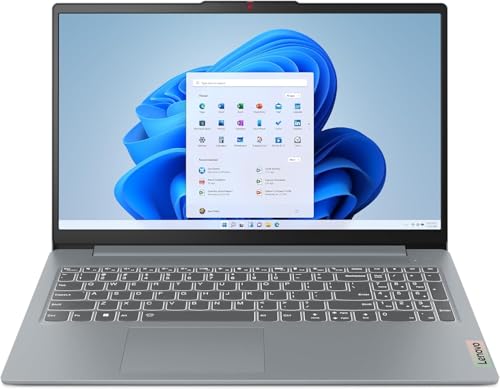
The IdeaPad Slim 3 is the pick for households whose laptop gets touched as often as it gets typed on. Its 15.6-inch screen is a Full HD touchscreen at 1920 x 1080, the only touch panel among the Windows picks here, and behind it sits an AMD Ryzen 7 5825U with eight cores, Radeon graphics, 16GB of DDR4 memory and a 512GB SSD. That combination — a strong processor, full memory and a screen you can poke — maps neatly onto the way families actually use a shared machine: scrolling recipes with floury hands, signing school forms, zooming photographs with two fingers instead of a keyboard shortcut nobody remembers.
Lenovo dates this build to 2025 in the title, which matters in a category where old stock circulates quietly. Connectivity is current: Wi-Fi 6 and Bluetooth 5.2 are both printed, and the 720p HD camera is stated plainly, which sets honest expectations — adequate for family calls and school meetings, not a broadcast device. Windows 11 Home keeps the software catalogue fully open, so the machine runs the same desktop programs as the Pavilion above, with a different balance of screen against storage.
The comparison with the HP is the decision most readers will actually make. The Pavilion offers more total storage through its external drive and a Pro edition of Windows; the Lenovo offers the touchscreen, a single internal 512GB drive with no appendage to lose, and a stated camera. A household that values touching the screen and keeping its storage in one place lands here; a household that archives heavily lands above. Neither answer is wrong, and the guide refuses to pretend one of them is.
Touchscreens invite one caution worth printing. A glossy touch panel shows fingerprints and reflects lamps more readily than a matte screen, and on a kitchen counter under bright lights that can annoy. The title does not describe the finish, so treat reflections as an open question to check in the listing photographs. In exchange, the household gains the most naturally shared interface in the guide — the one a grandparent can operate without a lesson.
- Display: 15.6-inch FHD 1920 x 1080 touchscreen
- Processor: AMD Ryzen 7 5825U, 8-core
- Memory: 16GB DDR4 RAM
- Storage: 512GB SSD
- Graphics: AMD Radeon Graphics
- Wireless: Wi-Fi 6, Bluetooth 5.2
- Camera: 720p HD camera
- Operating system: Windows 11 Home (2025 build)
Strengths
- The only touchscreen among the Windows picks, and a natural fit for shared family use.
- Eight cores and 16GB of memory match the strongest processing hand in the guide.
- All storage is internal, so nothing depends on an external drive being plugged in.
Trade-offs
- The 720p camera is stated plainly and will look soft beside newer 1080p webcams.
- 512GB is half the Pavilion’s total, so heavy archives fill it sooner.
- The title does not describe the screen finish, leaving glare behaviour unconfirmed.
Best for: families who share one machine by touch as much as by keyboard, with photos and calls in daily rotation. Not suited for: an archive expected to grow past roughly 512GB of internal space, where this single drive becomes the ceiling the whole household shares.
One habit doubles the value of the touch panel: teach the household the two or three gestures that replace the commonest mouse work — two-finger scrolling, pinch zoom on photographs, tapping through slideshow presentations. Beyond that, the Slim 3 asks little. Its specification is balanced rather than extreme in any single column, and balanced machines are the ones still being used, uncomplained about, half a decade after purchase.
Acer Aspire 5 A515-56 — Lean and simple
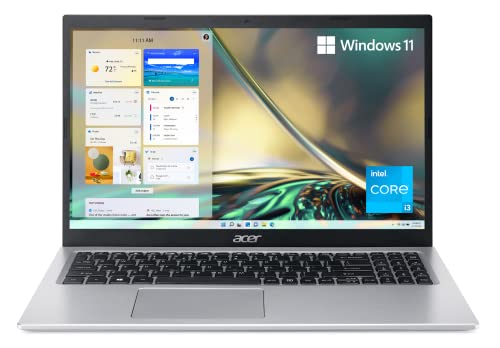
The Aspire 5 A515-56 is the guide’s exercise in sufficiency. Its title pairs a 15.6-inch Full HD IPS display with an 11th-generation Intel Core i3-1115G4 described honestly as a dual-core processor, 8GB of DDR4 memory and a 128GB NVMe SSD, running Windows 11 Home in S Mode, in silver. Read quickly, that sounds like the weakest hand here. Read against the jobs of a light-use household — email, browsing, documents, streaming, the occasional spreadsheet — it is a coherent one, and the IPS panel is a genuine asset that several pricier-feeling rivals cannot claim in their titles.
The two constraints are printed in the open and deserve emphasis rather than apology. A dual-core processor handles one or two jobs gracefully and queues the rest; this is a machine for sequential people, not for a household running a call, a game and an import at once. And 128GB of storage is a discipline, not a capacity: the operating system takes its share, and what remains suits documents and a modest photo collection, provided somebody occasionally moves the big files elsewhere. Buyers who understand both limits get a pleasant, quiet everyday laptop; buyers who ignore the second will meet a full drive within the year.
S Mode needs one plain explanation, because it shapes the software story. In S Mode, Windows installs applications only from its own store, which keeps a lightly supervised machine tidy and resistant to stray downloads, and the mode can be switched off — but the title presents the machine as it ships, so households should plan around the shipped state and treat any change as a deliberate decision, not an assumption. Amazon Alexa is built in for households that use voice control around the home.
Who it suits is a smaller, calmer household than the picks above: a couple whose computing is correspondence and streaming, a spare machine for guests and homework overflow, a first Windows laptop for a relative who values a big, good screen over speed. WiFi 6 is present, which keeps it current with modern routers, and the Full HD IPS panel will flatter films and photographs long after the processor’s modesty has been forgiven.
- Display: 15.6-inch Full HD IPS
- Processor: Intel Core i3-1115G4, dual core, 11th generation
- Memory: 8GB DDR4 RAM
- Storage: 128GB NVMe SSD
- Wireless: WiFi 6
- Operating system: Windows 11 Home in S Mode
- Extras: Amazon Alexa built in
- Graphics: Not stated in the listing title — verify with the manufacturer documentation
Strengths
- An IPS Full HD screen at this tier is a real viewing advantage for films and photos.
- WiFi 6 keeps the wireless side current despite the modest processor.
- The specification is honest and coherent for sequential, light-duty home use.
Trade-offs
- Two processor cores queue heavy overlapping work rather than absorbing it.
- 128GB of storage demands regular housekeeping from the whole household.
- S Mode, as shipped, restricts installations to the Windows store catalogue.
Best for: a light-use household whose days are browsing, documents, calls and streamed films on a good screen. Not suited for: a family photo and video archive that will outgrow the roughly 128GB drive, or three people expecting to run demanding jobs at the same time on two cores.
The ownership pattern that makes this Acer sing is a monthly tidy: downloads emptied, last season’s photographs moved to an external drive or a cloud folder, the recycle bin treated as a chore rather than a storage tier. Households that already live that way will never feel the small drive. Households that do not should read the storage figure as the review’s headline and choose accordingly.

ASUS Vivobook 15 — Middleweight everyday
ASUS sells this Vivobook 15 under the model code F1504VA-PS34, in Cool Silver, and the title’s specification sits deliberately between the Acer’s leanness and the Lenovo’s abundance: a 15.6-inch FHD display, an Intel Core 3 100U processor, 8GB of memory, a 256GB SSD and Windows 11 Home. That middle position is a real market, occupied by households that found the Acer’s drive too small to contemplate but do not need sixteen gigabytes of memory or eight cores to run their lives.
The 256GB drive is the figure to dwell on. It doubles the Acer’s room, which converts storage from a monthly chore into an occasional one: the operating system, the standard applications, a school year’s documents and a reasonable photo collection coexist without negotiation. The 8GB of memory, meanwhile, sets the multitasking ceiling — comfortable for a browser full of tabs beside a document and a call, less comfortable when a game or an editor joins the pile. Most single-user home days never touch that ceiling; busy shared evenings can.
Intel’s Core 3 naming deserves a translation for shoppers comparing across brands. The 100U is an efficiency-minded chip from Intel’s newer naming scheme, positioned for everyday work rather than sustained heavy lifting, and the title prints no core count for it — so the spec box records that silence instead of importing a number from a database. What can be said from the title alone is the shape of the machine: a full-size FHD screen, a modern processor name, sensible memory and storage, in a silver chassis with a findable model code.
Who it suits is the one-person household or the personal (not shared) laptop within a larger one: a student living at home, a parent whose machine is genuinely theirs, a home worker whose employer lives in browser-based tools. Buyers who regularly edit video or keep enormous local libraries should step up to the 16GB picks; buyers whose needs are correspondence, coursework and entertainment will find the Vivobook’s balance quietly well judged, and its specification leaves fewer traps than any other in this price-conscious set.
- Display: 15.6-inch FHD
- Processor: Intel Core 3 100U
- Memory: 8GB RAM
- Storage: 256GB SSD
- Operating system: Windows 11 Home
- Model: F1504VA-PS34, Cool Silver
- Processor cores: Not stated in the listing title — verify with the manufacturer documentation
- Camera: Not stated in the listing title — verify with the manufacturer documentation
Strengths
- 256GB of storage doubles the lean Acer’s room and relaxes housekeeping.
- A clear model code makes the exact configuration easy to verify at checkout.
- The balance of screen, memory and storage suits a personal everyday machine.
Trade-offs
- 8GB of memory sets a ceiling that busy multitasking evenings can reach.
- The title states no core count, so processing comparisons stay qualitative.
- No touchscreen is claimed, unlike the Lenovo at a similar screen size.
Best for: a personal home laptop for one main user handling coursework, correspondence and entertainment. Not suited for: a shared household archive or an editing hobby that will push past 256GB of local storage and 8GB of memory at the same time.
Treat the model code as this pick’s quiet superpower. ASUS sells many Vivobook 15 variants whose titles differ by a suffix and whose memory and storage differ by more, so the code F1504VA-PS34 is the string to match on the listing, in the basket and on the box when it arrives. Thirty seconds of matching protects the entire purchase, on this machine more than most.

Dell Inspiron 3530 — Service-backed choice
The Inspiron 3530 makes an argument none of the other Windows picks can: its title ends with the words Onsite Service. For a household without a technically confident member, that line is worth real money of peace of mind — it signals that Dell’s support model for this machine involves help coming to the problem rather than the laptop being posted away and the kitchen table sitting empty for a fortnight. The remaining specification is sound, modern fare: a 15.6-inch FHD display at 1920×1080, an Intel Core i3-1305U, 8GB of DDR4 memory, a 512GB SSD, Intel UHD Graphics and Windows 11 Home, in Carbon Black.
Set beside the Acer, the Dell shows what a step within the same processor class buys. The i3-1305U is a newer generation than the Acer’s 1115G4, and the 512GB drive is four times the size, which abolishes the storage discipline the Acer demands. Set beside the ASUS, the Dell offers double the storage at the same memory figure, trading the Vivobook’s cleaner model-code story for a bigger drive and the service line. These are the real decisions in this tier — not benchmark bragging, but which constraint you would rather live with for five years.
Intel UHD Graphics, named in the title, frame the entertainment expectations honestly: streamed video, casual games and photo viewing are the brief, not demanding 3D titles. The FHD resolution is printed numerically, which the guide always prefers to a bare label, and 8GB of memory places the machine in the same multitasking class as the Acer and ASUS — fine for one person’s working day, less elastic when the whole family piles on at once.
Who it suits is the household that buys support as much as hardware: relatives setting up a first home office, families far from a repair shop, anyone whose previous laptop died slowly and unsupported. The Inspiron’s specification will not thrill a hobbyist, and it is not meant to. It is meant to arrive, work, and be backed by a named service promise if it ever stops — a combination that, in real homes, outranks a faster chip with no safety net beneath it.
- Display: 15.6-inch FHD (1920×1080)
- Processor: Intel Core i3-1305U
- Memory: 8GB DDR4 RAM
- Storage: 512GB SSD
- Graphics: Intel UHD Graphics
- Operating system: Windows 11 Home
- Support: Onsite Service (as stated in the title)
- Colour: Carbon Black
Strengths
- An onsite service line in the title gives unsupported households a safety net.
- 512GB of storage removes the housekeeping burden the 128GB Acer imposes.
- The resolution is printed numerically, leaving the screen specification unambiguous.
Trade-offs
- 8GB of memory caps heavy multitasking at the same level as the leaner picks.
- Intel UHD Graphics suit streaming and casual play, not demanding games.
- No touchscreen or numeric keypad is claimed in the title.
Best for: a household that values a named service promise and generous storage over raw processing headroom. Not suited for: a player expecting modern 3D games to run well on Intel UHD Graphics, or a family that routinely runs four demanding jobs at once on 8GB of memory.
Before ordering, read the service wording on the listing once more and keep a copy of it with the household paperwork; support promises are only useful when the household knows it has them. Register the machine when it arrives, while the box and the receipt are still on the table. Those two small acts convert a line in a title into an actual safety net.
HP Chromebook 14 — The browser appliance
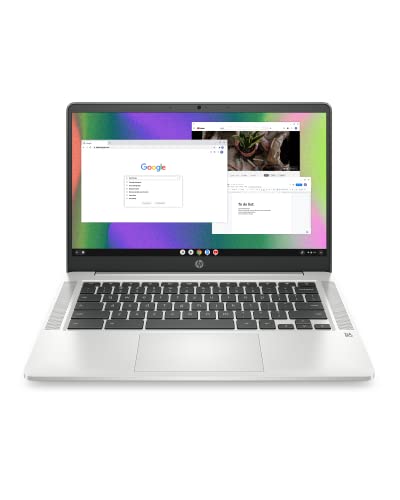
Everything about this review changes because the operating system does. The HP Chromebook 14 runs Chrome OS, not Windows, and its title describes a 14-inch HD display, an Intel Celeron N4120, 4GB of memory, 64GB of eMMC storage, 4K graphics support and long battery life, in a thin Mineral Silver design dated 2022. Judged as a Windows laptop, those figures look frail. Judged as what it is — a sealed, simple appliance for living inside a browser — they describe a machine with almost nothing to configure, almost nothing to break, and an interface a child or a grandparent can master in an afternoon.
The separation matters practically, not just philosophically. A Chromebook cannot install the traditional Windows programs some households depend on: the full desktop Office of a particular employer, a legacy accounting package, most PC games, many printer utilities of a certain age. What it does instead is run the web versions of nearly everything else — documents, mail, school platforms, streaming, video calls — with updates that arrive quietly and a sign-in that follows the user’s Google account rather than the machine. Households already living that life will not miss what was never there.
The hardware figures should be read through that lens. The 64GB of eMMC storage is small because the system expects files to live in cloud folders, with the local drive acting as a waiting room; the 4GB of memory suffices because the workload is browser tabs rather than installed suites; the HD screen, one step below the Full HD panels elsewhere in this guide, is the compromise most visible in daily use, particularly for small text and side-by-side documents. The 4K graphics line in the title refers to output capability, and the long battery life claim is printed without a number, so the spec box keeps both honest.
Who it suits is specific and real: a household’s second machine, a child’s school laptop where the school itself runs on Google tools, a grandparent whose computing is mail, news, photographs and calls with family. Who it does not suit is any home whose life runs through installed Windows software — and the guide places it last not as a ranking but as a reminder that the operating-system question must be answered before the specification question means anything at all.
- Display: 14-inch HD
- Processor: Intel Celeron N4120
- Memory: 4GB RAM
- Storage: 64GB eMMC
- Operating system: Chrome OS
- Graphics: 4K Graphics (as stated in the title)
- Battery: described as long battery life; capacity Not stated in the listing title — verify with the manufacturer documentation
- Model: 14a-na0226nr, 2022, Mineral Silver
Strengths
- Chrome OS removes nearly all setup and maintenance from a household’s life.
- The thin design and long battery claim suit a machine that roams the house.
- Account-based sign-in makes it the easiest pick here to share casually.
Trade-offs
- It cannot install traditional Windows desktop programs at all.
- The HD screen sits a step below the Full HD panels in this guide.
- 64GB of local storage assumes a household comfortable with cloud files.
Best for: a browser-first household, a child’s school machine, or a simple second laptop for mail, news and family calls. Not suited for: any home that depends on installed Windows software, or a user who keeps large files locally and works offline for long stretches on 64GB of eMMC.
The buying test for a Chromebook takes five minutes and should be done before ordering, not after. List the five programs or services the household uses most, and check each one honestly: does it run in a browser, and does anyone rely on a feature that only the installed version has? If all five pass, this little HP may be the most relaxing purchase in the guide. If one fails, the Windows picks above are waiting, and no saving justifies a machine that cannot run the household’s defining program.
Comparison
| Pick | Display | Processor | Memory / Storage | Notable from title |
|---|---|---|---|---|
| HP Pavilion 15 Ryzen 7 | 15.6″ FHD IPS | Ryzen 7, 8-core | 16GB / 512GB SSD + 500GB external | Numeric keypad, Windows 11 Pro, Office suite |
| Lenovo IdeaPad Slim 3 | 15.6″ FHD touchscreen | Ryzen 7 5825U, 8-core | 16GB DDR4 / 512GB SSD | 720p camera, Wi-Fi 6, 2025 build |
| Acer Aspire 5 A515-56 | 15.6″ Full HD IPS | Core i3-1115G4, dual core | 8GB DDR4 / 128GB NVMe SSD | WiFi 6, Alexa, Windows 11 in S Mode |
| ASUS Vivobook 15 | 15.6″ FHD | Intel Core 3 100U | 8GB / 256GB SSD | Model F1504VA-PS34, Cool Silver |
| Dell Inspiron 3530 | 15.6″ FHD 1920×1080 | Core i3-1305U | 8GB DDR4 / 512GB SSD | Intel UHD Graphics, Onsite Service |
| HP Chromebook 14 | 14″ HD | Celeron N4120 | 4GB / 64GB eMMC | Chrome OS, thin design, 2022 model |
Three columns decide most home purchases. Memory separates the two 16GB machines, which absorb a family’s overlap, from the three 8GB Windows machines, which serve one main user gracefully, and from the Chromebook, whose 4GB belongs to a different system entirely. Storage separates the archivists’ picks from the tidy households’. The processor column, by contrast, matters less at this tier than shoppers expect: every Windows pick here handles correspondence, documents and streaming, and the differences appear only when jobs pile up.
The operating-system row that the table cannot show is the one to settle first. Five of these machines run the same broad software world; the sixth runs a simpler one on purpose. No column of numbers can make that decision for a household, which is why the question sections below return to it from several directions before the final recommendation commits.
How to Choose a Laptop for Home Use
Start by counting people, not programs. A laptop used by one person can be specified to that person’s habits; a laptop used by four must be specified to their collisions — the evening hour when homework, a work call, a photo upload and a film all want the machine at once. Collisions are bought off with memory and cores, which is why the two 16GB, eight-core picks exist in this guide, and why the 8GB machines are framed as personal or sequential devices rather than family hubs.
Storage comes second, and it should be estimated from the archive, not the applications. Programs are a fixed, modest cost; photographs, phone videos and downloaded films are the growth. Look at the household’s current photo library, double it for the machine’s expected life, and compare the result honestly with 128GB, 256GB and 512GB. The Pavilion’s external-drive arrangement and the Dell’s plain 512GB both answer the archivist; the Acer answers the household whose library already lives in cloud folders.
Third, decide the operating system with your eyes open. Windows offers the full installed-software world and the widest compatibility with printers, employers and schools. Chrome OS offers simplicity, fast sign-ins and minimal maintenance, at the cost of that installed world. Neither is a lesser choice in the abstract; each is a wrong choice for the household that needed the other. The five-minute program list described in the Chromebook review settles it more reliably than any benchmark.
Finish with the screen and the room. A 15.6-inch Full HD panel is the home sweet spot — large enough for two people to read, fine enough for documents, standard enough to be cheap to replace. Consider touch only if the household genuinely pokes at screens, and weigh a numeric keypad if budgets and spreadsheets are weekly events. The machine will live on a kitchen table or a sofa arm for years; buy for that furniture, not for a showroom.
Should a Family Buy Windows or Chrome OS?
The deciding evidence is the household’s program list, and it is worth writing down rather than estimating. School platforms, mail, banking, streaming and documents have excellent browser versions, and a family whose list stops there will find Chrome OS liberating: no updates to schedule, no antivirus to tend, a machine that wakes fast and signs in with the account each person already has. The HP Chromebook in this guide exists for exactly that family, and its lower specification is a consequence of the system’s lightness, not a compromise smuggled past the buyer.
Windows earns its keep the moment one indispensable program lacks a proper web version. Employer software is the commonest case, followed by creative tools, older games, specialist hobbies and the occasional printer or scanner whose utilities never made the jump. One such program is enough: a household does not average its needs across members, it lives at the mercy of its single most demanding requirement. That is why the guide keeps the two systems on separate axes — the question is not which is better, but which one’s absences your household can feel.
There is also a middle household, and it is common: the main laptop must be Windows, because work demands it, while a second machine for children or grandparents can be a Chromebook and will be happier for it. Buying the two systems for the two jobs is often cheaper in frustration than forcing one machine to be both. If this guide is being read for a second household machine rather than the only one, the Chromebook’s case strengthens considerably.
How Much Memory and Storage Does a Home Laptop Really Need?
Memory first, because its shortage is felt as slowness rather than as an error message. Eight gigabytes, the figure on three Windows picks here, runs a browser, a document suite, a call and a music stream together without complaint — the standard shape of a home evening. Sixteen gigabytes, on the Pavilion and the Lenovo, buys indifference: more tabs, a photo editor open beside the call, several user accounts signed in at once, and a machine that still feels fresh in year four as software grows heavier around it. Households replacing a laptop because the old one became unbearable usually discover, in hindsight, that memory was the shortage all along.
Storage obeys different arithmetic. The operating system and core applications consume a fixed slice, after which the drive fills at the speed of the household’s camera habits. A 128GB drive, like the Acer’s, suits documents and cloud-kept photographs; 256GB suits a modest local library; 512GB suits a family that keeps its archive at home. The Pavilion’s arrangement — 512GB inside plus 500GB on an external drive — is best understood as a 512GB machine with an archive annex, and should be compared with the Dell’s plain 512GB on that basis.
One asymmetry is worth remembering when the budget forces a choice between the two figures. A full drive can be relieved in an afternoon by moving files; insufficient memory cannot be relieved at all on machines of this class, and it taxes every single session rather than one bad weekend. Given one upgrade to fund, most households should fund memory first and manage storage with habits — the reverse of the instinct the headline numbers encourage.
Can One Laptop Serve a Whole Household?
Yes, provided the household treats accounts as seriously as hardware. Separate sign-ins for each regular user keep desktops, documents and browser profiles apart, which removes most of the friction blamed on sharing. The administrator account should belong to whoever maintains the machine, children’s accounts should be standard ones, and the family archive should live in one agreed place rather than scattered across four desktops. On a 16GB machine, several accounts can stay signed in simultaneously, so switching people takes seconds rather than a restart.
The honest limits are temporal, not technical. One laptop means one keyboard at a time, and the homework hour collides with the work-call hour in most homes regardless of specification. A shared machine works when the family’s peaks are staggered — or when a tablet or the Chromebook-class second device absorbs the overflow. Buyers planning a single-laptop household should also weigh the service question more heavily than solo buyers do: when the only machine stops, everything stops, which is the Dell’s onsite service line and the general case for keeping the purchase paperwork findable.
Longevity planning completes the picture. A household hub should be bought a step above today’s needs, because it will absorb tomorrow’s school platforms, a parent’s new job tools and a teenager’s first editing hobby without asking permission. That is the practical argument for the two 16GB picks as hubs and the 8GB picks as personal machines, and it is a kinder way to frame the choice than fast versus slow: hub versus personal is a question about the machine’s job, and jobs can be described honestly before money is spent.
One last home-specific test deserves a paragraph of its own: the Sunday-evening rehearsal. Before committing, picture the household’s busiest hour on the machine being considered — a parent finishing a document, a child submitting homework, photographs uploading from a phone, a film queued for later. Walk that hour through the specification line by line. If the memory figure survives it, if the drive holds the archive the hour produces, and if the screen suits the room where the hour happens, the machine is honestly matched to the home. If the rehearsal produces anxiety at any line, that line — not the processor badge, not the brand — is where the next step up should be taken.
Where Will the Laptop Actually Live in the House?
The room a laptop lives in shapes its specification more than most buyers admit. A kitchen-table machine lives among crumbs, steam and shared glances at recipes, and it benefits from the largest screen the table tolerates and, in the Lenovo’s case, a touchscreen that tolerates a floury tap. A sofa machine lives at an angle, often on a cushion, and its owner should care about the screen’s viewing generosity — the IPS panels named in the Pavilion’s and the Acer’s titles are the ones that hold their picture when two people watch from either end of a couch. A spare-room machine lives a quieter life of correspondence and calls, where any of the 8GB picks will feel entirely adequate.
Power and tidiness follow the room as well. A laptop that roams — kitchen by day, sofa by night — will be charged opportunistically wherever a socket is free, and its household should agree on one charger home so the cable is findable at the moment the battery warning appears during a call. A laptop that never moves can be specified more boldly on screen size and less on everything portable, which is one reason the 15.6-inch class dominates this guide: at home, the weight penalty of a big screen is paid only on the rare journeys, while the size dividend is collected every single day.
Children change the calculation in one specific way worth naming. A machine that will be carried by small hands between rooms should be the household’s second machine rather than its archive: the Chromebook’s account-based simplicity, or an 8GB Windows pick with the family library kept elsewhere, both forgive accidents better than the hub that holds the only copy of a decade of photographs. Room, hands and archive — answer those three, and the shortlist in this guide usually shortens itself.
Common Mistakes When Buying a Home Laptop
Reading split storage as one big internal drive. The Pavilion’s title describes 512GB inside plus a 500GB external drive. Files on the external half are unavailable when it is unplugged, so archive plans must be built on the internal figure.
Scoring a Chromebook as a cheap Windows laptop. Chrome OS cannot install Windows programs. A household that needs even one such program should buy from the five Windows picks, however attractive the Chromebook’s simplicity looks.
Letting the processor badge outrank memory. At this tier, everyday slowness is usually a memory shortage wearing a processor’s clothes. Compare the 8GB and 16GB columns before comparing chip names.
Ignoring the drive until it is full. A 128GB machine is a fine purchase for a cloud-based household and a slow-motion problem for an archiving one. Estimate the photo library’s growth before choosing, not after the warnings start.
Forgetting the second and third users. A laptop specified for one person’s habits will be borrowed by everyone in the house. If it will be shared, buy for the collisions — memory, storage and a screen two people can read.
Final Recommendation
For a single shared hub, choose between the two 16GB machines by touch and by archive: the Lenovo IdeaPad Slim 3 if the household will use the touchscreen and keep its files internal, the HP Pavilion if the archive is large and its split storage arrangement will be managed deliberately. For a personal machine, the ASUS Vivobook 15 is the balanced default, and the Dell Inspiron 3530 overtakes it when support matters or storage needs double. The Acer Aspire 5 serves light, tidy households with a fine screen, and the HP Chromebook 14 is the right answer to a different question — the browser-first home that wants an appliance, not a computer to maintain.
A home laptop succeeds when nobody in the house thinks about it: it wakes, it copes, it holds the photographs, and it forgives the evening pile-up. Choose the machine whose constraints your household will never meet, and it will disappear into family life exactly as a good appliance should. That disappearance is the real product being bought here — not a benchmark figure, but years of evenings in which nobody had to think about the computer at all.
Frequently Asked Questions
Is 8GB of memory enough for a home laptop?
For one main user running a browser, documents, calls and streaming, yes — three picks in this guide are built on exactly that figure. For a shared hub where several accounts stay signed in and jobs overlap, 16GB is the safer purchase, because memory shortage is felt in every session and cannot be relieved later with a tidy-up.
What does Windows 11 in S Mode mean on the Acer?
As shipped, the machine installs applications only from the Windows store, which keeps a lightly supervised household laptop tidy and resistant to stray downloads. Households should plan around the shipped state described in the title and treat any change of mode as a deliberate decision made with the machine in hand.
Can the Chromebook run Microsoft Office and school platforms?
It runs their web versions through the browser, which covers documents, mail and the platforms most schools issue accounts for. It cannot install the traditional Windows desktop programs. A household should list its five most-used programs and confirm each has a browser version it can live with before choosing Chrome OS.
Is the Pavilion’s 1TB of storage one internal drive?
No. The listing title describes 512GB of SSD inside the machine plus a 500GB external drive. The arrangement suits an archive that can live on the external half, but files stored there are only available while that drive is connected, so plan the internal 512GB as the machine’s everyday space.
Which of these laptops is best for video calls?
The Lenovo is the only pick whose title states its camera — a 720p HD unit — which sets a known, modest expectation for family calls and meetings. The other titles do not name a camera specification, so buyers for whom call quality is central should confirm the camera details on each listing before deciding.
How long should a home laptop like these last?
With ordinary care, machines of this class serve four to six years, and the figure that decides the late years is usually memory: the 16GB picks have headroom for software’s growth, while the 8GB picks ask for tidier habits over time. Storage pressure arrives earlier but can be relieved by moving an archive; a battery eventually fades on any of them and is a service question, not a buying one.
Related Guides
Households whose home machine doubles as the work machine should continue with the best affordable laptops for work, where service, keyboards and Pro editions of Windows take the lead. Families buying for a student rather than a shared desk will find the campus-shaped version of this argument in the best affordable laptops college students can carry between lectures and libraries. And readers whose home laptop will be asked to cut video should jump straight to the best affordable laptops for video editing, where discrete graphics cards replace integrated ones as the deciding column.
Related guides
- Best 3.0 Qualcomm Quick Chargers: QC 3.0 Adapters That Still Earn Their Outlet
- Best Time Machine Compatible Hard Drives: Mac-Ready and Reformatted Picks
- Best 3D Mechanical Engineering Laptops: Certified Workstations for CAD and Simulation
- Best Tattoo Printers: Thermal Stencil Machines for Clean, Lasting Transfers


