What's inside
- Key Takeaways
- Where to buy
- Quick Picks
- How the picks were chosen
- Side-by-side comparison
- How to choose an AMOLED or OLED laptop
- Reading a self-emissive spec sheet without getting lost
- Snapdragon versus Intel and AMD: living with the split
- Getting the most from a self-emissive screen
- Setting up an OLED laptop for work, film and photo duties
- Ownership notes: living with the panel for five years
- Fourteen inches or sixteen: the size decision in this line-up
- Common mistakes
- Frequently asked questions
- Final recommendation
As an Amazon Associate I earn from qualifying purchases. This post may contain affiliate links at no extra cost to you.
[SITE_DOMAIN] is reader-supported. When you buy through links on our site, we may earn an affiliate commission at no extra cost to you. Prices and availability change; check the Amazon listing for the current details.
Black that is actually black changes how a laptop feels after dark. On the best amoled laptops the pixels behind a night scene, a code editor’s dark theme or the letterbox bars of a film simply switch off, so contrast stops being a specification and becomes something your eyes register before your brain does. That quality is the entire subject of this guide: six machines whose screens use self-emissive panels, drawn from two families that do not even use the same word for the technology.
Samsung’s listings say AMOLED. ASUS listings say OLED. The panels pursue the same idea — every pixel makes its own light, none of them share a backlight — yet the vocabulary differs by brand, and this guide respects each listing’s own term inside its spec box rather than flattening the two into one label. Under those screens sit two very different kinds of processor. Two of the six run Snapdragon silicon built for thin machines and long unplugged stretches; the rest run Intel or AMD chips with the deeper software catalogue that conventional Windows work still leans on. Choosing well here means choosing a panel and a platform in the same decision, and then living happily with both for years.
The spread of shapes matters too. There is a dual-screen machine with two 14-inch panels stacked in one chassis, a 16-inch convertible that folds flat for pen work, a 14-inch featherweight aimed at constant travel, and a larger Vivobook that pairs its display with 32GB of memory for heavier multitasking. None of these is a gaming rig in disguise and none is a budget stopgap; each earns its place by putting a self-emissive screen at the centre of a coherent machine.
Key Takeaways
- Samsung listings use the word AMOLED and ASUS listings use OLED for closely related self-emissive panel technology; each spec box below keeps the listing’s own word.
- Two picks run Snapdragon processors — the Galaxy Book4 Edge 16 and the Zenbook A14 — while the other four use Intel Core Ultra or AMD Ryzen AI chips.
- The Zenbook Duo carries two 14-inch OLED touch panels in a single chassis, the only twin-screen design in this line-up.
- Memory splits the field: four machines ship with 16GB, while the Zenbook Duo and Vivobook S16 OLED ship with 32GB.
- Every display here is a touch panel except the Vivobook S16 OLED, whose listing describes its 16-inch screen without the touch label.
- Refresh rates are stated for only two machines — 120Hz on the Galaxy Book5 Pro 360 and 144Hz on the Zenbook Duo — so the other four should be read as standard-refresh panels unless the full listing says otherwise.
Where to buy
- Samsung Galaxy Book4 Edge 16 — Check price on Amazon
- Samsung Galaxy Book5 Pro 360 — Check price on Amazon
- ASUS Zenbook 14 OLED — Check price on Amazon
- ASUS Zenbook A14 — Check price on Amazon
- ASUS Zenbook Duo — Check price on Amazon
- ASUS Vivobook S16 OLED — Check price on Amazon
Quick Picks
| Pick | Best for | Processor | Display | Check |
|---|---|---|---|---|
| Samsung Galaxy Book4 Edge 16 | Large-screen Snapdragon work away from a desk | Snapdragon X Elite | 16-inch 3K AMOLED touch | Check price on Amazon |
| Samsung Galaxy Book5 Pro 360 | Convertible use with pen-friendly folding | Intel Core Ultra 7 256V | 16-inch 3K AMOLED touch, 120Hz | Check price on Amazon |
| ASUS Zenbook 14 OLED | Carry-everywhere machine with a terabyte of storage | AMD Ryzen AI 9 465 | 14-inch OLED touch, 2K, 500 nits HDR | Check price on Amazon |
| ASUS Zenbook A14 | Colour-led work on the lightest frame here | Snapdragon X Plus, 8-core | 14-inch WUXGA OLED, 100% DCI-P3, 600 nits HDR | Check price on Amazon |
| ASUS Zenbook Duo | Two screens of workspace without an external monitor | Intel Core Ultra 9 386H | Dual 14-inch OLED 3K 144Hz touch | Check price on Amazon |
| ASUS Vivobook S16 OLED | Big-screen multitasking with 32GB of memory | AMD Ryzen AI 7 445 | 16-inch 16:10 WUXGA OLED | Check price on Amazon |
How the picks were chosen
The first filter was the panel itself. A machine only entered consideration when its listing title named an AMOLED or OLED display, because that single fact guarantees the per-pixel light control this guide is about; glossy marketing language about vivid colour without the panel type named did not qualify. Screen size then had to be stated, along with resolution class, so that the comparison rests on printed facts rather than family reputation.
The second filter was balance. A beautiful screen bolted to 8GB of memory or a cramped drive would fail the people most likely to buy these machines, so every pick carries at least 16GB of memory and at least 512GB of solid-state storage as its title states. Two picks double the memory to 32GB, and that difference is labelled wherever it appears rather than smoothed over.
A final consideration was honesty about audience. Machines with Windows 11 Pro and business positioning sit beside a Windows 11 Home model aimed at households, and the guide keeps that distinction visible rather than pretending every reader needs enterprise features. The result is a shortlist where the differences are real — panel, platform, size, memory — instead of six near-identical machines wearing different badges.
Platform diversity was deliberate. Restricting the list to one processor family would have hidden the most consequential choice in this category, so the final six include Snapdragon, Intel and AMD machines in proportions that reflect how these laptops are actually sold. Where a title stays silent — on weight, on port selection, on battery capacity — the spec boxes say so in plain terms instead of borrowing figures from a sibling model. If portability is the priority rather than panel size, our companion roundup of the best mini laptops covers the pocketable end of the Windows world.

Samsung Galaxy Book4 Edge 16
Best for: long unplugged days built around documents, browser work and media on a large self-emissive screen.
Not suited for: running legacy Windows software with old drivers or niche peripherals — Snapdragon machines lean on emulation for anything not built for ARM.
- Display: 16-inch 3K AMOLED touch panel
- Processor: Snapdragon X Elite, up to 45 NPU TOPS
- Memory: 16GB DDR5
- Storage: 512GB SSD
- Keyboard: backlit, with fingerprint reader
- Operating system: Windows 11
- Weight: Not stated in the listing title — verify with the manufacturer documentation
- Port selection: Not stated in the listing title — verify with the manufacturer documentation
Sixteen inches of AMOLED is a statement of intent. The Book4 Edge pairs the largest class of screen in Samsung’s line with the Snapdragon X Elite, a chip designed around efficiency, and the combination suits a particular rhythm of work: open the lid in the morning, move between rooms, trains and meeting tables, and never once think about where the charger is. The 3K resolution keeps text crisp at this size, which matters more than raw pixel counts suggest — at 16 inches a lower-resolution panel shows its grain in body text, and this one does not ask you to tolerate that.
The Snapdragon platform is the honest caveat and the honest strength at once. Mainstream Windows applications — browsers, office suites, chat tools, media players — run natively or through mature emulation, and the machine’s 45-TOPS neural engine handles the AI features Windows now weaves into everyday tasks. Where friction appears is at the edges: an ageing printer driver, a specialist utility compiled years ago, a dongle whose vendor never published an ARM build. Those cases are rare for most desk workers and decisive for a few, which is why the verdict line above is written the way it is.
Daily details from the title are quietly strong. A backlit keyboard and fingerprint sign-in are both present, the 512GB drive is adequate rather than generous, and 16GB of memory matches the multitasking reality of a browser-heavy day. Treat this as a machine for work that lives in modern applications and rewards screen quality every single hour it is open.
Consider how the Edge behaves across a working week rather than a working hour. Monday’s pattern — email triage, a long document, two video calls — is where the Snapdragon chip is invisible in the best sense: the machine wakes instantly, stays cool on a lap, and the AMOLED panel makes dense text easy to scan without leaning in. Midweek travel is the second test. A 16-inch screen is a commitment in a seat-back tray’s neighbourhood, yet the efficiency of the platform means the flight can be worked rather than endured, with charge left for the taxi and the hotel desk. By Friday the question becomes accumulation: dozens of tabs, a spreadsheet that grew teeth, a presentation rebuilt twice. Sixteen gigabytes absorbs that load without drama, and the fingerprint reader turns the dozen daily unlocks into a touch rather than a typed password. The Edge’s argument is cumulative — no single feature shouts, but the week runs quietly, and the screen makes every one of those hours look better than the same work on a backlit panel.
Strengths
- The 16-inch 3K AMOLED touch panel gives this guide’s joint-largest canvas true per-pixel blacks.
- Snapdragon X Elite efficiency suits all-day unplugged work in modern applications.
- Fingerprint sign-in and a backlit keyboard cover the two daily touches that cheap machines skip.
Trade-offs
- Storage stops at 512GB, the joint-smallest figure in this line-up.
- ARM software compatibility needs checking against any specialist tools in your workflow.
- The title lists Windows 11 without the Pro edition the two business rivals here include.
Samsung’s own storefront page for this configuration sits behind the listing, so check price on Amazon to see the Galaxy Book4 Edge 16 exactly as specified above before deciding.

Samsung Galaxy Book5 Pro 360
Best for: presenters, annotators and note-takers who fold a 16-inch screen flat and work with a pen.
Not suited for: heavy local AI or graphics workloads — the Core Ultra 7 256V is an efficiency-tuned chip, not a workstation part.
- Display: 16-inch 3K AMOLED touchscreen, 120Hz
- Processor: Intel Core Ultra 7 256V
- Memory: 16GB
- Storage: 512GB
- Operating system: Windows 11 Pro
- Model: 2025, NP964QHA-KG1US
- Battery capacity: Not stated in the listing title — verify with the manufacturer documentation
- Weight: Not stated in the listing title — verify with the manufacturer documentation
The 360 in the name is the product. This Galaxy Book folds through a full circle, so the 16-inch AMOLED panel can stand as a tent on a conference table, lie flat for marking up a document, or behave as an ordinary laptop when the keyboard is what you need. Samsung builds this hinge around the same 3K AMOLED technology as the Edge above, then adds a 120Hz refresh rate that makes scrolling and pen strokes feel noticeably smoother than the standard 60Hz panels still common in business machines.
Intel’s Core Ultra 7 256V changes the compatibility conversation entirely. Everything in the conventional Windows catalogue — the line-of-business application from 2016, the VPN client with the fussy driver, the exam software that refuses emulation — simply runs, because this is an x86 machine with an AI-accelerated chip rather than an ARM experiment. Samsung positions it as an AI business laptop with Copilot, and Windows 11 Pro adds the management and security tooling that company IT departments ask for by name.
The compromises are the familiar convertible ones. Sixteen gigabytes of memory and 512GB of storage mirror the Edge’s figures, so this is not the machine for sprawling local media libraries, and a folding 16-inch chassis will never be the lightest thing in a shoulder bag. What you are buying is flexibility: one device that presents, annotates and types without an accessory ecosystem. For a field role where the machine also has to survive being knocked around, the separate guide to business rugged laptops starts from durability instead of display quality.
The pen deserves its own paragraph, because on this chassis it is not an accessory but a second input language. Marking up a contract in a meeting, sketching a layout on the folded-flat screen, signing a document without printing it — these are the moments the 360 hinge was engineered for, and the 120Hz panel keeps the ink feeling attached to the pen tip rather than trailing behind it. Presenters get a parallel benefit: tent mode turns the machine into its own display stand, with the keyboard tucked away and the AMOLED screen facing the room at an angle that catches no ceiling glare. None of this requires exotic software; it requires a hinge, a responsive screen and the discipline to actually fold the machine when the moment suits it. Owners who never fold a convertible own an ordinary laptop with extra engineering, so buy this Samsung only if your week genuinely contains annotation, presentation or shared-screen moments — if it does, few conventional laptops answer them as completely.
Strengths
- The 120Hz 3K AMOLED touchscreen is the smoothest-feeling panel among the Samsung pair here.
- Full x86 compatibility from the Core Ultra 7 removes the app question entirely.
- Windows 11 Pro suits managed business deployment straight out of the box.
Trade-offs
- Memory and storage match the guide’s floor rather than exceeding it.
- A 16-inch convertible is a two-handed carry compared with the 14-inch picks.
- The efficiency-tuned processor trades peak multi-core muscle for battery-friendly behaviour.
Because Samsung sells this chassis in several regional variants, confirm the NP964QHA-KG1US configuration when you check price on Amazon for the Galaxy Book5 Pro 360.

ASUS Zenbook 14 OLED
Best for: frequent travel with a terabyte of storage and an OLED screen packed into a 14-inch carry for the road.
Not suited for: colour-critical print work at the highest standard — the title quotes brightness and HDR but no gamut percentage.
- Display: 14-inch OLED touchscreen, 2K, 500 nits HDR
- Processor: AMD Ryzen AI 9 465
- Memory: 16GB RAM
- Storage: 1TB SSD
- Keyboard: backlit
- Operating system: Windows 11 Pro
- Colour gamut figure: Not stated in the listing title — verify with the manufacturer documentation
- Weight: Not stated in the listing title — verify with the manufacturer documentation
ASUS describes this Zenbook with two phrases that rarely share a spec sheet: ultra light and long battery life. The 14-inch OLED touchscreen is the centrepiece, a 2K panel rated at 500 nits with HDR, which in practice means a screen that stays readable in a bright airport lounge and still delivers the deep contrast OLED is bought for when the lights go down. Touch input on a conventional clamshell is easy to dismiss until you are scrolling long documents in a cramped seat; then it becomes the fastest navigation tool on the machine.
The Ryzen AI 9 465 underneath is a conventional x86 processor with a modern AI engine, and ASUS labels the machine a Copilot+ PC for business and office use. That positioning fits the rest of the title: Windows 11 Pro, a backlit keyboard, and a full terabyte of storage — double what the Samsung pair offers — in the smallest chassis class here alongside the A14. A terabyte changes behaviour. Photo libraries, offline project folders and a couple of large application suites stop competing for the same shrinking free space.
Hold the colour point from the verdict line in mind. The title gives brightness and HDR credentials but prints no DCI-P3 percentage, and the A14 below prints 100% DCI-P3 in its title. For office work, media and general photo viewing this Zenbook’s panel is more than sufficient; for paid colour grading, buy on a stated gamut figure rather than an assumption, whichever brand you choose.
There is a travel arithmetic to this Zenbook that its title only hints at. Fourteen inches is the largest screen that disappears into a personal-item bag without negotiation, and the terabyte drive removes the other classic travel compromise — deciding which project folders to leave behind. Add the Ryzen platform’s freedom from compatibility surprises and the result is a machine a consultant can carry into any client’s office and open with confidence: their VPN works, their presentation renders, their files are all present, and the OLED screen makes the work look deliberate rather than improvised. Battery expectations should be set by the ultra-light, long-life framing in ASUS’s own description: this is a get-through-the-day machine for mixed office work, not a two-day expedition tool, and a compact USB-C charger in the bag remains a sensible habit. Judged as a complete travel instrument rather than a spec sheet, it is the most rounded small machine in this guide.
Strengths
- 1TB of storage doubles the Samsung picks and removes the external-drive habit.
- The 500-nit HDR OLED touchscreen stays usable in bright rooms where dim panels wash out.
- Ryzen AI 9 power with Windows 11 Pro covers business software without compatibility caveats.
Trade-offs
- No gamut percentage is stated in the title, unlike the Zenbook A14 below.
- Memory is 16GB, half the figure of the two 32GB picks in this guide.
- The title gives no refresh rate, so assume standard behaviour until the full listing confirms otherwise.
Travellers comparing ultraportables should check price on Amazon for this Zenbook 14 OLED while noting the 1TB configuration in the listing title.

ASUS Zenbook A14
Best for: colour-aware creative work and presentations from the lightest, brightest small machine in this set.
Not suited for: Windows software that exists only as an x86 build with kernel-level components — the Snapdragon X Plus runs an ARM edition of Windows.
- Display: 14-inch WUXGA OLED, 100% DCI-P3, 600 nits HDR
- Processor: Qualcomm Snapdragon X Plus, 8-core, 45 NPU TOPS
- Memory: 16GB RAM
- Storage: 512GB SSD
- Operating system: Windows 11 Pro
- Battery capacity: Not stated in the listing title — verify with the manufacturer documentation
- Weight: Not stated in the listing title — verify with the manufacturer documentation
Of the six titles in this guide, the A14’s is the only one that prints a full colour gamut figure: 100% DCI-P3, paired with 600 nits of HDR brightness, the highest brightness number quoted anywhere in this line-up. That combination — wide gamut for saturated, accurate colour and enough brightness to hold that colour in a sunlit room — is exactly what photographers and designers ask a screen to do, and ASUS states it in the open instead of leaving it to a reviewer’s colorimeter.
The Snapdragon X Plus is an 8-core part with the same 45-TOPS neural engine figure as the larger Samsung Edge, and it brings the platform’s usual bargain: outstanding efficiency and instant-wake behaviour in exchange for checking that your particular software stack has an ARM path. For browser-centred creative work, cloud tools and the growing list of natively compiled Windows applications, that bargain is easy to accept. Windows 11 Pro on a Snapdragon machine also signals ASUS intends this for professional buyers, not as a casual consumer experiment.
Sixteen gigabytes of memory and a 512GB drive keep the A14 in step with the guide’s floor, so its case rests on the screen and the platform rather than capacity. If your day is presentations, photo culling and documents in bright places, that trade is well judged. Readers whose work is heavier CAD or engineering simulation belong in a different category entirely — the roundup of Lenovo workstation laptops is built around certified graphics and larger memory ceilings.
Brightness at 600 nits changes where the A14 can work, not just how it looks. A café window seat, a bright exhibition hall, a train carriage with the sun on the wrong side — these are the environments where 300-nit laptops retreat into squinting, and where this panel keeps colour and contrast intact. That has a quiet productivity value: the machine stops dictating where you sit. Pair that with the Snapdragon platform’s standby behaviour and the A14 becomes the pick for people whose office is wherever the day puts them, provided their software travels on ARM. The DCI-P3 figure then does double duty — the same screen that survives bright rooms also renders a photograph’s saturated reds and greens without clipping them into approximation. Presenters benefit too: a deck shown on the laptop’s own screen in a small meeting keeps its intended colours instead of washing toward pastel. Among the six, this is the display purist’s choice, and it earns that title with printed numbers rather than adjectives.
Strengths
- 100% DCI-P3 coverage is stated outright, the clearest colour claim in this guide.
- 600 nits HDR is the brightest figure quoted by any title here.
- Snapdragon efficiency and Windows 11 Pro make an unusual, appealing professional pairing.
Trade-offs
- Storage is 512GB, so large local media libraries will need external help.
- ARM compatibility homework is required for specialist or older software.
- The 8-core X Plus sits below the X Elite in Samsung’s Edge for peak performance.
Colour-led buyers can check price on Amazon for the Zenbook A14 and confirm the DCI-P3 panel in the listing before ordering.

ASUS Zenbook Duo
Best for: spreadsheet-and-source side-by-side work, coding with documentation open, and editing timelines that sprawl.
Not suited for: carrying all day between sites — two panels, a detachable arrangement and 32GB-class hardware make this the heaviest concept here.
- Display: dual 14-inch OLED 3K 144Hz touch panels
- Processor: Intel Core Ultra 9 386H
- Graphics: Intel Graphics
- Memory: 32GB RAM
- Storage: 1TB SSD
- Connectivity: WiFi 7
- Operating system: Windows 11
- Included: sleeve and stylus
- Model year: 2026
Every other machine in this guide asks you to arrange windows on one rectangle. The Zenbook Duo gives you two. Its dual 14-inch OLED panels, each 3K and each running at 144Hz with touch, stack into a workspace that replaces the portable second monitor many desk workers now haul around. A reference document lives on the lower screen while the draft occupies the upper; a chat window stops stealing pixels from the spreadsheet; a video timeline gains the vertical room that single-screen laptops always deny it.
The supporting hardware is the strongest in this line-up on paper: a Core Ultra 9 386H, 32GB of memory, a terabyte of storage and WiFi 7, with a sleeve and stylus in the box rather than sold as afterthoughts. The 144Hz refresh on both panels is worth pausing on — high-refresh OLED combines the response speed of a gaming display with the contrast of a creator panel, and pen input across two screens makes the Duo a sketching and annotation surface as much as a typing machine.
Discipline is required about what the Duo is not. Intel Graphics, as the title states, means integrated graphics: fine for productivity, media and light creative work, not a substitute for a discrete GPU in 3D or heavy video rendering. And the two-screen format is a desk anchor. Buy it as a workstation that can move rooms, not as a laptop that disappears into a tote bag.
Working arrangements on the Duo reward experimentation in the first week. The classic layout stacks the panels: main work above, reference or communication below, with the keyboard in front. A second arrangement detaches the keyboard and opens both screens side by side like a book, doubling horizontal space for comparisons — two drafts, a spreadsheet and its source, code and output. A third lays the machine flat for pen work across a continuous-feeling double canvas. Each layout suits different tasks, and the 32GB of memory is what makes switching between them painless: nothing closes when the shape changes. The honest cost is ritual — the Duo asks you to set up rather than simply open, and in a ten-minute café stop that ritual may not pay. In a hotel room, a home office or a client site where you will sit for hours, the second screen pays its rent every single day, which is precisely the trade this design proposes.
Strengths
- Two 3K 144Hz OLED touchscreens deliver more usable workspace than any rival here.
- 32GB of memory and 1TB of storage match the dual-screen ambition.
- Sleeve and stylus are included, so the format works fully on day one.
Trade-offs
- Integrated Intel Graphics limits 3D and heavy rendering work.
- The twin-panel chassis is the least portable design in this guide.
- Windows 11 Home-edition naming in the title lacks the Pro features of the Zenbook 14 and A14.
Desk workers who live in two windows at once can check price on Amazon for the 2026 Zenbook Duo and its included sleeve and stylus.
ASUS Vivobook S16 OLED
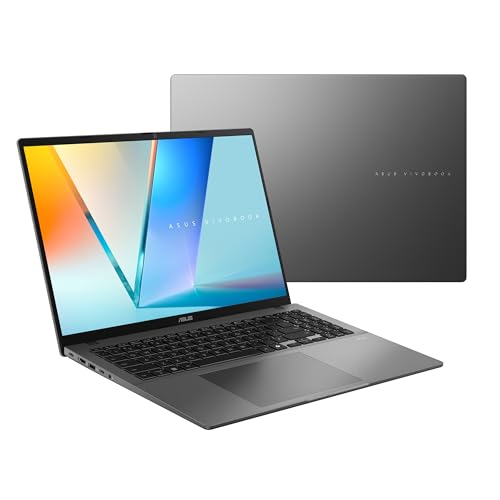
Best for: home-office multitasking on a large screen — many windows, long documents and media in the evening.
Not suited for: pen input or touch workflows — this listing describes a conventional display without touch.
- Display: 16-inch 16:10 WUXGA OLED
- Processor: AMD Ryzen AI 7 445
- Graphics: AMD Radeon Graphics
- Memory: 32GB RAM
- Storage: 1TB SSD
- Connectivity: WiFi 6
- Operating system: Windows 11 Home
- Colour: Matte Gray, model M3607GA-DS79
- Refresh rate: Not stated in the listing title — verify with the manufacturer documentation
The Vivobook S16 is the pragmatist of this group. It takes the 16-inch OLED idea, stretches the panel to a 16:10 aspect ratio that shows more lines of a document or more rows of a spreadsheet than a 16:9 screen, and pairs it with the memory and storage figures — 32GB and 1TB — that the slimmer Zenbooks reserve for their flagships. For a home office where the laptop rarely leaves the desk but constantly juggles a browser forest, office documents and a media library, those are the numbers that decide daily satisfaction.
AMD’s Ryzen AI 7 445 with Radeon graphics keeps this a Copilot+ PC with conventional x86 compatibility, so the software question that follows the Snapdragon machines never arises. Windows 11 Home rather than Pro marks the intended audience honestly: households and solo workers who do not need domain joining or enterprise management, and who would rather the specification budget went into memory and screen than licensing.
Two silences in the title deserve respect. No refresh rate is quoted, and no touch capability is claimed, so read this as a high-quality conventional panel rather than a pen surface or a high-refresh display. Within those bounds the proposition is coherent: the biggest everyday screen here, doubled memory, doubled storage against the floor, and nothing spent on mechanisms you will not use.
Picture the household this machine serves: a desk that hosts paid work from nine to five, homework in the early evening and a film after dinner. The 16:10 screen shows a full document page without the chin of wasted space a 16:9 panel leaves; the 32GB of memory means the work session can stay open underneath the evening’s browsing rather than being closed and rebuilt; the terabyte drive holds the family photo archive locally instead of exiling it to a subscription. Windows 11 Home fits that setting exactly, since none of its missing Pro features are missed outside an office IT department. The Vivobook also makes a sensible shared machine for a small business without formal IT — x86 compatibility keeps printers, accounting packages and industry tools uncomplicated. It is the least theatrical pick in this guide and, for a fixed desk, possibly the most sensible: every figure in its title is aimed at daily capacity rather than at a single spectacular trick.
Strengths
- 32GB of memory and 1TB of storage at the 16-inch size make multitasking effortless.
- The 16:10 OLED panel shows more vertical content than 16:9 rivals.
- Ryzen AI platform keeps full x86 software compatibility with Copilot+ features.
Trade-offs
- No touch input, so tablet-style interaction is off the table.
- WiFi 6 rather than the WiFi 7 the Zenbook Duo carries.
- Windows 11 Home omits the Pro management features of the Zenbook pair.
Households setting up a long-term home-office machine can check price on Amazon for the Vivobook S16 OLED in Matte Gray.
Side-by-side comparison
| Pick | Processor | Memory / Storage | Display | Operating system |
|---|---|---|---|---|
| Galaxy Book4 Edge 16 | Snapdragon X Elite | 16GB / 512GB | 16-inch 3K AMOLED touch | Windows 11 |
| Galaxy Book5 Pro 360 | Intel Core Ultra 7 256V | 16GB / 512GB | 16-inch 3K AMOLED touch, 120Hz | Windows 11 Pro |
| Zenbook 14 OLED | AMD Ryzen AI 9 465 | 16GB / 1TB | 14-inch OLED touch, 2K, 500 nits HDR | Windows 11 Pro |
| Zenbook A14 | Snapdragon X Plus 8-core | 16GB / 512GB | 14-inch WUXGA OLED, 100% DCI-P3, 600 nits | Windows 11 Pro |
| Zenbook Duo | Intel Core Ultra 9 386H | 32GB / 1TB | Dual 14-inch OLED 3K 144Hz touch | Windows 11 |
| Vivobook S16 OLED | AMD Ryzen AI 7 445 | 32GB / 1TB | 16-inch 16:10 WUXGA OLED | Windows 11 Home |
How to choose an AMOLED or OLED laptop
Does the panel word — AMOLED or OLED — change what you are buying?
Less than the surrounding numbers do. Samsung brands its laptop panels AMOLED and ASUS brands its OLED; both describe self-emissive displays where each pixel produces its own light and can switch fully off. What separates one screen from another in daily use is the specification wrapped around the name: resolution, brightness in nits, refresh rate and any stated colour gamut. The A14’s title, for instance, tells you more with “100% DCI-P3, 600 nits HDR” than any brand word could. Shop the figures, then the vocabulary.
Snapdragon or x86: which platform fits your software?
Start with an inventory, not an opinion. List the applications you cannot work without, then check each publisher’s site for an ARM or native Windows-on-Snapdragon build. Browsers, office suites, conferencing tools and most creative cloud applications are safe territory. The risk concentrates in old drivers, hardware dongles, VPN and security agents, and specialist utilities. If everything you depend on is covered, Snapdragon machines such as the Book4 Edge and Zenbook A14 reward you with efficiency and quiet. If even one essential tool is x86-only with no workaround, the Intel and AMD picks remove the question at a stroke.
How much memory and storage does this class actually need?
Sixteen gigabytes handles the browser-and-documents workload these thin machines are built for, and every pick here meets that floor. Step up to the 32GB configurations — the Zenbook Duo and Vivobook S16 — when your day involves large spreadsheets, many simultaneous applications, light photo editing or keeping a machine for five years rather than three. Storage follows the same logic: 512GB suits cloud-centred work, while the 1TB picks suit local media libraries and offline project archives.
Is touch worth having on a laptop screen?
On convertibles and dual-screen machines, absolutely — the Galaxy Book5 Pro 360 and Zenbook Duo are designed around pen and touch. On a clamshell such as the Zenbook 14 OLED, touch is a convenience for scrolling and casual interaction rather than the point of the machine. The Vivobook S16 shows the opposite choice: no touch, with the budget spent on memory instead. Neither answer is wrong; the error is paying for a pen surface you never unfold, or missing one your annotation workflow needs daily.
Reading a self-emissive spec sheet without getting lost
Panel specifications reward a slow read, because the same words hide different realities. Resolution first: the titles here use 3K, 2K and WUXGA, and at laptop sizes the practical question is not the marketing tier but how text renders at your working distance. A 3K panel at 16 inches, like the two Samsung screens, renders document text with edges so smooth that scaling becomes a preference rather than a rescue. WUXGA on the 14-inch A14 and the 16-inch Vivobook means 1920 by 1200 — fewer pixels, but arranged in the taller 16:10 shape that shows more of a page at once, and on the smaller A14 the density still keeps letters clean.
Brightness figures need context too. The 500 nits quoted for the Zenbook 14 OLED and the 600 nits for the A14 are peak HDR figures, and they matter most as headroom: a panel that can reach 600 nits can sit at a comfortable 300 in a bright room without straining, while a dimmer panel at its ceiling looks washed out in the same light. In a dim room all six screens here will spend their evenings far below their peaks, which is where OLED-class panels shine anyway — dark scenes are rendered by pixels that are simply off, not by a backlight straining through a filter.
Refresh rate is the third figure worth hunting for. The Book5 Pro 360 quotes 120Hz and the Zenbook Duo 144Hz; the other titles stay silent, which usually signals the standard 60Hz. Higher refresh does not change what a document says, but it changes how motion feels — scrolling, window dragging, pen strokes and video all gain a fluidity that is hard to un-notice once experienced. If your work is static text, 60Hz costs you nothing. If you annotate by hand or edit video, the quoted high-refresh panels earn their premium.
Gamut claims, finally, separate colour tools from colour decoration. A percentage of DCI-P3 describes how much of the film industry’s colour space the panel can reproduce, and only the A14’s title prints one. Brightness and HDR labels describe punch; gamut describes accuracy. Photographers and designers should shop the gamut line first and the brightness line second, while everyone else can reverse that order safely.
Snapdragon versus Intel and AMD: living with the split
The platform divide in this guide deserves its own honest section, because it follows you home. Snapdragon laptops run Windows on ARM. Their strengths are efficiency — long unplugged stretches, cool and quiet operation, instant wake — and their neural engines are rated in the titles here at up to 45 TOPS, feeding the AI features built into current Windows. Their weakness is the long tail of Windows software: anything compiled only for x86 must run through emulation, which handles most applications gracefully and a stubborn minority not at all.
Battery behaviour differs in character, not just in hours. ARM machines sip power during the light, bursty work that fills most days — reading, writing, browsing, calls — and hold their charge in standby far better than traditional laptops, so a machine closed on Friday often opens on Monday with most of its battery intact. Intel and AMD machines answer with breadth: every driver, every legacy utility, every game and engineering package simply installs. Neither platform is the future and the other the past; they are two different settlements between efficiency and universality, and the right one is the one your own software list votes for.
Getting the most from a self-emissive screen
A few habits protect both the panel and your eyes. OLED-class displays can retain image elements if the same static content sits at full brightness for months, so let the taskbar auto-hide, use a rotating wallpaper or a screen saver, and avoid parking a bright static dashboard on screen all day. Dark themes are doubly kind here: they look better on a panel with true blacks and they draw less power, because dark pixels are dimmed or off. Finally, match brightness to the room instead of running at maximum by default — the 500- and 600-nit figures quoted in this guide are headroom for bright spaces, not a setting to live at.
Setting up an OLED laptop for work, film and photo duties
Out of the box, do three things. First, set Windows scaling so text sits at a size you can read for six hours, not six minutes — these high-resolution panels invite tiny default text that quietly taxes your eyes. Second, turn on the dark theme in Windows and in your main applications; on a self-emissive screen this is not an aesthetic preference but a functional one, cutting power draw and making the contrast you paid for visible in every window. Third, enable the panel’s flicker-reduction or comfort mode if the settings offer one, particularly if you work at low brightness in the evening, where some people notice pulse-width dimming more than others.
For film and streaming, the setup is simpler: use the native resolution, let the streaming application choose its highest tier, and resist the temptation to raise brightness to maximum in a dark room. OLED contrast does its best work at moderate brightness, where shadow detail survives. The 120Hz and 144Hz panels add motion smoothness to sports and action scenes without any configuration beyond leaving the refresh setting at its highest value.
For photo work, calibrate expectations before calibrating the screen. The A14’s stated DCI-P3 coverage makes it the natural centre of a colour workflow here; on the other machines, edit in the knowledge that the panel is vivid and pleasing but its gamut is not printed in the title, so soft-proof important prints and keep a known reference image handy to sanity-check saturation. Whichever machine you choose, view edits at the brightness you will use for delivery — a screen at full brightness flatters shadows that a dimmer display, or paper, will render heavier.
Ownership notes: living with the panel for five years
Self-emissive panels age differently from backlit ones. Brightness declines gradually and unevenly if static content dominates, which is why the habits in the earlier section — varied content, hidden taskbar, sensible brightness — are ownership strategy rather than fussiness. Batteries follow their own curve: the efficiency of the Snapdragon pair makes their packs work less hard per day, while the Duo’s two panels draw more whenever both are lit, so heavy dual-screen sessions belong near a socket even though the machine is technically portable.
Care is simple. A microfibre cloth, lightly dampened with water, handles fingerprints on these glossy touch surfaces; solvents and paper towels are the enemies of the coatings. Keep the lid’s exterior in a sleeve when the machine travels — several picks here include one, the Duo notably — because a scratched coating cannot be polished back. And register the warranty in the first week: premium panels are the most expensive component in every machine in this guide, and the paperwork is easiest while the purchase is fresh.
Fourteen inches or sixteen: the size decision in this line-up
Size is the quiet fork in this guide, and it maps to how a machine spends its day. The 14-inch picks — Zenbook 14 OLED, Zenbook A14 and the twin-panel Duo in its folded state — belong to bags, tray tables and arms of sofas. Their screens are large enough for focused single-document work and their chassis disappear into luggage, but side-by-side windows on a single 14-inch panel always involve compromise: each window gets a narrow column, and spreadsheets shed columns off the edge.
The 16-inch picks — both Samsung machines and the Vivobook S16 — belong to desks that move occasionally rather than constantly. Sixteen inches at 3K or 16:10 WUXGA gives two documents a fair share each, keeps a video call visible beside its notes, and reduces the itch for an external monitor at home. The cost is carried in the shoulder and felt in small spaces: a café table, an economy seat, a crowded train. Neither size is the advanced choice; they are answers to different geographies. Count your weekly hours in each setting — bag versus desk — and let that tally, rather than the spec sheet, settle the question.
Common mistakes
Buying the panel word instead of the panel figures. AMOLED and OLED branding tells you the technology family, nothing about brightness, gamut or refresh. Two screens sharing the label can differ by hundreds of nits; read the numbers in the title and listing before paying for the word.
Ignoring the platform until the first driver fails. Snapdragon machines are excellent until the day a ten-year-old printer, a security dongle or a niche utility refuses to cooperate. That check takes twenty minutes before purchase and saves a return afterwards.
Paying for 32GB while starving storage, or the reverse. Memory and drive size solve different problems. A 32GB machine with a full 512GB drive still stutters through life; balance the two against how you actually work, the way the Duo and Vivobook balance both at once.
Treating a convertible as a free tablet. A 16-inch folding laptop is a laptop that can present and annotate, not a slate you will read in bed. Buy the Book5 Pro 360 for meetings and markup, not as a tablet replacement.
Frequently asked questions
Is AMOLED better than OLED on a laptop?
They are sibling technologies rather than rivals: Samsung uses AMOLED for its laptop panels and ASUS uses OLED, and both switch pixels off individually for true black. Judge individual models by resolution, brightness, refresh rate and stated gamut — the figures in each listing — rather than by which of the two words appears in the name.
Will a Snapdragon laptop run my Windows programs?
Most mainstream programs, yes — natively or through built-in emulation that handles everyday applications well. The exceptions cluster around old hardware drivers, specialist utilities and security tools. Check the publishers of your essential software for ARM support before choosing the Galaxy Book4 Edge or Zenbook A14.
Do OLED laptop screens suffer burn-in?
Static elements displayed at high brightness for very long periods can leave retention on self-emissive panels. Ordinary mixed use, auto-hiding the taskbar, varying content and sensible brightness make it a non-issue for most owners; the habits section above covers the simple precautions.
Why do two picks carry 32GB of memory?
Because their roles demand it. The Zenbook Duo drives two 3K panels and the multitasking that invites; the Vivobook S16 is a stay-at-desk multitasker. The 16GB picks aim at lighter, more mobile workloads where the smaller figure is not a practical limit.
Which of these is best for photo colour work?
On stated figures, the Zenbook A14: its title is the only one here printing a full gamut claim, 100% DCI-P3, alongside the guide’s highest brightness at 600 nits HDR. Other panels may perform well, but this is the one whose colour credentials are written down.
Does a bigger OLED screen use much more power?
Panel power on self-emissive displays depends more on what is shown than on size alone: a dark document on a 16-inch screen can draw less than a bright video on a 14-inch one. Dark themes and moderate brightness narrow the gap between sizes considerably, which is why the large Snapdragon machines remain credible all-day tools.
Are these laptops suitable for gaming?
Only casually. None of the six titles lists a discrete gaming graphics card; the Zenbook Duo’s 144Hz panels and the Book5 Pro 360’s 120Hz screen flatter lighter games, but sustained AAA gaming belongs on machines built around dedicated GPUs and the cooling to feed them.
What does Copilot+ actually require?
The Copilot+ label, which several titles here carry, marks machines whose neural engine clears Microsoft’s performance threshold for on-device AI features in Windows. The Snapdragon picks quote 45 TOPS in their titles; the practical effect is faster local image, transcription and assistant features without sending everything to the cloud.
Should I choose 14 inches or 16 inches?
Let your week decide. If the laptop travels daily and works on trains, in cafés and in meeting rooms, the 14-inch Zenbooks keep the bag light and the screen sharp. If it lives on one or two desks and replaces a monitor, the 16-inch Samsung pair and the Vivobook S16 give documents and side-by-side windows the room they need. The size section above works through the trade in more detail.
Final recommendation
Match the machine to the desk it will live on. The Galaxy Book5 Pro 360 is the safest all-round recommendation — an x86 convertible with a 120Hz AMOLED screen and Windows 11 Pro that asks no compatibility questions. The Zenbook Duo is the boldest: two OLED screens that genuinely change how much work fits in front of you. The A14 owns colour, the Book4 Edge owns the large-screen Snapdragon brief, the Zenbook 14 OLED owns travel storage, and the Vivobook S16 owns the home-office desk. For this guide’s money, the Book5 Pro 360’s blend of screen, hinge and software certainty is where most readers should land — a verdict earned by balance rather than by any single headline figure, and by a screen that flatters everything from spreadsheets to late-night film.