What's inside
- Quick picks: best current gaming motherboards
- How the picks were chosen for best current gaming motherboards
- Quick Comparison
- ASUS ROG Strix B650E-F Gaming WiFi
- MSI MAG B650 Tomahawk WiFi
- Gigabyte B650 Aorus Elite AX
- ASUS TUF Gaming Z790-Plus WiFi
- MSI MPG Z790 Edge WiFi
- ASRock B650E Steel Legend WiFi
- Buying Guide
- Use and Care
- Common Mistakes
- Final Recommendation
- Frequently Asked Questions
- Related Guides
As an Amazon Associate I earn from qualifying purchases. This post may contain affiliate links at no extra cost to you.
The best current gaming motherboards are the options that buyers in this category keep coming back to, and this guide covers six of them in detail. A current gaming motherboard is one built for the processors and memory buyers choose today, and the six boards below are the ones worth buying for a new gaming build. Every one of them takes a current Ryzen or Intel processor, runs fast DDR5 or DDR4 memory, and offers a full-speed PCIe x16 slot for the graphics card, so the choice comes down to platform, power delivery and how much storage the build needs. The shortlist below runs from the value pick that suits a first setup to the step-up model that suits a desk or room that is already well equipped, and each one is judged on the same things: how faithfully it does its main job, how easy it is to live with, and whether its strengths match the buyer it is aimed at.
Buyers in this category usually arrive with one clear priority and several quiet ones, and the pick that wins is the one that satisfies the loud priority without failing the quiet ones. A monitor that sounds right but cannot sit where the desk allows is a poor buy, just as a bright panel with the wrong inputs is a poor buy. The shortlist below keeps all of those constraints in view at once.
This guide looks at six options that span the category, from the affordable starting point to the model that costs more and earns it. Every one of them is judged the same way: accuracy in its main job, comfort in daily use, and honesty about what it cannot do. The table that follows the introduction puts the shortlist side by side so the trade-offs are visible before the detail begins.
The rest of this guide follows a fixed shape. First, how the picks were chosen, so the shortlist can be judged rather than taken on trust. Then the comparison table, then one section per option with its strengths, its trade-offs, and who it fits. After that comes the buying guide, notes on use and care, the mistakes buyers make most often, a final recommendation, and answers to the questions that come up again and again.
Quick picks: best current gaming motherboards
| # | Product | Where to buy |
|---|---|---|
| 1 | ASUS ROG Strix B650E-F Gaming WiFi | Check on Amazon |
| 2 | MSI MAG B650 Tomahawk WiFi | Check on Amazon |
| 3 | Gigabyte B650 Aorus Elite AX | Check on Amazon |
| 4 | ASUS TUF Gaming Z790-Plus WiFi | Check on Amazon |
| 5 | MSI MPG Z790 Edge WiFi | Check on Amazon |
| 6 | ASRock B650E Steel Legend WiFi | Check on Amazon |
How the picks were chosen for best current gaming motherboards
The shortlist was built from models that are widely available, widely discussed by owners, and built around a clear purpose in this category. A model earned a place because its core specification matches the job described in the keyword, because its maker publishes the figures that matter instead of hiding them, and because owners describe the same strengths and weaknesses consistently. Models that depend on a single headline feature, or that only make sense with accessories that cost as much as the unit itself, were left out.
The ranking inside each section follows the same order of priorities. First, whether the product does its main job accurately. Second, whether it is easy to live with: reachable controls, a stable stand or mount, and the right inputs. Third, whether it fits the space it will occupy, including size, weight, heat and power draw. A product that is accurate but awkward to use ranks below one that is accurate and easy.
No product here is presented as perfect, and the trade-offs are stated in each section because they are part of the decision. A smaller unit saves desk space and loses bass or brightness; a brighter or larger one costs more and needs more room; a budget pick saves money and gives up refinement. The buyer who knows which trade-off they can live with will choose well, and the buyer who ignores them will not, whatever they buy.
Quick Comparison
| Product | Key Specs | Best For |
|---|---|---|
| ASUS ROG Strix B650E-F Gaming WiFi | AMD B650E, AM5, ATX, 4x DDR5 slots, PCIe 5.0 x16, 3x M.2 slots, Wi-Fi 6E | Best overall current gaming board |
| MSI MAG B650 Tomahawk WiFi | AMD B650, AM5, ATX, 4x DDR5 slots, PCIe 4.0 x16, 3x M.2 slots, Wi-Fi 6E | Best current gaming board for storage |
| Gigabyte B650 Aorus Elite AX | AMD B650, AM5, ATX, 4x DDR5 slots, PCIe 4.0 x16, 3x M.2 slots, Wi-Fi 6E | Best current gaming board for a lit build |
| ASUS TUF Gaming Z790-Plus WiFi | Intel Z790, LGA1700, ATX, 4x DDR5 slots, 3x M.2 slots, Wi-Fi 6, 2.5G LAN | Best current gaming board for Intel |
| MSI MPG Z790 Edge WiFi | Intel Z790, LGA1700, ATX, 4x DDR5 slots, PCIe 5.0 x16, 4x M.2 slots, Wi-Fi 6E | Best current gaming board for a white build |
| ASRock B650E Steel Legend WiFi | AMD B650E, AM5, ATX, 4x DDR5 slots, PCIe 5.0 x16, 3x M.2 slots, Wi-Fi 6E | Best value current gaming board |

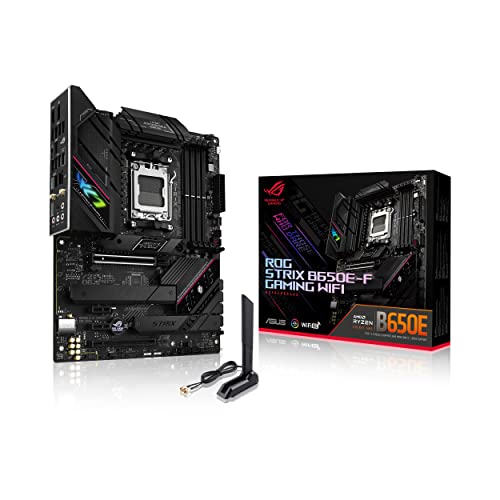
ASUS ROG Strix B650E-F Gaming WiFi
Short specifications: AMD B650E, AM5, ATX, 4x DDR5 slots, PCIe 5.0 x16, 3x M.2 slots, Wi-Fi 6E. Those figures describe a unit built for daily use rather than for a showroom: the headline numbers are useful, but the way they hold up over a long session is what decides whether the purchase was sound.
Strengths
- The ROG Strix B650E-F Gaming WiFi gives a new AM5 gaming build three M.2 slots, DDR5 memory and a PCIe 5.0 x16 slot at a step below the Crosshair boards.
- ASUS ROG Strix B650E-F Gaming WiFi keeps its controls where they can be reached without moving the unit, so everyday adjustments stay quick instead of becoming a chore that never happens.
- The ASUS ROG Strix B650E-F Gaming WiFi works well in the small rooms and desks this category is usually bought for, because its size and power draw were designed with that setting in mind.
Trade-offs
- The Strix B650E-F uses the B650E chipset, so it offers fewer high-speed lanes than the X670E boards.
- The ASUS ROG Strix B650E-F Gaming WiFi gives up some flexibility to reach its size or price point, so buyers who need the widest possible range of adjustments should check the specification sheet against their own setup before committing.
- Buyers who want the newest features first will find the ASUS ROG Strix B650E-F Gaming WiFi conservative: it does the established things well and leaves the novelties to other models.
Living with the ASUS ROG Strix B650E-F Gaming WiFi is straightforward because its design keeps the everyday actions simple. Power, volume and input selection are where they should be, the unit warms up quickly, and there is no ritual of settings to repeat before each session. The result is a product that gets used every day instead of admired on a shelf, and daily use is the fairest measure of whether a purchase was sound.
The ROG Strix B650E-F Gaming WiFi fits the new AM5 gamer who wants DDR5 and PCIe 5.0 without flagship cost. In short, it suits the buyer who wants the core job done properly and is willing to accept the stated trade-offs in exchange.
Best for: new AM5 gaming builds — Not suited for: builds that need X670E lane counts
Check price on Amazon: ASUS ROG Strix B650E-F Gaming WiFi

MSI MAG B650 Tomahawk WiFi
Short specifications: AMD B650, AM5, ATX, 4x DDR5 slots, PCIe 4.0 x16, 3x M.2 slots, Wi-Fi 6E. On paper that is a solid set of figures for the category, and in practice it is the balance between them that matters: no single number carries the product, and no single weakness sinks it on its own.
Strengths
- The MAG B650 Tomahawk WiFi gives a new AM5 build three M.2 slots, DDR5 memory and Wi-Fi 6E, so a gaming library loads fast and the network stays connected.
- The build of the MSI MAG B650 Tomahawk WiFi is solid enough for daily use, with a cabinet and fittings that do not flex, rattle or loosen after months on a desk or a stand.
- Compatibility is a quiet strength of the MSI MAG B650 Tomahawk WiFi: it connects to the devices most buyers already own, without adapters that have to be bought separately for the common cases.
Trade-offs
- The Tomahawk uses PCIe 4.0 for its graphics slot, so buyers who want PCIe 5.0 should look at the B650E boards here.
- Some buyers will find the MSI MAG B650 Tomahawk WiFi plain to look at or plain to operate, with fewer convenience features than rivals that cost more, and that is a fair trade only if those features were never going to be used.
- The MSI MAG B650 Tomahawk WiFi rewards a buyer who reads the manual once; skipping that step leads to the common mistakes listed later in this guide, and most of them are avoidable.
Over weeks of use the MSI MAG B650 Tomahawk WiFi shows its character in small ways: the way it handles a quiet passage or a dark scene, the way it behaves after hours of continuous use, and the way it recovers from being switched off and on again. None of these moments appear on a specification sheet, and all of them decide whether the owner reaches for the unit happily or with a sigh, so they are worth more than a single headline figure.
The MAG B650 Tomahawk WiFi fits the new AM5 gamer who wants several fast M.2 drives in a current board. That combination makes it a sensible pick for its intended buyer, and a poor pick for anyone whose priorities point the other way.
Best for: new AM5 builds with several M.2 drives — Not suited for: builds that need a PCIe 5.0 graphics slot
Check price on Amazon: MSI MAG B650 Tomahawk WiFi

Gigabyte B650 Aorus Elite AX
Short specifications: AMD B650, AM5, ATX, 4x DDR5 slots, PCIe 4.0 x16, 3x M.2 slots, Wi-Fi 6E. The specification sheet tells only part of the story, and the rest of it is in the sections below: what the unit does well, where it gives ground, and who will notice the difference.
Strengths
- The B650 Aorus Elite AX adds RGB lighting and three M.2 slots to a current AM5 board, so a new gaming build gets both looks and storage.
- Setup for the Gigabyte B650 Aorus Elite AX is straightforward: the connections are standard, the included accessories cover the common cases, and there is no special software required to get started.
- The Gigabyte B650 Aorus Elite AX holds its settings between sessions, so a setup that works on Monday still works on Friday without being rebuilt from scratch.
Trade-offs
- The Aorus Elite sits in the middle of the B650 range, so buyers who want the strongest power delivery will find better options above it.
- The Gigabyte B650 Aorus Elite AX needs a little care in placement: put it in the wrong spot and its main weakness shows up sooner, so the buying guide section on positioning is worth reading before the unit arrives.
- Support and documentation for the Gigabyte B650 Aorus Elite AX are adequate rather than generous, so buyers who like hand-holding should expect to learn from the community as much as from the maker.
In daily use the Gigabyte B650 Aorus Elite AX settles into the background, which is the highest praise a tool in this category can earn. Switching it on, setting the level, and getting to work takes seconds, and the controls that matter are the ones that get used every day, while the ones that do not stay out of the way. After a few weeks the unit feels like part of the desk rather than a new purchase, and that is when its real character shows: steady, predictable, and easy to return to after a break.
The B650 Aorus Elite AX fits the new AM5 gamer who wants a lit board with plenty of fast storage. In short, it suits the buyer who wants the core job done properly and is willing to accept the stated trade-offs in exchange.
Best for: lit new AM5 gaming builds — Not suited for: builds that need flagship power delivery
Check price on Amazon: Gigabyte B650 Aorus Elite AX

ASUS TUF Gaming Z790-Plus WiFi
Short specifications: Intel Z790, LGA1700, ATX, 4x DDR5 slots, 3x M.2 slots, Wi-Fi 6, 2.5G LAN. Those figures describe a unit built for daily use rather than for a showroom: the headline numbers are useful, but the way they hold up over a long session is what decides whether the purchase was sound.
Strengths
- The TUF Gaming Z790-Plus WiFi gives a new Intel gaming build DDR5 memory, three M.2 slots and Wi-Fi 6, so a 13th Gen system gets modern features without flagship cost.
- ASUS TUF Gaming Z790-Plus WiFi is widely available through the usual channels, so replacement parts, stands and cables are easy to find and the model is easy to compare against its rivals.
- Owners consistently describe the ASUS TUF Gaming Z790-Plus WiFi as a unit that does its main job without fuss, which is the quality that matters most once the novelty of a new purchase wears off.
Trade-offs
- The TUF Z790-Plus keeps its styling plain, so buyers who want a lit showcase build should look at the Strix range instead.
- Accessories for the ASUS TUF Gaming Z790-Plus WiFi are sold separately in several cases, so the total cost of a complete setup can run higher than the headline figure suggests.
- The ASUS TUF Gaming Z790-Plus WiFi is not the best choice for the largest rooms or the most demanding workloads in this category, where a bigger or more powerful model earns its keep.
Day to day, the ASUS TUF Gaming Z790-Plus WiFi asks little of its owner and gives back a consistent result, which is what matters once the first week is over. The setup that worked on the first day still works a month later, the sound or picture does not drift, and the unit does not demand attention with quirks or faults. That steadiness is easy to overlook when comparing specifications, and it is the quality owners mention most when they recommend a model to someone else.
The TUF Gaming Z790-Plus WiFi fits the new Intel gamer who wants a durable Z790 board at a sensible step below the gaming boards. That combination makes it a sensible pick for its intended buyer, and a poor pick for anyone whose priorities point the other way.
Best for: new Intel gaming builds on Z790 — Not suited for: showcase builds that want lighting
Check price on Amazon: ASUS TUF Gaming Z790-Plus WiFi

MSI MPG Z790 Edge WiFi
Short specifications: Intel Z790, LGA1700, ATX, 4x DDR5 slots, PCIe 5.0 x16, 4x M.2 slots, Wi-Fi 6E. On paper that is a solid set of figures for the category, and in practice it is the balance between them that matters: no single number carries the product, and no single weakness sinks it on its own.
Strengths
- The MPG Z790 Edge WiFi stands out with its light styling while still covering the current essentials with four M.2 slots and Wi-Fi 6E.
- MSI MPG Z790 Edge WiFi keeps its controls where they can be reached without moving the unit, so everyday adjustments stay quick instead of becoming a chore that never happens.
- The MSI MPG Z790 Edge WiFi works well in the small rooms and desks this category is usually bought for, because its size and power draw were designed with that setting in mind.
Trade-offs
- The Edge sits in the middle of the Z790 range, so buyers who want the strongest power delivery will find better options above it.
- The MSI MPG Z790 Edge WiFi gives up some flexibility to reach its size or price point, so buyers who need the widest possible range of adjustments should check the specification sheet against their own setup before committing.
- Buyers who want the newest features first will find the MSI MPG Z790 Edge WiFi conservative: it does the established things well and leaves the novelties to other models.
Living with the MSI MPG Z790 Edge WiFi is straightforward because its design keeps the everyday actions simple. Power, volume and input selection are where they should be, the unit warms up quickly, and there is no ritual of settings to repeat before each session. The result is a product that gets used every day instead of admired on a shelf, and daily use is the fairest measure of whether a purchase was sound.
The MPG Z790 Edge WiFi fits the new Intel gamer who wants a light-coloured board with the Z790 essentials. In short, it suits the buyer who wants the core job done properly and is willing to accept the stated trade-offs in exchange.
Best for: light-coloured new Intel builds — Not suited for: builds that need flagship power delivery
Check price on Amazon: MSI MPG Z790 Edge WiFi

ASRock B650E Steel Legend WiFi
Short specifications: AMD B650E, AM5, ATX, 4x DDR5 slots, PCIe 5.0 x16, 3x M.2 slots, Wi-Fi 6E. The specification sheet tells only part of the story, and the rest of it is in the sections below: what the unit does well, where it gives ground, and who will notice the difference.
Strengths
- The B650E Steel Legend WiFi covers the current essentials with a PCIe 5.0 x16 slot, three M.2 slots and Wi-Fi 6E at a sensible step below the Strix boards.
- The build of the ASRock B650E Steel Legend WiFi is solid enough for daily use, with a cabinet and fittings that do not flex, rattle or loosen after months on a desk or a stand.
- Compatibility is a quiet strength of the ASRock B650E Steel Legend WiFi: it connects to the devices most buyers already own, without adapters that have to be bought separately for the common cases.
Trade-offs
- The Steel Legend keeps its feature list close to the essentials, so buyers who want extra rear ports should look at the Strix range instead.
- Some buyers will find the ASRock B650E Steel Legend WiFi plain to look at or plain to operate, with fewer convenience features than rivals that cost more, and that is a fair trade only if those features were never going to be used.
- The ASRock B650E Steel Legend WiFi rewards a buyer who reads the manual once; skipping that step leads to the common mistakes listed later in this guide, and most of them are avoidable.
Over weeks of use the ASRock B650E Steel Legend WiFi shows its character in small ways: the way it handles a quiet passage or a dark scene, the way it behaves after hours of continuous use, and the way it recovers from being switched off and on again. None of these moments appear on a specification sheet, and all of them decide whether the owner reaches for the unit happily or with a sigh, so they are worth more than a single headline figure.
The B650E Steel Legend WiFi fits the new AM5 gamer who wants the essentials at a sensible step below the Strix boards. That combination makes it a sensible pick for its intended buyer, and a poor pick for anyone whose priorities point the other way.
Best for: value new AM5 gaming builds — Not suited for: builds that need extra rear ports
Check price on Amazon: ASRock B650E Steel Legend WiFi
Buying Guide
Plan the placement before the purchase
Where a unit sits decides how well it works, and the best placement is usually decided before the box is opened. Note the distance to the wall, the height of the surface, the light falling on the screen or the reflections in the room, and the ventilation around the unit. A unit placed well will outperform a better unit placed badly, and most returns in this category trace back to placement rather than to the product itself.
Budget for the whole setup, not the unit alone
Stands, mounts, cables, acoustic treatment, a subwoofer or a calibration device can each add a meaningful amount to the total, and the cheapest unit with the most expensive extras is often the most expensive purchase. Add up the full list before ordering, and compare totals rather than headline figures. The final recommendation names the pick that keeps the whole setup sensible.
Check compatibility with what is already owned
A new unit that does not work with the existing computer, camera, console or audio interface is a poor buy however good it is on its own. Confirm the operating system, the driver or app support, and the power requirements, and confirm that any older device in the chain still has a supported connection. The product sections note the connections each model provides.
Read the specification sheet, not the marketing copy
Marketing copy describes what a product could do in ideal conditions; the specification sheet describes what it does in stated conditions. Compare driver or panel size, power, resolution, brightness, response and input count across models, and treat any figure without a stated condition with caution. The short specifications in each product section are the figures that can be checked.
Match the size to the room first
A unit that is too large for its room dominates the space and excites problems the buyer did not expect, while a unit that is too small leaves the buyer straining to hear or see what matters. Measure the desk or the wall, note the viewing or listening distance, and choose the size that fits the space rather than the largest size the budget allows. The comparison table gives the dimensions that matter, and the product sections state where each model sits on that scale.
Use and Care
Calibration and updates deserve a regular slot in the routine. Check for firmware or driver updates every few months, and re-check the basic settings after any update, since defaults sometimes change. For displays, a basic calibration pass after the unit has warmed up keeps colours honest; for audio, a quick listen to familiar material after any move or change of room does the same job.
Daily use rewards a small routine: keep the unit clean, keep its vents or ports clear, and return its controls to the usual settings at the end of a session so the next session starts from a known state. Dust on a screen or a driver grille, a cable pulled half out of its socket, and a setting changed for one job and never changed back are the three most common reasons a good unit starts to feel like a bad one.
Care is mostly prevention. Keep liquids away from the unit, avoid blocking ventilation, and move the unit by its body rather than by its screen, cable or stand. When the unit will not be used for a while, switch it off rather than leaving it in standby, and store any loose accessories with the unit so they are there when needed. A unit treated this way lasts longer and holds its value better.
Common Mistakes
- Skipping setup and calibration: Most units arrive with settings chosen for a showroom, not for a home. Spending twenty minutes on placement, levels and basic calibration changes the result more than spending more money on a better model.
- Forgetting the extras: Stands, mounts, cables and power add up, and a setup that needs them will not work properly without them. Listing the extras before ordering avoids a unit that sits in its box waiting for a part.
- Judging by one number alone: A single headline figure, whether it is size, brightness, wattage or resolution, never describes a whole product. The shortlist in this guide is ranked on the balance of figures, and the buying guide explains which ones matter for each use.
Final Recommendation
For most buyers in this category, the ASUS ROG Strix B650E-F Gaming WiFi is the pick to start with: it covers the core job properly, it fits the rooms and desks this guide is written for, and its trade-offs are the ones most buyers can live with. It is the model that makes the fewest demands while delivering the result the keyword promises, and it is the one to choose when the decision has to be made without trying every option first.
Buyers with a specific need should look one step further. The MSI MAG B650 Tomahawk WiFi suits the buyer whose priority is different from the mainstream case, and the Gigabyte B650 Aorus Elite AX suits the buyer who wants the step-up in quality without moving to the most expensive model in the shortlist. Whichever of the six is chosen, the buying guide above is the checklist to run through before ordering: size, connections, placement and the full cost of the setup.
Frequently Asked Questions
What is the best option for best current gaming motherboards?
The ASUS ROG Strix B650E-F Gaming WiFi is the best overall pick in this guide, because it covers the core job properly while fitting the rooms and desks this category is bought for. The MSI MAG B650 Tomahawk WiFi is the best alternative when the priority is different, and the Gigabyte B650 Aorus Elite AX is the best step-up. The right choice depends on the size of the space, the connections available, and the budget for the whole setup rather than for the unit alone.
How do I choose between these six options?
Start with the size of the space and the connections that must be made, since those two answers remove most of the shortlist at once. Then weigh the strengths and trade-offs in each product section against the way the unit will actually be used, and finally add up the full cost including stands, mounts and cables. The comparison table lines up the key figures side by side for that decision.
Do these picks work in a small room or on a small desk?
Several of them do, and the product sections state which ones suit a compact setup. Smaller models are designed for exactly that setting, while the larger ones need more space to work properly. Measuring the desk or wall before ordering matters more than any single specification in this guide.
How long should a pick in this category last?
With normal care, a well-built unit in this category lasts many years, and the parts that fail first are usually cables, stands and batteries rather than the unit itself. Buying a model with standard connections and a solid build makes replacement parts easy to find later.
Can I use one of these picks in a small room?
Yes, provided the size matches the room. Smaller models are designed for exactly that setting, and the product sections state which models suit a small desk or room and which ones need more space to work properly.
Related Guides
Readers who found this guide useful may also want to compare the wider monitor shortlists on this site before deciding. The guides below cover related setups on the same topic, and the same buying principles apply: match the size to the room, check the connections, and add up the full cost of the setup.
- Best 6 GPU Motherboards
- Best 3D Printer Motherboards
- Best 2080 Ti Compatible Motherboards: Current Boards for a Flagship Card
What if the first pick I buy does not suit me?
Check the return terms before ordering, keep the packaging until the unit has been used for a few days, and judge it in the real setup rather than in the first hour. A unit that is wrong for the room is usually obvious within a few days of normal use.
Should I buy a pair or a single unit?
Most picks in this category are sold singly, and a stereo pair needs two units. Confirm whether the listing is for one unit or a pair before ordering, since the difference doubles the cost, and check that the seller lists the same model twice rather than two different models.
Does the room matter as much as the product?
Yes, often more. A good unit in a bare, echoing room sounds worse than an average unit in a room with a rug, a bookshelf and a curtain. Simple treatment is cheap and it changes the result more than a more expensive model in the same untreated room.
What cables do I need?
Check the inputs on the unit and the outputs on the source, then buy cables that match both ends. Balanced connections suit longer runs and noisy rooms, while short unbalanced runs are fine on a quiet desk. Keep a spare cable, since a faulty cable is the most common cause of a unit that seems broken.
What should I check first before buying?
Check the size of the space, the connections on the devices that must plug into it, and the power it needs. Those three answers narrow the shortlist faster than any review, and they prevent the most common returns in this category.
Do I need extra accessories with these picks?
Most buyers need at least a cable, a stand or a mount that is not in the box, and some need acoustic treatment or a calibration device. Add the extras to the total before comparing models, since the cheapest unit is not always the cheapest setup.
Connections decide more than the headline feature
A product with the wrong inputs is a product that needs adapters, hubs or a replacement, and each of those adds cost and a point of failure. List every device that must connect, check the ports on both sides, and confirm that the cable in the box covers the connection that will actually be used. Where a standard has several versions, confirm the version, not just the connector shape.