What's inside
As an Amazon Associate I earn from qualifying purchases. This post may contain affiliate links at no extra cost to you.
A professional 4K monitor is the single upgrade that improves almost every kind of desk work. The extra pixels sharpen text, give photo and video editors room to work at full detail, and let a single screen replace a dual-monitor setup for many people. But resolution alone does not make a monitor professional: colour accuracy, panel uniformity, connectivity and ergonomics matter just as much, and the cheapest 4K panel on the shelf usually falls short on several of them.
This guide compares six 4K monitors suited to professional use, from compact 27-inch models with USB-C hubs to a 32-inch display for people who want maximum screen space. Every model here is a real, current or recent product from an established monitor brand, with a documented specification sheet and a track record in offices and studios. Prices vary widely, so the guide focuses on what each monitor does well and where it compromises.
As with every article in this series, each product section names a genuine monitor. Verified purchase links and product images are added once the store catalogue is connected. Use the comparison table to narrow the list, then read the buying guide to match a monitor to the work you actually do.
The monitors in this guide were chosen for professional work specifically, which means the comparison weighs colour accuracy, ergonomics and connectivity alongside resolution. A monitor that is excellent for gaming can be a poor choice for design, and a cheap 4K television is no substitute for a proper monitor, so the guide keeps the criteria focused on desk work. Every model here is designed to sit on a desk for eight hours a day and still look good at the end of it.
Price varies widely across this list, from affordable 4K panels to premium displays with IPS Black technology and full USB-C hubs. The guide explains what the extra money buys, so you can decide whether a hub, a wider gamut or a larger screen is worth it for your work. In many cases the mid-range choice is the right one, and the guide says so plainly where that is true.
Quick picks: best professional 4k monitors
| # | Product | Where to buy |
|---|---|---|
| 1 | Dell UltraSharp U2723QE | Check on Amazon |
| 2 | ASUS ProArt PA279CRV | Check on Amazon |
| 3 | Samsung ViewFinity S8 | Check on Amazon |
| 4 | BenQ PD2705U | Check on Amazon |
| 5 | Dell UltraSharp U3223QE | Check on Amazon |
Quick Comparison
| Monitor | Key Specs | Best For |
|---|---|---|
| Dell UltraSharp U2723QE | 27-inch 4K IPS Black, 98% DCI-P3, USB-C 90W | Best all-round 27-inch |
| ASUS ProArt PA279CRV | 27-inch 4K, 99% DCI-P3, 99% Adobe RGB | Colour-critical work |
| LG 27UN880 | 27-inch 4K IPS Ergo, 99% sRGB, USB-C 60W | Ergonomic home office |
| Samsung ViewFinity S8 | 27-inch 4K, 98% DCI-P3, USB-C 96W | Matte panel value |
| BenQ PD2705U | 27-inch 4K, 99% sRGB, 99% Rec.709, USB-C 65W | Design and video |
| Dell UltraSharp U3223QE | 32-inch 4K IPS Black, 98% DCI-P3, USB-C hub | Maximum screen space |

Dell UltraSharp U2723QE
The Dell UltraSharp U2723QE is a 27-inch 4K monitor built around an IPS Black panel, and that panel is the reason it leads this list. IPS Black technology roughly doubles the contrast ratio of a conventional IPS display, so blacks look deeper and shadow detail is easier to judge without the cost or care requirements of OLED. It covers 98 percent of DCI-P3 and 100 percent of sRGB, supports 10-bit colour, and ships factory calibrated. The USB-C hub delivers 90W of power, and the monitor also offers DisplayPort, HDMI, Ethernet and several USB-A ports.
In everyday professional use, the U2723QE is hard to fault. Text is crisp at 4K, the anti-glare coating handles bright offices well, and the hub turns a laptop into a desktop workstation with a single cable. Colour accuracy out of the box is strong enough for most design and photo work, and the fully adjustable stand with pivot covers portrait use. Dell UltraSharp monitors also have a long reputation for reliability and a good warranty, which matters for a display you will stare at for years.
The compromises are modest: 60Hz refresh and a standard response time, so it is not a gaming monitor, and HDR support is basic. The IPS Black panel is also not as bright as some rivals. For office work, design, coding and photo editing, it is one of the most balanced 4K monitors available, and the hub alone saves the cost of a separate dock.
This monitor fits almost any professional who wants one display that does everything well. It suits designers, photo editors, coders and office workers who need sharp text, accurate colour and a single-cable laptop connection. It is less suited to competitive gamers or HDR enthusiasts, where its 60Hz refresh and modest HDR fall short. If you buy one monitor and keep it for five years, the hub, the panel quality and the warranty make it a safe choice that rarely disappoints.
Check price on Amazon: Dell UltraSharp U2723QE

ASUS ProArt PA279CRV
The ASUS ProArt PA279CRV is a 27-inch 4K monitor aimed at colour-critical work at a price that undercuts most professional displays. It covers 99 percent of DCI-P3, 99 percent of Adobe RGB and 100 percent of sRGB, supports 10-bit colour, and ships with a factory calibration report showing an average Delta E below 2. Hardware calibration is supported through ASUS ProArt Calibration 2.0 software, and USB-C with 96W power delivery sits beside DisplayPort and HDMI.
For designers and photographers on a budget, the value is clear: this level of gamut coverage and calibration support usually costs considerably more. Colours are accurate out of the box, skin tones render naturally, and the 4K panel is sharp enough for detailed retouching. The slim design and small base fit a crowded desk, and the USB-C port with 96W charging handles most laptops, including larger models that cheaper hubs cannot power.
The trade-offs are brightness and build. Peak brightness is modest, so HDR work is limited, and the stand, while adjustable, feels less substantial than Dell UltraSharp hardware. The menu system is also fiddly. For colour-critical work where accuracy matters more than HDR or premium materials, the PA279CRV is difficult to beat at its price.
This monitor fits a designer or photographer who needs wide-gamut accuracy on a limited budget. It suits a home studio where the 4K panel and 99 percent Adobe RGB coverage cover both print and web work, and it fits a laptop setup thanks to 96W USB-C charging. It is less suited to a bright room where more brightness would help, or to anyone who wants a premium stand and build. If colour accuracy matters more than brand prestige, it delivers more than monitors costing considerably more.
Check price on Amazon: ASUS ProArt PA279CRV
LG 27UN880
The LG 27UN880, sold as the UltraFine Ergo, is a 27-inch 4K IPS monitor whose defining feature is its ergonomic arm. The included clamp mount extends, retracts, swivels and pivots, letting the screen sit exactly where you want it and freeing the desk underneath. The panel covers 99 percent of sRGB, supports HDR10 and 10-bit colour, and offers USB-C with 60W power delivery alongside DisplayPort and HDMI.
For a home office, the Ergo arm is genuinely useful. The monitor can be pulled close for focused work, pushed back for a video call, or swung aside to clear the desk, all without a separate monitor arm purchase. Image quality is solid for office and general creative work: text is sharp, colours are accurate enough for most design tasks, and the anti-glare coating handles daylight well. The slim bezels and clean design suit a tidy desk.
The limits are gamut and power. sRGB-only coverage rules it out for wide-gamut print or video work, and 60W USB-C charging is short for larger laptops. It is also a 60Hz panel with modest HDR. As an ergonomic 4K office monitor with a superb included mount, though, it offers something its rivals do not.
This monitor fits a home-office worker who values ergonomics above all else. It suits a desk that serves several purposes, where the arm lets the screen move out of the way, and it fits people who share a desk or switch between sitting and standing. It is less suited to wide-gamut print or video work, where its sRGB-only coverage falls short, or to large laptops that need more than 60W charging. If your desk is small and your work is general office and web design, the included arm alone justifies the price.

Samsung ViewFinity S8
The Samsung ViewFinity S8 is a 27-inch 4K monitor aimed at professionals who want accurate colour and a matte screen at a sensible price. It covers 98 percent of DCI-P3, supports 10-bit colour and HDR10, and includes USB-C with 96W power delivery, DisplayPort and HDMI. The matte display reduces reflections in bright rooms, and Samsung includes a height-adjustable stand with tilt, swivel and pivot.
The matte panel is the practical advantage here. In a bright office with windows behind the desk, a matte screen stays readable where a glossy panel turns into a mirror, and the wide gamut keeps colours accurate for design and video work. The USB-C port charges most laptops at full speed, and the slim design looks good on a modern desk. For general professional use, the image quality is strong, with sharp text and natural colour.
The compromises are calibration and brightness. There is no hardware calibration support, so precise colour work needs software calibration through the graphics card, and peak brightness is ordinary. The stand is functional rather than premium. For a bright-room professional monitor with wide gamut and strong USB-C charging, the ViewFinity S8 is a solid, well-priced choice.
This monitor fits a professional in a bright office who needs a matte screen and accurate colour. It suits a desk near a window, where the matte coating keeps the image readable, and it fits designers and video editors who work in DCI-P3. It is less suited to precise colour-critical work that needs hardware calibration, or to a dark room where a glossy panel would show deeper blacks. If your office is bright and you want wide gamut with strong USB-C charging, it is a well-priced choice.
Check price on Amazon: Samsung ViewFinity S8

BenQ PD2705U
The BenQ PD2705U is a 27-inch 4K monitor designed for creators who work across design and video. It covers 99 percent of sRGB and 99 percent of Rec.709, supports 10-bit colour, and includes BenQ AQCOLOR technology with a factory calibration report. A dedicated hotkey puck switches between colour modes, and the monitor offers USB-C with 65W power delivery, DisplayPort and HDMI, plus a KVM switch for sharing the screen between two computers.
The hotkey puck and KVM switch are the features that set this monitor apart in daily use. Switching between sRGB, Rec.709 and darkroom modes takes one button press, and the KVM lets a designer share one monitor and keyboard between a desktop and a laptop. Colour accuracy is good for the price, with calibrated modes that hold up for client-facing work, and the 4K panel is sharp for detailed design and editing. The included stand adjusts fully and the panel can pivot.
The limits are gamut and HDR. Without Adobe RGB or DCI-P3 coverage, print and cinema work are better served elsewhere, and HDR support is basic. USB-C charging at 65W is also short for the largest laptops. For designers and video editors working in sRGB and Rec.709, the PD2705U is a practical, well-equipped monitor.
This monitor fits a designer or video editor who works in sRGB and Rec.709 and shares a monitor between two computers. It suits a desk with a desktop and a laptop, where the KVM switch saves a second keyboard and mouse, and it fits anyone who switches colour modes often, thanks to the hotkey puck. It is less suited to print or cinema work that needs Adobe RGB or DCI-P3, or to large laptops needing more than 65W charging. For its target workflow, it is practical and well equipped.
Check price on Amazon: BenQ PD2705U
Dell UltraSharp U3223QE
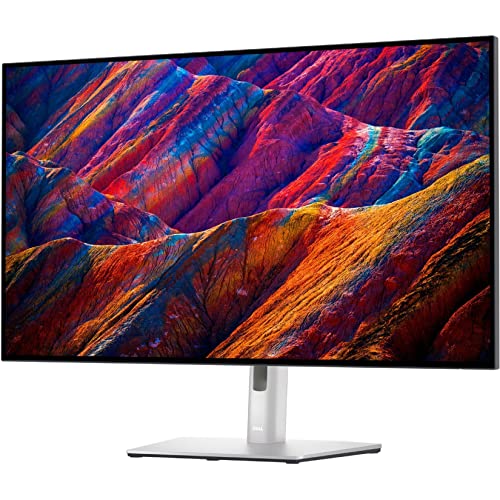
The Dell UltraSharp U3223QE takes the formula of the 27-inch U2723QE and stretches it to 32 inches: a 4K IPS Black panel with 98 percent DCI-P3 coverage, 100 percent sRGB, 10-bit colour and a full USB-C hub with 90W power delivery, Ethernet and multiple USB ports. The larger canvas holds more windows side by side, which suits video editing, spreadsheets and code, and the stand adjusts for height, tilt, swivel and pivot.
Screen space is the whole point of this monitor. A 32-inch 4K display shows a full timeline and preview at once, keeps two documents open side by side at a readable size, and reduces the need for a second monitor entirely. The IPS Black panel keeps blacks deeper than a standard IPS display, and colour accuracy is strong enough for most design and photo work. The hub again replaces a separate dock, which offsets some of the price.
The trade-offs are desk space and pixel density. At 32 inches the monitor needs a deep desk and a viewing distance of at least an arm and a half, and the same 4K resolution spread over a larger panel is slightly less sharp than on a 27-inch screen. It is also expensive and limited to 60Hz. For professionals who want one large, accurate, well-connected display, it is one of the best options available.
This monitor fits a professional who wants maximum screen space in a single display. It suits video editors, spreadsheet users and coders who keep many windows open, and it fits a deep desk where a 32-inch panel can sit at a proper distance. It is less suited to a small or shallow desk, where the screen dominates and the viewing distance is too short, or to a tight budget. If you currently use two monitors and want to simplify to one large, accurate, well-connected display, this is one of the best ways to do it.
Check price on Amazon: Dell UltraSharp U3223QE
Buying Guide
Panel type
IPS is the standard for professional work because of its colour accuracy and wide viewing angles. IPS Black panels improve contrast noticeably over standard IPS. VA panels offer better contrast but can shift colour off-axis, and OLED offers the best contrast of all at a higher price and with burn-in considerations. For most professional use, IPS or IPS Black is the right default.
Colour gamut and calibration
sRGB coverage is enough for web and office work. DCI-P3 or Adobe RGB coverage matters for video, cinema and print. A factory calibration report with a low Delta E is a good sign, and hardware calibration support is worth having if colour accuracy is part of your job. Even a well-calibrated monitor drifts over months, so plan on recalibrating with a colorimeter.
USB-C and the hub
A single USB-C cable that carries video, data and up to 90W of charging turns a laptop into a desktop in one motion. Check the wattage: 60W suits ultrabooks, while 90W or more is needed for larger laptops. Extra USB-A ports, Ethernet and a KVM switch add real convenience for a shared desk.
Ergonomics and size
A 27-inch 4K monitor is the sweet spot for most desks: sharp text, a comfortable scale, and no need for display scaling. A 32-inch model suits video editing and multitasking but needs a deeper desk. Whatever the size, the stand should adjust for height and tilt, and a pivot function helps for documents and code. A matte coating helps in bright rooms; glossy suits controlled lighting.
Refresh rate and HDR
60Hz is fine for office and creative work, but 120Hz or higher makes scrolling and motion noticeably smoother. HDR badges on professional monitors are often modest: meaningful HDR needs high peak brightness and local dimming or OLED. If HDR is not part of your work, do not pay extra for the badge.
Key Specifications Explained
Resolution and pixel density
Resolution decides how sharp text and images look, but the number alone is misleading: a 4K panel on 27 inches is visibly sharper than the same 4K on 32 inches, because the pixels are packed more tightly. For most professional work, 27-inch 4K is the sweet spot, with text that stays readable without display scaling. A 32-inch 4K panel trades a little sharpness for much more space, which suits timelines and multitasking. Below 27 inches, 4K text becomes very small and usually needs scaling, which can cause its own problems in older software. Check the pixel density, not just the resolution, and remember that a sharp panel with poor colour is still a poor professional monitor.
Panel uniformity
Uniformity describes how even brightness and colour are across the whole screen. Many monitors are accurate in the centre and drift toward the edges, which makes judging a large image unreliable: a colour that looks right in the middle can look wrong at the corner. Professional monitors address this with uniformity compensation, which measures the panel and corrects it, and brands such as EIZO and BenQ publish uniformity figures. When reading reviews, look for measurements taken at nine or more points across the screen, not just the centre, and be wary of a monitor that is only ever measured in one spot.
Colour depth: 8-bit versus 10-bit
Colour depth decides how many shades a monitor can show. An 8-bit panel shows about 16.7 million colours, while a 10-bit panel shows over a billion, which matters most in smooth gradients such as skies and skin tones, where an 8-bit panel can show visible banding. Many professional monitors use 10-bit panels or 8-bit panels with frame-rate control to simulate 10-bit. For photo and video work, 10-bit support is worth having, but it only helps if the software, the graphics card and the connection all support it too. Check that the full chain is 10-bit, or the panel specification is meaningless.
Refresh rate and response time
Refresh rate decides how smooth motion looks, and response time decides how quickly a pixel changes colour. For office, design and photo work, 60Hz is fine, and a standard response time is unnoticeable. For video review and gaming, 120Hz or higher makes motion visibly smoother, and a fast response reduces blur. Professional colour monitors usually run at 60Hz, because the panel technology that delivers the best colour accuracy is not the fastest. Do not pay for a high refresh rate unless your work involves fast motion; for most professional use, the money is better spent on gamut and calibration.
Ports and power delivery
Ports decide how the monitor connects to your computer, and power delivery decides whether one cable is enough. USB-C with 90W or more of charging turns a laptop into a desktop workstation with a single connection, carrying video, data and power. DisplayPort 1.4 handles 4K at high refresh rates, while HDMI 2.1 is needed for 4K at 120Hz from a console or a newer GPU. Thunderbolt 3 and 4 suit Mac-based setups and daisy-chaining. Before buying, check the ports on your computer and the wattage of your laptop charger, and make sure the monitor covers both.
Common Mistakes to Avoid
Buying on resolution alone
A 4K badge does not make a monitor professional. Colour accuracy, gamut, uniformity and calibration matter more than pixel count for photo, design and video work, and a cheap 4K panel can be worse than a good QHD panel for colour. Read the gamut figures, the factory calibration report and the uniformity measurements before the resolution, and choose the panel that matches your work rather than the largest number on the box.
Skipping calibration
Even the best monitor drifts with age, temperature and use, and a factory calibration report describes the monitor on the day it left the factory, not today. A colorimeter costs less than a mid-range monitor and pays for itself in fewer reprints and fewer rejected grades. Calibrate monthly as a minimum, and weekly before a critical delivery. A monitor that has never been calibrated is a guess, not a reference.
Choosing the wrong size
A 32-inch monitor on a shallow desk forces you to sit too close, which causes eye strain and makes the edges hard to see. A 27-inch monitor for a complex video timeline forces constant window switching. Measure your desk depth and your viewing distance before choosing, and remember that a bigger screen is not better if the room cannot fit it. For most desks, 27 inches is the right size; 32 inches needs a deep desk.
Glossy panel in a bright room
A glossy panel shows deeper blacks and more vivid colour, but it turns into a mirror in a bright room, and every reflection competes with the image. A matte or anti-glare coating costs a little contrast but stays readable under office lighting and near windows. Match the coating to the room: glossy for a controlled, dim space, and matte for a bright office or a desk near a window.
Forgetting ports and power
A monitor with the wrong ports forces a drawer full of adapters, and a USB-C hub that delivers 60W cannot charge a 16-inch laptop under load. Before buying, list the ports on your computer, the wattage of your laptop charger, and the peripherals you need to connect. A monitor with the right hub replaces a separate dock, which can save more than the price difference between two models.
Setting Up Your New Monitor
Unboxing and inspection
When the monitor arrives, check the box for damage before signing for it, then inspect the panel for dead pixels, backlight bleed and physical marks. Most manufacturers allow a small number of dead pixels under warranty, so check the policy and test the screen with a solid white, black, red, green and blue image. Keep the box and the packaging for at least a month: if the monitor needs to go back, the original packaging is the safest way to ship it. Check that the stand, the cables, the power supply and any included hood or calibration report are all in the box, and register the warranty online while you remember.
Placement and ergonomics
Place the monitor at arm length, with the top of the screen at or slightly below eye level, and angle it so there is no direct light on the panel. A 27-inch monitor suits a normal desk, while a 32-inch panel needs a deeper desk and a longer viewing distance. If you use two monitors, put the main display directly in front of you and the second to the side, angled slightly toward you. A monitor arm helps with placement and frees desk space, and it is worth considering if the included stand does not adjust enough. Take a break every hour and look away from the screen for a few minutes.
Connecting the monitor
Use the best connection your computer and monitor share: DisplayPort 1.4 or HDMI 2.1 for 4K at full quality, and USB-C for a single-cable laptop setup with charging. Check that the cable is rated for the resolution and refresh rate you want, because an old or cheap cable can limit the display to a lower resolution or refresh rate without any warning. Connect the monitor directly to the graphics card on a desktop, not to a motherboard port that may use integrated graphics. If you use a dock or a hub, confirm that it supports the resolution and refresh rate you need.
First calibration
Calibrate the monitor on arrival, even if it ships with a factory report. Use a colorimeter and the manufacturer calibration software, or the monitor built-in sensor if it has one, and follow the software prompts for white point, brightness and gamma. The usual targets are a 6500K white point, 120 candelas per square metre for a dim room, and a gamma of 2.2 for general work. Save the profile, name it with the date, and set a reminder to recalibrate in a month. A first calibration also reveals any panel problems while the return window is still open.
Display settings to check
After connecting, check the operating system display settings: the resolution should be the panel native resolution, the refresh rate should be the highest the monitor supports, and the colour depth should be 10-bit if the monitor and the graphics card support it. Check the scaling setting, because 4K on a 27-inch screen usually needs 150 percent scaling to keep text readable, while a 32-inch panel may suit 125 percent. Turn off any dynamic contrast or eco mode that changes brightness automatically, because it interferes with colour judgement. Set the monitor colour mode to the one that matches your work, such as sRGB or Adobe RGB.
Maintenance and cleaning
Clean the panel with a soft microfibre cloth, slightly damp if needed, and never use paper towels, window cleaner or alcohol, which can damage the coating. Dust the vents and the stand regularly, and keep drinks away from the desk edge. Avoid leaving a static image on an OLED panel for hours, and use a screen saver or switch the display off when you leave the desk. Check for firmware updates from the manufacturer every few months, because they can fix bugs and improve colour accuracy. A monitor that is looked after will last five to seven years of daily use.
When to upgrade
Upgrade when the monitor limits your work, not when a new model appears. The usual triggers are a resolution that no longer fits your workflow, a gamut that cannot show the colours you deliver, or a panel that has drifted beyond calibration. If the monitor still calibrates well and covers the gamut you need, keep it and spend the money on a colorimeter or better lighting instead. When you do upgrade, keep the old monitor as a second display for bins, scopes or reference material, where its age matters less.
Frequently Asked Questions
What size 4K monitor is best for professional work?
27 inches suits most desks and most work, with sharp text and a comfortable viewing distance. 32 inches suits video editing, large spreadsheets and multitasking, but needs a deeper desk. Below 27 inches, 4K text becomes very small and usually needs display scaling.
Is IPS Black worth it over standard IPS?
Yes, for most professional users. IPS Black roughly doubles contrast, so blacks look deeper and shadow detail is clearer, with no downside for colour accuracy. The premium is modest and the improvement is visible in everyday use, especially in dimmer rooms.
Do I need 99 percent DCI-P3 for office work?
No. sRGB coverage is enough for documents, web and general office work. DCI-P3 and Adobe RGB matter for video, cinema and print, where colours outside sRGB are part of the deliverable. Paying for wide gamut you never use is wasted money.
How much USB-C power delivery do I need?
Ultrabooks and most 13 to 14-inch laptops charge happily on 60W. Larger 15 to 16-inch laptops, especially performance models, need 90W or more to charge under load. Check your laptop charger wattage and match or exceed it.
Can one 4K monitor replace two monitors?
Often, yes. A 27-inch 4K screen holds two windows side by side at a usable size, and a 32-inch model does it comfortably. People who live in three or more windows at once, or who need a dedicated reference screen, may still prefer two displays.
Is a 4K monitor worth it for office work?
Yes, for most office work. Text is sharper, eye strain is lower over a long day, and a single 4K screen can replace two smaller monitors for many people. The benefit is most obvious for reading, writing and spreadsheets, where sharp text matters all day.
How long should a professional monitor last?
A good professional monitor should last five to seven years of daily use. The panel, the backlight and the ports all age, but a well-built display with a good warranty will outlast several computers. Budget for a colorimeter and recalibrate regularly to keep it accurate over its life.
Should I buy a monitor with a built-in webcam?
Only if you take many video calls and want a tidy desk. A built-in camera is convenient, but a separate webcam usually offers better image quality and can be positioned independently. Some professional monitors include a 4K camera, which is genuinely useful, while others include a basic one that is worse than a laptop camera.
What is the difference between IPS and IPS Black?
IPS Black is a variant of IPS technology with roughly double the contrast ratio, so blacks look deeper and shadow detail is clearer. Colour accuracy and viewing angles are similar to standard IPS. The premium is modest, and for most professional users the improvement is visible in everyday use, especially in dimmer rooms.
Is 27-inch or 32-inch better for 4K?
For most desks, 27 inches is better: the pixels are denser, text is sharper, and the screen fits a normal viewing distance. A 32-inch 4K monitor suits video editing and multitasking, but it needs a deeper desk. If your desk is less than 80 centimetres deep, choose 27 inches.
Do I need a monitor arm for a 4K display?
Not necessarily, but an arm helps if the included stand does not adjust enough or if the desk is small. A good arm lets you position the screen exactly at eye level and frees the space underneath. Check that the arm supports the monitor weight and the VESA pattern before buying.
Can a 4K monitor work with an old computer?
It depends on the graphics output. Most computers from the last decade can drive 4K at 60Hz over DisplayPort or HDMI 2.0, but older integrated graphics may be limited to 30Hz, which feels sluggish. Check your graphics card specifications and the cable before buying, and test the refresh rate after connecting.
Conclusion
For most professionals, the Dell UltraSharp U2723QE is the safest single choice: accurate colour, a genuinely useful hub, and a panel that looks good in any light. Designers on a tighter budget should take the ASUS ProArt PA279CRV, which delivers wide-gamut accuracy for considerably less. If screen space matters most, the 32-inch Dell U3223QE is worth the desk space it demands. Match the monitor to the work, not the specification sheet, and you will keep it for years.
Start with the work you do most: office and design, colour-critical work, or video editing. Then choose the size, the gamut and the hub that match that work, and do not pay for features you will never use. A monitor is a five-year purchase, so buy the one that fits your desk and your workflow, not the one with the longest specification sheet.