What's inside
- Key Takeaways
- Quick Picks
- How did we choose these picks?
- Comparison table
- Why did the industry settle on 23.8 inches for 16:9 23-inch monitors instead of a true 23?
- IPS or VA at this size: which panel suits your desk?
- What actually causes eye strain at a desk, and what genuinely helps?
- How do you set up a 23.8-inch screen for all-day comfort?
- How does this class compare with stepping up to 27 inches?
- Which features are worth paying for in this class, and which are not?
- What does a two-screen setup in this class look like when it is done well?
- How accurate are the colours, and should you calibrate?
- How much desk does this class really need, and where does it fit best?
- What should you check in the first days with a new screen?
- What does gaming actually look like on a 23.8-inch screen?
- How long will a screen from this class stay useful?
- What are the most common mistakes buyers make here?
- Final Recommendation
- Frequently Asked Questions
- Related Guides
As an Amazon Associate I earn from qualifying purchases. This post may contain affiliate links at no extra cost to you.
widgetverdict.com is reader-supported. When you buy through links on our site, we may earn an affiliate commission.
Where to buy: all six screens below link to verified Amazon listings. Every one of them belongs to the same physical class — a 23.8-inch viewable panel sold under 24-inch naming — and each section says so openly rather than pretending a true 23.0-inch panel exists in the modern market.
Start with the honest bit, because it shapes everything else in this guide: if you went looking for the best 16 9 23 monitors expecting a shelf of exactly-23-inch screens, that product category no longer exists. Panel makers consolidated years ago on a 23.8-inch viewable diagonal, which brands round up to “24-inch” in the product name and which searchers still hunt for as 23-inch. The screens in this roundup are what the keyword actually returns — 23.8-inch, 1920×1080, 16:9 monitors — and judged on that honest basis, the class is one of the healthiest in the whole monitor market: sharp enough for text, small enough for shallow desks, and split now between eye-care office designs and genuinely fast gaming panels.
Why does this size endure when 27-inch screens grab the headlines? Pixel density is the quiet answer. At 23.8 inches, 1080p lands at a crispness that needs no display scaling in Windows or macOS, so text renders exactly as applications draw it — a real virtue for office work, coding and study. The footprint is the other half: a 23.8-inch screen fits the shallow desks of spare rooms, student housing and hot-desking offices where a 27-inch panel would crowd out the keyboard. Six picks follow, three built for desks that work, three that also play, and the differences between them are more interesting than the shared spec sheet suggests.
Key Takeaways
- “23-inch” in today’s market means the 23.8-inch viewable class, marketed as 24-inch — same panels, honest naming matters.
- At this size, 1080p needs no scaling, which keeps text pin-sharp for office and study work.
- The class splits into eye-care office screens (60–75Hz) and fast IPS gaming panels (144–240Hz).
- USB-C with power delivery is the feature that most changes daily life on a laptop desk.
- Stand quality varies more than panel quality at this size — height adjustment is worth choosing deliberately.
- VA panels here trade viewing angles for contrast; IPS is the safer default for shared or angled viewing.
Quick Picks
| Pick | Badge | Why it earns its place |
|---|---|---|
| BenQ GW2490C | The USB-C hybrid | 144Hz pace plus one-cable laptop docking and serious eye care. |
| ASUS TUF VG249QE5A | The gaming all-rounder | Fast IPS, motion-blur reduction and a proper gaming feature set. |
| Dell SE2426HG | The 240Hz option | Esports refresh rate in the compact class, from a mainstream brand. |
| Dell P2422H | The office professional | Height-adjustable stand and 99% sRGB calm for long workdays. |
| Dell SE2422HX | The contrast pick | VA depth for video and evening use at an entry position in the range. |
| Dell SE2425H | The simple desk upgrade | 75Hz smoothness and ComfortView Plus for a straightforward home office. |
How did we choose these picks?
Every candidate had to be a genuine member of the class: 23.8-inch viewable diagonal, 1920×1080 resolution, 16:9 aspect ratio, from a listing we could verify. That filter sounds trivial until you notice how many “23-inch” searches surface 21.5-inch screens, 24.5-inch gaming panels and the odd 16:10 survivor; none of those are here. Within the class, we weighted the things owners live with daily — stand ergonomics, eye-care implementation, port selection, and panel behaviour at the brightness levels people actually use — above spec-sheet peaks measured in modes nobody enables.
We also insisted on spread. A guide that recommended six near-identical office screens would fail the reader who games, and six gaming panels would fail the reader with a laptop and a bad back. So the six divide into a USB-C hybrid, two gaming-first designs at different refresh ceilings, a business-grade ergonomic pick, and two value-leaning VA and IPS screens for ordinary desks. If your use is mixed, start at the top of the list; if it is specialised, your pick is waiting further down and says plainly what it gives up.
A note on the Dell-heavy tail of the list: it reflects the market, not favouritism. Dell’s SE and P lines dominate verified listings in this exact size class, and their differences — panel type, refresh, stand — are real enough to justify separate entries. Where a Dell pick is beaten on a feature by the BenQ or the ASUS, the text says so.
We also read the listings the way a sceptical buyer should, because this class attracts sloppy titles. Screens advertised with a size in the headline and a different viewable diagonal in the fine print, refresh rates that apply only over one input, and eye-care claims without certification were all treated as demerits during shortlisting. The six survivors are the ones whose specification sheets and whose product pages tell the same story — a modest-sounding filter that eliminated a surprising share of the class.
BenQ GW2490C — The USB-C hybrid
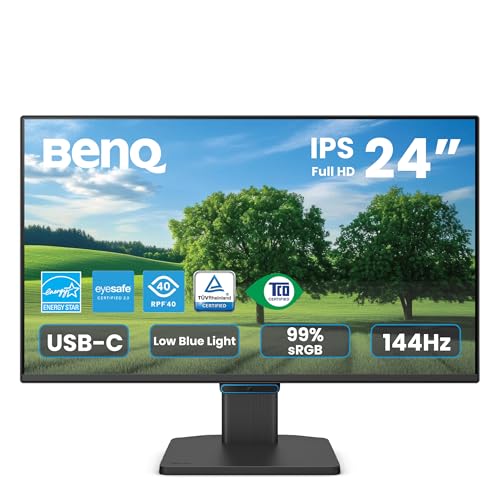
BenQ looked at the 23.8-inch class and asked what a laptop owner’s desk actually needs, and the GW2490C is the answer: a 144Hz IPS panel with USB-C input carrying video and power, so one cable connects and charges the laptop while the screen handles display duty. That single feature reorganises a small desk. The second surprise is the refresh rate — office-leaning screens in this class usually stop at 75 or 100Hz, and BenQ’s decision to fit a genuinely fast panel means the same screen scrolls documents silkily at nine and plays competitive games credibly at seven.
The eye-care suite is the third leg: flicker-free backlighting, low-blue-light modes and brightness that adjusts with the room are BenQ’s long-standing specialisms, implemented here without the yellow cast that cruder implementations impose. Colour is honest sRGB-class work rather than wide-gamut fireworks, which suits office documents, web work and photo viewing at this level. The stand is the compromise — tilt-focused rather than the full ergonomic range of a business P-series — so budget for a monitor arm if you are tall or particular. As a single screen meant to serve a hybrid life, nothing else in this roundup covers as much ground.
- Diagonal: 23.8 inches viewable (24-inch class)
- Pixels: 1920×1080 across a 16:9 frame
- Panel: IPS, 144Hz
- Ports: USB-C with power delivery, HDMI, DisplayPort
- Eye care: flicker-free, low blue light modes, brightness sensor features
- Stand: tilt-led; arm recommended for full ergonomics
Strengths
- One-cable USB-C docking declutters a laptop desk completely.
- 144Hz refresh makes it the rare office screen that also games properly.
- Eye-care implementation is mature and free of heavy colour casts.
Trade-offs
- Stand lacks the height adjustment the Dell P-series offers.
- Colour gamut is sRGB-focused, not a wide-gamut creative panel.
- USB-C cable quality matters; a bargain cable may charge slowly.
Living with it day to day, the detail that stands out is how little desk friction remains. Arrive with a laptop, plug one cable, and the screen wakes with the machine charged and the desktop extended; leave, and the desk is bare again. BenQ’s brightness intelligence, which trims output as room light changes, sounds like a brochure feature until a week of evenings passes without the manual brightness fiddling every other screen demands. It is the most thought-through product in this roundup, aimed squarely at the way people actually work now.
Best for: laptop owners wanting one screen for work and play on a small desk. Not suited for: buyers needing a full ergonomic stand out of the box, or wide-gamut colour work.

ASUS TUF VG249QE5A — The gaming all-rounder
ASUS’s TUF line occupies the sensible middle of gaming hardware, and this 23.8-inch Fast IPS panel is built exactly there: 144Hz native with a mild overclock, adaptive sync, and ELMB Sync, which combines backlight strobing with variable refresh to cut motion blur without the fixed-refresh penalty older strobing imposed. In play, the impression is of a screen that simply keeps up — fast pans stay legible, and the panel’s viewing angles mean a friend on the sofa sees the same colours you do, which VA gaming panels cannot promise.
Around the panel, the practical touches accumulate. Variable overdrive lets the response tuning adapt rather than forcing one aggressive setting that overshoots at lower frame rates. Built-in speakers exist for system sounds and casual video, adequate rather than enjoyable. ASUS’s on-screen DisplayWidget software moves settings into a desktop app, a small mercy for anyone who hates joystick menus. What it does not do is office luxury: no USB-C docking, a stand that covers the basics, and a design language that reads “gaming” in a way a corporate desk might not want. For a bedroom or a play-first setup, it is the most complete gaming citizen of this size class.
- Panel size: 23.8-inch viewable diagonal
- Native resolution: Full HD 1920×1080, 16:9
- Panel: Fast IPS, 144Hz (overclockable slightly beyond)
- Motion: ELMB Sync strobing with adaptive sync
- Extras: built-in speakers, DisplayWidget Center software
- Response claim: 1ms class (manufacturer figure)
Strengths
- Motion clarity tools are a generation ahead of plain 144Hz rivals.
- IPS angles suit shared viewing and off-centre seating.
- Software-based settings control beats menu-diving.
Trade-offs
- No USB-C; laptop users need a dock or dongle.
- Speakers are functional, not a reason to buy.
- Gaming styling may not suit a formal office desk.
There is a maturity to the TUF package that spec comparisons miss: the firmware menus remember per-input settings, the overdrive behaves at the frame rates real PCs sustain rather than only at the headline rate, and the three-year warranty culture of the line matters in a category where a dead pixel policy can ruin a purchase. None of that photographs well, and all of it decides whether a gaming monitor is still pleasing in year three. Players comparing this against cheaper no-name 144Hz panels are mostly paying for that maturity, and in our judgement paying fairly.
Best for: players wanting one fast, honest IPS screen at the compact size. Not suited for: one-cable laptop desks, or buyers who never game.

Dell SE2426HG — The 240Hz option
Two hundred and forty hertz in a mainstream Dell SE-series cabinet is a sign of where the market has travelled: esports refresh rates have escaped the specialist brands. The SE2426HG pairs that rate with an IPS panel and FreeSync Premium, so the motion story is coherent — frames arrive fast, tearing is handled, and colours stay put at angles. For competitive players on a compact desk, this is the pick that removes refresh rate from the list of excuses entirely; a mid-range graphics card in esports titles will feed it, and the panel’s job is simply to show everything the game renders.
The honest caveats are about everything except speed. SE-series stands are tilt-only, the port set is competent rather than generous — twin HDMI and DisplayPort, no USB-C — and 240Hz only earns its keep in fast titles; a strategy gamer or a spreadsheet will never see the difference over the BenQ above. Dell’s TÜV-certified eye-comfort features keep long sessions civilised, and build quality is the sober, fleet-grade kind that survives office moves. Buy it for the rate, with eyes open about the furniture around the panel, and it delivers exactly its promise.
- Screen: 23.8-inch viewable, marketed in the 24-inch class
- Format: 16:9 widescreen at 1920×1080
- Panel: IPS, 240Hz
- Sync: AMD FreeSync Premium
- Ports: 2× HDMI, DisplayPort 1.4
- Stand: tilt adjustment
Strengths
- 240Hz IPS at this size is the competitive ceiling of the class.
- FreeSync Premium keeps sub-240 frame rates smooth.
- Dell build and eye-comfort certification suit long sessions.
Trade-offs
- Tilt-only stand on the fastest panel here is a mismatch.
- No USB-C for laptop docking.
- The refresh premium is wasted on slow-paced games and office work.
Feeding it deserves a sentence of its own, because 240Hz is a system commitment: the graphics card must sustain very high frame rates in your titles, the cable must be the DisplayPort lead or a full-bandwidth HDMI one, and the operating system’s refresh setting must actually be changed from its default. Players who make that commitment in tactical shooters describe the same effect — targets tracked through fast flicks stay readable a fraction longer, and that fraction is the entire product. Everyone else is buying headroom they will admire in a settings menu.
Best for: competitive players whose desk cannot fit a larger esports screen. Not suited for: buyers paying for refresh they will never feed, or ergonomic sticklers.

Dell P2422H — The office professional
The P-series is Dell’s business line, and the P2422H shows what that buys in this class: a proper ergonomic stand with height, tilt, swivel and pivot, a 99% sRGB IPS panel at a calm 60Hz, and the kind of bezel and finish that disappears into an office. For eight-hour document work it is arguably the most considered screen in this roundup. Pivot deserves a specific mention — rotating to portrait transforms long documents, code and web reading, and at 23.8 inches the rotated screen is tall without being absurd.
ComfortView’s low-blue-light tuning and flicker-free operation run all day without drama, and the anti-glare coating handles office lighting the way glossy screens cannot. The compromises are the mirror of the gaming picks: 60Hz is 60Hz, fine for everything except fast games, and there is no USB-C, so laptop users pair it with a dock. It is also the pick most likely to be bought by employers in fleets, which tells you something about its warranty-and-forget character. For a dedicated work desk, especially a two-screen one, it remains the grown-up default of the class.
- Viewable image: 23.8 inches, under 24-inch class naming
- Resolution: 1080p Full HD (1920×1080)
- Panel: IPS, 60Hz, 99% sRGB
- Stand: height, tilt, swivel and pivot
- Eye care: ComfortView low blue light, flicker-free
- Ports: HDMI, DisplayPort, VGA, USB hub ports
Strengths
- Full ergonomic stand including portrait pivot.
- Calibrated-looking sRGB output suits document and light photo work.
- Fleet-grade build and manageability for office deployments.
Trade-offs
- 60Hz ceiling rules it out for fast gaming.
- No USB-C docking for modern laptops.
- Design is deliberately plain; it will not dress up a desk.
Its second-screen credentials deserve emphasis, because that is how many P2422Hs will actually serve. Beside a laptop or a larger main display, a pivoting 23.8-inch panel in portrait becomes the documents-and-chat column of the desk: email, specifications, code and reading material standing upright at full height while the main screen holds the work itself. Few upgrades change daily workflow as much for as little money, and none of the other picks here can rotate to offer it. That versatility, more than any single specification, is why this older model keeps its place in a current guide.
Best for: full-time office work, portrait-document readers and dual-screen desks. Not suited for: gamers, or one-cable laptop setups without a dock.

Dell SE2422HX — The contrast pick
Every class needs its VA representative, and the SE2422HX earns the slot on contrast. VA panels render blacks far deeper than IPS at this level, so films, evening browsing and dark game scenes carry a richness the IPS picks above cannot match, while the 75Hz refresh adds a modest smoothness bonus over the 60Hz baseline for general use. For a screen that works by day and streams by night in a dim room, that trade has real appeal.
The costs are the classic VA ones. Viewing angles narrow: colours and contrast shift as you move off-centre, which matters if the screen is shared or watched from a bed at an angle. Dark-level transitions can smear in fast motion, the known VA weakness, though at 75Hz in casual play it rarely intrudes. ComfortView softens blue light for evening sessions, and the stand is tilt-only in SE fashion. Position it as the media-leaning value pick of the class and it makes sense; ask it to be a colour-critical or esports tool and you have bought the wrong panel technology, however good the price looked.
- Size: 23.8-inch viewable panel
- Grid: 1920×1080 in the standard 16:9 shape
- Panel: VA, 75Hz
- Contrast: high native contrast, deep blacks
- Eye care: ComfortView low blue light
- Stand: tilt adjustment
Strengths
- Black depth gives video and dark scenes real richness.
- 75Hz is a perceptible step up from 60Hz for everyday motion.
- Entry positioning in the range makes it an easy second screen.
Trade-offs
- Viewing angles shift colour and contrast off-centre.
- Dark transitions can smear in fast-moving content.
- Tilt-only stand, minimal port selection.
Ownership reality is gentle: this is one of the most deployed office screens of its generation, which means stands, cables and replacements are everywhere, and its behaviour is a known quantity rather than a gamble. In a bright room its anti-glare VA surface stays readable, and the contrast advantage survives daylight better than glossy rivals. The buyer it disappoints is the one who needed angles or speed; the buyer it satisfies — a first proper screen for a spare-room desk, a family PC, a reception or point-of-sale position — tends to forget it exists, which for this kind of tool is praise.
Best for: mixed work-and-streaming desks in dimmer rooms, and second-screen duty. Not suited for: colour-critical work, shared angled viewing, or fast competitive play.

Dell SE2425H — The simple desk upgrade
The SE2425H is the screen for the buyer who is replacing something old and wants the replacement to be unambiguously better without a research project. A VA panel at 75Hz with ComfortView Plus — Dell’s always-on, low-blue-light implementation that avoids the manual mode-switching of older designs — covers the home-office brief in one calm package. Scrolling is smoother than the 60Hz screens it typically replaces, text is crisp at this density, and the whole thing sets up in minutes and then disappears into the working day, which is precisely its design goal.
Set expectations by its series: the stand tilts and that is all, the ports cover HDMI and VGA-era compatibility rather than USB-C futures, and VA viewing angles apply as they did for its sibling above. What distinguishes it from the SE2422HX is emphasis rather than hardware class — the newer ComfortView Plus tuning and a slightly more contemporary design — so the choice between them is about which listing and feature mix suits your desk on the day. As a straightforward, eye-friendly upgrade for a home office that does not game, it is the lowest-drama purchase in this guide.
- Size class: 23.8-inch viewable, sold as 24-inch
- Resolution: 1920×1080 (16:9)
- Panel: VA, 75Hz
- Eye care: ComfortView Plus, TÜV-certified low blue light
- Ports: HDMI and VGA
- Stand: tilt adjustment
Strengths
- Always-on eye comfort needs no mode management.
- 75Hz smoothness flatters everyday scrolling and video.
- Simple setup and sober design suit any home office.
Trade-offs
- VA angles and dark smearing remain the panel’s nature.
- No DisplayPort or USB-C for newer docks.
- Tilt-only ergonomics; tall users should plan an arm or riser.
Think of it as the class’s appliance pick. It asks nothing, teaches nothing and surprises nobody, and for a spare room, a family desk or a small business counter that is a feature set, not an insult. The 75Hz panel will feel like a generational leap to anyone arriving from a decade-old 60Hz screen — because in motion smoothness and eye comfort, it is one — and the purchase can be made in minutes with confidence. Save the research energy for the main screen; this one is the supporting act, and it plays the part cleanly.
Best for: a calm, one-and-done home-office upgrade from an ageing screen. Not suited for: gaming beyond the casual, or colour-accurate creative work.
Comparison table
| Pick | Panel | Refresh | Standout feature | Watch out for |
|---|---|---|---|---|
| BenQ GW2490C | IPS | 144Hz | USB-C docking | Tilt-led stand |
| ASUS TUF VG249QE5A | Fast IPS | 144Hz | ELMB Sync motion clarity | No USB-C |
| Dell SE2426HG | IPS | 240Hz | Class-leading refresh | Tilt-only stand |
| Dell P2422H | IPS | 60Hz | Full ergonomic stand, pivot | Not for fast games |
| Dell SE2422HX | VA | 75Hz | Deep contrast | Narrow viewing angles |
| Dell SE2425H | VA | 75Hz | ComfortView Plus | Legacy port mix |
Why did the industry settle on 23.8 inches for 16:9 23-inch monitors instead of a true 23?
Panel manufacturing economics, mostly. Mother glass sheets are cut into standard sizes that minimise waste, and the 23.8-inch diagonal emerged as the efficient cut for the 1080p office generation; once factories, bezels, stands and shipping cartons standardised around it, a true 23.0-inch panel became a custom product nobody could price competitively. Brands then faced a naming choice, and most rounded to 24 in the product title while printing 23.8 in the specifications. The practical difference is invisible — less than an inch of diagonal, a few millimetres of width — but the naming gap explains years of confused searches, and it is why this guide treats the two terms as one class and judges screens on panel, stand and ports instead of on a fraction of an inch.
There is one place the fraction does matter: multi-monitor matching. If you are pairing a new screen with an existing one, match the viewable diagonal and resolution exactly, or the pair will sit at slightly different heights and your cursor will step as it crosses the seam. A 23.8 beside a 23.8 is a clean wall; a 23.8 beside an older true-24 or a 24.5 gaming panel is a daily small annoyance that no settings menu can fix.
The same standardisation explains the class’s pricing stability. Because factories have produced this panel size in enormous volume for years, the screens built on it carry none of the scarcity premium of fashionable sizes, and competition among Dell, BenQ, ASUS and their peers has pushed the savings into stands, ports and panel tuning instead. When a buyer in this class pays a little more, the money visibly buys furniture and features rather than glass — which is why the detailed sections above spend as long on stands and cables as on the panels themselves.
IPS or VA at this size: which panel suits your desk?
The four IPS picks and two VA picks in this guide divide along a single question: how do you sit relative to the screen? IPS holds colour and contrast steady across wide angles, so it suits the main desk where you might lean, share the screen with a colleague, or mount the display slightly off-axis; it is also the technology behind every fast panel here, because its pixel transitions behave better at high refresh. VA counters with native contrast several times deeper, and in a dim room, watching video or working on dark interfaces, that depth is immediately visible and genuinely pleasant.
The deciding scenarios are mundane. Buy IPS if the screen is your primary tool, if anyone else ever looks at it, or if games are involved. Buy VA if it is a personal screen viewed straight-on, mostly for documents by day and video by night, and the contrast will be enjoyed more than the angles are missed. What not to do is buy VA for a colour-critical hobby or IPS expecting cinema blacks; each technology’s weakness is structural, and no setting in any menu on this page repeals it.
What actually causes eye strain at a desk, and what genuinely helps?
The honest list is shorter and less marketable than the packaging suggests. The largest cause is brightness mismatch — a screen far brighter or dimmer than the room around it forces constant adaptation, and it is free to fix. The second is distance and height: a screen too close, too low or off to one side taxes the focusing and neck muscles together, which is why the setup guidance in this guide dwells on risers and arm’s length. The third is simply duration without breaks; no panel technology yet invented repeals the twenty-minute rule of looking at something far away. Flicker and blue light, the features the badges advertise, are real but smaller contributors for most people — worth having, which is why every pick here implements them decently, but not worth choosing a worse panel or stand to obtain.
That ordering explains the guide’s priorities. The BenQ leads because it combines the certified eye-care suite with the panel and ports a hybrid desk needs, not because its badge is shinier. The Dells’ ComfortView implementations are similarly legitimate, always-on in the Plus version, and their presence in fleet deployments — where employers carry a duty of care and a returns process — is its own evidence. What we would steer you away from is paying a premium for eye-care branding on a screen whose stand will hurt your neck: the hierarchy of comfort runs posture, brightness, distance, then electronics, and a purchase that respects that order will feel better in month six than one that inverts it.
Dry air and contact lenses, the unglamorous remainder, finish more working days than any specification. A screen slightly below eye level, so the eyelids cover more of the eye’s surface, plus deliberate blinking during screen-intensive stretches, does more for dry-eye comfort than any coating. None of this sells monitors, which is exactly why a buying guide should say it: the best screen in this class, set up badly in a dry room, will tire you faster than the humblest pick here set up well.
How do you set up a 23.8-inch screen for all-day comfort?
Height first: the top of the screen should sit at or slightly below eye level, which for the tilt-only models here means a riser, a stack of books or an arm — the P2422H’s stand is the exception that adjusts properly on its own. Distance second: roughly an arm’s length keeps 1080p text at a size your eyes can relax into without leaning. Brightness third: match the screen to the room rather than maxing it, since an over-bright panel in a dim room is the most common self-inflicted cause of evening eye strain, and the eye-care modes on the BenQ and the Dells exist to make that matching painless.
Then do the software half. Confirm the operating system is actually running the panel at its full refresh — a 144Hz or 240Hz screen left at 60Hz in settings is a embarrassingly common discovery — and set scaling to 100 percent, the native advantage of this size class. Enable the low-blue-light mode for evening hours if your model offers scheduling, and if you work in portrait on the Dell P2422H, set the rotation in the OS once and save the profile. Fifteen minutes of this on day one is the difference between a screen that merely works and one that disappears into the job.
How does this class compare with stepping up to 27 inches?
The honest comparison is not “small versus big” but “density versus canvas”. A 27-inch 1440p screen offers roughly three-quarters more pixels and a physically larger stage; documents sit side by side more comfortably, timelines and spreadsheets breathe, and games gain immersion. What it demands in return is desk depth, a viewing distance that keeps the edges in comfortable sight, and usually a move up a price tier for equivalent panel quality and stand. The 23.8-inch class answers with density at native scaling, a footprint that fits the rooms people actually have, and prices that leave budget for the chair, arm or second screen that a working desk also needs.
Our practical rule: if the desk is sixty centimetres deep or less, or the screen is a second display, this class wins on physics alone. If the desk is deep, the work is visual and side-by-side, and the budget stretches, 27 inches at 1440p is the better tool and this guide’s picks become the second screen beside it. Many mature setups end up owning both sizes — the big canvas for creation, a 23.8 in portrait or landscape for reference — which is why the class keeps selling even as headline sizes grow. It is not the budget compromise of the monitor world; it is the standard brick from which real desks are built.
Which features are worth paying for in this class, and which are not?
Worth paying for, in order: the stand, if your body spends eight hours a day at the desk, because posture is a daily cost while specifications are a one-day pleasure; USB-C with power delivery, if a laptop is involved, because it deletes a charger and a cable from every single workday; a genuinely flicker-free backlight with a good low-blue-light implementation, because evening comfort compounds quietly over years; and refresh rate, but only in step with the games and graphics card you actually own. Notice that three of those four are about the hours around the image rather than the image itself — at this mature end of the market, panels are good and furniture is what differs.
Not worth paying for here: headline brightness figures measured in modes you will never enable, wide colour gamuts on a screen bought for documents, HDR badges on panels without the brightness or local dimming to honour them, and built-in speakers as a decision factor — every set in this roundup is a courtesy feature, and a small external speaker or headphones outclass all of them. The money those features command buys the next stand upgrade or the second screen instead, and either will be noticed every day, which is more than can be said for a badge.
What does a two-screen setup in this class look like when it is done well?
Two matched 23.8-inch screens remain the most productive arrangement per unit of desk in this entire guide, and the class seems almost designed for it: bezels are thin, the combined width is manageable, and the total pixel count equals a large ultrawide without the ultrawide’s awkward window management. Done well, the pair shares model, height and colour settings, sits angled slightly inward like the covers of an open book, and divides labour — primary work on the dominant-eye side, reference, communication and monitoring on the other. The P2422H exists for exactly this, and offices buy it in pairs for a reason.
The mistakes are equally standardised. Mismatched models drift apart in colour and brightness until the seam between them becomes a permanent low-grade irritation. Screens at different heights — one on its stand, one on a riser bought later — force a head tilt that the neck reports by Friday. And the centre-seam problem is real for some users: a bezel gap exactly where the eyes rest suits divided tasks but annoys anyone who wants one continuous canvas for video or design, which is the one scenario where a single larger screen genuinely wins. Decide which worker you are before doubling, because the pair rewards the divider and punishes the unifier.
Cabling a pair deserves forethought too. A laptop driving two external screens needs either a dock or two suitable outputs; the BenQ’s USB-C daisy convenience does not extend to chaining a second panel from it, so plan the dock as part of the pair’s budget. Desktops fare better, with DisplayPort and HDMI covering both panels from most graphics cards of the last decade. However they are fed, set both to identical brightness and colour temperature on day one and re-check after a month — panels drift gently, and a matched pair is a maintained pair, not a purchased one.
How accurate are the colours, and should you calibrate?
Expect honest sRGB behaviour from the IPS picks and plausible, slightly narrower coverage from the VA pair. For office documents, web design at the sRGB standard, study, administration and general photo viewing, that is not a limitation — the web itself is an sRGB medium, and a screen that covers it fully and evenly is showing you what your audience sees. The P2422H’s 99% sRGB specification is the formal version of that promise, and the BenQ and ASUS panels behave comparably in ordinary use even where their listings emphasise other virtues.
Calibration earns its keep in narrower circumstances than the internet suggests. If you edit photographs for print, sell images, or match brand colours for a client, a colorimeter pass will tighten any of these screens noticeably and is money well spent. If you do none of those things, the factory state of the IPS picks plus a sensible brightness setting is already more accurate than the viewing conditions of the people who will see your work. What calibration cannot do is widen a gamut or fix viewing angles, so buy the panel type your work needs first and treat calibration as polish, not rescue. Gamers, meanwhile, should leave colour alone entirely and spend their adjustment time on overdrive and refresh settings, where their screens actually keep their promises.
How much desk does this class really need, and where does it fit best?
Less than buyers fear, which is the class’s founding virtue. A 23.8-inch screen is roughly fifty-four centimetres wide; on a sixty-centimetre-deep desk it leaves room for a full keyboard, a notebook and a coffee without the territorial negotiations a 27-inch panel starts. In spare rooms, student flats and the corner-of-the-bedroom offices that hybrid work created, that footprint is often the difference between a monitor and no monitor — between working at a proper screen and hunching over a laptop for a decade. Landlords and hot-desking employers love the size for the same reason: two of them fit where one ultrawide would dominate, and they ship, store and replace cheaply.
The fit question has a second half, though: viewing distance. At this size and resolution the ideal seat is fifty to seventy centimetres away, closer than the cinematic distance big screens assume. Desks shallower than fifty centimetres put you nearer than ideal, where individual pixels and panel glow become easier to notice; desks much deeper push text small. If your furniture is fixed and extreme in either direction, that measurement — not the inch in the product title — should arbitrate between this class and the 27-inch one.
What should you check in the first days with a new screen?
Run the boring tests while the return window is wide open. Display a full-screen white page, then black, then mid-grey: dead or stuck pixels, backlight bleed at the corners and uniformity problems announce themselves on flat fields and hide in ordinary content. Check the panel at the brightness you will actually use, not at maximum, because bleed and glow judge differently there. Confirm the refresh rate in the operating system, confirm adaptive sync engages in a game if you bought it for that, and confirm the USB-C cable — if you chose the BenQ — both displays and charges at a rate that keeps the laptop full under load.
Then live with it for three working days before deciding anything. Eye strain complaints in the first hours are usually brightness mismatch, which the setup section above fixes; complaints that survive three days of correct setup are the screen telling you its panel type or its stand is wrong for your body and your room, and that is what returns are for. Every pick in this guide comes from a mainstream brand with a real returns culture — use the window as the final stage of the review process, the stage only your own desk can perform.
What does gaming actually look like on a 23.8-inch screen?
Better than the size suggests, for a specific reason: pixel density. A 27-inch 1080p screen stretches the same pixels across more glass and looks coarse for it; at 23.8 inches the image stays tight, so the fast panels in this guide deliver the unusual combination of high refresh and a sharp picture at a resolution modest graphics cards can genuinely feed. That is why competitive players historically chose this size even when larger screens were available — the whole scene sits inside comfortable peripheral vision, information arrives without head movement, and the hardware budget goes into frame rate rather than into pixels nobody can see at speed.
Settings make the difference between the brochure and the experience. Run the panel at its native refresh in the operating system first — the single most skipped step in all of gaming-monitor ownership. Enable adaptive sync in the driver, cap frame rates a few frames below the panel maximum to stay inside the sync range, and choose the middle overdrive setting unless you enjoy bright halos trailing every moving object; the strongest overdrive is a benchmark mode, not a playing mode. On the ASUS, ELMB Sync rewards experimentation in fast titles, while on the Dell 240Hz the plain high-refresh image is already so clean that strobing becomes a preference rather than a necessity.
Genre decides which pick serves you. Tactical shooters and competitive titles belong to the SE2426HG and the VG249QE5A, in that order of specialisation. Slower, prettier games — strategy, simulation, single-player adventures — look their best on the BenQ’s balanced IPS and lose nothing at 144Hz, while the VA pair’s contrast flatters dark, atmospheric titles at casual frame rates, accepting some smear as the price of those blacks. The P2422H is the only pick that should not be bought with gaming in mind at all, and its section says so plainly; a guide that pretends a 60Hz office panel is a gaming screen would be failing at its one job.
How long will a screen from this class stay useful?
Longer than almost anything else on the desk, because the class sits on a stable standard. A 1080p 16:9 panel connects to everything — laptops, desktops, consoles, streaming sticks, office fleets — and the content world is not moving away from that shape; it is the shape. A well-kept IPS pick from this list will outlast two laptops as a main screen and then retire gracefully into second-screen, family-desk or spare-room duty, which is how the total cost of ownership ends up so low. The VA pair follow the same path with the caveat that their angle limitations matter more in the shared roles they retire into.
The components that age are around the panel rather than in it. Ports date first: VGA already reads as legacy, USB-C is the current expectation, and a screen bought today without it — the Dells here — will increasingly meet laptops that need an adapter or a dock. Stands date second, as monitor arms become the default expectation. Neither is a reason to overbuy; both are reasons to prefer, at equal money, the pick with the more modern port set, and to keep the box and the VESA screws. Resale and hand-me-down value in this class is strong precisely because the next owner has the same shallow desk you did.
Care is minimal and mostly about habits: avoid leaving a static image at full brightness for days, clean with a dry microfibre cloth rather than household sprays, and let the eye-care modes do their quiet work. Do that, and the honest expectation for every screen in this roundup is the better part of a decade of service — a lifespan that reframes the price differences between them into very small numbers per year, and argues for buying the right panel and stand rather than the cheapest ticket.
What are the most common mistakes buyers make here?
Expecting a true 23.0-inch panel and returning a correct 23.8-inch screen as “wrong size” leads the list; the class naming is confusing, but the screens are the standard. Second is buying by refresh rate alone — a 240Hz panel on a tilt stand, fed by a laptop that outputs 60Hz, delivers none of its promise. Third is ignoring the stand until the neck ache arrives; ergonomics are a feature, priced into the P-series for a reason. Fourth is assuming all 1080p screens look alike and discovering VA angle shift or IPS glow only after the return window closes. Fifth is forgetting cables: USB-C docking needs a cable rated for video and power, and high refresh needs the DisplayPort or HDMI lead the feature actually requires.
Final Recommendation
For most readers, the BenQ GW2490C is the pick of this class: it is the only screen here that docks a laptop with one cable, refreshes like a gaming panel and treats your eyes like an office flagship, and that combination is what a modern hybrid desk actually asks for. Players should split by ambition — the ASUS for balanced fast play, the Dell SE2426HG when competitive refresh is the whole point. Pure office desks belong to the P2422H and its proper stand, while the two VA Dells serve video-leaning and simplicity-leaning buyers honestly. The 23.8-inch class survives because it fits real desks and real eyes; choose within it by panel and stand rather than by the inch in the title, and it will serve you without drama for years.
One last piece of shopping discipline for this class specifically: because the panels are mature and the brands are mainstream, the sensible buy is the pick whose compromises you will never notice, bought from a seller whose return window you have actually read. Check the screen the week it arrives, set it up the way this guide describes, and then stop shopping — a 23.8-inch monitor chosen well is one of the few technology purchases that can genuinely leave your mind for the better part of a decade, and that peace is the real product on offer here.
Frequently Asked Questions
Is a 23.8-inch monitor the same as a 24-inch monitor?
Effectively yes. The viewable diagonal of panels sold as 24-inch is 23.8 inches; the naming is rounding, not a different product. A true 23.0-inch 16:9 panel is a legacy size that current ranges no longer produce, which is why searches for 23-inch monitors return this class.
Is 1080p sharp enough at this size, or should I look at 1440p?
At 23.8 inches, 1080p gives a pixel density that renders text cleanly at 100 percent scaling, which is the size’s chief virtue. 1440p panels exist at 24–25 inches but are rare and priced like small 27-inch models; most buyers are better served stepping to 27 inches if they want more resolution.
Can these monitors run from a laptop with one cable?
Only the BenQ GW2490C offers USB-C with video and power delivery among these picks. The others need HDMI or DisplayPort for video plus the laptop’s own charger, or an external dock — which is why the BenQ leads the recommendations for laptop desks.
Does 240Hz matter if I do not play competitive games?
Honestly, very little. Scrolling and window motion look marginally smoother, but the premium buys its value in fast games where frame rates can actually reach it. Office and casual users get more from the stand, panel quality and eye-care features of the other picks.
Which of these is best as a second monitor?
The Dell SE2422HX or SE2425H, matched to your main screen’s size and resolution, are the low-drama choices; if the pair will be used for documents side by side, the P2422H’s pivot makes it the productivity pick. Match viewable size exactly so the two screens align physically.
Will these screens work with a games console?
Yes — every pick accepts HDMI, and consoles output 1080p happily at this size. The high-refresh models will not unlock console frame rates beyond what the console itself offers, but the IPS picks in particular make fine, sharp console screens for a bedroom or study, with the ASUS’s speakers covering casual play.
Related Guides
Related reading for the rest of the desk: best 1080p 144Hz monitors compared in depth, best 1920×1200 monitors for extra vertical space, and best 19-inch computer monitors for compact second screens.