What's inside
- Key Takeaways
- Quick Picks
- How We Chose These Picks
- Comparison
- Why Are There No True 1440p Monitor Two-Packs?
- How Do You Connect Two 1440p Monitors to One Computer?
- How Much Desk and Graphics Power Does a Dual 1440p Setup Need?
- One Ultrawide or Two 1440p Screens — Which Desk Wins?
- What Should You Check in the First Week With a New Pair?
- Common Mistakes When Building a Dual 1440p Setup
- Final Recommendation
- Frequently Asked Questions
- Related Guides
As an Amazon Associate I earn from qualifying purchases. This post may contain affiliate links at no extra cost to you.
widgetverdict.com is reader-supported. When you buy through links on our site, we may earn an affiliate commission.
Anyone searching for the best dual 1440p monitors deserves the honest answer first, because the product category the phrase suggests barely exists. Retailers sell monitor two-packs enthusiastically — but they are overwhelmingly 1080p bundles aimed at offices, built from budget panels paired for price. A matched 1440p two-pack, two identical QHD screens in one box at a bundle saving, is a rarity to the point of absence. The real way to build a dual 1440p setup is the way this guide does it: choose one excellent 27-inch QHD panel and buy it twice, so both screens match in size, resolution, colour behaviour and stand geometry.
That is not a consolation prize; it is how the best dual setups have always been built. Two identical singles guarantee the two properties a bundle promises and often fails to deliver — panels from the same production family with the same picture character, and stands that level with each other without shims and folded paper. The six monitors below are therefore reviewed as pairs: each pick is assessed on what changes when there are two of it on the desk. Bezel width, stand footprint, USB-C behaviour, brightness matching and the cable reality of feeding two 2560×1440 screens all matter more in duplicate, and the reviews weigh them accordingly.
Every pick links to its Amazon listing, so the model code can be confirmed and the price checked on Amazon — remembering that a dual setup means checking it twice, and that buying two units of the exact same model code, ideally in the same order, is the closest a buyer can get to a factory-matched pair. Specifications quoted come only from each monitor’s listing title, and the Dell S2722DC’s famously brief title is handled the same way here as everywhere: what it does not state is recorded as not stated.
Key Takeaways
- Matched 1440p two-packs are effectively absent from the market — the bundle shelf is a 1080p shelf — so a dual QHD desk means buying two identical single monitors.
- Buying the same model twice is a feature, not a compromise: identical panels match in colour and brightness far better than two different models tuned by eye.
- The Dell S2725DC is the pair for laptop desks, with USB-C video, built-in speakers and a full height/tilt/pivot/swivel stand on each unit.
- Speed scales with budget across the LG trio: 180Hz curved, 200Hz flat with a full stand, and 240Hz with HDMI 2.1 at the top.
- Stand behaviour decides pair satisfaction — two tilt-only stands (the curved LG) will likely want a dual arm, while the full-motion Dell and LG stands level natively.
Quick Picks
| Pick | Badge | Why it earns a place |
|---|---|---|
| LG 27GS60QC-B UltraGear | The curved pair | Two 1000R curved 180Hz panels form a continuous wrap for play and wide work. |
| Dell 27 Plus QHD USB-C S2725DC | The laptop-desk pair | USB-C video, twin speakers per screen and full-motion stands in Ash White. |
| Samsung Odyssey G5 (G50F) | The flat gaming pair | 180Hz Fast IPS panels with G-Sync Compatible and FreeSync both listed. |
| LG 27GR83Q-B UltraGear | The 240Hz pair | The fastest panels in the guide, with HDMI 2.1 and height/pivot stands. |
| Dell S2722DC | The quiet USB-C pair | A restrained QHD USB-C Dell for calm desks that value simplicity over speed claims. |
| LG 27G61ZB-B UltraGear | The 200Hz balanced pair | Refresh between the 180Hz and 240Hz pairs, with a tilt/height/swivel/pivot stand. |
How We Chose These Picks
Selection started from the pair, not the panel. A monitor can be a superb single and a mediocre twin — too wide a bezel, a stand that only tilts, a power brick the size of a novel — so candidates were judged on duplicated criteria: how the two units sit together, whether their stands can level the screens’ top edges, how much desk the pair consumes, and whether the model’s picture settings can be matched without laboratory equipment. The six survivors each build a coherent two-screen desk, for six different kinds of owner.
Resolution was fixed by the assignment — 2560×1440 on every unit — and 27 inches is the size at which that resolution needs no scaling apologies, so all six picks share the format. What varies is everything that makes a pair feel designed rather than accumulated: refresh from 144Hz to 240Hz, one curved option against five flat, two USB-C Dells against four display-input gaming panels, and stands from tilt-only to full-motion.
An honesty principle ran through the selection, stated once here and applied throughout: the reviews claim only what listing titles claim. Where a title is generous — LG’s gaming models print refresh, sync, HDR and stand details — the pair analysis can be specific. Where a title is terse, as Dell’s S2722DC title is, the review works with the two facts it prints, USB-C and QHD, and declines to decorate them.
Finally, the guide assumes the reader will actually buy two. Prices are therefore never quoted — check price on Amazon, per unit, and double it mentally — and the recommendations keep returning to total-desk questions: two power supplies, two stands, one graphics output problem to solve. A dual setup is a system, and it is reviewed as one.

LG 27GS60QC-B UltraGear — The curved pair
Two curved monitors side by side produce the most theatrical desk in this guide: a continuous 1000R arc sweeping through both panels, roughly 54 inches of QHD glass bending around the user like a command console. The LG 27GS60QC-B is built for exactly this — a 27-inch QHD panel at 180Hz with a 1ms response claim, HDR10, AMD FreeSync with VESA Certified AdaptiveSync, Dynamic Action Sync, and HDMI and DisplayPort inputs. As a single it is a strong gaming screen; as a pair it becomes an environment.
The geometry needs one honest paragraph. Two curved panels meet at an angle, and the seam between them sits closer to the user than the panels’ outer edges, which suits content that flows across both screens — racing cockpits, flight simulations, wide timelines — and suits it poorly for a document that must be read across the join. Most owners angle the pair so the seam rests directly ahead and each panel faces its half of the chair, a configuration that flatters games and video while keeping each screen individually readable for work. The curve that is a gimmick on a small single screen becomes a considered layout tool at pair scale.
Speed is genuine: 180Hz on both panels means the pair never asks the user to choose which screen gets the fast content, and Dynamic Action Sync — LG’s low-latency mode — applies to both. For streamers, the curved pair has a second career worth noting: one panel carries the game wrapped around the player while the second holds the broadcast software, chat and alerts inside the same peripheral sweep, so a glance replaces the head-turn that audiences can see on camera. A graphics card feeding two 2560×1440 displays at high refresh is doing serious work, and buyers should size their expectations accordingly; for desktop work the pair is effortless, for gaming across both it is a demand, and for gaming on one while the other holds chat and guides it is the sweet spot most owners actually inhabit.
The stand is the pair’s known compromise: the title states a tilt stand, nothing more. Two tilt-only curved panels will rarely level perfectly on an ordinary desk, and their combined footprint is deep. Most curved-pair owners end up on a dual monitor arm, which solves the levelling, reclaims the desk and lets the arc be tuned precisely — budget the arm as part of this pick’s real cost and the arrangement becomes the most immersive in the guide. On VESA mounting, the title claims AdaptiveSync certification rather than a mount pattern, so confirm the pattern on the listing before ordering arms.
Colour matching between the two units is the curved pair’s hidden strength. Buying two of the same model from the same production family gives the closest match obtainable without calibration hardware, and on a wrap-around setup — where a sky or a road surface flows continuously across the seam — a mismatch would be visible every minute. Identical panels keep the illusion intact.
Sound and seating complete the curved pair’s brief. With no speakers claimed in the title, plan audio separately — a headset for play, a small soundbar centred under the seam for everything else, placed where the arc’s geometry leaves the desk’s middle free. And seat the user at the arc’s centre of attention: the pair should be arranged symmetrically around the chair, because a curved setup viewed off-centre loses the geometry that justifies it and becomes two ordinary screens at a strange angle. Symmetry is this pair’s setup discipline, and it repays the ten minutes it takes.
- Size and resolution: 27 inches, QHD 2560×1440, curved 1000R
- Refresh rate: 180Hz, 1ms, HDR10
- Sync: AMD FreeSync, VESA Certified AdaptiveSync, Dynamic Action Sync
- Inputs: HDMI, DisplayPort
- Stand: tilt (per listing title)
- Pair note: dual arm recommended for levelling; mount pattern not stated in title
Strengths
- Two 1000R panels form a genuinely immersive continuous arc.
- 180Hz on both screens keeps fast content identical either side.
- Matched units keep colour continuous across the seam.
Trade-offs
- Tilt-only stands make a dual arm a near-essential extra.
- The seam sits close to the user — poor for reading across the join.
- Driving both panels at speed demands a strong graphics card.
Best for: simulation, racing and wide-timeline desks built around immersion. Not suited for: document work that reads across the centre join, or shallow desks.
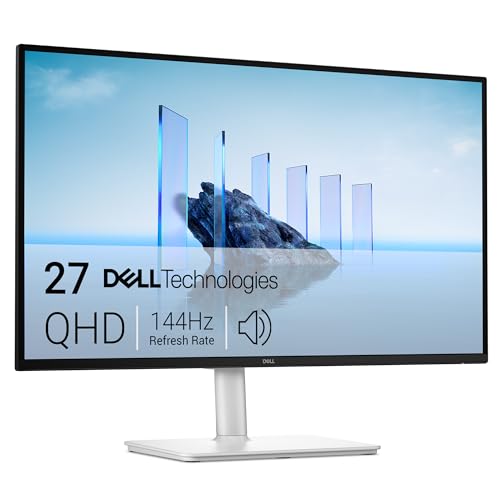
Dell 27 Plus QHD USB-C S2725DC — The laptop-desk pair
Most dual-screen desks in 2026 are driven by a laptop, and the S2725DC is the pair designed for that reality. Each unit is a 27-inch QHD panel at 144Hz with USB-C, HDMI and DisplayPort 1.4 connectivity, twin 3W speakers, AMD FreeSync and a stand that adjusts for height, tilt, pivot and swivel, finished in Ash White. Buy two and the desk gains something rare: a matched pair that a laptop can actually run as a system, with the screens’ own stands solving the levelling problem that sends other pairs shopping for arms.
The USB-C question deserves precision, because it decides how the pair is wired. A single laptop port cannot be assumed to feed both screens; the working arrangements are two cables to two laptop ports, a dock between laptop and screens, or one screen on USB-C and the other on HDMI. The S2725DC’s generosity is that every one of those arrangements is available on both units — no pick in this guide offers more connection flexibility per panel — and the title does not claim daisy-chaining, so this review does not promise it. Plan the dock or the second cable as part of the purchase and the pair behaves impeccably.
A word about the dock itself, since this pair invites one. A dock driving two QHD screens at 144Hz is doing more than a dock driving them at 60Hz, and the two specifications — the dock’s per-display ceiling and the laptop’s port generation — should be checked against the pair’s 144Hz figure before money moves. Owners content with 60Hz for work can ignore the question entirely, but a buyer who chose this pair partly for its smoothness deserves the whole chain rated for it: laptop port, dock, cables and panels, each link printed and verified.
Speakers, usually a footnote, matter in duplicate. Twin 3W speakers in each screen mean a pair carries four small drivers between them, and calls, videos and system sounds can live on the monitors rather than on a separate soundbar competing for the desk’s centre. For a laptop desk — where the laptop’s own speakers are muffled the moment it is docked closed or pushed aside — monitor audio is not a luxury; it is the difference between a desk that sounds finished and one that sounds improvised.
The full-motion stands close the case. Height adjustment lets the two top edges level exactly, pivot lets one screen rotate vertical for documents or code while the other stays landscape — the single most popular asymmetric dual layout — and swivel lets either screen face a colleague. A pair whose stands do all this natively needs no arm, no riser and no folded cardboard, and the Ash White finish suits the bright, minimal desks that USB-C laptops tend to anchor.
The pivot option deserves one more sentence, because in pairs it changes what a screen is for. A vertical 27-inch QHD panel shows a document at a scale landscape never reaches, holds a code file with its full length in view, and turns a chat column into a readable stream rather than a squint. Most dual owners who try one vertical week keep the arrangement permanently, and a pair whose stands pivot natively — as this Dell’s do — lets the experiment happen without a single extra purchase.
At 144Hz the pair sits at the sensible end of the refresh range: fast enough that scrolling and window movement feel modern, modest enough that an ordinary laptop GPU drives both panels for work without strain. Gamers will read further down the list; laptop professionals can stop here with confidence.
The Ash White finish deserves its pair-specific note. Two white-framed screens read as one designed object on a light desk, where two black panels read as equipment; in the bright, plant-and-paper home offices that fill video-call backgrounds, that difference is visible to everyone the user meets online. It costs nothing in specification — the panel underneath is a serious 144Hz QHD screen — and it is the kind of detail that makes a dual setup feel commissioned rather than accumulated, which is precisely the feeling a permanent desk should produce.
- Size and resolution: 27 inches, QHD 2560×1440
- Refresh rate: 144Hz, 1ms, AMD FreeSync
- Connectivity: USB-C, HDMI, DisplayPort 1.4
- Audio: 2× 3W speakers per unit
- Stand: height, tilt, pivot, swivel
- Finish: Ash White
Strengths
- The most laptop-friendly pair here: USB-C on both units.
- Full-motion stands level the pair and allow a vertical screen.
- Built-in speakers complete a dock-free desk.
Trade-offs
- Feeding both screens from one laptop may need a dock or second cable.
- 144Hz is the pair range’s floor for gaming appetites.
- USB-C power delivery figures are not stated in the title.
Best for: laptop-driven home offices wanting a matched, arm-free dual setup. Not suited for: competitive gaming pairs, or one-cable minimalists unwilling to add a dock.

Samsung Odyssey G5 (G50F) — The flat gaming pair
Not every gaming pair wants a curve, and Samsung’s Odyssey G5 G50F is the flat alternative with the strongest all-round title in the group: a 27-inch QHD Fast IPS panel at 180Hz, HDR10, a 1ms GtG response figure, and both NVIDIA G-Sync Compatible and AMD FreeSync listed. That dual sync listing is the pair-buyer’s detail — whichever graphics card drives the desk, its adaptive-sync technology is spoken by both screens, so neither panel ever becomes the tearing one.
Flat panels pair with a tidiness curved ones cannot match. Two flat screens angle into a shallow V that suits a standard desk depth, their top edges level in a straight line, and a document can sit on either screen with geometrically honest lines — the reason mixed desks, where the same pair hosts spreadsheets by day and games by night, usually end up flat. The G50F’s Fast IPS panel keeps viewing angles wide, which matters more in a pair than in a single: the far screen is always viewed at an angle, and an IPS-family panel holds its colour and contrast out there where lesser panel types wash out.
The title is silent on the stand’s adjustments and on speakers, and both silences should be read as planning items rather than assumed features: check the listing for stand travel if an arm is not already planned, and expect audio to come from a headset or separate speakers. Samsung’s Odyssey line is a gaming family, and its budgets visibly went into the panel — 180Hz, fast response, HDR10 and dual sync — rather than into furniture.
HDR10 on both units gives the pair one more shared pleasure: film and video nights. Two matched 27-inch QHD panels side by side make a surprisingly capable private cinema when one carries the film and the other is dark or holding the evening’s browsing, and because the panels match, a film stretched across both — for the widescreen formats that reward it — keeps one colour temperature from edge to edge instead of cooling visibly at the seam.
As a pair for a gaming desk that also works, the G50F’s balance is hard to argue with. Both screens run at a refresh that flatters modern graphics cards without demanding the flagship hardware the 240Hz pair wants, the resolution is identical, and the brand’s gaming line has the production volume that makes buying a genuinely matched second unit — now or in a year — a realistic expectation rather than a hope.
One pairing note is unique to flat gaming screens: because the panels are flat and the size is standard, this is the pair most easily expanded. A third unit later — same model, same code — completes a triple setup for simulation or trading without a mismatched centre, an upgrade path the curved pair’s geometry makes awkward.
There is a workplace dividend to this pair’s restraint. Nothing about two flat Samsung gaming panels announces gaming to a meeting room or a client on a video call; the screens present as professional equipment that happens to run at 180Hz after hours. For the large constituency whose desk is also their public face — consultants, freelancers, anyone whose background is on camera — a pair that keeps its speed discreet is worth more than the same speed wearing racing livery.
- Size and resolution: 27 inches, QHD, Fast IPS
- Refresh rate: 180Hz, 1ms (GtG)
- Sync: NVIDIA G-Sync Compatible, AMD FreeSync
- HDR: HDR10
- Model code: LS27FG502ENXZA
- Stand adjustments: Not stated in listing title
Strengths
- Both major sync technologies listed — any graphics card is served.
- Flat Fast IPS holds its picture on the angled far screen.
- 180Hz pairs speed with sane graphics-card demands.
Trade-offs
- Stand adjustments and speakers are not stated in the title.
- No USB-C input is claimed for laptop desks.
- Its gaming focus spends little on office furniture.
Best for: gaming desks that also do a full day’s flat, honest work. Not suited for: laptop-first setups needing USB-C, or buyers who want stand details in writing.

LG 27GR83Q-B UltraGear — The 240Hz pair
Two 240Hz panels on one desk is an extravagance with a specific address: the competitive player whose main screen must be as fast as panels get, and whose second screen must match it exactly so the two never feel like different decades. The LG 27GR83Q-B supplies the specification — 27-inch QHD IPS at 240Hz, 1ms, DisplayHDR 400, G-Sync and FreeSync Premium, HDMI 2.1 alongside DisplayPort, a 4-pole headphone output carrying DTS Headphone:X, and a tilt/height/pivot stand.
HDMI 2.1 is the pair-relevant line in that title. It means both screens can receive high-refresh signals from sources beyond a DisplayPort-equipped PC — a current console, a second machine — without the quieter rate caps that older HDMI generations impose. A dual setup built on this panel is therefore source-flexible in a way DisplayPort-only pairs are not: the PC takes one input family, the console the other, and both screens remain full-speed citizens.
The stand’s height and pivot adjustments matter at pair scale for the standard reason — levelling — and for the asymmetric layout competitive desks love: main screen landscape and centred, second screen vertical for chat, brackets, guides and streams. Pivot is printed in this title, so the vertical second screen is a designed configuration rather than an improvisation. The headphone output with DTS Headphone:X gives the pair a shared audio detail too: one jack, on whichever screen is nearer, carrying processed headphone sound for late sessions.
Honesty about the 240Hz figure belongs in a pair review twice over. Driving one QHD panel at 240 frames per second in competitive titles is flagship graphics work; driving two at that rate simultaneously is beyond what most systems should be asked, and no sensible owner does it — the second screen runs the ecosystem around the game, not a second game. The pair’s value is uniformity: every screen on the desk is the fastest screen, so nothing ever feels like the spare.
DisplayHDR 400 on both units keeps HDR video and supported games consistent across the desk, and the matched-model rule does its usual quiet work on colour. This is the pair for buyers who have stopped compromising in one direction only: speed, everywhere, at QHD.
Team and household realities flatter the flagship pair in one more way: hand-me-downs. A 240Hz QHD panel ages into a superb second-tier screen — when the main desk eventually upgrades, both units cascade to a partner’s desk, a teenager’s setup or a streaming station without either feeling like charity. Expensive pairs bought for uniformity hold their value as a set, and a matched set of fast QHD panels is the easiest technology in the house to rehome productively.
- Size and resolution: 27 inches, QHD 2560×1440, IPS
- Refresh rate: 240Hz, 1ms
- HDR: DisplayHDR 400
- Sync: G-Sync, AMD FreeSync Premium
- Inputs and audio: HDMI 2.1, DisplayPort, 4-pole headphone out with DTS Headphone:X
- Stand: tilt, height, pivot
Strengths
- The fastest pair in the guide, uniform across both screens.
- HDMI 2.1 keeps consoles and second machines at full speed.
- Pivot stands enable the classic vertical second screen.
Trade-offs
- Feeding 240Hz needs a flagship-class graphics card.
- The pair costs flagship money twice over.
- Its speed is wasted on document-only desks.
Best for: competitive players who refuse a slower second screen. Not suited for: office-only pairs, or graphics cards of modest ambition.

Dell S2722DC — The quiet USB-C pair
The S2722DC’s listing title is the shortest in this guide — a 27-inch USB-C monitor at QHD 2560×1440, and that is nearly all it says. This review follows the same discipline: as a pair, the S2722DC offers two matched USB-C QHD screens from Dell’s mainstream line, and it asks buyers who need refresh rates, HDR figures or stand specifications in writing to confirm them on the listing page, where the full specification lives. What can be assessed honestly is the proposition itself, and the proposition is calm.
USB-C is the operative word. A pair of USB-C monitors is a laptop desk’s natural furniture, and two of the same restrained Dell create the setup that fills design studios and home offices that value order over theatre: matched screens, one connection family, no gaming livery, no specifications shouted. For the large class of dual-screen users whose work is documents, browsers, calls and code, the panel’s job is to be sharp, matched and unobtrusive — and QHD at 27 inches with a USB-C input is precisely that job description.
The matched-pair argument is strongest here, because a quiet screen has nowhere to hide a mismatch. Two identical units from a high-volume Dell line will match in brightness character and colour temperature as closely as unprompted production allows, and Dell’s model stability means a replacement unit bought after a failure stands a good chance of matching the survivor — a mundane virtue that becomes precious in year three, when an exotic model’s second unit no longer exists to buy.
Nothing in the title equips this pair for gaming claims, and none are made. Readers whose evenings involve fast games should take the Samsung or LG pairs and their printed refresh rates; readers whose days involve two calm screens and a laptop should recognise the S2722DC as the guide’s representative of the largest dual-screen constituency there is.
Buying discipline for this pick is a single sentence: because the title is terse, read the listing’s full specification before ordering two, confirming stand adjustment and any figure the purchase depends on. The pair rewards that five minutes with years of unremarkable, matched service.
One audience should claim this pair explicitly: writers and researchers. Two quiet QHD screens hold a draft and its sources at full, legible size, the USB-C connection keeps a laptop desk to a minimum of hardware, and the absence of gaming apparatus means the desk never looks like it is waiting to become something else. Productivity writing about dual screens tends to photograph racing setups; the desks that produce the most words look like this one.
- Size and resolution: 27 inches, QHD 2560×1440
- Connectivity: USB-C
- Refresh rate: Not stated in listing title
- HDR: Not stated in listing title
- Stand adjustments: Not stated in listing title
- Pair note: verify full specification on the listing before buying two
Strengths
- USB-C QHD pairing from a stable, high-volume Dell line.
- A restrained design that suits professional desks.
- Replacement units remain findable years into ownership.
Trade-offs
- The title states almost nothing beyond size, resolution and USB-C.
- No gaming specification can be claimed for it here.
- Careful listing verification is part of this purchase.
Best for: calm, laptop-driven dual desks for documents, calls and code. Not suited for: gaming pairs, or buyers unwilling to verify specifications on the listing.

LG 27G61ZB-B UltraGear — The 200Hz balanced pair
Between the 180Hz pairs and the 240Hz flagship sits the LG 27G61ZB-B at 200Hz, and a pair of them makes the guide’s most balanced gaming argument: refresh high enough to feel unmistakably premium, hardware demands a step below the 240Hz pair’s, HDR10 on both panels, FreeSync Premium, LG Switch for screen management, and — the detail that separates it from the Samsung pair — a stand adjusting for tilt, height, swivel and pivot, printed in full in the title.
That stand transforms the pair’s setup economics. Two full-motion stands level the screens natively, allow the vertical-second-screen layout, and swivel either panel toward a visitor, with no arm purchase anywhere in the budget. Against the curved LG pair — which effectively requires an arm — the 27G61ZB-B pair is cheaper to complete than its per-unit comparison suggests, a reminder that dual setups should always be priced as systems: panels, stands or arms, cables and the dock if one is needed.
LG Switch earns a pair-specific mention. On a single screen it is a convenience; across two identical LGs it becomes a small operating system for the desk, dividing screens into layouts and managing inputs consistently on both units, so the pair behaves like one appliance rather than two relatives. Owners who swap a work laptop and a gaming PC across the same two screens feel that consistency daily.
The 200Hz figure deserves its honest framing. It is visibly smoother than the 144Hz and 180Hz pairs in fast motion and visibly short of nothing in ordinary play; the players who can honestly claim to need 240Hz are a narrower group than the marketing suggests, and they are served by the GR83Q-B above. For everyone else, this pair spends the difference on stands and sanity while keeping a refresh rate that no game will embarrass.
HDR10 without a DisplayHDR certification claim is the one place the title is modest, and the review matches it: expect HDR video and games to look lively rather than reference-grade, identically on both screens — which, in a pair, is the property that actually matters.
Consider the workday split this pair handles best. One screen runs the game or the render at 200Hz while the other — identical, so the desktop feels like one surface — carries the browser, the document and the call. Lesser pairs force a visible hierarchy between a good screen and a lesser one, and the user’s attention quietly migrates to the good side until the second screen becomes furniture. Uniform 200Hz panels abolish the hierarchy; both sides of the desk are the good side, which is the entire philosophy of buying twins.
- Size and resolution: 27 inches, QHD 2560×1440, IPS
- Refresh rate: 200Hz, 1ms, HDR10
- Sync: AMD FreeSync Premium
- Features: LG Switch
- Inputs: HDMI, DisplayPort
- Stand: tilt, height, swivel, pivot adjustable
Strengths
- Full-motion stands complete the pair with no arm purchase.
- 200Hz balances speed against graphics-card sanity.
- LG Switch manages both screens as one system.
Trade-offs
- No USB-C input for laptop-first desks.
- HDR10 carries no DisplayHDR certification claim.
- Competitive purists will still look at the 240Hz pair.
Best for: gaming pairs that want speed, stands and system polish in one purchase. Not suited for: USB-C laptop desks, or players for whom only 240Hz will do.
Comparison
| Pick (×2) | Refresh | Shape | Stand from title | Pair character |
|---|---|---|---|---|
| LG 27GS60QC-B | 180Hz | Curved 1000R | Tilt | Immersive wrap; arm advised |
| Dell S2725DC | 144Hz | Flat | Height/tilt/pivot/swivel | USB-C laptop pair with speakers |
| Samsung Odyssey G5 G50F | 180Hz | Flat Fast IPS | Not stated in listing title | Dual-sync gaming all-rounder |
| LG 27GR83Q-B | 240Hz | Flat | Tilt/height/pivot | Flagship speed, HDMI 2.1 |
| Dell S2722DC | Not stated in listing title | Flat | Not stated in listing title | Quiet USB-C simplicity |
| LG 27G61ZB-B | 200Hz | Flat | Tilt/height/swivel/pivot | Balanced speed with full stands |
Every row is the same monitor bought twice, so read the table as six desks rather than six screens: the differences that look small in a single review — a stand’s travel, a port family, a sync logo — are the differences a pair doubles.
Two cells in the table are confessions rather than specifications, and they are printed deliberately. The Dell S2722DC’s row records what its title withholds, because quietly borrowing those figures from elsewhere would make this table look complete at the cost of making it dishonest. Where a figure matters to your purchase and the cell says it is not stated in the listing title, the listing page is the next stop — with the model code from the review in hand, so the screen verified is the screen that arrives, twice.
Why Are There No True 1440p Monitor Two-Packs?
Because bundle economics point the other way. A two-pack exists to hit a price headline, and the buyers shopping by that headline are offices equipping many desks at 1080p, where panels are cheapest and one resolution serves every legacy application. QHD buyers, by contrast, shop by specification — refresh, sync, panel type — and buy one considered screen at a time. Manufacturers follow the demand: the bundle shelf fills with Full HD pairs, while QHD models compete as singles and quietly rely on buyers purchasing the second unit themselves.
The practical consequences are worth knowing. A 1080p bundle’s apparent saving buys two panels a dual-QHD shopper never wanted, at a resolution that will feel dated across the five or more years a desk keeps its screens. Meanwhile the supposed risk of the buy-two-singles route — mismatched panels — is smaller than folklore suggests: two units of one model, bought together, come from the same production family and match more closely than most mixed pairs assembled from separate purchases years apart. The honest market has a shape; this guide simply describes it.
One related myth deserves retiring while the subject is open: that a bundle, where one exists, guarantees matched panels. A two-pack is a packaging decision, not a calibration promise — the two units inside were not selected for each other, merely boxed together. Two singles of one model, ordered together, stand exactly the same chance of matching, which is to say a very good one, with the added freedom to choose a panel actually designed for the work. The bundle’s only real product is convenience, and at 1440p it is a convenience the market has declined to sell.
How Do You Connect Two 1440p Monitors to One Computer?
Start at the outputs. A desktop graphics card with two DisplayPort or HDMI outputs is the simple case: one cable per screen, each running at the panel’s full refresh. A laptop is the interesting case. Two USB-C or Thunderbolt-class ports can drive one screen each; a single port usually means a dock, which splits the connection properly, or one screen on USB-C and the second on the laptop’s HDMI. The Dell pairs in this guide exist for these arrangements; the gaming pairs assume a desktop’s outputs and say so through their input lists.
Then set the pair up as a pair. In the operating system’s display settings, arrange the two rectangles so their relative positions match the physical desk, align their top edges if the stands allow, and set each screen’s refresh to its full figure — panels frequently default lower. Match brightness by eye against a white window dragged between the screens, and choose one screen as the primary for taskbars and notifications. Twenty minutes of this on day one prevents the low-grade daily friction — the cursor crossing at the wrong height, the dimmer screen drawing complaints — that gives dual setups an undeserved reputation for fussiness.
Cable length is the detail this ritual exposes. The two cables should reach their ports with the stands at their final positions and a little slack for swivel, but no more: excess cable behind a dual desk breeds the tangle that makes every later adjustment a negotiation. Route both cables down the same path, ideally through the stands’ own management or a single channel, and the pair will look — and behave — like one appliance with two faces, which is the whole ambition of a matched setup.
How Much Desk and Graphics Power Does a Dual 1440p Setup Need?
Desk first. Two 27-inch screens span roughly 1.2 metres before stands, and the pair wants a desk at least 140 centimetres wide and 70 deep if the user is to sit at a comfortable distance with a keyboard in front. Curved pairs and arm-mounted pairs change the footprint’s shape but not its scale. Measure the desk before the order; the most common dual-setup disappointment is not a panel’s fault but a tape measure’s.
Graphics second, split by ambition. For desktop work, two QHD panels are a light load that any modern laptop or integrated graphics handles without complaint. For gaming on one screen, the card should be specced for QHD at the pair’s refresh rate — the 144Hz Dell pair is forgiving, the 240Hz LG pair is not. For gaming stretched across both screens, double the pixel demand in your head before promising yourself the experience; most owners try it, enjoy the novelty in racing and flight titles, and settle into one screen for play and one for everything else, which is the configuration this guide’s pairs are really built for.
Power and heat deserve a closing word, because pairs double them quietly. Two panels draw two standby loads, generate two panels’ worth of warmth in a small room, and occupy two sockets before the computer, dock and chargers are counted. A single switched power strip for the pair — monitors only — gives the desk a clean nightly off and a clean morning on, and keeps the two screens ageing in step, which even preserves their brightness match across the years. Small systems thinking, applied to the least glamorous part of the setup, is what separates a dual desk that feels engineered from one that feels accumulated.
One Ultrawide or Two 1440p Screens — Which Desk Wins?
The dual pair’s real rival is a single 34-inch ultrawide, and the comparison is closer than partisans admit. An ultrawide offers a seamless canvas with no centre seam, one stand, one cable for video and a cleaner desk. A pair of 27-inch QHD screens offers more total pixels — two 2560×1440 panels out-resolve one 3440×1440 screen by a wide margin — plus a natural full-screen split for calls and content, redundancy when one unit fails, and the vertical-second-screen layout no ultrawide can imitate.
The deciding question is how the user’s windows actually live. Work that is one wide artefact — a timeline, a DAW, a racing cockpit — belongs on the seamless screen. Work that is two artefacts in conversation — draft and source, code and output, game and guide, call and document — belongs on the pair, where each artefact gets a full panel with its own full-screen dignity. Most knowledge work is the second kind wearing the first kind’s clothes, which is why dual setups remain the desk default despite a decade of ultrawide evangelism.
On price, the pair wins the argument again. Two 27-inch QHD singles, bought at the tiers in this guide, commonly undercut one premium ultrawide of comparable total area while delivering more pixels and a spare screen’s resilience. The ultrawide’s counter — one stand, one cable, no seam — is real but narrow, and it narrows further every year that QHD singles remain the industry’s volume product. Buyers should choose the seamless screen for seamless work, not as a default.
What Should You Check in the First Week With a New Pair?
Four checks, all cheap, all decisive. The seam check: drag a window slowly across the join and watch its brightness and colour as it crosses — identical panels should show no visible step, and any step you do see is adjusted now, with brightness matched downward, rather than lived with. The level check: rest a long object — a book, a keyboard — across both top bezels; if it rocks, the stands or the arm need the adjustment that only gets harder to bother with later.
The posture check takes three days: notice whether your head camps turned toward one screen. If it does, the pair’s geometry is wrong — recentre the primary screen in front of the chair and demote the other to a true secondary angle, because a dual setup’s ergonomics live in that decision. Finally, the failure rehearsal: unplug one screen and work for an hour. Note which windows vanish onto the sleeping panel and teach the operating system’s shortcuts for rescuing them, because the day a cable fails mid-deadline is the wrong day to learn window management. Every dual owner eventually loses a panel for a week, and knowing in advance that the desk still functions — cables reachable, settings sane — converts a future crisis into an inconvenience you have already met.
Common Mistakes When Building a Dual 1440p Setup
Buying a 1080p bundle and calling it a dual setup. The bundle shelf answers a different question. Two Full HD panels at a bundle price are not a saving over two QHD singles; they are a different, lesser desk bought at full commitment.
Mixing two different models to save money. A fast screen beside a slow one, two colour temperatures, two stand heights — a mixed pair advertises its compromise at the seam every day. If the budget forces a choice, buy one good screen now and its twin later.
Forgetting the second everything. Two panels need two outputs or a dock, two power points, desk width for two stands, and possibly an arm the single-screen budget never included. Price the system, not the screen.
Skipping the alignment ritual. Unlevelled tops, mismatched brightness and a cursor that jumps at the border are setup failures, not product failures — and they are the ones owners blame on their monitors for years.
Final Recommendation
Build the pair around the machine that drives it. Laptop desks should take the Dell S2725DC twice — USB-C on both units, speakers, full-motion stands — or the quieter S2722DC pair where calm matters more than printed specifications. Gaming desks divide by appetite: the Samsung G50F pair for dual-sync balance, the LG 27G61ZB-B pair for 200Hz with stands that complete the setup unaided, the 27GR83Q-B pair where 240Hz is the whole point, and the curved 27GS60QC-B pair, on a dual arm, where immersion outranks everything.
And keep the guide’s opening fact as the shopping rule: the dual 1440p setup you want is not hiding in a bundle box somewhere. It is one good monitor, chosen carefully, bought twice — a decision that rewards the buyer every time the two screens light up and agree with each other.
A final sequencing tip for buyers assembling the desk in stages: purchase the pair before the accessories. Live with the two stands for a fortnight, because three of these six picks may make an arm unnecessary, and let the desk itself tell you whether the second purchase should be an arm, a dock or nothing at all. Dual setups attract accessory enthusiasm the way new bicycles attract luggage; the disciplined order — panels, week of use, then furniture — keeps the system honest and the budget pointed at the screens, where it belongs.
Frequently Asked Questions
Can I buy one monitor now and its twin later?
Yes, and it is the standard way dual setups grow. Buy the exact model code, and expect a close rather than laboratory match — production drifts slightly over a model’s life. High-volume models like the Dells and the Samsung are the safest later-twin purchases, because the model remains in production and its character stays consistent. If the twin is bought within the first year, most owners cannot tell the two units apart once brightness is matched; beyond that, a slight difference in backlight age may show on an all-white screen while remaining invisible in ordinary work.
Do both monitors in a pair need the same refresh rate?
They do if the pair is one model, which is the arrangement this guide recommends. Mixed refresh rates work technically — each screen runs at its own figure — but motion crossing the seam changes character mid-gesture, and the slower screen becomes the desk’s permanent apology. Uniformity is the pair’s whole argument. There is a subtler version of the same point for brightness and colour: two screens of one model age together, dimming and drifting in step, so a pair bought together tends to stay matched for years in a way that two different models — each ageing on its own curve — never quite manage.
Will a laptop run two 1440p monitors?
For work, comfortably: modern laptops drive two QHD screens for documents, browsing and calls without strain. The connection plan is the only real question — two suitable ports, or a dock — and the Dell pairs’ USB-C inputs exist for exactly this. Gaming at high refresh on a laptop-driven pair is the demanding case and should be specced honestly against the laptop’s graphics.
Is a curved pair or a flat pair better?
Curved pairs immerse; flat pairs behave. Budget shapes the answer too: the curved pair’s near-mandatory dual arm adds a line the flat pairs with full stands never charge, so the honest comparison is system against system, not panel against panel. Two curved panels create a wrap that simulation and racing players prize, at the cost of a closer seam and an arm to level them. Flat pairs keep documents geometrically honest, fit shallower desks and expand to a third screen gracefully. The desk’s main content, not fashion, should decide.
Should both screens in a pair be the same size?
Yes, in the arrangement this guide recommends — identical size is what makes the two panels’ pixels the same physical size, so a window crossing the seam keeps its scale and text keeps its size. Mixed sizes force the operating system to reconcile two densities, and the seam becomes a place where windows visibly grow or shrink and the cursor changes speed as it crosses. A laptop’s built-in screen beside one external monitor is the accepted exception, not a model for a bought pair. The same logic extends to resolution: two QHD panels share one density, which is why this guide never mixes a 1080p unit into a 1440p pair to save money. Uniformity, once experienced, is hard to give back.
How do I match the brightness of two monitors?
Display the same white window on both, set both panels to the same picture mode, then adjust the brighter screen down to meet the dimmer one — matching downward preserves the weaker panel’s comfortable range. Identical models start close, so the adjustment is usually small; mixed models can fight this process for an hour and still disagree at other brightness levels.
Related Guides
A dual desk is one answer to the width question. Readers whose work involves touching the screen itself will find the counter-and-classroom options in our guide to touch screen monitors for desk and counter. Budget-conscious builders equipping a second desk or a spare room should compare the value panels in our guide to affordable monitors that earn their desk space. And anyone who would rather carry the second screen than mount it should look at the large slates in our guide to big screen tablets for work and film.

[…] two-screen setup instead should see the six QHD panels assessed as matched pairs in our guide to dual 1440p monitors bought two at a time. Desks where the screen itself is the input — counters, classrooms, warehouses — are covered in […]