What's inside
- Key Takeaways
- Quick Picks
- How We Chose These Picks
- Comparison Table
- How Much SSD Capacity Does a Business Laptop Honestly Need?
- Why Does an SSD Make an Old-Feeling Laptop Feel New Again?
- How Do You Keep an SSD Healthy Across Four Years of Service?
- How Do You Migrate a Team Onto New SSD Laptops Without Losing a Week?
- What Should You Check on the Listing Before Ordering an SSD Laptop?
- How Do SSD Laptops Change the Refurbished and Hand-Down Market?
- Common Mistakes When Buying an Affordable SSD Laptop
- How Do You Test a New Laptop’s Storage in the First Week?
- What Happens at the End of an SSD Laptop’s Service Life?
- How Do You Compare Two Laptops When Their Storage Specs Look Identical?
- What Role Does Cloud Storage Play Alongside a Fast Local SSD?
- How Should You Brief Staff on Looking After a New Laptop’s Storage?
- What Does a Sensible Storage Policy Look Like for a Small Fleet?
- Which of These Six Suits Which Kind of Business?
- How Does Storage Interact With Battery, Heat and Noise?
- Final Recommendation
- Frequently Asked Questions
- Related Guides
As an Amazon Associate I earn from qualifying purchases. This post may contain affiliate links at no extra cost to you.
widgetverdict.com is reader-supported. When you buy through links on our site, we may earn an affiliate commission.
Every office has one: the laptop that takes four minutes to wake, opens the mail client like it is lifting something heavy, and turns a two-minute file search into a coffee break. The cure is rarely a new processor. The search for the best affordable business ssd laptops starts from a simple observation — in this generation, storage speed and capacity decide how fast a business laptop feels, and the machines below pair fast solid-state drives with sensible capacities at prices a small business can approve without a committee.
Where to buy: all six picks link to Amazon listings verified against the site’s product records on 2026-11-25, and the storage guidance in each review reflects the configuration classes those listings represent. SSD configurations drift between listings under the same model name more than any other component, so confirm the exact capacity on the listing before ordering — this guide’s buying sections explain what to look for — and check price on Amazon at the moment of purchase. No product prices are printed here.
A framing note before the rankings: “SSD” in a modern business laptop means an NVMe solid-state drive, and every pick below has one. The real questions are capacity, whether the drive can be upgraded later, and how the rest of the machine — memory, screen, support — balances around it. Those are the questions this guide answers, model by model.
Key Takeaways
- The ThinkPad E14 Gen 6 is the budget SSD pick that still behaves like a proper business machine.
- HP’s ProBook 450 G10 gives growing teams a 15.6-inch screen and serviceable storage at entry cost.
- The ThinkPad T14 Gen 5 is the fleet choice, with a replaceable SSD that stretches its working life.
- Dell’s Latitude 5550 pairs modern Core Ultra efficiency with the support depth fleets standardise on.
- ASUS’s ExpertBook B9 adds an OLED display for travellers who read and present all day.
- Dell’s XPS 13 9350 is the premium-feeling ultraportable for founders who carry their office.
Quick Picks
| Pick | Badge | Why it makes the cut |
|---|---|---|
| Lenovo ThinkPad E14 Gen 6 | Best budget SSD laptop | Ryzen performance and ThinkPad fundamentals at the friendliest cost here. |
| HP ProBook 450 G10 | Best big-screen value | 15.6-inch business display with upgradeable storage for growing teams. |
| Lenovo ThinkPad T14 Gen 5 | Best fleet SSD pick | Replaceable SSD and socketed memory keep it fast for years. |
| Dell Latitude 5550 | Best supported all-rounder | Core Ultra efficiency with Dell’s deployment and warranty ecosystem. |
| ASUS ExpertBook B9 | Best travel display | OLED screen and vPro Essentials in an ultralight chassis. |
| Dell XPS 13 9350 | Best premium ultraportable | Lunar Lake endurance and flagship finish for mobile professionals. |
How We Chose These Picks
Selection started from the affordable end of the business ranges of Lenovo, HP, Dell and ASUS, then applied the storage lens the keyword demands. A pick needed an NVMe SSD in a configuration a business can live with — or a chassis that lets the drive be upgraded cheaply when it fills. It needed business warranty options, a keyboard fit for full working days, and a processor that would not make the fast storage pointless. Machines that paired a good SSD with a dim screen or a consumer support story were cut.
Capacity philosophy shaped the ordering. This guide treats 512GB as the working standard for new purchases and 1TB as the comfort tier for staff who keep large local libraries, because the price difference between tiers at ordering is consistently smaller than the cost of upgrading a sealed machine later. Upgradeable models — where the drive sits in a standard slot — earned credit for forgiving an underspecced first order.
Every linked pick was verified through the site’s Creators API records on 2026-11-25. Where a model’s range spans several storage tiers, the reviews say so and tell readers which tier the guidance assumes, because a buying guide that hides configuration spread behind a model name is how offices end up with a fleet of machines that are identical except for the one specification that mattered.

Lenovo ThinkPad E14 Gen 6 — Best budget SSD laptop
Small budgets deserve snappy machines, and the E14 Gen 6 is the proof that the two ideas coexist. The verified listing runs AMD’s Ryzen 5 7535U, whose responsiveness in office work embarrasses its tier, and the NVMe storage underneath keeps boot, wake and application launches at the speed staff now expect from their phones. A laptop that responds instantly changes how a workday feels in a way no benchmark table captures.
ThinkPad fundamentals carry the rest of the experience. The keyboard layout is the one business fingers already know, the chassis is built to a commercial standard, and the port mix covers the office without a dongle drawer. The display is a workmanlike WUXGA-class panel — honest rather than dazzling — and the webcam covers meetings adequately.
Storage strategy is where the E14 rewards a thoughtful buyer. Mainstream E14 configurations keep memory and storage accessible, so a machine bought lean today can gain a larger SSD when the role grows into it. That upgrade path converts the E14 from a cheap laptop into a staged investment, which is the correct way for a growing company to buy hardware.
The compromises sit in finish and ceiling. Materials are conventional, the Ryzen chip’s talents are mainstream rather than muscular, and battery life asks for a charger on long travel days. None of these touches the daily core: fast storage, a proper keyboard, a business warranty and a price that lets a whole team be equipped at once.
Resale channels treat the E-series kindly, and parts remain findable — the quiet infrastructure that decides total cost in year three. For startups and small departments, the E14 Gen 6 is where this guide’s affordability argument is strongest: the least money here, spent on the components that decide how the machine feels.
First-week impressions from staff issued E14s follow a pattern IT managers should note: nobody mentions the processor, everybody mentions that the machine is “awake before the coffee is”. Storage speed is the quality employees perceive as newness itself, and a budget fleet that delivers it buys morale along with hardware — an outcome no line in the specification table predicts and every rollout report confirms.
- Display: 14-inch WUXGA class panel
- Chip: AMD Ryzen 5 7535U
- Storage: NVMe SSD, accessible in mainstream configurations
- Keyboard: full ThinkPad layout
Strengths
- Snappy storage and processor for the price
- Upgrade path stretches a small budget
- Genuine business build and warranty
Trade-offs
- Materials and display are workmanlike
- Battery is office-day, not travel-day
- Mainstream chip caps heavy workloads
Best for: startups and small teams equipping everyone with fast, proper laptops.
Not suited for: heavy compute roles or buyers wanting premium finish.

HP ProBook 450 G10 — Best big-screen value
Screen size and storage speed together decide most of an office worker’s day, and the ProBook 450 G10 is the affordable pick that refuses to ration either. Its 15.6-inch display gives spreadsheets and documents room to breathe, while the NVMe SSD in the verified configuration — built around Intel’s Core i5-1335U — keeps the machine’s responses immediate. The verified listing represents the ProBook’s business mainstream: no drama, no bottlenecks, no premium toll.
HP’s discipline at this tier is the story. Business security basics are present, the chassis is commercial-grade rather than consumer, and the internals stay accessible for the storage and memory service that extends a fleet’s life. When a ProBook’s drive fills in year three — and drives fill — a technician swaps in a larger SSD instead of the company replacing the machine.
Daily qualities are evenly judged. The keyboard suits long documents, the numeric pad serves data entry, and the port selection covers meeting rooms without adapters. The display will not win colour arguments and the speakers merely cover calls, but the complete package respects the two resources small businesses actually run out of: money and patience.
Growth headroom defines the recommendation. A company hiring steadily can standardise on the 450 G10, issue it confidently to roles from administration to sales support, and know that the storage conversation has a cheap answer at every stage — a larger tier at ordering, an upgrade later, a hand-down after that. Standardisation is a strategy, and this is its budget instrument.
One ordering caution belongs in bold mental type: confirm the SSD capacity on the exact listing, because the ProBook range spans tiers and the difference between them is the difference between this guide’s recommendation and a year of storage complaints. The verified configuration is the one reviewed; make the delivered one match it.
There is a dignity argument for the ProBook that budgets rarely capture. Issuing a new hire a full-size, fast, warranty-backed machine on their first morning tells them the company equips people properly, and the 450 G10 is the cheapest laptop in this guide that makes that statement at 15.6 inches with storage that will not embarrass anyone by Christmas.
- Display: 15.6-inch FHD class panel
- Chip: Intel Core i5-1335U
- Storage: NVMe SSD, serviceable for later upgrades
- Keyboard: full layout with numeric pad
Strengths
- Big screen and fast storage at entry cost
- Accessible internals extend service life
- Business warranty and build throughout
Trade-offs
- Display and speakers are merely adequate
- i5 chip is mainstream, not muscular
- Storage tier must be checked at ordering
Best for: growing teams wanting one affordable standard with a big screen.
Not suited for: design-led work or travellers counting grams.

Lenovo ThinkPad T14 Gen 5 — Best fleet SSD pick
Fleets live or die on year-three decisions, and the T14 Gen 5 is built around the best one in this guide: a replaceable SSD paired with socketed memory in a mainstream business chassis. The verified listing runs Intel’s Core Ultra 7 155U, an efficiency-tuned chip that keeps the machine cool and quiet, and the storage story is the headline — when workloads grow, the drive grows, by swap rather than by replacement order.
That single design choice rewrites the total-cost ledger. A T14 bought with a modest SSD today can carry a terabyte in year three for the price of the drive and fifteen minutes of a technician’s time. Multiply the saving across a fleet and the T14’s slightly higher starting price against the E14 becomes the cheapest money in this guide.
The rest of the machine is the T-series formula executed faithfully: the full ThinkPad keyboard, a durable 14-inch chassis, ports for every office scenario including Ethernet options in the range, and battery behaviour that covers the working day. The webcam is competent, the speakers are forgettable, and the styling is pure function — a specification sheet that reads like a fleet manager’s wish list because it was written by decades of exactly that feedback.
Performance ceilings are the honest limit. The U-series chip serves the office mainstream superbly and sustained heavy compute not at all; engineers belong on the workstation guides. Within its mission, though, the T14 Gen 5 is the machine in this roundup most likely to still be earning its keep, upgraded and unbothered, in year five.
Deployment consistency adds the final argument. The T14 shares docks, chargers and imaging with the wider ThinkPad fleet, so a company can run E14s for value seats and T14s for core staff without doubling its accessory shelves or its support knowledge. Mixed fleets work when the tiers are cousins, and these two are.
Administrators add one more appreciation: imaging a T14 fleet is uneventful, drivers behave, and the storage swap procedure is documented well enough that a careful technician performs the first one from the manual alone. Machines that respect the people who maintain them get maintained better, and the T-series has built forty years of loyalty on exactly that respect.
- Display: 14-inch WUXGA options, low-power panel available
- Chip: Intel Core Ultra 7 155U
- Storage: replaceable NVMe SSD; socketed memory on Intel models
- Ports: Thunderbolt 4, USB-A, HDMI, Ethernet options
Strengths
- SSD and memory upgrades extend its life
- Cool, quiet, fleet-proven platform
- Shares the ThinkPad accessory ecosystem
Trade-offs
- U-series chip caps heavy workloads
- Costs more than the E14 per seat
- Speakers and styling are functional only
Best for: fleets planning four-to-five-year service from an affordable base.
Not suited for: engineering compute or buyers wanting flagship materials.
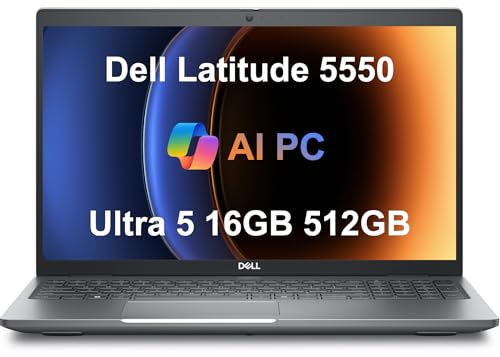
Dell Latitude 5550 — Best supported all-rounder
Storage speed gets a laptop opened happily; support depth gets it kept. The Latitude 5550 combines a modern NVMe platform — the verified listing runs Intel’s Core Ultra 5 125U — with the deepest deployment and warranty ecosystem in this guide, and that combination makes it the SSD pick for organisations whose real requirement is that nothing about ownership should ever become interesting.
The 15.6-inch format suits the desk-heavy roles that dominate affordable fleets. A numeric pad serves the number workers, the chassis has thermal room to run quietly all day, and the Core Ultra platform’s efficiency stretches battery across the meeting-room circuit. Documents, browser suites and calls — the actual workload — run with the immediacy the SSD promises and the chip sustains.
Dell’s operational machinery is the differentiator. Central imaging, driver management, global warranty options and a parts pipeline measured in decades mean the 5550’s storage can be serviced, upgraded or replaced inside a system designed for exactly that. A failed drive in a Latitude fleet is a logistics event; in a consumer fleet it is a bereavement.
Configuration discipline is the buyer’s share of the bargain. Latitude ranges span storage tiers under one name, so the purchase order should state the SSD capacity as a requirement, not a hope, and the delivered machines should be checked against it. The verified listing’s configuration is the reviewed one; fleets should hold their own orders to the same standard.
Against the ThinkPads here, the 5550 trades a little keyboard romance for operational calm, and against the ProBook it trades a little price for a deeper support bench. For the IT generalist equipping a mixed company, that is usually the right exchange — and the machine least likely to be discussed ever again, which is the compliment fleets reserve for their best decisions.
New-starter experience seals the operational case. A 5550 imaged from the standard build, docked at a prepared desk, with storage sized correctly from the purchase order, produces the rarest sentence in IT: the new employee’s first week contained no laptop story at all. Multiply that silence across a year of hiring and the Latitude’s slightly higher invoice becomes the cheapest line in the onboarding budget.
- Display: 15.6-inch FHD anti-glare class panel
- Chip: Intel Core Ultra 5 125U
- Storage: NVMe SSD in fleet configurations
- Keyboard: full layout with numeric pad
Strengths
- Deepest support and deployment ecosystem here
- Cool, quiet Core Ultra running
- Roomy 15.6-inch format with numeric pad
Trade-offs
- Storage tier varies — specify it in writing
- Heavier than the 14-inch picks
- Keyboard good rather than beloved
Best for: mixed companies wanting one calm, supportable standard.
Not suited for: weekly travellers or minimum-price tenders.

ASUS ExpertBook B9 — Best travel display
Travellers read for a living — contracts in lounges, decks on trains, reports in hotel light — and the ExpertBook B9 is the affordable SSD pick built around that reading. Its OLED display, verified in this listing’s configuration class, delivers contrast that makes long documents easier on the eyes, while the NVMe storage keeps the machine’s responses as sharp as its screen. vPro Essentials management keeps the package legible to corporate IT, which is where many pretty travel laptops fail their audition.
The chassis is the other half of the travel brief: light enough to be forgotten in a bag, built to business durability standards, and equipped with a port mix that respects the reality of foreign meeting rooms. Battery ambitions are all-day, tempered by the OLED’s appetite at full brightness — the standard exchange, clearly stated.
Performance covers the professional mainstream without theatre. Documents, presentations, browser farms and calls run smoothly, and the SSD’s pace means the machine never feels like the bottleneck in a day built from other people’s schedules. For consultants whose laptop is also their presentation screen, the B9’s display does double duty that no specification table prices correctly.
The cautions are ecosystem cautions, repeated from this site’s other ExpertBook coverage because they remain true: ASUS’s business support network is professional but thinner than the big three’s, and resale channels are smaller. Individuals and small teams will rarely touch those limits; a multinational fleet should weigh them before standardising.
Storage advice for B9 buyers is simple because the chassis is sealed in spirit: order the capacity the role’s final year needs. The OLED will still be pleasing in year four; a cramped drive will not be. Spend the tier money here before anywhere else in the configuration.
Presenters should test one more B9 trait before committing a team to it: the OLED’s behaviour in the bright, glass-heavy rooms where client meetings actually happen. Owners report the panel’s contrast holds its own impressively, and the anti-glare character of the range keeps reflections civilised — but screens are personal, and a single afternoon with the real machine in a real room settles what a month of reviews cannot.
- Display: OLED panel, high colour coverage
- Storage: NVMe SSD — order generously, sealed design
- Management: Intel vPro Essentials
- Build: ultralight business chassis
Strengths
- OLED screen serves readers and presenters
- Among the lightest picks in this guide
- Business management features included
Trade-offs
- Support network thinner than the big three
- Sealed storage demands a generous first order
- OLED brightness shortens long days
Best for: consultants and executives who travel and present constantly.
Not suited for: huge fleets or buyers planning mid-life storage upgrades.

Dell XPS 13 9350 — Best premium ultraportable
Affordability is relative to the alternative, and for the founder whose alternative is a flagship ultraportable, the XPS 13 9350 is where this guide’s value argument meets its premium end. The verified listing runs Intel’s Core Ultra 7 256V — Lunar Lake — whose efficiency delivers the longest unplugged days in this roundup, and the NVMe storage keeps the aluminium machine feeling instantaneous from wake to shutdown.
Design is the XPS’s native language. The machined shell, edge-to-edge keyboard and slim-bezel display make it the laptop that client-facing professionals open without apology in any room. That polish is not separate from the business case: for people who sell trust for a living, the machine on the table is part of the evidence.
Everyday performance suits the mobile professional’s actual load — documents, decks, design mock-ups, calls — and the quiet thermal behaviour suits the cafés and client offices where that load is carried. Battery endurance is the headline beneath the headline: full days away from a socket, with a compact USB-C charger that doubles for a phone.
The compromises are the minimalist’s usual bill. Two Thunderbolt ports carry everything, so a hub joins the travel kit permanently. Storage is sealed, which makes the capacity decision at ordering permanent too — this guide recommends the larger tier for anyone whose local files grow. The capacitive function row and flat keyboard divide typists, and ThinkPad loyalists should test before they switch.
Support sits between worlds: Dell’s ProSupport uplift is available and worth taking, though the XPS lacks the Latitude’s fleet machinery. For the individual professional or the small studio, that is the correct balance — premium where it is felt daily, businesslike where it counts when something breaks.
Travel arithmetic completes the XPS case. Laptop, compact charger and slim hub together undercut the carried weight of several rivals’ bare chassis, and the small footprint fits the aeroplane trays that defeat larger machines. For the professional whose office is a sequence of other people’s offices, fast storage is the least of the XPS’s gifts — it is simply the one this guide was asked to rank.
- Display: 13.4-inch high-resolution options, slim bezels
- Chip: Intel Core Ultra 7 256V
- Storage: NVMe SSD — sealed, choose the larger tier
- Ports: 2× Thunderbolt 4 (hub recommended)
Strengths
- Longest battery life in this guide
- Flagship finish and design throughout
- Instant-feeling storage and response
Trade-offs
- Only two ports; hub is mandatory
- Sealed storage punishes a lean first order
- Premium pricing within an affordable guide
Best for: founders and mobile professionals who want premium feel with fast storage.
Not suited for: fleets, port-heavy desks or upgrade planners.
Comparison Table
| Pick | Screen | Chip | Storage trait |
|---|---|---|---|
| ThinkPad E14 Gen 6 | 14″ | Ryzen 5 7535U | Accessible, upgrade-friendly |
| HP ProBook 450 G10 | 15.6″ | i5-1335U | Serviceable NVMe |
| ThinkPad T14 Gen 5 | 14″ | Ultra 7 155U | Replaceable SSD, socketed RAM |
| Dell Latitude 5550 | 15.6″ | Ultra 5 125U | Fleet-managed NVMe |
| ASUS ExpertBook B9 | OLED | vPro Essentials platform | Sealed — order generously |
| Dell XPS 13 9350 | 13.4″ | Ultra 7 256V | Sealed — larger tier advised |
How Much SSD Capacity Does a Business Laptop Honestly Need?
Start from the truth that operating systems, office suites and browsers now consume a startling share of a small drive before a single work file lands. A 256GB configuration — still sold, still tempting in tenders — leaves its owner managing storage within the first year. This guide’s working standard for new purchases is 512GB, which absorbs the system, the applications and a normal document-and-media working set with room to breathe.
One terabyte is the comfort tier, and it is genuinely needed by defined groups: staff who keep large local project libraries, anyone working with video or design files, developers with containers and virtual machines, and travellers who sync entire archives for offline work. For those roles the larger tier at ordering is the cheapest capacity they will ever buy.
The upgradeable picks change the calculation rather than repealing it. A T14 or E14 can start at 512GB and grow; a sealed XPS or ExpertBook must be bought for the final year’s files. Match the purchasing rule to the chassis and the capacity question answers itself.
Why Does an SSD Make an Old-Feeling Laptop Feel New Again?
Because the waits were storage waits. Booting, waking, opening applications, searching mail, loading a forty-tab browser session — each is a storm of small file reads, and an NVMe drive answers them orders of magnitude faster than the spinning disks and early solid-state drives in ageing machines. Processor benchmarks barely move in these moments; storage benchmarks are the experience.
This is also why the upgrade advice in this guide keeps returning to drives. For an existing machine with a replaceable SSD, a fresh, larger drive is the highest-value intervention available — faster daily feel, more capacity headroom, and a clean moment to reinstall the operating system and shed years of accumulated software weight. Several picks here were chosen precisely because they keep that door open.
The corollary matters for buyers: do not pay a premium for a flagship processor while accepting a small or slow drive in the same configuration. The balanced machine — mainstream chip, generous fast storage, adequate memory — feels faster across a working week than the lopsided one, and usually costs less.
How Do You Keep an SSD Healthy Across Four Years of Service?
Leave headroom. Solid-state drives slow and wear faster when run nearly full, so the fleet rule is simple: keep at least fifteen to twenty percent of capacity free, and treat the “storage almost full” warning as a maintenance ticket rather than a suggestion. Capacity planning at purchase — the subject of the section above — is what makes that rule keepable.
Keep firmware and backups current. Drive firmware updates arrive through the laptop vendor’s normal channels and occasionally fix real reliability issues; backups matter because an SSD’s failure mode, when it comes, tends to be sudden rather than the slow decline spinning disks announced. A business laptop without a working backup is a single point of failure with a keyboard attached.
Otherwise, modern NVMe drives ask for remarkably little. No defragmentation rituals, no special handling — just space, updates and the occasional glance at the health reporting the operating system already provides. Longevity in this component is now mostly a purchasing decision, made on day one.
How Do You Migrate a Team Onto New SSD Laptops Without Losing a Week?
Preparation decides whether a rollout is an afternoon or an incident. Image the standard build before the machines arrive, test it on one unit from the actual order — storage tier included — and only then schedule the swaps. Each user’s migration kit is short: their files inventoried, their browser and application profiles signed into the sync services the company already uses, and a named person to call when something looks different.
Run the exchange in small waves, with the most confident users first. Their questions surface the gaps in the standard build while the stakes are low, and they become the informal helpdesk for the waves behind them. Keep the old machines, wiped only after a thirty-day grace period, because every migration discovers one forgotten local file, and discovering it in a drawer beats discovering it in a landfill.
Measure the result honestly at thirty days: boot-to-work time, storage headroom across the fleet, ticket counts against the old machines. A rollout that can quote those numbers has justified the next one, and a fleet standard with evidence behind it stops being an opinion in budget meetings.
What Should You Check on the Listing Before Ordering an SSD Laptop?
Capacity first, in the listing’s own specification text — not the headline, not the series description, not the photograph of a different configuration. Storage tiers are the single most swapped detail in marketplace listings, and the verified configurations in this guide were checked on 2026-11-25 precisely because titles drift. If the listing offers multiple tiers, select deliberately and screenshot the choice for the asset record.
Processor and memory second, in that order, because they decide whether the fast storage has anything to serve. Display third — the affordable tier hides dim panels under good model names — and warranty fourth: confirm whether the cover is a business term with on-site options or a consumer default wearing a business laptop’s name.
Finally, check the return path. A configuration error discovered on delivery day is a nuisance with a returns label and a crisis without one. Reputable channels make the check painless; that painlessness is part of what the channel is for.
How Do SSD Laptops Change the Refurbished and Hand-Down Market?
Fast storage ages gracefully, which is why the off-lease market for the business lines in this guide is so healthy. A three-year-old ThinkPad or Latitude with a healthy NVMe drive remains a genuinely pleasant machine for lighter duties, and organisations that cascade their fleets — workstations to seniors, SSD laptops to general staff, older units to training rooms — extract six or seven years of value from a single purchase.
Buyers of refurbished units should apply this guide’s checks in miniature: verify the drive’s capacity and health report, confirm the battery holds a working day, and prefer sellers who grade both honestly. The business lines represented here were built to be serviced, so parts for a tired keyboard or battery remain findable long after consumer models become e-waste.
Disposal discipline closes the loop for sellers: certified wiping, documented chain of custody, and the asset register updated the day the machine leaves. An SSD’s speed at holding data is matched only by its indifference to whose data it holds.
Common Mistakes When Buying an Affordable SSD Laptop
Accepting 256GB to win a tender is the costliest saving in the category: the fleet spends the next three years paying it back in tickets, external drives and early replacements. Second, assuming the model name guarantees the drive — storage tiers hide under identical names, and the delivered fleet must be checked against the ordered specification, machine by machine if necessary.
Third, buying sealed machines lean with a plan to upgrade them later; there is no later for a soldered drive. Fourth, ignoring memory while chasing storage headlines — a fast SSD cannot rescue a machine swapping to disk for want of RAM, and the two specifications must be balanced. Fifth, forgetting the backup story entirely, as if a fast drive were also an immortal one. It is not, and the mistake is only ever made once per company.
How Do You Test a New Laptop’s Storage in the First Week?
Skip the benchmark utilities and run the owner’s real day at full weight: the complete mailbox, the largest working file, the browser session restored in full, the video call with the screen shared. A healthy affordable SSD laptop performs that day without a single visible wait, and any hesitation that does appear is diagnostic gold — it points at memory, software bloat or a misconfigured sync client, rarely at the drive itself.
Check the delivered facts while the returns window is open. Confirm the capacity in the system settings matches the order, note the free space after the standard build lands, and record both in the asset register. Fleets that perform this five-minute ceremony never discover a wrong tier in month nine, which is when such discoveries stop being funny.
Finally, test the recovery story once: restore one real file from the backup the deployment set up. A backup that has never been restored is a hypothesis, and the first week — not the first crisis — is when hypotheses should be tested.
What Happens at the End of an SSD Laptop’s Service Life?
Retirement is a process, not an event, and it begins with the data. Migrate the owner’s working set to the successor machine, verify the migration with the owner in the room, and only then wipe the drive through a certified process that produces a record. Business laptops accumulate client data the way coats accumulate pockets, and the wipe certificate is the document that proves the company treated it seriously.
The hardware then has options the original purchase should have anticipated. Machines from the lines in this guide cascade well — a retired fleet laptop becomes a training machine, a hot-desk spare or a donation with genuine usefulness left in it — because their storage is fast, their parts are findable and their builds were never fragile. That second life is part of the affordable arithmetic, and it is why this guide favours business lines over consumer bargains at every tier.
Close the asset record the day the machine leaves, noting its destination and its wipe certificate number. Fleets that skip this sentence discover its importance during audits, which is the worst possible classroom. The discipline costs a minute and pays out for years.
How Do You Compare Two Laptops When Their Storage Specs Look Identical?
Look past the drive to the four things that surround it. Memory decides whether the fast storage is fed or starved. The screen decides whether the work the storage serves is pleasant to look at for eight hours. The warranty decides what a dead drive costs in days rather than money. And the upgrade path decides whether today’s capacity is a starting point or a life sentence.
That is why this guide’s six picks, several of which share near-identical storage descriptions, are not interchangeable. The E14 and T14 differ in serviceability philosophy; the ProBook and Latitude differ in support depth; the B9 and XPS differ in audience. Storage got them into this roundup. Everything else separates them, and the verdict lines exist to perform that separation honestly.
Buyers torn between two finalists should run the tiebreak that never lies: picture the machine in its third year, drive three-quarters full, battery a little tired, owner a little impatient. The laptop whose design answers that picture — upgradeable, supported, still pleasant — is the one to order.
What Role Does Cloud Storage Play Alongside a Fast Local SSD?
Cloud sync and local storage are partners, not rivals. The SSD holds the working set — today’s projects, the applications, the files touched hourly — at full local speed, while the cloud holds the archive, the shared libraries and the backup copy of everything that matters. Configured that way, a laptop works at full pace on a train with no signal and still cannot lose the company’s data in a taxi.
The configuration mistake is choosing one and neglecting the other. Cloud-only working sets punish every weak connection; local-only storage punishes every accident. The affordable laptops in this guide all have the capacity to hold a serious local working set, which is precisely what makes the partnership work — the cloud becomes insurance and archive rather than a lifeline the day depends on.
Set the sync folders deliberately at deployment: the whole team should know which folders are protected and which are local-only, and the distinction should match how the work actually flows. Five minutes of intention at setup prevents the most common data-loss story in small business, which begins with the words “I thought that folder synced”.
How Should You Brief Staff on Looking After a New Laptop’s Storage?
Keep the briefing to three sentences a person can remember. Save work in the synced folders, because anything outside them is one accident away from being a story. Tell someone when the machine warns about space, because that warning is a maintenance request the laptop files on its own behalf. And restart weekly, so updates and housekeeping happen on schedule rather than accumulating into the one enormous restart that always chooses a deadline.
Most storage misery in small companies is not technical at all — it is the Downloads folder treated as an archive, the desktop used as a filing cabinet, and three copies of the same project video living in different corners of the drive. A five-minute tidy convention, agreed once, returns more capacity than most upgrades.
Close the briefing with the hand-in rule: when the machine is replaced, its owner confirms in writing that everything needed has migrated. That single signature prevents the drawer of unwiped laptops that haunts growing companies, and it costs nothing but the asking.
What Does a Sensible Storage Policy Look Like for a Small Fleet?
Write three rules down and enforce them kindly. Rule one: primary laptops are bought at 512GB or above, with 1TB assigned by role, not by seniority — the video editor outranks the director for capacity, whatever the org chart says. Rule two: drives are kept below eighty percent full, checked quarterly by whoever owns the asset register, with a cleanup or upgrade scheduled before the warning becomes a complaint. Rule three: every machine’s data exists somewhere else as well, automatically, without the owner remembering anything.
The policy costs almost nothing to run and prevents the three storage stories every IT veteran can recite: the full drive before the client deadline, the dead drive with the only copy, and the tender that saved a little money on capacity and spent it annually forever after. Policies exist so that good outcomes do not depend on individual vigilance.
Review the policy annually against reality. File sizes grow, roles change, and last year’s comfort tier becomes this year’s floor. The machines in this guide were chosen to survive that drift — by upgrade path where possible, by generous first orders where not.
Which of These Six Suits Which Kind of Business?
The startup buying its first real fleet belongs on the E14 Gen 6: fast, proper, priced so that everyone gets one this quarter rather than the partners getting flagships and the team getting apologies. The growing firm hiring monthly belongs on the ProBook 450 G10 or the Latitude 5550 — the ProBook when the budget speaks first, the Latitude when the support system matters more as headcount climbs.
The established department planning a five-year standard belongs on the T14 Gen 5, whose replaceable drive converts the fleet’s biggest ageing risk into a routine upgrade. The consultancy whose people live in client offices belongs on the ExpertBook B9, and the founder-led firm whose hardware is part of its presentation belongs on the XPS 13 — with the storage tier bought generously, because neither sealed machine forgives a lean order.
Notice the pattern: the deciding variable is never the benchmark. It is the organisation’s shape — its growth rate, its travel load, its support capacity — matched against each machine’s storage story. That matching is the entire skill this category demands, and it is learnable in the time it takes to read the verdict lines twice.
How Does Storage Interact With Battery, Heat and Noise?
Solid-state storage is the quiet component, literally. An NVMe drive draws little power, produces negligible heat and makes no sound, which is one reason modern affordable laptops feel calmer than the machines they replace. The waits that once filled with disk chatter now pass in silence, and the fans that remain audible belong to the processor, not the storage.
Capacity choices ripple into battery planning only at the margins — a larger drive does not meaningfully change endurance — so buyers can spec storage purely on files and headroom. The one thermal note belongs to sustained heavy writes, where high-performance drives in sealed thin chassis can throttle; office workloads never approach that territory, and creators who live there should be reading the workstation guides instead.
The practical summary for fleets: storage is the one component that improves the experience while asking nothing of the user. No settings, no habits, no maintenance rituals beyond headroom. In a category full of trade-offs, that purity is worth naming.
Final Recommendation
Buy the ThinkPad T14 Gen 5 if the fleet must serve longest: its replaceable SSD turns the storage question into a fifteen-minute answer for years. Buy the E14 Gen 6 or ProBook 450 G10 when the budget is the binding constraint — both spend their money on the components that decide daily feel. The Latitude 5550 is the calm fleet standard, the ExpertBook B9 the traveller’s display pick, and the XPS 13 9350 the premium ultraportable whose storage must be specced generously on day one. Whichever name wins, order 512GB as the floor, verify the delivered capacity, and keep a fifth of the drive empty; do those three things and an affordable laptop stays fast for its whole working life.
One last perspective for buyers hesitating at the checkout: the difference between the right affordable SSD laptop and the wrong one is rarely visible in the first week, when everything is new and empty. It appears in month fourteen, when the files are real, the drive is filling and the working day has opinions. This guide was written for month fourteen. Choose for the machine’s middle age, verify its capacity like it matters — because by then it will — and the purchase will still feel clever long after the invoice is forgotten.
Committees should take the same advice in miniature: write the capacity requirement into the tender, sample-check the delivered machines against it, and file the verification with the asset register. Storage is the easiest specification in the entire purchase to confirm and the most expensive to discover wrong, which makes the checking habit the highest-value sentence in this guide.
And if the decision still feels tangled after all of this, simplify it to the question the whole category reduces to: which of these six machines will its owner thank you for in year three? The one with room to spare, a drive that still answers instantly, and a support line that still picks up. Every pick above was chosen to be that machine for somebody — the verdicts say who.
Order with that owner in mind, attach the warranty that keeps them working, and let the fleet get on with being unremarkable. Fast, roomy, supported and forgotten — that is what an affordable business SSD laptop is for.
Readers who arrived here from a search results page full of contradictory advice can leave with the shortest version: pick the chassis your organisation can support, give it more storage than today demands, and stop shopping. The six machines above make that advice safe to follow at every budget this category honestly serves.
Frequently Asked Questions
Is 256GB ever enough for a business laptop?
Only for genuinely thin roles — a kiosk-style machine, a hot-desk terminal working entirely from cloud storage. For a person’s primary laptop it becomes a management burden within a year. This guide’s floor for new purchases is 512GB.
Can I upgrade the SSD later in these laptops?
In the T14 Gen 5, E14 Gen 6 and ProBook 450 G10, mainstream configurations keep the drive accessible for a swap. The ExpertBook B9 and XPS 13 9350 are sealed designs — buy their capacity for the machine’s final year, not its first.
Does a bigger SSD make a laptop faster?
Capacity itself does not add speed, but larger drives in the same family often sustain write performance better, and — more importantly — a drive with free space stays fast, while a nearly full one degrades. Buy headroom and the speed takes care of itself.
How long do modern NVMe SSDs last in office service?
Well beyond a laptop’s normal service life at office write volumes. The realistic failure risks are sudden electronic faults, which is why backups — not drive anxiety — are the correct response. Expect the machine’s battery and keyboard to retire before its SSD does.
Should I choose more storage or more memory with a fixed budget?
Memory first, to the level the workload needs — 16GB as a floor, 32GB for heavy multitaskers — because memory shortages cause the daily slowdowns owners actually feel. Then storage to 512GB or beyond. A machine short on either will feel broken in its own way.
How do I check the SSD health of a laptop I already own?
Windows reports basic drive health in its storage settings, and the laptop vendor’s own diagnostic utility gives a fuller picture, including wear estimates on many models. Check annually, act on a declining report by backing up first and planning the replacement second — in that order, always.
Which pick is best for a one-person business?
The E14 Gen 6 for value, the XPS 13 9350 for presence, and the T14 Gen 5 for anyone who keeps machines longest. A solo buyer feels weight, screen and storage daily and support rarely — so weight the first three, buy the warranty uplift anyway, and choose the capacity tier for the business you plan to have in three years.
Can an external drive substitute for a larger internal SSD?
For archives and backups, yes; for the working set, no. External drives get left behind, fill with the only copy of things, and turn every file open into a cable decision. Buy the internal capacity the role needs and let externals do the job they are good at — copies, not homes.
Do these laptops boot noticeably faster than older business machines?
Dramatically. Wake-from-sleep is effectively instant across all six picks, and cold boots complete before a coffee order does. Owners upgrading from spinning-disk machines consistently name this as the change they feel most, ahead of every processor improvement in the same purchase.
Should a small business buy 1TB for everyone to be safe?
Only if the budget survives it without cutting memory or warranty, which are felt more. The balanced fleet buys 512GB as the standard, 1TB for the roles named in this guide, and upgrades the upgradeable machines when roles change. Uniform generosity is simpler; tiered capacity is cheaper and, managed well, just as kind.
What is the first sign a laptop’s storage is becoming a problem?
The owner starts deleting things reactively — clearing downloads before meetings, offloading files in a hurry, dismissing space warnings. By the time applications complain, the machine has been taxing its owner for months. Quarterly headroom checks catch the problem while it is still a diary entry.
Why does this guide not print SSD speeds?
Because sequential benchmark figures mislead: business feel comes from small random reads, where every NVMe drive in these machines performs far beyond the threshold users can perceive. Capacity, upgradeability and headroom decide real-world storage satisfaction, so those are the numbers this guide organises around.
Related Guides
Readers balancing storage against the wider purchase should consult our top-three business laptops podium, compare convertible options in our affordable 2-in-1 business laptop guide, and browse the full field in our list of the best 15 business laptops.


[…] speccing a wider fleet should compare the general shortlist in our best 15 business laptops guide, weigh screen size in our 15-to-17-inch business laptop roundup, and consult the podium in our […]