What's inside
- Key Takeaways
- Quick Picks
- What did we require before a monitor could join this chain?
- Comparison: chain roles at a glance
- How does daisy chaining actually work, port by port?
- What should you check on your own computer before buying a chain?
- Thunderbolt or DisplayPort: which chain should you build?
- How should two chained screens be arranged on the desk?
- Common Mistakes
- Final Recommendation
- Frequently Asked Questions
- Related Guides
As an Amazon Associate I earn from qualifying purchases. This post may contain affiliate links at no extra cost to you.
widgetverdict.com is reader-supported. When you buy through links on our site, we may earn an affiliate commission.
Count the video cables behind a typical two-screen desk and the appeal of this category explains itself. A laptop with one free port drives one monitor; the second monitor needs a dock, a dongle or a prayer. Daisy chaining dissolves that arithmetic. In a chain, the computer connects to the first monitor, and the first monitor passes the video signal onward to the second — one cable leaves the laptop, yet two screens light up. The best daisy chain monitors are the ones built to sit in that relay: they accept a high-bandwidth input, they offer an output for the next display, and their listing titles actually say the words “Daisy Chain” instead of leaving buyers to guess from a port list.
That last condition filtered this guide hard. A monitor can carry DisplayPort or Thunderbolt branding and still lack the output hardware a chain requires, so every pick below was admitted on the strength of its own Amazon listing title, and all six titles state daisy chaining explicitly — an unusually clean field. Beyond that shared credential, the six diverge in ways that matter. Two are ASUS ProArt colour instruments at 27 inches, one QHD and one 4K. Two are Mac-centred BenQ designs, a 32-inch 4K and a 27-inch 5K. Samsung’s ViewFinity entry chains over Thunderbolt 3 at 32-inch 4K, and LG’s UltraFine reaches 6K with Thunderbolt 5 for buyers whose next laptop is already specced in their head.
Before the reviews, one piece of physics deserves respect, because it governs every chain regardless of brand: bandwidth is shared. The single cable leaving your computer carries the combined pixel load of every screen downstream. Two QHD panels chain comfortably over connections that would strain under two 4K panels, and a 6K first monitor consumes so much of the pipe that what can follow it shrinks accordingly. Each review below therefore discusses not just the monitor but its position — whether it belongs at the head of a chain, in the middle, or as the final screen that needs no output at all. Placement is a specification too, even though it never appears in a title.
Prices are deliberately absent from these pages; check the price on Amazon for any pick that fits your chain. What the guide does quote, exactly, is each listing title’s own claims — resolution, colour figures, wattages, connection generations — and where a title is silent, the spec lists say so. A chain is a system, and systems fail at their undocumented joints. The reviews are written to leave no joint undocumented.
Key Takeaways
- Every pick in this guide states “Daisy Chain” in its own listing title — the chain capability is printed evidence, not an inference from port names.
- A chain shares one cable’s bandwidth across all its screens, so resolution planning comes before purchase: two QHD panels chain easily, two 4K panels demand Thunderbolt-class connections, and a 6K head monitor leaves limited room downstream.
- The ASUS PA278CV is the QHD chain anchor: Calman Verified colour, Delta E < 2, a USB hub and 100% sRGB at 27 inches.
- BenQ’s MA320UG is the Mac specialist, with dual Thunderbolt 4 ports at 96W and 15W, a KVM switch, and brightness and volume control that works from the Mac itself.
- LG’s 32U990A-S is the ceiling of the category: 6K resolution, Thunderbolt 5 and DisplayHDR 600, built to head a chain rather than follow one.
- The last monitor in any chain needs no output port at all, which means an older or simpler screen you already own can often serve as the final link.
Quick Picks
| Pick | Badge | Why it is here |
|---|---|---|
| ASUS ProArt PA278CV 27-inch QHD Monitor | Best QHD chain anchor | Calman Verified, Delta E < 2, daisy chain support, a USB hub and 100% sRGB on an ergonomic IPS stand. |
| ASUS ProArt PA279CRV 27″ 4K Monitor | Best 4K colour chain | 4K UHD, Calman Verified with Delta E<2, daisy chain, USB-C at 96W, 99% DCI-P3 and 99% Adobe RGB. |
| BenQ MA320UG 32″ 4K for Mac | Best for Mac desks | Dual Thunderbolt 4 (96W/15W), Mac colour tuning, daisy chain, KVM and on-Mac brightness and volume control at 120Hz. |
| Samsung ViewFinity TU872 32″ 4K | Best straightforward Thunderbolt 3 chain | 32-inch 4K UHD with Thunderbolt 3 daisy chaining, HDMI and DisplayPort, a height-adjustable stand and a three-year warranty. |
| LG 32U990A-S 32″ UltraFine 6K | Best chain head | 6K Nano IPS Black at 6144×3456, Thunderbolt 5, DisplayHDR 600, daisy chain support and DCI-P3 98% (Typ.). |
| BenQ PD2730S 27-inch 5K Designer Monitor | Best 5K chain link | 5K at 218 PPI, 90W Thunderbolt 4, 98% P3, a Nano Matte panel, daisy chain and KVM in a height-adjustable cabinet. |
What did we require before a monitor could join this chain?
The admission ticket was a sentence, not a spec sheet: the listing title had to state daisy chain capability in words. That rule sounds fussy until you have stood in a returns queue behind someone whose “Thunderbolt monitor” turned out to have no display output at all. Port shapes prove nothing, port names prove little, and marketing photographs of two monitors side by side prove least of all. A printed claim in the title is the one piece of evidence a buyer can hold a purchase to, so it became the gate, and all six picks below present it.
With the gate passed, the judging turned to chain manners. A good head-of-chain monitor offers a high-bandwidth input — Thunderbolt 4 or 5, or USB-C with real power delivery — because everything downstream drinks from that connection. A good middle link balances its own resolution against what must remain for the screens after it. Colour quality mattered because chained desks are usually working desks: four of the six picks print a gamut or accuracy figure in their titles, and those figures are quoted exactly as printed. KVM switches earned credit where titles claim them, since a chain shared between two computers is a common reason to build one.
Stand adjustment was the final, unglamorous criterion. Chained monitors sit side by side for years, and two panels whose heights cannot be matched produce a visible step that the eye crosses thousands of times a day. Height adjustment appears in most of these titles and is noted wherever it does; where a title does not mention it, the review says nothing rather than assuming. The result is a guide that can be acted on with a tape measure, a port inventory of your own computer, and no faith required.

ASUS ProArt PA278CV 27-inch QHD Monitor — Best QHD chain anchor
Start a chain with the monitor you trust most, because every downstream screen inherits its connection. The PA278CV earns the head position for QHD chains on the strength of its title alone: a 27-inch 1440p QHD IPS panel, Calman Verified with Delta E < 2, daisy chain support stated outright, a USB hub, an ergonomic stand, 100% sRGB and Rec.709 coverage, and Eye Care features. That is the complete job description of a chain anchor for colour-aware work — accurate at the source, generous with connections, comfortable across a long day.
QHD is a strategic choice here, not a compromise to apologise for. Two 1440p panels ask far less of a single cable than two 4K panels, which means the PA278CV can head a chain from laptops whose ports would falter under a heavier load, and a third modest screen is a realistic ambition rather than a fantasy. For the work this monitor targets — design in sRGB, video conformed to Rec.709, documents and code at a size that stays readable without scaling tricks — 1440p at 27 inches is the density generations of designers have standardised on, and the verified colour figures mean the first screen in the chain is also the reference screen.
The USB hub deserves its sentence: peripherals gathered at the head monitor stay put when the laptop leaves, and return when it docks, which is the daily rhythm chaining exists to serve. Position this panel first, hang a simpler QHD or Full HD screen behind it as the second link, and the desk gains a second workspace without a dock purchase. Buyers who know their next project is 4K-native should step directly to its sibling below; buyers whose pipeline is sRGB and Rec.709 will find this the most economical honest anchor in the guide.
A worked example shows the shape of a sensible build around it. The laptop connects to the PA278CV; the PA278CV forwards to a second QHD or Full HD panel that handles email, chat and reference documents; the hub in the head monitor carries the keyboard receiver, a card reader and a backup drive. Nothing in that build is exotic, and that is its strength — every component is replaceable, every claim in the head monitor’s title is checkable, and the whole desk collapses to one cable when the laptop leaves for a meeting. Eye Care features, named in the title, suit the long document sessions this class of desk accumulates. Owners standardising several identical desks — a small studio, a teaching lab, a row of editors — will also value that the chain’s most important screen is a verified one: colour arguments between desks end when every desk’s reference carries the same printed Delta E claim. There are grander monitors in this guide, and the PA278CV knows it; its case rests on being the chain component nobody has to think about again, which is the highest compliment infrastructure can earn.
- Panel: 27-inch IPS
- Resolution: 1440p QHD (2560×1440 class)
- Colour: Calman Verified, Delta E < 2, 100% sRGB, Rec.709
- Chain: Daisy Chain stated in title
- Extras: USB hub, ergonomic stand, Eye Care
- Power delivery wattage: Not stated in the listing title — verify with the manufacturer documentation
Strengths
- Verified colour accuracy with a printed Delta E figure heads the chain with a trustworthy reference.
- QHD resolution leaves generous bandwidth for the screens chained behind it.
- A built-in USB hub keeps peripherals docked at the desk.
Trade-offs
- QHD density cannot match the 4K and 5K picks for fine detail work.
- No USB-C power delivery wattage is printed in the title, so laptop charging must be verified.
- Colour claims stop at sRGB and Rec.709; P3 pipelines belong with the PA279CRV.
Best for: designers and editors building an sRGB/Rec.709 chain who want a verified reference at its head. Not suited for: 4K-native finishing work, or a buyer who needs a printed charging wattage before ordering.

ASUS ProArt PA279CRV 27″ 4K Monitor — Best 4K colour chain
The PA279CRV takes the PA278CV’s formula and raises every figure that colourists argue about. The panel is 27-inch 4K UHD IPS; the title prints Calman Verified with Delta E<2, daisy chain support, USB-C with 96W of power delivery, height adjustment, and two gamut figures that rarely share a title: 99% DCI-P3 and 99% Adobe RGB. P3 serves video and cinema-adjacent work; Adobe RGB serves print and photography pipelines. A monitor claiming both, with verification behind the accuracy figure, is a monitor designed to be argued from — the screen a studio points to when a client questions a proof.
As a chain component, the 96W USB-C figure matters as much as the colour. A head monitor that can charge a large laptop while receiving its picture and forwarding a signal onward collapses three devices — charger, dock, display — into one cabinet. Height adjustment keeps it level with whatever follows it in the chain. The bandwidth honesty from this guide’s introduction applies with full force: a 4K head consumes a large share of the cable, so plan the second link at QHD or a modest 4K over Thunderbolt, and confirm your computer’s own display ceiling before assuming a third screen is possible.
Who should skip it? Buyers whose work never leaves sRGB will pay for gamut they cannot use, and the PA278CV above serves them at a friendlier position in the range. Buyers building a Mac-first desk may prefer BenQ’s Mac-tuned entries below. But for a mixed studio — photography in the morning, P3 video after lunch, a second screen chained behind for palettes, scopes or scripts — the PA279CRV is the most complete single link in this guide, equally credible as a chain’s head, its reference, or its only screen.
Consider the proofing workflow it enables. A photographer tethers into the PA279CRV, checks the capture against its Adobe RGB coverage, and keeps the client-facing selects on the chained second screen — the client watches the show monitor while the reference stays honest. A video editor reverses the arrangement for P3 work, grading on the ASUS and parking scopes, bins and scripts downstream. In both cases the chain is doing organisational work, not just electrical work: it separates the screen that must be believed from the screens that must be convenient. That separation is the mature reason to build a chain at all, and it explains why this guide weighs colour claims at the head position so heavily. ASUS prints both the verification and the gamuts in the title, which means the arrangement above can be specified, purchased and defended without a single assumption. Studios that bill clients for colour-critical output will recognise the value of a paper trail that begins in the product’s own name for itself. The PA279CRV is not the cheapest way to put 4K at the head of a chain; it is the most defensible way, and for professional work defensibility is a feature with a price of its own.
- Panel: 27-inch IPS
- Resolution: 4K UHD
- Colour: Calman Verified, Delta E<2, 99% DCI-P3, 99% Adobe RGB
- Chain: Daisy Chain stated in title
- Connection: USB-C with 96W power delivery
- Stand: height adjustable
Strengths
- Dual 99% gamut figures cover both P3 video and Adobe RGB print pipelines.
- 96W USB-C delivery lets the head of the chain charge a demanding laptop.
- Verified Delta E<2 accuracy makes it a defensible studio reference.
Trade-offs
- A 4K head leaves less shared bandwidth for downstream screens than the QHD anchor.
- Pure sRGB workflows pay for colour range they will never open.
- No KVM is claimed in the title, so two-computer desks should look at the BenQ picks.
Best for: mixed photo and video studios that need one verified screen fluent in both P3 and Adobe RGB. Not suited for: sRGB-only desks watching their budget, or chains planned around three high-resolution screens.

BenQ MA320UG 32″ 4K for Mac — Best for Mac desks
BenQ’s MA series exists because Mac owners kept buying excellent monitors that treated their computers as guests. The MA320UG’s title is a list of corrections to that experience: a 32-inch 4K panel at 120Hz with a Nano Gloss finish, dual Thunderbolt 4 ports delivering 96W and 15W, Mac colour tuning, daisy chain support, a KVM switch, brightness and volume control operated from the Mac itself, height and tilt adjustment, and a P3 colour gamut. The detail that will make Mac users nod is the control integration — adjusting a monitor’s brightness from the keyboard, in step with the laptop’s own screen, instead of stabbing at buttons under a bezel.
Dual Thunderbolt ports with split wattage describe a desk with a hierarchy: 96W for the MacBook that does the work, 15W for the phone, tablet or second small device that lives beside it. Daisy chaining extends the picture to a second screen while the KVM lets the whole arrangement serve a second computer — a work Mac and a personal machine, or a Mac and a Windows box for testing — without re-plugging. At 32 inches and 4K, the panel gives Mac interface elements a comfortable physical size, and 120Hz keeps scrolling and window motion in step with the smoothness Mac users are accustomed to from their laptop screens.
The Nano Gloss finish is the one deliberate provocation in the design. Glossy surfaces deepen perceived contrast and match the look of Apple’s own displays, at the cost of reflecting bright windows and lamps. A Mac desk in a controlled room will love it; a desk facing a sunny window should consider the matte BenQ further down this guide. That is the only environmental caveat. As a chain head for a Mac-centred desk, nothing else here speaks the computer’s language as fluently.
The daily texture of ownership is where the MA320UG quietly wins arguments. A MacBook arrives at the desk, one Thunderbolt cable clicks in, and the machine charges at 96W while the 32-inch panel and whatever hangs behind it in the chain wake as one workspace. The keyboard’s brightness keys adjust the big screen, because BenQ built the control bridge that other manufacturers leave as an exercise for the user. A phone tops up from the 15W port. When the second computer — the household PC, the test machine, the partner’s laptop — needs the desk, the KVM hands the whole chain over without a single cable moving. None of these moments is dramatic, and together they are the difference between a desk that feels assembled and a desk that feels designed. Mac owners have historically paid a friction tax at the monitor boundary, in mismatched colours, dead control buttons and dongles; this model’s title reads like a deliberate refund of that tax. Buyers deep in the Apple ecosystem, chaining one more screen behind a 4K 120Hz main display, will not find a more considerate head monitor in this guide.
- Panel: 32-inch, Nano Gloss finish
- Resolution: 4K, 120Hz
- Colour: P3 colour gamut, Mac colour tuning
- Chain: Daisy Chain stated in title
- Connections: dual Thunderbolt 4, 96W and 15W
- Extras: KVM switch; brightness and volume control from the Mac; height and tilt adjustment
Strengths
- Mac integration reaches the controls themselves — brightness and volume from the computer.
- Two Thunderbolt 4 ports with sensible wattage split serve a laptop plus a small device.
- KVM support lets one chain serve two computers.
Trade-offs
- Nano Gloss reflects bright rooms; window-facing desks should choose matte.
- The Mac-first tuning is wasted on a Windows-only desk.
- No printed accuracy figure such as a Delta E value appears in the title.
Best for: MacBook-centred desks chaining a second screen and sharing it with a second computer. Not suited for: sunlit rooms where a gloss finish will mirror the window, or buyers who need a printed calibration figure.
Samsung ViewFinity TU872 32″ 4K — Best straightforward Thunderbolt 3 chain
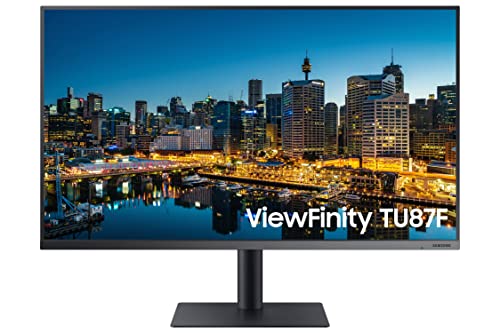
Samsung’s entry is the plain-spoken one. The title for the TU872 — sold in the ViewFinity line as the LF32TU872VNXGO — offers a 32-inch 4K UHD panel, Thunderbolt 3 daisy chaining named directly, HDMI and DisplayPort inputs, a height-adjustable stand and a three-year warranty. No colour percentages, no calibration badges, no control integrations. For a certain kind of buyer — an office equipping several desks, a professional whose work is documents, data and calls at large scale — that plainness is the feature. The specification promises a big, sharp, chainable screen with long warranty cover, and nothing in the title reaches beyond what the hardware plainly is.
Thunderbolt 3 chaining is the mature, well-understood flavour of this technology. It suits chains of 4K plus a lesser second screen, or dual 4K within the limits of the host computer, and it interoperates with the large installed base of Thunderbolt 3 and 4 laptops and docks. The 32-inch size at 4K keeps text at office-readable dimensions without scaling gymnastics, and the height-adjustable stand covers the ergonomic essential for a screen that will be sat beside a chained partner. HDMI and DisplayPort inputs keep it useful for a second source — a desktop, a test machine, a console after hours — outside the chain.
The warranty line earns emphasis because chained desks are infrastructure. A screen that anchors a two-monitor setup failing in year two disrupts two workspaces at once; three years of cover, printed in the title, is a rational thing to pay for. Colour-critical buyers should pass — the title makes no gamut claim, and this guide will not lend it one. But as the dependable middle of a chain, or the head of an office chain where documents rule, the TU872 is the low-drama choice, and low drama is a genuine virtue in equipment other people depend on.
Picture the facilities decision behind a purchase like this. Twenty desks need two screens each; the IT lead wants one cable per laptop, a stand that adjusts to each employee, a warranty that outlasts the lease cycle, and a panel large enough that spreadsheets stop being a squinting exercise. The TU872’s title answers that brief line by line, and its Thunderbolt 3 chaining interoperates with the mixed fleet of laptops a real office actually owns, rather than the single brand a showroom assumes. The absence of colour claims barely registers in that world, because the work is documents, dashboards and calls, judged on legibility rather than gamut. Individual buyers can borrow the same logic: if your chained desk is an instrument for getting through information — research, administration, data review, writing — the Samsung offers the format’s benefits without charging for colour capabilities that will sit unused. It is also the pick most likely to be bought twice, once for the office and once for home, by someone who values a known quantity. In a guide full of specialists, the TU872 is the professional generalist, and generalists are what most desks actually run on.
- Panel: 32-inch
- Resolution: 4K UHD (3840×2160)
- Chain: Thunderbolt 3 Daisy Chain stated in title
- Inputs named in title: HDMI, DisplayPort, Thunderbolt 3
- Stand: height adjustable
- Warranty named in title: three years
Strengths
- Thunderbolt 3 chaining works with a huge installed base of laptops and docks.
- Three-year warranty is printed in the title — proper cover for infrastructure duty.
- 32-inch 4K keeps office text readable without aggressive scaling.
Trade-offs
- No colour gamut or accuracy figure appears in the title; colourists should look elsewhere.
- Thunderbolt 3 bandwidth trails the Thunderbolt 4 and 5 picks for heavy chains.
- No KVM or power delivery wattage is stated in the title.
Best for: offices and document-heavy professionals who want a warranted, chainable 32-inch 4K screen. Not suited for: colour-critical work, or buyers who need stated charging wattage and KVM switching.
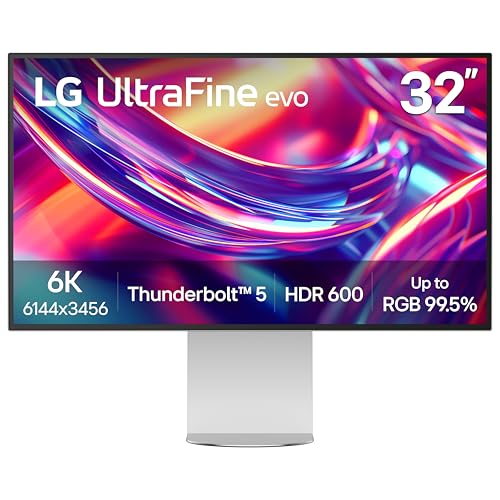
LG 32U990A-S 32″ UltraFine 6K — Best chain head
Six thousand pixels of width changes what a chain is for. The LG 32U990A-S pairs a 32-inch Nano IPS Black panel at 6144×3456 with Thunderbolt 5, DisplayHDR 600, daisy chain support, DCI-P3 98% (Typ.), built-in speakers, and HDMI 2.1, DP 2.1 and USB-C connections. Read that title as a hierarchy: this monitor is built to be the destination — the screen where the colour is judged, the detail is checked, the final version is approved — with chaining offered so that a lesser companion screen can hang behind it for palettes, timelines or communication apps.
That framing resolves the bandwidth question honestly. A 6K panel consumes most of any connection it is fed by; Thunderbolt 5 exists in this title precisely because the pipe must be as wide as current technology allows. Plan the chain as 6K plus one supporting screen, not 6K plus two, and confirm your computer’s display support before ordering — many laptops will drive this panel alone and nothing else. Nano IPS Black technology points at improved contrast for an IPS-class panel, and DisplayHDR 600 gives HDR preview a certified floor. For a colourist or retoucher whose deliverable is a single perfected image, this is the most capable canvas in the guide.
The buyers who should hesitate are those whose work is fundamentally plural: traders of windows, keepers of six visible applications, editors whose timeline is the main event. For them the 6K premium buys density they will underuse while the chain behind it stays short. Everyone else — the photographer finishing at maximum detail, the designer approving packaging at true size, the video finisher checking titles at pixel level — will understand the proposition immediately. It heads this guide’s chain the way a flagship heads a fleet: not by being right for everyone, but by defining how far the format currently goes.
What does 6K feel like in daily work? Text carries the edges of a printed page; interface elements stop being approximations; a photograph at 100% shows the detail the sensor actually captured rather than a downsampled suggestion of it. Retouchers find dust and edge artefacts they would previously have discovered at print. Designers approving packaging or signage see type at something close to honest size. The chained companion screen behind it takes on a humbler, useful role — communication, palettes, a script, a music player — and the asymmetry is healthy, because it matches how attention actually distributes across a desk. Thunderbolt 5’s presence also future-proofs the investment in a way buyers of flagship panels should demand: the next laptop will speak this standard natively, and the monitor will still be the most capable device on the desk. The discipline required is at the planning stage. Confirm the host’s 6K support, budget the chain as one-plus-one, and give the panel a room whose light does its contrast justice. Do those three things and the 32U990A-S is less a purchase than a decision about how seriously the main screen’s evidence will be taken for years.
- Panel: 32-inch Nano IPS Black
- Resolution: 6K (6144×3456)
- Colour: DCI-P3 98% (Typ.), DisplayHDR 600
- Chain: Daisy Chain stated in title
- Connections named in title: Thunderbolt 5, HDMI 2.1, DP 2.1, USB-C
- Extras: built-in speakers
Strengths
- 6K density at 32 inches is the sharpest canvas in this guide.
- Thunderbolt 5 gives the chain the widest current connection standard.
- DisplayHDR 600 certifies an HDR preview tier rather than merely accepting the signal.
Trade-offs
- A 6K head leaves room for roughly one supporting screen, not a long chain.
- Many laptops cannot drive 6K plus extras; host support must be confirmed first.
- Window-heavy workflows may underuse the density they are paying for.
Best for: colourists, retouchers and finishers who want the finest current canvas at the head of a short chain. Not suited for: three-screen ambitions, or laptops whose display support stops below 6K.

BenQ PD2730S 27-inch 5K Designer Monitor — Best 5K chain link
Five K at 27 inches produces the density Mac users know from their laptop screens — 218 PPI, as BenQ’s title states — scaled up to a desktop canvas. The PD2730S surrounds that panel with a designer’s checklist: 90W Thunderbolt 4, 98% P3 colour, a uniformity feature, 2000:1 contrast, a Nano Matte panel finish, daisy chain support, a KVM switch and height adjustment, with the title closing on its intended audience of 3D artists, VFX animators and game designers. In chain terms, it is the connoisseur’s link: sharp enough to be the reference screen, matte enough for bright studios, and equipped to switch between two computers.
The Nano Matte finish deserves translation for buyers comparing across this guide. It is a panel surface treatment that scatters reflections before they reach the eye, preserving the working image in rooms where a gloss screen would mirror the window. Paired with the stated uniformity feature — aimed at keeping brightness and colour consistent across the panel — and a 2000:1 contrast figure that doubles the IPS convention, the PD2730S reads as a monitor designed by people who finish images under deadline in imperfect rooms. The KVM extends that pragmatism: a personal machine and a studio workstation can share this screen and its chained partner, switching as a unit.
Position it thoughtfully. As a chain head it offers 90W of delivery and Thunderbolt 4 bandwidth; as a second link behind a 4K or 6K head it serves as the precision screen where colour is signed off. Its 27-inch size keeps it the most desk-friendly high-density option here. Buyers whose rooms are dark and controlled might prefer the gloss BenQ above; buyers whose studios have windows — which is to say, most studios — will find this the easiest high-end screen in the guide to live with at noon.
The audience named at the end of its title — 3D artists, VFX animators, game designers — explains several of its choices at once. Those workflows live in viewports: dense, dark interfaces filled with nodes, timelines and outliners, where a 218 PPI panel keeps fine text legible through long sessions and a matte surface stops the studio’s practical lights from painting themselves across the work. The 2000:1 contrast figure helps dark viewport scenes separate into readable layers. Chaining suits these desks because a second screen for reference footage, render queues or documentation is close to universal in 3D work, and the KVM acknowledges that many artists keep a render or gaming machine beside the workstation. Height adjustment, printed in the title, keeps the precision screen level with its partner. The same model also appears in our matte and 3D modeling guides, which tells its own story about where the PD2730S sits: it is the screen several neighbouring categories converge on. Within this guide its identity is specific — the sharp, matte, switchable link — and chains built around it tend to be the ones whose owners stop shopping for monitors for a long while.
- Panel: 27-inch, Nano Matte finish, 218 PPI
- Resolution: 5K
- Colour: 98% P3, uniformity feature, 2000:1 contrast
- Chain: Daisy Chain stated in title
- Connection: Thunderbolt 4 with 90W delivery
- Extras: KVM switch; height adjustable
Strengths
- 218 PPI density matches the sharpness Mac users expect from their laptops.
- Nano Matte finish keeps the image readable in bright, real-world studios.
- KVM plus chaining lets two computers share a two-screen desk cleanly.
Trade-offs
- At 27 inches it is the smallest canvas among the premium picks here.
- 90W delivery trails the 96W picks slightly for the largest laptops under load.
- No Delta E verification figure is printed in the title.
Best for: designers, 3D artists and animators who want 5K sharpness with a matte, studio-proof finish. Not suited for: buyers who want the largest possible canvas, or a printed Delta E claim in the listing.
Comparison: chain roles at a glance
| Monitor | Size and resolution | Chain connection | Colour claim in title | Natural chain role |
|---|---|---|---|---|
| ASUS ProArt PA278CV | 27-inch QHD | Daisy Chain (title) | Calman Verified, Delta E < 2, 100% sRGB | Head of a QHD chain |
| ASUS ProArt PA279CRV | 27-inch 4K UHD | Daisy Chain, USB-C 96W | Calman Verified, 99% DCI-P3, 99% Adobe RGB | Head and colour reference |
| BenQ MA320UG | 32-inch 4K, 120Hz | Daisy Chain, dual Thunderbolt 4 | P3, Mac colour tuning | Mac desk head with KVM |
| Samsung ViewFinity TU872 | 32-inch 4K UHD | Thunderbolt 3 Daisy Chain | None printed in title | Office chain, head or middle |
| LG 32U990A-S | 32-inch 6K | Daisy Chain, Thunderbolt 5 | DCI-P3 98% (Typ.), DisplayHDR 600 | Flagship head, short chain |
| BenQ PD2730S | 27-inch 5K | Daisy Chain, Thunderbolt 4 90W | 98% P3, 2000:1 contrast | Precision link, head or second |
How does daisy chaining actually work, port by port?
A chain is built from outputs and inputs, and the vocabulary matters. Your computer sends video out of a Thunderbolt or DisplayPort connection. The first monitor receives it on an input — and, crucially, offers a second connection that acts as a video output, sometimes labelled as a DisplayPort-out or carried on a second Thunderbolt port. A cable runs from that output to the second monitor’s input. The second monitor, if it is the end of the line, needs no output at all. Technologies such as multi-stream transport let the single incoming stream carry both pictures, with each monitor taking the portion addressed to it.
Three practical consequences follow. First, the cable from the computer carries everything, so its quality and its standard matter more than any other lead in the setup; use the cable supplied with the head monitor or a certified equivalent of the same generation. Second, the host computer sets the ceiling: its graphics hardware and port standard decide how many pixels the chain may total, and that ceiling is printed in the computer’s specifications, not the monitor’s. Third, order is flexible within the bandwidth budget — a high-resolution reference screen can sit first with a modest panel behind it, or a modest panel can head a chain feeding a sharper final screen, provided the head actually has the required output. When a chain misbehaves, the fault is almost always one of these three: cable, host ceiling, or a middle monitor that never had an output to give.
What should you check on your own computer before buying a chain?
Start at the port and be literal about it. A USB-C-shaped socket may carry Thunderbolt, plain USB with video, or USB with no video at all; the computer’s specification sheet states which, and a Thunderbolt bolt symbol beside the socket is a helpful but not universal clue. Next, find the maximum number of external displays the machine supports and the highest combined resolution — manufacturers publish both, and they are hard limits that no monitor purchase can negotiate with. Mac laptops in particular vary by chip generation in how many external screens they drive, so check your exact model rather than the product family’s reputation.
Then inventory what the chain must also carry. If the laptop should charge from the head monitor, the wattage figures in these titles — 96W, 90W, 65W-class and unstated — must be matched against the charger your computer shipped with. If peripherals should gather at the desk, prefer a head monitor with a USB hub or KVM among its printed claims. Finally, plan the physical chain: measure the cable run between the two monitors’ positions, confirm both stands can be levelled to the same height, and decide which screen is the reference before the boxes arrive. A chain assembled in that order — host, head, link, layout — almost never disappoints; a chain assembled by enthusiasm alone often does.
Thunderbolt or DisplayPort: which chain should you build?
Two transport flavours run through this guide, and choosing between them is really choosing what else travels with the picture. A DisplayPort-style chain, carried over USB-C or a DisplayPort output, moves video and little else; it is simple, widely supported, and pairs naturally with a separate dock or hub handling power and peripherals. A Thunderbolt chain moves video as part of a larger conversation — the same connection can charge the laptop at a stated wattage, carry USB data to a monitor’s hub, and in the BenQ picks’ case participate in KVM switching between computers. The titles in this guide reflect that spectrum: Samsung’s TU872 names Thunderbolt 3 chaining plainly, the ASUS PA279CRV pairs its chain claim with 96W USB-C delivery, and the Thunderbolt 5 LG treats the connection as the desk’s main artery.
The decision procedure is short. List what your single cable must carry besides the picture: charging, peripherals, a second computer’s access, high-speed storage. If the answer is “nothing”, a video-only chain is honest and sufficient. If the answer includes charging or peripherals, buy a head monitor whose title states those capabilities, because retrofitting them later means the dock purchase the chain was supposed to prevent. Either way, keep generations consistent where you can — a Thunderbolt 3 cable in a Thunderbolt 5 chain will quietly negotiate the whole system down to its own level, and the monitors will be blamed for the cable’s arithmetic.
How should two chained screens be arranged on the desk?
Chaining solves the electrical problem; arrangement solves the bodily one, and it is solved badly in most home offices. Decide first which screen is primary — the one holding your main window, which should also be the chain’s reference screen — and place it directly in front of your chair, centred on your sternum, at a distance where its far corners stay inside a comfortable glance. The second screen angles in from the side like an open book, its inner bezel close to the primary’s edge, both tops at the same height. That height matching is why stand adjustment recurs throughout this guide’s titles: a two-centimetre step between panels is crossed by your eyes hundreds of times a day, and your neck keeps the ledger.
Keep the chain’s physical wiring as deliberate as its geometry. The lead from computer to head monitor should be the shortest quality cable that reaches without tension, and the inter-monitor lead should follow the stands rather than drape across the desk’s working surface. Raise both screens so their top edges sit at or slightly below eye level; on height-adjustable stands this takes a minute, and on fixed stands it takes a riser that should be bought with the monitors, not improvised from books a month later. Finish by sitting in the chair and working for ten minutes before declaring the arrangement done — discomfort announces itself quickly, and cables are easiest to reroute on day one.
One more arrangement question deserves an answer, because chained desks attract it: should the two screens be identical? Identical panels give matched colour, matched pixel density and a seamless horizon line, and for design studios that uniformity has real value. Mixed panels, chosen deliberately, give something else — a reference-grade main screen where the money concentrates, and a larger or cheaper companion where email, documents and calls live at comfortable size. Most home desks are better served by the mixed pattern, buying the head monitor from this guide with genuine care and letting the second link be merely good. The chain does not care; only your eyes and your budget do, and both usually vote for one excellent screen over two adequate ones.
Common Mistakes
The canonical chain failure is buying a middle monitor with no output. A screen can accept Thunderbolt video beautifully and still end the chain at itself, which is why this guide admitted only titles that print the words “Daisy Chain”. A second failure is arithmetic-free enthusiasm: two or three high-resolution panels ordered against a laptop whose display ceiling was never checked, producing a chain that lights two screens and sulks at the third. The computer’s specification sheet settles that question in advance, for free.
Buyers also mismatch the chain to the work. A colourist who places an uncalibrated screen at the head and the verified panel downstream will spend the day dragging windows to the trustworthy display — put the reference where the main window lives. Cable complacency is the quieter error: a bargain lead of the wrong generation between computer and head monitor can cap the whole chain below what every device in it supports. And a final, domestic mistake is forgetting the last link’s freedom — an existing monitor with no chain features can still serve perfectly as the final screen, so the old panel in the cupboard may be the cheapest second link you will ever own.
Final Recommendation
Build from the computer outward. If your machine and your work live at QHD in sRGB, the ASUS PA278CV is the anchor to buy — verified colour, a hub, and bandwidth to spare for what follows. If your pipeline spans print and P3 video, the PA279CRV is the head and reference in one cabinet. Mac desks should start with BenQ’s MA320UG and its genuine Mac manners, adding the PD2730S where a matte 5K precision screen is needed as head or second link. Offices that prize warranty and simplicity will be well served by Samsung’s TU872. And the LG 32U990A-S stands as the flagship: buy it when the main screen’s job is to be believed, and let the chain behind it stay short and useful. Whichever head you choose, spend the saved dock money on the right cables — a chain is only ever as good as its first lead.
One closing thought for buyers replacing an existing two-screen setup rather than starting fresh: keep your current second monitor in service as the chain’s final link for the first month. It costs nothing, it proves the workflow before more money moves, and it clarifies what the second screen actually needs to be — most owners discover it needs size and legibility rather than colour pedigree, which redirects the eventual second purchase toward value. If the old panel then retires to a spare desk, the chain loses nothing; the head monitor you chose from this guide remains a complete workstation on its own. That staged path — head first, link later, evidence throughout — is how careful desks have always been built.
Frequently Asked Questions
Can any monitor with a Thunderbolt port be daisy chained?
No. Chaining requires the monitor to pass video onward through an output, and many Thunderbolt or USB-C monitors accept video without forwarding it. That is precisely why this guide required the words “Daisy Chain” in each listing title. If a title does not say it, treat the capability as absent until the manufacturer’s documentation proves otherwise.
How many monitors can one chain hold?
The honest answer is a budget, not a number: the host computer’s bandwidth and display ceiling divided by the resolution of each screen. Two QHD panels chain easily from most modern laptops; two 4K panels need Thunderbolt-class connections and a host that supports them; a 6K panel may consume the entire allowance alone. Check your computer’s published external-display limits before planning a third link.
Does the last monitor in a chain need daisy chain support?
No, and this is the most useful money-saving fact in the category. The final screen only needs an input that accepts the signal the previous monitor sends. An older display with no chaining features can serve as the last link, which is why upgrading a desk often means buying one chain-capable head monitor and keeping the existing screen behind it.
Will a daisy chain charge my laptop?
Only if the head monitor offers power delivery, and only up to its stated wattage. In this guide the PA279CRV prints 96W over USB-C, the MA320UG prints 96W and 15W across its two Thunderbolt 4 ports, and the PD2730S prints 90W. Where a title states no wattage — the PA278CV and the Samsung — verify with the manufacturer before relying on the chain to replace your charger.
What is a KVM switch doing on two of these monitors?
A KVM lets one set of screens, keyboard and mouse serve two computers, switching between them as a group. On the BenQ MA320UG and PD2730S it turns a chain into shared infrastructure: a work machine and a personal machine, or a Mac and a PC, take turns driving the same two-screen desk. For single-computer desks it adds nothing; for two-computer desks it removes a daily tangle of re-plugging.
Can I mix brands inside one chain?
Yes. A chain is a signal standard, not a brand ecosystem, and the picks in this guide can be mixed — an ASUS head feeding a BenQ second screen, or a Samsung feeding an older panel from any maker as the final link. What must match is the transport: the output of one link and the input of the next must speak the same connection generation well enough for the resolutions involved. Colour, of course, will not match across brands unless both screens are calibrated, which is another reason the reference screen should hold your main window and the companion screen should hold everything else.
Does chaining reduce image quality on the second screen?
Not when the chain is within its bandwidth budget — each monitor receives its own addressed portion of the stream at its native resolution. Quality problems appear when the budget is exceeded, at which point hosts typically drop a screen’s resolution or refresh rate to fit. Staying inside the ceiling, with cables of the correct generation, keeps every link at full fidelity.
Do I need special cables for a daisy chain?
You need correct cables more than special ones. The lead from the computer to the head monitor should match the connection generation the chain is built on — Thunderbolt 4 cables for a Thunderbolt 4 chain, and so on — and the inter-monitor lead must carry the same video standard the output provides. The cables supplied with these monitors are the safest starting point. Bargain leads of an older generation are the most common cause of a chain that mysteriously caps a screen’s resolution, so treat cable quality as part of the monitor budget rather than an afterthought.
Related Guides
Chain builders usually care about screen finish as much as connections, so our matte monitors guide is the natural next read for bright rooms. If one of your chained screens will stand in portrait for documents or code, the pivoting monitors roundup covers stands that rotate properly. And when the second screen is really a gaming display in disguise, our 40-inch gaming monitors guide sorts the large fast panels from the merely large.