What's inside
- Key Takeaways
- Quick Picks
- How did we separate confirmed pivots from assumed ones?
- Comparison: what each title actually proves
- Why does portrait orientation change how documents feel?
- How do you add pivot to a monitor whose stand cannot turn?
- What size and resolution work best in portrait?
- How do you set up a portrait second screen step by step?
- Built-in stand or arm: which pivot should you pay for?
- Common Mistakes
- Final Recommendation
- Frequently Asked Questions
- Related Guides
As an Amazon Associate I earn from qualifying purchases. This post may contain affiliate links at no extra cost to you.
widgetverdict.com is reader-supported. When you buy through links on our site, we may earn an affiliate commission.
Some work is taller than it is wide. A contract runs to forty pages in portrait. A codebase reads like a scroll. A chat window, a social feed, a sheet of music, a medical form — all of them were designed for a page, and a page is vertical. The best pivoting monitors answer that simple geometry by rotating ninety degrees, turning a landscape panel into a portrait one, so the document stops being a letterbox you scroll through and becomes a sheet you can read. This guide reviews six 22-to-27-inch monitors through that single lens: can the screen turn, how do we know, and what else does it do well once it has turned?
The evidence question matters more in this category than in most, because pivot is a feature that listings mention loosely and buyers discover precisely — usually after the box is open. So this guide grades its own evidence in public. Three picks state the capability in their Amazon listing titles in so many words: one prints “Pivot”, one prints “Height/Tilt/Pivot/Swivel Adjustability”, and one describes itself as “Vertical/Horizontal Rotating”. The other three titles say nothing about pivot at all. Those three are reviewed honestly as what their titles prove them to be — capable business and office monitors whose pivot status must be verified with the manufacturer before purchase, or achieved with a separate VESA arm — and their spec lists mark the pivot line as not stated. No pick in this guide is credited with a rotation its title does not claim.
Why include the three silent titles at all? Because they represent what most buyers actually find when shopping this category: respected office monitors from Samsung, Dell and HP whose listings emphasise panels, ports and hubs over stand choreography. Excluding them would pretend the market is tidier than it is. Including them — labelled, with the verification step spelled out and the VESA-arm alternative explained — teaches the skill the whole category demands: read the title like a contract, and treat silence as silence. Readers who want certainty today, without homework, have three confirmed choices below, at three different sizes and speeds.
A pivoting monitor also earns its keep in landscape, and the reviews do not ignore the rest of each machine: refresh rates from 60Hz to 200Hz, panels from 22-inch Full HD to 27-inch 1440p, speakers, USB hubs and sync technologies all appear in these titles and all get weighed. But rotation is the admission ticket and the organising question. Check the price on Amazon once a pick fits your desk, and if you choose one of the three silent titles, make the manufacturer’s specification page your second click — the pivot line there, not hope, should close the sale.
Key Takeaways
- Pivot is confirmed in the listing title for exactly three picks: the AG Neovo MH2404 (“Pivot”), the Dell S2425HSM (“Height/Tilt/Pivot/Swivel Adjustability”) and the SANSUI 27-inch (“Vertical/Horizontal Rotating”).
- The Samsung S40GD, Dell P2422H and HP E24 G5 titles are silent about pivot; this guide never claims it for them, and their pivot spec line reads “Not stated in the listing title — verify with the manufacturer documentation”.
- A separate VESA monitor arm is the fallback that gives any VESA-compatible screen a portrait mode, which is why VESA compatibility is noted wherever a title states it.
- Portrait orientation serves documents, code, chat and feeds; landscape serves video and spreadsheets — the best desks here can do both by rotating back.
- The SANSUI is the speed outlier: a 27-inch 1440p gaming panel at up to 200Hz that also rotates, for desks that work vertically and play horizontally.
- Height adjustment matters as much as rotation, because a portrait panel is tall — its centre must still meet your eyes.
Quick Picks
| Pick | Badge | Why it is here |
|---|---|---|
| AG Neovo MH2404 24″ Pivot Monitor | Best confirmed all-rounder | Pivot, swivel, tilt and height adjustment all printed in the title, with 144Hz, Adaptive Sync, HDMI and DisplayPort, VESA compatibility and speakers. |
| Dell 24 Plus S2425HSM | Best confirmed for mixed work | 23.8-inch FHD at 144Hz with Height/Tilt/Pivot/Swivel adjustability stated outright, AMD FreeSync and twin 3W speakers in an ash white finish. |
| Samsung 22″ S40GD Business Monitor | Best compact office screen — verify pivot | A 22-inch IPS business panel at 100Hz with Eye Saver Mode and an ergonomic design; its title states no pivot, so verify before buying for portrait use. |
| Dell P2422H 24″ FHD Monitor | Best hub connectivity — verify pivot | 24-inch FHD IPS with 99% sRGB, DisplayPort, HDMI, VGA and five USB ports; pivot is not stated in the title, so confirm with Dell or plan a VESA arm. |
| HP E24 G5 24″ Monitor | Best office standard — verify pivot | A 24-inch class FHD IPS business monitor with HDMI, DisplayPort and a USB hub; its title is silent on pivot, so verification is part of the purchase. |
| SANSUI 27″ 1440P 200Hz Gaming Monitor | Best rotating gaming panel | 27-inch WQHD Fast IPS, height adjustable with vertical/horizontal rotation stated in the title, up to 200Hz, FreeSync and 95% DCI-P3. |
How did we separate confirmed pivots from assumed ones?
By reading titles the way contracts are read: a capability exists for this guide’s purposes when the seller’s own listing title states it, and it does not exist — for review purposes — when the title is silent, however likely it may seem from the product family’s reputation. That rule produced the guide’s two labelled groups. Confirmed: AG Neovo’s MH2404, which prints Pivot among its stand movements; Dell’s S2425HSM, which spells out the full quartet of height, tilt, pivot and swivel; and SANSUI’s 27-inch gaming monitor, whose “Vertical/Horizontal Rotating” phrasing describes the same motion in plainer words. Unconfirmed: Samsung’s S40GD, Dell’s P2422H and HP’s E24 G5, whose titles discuss panels and ports and say nothing about rotation.
The distinction is not a judgement on the three unconfirmed monitors, two of which belong to business lines with strong ergonomic reputations. It is a statement about evidence. A buyer who orders on the strength of this guide should know exactly which claims were printed and which were not, and the reviews, spec lists and comparison table maintain that separation without exception. Where a silent title might still lead to a pivoting desk — through manufacturer verification, or through a VESA arm — the route is explained in the open, as a route, not smuggled in as a fact about the product.
Beyond the pivot question, picks were weighed on the ordinary virtues of a secondary or primary desk screen: panel size and resolution appropriate to portrait reading, refresh rate matched to the work, connection sets that suit modern and legacy machines alike, and stand adjustment beyond rotation — because a portrait screen whose height cannot be set is a neck injury scheduled in advance. The six survivors span the realistic market: two confirmed all-rounders, one confirmed gaming panel, and three office standards whose buyers must do one verification step. That spread, honestly labelled, is the category as it actually exists.
One more convention of this guide deserves stating before the reviews begin. Prices move too quickly to print responsibly, so none appear; the listings carry them, one click away. Refresh rates, resolutions and port lists, by contrast, are quoted wherever titles state them, because those are the facts a purchase is actually made of. Where a figure would help but the title withholds it, the gap is left visible rather than papered over — a small discipline that readers are invited to apply to every monitor listing they meet from now on, in this category and beyond it.
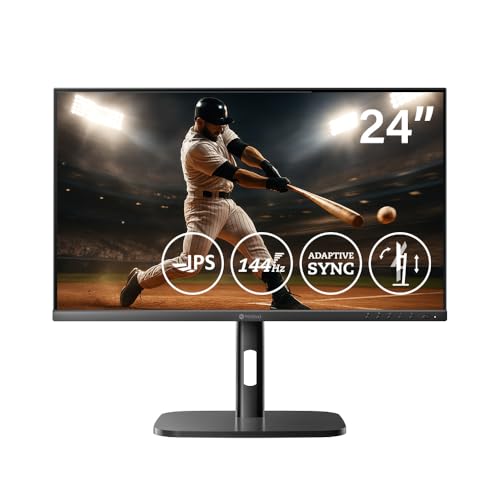
AG Neovo MH2404 24″ Pivot Monitor — Best confirmed all-rounder
AG Neovo builds displays for professional and commercial environments, and the MH2404’s title is written in that dialect: a 24-inch height-adjustable monitor with 144Hz, Adaptive Sync, Pivot, Swivel, Tilt, HDMI and DisplayPort ports, VESA compatibility and speakers. Every stand movement a pivoting buyer cares about is named, in a single breath, with no adjectives wasted. That completeness is the review’s headline: this is the pick for a buyer who wants the rotation question answered by the listing itself, at a mainstream size, with the full ergonomic quartet — height, pivot, swivel, tilt — confirmed before money moves.
The 144Hz refresh rate with Adaptive Sync lifts it above the basic office class. Portrait documents do not need speed, but the same desk often hosts video, casual gaming and fast-scrolling feeds after hours, and a panel that stays smooth through all of it earns its place as a primary screen rather than a portrait-only accessory. VESA compatibility adds a second life: if the desk later gains a monitor arm, the MH2404 can move to it and free its stand for retirement. Speakers are built in, covering calls and reference audio without desk clutter.
What the title does not print should also be respected: no resolution figure and no colour figure appear, so buyers for whom pixel density or gamut is decisive should verify those details with AG Neovo before ordering, and photographers should look at colour-first guides instead. Within its stated evidence, though, the MH2404 is the most completely documented pivoting monitor in this guide — the rare listing that answers the category’s central question and every follow-up about the stand in the same sentence.
Picture it in service as a second screen, which is where confirmed pivots most often end up. Beside a larger landscape monitor, the MH2404 stands in portrait holding the day’s documents: the brief being drafted against, the chat that must not be missed, the reference PDF that used to hide behind the main window. Its 144Hz pace means the cursor crossing between screens does not change character at the border — a small consistency that mixed-refresh desks get wrong more often than they admit. When the work turns visual, the panel rotates back to landscape and becomes an ordinary, competent 24-inch screen with speakers, which is precisely the point: a pivoting monitor should never feel like a specialist appliance that happens to display. It should feel like a normal monitor with one extra, decisive talent. AG Neovo’s commercial-display background also suggests the stand was built for repeated adjustment rather than a single ceremonial turn at unboxing — shared desks and hot-desking stations, where screens are repositioned by different hands daily, are this brand’s home ground. Buyers outfitting a flexible office could do far worse than standardise on the pick whose title removes all doubt.
- Panel: 24-inch
- Refresh rate: 144Hz, Adaptive Sync
- Pivot: stated in the listing title
- Stand movements named in title: height adjust, pivot, swivel, tilt
- Ports named in title: HDMI, DisplayPort
- Extras: VESA compatible, speakers
Strengths
- Every stand movement, including pivot, is printed in the title — no verification homework.
- 144Hz with Adaptive Sync suits work and after-hours play on one panel.
- VESA compatibility gives the screen a second life on an arm.
Trade-offs
- No resolution or colour figure is printed in the title.
- At 24 inches it is a reader’s screen, not a large-canvas workstation.
- AG Neovo is a professional brand many home buyers will not know.
Best for: buyers who want pivot confirmed in writing, with full stand movement and 144Hz smoothness. Not suited for: buyers who need a printed resolution or gamut figure from the listing itself.

Dell 24 Plus S2425HSM — Best confirmed for mixed work
Dell’s S2425HSM states its ergonomic case in the most explicit phrasing in this guide: “Height/Tilt/Pivot/Swivel Adjustability”, printed in the title of a 23.8-inch Full HD monitor running 1920×1080 at 144Hz with a 1ms response figure, twin 3W speakers, HDMI connectivity and AMD FreeSync, finished in ash white. For a buyer who has been burned by vague stand descriptions before, that single phrase is the whole review in miniature — Dell is telling you, in the product’s name for itself, that this screen turns.
The surrounding specification suits the mixed desks portrait monitors usually join. Full HD at 23.8 inches is the density office work standardised on; 144Hz keeps scrolling documents and after-hours games fluid; FreeSync smooths the gaming side; and the built-in speakers handle calls without a soundbar. The ash white finish is a genuine differentiator in a category of black rectangles — bright rooms, Scandinavian desks and anyone filming their workspace will notice. As a second screen in portrait beside a larger main display, it offers the confirmed rotation plus a colour of cabinet that does not fight the room.
Connectivity is the honest limitation: the title names HDMI and nothing else, so buyers needing DisplayPort or a USB hub should verify the full port list with Dell or look at the P2422H below, whose title is generous with ports and silent on pivot — the two Dells in this guide are almost mirror images, each printing what the other omits. Choose the S2425HSM when the stand is the priority and HDMI serves your machine; its title makes that choice the easiest confirmed one here.
The home-office scenario flatters it further. A writer or analyst takes the main desk in landscape for spreadsheets and calls — the twin speakers earning their keep on video meetings, the light cabinet keeping a small room feeling open — then rotates the panel for the long editing pass, when the document becomes a page again and the red pen comes out. That daily rhythm, work wide and read tall, is the pivoting category’s founding promise, and the S2425HSM delivers it with the stand’s full vocabulary printed on the box. Dell’s support and warranty machinery stands behind it in the way corporate buyers expect, and the 1ms response figure with FreeSync means the household’s casual gaming does not need a second screen either. If there is a criticism to level, it is that the title’s silence on DisplayPort and USB will send spec-sheet readers elsewhere — but readers of this guide have been taught to treat that silence correctly, as a question with a known address, not a defect. For the mixed desk that wants certainty and a little style, this is the Dell to buy.
- Panel: 23.8-inch
- Resolution: FHD 1920×1080
- Refresh rate: 144Hz, 1ms response figure stated, AMD FreeSync
- Pivot: stated in the listing title (Height/Tilt/Pivot/Swivel Adjustability)
- Audio: 2 × 3W speakers
- Finish: ash white
Strengths
- The title spells out the full adjustment quartet, pivot included.
- 144Hz and FreeSync make it a genuine mixed work-and-play panel.
- Ash white finish suits bright, filmed or design-led rooms.
Trade-offs
- Only HDMI is named in the title; port variety must be verified.
- Full HD density is ordinary beside the 1440p SANSUI.
- No USB hub is claimed in the title.
Best for: mixed-work desks that want pivot in writing, 144Hz smoothness and a light finish. Not suited for: buyers who need DisplayPort or hub connectivity proven by the listing.

Samsung 22″ S40GD Business Monitor — Best compact office screen — verify pivot
Now for the guide’s first lesson in reading silence. Samsung’s title for the S40GD — model LS22D402GANXGO — describes a 22-inch borderless business monitor with an IPS panel, a 100Hz refresh rate, Eye Saver Mode, an ergonomic design and a Game Picture Mode. It is a respectable compact office specification. It does not mention pivot, swivel, height or rotation in any form. This review therefore makes no pivot claim for it, and the spec list below marks the point plainly. A buyer whose heart is set on portrait mode should treat this monitor as unproven until Samsung’s own documentation answers the question.
Judged on what its title does prove, the S40GD has a clear role. Twenty-two inches of IPS at 100Hz is a comfortable secondary screen or a compact primary for tight desks, hoteling stations and reception or point-of-sale positions where a big panel would crowd the work. Eye Saver Mode addresses long document sessions, the borderless design suits side-by-side pairing, and the ergonomic design phrase — while too vague to credit with any specific movement — at least signals that the stand was considered rather than bolted on as an afterthought. Game Picture Mode is an unusual garnish on a business panel, hinting at after-hours versatility.
The pivoting route for this screen, if verification fails, is the aftermarket one: check whether the unit accepts a VESA mount — the title does not state that either, so it joins the same verification list — and, if it does, a pivoting arm supplies the rotation the stand may not. That two-step homework is the price of this pick, and the review states it rather than hiding it. Buyers unwilling to do homework have two confirmed options above; buyers who value Samsung’s panel and compact size, and who will spend five minutes on a specification page, may find the S40GD exactly right.
There is also a fairness point to record in Samsung’s favour. The S40GD’s title does not overclaim: it lists a panel, a refresh rate, two named modes and a design intention, and stops. In a marketplace where rival listings stuff every ergonomic adjective into titles regardless of the stand in the box, restraint of that kind is information too — it tells the buyer the seller is describing this unit rather than the whole product family. The guide’s rule cuts both ways, crediting only what is printed, and Samsung prints a modest, checkable set of claims. A compact 100Hz IPS screen with an eye-care mode will serve thousands of desks admirably in landscape, as a primary for tight spaces or as the always-on communications screen beside a larger canvas. If its specification page then confirms stand movements the title omitted, the buyer gains a pleasant surprise rather than a nasty one — the correct direction for surprises to travel. Until that page is read, this review’s position stands exactly where the evidence puts it: a good small business monitor, pivot unproven.
- Panel: 22-inch IPS, borderless design
- Refresh rate: 100Hz
- Pivot: Not stated in the listing title — verify with the manufacturer documentation
- Features named in title: Eye Saver Mode, Game Picture Mode, ergonomic design
- Model: LS22D402GANXGO (S40GD series)
- VESA mounting: Not stated in the listing title — verify with the manufacturer documentation
Strengths
- Compact 22-inch IPS panel at 100Hz suits tight desks and secondary-screen duty.
- Eye Saver Mode serves long document sessions.
- Borderless styling pairs cleanly in dual-screen setups.
Trade-offs
- Pivot is not stated in the title; portrait buyers must verify before purchase.
- VESA compatibility is likewise unstated, so the arm fallback needs confirming too.
- At 22 inches it is the smallest canvas in the guide.
Best for: compact office desks wanting a 100Hz IPS screen, with pivot treated as a question to verify. Not suited for: buyers who need rotation guaranteed by the listing on the day they order.

Dell P2422H 24″ FHD Monitor — Best hub connectivity — verify pivot
The P2422H is the mirror image of its Dell sibling above. Where the S2425HSM’s title is a stand specification, the P2422H’s title is a port inventory: a 24-inch Full HD monitor at 1920×1080, 60Hz, IPS, 5ms, 99% sRGB, with DisplayPort, HDMI, VGA and five USB ports, in black. That is the classic P-series office formula — connect everything, including the legacy machine with VGA, and gather the desk’s peripherals into the monitor’s own hub. About pivot, height or any stand movement, the title says nothing whatsoever, and this review claims nothing: the pivot line below is marked not stated, and a portrait buyer must verify with Dell or plan an arm.
On its proven merits, this is the connectivity pick of the guide. Five USB ports turn the monitor into the desk’s docking point for keyboard, mouse, headset dongle, backup drive and phone lead; 99% sRGB gives office graphics and web work honest colour; and the trio of video inputs spans three generations of office computers, which matters in the mixed fleets real workplaces run. At 60Hz it is a document screen through and through — no one should buy it for fast motion — but documents are what portrait orientation serves, and a P2422H in landscape is already a rational purchase for hub-starved desks.
The pivot question merits a practical closing note rather than a shrug. Dell publishes complete ergonomic specifications for the P-series, and a two-minute read of the official page for this model settles whether the stand rotates; if it does not, the P-series’ popularity means VESA arms and mounts for it are commodity items. Either way, the answer must come from Dell’s documentation, not from this review’s optimism. Buy the P2422H for its hub and its ports with confidence; buy it for portrait only after that documentation says the word.
Consider who this monitor quietly serves best: the desk with too many devices and too few ports. A work laptop, a personal machine, perhaps a streaming stick or a test box — the P2422H’s five USB ports and three video inputs absorb that clutter into one cabinet, and its 99% sRGB panel shows the result honestly. Such desks are often the ones that later discover portrait mode, when a documents-heavy project arrives, and by then the monitor is already bought and beloved for other reasons. That sequence — hub first, rotation question second — is exactly why this guide includes proven non-pivot-claim monitors rather than pretending every reader starts from a blank desk. The verification step takes minutes, the arm fallback is well-trodden for a model this common, and the underlying screen justifies its place on either outcome. Dell’s P-series earned its installed base by being the monitor IT departments buy without drama; the only drama available here is the one a careless buyer manufactures by assuming a stand movement nobody printed.
- Panel: 24-inch IPS
- Resolution: Full HD 1920×1080
- Refresh rate: 60Hz, 5ms response figure stated
- Colour: 99% sRGB
- Pivot: Not stated in the listing title — verify with the manufacturer documentation
- Ports named in title: DisplayPort, HDMI, VGA, 5 × USB
Strengths
- Five USB ports make it the desk’s peripheral hub.
- DisplayPort, HDMI and VGA span modern and legacy machines.
- 99% sRGB covers office graphics and web colour honestly.
Trade-offs
- Pivot is not stated in the title; verification or a VESA arm is required for portrait plans.
- 60Hz is a document pace, not a gaming or fast-video one.
- No speakers are claimed in the title.
Best for: hub-starved office desks that need every port, with pivot confirmed through Dell before portrait use. Not suited for: buyers who want rotation guaranteed in the listing, or refresh rates above office pace.

HP E24 G5 24″ Monitor — Best office standard — verify pivot
HP’s E24 G5 arrives with the most formal title in the guide, written in the catalogue dialect of office procurement: a 24-inch class Full HD LCD monitor, 16:9, black, 23.8 inches viewable, in-plane switching technology, edge LED backlight, 1920×1080, 250 nits, 5ms, HDMI, DisplayPort and a USB hub. It reads like a line from a facilities spreadsheet because, for its intended buyers, it is one — the E-series is HP’s standard-issue office line. And like the two picks before it, its title contains no word about pivot or stand movement of any kind. The spec list below records that silence exactly.
The proven specification is solidly fit for purpose. IPS technology keeps the picture consistent for the colleague reading over a shoulder; the USB hub gathers peripherals; HDMI and DisplayPort cover the modern office fleet; and the 24-inch class at Full HD is the size-resolution pairing that corporate standards settled on for good ergonomic reasons. A fleet buyer equipping fifty desks cares about exactly this: a known panel, a known hub, a support channel. Individual buyers inherit the same predictability when they choose the model offices standardise on.
For the pivoting buyer, the procedure by now is familiar, and this review will not dress it up: open HP’s specification for the E24 G5, find the stand’s stated movements, and let that document decide. If portrait is absent there, a VESA arm — compatibility likewise to be confirmed on the same page — supplies it. What this guide can honestly promise is that the underlying screen is a competent, fleet-grade office panel. What it cannot promise, because HP’s title does not, is the turn. Buyers who find that distinction frustrating should scroll back up to the two confirmed picks; buyers who appreciate knowing exactly what is proven will find this the most transparent listing in the guide.
Standardisation is the E24 G5’s real argument, and it deserves a fair hearing. A monitor that a thousand offices already run has survived a thousand procurement reviews; its failure modes are known, its drivers and docks are tested against every corporate laptop fleet, and a replacement in three years will behave identically to the unit it replaces. For a home buyer, that translates to a screen with no surprises in either direction — the picture, the hub and the build will be exactly what the catalogue dialect describes. Some buyers find that dull. Others, burned by exciting monitors with exciting problems, find it restful. The pivoting question remains the single open item, and it is open only because HP’s title chose completeness about the panel over any mention of the stand. Read the specification, close the question, and the E24 G5 becomes what it was designed to be: the monitor nobody has to think about, on a desk where thinking is reserved for the work.
- Panel: 23.8-inch viewable IPS, edge LED backlight
- Resolution: 1920×1080 (Full HD), 16:9
- Brightness stated in title: 250 nits
- Response figure stated in title: 5ms
- Pivot: Not stated in the listing title — verify with the manufacturer documentation
- Ports named in title: HDMI, DisplayPort, USB hub
Strengths
- Fleet-grade office standard with predictable support and behaviour.
- USB hub plus HDMI and DisplayPort cover the modern desk’s basics.
- IPS panel keeps the picture consistent for shared viewing.
Trade-offs
- Pivot is not stated in the title; portrait buyers must verify with HP first.
- The title’s catalogue style gives no stand or ergonomic detail at all.
- Specification is deliberately ordinary — no speed or colour headline.
Best for: offices and home workers who want the standard-issue HP panel and will verify stand movements at the source. Not suited for: anyone ordering specifically for portrait mode without doing that verification.

SANSUI 27″ 1440P 200Hz Gaming Monitor — Best rotating gaming panel
The SANSUI closes the guide by breaking its pattern: a gaming monitor whose title confirms rotation in plain language — “Height Adjustable Vertical/Horizontal Rotating”. Speed dominates the remaining specification: a 27-inch Fast IPS panel at WQHD 2560×1440, headline refresh figures of 200Hz and 180Hz both printed in the title, AMD FreeSync, a 1ms response figure, 95% DCI-P3 colour, two DisplayPort and HDMI connections, HDR and low motion blur. This is the pick for the desk that writes code or documents in portrait by day and plays in landscape by night, rotating between the two lives on one stand.
The portrait case for a gaming panel is stronger than it first sounds. Vertical shooters, pinball, rhythm games and retro collections are natively portrait arts, and a rotating 27-inch 1440p screen serves them at a size and density no phone can approach. Meanwhile the workday case — long documents and code at 1440p, where text stays crisp in portrait — benefits from the same density. The 95% DCI-P3 figure gives its colour a credibility most office panels in this guide do not claim, and FreeSync keeps the high refresh rates honest when a graphics card cannot hold them natively.
Read the refresh figures as the title prints them: both 200Hz and 180Hz appear, which typically reflects different rates over different connections or modes — confirm the exact behaviour for your cable and card in SANSUI’s documentation before expecting the headline number. That small caution aside, this is the most versatile screen in the guide: the largest, the sharpest, the fastest, and confirmed to rotate by its own listing. Desks with one monitor and two lives should start here.
Its size asks for a final consideration, because 27 inches in portrait is a commitment. Rotated, the panel stands tall — tall enough that its top edge can leave the comfortable eye zone on a shallow desk, and its height adjustment, confirmed in the title, becomes a necessity rather than a luxury. Set it so the centre meets your eyes and the format rewards you: a 1440p portrait canvas shows more of a document, at finer detail, than any other pick here, and code reviewers in particular will feel the difference in how much context surrounds the lines under discussion. Streamers and creators have adopted panels like this as the chat-and-feed screen beside a main gaming display, where the height is the point and the refresh rate keeps the whole wall of screens feeling uniform. The SANSUI is the least office-shaped pick in the guide and, for the growing class of desks that are also play spaces and broadcast corners, plausibly the most future-proof purchase of the six.
- Panel: 27-inch Fast IPS
- Resolution: WQHD 2560×1440
- Refresh figures stated in title: 200Hz and 180Hz (confirm mode per connection with the manufacturer)
- Pivot: rotation stated in the listing title (Vertical/Horizontal Rotating), height adjustable
- Colour: DCI-P3 95%, HDR
- Ports named in title: 2 × DisplayPort, HDMI
Strengths
- Rotation is confirmed in the title, alongside height adjustment.
- 1440p at 27 inches keeps portrait text genuinely crisp.
- High refresh with FreeSync serves gaming after the workday ends.
Trade-offs
- Two refresh figures appear in the title; the exact rate per connection needs confirming.
- A gaming aesthetic and feature set may not suit formal office fleets.
- No USB hub is claimed in the title.
Best for: one-screen desks that work in portrait and play in landscape, wanting both confirmed in one purchase. Not suited for: fleet buyers needing a stated USB hub, or anyone who dislikes verifying refresh modes.
Comparison: what each title actually proves
| Monitor | Size and resolution | Pivot evidence in title | Refresh rate | Standout feature |
|---|---|---|---|---|
| AG Neovo MH2404 | 24-inch (resolution not stated) | Stated — “Pivot” | 144Hz | Full stand quartet plus VESA |
| Dell S2425HSM | 23.8-inch, 1920×1080 | Stated — Height/Tilt/Pivot/Swivel | 144Hz | Twin 3W speakers, ash white |
| Samsung S40GD | 22-inch | Not stated in the listing title | 100Hz | Eye Saver Mode, compact IPS |
| Dell P2422H | 24-inch, 1920×1080 | Not stated in the listing title | 60Hz | 5 × USB hub, VGA included |
| HP E24 G5 | 23.8-inch viewable, 1920×1080 | Not stated in the listing title | Not stated in the listing title | USB hub, fleet standard |
| SANSUI 27-inch | 27-inch, 2560×1440 | Stated — Vertical/Horizontal Rotating | 200Hz / 180Hz as printed | Fast IPS gaming panel |
Why does portrait orientation change how documents feel?
A portrait screen aligns the display with the artefact. Most documents, web articles, code files and forms are designed for vertical reading, and on a landscape monitor they appear as a horizontal slice — a few paragraphs visible, the rest exiled below the fold, with wide empty margins doing nothing on either side. Rotate the panel and the proportions invert: a full page of a contract becomes visible at readable size, a function in an editor stops requiring a scroll to comprehend, and a messaging column becomes the tall, calm feed it was designed as. The change is not cosmetic. Scrolling is a small tax levied hundreds of times a day, and portrait orientation refunds most of it for vertical work.
The honest boundary is just as clear. Spreadsheets sprawl horizontally; video is landscape by law of the camera; most games assume width. A pivoting monitor’s virtue is not that portrait is better but that the choice exists at the desk, reversible in seconds: portrait for the morning’s documents, landscape for the afternoon’s numbers, portrait again for the evening’s reading. Buyers with two screens often dedicate one to each orientation permanently, which is why a confirmed-pivot panel makes such a natural second screen — it can be either, decided by the day rather than by the purchase.
How do you add pivot to a monitor whose stand cannot turn?
The aftermarket route has three steps, and skipping the first is where most failures begin. First, confirm that the monitor accepts a VESA mount — a standard pattern of screw holes on the rear — from the manufacturer’s documentation; the AG Neovo in this guide states VESA compatibility in its title, while the silent-title picks require that check on their specification pages. Second, choose an arm or replacement stand rated for the panel’s weight with a rotating head, and confirm its height range places a tall portrait panel’s centre at your eye level — portrait mode makes screens effectively taller, and arms with limited lift strand them too low. Third, manage the cables: rotation sweeps cables through an arc, so leave a gentle loop of slack in power and video leads, or the first enthusiastic turn will unplug something.
Done properly, an arm can surpass a built-in stand — better height range, a freed desk surface, rotation that feels engineered rather than tolerated. Done carelessly, it wobbles. The middle path most buyers should take is chronological: if a title confirms pivot, use the supplied stand and spend nothing; if a title is silent and the manufacturer’s page confirms a fixed stand, price a reputable arm into the purchase and compare the total against a confirmed-pivot pick. Often the confirmed pick wins on arithmetic as well as certainty, which is the quiet economic argument underneath this guide’s evidence rules.
What size and resolution work best in portrait?
Portrait magnifies different virtues than landscape. Width becomes height, so a panel’s vertical resolution in landscape becomes its horizontal resolution once turned — and text crispness in portrait is governed by that figure. A 1920×1080 panel turned upright presents 1080 pixels across, which at 24 inches renders documents perfectly readably; the same logic makes the SANSUI’s 2560×1440 the sharpest portrait here, with 1440 pixels across at 27 inches. Size interacts with the desk: portrait panels occupy a narrow footprint but a tall airspace, so measure the height between desk and any shelf above it, a constraint landscape shopping never raises.
Refresh rate, by contrast, matters least in portrait — documents do not move — which is why the 60Hz P2422H remains a rational portrait candidate on its other merits while the high-refresh picks justify their pace through mixed use. The deciding factors, in order, are confirmed rotation, a resolution that keeps text clean across the turned width, and height adjustment sufficient to centre a taller screen. Everything else — speakers, hubs, sync technologies — is the same shopping list as any monitor, and the reviews above weigh those items pick by pick.
How do you set up a portrait second screen step by step?
Begin with the main screen untouched and the new panel in landscape beside it, cables connected, both displays recognised by the operating system. Decide which side the portrait screen will live on — most right-handed readers prefer documents on the left and the main canvas centred, but writing desks often reverse it — then rotate the panel physically, supporting its weight with both hands and turning it in the direction its stand allows without force. In the display settings, select the rotated screen, set its orientation to portrait, and confirm the arrangement diagram matches the physical desk so the cursor crosses the shared edge at the height your hand expects.
Then tune the details that separate a setup from a shrug. Align the two screens’ top edges in the settings diagram if you read across them, or align their centres if one is purely a reference column. Set the portrait screen’s scaling so document text matches the size you read in print, and pin your portrait-native applications — documents, chat, mail, the feed — to open on it by habit or by window manager. Live with the arrangement for a full working week before bolting anything down or buying arms; the side you chose on day one is wrong for roughly half of all users, and the honest test is which way your head turns when a notification arrives.
Built-in stand or arm: which pivot should you pay for?
The built-in stand is the default answer for a reason: it arrives in the box, its rotation was engineered for the panel’s weight and balance, and it costs nothing beyond the monitor. For the three confirmed picks in this guide, the stand is also the fastest route from delivery to a working portrait desk — unbox, attach, turn. Its limits are range and real estate. Factory stands lift within a fixed span, occupy a footprint on the desk, and on a two-screen setup the two stands together consume a surprising amount of the surface the screens were bought to organise.
An arm answers those limits at a price. It frees the desk beneath the panel, offers a wider arc of heights and angles, and lets a screen float at the exact boundary of a multi-monitor arrangement. For silent-title monitors, it may be the only route to portrait at all. The arithmetic to run is total cost and total certainty: a confirmed-pivot monitor with its included stand is one purchase with one warranty conversation, while a monitor-plus-arm is two purchases whose compatibility rests on a VESA pattern and a weight rating. Neither route is wrong. The error is drifting into the second route accidentally, by assuming a stand turns when its title never said so — which returns, as every path in this category does, to reading the title first.
Common Mistakes
Assuming pivot from a product photo tops the list — marketing images show monitors at many angles, and a screen photographed mid-swivel has promised nothing. Assuming it from a family reputation runs second: a brand’s other models rotating says nothing enforceable about the one in your cart. Both errors are cured by the same habit this guide models — find the word in the title or the manufacturer’s specification, or treat the capability as absent. The three silent titles here are good monitors; they are simply not proven pivoting monitors, and buying them as though proven is how returns departments meet their quotas.
Ergonomic mistakes follow the purchase. A portrait panel set at landscape height puts its top edge far above the eyes and its bottom near the desk, guaranteeing a sore neck by Friday; raise the chair or lower the panel until the screen’s centre meets your gaze. Cable mistakes are pettier but commoner: leads cut to landscape length that strangle the first rotation. And a subtler error is forgetting the software half — every major operating system can rotate its output, but the setting must be applied per display, and the first portrait session should include two minutes in those settings rather than a phone call to support.
Final Recommendation
Decide how much certainty you want to buy. For pivot guaranteed by the listing itself, the AG Neovo MH2404 is the complete answer — every stand movement named, 144Hz pace, VESA in reserve. The Dell S2425HSM matches that certainty with a lighter finish and twin speakers for mixed desks. The SANSUI is the enthusiast’s version: the biggest, sharpest and fastest screen here, rotating on its own printed word, for desks that live two lives. The Samsung, the P2422H and the HP are honest office monitors whose pivot status lives in their manufacturers’ documents rather than their titles — buy them for their panels, ports and hubs, verify the stand before expecting portrait, and keep the VESA-arm route in your pocket. Whichever path you take, you now own the skill this category really sells: the ability to tell a proven pivot from a photographed one.
A last word on expectations, whichever pick lands on your desk. Rotation will not make a bad document good or a slow machine fast; it removes a geometric mismatch between screen and work, and its benefit compounds quietly — a page read without scrolling here, a function comprehended whole there, an afternoon that ends with a neck that does not ache. Judge the purchase after a month of that compounding, not after the novelty of the first turn. The monitors above that confirm their rotation in writing will still be turning then, and the ones that required verification will have taught you something worth more than the feature itself: exactly how much a listing title can be trusted, word by word.
Frequently Asked Questions
How can I tell if a monitor pivots before I buy it?
Look for the word in the listing title or the manufacturer’s specification — “pivot”, or phrasing like “vertical/horizontal rotating” or “Height/Tilt/Pivot/Swivel”. In this guide, three titles provide that evidence and three do not, and the reviews label them accordingly. If neither source states it, treat the monitor as non-pivoting until proven otherwise, or plan on a VESA arm.
Is a 24-inch screen big enough for portrait work?
For documents, code and feeds, yes — 24 inches in portrait shows a full page at a comfortable size, which is why four of this guide’s six picks sit at 22 to 24 inches. The 27-inch SANSUI adds presence and density for mixed work and play. Portrait is a reading orientation, and reading rewards the right proportions more than raw size. Buyers furnishing a dedicated reading or document station will find 24 inches the natural stopping point, with larger panels earning their place only when landscape duties share the same screen.
What is the difference between pivot and swivel?
Pivot rotates the panel around its facing axis — landscape becomes portrait. Swivel turns the whole screen left or right on its base, like shaking its head, while remaining landscape. Tilt angles it up or down. A fully adjustable stand, as the AG Neovo and Dell S2425HSM titles describe, offers all three plus height; the words are not interchangeable, and listings that name each movement are telling you exactly what the stand does.
Can I add pivot to the Samsung, Dell P2422H or HP with an arm?
Potentially, yes — if the specific unit accepts a VESA mount, a rotating arm or replacement stand supplies the motion. Neither VESA compatibility nor pivot is stated in those three titles, so both points belong on the same verification visit to the manufacturer’s page. Price the arm into the comparison before ordering; a confirmed-pivot monitor may cost less in total.
Does portrait mode need special software?
No special software — every major operating system includes display rotation settings, applied per monitor. Rotate the panel physically, set that display’s orientation to portrait in the system settings, and applications adapt. Some graphics utilities add hotkeys for frequent switchers, but they are conveniences, not requirements.
Why would a gaming monitor pivot at all?
Because several gaming traditions are vertical: classic arcade shooters, pinball, rhythm games and many retro titles were designed for portrait screens, and modern ports honour that. The SANSUI in this guide pairs its stated rotation with a 1440p Fast IPS panel and high refresh rates, making it a credible two-life screen — documents upright by day, vertical arcade by night.
Do all pivoting monitors rotate in both directions?
Not necessarily, and titles rarely specify a direction. Some stands rotate clockwise only, others allow both ways, and the difference matters when a portrait screen sits on a particular side of the desk — the wrong rotation direction can leave the panel’s bezel controls or cable exits awkwardly placed. If your layout depends on a specific direction, add it to the verification list alongside the pivot question itself; it takes one line of a specification page to settle, and one frustrating unboxing to regret skipping.
Will a portrait monitor help with coding?
For most programmers, noticeably. Code is a vertical artefact — functions, classes and stack traces all reward seeing more lines at once — and a portrait screen at 1080 or 1440 pixels across keeps those lines crisp while showing far more of them per screen. The confirmed picks here suit the purpose directly: the AG Neovo and Dell S2425HSM rotate on their titles’ word, and the SANSUI’s 1440p portrait is the sharpest of the six. Pair the orientation with an editor layout that puts the file tree and terminal where the extra height serves them, and the setup explains itself within a day.
Related Guides
A portrait screen earns more when the main display beside it is chosen well, and our 40-inch gaming monitors guide covers the large landscape partners honestly. If your rotated screen will judge renders and viewports, the monitors for 3D modeling and rendering roundup takes the colour and density side seriously. And for readers moving from screens to projected images, our quiet projectors guide applies the same evidence-first reading to fan noise claims.