What's inside
- Key Takeaways
- Quick Picks
- How We Chose These Picks
- What Does a DSL Modem Router Actually Do?
- Is Your Line ADSL or VDSL, and Why Does It Decide Everything?
- How Fast Does a Copper-Fed Home Network Really Need to Be?
- The Picks in Detail
- How Do the Six Picks Compare Side by Side?
- What Mistakes Do DSL Buyers Keep Making?
- How Do You Set Up a Replacement DSL Router Without Losing Your Connection?
- What Should You Check When a DSL Connection Slows Down or Drops?
- How Long Should You Keep a DSL Router, and When Is Replacement Pointless?
- Can a DSL Household Still Game, Stream and Work From Home Comfortably?
- Should You Keep the Provider’s Modem and Just Add Better Wi-Fi?
- Final Recommendation
- Frequently Asked Questions
- One Last Check Before You Order Anything
- Related Guides
As an Amazon Associate I earn from qualifying purchases. This post may contain affiliate links at no extra cost to you.
widgetverdict.com is reader-supported. When you buy through links on our site, we may earn an affiliate commission.
Where to buy: three of the six models below carry verified Amazon links. The other three are covered in prose only, because one is a modem with no routing in it at all, and the remaining two are older VDSL designs we would rather describe honestly than link you towards without a verified listing.
Anyone shopping for the best ac dsl routers in the current market deserves a straight answer before a shortlist: this category is shrinking, and it is shrinking for a good reason. Internet providers across most regions are retiring copper phone-line broadband in favour of fibre, cable and fixed wireless, and router makers have quietly stopped developing new DSL hardware. The models still on sale are mostly designs from several product generations ago, kept in production because a loyal base of rural and legacy-line households still needs them. That does not make them bad purchases. It makes choosing carefully more important, not less.
A DSL router is really two devices sharing one box. The first half is a modem that speaks the language of your phone line, either ADSL or the faster VDSL family. The second half is an ordinary wireless router with Wi-Fi, Ethernet ports, a firewall and address translation. When either half fails to match your line or your home, the whole purchase disappoints, which is why this guide spends as much time on line types and provider settings as it does on wireless speed classes. The AC part of the name simply tells you the Wi-Fi generation: Wireless-AC, also called Wi-Fi 5, with dual bands at 2.4 GHz and 5 GHz.
Our shortlist reflects the real shape of the market. Three picks are genuine, currently listed DSL modem routers you can buy with a verified link. One pick is a modem-only unit included deliberately, because thousands of people buy it believing it is a router and then discover it cannot share a connection on its own. Two further picks are respected older VDSL models that still circulate through smaller retailers; they earn prose coverage so you can recognise them, judge them fairly, and avoid paying flagship money for yesterday’s silicon.
Key Takeaways
- A DSL router only works if its modem half matches your line: ADSL, VDSL or VDSL2, plus your provider’s login method.
- This is a contracting category with no new flagship development, so mature firmware matters more than launch novelty.
- Three picks below are linked DSL modem routers; one pick is modem-only and needs a separate router behind it.
- Wi-Fi class still matters indoors, but no wireless speed can exceed what the copper line delivers to the house.
- Check whether your street already has fibre before spending heavily on copper hardware with a short future.
- Keep your provider’s settings page, login details and old modem until the replacement is proven on your line.
Quick Picks
| Pick | Badge | Why it earns its place |
|---|---|---|
| TP-Link Archer VR300 | Balanced VDSL all-rounder | AC1200 wireless, a VDSL2 modem and beamforming in the most complete DSL package still easy to find. |
| Netgear D6400 | Faster wireless tier | AC1600-class Wi-Fi and gigabit Ethernet for homes whose local network outruns their line. |
| TP-Link TD-W9950 | Simple ADSL/VDSL value | A single-band, no-drama modem router for small flats and light browsing on slower lines. |
| Netgear DM200 | Modem only — not a router | A broadband modem with a single Ethernet port; useful behind your own router, useless as a standalone home network. |
| ASUS DSL-AC68U | Prose-only veteran | An AC1900-class VDSL design with rich firmware that now belongs on the used and clearance shelf. |
| AVM FRITZ!Box 7530 | Prose-only regional favourite | A polished VDSL router popular in parts of Europe, with availability and support that vary sharply by country. |
How We Chose These Picks
The first filter had nothing to do with Wi-Fi. We separated true modem routers from products wearing similar names: standalone modems, cable modem routers that cannot touch a phone line, and ordinary routers whose marketing mentions DSL only because they can sit behind a modem. Only devices with a DSL modem inside, or a clearly labelled modem-only exception, stayed on the list. That single discipline removes most of the confusion that makes this category so frustrating to shop.
Next we weighed line compatibility. A useful DSL router should handle VDSL2 profiles common on fibre-to-the-cabinet networks as well as older ADSL2+ lines, because many households do not actually know which service their provider sold them. Support for the login styles providers use, sensible default settings, and firmware that exposes the line statistics page all counted. When a line misbehaves at midnight, sync speed, attenuation and error counts are the numbers that tell you whether the fault sits inside your walls or out on the street.
Wireless and wired hardware came third, deliberately. AC1200 to AC1900 wireless covers the realistic needs of a copper-fed home, since the line itself rarely delivers more than a fraction of what the radios can move locally. Gigabit Ethernet mattered for desktop and NAS traffic inside the house. USB ports, guest networks and parental controls were treated as bonuses rather than reasons to buy, and we favoured models with a track record of stable firmware over models advertising longer feature lists.
Finally, we priced in the category’s future honestly. Every pick below is judged as a purchase for a line you expect to keep, not as a growth platform. Where a model’s age or regional limits change the advice, the analysis says so in plain language, and the prose-only picks exist so that older hardware you will meet in shops and listings is covered by the same standard instead of being ignored.
What Does a DSL Modem Router Actually Do?
Start at the wall socket. A DSL signal shares copper phone wiring with technology designed long before broadband existed, and the modem’s job is to carve that signal into data. ADSL, the older standard, was built for lines fed directly from an exchange and typically delivers modest download speeds with much slower uploads. VDSL moved the electronics into street cabinets, shortening the copper run, and VDSL2 raised speeds considerably for homes near those cabinets. The letters after a provider’s name on your bill decide which of these your router must speak.
Once the modem has a connection, the router half takes over. It logs in to your provider using the credentials or automatic method your service expects, receives a public address, and then runs your private home network behind it. It hands out local addresses, translates traffic between your devices and the internet, provides the firewall, and broadcasts the Wi-Fi networks your phones and laptops join. When people say their internet is down, the failure can live in either half, and the status lights and statistics pages exist to tell the two apart.
This two-in-one design is both the appeal and the trap. One box means one power supply, one login page and no Ethernet link between modem and router to configure. It also means a fault in either half retires both, and it means your provider’s modem requirements and your home’s Wi-Fi requirements must be satisfied by a single product. Households with difficult layouts sometimes do better with a plain modem in bridge mode feeding a stronger separate router or mesh system, a pattern the DM200 pick below illustrates from the modem side.
The AC wireless half deserves one clarification that sellers rarely offer. The number after AC, such as AC1200, adds together theoretical maximum rates across bands that no single device uses simultaneously. Treat it as a tier label, not a promise. On a DSL line delivering a few dozen megabits, even the humblest AC tier saturates the internet connection with room to spare; the wireless class instead decides how fast devices talk to each other inside your home and how gracefully the network handles many active clients at once.
Is Your Line ADSL or VDSL, and Why Does It Decide Everything?
Ask your provider, in those exact words, before you order anything. The answer is printed on most bills and account pages, and a support agent can confirm it in one call. VDSL services are often sold under names like fibre-to-the-cabinet, superfast or part-fibre, which misleads buyers into shopping for fibre routers that have no DSL modem at all. If a cabinet on your street feeds your home over copper for the final stretch, you need VDSL hardware, whatever the marketing called the package.
Distance quietly governs what any modem can achieve. VDSL speeds fall steeply as the copper run from the cabinet lengthens, so two neighbours on the same product can live with very different sync rates. No router purchase repeals that physics. A better modem may hold a marginal line more gracefully, resync less often, or report errors more clearly, but a household syncing far below the tier it pays for has a line problem to raise with the provider, not a shopping problem to solve with premium hardware.
Login method is the second compatibility trap. Many VDSL services authenticate automatically or with a generic username printed in the provider’s help pages, while some ADSL services still use individual PPPoA credentials issued per customer. A router whose setup wizard lists your provider by name removes most of this pain. Before swapping hardware, photograph the settings screens of your working modem, note the login details, and keep the old unit on a shelf until the new one has survived a few days of ordinary use.
There is also a telephone question hiding in modern migrations. As providers move voice service onto the broadband connection, the phone socket on the back of a router can matter as much as its Wi-Fi. Households keeping a landline should confirm how their provider delivers voice after any line change, because a modem router chosen purely for data may leave a cordless phone base station with nowhere sensible to plug in.
How Fast Does a Copper-Fed Home Network Really Need to Be?
Separate the two speeds in your house and the buying decision gets easier. The line speed is what arrives from the street; the local speed is what moves between your devices. Streaming, browsing and video calls all live within the line speed, and a healthy VDSL connection serves a family doing those things without drama. Local speed governs copying files to a network drive, streaming from a home media server, or backing up a laptop, and those jobs are where gigabit Ethernet and a higher AC tier repay their cost.
Upload deserves attention that download figures steal. DSL uploads are a small fraction of downloads, and they are the ceiling for video-call quality from your side, cloud photo backups and sending large work files. If your household works from home on a copper line, a router with decent quality-of-service controls that can protect calls from a background backup is worth more than a bigger wireless number on the box. Several picks below offer traffic controls; none of them can create upload bandwidth the line does not have.
Coverage is the third honest variable. A modem router usually lives where the phone socket is, which is rarely the centre of the home. Thick walls and long flats defeat single-box Wi-Fi regardless of class, and the realistic cures are a wired access point, a powerline link, or running the DSL box in modem duties while a mesh system handles wireless. Keep that possibility in mind while reading the picks: the best modem half and the best wireless half for your home may not be the same product, and that is a legitimate outcome, not a failed search.
The Picks in Detail

TP-Link Archer VR300 — Balanced VDSL all-rounder
The VR300 is what the modern DSL market looks like when it is behaving sensibly: an AC1200 modem router with a VDSL2 modem inside, four Ethernet ports, and firmware written for people who would rather be online than be network engineers. Its dual-band wireless uses beamforming and four external antennas, and for the flats and smaller houses that make up most remaining DSL households, that combination covers daily life without extenders or drama. It is the pick we would hand to a relative replacing a failing provider box, because the setup wizard speaks plain language and the settings most people need sit where they expect to find them.
Look closer and the compromises are the right ones for the category. The Ethernet ports are Fast Ethernet rather than gigabit on this model, which caps wired transfers at a level still far above any DSL line yet noticeable if you copy files to a home server daily. The wireless tier is mid-pack rather than fast, and the feature set favours stability over experimentation. None of that undermines its role. On copper, reliability across months of unattended running is the specification that matters, and the VR300’s mature platform and wide provider compatibility are exactly what a shrinking category should offer at the end of its development arc.
- Modem: VDSL2 and ADSL2+ in one unit
- Wireless: AC1200 dual-band, 2.4 GHz and 5 GHz
- Antennas: four external, with beamforming
- Extras: guest network, parental controls, USB sharing on the platform
Strengths
- Broad provider compatibility with a friendly setup wizard for first-time swaps.
- Wireless coverage that suits flats and smaller houses without extra hardware.
- Mature, stable firmware from a long production run in this category.
Trade-offs
- Ethernet ports are not gigabit, limiting fast local transfers to wired devices.
- AC1200 wireless is a tier, not headroom, for very busy households.
- No path to fibre built in; a line upgrade retires the modem half.
Best for: mainstream DSL households replacing a provider box with one calm, compatible unit.
Not suited for: homes that move large files daily between wired computers and a server.
Netgear D6400 — Faster wireless tier
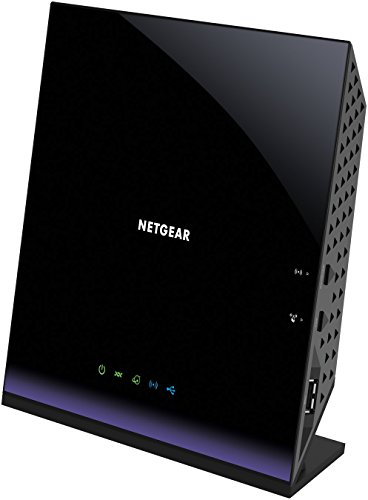
The D6400 answers a specific and common situation: the line is copper and modest, but life inside the house is not. Its AC1600-class wireless and gigabit Ethernet ports give local traffic room that the VR300 cannot, so a household streaming from a network drive, shuffling photos between laptops, or running a small home office on the end of a VDSL line feels the difference where it actually lives. Netgear’s genie-style setup and app management keep the modem side approachable, and the modem itself covers VDSL and ADSL services, with an Ethernet WAN option that lets the box continue as a plain router if fibre eventually arrives.
That Ethernet WAN fallback is quietly the D6400’s smartest feature in a dying category, because it converts a dead-end purchase into a two-stage one: modem router today, router behind a fibre terminal tomorrow. Against that, the design is older, the interface will feel dated to anyone arriving from modern mesh apps, and its wireless, while a clear tier up, remains Wi-Fi 5 in a Wi-Fi 6 and 7 world. Judge it as the strongest local-network performer among true DSL boxes, bought with eyes open about its generation.
- Modem: VDSL and ADSL, plus Ethernet WAN fallback
- Wireless: AC1600-class dual-band Wi-Fi 5
- Ethernet: gigabit ports for wired devices
- Extras: USB sharing, ReadySHARE-style media features
Strengths
- Gigabit wired ports finally match the local traffic of a busy house.
- Ethernet WAN mode lets it survive a future fibre installation as a router.
- Wireless tier handles several simultaneous streams and calls comfortably.
Trade-offs
- An older platform whose interface and app feel their age.
- Wi-Fi 5 radios in a market that has moved two generations on.
- Larger and less discreet on a shelf than the compact TP-Link designs.
Best for: VDSL homes with heavy local traffic, a network drive or a home office.
Not suited for: buyers who want the newest wireless generation as their top priority.

TP-Link TD-W9950 — Simple ADSL/VDSL value
Not every DSL household needs dual-band anything. The TD-W9950 is a single-band 2.4 GHz modem router built for the smallest version of the problem: a studio flat, a holiday cottage, an elderly parent’s house where the internet means email, news, messaging and the occasional video. Its modem covers VDSL and ADSL services, its setup is short, and its modest wireless is honestly matched to lines whose speed would embarrass a flagship router’s radios into idleness. There is a particular dignity in a product that refuses to oversell, and this one occupies the value end of a shrinking shelf without pretending otherwise.
The limits arrive exactly where you would predict. A single 2.4 GHz band congests in dense apartment buildings, offers no faster lane for nearby devices, and makes this the wrong box for streaming-heavy or gaming households even on slow lines, because local wireless contention is separate from line speed. Port counts and extras are minimal. Buy it for simplicity and price-tier sanity in a small space with a short device list, and it does its whole job; ask it to run a family home and it will tell you, daily, that you bought the wrong tier.
- Modem: VDSL and ADSL2+ combined unit
- Wireless: single-band 2.4 GHz, N-class speeds
- Design: compact, low-power, minimal controls
- Audience: light browsing, messaging and occasional streaming
Strengths
- The simplest setup and daily operation of any pick on this list.
- Honestly matched to slow lines and small spaces, with nothing wasted.
- Low running cost and a tiny footprint beside the phone socket.
Trade-offs
- No 5 GHz band, so crowded apartment airwaves will slow it down.
- Not built for streaming-heavy, gaming or multi-room households.
- Minimal ports and features leave no room for a growing network.
Best for: small flats, cottages and light users on ADSL or entry VDSL lines.
Not suited for: families, gamers or anyone in a dense block with busy airwaves.
Netgear DM200 — Modem only, and that distinction matters
The DM200 appears in this guide as a warning wearing a product’s clothes. It is a broadband DSL modem — VDSL and ADSL — with a single Ethernet port and no router inside: no Wi-Fi, no address sharing for a household, no firewall of its own to speak of. Plugged straight into a computer it connects that one machine. Its real purpose is bridge duty, feeding a separate router or mesh system that you already own and prefer, and in that narrow role it is genuinely useful, because it lets you keep an excellent modern router while your line remains copper.
Why give a non-router a full pick slot in a router guide? Because the confusion is the story of this category. Listings, shelf labels and second-hand descriptions blur modem and modem router constantly, and the DM200 is the model most often bought by mistake. If your plan is one box by the phone socket serving the whole home, this is not it, full stop. If your plan is a clean modem in front of a router you love, with the DM200 passing the connection through and staying out of the way, it earns its place as the specialist tool for that job.
- Type: DSL modem only — no Wi-Fi, no routing
- Line support: VDSL and ADSL services
- Ports: one Ethernet port for a single router or computer
- Role: bridge-style front end for a separate router or mesh
Strengths
- Lets a modern router or mesh system serve a copper line unchanged.
- Simple, single-purpose hardware with little to configure or fail.
- Useful diagnostic step: separates modem faults from router faults.
Trade-offs
- Cannot run a home network alone, despite how often it is mis-sold.
- Adds a second box, power supply and login page to your setup.
- No wireless at all, so the router behind it carries the whole load.
Best for: owners of a good router or mesh kit who need a clean DSL modem in front of it.
Not suited for: anyone expecting a single box that connects the whole home by itself.
ASUS DSL-AC68U — Prose-only veteran
For years the DSL-AC68U was the enthusiast’s answer on copper: an AC1900-class modem router pairing a VDSL modem with the richest firmware in its class, deep traffic controls, and wireless strong enough to shame most rivals. Its interface exposed line statistics, logging and quality-of-service tools that helped marginal lines behave, and its dual-band radios with external antennas covered houses the provider boxes could not. If you already own one and it runs well, there is little in the current DSL market that justifies replacing it like for like.
We cover it in prose because its era has closed. New stock has largely vanished, remaining listings are clearance or second-hand, and firmware attention has moved on. Buying one today means checking condition, resetting it fully, and accepting that its best years of support are behind it. At a fair used price it can still be the most capable DSL box in a home; at a nostalgic premium it is a museum piece charging admission. Treat it as a respected veteran to be bought knowingly, not as a current recommendation with a link.
- Modem: VDSL2 and ADSL in an enthusiast platform
- Wireless: AC1900-class dual-band with external antennas
- Firmware: detailed statistics, traffic control and logging
- Status: discontinued era; mainly used or clearance stock
Strengths
- The deepest line diagnostics and traffic controls of its DSL generation.
- Strong dual-band wireless that still covers a family house well.
- Gigabit wired ports suit local servers and desktop machines.
Trade-offs
- Ageing platform with support and updates effectively behind it.
- Availability is used or clearance, so condition varies by seller.
- Complexity is wasted on households that just want to be online.
Best for: confident tinkerers who find one in good condition at a fair price.
Not suited for: buyers who want current support, a warranty and a simple setup.
AVM FRITZ!Box 7530 — Prose-only regional favourite
In much of Germany and parts of Europe, the default answer to DSL is not a brand on this page’s other rows but a FRITZ!Box, and the 7530 shows why. It is a VDSL modem router with supervectoring support on suitable lines, dual-band AC wireless, and an operating system that folds telephony, answering machines, smart-home controls and parental settings into one unusually coherent interface. For households whose phone service rides the broadband line, its built-in telephony base can replace a separate handset system altogether.
Its prose-only status here is about geography, not quality. Availability, language support, provider profiles and warranty handling vary sharply outside its home markets, and some versions are tailored to specific national line standards. A buyer in its heartland may find it the most polished DSL purchase available; a buyer importing one across regions may fight settings their provider never intended. We include it so the name is recognised and respected, with the honest caveat that this is a regional champion rather than a universal recommendation.
- Modem: VDSL with supervectoring on supported lines
- Wireless: dual-band AC with mesh expansion options
- Telephony: integrated base for cordless handsets and voice features
- Availability: strong in parts of Europe, patchy elsewhere
Strengths
- Unusually polished software that unifies network, phone and smart home.
- Telephony features no other pick here attempts to match.
- Long software support tradition in its home markets.
Trade-offs
- Regional tailoring can clash with providers outside its core markets.
- Importing one complicates warranty, language and support.
- Interface depth may overwhelm anyone wanting a ten-minute setup.
Best for: households in its supported European markets with line-based phone service.
Not suited for: buyers elsewhere who would be importing against their provider’s grain.
How Do the Six Picks Compare Side by Side?
| Pick | Type | Wireless | Best role |
|---|---|---|---|
| TP-Link Archer VR300 | Modem router | AC1200 dual-band | Mainstream replacement for a provider box |
| Netgear D6400 | Modem router | AC1600 dual-band | Busy local network on a VDSL line |
| TP-Link TD-W9950 | Modem router | Single-band 2.4 GHz | Small spaces and light use |
| Netgear DM200 | Modem only | None | Bridge in front of your own router |
| ASUS DSL-AC68U | Modem router | AC1900 dual-band | Used-market enthusiast option |
| AVM FRITZ!Box 7530 | Modem router | Dual-band AC | European homes with integrated telephony |
Read the table by type before speed. Three rows are current, linked modem routers at three sizes of ambition. One row is not a router at all and only makes sense paired with hardware you already own. Two rows are capable older or regional designs whose value depends entirely on price, condition and postcode. If a row’s role does not match your household’s shape, its wireless class cannot rescue it, and that ordering — type, then line, then wireless — is the whole method of this guide in miniature.
What Mistakes Do DSL Buyers Keep Making?
The classic error is buying a cable modem router for a DSL line because both boxes say modem on the front. Cable and DSL modems speak unrelated languages; a cable unit has no way to sync to a phone line, and no adapter exists. The reverse mistake also happens when households move house and carry hardware across connection types. Always shop by the exact line technology your provider confirms, and treat the word broadband on a listing as decoration rather than information.
Second comes the modem-only trap that the DM200 pick exists to expose. A standalone modem connects one device or feeds one router; it does not create a home network. Buyers discover this at setup, surrounded by phones asking for a Wi-Fi network that will never appear. Read the type line of any listing twice, and if the product has one Ethernet port and no antennas, believe what your eyes are telling you about its ambitions.
Third, people chase wireless tiers to fix a line problem. A household syncing slowly because of distance, old internal wiring or a faulty filter gains nothing from AC1900 radios. Spend an evening on the free fixes first: plug the modem into the main socket, replace ageing microfilters where your line still uses them, remove unused extension wiring, and read the line statistics page. If sync speed jumps at the main socket, your home’s wiring was the fault all along, and no purchase was necessary.
Fourth, buyers forget the future date on their street. Fibre rollouts move street by street, and a premium DSL purchase made months before a fibre go-live is money spent on a modem half with a very short career. Check your provider’s rollout map, and if fibre is imminent, buy the simplest adequate DSL box — or a modem-plus-router split that survives the change — rather than the flagship of a retiring technology.
Finally, households discard the old modem and its settings the moment the new box syncs. Keep the previous unit, its power supply and a photograph of its configuration pages for at least a month. Lines develop faults, replacements occasionally fail, and a working spare turns an outage from a crisis into an inconvenience while you diagnose which half of your network has actually misbehaved.
How Do You Set Up a Replacement DSL Router Without Losing Your Connection?
Preparation does most of the work in a modem swap. Before unplugging anything, log in to your current modem and photograph every page that mentions the connection: the broadband username if one exists, the connection type, any VLAN or encapsulation settings, and the line statistics page for a baseline sync speed. Write down your Wi-Fi name and password too, because reusing the same wireless name and password on the new router lets every device in the house reconnect without being touched, from the television to the printer hiding in a spare room.
Swap the hardware during a quiet hour, not during a work call or a family film. Connect the new modem router directly to the main phone socket for its first sync, even if it will eventually live elsewhere, because the main socket gives the cleanest possible line and removes your internal wiring from the list of suspects if anything misbehaves. Power it on, give it several unhurried minutes to negotiate with the cabinet or exchange, and resist the urge to restart it repeatedly; DSL equipment sometimes needs a few attempts to settle, and constant power cycling can make a line management system decide your connection is unstable and slow it down deliberately.
Run the setup wizard and choose your provider from its list when one is offered, since provider profiles carry the small settings that are hardest to type correctly by hand. If your provider is absent, enter the photographed settings exactly, including punctuation in usernames. Once the internet light settles, test with a wired device first, then join the Wi-Fi. Check the statistics page and compare the sync speed with the baseline photograph. A similar figure means the swap succeeded; a dramatically lower one points to a filter, a cable or a setting, in that order of likelihood.
Only after the connection survives an ordinary day should you move the box to its permanent position, reattach any switches or access points, and update the firmware if the manufacturer offers a newer release for your exact hardware version. Firmware updates on DSL gear occasionally improve line stability with particular cabinets, so they are worth doing once, carefully, over a wired connection, with the old modem still on the shelf as a fallback. Finally, change the router’s administrator password from its default and store it with the provider details you gathered, because the next person to maintain this network, possibly future you at midnight, will be grateful.
What Should You Check When a DSL Connection Slows Down or Drops?
Begin by deciding which half of the system is complaining. If devices lose Wi-Fi while the modem’s internet light stays calm, the fault is indoors and wireless: congestion, distance, a failing radio or a neighbour’s new network on your channel. If the internet light itself drops or the statistics page shows the line retraining, the fault is the copper, and no amount of wireless adjustment will touch it. That single observation, made before touching any settings, prevents most of the random changing that turns a small fault into an evening of archaeology.
For line faults, work from the wall outwards. Test the modem at the main socket with everything else unplugged, including extension leads, old phones and alarm connections where your wiring allows it safely. Replace the short cable between socket and modem, since these leads are cheap, frequently damaged by furniture, and rarely suspected. Where your line still uses plug-in microfilters, fit a fresh one; filters age, and a tired filter produces exactly the pattern people blame on routers: fine in the morning, fragile in the evening when the house is electrically busy.
Read the statistics page like a story. Sync speed tells you what the line negotiated. Attenuation estimates its length and quality. The noise margin shows how much headroom the connection holds, and a margin that collapses at certain hours points towards interference from lighting, heating equipment or a faulty appliance. Error counters that climb steadily while the margin looks healthy suggest a developing fault outside the house. Screenshot these pages across a day before calling your provider; engineers act faster on evidence than on descriptions, and a clear pattern can skip several scripted steps.
For wireless faults, think in terms of place and band rather than settings archaeology. Move closer and test again. Try the 2.4 GHz band for reach and the 5 GHz band for speed near the router, and notice whether one band fails while the other thrives, which narrows the suspect list considerably. In apartment buildings, an automatic channel setting usually beats a manually chosen one over time, because the neighbourhood’s networks change as routers reboot. If a single device suffers while others thrive, suspect the device — its drivers, its power saving, its ageing radio — before rebuilding the whole network around it.
Keep a short fault diary when problems persist: time, weather, which lights changed, what the household was doing. Patterns that feel random in memory often align neatly on paper, and providers’ line tests are far more productive when you can say the connection retrains at dusk or during rain. A router swap belongs near the end of this process, not the start, which is why this guide keeps returning to diagnosis: on copper, evidence is cheaper than hardware.
How Long Should You Keep a DSL Router, and When Is Replacement Pointless?
A DSL modem router kept in a ventilated spot commonly serves for many years, because the technology it speaks has stopped moving. Unlike Wi-Fi, where new generations arrive with real improvements, the DSL standards these boxes implement are finished; a replacement modem cannot negotiate a meaningfully faster language with the cabinet than a healthy older one. Replacement makes sense when the hardware fails, when firmware support and security patches have ended, when the wireless half no longer covers the home, or when you are consolidating a modem and router into one tidier arrangement.
Security is the quiet deadline. A router is the front door of the home network, and a model whose maker no longer issues fixes eventually becomes a liability even if it still syncs cheerfully every morning. Check the support page for your exact model once a year. When updates have clearly stopped and the platform is old, plan a replacement on your own schedule rather than after a scare, and prefer models still in production — which, in this category, is one more argument for the current linked picks over discontinued veterans, however charming their firmware remains.
Replacement is pointless in three familiar situations. First, when the line itself is faulty: a new modem on bad copper is a new witness to the same crime. Second, when fibre is genuinely imminent on your street, making any modem purchase a short rental in disguise. Third, when the real problem is wireless coverage in a large or difficult house, which an access point or mesh node solves directly while a modem router swap merely rearranges it. Naming these situations honestly is part of this guide’s job, because a category in decline attracts clearance pricing designed to make unnecessary purchases feel urgent.
When you do replace, retire the old unit thoughtfully. Factory-reset it so your provider credentials and wireless passwords leave with none of your household’s information, keep it for a month as a known-good spare, and then recycle it through an electronics scheme rather than a drawer. Copper networks are winding down region by region, and the installed base of DSL hardware will mostly end as e-waste; a little care at the end of a product’s life is a reasonable farewell to technology that carried the early internet into millions of homes.
Can a DSL Household Still Game, Stream and Work From Home Comfortably?
Yes, with expectations set by the line rather than by the router shelf. A healthy VDSL connection carries high-definition streaming, video calls and ordinary online gaming simultaneously for a small household, and even an ADSL line serves browsing, messaging and standard-definition viewing without complaint. The constraints appear at the edges: several televisions streaming at once while a console downloads a large game update, or a house full of people uploading to cloud drives on a thin upload channel. Those moments are governed by bandwidth arithmetic, and the router’s contribution is fairness — sharing what exists so one device cannot monopolise the line while others stall.
Gaming on copper deserves a precise word, because players often shop for routers when they should be reading ping statistics. Latency on DSL depends on the line profile your provider applies; some lines trade a little speed for lower delay, and some older error-correction settings add delay in exchange for stability. A gaming-leaning router cannot remove delay built into the line profile, but a wired connection to the router removes the wireless jitter that players frequently mistake for line lag. If you play competitively on DSL, plug in a cable, ask your provider whether a low-delay profile suits your line, and judge any router by its wired ports and stability rather than by gaming artwork on the box.
Working from home stresses the upload direction that DSL serves worst. Your outgoing video is an upload; so are the files you send and the backups that run quietly behind meetings. Schedule large uploads outside call hours, let the router’s traffic controls prioritise conferencing where offered, and keep expectations honest in a house where two people present on video at the same time over ADSL. On VDSL those same habits turn a workable line into a comfortable one, and they cost nothing, which is more than can be said for most hardware upgrades proposed for this problem.
Streaming is the most forgiving of the three workloads, because modern services adapt their quality to the connection they find. The practical risks are buffering at peak evening hours when a marginal line slows, and wireless weak spots between router and television. Both yield to placement and wiring more readily than to a new modem: a television near the router on the 5 GHz band, or better, on a cable, will outperform a flagship router broadcasting from a hallway cupboard. Judge the picks above by how they fit your rooms and your line, and the evening viewing will look after itself.
The deeper point is that a DSL household’s comfort is a system property. Line condition, internal wiring, router placement, band choice and a little scheduling discipline each contribute more than the difference between adjacent AC tiers. Buy the router that matches your line and your rooms, set it up carefully once, and then spend your attention on the free improvements. That is how copper lines, in their long final chapter, continue to run households perfectly well.
Should You Keep the Provider’s Modem and Just Add Better Wi-Fi?
It is a fair challenge to this entire guide, and sometimes the answer is yes. If your provider’s modem syncs reliably, holds its connection through bad weather, and its only real failing is weak wireless in distant rooms, then the most economical honest upgrade is a wired access point or a small mesh node placed where people actually sit. That route keeps a known-good modem, avoids re-entering provider settings, and spends the whole budget on the half of the system that is actually disappointing you.
The counter-arguments are clutter, control and age. Two boxes mean two power supplies, two interfaces and occasional confusion about which device hands out addresses; get that detail wrong and the home fills with strange double-translation behaviour that looks like random faults. Provider modems also age out of security support on schedules you do not control, and some lock away the statistics and bridge options that make diagnosis possible. When the provider box is old, hot, locked down or unreliable, a single well-chosen modem router from the picks above is the cleaner answer. When it is young and stable, augmenting it is the smarter one, and no guide that respects your money should pretend otherwise.
Final Recommendation
For most remaining DSL households, the Archer VR300 is the calm centre of this list: compatible, dual-band, easy to live with, and priced by its tier rather than by nostalgia. Step up to the D6400 when the network inside your walls works harder than the line outside them, especially if its Ethernet WAN fallback can carry it into a fibre future. Choose the TD-W9950 when the home is small, the line is slow and simplicity is the entire point. Treat the DM200 strictly as a modem for a router you already own, and approach the ASUS veteran and the FRITZ!Box with the respect and caution due to regional and second-hand champions. Copper broadband is in its long evening now, and the right purchase is the one that serves that evening reliably without pretending dawn is coming for this technology — for a line you plan to keep, the VR300 is the box we would leave running in the hallway without a second thought.
Frequently Asked Questions
Can I use a normal router instead of a DSL modem router?
Only behind a modem. An ordinary router has no way to read a DSL signal from a phone socket, so it needs a modem — a provider box in bridge mode, or a standalone unit like the DM200 — to convert the line first. Many households run exactly that split so they can keep a modern router when the line changes.
Will a faster AC router make my DSL line faster?
No. Your sync speed is set by the line, its length and its condition. A better router can improve Wi-Fi coverage and local transfers, hold a marginal connection more gracefully, and report faults more clearly, but the number arriving from the street belongs to the copper and the cabinet, not to the box in your hallway.
How do I know whether I have ADSL or VDSL?
Check your bill or account page for the product name, then confirm with your provider before ordering. Part-fibre and fibre-to-the-cabinet packages are usually VDSL over the final copper stretch. Older exchange-fed packages are usually ADSL. The distinction decides which modem you need, so it is worth one phone call.
What is bridge mode, and when would I want it?
Bridge mode turns a modem router into a modem only, passing the connection to a separate router that handles Wi-Fi, security and addresses. It is the right pattern when you own a mesh system or a router you prefer, or when you want the freedom to change line technology later without rebuilding your home network around a new box.
Should I buy premium DSL hardware if fibre is coming to my street?
Buy for the interval, not the brochure. If fibre is months away, choose the simplest adequate modem router or a modem-plus-router split whose router half survives the switch. Premium DSL hardware only pays when you expect several more years on copper and your household will actually use its stronger local networking.
Why does my connection drop in the evening?
Evening drops usually point to line noise, household electrical interference, or a marginal internal wiring run rather than to the router’s wireless side. Test from the main socket, read the error counters in the modem’s statistics page, and note whether drops follow appliances or weather. That evidence, given to your provider, fixes lines faster than swapping routers at random.
One Last Check Before You Order Anything
Write down four facts and keep them beside you while shopping: your line type, your provider’s login method, the rooms where Wi-Fi currently fails, and the date fibre is expected on your street. Match a candidate against those four lines and most wrong purchases eliminate themselves. A modem router that fits the line but not the rooms needs an access point plan; one that fits the rooms but not the line is simply the wrong product wearing the right wireless badge. The picks above were chosen so that at least one row fits each realistic combination of those facts, and the prose-only rows exist so that hardware you meet elsewhere can be judged against the same four lines before money changes hands.
Related Guides
Keep exploring with our companion reading: a plain-language guide to modem and router differences, how to read your broadband line statistics, and planning a home network that survives a fibre upgrade.
Related guide: Best Open Source Routers
Related guide: Best D-Link Routers


