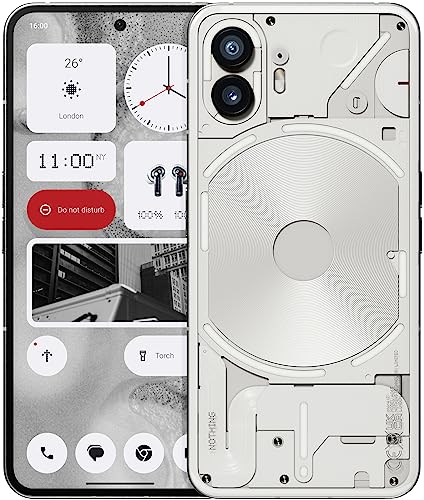
Our Top Picks


What's inside
- What holding an app in memory really means
- Memory size, memory speed and honest expectations
- How software policy decides what survives
- Split screen, floating windows and picture in picture
- Chipsets, heat and sustained juggling
- Work patterns that reveal a phone’s true character
- Testing a phone before and after you buy
- When multitasking goes wrong: a calm diagnosis
- Choosing among phones for a juggling life
- Small habits that make any phone feel more capable
- Notifications, quick switching and the rhythm of a busy day
- Desktop modes and external displays
- Accessibility and multitasking for every kind of user
- A final way to think about juggling well
- Check prices on Amazon
- Work profiles, dual apps and keeping two lives on one handset
As an Amazon Associate I earn from qualifying purchases. This post may contain affiliate links at no extra cost to you.
Multitasking on a phone rarely announces itself with drama. It shows up in the small rescue that happens when you leave a half written message to check a map, copy an address from a browser tab, glance at a photo for a detail, and return to find every word, every scroll position and every open document exactly where you left it. When that rescue fails, the app reloads, the form empties, the video restarts from an advert, and the phone quietly reveals that it was never really holding your work at all, only remembering where you had been.
This guide is about the handsets and the habits that make the rescue reliable. It treats multitasking as a system rather than a single specification, because memory size, memory speed, processor design, software policy and even storage pace all conspire to decide whether an app survives in the background or gets quietly evicted while the screen is looking elsewhere. A phone can boast a large memory figure and still behave forgetfully, while a more modest device with well judged software can feel remarkably faithful.
We will move through the subject in the order problems appear in daily life. First, what keeping an app alive actually involves behind the recent apps screen. Then how much memory different kinds of users genuinely need, how makers manage that memory, how split screen and floating windows change the work, and how chipsets, heat and battery policy all push on the same rope. Troubleshooting and buying checks close the guide, because a multitasking phone should be tested, not merely believed.
One housekeeping note before the detail begins: this page is supported by readers, and if you eventually purchase a handset after following an outbound link here, the publisher may receive a small commission from the seller at no extra cost on your own bill. That support keeps guides like this one independent and free to read, and it never changes the advice that follows, including the parts that tell you when a cheaper, calmer phone is the smarter tool.
What holding an app in memory really means
The recent apps screen is a promise, not a guarantee
The carousel of cards you see when you summon recent apps looks like a shelf of paused programs, and in a sense it is, but each card represents a negotiation. The system has kept some combination of the app itself, its saved state and a screenshot of its last appearance. A card can therefore look reassuringly intact while the living program behind it has already been discarded, leaving only the picture and a note about where you were standing when the lights went out.
When you tap such a hollow card, the app rebuilds itself from that saved note. A well written app restores your place so smoothly that you may never notice the rebuild, while a careless one drops you at its home screen, loses an unsent draft or forgets which article you were halfway through. The difference between a kept app and a restored app is the difference between resuming a conversation mid sentence and being handed a summary of it.
Understanding this distinction sharpens every test in this guide. Counting cards in the carousel proves nothing. What matters is whether returning to an app is instant and state perfect, whether media keeps playing, whether a download continues, whether a navigation instruction arrives on time, and whether a game resumes at the paused frame rather than at a loading screen with an apology.
Why the system evicts apps at all
Eviction is not spite; it is triage. Memory occupied by an idle app cannot serve the camera trying to capture a burst of photographs, the game loading a new level, or the browser opening a heavy page. The system therefore ranks processes by importance, protecting the foreground app and visible services first, and offering up the oldest, greediest or least recently used background residents when pressure rises. A healthy phone performs this triage invisibly. An under resourced one performs it on your work.
Pressure arrives from predictable directions. Camera processing is famously hungry, especially with computational photography stitching several frames together. Large games hold enormous worlds in memory. Video calls combine camera, microphone, network and screen in one demanding bundle. When any of these arrive, something in the background may be asked to leave, and the quality of a multitasking phone lies in how rarely that something turns out to be an app you still cared about.
Saved state, cached processes and the middle ground
Between fully alive and fully gone sits a middle territory that modern Android manages with some subtlety. An app may be cached, its process retained but frozen, ready to thaw quickly if memory allows, or it may be stopped while its state is written to storage for later reconstruction. Freeze and thaw is fast and faithful. Reconstruction is slower and depends heavily on the developer having saved the right things in the right places.
This is why two phones with identical memory can feel different in the hand. One maker’s software keeps more processes cached and thaws them gracefully, while another trims aggressively in the name of battery life or headline smoothness, then relies on restoration to paper over the gaps. Neither approach is automatically wrong, but buyers who juggle many apps should know which philosophy they are purchasing, a theme that returns when we compare software policies and when browsing broad roundups such as best 10 android phones where headline specifications rarely confess their background behaviour.
Memory size, memory speed and honest expectations
How much working memory different days actually need
Working memory, the fast temporary store usually called RAM, is where live apps reside. A light day of messages, mail, music and a browser tab or two asks relatively little of it. A heavier day layers maps during a commute, a video call, a document editor, a shopping list, a banking app that must not reload at the wrong moment, and perhaps a game waiting in the wings. Each layer adds its own appetite, and the total grows quietly until the phone begins choosing which layers to forget.
Rather than chasing the largest number on a box, match capacity to your own pattern. People who live in two or three apps will rarely feel the benefit of generous memory. People who research across many tabs, edit photographs, keep work and personal tools open side by side, or play large games between other tasks will feel it daily. The honest question is not how much memory sounds impressive, but how often your current phone reloads something you wanted kept.
Why the type and speed of memory matter too
Capacity is only half the story. Newer memory generations move data faster and sip power more carefully, which helps when several demanding apps wake at once or when a game and a screen recording compete for attention. A phone with slightly less but faster memory can feel snappier during rapid switching than a rival carrying more of an older, slower type, particularly in the first moments after a switch when assets must stream back into active use.
Memory channels and bandwidth rarely appear in marketing, yet they shape how gracefully a device handles simultaneous demands. When you read a specification sheet, treat the memory generation as a meaningful clue rather than fine print. It sits alongside the chipset as evidence of whether a maker built the phone for sustained juggling or merely dressed it with a large sounding number for the shelf label.
Virtual memory extensions and their limits
Many handsets now offer a feature that borrows storage space and presents it as extra memory. This can help keep lightweight background apps resident for longer, because storage backed pages suit idle, rarely touched data. It is not equivalent to real memory, though. Storage is far slower, so anything actively working belongs in the genuine article, and heavy reliance on borrowed space can add wear and hesitation exactly when the phone is busiest.
Leave such a feature on if it helps your pattern, but do not let it rescue a buying decision. A phone that feels forgetful with the extension off will not become a multitasking champion with it on; it will simply forget slightly more slowly. Reviewers who test with the feature enabled and disabled often find the honest character of a device in the gap between those two results.
How software policy decides what survives
Aggressive savers, gentle keepers and the battery bargain
Every maker strikes a bargain between keeping apps alive and preserving battery charge, because a resident app that wakes, syncs and fetches can spend energy even while invisible. Some software leans hard toward preservation of charge, closing background apps eagerly and restricting their activity until they return to the foreground. The result is excellent standby figures in reviews and a trail of missed messages, paused uploads and reloaded feeds in real pockets.
Other software keeps a looser grip, allowing messengers, music players, fitness trackers and navigation tools to remain ready. Owners of such phones may surrender a little standby endurance and gain a device that feels attentive. Neither philosophy suits everyone, but the trade should be visible and adjustable rather than hidden. Look for per app controls that let you exempt the tools you depend on from battery restrictions, and treat the absence of such controls as a genuine drawback for serious multitasking.
Learning the exemption and locking tools on your handset
Most Android skins provide some way to protect chosen apps. There may be a lock icon on the recent apps card, a battery setting offering unrestricted activity, or a list of protected or auto launched programs buried in a manager app. The vocabulary varies, the intent does not: you are telling the system that this particular resident matters more than its usual ranking suggests, and that evicting it would be a mistake rather than a tidy saving.
Choose exemptions sparingly and purposefully. Protect the messenger that carries family news, the authenticator your work depends on, the podcast player that kept losing episodes, or the tracker recording a long ride. Exempting everything teaches the system nothing and can recreate the memory pressure you were trying to escape, now without a sensible order of sacrifice. A short, honest list of protected apps is one of the most effective upgrades a multitasking phone can receive, and it costs nothing.
Updates that change the rules overnight
Owners sometimes report that a phone became forgetful after a system update, or occasionally more faithful. Both stories are plausible. Updates revise memory thresholds, battery policies and background limits, and they can reset exemptions you set months earlier. After any major update, revisit your protected list, retest the handful of apps whose survival matters most, and resist blaming hardware for what may be a fresh software decision quietly applied at dawn.
App updates matter too. A redesigned app may hold more state, split into heavier processes or adopt better restoration behaviour. When a single app suddenly reloads while its neighbours behave, suspicion should fall on that app before the phone. Checking whether other owners of the same app report similar behaviour can save you from shopping for a new handset to cure one developer’s regression.
Split screen, floating windows and picture in picture
Two apps sharing one display, done properly
Split screen is multitasking made visible. A recipe holds the top half while a timer and shopping list share the bottom. A video call occupies one pane while notes fill the other. A browser stays open beside the document quoting it, ending the miserable shuttle of copying a sentence, switching, pasting, switching back and discovering the source has reloaded in your absence. On a phone that keeps both panes genuinely alive, this feels less like a feature and more like finally being allowed to work with both hands.
Screen size and shape govern how pleasant the arrangement feels. Tall displays divide into two short, wide panes in portrait orientation, which suits stacked reading but cramps keyboards. Larger and folding displays offer roomier divisions and sometimes a third floating element. Resolution matters less than layout discipline: apps that adapt gracefully to a narrow pane remain usable, while apps that merely shrink become puzzles. Before buying for split screen work, consider which pairs you will actually run, because the best pairings justify the feature and the worst merely demonstrate it.
Floating windows and bubbles, useful within limits
Some skins let an app hover as a small movable window above another, handy for a calculator over a bank statement, a note over a web page, or a video continuing in a corner while you answer messages. Chat bubbles perform a narrower version of the same trick for conversations. These overlays shine for brief interventions and references, then should get out of the way; a screen crowded with hovering panels becomes a desk where every paper is on top of every other.
Floating windows also test memory honesty. The window above and the app beneath must both stay alive, and a phone that quietly kills the background layer while displaying the overlay has performed a magic trick rather than multitasking. Test this pairing in a shop if you can: open something stateful underneath, float a tool above it, work for a minute, then dismiss the overlay and see whether the original app resumes untouched.
Picture in picture and media that refuses to stop
Video and navigation popularised the small persistent window that survives a trip to the home screen. A meeting, a stream or a route guidance pane can shrink rather than vanish, keeping audio and context flowing while you check a calendar or reply to a message. Support depends on the app as much as the phone, and some services reserve the behaviour for particular subscription tiers or regions, so a missing window is not always the handset’s fault.
For multitaskers, media persistence is a revealing stress test. If music stutters whenever the camera opens, if a podcast restarts after a photograph, or if navigation falls silent during a call, the phone is revealing its priorities under pressure. Phones built for juggling protect these foreground adjacent services stubbornly, because their interruption is felt immediately and forgiven slowly. Shoppers comparing endurance focused models in guides like best 8gb ram smartphones should remember that memory behaviour during media playback tells more than any standby claim.
Chipsets, heat and sustained juggling
Why processor design shapes switching feel
The chipset decides how quickly apps launch, thaw and render after a switch, and its design involves more than headline speed. Modern processors mix powerful cores for bursts of work with efficient cores for background upkeep, and the scheduler that assigns tasks among them determines whether a background sync steals smoothness from the foreground or waits politely. A well tuned scheduler makes a phone feel calm under load, which is the true sensation of good multitasking: not fireworks, but the absence of stumbles.
Cache sizes, memory controllers and storage interfaces join this story. When an app returns from cache, its data must travel quickly. When a game loads assets while a download runs and music plays, several subsystems queue for attention at once. Phones intended for heavy use pair capable processors with fast storage and adequate cooling, because a weakness in any one of those links becomes the pace of the whole chain during a busy afternoon.
Heat, throttling and the twentieth minute problem
Many phones feel brilliant for five minutes and ordinary for the rest of the hour. Sustained workloads generate heat, and heat forces the processor to slow itself for protection. A multitasking session involving navigation, streaming, a hotspot and charging in a warm car is exactly the sort of compound load that exposes throttling. The phone may still function, but switches grow hesitant, animations drop frames and background apps face harsher eviction as the system fights to stay composed.
Vapour chambers, graphite layers and metal frames are therefore multitasking features in disguise, moving heat away so performance can persist. When reading reviews, favour long tests over short benchmarks: repeated runs, extended gaming sessions and camera stress tests reveal whether a device holds its composure. A phone that is slightly slower at minute one and identical at minute forty will serve a busy owner better than a sprinter that fades.
Modems, radios and the invisible background load
Background work is not only apps. The phone maintains network connections, switches between towers and wireless networks, syncs accounts, backs up photographs and listens for calls, all beneath the visible layer. Weak signal areas multiply this hidden labour because radios work harder to hold a connection. A handset that seems forgetful on a rural commute may behave impeccably on strong city coverage, not because its memory changed but because its invisible workload did.
This is worth remembering before condemning a device. Test multitasking in the places you actually live and travel. Dual line use adds another layer again, since two networks must be maintained and two sets of messages kept ready, which is one reason heavy communicators should weigh memory and software policy even more carefully than single line users.
Work patterns that reveal a phone’s true character
The researcher with thirty tabs and a deadline
Research is multitasking in its purest domestic form. A question opens a tab, that tab opens three more, a document gathers quotations, a message thread supplies a missing fact, and a photograph of a whiteboard anchors the whole endeavour. Phones that reload tabs aggressively tax this work cruelly, because each return visit costs time, data and sometimes the exact paragraph you had finally located among thousands of words.
For researchers, browser behaviour deserves specific testing. Open a set of substantial pages, wander away to other apps for an hour, then return and move between tabs watching for reloads. Also test the share and copy journey between browser and notes, since that shuttle is where state loss hurts most. A phone that protects the browser and the notes app simultaneously, especially when protected manually, earns its place on a researcher’s desk even if its camera is merely good.
The creator moving between camera, editor and audience
Creators chain heavy tools together. The camera captures, a gallery app reviews, an editor trims and grades, a caption is drafted in notes, and a social app publishes while messages arrive asking about the post. Each handoff risks the previous app being evicted mid thought, and the camera in particular clears memory around itself like a snowplough. A multitasking phone for creators must survive its own camera being opened repeatedly without sacrificing the editor waiting behind it.
Storage pace joins memory here, because large video files must save, render and upload while other work continues. A device that pauses uploads whenever the publishing app leaves the foreground will quietly stretch a ten minute task across an afternoon. Look for evidence that uploads and exports continue in the background, and test with a realistically large file rather than a token clip if a seller allows demonstrations.
The traveller juggling maps, tickets and translation
Travel compresses multitasking into high stakes minutes. A boarding pass must appear at a gate while navigation recalculates, a translation app holds a phrase for a ticket desk, a banking app demands approval for a payment, and a message from a host contains the address you need next. Any reload in that chain is more than an annoyance; it can strand you at the wrong end of a station with a queue forming behind.
Travellers should therefore protect travel apps in advance, download offline resources so a reload cannot become a dead end, and keep critical documents also saved as files or screenshots rather than trusting a single app’s state. The best multitasking phone reduces these precautions’ importance, but wise travellers keep them anyway, because aeroplane mode, weak signals and low batteries conspire in ways no memory capacity can fully defeat. Comparisons in roundups such as best 5 android phones you can buy now become more useful when read through this itinerary lens rather than by camera scores alone.
The gamer who lives between matches and messages
Large games are the hungriest residents a phone hosts. They occupy generous memory, heat the chipset and often restart entirely if evicted, losing an unsaved position or a place in a lobby. A gamer who answers a message mid session learns within a day whether their phone can hold a game in the background, and for how long, and whether a brief trip to the camera for a photograph costs the entire match.
Game modes complicate the picture helpfully and harmfully. They may protect the game, silence interruptions and allocate resources generously, all welcome. They may also strangle the messenger or music app the player still wants nearby. Explore a phone’s game mode settings rather than accepting defaults, and remember that holding a game plus a voice chat plus a streaming tool is a specialist demand that deserves specialist hardware and honest cooling.
Testing a phone before and after you buy
A ten minute shop test that tells the truth
In a shop, resist the lure of merely admiring the home screen. Open the browser to a heavy page, start a video, open the camera and take several photographs, then move briskly among all three and the maps app. Return to the browser and look for a reload. Open a game if one is installed, leave it for messages, then return. This small circuit, performed in minutes, reveals more about background behaviour than an hour of reading shelf labels.
Repeat the circuit after the phone has warmed slightly, because early impressions on a cool device flatter almost every model. If staff permit, install nothing and sign into nothing; the preloaded apps are enough to expose eviction habits. Note also how quickly the recent apps screen itself responds, since hesitation there often predicts hesitation everywhere once your own heavier collection of apps arrives.
The first week audit at home
At home, conduct a gentler audit across ordinary days. Keep a mental note, or a literal one, of every reload that costs you something: a lost draft, a restarted upload, a tab that returned to the top, a game that abandoned you. Patterns will emerge pointing at specific triggers, most often the camera, a particular game or a long absence. Those triggers tell you which apps to protect, which habits to adjust and whether the phone itself has failed the audition while returns remain possible.
Resist installing a task killer during this week, however tempting its promises appear. Manual killing teaches the system nothing, often worsens the cycle by forcing cold starts, and masks the phone’s genuine behaviour behind your own interventions. Let the software show its character, adjust its official settings where offered, and judge the result. Android manages memory best when owners stop sweeping the floor while it is trying to cook.
Reading reviews for multitasking clues
Most reviews benchmark launches and gaming frame rates, which are cousins of multitasking rather than the thing itself. Hunt instead for remarks about apps reloading, tabs refreshing, cameras clearing background work, or phones holding games during interruptions. A reviewer who mentions returning to an app after a day and finding it alive has given you gold. A reviewer who only timed cold launches has given you weather from a different country.
Owner forums add texture, particularly long threads from people with similar work patterns. Filter their testimony by software version where possible, because memory policy changes between updates and yesterday’s forgetful phone may be today’s faithful one, or the reverse. Cross check any alarming report against your own protected app settings before treating it as destiny.
When multitasking goes wrong: a calm diagnosis
Everything reloads after the camera opens
If a single trip to the camera clears your other apps, you have met the most common multitasking complaint in its purest form. Photograph processing demands a large, immediate slice of memory, and some software grants that demand by sweeping the background without ceremony. Higher resolution modes, portrait processing and rapid bursts intensify the sweep. Test whether simpler camera settings reduce the damage, protect your most important apps, and accept that on some models this behaviour is a design decision rather than a fault you can repair.
There is a workaround worth knowing for critical moments. Finish and send the fragile thing before opening the camera, or copy a draft somewhere safe. It feels like surrender, and in a sense it is, but it distinguishes owners who understand their tool from owners who lose the same message every Saturday and blame themselves each time.
Messages and uploads that only move in the foreground
An app that syncs only while open is usually being restricted rather than forgotten. Battery optimisation, data saver modes and maker specific background limits can each hold an app in a waiting room indefinitely. The cure is to find every gate, not just the obvious one: exempt the app from battery restriction, allow its background data, check any auto launch or protected list the skin provides, and confirm the app’s own settings have not scheduled its work into infrequent batches.
Change one gate at a time and observe, otherwise you will never know which lock was actually barring the door. After adjusting, test with the screen off for a realistic interval rather than a hopeful thirty seconds. Some restrictions operate on timers and patterns, revealing themselves only across a proper stretch of ordinary use.
Stutter during switching without outright reloads
Sometimes nothing dies, yet everything limps. Switching takes a breath too long, animations hitch, keyboards arrive late and scrolling in a freshly resumed app feels like walking through shallow water. Causes include a nearly full storage volume slowing the whole system, a launcher struggling under widget load, thermal throttling during charging, or one misbehaving app consuming resources in the background with unusual greed.
Work through the boring suspects first because they solve a surprising share of cases. Free meaningful storage space, restart the phone, update the offender if a recent app update coincides with the decline, and remove any novelty launcher or cleaner utility that inserts itself into every transition. If the limp survives those steps and appears in safe or freshly reset conditions, hardware limits may simply have met a workload that outgrew them.
Choosing among phones for a juggling life
Matching the handset to the heaviest honest day
Shop for your heaviest honest day, not your average one and not an imaginary one. List the apps that must coexist during that day, note which of them are heavy, and judge candidates against that company. A phone that holds a messenger, a browser and music is common. A phone that holds those plus navigation, a game, a document and a video call is a rarer and more deliberate machine, and its price and size usually confess that ambition.
Be wary of judging by a single specification in isolation. Memory capacity without decent software policy disappoints. A flagship chipset paired with aggressive background killing frustrates. A gentle software policy on weak hardware collapses under load. The three legs of the stool are capacity, processing and policy, and the guides that help most are those, like best alternative android phones, that let you compare whole devices rather than worshipping one number at a time.
Folding and large screen phones as a special case
Devices that unfold into a small tablet change multitasking from a sequence into a landscape. Two or three apps can share visible space with room to breathe, documents sit beside sources, and a video call can share the desk with notes without either becoming a postage stamp. For people whose work genuinely lives in pairs and trios, this format offers something no amount of memory on a narrow slab can fully imitate.
The trade offs are equally real. Such phones ask more of their batteries, cost more to repair, and still depend on apps adapting gracefully to unusual shapes. Their multitasking advantage is spatial as much as memorial, so judge them by working in your actual app pairs across the fold, not by the theatre of opening one on a desk and admiring the horizon it creates.
Longevity: how today’s juggler ages
Apps grow heavier over the years as features accumulate and media grows richer, so a phone that barely holds your current company will not hold next year’s version of it. Buying a step above today’s strict need is therefore not indulgence but insurance, particularly in memory and storage pace. Software support length matters too, because memory management refinements and security updates arrive through those releases, and a phone abandoned early freezes its multitasking character at whatever it happened to be.
Care habits extend that life. Keep storage comfortably unfilled, remove apps you no longer use rather than letting them idle in the background population, revisit protected lists as your work changes, and treat major updates as occasions to retest the essentials. A well kept phone ages like a well kept desk, gradually fuller but still workable, rather than collapsing into a drawer where nothing can be found.
Small habits that make any phone feel more capable
Draft defensively in fragile places
Until you know a phone’s character, treat long writing inside any single app as cargo worth insuring. Draft important messages in a notes app that saves continuously, copy a form’s long answers before submitting, and prefer apps that visibly preserve drafts after closure. These habits sound cautious to the point of melancholy, yet they transform a reload from a disaster into a shrug, and they remain useful even on excellent hardware because apps themselves can fail independently of memory.
Similarly, let uploads and downloads finish in the foreground when they are urgent and large, rather than assuming background virtue from an unfamiliar device. Once a phone has earned trust across weeks of such transfers, relax. Trust in multitasking, like trust in a colleague, should be built from observed behaviour over time and then enjoyed without constant suspicion.
Curate the background population
Every installed app is a potential background resident asking for memory, sync windows and attention. Periodically remove the trials, duplicates and abandoned experiments that accumulate on any long lived phone. Disable or uninstall bundled apps you never open where the system permits it. Fewer, better chosen residents means the keeper’s job grows easier and the apps you love face less competition from apps you forgot existed.
Widgets and live wallpapers join this census too. A home screen dense with updating panels performs small work constantly, and while a capable phone shrugs it off, a struggling one may be spending its composure there instead of on your documents. Simplify one screen and observe whether switching improves; the experiment is reversible and occasionally revelatory.
Keep the system boring and up to date
The least glamorous advice in this guide may be the most reliable. Keep the system and your key apps updated, avoid cleaner and booster utilities that promise miracles by interfering with memory management, and restart the phone occasionally if its maker suggests the housekeeping. Exotic launchers, automation overlays and battery gurus each add a layer between you and the behaviour you are trying to judge, so introduce them one at a time and keep only those whose benefit you can actually describe.
When something does go wrong, change one variable, test honestly, and write down what worked. Multitasking problems feel mysterious largely because several settings wear similar names in different menus. A short note naming the exact switch you flipped will save a future version of you from repeating the whole archaeological dig after the next update rearranges the furniture.
Notifications, quick switching and the rhythm of a busy day
Switching by gesture, shortcut and habit
How you move between apps shapes how multitasking feels as much as whether the apps survive the journey. A quick flick to the previous app, a double tap on the navigation control, or a swipe along the bottom edge can turn switching into a reflex, while a slow trip through the full carousel every time makes even a faithful phone feel bureaucratic. Spend an afternoon learning your handset’s fastest switching gesture until your thumb performs it without consulting your eyes, because fluency hides a multitude of small delays.
App pairs and shortcuts, where a skin offers them, deserve a place in this rhythm. Saving a favourite combination, such as mail beside calendar or browser beside notes, and launching both together removes the daily ceremony of arranging the same desk twice. Edge panels and sidebars that hold favourite tools can help too, provided they remain a short list of genuine regulars rather than a second, sadder home screen sliding in from the side.
Notifications as the steering wheel of background work
Notifications are not merely announcements; they are the steering wheel by which background apps rejoin your attention. A well behaved messenger holds its thread ready so tapping its alert lands you mid conversation. A poorly behaved one cold starts, reloads and occasionally loses the very message that summoned you. When judging a phone, watch this landing. It happens dozens of times a day and therefore outweighs rarer spectacles in shaping whether a device feels responsive.
Taming notification volume also protects multitasking in an unexpected way. Fewer, more meaningful alerts mean fewer panicked switches, fewer half finished tasks abandoned mid gesture, and a recent apps screen that reflects real work rather than a trail of interruptions. Group the noisy, mute the promotional, and reserve banners and sounds for people and events that genuinely steer your day. The phone’s memory will not grow, but your own attention, the scarcest resource in the whole system, will stretch noticeably further.
Desktop modes and external displays
When the phone becomes the computer in your pocket
Some handsets can drive an external display with a desktop style interface, opening windows on a monitor while the phone itself becomes a trackpad or continues separate work. For multitaskers this is a revealing extension of everything discussed so far, because a desktop session multiplies open apps and punishes weak memory management at a scale a single small screen cannot. A phone that juggles gracefully in the hand may stumble when asked to be a workstation, and one built with generous memory and cooling suddenly shows why those choices were made.
If this mode matters to you, test it with your real workload rather than a demonstration. Open the document, the spreadsheet, the browser research and the call together, and watch for the familiar symptoms in larger dress: windows refreshing, the call dropping to audio only, the whole session hesitating when the camera or a heavy export joins. Also check which apps refuse the big screen or arrive letterboxed and stubborn, because a desktop built from unwilling apps is a desk with drawers that open onto a wall.
Cables, docks and the heat of doing everything at once
Driving a display while charging, networking and computing is among the hardest compound jobs a phone performs, and heat returns as the quiet antagonist. A dock that charges quickly while offering little ventilation can push a capable phone into throttling during a long meeting. Prefer setups that let the handset breathe, keep demanding exports for moments when the session is otherwise calm, and remember that a laptop still exists for a reason. The phone as computer shines brightest for travel, presentations and light desk work, and pretending otherwise sets it a test it was never enrolled for.
Accessibility and multitasking for every kind of user
Larger text, voice control and switching without acrobatics
Multitasking advice often assumes small text, nimble thumbs and perfect vision, which excludes many owners from the conversation. Larger display settings reduce how much fits in a split pane, so users who enlarge text may prefer sequential switching with excellent app retention over simultaneous panes that cramp everything. For them, memory faithfulness matters even more, because the whole workflow depends on apps waiting patiently rather than sharing the stage.
Voice assistants and switch controls can move between tasks without fine gestures, and routines that open a morning set of apps in sequence reduce the manual juggling altogether. When helping a relative choose a phone, test these paths explicitly: enlarge the text, divide the screen, summon the assistant, and see whether the combination remains comfortable. A handset that multitasks brilliantly only at default settings has solved a narrower problem than its brochure suggests.
One handed modes and reachable design
Phones have grown tall enough that reaching the top of a split screen with one thumb is a minor athletic event. One handed modes that shrink the interface toward the bottom, reachable recent apps controls and sensible placement of split screen handles all decide whether multitasking survives contact with a bus strap, a shopping bag or a child in the other arm. Judge these details in motion, safely, rather than at a desk where every phone seems cooperative.
Weight joins reach here. A heavy handset used in long split screen sessions tires the holding hand, and fatigue quietly shortens the work long before memory runs out. The best multitasking phone for a particular owner is therefore partly an ergonomic answer, and the bravest specification sheet cannot settle it without a hand, a commute and an honest half hour of use.
A final way to think about juggling well
Calm, not quantity, is the real measure
It is tempting to measure multitasking by counting how many apps a phone can hold before the first reload, as if the winner were a waiter carrying the tallest stack of plates. Real life asks a different question. Did the work survive the interruptions the day actually contained? Did the phone stay calm while the camera, the call, the map and the message arrived in the same ten minutes? Did returning feel like resuming, or like starting again under a polite disguise?
Choose the phone that answers those questions with the least fuss for your own pattern, protect the handful of apps your life runs on, and keep the background population honest. Do that, and the recent apps screen stops being a shelf of maybes and becomes what it always promised to be: a desk where everything you set down is still there, in the same place, when your hand comes back for it under a sky that has moved on without disturbing a single page.
Check prices on Amazon
Live listings for the shortlist in this guide are pulled from Amazon below, so prices and availability are always current at the moment you look.


Work profiles, dual apps and keeping two lives on one handset
Separating employment tools from personal tools without losing either
Many owners now carry a work profile beside their personal space, with duplicate mail, calendar and messaging tools living under a small briefcase badge. This doubles the multitasking population in a way headline memory figures never mention, because both lives expect to stay ready during the same afternoon. A phone that holds your personal apps beautifully may still evict the work messenger the moment the personal camera opens, and the failure will look mysterious until you count both populations honestly.
When testing such a handset, switch deliberately across the boundary. Answer a personal message, return to the work document, join the call from the work calendar, then check whether the personal browser kept its place. Protect apps on both sides of the fence, remembering that an employer may control the work side’s policies, and ask the administrator before assuming a restriction is the phone’s own idea. Some organisations deliberately limit background behaviour inside their profile for security, and no handset purchase can repeal a policy set by the people who own the data.
Cloned apps and second accounts
Several skins can clone a social or messaging app so two accounts live side by side. Each clone is another resident competing for memory and battery permission, and each deserves the same deliberate setup as its original: notifications tuned, background activity decided, and a place in your protected list only if its survival genuinely matters. Cloning everything because the feature exists is how a tidy phone becomes a crowded tenement where the keeper evicts residents almost at random.
Clones also multiply the cost of sloppy habits. Two accounts refreshing, backing up and notifying through a weak signal area can make a capable phone feel busy for no visible reason. Review cloned apps during your periodic census, remove the experiments that never became habits, and keep the pairs that serve a real division, such as a shop account beside a personal one, or a team channel beside family life.
Focus modes that shrink the stage on purpose
Sometimes the smartest multitasking move is deliberate reduction. Focus modes that pause distracting apps, silence their alerts and grey out their icons do not improve memory, but they improve the work memory was serving. A writer who parks social apps for two hours stops paying switch costs entirely, and a student who silences everything except the dictionary, the notes and the timer has built a small, honest workspace out of a phone designed to interrupt.
Schedule such modes around real rituals rather than vague intentions: the commute for reading, the evening for family, the deep work block for a single document and its sources. When the mode ends, the parked apps return, and a faithful phone will have kept the important ones ready through the quiet. Used this way, restraint and capacity stop being rivals. The phone holds less because you asked less of it, and what it holds, it holds completely, which is the whole point of the exercise and the standard by which every claim in this guide should finally be judged by your own hand, your own apps and your own gloriously interruption filled Tuesdays.
A short checklist to carry into the shop
Before money changes hands, run the circuit described earlier, ask which background controls the skin provides, confirm that your essential apps can be exempted from battery restrictions, and check how the handset behaves once it has warmed in your hand for several minutes. Ask also how long the maker supports the model with system updates, because memory policy improves through software long after hardware leaves the factory, and a phone cut off early keeps whatever habits it shipped with. If a salesperson cannot demonstrate the recent apps screen holding a browser, a video and the camera in rotation, treat the omission as information rather than bad luck.
Then go home and repeat the audit across a full week of ordinary interruptions before deciding the matter is settled, keeping notes on every reload that cost you words, time or temper. Patterns, not impressions, should drive the verdict, and a handset that survives your real Tuesday has earned more trust than one that merely dazzled during a polished demonstration beside a harbour window at dusk.