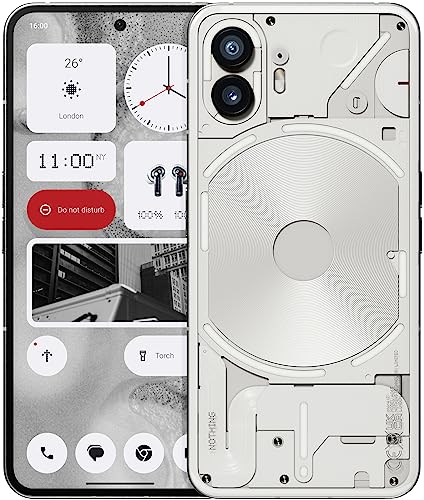
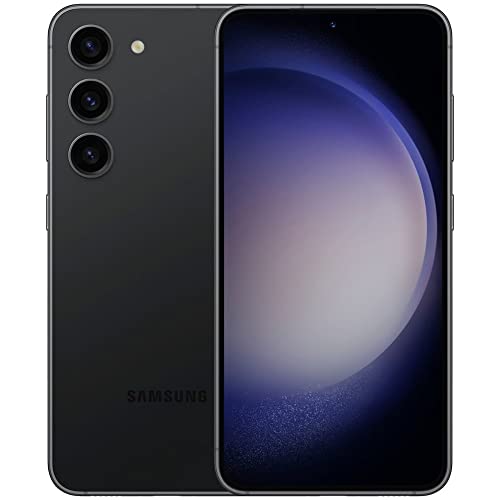
Our Top Picks
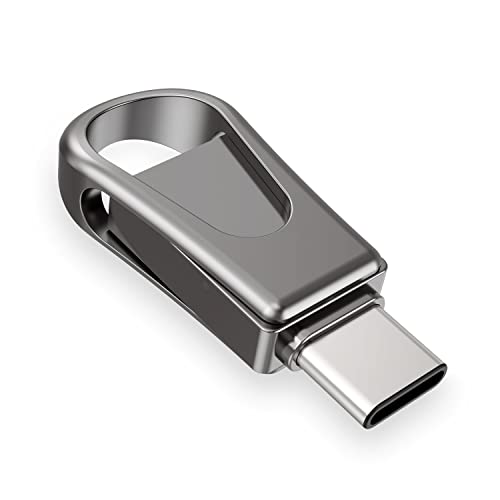


What's inside
- What host mode really means underneath the slogan
- Checking a phone you already own
- Ports, plugs and the adapters between them
- Power is the quiet limit on everything
- Drives, formats and moving files without tears
- Controllers, keyboards and mice
- Sound through an external converter
- Cameras, card readers and specialist tools
- When nothing happens: a calm troubleshooting order
- Buying a handset with hosting in mind
- Everyday scenarios where the feature shines
- Myths that refuse to die
- Caring for ports and accessories
- Speed, standards and what the numbers hide
- Frequently asked questions, answered plainly
- Putting together a kit that suits your life
- Accessibility and independence benefits
- Working with two devices at once
- Learning the feature without fear
- Check prices on Amazon
- A short word on future proofing
As an Amazon Associate I earn from qualifying purchases. This post may contain affiliate links at no extra cost to you.
Plug a small flash drive into the bottom of a phone and something quietly remarkable happens: the handset stops behaving like a sealed gadget and starts acting like a proper little computer. Files appear in a familiar browser, a controller springs to life in a game, a real keyboard turns a cramped touchscreen typing session into comfortable writing. That trick has a name, USB On-The-Go, usually shortened to OTG, and it remains one of the most underappreciated abilities an Android handset can offer.
Support is not universal, which is exactly why this guide exists. Some models welcome almost any accessory you attach, others recognise a narrow handful, and a stubborn minority refuse everything except charging. Price, brand prestige and launch year all mislead here; a humble handset may handle host duties beautifully while a glamorous flagship sibling, sold in a different region, quietly omits the necessary wiring or software switch.
Reading on, you will learn how host mode actually works beneath the marketing language, how to test a phone you already own within five minutes, and how to judge a phone you have not bought yet without relying on a shop assistant’s guesswork. We will look at ports, adapters, powered hubs, drive formats, game controllers, external audio converters and the odd behaviour that appears when an accessory asks for more electrical current than a slim handset wants to give.
One small disclosure before the practical detail begins: this site is reader supported in a modest way, meaning a purchase made after following one of the links on this page may bring us a small commission, and you will not pay a penny extra because of it. That arrangement never decides which features we praise or which limitations we point out.
What host mode really means underneath the slogan
Host and peripheral are roles, not permanent identities
Every USB connection quietly assigns two jobs. One device becomes the host, taking charge of the conversation, enumerating whatever was plugged in and supplying electrical power down the cable. The other becomes the peripheral, answering questions and doing a narrower job such as storing files or reporting keystrokes. A laptop is almost always the host; a memory stick is always the peripheral. Phones historically lived on the peripheral side, which is why connecting one to a computer once felt so natural.
OTG changed that arrangement by letting a phone swap hats. With the right circuitry and a kernel that enables the function, the same handset that yesterday accepted charge from a wall adapter can today run the show itself, mounting a drive, polling a mouse and feeding current outward. Nothing about the screen, camera or processor guarantees this talent. It lives in the port controller, the wiring of the identification pins on older connectors, and software decisions made long before the retail box was sealed.
Understanding the role swap explains several otherwise puzzling behaviours. A phone in host mode drains its battery faster because it is now powering the guest as well as itself. Two phones joined by a cable sometimes argue about which should lead, then settle when one offers to charge the other. A drive that works flawlessly in a laptop may confuse a handset because the laptop’s host implementation is more forgiving about timing, file systems and power negotiation.
The chain between port and accessory
Between your fingertip plugging something in and an app responding, a small chain of events unfolds. The controller senses the attachment, decides the electrical roles, asks the newcomer to describe itself, then matches that description against drivers the operating system carries. Storage devices, human input devices such as keyboards, and standard audio class hardware all speak well documented dialects, so Android can usually greet them without extra software. Exotic gear, a thermal printer for market stalls or a laboratory sensor, may need a companion app written against the USB host interfaces.
Each link in that chain can fail independently, and good troubleshooting later in this guide follows the chain in order. A mechanically tired adapter breaks the first link. A charge only cable, built without data lines to save cost, breaks the second. A drive formatted in a way the phone cannot read breaks the third, even though the hardware connection succeeded, which is why a notification saying a device is connected can sit beside an apparently empty file browser.
Keep that layered picture in mind when comparing models, because specification sheets compress the whole story into three letters. Two phones both claiming support may differ enormously in which device classes their makers enabled, how much current their ports will supply, and how gracefully their file managers handle large removable volumes. The claim is the beginning of the enquiry, not its conclusion, a theme that recurs throughout these pages and indeed across our wider coverage such as best 10 android phones where headline features often hide similar fine print.
Checking a phone you already own
The five minute physical test
Forget diagnostic menus for a moment. The most convincing evidence comes from an actual accessory, an actual adapter and two minutes of patience. Borrow a flash drive you know works, attach it through a simple adapter rather than a complicated hub, and watch the phone’s reaction. A healthy host usually announces the arrival with a notification, offers to open a file manager, and shows the drive’s contents without any pleading. Safely eject it afterwards through the notification or storage settings, a habit that protects file systems from the corruption that follows an abrupt yank mid write.
Silence, by contrast, tells you less than people assume. The adapter might be dead, the drive might carry a format the handset cannot interpret, or a setting buried in the developer options or the maker’s own menu might gate the whole feature behind a toggle that switches itself off again after ten idle minutes, a quirk found on several brands. Swap one component at a time: another drive, another adapter, a wired mouse whose glowing sensor at least proves power is flowing. Methodical substitution beats forum folklore every single time.
Reading settings, boxes and specification pages
Documentation helps when it is read sceptically. Search the settings app for terms such as OTG, USB and host; some manufacturers expose a dedicated switch, others reveal nothing because the capability is permanently active. The retail box occasionally prints a small host logo, while the maker’s full specification page, rather than a retailer’s abbreviated table, may list supported USB modes in a footnote. Treat any single source as a hint and look for a second that agrees, particularly before ordering accessories in quantity for a classroom, a field team or a small business.
Checker utilities downloaded from an app store can report what the hardware declares about itself, and they are handy as a first pass, yet they occasionally parrot an optimistic flag that the maker’s software then ignores. Regard their verdict as a reason to test physically, never as a substitute for testing. If a checker says yes and three known good accessories say nothing at all, believe the accessories and suspect a disabled driver, a damaged port or lint packed so tightly into the socket that plugs no longer seat fully.
Regional variants and the second hand trap
Identical model names conceal divergent hardware more often than buyers expect. A variant built for one continent may include host support, an extra storage tier and different radio bands, while its namesake elsewhere drops one or all of those. Sellers of imported stock rarely volunteer such distinctions. When buying used or imported, ask for the exact model code from the about screen, compare it against the maker’s regional pages, and, if the purchase matters enough, insist on a demonstration with a drive before money changes hands.
Software history matters too. A phone that once hosted accessories happily can lose the talent after a botched update, a custom system image or aggressive battery saving software that kills background USB services. Conversely, a model launched without support sometimes gains it when a maker revises the kernel in a later release. Check the update history and community reports for your precise build rather than assuming launch reviews describe the phone in your hand today.
Ports, plugs and the adapters between them
USB C made life simpler, mostly
The reversible oval connector solved the ancient fumble of inserting a plug upside down, and it brought tidier rules for negotiating power and roles. Most recent Android handsets use it, and a good many support host mode through it with nothing more than a modest adapter. Reversibility, however, seduces people into assuming every C cable does everything. Some are wired for charging alone, some carry data at modest speeds, and a few designed for video output rely on alternate modes that have nothing to do with hosting a humble memory stick.
Older handsets with the trapezoidal micro USB socket can often host as well, but they depend on a dedicated OTG adapter that signals the role change through an extra pin. A plain micro USB charging lead, however similar it looks, will never trigger host behaviour. Owners keeping an older phone as a spare travel machine should buy the correct adapter, label it, and store it with the phone, because hunting one down in a foreign railway town is a miserable errand.
Adapters, hubs and docks without the headache
A single adapter that turns the phone’s port into one standard rectangular socket suits occasional drive use. A hub adds several sockets and often a card slot, letting a keyboard, mouse and drive share the phone simultaneously, which transforms a hotel television or a borrowed monitor into a passable workstation when paired with a desktop style launcher. Docks go further, adding wired networking and a charging input so the handset can feed accessories while replenishing itself, the arrangement long sessions demand.
Quality varies invisibly. Poorly made hubs reset under load, scramble a drive’s connection when a second device is inserted, or pass through so little current that everything attached behaves erratically. Choose solid connectors that click home positively, cables with some strain relief, and hubs whose makers state plainly what they supply. Readers who work outdoors and need this flexibility in rough places may also appreciate the handsets gathered in best active rugged smartphones since a fragile port door or a flimsy case lip can undermine an otherwise capable host setup.
Power is the quiet limit on everything
How much current a phone will hand over
A handset battery is small compared with a laptop’s, and the port controller knows it. Many phones supply only a modest current to attached gear, enough for a flash drive, a keyboard or a compact converter, but not enough to spin up a hungry portable hard drive designed around a mechanical platter. Such drives may click, restart repeatedly or appear and vanish like a shy ghost. The fault is arithmetic, not malice: the guest is asking for a starting surge the host refuses to provide.
Solid state portable drives sit somewhere in the middle. Efficient models run happily from a phone, thirstier ones need help. A powered hub solves the dilemma elegantly by feeding accessories from its own supply while the phone merely directs traffic. Whenever a setup will live on a desk for hours, copying archives, tethering a camera or running a small audio interface, reach for powered help from the start rather than coaxing a battery through an afternoon of strain.
Heat, simultaneous charging and battery manners
Hosting and fast charging pull in opposite directions unless the hub or dock was designed to negotiate both. Some accessories allow pass through charging, topping the phone up while it works; others block charging entirely, so a long file transfer becomes a race against the percentage indicator. Test your exact combination before a trip, note how warm the phone and hub become after twenty minutes, and treat unusual heat as information. Warm is normal under load. Too hot to hold comfortably is a signal to stop, ventilate and reconsider the arrangement.
Battery etiquette extends beyond temperature. Avoid starting a huge copy at a low charge, because a shutdown mid write can damage the file system on the receiving drive. Keep a wall supply nearby for marathon sessions, remove power hungry guests when they are idle, and remember that leaving a drive mounted overnight can nibble charge steadily. These small disciplines separate owners who describe host mode as unreliable from owners who quietly rely on it every week.
Drives, formats and moving files without tears
Which file systems a handset understands
A drive’s format decides whether its contents are visible at all. The long established FAT family is understood almost everywhere and suits small sticks, although its individual file ceiling makes it awkward for lengthy high resolution video recordings. The exFAT format lifts that ceiling and is widely supported on modern handsets, making it the natural choice for camera cards and large portable drives shared between phone and computer. The NTFS format common on Windows machines receives patchier treatment: many phones read it happily yet refuse to write, and some ignore it altogether.
When a drive must serve several machines, format it deliberately rather than inheriting whatever a shop shelf provided, after copying anything precious elsewhere first, since formatting erases. Match the format to the largest single file you realistically move. Photographers shuttling bursts of raw images have different needs from a teacher carrying slide decks, and both differ from a musician moving sample libraries. There is no universally correct answer, only an answer that fits the files in front of you.
Copying, verifying and ejecting like a grown up
Large transfers reward boring virtues. Copy in sensible batches instead of selecting an entire archive at once, keep the screen awake or the file manager in the foreground if your handset throttles background work, and spot check a few files at the destination before deleting originals. Video files deserve a brief playback test, documents deserve a scroll, and archives deserve an integrity check where the app offers one. Five minutes of verification has saved many travellers from discovering, three borders later, that a backup was an elegant row of corrupted icons.
Ejecting properly is the least glamorous and most important habit in this entire guide. Use the unmount option, wait for confirmation, then unplug. Yanking a drive while the phone is writing its directory information is how folders vanish and cards demand reformatting. If a phone refuses to release a drive, close the apps that might be using it, wait a breath, and try again rather than forcing the issue physically.
Encryption and privacy on removable media
A stick that leaves your pocket can also leave your life in a stranger’s hands. Sensitive material, identity documents, work contracts, family archives, deserves encryption before it travels on removable media, and several file managers and dedicated utilities can create protected volumes a phone can open with a passphrase. Balance that protection against recovery: an encrypted backup whose key exists only in your memory is a locked door after a house fire. Keep keys recorded safely somewhere separate from the drive itself.
Controllers, keyboards and mice
Games feel different with real buttons
Touch controls suit puzzles and menus; they serve platform games, racers and retro titles far less kindly. A wired controller attached through the port usually registers instantly, because the standard input class is one of the oldest and best supported guests a host can receive. Buttons map sensibly in many titles, triggers behave, and the absence of wireless pairing rituals makes the arrangement feel refreshingly direct. Latency, the delay between a press and an on screen response, is typically negligible over a cable, which competitive players notice immediately.
Not every game cooperates. Titles designed exclusively around touch may ignore a controller entirely or accept it only for menus. Check a game’s input notes before a journey, configure layouts while you still have time and a comfortable chair, and carry the cable the controller actually needs rather than assuming the one in a kitchen drawer will fit. A short session at home exposes mapping quirks that would otherwise surface in an airport departure lounge.
Writing and pointing with proper tools
A compact folding keyboard turns a phone into a legitimate writing machine for journals, lecture notes and long messages, especially paired with a small stand. Most wired and dongle based keyboards work without ceremony, including shortcut keys for copying, pasting and switching apps, though the function row and media keys vary by maker. A mouse adds a floating pointer that shines in spreadsheets, remote desktop sessions and precise photo adjustments where a fingertip covers the very detail being edited.
Ergonomics deserve a thought. A phone screen propped at a poor angle will punish your neck long before the battery fades, so raise it, sit properly and treat the setup as a small desk rather than a novelty. Those who read and write for hours may also weigh the display qualities discussed in best amoled screen smartphones because a hosted keyboard attached to a dim, straining screen solves only half the comfort equation.
Sound through an external converter
Why listeners bother with a separate box
Many modern handsets abandoned the dedicated headphone socket, pushing listeners toward wireless buds or a small digital to analogue converter dangling from the port. A good converter does more than restore a socket: it can deliver cleaner amplification, lower background hiss with sensitive earphones, and a more even hand with demanding full size headphones than the modest circuitry a thin phone sometimes provides. The difference is subtle with casual earbuds and unmistakable with better equipment in a quiet room.
Compatibility is generally kind because standard USB audio is well defined, yet quirks persist. Some converters draw a surprising amount of power, some pass microphone signals through while others silence headsets built for calls, and a few phones route notification sounds oddly when a converter stays attached. Buy from sellers with sane return policies, test calls as well as music, and keep the tiny converter tethered to your headphone case, because objects that small migrate to sofa cushions with uncanny determination.
Recording, instruments and other creative guests
The same host abilities welcome USB microphones for interviews and voice notes, small audio interfaces for guitar practice, and compact MIDI keyboards whose keys trigger synthesiser apps. Recording apps differ widely in whether they accept external input, monitor it without delay and save at respectable quality, so audition software before a session that matters. Musicians should also expect a learning curve around buffer settings, the compromise between responsiveness and glitch free playback, and should pack headphones that reveal problems immediately rather than in the final mix.
Cameras, card readers and specialist tools
Moving photographs straight from the card
Photographers were among the earliest devotees of phone hosting, and their reason is simple speed of judgement. Slip a memory card into a reader, attach the reader, and the day’s work appears on a large bright screen suitable for checking focus, flagging keepers and sharing a preview with a client before anyone has gone home. The workflow spares the camera’s own battery, avoids slow wireless transfers and creates an immediate second copy of irreplaceable files, which is the moment a backup stops being theory.
Some cameras also tether directly, allowing remote release and live preview through dedicated apps. Support there is fussier, depending on the camera maker, the cable and the app’s list of tested bodies, so verify your exact pairing rather than trusting a photograph of a similar looking setup online. Field workers, surveyors and market researchers use the same principles with barcode scanners, serial adapters and measurement instruments, turning a handset into the screen and brain for tools that have neither.
Printers, networking and unlikely rescues
A wired network adapter sounds like a relic until hotel wireless collapses during a conference or a router needs configuring in a room with no computer. Phones that accept such adapters gain a stable connection and, occasionally, access to setup pages that misbehave on mobile wireless. Printers are less predictable; standard printing usually travels through network services rather than a cable, yet certain label and receipt printers pair with point of sale apps through the port and work all day in small shops.
Host mode even performs rescues. A phone can read a failing drive long enough to salvage documents, supply a keyboard to another device stuck at a login prompt, or act as an emergency viewer for files a colleague carries on a stick before a meeting. These unglamorous moments rarely appear in advertising, but they are precisely why experienced users refuse to buy a handset that cannot host. Capability you forget about for months can become the capability that saves a morning.
When nothing happens: a calm troubleshooting order
Start with the physical layer
Begin where failures are cheapest. Inspect the port under good light for compacted fluff, the silent assassin of many connections, and clear it gently with a non metallic tool if needed. Try a different adapter and a different cable, remembering that charge only leads exist in large numbers. Plug the accessory into a computer to prove it still lives. Connect one simple guest, a mouse or a small stick, rather than debuting with a hub crowded with hardware all demanding attention and current at once.
Next, look for the maker’s host switch if your brand uses one, confirm the phone is not in an extreme power saving mode, and restart it; a surprising share of detection problems are stale services that a reboot quietly replaces. Check for system updates, read the accessory maker’s notes about Android support, and grant the file manager or companion app the permissions it requests, because a denied storage permission can masquerade as a hardware refusal.
Separate format problems from connection problems
If a drive is detected but appears empty, suspect its format or partition layout before suspecting the port. Very large drives arranged with multiple partitions sometimes confuse mobile file managers, and volumes formatted for other operating systems may mount read only or not at all. Test the same drive on a computer, note its format, and, if it is dedicated to phone duty, consider reformatting it in a widely supported style after rescuing its contents. If several accessories fail identically while one simple mouse works, suspect power and move the whole arrangement onto a powered hub before buying replacements.
Keep notes during this process. Which adapter, which accessory, which notification, which setting changed the outcome. Memory blurs after the sixth swap, and a written trail turns a frustrating hour into a reusable map for the next failure, which, with any technology involving this many small connectors, will eventually arrive.
Buying a handset with hosting in mind
Questions that reveal more than a tick box
When a new phone is on the shortlist, ask sharper questions than whether the feature exists. Which USB version does the port implement, because transfer speeds to a fast solid state drive differ dramatically between generations? How much storage does the handset itself carry, since generous internal space reduces emergency drive juggling? Does the maker sell a first party adapter or dock, a sign the company expects owners to use the capability rather than merely inherit it from a chipset?
Reviews that merely repeat a specification table add little. Look for reviewers who actually attached hardware, moved a large file and timed it, or ran a controller through a gaming session. Community forums for a specific model, searched for the accessory you care about rather than the generic feature name, often surface the truth about a flaky driver or a host toggle that resets itself. If you are equipping a family or a team, buy one unit first, put it through your real accessories, and only then order the rest.
Charging kit and the ecosystem around the port
A hosting phone earns its keep alongside its accessories, so budget thought for the whole kit: a short adapter for pockets, a powered hub for desks, a card reader matched to your camera, and cables long enough to be useful yet short enough to avoid a rat’s nest in a bag. Owners assembling that kit may find the multi port discussion in best 5 port chargers relevant, because a charger that feeds a phone, a hub and a companion’s handset at once simplifies hotel room logistics considerably.
Cases deserve scrutiny too. Thick protective shells sometimes prevent plugs from seating fully, producing intermittent connections blamed on everything except the obvious millimetre of rubber in the way. Test your chosen case with your adapters before travelling. Wireless charging compatibility, port covers and charging stands all interact with how a hosted setup sits on a desk, and discovering a clash at home is a gift compared with discovering it in a client meeting.
Everyday scenarios where the feature shines
Travel light, carry everything
Travellers feel the benefit first. A single handset plus a stick holding films, documents and offline maps can replace a laptop for a weekend, while a folding keyboard handles the one long email a holiday inevitably produces. In regions where connectivity is patchy or expensive, moving files physically is not old fashioned; it is robust. Hotel televisions, borrowed computers and patchy cloud accounts all become optional extras rather than single points of failure standing between you and your own data.
Journalists, aid workers and sales representatives working far from an office build similar kits for sterner reasons. They collect photographs, recordings and signed forms on devices that speak to a phone, consolidate everything each evening, and keep a removable copy separate from the handset in case it is lost or damaged. The discipline is simple: gather on the guest device, copy to the phone, copy again to a stick, and sleep better.
Study, family and the household drawer
Students attach drives to share coursework where campus networks are miserable, connect full size keyboards for essay drafts, and use controllers for well earned downtime. Families discover that a phone can read the ancient stick containing scanned photographs, drive a slideshow from a card of holiday pictures, or accept a child’s game controller for a long drive. None of this requires technical bravado, only a working adapter and the knowledge that the socket at the bottom of the phone is good for far more than charging.
Households also inherit accessories. A retired laptop leaves behind mice, keyboards and external drives that remain perfectly serviceable, and a hosting phone gives them a second career instead of a one way trip to a recycling bin. That thrift has an environmental charm: every peripheral reused is one fewer manufactured, shipped and eventually discarded, and every file rescued from an old drive is a small act of preservation.
Myths that refuse to die
An adapter cannot create a missing capability
The most persistent myth promises that the right adapter will grant host powers to any phone. Adapters signal, convert shapes and sometimes supply power, but they cannot install a missing controller function or conjure a driver the system never carried. If a handset’s hardware and kernel lack host support, no purchase will add it, and sellers implying otherwise should be avoided. The reverse myth also circulates: that a phone without an advertised logo can never host. Some makers simply stay silent while the capability works, which is why physical testing outranks paperwork throughout this guide.
Another tale claims hosting inevitably harms the battery. Used sensibly, with powered help for heavy guests and an eye on temperature, it is ordinary work the hardware was designed to perform. Abuse, a scorching hub, a frayed cable, a drive demanding current the phone cannot give, causes trouble, but that is an argument for decent accessories rather than abstinence. A third myth insists wireless transfer made all of this obsolete. Wireless is lovely until networks vanish, files grow enormous, a venue forbids it, or a deadline shrinks; a cable remains gloriously indifferent to all four conditions.
Caring for ports and accessories
Small habits that prevent large annoyances
Ports wear. Insert plugs straight, support a heavy adapter rather than letting it lever against the socket, and avoid using a phone as a handle to lift a tangle of attached gear. Keep adapters in a small pouch instead of rattling loose among keys, and retire cables whose plugs wobble or whose insulation has split near the connector. A contact cleaning, done gently and only with suitable materials, can revive a marginal connection, but aggressive poking bends delicate tongues inside modern sockets.
Software care matters equally. Keep the file manager updated, remove companion apps for hardware you no longer own, and review which applications hold broad storage permissions. Before a system update, unmount removable media; after one, test your essential accessories promptly while the previous behaviour is fresh in memory, so any change is noticed and can be investigated against the update’s release notes rather than discovered during a crisis months later.
Security when other people’s devices come calling
A borrowed stick is an unknown quantity. Sensible phones scan removable media, but owners should still avoid opening unexpected documents, treat executable sounding files with deep suspicion, and keep the handset’s system current. In workplaces, agree a simple rule: unknown media gets checked on a sacrificial machine before it touches a phone containing client data. Convenience and caution can coexist; the check takes minutes and the alternative explanation to a client takes considerably longer.
Your own media deserves the same respect when visiting other machines. Carry a stick you can afford to reformat, keep personal archives on a separate encrypted volume, and never lend the drive that holds your only copy of anything. Hosting makes sharing effortless, which is its joy and its hazard in equal measure.
Speed, standards and what the numbers hide
Port speed versus real world copying
Two phones with identical looking sockets can copy the same folder at wildly different speeds. The port’s underlying USB generation sets a ceiling, the drive’s own electronics impose another, and the file manager’s efficiency quietly taxes both. Small files copy slowly relative to their size because each one demands bookkeeping; a single large video often races along near the practical limit. Judge a setup with the material you actually move, not a synthetic benchmark, and leave headroom in your schedule when a deadline depends on a transfer finishing.
Heat throttling adds a further wrinkle on long jobs. A handset that begins briskly may ease off after several minutes as temperatures rise, particularly inside a chunky case or in a sunlit room. Elevating the phone so air circulates, removing the case for a heavy session and keeping the screen off during bulk copies all help sustain pace. None of these tricks requires expertise, merely the recognition that a phone is a small computer with small computer cooling, which is to say almost none.
Video output is a neighbouring talent, not the same one
Buyers often confuse hosting with sending video to a monitor. They are separate abilities that happen to share a socket. A phone may host drives and keyboards brilliantly yet offer no display output at all, while another beams its screen to a television but behaves fussily with storage. If a desktop style setup is the dream, verify both talents independently, test the specific dock or cable standard the maker uses, and remember that some apps restrict external display for their own reasons.
Frequently asked questions, answered plainly
Can hosting damage an accessory
In normal use, no. Standard compliant gear negotiates within safe electrical limits, and phones shut a port down rather than cook a guest. Risk concentrates in damaged cables, counterfeit adapters with creative wiring and forced connections between incompatible plugs. Inspect your kit, buy accessories with proper certification marks from accountable sellers, and stop using anything that runs unusually hot or smells of warm electronics.
Why does the feature switch itself off
Several makers gate hosting behind a toggle that expires after inactivity, a design intended to save power and reduce the window in which a malicious accessory could talk to the phone. If a drive worked yesterday and ignores you today, check that toggle before dismantling your kit. Others require the screen to be unlocked before mounting storage, a sensible precaution that looks exactly like a failure until you notice the pattern and simply wake the handset first.
Does a hub slow everything attached to it
Guests on a hub share the phone’s single connection, so simultaneous heavy work divides the available bandwidth. A keyboard and mouse consume so little that they are irrelevant; a drive copying at full tilt beside another drive doing the same will make both wait their turn. Sequence heavy jobs, let light input devices share freely, and choose a powered hub so at least the electrical side of the arrangement never becomes the bottleneck.
Putting together a kit that suits your life
Three honest starting points
The minimalist kit is a lone adapter and a stick, living in a coat pocket, ready for the day a file must move and no network will cooperate. The desk kit adds a powered hub, a keyboard, a mouse and a stand, converting a phone into the spare workstation guests and homeworkers appreciate. The field kit builds around a card reader, a rugged drive, spare cables and a charger, packed so each item can be found in the dark by touch alone.
Whichever pattern fits, buy pieces in an order that lets each prove itself. Adapter first, tested against hardware you own. Hub second, tested under your heaviest realistic load. Specialist guests last, one at a time, each with its app configured and its quirks noted in the small notebook, paper or digital, that every serious kit deserves. That notebook, listing formats, toggles and the order in which things prefer to be connected, becomes more valuable with every trip.
Accessibility and independence benefits
Larger keys, better switches and personal control
For many owners the most meaningful guests are not drives at all. A full size keyboard with high contrast keycaps can transform a phone for someone whose eyesight or dexterity makes glass typing exhausting. Trackballs, adapted mice and specialist switches built for computers frequently work through the same host connection, letting a person keep the input method they have already mastered instead of learning a new one for every device. That continuity is a dignity issue as much as a technical one.
Voice control and touch remain available alongside, so hosting adds options rather than replacing familiar ones. A student with a repetitive strain injury might dictate short replies, type long work on an ergonomic keyboard and rest entirely during lectures while a USB microphone captures clear audio for later review. Families setting up a handset for an older relative can attach a mouse to make menus feel like the home computer that relative already understands, shrinking the learning curve dramatically.
Hearing, vision and presentation aids
External audio through a converter can feed headphones, neck loops or a small speaker positioned exactly where it helps most, while a hosted connection to a larger display, on models that support it, turns a phone into a presentation source for community groups. Even without video output, moving material onto a stick for a venue’s own computer is a reliable accessibility strategy, because it frees the speaker from depending on unfamiliar wireless networks or accounts.
When shopping for these purposes, test with the actual person and the actual aids, not a shop’s demonstration accessories. Small differences in how a phone routes audio, handles a switch device or times out its host toggle decide whether a setup is liberating or one more frustration. Specialist charities and user groups often keep lists of combinations known to behave well together, and their lived experience outweighs generic compatibility claims.
Working with two devices at once
Phone to phone and phone to tablet transfers
Joining two mobile devices with a cable produces a small negotiation about roles, and understanding it saves confusion. Usually one end offers to charge the other or presents itself as storage, and a prompt lets you choose. Once settled, the hosting device can browse permitted folders on its partner, which is handy when a tablet holds the only copy of a presentation or a friend’s phone carries photographs from a shared trip and the local network is hopeless.
Permissions rightly limit this browsing. Modern systems protect personal folders, so expect access to shared storage rather than a master key to everything. Move what you need, unmount cleanly, and resist the temptation to tidy another person’s file system while you are there. The same etiquette applies to borrowed laptops and colleagues’ drives: copy, verify, leave everything else exactly as you found it.
Backups that do not depend on an account
Cloud services are convenient until an account is locked, a subscription lapses or a journey crosses regions with poor connectivity. A hosted drive gives a phone a local backup destination under your physical control. Photographs, documents and app exports can be copied on a schedule you devise, perhaps every Sunday evening, with the drive then stored away from the phone so a single loss cannot take both copies. Rotate two drives and the scheme gains real resilience for very little effort.
Test restoration, not just copying. A backup nobody has opened is a hope, not a backup. Open documents from the drive on a different device, play the videos, confirm the photo library browses properly, and note which apps can actually import the exports you saved. That rehearsal, done calmly at home, converts a folder of files into a recovery plan you can trust on the worst day of a trip.
Learning the feature without fear
A gentle first project for new owners
Confidence grows from one successful small task, so choose a forgiving debut. Copy a handful of photographs from the phone to a spare stick, eject it properly, open the pictures on another device, then reverse the journey with a single document. That round trip teaches connection order, the file manager’s layout, the unmount command and the look of a healthy notification, all with nothing precious at stake. Afterwards, graduate to a keyboard, then a controller, then the hub, adding one new guest at a time so any surprise has an obvious suspect.
Children and nervous relatives learn the same way. Let them attach a mouse and watch the pointer appear, a tiny moment of theatre that makes the abstract idea concrete. Show them where the eject option lives before showing them how to copy, establishing from the first lesson that finishing properly matters as much as starting successfully. Within an afternoon, a feature that sounded like engineering jargon becomes a household skill.
Teaching moments and shared knowledge
Every workplace and family seems to contain one person who becomes the unofficial authority on cables. If that role falls to you, write down the quirks of the devices around you: which handset needs its toggle renewed each morning, which drive prefers the powered hub, which adapter belongs to the older tablet and sulks when borrowed. Shared notes prevent the same experiments being repeated by every colleague and turn private frustration into communal knowledge.
Online communities thrive on exactly such specifics. When asking for help, name the handset, its system version, the accessory and the adapter, and describe the notification you saw or did not see. Vague pleas attract vague guesses, whereas precise reports often receive an answer within hours from someone who fought the identical combination last winter. Repay the favour by posting your solution, however unglamorous, because the next searcher will bless your name at midnight in a distant hotel.
Knowing when to stop adapting and replace
Occasionally honesty requires admitting a handset will never host the way you need. If the port is physically worn, the maker never enabled the function, or a work requirement demands a guest the phone stubbornly refuses, further adapter shopping becomes money poured into a locked door. At that point, choose a replacement tested against your kit, move the old phone to lighter duties, and keep its adapter with it for whoever inherits it. Recognising a dead end is not defeat; it is the final troubleshooting skill, and it protects both your budget and your temper.
Check prices on Amazon
Live listings for the shortlist in this guide are pulled from Amazon below, so prices and availability are always current at the moment you look.


A short word on future proofing
Connectors and standards will keep evolving, and transfer speeds that feel brisk today will look leisurely within a few product cycles. The sensible response is not anxious overspending but modular buying: choose accessories built to open standards, keep adapters separate from cables so one failure does not orphan the other, and favour drives whose format every device in your household already understands. A kit assembled on those principles survives a phone upgrade gracefully, because the new handset inherits working guests instead of forcing a fresh round of purchases.
Software support deserves equal attention when judging longevity. Makers who publish clear update commitments and maintain their file managers actively are likelier to keep host behaviour healthy as the operating system changes around it. Read the fine print of update policies, favour companies with a track record of honouring them, and remember that a slightly older model still receiving attentive maintenance can be a wiser hosting platform than a brand new device abandoned by its maker within the year. Longevity, in this corner of technology, is mostly a promise about attention, and attention leaves evidence you can check before buying.
Finally, keep perspective about what the feature is for. It exists to move your files, connect your tools and rescue your morning, not to turn a handset into a laboratory of dongles for its own sake. Buy the guests you will genuinely use, master them one by one, and let the rest of the catalogue wait until a real task calls for it.
One last practical suggestion concerns labelling. Tiny adapters and near identical cables breed confusion in every household drawer, so mark each piece with a small tag noting what it does and which device it belongs to. Future you, kneeling by a suitcase at dawn with a train to catch, will be grateful for information that present you considered too obvious to write down, because obvious facts are precisely the ones travel, tiredness and time conspire to erase first.
Host support rarely headlines a phone launch, and it will never trend on social feeds, yet few features repay their tiny cost so reliably across work, travel, photography, music and minor domestic emergencies. Choose a handset that hosts willingly, feed it decent accessories, treat its battery and your file systems with respect, and the modest socket at its base becomes a door to a far larger machine than the one advertised. Carry one known good adapter, test each drive and controller at home, and your otg ready phone becomes the quiet spare computer tucked inside an ordinary jacket pocket.
Related guides
- Best Affordable Android Phones: Value Measured Across Four Years
- Best 3rd Party Android Phones: Six Challenger Picks Beyond Samsung and Google
- Best 6 Inch Android Phones: Six Compacts Compared by Grip, Camera and Support
- Best Ad On Mic for Android Phones: Six Add-On Microphones That Transform Phone Audio