What's inside
- Where to Buy
- Key Takeaways
- Quick Picks
- How We Chose These Picks
- Comparison
- How to Choose a Student Laptop With a 17-Inch Screen
- Is a 17-Inch Laptop Practical for Campus Life?
- How Should a Student Read a Laptop Listing Title?
- What Should a Student Set Up Before the First Lecture?
- Does a Bigger Screen Actually Help Grades?
- What Happens in the Second and Third Year?
- Common Mistakes When Buying a Student Laptop
- Who Pays, and What Does That Change?
- Final Recommendation
- Frequently Asked Questions
- Related Guides
As an Amazon Associate I earn from qualifying purchases. This post may contain affiliate links at no extra cost to you.
[SITE_DOMAIN] is reader-supported. When you buy through links on our site, we may earn an affiliate commission.
Where to Buy
All six machines below are HP listings, and the differences live in their configurations rather than their badges. The HP 17 FHD 32GB 1TB leads on memory, so its Amazon page is the place to confirm that the 32GB and 1TB pairing is the variant in your basket. A close sibling, the HP 17 FHD 32GB Laptop, adds a numeric keypad to a similar headline, and its listing separates the two models’ details. The HP 17 Ryzen 5 7430U 32GB names its processor in full, which makes its page a useful cross-check for the whole family. The HP OmniBook 3 17.3 Ryzen 3 is the lighter specification of the group, carrying the model code 17-dp0199nr to match exactly. The HP 17 HD+ i3 Laptop is the elder design here, and its listing states an HD+ screen rather than FHD, a distinction worth seeing in print before paying. Last, the HP 17 Laptop 2026 16GB bundles its storage in two parts, and its Amazon page lays out that split in the title itself.
Students searching for the best laptops for students 17 inch display models usually arrive with a simple wish — a screen big enough to put the lecture slides beside the essay, the spreadsheet beside the instructions — and a budget guarded by someone, themselves or a parent, who intends this machine to last the whole course. This guide takes both halves of that wish seriously. Every pick carries a 17.3-inch panel, and every configuration is read the way a bursary would read it: line by line, with bundled storage separated from internal storage and marketing phrases left where they lie.
Honesty about the platform comes first, because it shapes everything after. These six listings are variations on HP’s 17-inch line, sold in different processor, memory and storage combinations, several of them through marketplace bundles. That is not a trick; it is how this corner of the laptop market actually works in 2026, after most makers abandoned the big-screen student niche to a single surviving platform. The practical consequence is pleasant in one way — parts, behaviour and screen character are a known quantity — and demanding in another, because the buyer must compare configurations carefully instead of comparing brands.
The student-specific questions are woven through the reviews rather than quarantined in one section. A 17-inch laptop lives mostly on a dorm desk or a family kitchen table, travels to the library occasionally and to lectures rarely, and earns its size in study sessions where two windows share the screen. Battery hour figures appear in none of these titles, fast charging appears in several, and those two facts together describe the realistic student pattern for this class: plugged in at the desk, topped up quickly between sessions, carried between rooms rather than across a city.
Key Takeaways
- All six picks are HP 17.3-inch listings; the choice is among configurations, not brands.
- Three configurations carry 32GB of RAM, an unusually generous figure for student machines, and all three pair it with 1TB of stated storage.
- Five titles state FHD displays; one, the older i3 model, states HD+ instead, and that difference is visible in text sharpness.
- One headline storage figure is a bundle split — 512GB SSD plus a 500GB external drive — and the guide keeps the two parts separate throughout.
- Windows 11 Pro appears on four listings and Windows 11 Home on two, a distinction that matters to students whose institutions require Pro features.
Quick Picks
| Pick | Badge | Why it earns a place |
|---|---|---|
| HP 17 FHD 32GB 1TB | Maximum headroom | Ryzen 5 7430U-class specification with 32GB RAM, 1TB SSD and fast charging. |
| HP 17 FHD 32GB Laptop | Keypad plus memory | 32GB RAM and 1TB SSD with a numeric keypad for figure-heavy courses. |
| HP 17 Ryzen 5 7430U 32GB | Fully named chip | The processor is printed in full, with Bluetooth 5.4 and fast charge stated. |
| HP OmniBook 3 17.3 Ryzen 3 | Lighter specification | Ryzen 3 with 8 GB RAM and 512 GB SSD under a precise model code. |
| HP 17 HD+ i3 Laptop | The elder option | 11th Gen Core i3 and an HD+ screen — included with its limits stated plainly. |
| HP 17 Laptop 2026 16GB | Bundle examined | 16GB RAM with storage split between a 512GB SSD and a 500GB external drive. |
How We Chose These Picks
Screen size came first and admitted no substitutes: each title had to state a 17.3-inch display, because a student guide that quietly swaps in 15.6-inch machines would betray the very search that brought the reader here. Resolution was then recorded exactly as printed, which is how the HD+ model came to be included with a warning rather than excluded in silence — it is a real listing a student will meet while shopping, and meeting it here, labelled, is safer than meeting it alone.
Memory and storage were read as a pair, and read suspiciously. Student listings compete on headline numbers, so each title’s storage claim was decomposed into its parts before a pick was admitted. One configuration in this set reaches its round figure by adding an external drive to an internal SSD; it is included, because the bundle is genuinely useful, but its review counts the internal drive as the machine’s storage and the external unit as an accessory with a capacity. Processors were likewise recorded at the precision the title offers — a full model name where printed, a family name where that is all the seller gives.
Student life supplied the final filter. Features that change a study day — fast charging for the gap between lectures, a numeric keypad for accounting and statistics courses, a Copilot key whose value depends on the student’s habits, Windows 11 Pro for institutions that ask for it — were noted where titles state them. Features no title states, from weight to battery hours to keyboard backlighting, were left unstated in the spec boxes, because a student buying on a fixed grant cannot afford a guide’s guesses.
The resulting set spans the realistic student ladder: three generously specified 32GB machines, one mid-range 16GB bundle, one lighter 8GB OmniBook and one older HD+ model whose inclusion is an act of labelling rather than enthusiasm. A reader who finishes all six reviews will know not only which machine fits their course, but which headline numbers in this market deserve a second look everywhere else they shop.

HP 17 FHD 32GB 1TB — Maximum headroom
This configuration leads the guide because it removes the two anxieties that follow a student laptop through a degree: running out of memory and running out of room. The title states an AMD R5 7430U processor, 32GB of RAM, a 1TB SSD, a 17.3-inch FHD IPS display, Windows 11 Pro, a Copilot AI key, fast charging and Wi-Fi 6, framed for business and students alike. Nothing in that list is decorative. Each line answers a workload a student will genuinely meet by the second year, when the files are bigger, the software is heavier and the deadlines arrive in clusters.
Thirty-two gigabytes of memory in a student machine sounds like indulgence until the first group project lands: a video call with screen sharing, a reference manager, twenty research tabs, a statistics package and the document itself, all open while a deadline breathes down the week. This configuration absorbs that afternoon without the slow window-switching that teaches students to close things they still need. The 1TB SSD, stated as a single internal figure, holds a course library, a photo archive and the inevitable game or two without the housekeeping rituals a smaller drive imposes mid-term.
Fast charging earns its mention for the pattern of student days, which are built from fragments. A machine that recovers meaningful charge during a lunch break forgives the forgotten overnight plug, and Wi-Fi 6 matches the networks campuses and modern homes actually run. The Copilot key is the one feature whose value is personal; students who use Microsoft’s assistant will press it daily, and students who do not lose nothing but a keycap’s worth of keyboard. Windows 11 Pro, finally, quietly satisfies the institutions that ask for it, sparing an enrolment-week upgrade errand.
Who it suits is the student buying once for a whole degree, especially in subjects — engineering, data, media, accounting — where the software grows heavier each year. Its absences should be noted with the same clarity: the title names no numeric keypad, no backlight and no battery hours, so none should be assumed. For the buyer it fits, though, the calculation is simple, and the listing page’s job is merely to confirm the 32GB and 1TB pairing is the variant selected. Headroom bought at the start of a degree is the cheapest kind there is.
- Display: 17.3-inch FHD IPS
- Processor: AMD R5 7430U
- Memory: 32GB RAM
- Storage: 1TB SSD
- Operating system: Windows 11 Pro
- Charging: fast charging stated
- Connectivity: Wi-Fi 6
- Keyboard: Copilot AI key
- Battery hours: Not stated in the listing title — verify with the manufacturer documentation
Strengths
- 32GB RAM carries a full degree of growing coursework.
- 1TB SSD is stated as one internal storage figure.
- Fast charging suits fragmented student days.
Trade-offs
- No numeric keypad is named in the title.
- Battery life is not quantified in the title.
- It is the joint-fullest specification here, priced by its listing accordingly.
Best for: a student buying one machine for an entire degree whose coursework mixes documents, research tabs, calls and a heavy subject application at once. Not suited for: a commuter who carries a laptop across campus all day, because a 17.3-inch chassis is a desk machine and no title here states a travel-friendly weight.
Set this HP up as a four-year tool from the first evening. Create folders by academic year before the first file lands, point your backups at both the SSD and a cloud or external destination, and let Windows finish its updates before the first lecture rather than during it. Learn the fast-charging habit early — plug in whenever the machine sits at your desk, and the battery becomes a bridge between rooms instead of a worry. A student who treats this configuration’s headroom as insurance rather than as an invitation to clutter will reach graduation with the same machine still feeling adequate.

HP 17 FHD 32GB Laptop — Keypad plus memory
The second 32GB configuration distinguishes itself with two words the first omits: numeric keypad. Its title states an AMD Ryzen 5 processor, 32GB of RAM, a 1TB SSD, a 17.3-inch FHD anti-glare IPS display, a Copilot AI key, Wi-Fi 6, fast charging and Windows 11 Pro, aimed at office multitasking as much as at study. For students in accounting, finance, economics, statistics or any laboratory subject that runs on figures, the keypad is not a garnish; it is the difference between entering data and hunting for it along a number row.
The anti-glare description matters in student housing more than in a showroom. Dorm rooms and shared flats offer the lighting they offer — a window behind the desk, a ceiling bulb above it — and a screen that fights reflections with brightness alone drains batteries and eyes together. An anti-glare panel keeps text legible at moderate brightness in those ordinary rooms. Paired with FHD resolution across 17.3 inches, it gives the long reading sessions of a humanities degree the same consideration the keypad gives the numerical ones.
Comparison with the configuration above is instructive, because the two listings show how this market differentiates near-twins. Both state 32GB and 1TB and Windows 11 Pro. This one names its processor only as Ryzen 5, where the other prints the 7430U model; this one adds the keypad and the anti-glare wording. A buyer choosing between them is really choosing which certainty they value more — the named chip or the named keyboard — and should verify the other’s missing detail on the listing page rather than assume either listing quietly contains both virtues.
Who it suits is the numbers-course student who also multitasks heavily, and the student whose desk faces a window. Its gaps mirror its sibling’s: no battery hours, no stated weight, no backlight claim. The fast charging and Wi-Fi 6 carry over, as does the four-year logic of buying memory headroom once. When its Amazon page is open, the keypad is the detail to locate in the photographs and the configuration summary alike, since it is this listing’s defining promise and the reason it stands separately in the guide at all.
- Display: 17.3-inch FHD anti-glare IPS
- Processor: AMD Ryzen 5 (model number not stated in the listing title)
- Memory: 32GB RAM
- Storage: 1TB SSD
- Keyboard: numeric keypad, Copilot AI key
- Charging: fast charging stated
- Connectivity: Wi-Fi 6
- Operating system: Windows 11 Pro
- Battery hours: Not stated in the listing title — verify with the manufacturer documentation
Strengths
- Numeric keypad serves figure-heavy coursework directly.
- Anti-glare IPS panel suits bright, ordinary student rooms.
- 32GB RAM and 1TB SSD match the fullest specification here.
Trade-offs
- The Ryzen 5 model number is not printed in the title.
- No keyboard backlight is stated.
- Battery hours go unquantified in the title.
Best for: an accounting, finance or statistics student whose data entry is constant and whose study desk sits in unhelpful light. Not suited for: an application form that needs the exact processor model confirmed in the title itself, because this listing names the Ryzen 5 family only.
Make the keypad earn its place from the first assignment: set up your spreadsheet templates with the figures flowing in the order you type them, and the habit forms before the first deadline tests it. Position the screen so the anti-glare panel works with the room rather than against a window directly behind you, and resist raising brightness to compensate for a reflection that a small angle change would remove. This configuration rewards a student who arranges the desk once, thoughtfully, and then gets on with the degree.

HP 17 Ryzen 5 7430U 32GB — Fully named chip
The third 32GB configuration is the one for the buyer who reads processor names the way other people read prices. Its title prints the full identity — AMD Ryzen 5 7430U — alongside 32GB of RAM, a 1TB SSD, Windows 11 Pro, a 17.3-inch FHD anti-glare display, Wi-Fi 6, Bluetooth 5.4, fast charge and an AI Copilot feature, for business and student use. Bluetooth 5.4 is stated here and nowhere else in the set with that precision, a small detail that matters to students pairing modern earbuds, mice and phones to the machine daily.
Having the chip named in full changes the buying conversation. A student can compare the 7430U against a department’s recommended specification, check it against software requirements for a technical course, and know exactly what a future upgrade debate is about. Family-name-only listings force that research through model codes and seller questions; this one simply tells you. In a guide that keeps insisting on reading titles literally, a title that rewards the reading this completely deserves its own seat.
The rest of the specification walks in step with its two siblings: the same memory ceiling, the same terabyte of internal storage, the same Pro operating system, the same fast charging for fragmented days. The anti-glare wording appears again, suiting the bright rooms of student housing. What the title does not name is a numeric keypad, and a figures-course student choosing this listing for its processor clarity should verify the keyboard layout on the page, because the photograph of a wide chassis can suggest a keypad that a particular configuration may or may not carry.
Who it suits is the technical-course student whose department publishes a hardware specification, and any buyer who wants the fewest possible unknowns in a marketplace listing. It also suits the student who pairs several Bluetooth accessories and values the stated 5.4 version. Its limits are the family limits: battery hours unstated, weight unstated, backlight unstated. Within those limits it is the most completely described machine in this guide, and its Amazon page mainly needs to confirm that the configuration in the basket is the one the title describes.
- Display: 17.3-inch FHD anti-glare
- Processor: AMD Ryzen 5 7430U
- Memory: 32GB RAM
- Storage: 1TB SSD
- Operating system: Windows 11 Pro
- Connectivity: Wi-Fi 6, Bluetooth 5.4
- Charging: fast charge stated
- Features: AI Copilot
- Numeric keypad: Not stated in the listing title — verify with the manufacturer documentation
Strengths
- Processor named in full, easing course-spec comparisons.
- Bluetooth 5.4 is stated, the most precise wireless detail here.
- 32GB and 1TB match the guide’s ceiling specification.
Trade-offs
- No numeric keypad is named in the title.
- Battery hours are not quantified.
- Keyboard backlight is not stated.
Best for: a student whose course publishes a processor requirement and who pairs several Bluetooth accessories with the machine every day. Not suited for: a data-entry-heavy student who needs a keypad confirmed in writing, because this title never mentions one.
Use the named specification as your enrolment checklist: compare the 7430U line against your department’s guidance in the first week, install the course software before the term’s first assignment rather than the night before, and pair your earbuds and mouse while you have leisure to troubleshoot. A machine this fully described should be fully configured early, so that its only surprises during term are the pleasant kind that arrive in seminar discussions rather than in device settings.
HP OmniBook 3 17.3 Ryzen 3 — Lighter specification
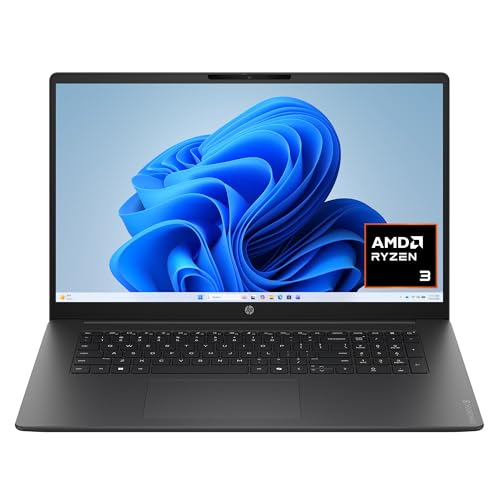
After three configurations carrying 32GB of memory, the OmniBook 3 resets the scale. Its title states an AMD Ryzen 3 — printed as Ryzen 3 30 in the listing’s own wording — with 8 GB of RAM, a 512 GB SSD, AMD Radeon 610M Graphics, Windows 11 Home, a Mica Silver finish and the model code 17-dp0199nr. This is HP’s consumer line in its straightforward form, and for a large class of students it is simply enough: essays, browsing, reference tools, streaming lectures and the occasional spreadsheet ask nothing more of a machine.
The honest conversation is about fit rather than power. A humanities or social-science student whose working day is documents and tabs will find 8 GB workable today, though without the four-year headroom the 32GB picks carry; software grows, and a student buying for a full degree should weigh that growth deliberately. The 512 GB SSD is the same capacity several pricier-feeling listings carry, so storage is not where this machine economises, and the Radeon 610M graphics named in the title are integrated graphics for displays and video, not a gaming invitation.
The model code is this pick’s quiet virtue. In a set full of marketplace bundles, 17-dp0199nr identifies one exact factory configuration, which makes price comparison across sellers meaningful and repeat purchase for a sibling or a second household member exact. Mica Silver gives the consumer line its own finish, distinct from the business silver of the other listings. Windows 11 Home, rather than Pro, is the one specification to check against institutional requirements, since a minority of universities ask students for Pro features on personal machines.
Who it suits is the document-centred student on a guarded budget, and the student whose institution supplies the heavy software through labs or cloud desktops, leaving the home machine for writing and research. It does not suit the student whose course software lives on their own laptop and grows yearly. Its listing page should be checked for the model code first and the Windows edition second, the two facts that define exactly which machine arrives and whether it satisfies an enrolment requirement.
- Display: 17.3-inch FHD
- Processor: AMD Ryzen 3 (printed as Ryzen 3 30 in the title)
- Memory: 8 GB RAM
- Storage: 512 GB SSD
- Graphics: AMD Radeon 610M Graphics
- Operating system: Windows 11 Home
- Finish: Mica Silver
- Model code: 17-dp0199nr
Strengths
- Precise model code makes the configuration exactly verifiable.
- 512 GB SSD matches larger listings’ storage.
- Specification fits document-centred degrees without waste.
Trade-offs
- 8 GB RAM leaves little headroom for a full degree’s growth.
- Windows 11 Home may not meet every institution’s requirement.
- Integrated graphics only, as the title states.
Best for: a writing- and research-centred student whose heavy software lives in campus labs or the cloud. Not suited for: a four-year technical degree run entirely on this machine, because 8 GB of memory is the ceiling this configuration cannot grow past.
Keep this OmniBook in its element and it will serve cheerfully: let the browser hold research rather than entertainment tabs during study hours, store media in the cloud instead of on the SSD, and close the applications a project has finished with. Students who adopt those small disciplines on an 8 GB machine rarely meet its limits; students who treat memory as infinite meet them in the first essay crisis. The big screen, which is why the machine was chosen, asks nothing extra at all.

HP 17 HD+ i3 Laptop — The elder option
This listing is included as a labelled landmark, because students shopping this category will meet it and deserve a guide that names what it is. The title states a 17.3-inch HD+ display, an 11th Gen Intel Core i3-1125G4 processor, 8GB of RAM, a 256GB SSD, Wi-Fi, HDMI, a webcam and Windows 11 Home in silver. Two of those lines should govern the decision: HD+, which is a lower resolution than the FHD panels elsewhere in this guide, and the 11th Gen processor, which dates the design several generations behind the Ryzen machines above.
Resolution is the point a student feels every hour. On a 17.3-inch screen, HD+ spreads fewer pixels across more glass, so text edges soften and two documents side by side each get less detail than they would on the FHD picks. For reading and writing it remains usable — students completed degrees on far less for decades — but a buyer choosing between this and an FHD listing at a reachable difference should understand they are buying sharpness they will notice in every single session, not a specification for a chart.
Storage is the second constraint: 256GB fills quickly once a course library, a photo archive and a few large applications settle in, and the discipline of external or cloud storage becomes mandatory rather than tidy. HDMI, by contrast, is a genuine convenience this title states outright, handy for presenting in a seminar room or extending to a dorm television, and the webcam covers the video calls that now punctuate every course. The specification is coherent for light, present-and-write student life; it is simply an older coherence.
Who it suits is the student with a hard budget ceiling whose work is writing, reading and presenting, and who values the big screen above its sharpness. It does not suit a student buying for four years of growing demands, nor anyone who reads dense documents for hours daily, where the FHD picks repay their difference. Its Amazon page should be read for the HD+ line before anything else, so the resolution arrives as a decision rather than as a surprise on the first evening.
- Display: 17.3-inch HD+
- Processor: 11th Gen Intel Core i3-1125G4
- Memory: 8GB RAM
- Storage: 256GB SSD
- Connectivity: Wi-Fi, HDMI
- Camera: webcam
- Operating system: Windows 11 Home
- Finish: Silver
Strengths
- HDMI is stated outright, suiting seminar-room presenting.
- The full 17.3-inch screen size is present despite the elder spec.
- Processor is named completely, generation included.
Trade-offs
- HD+ resolution is visibly softer than the FHD picks at this size.
- 256GB SSD is the smallest storage figure in the guide.
- 11th Gen processor is several generations behind the Ryzen picks.
Best for: a budget-capped student whose work is essays, reading and presenting, and who wants the largest screen the budget reaches. Not suited for: a student who reads dense documents for hours each day, because HD+ resolution across 17.3 inches softens the text that FHD keeps crisp.
Owners of this machine should set text scaling generously from the first day and resist the temptation to shrink interface elements to fit more on screen, since comfort is the reason the big panel was bought. Keep the SSD lean with a term-by-term archive habit, moving finished coursework to an external drive each vacation. Used within its honest limits — writing, reading, presenting, communicating — the elder HP remains a workable student tool, and its owner will know exactly which upgrade the next machine should make.

HP 17 Laptop 2026 16GB — Bundle examined
The final pick is the guide’s storage lesson wearing a 2026 label. Its title states 16GB of RAM and 1TB of storage, then immediately explains the storage as a 512GB SSD plus a 500GB external drive, alongside Windows 11 Pro with an Office suite, a 17.3-inch IPS display, Wi-Fi 6, a numeric keypad, an AI Copilot feature and an accessory bundle the title names as HubxcelAccs. Read generously, this is a sensible arrangement. Read carelessly, it is a terabyte that is only half inside the machine, and the difference between those readings is exactly why this review exists.
Sixteen gigabytes of memory is the comfortable middle of the student ladder: enough for the research-and-writing multitasking of most degrees, short of the heavy headroom the 32GB trio carries. The numeric keypad serves the figures courses, and the IPS display is stated without an FHD claim in the title’s wording, so resolution should be verified on the listing page rather than assumed from the panel type. Windows 11 Pro with an Office suite speaks to the student whose institution works inside Microsoft’s ecosystem, though the title does not state a subscription term and none should be presumed.
The external drive deserves a fair hearing rather than a dismissal. A 500GB external unit is a ready-made backup and archive destination, and a student who plugs it in weekly owns a degree’s worth of coursework insurance that most students never arrange for themselves. The bundle, in other words, accidentally teaches the right habit. What it must not do is masquerade as internal capacity when the buyer plans an application library, because applications live on the 512GB SSD and that smaller figure is the honest planning number.
Who it suits is the organised student who will actually use the external drive as an archive, wants Pro and a keypad, and whose application needs fit half a terabyte. It does not suit the student who read the headline, planned for a full internal terabyte, and would discover the split at the worst moment. Its Amazon page lays the split out in the title itself, to the seller’s credit; the buyer’s task is simply to plan against the SSD figure and treat the external drive as the useful accessory it is.
- Display: 17.3-inch IPS (resolution not stated in the title wording)
- Memory: 16GB RAM
- Storage: 512GB SSD plus 500GB external drive
- Operating system: Windows 11 Pro with Office suite
- Keyboard: numeric keypad, AI Copilot feature
- Connectivity: Wi-Fi 6
- Bundle: accessories named as HubxcelAccs in the title
- Processor: Not stated in the listing title — verify with the manufacturer documentation
Strengths
- The storage split is disclosed in the title itself.
- Numeric keypad and Windows 11 Pro serve coursework needs.
- The external drive doubles as a ready backup destination.
Trade-offs
- Internal storage is 512GB, not the headline terabyte.
- The processor is not named in the title.
- Display resolution is not stated in the title wording.
Best for: an organised student who will run the external drive as a weekly archive and whose applications fit a 512GB internal SSD. Not suited for: a buyer planning a full terabyte of installed applications and games, because only half of this bundle’s storage lives inside the machine.
Give the external drive its job on the day the machine arrives: name it as the archive, schedule the backup, and let the SSD stay a working drive rather than a warehouse. Verify the display resolution and the processor on the listing page before the return window closes, since those are the two facts this title leaves open. A student who starts with that clarity gets a well-balanced 16GB machine and a backup habit most graduates wish they had formed in the first term.
Comparison
| Pick | Processor | Memory / Storage | Notable from title |
|---|---|---|---|
| HP 17 FHD 32GB 1TB | AMD R5 7430U | 32GB / 1TB SSD | Fast charging, Copilot AI key, Win 11 Pro |
| HP 17 FHD 32GB Laptop | AMD Ryzen 5 | 32GB / 1TB SSD | Numeric keypad, anti-glare IPS |
| HP 17 Ryzen 5 7430U 32GB | AMD Ryzen 5 7430U | 32GB / 1TB SSD | Bluetooth 5.4, fast charge |
| HP OmniBook 3 17.3 Ryzen 3 | AMD Ryzen 3 | 8 GB / 512 GB SSD | Radeon 610M, model 17-dp0199nr |
| HP 17 HD+ i3 Laptop | Intel Core i3-1125G4 | 8GB / 256GB SSD | HD+ display, HDMI stated |
| HP 17 Laptop 2026 16GB | Not stated in the listing title | 16GB / 512GB SSD + 500GB external | Numeric keypad, Win 11 Pro |
The table sorts itself into three conversations. The 32GB trio argue among themselves about a keypad, a named processor and small wireless details, and any of them carries a heavy degree. The OmniBook and the 2026 bundle occupy the middle ground of ordinary coursework, one by leanness, one by arrangement. The HD+ i3 stands apart as the elder design, included so its resolution and generation are recognised on sight wherever else it is met.
Notice what no column can show: how the machine will feel in the third year, when the software has grown and the files have multiplied. That future is governed by the memory row more than by any other, which is why this guide keeps returning to it. A student choosing for a whole degree should let the memory figure lead and let every other detail argue for second place.
One last practical note belongs to the purchase itself. Marketplace pages for this platform host many variants under one roof, and the variant pre-selected on the page is not always the variant in the headline a search engine showed you. Before paying, align three texts — the listing title, the configuration selected on the page, and the basket summary — on memory, storage arrangement and operating system edition. Where a model code exists, as it does for the OmniBook, let that code arbitrate. The minute this takes is the cheapest insurance in the whole transaction, and it is the difference between the configuration reviewed here and a near-namesake arriving in an identical-looking box.
How to Choose a Student Laptop With a 17-Inch Screen
Begin with the course, not the catalogue. A department that publishes a hardware specification has done the choosing work already: match the processor and operating system lines against it, and let the 7430U-named listings and the Pro-edition picks rise accordingly. A department that stays silent is telling you its software is light or cloud-based, which moves the OmniBook’s leaner specification from a compromise to a sensible economy.
Next, set the memory by the degree’s length and heaviness together. One year of light coursework asks little; four years of a technical subject ask a great deal, and the asking grows annually. Sixteen gigabytes is the floor this guide would defend for a full degree of mixed work, and 32GB is the figure for students whose subjects run local software — statistics, engineering tools, media production — rather than browser tabs.
Then decompose every storage headline before comparing machines. An internal SSD figure is the planning number for applications and active files. Anything beyond it in a title — an external drive, a card — is an accessory with a capacity, useful for archives and backups, irrelevant to how many applications the machine holds. Two listings with the same headline terabyte can be half a terabyte apart where it matters, and this guide’s set contains exactly that trap, labelled.
Finish with the student’s actual geography. A 17-inch machine suits a desk that anchors the day and a bag that travels occasionally; a student who genuinely studies in a different place every day should question the size itself rather than any configuration of it. For the desk-anchored majority, though, the big screen is the feature that will be appreciated in every session, long after the processor’s name has been forgotten.
Is a 17-Inch Laptop Practical for Campus Life?
Practical for the campus life most students actually live, which is more stationary than the brochure version. Lectures increasingly arrive as recordings and slides, libraries reward the student who claims one desk for an afternoon, and group work gathers around the largest screen at the table — which will be yours. In that rhythm, a 17.3-inch machine is carried between rooms and buildings a few times a week, and its screen repays the carrying in every study session.
The impractical version is equally real: a timetable scattered across a large campus, seminar rooms with tablet-arm chairs, a commute on crowded transport. A student with that timetable should weigh a smaller machine honestly rather than buy a big screen and resent it by October. The dividing question is not strength or preference but frequency — how many days a week the laptop truly travels, answered from the timetable rather than from intention.
How Should a Student Read a Laptop Listing Title?
Slowly, and in the order the facts matter. Find the display size and resolution first, because HD+ and FHD at the same 17.3 inches are different daily experiences wearing similar names. Find the processor at the precision offered — a full model name is information, a family name is a starting point for verification. Then take memory as printed, and take storage apart into its pieces, asking of every capacity figure a simple question: inside the machine, or beside it?
Finish by listing what the title does not say. In this guide’s set, battery hours are never stated, weights are never stated, and several keyboards go undescribed. An unstated fact is not a hidden defect; it is an errand, to be run on the listing page or the manufacturer’s documentation before money moves. Students who learn this reading habit on a laptop will use it on every tenancy agreement, insurance policy and job contract that follows, which may make it the most transferable skill in this entire guide.
What Should a Student Set Up Before the First Lecture?
The week before term is the cheapest configuration time a student will ever own, and a big-screen machine rewards an hour of it disproportionately. Begin with accounts: sign in with the institution’s credentials, connect the library and learning platform, and confirm the printer in the library or the flat actually accepts a job from the machine. Nothing corrodes a first seminar like discovering a sign-in problem at the moment the slides are needed, and every one of those problems is a five-minute fix at home and a public ordeal in a lecture hall.
Continue with the safety net. Point the backup at the internal drive and, on the bundle pick, at its external unit’s twin role as archive; set the cloud folder for coursework to sync automatically rather than by intention. Create the folder skeleton by year and term before a single file arrives, because files organise themselves into whatever structure exists when they land, and a structure built in calm survives the chaos of assessment week. Install the course software — the statistics package, the reference manager, the development environment — while the term’s deadlines are still theoretical.
Finish with the physical kit. A 17.3-inch machine needs a bag that genuinely fits it, measured rather than assumed, and a charger habit: one plug point at the desk where the machine sleeps, so the fast-charging picks can do their work overnight and the others can simply be full each morning. Students who arrange these small systems once tend to forget them entirely, which is the mark of a system working; students who skip them rediscover each omission at the least convenient hour of the term.
Does a Bigger Screen Actually Help Grades?
Not directly, and any guide claiming a grade improvement from a purchase should be distrusted. What a 17.3-inch screen changes is friction. The essay and its sources sit side by side, so the writer checks a quotation without losing the paragraph’s thread. The spreadsheet and the assignment brief share the glass, so fewer figures are transcribed from memory and fewer transcription errors survive. The recorded lecture plays at a size where the whiteboard handwriting is legible without leaning in. Each saving is small; multiplied by a term of evenings, they amount to study sessions that start faster and wander less.
The honest counterweight is distraction at scale. A large screen also displays a large temptation, and the same side-by-side generosity that pairs an essay with its sources pairs it just as happily with a video. The machine cannot choose; the student does, ideally with the help of the focus tools every operating system here carries. Bought as a study instrument and used as one, the big panel is a genuine aid to the habits that produce grades — which is as much as any honest guide should claim, and quite enough reason to choose it.
What Happens in the Second and Third Year?
The first term flatters almost any new laptop, because the files are few and the software is freshly installed. The machine a student actually lives with emerges later, when the photograph archive has doubled, three terms of coursework share the drive, and the subject software has been updated twice into something heavier. Planning for that later machine is the entire logic behind this guide’s emphasis on memory. A configuration that feels merely adequate in the first term, with a dozen things open, will feel strained in the fifth; a configuration that feels generous in the first term settles, by the fifth, into feeling exactly right.
Storage follows the same curve and is easier to manage, because it can be relieved. A term-end ritual — finished coursework to an archive drive or the cloud, downloads emptied, the photograph library pruned — restores a drive’s breathing room in an afternoon. Memory admits no such ritual, which is why the two figures deserve different weights in the decision even though they sit side by side in every title. Buy the memory for the final year; manage the storage term by term; and the machine that arrives in the first week of the first year is still, in every way that matters, the machine that carries the dissertation.
Common Mistakes When Buying a Student Laptop
Counting an external drive as internal storage. One pick here reaches its headline figure with a 500GB external unit. Applications live on the internal SSD, so plan against that smaller number and treat the external drive as the archive it is.
Treating HD+ and FHD as the same screen. At 17.3 inches the resolution gap is visible in every document. The elder i3 pick states HD+ plainly; a buyer who skims past those three characters buys softer text for years.
Buying 8GB for a four-year technical degree. Light specifications serve light coursework indefinitely and growing coursework briefly. Match memory to the heaviest year of the course, not the lightest term.
Ignoring the operating system edition an institution requires. Four picks here state Windows 11 Pro and two state Home. Checking the requirement takes a minute at enrolment and saves an upgrade errand in the first teaching week.
Who Pays, and What Does That Change?
Many student laptops are bought by two people at once: the student who will use the machine and the parent or sponsor who funds it. That dual authorship explains several features of this market, from the generous memory figures that reassure a funder to the bundle headlines that complicate a student’s comparison. The healthiest purchases in this category happen when the funder’s legitimate question — will it last the course? — is answered with the memory and operating-system lines, and the student’s legitimate questions — is the screen sharp, is the keyboard right for my subject? — are answered with the display and keypad lines, rather than either party’s question drowning the other’s.
A practical ritual follows. Agree the budget and the degree’s length first, then read the six reviews together with those two numbers on the table. The 32GB trio answer the longevity question so completely that the conversation can move to keypads and processors, where the student’s daily experience actually lives. The leaner picks enter honestly as economies with named costs — less headroom, a softer screen — and an economy chosen knowingly, by both parties, is a decision nobody resents in the third year. Resentment in this category almost always traces back to a headline that was believed instead of read, which is a failure two readers together rarely commit.
Keep the listing title and receipt together, whoever pays. Marketplace configurations are easy to confuse months later, and the title is the precise record of the promise — processor, memory, storage arrangement and all — should a question ever need settling with the seller.
Final Recommendation
Students buying for a full degree should choose among the 32GB configurations by the detail their course values: the fully named 7430U listing for specification certainty, the keypad model for figure-heavy subjects, or the fast-charging opener for the most fragmented timetable. The 2026 16GB bundle suits the organised student who will use its external drive as an archive, and the OmniBook 3 serves document-centred degrees whose heavy software lives elsewhere. The HD+ i3 is the budget landmark, bought knowingly for writing and presenting rather than for sharpness or longevity.
Whichever listing you choose, buy it a week before the term begins and spend one unhurried evening setting it up — accounts, backups, course software, folders by year — because a student laptop configured in calm will be trusted in the first crisis of the term, and trust, for a machine carrying four years of work, is the whole point of choosing carefully now.
Frequently Asked Questions
Why are all six picks from HP?
Because the 17.3-inch student category has narrowed to essentially one surviving platform sold in many configurations. The guide compares those configurations honestly rather than padding the set with smaller screens that would betray the search.
How much RAM does a student actually need?
Document-centred work runs on 8GB, mixed coursework is comfortable at 16GB, and 32GB — offered by three picks here — suits technical subjects and students buying headroom for a whole degree.
Is the 1TB storage on the 2026 model all internal?
No. Its title splits the figure into a 512GB internal SSD and a 500GB external drive. Plan applications against the 512GB, and use the external drive for archives and backups.
Does the HD+ model still make sense for anyone?
For a hard budget cap and a workload of writing, reading and presenting, yes, with its limits understood. For dense daily reading or a four-year technical course, the FHD configurations repay their difference.
Should a student choose Windows 11 Pro or Home?
Follow the institution. Some universities ask for Pro features on personal machines; where no requirement exists, Home covers coursework fully. Four picks here state Pro and two state Home, so the choice is available either way.
Can a student manage with the 8GB OmniBook for a full degree?
A document-centred degree, yes, with ordinary discipline about open applications and cloud storage. A technical degree whose software runs locally and grows each year is the case the 16GB and 32GB configurations exist for, and choosing the OmniBook there is an economy that the third year will collect, with interest, in slow afternoons.
What is the single most important line in these titles?
The memory figure, because it decides how the machine ages and cannot be changed within these listings after purchase. Read it first, read the storage split second, and let the processor’s name — full or family — start your verification rather than end it.
Is fast charging worth caring about on a student machine?
On the three listings that state it, yes, because student days are fragmented and charging opportunities arrive in gaps — a lunch break, a library hour, the evening before a deadline. A machine that recovers charge quickly forgives the forgotten overnight plug in a way that a marginally larger battery, charged slowly, does not. None of the titles here quantifies the speed, so treat the feature as a stated convenience rather than a measured figure.
Related Guides
The wider 17-inch landscape is mapped in our roundup of the best laptops with 17-inch screens, covering home and office use beyond the campus. Home-based students wrestling with an operating system question should read the best 17.3-inch laptops for home, where the Windows 10 question is answered directly. Brand-loyal shoppers will want the best mid-range 17-inch Dell laptops, including an honest account of that range’s current availability. And the newest listings are gathered in the best new 17-inch laptops, for buyers who want the current season first.